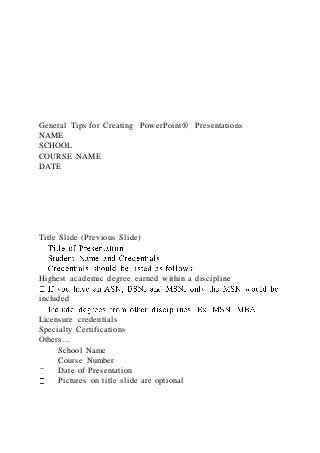
General Tips for Creating PowerPoint® Presentations
NAME
SCHOOL
COURSE NAME
DATE
Title Slide (Previous Slide)
Highest academic degree earned within a discipline
included
Licensure credentials
Specialty Certifications
Others…
School Name
Course Number
Date of Presentation
Pictures on title slide are optional
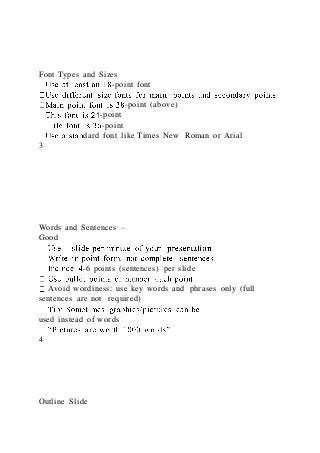
Font Types and Sizes
-point font
-point (above)
-point
-point
dard font like Times New Roman or Arial
3
Words and Sentences –
Good
-6 points (sentences) per slide
Avoid wordiness: use key words and phrases only (full
sentences are not required)
used instead of words
4
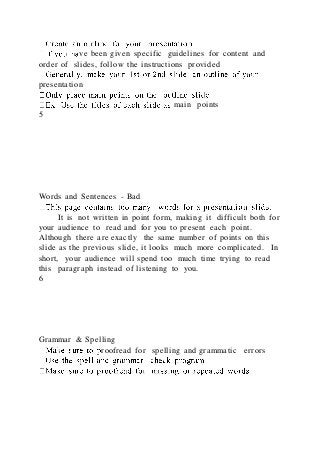
Outline Slide
ve been given specific guidelines for content and
order of slides, follow the instructions provided
presentation
main points
5
Words and Sentences - Bad
It is not written in point form, making it difficult both for
your audience to read and for you to present each point.
Although there are exactly the same number of points on this
slide as the previous slide, it looks much more complicated. In
short, your audience will spend too much time trying to read
this paragraph instead of listening to you.
6
Grammar & Spelling
roofread for spelling and grammatic errors
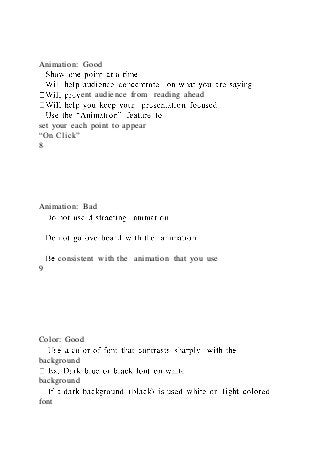
Animation: Good
ent audience from reading ahead
set your each point to appear
“On Click”
8
Animation: Bad
consistent with the animation that you use
9
Color: Good
background
background
font
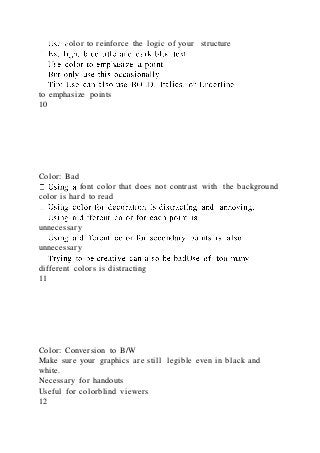
olor to reinforce the logic of your structure
to emphasize points
10
Color: Bad
font color that does not contrast with the background
color is hard to read
unnecessary
unnecessary
different colors is distracting
11
Color: Conversion to B/W
Make sure your graphics are still legible even in black and
white.
Necessary for handouts
Useful for colorblind viewers
12
Background: Good
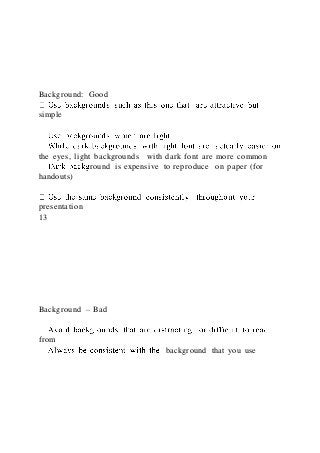
simple
the eyes, light backgrounds with dark font are more common
round is expensive to reproduce on paper (for
handouts)
presentation
13
Background – Bad
from
background that you use
Graphs or Pictures: Good
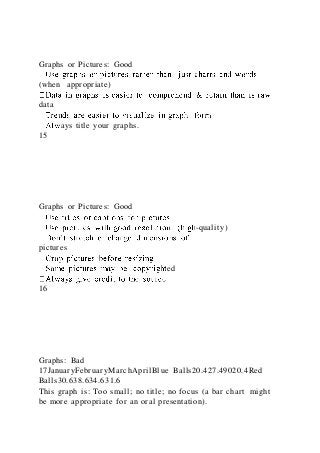
(when appropriate)
data
ays title your graphs.
15
Graphs or Pictures: Good
-quality)
pictures
ed
16
Graphs: Bad
17JanuaryFebruaryMarchAprilBlue Balls20.427.49020.4Red
Balls30.638.634.631.6
This graph is: Too small; no title; no focus (a bar chart might
be more appropriate for an oral presentation).
Graphs - Good
18
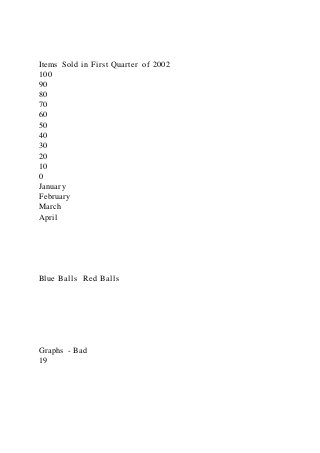
Items Sold in First Quarter of 2002
100
90
80
70
60
50
40
30
20
10
0
January
February
March
April
Blue Balls Red Balls
Graphs - Bad
19
20.4
27.4
90
20.4
30.6
38.6
34.6
31.6
20
10
0
30
40
50
90
80
70
60
100
January
February
March
April
Blue Balls
Red Balls
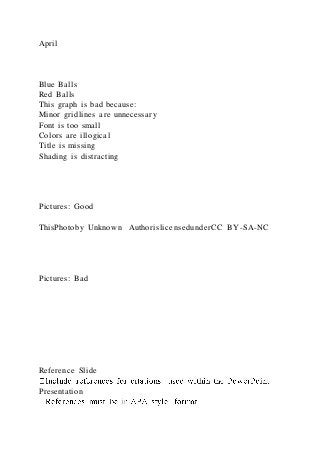
This graph is bad because:
Minor gridlines are unnecessary
Font is too small
Colors are illogical
Title is missing
Shading is distracting
Pictures: Good
ThisPhotoby Unknown AuthorislicensedunderCC BY-SA-NC
Pictures: Bad
Reference Slide
Presentation
-text citations must also be in APA format
References: (Example)
Bourgeault, I. L., Armstrong, P. Armstrong, & et al. (2001).
Every day experiences of implicit rationing: Comparing the
voices of nurses in California and British Columbia. Sociology
in Health & Illness, 23(5), 633-653.
https://doi.org/10.1111/1467-
9566.00269
Boykin, A., & Schoenhofer, S. O. (2001). Nursing as caring: A
model for transforming practice [Kindle Edition]. Sudbury,
MA: Jones and Bartlett Publishers. Retrieved from
http://www.amazon.com.
Fingfeld-Connett, D. (2008). Meta-synthesis of caring in
nursing.
Journal of Clinical Nursing, 17, 196-204.
https://doi.org/10.1111/j.1365-2702.2006.01824.x
Halvorsen, K., Forde, R., & Nortvedt, P. (2008). Professional
challenges of bedside rationing in intensive care. Nursing
Ethics, 15(6), 715-728.
https://doi.org/10.1177/0969733008095383
Thank You, Question, and Contact Info Slides - Optional
It is customary to thank your audience with a simple thank
you slide.
You may also include thank you to anyone that helped you
prepare your presentation
Questions slide is included for live presentations to
provide an opportunity for the audience to ask questions or
provide feedback
Contact information slide include your name and email
address to provide the opportunity for the audience to contact
you after the presentation
Celebrate Your Accomplishment!
Holistic Nursing and Self-Care PowerPoint Presentation
The purpose of this assignment is to assist the student connect
holistic nursing practice with self-care and nursing phenomena
related to self-care that impact holistic nursing. Self-care
includes teaching self and others (patients and their families)
about self-care and its benefit in maintaining mind-body-spirit
balance.
Requirement (per PowerPoint Slide)
Points Possible
Slide 1
Introduction: Define Holistic Nursing and what it means to you
5
Slide 2
Provide a brief history and significance of Holistic Nursing
5
Slide 3
Describe/Summarize the purpose of Holistic Nursing Practice
Core Value 2: Holistic Nurse Self-Reflection, Self-
Development, and Self-Care.
5
For Slides 4 through 6 Discuss/Describe each component of
Core Value 2 separately:
Slide 4
Self-Reflection (as it relates to the patient/family and the nurse
as an individual)
5
Slide 5
Self-Development (as it relates to the patient/family and the
nurse as an individual)
5
Slide 6
Self-Care (as it relates to the patient/family and especiallythe
nurse as an individual)
10
Slide 7
Describe Compassion Fatigue:
· Definition
· Signs/Symptoms
· Impact on nurses, patients, and profession
· Impact on holistic nursing practicing
10
Slide 8
Describe Compassion Satisfaction:
· Definition
· Impact on nurses, patients, and profession
· Impact on holistic nursing practicing
· How can nurses achieve compassion satisfaction
10
Slide 9
Compare and contrast between compassion fatigue and
compassion satisfaction.
• What is the difference between the compassion fatigue and
compassion satisfaction?
10
Slide 10
Select and describe Self-Care Techniques you would
recommend for promotion of Compassion Satisfaction
(prevention of Compassion Fatigue) at the following
frequencies. Include the rationale for selecting these
interventions/activities.
· Daily Self-Care activity
· Weekly
· Monthly
15
Slide 11
1. How will you implement this self-care activity in your own
life?
2. How will you ensure adherence to your plan?
3. Who will you include in your accountability plan?
4. What are some things that could potentially prevent
adherence?
5. Which current activities could you eliminate to promote
adherence to your plan and promote compassion satisfaction?
15
Slide 12
Conclusion/Summary Slide
• Include a brief summary of all slides
5

General Tips for Creating PowerPoint® Presentations

  • 1.
    General Tips forCreating PowerPoint® Presentations NAME SCHOOL COURSE NAME DATE Title Slide (Previous Slide) Highest academic degree earned within a discipline included Licensure credentials Specialty Certifications Others… School Name Course Number Date of Presentation Pictures on title slide are optional
  • 2.
    Font Types andSizes -point font -point (above) -point -point dard font like Times New Roman or Arial 3 Words and Sentences – Good -6 points (sentences) per slide Avoid wordiness: use key words and phrases only (full sentences are not required) used instead of words 4 Outline Slide
  • 3.
    ve been givenspecific guidelines for content and order of slides, follow the instructions provided presentation main points 5 Words and Sentences - Bad It is not written in point form, making it difficult both for your audience to read and for you to present each point. Although there are exactly the same number of points on this slide as the previous slide, it looks much more complicated. In short, your audience will spend too much time trying to read this paragraph instead of listening to you. 6 Grammar & Spelling roofread for spelling and grammatic errors
  • 4.
    Animation: Good ent audiencefrom reading ahead set your each point to appear “On Click” 8 Animation: Bad consistent with the animation that you use 9 Color: Good background background font
  • 5.
    olor to reinforcethe logic of your structure to emphasize points 10 Color: Bad font color that does not contrast with the background color is hard to read unnecessary unnecessary different colors is distracting 11 Color: Conversion to B/W Make sure your graphics are still legible even in black and white. Necessary for handouts Useful for colorblind viewers 12
  • 6.
    Background: Good simple the eyes,light backgrounds with dark font are more common round is expensive to reproduce on paper (for handouts) presentation 13 Background – Bad from background that you use
  • 7.
    Graphs or Pictures:Good (when appropriate) data ays title your graphs. 15 Graphs or Pictures: Good -quality) pictures ed 16 Graphs: Bad 17JanuaryFebruaryMarchAprilBlue Balls20.427.49020.4Red Balls30.638.634.631.6 This graph is: Too small; no title; no focus (a bar chart might be more appropriate for an oral presentation).
  • 8.
  • 9.
    Items Sold inFirst Quarter of 2002 100 90 80 70 60 50 40 30 20 10 0 January February March April Blue Balls Red Balls Graphs - Bad 19
  • 26.
  • 27.
    April Blue Balls Red Balls Thisgraph is bad because: Minor gridlines are unnecessary Font is too small Colors are illogical Title is missing Shading is distracting Pictures: Good ThisPhotoby Unknown AuthorislicensedunderCC BY-SA-NC Pictures: Bad Reference Slide Presentation
  • 28.
    -text citations mustalso be in APA format References: (Example) Bourgeault, I. L., Armstrong, P. Armstrong, & et al. (2001). Every day experiences of implicit rationing: Comparing the voices of nurses in California and British Columbia. Sociology in Health & Illness, 23(5), 633-653. https://doi.org/10.1111/1467- 9566.00269 Boykin, A., & Schoenhofer, S. O. (2001). Nursing as caring: A model for transforming practice [Kindle Edition]. Sudbury, MA: Jones and Bartlett Publishers. Retrieved from http://www.amazon.com. Fingfeld-Connett, D. (2008). Meta-synthesis of caring in nursing. Journal of Clinical Nursing, 17, 196-204. https://doi.org/10.1111/j.1365-2702.2006.01824.x Halvorsen, K., Forde, R., & Nortvedt, P. (2008). Professional challenges of bedside rationing in intensive care. Nursing Ethics, 15(6), 715-728. https://doi.org/10.1177/0969733008095383 Thank You, Question, and Contact Info Slides - Optional It is customary to thank your audience with a simple thank you slide. You may also include thank you to anyone that helped you
  • 29.
    prepare your presentation Questionsslide is included for live presentations to provide an opportunity for the audience to ask questions or provide feedback Contact information slide include your name and email address to provide the opportunity for the audience to contact you after the presentation Celebrate Your Accomplishment! Holistic Nursing and Self-Care PowerPoint Presentation The purpose of this assignment is to assist the student connect holistic nursing practice with self-care and nursing phenomena related to self-care that impact holistic nursing. Self-care includes teaching self and others (patients and their families) about self-care and its benefit in maintaining mind-body-spirit balance. Requirement (per PowerPoint Slide) Points Possible Slide 1 Introduction: Define Holistic Nursing and what it means to you 5 Slide 2 Provide a brief history and significance of Holistic Nursing 5 Slide 3
  • 30.
    Describe/Summarize the purposeof Holistic Nursing Practice Core Value 2: Holistic Nurse Self-Reflection, Self- Development, and Self-Care. 5 For Slides 4 through 6 Discuss/Describe each component of Core Value 2 separately: Slide 4 Self-Reflection (as it relates to the patient/family and the nurse as an individual) 5 Slide 5 Self-Development (as it relates to the patient/family and the nurse as an individual) 5 Slide 6 Self-Care (as it relates to the patient/family and especiallythe nurse as an individual) 10 Slide 7 Describe Compassion Fatigue: · Definition · Signs/Symptoms · Impact on nurses, patients, and profession · Impact on holistic nursing practicing 10 Slide 8 Describe Compassion Satisfaction: · Definition · Impact on nurses, patients, and profession · Impact on holistic nursing practicing · How can nurses achieve compassion satisfaction 10 Slide 9 Compare and contrast between compassion fatigue and compassion satisfaction.
  • 31.
    • What isthe difference between the compassion fatigue and compassion satisfaction? 10 Slide 10 Select and describe Self-Care Techniques you would recommend for promotion of Compassion Satisfaction (prevention of Compassion Fatigue) at the following frequencies. Include the rationale for selecting these interventions/activities. · Daily Self-Care activity · Weekly · Monthly 15 Slide 11 1. How will you implement this self-care activity in your own life? 2. How will you ensure adherence to your plan? 3. Who will you include in your accountability plan? 4. What are some things that could potentially prevent adherence? 5. Which current activities could you eliminate to promote adherence to your plan and promote compassion satisfaction? 15 Slide 12 Conclusion/Summary Slide • Include a brief summary of all slides 5