Downloading SCIS into MUSAC
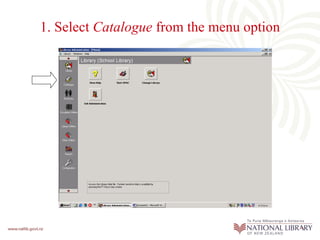
1. Select  Catalogue  from the menu option
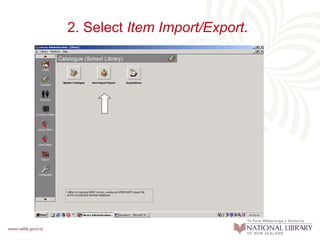
2. Select  Item Import/Export .
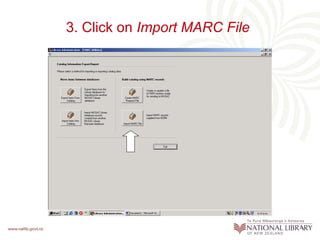
3.  Click on  Import MARC File
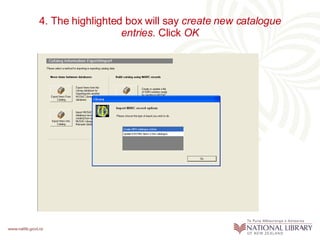
4. The highlighted box will say  create new catalogue entries . Click  OK
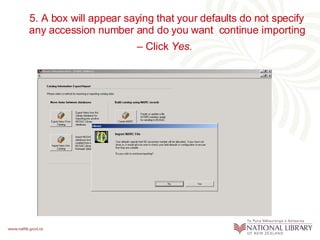
5. A box will appear saying that your defaults do not specify any accession number and do you want  continue importing – Click  Yes.
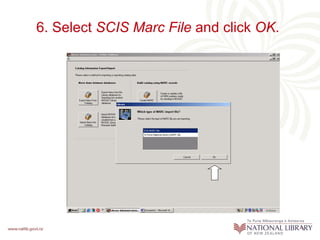
6. Select  SCIS Marc File  and   click  OK .
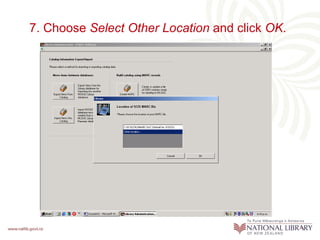
7. Choose   Select Other Location  and click  OK .
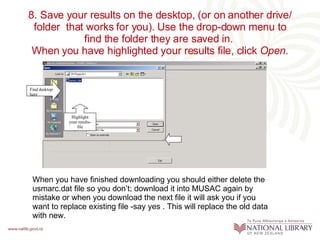
8. Save your results on the desktop, (or on another drive/ folder  that works for you). Use the drop-down menu to find the folder they are saved in.  When you have highlighted your results file, click  Open . Highlight your results-file Find desktop here When you have finished downloading you should either delete the usmarc.dat file so you don’t; download it into MUSAC again by mistake or when you download the next file it will ask you if you want to replace existing file -say yes . This will replace the old data with new.
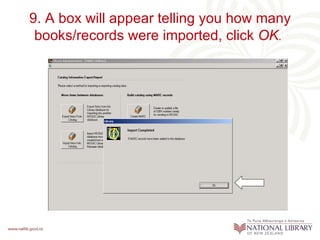
9. A box will appear telling you how many books/records were imported, click  OK .
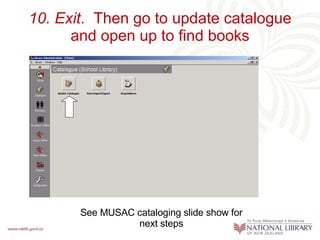
10. Exit .  Then go to update catalogue and open up to find books See MUSAC cataloging slide show for next steps

Downloading Scis Into Musac

  • 1.
  • 2.
    1. Select Catalogue from the menu option
  • 3.
    2. Select Item Import/Export .
  • 4.
    3. Clickon Import MARC File
  • 5.
    4. The highlightedbox will say create new catalogue entries . Click OK
  • 6.
    5. A boxwill appear saying that your defaults do not specify any accession number and do you want continue importing – Click Yes.
  • 7.
    6. Select SCIS Marc File and click OK .
  • 8.
    7. Choose Select Other Location and click OK .
  • 9.
    8. Save yourresults on the desktop, (or on another drive/ folder that works for you). Use the drop-down menu to find the folder they are saved in. When you have highlighted your results file, click Open . Highlight your results-file Find desktop here When you have finished downloading you should either delete the usmarc.dat file so you don’t; download it into MUSAC again by mistake or when you download the next file it will ask you if you want to replace existing file -say yes . This will replace the old data with new.
  • 10.
    9. A boxwill appear telling you how many books/records were imported, click OK .
  • 11.
    10. Exit . Then go to update catalogue and open up to find books See MUSAC cataloging slide show for next steps