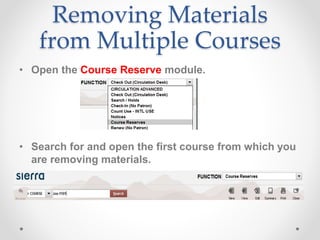
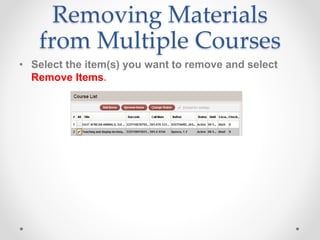
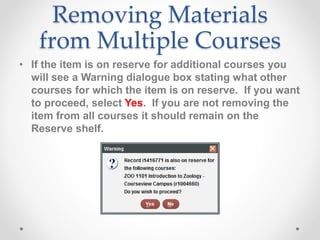
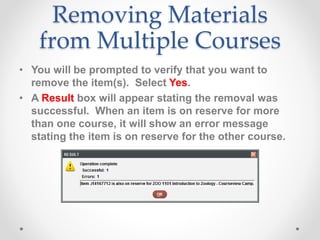
This document provides step-by-step instructions for removing course reserve materials from multiple courses in Sierra. It explains that you should open the Course Reserve module, select the item(s) to remove from the first course, and confirm the removal. If an item is on reserve for additional courses, you will see a warning and have the option to remove it from all courses. Once removed, the item's location and type will return to the original designation.