There are three different types of notifications in Contriber. You can
use all of them at once OR none of them at all.
Workspace Notifications ...starts at slide 3
These types of notifications appear on your workspace and indicate how many messages
have been left in various flows.
Desktop Notifications ...starts at slide 14
These types of notifications display on your desktop. These are helpful in situations when
you are not currently viewing your workspace, but want to know immediately when new
activity takes place.
Email Notifications ...starts at slide 21
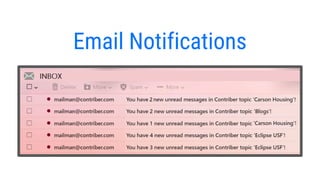
These types of notifications are sent to your email. You have the option of receiving email
notifications instantly or daily.
Workspace Notifications
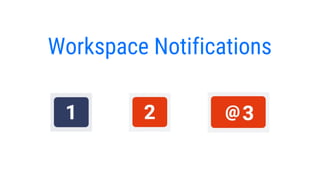
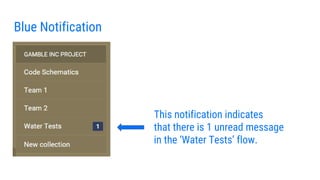
Blue Notification
This notification indicates
that there is 1 unread message
in the ‘Water Tests’ flow.
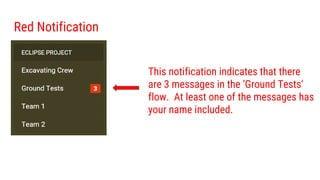
Red Notification
This notification indicates that there
are 3 messages in the ‘Ground Tests’
flow. At least one of the messages has
your name included.
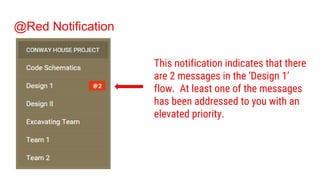
@Red Notification
This notification indicates that there
are 2 messages in the ‘Design 1’
flow. At least one of the messages
has been addressed to you with an
elevated priority.
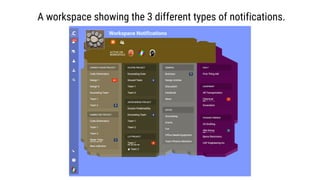
A workspace showing the 3 different types of notifications.
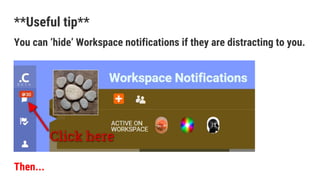
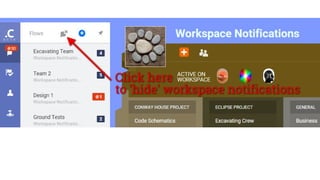
**Useful tip**
You can ‘hide’ Workspace notifications if they are distracting to you.
Then...
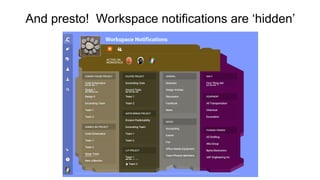
And presto! Workspace notifications are ‘hidden’
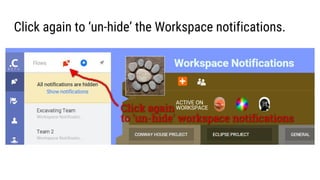
Click again to ‘un-hide’ the Workspace notifications.
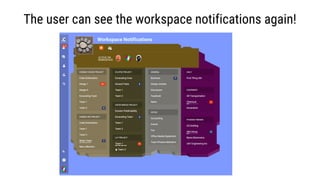
The user can see the workspace notifications again!
Detailed look at Workspace notifications
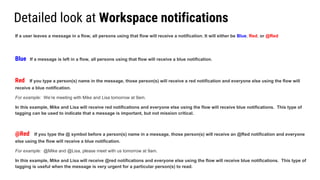
If a user leaves a message in a flow, all persons using that flow will receive a notification. It will either be Blue, Red, or @Red
Blue If a message is left in a flow, all persons using that flow will receive a blue notification.
Red If you type a person(s) name in the message, those person(s) will receive a red notification and everyone else using the flow will
receive a blue notification.
For example: We’re meeting with Mike and Lisa tomorrow at 9am.
In this example, Mike and Lisa will receive red notifications and everyone else using the flow will receive blue notifications. This type of
tagging can be used to indicate that a message is important, but not mission critical.
@Red If you type the @ symbol before a person(s) name in a message, those person(s) will receive an @Red notification and everyone
else using the flow will receive a blue notification.
For example: @Mike and @Lisa, please meet with us tomorrow at 9am.
In this example, Mike and Lisa will receive @red notifications and everyone else using the flow will receive blue notifications. This type of
tagging is useful when the message is very urgent for a particular person(s) to read.
Desktop Notifications
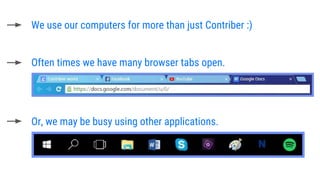
We use our computers for more than just Contriber :)
Often times we have many browser tabs open.
Or, we may be busy using other applications.
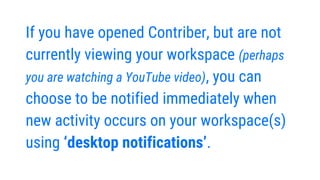
If you have opened Contriber, but are not
currently viewing your workspace (perhaps
you are watching a YouTube video), you can
choose to be notified immediately when
new activity occurs on your workspace(s)
using ‘desktop notifications’.
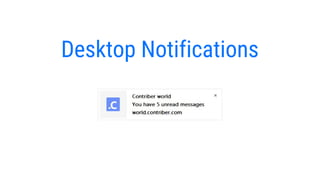
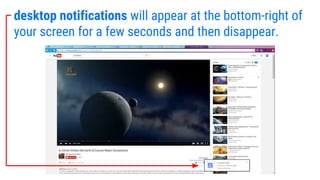
desktop notifications will appear at the bottom-right of
your screen for a few seconds and then disappear.
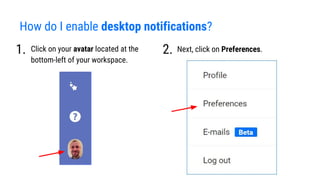
How do I enable desktop notifications?
Click on your avatar located at the
bottom-left of your workspace.
1. 2. Next, click on Preferences.
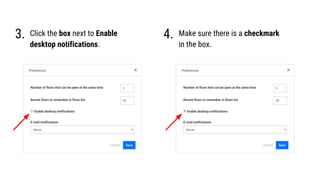
Click the box next to Enable
desktop notifications.
4.3. Make sure there is a checkmark
in the box.
Congratulations! desktop notifications are now enabled.
You’ll never miss important messages again.
To disable desktop notifications, click again on the box
from step 4 so that the checkmark is removed.
Email Notifications
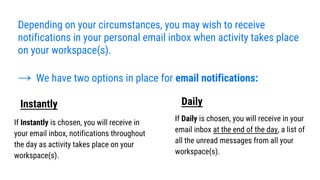
Depending on your circumstances, you may wish to receive
notifications in your personal email inbox when activity takes place
on your workspace(s).
→ We have two options in place for email notifications:
If Instantly is chosen, you will receive in
your email inbox, notifications throughout
the day as activity takes place on your
workspace(s).
If Daily is chosen, you will receive in your
email inbox at the end of the day, a list of
all the unread messages from all your
workspace(s).
Instantly Daily
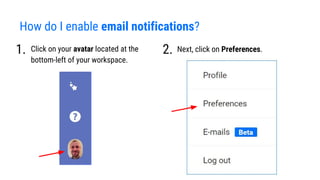
How do I enable email notifications?
Click on your avatar located at the
bottom-left of your workspace.
1. 2. Next, click on Preferences.
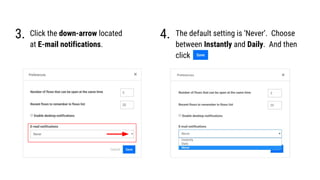
Click the down-arrow located
at E-mail notifications.
4.3. The default setting is ‘Never’. Choose
between Instantly and Daily. And then
click
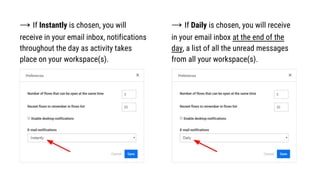
→ If Instantly is chosen, you will
receive in your email inbox, notifications
throughout the day as activity takes
place on your workspace(s).
→ If Daily is chosen, you will receive
in your email inbox at the end of the
day, a list of all the unread messages
from all your workspace(s).
Congratulations! Regardless of the option you chose
(Instantly or Daily), you are now set up to receive email
notifications.
Remember, you can always revert back to not receiving
email notifications by choosing ‘Never’ in the email
notifications box.

Contriber - Notifications Tutorial

  • 2.
    There are threedifferent types of notifications in Contriber. You can use all of them at once OR none of them at all. Workspace Notifications ...starts at slide 3 These types of notifications appear on your workspace and indicate how many messages have been left in various flows. Desktop Notifications ...starts at slide 14 These types of notifications display on your desktop. These are helpful in situations when you are not currently viewing your workspace, but want to know immediately when new activity takes place. Email Notifications ...starts at slide 21 These types of notifications are sent to your email. You have the option of receiving email notifications instantly or daily.
  • 3.
  • 4.
    Blue Notification This notificationindicates that there is 1 unread message in the ‘Water Tests’ flow.
  • 5.
    Red Notification This notificationindicates that there are 3 messages in the ‘Ground Tests’ flow. At least one of the messages has your name included.
  • 6.
    @Red Notification This notificationindicates that there are 2 messages in the ‘Design 1’ flow. At least one of the messages has been addressed to you with an elevated priority.
  • 7.
    A workspace showingthe 3 different types of notifications.
  • 8.
    **Useful tip** You can‘hide’ Workspace notifications if they are distracting to you. Then...
  • 10.
    And presto! Workspacenotifications are ‘hidden’
  • 11.
    Click again to‘un-hide’ the Workspace notifications.
  • 12.
    The user cansee the workspace notifications again!
  • 13.
    Detailed look atWorkspace notifications If a user leaves a message in a flow, all persons using that flow will receive a notification. It will either be Blue, Red, or @Red Blue If a message is left in a flow, all persons using that flow will receive a blue notification. Red If you type a person(s) name in the message, those person(s) will receive a red notification and everyone else using the flow will receive a blue notification. For example: We’re meeting with Mike and Lisa tomorrow at 9am. In this example, Mike and Lisa will receive red notifications and everyone else using the flow will receive blue notifications. This type of tagging can be used to indicate that a message is important, but not mission critical. @Red If you type the @ symbol before a person(s) name in a message, those person(s) will receive an @Red notification and everyone else using the flow will receive a blue notification. For example: @Mike and @Lisa, please meet with us tomorrow at 9am. In this example, Mike and Lisa will receive @red notifications and everyone else using the flow will receive blue notifications. This type of tagging is useful when the message is very urgent for a particular person(s) to read.
  • 14.
  • 15.
    We use ourcomputers for more than just Contriber :) Often times we have many browser tabs open. Or, we may be busy using other applications.
  • 16.
    If you haveopened Contriber, but are not currently viewing your workspace (perhaps you are watching a YouTube video), you can choose to be notified immediately when new activity occurs on your workspace(s) using ‘desktop notifications’.
  • 17.
    desktop notifications willappear at the bottom-right of your screen for a few seconds and then disappear.
  • 18.
    How do Ienable desktop notifications? Click on your avatar located at the bottom-left of your workspace. 1. 2. Next, click on Preferences.
  • 19.
    Click the boxnext to Enable desktop notifications. 4.3. Make sure there is a checkmark in the box.
  • 20.
    Congratulations! desktop notificationsare now enabled. You’ll never miss important messages again. To disable desktop notifications, click again on the box from step 4 so that the checkmark is removed.
  • 21.
  • 22.
    Depending on yourcircumstances, you may wish to receive notifications in your personal email inbox when activity takes place on your workspace(s). → We have two options in place for email notifications: If Instantly is chosen, you will receive in your email inbox, notifications throughout the day as activity takes place on your workspace(s). If Daily is chosen, you will receive in your email inbox at the end of the day, a list of all the unread messages from all your workspace(s). Instantly Daily
  • 23.
    How do Ienable email notifications? Click on your avatar located at the bottom-left of your workspace. 1. 2. Next, click on Preferences.
  • 24.
    Click the down-arrowlocated at E-mail notifications. 4.3. The default setting is ‘Never’. Choose between Instantly and Daily. And then click
  • 25.
    → If Instantlyis chosen, you will receive in your email inbox, notifications throughout the day as activity takes place on your workspace(s). → If Daily is chosen, you will receive in your email inbox at the end of the day, a list of all the unread messages from all your workspace(s).
  • 26.
    Congratulations! Regardless ofthe option you chose (Instantly or Daily), you are now set up to receive email notifications. Remember, you can always revert back to not receiving email notifications by choosing ‘Never’ in the email notifications box.