COMPUTER STUDIES
GRADE 11
SENIOR SECONDARY
SUMMARISED NOTES
Compiled By Engineer Mulimbi Bricious
Email: mulizambia@yahoo.com
Email: mulizambia@gmail.com
Chapter 1: ALGORITHM
• Algorithm Planning and Design
• - An algorithm is a sequence or procedure of instructions for solving problems.
• Stages in making an overall plan to solve a problem
• 1. Understand the given problem well (i.e. Its content and background).
• Identify the correct tools to be used for that particular given problem.
• Outline an appropriate procedure (sequence) for solving that particular given
problem.
• Evaluate the output.
Stages in designing an overall Algorithm
Procedure
• Stage 1: Input - the parts/components/ingredients required to
accomplish the task.
• Stage 2: Processing - the actions/steps/methods required to produce
the required output.
• Stage 3: Output - the required information/feedback.
• Example: To build a model car, the parts (inputs) are needed plus
instructions on how to assemble the car (processing) and the result is
the car (output).
The two common forms of Algorithm
• Pseudo code
• Flow chart
• Pseudo code
• A pseudo code is a type of structured English that is used to specify an
algorithm step-by-step
• Writing an Algorithm for a given problem in Pseudo code
• When writing pseudo code, we assume that the order of execution of the
statements is from top to bottom. This changes when using control structures,
functions and exception handling.
Mathematical operations Cont’
• Mathematical operations are integral to solution development. They allow
us to manipulate the values we have stored.
• Examples: - Assignment: ← or := (e.g. c ← 2π r , c := 2πr)
• - Comparison: =, ≠, <, >, ≤, ≥
• Arithmetic: +, −, * or ×, /,
• Logical: and, or
• A keyword is a word that is reserved by a program because the word has a
special meaning. It is used to indicate common input-output and
processing operations in uppercase e.g. START, IF, THEN, ENDIF, STOP,
etc.
Concept of Totaling and Counting
• Totaling (e.g. Sum ← Sum + Number)
• Counting (e.g. Count ← Count + 1)
• The assignment operator ( ) can be used when:
• Finding totals, where x becomes equal to a plus b.
• x ← a + b
• Counting, by assigning a variable to become equal to the value of itself
plus 1. x ← x + 1
Condition and Iteration statements (Loops
and Decision making)
• A statement is an instruction that directs the computer to perform a
specific action. In writing pseudo code, we will refer to singular
instructions as statements.
• Condition statements
• Condition statements are statements which evaluate expressions and
execute instructions depending on whether the expression is True or
False.
Types of Condition statements
• (i) IF... THEN... ELSE
• An IF statement starts with a condition which is tested for either True or False or Yes or No.
• Example: IF x = 1 THEN
• print "Hello"
• ELSEIF
• print "Good night"
• ENDIF
• (ii) ELSE IF is used when there is more than one condition to check.
• Example: IF x = 1 THEN
• print "Hello"
• ELSE IF x = 2 THEN
• print "How are you?"
• ELSE
• print "Goodbye"
• ENDIF
CASE OF... OTHERWISE... ENDCASE
• This structure is used when there are many possible outcomes to a condition.
• E.g. a program can print a different message depending on the value of a variable, xː
• Example: CASE x OF
• : PRINT "Hello"
• : PRINT "How are you?"
• : PRINT "I am fine"
• : PRINT "Have a good day!"
• OTHERWISE
• PRINT "Goodbye"
• ENDCASE
Iteration statements
• Iteration statements are statements that repeat a set of instructions in
order to generate a sequence of outcomes.
• Types of Iteration statements
• FOR...TO...NEXT
• The FOR loop is used to repeat code for a given number of repetitions.
• Example: FOR x = 1 TO 10
• print x
• NEXT
REPEAT...UNTIL
• A REPEAT loop will repeat the code block until the given condition is
true. The condition is not checked until after the code has run once, so
regardless of whether the condition is true or not the code will always
run at least once. This structure is often used for validation checks.
• Example: REPEAT
• INPUT x
• UNTIL x < 10
• This continue to take user input until the user inputs a value less than
10.
WHILE...DO...ENDWHILE
• In a WHILE loop the code block will run, and continue to run, until the
given condition is no longer true. A WHILE loop is similar to the
REPEAT loop in that it decides when to terminate based on a condition.
However the while loop checks the condition prior to running the first
time. If the condition is not true then the code block will never run.
• Example: INPUT x
• WHILE x < 10
• INPUT x
• ENDWHILE
Structure of an Algorithm for a given
problem in Pseudo code
• START: This is the start of your pseudo code.
• INPUT (ENTER): This is data retrieved from the user through typing
or through an input device.
• READ / GET: This is input used when reading data from a data file.
• CONDITION (e.g. IF...THEN...ELSE): This compares two pieces of
information and choose one of the two alternate actions ( Yes or No,
True or False).
Structure of an Algorithm for a given
problem in Pseudo code Cont’
• PROCESS OR ACTION
• COMPUTE, CALCULATE, DETERMINE : This is used to calculate the result of an
expression.
• SET, INIT: To initialize values
• INCREMENT, BUMP: To increase the value of a variable
• DECREMENT: To reduce the value of a variable
• OUTPUT (PRINT, DISPLAY, SHOW): This will show your output to a screen or the
relevant output device.
• STOP/END: This is the end of your pseudo code.
Examples of Algorithm in Pseudo code
• 1. Find the average of any three numbers. 2. Find the biggest between A and
B.
• Pseudo codePseudo code
• Let numbers = x, y and z START START Enter A
• Enter x, y, z Enter B
• Sum = x + y + z IF A > B THEN
• Average = Sum ÷ 3 Big = A
• Display Average ELSE
• STOP Big = B
• ENDIF STOP
Examples of Algorithm in Pseudo code Cont’
• 3. Calculate the area of a triangle, 4. Determine whether a particular year is a given base (b) and height (h). leap year or not.
• Pseudo codePseudo code
• START START
• Enter b Get a year
• Enter h IF (year is not divisible by 4) THEN IF (b < 0) or (h < 0) THENOutput: not leap year
• PRINT input error ELSE IF ( it is not divisible by 100)
• ELSE THEN
• Calculate Area = 1/2 * b *h Output: leap year
• Print Area ELSE IF (it is divisible by 400)
• ENDIF THEN
• STOP Output: leap year
• ELSE
• Output: not leap year
• ENDIF ENDIF
• ENDIF STOP
Exercise:
• From the pseudo code in example 1. 2. From the pseudo code in example 4.
• Name the following stages: (a) How many decisions were made?
• Sum = x + y + z (b) What decision produced the second
• Write value of Av output?
• If x = 3, y = 10 and z = 2, what will be the value of the average?
• From the pseudo code in example 3.
• Name the stage "Enter h".
• Find the value of area given that b = 8 cm and h = 5 cm.
Answers:
• 1. (a) (i) Process 2. (a) 3 3. (a) Input (ii) Output
(b) Average = 5 (b) True or Yes (b) Area =
20cm3
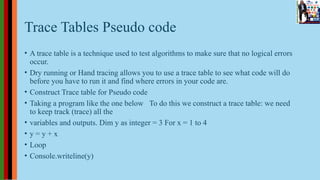
Trace Tables Pseudo code
• A trace table is a technique used to test algorithms to make sure that no logical errors
occur.
• Dry running or Hand tracing allows you to use a trace table to see what code will do
before you have to run it and find where errors in your code are.
• Construct Trace table for Pseudo code
• Taking a program like the one below To do this we construct a trace table: we need
to keep track (trace) all the
• variables and outputs. Dim y as integer = 3 For x = 1 to 4
• y = y + x
• Loop
• Console.writeline(y)
Trace Tables Pseudo code Cont’
• The exam will normally ask you to create a trace table of some sort so
you need to be very confident with them. The exam will usually give
you the headings but just in case, there are several steps in making a
trace table, the first one is to note the table headings, this involves
• the following:
• VARIABLES: note all the variables in the piece of code you are looking
at (this includes arrays). Note each variable as a heading.
• OUTPUTS: note if there is an output and put this as a heading.
• INPUTS: if there are inputs specified, put an inputs column and be
prepared to fill it in.
Trace Tables Pseudo code Cont’
• It is very easy to jump right in when filling in trace tables, but you must be careful. The exam
will try and trick you, so trying to predict what a trace table will do is not a good idea. Tackle
the problem line by line, exactly as a computer would.
• Example: Simple trace table
• Dim num( ) as integer = {10, 8,3,5 ,6,1, 2}
• Dim sum as integer = 0 Dim avg as decimal For x = 0 to 5
• sum = sum + num(x)
• Loop
• avg = sum / (x + 1)
• Console.writeline( "average =" & avg)
Trace Tables Pseudo code Cont’
• note all the variables: num array / sum / avg / x
• note if there is an output: yes
• if there are inputs specified: no
• So we should construct the following table:
• num
• 0 1 2 3 4 5 6 sum avg x output
• 10 8 3 5 6 1 2 0
• 0
Trace Tables Pseudo code Cont’
• Now looking at the names of the variables you might be tempted to
add all the values in the array together to find the sum, and then find
the average number from this calculation. However, you'd be wrong,
create a trace table and see if you can find the correct answer:
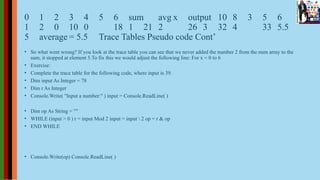
• Answer:
• num
0 1 2 3 4 5 6 sum avg x output 10 8 3 5 6
1 2 0 10 0 18 1 21 2 26 3 32 4 33 5.5
5 average = 5.5 Trace Tables Pseudo code Cont’
• So what went wrong? If you look at the trace table you can see that we never added the number 2 from the num array to the
sum, it stopped at element 5.To fix this we would adjust the following line: For x = 0 to 6
• Exercise:
• Complete the trace table for the following code, where input is 39.
• Dim input As Integer = 78
• Dim r As Integer
• Console.Write( "Input a number:" ) input = Console.ReadLine( )
• Dim op As String = ""
• WHILE (input > 0 ) r = input Mod 2 input = input  2 op = r & op
• END WHILE
• Console.Write(op) Console.ReadLine( )
Answer:
input r op output 78 39 1 1 19 1 11 9 1
111 4 0 0111 2 0 00111 1 1 100111 0
100111
Trace Tables Pseudo code Cont’
• What does the below code do? Dim num As Integer = 239938 Dim ss
As String = Convert.ToString(num, 2) Console.WriteLine(ss)
• Answer:
• It converts a base10 (denary/decimal) number into its binary
equivalent
Trace Tables Pseudo code Cont’
• (a) Complete the trace table for the following code:
• Dim nums() = {6, 2,8,1 ,9,2}
• Dim n as integer = 0
• for i = 0 to 5
• if nums(i) > n n = nums(i)
• END IF
• Loop
• (b) What function does the above code perform?
Answer:
• (a) i n nums 0 1 2 3 4 5 0 6 2 8 1 9 2 0 6
1 2 8 3 4 9 5 (b) It
finds the highest value in an array of values
Purpose of Pseudo code
• Writing an algorithm saves time later during the construction and
testing phase of a program's development.
• Advantages of Pseudo code
• Reduced complexity. Ease of understanding
• Increased flexibility.
Flowcharts
• A flowchart is a graphical representation of an algorithm. Once the
flowchart is drawn, it becomes very easy to write the program in any
high-level language.
• Drawing Flowcharts Rules for flowchart
• Every flowchart has a START and STOP symbols.
• The flow of sequence is from top of the page to the bottom, except for loops
which flow back to the entry point.
• Use arrow-heads on connectors where flow direction may not be obvious.
• Draw only one flowchart per page which must not break to another page.
• A flowchart should have not more than 15 symbols except for START and
STOP.
Flowchart symbols
Drawing Flowcharts
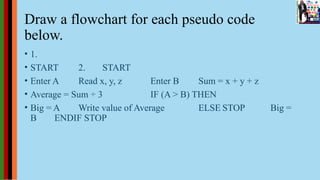
Draw a flowchart for each pseudo code
below.
• 1.
• START 2. START
• Enter A Read x, y, z Enter B Sum = x + y + z
• Average = Sum ÷ 3 IF (A > B) THEN
• Big = A Write value of Average ELSE STOP Big =
B ENDIF STOP
Drawing Flowcharts Cont’
• 3. START 4. START
• Sum = 0 Get a year
• Get a value IF (year is not divisible by 4) THEN IF (value = -1) THEN Output: not leap year
• Divide sum by 1 500 and STOPELSE IF (it is not divisible by 100)
• THEN
• ELSE Output: leap year
• Sum = Sum + value ELSE IF (it is divisible by 400)
• ENDIF THEN
• STOP Output: leap year
• ELSE
• Output: not leap year
• ENDIF STOP
Solution:
Drawing Flowcharts Cont’
• Exercise:
• Draw a flowchart for the algorithm Answer:
Drawing Flowcharts Cont’
• From the flowchart below,
• Calculate the value of the answer if:
• m = 75
• m = 100
• m = 110
• Write a corresponding pseudo code for this flowchart.
• (a) (i) Answer = multiple + m
• = 75 + 75
• = 150
• (ii) Answer = m
• = 100
• (iv) Answer = m
• = 110
• (b) START
• Multiple = m Input multiple
• IF (m < 100) THEN
• Add m to multiple
• ELSE
• Answer = m Output Answer
• ENDIF STOP
Testing Algorithm
• The algorithm is very modular with its behavior partitioned into small
functions, most of which are independently testable.
• Search function may be a case for system testing addressing functional
requirements, such as "does the algorithm deliver optimized solutions
".
Unit Testing
• Unit testing is a type of software testing that involves the preparation
of well-defined procedural tests of discrete functionality of a program
that provide confidence that a module or function behaves as intended.
Unit tests are referred to as 'white-box' tests (contrasted to 'black-box'
tests) because they are written with full knowledge of the internal
structure of the functions and modules under tests.
Unit Testing Cont’
• Unit tests are typically prepared by the developer that wrote the code
under test and are commonly automated, themselves written as small
programmers that are executed by a unit testing framework (such as
JUnit for Java or the Test framework in Ruby).
• The objective is not to test each path of execution within a unit (called
complete-test or complete-code coverage), but instead to focus tests on
areas of risk, uncertainty, or criticality. Each test focuses on one aspect
of the code (test one thing) and are commonly organized into test
suites of commonality.
Benefits of unit Testing
• Documentation: The preparation of a suite of tests for a given system provide a
• type of programming documentation highlighting the expected behavior of
functions and modules and providing examples of how to interact with key
components.
• Readability: Unit testing encourages a programming style of small modules,
clear
• input and output and fewer inter-component dependencies. Code written for
easy of testing (testability) may be easier to read and follow.
Benefits of unit Testing
• Regression : Together, the suite of tests can be executed as a
regression-test of the
• system. The automation of the tests means that any defects caused by
changes to the code can easily be identified. When a defect is found
that slipped through, a new test can be written to ensure it will be
identified in the future.
• Unit tests were traditionally written after the program was completed.
A popular alternative is to prepare the tests before the functionality of
the application is prepared, called Test-First or Test-Driven
Development (TDD).
Two types of Unit Tests
• Deterministic : Directly test the function in question, addressing
questions such as: does onemax add correctly? and does
point_mutation behave correctly?
• Probabilistic : Test the probabilistic properties of the function in
question, addressing questions such as: does random_bitstring provide
an expected 50/50 mixture of 1s and 0s over a large number of cases?
and does point_mutation make an expected number of changes over a
large number of cases?
Unit Testing Example
• The tests for probabilistic expectations is a weaker form of unit testing that
can be used to either provide additional confidence to deterministically tested
functions, or to be used as a last resort when direct methods cannot be used.
• Given that a unit test should 'test one thing' it is common for a given function
to have more than one unit tests. The reproduce function is a good
• example of this with three tests in the suite. This is because it is a larger
function with behavior called in dependent functions which is varied based on
parameters.
• require "test/unit"
• require File .expand_path (File .dirname ( FILE )) + "/../genetic_algorithm"
class TC_GeneticAlgorithm < Test ::Unit ::TestCase
Unit Testing Example Cont’
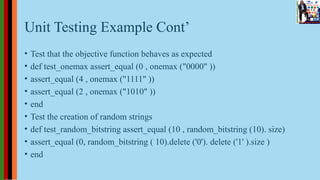
• Test that the objective function behaves as expected
• def test_onemax assert_equal (0 , onemax ("0000" ))
• assert_equal (4 , onemax ("1111" ))
• assert_equal (2 , onemax ("1010" ))
• end
• Test the creation of random strings
• def test_random_bitstring assert_equal (10 , random_bitstring (10). size)
• assert_equal (0, random_bitstring ( 10).delete ('0'). delete ('1' ).size )
• end
Unit Testing Example Cont’
• Test the approximate proportion of 1's and 0's
• def test_random_bitstring_ratio s = random_bitstring (1000 )
• assert_in_delta ( 0.5, (s.delete ( '1'). size/ 1000.0 ), 0.05 )
• assert_in_delta ( 0.5, (s.delete ( '0'). size/ 1000.0 ), 0.05 )
• end
• Test that members of the population are selected
• def test_binary_tournament
• pop = Array .new (10) {|i| {:fitness => i} }
• 10.times {assert (pop. include ?(binary_tournament (pop )))}
• End
Unit Testing Example Cont’
• Test point mutations at the limits
• def test_point_mutation
• assert_equal ("0000000000" , point_mutation ("0000000000" , 0))
• assert_equal ("1111111111" , point_mutation ("1111111111" , 0))
• assert_equal ("1111111111" , point_mutation ("0000000000" , 1))
• assert_equal ("0000000000" , point_mutation ("1111111111" , 1))
• end
Unit Testing Example
• Test that the observed changes approximate the intended probability
• def test_point_mutation_ratio changes = 0
• 100.times do
• s = point_mutation ("0000000000" , 0.5 ) changes += ( 10 - s .delete
('1' ).size )
• end
• assert_in_delta (0.5 , changes .to_f /(100 *10), 0.05 )
• end
Unit Testing Example Cont’
• Test cloning with crossover
• def test_crossover_clone
• p1 , p2 = "0000000000" , "1111111111"
• 100.times do
• s = crossover(p1 , p2, 0) assert_equal (p1, s ) assert_not_same (p1, s )
• end end
Unit Testing Example Cont’
• Test recombination with crossover
• def test_crossover_recombine
• p1 , p2 = "0000000000" , "1111111111"
• 100.times do
• s = crossover(p1 , p2, 1) assert_equal (p1.size , s .size ) assert_not_equal (p1 , s)
• assert_not_equal (p2 , s)
• s .size .times {| i| assert ( (p1 [i]== s[i]) || ( p2[i]== s[i ]) ) }
• end end
Unit Testing Example
• Test odd sized population
• def test_reproduce_odd
• pop = Array .new (9) {|i| {:fitness => i,:bitstring =>"0000000000" } } children =
reproduce(pop , pop .size , 0 , 1)
• assert_equal (9, children. size)
• end
• Test reproduce size mismatch
• def test_reproduce_mismatch
• pop = Array .new (10 ) {|i | {:fitness =>i,: bitstring=>"0000000000" } } children = reproduce
(pop, 9, 0 , 0)
• assert_equal (9, children. size)
• end end
Chapter 2: LOGIC GATES, CIRCUITS AND
WEBSITE DESIGNING
• Logic gates and Circuits
• A logic gate is a physical device that performs a logical operation on
one or more binary inputs and produces a single binary output. The
logical operation is based on Boolean logic.
• Logic gates are usually implemented as digital circuits using diodes
and transistors. Large numbers of logic gates are found in integrated
circuits and micro-controllers.
Types of Logic gates
Types of Logic gates Cont’
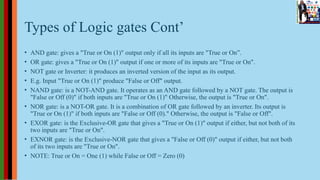
• AND gate: gives a "True or On (1)" output only if all its inputs are "True or On”.
• OR gate: gives a "True or On (1)" output if one or more of its inputs are "True or On".
• NOT gate or Inverter: it produces an inverted version of the input as its output.
• E.g. Input "True or On (1)" produce "False or Off" output.
• NAND gate: is a NOT-AND gate. It operates as an AND gate followed by a NOT gate. The output is
"False or Off (0)" if both inputs are "True or On (1)" Otherwise, the output is "True or On".
• NOR gate: is a NOT-OR gate. It is a combination of OR gate followed by an inverter. Its output is
"True or On (1)" if both inputs are "False or Off (0)." Otherwise, the output is "False or Off".
• EXOR gate: is the Exclusive-OR gate that gives a "True or On (1)" output if either, but not both of its
two inputs are "True or On".
• EXNOR gate: is the Exclusive-NOR gate that gives a "False or Off (0)" output if either, but not both
of its two inputs are "True or On".
• NOTE: True or On = One (1) while False or Off = Zero (0)
Truth Tables for a given Logic gate
Truth Tables for a given Logic gate Cont’
• NAND gate
Truth Tables for a given Logic gate Cont’
Logic Circuits
• Logic circuits are electric circuit whose output depends upon the input
in a that can be expressed as a function in symbolic logic.
• A logic circuit consists of a number of a logic gates. It has one or more
binary inputs (capable of assuming either of two states, e.g. “On” or
“Off”) and a single binary output. Logic circuits that are used to
perform particular functions are called GATE.
Basic logic circuits
• AND gate,
• OR gate,
• NOT gate,
Example:
• From the circuit diagram below:
• Draw a Truth table for this circuit.
• State the name of the logic gate represented in this circuit.
Answers:
Logic Circuits in Electronics
• In electronic logic circuits, inputs and outputs take the form of a
voltage or current, and the output from one logic gate can be used as
input to another logic gate.
• In logic circuit Boolean constants 0 and 1 do not represent actual
number but instead represent the state of a voltage variable, called
logic level.
• Complex logic circuits can be built from any binary electric or
electronic devices, including switches, relays, electron tubes, solid-
state diodes, and transistors. The selection of these electronic devices
depends upon the application and logic circuit design requirements.
Uses of Logic circuits
• A major use of logic circuits is in electronic digital computers.
• In fluid logic circuits have been developed whose function depends on
the flow of a liquid or gas rather than on an electric current flow in the
circuit.
Types of logic circuits:
• Computational logic circuits: consist of logic gates whose outputs at
any time are determined directly from the present combination of
inputs without regard to previous output.
• Sequential logic circuits: employ memory elements i.e. binary cells in
addition to logic gates. The output of an sequential circuits are a
function of the inputs and the state of the memory elements. The state
of an memory elements, in turn, is a function of previous outputs.
Logic Representation:
• Three ways of representing the working of a logic circuit.
Application of Logic circuits:
• They are found in several high-tech devices including arithmetic logic
units, computer memory and registers, multiplexers and
decoder/encoder.
• They are used in upgraded technical microprocessors, some of which
can contain over 100 million gates.
• They are the building blocks of digital electronics (e.g. personal
computers, mobile phones, tablets, calculators and digital watches)
and are formed by the combination of transistors in order to realize
some digital operations.
Advantages of Logic circuits:
• Have the ability to rectify noise on the input that results in the signal
not correctly switching from 0V to 5V for 0 and 1 respectively.
• The operations of logic circuits are controlled by software, so new
functions can be added without changing hardware.
• The switching time is much faster than analog circuits.
Disadvantages of Logic circuits:
• Logic circuits uses more energy than other circuits.
• Combinational Logic Circuits
• Combinational Logic Circuits are memory less digital logic circuits
whose output at
Disadvantages of Logic circuits: Cont’
• Combinational Logic Circuits are made up from basic logic NAND, NOR or NOT
gates that are “combined” or connected together to produce more complicated
switching circuits.
• An example of a combinational circuit is a decoder, which converts the binary code
data present at its input into a number of different output lines, one at a time
producing an equivalent decimal code at its output.
• Combinational logic circuits can be very simple or very complicated and any
combinational circuit can be implemented with only NAND and NOR gates as
these are classed as “universal” gates.
• Common combinational circuits made up from individual logic gates that carry out
a desired application include Multiplexers, De-multiplexers , Encoders , Decoders ,
Full and Half Adders etc.
Classification of Combinational Logic
Solid State Switch Applications
• Analogue Switches – switches are those types that are used to switch
data or signal currents when they are in their “ON” state and block
them when they are in their “OFF” state.
• Digital Switches – High Speed Data Transmission, Switching and
Signal Routing, Ethernet, LAN’s, USB and Serial Transmissions …etc.
• Power Switches – Power Supplies and General “Standby Power”
Switching Applications, Switching of Larger Voltages and Currents …
etc.
• Designing a simple logic circuit for a given logical statement
Example:
• Draw a logic circuit for each of the following Boolean expression:
• (a) Output (D) = (A + B) C. (b) Output (D) = A + BC + D.
• Solution:
Exercise:
• Draw a logic circuit for the Boolean expression shown below.
Exercise
Exercise
• Complete the output indicated below
• A B C E = NOT C F = A OR B E AND F E NOR (A OR B) E NAND F 1 0 1 1 1 0
• Answer:
• E = NOT C F = A OR B E AND F E NOR (A OR B) E NAND F 0 1 0 0 1 1 1 1 0 0
• Website Designing and Development Introduction to Website Design and Development Terminologies
• The World Wide Web (WWW) is an information-sharing method used to access information on the Internet. It uses protocols, such as HTTP and
applications, such as browsers to give Internet users access to information and enable them to communicate with one another.
• Protocol are the rules of communication between network devices, such as http (Hypertext Transfer Protocol).
• A web browser: is a program that enables you to find, retrieve, view websites and send documents over the Internet. E.g. Chrome, Firefox,
Internet Explorer, Konqueror, Opera and Safari.
• Website: is a collection of web pages with information on a subject.
• E.g. - http://www.facebook.com- http://www.google.com
• Web page: is a smaller part of a website usually containing more specific information, such as text, pictures, sound, video clips, animation and
Interactive programs.
Data Encryption
• Encryption is a security method in which information is encoded in
such a way that only authorized user can read it.
• Types of Encryption
• Symmetric Key encryption: Symmetric key encryption algorithm uses
same
Web Page
• Web page is a document available on World Wide Web. Web Pages are
stored on web server and can be viewed using a web browser.
• These hyperlinks are the link to other web pages.
• Website is a collection of linked web pages on a web server.
• A web page can contains huge information including text, graphics,
audio, video and hyperlinks.
• Web designing has direct link to visual aspect of a web site. Effective
web design is necessary to communicate ideas effectively.
• Web designing is subset of web development. However these terms
are used interchangeably.
Key Points
• Design Plan should include the following:
• Details about information architecture.
• Planned structure of site.
• A site map of page
Wireframe
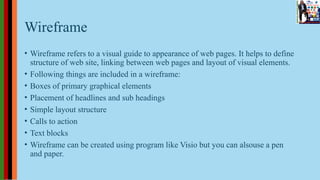
• Wireframe refers to a visual guide to appearance of web pages. It helps to define
structure of web site, linking between web pages and layout of visual elements.
• Following things are included in a wireframe:
• Boxes of primary graphical elements
• Placement of headlines and sub headings
• Simple layout structure
• Calls to action
• Text blocks
• Wireframe can be created using program like Visio but you can alsouse a pen
and paper.
Web Designing Tools
• Coda 2 - comes with better user interface, text editing, file
management, clips, sites, design and better Mysql support.
• Pen and paper - can be used to draw the appearance of how the web
site will look like.
• Vim - it supports full customizable auto-intending of code, multiple
buffers for storing cut/copied code, and recording of actions for
automated repetition.
Web Designing Tools Cont’
• Photoshop CC - supports many new features such as smart objects, layer
comps, smart guides, Typekit integration, font search, and workflow
enhancements. It is provided by Adobe.
• Illustrator CC - comes with powerful features like AutoCAD libraries, white
overprint, fill and stroke proxy swap for text, automatic corner generation,
unembed images and touch type tools etc.
• Sublime Text - is a source code editor with Python application programming
interface. It's functionality can be extended using plugins.
• Imageoptim - It is basically used for optimizing images on a website in order
to load them faster by finding best compression parameters and by removing
unnecessary comments.
Web Designing Tools Cont
• Sketch 3 - is a web designing tool developed specifically for designing
interfaces, websites, icons etc.
• Heroku - It is also a great web development tool which supports Ruby,
Node.js, Python, java and PHP.
• Axure - It supports prototyping, documentation, and wire framing
tools for making interactive website design.
• Hype 2 - offers: Easiest way to Animate & add interactivity, Hardness
the power of HTML5, Mobile responsiveness, and WYSIWYG
features.
Web Designing Tools
• Image Alpha - helps to reduce file sizes of 24-bit PNG files. It does so
by applying lousy compression and convert it to PNG8+alpha format
which more efficient.
• Hammer - is suitable for non-programmers and good only for small
projects.
• JPEGmini Lite - It is an image optimizing tool and supports photos in
any resolution up to 28 Megapixels.
• BugHerd - helps to see how the projects is going and what everyone is
working on. It also helps to identify issues in development.
Web Page Anatomy
• A web site includes the following components:
• tag. Without container there would be no place to put the contents of a
web page.
Web Page Anatomy Cont’
• Logo refers to the identity of a website and is used across a company’s
• various forms of marketing such as business cards, letterhead, broachers and so on.
• Navigation The site’s navigation system should be easy to find and use. Often
• the navigation is placed right at the top of the page.
• Content The content on a web site should be relevant to the purpose of the web
site.
• Footer is located at the bottom of the page. It usually contains copyright, contract
and legal information and few links to the main sections of the site.
• Whitespace It is also called as negative space and refers to any area of page that is
not covered by type or illustrations.
Web design Mistakes
• One should be aware of the following common mistakes:
• Website not working in any other browser other internet explorer.
• Using cutting edge technology for no good reason Sound or video that
starts automatically
• Hidden or disguised navigation 100% flash content.
Web development
• Web development refers to building website and deploying on the
web.
Web development Cont
• Before developing a web site once should keep several aspects in mind
like:
• What to put on the web site?
• Who will host it?
• How to make it interactive?
• How to code it?
Web development Cont’
• How to create search engine friendly web site?
• How to secure the source code frequently?
• Will the web site design display well in different browsers?
• Will the navigation menus be easy to use?
• Will the web site loads quickly?
Web development Cont’
• How easily will the site pages print?
• How easily will visitors find important details specific to the web site?
• How effectively the style sheets be used on your web sites?
Web Development Process
• Web development process includes all the steps that are good to take
to build an
Common features that every web
development tool exhibits:
• HTML and DOM viewer allows you to see the DOM as it was
rendered. It also allows to make changes to HTML and DOM and see
the changes reflected in the page after the change is made.
• Web development tools also helps to inspect the resources that are
loaded and available on the web page.
Profiling and Auditing
• Profiling refers to get information about the performance of a web
page or web application.
• Auditing provides developers suggestions, after analyzing a page, for
optimizations to decrease page load time and increase responsiveness.
Skills required for a successful Web
developer
• Understanding of client and server side scripting.
• Creating, editing and modifying templates for a CMS or web
development framework.
• Testing cross browser inconsistencies.
• Conducting observational user testing.
• Testing for compliance to specified standards such as accessibility
standards in the client region.
• Programming interaction with javaScript, PHP, and Jquery etc
Web hosting
• Web hosting is a service of providing online space for storage of web
pages. These web pages are made available via World Wide Web.
• The companies which offer website hosting are known as Web hosts.
• The servers on which web site is hosted remain switched on 24 x7.
These servers are run by web hosting companies. It is not possible to
host your website on your local computer, to do so you would have to
leave your computer on 24 hours a day. This is not practical and cheaper
as well. This is where web hosting companies comes in.
Types of Hosting
• Shared Hosting - the hosting company puts thousands of websites on the
same physical server. Each customer has their own allocation of
physical web space and a set of bandwidth limit. Experiencing of high
traffic load affects performance of all websites on the server.
• Virtual Private Server (VPS) or Virtual Dedicated Server - It is a server
which is partitioned into smaller servers. In this customer is given their
own partition, which is installed with its own operating system. Unlike
shared hosting, VPS doesn’t share memory or processor time rather it
allocates certain amount of memory and CPU to use which means that
any problem on a VPS partition on the same drive will not affect other
VPS customers.
Types of Hosting Cont’
• Dedicated Server – single dedicated server is setup for just one
customer. It is commonly used by the businesses that need the power,
control and security that a dedicated server offers.
• Reseller Hosting - acts as a middle man and sells hosting space of
someone else’s server.
• Grid Hosting - Instead of utilizing one server, Grid Hosting spreads
resources over a large number of servers. It is quite stable and flexible.
The servers can be added or taken away from the grid without
crashing the system.
Web Hosting Companies
1. Blue Host 5. Go Daddy 9. Host Gator 2. Laughing Squid
6. Hivelocity 10. liquid Web 3. Big Rock7. just Host 11. Wix4.
Wild West Domains 8. Media TempleServInt12. Wired Tree
Website Publishing
• Website publishing is the process of uploading content on the internet.
It includes:
• Uploading files
• Updating web pages posting blogs
• Website is published by uploading files on the remote server which is
provided by the hosting company.
Prerequisites for Website Publishing
• In order to publish your site, you need the following things:
• Web development software
• Internet Connection
• Web Server
Web development software
• It is used for building web pages for your web site. Dreamweaver and
WordPress are example of web development software.
• Internet Connection
• Internet connection is required to connect to a remotely located web
server.
• Web Server
• Web server is the actual location where your website resides on. A web
server may host single or multiple sites depending on what hosting
service you have paid for.
Proxy Server
• Proxy server is an intermediary server between client and the internet.
Proxy servers offers the following basic functionalities:
• Firewall and network data filtering.
• Network connection sharing
• Data caching
• Proxy servers allow to hide, conceal and make your network id
anonymous by hiding your IP address.
Purpose of Proxy Servers
• Monitoring and Filtering
• Improving performance
• Translation
• Accessing services anonymously
• Security
Monitoring and Filtering
• Proxy servers allow us to do several kind of filtering such as:
• Content Filtering
• Filtering encrypted data
• Bypass filters
• Logging and eavesdropping
Type of Proxies
• Forward Proxies - In this the client requests its internal network server
to
Reverse Proxies
Proxy Server Architecture
• Proxy Server Architecture is divided into several modules as shown in
the following diagram:
Proxy server listener
• Proxy server listener - It is the port where new request from the client
browser is listened. This module also performs blocking of clients
from the list given by the user.
Connection Manager
• Connection Manager - It contains the main functionality of the proxy
server. It performs the following functions:
• It contains the main functionality of the proxy server.
• Read request from header of the client.
• Parse the URL and determine whether the URL is blocked or not.
Connection Manager Cont’
• Generate connection to the web server.
• Read the reply from the web server.
• If no copy of page is found in the cache then download the page from web
• server else will check its last modified date from the reply header and
accordingly will read from the cache or server from the web.
• Check whether caching is allowed or not and accordingly will cache the
page.
Cache Manager
• This module is responsible for storing, deleting, clearing and
searching of web pages in the cache.
• Log Manager
• This module is responsible for viewing, clearing and updating the
logs.
• Configuration
• This module helps to create configuration settings which in turn let
other modules to perform desired configurations such as caching.
Website Threats
• Websites are always to prone to security risks.
• Cyber-crime impacts your business by hacking your website. Your
website is then used for hacking assaults that install malicious
software or malware on your visitor’s computer.
• Hackers may also steal important customer data such as credit card
information, destroy your business and propagate illegal content to
your users.
Website Security Considerations
• Updated Software - It is mandatory to keep you software updated. It plays vital
role in keeping your website secure.
• SQL Injection - It is an attempt by the hackers to manipulate your database. It is
easy to insert rogue code into your query that can be used to manipulate your
database such as change tables, get information or delete data.
• Cross Site Scripting (XSS) - It allows the attackers to inject client side script into
web pages. Therefore, while creating a form It is good to endure that you check
the data being submitted and encode or strip out any HTML.
• Error Messages - You need to be careful about how much information to be given
in the error messages. For example, if the user fails to log in the error message
should not let the user know which field is incorrect: username or password.
Website Security Considerations Cont’
• Validation of Data - The validation should be performed on both server
side and client side.
• Passwords - It is good to enforce password requirements such as of
minimum of eight characters, including upper case, lower case and special
character. It will help to protect user’s information in long run.
• Upload files - The file uploaded by the user may contain a script that when
• executed on the server opens up your website.
• SSL - It is good practice to use SSL protocol while passing personal
• information between website and web server or database.
Website monetization
• Website monetization refers to making money from the website. It is done by converting
existing traffic to a particular website into revenue.
• Methods of Monetization
• Display Advertising - It refers to the banners and text ads. This method is good for the
websites that have significant traffic, valuable audience, relevant and active advertisers.
• Affiliate Marketing - It refers to steering the visitors to products and services of a third
party merchant. It is good for the websites that are product centric and have easy
integration into content.
• Lead generation - It refers to capturing the customer information and selling it to a third
party.
• Email rental - It refers to renting out your email lists to third parties. In this you will
send an email on their behalf to your distribution list.
Create Webpages using Templates (Design
Windows in Dreamweaver and HTML)
• The web design process starts with a visual concept, which you could sketch
by hand or with software like Photoshop. Then, you use HTML and CSS to
build the website.
• Dreamweaver
• HTML (Hypertext markup Language): This is the structure of web pages,
creating the foundation of all websites.
• CSS (Cascading Style Sheets): This is how web pages are visually styled. CSS
handles the entire look of sites, including layout, typography, colors, and
more.
• JavaScript: This governs certain behaviors on websites and can be used for a
variety of interactions and features.
• How to create a simple webpage using Design Windows in
Dreamweaver
• To startup a Dreamweaver
• Download and Install Dreamweaver.
• Startup Dreamweaver. If you have never used the program before,
choose No, I’m new. Dreamweaver leads you through a setup wizard.
• Choose whether to use the workspace for developers or a standard
workspace and pick a color theme for your workspace.
• Choose whether to start with a sample file, new or existing folder.
To Design a Website Using Dreamweaver
• Create a New Site
• Go to Site then New Site.
• Give your site a name and choose where to save it.
• Click on the folder icon on the right where it says Default Images folder.
• Then, go to your newly created site directory, open it, create a new folder
called images and select that as your default folder. That way, Dreamweaver
will save images associated with your site automatically there. Click Save to
go back to your workspace.
Create Your Homepage File
• If Dreamweaver doesn’t offer you the option itself, go to File then
New. You can either create a completely new file or use an existing
template.
• For document title, input index.html and choose Create.
Create a Header
• To insert an element into the page, you first need to choose its location by
either clicking on the empty page or placing the cursor in the same element
in the code portion of the screen.
• Go to the Insert tab in the upper right corner and choose the HTML and site
elements that you can add to your page by clicking on Header as an option.
• Change the text inside the header and turn it into a heading. Mark the text in
the code editor at the bottom. Go back to Insert , click on the arrow next to
Heading and choose H1 .
• You can also type in a title for your page. In your real website, you would
choose something descriptive with keywords and not just Welcome to My
Test Website
Create a CSS File
• CSS allows you to define colours, dimensions of elements, font types
and sizes, etc.
• Give your new header a CSS class or id.
• Go to the DOM menu in the lower right part of the screen that lists
your entire site structure. Make sure your header is selected.
• Click the plus sign and type in #header in the field that open.
• The hashtag means you are assigning an id as opposed to a class. Press
enter and now select Ok.
Create a CSS Selector for the Page Title
• To create a CSS selector, click on the line where it says Selectors and
then click on the plus symbol. This should automatically propose a
• Change the Headline Font
• To change the font type, click on the Text option at the top
(alternatively, scroll down). Click on default font .
Centre the Headline and Change Its Size
• To use Quick Edit, go to the code view and right click the part you
want to edit (<h1> bracket).
• Choose Quick Edit at the top.
• If you are ever unsure about what a CSS property means, simply
• right-click it and choose Quick Docs (or press Ctrl+K ). Dreamweaver
will then give you an explanation.
Add more Content
• Preview in Browser and on Mobile Device
• Click the real-time preview button in the lower right corner. Click on
one of the browser names will open your website project in it.
• Checking the site in the browser allows you to use the developer tools
to test changes.
Add Media Queries
• Go to CSS Designer. Make sure that the file you want to add code to is
selected under Sources. Hit the plus sign under @media. It gives you
this options panel:
• You can define conditions for media queries e.g. the devices they
apply to, orientation, resolution and much more.
• Click it and the screen automatically jumps to that size.
Add Conditional CSS
• Navigate to the element in your DOM view. From there create a new
CSS selector for it. Then, set its width to auto, float to none (to stop it
from going left) and add some padding to the sides so that the content
doesn’t border on the edge of the screen.
Upload your site to the server
• Go to Site > Manage Sites. Select your current website from the menu
and choose Edit at the bottom left. Click on Servers.
• Input all important data to connect to your FTP server. The name is up
to you, the rest (FTP address, username, password) comes from your
hosting provider.
How to Create a Simple Web Page with
HTML
• Windows - Open Start , type in notepad, or notepad++ and click Notepad or
"Notepad++ or sublime" at the top of the window.
• Set up your document type for HTML. Type in <!DOCTYPE html> and press
• ↵ Enter , then type in <html> and press ↵ Enter again. Finally, type in
• <head> and press ↵ Enter.
• Indicate the beginning of your page's body text and Create a page heading.
Add additional headings as you go.
• Create a paragraph.
• To place text in a paragraph, type in <p> and type in your text, then type in
Q</p> to close the tag: <p>This is my paragraph. </p>
How to Create a Simple Web Page with
HTML Cont’
• Change text color. Frame the text with the <font
color="color">...</font>tags, making sure to type your preferred color
into the "color" section.
• Link to another page. Use the <a href="link">link text</a> tag set,
where link is the URL for the website to which you want to link and
link text is the text that will act as the link. For example, to link to
Facebook, you would type: <a href
• ="https://www.facebook.com" >
How to Create a Simple Web Page with
HTML Cont’
• Close the web page's tags.
• To save, Open the "Save" menu.
• Change the document's file type. Windows - Click the "Save as type"
drop-down
• box, click All Files, and then type .html at the end of the file's name.
Click Save. Close your text editor.
• Upload your website.
• Import Text and Pictures in a web designer Import images or videos
• In the File menu, select Import Assets... The keyboard shortcut is Ctrl
+ Shift + i (Windows) or ⌘ + Shift + i (Mac).
• Select the file or files you want to import using the dialog.
Add images or videos by dragging from your
computer
• Select the image or video that you want to add, using your computer's
file system browser. You can select multiple files.
• Drag the image or video to the document workspace in Google Web
Designer.
Add images or videos from the Studio Asset
Library
• Select Studio from the dropdown at the top of the Library.
• Connect with the Studio Asset Library by clicking the Launch button.
• Navigate through the folder structure to the asset that you want to use.
• Drag the asset from the Library to the document workspace where you
want to use it.
Replace an image in the document
• Right-click the image you want to replace.
• Select Swap image... from the pop-up menu.
• In the dialog, either select an image from the Library or click Import
assets to import an image from your computer.
• Click OK.
Use images and videos from the local Library
• In the Library, select image or video assets by clicking their names.
• Drag the assets to the workspace where you want to use them.
• Resize images and videos
Use Flash to animate files and pictures in
Websites
• Create or Acquire a Flash File
• You’ll need Adobe Flash or a similar program that supports the Flash format.
• E.g. Adobe Photoshop Elements.
• Save File to Your Root Folder
• Move or save the Flash file into your root site folder. If you prefer, you can
create a subfolder to store your Flash files.
• Open or Create s New Page
• Open an existing page or create a new document by choose File then New
and specify the file type in the New Document dialog.
Use the INSERT FLASH Option
• Click to insert the cursor where you want the Flash file to appear on
your webpage and choose Insert, Media then Flash. Alternatively, you
can use the Insert Media button from the Common Insert bar at the top
of the Dreamweaver workspace.
Locate the Flash File
• In the Select File dialog, browse your drive to locate the Flash file that
you want to insert in your page and double-click on the file to select it.
• Set accessibility options
• Enter a short text description of the Flash file. Use the Access Key and
Tab Index options in the Object Tag Accessibility Attributes dialog to
include a key command to start or control the Flash file if you want to
provide an alternative to those with accessibility challenges. Click OK
to close the dialog and the Flash file is inserted into your page.
Specify Flash Settings
• Click on the gray box to display the Flash options in the Property
inspector at the bottom of the workspace. Click the Edit button to open
the file in the Flash program (if you have the program on your hard
drive).
Preview with the play button
• Click on the Play button in the Property inspector to play the Flash
file.
• Test the Flash File
• Testing the Flash to see how it would appear on a website.
• Adjust loop and Auto play settings
• Check the Loop box to set the file to replay continuously; uncheck the
box if you want the file to play only once. Checking on the Auto play
box causes the file to begin to play as soon as the page is loaded into a
browser.
Specify other options
• Change the Scale setting to specify if the Flash file will have a border.
Use the Quality setting to control the file quality that will be
displayed. Note: The higher the quality, the longer it will take to
download.
• Upload the scripts folder
• Make sure to upload the entire Scripts folder when you publish your
Flash file and webpage to your server or it may not display properly.
Preview in a browser
• When you preview a page with a Flash file and the JavaScript locally,
Internet Explorer treats the script as a potential threat on your hard
drive and prompts you with a security warning in the Information Bar.
This shouldn’t happen when the page is published and viewed online
in Internet Explorer, and Firefox (shown here) doesn’t use a security
prompt with Flash.
Virtual reality and Simulation
• Virtual reality: A system that enables a person to react and move
according to certain simulated conditions
• Simulation: A program which models a real life situation by putting
values
• into a model to see how it behaves in different environments.
Requirements of a Virtual Reality System
Application of Virtual reality and Simulators
- In military- In entertainment - In engineering - In media - In
education - In businesses - In telecommunication - In ports -
In fashion - In Construction. - In scientific visualisation
Benefits of Applications of Virtual Reality
and 3D
• Simulators Industrial process:
• Design: allow clients and partners to experience an
• Validation: test the operation of an installation. 3D simulation makes it
possible to visualise and analyse results, reactions, possibilities, etc.,
saving time and money which would otherwise have been spent on
environment in order to design, adjust, develop or plan. 3D
simulations act in the same way as virtual testing, but in real
conditions, experimentation and studies.
• Marketing & training: create presentation and training tools to
introduce users to your products.
Augmented Reality for Industrial and
Medical Use
• Augmented reality (AR) involves adding virtual elements to the real
world around us.
• These virtual additions (3D models, informational content, videos,
illustrated popups, text, etc.) appear in real time and in the real world,
seen through a smartphone, tablet or augmented reality glasses.
• Users can thus experience a mixed virtual and real environment.
• AR has a wide range of potential applications: shopping, industry,
maintenance, marketing, medical, real estate, video games, etc.
Augmented Reality for Industrial and
Medical Use
Virtual Tour
• Virtual tour - is a collection of connected images which can be viewed
and rotated in web browsers.
• Image Creation and Processing
• Images are created by shooting using either a 1800
or 3600
camera or
Fisheye Len camera.
• Images are processed by first assembling them by an assembly
software like Auto pane Giga rendering them in a spherical geometric
projection and finally image cube sides are automatically distorted to
be watched on Online page.
Virtual tour features
• Video tour which can play on stand-alone players, on YouTube or
embedded in other websites.
• Completely custom tours can feature navigation menus and pop-ups
containing text, images, video, sound and graphics.
• Google street view styles tours they have many connected images
creating a walkthrough of a venue.
Chapter 3: NETWORKS AND DATA
COMMUNICATION
• Computer Networking
• Computer network is a number of computers linked together to allow them to share resources.
• A network must be able to meet the following Criteria:
• Performance: It can be measured in the following ways:
• Transit Time - The time a message takes to travel from one device to another.
• Response Time - The time that elapsed between enquiry and response.
• Efficiency of software.
• Number of users.
• Capability of connected hardware.
• Reliability: It decides the frequency at which a network failure takes place. The more the failures
are, the less is the network's reliability.
• Security: The protection of data from the unauthorised user or access.
Data Communication
• Data Communication is the process of transferring data from one
location to another.
• Components of Data communication
• The Message - is Information or data that is to be communicated. E.g.
text, pictures, numbers, videos and sounds.
• The Sender - is the device that is used for sending messages. E.g.
telephone, video camera, etc.
• The Receiver - is a device that is used to receive messages. E.g.
computer, printer, telephone, fax machine, etc.
Data Communication Cont’
• The Medium - is the path through which data/message is transmitted
(or sent) from one location to another. E.g. telephone line, fibre optics,
microwave, satellite system, etc.
• The Encoder - is an electronic device that receives data from the
sender in digital signals and converts it into a form that can be
transmitted through the transmission medium.
• The Decoder - is an electronic device that receives data from the
transmission medium and converts the encoded signals from analogue
to digital.
Purpose of Networking
• Resource sharing.
• Remote communication.
• Distributed processing facilities.
• Limitations of Networking
• Security issues and threats.
• Expensive setup.
• Rapid spread of computer viruses.
• Dependency on the main File Server when the main File Server breaks down the
system becomes useless.
Elements of Networking
• Data communication media, such as cables and wireless.
• Data signals, such as digital and analogue.
• Communication devices, such as modems, network cards, routers,
switches and hubs.
• Networking software, such as Operating System and protocols.
Types of NetworksCont’
• Workstation - is a computer connected to a network.
• Server - is a computer that provides services to other computers (users).
• Node - is any device that is connected to a network.
• Local Area Network (LAN): connects computers and devices which
close to each other or in a limited small area, such as an office, a school,
a home, a computer lab, even a group of buildings close to each other.
Advantages LAN and Disadvantages of LAN
• Hardware and software are shared.
• Has high data transferring rate.
• There is component and System evolution.
• Disadvantages of LAN
• It has a high maintenance cost.
• It covers a small area.
Wide Area Network (WAN):
• Wide Area Network (WAN): connects computers and devices which
are far away from each other or in a large area, such as a city, a
country, even worldwide.
• Advantages of WAN
• It covers a large area.
• It shares variety software and other resources.
• Disadvantages of WAN
• It is expensive to install.
• It has a low data transfer rate.
Types of Networks Cont’
• Personal Area Network (PAN): is a network of personal devices for
one person, such as a laptop, mobile phone, and portable printer.
• Home Area Network (HAN): is a network which spans a house or
home office and is typically used by more than one person.
• Wireless LAN (WLAN): is a LAN in which the nodes in the network
can communicate without physical connections. A node is a computer
or any device that can be connected to a network.
• Network administrator is a person responsible for maintenance and
proper functioning of servers and workstations in a LAN. A
workstation is any computer connected to a network.
Types of Networks Cont’
• Metropolitan Area Network (MAN): is a network that serves a
metropolitan area typically a city or county.
• Storage Area Network (SAN): is a high-speed network that connects a
collection of computers or servers to storage devices using optical
cables.
• Wi-Fi hotspot: is a wireless network that provides connections to users
in public locations.
Network Topology
• Network Topology is the layout of a network and how different nodes
in a network are connected to each other and how they communicate.
• Network Protocol are the rules of communication between network
devices, such as Hypertext Transfer Protocol (http).
• Types of Network Topologies
• BUS Topology
• Bus topology is a network type in which every computer and network
device is
Bus Topology Cont’
• Features of Bus Topology
• It transmits data only in one direction.
• Every device is connected to a single cable.
• Advantages of Bus Topology
• It is cost effective.
• Cable required is least compared to other network topology.
• Used in small networks.
• It is easy to understand.
• Easy to expand joining two cables together.
Bus Topology Cont’
• Disadvantages of Bus Topology
• Cables fails then whole network fails.
• If network traffic is heavy or nodes are more the performance of the
network decreases.
• Cable has a limited length.
• It is slower than the ring topology.
• It is called ring topology is a network in which computers and devices
are connected in ring form as each computer is connected to another
computer. Exactly two neighbours for each device.
RING Topology Cont’
• Features of Ring Topology
• A number of repeaters are used with large number of nodes.
• Data is transferred in a sequential manner that is
• bit by bit.
• Advantages of Ring Topology
• Transmitting network is not affected by high traffic or by adding more nodes.
• Cheap to install and expand.
RING Topology Cont’
• Disadvantages of Ring Topology
• Troubleshooting is difficult in ring topology.
• Adding or deleting the computers disturbs the network activity.
• Failure of one computer disturbs the whole network.
STAR Topology
STAR Topology Cont’
• Features of Star Topology
• Every node has its own dedicated connection to the hub.
• Hub acts as a repeater for data flow.
• Can be used with twisted pair, Optical Fibre or coaxial cable.
STAR Topology Cont’
• Advantages of Star Topology
• Fast performance with few nodes and low network traffic.
• Hub can be upgraded easily.
• Easy to troubleshoot.
• Easy to setup and modify.
• Only the node that failed is affected, the rest work smoothly.
STAR Topology Cont’
• Disadvantages of Star Topology
• Cost of installation is high.
• Expensive to use.
• If the hub fails then the whole network is stopped because all the
nodes depend on the hub.
• Performance is based on the hub that is it depends on its capacity
MESH Topology
MESH Topology Cont’
• There are two techniques to transmit data over the Mesh topology, they are:
• Routing
• Flooding
• Routing
• In routing, the nodes have a routing logic, as per the network requirements. Like
routing logic to direct the data to reach the destination
• using the shortest distance. Or, routing logic which has information about the broken
links, and it avoids those node etc. We can even have routing logic, to re-configure
the failed nodes.
MESH Topology Cont’
• Flooding
• In flooding, the same data is transmitted to all the network nodes,
hence no routing logic is required. The network is robust, and the its
very unlikely to lose the data. But it leads to unwanted load over the
network.
Types of Mesh Topology
• Partial Mesh Topology: In this topology some of the systems are
connected in the same fashion as mesh topology but some devices are
only connected to two or three devices.
• Full Mesh Topology: Each and every nodes or devices are connected
to each other.
MESH Topology Cont’
• Features of Mesh Topology
• Fully connected.
• Robust.
• Not flexible.
• Advantages of Mesh Topology
• Each connection can carry its own data load.
• It is robust.
• Fault is diagnosed easily.
• Provides security and privacy.
MESH Topology Cont’
• Disadvantages of Mesh Topology
• Installation and configuration is difficult.
• Cabling cost is more.
• Bulk wiring is required.
TREE Topology
TREE Topology Cont’
• Features of Tree Topology
• Ideal if workstations are located in groups.
• Used in Wide Area Network.
• Advantages of Tree Topology
• Extension of bus and star topologies.
• Expansion of nodes is possible and easy.
• Easily managed and maintained.
• Error detection is easily done.
TREE Topology Cont’
• Disadvantages of Tree Topology
• Heavily cabled.
• It is Costly.
• If more nodes are added maintenance is difficult.
• Central hub fails, network fails.
HYBRID Topology
• The Hybrid topology is a mixture of two or more topologies. E.g. if in
an office in one department ring topology is used and in another star
topology is used, connecting these topologies will result in Hybrid
Topology (ring topology and star topology).
HYBRID Topology Cont’
• Advantages of Hybrid Topology
• Reliable as Error detecting and trouble shooting is easy.
• Effective.
• Scalable as size can be increased easily.
• Flexible.
• Disadvantages of Hybrid Topology
• Complex in design.
• It is Costly.
Chapter 4: COMPUTER SYSTEM
• What is a Computer System?
• It is a computer combined with peripheral equipment and software so
that it can perform desired functions.
• It is a configuration of hardware and software designed for a specific
purpose, such as a manufacturing control system, a library automation
system, or an accounting system.
• It is a network of multiple computers linked together so that they can
share software, data, and peripheral equipment.
Types of Computer Systems
• Batch Processing Systems
• A batch processing system is one where programs and data are
collected together in a batch before processing starts.
• Each piece of work for a batch processing system is called a job. Often
a job simply consists if a program to be run and the data for it.
• A job queue is a number of jobs stored while they wait to be
processed.
Advantages of Batch Processing Systems
• Repeated jobs are done fast in batch systems without user interaction.
• You don’t need special hardware and system support to input data in
• batch systems.
• Best for large organizations but small organizations can also benefit
from it.
• Batch systems can work offline so it makes less stress on processor.
Advantages of Batch Processing Systems
Cont’
• But in batch systems the processor knows how long the job is as it is
queued.
• Sharing of batch system for multiple users.
• The idle time batch system is very less.
• You can assign specific time for the batch jobs so when the computer
is idle It starts processing the batch jobs i.e. at night or any free time.
• The batch systems can manage large repeated work easily.
Disadvantages of Batch Processing Systems
• Computer operators must be trained for using batch systems.
• It is difficult to debug batch systems.
• Batch systems are sometime costly.
• If some job takes too much time i.e. If error occurs in job then other
jobs will wait for unknown time.
Examples of Batch systems
• Payroll system: Batch systems are ideal for making payrolls. The salaries of
employees can be printed at the end of month by the batch systems.
• Bank statements: These bank statements can be made easily by batch systems
at the end of month.
• Reporting: A manufacturer produces a daily operational report for a production
line that is run in a batch window and delivered to managers in the early
morning.
• Research: A researcher submits a batch job to a high performance computing
environment that performs calculations related to particle physics.
• Billing: A telecom company runs a monthly batch job to process call data
records that include the details of millions of phone calls to calculate charges.
Real time processing
• A real time system is one which processes data without significant delay.
• Characteristics of Real Time Systems
• As soon as data is received it is processed, and results are output straight
away.
• It is often used to influence the system producing the input data as output
is produced quickly.
• Can be used to control processes.
• The computer is often dedicated to the real time application. It runs the
same program all the time.
Application of Real Time Systems
• A computer controlling a flight simulator: The simulator is built to
resemble a plane cockpit, with all the controls and instruments. The
windows are replaced by screens which show simulated landscapes.
• A trainee pilot sits in the cockpit and reacts to values which appear on
the instruments and to the pictures on the screens.
What the computer does?
• The computer presents the pilot with a flying situation selected from a number
of choices, e.g. landing. It is programmed to react to the pilot's handling of the
engine controls and the joystick in a realistic way. It can change the readings on
the instruments, the picture on the screen and can also tilt the whole simulator.
• A computer controlling an industrial process: A food processing plant produces
• canned soups. The cans have to be sealed within a certain temperature range. A
temperature sensor at the point where the cans are sealed is connected to a
computer. This can alter the temperature if it starts to move outside the set
range.
• An interactive game: The user has to react to what is happening on the computer
• screen by pressing keys quickly.
Advantages of Real Time Processing
• Fast response.
• Output from the computer may be used to adjust and improve the
input.
• Disadvantages of real time processing
• A computer being used for a real time application often cannot be used
for anything else.
Interactive System
• Interactive systems are computers which accept input from humans.
• Human send commands or data to computers by typing or by any gestures.
• Examples are MS word or spreadsheet.
• An operating system which supports interactive behavior is known as
• Interactive operating systems.
• Examples are Mac and Windows operating system.
• Interactive operating systems can also get input from the graphical interface.
• To design interactive system, customer-oriented communication is used which
involves media and collaborative process between technology and people. The aim
of the interactive system is simplicity with unique goals and eye-catching interface.
Interactive media
• Interactive media plays an important role in designing interface.
Interactive media includes text, animation, video, animated image and
buttons, video games etc.
• Advantages of Interactive Systems
• They help disabled people perform their tasks like iPad and other
interactive devices used. E.g. in latest home AC, disabled people can
control the temperature of a room, check the voltage of AC, AC timer
from mobile or tablet device.
• They are easy to use.
Interactive media Cont’
• They get an immediate response from the audience.
• They help business to make a long-term relationship between customers not get
• bored and get their attention in focus.
• Communication becomes higher during the speech of speaker and more questions and
answers are exchanged between audience and speaker.
• Due to interactive technology more realistic feedback is received from the audience.
• More interactive and visual items are used for audience training like interested videos,
animated graphics, graphs which makes the training interested and meaningful.
• They perform better in doing marketing than old marketing like TV, radio or newspaper.
Application or uses of Interactive Systems
• They are used in testing phase also like testing interface elements and
before launching product all items can be checked accurately.
• They are used in the medical field like cardiac device and different
chips used in the body which sends signals to the computer screen.
• They are used for e-learning.
• They are used for voice recognition and many tools are available in
the market which performs well in this field.
Disadvantages of Interactive Systems
• They may cause extra noise pollution like recognizing the voice in
public places.
• They are easy to break and get scratched by touching interface.
• They are difficult to design complex and nice graphical and take they
longer time.
• Nowadays some telephone systems are interactive and they record and
recognize the voice. But it is difficult for old aged people to
communicate with these systems.
Text to speech
• Text to speech is another type of interactive system in which user
interacts by inputting text. Some text cannot be converted as we
pronounce it due to culture difference. The real-time text of the speech
is difficult to understand and requires highly skilled people for voice
over.
• During receiving calls of customers, text to speech software needs to
be accurate to
• respond and if the customer takes interest in product then guiding him
to the accurate path is difficult to manage and may involve live
representative to talk.
Automatic calls
• Automatic calls are also managed by interactive systems. Sometimes
people are
• busy with their work and when receiving automatic calls make them
insecure. These calls are made by company computers for campaigns
which sometimes result in bad result.
• Some interactive web-based software needs an internet connection to
perform
• which limits access to the user. Sometimes web-based software needs
to put information to the public which effects company business.
Automatic calls Cont’
• Some interactive software needs extra hardware and memory resources to perform
• well.
• In interactive marketing, if a customer has already a product then he will just pass
away without taking the interest.
• Some interactive system cost higher due to its installation and setup, e.g.
interactive
• whiteboard. It also makes bad impact on user’s eyes. The content preparation for
the interactive whiteboard is also tough.
Computer Network system
• Many different network systems have been used to link sensors, controllers,
and actuators together. Some have been based on existing automation
systems within buildings and others on more generalized networking
systems.
• Buildings’ automation systems applied to smart homes include KNX,
EnOcean,
• and LonWorks. These networking systems are robust and designed to be
reliable for many years in the infrastructure of a building. They are typically
available in wired and wireless versions.
• Ethernet, Wi-Fi, ZigBee, and Z-Wave are also being used increasingly for
smart home installations.
Network Performance Equations
• The power system network consists of components such as generators,
transformers, transmission lines, circuit breakers, and capacitor banks,
which are all connected together to perform specific function. Some
are in series and some are in shunt connection.
• Whatever may be their actual configuration, network analysis is
performed either by nodal or by loop method.
The Expert Systems
• The expert systems are the computer applications developed to solve
complex problems in a particular domain, at the level of extra-ordinary
human intelligence and expertise.
• Characteristics of Expert Systems
• High performance Understandable
• Reliable Highly responsive
• Capabilities of Expert Systems The expert systems are capable of:
• Advising making
• Demonstrating Deriving a solution
• Diagnosing Explaining
• Interpreting input Predicting results
• Justifying the conclusion
• Instructing and assisting human in decision
• Suggesting alternative options to a problem
They are incapable of:
• Substituting human decision makers
• Possessing human capabilities
• Producing accurate output for inadequate
• Knowledge base
• Refining their own knowledge
Components of Expert Systems
Knowledge Base
• Knowledge Base - It contains domain-specific and high-quality knowledge.
Knowledge is required to exhibit intelligence. The success of any ES majorly
depends upon the collection of highly accurate and precise knowledge.
• What is Knowledge?
• Knowledge is combined data, information, and past experience.
• Components of Knowledge Base
• Factual Knowledge: - It is the information widely accepted by the Knowledge
• Engineers and scholars in the task domain.
• Heuristic Knowledge: - It is about practice, accurate judgment, one’s ability
of evaluation, and guessing.
Knowledge representation
• It is the method used to organize and formalize the knowledge in the
knowledge base. It is in the form of IF-THEN-ELSE rules.
• Knowledge Acquisition
• The success of any expert system majorly depends on the quality,
completeness, and accuracy of the information stored in the
knowledge base.
• The knowledge base is formed by readings from various experts,
scholars, and the Knowledge Engineers.
Knowledge representation Cont’
• The knowledge engineer is a person with the qualities of empathy,
quick learning, and case analyzing skills. He acquires information
from subject expert by recording,
• interviewing, and observing him at work, etc. He then categorizes and
organizes the information in a meaningful way, in the form of IF-
THEN-ELSE rules, to be used by interference machine. The
knowledge engineer also monitors the development of the ES.
Inference Engine
• Use of efficient procedures and rules by the Inference Engine is essential in
deducting a correct, flawless solution.
• In case of knowledge-based ES, the Inference Engine acquires and
manipulates the knowledge from the knowledge base to arrive at a particular
solution.
• In case of rule based ES, it − Applies rules repeatedly to the facts, which are
• obtained from earlier rule application.
• Adds new knowledge into the knowledge base if required.
• Resolves rules conflict when multiple rules are applicable to a particular
case.
To recommend a solution, the Inference
Engine uses the following strategies:
• Forward Chaining - It is a strategy of an expert system to answer the
question, “What can happen next?
• Here, the Inference Engine follows the chain of conditions and
derivations and finally deduces the outcome. It considers all the facts
and rules, and sorts them before concluding to a solution.
• This strategy is followed for working on conclusion, result, or effect.
E.g. prediction of share market status as an effect of changes in
interest rates.
Backward Chaining:
• Backward Chaining: With this strategy, an expert system finds out the
answer to the question, “Why this happened?”
• On the basis of what has already happened, the Inference Engine tries
to find out which conditions could have happened in the past for this
result.
• This strategy is followed for finding out cause or reason. For example,
diagnosis of blood cancer in humans.
User Interface
• User interface provides interaction between user of the ES and the ES
itself. It is generally Natural Language Processing so as to be used by
the user who is well-versed in the task domain. The user of the ES
need not be necessarily an expert in Artificial Intelligence.
• It explains how the ES has arrived at a particular recommendation.
User Interface Cont’
• The explanation may appear in the following forms:
• Natural language displayed on screen.
• Verbal narrations in natural language.
• Listing of rule numbers displayed on the screen.
• The user interface makes it easy to trace the credibility of the
deductions.
Requirements of Efficient ES User Interface
• It should help users to accomplish their goals in shortest possible way.
• It should be designed to work for user’s existing or desired work
practices.
• Its technology should be adaptable to user’s requirements; not the
other way round.
• It should make efficient use of user input.
Expert Systems Limitations
• Limitations of the technology
• Difficult knowledge acquisition
• ES are difficult to maintain
• High development costs
Applications of Expert System
• Design Domain:
• Camera lens design, automobile design.
• Medical Domain:
• Diagnosis Systems to deduce cause of disease from observed data,
conduction medical operations on humans.
• Monitoring Systems:
• Comparing data continuously with observed system or with prescribed
behavior such as leakage monitoring in long petroleum pipeline.
Applications of Expert System Cont’
• Process Control Systems:
• Controlling a physical process based on monitoring.
• Knowledge Domain:
• Finding out faults in vehicles, computers.
• Finance/ Commerce:
• Detection of possible fraud, suspicious transactions, stock market
trading, Airline scheduling, cargo scheduling.
Expert System Technology
• Expert systems technologies include: Expert System Development
Environment.
• The ES development environment includes hardware and tools. They
are Workstations, minicomputers, mainframes.
• High level Symbolic Programming
• Languages such as LIS t P rogramming (LISP) and
• PRO grammation en LOGique (PROLOG).
Large databases.
• Tools - They reduce the effort and cost involved in developing an
expert system to large extent.
• Powerful editors and debugging tools with multi-windows.
• They provide rapid prototyping
• Have Inbuilt definitions of model, knowledge representation, and
inference design.
Shells
• A shell is nothing but an expert system without knowledge base. A shell
provides the developers with knowledge acquisition, inference engine, user
interface, and explanation facility. For example, few shells are given below:
• Java Expert System Shell (JESS) that provides fully developed Java API for
creating an expert system.
• Vidwan , a shell developed at the National Centre for Software Technology,
Mumbai in 1993. It enables knowledge encoding in the form of IF-THEN
rules.
Development of Expert Systems:
• General Steps Step 1:
• Identify Problem Domain
• The problem must be suitable for an expert system to solve it.
• Find the experts in task domain for the ES project.
• Establish cost-effectiveness of the system.
• Step 2: Design the System
• Identify the ES Technology.
• Know and establish the degree of integration with the other systems and
databases.
• Realize how the concepts can represent the domain knowledge best.
Step 3: Develop the Prototype
• From Knowledge Base: The knowledge engineer works to;
• Acquire domain knowledge from the expert.
• Represent it in the form of If-THEN-ELSE rules.
• Step 4: Test and Refine the Prototype
• The knowledge engineer uses sample cases to test the prototype for
any deficiencies in performance.
• End users test the prototypes of the ES.
Step 5: Develop and Complete the ES
• Test and ensure the interaction of the ES with all elements of its
environment, including end users, databases, and other information
systems.
• Document the ES project well.
• Train the user to use ES.
• Step 6: Maintain the System
• Keep the knowledge base up-to-date by regular review and update.
• Cater for new interfaces with other information systems, as those
systems evolve.
Benefits of Expert Systems
• Availability - They are easily available due to mass production of
software.
• Less Production Cost - Production cost is reasonable.
• Speed - They offer great speed. They reduce the amount of work an
individual puts in.
• Less Error Rate - Error rate is low as compared to human errors.
• Reducing Risk - They can work in the environment dangerous to humans.
• Steady response - They work steadily without getting motional, tensed or
fatigued.
Chapter 5: DATABASE
• Introduction to Microsoft Access
• A database is a collection of information that's related. Access allows
you to manage your information in one database file. Within Access
there are four major areas: Tables, Queries, Forms and Reports
• Tables store your data in your database
• Queries ask questions about information stored in your tables
• Forms allow you to view data stored in your tables
• Reports allow you to print data based on queries/tables that you have
created
Creating a Database
Creating a Database Cont’
Understanding the Views
• Two basic views when you work in a table:
Understanding the Views Cont’
• Design View is used to set the data types, insert or delete fields, and
set the Primary key.
• Datasheet View is used to enter the data for the records. By default,
Access places you in Datasheet View.
Creating a Table
• Click CREATE from the Ribbon
• Design the table by:
• Entering Fields
• Setting the Field Data Type
• Setting the Field Data Size
To Enter Fields in a Table:
Data Types
• Data Type Description Data Size
• Short Text - Text or combinations of text and numbers, including Up to 255
numbers that do not require calculating (e.g. phone characters numbers).
• Long Text - Lengthy text or combinations of text and numbers. Up to
63,999
• characters.
• NOTE: short text and long text were called text and memo in previous
versions of Access
Data Types Cont’
• Number - Numeric data used in mathematical calculations. 1, 2,
4, or 8 bytes (16 bytes if set to
• Replication ID).
• Date/Time - Date and time values for the years 100 through 9999.
8 bytes
• Currency - Currency values and numeric data used in 8 bytes
mathematical calculations involving data with one
• to four decimal places.
Data Types Cont’
• AutoNumber - A unique sequential (incremented by 1) number 4 bytes (16 or random number
assigned by Microsoft Access bytes if set to
• whenever a new record is added to a table. Replication ID)
• Yes/No - Yes and No values and fields that contain only one of 1 bit two values (Yes/No,
True/False, or On/Off).
• Attachment - Files, such as digital photos. Multiple files can be Up to about attached per record.
This data type is not available 2 GB
• in earlier versions of Access.
• Hyperlink - Text or combinations of text and numbers stored as Up to about text and used as a
hyperlink address. 2048
• characters
Lookup Wizard
• Lookup Wizard - The Lookup Wizard entry in the Data Type column
in the Design view is not actually a data type. When you choose this
entry, a wizard starts to help you define either a simple or complex
lookup field.
• A simple lookup field uses the contents of another table or a value list
to validate the contents of a single value per row.
• A complex lookup field allows you to store multiple values of the
same data type in each row.
• Dependent on the data type of the lookup field.
Calculated
• Calculated - You can create an expression that uses data from one or
more fields. You can designate different result data types from the
expression. You can create an expression that uses data from one or
more fields.
• You can designate different result data types from the expression.
• You need to switch to Design view To Switch to Design view:
• Click the View button on the Home Ribbon
• Type a name for the table
• Click OK
• OR
• Click on the Design view in the bottom right corner.
Data Types Cont’
• Data Type - tells Access the type of data that will be stored in that
field. By assigning a data type,
• Access can make sure that nobody enters the wrong type of data into
that field. For example, no one will be able to enter a phone number
into the “First_Name” field.
• Data Size
• If the field does not contain data:
• When you change the field size, the size of new data values is limited
for the field. For number fields, the field size determines exactly how
much disk space Access uses for each value of the field. For text
fields, the field size determines the maximum amount of disk space
that Access allows for each value of the field.
If the field contains data:
Setting a Primary Key
• The Primary Key is the unique identifier for each record in a table.
Access will not allow duplicate entries in a Primary Key field.
• By default, Access sets the first field in the table as the Primary Key
field.
• An example of a Primary Key would be your Social Security Number.
This is something unique about you and should not be duplicated.
To Set a Primary Key:
• Switch to Design View
• Position your cursor in the field you wish to set as the Primary Key
• Click the Primary Key button on the Ribbon
Entering Data in a Table
• Switch Back to Datasheet View to Enter your Records (Rows):
• To Enter Data in a Table:
• Make sure you are in Datasheet View
• Enter the data into the table by pressing the tab key to move from one
cell to another
Data Input
• To input data into the table is to copy or move data from external
sources, such as Excel.
• When inputting data into the table, Access automatically saves the data
after each new record.
Navigating Records
• Use the arrows at the bottom of the table to navigate among records.
• You are able to navigate from the first record, previous record, next
record, last record, and create a new record (as shown in the picture
below).
Sorting Records in a Table
• By sorting your records in a table, you are easily able to view/locate
records in your table.
• To Sort Records in a Table:
• Position your cursor in the field that you wish to sort, by clicking on
any record in that field.
Deleting Fields and Records
• Select either a Field or a Record.
• Click Delete in the Home tab or on the Keyboard.
• Editing Data in the table and Fields
• Double-click the record with data or field you want to edit.
• Edit and press Enter.
Database Relationship
• A relational database is database in which all data is stored in
Relations which are tables with rows (called records or tuples) and
columns (called fields or attributes).
• A relational database allows records from one table to link to related
records on different tables.
• A relational table is a table of columns (or fields) that describe rows
(or records) of data. E.g. a relational table may contain fields, such as
customer ID, transaction number, product purchased, product price,
sale date, and purchase location.
The difference between Spreadsheet and
Relational database
• Relational database makes a relationship that can be defined between
tables while a spreadsheet does not make a relationship that can be
defined between tables.
• Creating Relationships among Tables
• To create a Table Relationship
• Match data in key fields (often a field with the same name in both
tables).
• In most cases, these matching fields are the primary key from one
table, which provides a unique identifier for each record, and a foreign
key in the other table.
•
Creating Relationships among Tables Cont’
• A Primary key is a field in the table that uniquely identify a record in
that table.
• A Foreign key is a field in the table that is primary key in another
table.
• Types of Table Relationships
• RelationshipSymbol
One-to-One Relationship
• A row in table A can have only one matching row in table B, and vice
versa.
• This is not a common relationship type, as the data stored in table B
could just have easily been stored in table A.
• However, there are some valid reasons for using this relationship type.
One-to-Many Relationship
• A row in table A can have many matching rows in table B, but a row in
table B can have only one matching row in table A. This is the most
common relationship type.
• is the“one”. Each customer can only be assigned one city. One city can
be assigned to many customers.
Many-to-Many Relationship
• A row in table A can have many matching rows in table B, and vice
versa.
• A many-to-many relationship could be thought of as to a one-to-many
relationships, linked by an intermediary table.
• The intermediary table is typically referred to as a“junction table”
(also as a
• Creating a Table Relationship
Open the Database.
Many-to-Many Relationship Cont’
Many-to-Many Relationship
• Select the Database Tools tab on the ribbon and then click the
Relationships button. This will open the Access relationships screen.
Many-to-Many Relationship Cont’
• Select the two tables you want to create the relationship for and click
Add. The tables will then appear on the relationship screen.
Many-to-Many Relationship Cont’
The Enforce Referential Integrity option
• If you select the Enforce Referential Integrity option Access will make
sure that each record in the Order table refers to an existing record in
the Customer table. Selecting this option makes it impossible to create
Order records that refer to a non-existent customer.
• You should select Enforce Referential Integrity by default, because it
protects the integrity of your data.
The Cascade Update Related Fields option
• If you select the Cascade Update Related Fields option Access will
change the foreign key if the primary key it refers to changes. This
means that if the primary key of a customer (one) changes, Access will
automatically update the foreign keys that refer to this customer in the
Order table (many).
• The Cascade Update Related Fields option also protects the integrity
of your data as it prevents records from becoming detached from their
related records.
The Cascade Delete Related Records option
• The Cascade Delete Related Records option ensures that whenever a
Customer (one) record is deleted, than the related records (many) in
the Order table are also deleted.
• You should select this option if the many-part of the relationship has
no use or is not needed anymore without the one-part. The 1 indicates
the 1 side of the relationship and the infinity symbol (∞) the many
side.
• The final step in creating the relationship is deciding which of the
integrity options you select.
Many-to-Many Relationship Cont’
Reasons why you should create table relationships before you
create other database objects, such as forms, queries and reports.
• Table relationships:
• Establishes a connection between a pair of tables that are logically
related to each other. This is useful when designing a query.
• Enables you to draw data from multiple tables simultaneously. This is
useful when designing a Form and Report.
• Help to further refine table structures and minimise redundant
(duplicate) data.
• Are the foundation upon which you can enforce referential integrity to
help prevent orphan records in your database. An orphan record is a
record with a reference to another record that does not exist.
Table Relationship Representation
• A table relationship is represented by a relationship line drawn between
tables in the Relationships window.
• A relationship that does not enforce referential integrity appears as a thin line
• between the common fields supporting the relationship.
• When you select the relationship by clicking its line, the line thickens to
indicate it is selected. If you enforce referential integrity for this relationship,
the line appears thicker at each end. In addition, the number 1 appears over
the thick portion of the line on one side of the relationship, and the infinity
symbol (∞) appears over the thick portion of the line on the other side.
How to Create a Table Relationship
• Click the Microsoft Office Button, and then click Open.
• In the Open dialog box, select and open the database.
• On the Database Tools tab, in the Show/Hide group, click Relationships.
• If necessary, On the Design tab, in the Relationships group, click Show
Tables. i) This dialog box displays all of the tables and queries in your
• database.
• Select one or more tables or queries and then click Add. When you have
finished adding tables and queries to the Relationships window, click Close.
How to Create a Table Relationship Cont’
• Drag a field (typically the primary key) from one table to the common
field (the foreign key) in the other table. To drag multiple fields, press
the CTRL key, click each field, and then drag them.
• The Edit Relationships dialog box appears.
• Verify that the field names shown are the common fields for the
relationship. If a field name is incorrect, click the field name and select
a new field from the list.
How to Create a Table Relationship Cont’
• To enforce referential integrity for this relationship, select the Enforce Referential
Integrity check box.
• Click Create.
• The relationship line is drawn between the two tables. If you selected the Enforce
Referential Integrity check box, the line appears thicker at each end.
• In addition, again only if you selected the Enforce Referential Integrity check
box, the number 1 appears over the thick portion of the line on one side of the
relationship, and the infinity symbol (∞) appears over the thick portion of the line
on the other side.
Examples of Table Relationships
• From the Table Relationship below.
How to Create a Table Relationship Cont’
• ID# field facilitates a Relationshipbetween “Students”
table and “Takes_Course” table.
• ClassID field facilitate a Relationship between “Takes_Course” table
and “Courses” table.
• Takes_Course table is an Intermediary (or Cross-Reference or Junction)
table. It is created by Students table and Courses table.
• ID# filed is a Primary key in the “Students” table and is a Foreign key in
the “Takes_Course” table.
• ClassID field is a Primary key in the “Courses” table and is a Foreign
key in the “Takes_Courses” table.
Designing a Relational Database
• Logical design/data modeling begins with identifying the entity
classes to be represented in the database and establishing relationships
between pairs of these entities.
• Entity Relationship (E-R) diagrams are used to perform data
modeling. Normalisation is the simplification of the logical view of
data in relational databases. When the table is normalized all its fields
will contain single data elements, all its records will be distinct and
each table will describe only a single class of entities.
• Physical design all fields are specified as to their length and the nature
of the data.
• Solving Table Relationship problems
• Example:
• The diagram below shows an ORDER table created from two tables called PRODUCT
DETAILS table and CUSTOMER ORDER table.
• ORDER
• CUSTOMER PRODUCT PRICE QTY AMOUNT TEMBO X 100 C
MWALA Y A 40 2 400 NAMWINGA 50
• PRODUCT DETAILS CUSTOMER ORDER
Solving Table Relationship problems
• State the field that facilitates this table relationship.
• Give the results obtained from the letters marked:
• (i) X
• (ii) Y
• (iii) A
• Give the formula for field amount C.
• Solution:
• PRODUCT
• (i) X = C-OIL (ii) Y = MAIZE (iii) A = 60
• AMOUNT = PRICE × QUANTITY (QTY)
EXERCISE
• Study the linked database tables below and answer the questions that follow.
• PRODUCT CUSTOMER
• ORDER QUERY
• CUSTOMER PRODUCT TYPEPRICE QTY AMOUNT CO1 X CO2 Y
• Give two reason for having the table relationship.
• Give one of the conditions necessary for the two tables to be related.
Solving Table Relationship problems
• AMOUNT in the ORDER QUERY is a calculated field defined by,
AMOUNT: [QTY]*[PRICE]. Using this formula, find the value for X
and Y in the AMOUNT field.
• Explain how similar records can be extracted from a database table.
• What feature is used to extract records in a database?
Answers:
• - It establishes to further refine data structures and minimise redundant.
• - It enables you to draw data from multiple tables simultaneously.
• The primary key “PRODUCT” field in the PRODUCT table is the foreign key
in the CUSTOMER table. They contain common fields.
• AMOUNT = [QTY] * [PRICE]
• X = 100 * 15 Y = 60 * 15
• = 1500 = 900
• Using Group by Clause of Structured Query Language (SQL) to group data
based upon any column or a number of columns.
• Forms
How to Delete a table relationship (To
remove a table relationship)
• Delete the relationship line in the Relationships window. Carefully position
the cursor so that it points at the relationship line, and then click the line.
• The relationship line appears thicker when it is selected. With the
relationship line selected, press DELETE. Note that when you remove a
relationship, you also remove referential integrity support for that
relationship, if it is enabled. As a result, Access will no longer automatically
prevent the creation of orphan records on the "many" side of a relationship.
• On the Database Tools tab, in the Show/Hide group, click Relationships.
• The Relationships window appears.
How to Delete a table relationship (To
remove a table relationship) Cont’
• On the Design tab, in the Relationships group, click All Relationships, if necessary.
• All tables that have relationships are displayed, showing relationship lines.
• Click the relationship line for the relationship that you want to delete. The relationship line appears
thicker when it is selected.
• Press the DELETE key or Right-click and then click Delete.
• Access might display the message: Are you sure you want to permanently delete the selected
relationship from your database? If this confirmation message appears, click Yes.
• Note: If either of the tables employed in the table relationship are in use, perhaps by another person
or process, or in an open database object (such as a form), you will not be able to delete the
relationship. You must first close any open objects that use these tables before you can remove the
• relationship.
How to Change a table relationship
• Select a table relationship in the Relationships window and then editing it.
• Carefully position the cursor so that it points at the relationship line, and
then click the line to select it.
• With the relationship line selected, double click it or click Edit
Relationships in the Tools group on the Design tab. The Edit Relationships
dialog box appears. Make your changes in the Edit Relationships dialog
box
• On the Database Tools tab, in the Show/Hide group, click Relationships.
• If necessary, on the Design tab, in the Relationships group, click All
Relationships.
How to Change a table relationship Cont’
• All tables that have relationships are displayed, showing relationship
lines.
• Click the relationship line for the relationship that you want to change.
The relationship line appears thicker when it is selected.
• Double-click the relationship line or on the Design tab, in the Tools
group, click Edit Relationships.
• The Edit Relationships dialog box appears.
• Make your changes, and then click OK.
Chapter 6: SOCIAL AND ECONOMIC
IMPLICATIONS OF COMPUTER USE
• Social and Economic effects of Computer use on People and Organisations
Positive effects of computers on People
• People use computers to communicate easily e.g. making phone calls and social
media.
• People use computer to search for information rapidly and reliably on the
Internet.
• People use computers for e-shopping.
• Negative effects of computers on people
• Loss of job, since the computer does the job.
• People become addicted to social media and fail to work, hence less productivity.
Positive effects of computer systems on an
organisation
• High productivity
• Produce output in a variety of formats.
• Processes data repetitively, accurately and rapidly.
• Reduces the risk of losing vital information.
• Making sales systems available to customers through a website.
Negative effects of computer systems on an
organisation
• Incorrectly designed business procedures.
• Lack of compatibility with organisation's existing hardware and
software.
• Poor communication with users during analysis and design stages.
Data Protection Legislation
• Data protection legislation is a legislation that has been or is being
introduced all over the world to protect personal data handled in
computers
• The aim of the legislation is to control the immense potential for misuse of
information that arises when personal data is stored in computers.
• Once the data has been transcribed from paper files into a form that is
easily readable and accessible by computers, it is an inexpensive and easy
task for the data to be extracted from one record and correlated with
personal data concerning the same person from another file. This results in
a synergistic combination of information that is considered to be an
infringement of privacy.
Data Protection Legislation Cont’
• To combat the fear of misuse of data, governments have introduced
legislation that, among other things, makes the following requirements
of organizations that maintain personal records on computers:
• to declare and/or register the use for which the data is stored,
• to provide the data subject with a right of access to data concerning
himself or herself on their computers,
• to maintain a prescribed minimum level of electronic and physical
security in their computer installation,
• not to transmit personal data to any organisation that does not have
similar controls over misuse of data.
Data Protection Legislation Cont’
• This last requirement has led to fears that countries without data
protection legislation on their statute books are losing contracts for the
processing of data, since countries with such legislation can refuse to
permit the export of data to countries where data is not adequately
protected. For this reason companies that consider that the data
protection fears are not borne out by real instances of misuse of data
are nonetheless pressing for legislation.
Chapter 7: SPECIFIC COMPUTER
APPLICATIONS
• Education
• In Education computers are used:
• During teaching and learning - for instructing the learners using PowerPoint
slides, word documents, video conferencing or web pages.
• During self learning - for E-books, online libraries, online encyclopedia, etc.
• Advantages of E-books
• They are never out of stock.
• Some e-books have text to speak readers.
• They are environmentally friendly.
During Testing and Evolution
• During Testing and Evolution - for creating question banks for
learners, analyse, interpretation of data, online Testing and Evaluation,
etc.
• In School administration - for accounts of the institution, pupils and
employees record keeping.
• In Libraries - for records of the issues and returns of the books,
barcode scanning, etc.
Health
• In the Health Sector Computers are used:
• In Clinical implication - for assessment, patient monitoring,
documentation, telemedicine and electronic medical records.
• In Research - for preparation of a research document, data gathering,
computer assisted instruction, simulation and tutorials.
• In Community settings - for gathering statistics, patient appointments
identification systems, home care management and automated remote
patient monitoring.
• In Administration - to define the cost of nursing and other health
personnel’s services.
Banking
• In Banking Computers are used:
• For Electronic Fund Transfer (EFT) - a system that allows money
transfer instructions to be sent directly to a bank's computer system. It
involves the payment of salaries and wages.
• In Cash Machines, e.g. Automated Teller Machines (ATMs) - to
provide a number of baking services, such as withdrawing cash,
depositing money, paying bills, checking the balance of the account
and transferring money between accounts.
E-Commerce
• In E-commerce - for Internet buying and shopping.
• Customers like Internet shopping because:
• Food are often cheaper than in shops.
• Stores are open 24hours a day and every day of the year.
• Wider range of choice.
• It convenient because goods are browsed from home.
• Business like Internet shopping because:
• No expensive retail stores and no less staff.
• Higher sales and bigger profits.
• Many more potential customers.
Problems of Internet Shopping
• You can't try items like clothes before purchasing.
• There is a security risk using credit cards online.
• Returning goods or getting help can be difficult.
• In Internet or Online Banking - checking the account balance, paying
bills,
• transferring money between accounts, apply for loans, etc.
Advantages of Internet Banking
• It more convenient.
• It saves time and money.
• Data can be downloaded and analysed.
• Disadvantages of Internet Banking
• Requires you to have a computer and Internet access to use it.
• Some people prefer to speak to a person (personal service).
• Your account may be hacked or your username/password stolen.
In Telephone Banking
• In Telephone Banking - for checking account balance, paying bills,
transferring money between accounts by calling the bank's telephone banking
number and enter your Ids.
• Advantages of Telephone Banking
• You don't need a computer.
• You can speak to the actual person.
• Disadvantages of Telephone Banking
• The system can be difficult to use (working through all of those menus or
options).
• In Processing Cheques - for cheque clearing.
Retailing
• In Retailing Computers are used:
• On Point-of-Sale (POS) - a place where you pay for your purchases in
a store. It is usually where the till (cash register) is located.
• A typical POS will have:
• A method of inputting the codes of goods purchased usually a barcode
scanner.
• A system to accept electronic payment.
• A method of producing a receipt for purchases.
• A system to update the stock-level of goods.
Retailing Cont’
• In Electronic Payment for Goods (EFTPOS) - for paying for the goods
electronically using a bank card.
• In Swiping Payment system - using smart cards that are more secure
(since the data is encrypted) and more reliable than magnetic strip
cards.
• For withdrawing money using cash back.
• In Automated Re-ordering of Stock, e.g. Stock Control system - a
system that keeps track of what you have in stock.
Library
• In Libraries Computers are used for:
• Keeping records of the books maintained using special library
software.
• Keeping records of the issues and returns of the books.
• Online magazines, journals, brochures, research articles, etc.
• Documents stored as soft copy students and staff use.
Commercial and General Data Processing
• Computers are used in Commercial and General Data Processing
• Data processing is the conversation of raw data to meaningful
information through a process.
• Data Processing Methods
• Manual data processing - data is processed manually without using any
machine. This method is very slow and errors may occur in the output.
• Mechanical data processing - data is processed by using different
devices, such as typewriter, mechanical printers, etc. This method is
faster and more accurate than manual.
Electronic data processing
• Electronic data processing - data is processed through a computer.
This method is very fast and accurate results are produced.
• Examples of Electronic data processing methods
• √ Batch processing is the processing data or information by grouping
it into groups or batches.
• √ Online processing is the processing of data that utilises Internet
connections and equipment directly attached to a computer.
Real-time processing
• Real-time processing is the processing that has the ability to respond
almost immediately to various signals in order to acquire and process
information. It is employed in banking transactions.
• Online banking
• Online hotel accommodation system
• Airline seat reservation system
• Online warehouse stock control
• √ Distributed processing is the processing that is commonly utilised by
remote workstations connected to one big central workstation or server,
e.g. ATMs.
Interactive processing
• √ Interactive processing is the simplest way to work on a system. You log in, run
commands which execute immediately and log off when you have finished.
• Online order processing
• Online building society transactions
• Online payroll processing
• Online point of sale (Supermarket checkout systems)
• √ Random processing is a collection of random variables defined over a probability
space.
• Online credit enquires
• Online product a availability enquires
• Online account enquires
Data Processing Cycle
• Collection of data from different resources.
• Preparation of data for processing.
• Inputting data onto the computer for processing.
• Processing of data into meaningful and required information.
• Output and interpretation of the processed information.
• Storage of processed data/information for future use.
Data processing systems
• This is a combination of machines and people that form a set of Inputs that
produces a defined set of outputs.
• Conversion - converting or changing data to another form.
• Validation - ensuring that the supplied data is clean, correct and useful.
• Sorting - arranging items in some sequence and/or in different sets.
• Summarisation - reducing detailed data to its main points.
• Aggregation - combining multiple pieces of data.
• Analysis - the collection, organisation, analysis, interpretation and
presentation of data.
• Reporting - list details or summary data or computed information.
Data Processing Operations
• Recording - is transferring of data onto some form or document.
• Duplicating - is reproducing of data onto many forms or documents.
• Verifying - is the process of checking e.g. typed reports are re-read for
corrections.
• Classifying - is separation of data into categories.
• Merging - is taking two or more sets of data and put them together to
make a single sorted set of data.
• Calculating - is performing numerical calculations on the numerical data.
Advantages of Electronic Data Processing
• Speed - data/information is processed at a faster rate.
• Accuracy - there are less or no errors in the processed data.
• Decision-making capability - computers can perform certain decisions
automatically.

Computer Studies 2013 Curriculum framework 11 Notes ppt.pptx

  • 1.
    COMPUTER STUDIES GRADE 11 SENIORSECONDARY SUMMARISED NOTES Compiled By Engineer Mulimbi Bricious Email: mulizambia@yahoo.com Email: mulizambia@gmail.com
  • 3.
    Chapter 1: ALGORITHM •Algorithm Planning and Design • - An algorithm is a sequence or procedure of instructions for solving problems.
  • 4.
    • Stages inmaking an overall plan to solve a problem • 1. Understand the given problem well (i.e. Its content and background). • Identify the correct tools to be used for that particular given problem. • Outline an appropriate procedure (sequence) for solving that particular given problem. • Evaluate the output.
  • 6.
    Stages in designingan overall Algorithm Procedure • Stage 1: Input - the parts/components/ingredients required to accomplish the task. • Stage 2: Processing - the actions/steps/methods required to produce the required output. • Stage 3: Output - the required information/feedback. • Example: To build a model car, the parts (inputs) are needed plus instructions on how to assemble the car (processing) and the result is the car (output).
  • 8.
    The two commonforms of Algorithm • Pseudo code • Flow chart • Pseudo code • A pseudo code is a type of structured English that is used to specify an algorithm step-by-step • Writing an Algorithm for a given problem in Pseudo code • When writing pseudo code, we assume that the order of execution of the statements is from top to bottom. This changes when using control structures, functions and exception handling.
  • 9.
    Mathematical operations Cont’ •Mathematical operations are integral to solution development. They allow us to manipulate the values we have stored. • Examples: - Assignment: ← or := (e.g. c ← 2π r , c := 2πr) • - Comparison: =, ≠, <, >, ≤, ≥ • Arithmetic: +, −, * or ×, /, • Logical: and, or • A keyword is a word that is reserved by a program because the word has a special meaning. It is used to indicate common input-output and processing operations in uppercase e.g. START, IF, THEN, ENDIF, STOP, etc.
  • 11.
    Concept of Totalingand Counting • Totaling (e.g. Sum ← Sum + Number) • Counting (e.g. Count ← Count + 1) • The assignment operator ( ) can be used when: • Finding totals, where x becomes equal to a plus b. • x ← a + b • Counting, by assigning a variable to become equal to the value of itself plus 1. x ← x + 1
  • 13.
    Condition and Iterationstatements (Loops and Decision making) • A statement is an instruction that directs the computer to perform a specific action. In writing pseudo code, we will refer to singular instructions as statements. • Condition statements • Condition statements are statements which evaluate expressions and execute instructions depending on whether the expression is True or False.
  • 14.
    Types of Conditionstatements • (i) IF... THEN... ELSE • An IF statement starts with a condition which is tested for either True or False or Yes or No. • Example: IF x = 1 THEN • print "Hello" • ELSEIF • print "Good night" • ENDIF • (ii) ELSE IF is used when there is more than one condition to check. • Example: IF x = 1 THEN • print "Hello" • ELSE IF x = 2 THEN • print "How are you?" • ELSE • print "Goodbye" • ENDIF
  • 16.
    CASE OF... OTHERWISE...ENDCASE • This structure is used when there are many possible outcomes to a condition. • E.g. a program can print a different message depending on the value of a variable, xː • Example: CASE x OF • : PRINT "Hello" • : PRINT "How are you?" • : PRINT "I am fine" • : PRINT "Have a good day!" • OTHERWISE • PRINT "Goodbye" • ENDCASE
  • 18.
    Iteration statements • Iterationstatements are statements that repeat a set of instructions in order to generate a sequence of outcomes. • Types of Iteration statements • FOR...TO...NEXT • The FOR loop is used to repeat code for a given number of repetitions. • Example: FOR x = 1 TO 10 • print x • NEXT
  • 20.
    REPEAT...UNTIL • A REPEATloop will repeat the code block until the given condition is true. The condition is not checked until after the code has run once, so regardless of whether the condition is true or not the code will always run at least once. This structure is often used for validation checks. • Example: REPEAT • INPUT x • UNTIL x < 10 • This continue to take user input until the user inputs a value less than 10.
  • 22.
    WHILE...DO...ENDWHILE • In aWHILE loop the code block will run, and continue to run, until the given condition is no longer true. A WHILE loop is similar to the REPEAT loop in that it decides when to terminate based on a condition. However the while loop checks the condition prior to running the first time. If the condition is not true then the code block will never run. • Example: INPUT x • WHILE x < 10 • INPUT x • ENDWHILE
  • 24.
    Structure of anAlgorithm for a given problem in Pseudo code • START: This is the start of your pseudo code. • INPUT (ENTER): This is data retrieved from the user through typing or through an input device. • READ / GET: This is input used when reading data from a data file. • CONDITION (e.g. IF...THEN...ELSE): This compares two pieces of information and choose one of the two alternate actions ( Yes or No, True or False).
  • 25.
    Structure of anAlgorithm for a given problem in Pseudo code Cont’ • PROCESS OR ACTION • COMPUTE, CALCULATE, DETERMINE : This is used to calculate the result of an expression. • SET, INIT: To initialize values • INCREMENT, BUMP: To increase the value of a variable • DECREMENT: To reduce the value of a variable • OUTPUT (PRINT, DISPLAY, SHOW): This will show your output to a screen or the relevant output device. • STOP/END: This is the end of your pseudo code.
  • 26.
    Examples of Algorithmin Pseudo code • 1. Find the average of any three numbers. 2. Find the biggest between A and B. • Pseudo codePseudo code • Let numbers = x, y and z START START Enter A • Enter x, y, z Enter B • Sum = x + y + z IF A > B THEN • Average = Sum ÷ 3 Big = A • Display Average ELSE • STOP Big = B • ENDIF STOP
  • 27.
    Examples of Algorithmin Pseudo code Cont’ • 3. Calculate the area of a triangle, 4. Determine whether a particular year is a given base (b) and height (h). leap year or not. • Pseudo codePseudo code • START START • Enter b Get a year • Enter h IF (year is not divisible by 4) THEN IF (b < 0) or (h < 0) THENOutput: not leap year • PRINT input error ELSE IF ( it is not divisible by 100) • ELSE THEN • Calculate Area = 1/2 * b *h Output: leap year • Print Area ELSE IF (it is divisible by 400) • ENDIF THEN • STOP Output: leap year • ELSE • Output: not leap year • ENDIF ENDIF • ENDIF STOP
  • 28.
    Exercise: • From thepseudo code in example 1. 2. From the pseudo code in example 4. • Name the following stages: (a) How many decisions were made? • Sum = x + y + z (b) What decision produced the second • Write value of Av output? • If x = 3, y = 10 and z = 2, what will be the value of the average? • From the pseudo code in example 3. • Name the stage "Enter h". • Find the value of area given that b = 8 cm and h = 5 cm.
  • 30.
    Answers: • 1. (a)(i) Process 2. (a) 3 3. (a) Input (ii) Output
  • 31.
    (b) Average =5 (b) True or Yes (b) Area = 20cm3
  • 32.
    Trace Tables Pseudocode • A trace table is a technique used to test algorithms to make sure that no logical errors occur. • Dry running or Hand tracing allows you to use a trace table to see what code will do before you have to run it and find where errors in your code are. • Construct Trace table for Pseudo code • Taking a program like the one below To do this we construct a trace table: we need to keep track (trace) all the • variables and outputs. Dim y as integer = 3 For x = 1 to 4 • y = y + x • Loop • Console.writeline(y)
  • 35.
    Trace Tables Pseudocode Cont’ • The exam will normally ask you to create a trace table of some sort so you need to be very confident with them. The exam will usually give you the headings but just in case, there are several steps in making a trace table, the first one is to note the table headings, this involves • the following: • VARIABLES: note all the variables in the piece of code you are looking at (this includes arrays). Note each variable as a heading. • OUTPUTS: note if there is an output and put this as a heading. • INPUTS: if there are inputs specified, put an inputs column and be prepared to fill it in.
  • 36.
    Trace Tables Pseudocode Cont’ • It is very easy to jump right in when filling in trace tables, but you must be careful. The exam will try and trick you, so trying to predict what a trace table will do is not a good idea. Tackle the problem line by line, exactly as a computer would. • Example: Simple trace table • Dim num( ) as integer = {10, 8,3,5 ,6,1, 2} • Dim sum as integer = 0 Dim avg as decimal For x = 0 to 5 • sum = sum + num(x) • Loop • avg = sum / (x + 1) • Console.writeline( "average =" & avg)
  • 37.
    Trace Tables Pseudocode Cont’ • note all the variables: num array / sum / avg / x • note if there is an output: yes • if there are inputs specified: no • So we should construct the following table: • num • 0 1 2 3 4 5 6 sum avg x output • 10 8 3 5 6 1 2 0 • 0
  • 39.
    Trace Tables Pseudocode Cont’ • Now looking at the names of the variables you might be tempted to add all the values in the array together to find the sum, and then find the average number from this calculation. However, you'd be wrong, create a trace table and see if you can find the correct answer: • Answer: • num
  • 40.
    0 1 23 4 5 6 sum avg x output 10 8 3 5 6 1 2 0 10 0 18 1 21 2 26 3 32 4 33 5.5 5 average = 5.5 Trace Tables Pseudo code Cont’ • So what went wrong? If you look at the trace table you can see that we never added the number 2 from the num array to the sum, it stopped at element 5.To fix this we would adjust the following line: For x = 0 to 6 • Exercise: • Complete the trace table for the following code, where input is 39. • Dim input As Integer = 78 • Dim r As Integer • Console.Write( "Input a number:" ) input = Console.ReadLine( ) • Dim op As String = "" • WHILE (input > 0 ) r = input Mod 2 input = input 2 op = r & op • END WHILE • Console.Write(op) Console.ReadLine( )
  • 42.
  • 43.
    input r opoutput 78 39 1 1 19 1 11 9 1 111 4 0 0111 2 0 00111 1 1 100111 0 100111
  • 44.
    Trace Tables Pseudocode Cont’ • What does the below code do? Dim num As Integer = 239938 Dim ss As String = Convert.ToString(num, 2) Console.WriteLine(ss) • Answer: • It converts a base10 (denary/decimal) number into its binary equivalent
  • 45.
    Trace Tables Pseudocode Cont’ • (a) Complete the trace table for the following code: • Dim nums() = {6, 2,8,1 ,9,2} • Dim n as integer = 0 • for i = 0 to 5 • if nums(i) > n n = nums(i) • END IF • Loop • (b) What function does the above code perform?
  • 47.
    Answer: • (a) in nums 0 1 2 3 4 5 0 6 2 8 1 9 2 0 6 1 2 8 3 4 9 5 (b) It finds the highest value in an array of values
  • 49.
    Purpose of Pseudocode • Writing an algorithm saves time later during the construction and testing phase of a program's development. • Advantages of Pseudo code • Reduced complexity. Ease of understanding • Increased flexibility.
  • 51.
    Flowcharts • A flowchartis a graphical representation of an algorithm. Once the flowchart is drawn, it becomes very easy to write the program in any high-level language. • Drawing Flowcharts Rules for flowchart • Every flowchart has a START and STOP symbols. • The flow of sequence is from top of the page to the bottom, except for loops which flow back to the entry point. • Use arrow-heads on connectors where flow direction may not be obvious. • Draw only one flowchart per page which must not break to another page. • A flowchart should have not more than 15 symbols except for START and STOP.
  • 53.
  • 58.
  • 59.
    Draw a flowchartfor each pseudo code below. • 1. • START 2. START • Enter A Read x, y, z Enter B Sum = x + y + z • Average = Sum ÷ 3 IF (A > B) THEN • Big = A Write value of Average ELSE STOP Big = B ENDIF STOP
  • 60.
    Drawing Flowcharts Cont’ •3. START 4. START • Sum = 0 Get a year • Get a value IF (year is not divisible by 4) THEN IF (value = -1) THEN Output: not leap year • Divide sum by 1 500 and STOPELSE IF (it is not divisible by 100) • THEN • ELSE Output: leap year • Sum = Sum + value ELSE IF (it is divisible by 400) • ENDIF THEN • STOP Output: leap year • ELSE • Output: not leap year • ENDIF STOP
  • 64.
  • 73.
    Drawing Flowcharts Cont’ •Exercise: • Draw a flowchart for the algorithm Answer:
  • 77.
    Drawing Flowcharts Cont’ •From the flowchart below, • Calculate the value of the answer if: • m = 75 • m = 100 • m = 110 • Write a corresponding pseudo code for this flowchart.
  • 80.
    • (a) (i)Answer = multiple + m • = 75 + 75 • = 150 • (ii) Answer = m • = 100 • (iv) Answer = m • = 110
  • 81.
    • (b) START •Multiple = m Input multiple • IF (m < 100) THEN • Add m to multiple • ELSE • Answer = m Output Answer • ENDIF STOP
  • 84.
    Testing Algorithm • Thealgorithm is very modular with its behavior partitioned into small functions, most of which are independently testable. • Search function may be a case for system testing addressing functional requirements, such as "does the algorithm deliver optimized solutions ".
  • 86.
    Unit Testing • Unittesting is a type of software testing that involves the preparation of well-defined procedural tests of discrete functionality of a program that provide confidence that a module or function behaves as intended. Unit tests are referred to as 'white-box' tests (contrasted to 'black-box' tests) because they are written with full knowledge of the internal structure of the functions and modules under tests.
  • 87.
    Unit Testing Cont’ •Unit tests are typically prepared by the developer that wrote the code under test and are commonly automated, themselves written as small programmers that are executed by a unit testing framework (such as JUnit for Java or the Test framework in Ruby). • The objective is not to test each path of execution within a unit (called complete-test or complete-code coverage), but instead to focus tests on areas of risk, uncertainty, or criticality. Each test focuses on one aspect of the code (test one thing) and are commonly organized into test suites of commonality.
  • 89.
    Benefits of unitTesting • Documentation: The preparation of a suite of tests for a given system provide a • type of programming documentation highlighting the expected behavior of functions and modules and providing examples of how to interact with key components. • Readability: Unit testing encourages a programming style of small modules, clear • input and output and fewer inter-component dependencies. Code written for easy of testing (testability) may be easier to read and follow.
  • 90.
    Benefits of unitTesting • Regression : Together, the suite of tests can be executed as a regression-test of the • system. The automation of the tests means that any defects caused by changes to the code can easily be identified. When a defect is found that slipped through, a new test can be written to ensure it will be identified in the future. • Unit tests were traditionally written after the program was completed. A popular alternative is to prepare the tests before the functionality of the application is prepared, called Test-First or Test-Driven Development (TDD).
  • 91.
    Two types ofUnit Tests • Deterministic : Directly test the function in question, addressing questions such as: does onemax add correctly? and does point_mutation behave correctly? • Probabilistic : Test the probabilistic properties of the function in question, addressing questions such as: does random_bitstring provide an expected 50/50 mixture of 1s and 0s over a large number of cases? and does point_mutation make an expected number of changes over a large number of cases?
  • 93.
    Unit Testing Example •The tests for probabilistic expectations is a weaker form of unit testing that can be used to either provide additional confidence to deterministically tested functions, or to be used as a last resort when direct methods cannot be used. • Given that a unit test should 'test one thing' it is common for a given function to have more than one unit tests. The reproduce function is a good • example of this with three tests in the suite. This is because it is a larger function with behavior called in dependent functions which is varied based on parameters. • require "test/unit" • require File .expand_path (File .dirname ( FILE )) + "/../genetic_algorithm" class TC_GeneticAlgorithm < Test ::Unit ::TestCase
  • 94.
    Unit Testing ExampleCont’ • Test that the objective function behaves as expected • def test_onemax assert_equal (0 , onemax ("0000" )) • assert_equal (4 , onemax ("1111" )) • assert_equal (2 , onemax ("1010" )) • end • Test the creation of random strings • def test_random_bitstring assert_equal (10 , random_bitstring (10). size) • assert_equal (0, random_bitstring ( 10).delete ('0'). delete ('1' ).size ) • end
  • 95.
    Unit Testing ExampleCont’ • Test the approximate proportion of 1's and 0's • def test_random_bitstring_ratio s = random_bitstring (1000 ) • assert_in_delta ( 0.5, (s.delete ( '1'). size/ 1000.0 ), 0.05 ) • assert_in_delta ( 0.5, (s.delete ( '0'). size/ 1000.0 ), 0.05 ) • end • Test that members of the population are selected • def test_binary_tournament • pop = Array .new (10) {|i| {:fitness => i} } • 10.times {assert (pop. include ?(binary_tournament (pop )))} • End
  • 96.
    Unit Testing ExampleCont’ • Test point mutations at the limits • def test_point_mutation • assert_equal ("0000000000" , point_mutation ("0000000000" , 0)) • assert_equal ("1111111111" , point_mutation ("1111111111" , 0)) • assert_equal ("1111111111" , point_mutation ("0000000000" , 1)) • assert_equal ("0000000000" , point_mutation ("1111111111" , 1)) • end
  • 97.
    Unit Testing Example •Test that the observed changes approximate the intended probability • def test_point_mutation_ratio changes = 0 • 100.times do • s = point_mutation ("0000000000" , 0.5 ) changes += ( 10 - s .delete ('1' ).size ) • end • assert_in_delta (0.5 , changes .to_f /(100 *10), 0.05 ) • end
  • 98.
    Unit Testing ExampleCont’ • Test cloning with crossover • def test_crossover_clone • p1 , p2 = "0000000000" , "1111111111" • 100.times do • s = crossover(p1 , p2, 0) assert_equal (p1, s ) assert_not_same (p1, s ) • end end
  • 99.
    Unit Testing ExampleCont’ • Test recombination with crossover • def test_crossover_recombine • p1 , p2 = "0000000000" , "1111111111" • 100.times do • s = crossover(p1 , p2, 1) assert_equal (p1.size , s .size ) assert_not_equal (p1 , s) • assert_not_equal (p2 , s) • s .size .times {| i| assert ( (p1 [i]== s[i]) || ( p2[i]== s[i ]) ) } • end end
  • 100.
    Unit Testing Example •Test odd sized population • def test_reproduce_odd • pop = Array .new (9) {|i| {:fitness => i,:bitstring =>"0000000000" } } children = reproduce(pop , pop .size , 0 , 1) • assert_equal (9, children. size) • end • Test reproduce size mismatch • def test_reproduce_mismatch • pop = Array .new (10 ) {|i | {:fitness =>i,: bitstring=>"0000000000" } } children = reproduce (pop, 9, 0 , 0) • assert_equal (9, children. size) • end end
  • 103.
    Chapter 2: LOGICGATES, CIRCUITS AND WEBSITE DESIGNING • Logic gates and Circuits • A logic gate is a physical device that performs a logical operation on one or more binary inputs and produces a single binary output. The logical operation is based on Boolean logic. • Logic gates are usually implemented as digital circuits using diodes and transistors. Large numbers of logic gates are found in integrated circuits and micro-controllers.
  • 105.
  • 107.
    Types of Logicgates Cont’ • AND gate: gives a "True or On (1)" output only if all its inputs are "True or On”. • OR gate: gives a "True or On (1)" output if one or more of its inputs are "True or On". • NOT gate or Inverter: it produces an inverted version of the input as its output. • E.g. Input "True or On (1)" produce "False or Off" output. • NAND gate: is a NOT-AND gate. It operates as an AND gate followed by a NOT gate. The output is "False or Off (0)" if both inputs are "True or On (1)" Otherwise, the output is "True or On". • NOR gate: is a NOT-OR gate. It is a combination of OR gate followed by an inverter. Its output is "True or On (1)" if both inputs are "False or Off (0)." Otherwise, the output is "False or Off". • EXOR gate: is the Exclusive-OR gate that gives a "True or On (1)" output if either, but not both of its two inputs are "True or On". • EXNOR gate: is the Exclusive-NOR gate that gives a "False or Off (0)" output if either, but not both of its two inputs are "True or On". • NOTE: True or On = One (1) while False or Off = Zero (0)
  • 109.
    Truth Tables fora given Logic gate
  • 110.
    Truth Tables fora given Logic gate Cont’ • NAND gate
  • 111.
    Truth Tables fora given Logic gate Cont’
  • 115.
    Logic Circuits • Logiccircuits are electric circuit whose output depends upon the input in a that can be expressed as a function in symbolic logic. • A logic circuit consists of a number of a logic gates. It has one or more binary inputs (capable of assuming either of two states, e.g. “On” or “Off”) and a single binary output. Logic circuits that are used to perform particular functions are called GATE.
  • 117.
  • 118.
    • AND gate, •OR gate, • NOT gate,
  • 120.
    Example: • From thecircuit diagram below: • Draw a Truth table for this circuit. • State the name of the logic gate represented in this circuit.
  • 122.
  • 131.
    Logic Circuits inElectronics • In electronic logic circuits, inputs and outputs take the form of a voltage or current, and the output from one logic gate can be used as input to another logic gate. • In logic circuit Boolean constants 0 and 1 do not represent actual number but instead represent the state of a voltage variable, called logic level. • Complex logic circuits can be built from any binary electric or electronic devices, including switches, relays, electron tubes, solid- state diodes, and transistors. The selection of these electronic devices depends upon the application and logic circuit design requirements.
  • 133.
    Uses of Logiccircuits • A major use of logic circuits is in electronic digital computers. • In fluid logic circuits have been developed whose function depends on the flow of a liquid or gas rather than on an electric current flow in the circuit.
  • 135.
    Types of logiccircuits: • Computational logic circuits: consist of logic gates whose outputs at any time are determined directly from the present combination of inputs without regard to previous output. • Sequential logic circuits: employ memory elements i.e. binary cells in addition to logic gates. The output of an sequential circuits are a function of the inputs and the state of the memory elements. The state of an memory elements, in turn, is a function of previous outputs.
  • 137.
    Logic Representation: • Threeways of representing the working of a logic circuit.
  • 139.
    Application of Logiccircuits: • They are found in several high-tech devices including arithmetic logic units, computer memory and registers, multiplexers and decoder/encoder. • They are used in upgraded technical microprocessors, some of which can contain over 100 million gates. • They are the building blocks of digital electronics (e.g. personal computers, mobile phones, tablets, calculators and digital watches) and are formed by the combination of transistors in order to realize some digital operations.
  • 141.
    Advantages of Logiccircuits: • Have the ability to rectify noise on the input that results in the signal not correctly switching from 0V to 5V for 0 and 1 respectively. • The operations of logic circuits are controlled by software, so new functions can be added without changing hardware. • The switching time is much faster than analog circuits.
  • 143.
    Disadvantages of Logiccircuits: • Logic circuits uses more energy than other circuits. • Combinational Logic Circuits • Combinational Logic Circuits are memory less digital logic circuits whose output at
  • 144.
    Disadvantages of Logiccircuits: Cont’ • Combinational Logic Circuits are made up from basic logic NAND, NOR or NOT gates that are “combined” or connected together to produce more complicated switching circuits. • An example of a combinational circuit is a decoder, which converts the binary code data present at its input into a number of different output lines, one at a time producing an equivalent decimal code at its output. • Combinational logic circuits can be very simple or very complicated and any combinational circuit can be implemented with only NAND and NOR gates as these are classed as “universal” gates. • Common combinational circuits made up from individual logic gates that carry out a desired application include Multiplexers, De-multiplexers , Encoders , Decoders , Full and Half Adders etc.
  • 145.
  • 147.
    Solid State SwitchApplications • Analogue Switches – switches are those types that are used to switch data or signal currents when they are in their “ON” state and block them when they are in their “OFF” state. • Digital Switches – High Speed Data Transmission, Switching and Signal Routing, Ethernet, LAN’s, USB and Serial Transmissions …etc. • Power Switches – Power Supplies and General “Standby Power” Switching Applications, Switching of Larger Voltages and Currents … etc.
  • 148.
    • Designing asimple logic circuit for a given logical statement Example: • Draw a logic circuit for each of the following Boolean expression: • (a) Output (D) = (A + B) C. (b) Output (D) = A + BC + D. • Solution:
  • 149.
    Exercise: • Draw alogic circuit for the Boolean expression shown below.
  • 150.
  • 151.
    Exercise • Complete theoutput indicated below • A B C E = NOT C F = A OR B E AND F E NOR (A OR B) E NAND F 1 0 1 1 1 0 • Answer: • E = NOT C F = A OR B E AND F E NOR (A OR B) E NAND F 0 1 0 0 1 1 1 1 0 0 • Website Designing and Development Introduction to Website Design and Development Terminologies • The World Wide Web (WWW) is an information-sharing method used to access information on the Internet. It uses protocols, such as HTTP and applications, such as browsers to give Internet users access to information and enable them to communicate with one another. • Protocol are the rules of communication between network devices, such as http (Hypertext Transfer Protocol). • A web browser: is a program that enables you to find, retrieve, view websites and send documents over the Internet. E.g. Chrome, Firefox, Internet Explorer, Konqueror, Opera and Safari. • Website: is a collection of web pages with information on a subject. • E.g. - http://www.facebook.com- http://www.google.com • Web page: is a smaller part of a website usually containing more specific information, such as text, pictures, sound, video clips, animation and Interactive programs.
  • 153.
    Data Encryption • Encryptionis a security method in which information is encoded in such a way that only authorized user can read it. • Types of Encryption • Symmetric Key encryption: Symmetric key encryption algorithm uses same
  • 155.
    Web Page • Webpage is a document available on World Wide Web. Web Pages are stored on web server and can be viewed using a web browser. • These hyperlinks are the link to other web pages. • Website is a collection of linked web pages on a web server. • A web page can contains huge information including text, graphics, audio, video and hyperlinks.
  • 157.
    • Web designinghas direct link to visual aspect of a web site. Effective web design is necessary to communicate ideas effectively. • Web designing is subset of web development. However these terms are used interchangeably.
  • 160.
    Key Points • DesignPlan should include the following: • Details about information architecture. • Planned structure of site. • A site map of page
  • 161.
    Wireframe • Wireframe refersto a visual guide to appearance of web pages. It helps to define structure of web site, linking between web pages and layout of visual elements. • Following things are included in a wireframe: • Boxes of primary graphical elements • Placement of headlines and sub headings • Simple layout structure • Calls to action • Text blocks • Wireframe can be created using program like Visio but you can alsouse a pen and paper.
  • 162.
    Web Designing Tools •Coda 2 - comes with better user interface, text editing, file management, clips, sites, design and better Mysql support. • Pen and paper - can be used to draw the appearance of how the web site will look like. • Vim - it supports full customizable auto-intending of code, multiple buffers for storing cut/copied code, and recording of actions for automated repetition.
  • 163.
    Web Designing ToolsCont’ • Photoshop CC - supports many new features such as smart objects, layer comps, smart guides, Typekit integration, font search, and workflow enhancements. It is provided by Adobe. • Illustrator CC - comes with powerful features like AutoCAD libraries, white overprint, fill and stroke proxy swap for text, automatic corner generation, unembed images and touch type tools etc. • Sublime Text - is a source code editor with Python application programming interface. It's functionality can be extended using plugins. • Imageoptim - It is basically used for optimizing images on a website in order to load them faster by finding best compression parameters and by removing unnecessary comments.
  • 164.
    Web Designing ToolsCont • Sketch 3 - is a web designing tool developed specifically for designing interfaces, websites, icons etc. • Heroku - It is also a great web development tool which supports Ruby, Node.js, Python, java and PHP. • Axure - It supports prototyping, documentation, and wire framing tools for making interactive website design. • Hype 2 - offers: Easiest way to Animate & add interactivity, Hardness the power of HTML5, Mobile responsiveness, and WYSIWYG features.
  • 165.
    Web Designing Tools •Image Alpha - helps to reduce file sizes of 24-bit PNG files. It does so by applying lousy compression and convert it to PNG8+alpha format which more efficient. • Hammer - is suitable for non-programmers and good only for small projects. • JPEGmini Lite - It is an image optimizing tool and supports photos in any resolution up to 28 Megapixels. • BugHerd - helps to see how the projects is going and what everyone is working on. It also helps to identify issues in development.
  • 167.
    Web Page Anatomy •A web site includes the following components: • tag. Without container there would be no place to put the contents of a web page.
  • 168.
    Web Page AnatomyCont’ • Logo refers to the identity of a website and is used across a company’s • various forms of marketing such as business cards, letterhead, broachers and so on. • Navigation The site’s navigation system should be easy to find and use. Often • the navigation is placed right at the top of the page. • Content The content on a web site should be relevant to the purpose of the web site. • Footer is located at the bottom of the page. It usually contains copyright, contract and legal information and few links to the main sections of the site. • Whitespace It is also called as negative space and refers to any area of page that is not covered by type or illustrations.
  • 170.
    Web design Mistakes •One should be aware of the following common mistakes: • Website not working in any other browser other internet explorer. • Using cutting edge technology for no good reason Sound or video that starts automatically • Hidden or disguised navigation 100% flash content.
  • 172.
    Web development • Webdevelopment refers to building website and deploying on the web.
  • 174.
    Web development Cont •Before developing a web site once should keep several aspects in mind like: • What to put on the web site? • Who will host it? • How to make it interactive? • How to code it?
  • 175.
    Web development Cont’ •How to create search engine friendly web site? • How to secure the source code frequently? • Will the web site design display well in different browsers? • Will the navigation menus be easy to use? • Will the web site loads quickly?
  • 176.
    Web development Cont’ •How easily will the site pages print? • How easily will visitors find important details specific to the web site? • How effectively the style sheets be used on your web sites?
  • 178.
    Web Development Process •Web development process includes all the steps that are good to take to build an
  • 179.
    Common features thatevery web development tool exhibits: • HTML and DOM viewer allows you to see the DOM as it was rendered. It also allows to make changes to HTML and DOM and see the changes reflected in the page after the change is made. • Web development tools also helps to inspect the resources that are loaded and available on the web page.
  • 181.
    Profiling and Auditing •Profiling refers to get information about the performance of a web page or web application. • Auditing provides developers suggestions, after analyzing a page, for optimizations to decrease page load time and increase responsiveness.
  • 183.
    Skills required fora successful Web developer • Understanding of client and server side scripting. • Creating, editing and modifying templates for a CMS or web development framework. • Testing cross browser inconsistencies. • Conducting observational user testing. • Testing for compliance to specified standards such as accessibility standards in the client region. • Programming interaction with javaScript, PHP, and Jquery etc
  • 185.
    Web hosting • Webhosting is a service of providing online space for storage of web pages. These web pages are made available via World Wide Web. • The companies which offer website hosting are known as Web hosts. • The servers on which web site is hosted remain switched on 24 x7. These servers are run by web hosting companies. It is not possible to host your website on your local computer, to do so you would have to leave your computer on 24 hours a day. This is not practical and cheaper as well. This is where web hosting companies comes in.
  • 186.
    Types of Hosting •Shared Hosting - the hosting company puts thousands of websites on the same physical server. Each customer has their own allocation of physical web space and a set of bandwidth limit. Experiencing of high traffic load affects performance of all websites on the server. • Virtual Private Server (VPS) or Virtual Dedicated Server - It is a server which is partitioned into smaller servers. In this customer is given their own partition, which is installed with its own operating system. Unlike shared hosting, VPS doesn’t share memory or processor time rather it allocates certain amount of memory and CPU to use which means that any problem on a VPS partition on the same drive will not affect other VPS customers.
  • 187.
    Types of HostingCont’ • Dedicated Server – single dedicated server is setup for just one customer. It is commonly used by the businesses that need the power, control and security that a dedicated server offers. • Reseller Hosting - acts as a middle man and sells hosting space of someone else’s server. • Grid Hosting - Instead of utilizing one server, Grid Hosting spreads resources over a large number of servers. It is quite stable and flexible. The servers can be added or taken away from the grid without crashing the system.
  • 189.
  • 190.
    1. Blue Host5. Go Daddy 9. Host Gator 2. Laughing Squid 6. Hivelocity 10. liquid Web 3. Big Rock7. just Host 11. Wix4. Wild West Domains 8. Media TempleServInt12. Wired Tree
  • 191.
    Website Publishing • Websitepublishing is the process of uploading content on the internet. It includes: • Uploading files • Updating web pages posting blogs • Website is published by uploading files on the remote server which is provided by the hosting company.
  • 193.
    Prerequisites for WebsitePublishing • In order to publish your site, you need the following things: • Web development software • Internet Connection • Web Server
  • 195.
    Web development software •It is used for building web pages for your web site. Dreamweaver and WordPress are example of web development software. • Internet Connection • Internet connection is required to connect to a remotely located web server. • Web Server • Web server is the actual location where your website resides on. A web server may host single or multiple sites depending on what hosting service you have paid for.
  • 196.
    Proxy Server • Proxyserver is an intermediary server between client and the internet. Proxy servers offers the following basic functionalities: • Firewall and network data filtering. • Network connection sharing • Data caching • Proxy servers allow to hide, conceal and make your network id anonymous by hiding your IP address.
  • 198.
    Purpose of ProxyServers • Monitoring and Filtering • Improving performance • Translation • Accessing services anonymously • Security
  • 200.
    Monitoring and Filtering •Proxy servers allow us to do several kind of filtering such as: • Content Filtering • Filtering encrypted data • Bypass filters • Logging and eavesdropping
  • 202.
    Type of Proxies •Forward Proxies - In this the client requests its internal network server to
  • 203.
  • 204.
    Proxy Server Architecture •Proxy Server Architecture is divided into several modules as shown in the following diagram:
  • 206.
    Proxy server listener •Proxy server listener - It is the port where new request from the client browser is listened. This module also performs blocking of clients from the list given by the user.
  • 207.
    Connection Manager • ConnectionManager - It contains the main functionality of the proxy server. It performs the following functions: • It contains the main functionality of the proxy server. • Read request from header of the client. • Parse the URL and determine whether the URL is blocked or not.
  • 208.
    Connection Manager Cont’ •Generate connection to the web server. • Read the reply from the web server. • If no copy of page is found in the cache then download the page from web • server else will check its last modified date from the reply header and accordingly will read from the cache or server from the web. • Check whether caching is allowed or not and accordingly will cache the page.
  • 210.
    Cache Manager • Thismodule is responsible for storing, deleting, clearing and searching of web pages in the cache. • Log Manager • This module is responsible for viewing, clearing and updating the logs. • Configuration • This module helps to create configuration settings which in turn let other modules to perform desired configurations such as caching.
  • 211.
    Website Threats • Websitesare always to prone to security risks. • Cyber-crime impacts your business by hacking your website. Your website is then used for hacking assaults that install malicious software or malware on your visitor’s computer. • Hackers may also steal important customer data such as credit card information, destroy your business and propagate illegal content to your users.
  • 213.
    Website Security Considerations •Updated Software - It is mandatory to keep you software updated. It plays vital role in keeping your website secure. • SQL Injection - It is an attempt by the hackers to manipulate your database. It is easy to insert rogue code into your query that can be used to manipulate your database such as change tables, get information or delete data. • Cross Site Scripting (XSS) - It allows the attackers to inject client side script into web pages. Therefore, while creating a form It is good to endure that you check the data being submitted and encode or strip out any HTML. • Error Messages - You need to be careful about how much information to be given in the error messages. For example, if the user fails to log in the error message should not let the user know which field is incorrect: username or password.
  • 214.
    Website Security ConsiderationsCont’ • Validation of Data - The validation should be performed on both server side and client side. • Passwords - It is good to enforce password requirements such as of minimum of eight characters, including upper case, lower case and special character. It will help to protect user’s information in long run. • Upload files - The file uploaded by the user may contain a script that when • executed on the server opens up your website. • SSL - It is good practice to use SSL protocol while passing personal • information between website and web server or database.
  • 216.
    Website monetization • Websitemonetization refers to making money from the website. It is done by converting existing traffic to a particular website into revenue. • Methods of Monetization • Display Advertising - It refers to the banners and text ads. This method is good for the websites that have significant traffic, valuable audience, relevant and active advertisers. • Affiliate Marketing - It refers to steering the visitors to products and services of a third party merchant. It is good for the websites that are product centric and have easy integration into content. • Lead generation - It refers to capturing the customer information and selling it to a third party. • Email rental - It refers to renting out your email lists to third parties. In this you will send an email on their behalf to your distribution list.
  • 218.
    Create Webpages usingTemplates (Design Windows in Dreamweaver and HTML) • The web design process starts with a visual concept, which you could sketch by hand or with software like Photoshop. Then, you use HTML and CSS to build the website. • Dreamweaver • HTML (Hypertext markup Language): This is the structure of web pages, creating the foundation of all websites. • CSS (Cascading Style Sheets): This is how web pages are visually styled. CSS handles the entire look of sites, including layout, typography, colors, and more. • JavaScript: This governs certain behaviors on websites and can be used for a variety of interactions and features.
  • 219.
    • How tocreate a simple webpage using Design Windows in Dreamweaver • To startup a Dreamweaver • Download and Install Dreamweaver. • Startup Dreamweaver. If you have never used the program before, choose No, I’m new. Dreamweaver leads you through a setup wizard. • Choose whether to use the workspace for developers or a standard workspace and pick a color theme for your workspace. • Choose whether to start with a sample file, new or existing folder.
  • 221.
    To Design aWebsite Using Dreamweaver • Create a New Site • Go to Site then New Site. • Give your site a name and choose where to save it. • Click on the folder icon on the right where it says Default Images folder. • Then, go to your newly created site directory, open it, create a new folder called images and select that as your default folder. That way, Dreamweaver will save images associated with your site automatically there. Click Save to go back to your workspace.
  • 222.
    Create Your HomepageFile • If Dreamweaver doesn’t offer you the option itself, go to File then New. You can either create a completely new file or use an existing template. • For document title, input index.html and choose Create.
  • 223.
    Create a Header •To insert an element into the page, you first need to choose its location by either clicking on the empty page or placing the cursor in the same element in the code portion of the screen. • Go to the Insert tab in the upper right corner and choose the HTML and site elements that you can add to your page by clicking on Header as an option. • Change the text inside the header and turn it into a heading. Mark the text in the code editor at the bottom. Go back to Insert , click on the arrow next to Heading and choose H1 . • You can also type in a title for your page. In your real website, you would choose something descriptive with keywords and not just Welcome to My Test Website
  • 224.
    Create a CSSFile • CSS allows you to define colours, dimensions of elements, font types and sizes, etc. • Give your new header a CSS class or id. • Go to the DOM menu in the lower right part of the screen that lists your entire site structure. Make sure your header is selected. • Click the plus sign and type in #header in the field that open. • The hashtag means you are assigning an id as opposed to a class. Press enter and now select Ok.
  • 225.
    Create a CSSSelector for the Page Title • To create a CSS selector, click on the line where it says Selectors and then click on the plus symbol. This should automatically propose a • Change the Headline Font • To change the font type, click on the Text option at the top (alternatively, scroll down). Click on default font .
  • 226.
    Centre the Headlineand Change Its Size • To use Quick Edit, go to the code view and right click the part you want to edit (<h1> bracket). • Choose Quick Edit at the top. • If you are ever unsure about what a CSS property means, simply • right-click it and choose Quick Docs (or press Ctrl+K ). Dreamweaver will then give you an explanation.
  • 227.
  • 228.
    • Preview inBrowser and on Mobile Device • Click the real-time preview button in the lower right corner. Click on one of the browser names will open your website project in it. • Checking the site in the browser allows you to use the developer tools to test changes.
  • 229.
    Add Media Queries •Go to CSS Designer. Make sure that the file you want to add code to is selected under Sources. Hit the plus sign under @media. It gives you this options panel: • You can define conditions for media queries e.g. the devices they apply to, orientation, resolution and much more. • Click it and the screen automatically jumps to that size.
  • 230.
    Add Conditional CSS •Navigate to the element in your DOM view. From there create a new CSS selector for it. Then, set its width to auto, float to none (to stop it from going left) and add some padding to the sides so that the content doesn’t border on the edge of the screen.
  • 231.
    Upload your siteto the server • Go to Site > Manage Sites. Select your current website from the menu and choose Edit at the bottom left. Click on Servers. • Input all important data to connect to your FTP server. The name is up to you, the rest (FTP address, username, password) comes from your hosting provider.
  • 233.
    How to Createa Simple Web Page with HTML • Windows - Open Start , type in notepad, or notepad++ and click Notepad or "Notepad++ or sublime" at the top of the window. • Set up your document type for HTML. Type in <!DOCTYPE html> and press • ↵ Enter , then type in <html> and press ↵ Enter again. Finally, type in • <head> and press ↵ Enter. • Indicate the beginning of your page's body text and Create a page heading. Add additional headings as you go. • Create a paragraph. • To place text in a paragraph, type in <p> and type in your text, then type in Q</p> to close the tag: <p>This is my paragraph. </p>
  • 234.
    How to Createa Simple Web Page with HTML Cont’ • Change text color. Frame the text with the <font color="color">...</font>tags, making sure to type your preferred color into the "color" section. • Link to another page. Use the <a href="link">link text</a> tag set, where link is the URL for the website to which you want to link and link text is the text that will act as the link. For example, to link to Facebook, you would type: <a href • ="https://www.facebook.com" >
  • 235.
    How to Createa Simple Web Page with HTML Cont’ • Close the web page's tags. • To save, Open the "Save" menu. • Change the document's file type. Windows - Click the "Save as type" drop-down • box, click All Files, and then type .html at the end of the file's name. Click Save. Close your text editor. • Upload your website.
  • 236.
    • Import Textand Pictures in a web designer Import images or videos • In the File menu, select Import Assets... The keyboard shortcut is Ctrl + Shift + i (Windows) or ⌘ + Shift + i (Mac). • Select the file or files you want to import using the dialog.
  • 238.
    Add images orvideos by dragging from your computer • Select the image or video that you want to add, using your computer's file system browser. You can select multiple files. • Drag the image or video to the document workspace in Google Web Designer.
  • 240.
    Add images orvideos from the Studio Asset Library • Select Studio from the dropdown at the top of the Library. • Connect with the Studio Asset Library by clicking the Launch button. • Navigate through the folder structure to the asset that you want to use. • Drag the asset from the Library to the document workspace where you want to use it.
  • 241.
    Replace an imagein the document • Right-click the image you want to replace. • Select Swap image... from the pop-up menu. • In the dialog, either select an image from the Library or click Import assets to import an image from your computer. • Click OK.
  • 242.
    Use images andvideos from the local Library • In the Library, select image or video assets by clicking their names. • Drag the assets to the workspace where you want to use them. • Resize images and videos
  • 243.
    Use Flash toanimate files and pictures in Websites • Create or Acquire a Flash File • You’ll need Adobe Flash or a similar program that supports the Flash format. • E.g. Adobe Photoshop Elements. • Save File to Your Root Folder • Move or save the Flash file into your root site folder. If you prefer, you can create a subfolder to store your Flash files. • Open or Create s New Page • Open an existing page or create a new document by choose File then New and specify the file type in the New Document dialog.
  • 245.
    Use the INSERTFLASH Option • Click to insert the cursor where you want the Flash file to appear on your webpage and choose Insert, Media then Flash. Alternatively, you can use the Insert Media button from the Common Insert bar at the top of the Dreamweaver workspace.
  • 246.
    Locate the FlashFile • In the Select File dialog, browse your drive to locate the Flash file that you want to insert in your page and double-click on the file to select it. • Set accessibility options • Enter a short text description of the Flash file. Use the Access Key and Tab Index options in the Object Tag Accessibility Attributes dialog to include a key command to start or control the Flash file if you want to provide an alternative to those with accessibility challenges. Click OK to close the dialog and the Flash file is inserted into your page.
  • 247.
    Specify Flash Settings •Click on the gray box to display the Flash options in the Property inspector at the bottom of the workspace. Click the Edit button to open the file in the Flash program (if you have the program on your hard drive).
  • 248.
    Preview with theplay button • Click on the Play button in the Property inspector to play the Flash file. • Test the Flash File • Testing the Flash to see how it would appear on a website. • Adjust loop and Auto play settings • Check the Loop box to set the file to replay continuously; uncheck the box if you want the file to play only once. Checking on the Auto play box causes the file to begin to play as soon as the page is loaded into a browser.
  • 249.
    Specify other options •Change the Scale setting to specify if the Flash file will have a border. Use the Quality setting to control the file quality that will be displayed. Note: The higher the quality, the longer it will take to download. • Upload the scripts folder • Make sure to upload the entire Scripts folder when you publish your Flash file and webpage to your server or it may not display properly.
  • 250.
    Preview in abrowser • When you preview a page with a Flash file and the JavaScript locally, Internet Explorer treats the script as a potential threat on your hard drive and prompts you with a security warning in the Information Bar. This shouldn’t happen when the page is published and viewed online in Internet Explorer, and Firefox (shown here) doesn’t use a security prompt with Flash.
  • 252.
    Virtual reality andSimulation • Virtual reality: A system that enables a person to react and move according to certain simulated conditions • Simulation: A program which models a real life situation by putting values • into a model to see how it behaves in different environments.
  • 254.
    Requirements of aVirtual Reality System
  • 256.
    Application of Virtualreality and Simulators
  • 257.
    - In military-In entertainment - In engineering - In media - In education - In businesses - In telecommunication - In ports - In fashion - In Construction. - In scientific visualisation
  • 258.
    Benefits of Applicationsof Virtual Reality and 3D • Simulators Industrial process: • Design: allow clients and partners to experience an • Validation: test the operation of an installation. 3D simulation makes it possible to visualise and analyse results, reactions, possibilities, etc., saving time and money which would otherwise have been spent on environment in order to design, adjust, develop or plan. 3D simulations act in the same way as virtual testing, but in real conditions, experimentation and studies. • Marketing & training: create presentation and training tools to introduce users to your products.
  • 260.
    Augmented Reality forIndustrial and Medical Use • Augmented reality (AR) involves adding virtual elements to the real world around us. • These virtual additions (3D models, informational content, videos, illustrated popups, text, etc.) appear in real time and in the real world, seen through a smartphone, tablet or augmented reality glasses. • Users can thus experience a mixed virtual and real environment. • AR has a wide range of potential applications: shopping, industry, maintenance, marketing, medical, real estate, video games, etc.
  • 261.
    Augmented Reality forIndustrial and Medical Use
  • 264.
    Virtual Tour • Virtualtour - is a collection of connected images which can be viewed and rotated in web browsers. • Image Creation and Processing • Images are created by shooting using either a 1800 or 3600 camera or Fisheye Len camera. • Images are processed by first assembling them by an assembly software like Auto pane Giga rendering them in a spherical geometric projection and finally image cube sides are automatically distorted to be watched on Online page.
  • 266.
    Virtual tour features •Video tour which can play on stand-alone players, on YouTube or embedded in other websites. • Completely custom tours can feature navigation menus and pop-ups containing text, images, video, sound and graphics. • Google street view styles tours they have many connected images creating a walkthrough of a venue.
  • 267.
    Chapter 3: NETWORKSAND DATA COMMUNICATION • Computer Networking • Computer network is a number of computers linked together to allow them to share resources. • A network must be able to meet the following Criteria: • Performance: It can be measured in the following ways: • Transit Time - The time a message takes to travel from one device to another. • Response Time - The time that elapsed between enquiry and response. • Efficiency of software. • Number of users. • Capability of connected hardware. • Reliability: It decides the frequency at which a network failure takes place. The more the failures are, the less is the network's reliability. • Security: The protection of data from the unauthorised user or access.
  • 269.
    Data Communication • DataCommunication is the process of transferring data from one location to another. • Components of Data communication • The Message - is Information or data that is to be communicated. E.g. text, pictures, numbers, videos and sounds. • The Sender - is the device that is used for sending messages. E.g. telephone, video camera, etc. • The Receiver - is a device that is used to receive messages. E.g. computer, printer, telephone, fax machine, etc.
  • 270.
    Data Communication Cont’ •The Medium - is the path through which data/message is transmitted (or sent) from one location to another. E.g. telephone line, fibre optics, microwave, satellite system, etc. • The Encoder - is an electronic device that receives data from the sender in digital signals and converts it into a form that can be transmitted through the transmission medium. • The Decoder - is an electronic device that receives data from the transmission medium and converts the encoded signals from analogue to digital.
  • 272.
    Purpose of Networking •Resource sharing. • Remote communication. • Distributed processing facilities. • Limitations of Networking • Security issues and threats. • Expensive setup. • Rapid spread of computer viruses. • Dependency on the main File Server when the main File Server breaks down the system becomes useless.
  • 274.
    Elements of Networking •Data communication media, such as cables and wireless. • Data signals, such as digital and analogue. • Communication devices, such as modems, network cards, routers, switches and hubs. • Networking software, such as Operating System and protocols.
  • 277.
    Types of NetworksCont’ •Workstation - is a computer connected to a network. • Server - is a computer that provides services to other computers (users). • Node - is any device that is connected to a network. • Local Area Network (LAN): connects computers and devices which close to each other or in a limited small area, such as an office, a school, a home, a computer lab, even a group of buildings close to each other.
  • 278.
    Advantages LAN andDisadvantages of LAN • Hardware and software are shared. • Has high data transferring rate. • There is component and System evolution. • Disadvantages of LAN • It has a high maintenance cost. • It covers a small area.
  • 280.
    Wide Area Network(WAN): • Wide Area Network (WAN): connects computers and devices which are far away from each other or in a large area, such as a city, a country, even worldwide. • Advantages of WAN • It covers a large area. • It shares variety software and other resources. • Disadvantages of WAN • It is expensive to install. • It has a low data transfer rate.
  • 281.
    Types of NetworksCont’ • Personal Area Network (PAN): is a network of personal devices for one person, such as a laptop, mobile phone, and portable printer. • Home Area Network (HAN): is a network which spans a house or home office and is typically used by more than one person. • Wireless LAN (WLAN): is a LAN in which the nodes in the network can communicate without physical connections. A node is a computer or any device that can be connected to a network. • Network administrator is a person responsible for maintenance and proper functioning of servers and workstations in a LAN. A workstation is any computer connected to a network.
  • 282.
    Types of NetworksCont’ • Metropolitan Area Network (MAN): is a network that serves a metropolitan area typically a city or county. • Storage Area Network (SAN): is a high-speed network that connects a collection of computers or servers to storage devices using optical cables. • Wi-Fi hotspot: is a wireless network that provides connections to users in public locations.
  • 284.
    Network Topology • NetworkTopology is the layout of a network and how different nodes in a network are connected to each other and how they communicate. • Network Protocol are the rules of communication between network devices, such as Hypertext Transfer Protocol (http).
  • 285.
    • Types ofNetwork Topologies • BUS Topology • Bus topology is a network type in which every computer and network device is
  • 292.
    Bus Topology Cont’ •Features of Bus Topology • It transmits data only in one direction. • Every device is connected to a single cable. • Advantages of Bus Topology • It is cost effective. • Cable required is least compared to other network topology. • Used in small networks. • It is easy to understand. • Easy to expand joining two cables together.
  • 293.
    Bus Topology Cont’ •Disadvantages of Bus Topology • Cables fails then whole network fails. • If network traffic is heavy or nodes are more the performance of the network decreases. • Cable has a limited length. • It is slower than the ring topology.
  • 295.
    • It iscalled ring topology is a network in which computers and devices are connected in ring form as each computer is connected to another computer. Exactly two neighbours for each device.
  • 296.
    RING Topology Cont’ •Features of Ring Topology • A number of repeaters are used with large number of nodes. • Data is transferred in a sequential manner that is • bit by bit. • Advantages of Ring Topology • Transmitting network is not affected by high traffic or by adding more nodes. • Cheap to install and expand.
  • 297.
    RING Topology Cont’ •Disadvantages of Ring Topology • Troubleshooting is difficult in ring topology. • Adding or deleting the computers disturbs the network activity. • Failure of one computer disturbs the whole network.
  • 299.
  • 300.
    STAR Topology Cont’ •Features of Star Topology • Every node has its own dedicated connection to the hub. • Hub acts as a repeater for data flow. • Can be used with twisted pair, Optical Fibre or coaxial cable.
  • 301.
    STAR Topology Cont’ •Advantages of Star Topology • Fast performance with few nodes and low network traffic. • Hub can be upgraded easily. • Easy to troubleshoot. • Easy to setup and modify. • Only the node that failed is affected, the rest work smoothly.
  • 302.
    STAR Topology Cont’ •Disadvantages of Star Topology • Cost of installation is high. • Expensive to use. • If the hub fails then the whole network is stopped because all the nodes depend on the hub. • Performance is based on the hub that is it depends on its capacity
  • 304.
  • 305.
    MESH Topology Cont’ •There are two techniques to transmit data over the Mesh topology, they are: • Routing • Flooding • Routing • In routing, the nodes have a routing logic, as per the network requirements. Like routing logic to direct the data to reach the destination • using the shortest distance. Or, routing logic which has information about the broken links, and it avoids those node etc. We can even have routing logic, to re-configure the failed nodes.
  • 306.
    MESH Topology Cont’ •Flooding • In flooding, the same data is transmitted to all the network nodes, hence no routing logic is required. The network is robust, and the its very unlikely to lose the data. But it leads to unwanted load over the network.
  • 307.
    Types of MeshTopology • Partial Mesh Topology: In this topology some of the systems are connected in the same fashion as mesh topology but some devices are only connected to two or three devices. • Full Mesh Topology: Each and every nodes or devices are connected to each other.
  • 308.
    MESH Topology Cont’ •Features of Mesh Topology • Fully connected. • Robust. • Not flexible. • Advantages of Mesh Topology • Each connection can carry its own data load. • It is robust. • Fault is diagnosed easily. • Provides security and privacy.
  • 309.
    MESH Topology Cont’ •Disadvantages of Mesh Topology • Installation and configuration is difficult. • Cabling cost is more. • Bulk wiring is required.
  • 311.
  • 312.
    TREE Topology Cont’ •Features of Tree Topology • Ideal if workstations are located in groups. • Used in Wide Area Network. • Advantages of Tree Topology • Extension of bus and star topologies. • Expansion of nodes is possible and easy. • Easily managed and maintained. • Error detection is easily done.
  • 313.
    TREE Topology Cont’ •Disadvantages of Tree Topology • Heavily cabled. • It is Costly. • If more nodes are added maintenance is difficult. • Central hub fails, network fails.
  • 315.
    HYBRID Topology • TheHybrid topology is a mixture of two or more topologies. E.g. if in an office in one department ring topology is used and in another star topology is used, connecting these topologies will result in Hybrid Topology (ring topology and star topology).
  • 316.
  • 317.
    HYBRID Topology Cont’ •Advantages of Hybrid Topology • Reliable as Error detecting and trouble shooting is easy. • Effective. • Scalable as size can be increased easily. • Flexible. • Disadvantages of Hybrid Topology • Complex in design. • It is Costly.
  • 319.
    Chapter 4: COMPUTERSYSTEM • What is a Computer System? • It is a computer combined with peripheral equipment and software so that it can perform desired functions. • It is a configuration of hardware and software designed for a specific purpose, such as a manufacturing control system, a library automation system, or an accounting system. • It is a network of multiple computers linked together so that they can share software, data, and peripheral equipment.
  • 321.
    Types of ComputerSystems • Batch Processing Systems • A batch processing system is one where programs and data are collected together in a batch before processing starts. • Each piece of work for a batch processing system is called a job. Often a job simply consists if a program to be run and the data for it. • A job queue is a number of jobs stored while they wait to be processed.
  • 322.
    Advantages of BatchProcessing Systems • Repeated jobs are done fast in batch systems without user interaction. • You don’t need special hardware and system support to input data in • batch systems. • Best for large organizations but small organizations can also benefit from it. • Batch systems can work offline so it makes less stress on processor.
  • 323.
    Advantages of BatchProcessing Systems Cont’ • But in batch systems the processor knows how long the job is as it is queued. • Sharing of batch system for multiple users. • The idle time batch system is very less. • You can assign specific time for the batch jobs so when the computer is idle It starts processing the batch jobs i.e. at night or any free time. • The batch systems can manage large repeated work easily.
  • 325.
    Disadvantages of BatchProcessing Systems • Computer operators must be trained for using batch systems. • It is difficult to debug batch systems. • Batch systems are sometime costly. • If some job takes too much time i.e. If error occurs in job then other jobs will wait for unknown time.
  • 327.
    Examples of Batchsystems • Payroll system: Batch systems are ideal for making payrolls. The salaries of employees can be printed at the end of month by the batch systems. • Bank statements: These bank statements can be made easily by batch systems at the end of month. • Reporting: A manufacturer produces a daily operational report for a production line that is run in a batch window and delivered to managers in the early morning. • Research: A researcher submits a batch job to a high performance computing environment that performs calculations related to particle physics. • Billing: A telecom company runs a monthly batch job to process call data records that include the details of millions of phone calls to calculate charges.
  • 329.
    Real time processing •A real time system is one which processes data without significant delay. • Characteristics of Real Time Systems • As soon as data is received it is processed, and results are output straight away. • It is often used to influence the system producing the input data as output is produced quickly. • Can be used to control processes. • The computer is often dedicated to the real time application. It runs the same program all the time.
  • 331.
    Application of RealTime Systems • A computer controlling a flight simulator: The simulator is built to resemble a plane cockpit, with all the controls and instruments. The windows are replaced by screens which show simulated landscapes. • A trainee pilot sits in the cockpit and reacts to values which appear on the instruments and to the pictures on the screens.
  • 332.
    What the computerdoes? • The computer presents the pilot with a flying situation selected from a number of choices, e.g. landing. It is programmed to react to the pilot's handling of the engine controls and the joystick in a realistic way. It can change the readings on the instruments, the picture on the screen and can also tilt the whole simulator. • A computer controlling an industrial process: A food processing plant produces • canned soups. The cans have to be sealed within a certain temperature range. A temperature sensor at the point where the cans are sealed is connected to a computer. This can alter the temperature if it starts to move outside the set range. • An interactive game: The user has to react to what is happening on the computer • screen by pressing keys quickly.
  • 334.
    Advantages of RealTime Processing • Fast response. • Output from the computer may be used to adjust and improve the input. • Disadvantages of real time processing • A computer being used for a real time application often cannot be used for anything else.
  • 336.
    Interactive System • Interactivesystems are computers which accept input from humans. • Human send commands or data to computers by typing or by any gestures. • Examples are MS word or spreadsheet. • An operating system which supports interactive behavior is known as • Interactive operating systems. • Examples are Mac and Windows operating system. • Interactive operating systems can also get input from the graphical interface. • To design interactive system, customer-oriented communication is used which involves media and collaborative process between technology and people. The aim of the interactive system is simplicity with unique goals and eye-catching interface.
  • 337.
    Interactive media • Interactivemedia plays an important role in designing interface. Interactive media includes text, animation, video, animated image and buttons, video games etc. • Advantages of Interactive Systems • They help disabled people perform their tasks like iPad and other interactive devices used. E.g. in latest home AC, disabled people can control the temperature of a room, check the voltage of AC, AC timer from mobile or tablet device. • They are easy to use.
  • 338.
    Interactive media Cont’ •They get an immediate response from the audience. • They help business to make a long-term relationship between customers not get • bored and get their attention in focus. • Communication becomes higher during the speech of speaker and more questions and answers are exchanged between audience and speaker. • Due to interactive technology more realistic feedback is received from the audience. • More interactive and visual items are used for audience training like interested videos, animated graphics, graphs which makes the training interested and meaningful. • They perform better in doing marketing than old marketing like TV, radio or newspaper.
  • 340.
    Application or usesof Interactive Systems • They are used in testing phase also like testing interface elements and before launching product all items can be checked accurately. • They are used in the medical field like cardiac device and different chips used in the body which sends signals to the computer screen. • They are used for e-learning. • They are used for voice recognition and many tools are available in the market which performs well in this field.
  • 342.
    Disadvantages of InteractiveSystems • They may cause extra noise pollution like recognizing the voice in public places. • They are easy to break and get scratched by touching interface. • They are difficult to design complex and nice graphical and take they longer time. • Nowadays some telephone systems are interactive and they record and recognize the voice. But it is difficult for old aged people to communicate with these systems.
  • 343.
    Text to speech •Text to speech is another type of interactive system in which user interacts by inputting text. Some text cannot be converted as we pronounce it due to culture difference. The real-time text of the speech is difficult to understand and requires highly skilled people for voice over. • During receiving calls of customers, text to speech software needs to be accurate to • respond and if the customer takes interest in product then guiding him to the accurate path is difficult to manage and may involve live representative to talk.
  • 344.
    Automatic calls • Automaticcalls are also managed by interactive systems. Sometimes people are • busy with their work and when receiving automatic calls make them insecure. These calls are made by company computers for campaigns which sometimes result in bad result. • Some interactive web-based software needs an internet connection to perform • which limits access to the user. Sometimes web-based software needs to put information to the public which effects company business.
  • 345.
    Automatic calls Cont’ •Some interactive software needs extra hardware and memory resources to perform • well. • In interactive marketing, if a customer has already a product then he will just pass away without taking the interest. • Some interactive system cost higher due to its installation and setup, e.g. interactive • whiteboard. It also makes bad impact on user’s eyes. The content preparation for the interactive whiteboard is also tough.
  • 347.
    Computer Network system •Many different network systems have been used to link sensors, controllers, and actuators together. Some have been based on existing automation systems within buildings and others on more generalized networking systems. • Buildings’ automation systems applied to smart homes include KNX, EnOcean, • and LonWorks. These networking systems are robust and designed to be reliable for many years in the infrastructure of a building. They are typically available in wired and wireless versions. • Ethernet, Wi-Fi, ZigBee, and Z-Wave are also being used increasingly for smart home installations.
  • 348.
    Network Performance Equations •The power system network consists of components such as generators, transformers, transmission lines, circuit breakers, and capacitor banks, which are all connected together to perform specific function. Some are in series and some are in shunt connection. • Whatever may be their actual configuration, network analysis is performed either by nodal or by loop method.
  • 350.
    The Expert Systems •The expert systems are the computer applications developed to solve complex problems in a particular domain, at the level of extra-ordinary human intelligence and expertise. • Characteristics of Expert Systems • High performance Understandable • Reliable Highly responsive
  • 351.
    • Capabilities ofExpert Systems The expert systems are capable of: • Advising making • Demonstrating Deriving a solution • Diagnosing Explaining • Interpreting input Predicting results • Justifying the conclusion • Instructing and assisting human in decision • Suggesting alternative options to a problem
  • 352.
    They are incapableof: • Substituting human decision makers • Possessing human capabilities • Producing accurate output for inadequate • Knowledge base • Refining their own knowledge
  • 354.
  • 362.
    Knowledge Base • KnowledgeBase - It contains domain-specific and high-quality knowledge. Knowledge is required to exhibit intelligence. The success of any ES majorly depends upon the collection of highly accurate and precise knowledge. • What is Knowledge? • Knowledge is combined data, information, and past experience. • Components of Knowledge Base • Factual Knowledge: - It is the information widely accepted by the Knowledge • Engineers and scholars in the task domain. • Heuristic Knowledge: - It is about practice, accurate judgment, one’s ability of evaluation, and guessing.
  • 364.
    Knowledge representation • Itis the method used to organize and formalize the knowledge in the knowledge base. It is in the form of IF-THEN-ELSE rules. • Knowledge Acquisition • The success of any expert system majorly depends on the quality, completeness, and accuracy of the information stored in the knowledge base. • The knowledge base is formed by readings from various experts, scholars, and the Knowledge Engineers.
  • 365.
    Knowledge representation Cont’ •The knowledge engineer is a person with the qualities of empathy, quick learning, and case analyzing skills. He acquires information from subject expert by recording, • interviewing, and observing him at work, etc. He then categorizes and organizes the information in a meaningful way, in the form of IF- THEN-ELSE rules, to be used by interference machine. The knowledge engineer also monitors the development of the ES.
  • 367.
    Inference Engine • Useof efficient procedures and rules by the Inference Engine is essential in deducting a correct, flawless solution. • In case of knowledge-based ES, the Inference Engine acquires and manipulates the knowledge from the knowledge base to arrive at a particular solution. • In case of rule based ES, it − Applies rules repeatedly to the facts, which are • obtained from earlier rule application. • Adds new knowledge into the knowledge base if required. • Resolves rules conflict when multiple rules are applicable to a particular case.
  • 368.
    To recommend asolution, the Inference Engine uses the following strategies: • Forward Chaining - It is a strategy of an expert system to answer the question, “What can happen next? • Here, the Inference Engine follows the chain of conditions and derivations and finally deduces the outcome. It considers all the facts and rules, and sorts them before concluding to a solution. • This strategy is followed for working on conclusion, result, or effect. E.g. prediction of share market status as an effect of changes in interest rates.
  • 369.
    Backward Chaining: • BackwardChaining: With this strategy, an expert system finds out the answer to the question, “Why this happened?” • On the basis of what has already happened, the Inference Engine tries to find out which conditions could have happened in the past for this result. • This strategy is followed for finding out cause or reason. For example, diagnosis of blood cancer in humans.
  • 371.
    User Interface • Userinterface provides interaction between user of the ES and the ES itself. It is generally Natural Language Processing so as to be used by the user who is well-versed in the task domain. The user of the ES need not be necessarily an expert in Artificial Intelligence. • It explains how the ES has arrived at a particular recommendation.
  • 372.
    User Interface Cont’ •The explanation may appear in the following forms: • Natural language displayed on screen. • Verbal narrations in natural language. • Listing of rule numbers displayed on the screen. • The user interface makes it easy to trace the credibility of the deductions.
  • 374.
    Requirements of EfficientES User Interface • It should help users to accomplish their goals in shortest possible way. • It should be designed to work for user’s existing or desired work practices. • Its technology should be adaptable to user’s requirements; not the other way round. • It should make efficient use of user input.
  • 376.
    Expert Systems Limitations •Limitations of the technology • Difficult knowledge acquisition • ES are difficult to maintain • High development costs
  • 378.
    Applications of ExpertSystem • Design Domain: • Camera lens design, automobile design. • Medical Domain: • Diagnosis Systems to deduce cause of disease from observed data, conduction medical operations on humans. • Monitoring Systems: • Comparing data continuously with observed system or with prescribed behavior such as leakage monitoring in long petroleum pipeline.
  • 379.
    Applications of ExpertSystem Cont’ • Process Control Systems: • Controlling a physical process based on monitoring. • Knowledge Domain: • Finding out faults in vehicles, computers. • Finance/ Commerce: • Detection of possible fraud, suspicious transactions, stock market trading, Airline scheduling, cargo scheduling.
  • 381.
    Expert System Technology •Expert systems technologies include: Expert System Development Environment. • The ES development environment includes hardware and tools. They are Workstations, minicomputers, mainframes. • High level Symbolic Programming • Languages such as LIS t P rogramming (LISP) and • PRO grammation en LOGique (PROLOG).
  • 382.
    Large databases. • Tools- They reduce the effort and cost involved in developing an expert system to large extent. • Powerful editors and debugging tools with multi-windows. • They provide rapid prototyping • Have Inbuilt definitions of model, knowledge representation, and inference design.
  • 383.
    Shells • A shellis nothing but an expert system without knowledge base. A shell provides the developers with knowledge acquisition, inference engine, user interface, and explanation facility. For example, few shells are given below: • Java Expert System Shell (JESS) that provides fully developed Java API for creating an expert system. • Vidwan , a shell developed at the National Centre for Software Technology, Mumbai in 1993. It enables knowledge encoding in the form of IF-THEN rules.
  • 384.
    Development of ExpertSystems: • General Steps Step 1: • Identify Problem Domain • The problem must be suitable for an expert system to solve it. • Find the experts in task domain for the ES project. • Establish cost-effectiveness of the system. • Step 2: Design the System • Identify the ES Technology. • Know and establish the degree of integration with the other systems and databases. • Realize how the concepts can represent the domain knowledge best.
  • 385.
    Step 3: Developthe Prototype • From Knowledge Base: The knowledge engineer works to; • Acquire domain knowledge from the expert. • Represent it in the form of If-THEN-ELSE rules. • Step 4: Test and Refine the Prototype • The knowledge engineer uses sample cases to test the prototype for any deficiencies in performance. • End users test the prototypes of the ES.
  • 386.
    Step 5: Developand Complete the ES • Test and ensure the interaction of the ES with all elements of its environment, including end users, databases, and other information systems. • Document the ES project well. • Train the user to use ES. • Step 6: Maintain the System • Keep the knowledge base up-to-date by regular review and update. • Cater for new interfaces with other information systems, as those systems evolve.
  • 388.
    Benefits of ExpertSystems • Availability - They are easily available due to mass production of software. • Less Production Cost - Production cost is reasonable. • Speed - They offer great speed. They reduce the amount of work an individual puts in. • Less Error Rate - Error rate is low as compared to human errors. • Reducing Risk - They can work in the environment dangerous to humans. • Steady response - They work steadily without getting motional, tensed or fatigued.
  • 391.
    Chapter 5: DATABASE •Introduction to Microsoft Access • A database is a collection of information that's related. Access allows you to manage your information in one database file. Within Access there are four major areas: Tables, Queries, Forms and Reports • Tables store your data in your database • Queries ask questions about information stored in your tables • Forms allow you to view data stored in your tables • Reports allow you to print data based on queries/tables that you have created
  • 393.
  • 394.
  • 399.
    Understanding the Views •Two basic views when you work in a table:
  • 400.
    Understanding the ViewsCont’ • Design View is used to set the data types, insert or delete fields, and set the Primary key. • Datasheet View is used to enter the data for the records. By default, Access places you in Datasheet View.
  • 401.
  • 403.
    • Click CREATEfrom the Ribbon • Design the table by: • Entering Fields • Setting the Field Data Type • Setting the Field Data Size
  • 404.
    To Enter Fieldsin a Table:
  • 405.
    Data Types • DataType Description Data Size • Short Text - Text or combinations of text and numbers, including Up to 255 numbers that do not require calculating (e.g. phone characters numbers). • Long Text - Lengthy text or combinations of text and numbers. Up to 63,999 • characters. • NOTE: short text and long text were called text and memo in previous versions of Access
  • 406.
    Data Types Cont’ •Number - Numeric data used in mathematical calculations. 1, 2, 4, or 8 bytes (16 bytes if set to • Replication ID). • Date/Time - Date and time values for the years 100 through 9999. 8 bytes • Currency - Currency values and numeric data used in 8 bytes mathematical calculations involving data with one • to four decimal places.
  • 407.
    Data Types Cont’ •AutoNumber - A unique sequential (incremented by 1) number 4 bytes (16 or random number assigned by Microsoft Access bytes if set to • whenever a new record is added to a table. Replication ID) • Yes/No - Yes and No values and fields that contain only one of 1 bit two values (Yes/No, True/False, or On/Off). • Attachment - Files, such as digital photos. Multiple files can be Up to about attached per record. This data type is not available 2 GB • in earlier versions of Access. • Hyperlink - Text or combinations of text and numbers stored as Up to about text and used as a hyperlink address. 2048 • characters
  • 408.
    Lookup Wizard • LookupWizard - The Lookup Wizard entry in the Data Type column in the Design view is not actually a data type. When you choose this entry, a wizard starts to help you define either a simple or complex lookup field. • A simple lookup field uses the contents of another table or a value list to validate the contents of a single value per row. • A complex lookup field allows you to store multiple values of the same data type in each row. • Dependent on the data type of the lookup field.
  • 409.
    Calculated • Calculated -You can create an expression that uses data from one or more fields. You can designate different result data types from the expression. You can create an expression that uses data from one or more fields. • You can designate different result data types from the expression.
  • 410.
    • You needto switch to Design view To Switch to Design view: • Click the View button on the Home Ribbon • Type a name for the table • Click OK • OR • Click on the Design view in the bottom right corner.
  • 411.
    Data Types Cont’ •Data Type - tells Access the type of data that will be stored in that field. By assigning a data type, • Access can make sure that nobody enters the wrong type of data into that field. For example, no one will be able to enter a phone number into the “First_Name” field.
  • 412.
    • Data Size •If the field does not contain data: • When you change the field size, the size of new data values is limited for the field. For number fields, the field size determines exactly how much disk space Access uses for each value of the field. For text fields, the field size determines the maximum amount of disk space that Access allows for each value of the field.
  • 413.
    If the fieldcontains data:
  • 418.
    Setting a PrimaryKey • The Primary Key is the unique identifier for each record in a table. Access will not allow duplicate entries in a Primary Key field. • By default, Access sets the first field in the table as the Primary Key field. • An example of a Primary Key would be your Social Security Number. This is something unique about you and should not be duplicated.
  • 420.
    To Set aPrimary Key: • Switch to Design View • Position your cursor in the field you wish to set as the Primary Key • Click the Primary Key button on the Ribbon
  • 421.
    Entering Data ina Table • Switch Back to Datasheet View to Enter your Records (Rows): • To Enter Data in a Table: • Make sure you are in Datasheet View • Enter the data into the table by pressing the tab key to move from one cell to another
  • 424.
    Data Input • Toinput data into the table is to copy or move data from external sources, such as Excel. • When inputting data into the table, Access automatically saves the data after each new record.
  • 426.
    Navigating Records • Usethe arrows at the bottom of the table to navigate among records. • You are able to navigate from the first record, previous record, next record, last record, and create a new record (as shown in the picture below).
  • 427.
    Sorting Records ina Table • By sorting your records in a table, you are easily able to view/locate records in your table. • To Sort Records in a Table: • Position your cursor in the field that you wish to sort, by clicking on any record in that field.
  • 428.
    Deleting Fields andRecords • Select either a Field or a Record. • Click Delete in the Home tab or on the Keyboard. • Editing Data in the table and Fields • Double-click the record with data or field you want to edit. • Edit and press Enter.
  • 430.
    Database Relationship • Arelational database is database in which all data is stored in Relations which are tables with rows (called records or tuples) and columns (called fields or attributes). • A relational database allows records from one table to link to related records on different tables. • A relational table is a table of columns (or fields) that describe rows (or records) of data. E.g. a relational table may contain fields, such as customer ID, transaction number, product purchased, product price, sale date, and purchase location.
  • 432.
    The difference betweenSpreadsheet and Relational database • Relational database makes a relationship that can be defined between tables while a spreadsheet does not make a relationship that can be defined between tables.
  • 434.
    • Creating Relationshipsamong Tables • To create a Table Relationship • Match data in key fields (often a field with the same name in both tables). • In most cases, these matching fields are the primary key from one table, which provides a unique identifier for each record, and a foreign key in the other table. •
  • 435.
    Creating Relationships amongTables Cont’ • A Primary key is a field in the table that uniquely identify a record in that table. • A Foreign key is a field in the table that is primary key in another table. • Types of Table Relationships • RelationshipSymbol
  • 437.
    One-to-One Relationship • Arow in table A can have only one matching row in table B, and vice versa. • This is not a common relationship type, as the data stored in table B could just have easily been stored in table A. • However, there are some valid reasons for using this relationship type.
  • 439.
    One-to-Many Relationship • Arow in table A can have many matching rows in table B, but a row in table B can have only one matching row in table A. This is the most common relationship type. • is the“one”. Each customer can only be assigned one city. One city can be assigned to many customers.
  • 441.
    Many-to-Many Relationship • Arow in table A can have many matching rows in table B, and vice versa. • A many-to-many relationship could be thought of as to a one-to-many relationships, linked by an intermediary table. • The intermediary table is typically referred to as a“junction table” (also as a
  • 442.
    • Creating aTable Relationship
  • 443.
  • 444.
  • 446.
    Many-to-Many Relationship • Selectthe Database Tools tab on the ribbon and then click the Relationships button. This will open the Access relationships screen.
  • 453.
    Many-to-Many Relationship Cont’ •Select the two tables you want to create the relationship for and click Add. The tables will then appear on the relationship screen.
  • 454.
  • 458.
    The Enforce ReferentialIntegrity option • If you select the Enforce Referential Integrity option Access will make sure that each record in the Order table refers to an existing record in the Customer table. Selecting this option makes it impossible to create Order records that refer to a non-existent customer. • You should select Enforce Referential Integrity by default, because it protects the integrity of your data.
  • 460.
    The Cascade UpdateRelated Fields option • If you select the Cascade Update Related Fields option Access will change the foreign key if the primary key it refers to changes. This means that if the primary key of a customer (one) changes, Access will automatically update the foreign keys that refer to this customer in the Order table (many). • The Cascade Update Related Fields option also protects the integrity of your data as it prevents records from becoming detached from their related records.
  • 462.
    The Cascade DeleteRelated Records option • The Cascade Delete Related Records option ensures that whenever a Customer (one) record is deleted, than the related records (many) in the Order table are also deleted. • You should select this option if the many-part of the relationship has no use or is not needed anymore without the one-part. The 1 indicates the 1 side of the relationship and the infinity symbol (∞) the many side. • The final step in creating the relationship is deciding which of the integrity options you select.
  • 463.
  • 465.
    Reasons why youshould create table relationships before you create other database objects, such as forms, queries and reports. • Table relationships: • Establishes a connection between a pair of tables that are logically related to each other. This is useful when designing a query. • Enables you to draw data from multiple tables simultaneously. This is useful when designing a Form and Report. • Help to further refine table structures and minimise redundant (duplicate) data. • Are the foundation upon which you can enforce referential integrity to help prevent orphan records in your database. An orphan record is a record with a reference to another record that does not exist.
  • 467.
    Table Relationship Representation •A table relationship is represented by a relationship line drawn between tables in the Relationships window. • A relationship that does not enforce referential integrity appears as a thin line • between the common fields supporting the relationship. • When you select the relationship by clicking its line, the line thickens to indicate it is selected. If you enforce referential integrity for this relationship, the line appears thicker at each end. In addition, the number 1 appears over the thick portion of the line on one side of the relationship, and the infinity symbol (∞) appears over the thick portion of the line on the other side.
  • 469.
    How to Createa Table Relationship • Click the Microsoft Office Button, and then click Open. • In the Open dialog box, select and open the database. • On the Database Tools tab, in the Show/Hide group, click Relationships. • If necessary, On the Design tab, in the Relationships group, click Show Tables. i) This dialog box displays all of the tables and queries in your • database. • Select one or more tables or queries and then click Add. When you have finished adding tables and queries to the Relationships window, click Close.
  • 470.
    How to Createa Table Relationship Cont’ • Drag a field (typically the primary key) from one table to the common field (the foreign key) in the other table. To drag multiple fields, press the CTRL key, click each field, and then drag them. • The Edit Relationships dialog box appears. • Verify that the field names shown are the common fields for the relationship. If a field name is incorrect, click the field name and select a new field from the list.
  • 471.
    How to Createa Table Relationship Cont’ • To enforce referential integrity for this relationship, select the Enforce Referential Integrity check box. • Click Create. • The relationship line is drawn between the two tables. If you selected the Enforce Referential Integrity check box, the line appears thicker at each end. • In addition, again only if you selected the Enforce Referential Integrity check box, the number 1 appears over the thick portion of the line on one side of the relationship, and the infinity symbol (∞) appears over the thick portion of the line on the other side.
  • 473.
    Examples of TableRelationships • From the Table Relationship below.
  • 475.
    How to Createa Table Relationship Cont’ • ID# field facilitates a Relationshipbetween “Students” table and “Takes_Course” table. • ClassID field facilitate a Relationship between “Takes_Course” table and “Courses” table. • Takes_Course table is an Intermediary (or Cross-Reference or Junction) table. It is created by Students table and Courses table. • ID# filed is a Primary key in the “Students” table and is a Foreign key in the “Takes_Course” table. • ClassID field is a Primary key in the “Courses” table and is a Foreign key in the “Takes_Courses” table.
  • 477.
    Designing a RelationalDatabase • Logical design/data modeling begins with identifying the entity classes to be represented in the database and establishing relationships between pairs of these entities. • Entity Relationship (E-R) diagrams are used to perform data modeling. Normalisation is the simplification of the logical view of data in relational databases. When the table is normalized all its fields will contain single data elements, all its records will be distinct and each table will describe only a single class of entities. • Physical design all fields are specified as to their length and the nature of the data.
  • 478.
    • Solving TableRelationship problems • Example: • The diagram below shows an ORDER table created from two tables called PRODUCT DETAILS table and CUSTOMER ORDER table. • ORDER • CUSTOMER PRODUCT PRICE QTY AMOUNT TEMBO X 100 C MWALA Y A 40 2 400 NAMWINGA 50 • PRODUCT DETAILS CUSTOMER ORDER
  • 479.
    Solving Table Relationshipproblems • State the field that facilitates this table relationship. • Give the results obtained from the letters marked: • (i) X • (ii) Y • (iii) A • Give the formula for field amount C. • Solution: • PRODUCT • (i) X = C-OIL (ii) Y = MAIZE (iii) A = 60 • AMOUNT = PRICE × QUANTITY (QTY)
  • 480.
    EXERCISE • Study thelinked database tables below and answer the questions that follow. • PRODUCT CUSTOMER • ORDER QUERY • CUSTOMER PRODUCT TYPEPRICE QTY AMOUNT CO1 X CO2 Y • Give two reason for having the table relationship. • Give one of the conditions necessary for the two tables to be related.
  • 481.
  • 482.
    • AMOUNT inthe ORDER QUERY is a calculated field defined by, AMOUNT: [QTY]*[PRICE]. Using this formula, find the value for X and Y in the AMOUNT field. • Explain how similar records can be extracted from a database table. • What feature is used to extract records in a database?
  • 484.
    Answers: • - Itestablishes to further refine data structures and minimise redundant. • - It enables you to draw data from multiple tables simultaneously. • The primary key “PRODUCT” field in the PRODUCT table is the foreign key in the CUSTOMER table. They contain common fields. • AMOUNT = [QTY] * [PRICE] • X = 100 * 15 Y = 60 * 15 • = 1500 = 900 • Using Group by Clause of Structured Query Language (SQL) to group data based upon any column or a number of columns. • Forms
  • 486.
    How to Deletea table relationship (To remove a table relationship) • Delete the relationship line in the Relationships window. Carefully position the cursor so that it points at the relationship line, and then click the line. • The relationship line appears thicker when it is selected. With the relationship line selected, press DELETE. Note that when you remove a relationship, you also remove referential integrity support for that relationship, if it is enabled. As a result, Access will no longer automatically prevent the creation of orphan records on the "many" side of a relationship. • On the Database Tools tab, in the Show/Hide group, click Relationships. • The Relationships window appears.
  • 487.
    How to Deletea table relationship (To remove a table relationship) Cont’ • On the Design tab, in the Relationships group, click All Relationships, if necessary. • All tables that have relationships are displayed, showing relationship lines. • Click the relationship line for the relationship that you want to delete. The relationship line appears thicker when it is selected. • Press the DELETE key or Right-click and then click Delete. • Access might display the message: Are you sure you want to permanently delete the selected relationship from your database? If this confirmation message appears, click Yes. • Note: If either of the tables employed in the table relationship are in use, perhaps by another person or process, or in an open database object (such as a form), you will not be able to delete the relationship. You must first close any open objects that use these tables before you can remove the • relationship.
  • 489.
    How to Changea table relationship • Select a table relationship in the Relationships window and then editing it. • Carefully position the cursor so that it points at the relationship line, and then click the line to select it. • With the relationship line selected, double click it or click Edit Relationships in the Tools group on the Design tab. The Edit Relationships dialog box appears. Make your changes in the Edit Relationships dialog box • On the Database Tools tab, in the Show/Hide group, click Relationships. • If necessary, on the Design tab, in the Relationships group, click All Relationships.
  • 490.
    How to Changea table relationship Cont’ • All tables that have relationships are displayed, showing relationship lines. • Click the relationship line for the relationship that you want to change. The relationship line appears thicker when it is selected. • Double-click the relationship line or on the Design tab, in the Tools group, click Edit Relationships. • The Edit Relationships dialog box appears. • Make your changes, and then click OK.
  • 491.
    Chapter 6: SOCIALAND ECONOMIC IMPLICATIONS OF COMPUTER USE • Social and Economic effects of Computer use on People and Organisations Positive effects of computers on People • People use computers to communicate easily e.g. making phone calls and social media. • People use computer to search for information rapidly and reliably on the Internet. • People use computers for e-shopping. • Negative effects of computers on people • Loss of job, since the computer does the job. • People become addicted to social media and fail to work, hence less productivity.
  • 492.
    Positive effects ofcomputer systems on an organisation • High productivity • Produce output in a variety of formats. • Processes data repetitively, accurately and rapidly. • Reduces the risk of losing vital information. • Making sales systems available to customers through a website.
  • 493.
    Negative effects ofcomputer systems on an organisation • Incorrectly designed business procedures. • Lack of compatibility with organisation's existing hardware and software. • Poor communication with users during analysis and design stages.
  • 495.
    Data Protection Legislation •Data protection legislation is a legislation that has been or is being introduced all over the world to protect personal data handled in computers • The aim of the legislation is to control the immense potential for misuse of information that arises when personal data is stored in computers. • Once the data has been transcribed from paper files into a form that is easily readable and accessible by computers, it is an inexpensive and easy task for the data to be extracted from one record and correlated with personal data concerning the same person from another file. This results in a synergistic combination of information that is considered to be an infringement of privacy.
  • 496.
    Data Protection LegislationCont’ • To combat the fear of misuse of data, governments have introduced legislation that, among other things, makes the following requirements of organizations that maintain personal records on computers: • to declare and/or register the use for which the data is stored, • to provide the data subject with a right of access to data concerning himself or herself on their computers, • to maintain a prescribed minimum level of electronic and physical security in their computer installation, • not to transmit personal data to any organisation that does not have similar controls over misuse of data.
  • 497.
    Data Protection LegislationCont’ • This last requirement has led to fears that countries without data protection legislation on their statute books are losing contracts for the processing of data, since countries with such legislation can refuse to permit the export of data to countries where data is not adequately protected. For this reason companies that consider that the data protection fears are not borne out by real instances of misuse of data are nonetheless pressing for legislation.
  • 498.
    Chapter 7: SPECIFICCOMPUTER APPLICATIONS • Education • In Education computers are used: • During teaching and learning - for instructing the learners using PowerPoint slides, word documents, video conferencing or web pages. • During self learning - for E-books, online libraries, online encyclopedia, etc. • Advantages of E-books • They are never out of stock. • Some e-books have text to speak readers. • They are environmentally friendly.
  • 499.
    During Testing andEvolution • During Testing and Evolution - for creating question banks for learners, analyse, interpretation of data, online Testing and Evaluation, etc. • In School administration - for accounts of the institution, pupils and employees record keeping. • In Libraries - for records of the issues and returns of the books, barcode scanning, etc.
  • 504.
    Health • In theHealth Sector Computers are used: • In Clinical implication - for assessment, patient monitoring, documentation, telemedicine and electronic medical records. • In Research - for preparation of a research document, data gathering, computer assisted instruction, simulation and tutorials. • In Community settings - for gathering statistics, patient appointments identification systems, home care management and automated remote patient monitoring. • In Administration - to define the cost of nursing and other health personnel’s services.
  • 506.
    Banking • In BankingComputers are used: • For Electronic Fund Transfer (EFT) - a system that allows money transfer instructions to be sent directly to a bank's computer system. It involves the payment of salaries and wages. • In Cash Machines, e.g. Automated Teller Machines (ATMs) - to provide a number of baking services, such as withdrawing cash, depositing money, paying bills, checking the balance of the account and transferring money between accounts.
  • 507.
    E-Commerce • In E-commerce- for Internet buying and shopping. • Customers like Internet shopping because: • Food are often cheaper than in shops. • Stores are open 24hours a day and every day of the year. • Wider range of choice. • It convenient because goods are browsed from home. • Business like Internet shopping because: • No expensive retail stores and no less staff. • Higher sales and bigger profits. • Many more potential customers.
  • 508.
    Problems of InternetShopping • You can't try items like clothes before purchasing. • There is a security risk using credit cards online. • Returning goods or getting help can be difficult. • In Internet or Online Banking - checking the account balance, paying bills, • transferring money between accounts, apply for loans, etc.
  • 509.
    Advantages of InternetBanking • It more convenient. • It saves time and money. • Data can be downloaded and analysed. • Disadvantages of Internet Banking • Requires you to have a computer and Internet access to use it. • Some people prefer to speak to a person (personal service). • Your account may be hacked or your username/password stolen.
  • 510.
    In Telephone Banking •In Telephone Banking - for checking account balance, paying bills, transferring money between accounts by calling the bank's telephone banking number and enter your Ids. • Advantages of Telephone Banking • You don't need a computer. • You can speak to the actual person. • Disadvantages of Telephone Banking • The system can be difficult to use (working through all of those menus or options). • In Processing Cheques - for cheque clearing.
  • 512.
    Retailing • In RetailingComputers are used: • On Point-of-Sale (POS) - a place where you pay for your purchases in a store. It is usually where the till (cash register) is located. • A typical POS will have: • A method of inputting the codes of goods purchased usually a barcode scanner. • A system to accept electronic payment. • A method of producing a receipt for purchases. • A system to update the stock-level of goods.
  • 513.
    Retailing Cont’ • InElectronic Payment for Goods (EFTPOS) - for paying for the goods electronically using a bank card. • In Swiping Payment system - using smart cards that are more secure (since the data is encrypted) and more reliable than magnetic strip cards. • For withdrawing money using cash back. • In Automated Re-ordering of Stock, e.g. Stock Control system - a system that keeps track of what you have in stock.
  • 515.
    Library • In LibrariesComputers are used for: • Keeping records of the books maintained using special library software. • Keeping records of the issues and returns of the books. • Online magazines, journals, brochures, research articles, etc. • Documents stored as soft copy students and staff use.
  • 517.
    Commercial and GeneralData Processing • Computers are used in Commercial and General Data Processing • Data processing is the conversation of raw data to meaningful information through a process. • Data Processing Methods • Manual data processing - data is processed manually without using any machine. This method is very slow and errors may occur in the output. • Mechanical data processing - data is processed by using different devices, such as typewriter, mechanical printers, etc. This method is faster and more accurate than manual.
  • 518.
    Electronic data processing •Electronic data processing - data is processed through a computer. This method is very fast and accurate results are produced. • Examples of Electronic data processing methods • √ Batch processing is the processing data or information by grouping it into groups or batches. • √ Online processing is the processing of data that utilises Internet connections and equipment directly attached to a computer.
  • 519.
    Real-time processing • Real-timeprocessing is the processing that has the ability to respond almost immediately to various signals in order to acquire and process information. It is employed in banking transactions. • Online banking • Online hotel accommodation system • Airline seat reservation system • Online warehouse stock control • √ Distributed processing is the processing that is commonly utilised by remote workstations connected to one big central workstation or server, e.g. ATMs.
  • 520.
    Interactive processing • √Interactive processing is the simplest way to work on a system. You log in, run commands which execute immediately and log off when you have finished. • Online order processing • Online building society transactions • Online payroll processing • Online point of sale (Supermarket checkout systems) • √ Random processing is a collection of random variables defined over a probability space. • Online credit enquires • Online product a availability enquires • Online account enquires
  • 522.
    Data Processing Cycle •Collection of data from different resources. • Preparation of data for processing. • Inputting data onto the computer for processing. • Processing of data into meaningful and required information. • Output and interpretation of the processed information. • Storage of processed data/information for future use.
  • 524.
    Data processing systems •This is a combination of machines and people that form a set of Inputs that produces a defined set of outputs. • Conversion - converting or changing data to another form. • Validation - ensuring that the supplied data is clean, correct and useful. • Sorting - arranging items in some sequence and/or in different sets. • Summarisation - reducing detailed data to its main points. • Aggregation - combining multiple pieces of data. • Analysis - the collection, organisation, analysis, interpretation and presentation of data. • Reporting - list details or summary data or computed information.
  • 527.
    Data Processing Operations •Recording - is transferring of data onto some form or document. • Duplicating - is reproducing of data onto many forms or documents. • Verifying - is the process of checking e.g. typed reports are re-read for corrections. • Classifying - is separation of data into categories. • Merging - is taking two or more sets of data and put them together to make a single sorted set of data. • Calculating - is performing numerical calculations on the numerical data.
  • 529.
    Advantages of ElectronicData Processing • Speed - data/information is processed at a faster rate. • Accuracy - there are less or no errors in the processed data. • Decision-making capability - computers can perform certain decisions automatically.