The Programs thatare on the disks are software
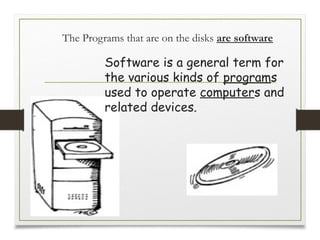
Software is a general term for
the various kinds of programs
used to operate computers and
related devices.
6.
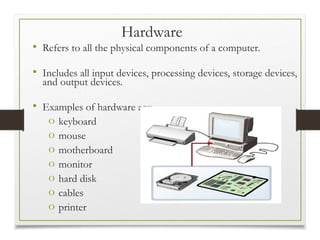
Hardware
• Refers toall the physical components of a computer.
• Includes all input devices, processing devices, storage devices,
and output devices.
• Examples of hardware are:
o keyboard
o mouse
o motherboard
o monitor
o hard disk
o cables
o printer
7.
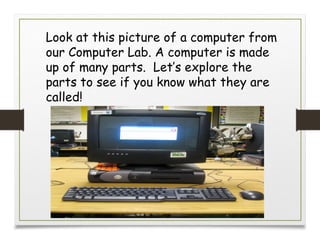
Look at thispicture of a computer from
our Computer Lab. A computer is made
up of many parts. Let’s explore the
parts to see if you know what they are
called!
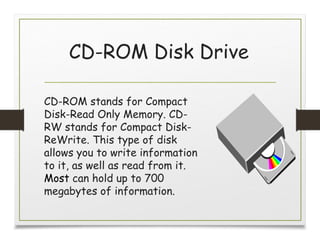
CD-ROM Disk Drive
CD-ROMstands for Compact
Disk-Read Only Memory. CD-
RW stands for Compact Disk-
ReWrite. This type of disk
allows you to write information
to it, as well as read from it.
Most can hold up to 700
megabytes of information.
10.
DVD Drive/Burner
The newestcomputers come
with the option of a DVD
drive. A DVD (Digital Video
Disc) looks just like a CD,
but holds much more
information! They can store
4.7 gigabytes of data!
11.
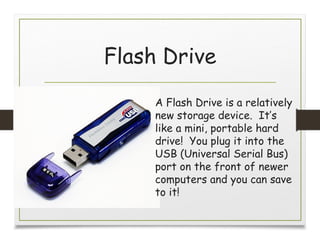
Flash Drive
A FlashDrive is a relatively
new storage device. It’s
like a mini, portable hard
drive! You plug it into the
USB (Universal Serial Bus)
port on the front of newer
computers and you can save
to it!
12.
How Do ComputersWork?
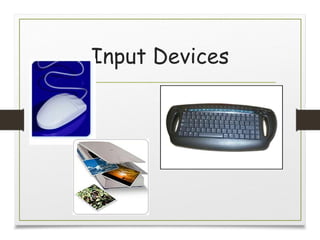
• Input--This is when information is entered into a
computer. Some common input devices include the
keyboard, mouse and scanner.
• Output--This is the information that comes out of a
computer after it has been processed. The
information comes out on output devices such as a
printer or computer monitor.
• Processing--This is when the information is handled
by the computer’s brain, known as the CPU (Central
Processing Unit).
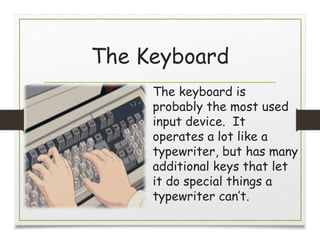
The Keyboard
The keyboardis
probably the most used
input device. It
operates a lot like a
typewriter, but has many
additional keys that let
it do special things a
typewriter can’t.
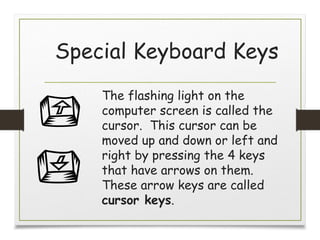
Special Keyboard Keys
Theflashing light on the
computer screen is called the
cursor. This cursor can be
moved up and down or left and
right by pressing the 4 keys
that have arrows on them.
These arrow keys are called
cursor keys.
17.
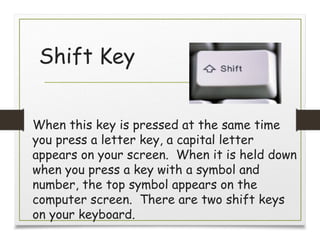
Shift Key
When thiskey is pressed at the same time
you press a letter key, a capital letter
appears on your screen. When it is held down
when you press a key with a symbol and
number, the top symbol appears on the
computer screen. There are two shift keys
on your keyboard.
18.
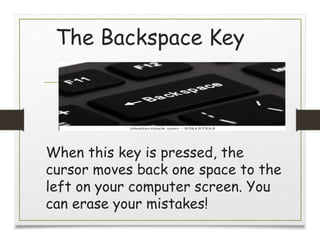
The Backspace Key
Whenthis key is pressed, the
cursor moves back one space to the
left on your computer screen. You
can erase your mistakes!
Editor's Notes
#6 Hardware refers to all the physical components of a computer. It includes all input devices, processing devices, storage devices, and output devices. The keyboard, mouse, motherboard, monitor, hard disk, cables, and printer are all examples of hardware.
You use hardware to provide input to a computer and also to get the desired output. For example, when you play a musical instrument, such as a piano, you provide input by pressing the keys and get the desired output in the form of music. Similarly, computers also need input and output devices to perform tasks.
You use a keyboard and a mouse to provide input and to select and run programs. You can view the output on a monitor that is similar to a television set, or use the printer to view the output on paper.
Apart from input and output devices, a computer uses processing devices to work on the input data and generate the desired output. The most important processing device is the CPU. The CPU is the brain of the computer. It processes the input to perform calculations and produce output.
A motherboard is a large circuit board that connects input, output, and processing devices. The motherboard circuits provide pathways that allow data to pass through these various components. It also contains chips that determine how, when, and where data can flow through the computer.
Depending on the task that you want your computer to perform, you can choose the appropriate hardware. For example, you can use a NIC to connect your computer to other computers. You can also use expansion cards, such as video cards, to add new features or enhance the performance of your computer. All of these devices are plugged into the motherboard.
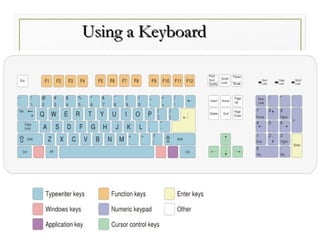
#15 Alphanumeric Keys: These keys are used for entering letters and numbers.
Special Keys: Keys such as Control (CTRL), SHIFT, SPACEBAR, ALT, CAPS LOCK, and TAB are special keys. These special keys perform special functions depending on when and where they are used.
Punctuation Keys: Punctuation keys include keys for punctuation marks, such as colon (:), semicolon (;), question mark (?), single quotation marks (‘ ’), and double quotation marks (“ ”).
Command Keys: Keys such as INSERT (INS), DELETE (DEL), and BACKSPACE are command keys. You use these keys to insert and delete text and objects. You can turn the INSERT key either ON or OFF. When turned ON, the INSERT key helps you overwrite characters to the right of the insertion point. When turned OFF, the INSERT key helps you enter text or characters to the right of the insertion point, without overwriting this text or characters. An insertion point is the blinking vertical line that indicates the location at which the inserted text appears. The DELETE key is used to remove typed text, characters, and other objects on the right side of the insertion point. The BACKSPACE key is used to remove typed text, characters, and other objects on the left side of the insertion point.