NETWORKING ICONS – Style 1


                              ww
                              w


www.slideteam.net                  Your Logo
NETWORKING ICONS – Style 1


www.slideteam.net             Your Logo
NETWORKING ICONS – Style 1


                       www


                       www


                      www
www.slideteam.net             Your Logo
NETWORKING ICONS – Style 1


www.slideteam.net             Your Logo
NETWORKING ICONS – Style 1


www.slideteam.net             Your Logo
NETWORKING ICONS – Style 1


www.slideteam.net             Your Logo
NETWORKING ICONS – Style 1


                       www


www.slideteam.net             Your Logo
NETWORKING ICONS – Style 1


www.slideteam.net             Your Logo
All images are 100% editable in Powerpoint
ā€œChange color, size and orientation of any icon to your likingā€


www.slideteam.net
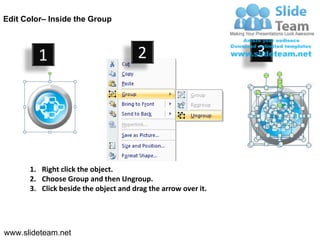
Edit Color– Inside the Group


         1                            2                        3


      1. Right click the object.
      2. Choose Group and then Ungroup.
      3. Click beside the object and drag the arrow over it.


www.slideteam.net
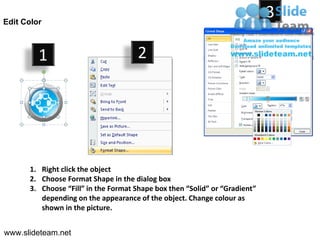
Edit Color
                                                                            3

         1                           2


      1. Right click the object
      2. Choose Format Shape in the dialog box
      3. Choose ā€œFillā€ in the Format Shape box then ā€œSolidā€ or ā€œGradientā€
         depending on the appearance of the object. Change colour as
         shown in the picture.


www.slideteam.net

Computer ethernet networking icons style design 1 powerpoint presentation slides.