Chapter 5
Power and interface cable
1
Port
 It’s a opening on the system unit into which a
cable from an external peripheral device (e.g.
mouse keyboard etc) is plugged to facilitate
transfer of information between the device and
CPU.
2
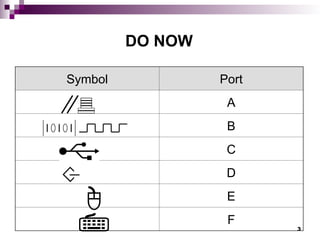
DO NOW
Symbol Port
A
B
C
D
E
F
3
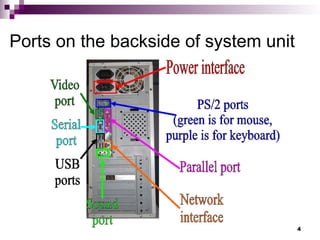
Ports on the backside of system unit
4
 Differentiate between power cables and
data interface cables.
 Describe 3 types of Data interface cables
5
Power cable
 They are used to supply power to the motherboard ,
peripheral devices and other internal devices of a
computer.
6
Interface cable /
 All peripheral devices that make up a
computer system are connected to the
motherboard inside the system unit
through the interface cables.
7
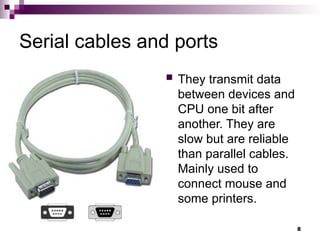
Serial cables and ports
 They transmit data
between devices and
CPU one bit after
another. They are
slow but are reliable
than parallel cables.
Mainly used to
connect mouse and
some printers.
8
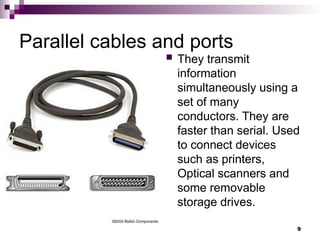
Parallel cables and ports
 They transmit
information
simultaneously using a
set of many
conductors. They are
faster than serial. Used
to connect devices
such as printers,
Optical scanners and
some removable
storage drives.
9
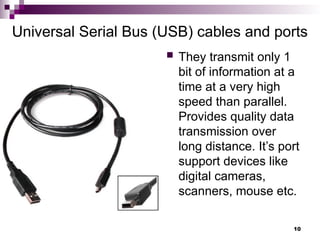
Universal Serial Bus (USB) cables and ports
 They transmit only 1
bit of information at a
time at a very high
speed than parallel.
Provides quality data
transmission over
long distance. It’s port
support devices like
digital cameras,
scanners, mouse etc.
10
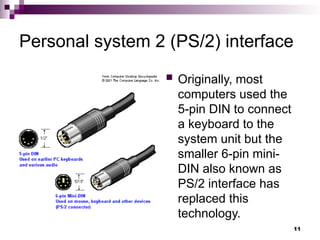
Personal system 2 (PS/2) interface
 Originally, most
computers used the
5-pin DIN to connect
a keyboard to the
system unit but the
smaller 6-pin mini-
DIN also known as
PS/2 interface has
replaced this
technology.
11
Types of ports 1
 Infra-red – used for wireless communication between the CPU and
device which is infrared – capable. Communication is over short
distance, and there should be no obstruction between the two
devices.
 D-type ports – these ports have the shape of capital letter D. They
are two types namely the Nine-Pin (DB-9) and 25 pin-wide (DB-25).
The DB9 is a serial port into which cables such as mouse, modem,
serial printer etc can be plugged. The DB-25 port can be used for
both serial and parallel devices. When used to connect serial it’s
labelled COM1 or COM2 and only 10 of its pins are used. For parallel
it’s labeled LPT 1 or LPT 2.
 Centronic ports – this is a parallel port that uses metal clips mounted
into cells in place of pins.
 Audio ports – used for inputting and outputting sound into and out of
sound card.
 LAN ports – used for connecting the computer to local area network.
 Modem port – used for plugging an external modem into the
computer.
12
Types of ports 2 (Video port)
 Video ports – used for
connecting the
monitor to the system
unit. It can be 9-pin D
or 15-pin D.
13
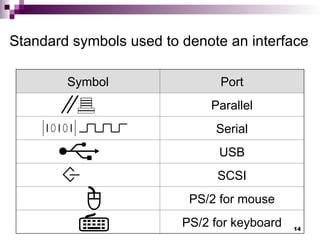
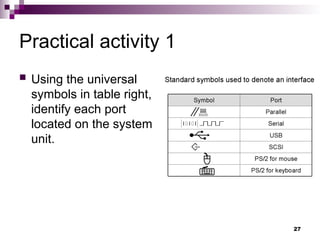
Standard symbols used to denote an interface
Symbol Port
Parallel
Serial
USB
SCSI
PS/2 for mouse
PS/2 for keyboard 14
Basic computer set-up and cabling
 Having learnt about various devices and
how they function, it is important to
familiarise ourselves on how to set up a
computer.
 Before carrying out the practical the
following should be observed.
Dismember all cables from the source of
power to prevent electrical shock.
Follow the teacher’s instructions strictly. 15
Tools and materials required
 Screw drivers
 Pliers
 Motherboard
 Manufacturers manual
 Required peripheral devices
 Dismantled system unit
 Power and interface cables
16
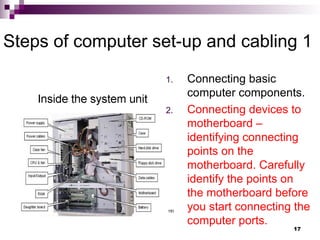
Steps of computer set-up and cabling 1
1. Connecting basic
computer components.
2. Connecting devices to
motherboard –
identifying connecting
points on the
motherboard. Carefully
identify the points on
the motherboard before
you start connecting the
computer ports.
17
3. Connecting the hard disk, floppy drive, CD-
ROM
a. Wear antistatic material to discharge any static
charge on the body.
b. Check for a free drive bay to hold disk drive.
c. Slide the disk into its bay and screw it.
d. Connect the power supply cable to the device.
e. Connect the cable both to the drive then to
motherboard.
f. If installation is complete replace the system unit
cover.
Steps of computer set-up and cabling 2
18
4. Connecting other peripheral devices.
a. Identify its port and data cable or interface
cable.
b. Connect the data cables of all devices to
their respective ports.
c. Switch on the computer power source.
d. Successful boot means the computer was
properly setup.
Steps of computer set-up and cabling 3
19
Review questions 1
1. Define the following terms:
A). Port B). Data Interface cable C). Power cable
2. What is the function of the power supply unit found in the
system unit.
3. Differentiate between parallel and serial interface cables.
4. Give two advantages of a USB interface cable.
5. Draw an illustration of:
A). Parallel cable B). USB port
6. What would happen if you bend the pins of a monitor port as
you try to connect the monitor interface cable to the system
unit?
7. Draw illustrations of various ports found at the back of the
system unit of the computer.
20
Answer of review questions 1
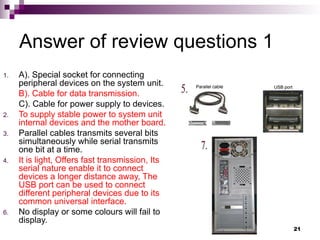
1. A). Special socket for connecting
peripheral devices on the system unit.
B). Cable for data transmission.
C). Cable for power supply to devices.
2. To supply stable power to system unit
internal devices and the mother board.
3. Parallel cables transmits several bits
simultaneously while serial transmits
one bit at a time.
4. It is light, Offers fast transmission, Its
serial nature enable it to connect
devices a longer distance away, The
USB port can be used to connect
different peripheral devices due to its
common universal interface.
6. No display or some colours will fail to
display.
21
Review questions 2
1. What are the safety precautions to be
observed before one starts installing devices
in the system unit?
2. In relation to cabling, give two reasons why a
printer may not print work sent from the
computer as expected?
3. Naliaka connected new multimedia speakers
to her computer and tried to play her favorite
music CD but no sound was heard. What
might have been the problem? 22
Answer of review questions 2
1. A). Disconnect all devices
from power source before
attempting to work on them.
B). Do not work on any
peripheral device without the
guidance of the teacher.
C). Never work alone because
you may need help in case of
an emergency.
D). Discharge any static
electricity that might have built
up on your hands by touching
an earthed metallic object and
then wearing an antistatic
wrist member.
2. A). Loose printer interface
cable.
B). Printer still off.
C). Printer not installed.
3. A). Volume control too low.
B). Loose or improper
connection to the sound card.
C). Speakers not powered.
D). Multimedia not supported.
E) absence of analog cable
connecting the optical drive to
the motherboard or sound
card.
23
Revision questions
1. Write the following abbreviations in full:
A). CPU B). ALU C). CU
D). ROM E). RAM
2. Give examples of special purpose memories found in the CPU.
3. What do the following abbreviations in relation to storage capacity stand for:
A). KB B). MB C). GB
4. Describe various display video cards used in computers.
5. Differentiate between MICR and OCR scanners.
6. What is the market name given to the most recent types of processors?
7. Explain the internal mechanism of the hard disk in reference to disk platters
and the read/Write head.
8. Describe the structure of a hard disk in reference to cylinders, tracks and
sectors.
9. What are pixels? What role do they play in screen display?
10. Explain the steps you would follow to set up a new computer.
24
Answer of revision questions 1
1. A). Central Processing
Unit.
B). Arithmetic Logic
Unit.
C). Control Unit.
D). Read Only Memory.
E). Random Access
Memory.
2. Cache and registers.
3. A). Kilobyte.
B). Megabyte
C). Gigabyte.
4. MDA, HGA, EGA, VGA
and SVGA.
5. MICR uses magnetic
technology to read magnetic
characters while OCR uses
laser technology to read
characters.
6. Core i3, i5 ,i7 , i9
7. The drive is made up of
several disk platters that are
mounted on a common axis
with read/write heads on both
sides of the platters. The heads
move in and out as they
write/read data. The outer case
is hard and metallic.
25
Answer of revision questions 2
8. The hard disk is divided into concentric circles called
tracks. Parallel tracks on several platters are called
cylinders. The tracks are further subdivided into sectors.
Several sectors can be grouped to form clusters.
9. Pixels (picture elements) are dots on the screen that form
characters and images. They determine the clarity of the
image.
10. (a). Gently and carefully connect the interface cable of
each device to the correct port and to the device.
(b). Connect the computer to the power source and switch
it on.
(c). Observe boot up information on the screen to see
whether Power On-Self Test (POST) displays any error
message. A successful boot means that the computer was
properly setup. 26
Practical activity 1
 Using the universal
symbols in table right,
identify each port
located on the system
unit.
27

Chapter 5 Power and Interface cable.ppt Chapter 5 Power and Interface cable.ppt

  • 1.
    Chapter 5 Power andinterface cable 1
  • 2.
    Port  It’s aopening on the system unit into which a cable from an external peripheral device (e.g. mouse keyboard etc) is plugged to facilitate transfer of information between the device and CPU. 2
  • 3.
  • 4.
    Ports on thebackside of system unit 4
  • 5.
     Differentiate betweenpower cables and data interface cables.  Describe 3 types of Data interface cables 5
  • 6.
    Power cable  Theyare used to supply power to the motherboard , peripheral devices and other internal devices of a computer. 6
  • 7.
    Interface cable / All peripheral devices that make up a computer system are connected to the motherboard inside the system unit through the interface cables. 7
  • 8.
    Serial cables andports  They transmit data between devices and CPU one bit after another. They are slow but are reliable than parallel cables. Mainly used to connect mouse and some printers. 8
  • 9.
    Parallel cables andports  They transmit information simultaneously using a set of many conductors. They are faster than serial. Used to connect devices such as printers, Optical scanners and some removable storage drives. 9
  • 10.
    Universal Serial Bus(USB) cables and ports  They transmit only 1 bit of information at a time at a very high speed than parallel. Provides quality data transmission over long distance. It’s port support devices like digital cameras, scanners, mouse etc. 10
  • 11.
    Personal system 2(PS/2) interface  Originally, most computers used the 5-pin DIN to connect a keyboard to the system unit but the smaller 6-pin mini- DIN also known as PS/2 interface has replaced this technology. 11
  • 12.
    Types of ports1  Infra-red – used for wireless communication between the CPU and device which is infrared – capable. Communication is over short distance, and there should be no obstruction between the two devices.  D-type ports – these ports have the shape of capital letter D. They are two types namely the Nine-Pin (DB-9) and 25 pin-wide (DB-25). The DB9 is a serial port into which cables such as mouse, modem, serial printer etc can be plugged. The DB-25 port can be used for both serial and parallel devices. When used to connect serial it’s labelled COM1 or COM2 and only 10 of its pins are used. For parallel it’s labeled LPT 1 or LPT 2.  Centronic ports – this is a parallel port that uses metal clips mounted into cells in place of pins.  Audio ports – used for inputting and outputting sound into and out of sound card.  LAN ports – used for connecting the computer to local area network.  Modem port – used for plugging an external modem into the computer. 12
  • 13.
    Types of ports2 (Video port)  Video ports – used for connecting the monitor to the system unit. It can be 9-pin D or 15-pin D. 13
  • 14.
    Standard symbols usedto denote an interface Symbol Port Parallel Serial USB SCSI PS/2 for mouse PS/2 for keyboard 14
  • 15.
    Basic computer set-upand cabling  Having learnt about various devices and how they function, it is important to familiarise ourselves on how to set up a computer.  Before carrying out the practical the following should be observed. Dismember all cables from the source of power to prevent electrical shock. Follow the teacher’s instructions strictly. 15
  • 16.
    Tools and materialsrequired  Screw drivers  Pliers  Motherboard  Manufacturers manual  Required peripheral devices  Dismantled system unit  Power and interface cables 16
  • 17.
    Steps of computerset-up and cabling 1 1. Connecting basic computer components. 2. Connecting devices to motherboard – identifying connecting points on the motherboard. Carefully identify the points on the motherboard before you start connecting the computer ports. 17
  • 18.
    3. Connecting thehard disk, floppy drive, CD- ROM a. Wear antistatic material to discharge any static charge on the body. b. Check for a free drive bay to hold disk drive. c. Slide the disk into its bay and screw it. d. Connect the power supply cable to the device. e. Connect the cable both to the drive then to motherboard. f. If installation is complete replace the system unit cover. Steps of computer set-up and cabling 2 18
  • 19.
    4. Connecting otherperipheral devices. a. Identify its port and data cable or interface cable. b. Connect the data cables of all devices to their respective ports. c. Switch on the computer power source. d. Successful boot means the computer was properly setup. Steps of computer set-up and cabling 3 19
  • 20.
    Review questions 1 1.Define the following terms: A). Port B). Data Interface cable C). Power cable 2. What is the function of the power supply unit found in the system unit. 3. Differentiate between parallel and serial interface cables. 4. Give two advantages of a USB interface cable. 5. Draw an illustration of: A). Parallel cable B). USB port 6. What would happen if you bend the pins of a monitor port as you try to connect the monitor interface cable to the system unit? 7. Draw illustrations of various ports found at the back of the system unit of the computer. 20
  • 21.
    Answer of reviewquestions 1 1. A). Special socket for connecting peripheral devices on the system unit. B). Cable for data transmission. C). Cable for power supply to devices. 2. To supply stable power to system unit internal devices and the mother board. 3. Parallel cables transmits several bits simultaneously while serial transmits one bit at a time. 4. It is light, Offers fast transmission, Its serial nature enable it to connect devices a longer distance away, The USB port can be used to connect different peripheral devices due to its common universal interface. 6. No display or some colours will fail to display. 21
  • 22.
    Review questions 2 1.What are the safety precautions to be observed before one starts installing devices in the system unit? 2. In relation to cabling, give two reasons why a printer may not print work sent from the computer as expected? 3. Naliaka connected new multimedia speakers to her computer and tried to play her favorite music CD but no sound was heard. What might have been the problem? 22
  • 23.
    Answer of reviewquestions 2 1. A). Disconnect all devices from power source before attempting to work on them. B). Do not work on any peripheral device without the guidance of the teacher. C). Never work alone because you may need help in case of an emergency. D). Discharge any static electricity that might have built up on your hands by touching an earthed metallic object and then wearing an antistatic wrist member. 2. A). Loose printer interface cable. B). Printer still off. C). Printer not installed. 3. A). Volume control too low. B). Loose or improper connection to the sound card. C). Speakers not powered. D). Multimedia not supported. E) absence of analog cable connecting the optical drive to the motherboard or sound card. 23
  • 24.
    Revision questions 1. Writethe following abbreviations in full: A). CPU B). ALU C). CU D). ROM E). RAM 2. Give examples of special purpose memories found in the CPU. 3. What do the following abbreviations in relation to storage capacity stand for: A). KB B). MB C). GB 4. Describe various display video cards used in computers. 5. Differentiate between MICR and OCR scanners. 6. What is the market name given to the most recent types of processors? 7. Explain the internal mechanism of the hard disk in reference to disk platters and the read/Write head. 8. Describe the structure of a hard disk in reference to cylinders, tracks and sectors. 9. What are pixels? What role do they play in screen display? 10. Explain the steps you would follow to set up a new computer. 24
  • 25.
    Answer of revisionquestions 1 1. A). Central Processing Unit. B). Arithmetic Logic Unit. C). Control Unit. D). Read Only Memory. E). Random Access Memory. 2. Cache and registers. 3. A). Kilobyte. B). Megabyte C). Gigabyte. 4. MDA, HGA, EGA, VGA and SVGA. 5. MICR uses magnetic technology to read magnetic characters while OCR uses laser technology to read characters. 6. Core i3, i5 ,i7 , i9 7. The drive is made up of several disk platters that are mounted on a common axis with read/write heads on both sides of the platters. The heads move in and out as they write/read data. The outer case is hard and metallic. 25
  • 26.
    Answer of revisionquestions 2 8. The hard disk is divided into concentric circles called tracks. Parallel tracks on several platters are called cylinders. The tracks are further subdivided into sectors. Several sectors can be grouped to form clusters. 9. Pixels (picture elements) are dots on the screen that form characters and images. They determine the clarity of the image. 10. (a). Gently and carefully connect the interface cable of each device to the correct port and to the device. (b). Connect the computer to the power source and switch it on. (c). Observe boot up information on the screen to see whether Power On-Self Test (POST) displays any error message. A successful boot means that the computer was properly setup. 26
  • 27.
    Practical activity 1 Using the universal symbols in table right, identify each port located on the system unit. 27