HOW TO USE
WORDPRESS
VA 2015 - HOW TO USE WORDPRESS 1
VA 2015 - HOW TO USE WORDPRESS 2
Begin with the
END in MIND!
Steven Covey
7 Habits of Highly Effective People
VA 2015 - HOW TO USE WORDPRESS 3
WORDPRESS is a web
software that allows one
All screen shots are sourced from Microsoft, Wordpress and Google.
VA 2015 - HOW TO USE WORDPRESS 4
to easily create beautiful
website or blog.
VA 2015 - HOW TO USE WORDPRESS
This tutorial assumes that
Wordpress is not yet
installed
5
VA 2015 - HOW TO USE WORDPRESS 6
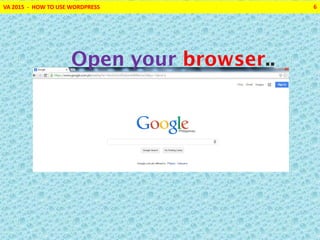
Open your browser..
VA 2015 - HOW TO USE WORDPRESS 7
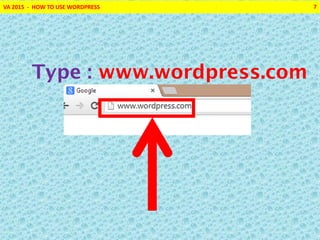
Type : www.wordpress.com
VA 2015 - HOW TO USE WORDPRESS 8
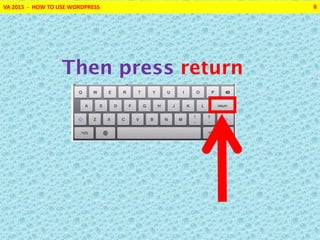
Then press return
VA 2015 - HOW TO USE WORDPRESS 9
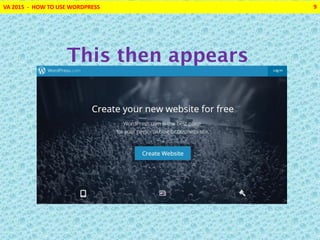
This then appears
VA 2015 - HOW TO USE WORDPRESS 10
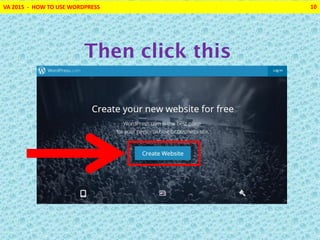
Then click this
VA 2015 - HOW TO USE WORDPRESS 11
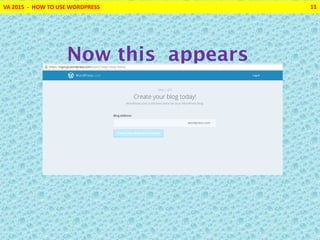
Now this appears
VA 2015 - HOW TO USE WORDPRESS 12
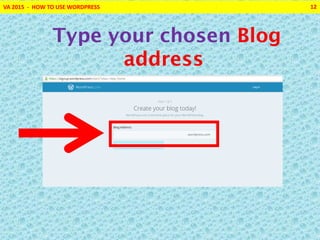
Type your chosen Blog
address
VA 2015 - HOW TO USE WORDPRESS 13
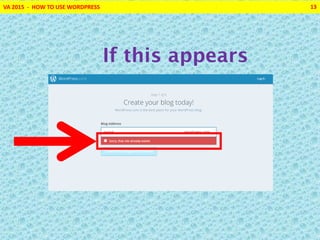
If this appears
VA 2015 - HOW TO USE WORDPRESS 14
Then the blog address
already exist
VA 2015 - HOW TO USE WORDPRESS 15
So type another blog
address
VA 2015 - HOW TO USE WORDPRESS 16
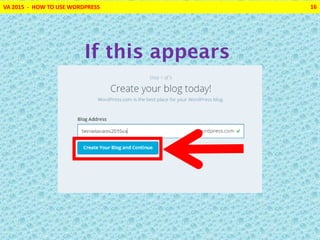
If this appears
VA 2015 - HOW TO USE WORDPRESS 17
You can
proceed to
create your blog
site
VA 2015 - HOW TO USE WORDPRESS 18
Please write
down your Blog
Address
VA 2015 - HOW TO USE WORDPRESS 19
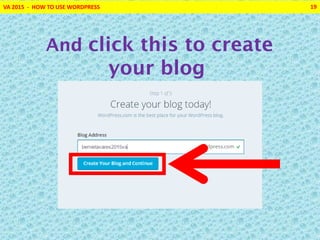
And click this to create
your blog
VA 2015 - HOW TO USE WORDPRESS 20
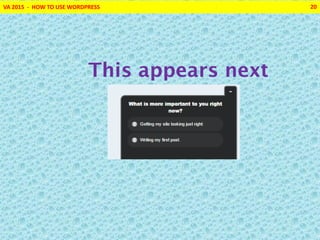
This appears next
VA 2015 - HOW TO USE WORDPRESS 21
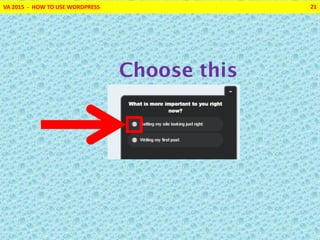
Choose this
VA 2015 - HOW TO USE WORDPRESS 22
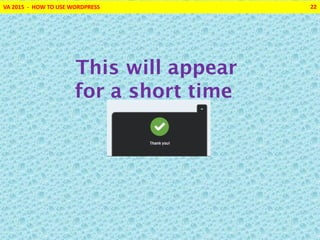
This will appear
for a short time
VA 2015 - HOW TO USE WORDPRESS 23
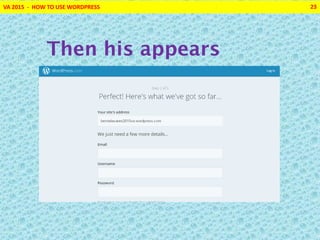
Then his appears
VA 2015 - HOW TO USE WORDPRESS 24
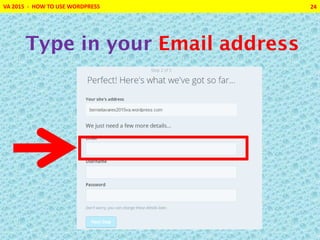
Type in your Email address
VA 2015 - HOW TO USE WORDPRESS 25
then the Username
VA 2015 - HOW TO USE WORDPRESS 26
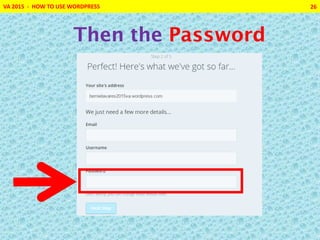
Then the Password
VA 2015 - HOW TO USE WORDPRESS 27
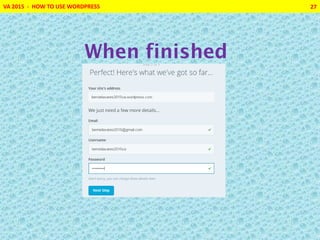
When finished
VA 2015 - HOW TO USE WORDPRESS 28
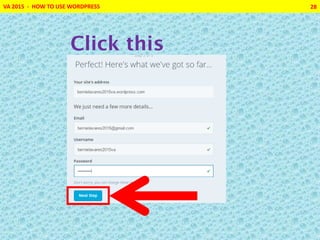
Click this
VA 2015 - HOW TO USE WORDPRESS 29
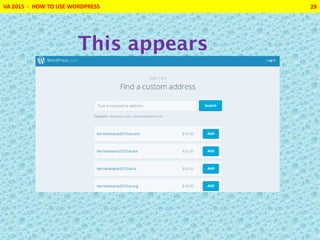
This appears
VA 2015 - HOW TO USE WORDPRESS 30
We skip the options
for now so scroll
down
VA 2015 - HOW TO USE WORDPRESS 31
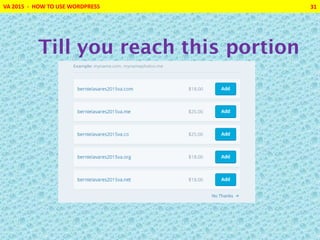
Till you reach this portion
VA 2015 - HOW TO USE WORDPRESS 32
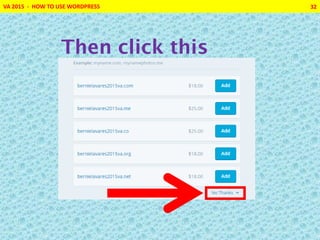
Then click this
VA 2015 - HOW TO USE WORDPRESS 33
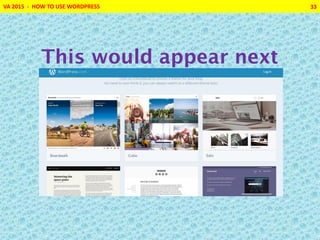
This would appear next
VA 2015 - HOW TO USE WORDPRESS 34
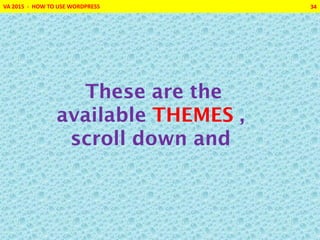
These are the
available THEMES ,
scroll down and
VA 2015 - HOW TO USE WORDPRESS 35
Choose one by
clicking it
VA 2015 - HOW TO USE WORDPRESS 36
Themes can be
change any time
VA 2015 - HOW TO USE WORDPRESS 37
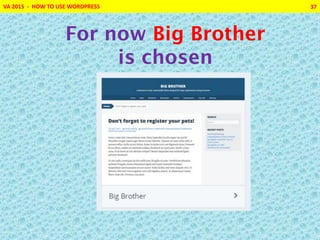
For now Big Brother
is chosen
VA 2015 - HOW TO USE WORDPRESS 38
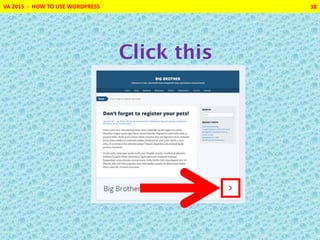
Click this
VA 2015 - HOW TO USE WORDPRESS 39
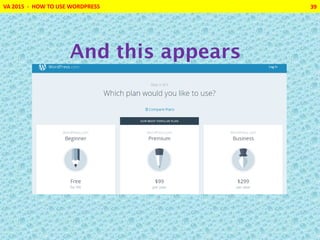
And this appears
VA 2015 - HOW TO USE WORDPRESS 40
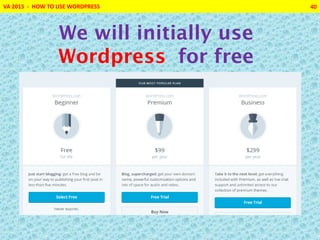
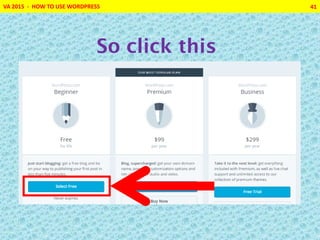
We will initially use
Wordpress for free
VA 2015 - HOW TO USE WORDPRESS 41
So click this
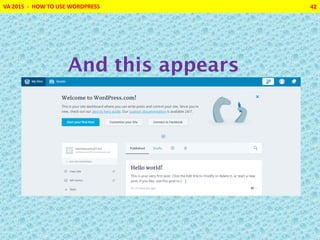
VA 2015 - HOW TO USE WORDPRESS 42
And this appears
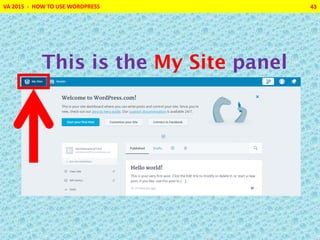
VA 2015 - HOW TO USE WORDPRESS 43
This is the My Site panel
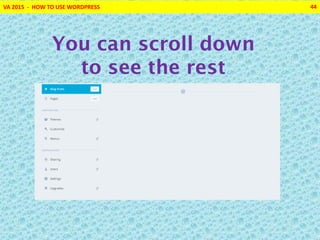
You can scroll down
to see the rest
VA 2015 - HOW TO USE WORDPRESS 44
VA 2015 - HOW TO USE WORDPRESS 45
My Site panel allows
user to
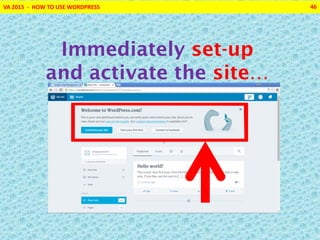
VA 2015 - HOW TO USE WORDPRESS 46
Immediately set-up
and activate the site…
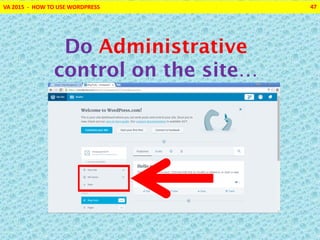
VA 2015 - HOW TO USE WORDPRESS 47
Do Administrative
control on the site…
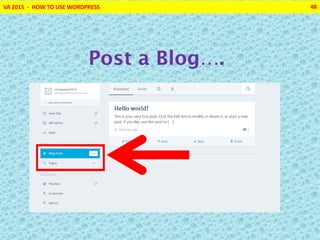
VA 2015 - HOW TO USE WORDPRESS 48
Post a Blog….
VA 2015 - HOW TO USE WORDPRESS 49
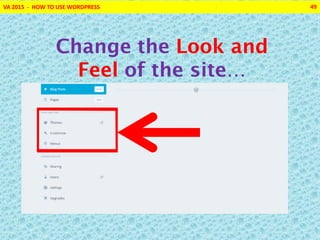
Change the Look and
Feel of the site…
VA 2015 - HOW TO USE WORDPRESS 50
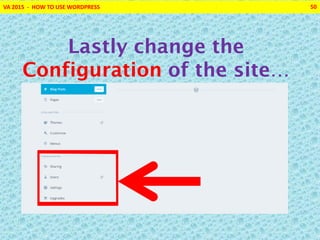
Lastly change the
Configuration of the site…
VA 2015 - HOW TO USE WORDPRESS 51
These are the
important functions
of the My Site panel
VA 2015 - HOW TO USE WORDPRESS 52
Now let us Customize
the blog site
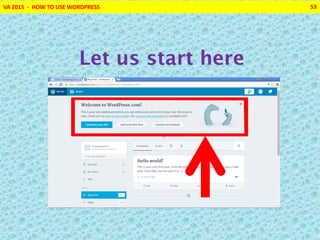
VA 2015 - HOW TO USE WORDPRESS 53
Let us start here
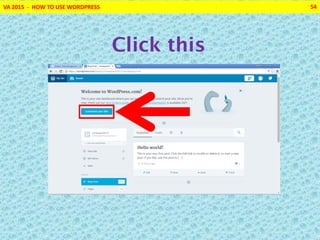
VA 2015 - HOW TO USE WORDPRESS 54
Click this
VA 2015 - HOW TO USE WORDPRESS 55
For a short time
this appears
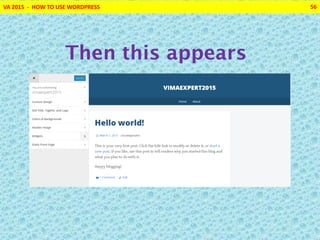
VA 2015 - HOW TO USE WORDPRESS 56
Then this appears
VA 2015 - HOW TO USE WORDPRESS 57
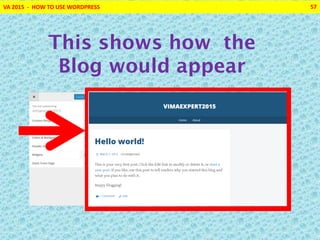
This shows how the
Blog would appear
VA 2015 - HOW TO USE WORDPRESS 58
While this would control
how it would look
VA 2015 - HOW TO USE WORDPRESS 59
Lets start
improving how it
looks
VA 2015 - HOW TO USE WORDPRESS 60
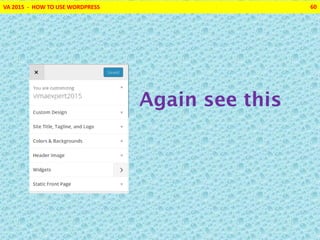
Again see this
VA 2015 - HOW TO USE WORDPRESS 61
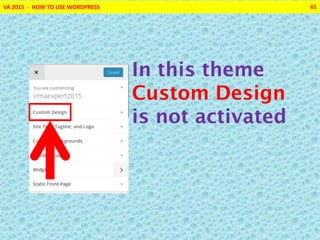
In this theme
Custom Design
is not activated
VA 2015 - HOW TO USE WORDPRESS 62
Because of this we
cannot use this
design feature
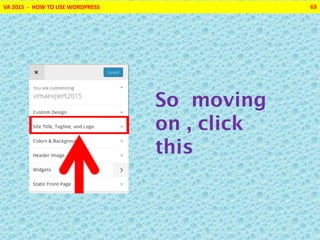
VA 2015 - HOW TO USE WORDPRESS 63
So moving
on , click
this
VA 2015 - HOW TO USE WORDPRESS 64
This now appears
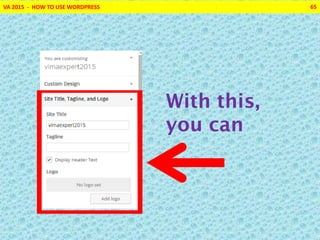
VA 2015 - HOW TO USE WORDPRESS 65
With this,
you can
VA 2015 - HOW TO USE WORDPRESS 66
Edit the Site
Title
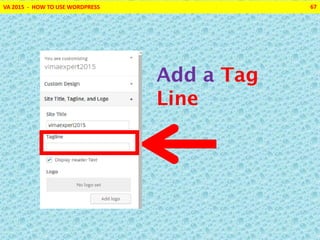
VA 2015 - HOW TO USE WORDPRESS 67
Add a Tag
Line
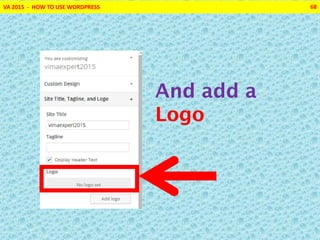
VA 2015 - HOW TO USE WORDPRESS 68
And add a
Logo
VA 2015 - HOW TO USE WORDPRESS 69
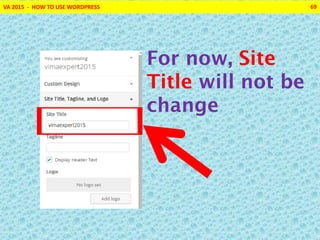
For now, Site
Title will not be
change
VA 2015 - HOW TO USE WORDPRESS 70
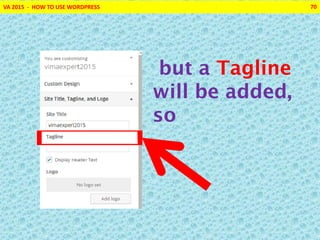
but a Tagline
will be added,
so
VA 2015 - HOW TO USE WORDPRESS 71
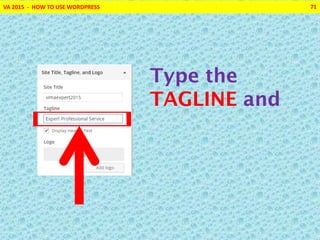
Type the
TAGLINE and
VA 2015 - HOW TO USE WORDPRESS 72
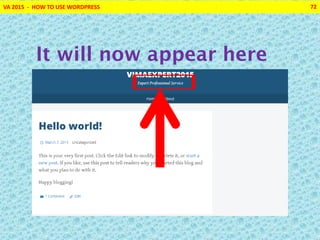
It will now appear here
VA 2015 - HOW TO USE WORDPRESS 73
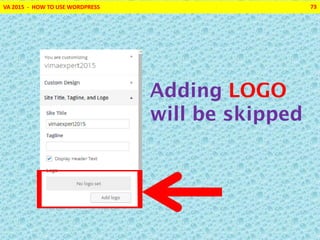
Adding LOGO
will be skipped
VA 2015 - HOW TO USE WORDPRESS 74
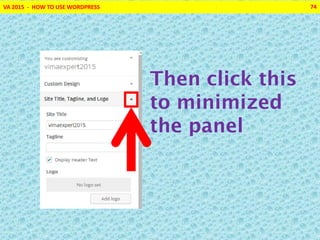
Then click this
to minimized
the panel
VA 2015 - HOW TO USE WORDPRESS 75
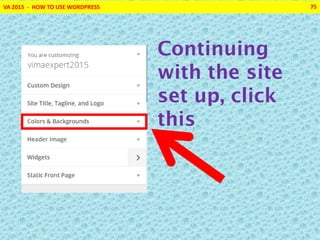
Continuing
with the site
set up, click
this
VA 2015 - HOW TO USE WORDPRESS 76
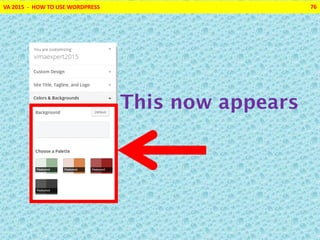
This now appears
VA 2015 - HOW TO USE WORDPRESS 77
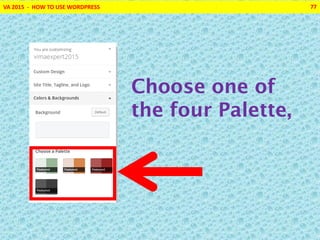
Choose one of
the four Palette,
VA 2015 - HOW TO USE WORDPRESS 78
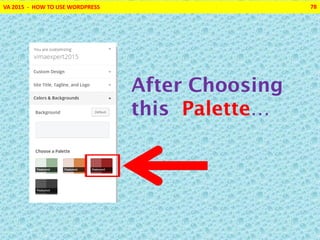
After Choosing
this Palette…
VA 2015 - HOW TO USE WORDPRESS 79
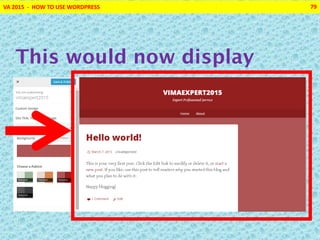
This would now display
VA 2015 - HOW TO USE WORDPRESS 80
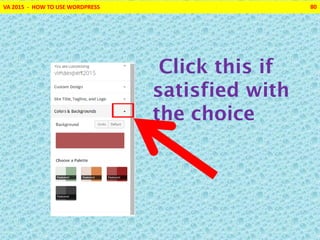
Click this if
satisfied with
the choice
VA 2015 - HOW TO USE WORDPRESS 81
The chosen
Palette will set to
the background
VA 2015 - HOW TO USE WORDPRESS 82
And Color and
Background panel
will minimized
VA 2015 - HOW TO USE WORDPRESS 83
See this
VA 2015 - HOW TO USE WORDPRESS 84
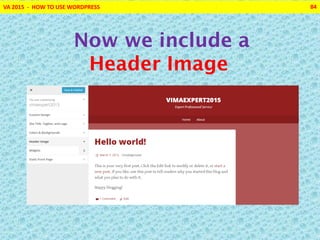
Now we include a
Header Image
VA 2015 - HOW TO USE WORDPRESS 85
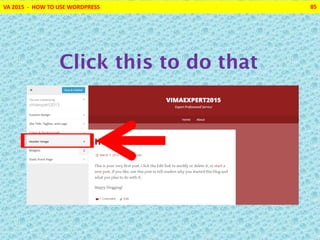
Click this to do that
VA 2015 - HOW TO USE WORDPRESS 86
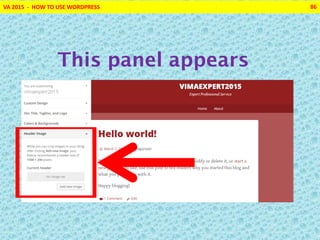
This panel appears
VA 2015 - HOW TO USE WORDPRESS 87
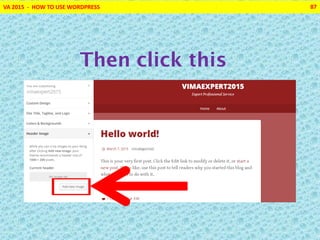
Then click this
VA 2015 - HOW TO USE WORDPRESS 88
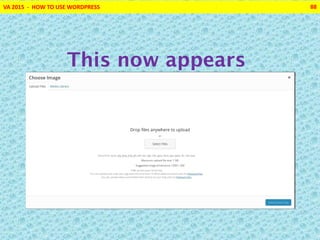
This now appears
VA 2015 - HOW TO USE WORDPRESS 89
Then click this
VA 2015 - HOW TO USE WORDPRESS 90
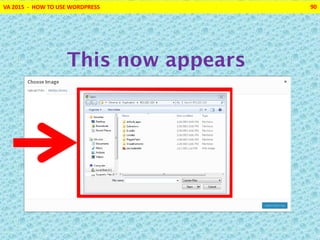
This now appears
VA 2015 - HOW TO USE WORDPRESS 91
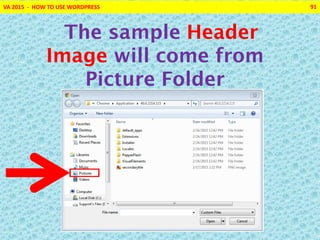
The sample Header
Image will come from
Picture Folder
VA 2015 - HOW TO USE WORDPRESS 92
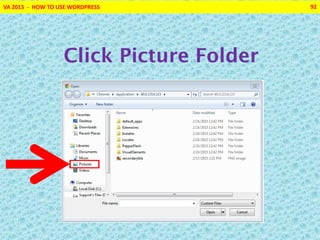
Click Picture Folder
VA 2015 - HOW TO USE WORDPRESS 93
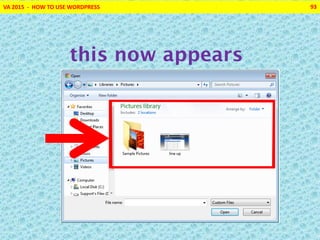
this now appears
VA 2015 - HOW TO USE WORDPRESS 94
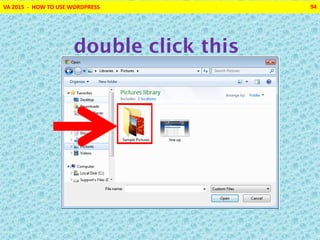
double click this
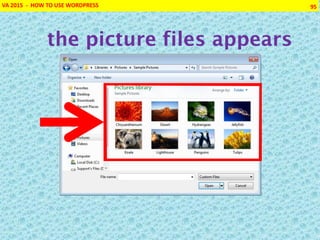
VA 2015 - HOW TO USE WORDPRESS 95
the picture files appears
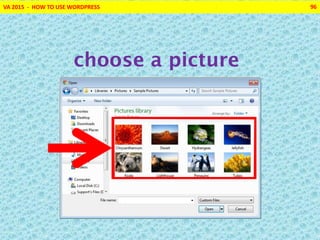
VA 2015 - HOW TO USE WORDPRESS 96
choose a picture
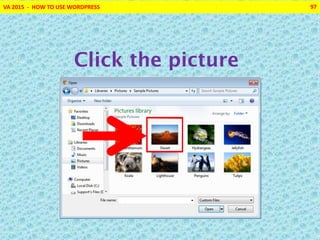
VA 2015 - HOW TO USE WORDPRESS 97
Click the picture
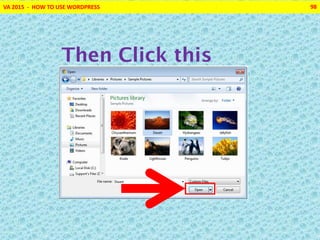
VA 2015 - HOW TO USE WORDPRESS 98
Then Click this
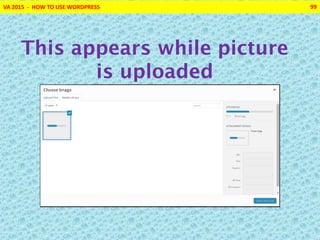
VA 2015 - HOW TO USE WORDPRESS 99
This appears while picture
is uploaded
VA 2015 - HOW TO USE WORDPRESS 100
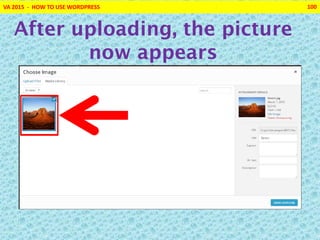
After uploading, the picture
now appears
VA 2015 - HOW TO USE WORDPRESS 101
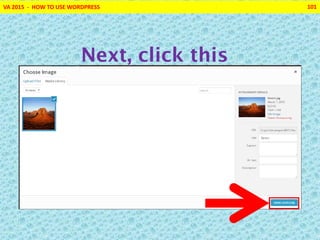
Next, click this
VA 2015 - HOW TO USE WORDPRESS 102
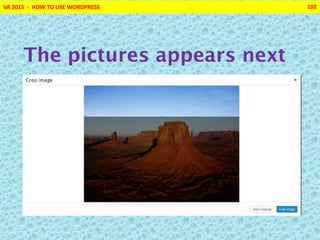
The pictures appears next
VA 2015 - HOW TO USE WORDPRESS 103
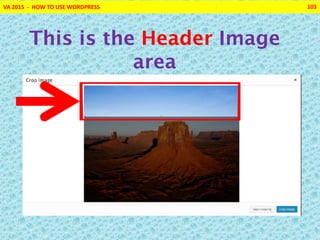
This is the Header Image
area
VA 2015 - HOW TO USE WORDPRESS 104
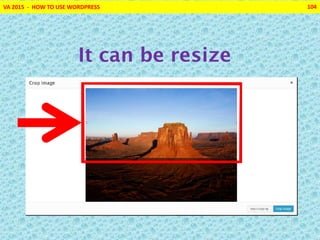
It can be resize
VA 2015 - HOW TO USE WORDPRESS 105
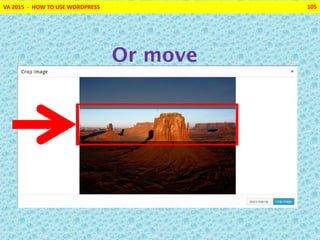
Or move
VA 2015 - HOW TO USE WORDPRESS 106
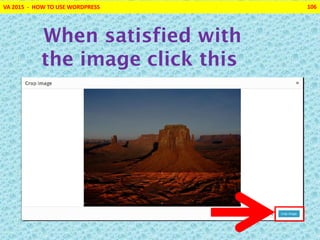
When satisfied with
the image click this
VA 2015 - HOW TO USE WORDPRESS 107
This now is the Header Image
VA 2015 - HOW TO USE WORDPRESS 108
Header Image can be
change any time
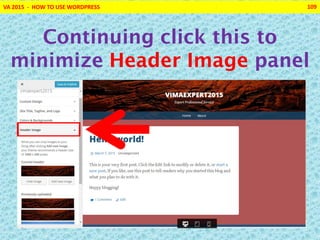
VA 2015 - HOW TO USE WORDPRESS 109
Continuing click this to
minimize Header Image panel
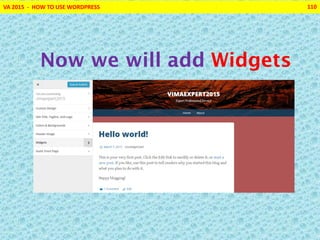
VA 2015 - HOW TO USE WORDPRESS 110
Now we will add Widgets
VA 2015 - HOW TO USE WORDPRESS 111
Widget are bite size code that
can be embedded
VA 2015 - HOW TO USE WORDPRESS 112
In a website to display text,
pictures etc
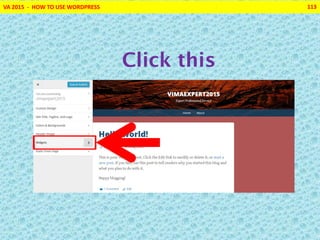
VA 2015 - HOW TO USE WORDPRESS 113
Click this
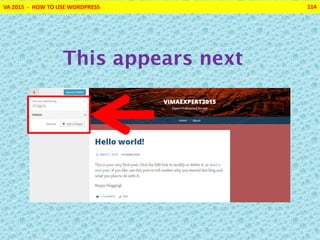
VA 2015 - HOW TO USE WORDPRESS 114
This appears next
VA 2015 - HOW TO USE WORDPRESS 115
To add a Widget click this
VA 2015 - HOW TO USE WORDPRESS 116
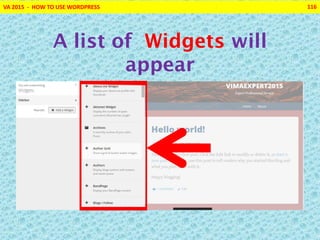
A list of Widgets will
appear
VA 2015 - HOW TO USE WORDPRESS 117
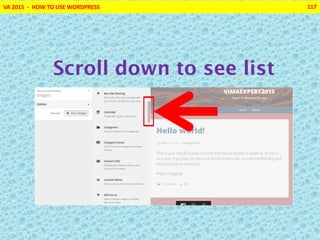
Scroll down to see list
VA 2015 - HOW TO USE WORDPRESS 118
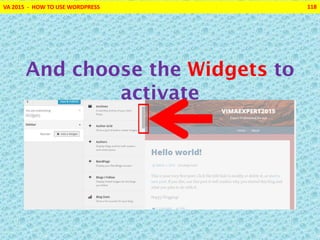
And choose the Widgets to
activate
VA 2015 - HOW TO USE WORDPRESS 119
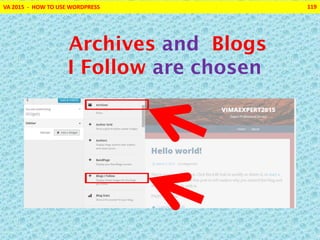
Archives and Blogs
I Follow are chosen
VA 2015 - HOW TO USE WORDPRESS 120
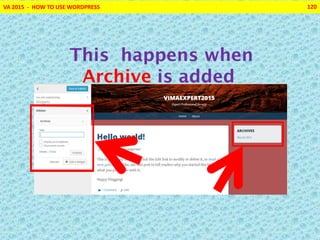
This happens when
Archive is added
VA 2015 - HOW TO USE WORDPRESS 121
Archive widget now
appears
VA 2015 - HOW TO USE WORDPRESS 122
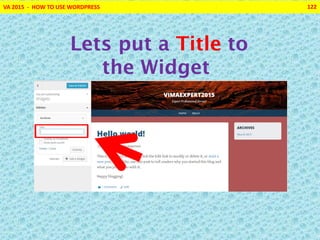
Lets put a Title to
the Widget
VA 2015 - HOW TO USE WORDPRESS 123
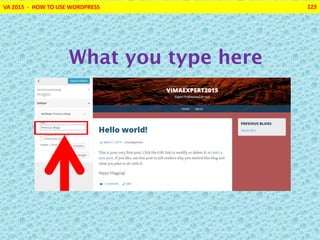
What you type here
VA 2015 - HOW TO USE WORDPRESS 124
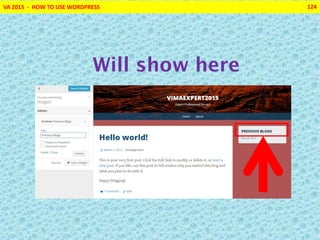
Will show here
VA 2015 - HOW TO USE WORDPRESS 125
Now for Blogs I Follow
widget
VA 2015 - HOW TO USE WORDPRESS 126
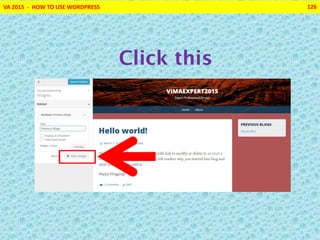
Click this
VA 2015 - HOW TO USE WORDPRESS 127
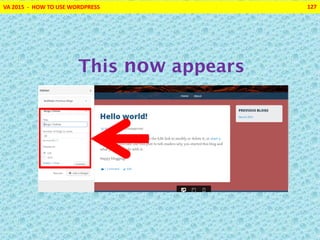
This now appears
VA 2015 - HOW TO USE WORDPRESS 128
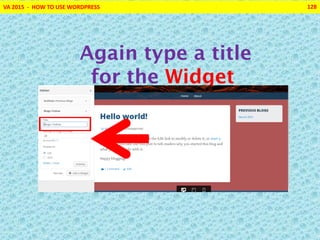
Again type a title
for the Widget
VA 2015 - HOW TO USE WORDPRESS 129
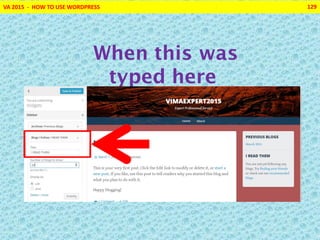
When this was
typed here
VA 2015 - HOW TO USE WORDPRESS 130
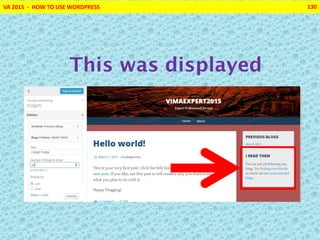
This was displayed
VA 2015 - HOW TO USE WORDPRESS 131
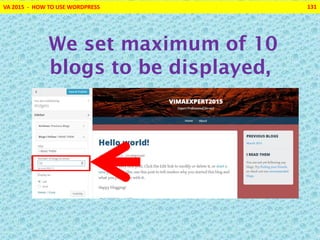
We set maximum of 10
blogs to be displayed,
VA 2015 - HOW TO USE WORDPRESS 132
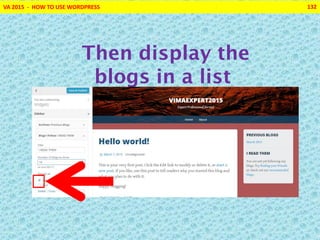
Then display the
blogs in a list
VA 2015 - HOW TO USE WORDPRESS 133
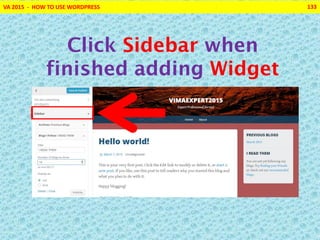
Click Sidebar when
finished adding Widget
VA 2015 - HOW TO USE WORDPRESS 134
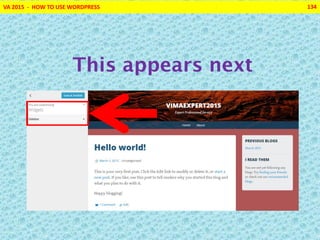
This appears next
VA 2015 - HOW TO USE WORDPRESS 135
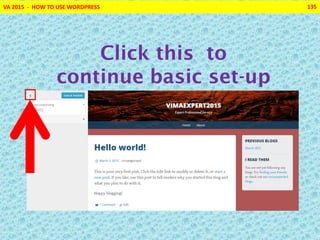
Click this to
continue basic set-up
VA 2015 - HOW TO USE WORDPRESS 136
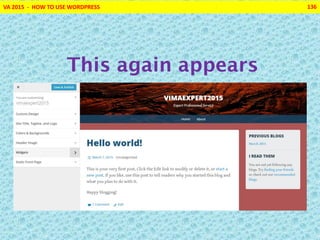
This again appears
VA 2015 - HOW TO USE WORDPRESS 137
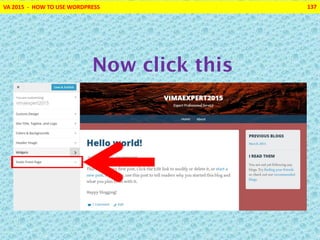
Now click this
VA 2015 - HOW TO USE WORDPRESS 138
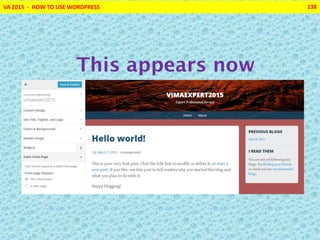
This appears now
VA 2015 - HOW TO USE WORDPRESS 139
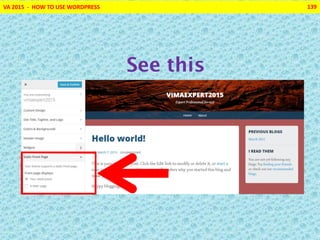
See this
VA 2015 - HOW TO USE WORDPRESS 140
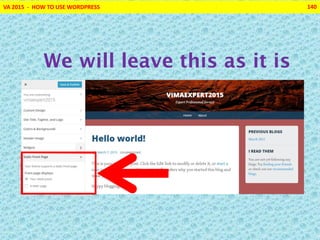
We will leave this as it is
VA 2015 - HOW TO USE WORDPRESS 141
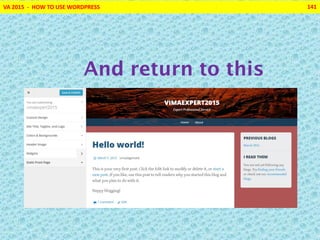
And return to this
VA 2015 - HOW TO USE WORDPRESS 142
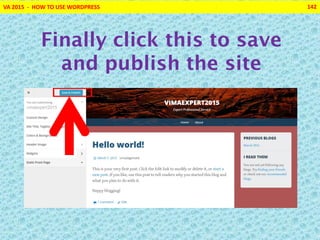
Finally click this to save
and publish the site
VA 2015 - HOW TO USE WORDPRESS 143
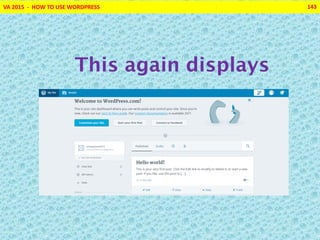
This again displays
VA 2015 - HOW TO USE WORDPRESS 144
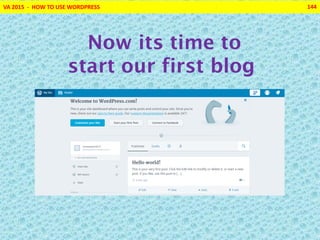
Now its time to
start our first blog
VA 2015 - HOW TO USE WORDPRESS 145
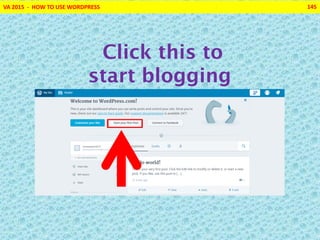
Click this to
start blogging
VA 2015 - HOW TO USE WORDPRESS 146
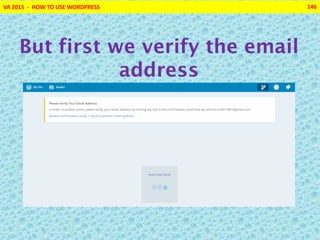
But first we verify the email
address
VA 2015 - HOW TO USE WORDPRESS 147
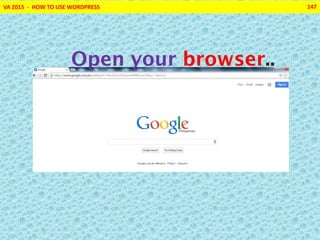
Open your browser..
VA 2015 - HOW TO USE WORDPRESS 148
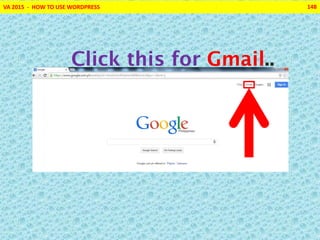
Click this for Gmail..
VA 2015 - HOW TO USE WORDPRESS 149
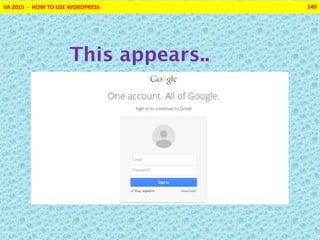
This appears..
VA 2015 - HOW TO USE WORDPRESS 150
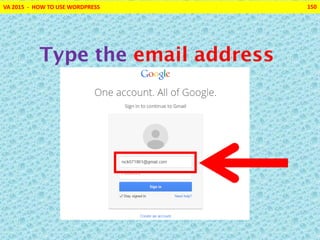
Type the email address
VA 2015 - HOW TO USE WORDPRESS 151
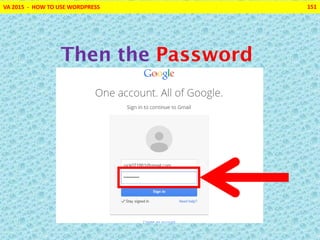
Then the Password
VA 2015 - HOW TO USE WORDPRESS 152
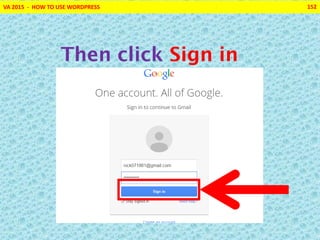
Then click Sign in
VA 2015 - HOW TO USE WORDPRESS 153
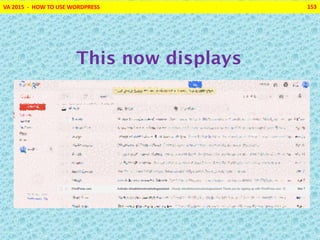
This now displays
VA 2015 - HOW TO USE WORDPRESS 154
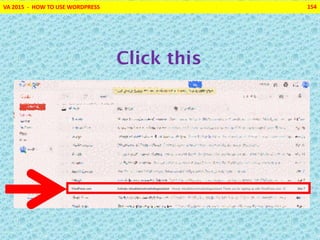
Click this
VA 2015 - HOW TO USE WORDPRESS 155
Follow the instructions for
account verification
VA 2015 - HOW TO USE WORDPRESS 156
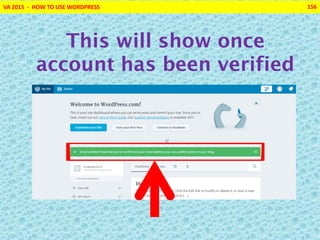
This will show once
account has been verified
VA 2015 - HOW TO USE WORDPRESS 157
Now we can start our
first blog
VA 2015 - HOW TO USE WORDPRESS 158
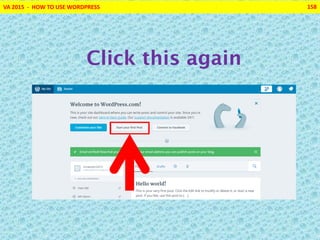
Click this again
VA 2015 - HOW TO USE WORDPRESS 159
This appears next
VA 2015 - HOW TO USE WORDPRESS 160
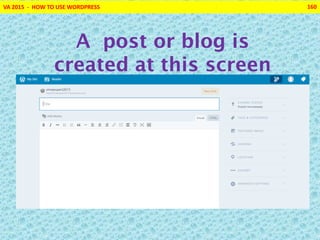
A post or blog is
created at this screen
VA 2015 - HOW TO USE WORDPRESS 161
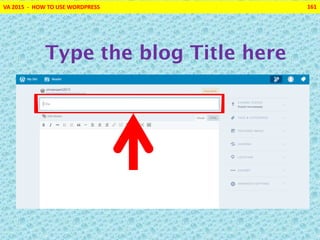
Type the blog Title here
VA 2015 - HOW TO USE WORDPRESS 162
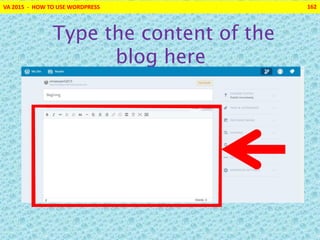
Type the content of the
blog here
VA 2015 - HOW TO USE WORDPRESS 163
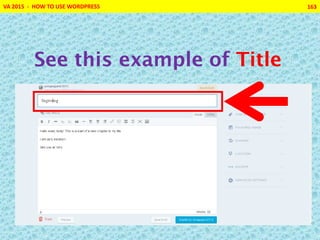
See this example of Title
VA 2015 - HOW TO USE WORDPRESS 164
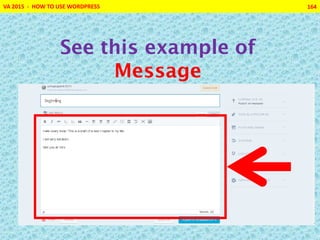
See this example of
Message
VA 2015 - HOW TO USE WORDPRESS 165
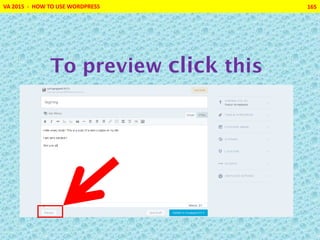
To preview click this
VA 2015 - HOW TO USE WORDPRESS 166
This is the preview of
the first blog
VA 2015 - HOW TO USE WORDPRESS 167
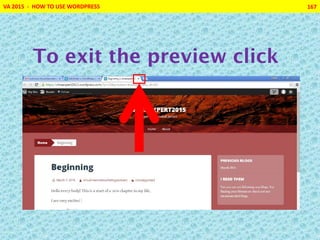
To exit the preview click
VA 2015 - HOW TO USE WORDPRESS 168
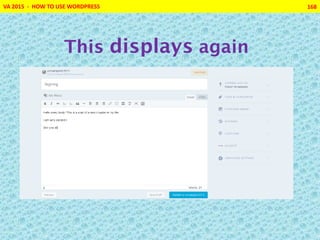
This displays again
VA 2015 - HOW TO USE WORDPRESS 169
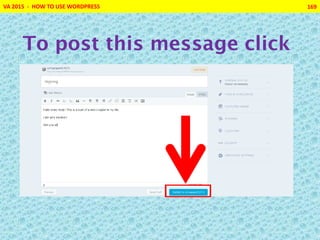
To post this message click
VA 2015 - HOW TO USE WORDPRESS 170
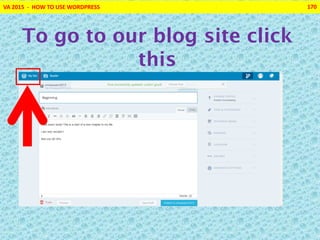
To go to our blog site click
this
VA 2015 - HOW TO USE WORDPRESS 171
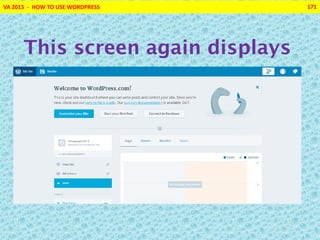
This screen again displays
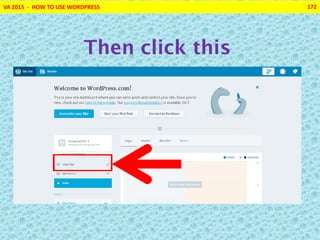
VA 2015 - HOW TO USE WORDPRESS 172
Then click this
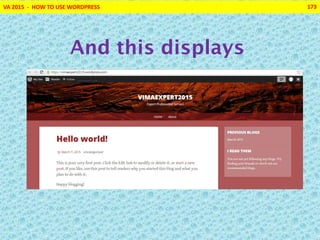
VA 2015 - HOW TO USE WORDPRESS 173
And this displays
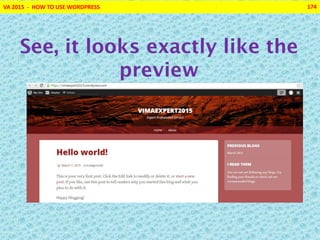
VA 2015 - HOW TO USE WORDPRESS 174
See, it looks exactly like the
preview
VA 2015 - HOW TO USE WORDPRESS 175
We have just installed
and used Wordpress!
VA 2015 - HOW TO USE WORDPRESS 176
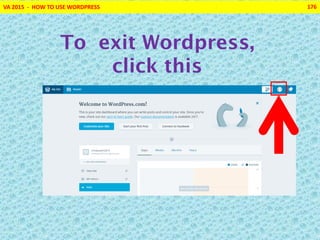
To exit Wordpress,
click this
VA 2015 - HOW TO USE WORDPRESS 177
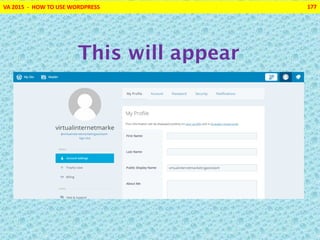
This will appear
VA 2015 - HOW TO USE WORDPRESS 178
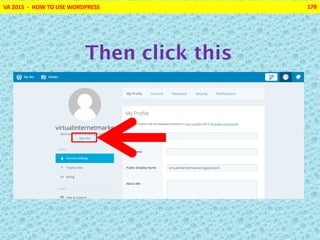
Then click this
VA 2015 - HOW TO USE WORDPRESS 179
We now create a About
page
VA 2015 - HOW TO USE WORDPRESS 180
About page is use to
introduce yourself to
your readers
VA 2015 - HOW TO USE WORDPRESS 181
So make an interesting
About page
VA 2015 - HOW TO USE WORDPRESS 182
click this to login to
your site
VA 2015 - HOW TO USE WORDPRESS 183
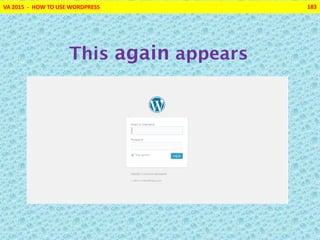
This again appears
VA 2015 - HOW TO USE WORDPRESS 184
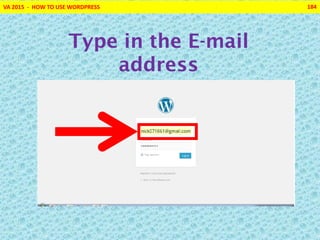
Type in the E-mail
address
VA 2015 - HOW TO USE WORDPRESS 185
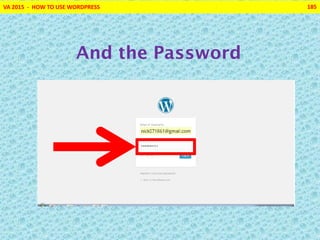
And the Password
VA 2015 - HOW TO USE WORDPRESS 186
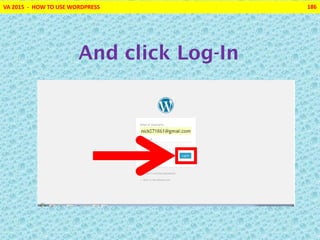
And click Log-In
VA 2015 - HOW TO USE WORDPRESS 187
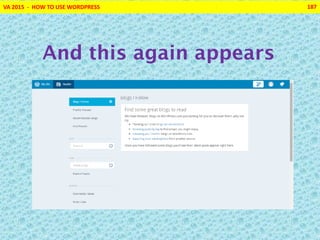
And this again appears
VA 2015 - HOW TO USE WORDPRESS 188
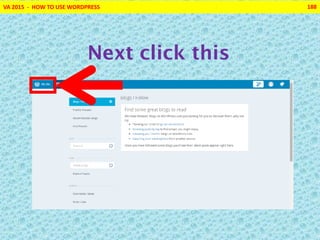
Next click this
VA 2015 - HOW TO USE WORDPRESS 189
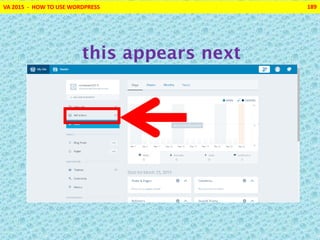
this appears next
VA 2015 - HOW TO USE WORDPRESS 190
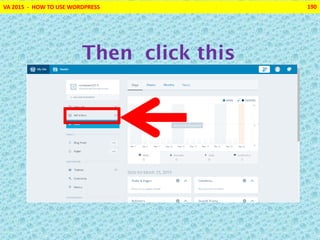
Then click this
VA 2015 - HOW TO USE WORDPRESS 191
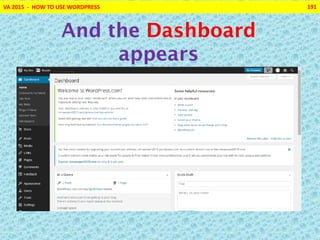
And the Dashboard
appears
VA 2015 - HOW TO USE WORDPRESS 192
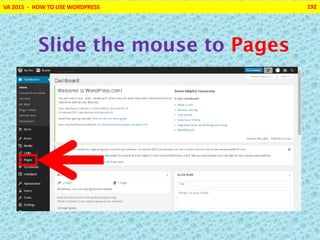
Slide the mouse to Pages
VA 2015 - HOW TO USE WORDPRESS 193
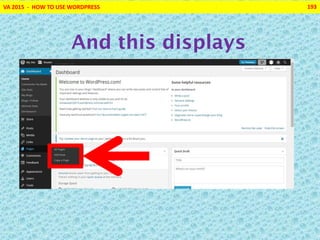
And this displays
VA 2015 - HOW TO USE WORDPRESS 194
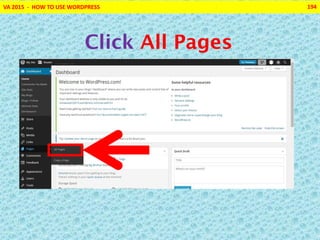
Click All Pages
VA 2015 - HOW TO USE WORDPRESS 195
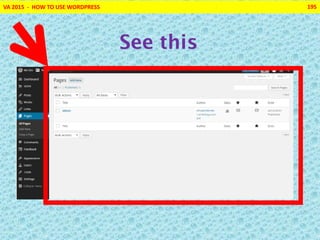
See this
VA 2015 - HOW TO USE WORDPRESS 196
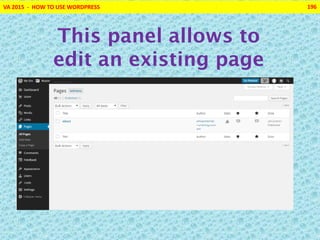
This panel allows to
edit an existing page
VA 2015 - HOW TO USE WORDPRESS 197
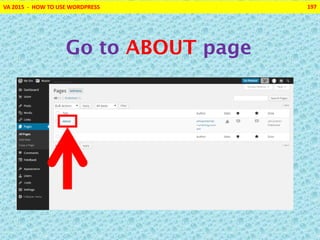
Go to ABOUT page
VA 2015 - HOW TO USE WORDPRESS 198
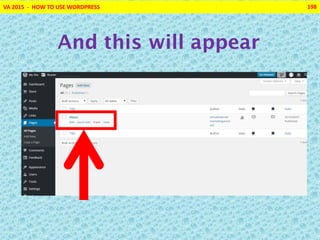
And this will appear
VA 2015 - HOW TO USE WORDPRESS 199
Then click Edit
VA 2015 - HOW TO USE WORDPRESS 200
This now appears
VA 2015 - HOW TO USE WORDPRESS 201
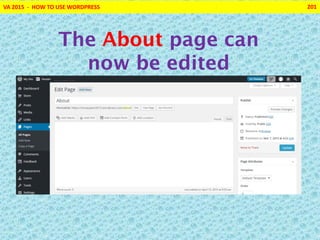
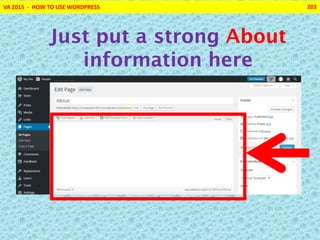
The About page can
now be edited
VA 2015 - HOW TO USE WORDPRESS 202
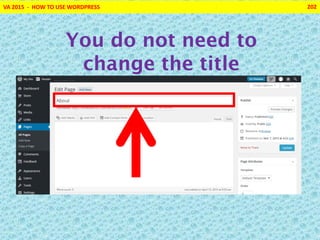
You do not need to
change the title
VA 2015 - HOW TO USE WORDPRESS 203
Just put a strong About
information here
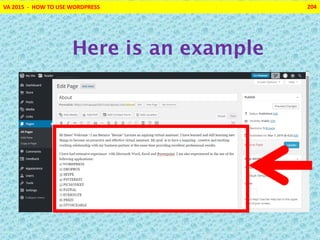
VA 2015 - HOW TO USE WORDPRESS 204
Here is an example
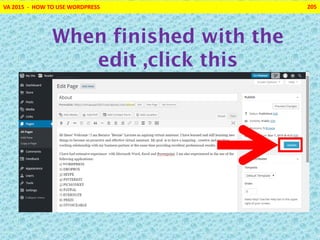
VA 2015 - HOW TO USE WORDPRESS 205
When finished with the
edit ,click this
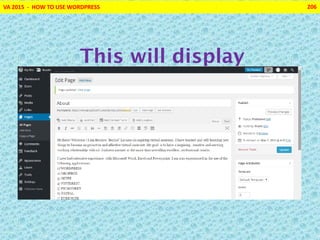
VA 2015 - HOW TO USE WORDPRESS 206
This will display
VA 2015 - HOW TO USE WORDPRESS 207
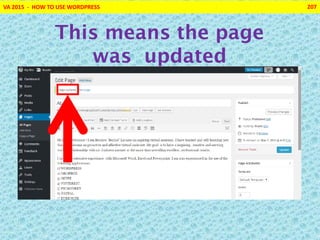
This means the page
was updated
VA 2015 - HOW TO USE WORDPRESS 208
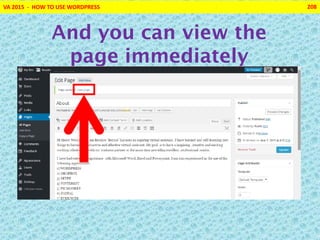
And you can view the
page immediately
VA 2015 - HOW TO USE WORDPRESS 209
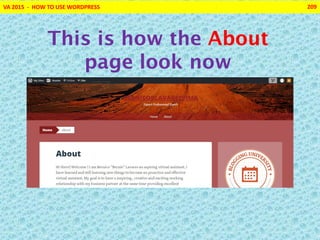
This is how the About
page look now
VA 2015 - HOW TO USE WORDPRESS 210
This can be verified by
accessing the blog
VA 2015 - HOW TO USE WORDPRESS 211
After verifying , click
this
VA 2015 - HOW TO USE WORDPRESS 212
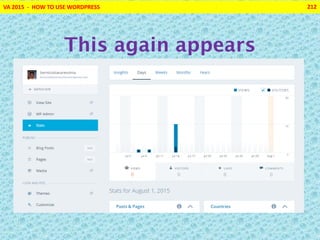
This again appears
VA 2015 - HOW TO USE WORDPRESS 213
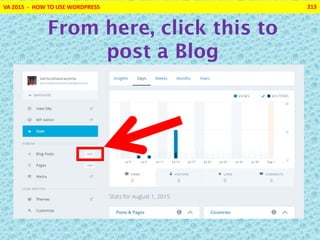
From here, click this to
post a Blog
VA 2015 - HOW TO USE WORDPRESS 214
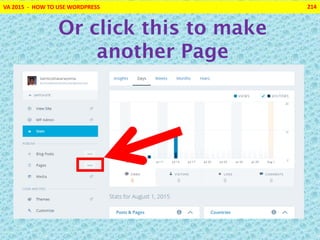
Or click this to make
another Page
VA 2015 - HOW TO USE WORDPRESS 215
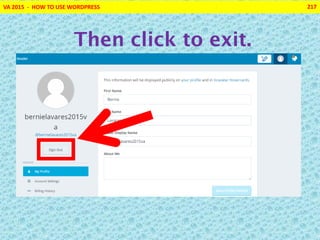
To exit from Wordpress,
click
VA 2015 - HOW TO USE WORDPRESS 216
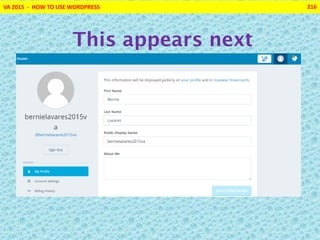
This appears next
VA 2015 - HOW TO USE WORDPRESS 217
Then click to exit.
VA 2015 - HOW TO USE WORDPRESS 218
The Blog site is now
fully set-upped.
VA 2015 - HOW TO USE WORDPRESS 219
The world now awaits
your Blog.
VA 2015 - HOW TO USE WORDPRESS 220
HAPPY BLOGGING!
VA 2015 - HOW TO USE WORDPRESS 221
Begin with the
END in MIND!
Steven Covey
7 Habits of Highly Effective People

Bernico lavares how_to_use_wordpress

  • 1.
    HOW TO USE WORDPRESS VA2015 - HOW TO USE WORDPRESS 1
  • 2.
    VA 2015 -HOW TO USE WORDPRESS 2 Begin with the END in MIND! Steven Covey 7 Habits of Highly Effective People
  • 3.
    VA 2015 -HOW TO USE WORDPRESS 3 WORDPRESS is a web software that allows one All screen shots are sourced from Microsoft, Wordpress and Google.
  • 4.
    VA 2015 -HOW TO USE WORDPRESS 4 to easily create beautiful website or blog.
  • 5.
    VA 2015 -HOW TO USE WORDPRESS This tutorial assumes that Wordpress is not yet installed 5
  • 6.
    VA 2015 -HOW TO USE WORDPRESS 6 Open your browser..
  • 7.
    VA 2015 -HOW TO USE WORDPRESS 7 Type : www.wordpress.com
  • 8.
    VA 2015 -HOW TO USE WORDPRESS 8 Then press return
  • 9.
    VA 2015 -HOW TO USE WORDPRESS 9 This then appears
  • 10.
    VA 2015 -HOW TO USE WORDPRESS 10 Then click this
  • 11.
    VA 2015 -HOW TO USE WORDPRESS 11 Now this appears
  • 12.
    VA 2015 -HOW TO USE WORDPRESS 12 Type your chosen Blog address
  • 13.
    VA 2015 -HOW TO USE WORDPRESS 13 If this appears
  • 14.
    VA 2015 -HOW TO USE WORDPRESS 14 Then the blog address already exist
  • 15.
    VA 2015 -HOW TO USE WORDPRESS 15 So type another blog address
  • 16.
    VA 2015 -HOW TO USE WORDPRESS 16 If this appears
  • 17.
    VA 2015 -HOW TO USE WORDPRESS 17 You can proceed to create your blog site
  • 18.
    VA 2015 -HOW TO USE WORDPRESS 18 Please write down your Blog Address
  • 19.
    VA 2015 -HOW TO USE WORDPRESS 19 And click this to create your blog
  • 20.
    VA 2015 -HOW TO USE WORDPRESS 20 This appears next
  • 21.
    VA 2015 -HOW TO USE WORDPRESS 21 Choose this
  • 22.
    VA 2015 -HOW TO USE WORDPRESS 22 This will appear for a short time
  • 23.
    VA 2015 -HOW TO USE WORDPRESS 23 Then his appears
  • 24.
    VA 2015 -HOW TO USE WORDPRESS 24 Type in your Email address
  • 25.
    VA 2015 -HOW TO USE WORDPRESS 25 then the Username
  • 26.
    VA 2015 -HOW TO USE WORDPRESS 26 Then the Password
  • 27.
    VA 2015 -HOW TO USE WORDPRESS 27 When finished
  • 28.
    VA 2015 -HOW TO USE WORDPRESS 28 Click this
  • 29.
    VA 2015 -HOW TO USE WORDPRESS 29 This appears
  • 30.
    VA 2015 -HOW TO USE WORDPRESS 30 We skip the options for now so scroll down
  • 31.
    VA 2015 -HOW TO USE WORDPRESS 31 Till you reach this portion
  • 32.
    VA 2015 -HOW TO USE WORDPRESS 32 Then click this
  • 33.
    VA 2015 -HOW TO USE WORDPRESS 33 This would appear next
  • 34.
    VA 2015 -HOW TO USE WORDPRESS 34 These are the available THEMES , scroll down and
  • 35.
    VA 2015 -HOW TO USE WORDPRESS 35 Choose one by clicking it
  • 36.
    VA 2015 -HOW TO USE WORDPRESS 36 Themes can be change any time
  • 37.
    VA 2015 -HOW TO USE WORDPRESS 37 For now Big Brother is chosen
  • 38.
    VA 2015 -HOW TO USE WORDPRESS 38 Click this
  • 39.
    VA 2015 -HOW TO USE WORDPRESS 39 And this appears
  • 40.
    VA 2015 -HOW TO USE WORDPRESS 40 We will initially use Wordpress for free
  • 41.
    VA 2015 -HOW TO USE WORDPRESS 41 So click this
  • 42.
    VA 2015 -HOW TO USE WORDPRESS 42 And this appears
  • 43.
    VA 2015 -HOW TO USE WORDPRESS 43 This is the My Site panel
  • 44.
    You can scrolldown to see the rest VA 2015 - HOW TO USE WORDPRESS 44
  • 45.
    VA 2015 -HOW TO USE WORDPRESS 45 My Site panel allows user to
  • 46.
    VA 2015 -HOW TO USE WORDPRESS 46 Immediately set-up and activate the site…
  • 47.
    VA 2015 -HOW TO USE WORDPRESS 47 Do Administrative control on the site…
  • 48.
    VA 2015 -HOW TO USE WORDPRESS 48 Post a Blog….
  • 49.
    VA 2015 -HOW TO USE WORDPRESS 49 Change the Look and Feel of the site…
  • 50.
    VA 2015 -HOW TO USE WORDPRESS 50 Lastly change the Configuration of the site…
  • 51.
    VA 2015 -HOW TO USE WORDPRESS 51 These are the important functions of the My Site panel
  • 52.
    VA 2015 -HOW TO USE WORDPRESS 52 Now let us Customize the blog site
  • 53.
    VA 2015 -HOW TO USE WORDPRESS 53 Let us start here
  • 54.
    VA 2015 -HOW TO USE WORDPRESS 54 Click this
  • 55.
    VA 2015 -HOW TO USE WORDPRESS 55 For a short time this appears
  • 56.
    VA 2015 -HOW TO USE WORDPRESS 56 Then this appears
  • 57.
    VA 2015 -HOW TO USE WORDPRESS 57 This shows how the Blog would appear
  • 58.
    VA 2015 -HOW TO USE WORDPRESS 58 While this would control how it would look
  • 59.
    VA 2015 -HOW TO USE WORDPRESS 59 Lets start improving how it looks
  • 60.
    VA 2015 -HOW TO USE WORDPRESS 60 Again see this
  • 61.
    VA 2015 -HOW TO USE WORDPRESS 61 In this theme Custom Design is not activated
  • 62.
    VA 2015 -HOW TO USE WORDPRESS 62 Because of this we cannot use this design feature
  • 63.
    VA 2015 -HOW TO USE WORDPRESS 63 So moving on , click this
  • 64.
    VA 2015 -HOW TO USE WORDPRESS 64 This now appears
  • 65.
    VA 2015 -HOW TO USE WORDPRESS 65 With this, you can
  • 66.
    VA 2015 -HOW TO USE WORDPRESS 66 Edit the Site Title
  • 67.
    VA 2015 -HOW TO USE WORDPRESS 67 Add a Tag Line
  • 68.
    VA 2015 -HOW TO USE WORDPRESS 68 And add a Logo
  • 69.
    VA 2015 -HOW TO USE WORDPRESS 69 For now, Site Title will not be change
  • 70.
    VA 2015 -HOW TO USE WORDPRESS 70 but a Tagline will be added, so
  • 71.
    VA 2015 -HOW TO USE WORDPRESS 71 Type the TAGLINE and
  • 72.
    VA 2015 -HOW TO USE WORDPRESS 72 It will now appear here
  • 73.
    VA 2015 -HOW TO USE WORDPRESS 73 Adding LOGO will be skipped
  • 74.
    VA 2015 -HOW TO USE WORDPRESS 74 Then click this to minimized the panel
  • 75.
    VA 2015 -HOW TO USE WORDPRESS 75 Continuing with the site set up, click this
  • 76.
    VA 2015 -HOW TO USE WORDPRESS 76 This now appears
  • 77.
    VA 2015 -HOW TO USE WORDPRESS 77 Choose one of the four Palette,
  • 78.
    VA 2015 -HOW TO USE WORDPRESS 78 After Choosing this Palette…
  • 79.
    VA 2015 -HOW TO USE WORDPRESS 79 This would now display
  • 80.
    VA 2015 -HOW TO USE WORDPRESS 80 Click this if satisfied with the choice
  • 81.
    VA 2015 -HOW TO USE WORDPRESS 81 The chosen Palette will set to the background
  • 82.
    VA 2015 -HOW TO USE WORDPRESS 82 And Color and Background panel will minimized
  • 83.
    VA 2015 -HOW TO USE WORDPRESS 83 See this
  • 84.
    VA 2015 -HOW TO USE WORDPRESS 84 Now we include a Header Image
  • 85.
    VA 2015 -HOW TO USE WORDPRESS 85 Click this to do that
  • 86.
    VA 2015 -HOW TO USE WORDPRESS 86 This panel appears
  • 87.
    VA 2015 -HOW TO USE WORDPRESS 87 Then click this
  • 88.
    VA 2015 -HOW TO USE WORDPRESS 88 This now appears
  • 89.
    VA 2015 -HOW TO USE WORDPRESS 89 Then click this
  • 90.
    VA 2015 -HOW TO USE WORDPRESS 90 This now appears
  • 91.
    VA 2015 -HOW TO USE WORDPRESS 91 The sample Header Image will come from Picture Folder
  • 92.
    VA 2015 -HOW TO USE WORDPRESS 92 Click Picture Folder
  • 93.
    VA 2015 -HOW TO USE WORDPRESS 93 this now appears
  • 94.
    VA 2015 -HOW TO USE WORDPRESS 94 double click this
  • 95.
    VA 2015 -HOW TO USE WORDPRESS 95 the picture files appears
  • 96.
    VA 2015 -HOW TO USE WORDPRESS 96 choose a picture
  • 97.
    VA 2015 -HOW TO USE WORDPRESS 97 Click the picture
  • 98.
    VA 2015 -HOW TO USE WORDPRESS 98 Then Click this
  • 99.
    VA 2015 -HOW TO USE WORDPRESS 99 This appears while picture is uploaded
  • 100.
    VA 2015 -HOW TO USE WORDPRESS 100 After uploading, the picture now appears
  • 101.
    VA 2015 -HOW TO USE WORDPRESS 101 Next, click this
  • 102.
    VA 2015 -HOW TO USE WORDPRESS 102 The pictures appears next
  • 103.
    VA 2015 -HOW TO USE WORDPRESS 103 This is the Header Image area
  • 104.
    VA 2015 -HOW TO USE WORDPRESS 104 It can be resize
  • 105.
    VA 2015 -HOW TO USE WORDPRESS 105 Or move
  • 106.
    VA 2015 -HOW TO USE WORDPRESS 106 When satisfied with the image click this
  • 107.
    VA 2015 -HOW TO USE WORDPRESS 107 This now is the Header Image
  • 108.
    VA 2015 -HOW TO USE WORDPRESS 108 Header Image can be change any time
  • 109.
    VA 2015 -HOW TO USE WORDPRESS 109 Continuing click this to minimize Header Image panel
  • 110.
    VA 2015 -HOW TO USE WORDPRESS 110 Now we will add Widgets
  • 111.
    VA 2015 -HOW TO USE WORDPRESS 111 Widget are bite size code that can be embedded
  • 112.
    VA 2015 -HOW TO USE WORDPRESS 112 In a website to display text, pictures etc
  • 113.
    VA 2015 -HOW TO USE WORDPRESS 113 Click this
  • 114.
    VA 2015 -HOW TO USE WORDPRESS 114 This appears next
  • 115.
    VA 2015 -HOW TO USE WORDPRESS 115 To add a Widget click this
  • 116.
    VA 2015 -HOW TO USE WORDPRESS 116 A list of Widgets will appear
  • 117.
    VA 2015 -HOW TO USE WORDPRESS 117 Scroll down to see list
  • 118.
    VA 2015 -HOW TO USE WORDPRESS 118 And choose the Widgets to activate
  • 119.
    VA 2015 -HOW TO USE WORDPRESS 119 Archives and Blogs I Follow are chosen
  • 120.
    VA 2015 -HOW TO USE WORDPRESS 120 This happens when Archive is added
  • 121.
    VA 2015 -HOW TO USE WORDPRESS 121 Archive widget now appears
  • 122.
    VA 2015 -HOW TO USE WORDPRESS 122 Lets put a Title to the Widget
  • 123.
    VA 2015 -HOW TO USE WORDPRESS 123 What you type here
  • 124.
    VA 2015 -HOW TO USE WORDPRESS 124 Will show here
  • 125.
    VA 2015 -HOW TO USE WORDPRESS 125 Now for Blogs I Follow widget
  • 126.
    VA 2015 -HOW TO USE WORDPRESS 126 Click this
  • 127.
    VA 2015 -HOW TO USE WORDPRESS 127 This now appears
  • 128.
    VA 2015 -HOW TO USE WORDPRESS 128 Again type a title for the Widget
  • 129.
    VA 2015 -HOW TO USE WORDPRESS 129 When this was typed here
  • 130.
    VA 2015 -HOW TO USE WORDPRESS 130 This was displayed
  • 131.
    VA 2015 -HOW TO USE WORDPRESS 131 We set maximum of 10 blogs to be displayed,
  • 132.
    VA 2015 -HOW TO USE WORDPRESS 132 Then display the blogs in a list
  • 133.
    VA 2015 -HOW TO USE WORDPRESS 133 Click Sidebar when finished adding Widget
  • 134.
    VA 2015 -HOW TO USE WORDPRESS 134 This appears next
  • 135.
    VA 2015 -HOW TO USE WORDPRESS 135 Click this to continue basic set-up
  • 136.
    VA 2015 -HOW TO USE WORDPRESS 136 This again appears
  • 137.
    VA 2015 -HOW TO USE WORDPRESS 137 Now click this
  • 138.
    VA 2015 -HOW TO USE WORDPRESS 138 This appears now
  • 139.
    VA 2015 -HOW TO USE WORDPRESS 139 See this
  • 140.
    VA 2015 -HOW TO USE WORDPRESS 140 We will leave this as it is
  • 141.
    VA 2015 -HOW TO USE WORDPRESS 141 And return to this
  • 142.
    VA 2015 -HOW TO USE WORDPRESS 142 Finally click this to save and publish the site
  • 143.
    VA 2015 -HOW TO USE WORDPRESS 143 This again displays
  • 144.
    VA 2015 -HOW TO USE WORDPRESS 144 Now its time to start our first blog
  • 145.
    VA 2015 -HOW TO USE WORDPRESS 145 Click this to start blogging
  • 146.
    VA 2015 -HOW TO USE WORDPRESS 146 But first we verify the email address
  • 147.
    VA 2015 -HOW TO USE WORDPRESS 147 Open your browser..
  • 148.
    VA 2015 -HOW TO USE WORDPRESS 148 Click this for Gmail..
  • 149.
    VA 2015 -HOW TO USE WORDPRESS 149 This appears..
  • 150.
    VA 2015 -HOW TO USE WORDPRESS 150 Type the email address
  • 151.
    VA 2015 -HOW TO USE WORDPRESS 151 Then the Password
  • 152.
    VA 2015 -HOW TO USE WORDPRESS 152 Then click Sign in
  • 153.
    VA 2015 -HOW TO USE WORDPRESS 153 This now displays
  • 154.
    VA 2015 -HOW TO USE WORDPRESS 154 Click this
  • 155.
    VA 2015 -HOW TO USE WORDPRESS 155 Follow the instructions for account verification
  • 156.
    VA 2015 -HOW TO USE WORDPRESS 156 This will show once account has been verified
  • 157.
    VA 2015 -HOW TO USE WORDPRESS 157 Now we can start our first blog
  • 158.
    VA 2015 -HOW TO USE WORDPRESS 158 Click this again
  • 159.
    VA 2015 -HOW TO USE WORDPRESS 159 This appears next
  • 160.
    VA 2015 -HOW TO USE WORDPRESS 160 A post or blog is created at this screen
  • 161.
    VA 2015 -HOW TO USE WORDPRESS 161 Type the blog Title here
  • 162.
    VA 2015 -HOW TO USE WORDPRESS 162 Type the content of the blog here
  • 163.
    VA 2015 -HOW TO USE WORDPRESS 163 See this example of Title
  • 164.
    VA 2015 -HOW TO USE WORDPRESS 164 See this example of Message
  • 165.
    VA 2015 -HOW TO USE WORDPRESS 165 To preview click this
  • 166.
    VA 2015 -HOW TO USE WORDPRESS 166 This is the preview of the first blog
  • 167.
    VA 2015 -HOW TO USE WORDPRESS 167 To exit the preview click
  • 168.
    VA 2015 -HOW TO USE WORDPRESS 168 This displays again
  • 169.
    VA 2015 -HOW TO USE WORDPRESS 169 To post this message click
  • 170.
    VA 2015 -HOW TO USE WORDPRESS 170 To go to our blog site click this
  • 171.
    VA 2015 -HOW TO USE WORDPRESS 171 This screen again displays
  • 172.
    VA 2015 -HOW TO USE WORDPRESS 172 Then click this
  • 173.
    VA 2015 -HOW TO USE WORDPRESS 173 And this displays
  • 174.
    VA 2015 -HOW TO USE WORDPRESS 174 See, it looks exactly like the preview
  • 175.
    VA 2015 -HOW TO USE WORDPRESS 175 We have just installed and used Wordpress!
  • 176.
    VA 2015 -HOW TO USE WORDPRESS 176 To exit Wordpress, click this
  • 177.
    VA 2015 -HOW TO USE WORDPRESS 177 This will appear
  • 178.
    VA 2015 -HOW TO USE WORDPRESS 178 Then click this
  • 179.
    VA 2015 -HOW TO USE WORDPRESS 179 We now create a About page
  • 180.
    VA 2015 -HOW TO USE WORDPRESS 180 About page is use to introduce yourself to your readers
  • 181.
    VA 2015 -HOW TO USE WORDPRESS 181 So make an interesting About page
  • 182.
    VA 2015 -HOW TO USE WORDPRESS 182 click this to login to your site
  • 183.
    VA 2015 -HOW TO USE WORDPRESS 183 This again appears
  • 184.
    VA 2015 -HOW TO USE WORDPRESS 184 Type in the E-mail address
  • 185.
    VA 2015 -HOW TO USE WORDPRESS 185 And the Password
  • 186.
    VA 2015 -HOW TO USE WORDPRESS 186 And click Log-In
  • 187.
    VA 2015 -HOW TO USE WORDPRESS 187 And this again appears
  • 188.
    VA 2015 -HOW TO USE WORDPRESS 188 Next click this
  • 189.
    VA 2015 -HOW TO USE WORDPRESS 189 this appears next
  • 190.
    VA 2015 -HOW TO USE WORDPRESS 190 Then click this
  • 191.
    VA 2015 -HOW TO USE WORDPRESS 191 And the Dashboard appears
  • 192.
    VA 2015 -HOW TO USE WORDPRESS 192 Slide the mouse to Pages
  • 193.
    VA 2015 -HOW TO USE WORDPRESS 193 And this displays
  • 194.
    VA 2015 -HOW TO USE WORDPRESS 194 Click All Pages
  • 195.
    VA 2015 -HOW TO USE WORDPRESS 195 See this
  • 196.
    VA 2015 -HOW TO USE WORDPRESS 196 This panel allows to edit an existing page
  • 197.
    VA 2015 -HOW TO USE WORDPRESS 197 Go to ABOUT page
  • 198.
    VA 2015 -HOW TO USE WORDPRESS 198 And this will appear
  • 199.
    VA 2015 -HOW TO USE WORDPRESS 199 Then click Edit
  • 200.
    VA 2015 -HOW TO USE WORDPRESS 200 This now appears
  • 201.
    VA 2015 -HOW TO USE WORDPRESS 201 The About page can now be edited
  • 202.
    VA 2015 -HOW TO USE WORDPRESS 202 You do not need to change the title
  • 203.
    VA 2015 -HOW TO USE WORDPRESS 203 Just put a strong About information here
  • 204.
    VA 2015 -HOW TO USE WORDPRESS 204 Here is an example
  • 205.
    VA 2015 -HOW TO USE WORDPRESS 205 When finished with the edit ,click this
  • 206.
    VA 2015 -HOW TO USE WORDPRESS 206 This will display
  • 207.
    VA 2015 -HOW TO USE WORDPRESS 207 This means the page was updated
  • 208.
    VA 2015 -HOW TO USE WORDPRESS 208 And you can view the page immediately
  • 209.
    VA 2015 -HOW TO USE WORDPRESS 209 This is how the About page look now
  • 210.
    VA 2015 -HOW TO USE WORDPRESS 210 This can be verified by accessing the blog
  • 211.
    VA 2015 -HOW TO USE WORDPRESS 211 After verifying , click this
  • 212.
    VA 2015 -HOW TO USE WORDPRESS 212 This again appears
  • 213.
    VA 2015 -HOW TO USE WORDPRESS 213 From here, click this to post a Blog
  • 214.
    VA 2015 -HOW TO USE WORDPRESS 214 Or click this to make another Page
  • 215.
    VA 2015 -HOW TO USE WORDPRESS 215 To exit from Wordpress, click
  • 216.
    VA 2015 -HOW TO USE WORDPRESS 216 This appears next
  • 217.
    VA 2015 -HOW TO USE WORDPRESS 217 Then click to exit.
  • 218.
    VA 2015 -HOW TO USE WORDPRESS 218 The Blog site is now fully set-upped.
  • 219.
    VA 2015 -HOW TO USE WORDPRESS 219 The world now awaits your Blog.
  • 220.
    VA 2015 -HOW TO USE WORDPRESS 220 HAPPY BLOGGING!
  • 221.
    VA 2015 -HOW TO USE WORDPRESS 221 Begin with the END in MIND! Steven Covey 7 Habits of Highly Effective People