DON
BOSCO
TECHNICAL
INSTITUTE
VICTORIAS
WHERE SOUL EMPOWERS
TECHNOLOGY
DON BOSCO TECHNICAL INSTITUTE OF VICTORIAS, INC.
Where Soul Empowers Technology
O St. John Bosco Father and Teacher
of youth, who labored so much for the
salvation of souls be our guide in
seeking the good of our souls and the
salvation of our neighbor. Help us to be
mindful of all our actions and to
practice daily our faith.
DON BOSCO TECHNICAL INSTITUTE OF VICTORIAS, INC.
Where Soul Empowers Technology
Teach us to love Jesus in the Blessed
Sacrament, Mary Help of Christians
and our Holy Father the Pope and
obtain for us the grace of living and
dying as friends of God so that we may
all be gathered together with you in
heaven. Amen
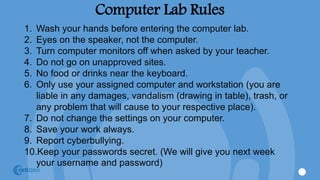
Computer Lab Rules
1. Wash your hands before entering the computer lab.
2. Eyes on the speaker, not the computer.
3. Turn computer monitors off when asked by your teacher.
4. Do not go on unapproved sites.
5. No food or drinks near the keyboard.
6. Only use your assigned computer and workstation (you are
liable in any damages, vandalism (drawing in table), trash, or
any problem that will cause to your respective place).
7. Do not change the settings on your computer.
8. Save your work always.
9. Report cyberbullying.
10.Keep your passwords secret. (We will give you next week
your username and password)
A world of
computer
Objectives
• Describe how computers are
used in different places
• Give examples of computer
hardware and software
• Explain why computers are
considered powerful tools
• Understand the
functionalities and
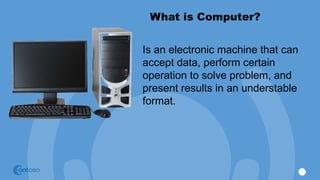
What is Computer?
Is an electronic machine that can
accept data, perform certain
operation to solve problem, and
present results in an understable
format.
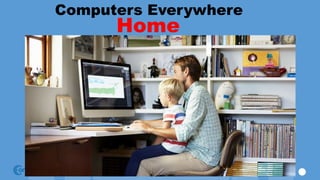
Computers Everywhere
Home
Computers Everywhere
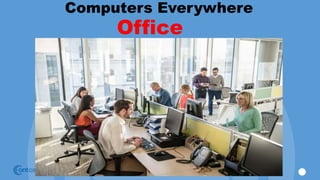
Office
Computers Everywhere
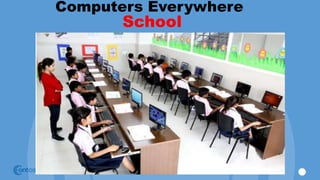
School
Computer
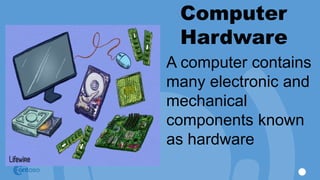
Hardware
A computer contains
many electronic and
mechanical
components known
as hardware
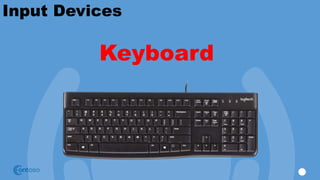
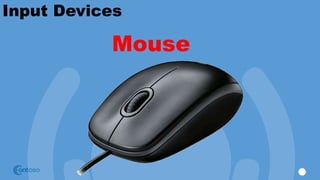
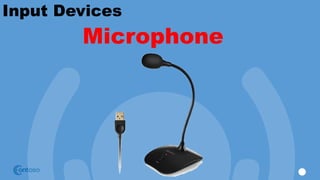
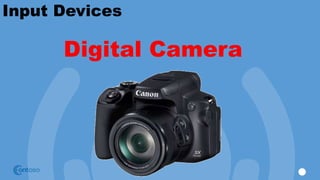
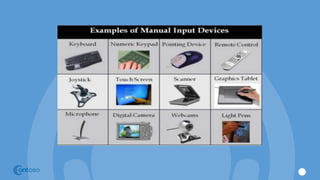
Input Devices
An input device allows you to enter data
or instructions into the computer
Input Devices
Keyboard
Input Devices
Mouse
Input Devices
Microphone
Input Devices
Digital Camera
Input Devices
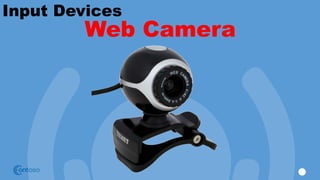
Web Camera
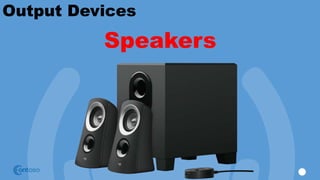
Output Devices
An output device is any hardware that
conveys information to one or more
people.
Output Devices
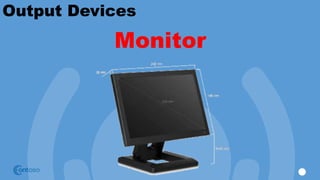
Monitor
Output Devices
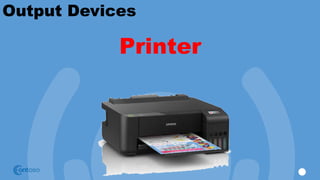
Printer
Output Devices
Speakers
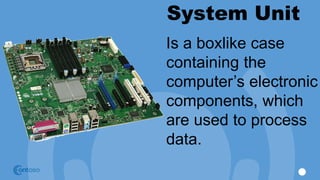
System Unit
Is a boxlike case
containing the
computer’s electronic
components, which
are used to process
data.
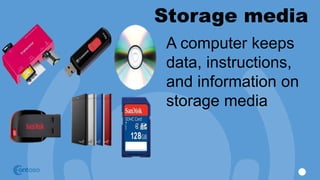
Storage media
A computer keeps
data, instructions,
and information on
storage media
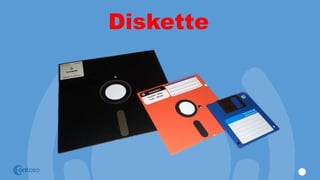
Diskette
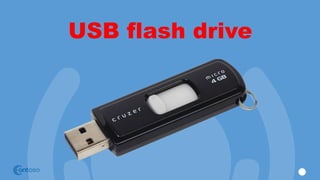
USB flash drive
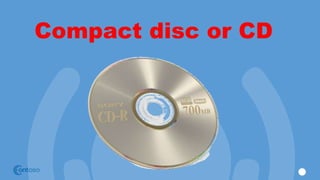
Compact disc or CD
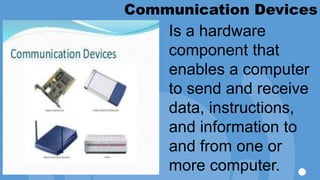
Communication Devices
Is a hardware
component that
enables a computer
to send and receive
data, instructions,
and information to
and from one or
more computer.
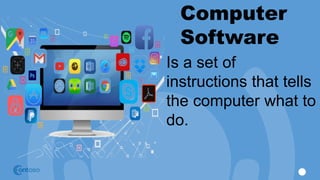
Computer
Software
Is a set of
instructions that tells
the computer what to
do.
Word Processor
Spreadsheet
Database
Desktop Publishing
The powerful computer
Computers operate with amazing speed,
reliability, consistency and accuracy.
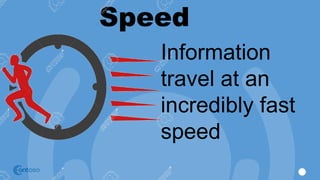
Speed
Information
travel at an
incredibly fast
speed
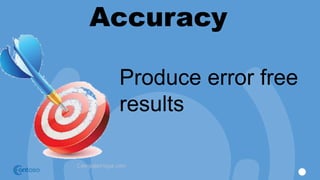
Accuracy
Produce error free
results
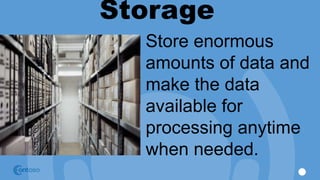
Storage
Store enormous
amounts of data and
make the data
available for
processing anytime
when needed.
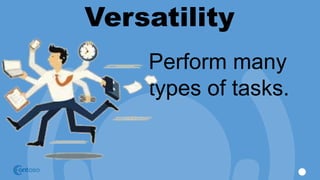
Versatility
Perform many
types of tasks.
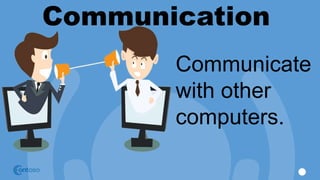
Communication
Communicate
with other
computers.
Reliability and Consistency
The high reliability of
components enables the
computer to produce
consistent results.
RECAP
What is computer?
How computer are used in
different places?
Give example of Input devices?
Give example of Output devices?
Give example of Storage devices?
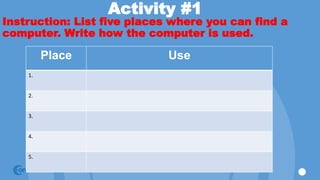
Activity #1
Instruction: List five places where you can find a
computer. Write how the computer is used.
Place Use
1.
2.
3.
4.
5.
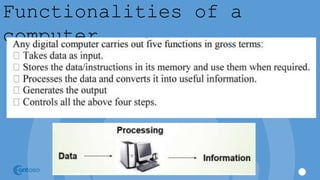
Functionalities of a
computer
Computer Components
Hardware:
Computer hardware is the collection of physical elements that
constitutes a computer system. Computer hardware refers to
the physical parts or components of a computer such as the
monitor, mouse, keyboard, computer data storage, hard drive
disk (HDD), system unit (graphic cards, sound cards, memory,
motherboard and chips), etc. all of which are physical objects
that can be touched.
Computer Components
Input Devices:
Input device is any peripheral (piece of computer
hardware equipment to provide data and control
signals to an information processing system such as
a computer or other information appliance.
Computer Components
Central Processing Unit (CPU):
A CPU is brain of a computer. It is responsible for all
functions and processes. Regarding computing
power, the CPU is the most important element of a
computer system.
The CPU is comprised of three main parts :
Arithmetic Logic Unit (ALU): Executes all arithmetic and logical
operations. Arithmetic calculations like as addition, subtraction,
multiplication and division. Logical operation like compare
numbers, letters, or special characters
Control Unit (CU): controls and co-ordinates computer components.
1. Read the code for the next instruction to be executed.
2. Increment the program counter so it points to the next instruction.
3. Read whatever data the instruction requires from cells in memory.
4. Provide the necessary data to an ALU or register.
5. If the instruction requires an ALU or specialized hardware to
complete, instruct the hardware to perform the requested
Registers :Stores the data that is to be executed next, "very fast
storage area".
Primary Memory:
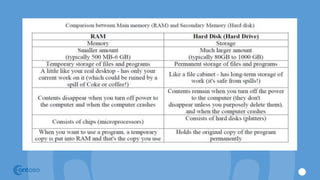
1. RAM:( Random Access Memory): (RAM) is a memory scheme within the
computer system responsible for storing data on a temporary basis, so
that it can be promptly accessed by the processor as and when needed.
It is volatile in nature, which means that data will be erased once supply
to the storage device is turned off. RAM stores data randomly and the
processor accesses these data randomly from the RAM storage. RAM is
considered "random access" because you can access any memory cell
directly if you know the row and column that intersect at that cell.
2. ROM :(Read Only Memory): ROM is a permanent form of storage. ROM
stays active regardless of whether power supply to it is turned on or off.
ROM devices do not allow data stored on them to be modified.
Secondary Memory:- Stores data and programs permanently
:its retained after the power is turned off
1. Hard drive (HD): A hard disk is part of a unit, often called a
"disk drive," "hard drive," or "hard disk drive," that store
and provides relatively quick access to large amounts of
data on an electromagnetically charged surface or set of
surfaces.
2. Optical Disk: an optical disc drive (ODD) is a disk drive that
uses laser light as part of the process of reading or writing data
to or from optical discs.
Flash Disk - A storage module made of flash memory chips. A
Flash disks have no mechanical platters or access arms, but the
term "disk" is used because the data are accessed as if they
were on a hard drive. The disk storage structure is emulated.
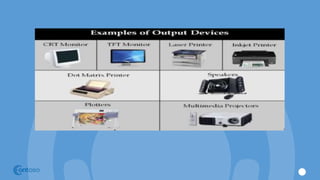
Output devices - An output device is any piece
of computer hardware equipment used to
communicate the results of data processing
carried out by an information processing
system (such as a computer) which converts
the electronically generated information into
human readable form.
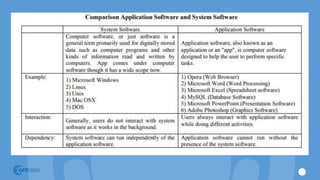
Software is a generic term for organized
collections of computer data and instructions,
often broken into two major categories:
system software that provides the basic
nontask-specific functions of the computer,
and application software which is used by
users to accomplish specific tasks.
Software Types:
• System software is responsible for controlling,
integrating, and managing the individual
hardware components of a computer system so
that other software and the users of the system
see it as a functional unit without having to be
concerned with the low-level details such as
transferring data from memory to disk, or
rendering text onto a display.
• Application software is used to accomplish specific
tasks other than just running the computer system.
Application software may consist of a single program,
such as an image viewer; a small collection of programs
(often called a software package) that work closely
together to accomplish a task, such as a spreadsheet or
text processing system; a larger collection (often called a
software suite) of related but independent programs and
packages that have a common user interface or shared
data format, such as Microsoft Office, which consists of
closely integrated word processor, spreadsheet,
database, etc.;.
Unit of Measurements
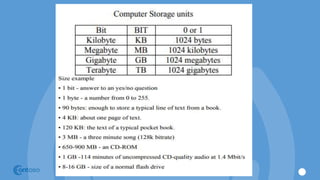
Storage measurements: The basic unit used in
computer data storage is called a bit (binary digit). Computers
use these little bits, which are composed of ones and zeros, to do
things and talk to other computers.
Unit of Measurements
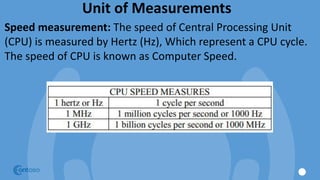
Speed measurement: The speed of Central Processing Unit
(CPU) is measured by Hertz (Hz), Which represent a CPU cycle.
The speed of CPU is known as Computer Speed.
Data, Information and Knowledge
Data: Facts and figures which relay something specific, but
which are not organized in any way and which provide no
further information regarding patterns, context, etc. So data
means "unstructured facts and figures that have the least
impact on the typical manager."
Information: Essentially information is found "in answers to
questions that begin with such words as who, what, where,
when, and how many".
Knowledge: Knowledge is closely linked to doing and implies
know-how and understanding.
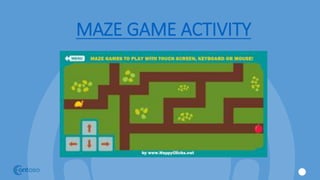
MAZE GAME ACTIVITY
Computers Then, Today, and Tomorrow
Objectives
• Trace the development of
computers through the years
• Describe the advances in
technology that characterize
each generation of computers
Generations of Computers
The history of computer development is often divided into
different generations. Each generation indicates a significant
change in computer design. With each new generation,
computing devices got more advances and more powerful.
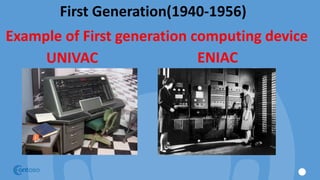
First Generation(1940-1956)
Example of First generation computing device
UNIVAC ENIAC
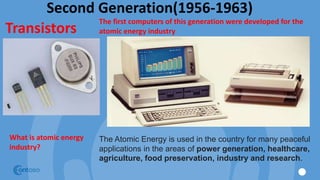
Second Generation(1956-1963)
Transistors
The first computers of this generation were developed for the
atomic energy industry
The Atomic Energy is used in the country for many peaceful
applications in the areas of power generation, healthcare,
agriculture, food preservation, industry and research.
What is atomic energy
industry?
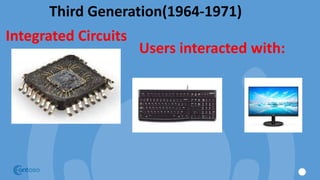
Third Generation(1964-1971)
Integrated Circuits
Users interacted with:
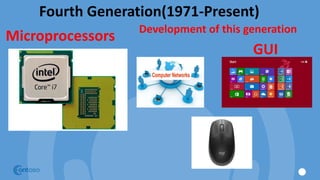
Fourth Generation(1971-Present)
Microprocessors
GUI
Development of this generation
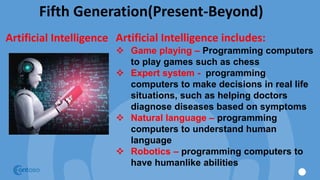
Fifth Generation(Present-Beyond)
Artificial Intelligence Artificial Intelligence includes:
 Game playing – Programming computers
to play games such as chess
 Expert system - programming
computers to make decisions in real life
situations, such as helping doctors
diagnose diseases based on symptoms
 Natural language – programming
computers to understand human
language
 Robotics – programming computers to
have humanlike abilities
Today’s Computers
The number of computers that are sold today is far greater
than the number of computers that existed in the entire world
thirty years ago. Back then, most medium to large companies
had their own computers, but they came in only one size-big.
Today, computers come in a variety of sizes.
Personal Computers
A personal computer (PC) is a computer designed to be used by
one person. To use it, you only need to turn it on, select a
software, and enter data.
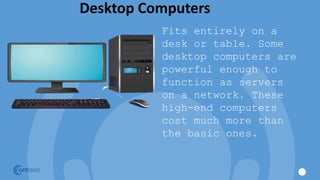
Desktop Computers
Fits entirely on a
desk or table. Some
desktop computers are
powerful enough to
function as servers
on a network. These
high-end computers
cost much more than
the basic ones.
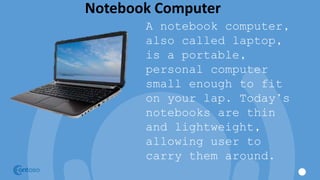
Notebook Computer
A notebook computer,
also called laptop,
is a portable,
personal computer
small enough to fit
on your lap. Today’s
notebooks are thin
and lightweight,
allowing user to
carry them around.
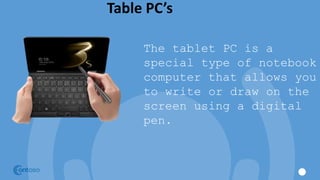
Table PC’s
The tablet PC is a
special type of notebook
computer that allows you
to write or draw on the
screen using a digital
pen.
Mobile Devices
Usually do not have disk drives. Instead,
these devices store programs and data
permanently on memory inside the system
unit or on small storage media, such as
memory cards.
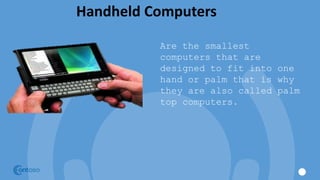
Handheld Computers
Are the smallest
computers that are
designed to fit into one
hand or palm that is why
they are also called palm
top computers.
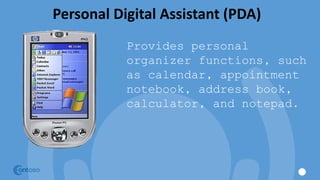
Personal Digital Assistant (PDA)
Provides personal
organizer functions, such
as calendar, appointment
notebook, address book,
calculator, and notepad.
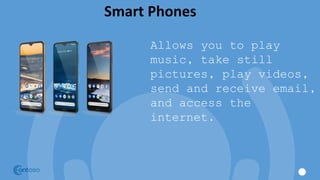
Smart Phones
Allows you to play
music, take still
pictures, play videos,
send and receive email,
and access the
internet.
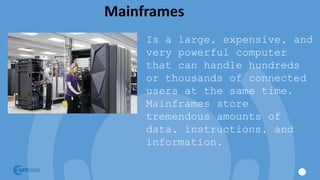
Mainframes
Is a large, expensive, and
very powerful computer
that can handle hundreds
or thousands of connected
users at the same time.
Mainframes store
tremendous amounts of
data, instructions, and
information.
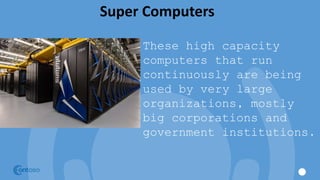
Super Computers
These high capacity
computers that run
continuously are being
used by very large
organizations, mostly
big corporations and
government institutions.
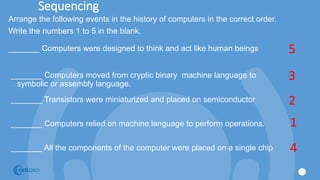
Sequencing
Arrange the following events in the history of computers in the correct order.
Write the numbers 1 to 5 in the blank.
_______ Computers were designed to think and act like human beings
_______ Computers moved from cryptic binary machine language to
symbolic or assembly language.
_______ Transistors were miniaturized and placed on semiconductor
_______ Computers relied on machine language to perform operations.
_______ All the components of the computer were placed on a single chip
3
2
1
5
4
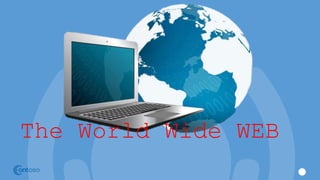
The World Wide WEB
Objectives
• Describe the world wide web
• Explain how to navigate the
web
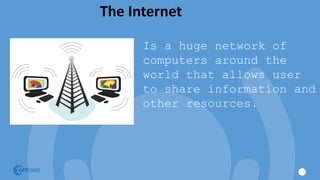
The Internet
Is a huge network of
computers around the
world that allows user
to share information and
other resources.
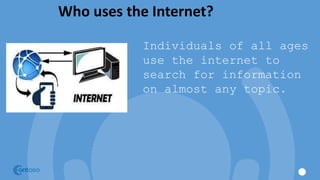
Who uses the Internet?
Individuals of all ages
use the internet to
search for information
on almost any topic.
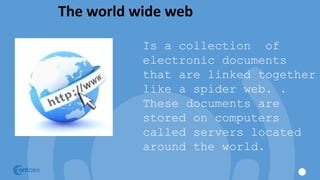
The world wide web
Is a collection of
electronic documents
that are linked together
like a spider web. .
These documents are
stored on computers
called servers located
around the world.
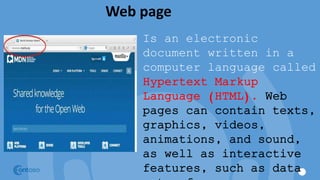
Web page
Is an electronic
document written in a
computer language called
Hypertext Markup
Language (HTML). Web
pages can contain texts,
graphics, videos,
animations, and sound,
as well as interactive
features, such as data
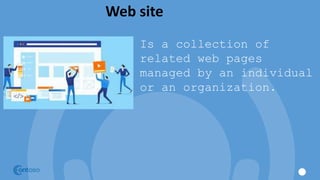
Web site
Is a collection of
related web pages
managed by an individual
or an organization.
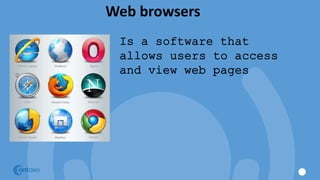
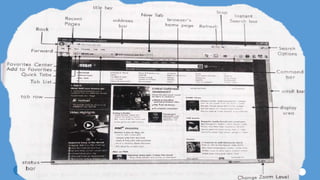
Web browsers
Is a software that
allows users to access
and view web pages
Downloading and Uploading
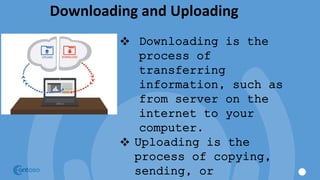
 Downloading is the
process of
transferring
information, such as
from server on the
internet to your
computer.
 Uploading is the
process of copying,
sending, or
Web Addresses
Each web page has a
unique address know as a
Uniform Resource Locator
(URL) or web address. A
URL indicates where the
web page is stored on
the internet.
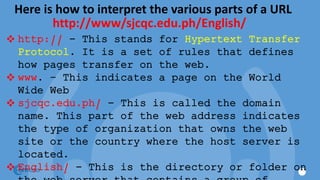
Here is how to interpret the various parts of a URL
 http:// - This stands for Hypertext Transfer
Protocol. It is a set of rules that defines
how pages transfer on the web.
 www. – This indicates a page on the World
Wide Web
 sjcqc.edu.ph/ - This is called the domain
name. This part of the web address indicates
the type of organization that owns the web
site or the country where the host server is
located.
 English/ - This is the directory or folder on
http://www/sjcqc.edu.ph/English/
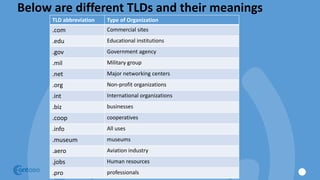
Below are different TLDs and their meanings
TLD abbreviation Type of Organization
.com Commercial sites
.edu Educational institutions
.gov Government agency
.mil Military group
.net Major networking centers
.org Non-profit organizations
.int International organizations
.biz businesses
.coop cooperatives
.info All uses
.museum museums
.aero Aviation industry
.jobs Human resources
.pro professionals
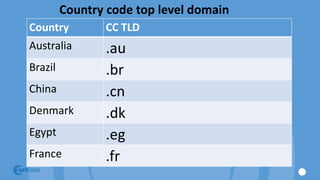
Country code top level domain
Country CC TLD
Australia .au
Brazil .br
China .cn
Denmark .dk
Egypt .eg
France .fr
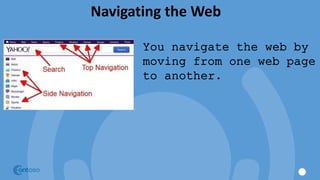
Navigating the Web
You navigate the web by
moving from one web page
to another.
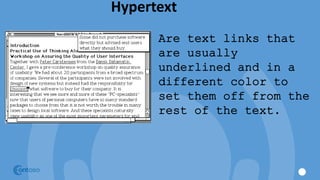
Hypertext
Are text links that
are usually
underlined and in a
different color to
set them off from the
rest of the text.
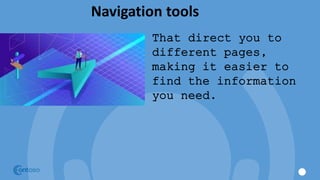
Navigation tools
That direct you to
different pages,
making it easier to
find the information
you need.
Label game activity
basic computer.pptx

basic computer.pptx

  • 1.
  • 2.
    DON BOSCO TECHNICALINSTITUTE OF VICTORIAS, INC. Where Soul Empowers Technology O St. John Bosco Father and Teacher of youth, who labored so much for the salvation of souls be our guide in seeking the good of our souls and the salvation of our neighbor. Help us to be mindful of all our actions and to practice daily our faith.
  • 3.
    DON BOSCO TECHNICALINSTITUTE OF VICTORIAS, INC. Where Soul Empowers Technology Teach us to love Jesus in the Blessed Sacrament, Mary Help of Christians and our Holy Father the Pope and obtain for us the grace of living and dying as friends of God so that we may all be gathered together with you in heaven. Amen
  • 4.
    Computer Lab Rules 1.Wash your hands before entering the computer lab. 2. Eyes on the speaker, not the computer. 3. Turn computer monitors off when asked by your teacher. 4. Do not go on unapproved sites. 5. No food or drinks near the keyboard. 6. Only use your assigned computer and workstation (you are liable in any damages, vandalism (drawing in table), trash, or any problem that will cause to your respective place). 7. Do not change the settings on your computer. 8. Save your work always. 9. Report cyberbullying. 10.Keep your passwords secret. (We will give you next week your username and password)
  • 5.
  • 6.
    Objectives • Describe howcomputers are used in different places • Give examples of computer hardware and software • Explain why computers are considered powerful tools • Understand the functionalities and
  • 7.
    What is Computer? Isan electronic machine that can accept data, perform certain operation to solve problem, and present results in an understable format.
  • 8.
  • 9.
  • 10.
  • 11.
    Computer Hardware A computer contains manyelectronic and mechanical components known as hardware
  • 12.
    Input Devices An inputdevice allows you to enter data or instructions into the computer
  • 13.
  • 14.
  • 15.
  • 16.
  • 17.
  • 18.
    Output Devices An outputdevice is any hardware that conveys information to one or more people.
  • 19.
  • 20.
  • 21.
  • 22.
    System Unit Is aboxlike case containing the computer’s electronic components, which are used to process data.
  • 23.
    Storage media A computerkeeps data, instructions, and information on storage media
  • 24.
  • 25.
  • 26.
  • 27.
    Communication Devices Is ahardware component that enables a computer to send and receive data, instructions, and information to and from one or more computer.
  • 28.
    Computer Software Is a setof instructions that tells the computer what to do.
  • 29.
  • 30.
  • 31.
  • 32.
  • 33.
    The powerful computer Computersoperate with amazing speed, reliability, consistency and accuracy.
  • 34.
  • 35.
  • 36.
    Storage Store enormous amounts ofdata and make the data available for processing anytime when needed.
  • 37.
  • 38.
  • 39.
    Reliability and Consistency Thehigh reliability of components enables the computer to produce consistent results.
  • 40.
    RECAP What is computer? Howcomputer are used in different places? Give example of Input devices? Give example of Output devices? Give example of Storage devices?
  • 41.
    Activity #1 Instruction: Listfive places where you can find a computer. Write how the computer is used. Place Use 1. 2. 3. 4. 5.
  • 42.
  • 43.
    Computer Components Hardware: Computer hardwareis the collection of physical elements that constitutes a computer system. Computer hardware refers to the physical parts or components of a computer such as the monitor, mouse, keyboard, computer data storage, hard drive disk (HDD), system unit (graphic cards, sound cards, memory, motherboard and chips), etc. all of which are physical objects that can be touched.
  • 44.
    Computer Components Input Devices: Inputdevice is any peripheral (piece of computer hardware equipment to provide data and control signals to an information processing system such as a computer or other information appliance.
  • 46.
    Computer Components Central ProcessingUnit (CPU): A CPU is brain of a computer. It is responsible for all functions and processes. Regarding computing power, the CPU is the most important element of a computer system.
  • 47.
    The CPU iscomprised of three main parts : Arithmetic Logic Unit (ALU): Executes all arithmetic and logical operations. Arithmetic calculations like as addition, subtraction, multiplication and division. Logical operation like compare numbers, letters, or special characters Control Unit (CU): controls and co-ordinates computer components. 1. Read the code for the next instruction to be executed. 2. Increment the program counter so it points to the next instruction. 3. Read whatever data the instruction requires from cells in memory. 4. Provide the necessary data to an ALU or register. 5. If the instruction requires an ALU or specialized hardware to complete, instruct the hardware to perform the requested
  • 48.
    Registers :Stores thedata that is to be executed next, "very fast storage area". Primary Memory: 1. RAM:( Random Access Memory): (RAM) is a memory scheme within the computer system responsible for storing data on a temporary basis, so that it can be promptly accessed by the processor as and when needed. It is volatile in nature, which means that data will be erased once supply to the storage device is turned off. RAM stores data randomly and the processor accesses these data randomly from the RAM storage. RAM is considered "random access" because you can access any memory cell directly if you know the row and column that intersect at that cell. 2. ROM :(Read Only Memory): ROM is a permanent form of storage. ROM stays active regardless of whether power supply to it is turned on or off. ROM devices do not allow data stored on them to be modified.
  • 49.
    Secondary Memory:- Storesdata and programs permanently :its retained after the power is turned off 1. Hard drive (HD): A hard disk is part of a unit, often called a "disk drive," "hard drive," or "hard disk drive," that store and provides relatively quick access to large amounts of data on an electromagnetically charged surface or set of surfaces. 2. Optical Disk: an optical disc drive (ODD) is a disk drive that uses laser light as part of the process of reading or writing data to or from optical discs.
  • 50.
    Flash Disk -A storage module made of flash memory chips. A Flash disks have no mechanical platters or access arms, but the term "disk" is used because the data are accessed as if they were on a hard drive. The disk storage structure is emulated.
  • 52.
    Output devices -An output device is any piece of computer hardware equipment used to communicate the results of data processing carried out by an information processing system (such as a computer) which converts the electronically generated information into human readable form.
  • 54.
    Software is ageneric term for organized collections of computer data and instructions, often broken into two major categories: system software that provides the basic nontask-specific functions of the computer, and application software which is used by users to accomplish specific tasks.
  • 55.
    Software Types: • Systemsoftware is responsible for controlling, integrating, and managing the individual hardware components of a computer system so that other software and the users of the system see it as a functional unit without having to be concerned with the low-level details such as transferring data from memory to disk, or rendering text onto a display.
  • 56.
    • Application softwareis used to accomplish specific tasks other than just running the computer system. Application software may consist of a single program, such as an image viewer; a small collection of programs (often called a software package) that work closely together to accomplish a task, such as a spreadsheet or text processing system; a larger collection (often called a software suite) of related but independent programs and packages that have a common user interface or shared data format, such as Microsoft Office, which consists of closely integrated word processor, spreadsheet, database, etc.;.
  • 58.
    Unit of Measurements Storagemeasurements: The basic unit used in computer data storage is called a bit (binary digit). Computers use these little bits, which are composed of ones and zeros, to do things and talk to other computers.
  • 60.
    Unit of Measurements Speedmeasurement: The speed of Central Processing Unit (CPU) is measured by Hertz (Hz), Which represent a CPU cycle. The speed of CPU is known as Computer Speed.
  • 61.
    Data, Information andKnowledge Data: Facts and figures which relay something specific, but which are not organized in any way and which provide no further information regarding patterns, context, etc. So data means "unstructured facts and figures that have the least impact on the typical manager." Information: Essentially information is found "in answers to questions that begin with such words as who, what, where, when, and how many". Knowledge: Knowledge is closely linked to doing and implies know-how and understanding.
  • 62.
  • 63.
  • 64.
    Objectives • Trace thedevelopment of computers through the years • Describe the advances in technology that characterize each generation of computers
  • 65.
    Generations of Computers Thehistory of computer development is often divided into different generations. Each generation indicates a significant change in computer design. With each new generation, computing devices got more advances and more powerful.
  • 66.
    First Generation(1940-1956) Example ofFirst generation computing device UNIVAC ENIAC
  • 67.
    Second Generation(1956-1963) Transistors The firstcomputers of this generation were developed for the atomic energy industry The Atomic Energy is used in the country for many peaceful applications in the areas of power generation, healthcare, agriculture, food preservation, industry and research. What is atomic energy industry?
  • 68.
  • 69.
  • 70.
    Fifth Generation(Present-Beyond) Artificial IntelligenceArtificial Intelligence includes:  Game playing – Programming computers to play games such as chess  Expert system - programming computers to make decisions in real life situations, such as helping doctors diagnose diseases based on symptoms  Natural language – programming computers to understand human language  Robotics – programming computers to have humanlike abilities
  • 71.
    Today’s Computers The numberof computers that are sold today is far greater than the number of computers that existed in the entire world thirty years ago. Back then, most medium to large companies had their own computers, but they came in only one size-big. Today, computers come in a variety of sizes.
  • 72.
    Personal Computers A personalcomputer (PC) is a computer designed to be used by one person. To use it, you only need to turn it on, select a software, and enter data.
  • 73.
    Desktop Computers Fits entirelyon a desk or table. Some desktop computers are powerful enough to function as servers on a network. These high-end computers cost much more than the basic ones.
  • 74.
    Notebook Computer A notebookcomputer, also called laptop, is a portable, personal computer small enough to fit on your lap. Today’s notebooks are thin and lightweight, allowing user to carry them around.
  • 75.
    Table PC’s The tabletPC is a special type of notebook computer that allows you to write or draw on the screen using a digital pen.
  • 76.
    Mobile Devices Usually donot have disk drives. Instead, these devices store programs and data permanently on memory inside the system unit or on small storage media, such as memory cards.
  • 77.
    Handheld Computers Are thesmallest computers that are designed to fit into one hand or palm that is why they are also called palm top computers.
  • 78.
    Personal Digital Assistant(PDA) Provides personal organizer functions, such as calendar, appointment notebook, address book, calculator, and notepad.
  • 79.
    Smart Phones Allows youto play music, take still pictures, play videos, send and receive email, and access the internet.
  • 80.
    Mainframes Is a large,expensive, and very powerful computer that can handle hundreds or thousands of connected users at the same time. Mainframes store tremendous amounts of data, instructions, and information.
  • 81.
    Super Computers These highcapacity computers that run continuously are being used by very large organizations, mostly big corporations and government institutions.
  • 82.
    Sequencing Arrange the followingevents in the history of computers in the correct order. Write the numbers 1 to 5 in the blank. _______ Computers were designed to think and act like human beings _______ Computers moved from cryptic binary machine language to symbolic or assembly language. _______ Transistors were miniaturized and placed on semiconductor _______ Computers relied on machine language to perform operations. _______ All the components of the computer were placed on a single chip 3 2 1 5 4
  • 84.
  • 85.
    Objectives • Describe theworld wide web • Explain how to navigate the web
  • 86.
    The Internet Is ahuge network of computers around the world that allows user to share information and other resources.
  • 87.
    Who uses theInternet? Individuals of all ages use the internet to search for information on almost any topic.
  • 88.
    The world wideweb Is a collection of electronic documents that are linked together like a spider web. . These documents are stored on computers called servers located around the world.
  • 89.
    Web page Is anelectronic document written in a computer language called Hypertext Markup Language (HTML). Web pages can contain texts, graphics, videos, animations, and sound, as well as interactive features, such as data
  • 90.
    Web site Is acollection of related web pages managed by an individual or an organization.
  • 91.
    Web browsers Is asoftware that allows users to access and view web pages
  • 92.
    Downloading and Uploading Downloading is the process of transferring information, such as from server on the internet to your computer.  Uploading is the process of copying, sending, or
  • 93.
    Web Addresses Each webpage has a unique address know as a Uniform Resource Locator (URL) or web address. A URL indicates where the web page is stored on the internet.
  • 94.
    Here is howto interpret the various parts of a URL  http:// - This stands for Hypertext Transfer Protocol. It is a set of rules that defines how pages transfer on the web.  www. – This indicates a page on the World Wide Web  sjcqc.edu.ph/ - This is called the domain name. This part of the web address indicates the type of organization that owns the web site or the country where the host server is located.  English/ - This is the directory or folder on http://www/sjcqc.edu.ph/English/
  • 95.
    Below are differentTLDs and their meanings TLD abbreviation Type of Organization .com Commercial sites .edu Educational institutions .gov Government agency .mil Military group .net Major networking centers .org Non-profit organizations .int International organizations .biz businesses .coop cooperatives .info All uses .museum museums .aero Aviation industry .jobs Human resources .pro professionals
  • 96.
    Country code toplevel domain Country CC TLD Australia .au Brazil .br China .cn Denmark .dk Egypt .eg France .fr
  • 97.
    Navigating the Web Younavigate the web by moving from one web page to another.
  • 98.
    Hypertext Are text linksthat are usually underlined and in a different color to set them off from the rest of the text.
  • 99.
    Navigation tools That directyou to different pages, making it easier to find the information you need.
  • 101.