UI Test
• 실제디바이스 및 에뮬레이터에서 실행되는 테스트
• src/androidTest/java 경로에 작성된 테스트 파일을 통해 테스트 진행
• Unit Test 에 비해 속도가 느림
• 실제 동작에 대해 테스트를 진행하므로, 테스트 결과 신뢰성이 높음
• 실제 API 응답 데이터를 사용하여 테스트 가능 (IdlingResource 등 필요)
• 실제 API 응답 데이터를 사용하지 않을 경우 Mocking Data 가 필요 (mock flavor 및 Dagger 를 통해 구현 가능)
→ 해당 자료에서는 mock flavor 에 구현한 MockRepository 를 사용
• 주로 Espresso 사용
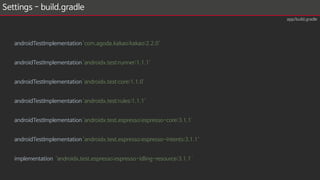
Settings - flavor
……
flavorDimensions"applicationId"
productFlavors {
mock {
applicationIdSuffix ".mock"
}
prod {
applicationIdSuffix ".prod"
}
}
sourceSets {
mock {
java.srcDirs = ['src/mock/java']
}
prod {
java.srcDirs = ['src/prod/java']
}
}
……
1. androidTest
• UI 테스트 관련 코드 포함
• *Test / CustomMatcher / Screen 등
2. main
• 공통적으로 사용하는 코드 포함
3. mock
• UI 테스트 시 사용할 Mocking 코드 포함
• Repository 및 RepositoryInjection
4. prod
• 배포 등 실제 동작 시 사용할 코드 포함
• Repository 및 RepositoryInjection
6.
Settings - flavor
……
flavorDimensions"applicationId"
productFlavors {
mock {
applicationIdSuffix ".mock"
}
prod {
applicationIdSuffix ".prod"
}
}
sourceSets {
mock {
java.srcDirs = ['src/mock/java']
}
prod {
java.srcDirs = ['src/prod/java']
}
}
……
UI Test 시
• [ Build Variants → mockDebug ] 선택하여 작성된 더미 데이터를 사용하도록 설정
※ prodDebug 선택 후 UI Test 시
• 실제 API 호출하여 테스트 진행
• API 호출 후 응답이 돌아올 때까지 대기하지 않고 테스트 진행 → FAIL
• IdlingResource 를 이용하여 API 응답이 돌아올 때까지 대기 가능
→ 서버 상태가 테스트코드 결과에 영향
→ 기존 코드 수정 발생
7.
Settings - 개발자옵션
애니메이션 관련 설정
• [ 설정 → 개발자 옵션 → 그림 ] 항목에서 각 애니메이션 옵션 비활성화
• Activity, Dialog 실행 등의 애니메이션을 비활성화
• UI Test 가 실행될 기기 또는 에뮬레이터 설정 필요
8.
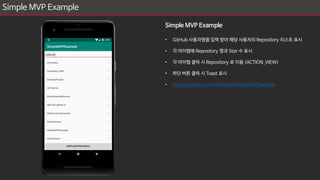
Simple MVP Example
SimpleMVP Example
• GitHub 사용자명을 입력 받아 해당 사용자의 Repository 리스트 표시
• 각 아이템에 Repository 명과 Star 수 표시
• 각 아이템 클릭 시 Repository 로 이동 (ACTION_VIEW)
• 하단 버튼 클릭 시 Toast 표시
• https://github.com/MDLicht/SimpleMVPExample
9.
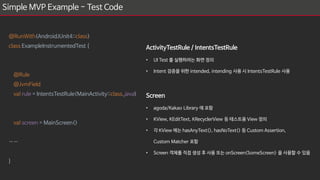
Simple MVP Example- Test Code
@RunWith(AndroidJUnit4::class)
class ExampleInstrumentedTest {
@Rule
@JvmField
val rule = IntentsTestRule(MainActivity::class.java)
val screen = MainScreen()
……
}
ActivityTestRule / IntentsTestRule
• UI Test 를 실행하려는 화면 정의
• Intent 검증을 위한 intended, intending 사용 시 IntentsTestRule 사용
Screen
• agoda/Kakao Library 에 포함
• KView, KEditText, KRecyclerView 등 테스트용 View 정의
• 각 KView 에는 hasAnyText(), hasNoText() 등 Custom Assertion,
Custom Matcher 포함
• Screen 객체를 직접 생성 후 사용 또는 onScreen<SomeScreen> 을 사용할 수 있음
10.
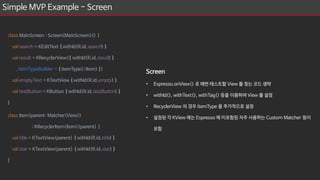
Simple MVP Example- Screen
Screen
• Espresso.onView() 로 매번 테스트할 View 를 찾는 코드 생략
• withId(), withText(), withTag() 등을 이용하여 View 를 설정
• RecyclerView 의 경우 itemType 을 추가적으로 설정
• 설정된 각 KView 에는 Espresso 에 미포함된 자주 사용하는 Custom Matcher 등이
포함
class MainScreen : Screen<MainScreen>() {
val search = KEditText { withId(R.id.search) }
val result = KRecyclerView({ withId(R.id.result) }
, itemTypeBuilder = { itemType(::Item) })
val emptyText = KTextView { withId(R.id.empty) }
val testButton = KButton { withId(R.id.testButton) }
}
class Item(parent: Matcher<View>)
: KRecyclerItem<Item>(parent) {
val title = KTextView(parent) { withId(R.id.title) }
val star = KTextView(parent) { withId(R.id.star) }
}
11.
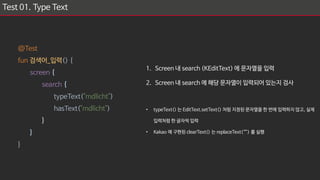
Test 01. TypeText
@Test
fun 검색어_입력() {
screen {
search {
typeText("mdlicht")
hasText("mdlicht")
}
}
}
1. Screen 내 search (KEditText) 에 문자열을 입력
2. Screen 내 search 에 해당 문자열이 입력되어 있는지 검사
• typeText() 는 EditText.setText() 처럼 지정된 문자열을 한 번에 입력하지 않고, 실제
입력처럼 한 글자씩 입력
• Kakao 에 구현된 clearText() 는 replaceText(“”) 를 실행
12.
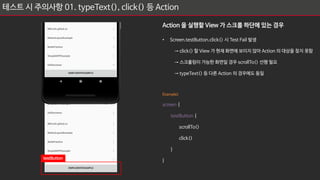
테스트 시 주의사항01. typeText(), click() 등 Action
Action 을 실행할 View 가 스크롤 하단에 있는 경우
• Screen.testButton.click() 시 Test Fail 발생
→ click() 할 View 가 현재 화면에 보이지 않아 Action 의 대상을 찾지 못함
→ 스크롤링이 가능한 화면일 경우 scrollTo() 선행 필요
→ typeText() 등 다른 Action 의 경우에도 동일
Example)
screen {
testButton {
scrollTo()
click()
}
}
testButton
13.
Test 02. TypeText / Search Result
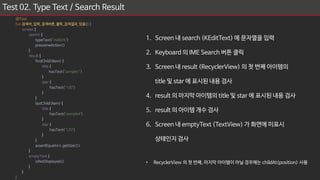
1. Screen 내 search (KEditText) 에 문자열을 입력
2. Keyboard 의 IME Search 버튼 클릭
3. Screen 내 result (RecyclerView) 의 첫 번째 아이템의
title 및 star 에 표시된 내용 검사
4. result 의 마지막 아이템의 title 및 star 에 표시된 내용 검사
5. result 의 아이템 개수 검사
6. Screen 내 emptyText (TextView) 가 화면에 미표시
상태인지 검사
• RecyclerView 의 첫 번째, 마지막 아이템이 아닐 경우에는 childAt(position) 사용
@Test
fun 검색어_입력_검색버튼_클릭_검색결과_있음(){
screen {
search {
typeText("mdlicht")
pressImeAction()
}
result {
firstChild<Item> {
title {
hasText("sample1")
}
star {
hasText("100")
}
}
lastChild<Item> {
title {
hasText("sample4")
}
star {
hasText("120")
}
}
assertEquals(4, getSize())
}
emptyText {
isNotDisplayed()
}
}
}
14.
테스트 시 주의사항02. isDisplayed(), isVisible(), isNotDisplayed()
View 가 현재 화면에 표시되고 있는지 검사하는 경우
• KView.isDisplayed() 사용 가능 / Espresso 의 경우 onView(withId(R.id.some_id)).check(matches(isDisplayed()))
• 스크롤 등의 이유로 현재 화면에 보이지 않는 View 를 isDisplayed() 로 검사 시 Test Fail 발생
→ isDisplayed() : Visibility 값이 VISIBLE 인지 여부 + View 가 화면에 보이고 있는지 여부
→ isVisible() : Visibility 값이 VISIBLE 인지 여부
• 단순히 View 의 Visibility 설정값을 검사할 경우 isVisible() 사용
15.
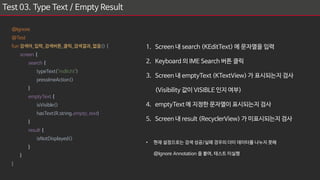
Test 03. TypeText / Empty Result
1. Screen 내 search (KEditText) 에 문자열을 입력
2. Keyboard 의 IME Search 버튼 클릭
3. Screen 내 emptyText (KTextView) 가 표시되는지 검사
(Visibility 값이 VISIBLE 인지 여부)
4. emptyText 에 지정한 문자열이 표시되는지 검사
5. Screen 내 result (RecyclerView) 가 미표시되는지 검사
• 현재 설정으로는 검색 성공/실패 경우의 더미 데이터를 나누지 못해
@Ignore Annotation 을 붙여, 테스트 미실행
@Ignore
@Test
fun 검색어_입력_검색버튼_클릭_검색결과_없음() {
screen {
search {
typeText("mdlicht")
pressImeAction()
}
emptyText {
isVisible()
hasText(R.string.empty_text)
}
result {
isNotDisplayed()
}
}
}
16.
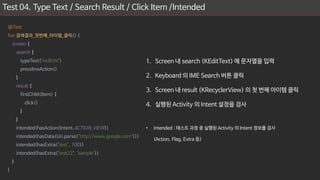
Test 04. TypeText / Search Result / Click Item /Intended
1. Screen 내 search (KEditText) 에 문자열을 입력
2. Keyboard 의 IME Search 버튼 클릭
3. Screen 내 result (KRecyclerView) 의 첫 번째 아이템 클릭
4. 실행된 Activity 의 Intent 설정을 검사
• intended : 테스트 과정 중 실행된 Activity 의 Intent 정보를 검사
(Action, Flag, Extra 등)
@Test
fun 검색결과_첫번쨰_아이템_클릭() {
screen {
search {
typeText("mdlicht")
pressImeAction()
}
result {
firstChild<Item> {
click()
}
}
intended(hasAction(Intent.ACTION_VIEW))
intended(hasData(Uri.parse("http://www.google.com")))
intended(hasExtra("test", 100))
intended(hasExtra("test22", "sample"))
}
}
17.
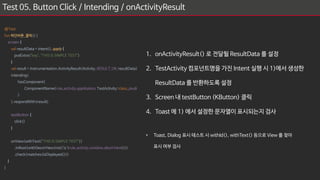
Test 05. ButtonClick / Intending / onActivityResult
1. onActivityResult() 로 전달될 ResultData 를 설정
2. TestActivity 컴포넌트명을 가진 Intent 실행 시 1)에서 생성한
ResultData 를 반환하도록 설정
3. Screen 내 testButton (KButton) 클릭
4. Toast 에 1) 에서 설정한 문자열이 표시되는지 검사
• Toast, Dialog 표시 테스트 시 withId(), withText() 등으로 View 를 찾아
표시 여부 검사
@Test
fun 하단버튼_클릭(){
screen {
val resultData = Intent().apply {
putExtra("key", "THIS IS SIMPLE TEST")
}
val result = Instrumentation.ActivityResult(Activity.RESULT_OK, resultData)
intending(
hasComponent(
ComponentName(rule.activity.application, TestActivity::class.java)
)
).respondWith(result)
testButton {
click()
}
onView(withText("THIS IS SIMPLE TEST"))
.inRoot(withDecorView(not(`is`(rule.activity.window.decorView))))
.check(matches(isDisplayed()))
}
}
18.
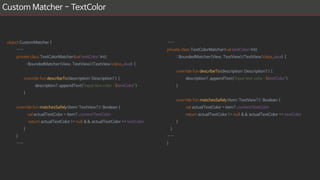
Custom Matcher -TextColor
object CustomMatcher {
……
private class TextColorMatcher(val textColor: Int)
: BoundedMatcher<View, TextView>(TextView::class.java) {
override fun describeTo(description: Description?) {
description?.appendText("input text color : $textColor")
}
override fun matchesSafely(item: TextView?): Boolean {
val actualTextColor = item?.currentTextColor
return actualTextColor != null && actualTextColor == textColor
}
}
……
……
private class TextColorMatcher(val textColor: Int)
: BoundedMatcher<View, TextView>(TextView::class.java) {
override fun describeTo(description: Description?) {
description?.appendText("input text color : $textColor")
}
override fun matchesSafely(item: TextView?): Boolean {
val actualTextColor = item?.currentTextColor
return actualTextColor != null && actualTextColor == textColor
}
}
……
}
19.
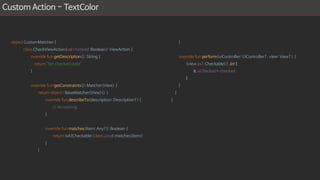
Custom Action -TextColor
object CustomMatcher {
class CheckViewAction(val checked: Boolean): ViewAction {
override fun getDescription(): String {
return "Set checked state"
}
override fun getConstraints(): Matcher<View> {
return object : BaseMatcher<View>() {
override fun describeTo(description: Description?) {
// do nothing
}
override fun matches(item: Any?): Boolean {
return isA(Checkable::class.java).matches(item)
}
}
}
override fun perform(uiController: UiController?, view: View?) {
(view as? Checkable)?.let {
it.isChecked = checked
}
}
}
}
20.
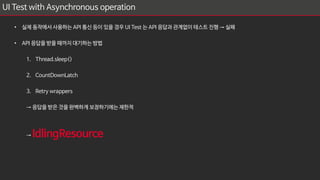
UI Test withAsynchronous operation
• 실제 동작에서 사용하는 API 통신 등이 있을 경우 UI Test 는 API 응답과 관계없이 테스트 진행 → 실패
• API 응답을 받을 때까지 대기하는 방법
1. Thread.sleep()
2. CountDownLatch
3. Retry wrappers
→ 응답을 받은 것을 완벽하게 보장하기에는 제한적
→ IdlingResource
21.
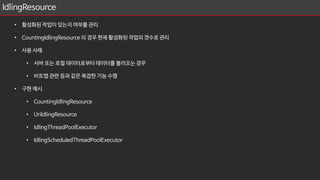
IdlingResource
• 활성화된 작업이있는지 여부를 관리
• CountingIdlingResource 의 경우 현재 활성화된 작업의 갯수로 관리
• 사용 사례
• 서버 또는 로컬 데이터로부터 데이터를 불러오는 경우
• 비트맵 관련 등과 같은 복잡한 기능 수행
• 구현 예시
• CountingIdlingResource
• UriIdlingResource
• IdlingThreadPoolExecutor
• IdlingScheduledThreadPoolExecutor
22.
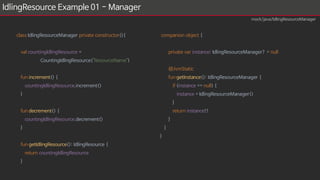
IdlingResource Example 01- Manager
class IdlingResourceManager private constructor(){
val countingIdlingResource =
CountingIdlingResource("ResourceName")
fun increment() {
countingIdlingResource.increment()
}
fun decrement() {
countingIdlingResource.decrement()
}
fun getIdlingResource(): IdlingResource {
return countingIdlingResource
}
companion object {
private var instance: IdlingResourceManager? = null
@JvmStatic
fun getInstance(): IdlingResourceManager {
if (instance == null) {
instance = IdlingResourceManager()
}
return instance!!
}
}
}
mock/java/IdlingResourceManager
23.
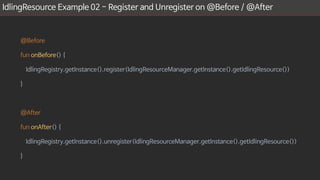
IdlingResource Example 02- Register and Unregister on @Before / @After
@Before
fun onBefore() {
IdlingRegistry.getInstance().register(IdlingResourceManager.getInstance().getIdlingResource())
}
@After
fun onAfter() {
IdlingRegistry.getInstance().unregister(IdlingResourceManager.getInstance().getIdlingResource())
}
24.
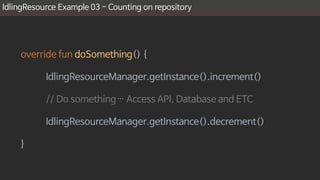
IdlingResource Example 03- Counting on repository
override fun doSomething() {
IdlingResourceManager.getInstance().increment()
// Do something… Access API, Database and ETC
IdlingResourceManager.getInstance().decrement()
}
25.
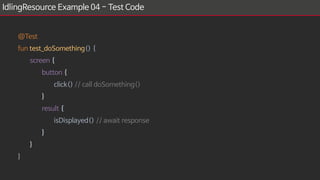
IdlingResource Example 04- Test Code
@Test
fun test_doSomething() {
screen {
button {
click() // call doSomething()
}
result {
isDisplayed() // await response
}
}
}
26.
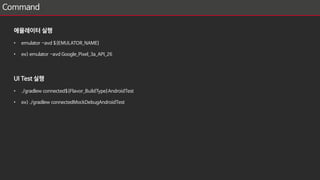
Command
에뮬레이터 실행
• emulator-avd ${EMULATOR_NAME}
• ex) emulator -avd Google_Pixel_3a_API_26
UI Test 실행
• ./gradlew connected${Flavor_BuildType}AndroidTest
• ex) ./gradlew connectedMockDebugAndroidTest
27.
문제 및 과제
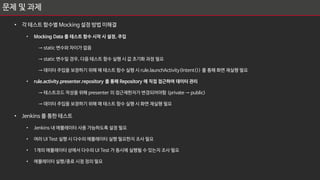
•각 테스트 함수별 Mocking 설정 방법 미해결
• Mocking Data 를 테스트 함수 시작 시 설정, 주입
→ static 변수와 차이가 없음
→ static 변수일 경우, 다음 테스트 함수 실행 시 값 초기화 과정 필요
→ 데이터 주입을 보장하기 위해 매 테스트 함수 실행 시 rule.launchActivity(Intent()) 를 통해 화면 재실행 필요
• rule.activity.presenter.repository 를 통해 Repository 에 직접 접근하여 데이터 관리
→ 테스트코드 작성을 위해 presenter 의 접근제한자가 변경되어야함 (private → public)
→ 데이터 주입을 보장하기 위해 매 테스트 함수 실행 시 화면 재실행 필요
• Jenkins 를 통한 테스트
• Jenkins 내 에뮬레이터 사용 가능하도록 설정 필요
• 여러 UI Test 실행 시 다수의 에뮬레이터 실행 필요한지 조사 필요
• 1개의 에뮬레이터 상에서 다수의 UI Test 가 동시에 실행될 수 있는지 조사 필요
• 에뮬레이터 실행/종료 시점 정의 필요
![Settings - flavor
……
flavorDimensions "applicationId"
productFlavors {
mock {
applicationIdSuffix ".mock"
}
prod {
applicationIdSuffix ".prod"
}
}
sourceSets {
mock {
java.srcDirs = ['src/mock/java']
}
prod {
java.srcDirs = ['src/prod/java']
}
}
……
app/build.gradle](https://image.slidesharecdn.com/uitestv1-191102193835/85/Android-UI-Test-Espresso-Kakao-4-320.jpg)
![Settings - flavor
……
flavorDimensions "applicationId"
productFlavors {
mock {
applicationIdSuffix ".mock"
}
prod {
applicationIdSuffix ".prod"
}
}
sourceSets {
mock {
java.srcDirs = ['src/mock/java']
}
prod {
java.srcDirs = ['src/prod/java']
}
}
……
1. androidTest
• UI 테스트 관련 코드 포함
• *Test / CustomMatcher / Screen 등
2. main
• 공통적으로 사용하는 코드 포함
3. mock
• UI 테스트 시 사용할 Mocking 코드 포함
• Repository 및 RepositoryInjection
4. prod
• 배포 등 실제 동작 시 사용할 코드 포함
• Repository 및 RepositoryInjection](https://image.slidesharecdn.com/uitestv1-191102193835/85/Android-UI-Test-Espresso-Kakao-5-320.jpg)
![Settings - flavor
……
flavorDimensions "applicationId"
productFlavors {
mock {
applicationIdSuffix ".mock"
}
prod {
applicationIdSuffix ".prod"
}
}
sourceSets {
mock {
java.srcDirs = ['src/mock/java']
}
prod {
java.srcDirs = ['src/prod/java']
}
}
……
UI Test 시
• [ Build Variants → mockDebug ] 선택하여 작성된 더미 데이터를 사용하도록 설정
※ prodDebug 선택 후 UI Test 시
• 실제 API 호출하여 테스트 진행
• API 호출 후 응답이 돌아올 때까지 대기하지 않고 테스트 진행 → FAIL
• IdlingResource 를 이용하여 API 응답이 돌아올 때까지 대기 가능
→ 서버 상태가 테스트코드 결과에 영향
→ 기존 코드 수정 발생](https://image.slidesharecdn.com/uitestv1-191102193835/85/Android-UI-Test-Espresso-Kakao-6-320.jpg)
![Settings - 개발자 옵션
애니메이션 관련 설정
• [ 설정 → 개발자 옵션 → 그림 ] 항목에서 각 애니메이션 옵션 비활성화
• Activity, Dialog 실행 등의 애니메이션을 비활성화
• UI Test 가 실행될 기기 또는 에뮬레이터 설정 필요](https://image.slidesharecdn.com/uitestv1-191102193835/85/Android-UI-Test-Espresso-Kakao-7-320.jpg)


![[IGC 2016] 엔씨소프트 김종원 - 모바일 테스트 자동화 시스템](https://cdn.slidesharecdn.com/ss_thumbnails/3-161009030553-thumbnail.jpg?width=640&height=640&fit=bounds)
![[GDG And Kor] 아장아장 테스트 첫걸음](https://cdn.slidesharecdn.com/ss_thumbnails/190831-gdgandroid-firststeptotesting-190831034840-thumbnail.jpg?width=640&height=640&fit=bounds)

![[D2 오픈세미나]5.robolectric 안드로이드 테스팅](https://cdn.slidesharecdn.com/ss_thumbnails/5-140804011233-phpapp02-thumbnail.jpg?width=640&height=640&fit=bounds)


![[방송통신대 컴퓨터과학과] 2020년 1학기 전공 모바일 앱 프로그래밍 기말평가 제출본](https://cdn.slidesharecdn.com/ss_thumbnails/2-200717105739-thumbnail.jpg?width=640&height=640&fit=bounds)
![[26]자동화, 계륵에 살 붙이기 : Evolution of Android Automation Test](https://cdn.slidesharecdn.com/ss_thumbnails/26automation-181102022301-thumbnail.jpg?width=640&height=640&fit=bounds)


