AIB Phone & Internet Banking
AIB Internet
Banking
AIB Mobile
Banking
Household Internet Usage Statistics
Allied Irish Banks, p.l.c. is regulated by the
Central Bank of Ireland
% of households
2008 2009 2010 2011 2012 2013
Households with access to a computer 70 73 76 81 83 84
Households with access to the internet 63 67 72 78 81 82
Benefits of Phone & Internet Banking
• Easy-to-use
• Paperless account & credit card statements available
• Bank securely 365 days a year
• Customer Service Advisers are available for non-routine transactions
Allied Irish Banks, p.l.c. is regulated by the
Central Bank of Ireland
Internet Banking
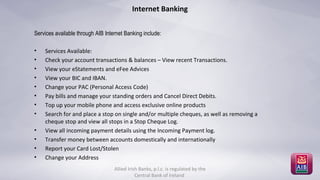
Services available through AIB Internet Banking include:
• Services Available:
• Check your account transactions & balances – View recent Transactions.
• View your eStatements and eFee Advices
• View your BIC and IBAN.
• Change your PAC (Personal Access Code)
• Pay bills and manage your standing orders and Cancel Direct Debits.
• Top up your mobile phone and access exclusive online products
• Search for and place a stop on single and/or multiple cheques, as well as removing a
cheque stop and view all stops in a Stop Cheque Log.
• View all incoming payment details using the Incoming Payment log.
• Transfer money between accounts domestically and internationally
• Report your Card Lost/Stolen
• Change your Address
Allied Irish Banks, p.l.c. is regulated by the
Central Bank of Ireland
AIB Phone Banking
• Phone Banking gives you access to a number of the same options as Internet Banking.
• For the following more complex or non-routine transactions customers can speak to a Customer Service
Advisor by pressing Option 0
– Chequebook/Lodgement book order
– PAC reorder, One off funds transfers
– Mandated account set up
– Bill Payment set up/reversal
– Standing Order set up/amend/cancel
– Change of address
Allied Irish Banks, p.l.c. is regulated by the
Central Bank of Ireland
What are the limits
• 3rd
Party Account Transfer €5,000
• Funds Transfer own nominated AIB A/C) €1,050,000
• Other Funds Transfers (within Ireland/Sepa) €5,000
• International Payments €5,000
• Utility Bill Payment €10,000
Allied Irish Banks, p.l.c. is regulated by the
Central Bank of Ireland
How to find AIB.ie
Allied Irish Banks, p.l.c. is regulated by the
Central Bank of Ireland
Allied Irish Banks, p.l.c. is regulated by the
Central Bank of Ireland
Allied Irish Banks, p.l.c. is regulated by the
Central Bank of Ireland
Allied Irish Banks, p.l.c. is regulated by the
Central Bank of Ireland
Allied Irish Banks, p.l.c. is regulated by the
Central Bank of Ireland
Allied Irish Banks, p.l.c. is regulated by the
Central Bank of Ireland
What does an eStatement look like?
Allied Irish Banks, p.l.c. is regulated by the
Central Bank of Ireland
How do I sign up for eStatements?
1. Click the ‘eStatements’ tab located at the top of the screen, then select the account(s)
you wish to switch to eStatements or click ‘register all accounts for eStatements’
Allied Irish Banks, p.l.c. is regulated by the
Central Bank of Ireland
Transfers & Payments
Allied Irish Banks, p.l.c. is regulated by the
Central Bank of Ireland
Transfers & Payments
Allied Irish Banks, p.l.c. is regulated by the
Central Bank of Ireland
Transfers & Payments
You have requested to make the following transfer:
Progress: 90%
Personal Access Code
Please enter the following digit from your Personal Access Code (PAC):
Digit 1
You have requested to make the following transfer:
Progress: 90%
Personal Access Code
Please enter the following digit from your Personal Access Code (PAC):
Digit 1
Allied Irish Banks, p.l.c. is regulated by the
Central Bank of Ireland
false14157884truetrue14157884true14157884truefalse14157884truetrue14157884true14157884true
Standing order
Allied Irish Banks, p.l.c. is regulated by the
Central Bank of Ireland
Direct Debit
Allied Irish Banks, p.l.c. is regulated by the
Central Bank of Ireland
Quick Pay
Allied Irish Banks, p.l.c. is regulated by the
Central Bank of Ireland
Mobile Top-Up
Allied Irish Banks, p.l.c. is regulated by the
Central Bank of Ireland
Me2U
Allied Irish Banks, p.l.c. is regulated by the
Central Bank of Ireland
Me2U
DRAFT v1
24
Allied Irish Banks, p.l.c. is regulated by the
Central Bank of Ireland
Apply Online
Allied Irish Banks, p.l.c. is regulated by the
Central Bank of Ireland
Manage my Accounts
Allied Irish Banks, p.l.c. is regulated by the
Central Bank of Ireland
My Alerts
Allied Irish Banks, p.l.c. is regulated by the
Central Bank of Ireland
Allied Irish Banks, p.l.c. is regulated by the
Central Bank of Ireland
My Money Manager
Allied Irish Banks, p.l.c. is regulated by the
Central Bank of Ireland
Quick Banking Wall
Allied Irish Banks, p.l.c. is regulated by the
Central Bank of Ireland
AIB Kiosk Banking
Allied Irish Banks, p.l.c. is regulated by the
Central Bank of Ireland
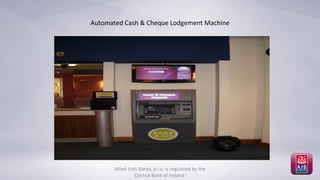
Automated Cash & Cheque Lodgement Machine
Allied Irish Banks, p.l.c. is regulated by the
Central Bank of Ireland
Thank you
Thank you for your time
Any Questions!
Allied Irish Banks, p.l.c. is regulated by the
Central Bank of Ireland

AIB Presentation

  • 1.
    AIB Phone &Internet Banking AIB Internet Banking AIB Mobile Banking
  • 2.
    Household Internet UsageStatistics Allied Irish Banks, p.l.c. is regulated by the Central Bank of Ireland % of households 2008 2009 2010 2011 2012 2013 Households with access to a computer 70 73 76 81 83 84 Households with access to the internet 63 67 72 78 81 82
  • 3.
    Benefits of Phone& Internet Banking • Easy-to-use • Paperless account & credit card statements available • Bank securely 365 days a year • Customer Service Advisers are available for non-routine transactions Allied Irish Banks, p.l.c. is regulated by the Central Bank of Ireland
  • 4.
    Internet Banking Services availablethrough AIB Internet Banking include: • Services Available: • Check your account transactions & balances – View recent Transactions. • View your eStatements and eFee Advices • View your BIC and IBAN. • Change your PAC (Personal Access Code) • Pay bills and manage your standing orders and Cancel Direct Debits. • Top up your mobile phone and access exclusive online products • Search for and place a stop on single and/or multiple cheques, as well as removing a cheque stop and view all stops in a Stop Cheque Log. • View all incoming payment details using the Incoming Payment log. • Transfer money between accounts domestically and internationally • Report your Card Lost/Stolen • Change your Address Allied Irish Banks, p.l.c. is regulated by the Central Bank of Ireland
  • 5.
    AIB Phone Banking •Phone Banking gives you access to a number of the same options as Internet Banking. • For the following more complex or non-routine transactions customers can speak to a Customer Service Advisor by pressing Option 0 – Chequebook/Lodgement book order – PAC reorder, One off funds transfers – Mandated account set up – Bill Payment set up/reversal – Standing Order set up/amend/cancel – Change of address Allied Irish Banks, p.l.c. is regulated by the Central Bank of Ireland
  • 6.
    What are thelimits • 3rd Party Account Transfer €5,000 • Funds Transfer own nominated AIB A/C) €1,050,000 • Other Funds Transfers (within Ireland/Sepa) €5,000 • International Payments €5,000 • Utility Bill Payment €10,000 Allied Irish Banks, p.l.c. is regulated by the Central Bank of Ireland
  • 7.
    How to findAIB.ie Allied Irish Banks, p.l.c. is regulated by the Central Bank of Ireland
  • 8.
    Allied Irish Banks,p.l.c. is regulated by the Central Bank of Ireland
  • 9.
    Allied Irish Banks,p.l.c. is regulated by the Central Bank of Ireland
  • 10.
    Allied Irish Banks,p.l.c. is regulated by the Central Bank of Ireland
  • 12.
    Allied Irish Banks,p.l.c. is regulated by the Central Bank of Ireland
  • 13.
    Allied Irish Banks,p.l.c. is regulated by the Central Bank of Ireland
  • 14.
    What does aneStatement look like? Allied Irish Banks, p.l.c. is regulated by the Central Bank of Ireland
  • 15.
    How do Isign up for eStatements? 1. Click the ‘eStatements’ tab located at the top of the screen, then select the account(s) you wish to switch to eStatements or click ‘register all accounts for eStatements’ Allied Irish Banks, p.l.c. is regulated by the Central Bank of Ireland
  • 16.
    Transfers & Payments AlliedIrish Banks, p.l.c. is regulated by the Central Bank of Ireland
  • 17.
    Transfers & Payments AlliedIrish Banks, p.l.c. is regulated by the Central Bank of Ireland
  • 18.
    Transfers & Payments Youhave requested to make the following transfer: Progress: 90% Personal Access Code Please enter the following digit from your Personal Access Code (PAC): Digit 1 You have requested to make the following transfer: Progress: 90% Personal Access Code Please enter the following digit from your Personal Access Code (PAC): Digit 1 Allied Irish Banks, p.l.c. is regulated by the Central Bank of Ireland false14157884truetrue14157884true14157884truefalse14157884truetrue14157884true14157884true
  • 19.
    Standing order Allied IrishBanks, p.l.c. is regulated by the Central Bank of Ireland
  • 20.
    Direct Debit Allied IrishBanks, p.l.c. is regulated by the Central Bank of Ireland
  • 21.
    Quick Pay Allied IrishBanks, p.l.c. is regulated by the Central Bank of Ireland
  • 22.
    Mobile Top-Up Allied IrishBanks, p.l.c. is regulated by the Central Bank of Ireland
  • 23.
    Me2U Allied Irish Banks,p.l.c. is regulated by the Central Bank of Ireland
  • 24.
    Me2U DRAFT v1 24 Allied IrishBanks, p.l.c. is regulated by the Central Bank of Ireland
  • 25.
    Apply Online Allied IrishBanks, p.l.c. is regulated by the Central Bank of Ireland
  • 26.
    Manage my Accounts AlliedIrish Banks, p.l.c. is regulated by the Central Bank of Ireland
  • 27.
    My Alerts Allied IrishBanks, p.l.c. is regulated by the Central Bank of Ireland
  • 28.
    Allied Irish Banks,p.l.c. is regulated by the Central Bank of Ireland My Money Manager
  • 29.
    Allied Irish Banks,p.l.c. is regulated by the Central Bank of Ireland
  • 30.
    Quick Banking Wall AlliedIrish Banks, p.l.c. is regulated by the Central Bank of Ireland
  • 31.
    AIB Kiosk Banking AlliedIrish Banks, p.l.c. is regulated by the Central Bank of Ireland
  • 32.
    Automated Cash &Cheque Lodgement Machine Allied Irish Banks, p.l.c. is regulated by the Central Bank of Ireland
  • 33.
    Thank you Thank youfor your time Any Questions! Allied Irish Banks, p.l.c. is regulated by the Central Bank of Ireland

Editor's Notes

  • #2 Trainer: Introduce yourself to your Participants. Hello my Name is: I am here today to go through the AIB Phone & Internet Banking Service with you. Our session will run for 1 Hour; during which I will demonstrate the Service; discuss the Benefits and explain the many functionalities of the AIB Phone & Internet Banking Service. You have been invited here today as you are a valued AIB Customer who has access to this Service but which our records show is a service you are not currently availing of; and therefore we are hoping that after today’s session, you will be more aware of the range of services available; that you will go away with a far greater understanding of the ease of using this service. Trainer Ask: Is anybody here familiar with AIB Phone & Internet Banking? In terms of having heard of it; possibly tried it etc. If Participants say that they have tried it and failed, ask did anybody show them how to use it? Say you are confident (and hopeful) that after today, they will try it again. Trainer Say: There are other “Alternative” ways to bank available to you also here in the Branch. E.g. The Kiosk (which has a range of services and we will touch on those later); The Cash & Cheque Deposit Machine (which you use to lodge cash and cheques) – and there will be Staff Members available afterwards if you would like a demonstration of either of these services. You will probably have some questions – but we are confident that as we go through this session, your questions will be answered!
  • #3 This slide is included today to demonstrate the increase in Internet usage within our own Homes. Many of you will be part of these numbers – and you are already using the Internet for a range of services (reference CSO statistical release – 20th December 2013) The Information and Communication Technology (ICT) household survey covers a range of topics related to the use of ICT by households and individuals. The ICT questionnaire focuses on the use of ICT for non-work related activities. Summary of main findings It is estimated that 84% of households in 2013 have access to a computer at home 82% of households have access to the internet at home. 78% of individuals used the internet in the last 3 months. 61% of individuals used the internet every day in the last three months. The most popular activities of individuals who accessed the internet in the last three months were email (67% of individuals), Finding information about goods or services including Financial Services now available online (61%), Social networking (48%) and Using services related to travel or travel related accommodation (45%). See table 3 Other travel arrangements (28%), Holiday accommodation (26%) and Tickets for events (26%) were the most popular types of internet purchases in the 12 months prior to Q1 2013. So from these statistics, we can see how the world is changing. Also look at how the way we communicate has changed from phone calls and letters to text, email and Skype over quite a short period of time. We can’t stop the advancement of technology so we need to embrace it. (see quote) “The Only Thing That Is Constant Is Change -” Heraclitus So at this session, we are going to have a look at the use of technology in Banking and how this can benefit us as customers.
  • #4 Trainer Say: This slides shows you the many benefits of using our Phone & Internet Banking Service. So what do you have? Access to your accounts 365 days a year, 20 hours a day. More convenient than standing in a queue – This service is available for you to use in the comfort of your own home; when you are sitting in the car or on the bus; at an airport waiting lounge and you realise you need to transfer some money ….. Move money between your AIB accounts – Instant access to live balances on your account. Set up, amend or cancel a standing order online – There is a charge for these services in a Branch ; online it is free. Top Up online or register for Top Up by Text (Vodafone, O2, Meteor) Access to a range of products including credit cards, loans and savings accounts – all of these can be set up simply on-line; and most recently credit facilities (Loans) can be done from start to finish on-line, which saves you having to go into a branch to sign any documentation. Sign up for e-Statements (which are online Statements) - receive your bank account and credit card statements online. Use our range of credit card services online (order copy voucher, limit increase etc.) .
  • #5 Discuss each Heading on Slide. Check your Account Transactions and Balances – you will see all the recent transactions and balances on all your Accounts – and all recent Transactions. Estatements and eFee Advices – We will talk in more detail later about eStatements and eFee Advices . These are services which allow you to receive your Statements and Fee Advices online rather than in paper format. View BIC and IBAN – BIC stands for Bank Identification Code; and IBAN is your International Bank Account Number – you would need this detail for example if you were transferring money to another person’s account; and equally if somebody was transferring money to your account, they would ask you for this detail. Change your PAC (Personal Access Code) if you wished. Paying your Bills – you can set up online to have services like Gas’; Electricity etc paid online and you could have a Standing Order to your Credit Card for example where you were paying a certain amount per month; and also you can cancel any Direct Debits that you have set up. Top up your Mobile phone Cheques – you have an option to put a stop on a cheque; or remove a stop if you gave somebody a cheque for example and they rang you to say they had lost it. View all Incoming Payment details – there is a Payment Log where you can see all the payments (credits) coming into your accounts. Report your Card Lost/Stolen – you can do this online, but we would strongly advise you to actually ring through to a Customer Service Advisor should you realise you have lost your card Change your Address – allows you to do this simply online – and again, you will see all of these services when we look at the screens. Say: When we look at the demonstration shortly, I will show you where all the above are found.
  • #6 Trainer Say: AIB Phone Banking allows you access a number of the same options as Internet Banking and we will look at these in more detail a little later. This slide also refers to the more complex or non-routine transactions which our customers use : They are: Chequebook/Lodgement book order PAC reorder, One off funds transfers Mandated account set up -Mandated account is an account where you nominate/authorise for payments, e.g if you are setting up an account where you transfer to on a regular basis. Bill Payment set up/reversal Standing Order set up/amend/cancel Change of address Say: There is also an option called “Help me with this” which I will show you when we look at the demonstration – so that is an added support should you have any queries.
  • #7 Trainer Say: These are the limits available to you as follows: 3rd Party Account (transfer to an account that is not your own) - €5,000 Funds Transfer (own AIB nominated a/c’s) - €1,050,000 Other Funds Transfers (within Ireland/SEPA Zone*) - €5,000 International Payments- €5,000 Standing Orders up to €2,000 Utility Bill Payment These limits are for Personal Customers. Business Customers have higher limits under most headings. Extra information on SEPA should there be queries: *SEPA – Single European Payment Zone – where payments must be credited to an account within a certain time limit. The 28 countries of the European Union are: Austria, Belgium, Bulgaria, Croatia, Cyprus, Czech Republic, Denmark, Estonia, Finland, France, Germany, Greece, Hungary, Ireland, Italy, Latvia, Lithuania, Luxembourg, Malta, Netherlands, Poland, Portugal, Romania, Slovenia, Slovakia, Spain, Sweden and the United Kingdom plus the four members of the EFTA (Iceland, Liechtenstein, Norway and Switzerland), Monaco and San Marino.[2] SEPA will enable customers to make cashless euro payments to anyone located anywhere in the area, using a single bank account and a single set of payment instruments.[
  • #8 Trainer Say: This slide shows you how to find the AIB website. You will need to type in “aib.ie” in the search box – Google maybe – and you will see a list of options below. Simply click on one of them and it will bring you into the AIB Website.
  • #9 Trainer Ask – so what does AIB Internet Banking look like? This is the aib.ie website; from where you can log in to Internet Banking. You will see from the top of the screen that the Personal Banking option is the it defaults to; and there is also a Business Banking option for our Business Customers. From here, you select the AIB Internet Banking Logon. Trainer Say: We acknowledge you may have concerns re Security so we would like to reassure you by explaining the following: You will be given a Registration Number – which has 8 Digits. It is not your Account number. This is obtained when you Register with us for Phone & Internet Banking which you do by simply speaking to a Customer Service Advisor at the initial stage. You will also be given a Personal Access Code (often referred to as your “PAC number”. This again will be given to you when you register and is like a PIN number. It is made up of 5 numbers – and you will be asked 3 of those 5 numbers to register (which we will look at shortly); and you will also be asked for 1 of those numbers to confirm transactions and again we will show you exactly what we mean as we go through this session. We will also look at and discuss our Card Readers (Trainer to show group a Card Reader) and I will pass this around to you. This is required for certain transactions and is a further security tool available to you. Again, I will show you what I mean as we go through today. And finally, I would like to confirm that there are a number of steps for each transaction s and you must confirm each step before you can move on, so you get plenty opportunity to be sure of your transaction before you click on the final confirmation
  • #10 Say: Once you select AIB Internet Banking, this is the first slide you will see. It is asking you to input your 8Digit Registration number. Please note there is a lot of information available to you on this Home Page. To the left, you will see headings: Log in: Current Security Alert – which alerts you to any reported scams/possible Fraud attempts – on this screen above you can see some security reminders . For example, you may have heard of people getting calls saying they are from your Computer company and they will need you to confirm certain details so they can sort out something on your computer.? Don’t ever give any personal information – if they ask for your passwords; or bank details; etc, hang up straight away. Useful Contacts – E.g. Phone & Internet Banking if you were having difficulty signing in; or Lost/Stolen cards if you lost a card and wanted to report it immediately. Help Centre – Will provide assistance on any aspect of Phone & Internet Banking that you may have. Technical Difficulties – Again, if you are having any issues logging in.
  • #11 This is the 2nd Step – which follows after your 8digit Registration Number is input. You now need your PAC – Personal Access Code – at this point. The system will ask you for 3 of the 5 numbers of your pack randomly; followed by a 2nd security question – e.g. the last 4 digits of your Credit Card. Select: Next. Personal Access Code The Personal Access Code or PAC is a five digit numeric password or PIN type device. This number should only be known to the customer and can be changed at any time on the self-service. If the customer wishes to change their PAC, they cannot change it to 5 consecutive numbers 12345, or 5 numbers the same e.g. 11111 or 5 consecutive numbers from their Registration Number
  • #12 Trainer Say: You are now into your Phone & Internet Banking and the screen confirms you are securely logged in; based on the details/numbers you have input. Trainer: We will now briefly discuss each heading down the left hand side. Account Overview – This would be one of the most common screens used by our Customers to get “live time” balances on your Account(s). We discussed earlier the services available; and you now see them listed here on the lefthand side: Statements Transfers & Payments Mobile Top Up Me2U Apply Online Manage My Accounts My Alerts My Money Manager And we will go on now and look at each in more detail.
  • #13 This screen gives you an Overview of up to date balances on all the Accounts you may have with AIB. You will see that it says “Current 284” – so it does not show the full account Number – so this is another security feature. This means that it is your current Account (which is made up of 8 numbers; of which the last 3 numbers are 284 in this example.
  • #14 This slide should be the “Statements & Advices” screen dump Trainer Say – This slide has 5 headings: Recent – once you select an Account in the box – you will see all the recent transactions for that account. Pending Transactions; Those transactions that you have spent but which have not yet actually hit your statement. E.g. a recent purchase in a supermarket using your Visa Debit Card. Historical Transactions; enables you to view up to a maximum of 24 months of account transactions on your current or credit card account. eStatements - By stopping paper statements and choosing eStatements you can securely view and print your statements online. I will show you one of those after this slide. eFee Advices – Gives you online details re any fees / charges you have incurred. Cheques – Add a stop on a cheque; search to see if a cheque has been cashed. If we go back to the “Recent Transactions” heading under Statements & Advices, you will see further headings as follows: This Screen allows you to select the Account – in this example it is a Current Account ending 019 – and it shows all the debit and credit Transactions. Cheque Search – Once you have identified the Account, you can key in a cheque number to see if it has been processed or not. You have an ability to stop a cheque before it is processed or cashed by the Bank. Search Transactions – Again, once you have identified an Account, you can search for a cheque/debit or credit on that Account; by amount or date; or both. Order Statement – You can order a statement on any of the Accounts listed; and this will be posted to you (generally within 3 working days). You also have the option of choosing on-line Statements as we have mentioned already, called e-Statements and we will discuss that a little later on. Apply for Overdraft – This option is only shown as being available if the Account you have chosen is an Account on which an Overdraft is available. If for example you pick a Deposit Account here; this option will not be visible.
  • #15 Trainer Say: On this slide is an image of an eStatement. eStatements are presented in black and white. An eStatement is an account statement that is provided in an electronic form and is an exact replica of a paper statement. eStatements are issued in PDF (portable document format), and are viewable on a computer or laptop. eStatements can also be printed out or saved on a computer or laptop. Customer information presented includes: Account name, account number and sort code IBAN, BIC, authorised user(s) Name and address of account holder Branch where account is held Transaction information Page number of statement
  • #16 Trainer Say: This screen shows you how you sign up for eStatements. You will see a list of your Accounts and you simply select “register for Estatement” on whichever account you want to get the estatement for. You simply select the Estatement option – and a list of all your Accounts will appear. On each you can select “Stop Paper Statement”; “Stop Statement”; or “Order Statement”. And select Next
  • #17 Trainer: This is the Transfers & Payments screen. The options available to you here are as follows and I will then show you examples of how some of these transactions are set up: I want to transfer money between my own AIB accounts Transfer money between the accounts on your Internet Banking I want to pay a bill Pay a range of bills including credit cards, gas, electricity, mobile and landline phones I want to transfer money to another ROI account Transfer money in euro to another account within the Republic of Ireland I want to transfer money internationally Transfer money to an international destination or in a foreign currency I want to set up a standing order Set up a regular payment to any account within the SEPA Zone I want to buy a Euro Draft Purchase a Euro Draft on your Internet Banking You simply select whichever option you wish to use; and in some instances, you will be asked to verifiy that transaction using your Card Reader.
  • #18 This Slide should be screen dump of Step 1 from the Transfers & Payments Screen Trainer Say: This screen shows you what is required when you wish to Transfer between your own AIB Accounts and indicates mandatory field (fields which must be completed before you can move on – you will see the “*” asterisk). Step 1 From account – You must select the account the funds are coming from; Message to appear on your statement: To account: - You must select the account you are paying the funds to; Message to appear on your statement: Payment amount: € . Additional Information: Option in input up to 140 characters of additional information relating to this transfer. Transfers made between your AIB accounts will take effect instantly. Transfers to meet transactions that have been presented to your account on a business day must be made before 19:00 on that day. For transfers from AIB Credit Cards you need to be aware that that a Cash Advance Fee may apply.
  • #19 This Slide should be Screen dump from 2nd Step of the Transfers & Payments. Trainer Say: This is the 3rd Step – where the details of what you have input are shown and the bottom section is asking for confirmation from you, by entering 1 random digit From your 5 Digit PAC number. So as I mentioned earlier, there are a number of steps along the way allowing you time to make sure you are happy with the transaction you want to carry out.
  • #20 Trainer Say: This is a slide showing you how to set up a Standing Order. A Standing order is where a definite amount is transferred from one account to another account of your choice on a weekly basis perhaps; or on the 14th of every month – e.g. you might want to transfer €50 per week or month to a Savings Account of yours. You decide how long you want it to go on for; what date you month you would like it transferred etc.
  • #21 Trainer Say: This is a Direct Debit Slide. A Direct Debit is where you allow funds to be taken from your account on a regular basis. For example, you may have a Direct Debit with Bord Gais and on a monthly basis, on the same date each month, they will take the amount of your gas bill out of your account. A Direct Debit can be for different amounts – depending on the cost of the bill which may vary..
  • #22 Screen shot required of “Quick Pay”. This service is to the right of your screen when you sign in. It recognises payments that you have done in the past; and allows you to do them very quickly.
  • #23 Trainer Say: This slide explains how you can top up your mobile or that of somebody else by using the Internet. Top Up your prepaid mobile phone through AIB Internet Banking. Your bank account is debited directly and you receive your Top Up within minutes. There's no need to key in long activation codes, you can Top Up your mobile and your friends' mobiles anywhere you can access AIB Internet Banking. We have extended Top Up Online to allow you to top up Vodafone, O2, Meteor, eMobile, Tesco Mobile and Three phones with 083, 085, 086, 087 and 089 prefixes. The system asks you: What mobile number do you want to top up? Mobile phone number: Confirm mobile phone number: Mobile operator: Say: There are a number of drop-down options where you must input the number you wish to top up; the amount and the account you wish to debit. Take a moment to make sure the mobile you are transferring to is the correct number.
  • #24 Trainer Say: This slide refers to the AIB “Me2U” service available in Internet Banking. The Me2U facility allows you to send payments from an AIB euro personal Visa debit or credit card to a recipient's euro personal Visa debit or credit card using the recipient's mobile number. As a Me2U customer you also have the option to send payments to the recipient's Visa card number. For example, if your son/daughter/partner was away and they needed funds urgently, you can use this facility to transfer funds to their AIB Visa Debit or Credit Card securely. If its an AIB Card, it should be there within 30 mins; if it is a Non-AIB card; it can take up to 1 Business day. All the details of how this service works is available on our website and shows you exactly what you need to do for this transaction and with your Card Reader which is required for this transaction. The limit on this service is 300 per day / 15 Transactions (max value of €300.
  • #25 Trainer Say: This is the 2nd step of the Me2U facility. These screens take you through Step 1 – where you need to input your name; your mobile Number; and your email address and then you move on to the next screen which will take you through to confirming the details of the card you are paying to. All the details of how this service works is available on our website This is one of the services that you will need your Card Reader for.
  • #26 Trainer Say: This Slide gives you an overview of the different types of credit facilities available to you to apply for. If you decide to apply, you will see details of your applications in the heading called “My Applications and Documents”.
  • #27 Trainer Say: This is the “Manage my Accounts” screen. What would you like to do? Add Branch Account: Add your AIB Branch account (e.g. current, savings) to your Internet Banking Add Credit Card: Add your AIB Credit Card to your Internet Banking Add Mortgage Account: Add your AIB Mortgage account to your Internet Banking Add Finance & Leasing Account: Add your AIB Finance & Leasing account to your Internet Banking Add Irish Life Policy: Add your Irish Life policy to your Internet Banking Add Arklife Policy: Add your Arklife Policy to your Internet Banking Delete Accounts: Remove one of the accounts that you have previously added to your Internet Banking There are other options available to you in the Manage my Accounts section which are: My Details – this is where you can Change your Address ; or Change your PAC (Personal Access Code). My Accounts – This lists all the accounts you have on your Internet Profile. If you click on any of those Accounts, you will see your BIC (Bank Identification Code); and IBAN (International Bank Account Number) together with the NSC (National Sorting Code) for your Branch; and your Account Number. This information you would need if For example, someone was transferring money to your Account and they asked you for your Bank details, BiC, IBAN. My Cards – This option allows you to click on a card; and then Report it Lost or Stolen; Request a PIN reminder or replacement card. With regard to Lost/Stolen cards, we would Strongly advise that you should ring a Member of the Customer Service team immediately to report this (Tel: 0818 724724 or 353 1 7712424). My Card Reader – This facility is where you can order your Card Reader after today if you don’t already have one. The first Card Reader is free; and after that there will be a charge of €5.50 to get a replacement. You also have a facility to change the debit card that the Card Reader is linked to (if for example you had 2 debit cards on different accounts).
  • #28 Trainer Say: This is the “My Alerts” screen. As the screen advises, Alerts are a convenient and secure method of receiving your account balance and other banking information via email You can set up Alerts on your accounts to inform you when your account goes above or below a certain limit. Or set up an Alert to inform you when your payment due date is approaching for your AIB VISA Card for example. You can set up an Alert to inform you when your eStatement is available online. The system tells you clearly how you can register for Alerts: How do you register for Alerts? Click on Register Now 2. Enter or update your email address that you would like to receive Alerts to. 3. Choose a secret word that will be displayed in the body of each email you receive from AIB and click "Next". 4. You will have then successfully registered for Alerts. Click on "My Alerts" to enable your accounts for Alerts. You can also enable/cancel or opt out of any alerts you have set up very easily by following the clear instructions on the screen.
  • #29 NEED FOR MORE DETAILED SLIDE – MARIA Trainer Say: This is the “My Money Manager” Slide. This facility allows you to see a breakdown of all your accounts, in terms of what you are spending your money on! For example – it shows the amounts of Withdrawals ; Bills ; Leisure & Entertainment etc. This information gives you a great insight into what you are spending your money on; and therefore more control over your finances.
  • #30 Trainer Say: This is a screen shot of what you will see once you enter in your 8digit Registration when you use AIB Phone Banking – if any of you have a Smart phone. The options are: Account Overview – which shows the up to date balances on your accounts. Recent Transactions – Shows all the recent transactions – debit and credit – on your accounts. Make a Payment – You can either pay a Bill; Transfer money from one account of yours to another; or pay money to any accounts outside of your own that you can set up. Payment Logs – gives a log of all payments in and out of your Accounts. Mobile Top up – this is very similar to what we looked at on Internet Banking earlier; where you must enter the details of the person (or yourself) with regard to the amount; the account to debit etc. Report Lost/ Stolen Card – This facility shows a list of the cards you have; and you simply select a Card: and arrow to the next screen where you must give a reson why you are reporting it; and then next to Confirm. Again here, we strongly advise that you physically call the AIB Customer Advisory Team if it is a thing your card has been lost or stolen.
  • #31 Trainer Say: We are almost at the end of our presentation to you all. This screen is an example of the Self-Service options available in all of your Branches which is called our Quickbanking Wall. Each Branch has a Customer Engagement Staff Member who is available to assist you with your transaction or with any queries you may have. The next 2 slides show you what these services look like …..
  • #32 Trainer Say: AIB Kiosk Banking is designed to improve the automated banking experience for our customers. 􀂃 A customer can operate the kiosk using either their AIB Debit Card or Phone and Internet Banking registration number and Personal Access Code (PAC). 􀂃 The look and feel of Kiosk Banking is based on the new AIB Tablet Banking App. Like the Tablet App it has touch enabled screens for ease of use. 􀂃 The screen is polarised to provide privacy for customers using the device. Due to time constraints, I won’t be going into a demonstration of this service today; but these are some of the services available; similar to those we have looked at on our Internet Banking: Trainer – read through the headings only: 1. My Accounts: Allow the Customer to view the balance on their accounts, scroll through the recent transactions (up to 100) and print their recent transactions (33 or 100 recent transactions) 2. Statement: Is a quick way to navigate directly to the statement printing option. 3. View Payment Log: Allows the customers to view their payment logs. 4. Standing Orders: To view, amend, set up and cancel standing orders 5. Manage my payees: Customers can pay, delete, amend or create new payees 6. Transfer between my accounts: Transfer between my accounts on my profile 7. Transfer to another Irish Account: Domestic transfers 8. International Payments: to conduct International payments. 9. Pay a Bill: To register a bill on your profile to allow for one off payment. 10. Change my Address: Allows customers who meet certain eligibility criteria to update their postal address
  • #33 Trainer Say: A Cheque & Cash Deposit Machine – which allows you to lodge Cash & Cheques to your Account using your AIB Debit Card and PIN; and also to withdraw funds from your Account using your Debit Card. The Withdrawal facility is not available on all machines; but it is clearly shown on the sign above the machine. This machine can also be used to pay directly to your Visa Card Bill using your Visa Card. There is also a Telephone for your use in each Branch – which will connect you directly to our Phone & Internet Banking Customer Service Advisory Team. The Services are as follows: Uses AIB Debit Card/VISA Debit Card and PIN and lodges to current account associated to the relevant card. Express Lodgement Card – No PIN – Lodge using AIB NSC and Account number to a number of different account types (i.e. Current, Deposit and some Loan accounts), including third-party accounts Enhanced customer receipts – e.g. includes cheque images Mixed Lodgement functionality (cash and cheques) Cash dispenser Credit Card payments.
  • #34 Trainer Say: This is our last slide today. Before I ask if there are any further questions before we finish, can I take this opportunity to remind you of the “Benefit 4” sessions also available to you. Trainer to gives details. Now ask: Are there any other questions? Thank you for coming today; and as I mentioned earlier, there are Customer Engagement officials present here so I would encourage you to go and have a look around. Thank you.