© 2012 NetDispatcher© 2012 NetDispatcher
ADDING AND EDITING TEMPLATES
(FORMS)
CONFIDENTIAL
© 2012 NetDispatcher
• Here at NetDispatcher we are continually striving to make this software more
user friendly and easier to navigate. The process of building and editing
templates has never been easier.
Adding and Editing Templates
6.2.2017 CONFIDENTIAL2
© 2012 NetDispatcher
Adding and Editing Templates
6.2.2017 CONFIDENTIAL3
• The process for all four category templates is identical. For training
purposes, we are going to build a template from the Customer category.
© 2012 NetDispatcher
Adding and Editing Templates
• From the Customers page click the gear icon on the right-side of the page
above the customer list. A drop-down box will appear. Click “Edit Forms.”
6.2.2017 CONFIDENTIAL4
© 2012 NetDispatcher
Adding and Editing Templates
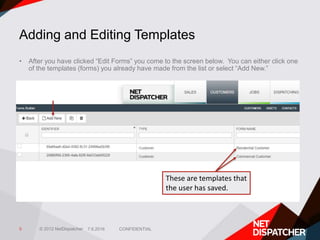
• After you have clicked “Edit Forms” you come to the screen below. You can either click one
of the templates (forms) you already have made from the list or select “Add New.”
6.2.2017 CONFIDENTIAL5
These are templates that
the user has saved.
© 2012 NetDispatcher
Editing a Pre-existing Template
6.2.2017 CONFIDENTIAL6
Name of
template. Can
be changed by
clicking on the
box.
Tabs that can be added and renamed
Settings Delete
Drag & drop
Click on a field to add
to the template
© 2012 NetDispatcher
Editing a Pre-existing Template
6.2.2017 CONFIDENTIAL7
By clicking on any of these, it allows you to insert layers from other templates
(see Slide 8). A box will appear asking you which tab or section you would like
to insert. You can insert these on a new tab or combine them on one tab.
© 2012 NetDispatcher
Editing a Pre-existing Template
6.2.2017 CONFIDENTIAL8
• After clicking on one of the template icons on the right side, this is the box
that appears.
© 2012 NetDispatcher
Adding a New Template
6.2.2017 CONFIDENTIAL9
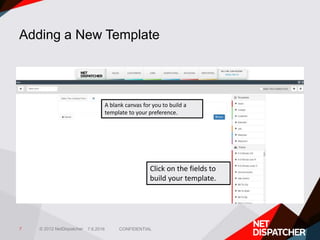
A blank canvas for you to build a
template to your preference.
Click on the fields to
build your template.
© 2012 NetDispatcher
Conclusion
• The instructions in this PowerPoint will apply to the Customer, Asset,
Contact, and Job categories when building or editing your templates.
• These templates are fully-customizable and, if used correctly, can benefit
you and your business immensely.
© 2012 NetDispatcher© 2012 NetDispatcher
That concludes this tutorial. Have a wonderful day!
THANK YOU!

Adding and Editing Templates

  • 1.
    © 2012 NetDispatcher©2012 NetDispatcher ADDING AND EDITING TEMPLATES (FORMS) CONFIDENTIAL
  • 2.
    © 2012 NetDispatcher •Here at NetDispatcher we are continually striving to make this software more user friendly and easier to navigate. The process of building and editing templates has never been easier. Adding and Editing Templates 6.2.2017 CONFIDENTIAL2
  • 3.
    © 2012 NetDispatcher Addingand Editing Templates 6.2.2017 CONFIDENTIAL3 • The process for all four category templates is identical. For training purposes, we are going to build a template from the Customer category.
  • 4.
    © 2012 NetDispatcher Addingand Editing Templates • From the Customers page click the gear icon on the right-side of the page above the customer list. A drop-down box will appear. Click “Edit Forms.” 6.2.2017 CONFIDENTIAL4
  • 5.
    © 2012 NetDispatcher Addingand Editing Templates • After you have clicked “Edit Forms” you come to the screen below. You can either click one of the templates (forms) you already have made from the list or select “Add New.” 6.2.2017 CONFIDENTIAL5 These are templates that the user has saved.
  • 6.
    © 2012 NetDispatcher Editinga Pre-existing Template 6.2.2017 CONFIDENTIAL6 Name of template. Can be changed by clicking on the box. Tabs that can be added and renamed Settings Delete Drag & drop Click on a field to add to the template
  • 7.
    © 2012 NetDispatcher Editinga Pre-existing Template 6.2.2017 CONFIDENTIAL7 By clicking on any of these, it allows you to insert layers from other templates (see Slide 8). A box will appear asking you which tab or section you would like to insert. You can insert these on a new tab or combine them on one tab.
  • 8.
    © 2012 NetDispatcher Editinga Pre-existing Template 6.2.2017 CONFIDENTIAL8 • After clicking on one of the template icons on the right side, this is the box that appears.
  • 9.
    © 2012 NetDispatcher Addinga New Template 6.2.2017 CONFIDENTIAL9 A blank canvas for you to build a template to your preference. Click on the fields to build your template.
  • 10.
    © 2012 NetDispatcher Conclusion •The instructions in this PowerPoint will apply to the Customer, Asset, Contact, and Job categories when building or editing your templates. • These templates are fully-customizable and, if used correctly, can benefit you and your business immensely.
  • 11.
    © 2012 NetDispatcher©2012 NetDispatcher That concludes this tutorial. Have a wonderful day! THANK YOU!