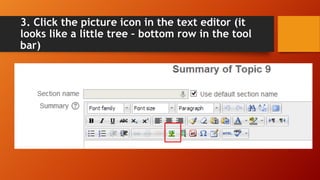
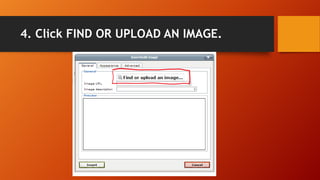
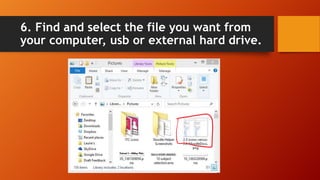
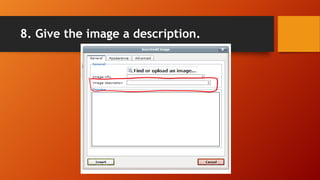
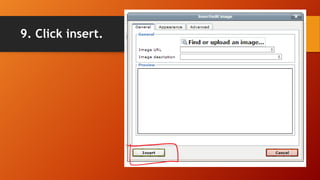
To add a picture in Sloodle, turn on editing, click the cog wheel where you want the picture, select the picture icon in the toolbar, choose to upload a file and select the image from your computer or drive, name and describe the file, then insert and save it along with any other content.









![Add a new page [autosaved]](https://cdn.slidesharecdn.com/ss_thumbnails/addanewpageautosaved-130513015505-phpapp01-thumbnail.jpg?width=640&height=640&fit=bounds)


![Add a file [autosaved]](https://cdn.slidesharecdn.com/ss_thumbnails/addafileautosaved-130513015456-phpapp01-thumbnail.jpg?width=640&height=640&fit=bounds)
![Add individual user [autosaved]](https://cdn.slidesharecdn.com/ss_thumbnails/addindividualuserautosaved-130513015513-phpapp02-thumbnail.jpg?width=640&height=640&fit=bounds)
![Change the header block [autosaved]](https://cdn.slidesharecdn.com/ss_thumbnails/changetheheaderblockautosaved-130513015527-phpapp02-thumbnail.jpg?width=640&height=640&fit=bounds)


