STUDIO CHATEAU
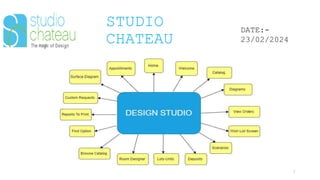
DESIGN STUDIO MODULE
D. VENKATA SAI
PRAJIT
DATE:-
23/02/2024
STUDIO
CHATEAU
2
DATE:-
23/02/2024
STUDIO
CHATEAU
3
DATE:-
23/02/2024
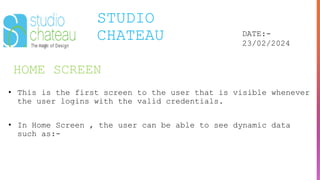
HOME SCREEN
HOME SCREEN
STUDIO
CHATEAU DATE:-
23/02/2024
• This is the first screen to the user that is visible whenever
the user logins with the valid credentials.
• In Home Screen , the user can be able to see dynamic data
such as:-
USER LOGINS
:-
STUDIO
CHATEAU DATE:-
23/02/2024
User logins represents the ratio of total buyer logins to the
total logins.
LOT ACTIVITY
:-
STUDIO
CHATEAU DATE:-
23/02/2024
Lot Activity represents the ratio of lots with active wishes
to the total active lots.
TOP CATEGORY
:-
STUDIO
CHATEAU DATE:-
23/02/2024
Top Category refers to the category where the highest number of
sales occurred.
Top Category represents the ratio of sales of the top category
to the sales of all categories.
TOP FLOORING
PREFIX :-
STUDIO
CHATEAU DATE:-
23/02/2024
Top Flooring Prefix refers to the prefix where the highest
number of sales occurred.
Top Flooring Prefix represents the ratio of sales of the top
prefix to the sales of all prefixes.
TOP 5 CATEGORY SALES
:-
STUDIO
CHATEAU DATE:-
23/02/2024
• This pie chart is divided into 2 sections :
1) Option
2) Flooring
• In the Options section, we can observe the top five
categories with the highest sales figures.
• In the Flooring section we can see the top five prefixes
with the highest maximum sales figures.
TOP SALES :-
STUDIO
CHATEAU DATE:-
23/02/2024
• In this graph, the user can observe the total sales
for options and flooring within the particular time
period we have selected.
TOP 5 ACTIVE
COMMUNITIES :-
STUDIO
CHATEAU DATE:-
23/02/2024
• In this graph, the user can observe the total sales
for options and flooring within the particular time
period we have selected.
•
TOP 5 ACTIVE
COMMUNITIES :-
STUDIO
CHATEAU DATE:-
23/02/2024
• In this graph, the user can observe the total sales
for options and flooring within the particular time
period we have selected.
•
STUDIO
CHATEAU DATE:-
23/02/2024
TO CUSTOMIZE THE HOME
SCREEN :-
STUDIO
CHATEAU DATE:-
23/02/2024
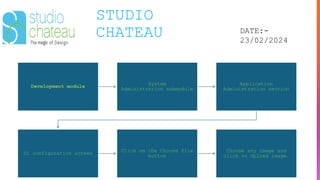
Development module
System
Administration submodule
Application
Administration section
UI configuration screen
Click on the Choose file
button
Choose any image and
click on Upload image.
STUDIO
CHATEAU
15
DATE:-
23/02/2024
WELCOME SCREEN
STUDIO
CHATEAU DATE:-
23/02/2024
• In this screen the user can see the information about
the respective builder.
STUDIO
CHATEAU DATE:-
23/02/2024
• In this screen we can see the information about the
respective builder.
STUDIO
CHATEAU DATE:-
23/02/2024
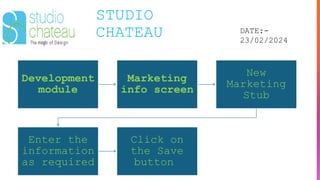
Development
module
Marketing
info screen
New
Marketing
Stub
Enter the
information
as required
Click on
the Save
button
STUDIO
CHATEAU
19
DATE:-
23/02/2024
CATALOG SCREEN
STUDIO
CHATEAU DATE:-
23/02/2024
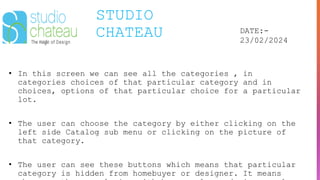
• In this screen we can see all the categories , in
categories choices of that particular category and in
choices, options of that particular choice for a particular
lot.
• The user can choose the category by either clicking on the
left side Catalog sub menu or clicking on the picture of
that category.
• The user can see these buttons which means that particular
category is hidden from homebuyer or designer. It means
STUDIO
CHATEAU DATE:-
23/02/2024
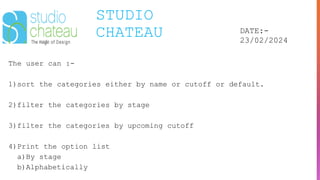
The user can :-
1)sort the categories either by name or cutoff or default.
2)filter the categories by stage
3)filter the categories by upcoming cutoff
4)Print the option list
a)By stage
b)Alphabetically
STUDIO
CHATEAU DATE:-
23/02/2024
After the user selects the category, choice in the particular
category and option in the particular choice, the user would
be able to see the image and description of the particular
option
The user can enter the quantity, price, location, color, style
of his choice.
The user can compare the option by clicking on compare
checkbox
STUDIO
CHATEAU DATE:-
23/02/2024
After the user selects the category, choice in the particular
category and option in the particular choice, the user would
be able to see the image and description of the particular
option
The user can enter the quantity, price, location, color, style
of his choice.
The user can compare the option by clicking on compare
checkbox
STUDIO
CHATEAU DATE:-
23/02/2024
If the user wants to order the option then he can click on
order button
If the user wants to wish the option then he can click on wish
button
STUDIO
CHATEAU DATE:-
23/02/2024
to approve the order or wish,, back office --> history,
approve,submit
to release the order --> history --> release orders
STUDIO
CHATEAU
26
DATE:-
23/02/2024
DIAGRAMS SCREEN
STUDIO
CHATEAU DATE:-
23/02/2024
• In this screen the user can see placement diagram
according to the floor plan we choose in the drop
down.
• The user can select the floor plan of his choice by
choosing the particular floor plan in the dropdown.
STUDIO
CHATEAU DATE:-
23/02/2024
There are 4 tabs in this screen, they are:-
1)Orders:- The user can order the placement diagram of his
choice.
2)Wish:- The user can wish the placement diagram of his
choice.
3)Instructions:- This tab contains the guidelines for the
user.
4)Lot documents:- This is a lot specific tab and we can see
all the documents present in the particular lot .
STUDIO
CHATEAU DATE:-
23/02/2024
The user can select category and choice of that category of
his choice and can see the floor plan diagram of the
respective category and choice.
LEGEND:- Pictorial representation to provide information
about the diagram.
The user can insert a legend by dragging that legend to the
required place in the placement diagram.
The user can remove a legend by dragging that legend from
placement diagram to outside.
STUDIO
CHATEAU DATE:-
23/02/2024
Whenever the user clicks on a legend, the information of that
legend will get highlighted, and he can see the description
of that respective legend.
The user can save the placement diagram by clicking on Save
order/Save wish option in the Save order/Save wish drop down.
If the user makes any changes in the placement diagram and
wants to cancel those changes, then he can do it by clicking
on the Cancel button in the Save order/Save wish drop down.
STUDIO
CHATEAU DATE:-
23/02/2024
If the user want to print the placement diagram of the chosen
category and choice, he should click on Print Preview
button.
If the user want to print the placement diagram without
legends, he should click on Print Diagram button.
If the user want to print the placement diagram of all the
categories and choices then he should click on Print All
button.
The user can change the view of legends side bar by clicking
STUDIO
CHATEAU DATE:-
23/02/2024
STUDIO
CHATEAU DATE:-
23/02/2024
This is a lot specific tab and we can see all the documents
present in the particular lot .
STUDIO
CHATEAU
34
DATE:-
23/02/2024
VIEW ORDERS SCREEN
STUDIO
CHATEAU DATE:-
23/02/2024
All the options that are ordered by the user in the catalog
and all the custom requests that are ordered are visible in
this screen.
The user can sort according to the property such as
Category, Option, Date, Price, Stage wise and Total by
clicking on the respective button.
STUDIO
CHATEAU DATE:-
23/02/2024
If the user wants to:
Edit:- He can click on the edit logo and edit the required
details of the particular option .
Delete:- He can click on the delete logo and edit the
required details of the particular option .
STUDIO
CHATEAU DATE:-
23/02/2024
If the user wants to update an option as a preplot, then he
should click on the Preplot checkbox and click on Update
Preplot information.
If the user wants all the ordered options as a report, he can
click on Orders Report dropdown and can either order the
report :
a) List Wise
b) Grid Wise
STUDIO
CHATEAU
38
DATE:-
23/02/2024
WISH LIST SCREEN
STUDIO
CHATEAU DATE:-
23/02/2024
All the options and custom requests that are wished by the
user in the catalog are visible in this screen.
If the user wants to order one or more wish list he can
select the respective wishes and click on order selected
wishes button.
If the user wants to delete one or more wish list he can
select the respective wishes and click on delete selected
wishes button.
FREEZE:
STUDIO
CHATEAU DATE:-
23/02/2024
If the user wants to see a report of all the options in the
wish list he should select the wish list report button.
If the user wants to delete one or more wish list he can
select the respective wishes and click on delete selected
wishes button.
STUDIO
CHATEAU DATE:-
23/02/2024
EXPIRED WISHES
STUDIO
CHATEAU DATE:-
23/02/2024
EXPIRED WISHES
STUDIO
CHATEAU
43
DATE:-
23/02/2024
SCENARIOS SCREEN
STUDIO
CHATEAU DATE:-
23/02/2024
First we need to add a room by clicking on add room button.
we can create a scenario by clicking on "+" button.
We can create a custom request for that particular scenario
and the particular room
STUDIO
CHATEAU DATE:-
23/02/2024
We can choose the package by selecting in the package
dropdown
We can also select the required category, choice and option
and click on select option
STUDIO
CHATEAU
46
DATE:-
23/02/2024
DEPOSITS SCREEN
STUDIO
CHATEAU DATE:-
23/02/2024
Deposit is the amount that homebuyer would invest in before
buying the lot.
If we want to add any deposit, we can add it by clicking on
the New Deposit button, enter the required details and click
on save button.
If we want to edit the deposit we added, click on the edit
button and edit the details.
STUDIO
CHATEAU DATE:-
23/02/2024
Incentive is the amount that builder offers the homebuyer
If we want to add any incentive, we can add it by clicking on
the New IPP button, enter the required details and click on
save button.
We can also see the summary of the amount.
STUDIO
CHATEAU
49
DATE:-
23/02/2024
LOTS UNITS SCREEN
STUDIO
CHATEAU DATE:-
23/02/2024
Lot units contains 3 sections:-
a) Lot info
b) Home Buyer info
c) User info
Lot info section contains info about the particular lot.
Homebuyer info sections contains info about the homebuyer.
User info section contains info about the user
STUDIO
CHATEAU DATE:-
23/02/2024
We can search the information by either selecting the buyer
name,Email or address
By clicking on the save button, the changes will be saved.
We can view the BOA report by clicking on the buyer option
agreement button.
STUDIO
CHATEAU DATE:-
23/02/2024
DISABLE CATALOG BUTTON
STUDIO
CHATEAU DATE:-
23/02/2024
We can also see the disclaimers document by clicking on the
particular disclaimers.
STUDIO
CHATEAU
54
DATE:-
23/02/2024
REPORTS TO PRINT SCREEN
STUDIO
CHATEAU DATE:-
23/02/2024
Reports to Print screen has 4 tabs.
1) Submit
2) Homebuyer Paperwork
3) Send via Docusign
4) DocuSign History
STUDIO
CHATEAU DATE:-
23/02/2024
STUDIO
CHATEAU
57
DATE:-
23/02/2024
CUSTOM REQUESTS SCREEN
STUDIO
CHATEAU DATE:-
23/02/2024
The user can see all the custom requests that were ordered by
the user.

To edit an existing custom request he should click on the edit
logo button and can change the necessary details.
The user can also order a custom request of his choice in this
screen by clicking on New Custom Request button.
The user can see the order summary of the custom requests.
STUDIO
CHATEAU
59
DATE:-
23/02/2024
FIND OPTION SCREEN
STUDIO
CHATEAU DATE:-
23/02/2024
The user can search the respective option present in the
catalog by either :
1) Entering the whole option code and click on find button.
2) Entering keywords and click on find button
3) Search by category and click on find button
STUDIO
CHATEAU
61
DATE:-
23/02/2024
BROWSE CATALOG SCREEN
STUDIO
CHATEAU DATE:-
23/02/2024
Browse Catalog is a Plan Specific Screen.
In this screen, the user can only view the options but cannot
order or wish the options.
STUDIO
CHATEAU
63
DATE:-
23/02/2024
ROOM DESIGNER SCREEN
STUDIO
CHATEAU DATE:-
23/02/2024
The user can the design the room by adding paint colors as per
his choice by clicking on the respective room.
STUDIO
CHATEAU
65
DATE:-
23/02/2024
SURFACE DIAGRAM SCREEN
STUDIO
CHATEAU DATE:-
23/02/2024
The user can the design the room by adding paint colors as per
his choice by clicking on the respective room.
Primary goals
Annual revenue growth
Thank you
Mirjam Nilsson
mirjam@contoso.com
www.contoso.com

天博体育下载-可靠的网络天博体育下载-网络天博体育下载|【​网址​🎉ac123.net🎉​】