© 2023 Autodesk. All rights reserved.
Readme
Autodesk Inventor 2024
iLogic-Vault Sample Rules
 What is “iLogic-Vault”?
Inventor iLogic 2024 added new functions
allowing to check out, get files, search Vault,
and much more as part of your automation.
Vault code snippets added to the editor make
it easy to quickly get started.
 Prerequisites to walk through the
sample collection
o Inventor 2024 or newer
o Vault Professional 2024 or newer
o Users should have a solid working knowledge
of writing iLogic rules and managing or
searching files using Vault Professional
o Follow the setup instructions of this Readme
document carefully before evaluating the
sample rules
Preamble
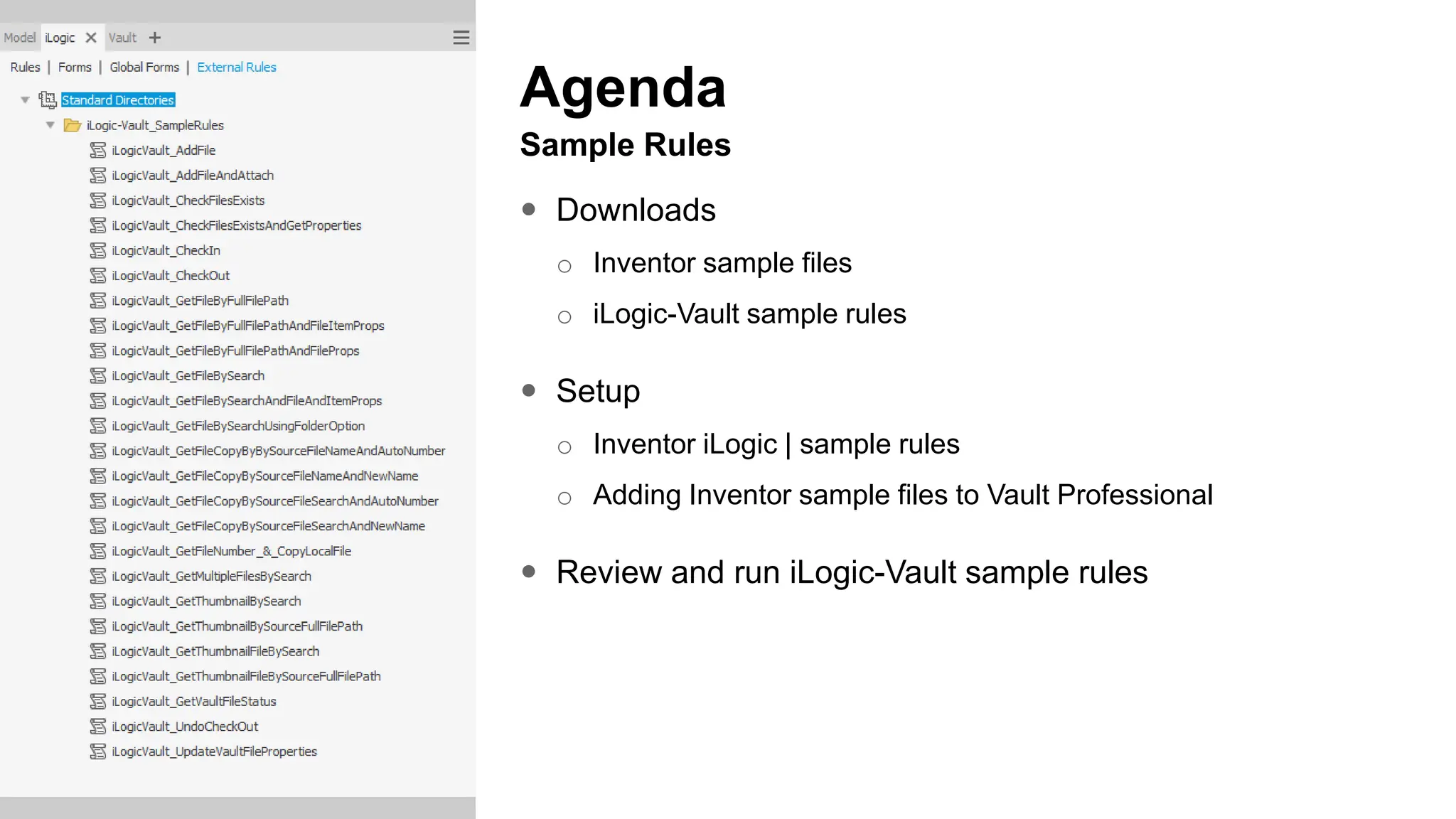
Agenda
Sample Rules
 Downloads
o Inventor sample files
o iLogic-Vault sample rules
 Setup
o Inventor iLogic | sample rules
o Adding Inventor sample files to Vault Professional
 Review and run iLogic-Vault sample rules
Downloads
Inventor Sample Files
 Fishing Rod Model
o Fishing_Rod.zip
 iLogic-Vault Sample Rules
o iLogic-Vault_SampleRules.zip
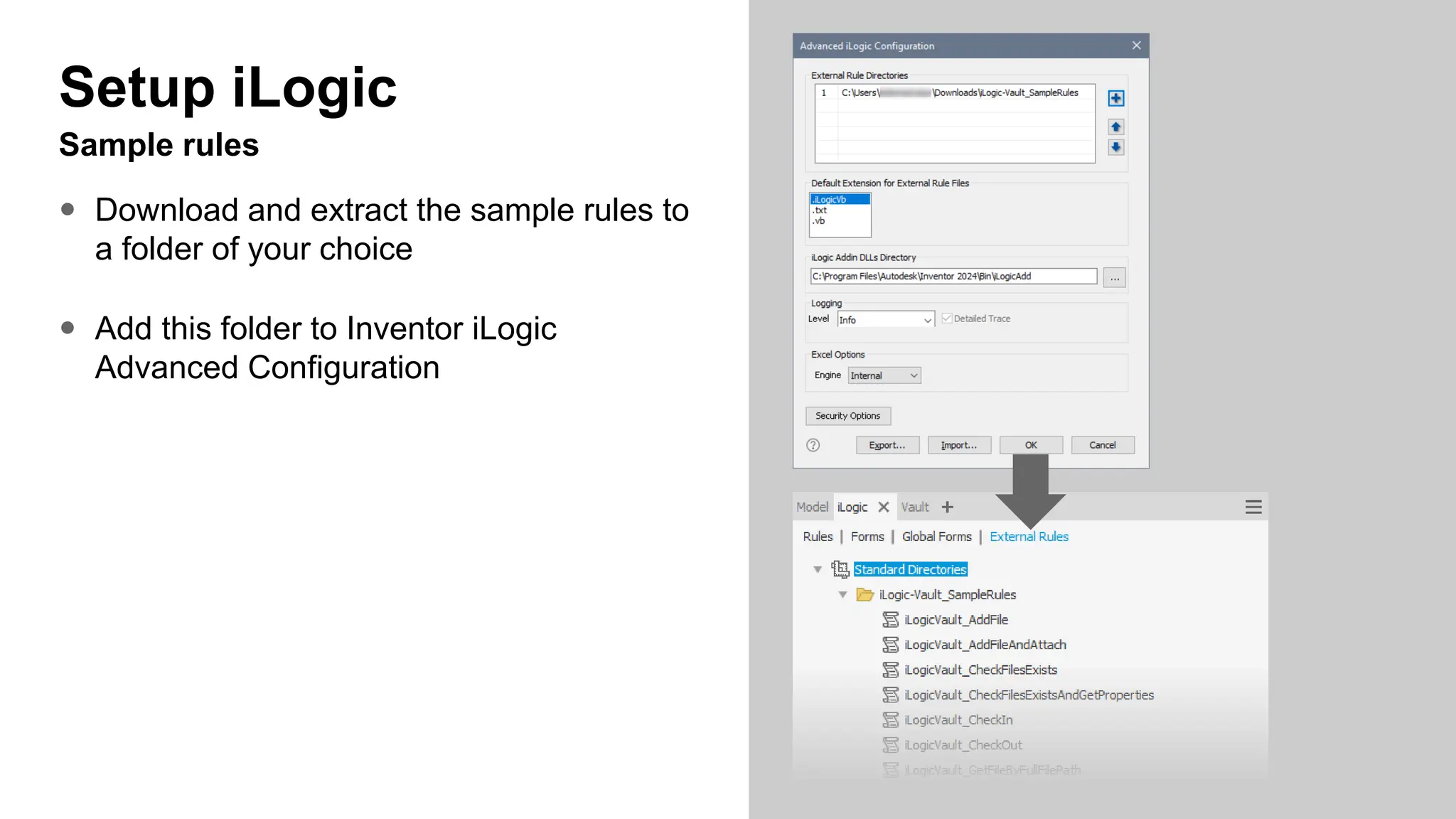
Setup iLogic
Sample rules
 Download and extract the sample rules to
a folder of your choice
 Add this folder to Inventor iLogic
Advanced Configuration
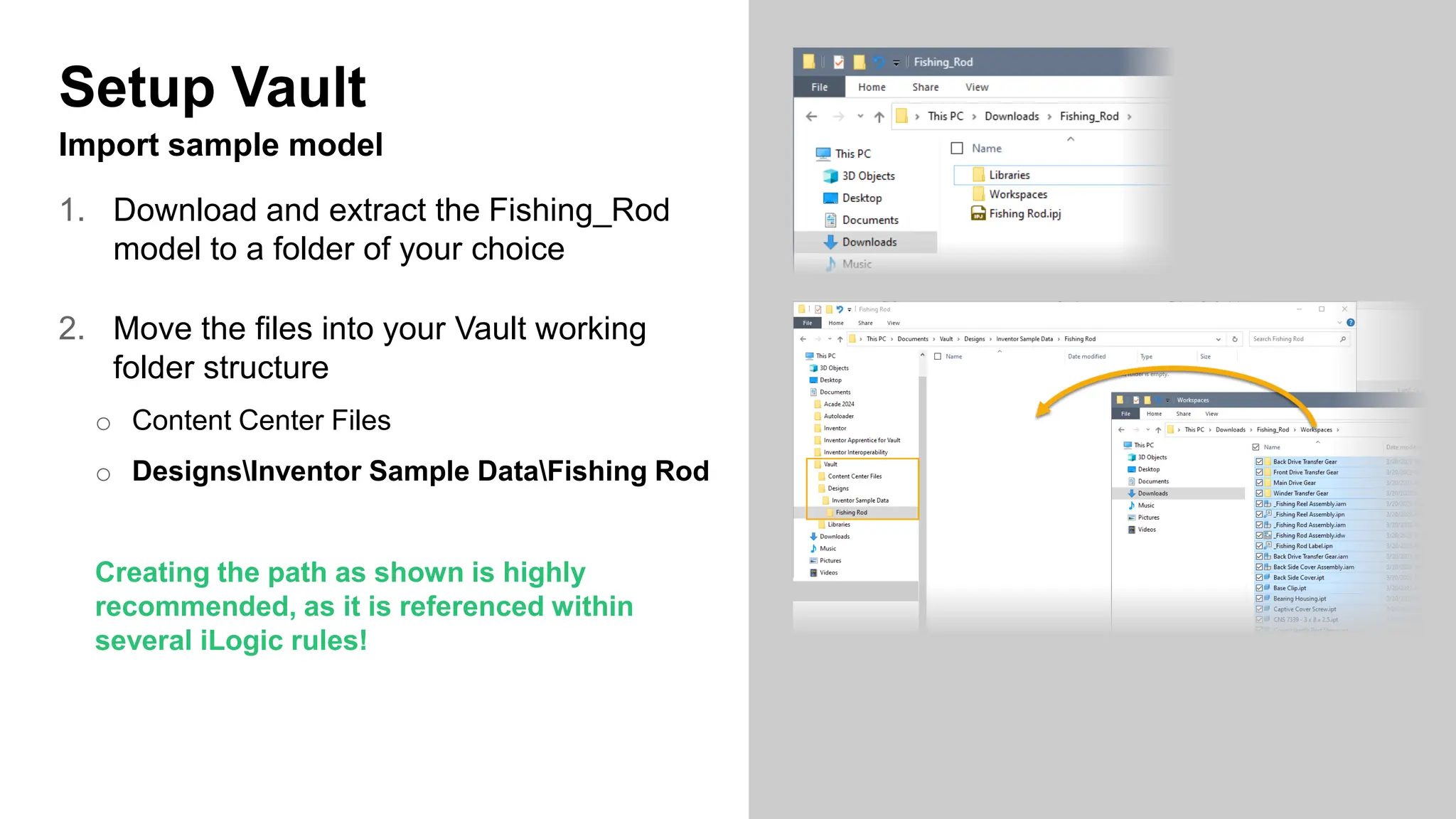
Setup Vault
Import sample model
1. Download and extract the Fishing_Rod
model to a folder of your choice
2. Move the files into your Vault working
folder structure
o Content Center Files
o DesignsInventor Sample DataFishing Rod
Creating the path as shown is highly
recommended, as it is referenced within
several iLogic rules!
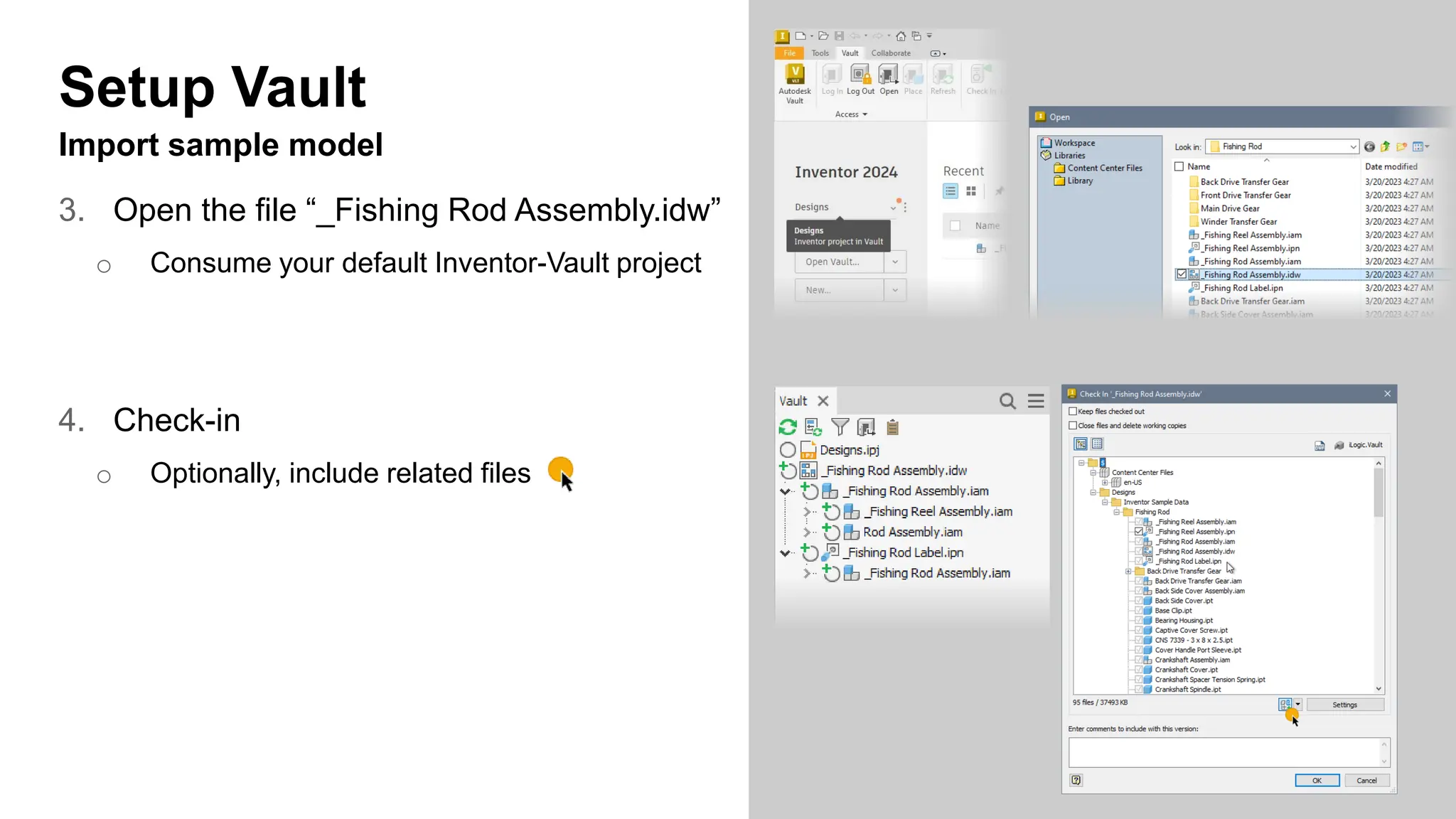
Setup Vault
Import sample model
3. Open the file “_Fishing Rod Assembly.idw”
o Consume your default Inventor-Vault project
4. Check-in
o Optionally, include related files
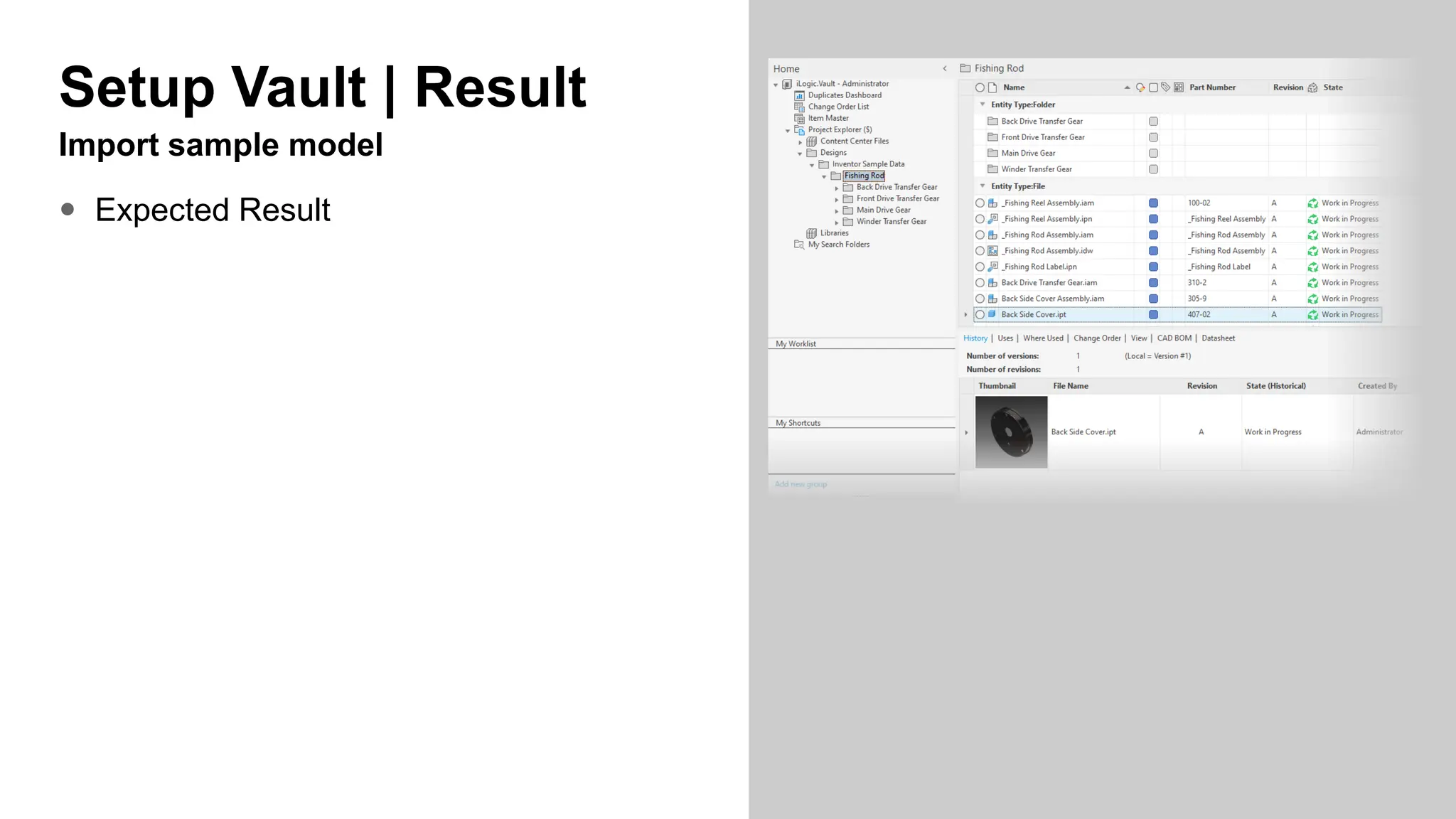
Setup Vault | Result
Import sample model
 Expected Result
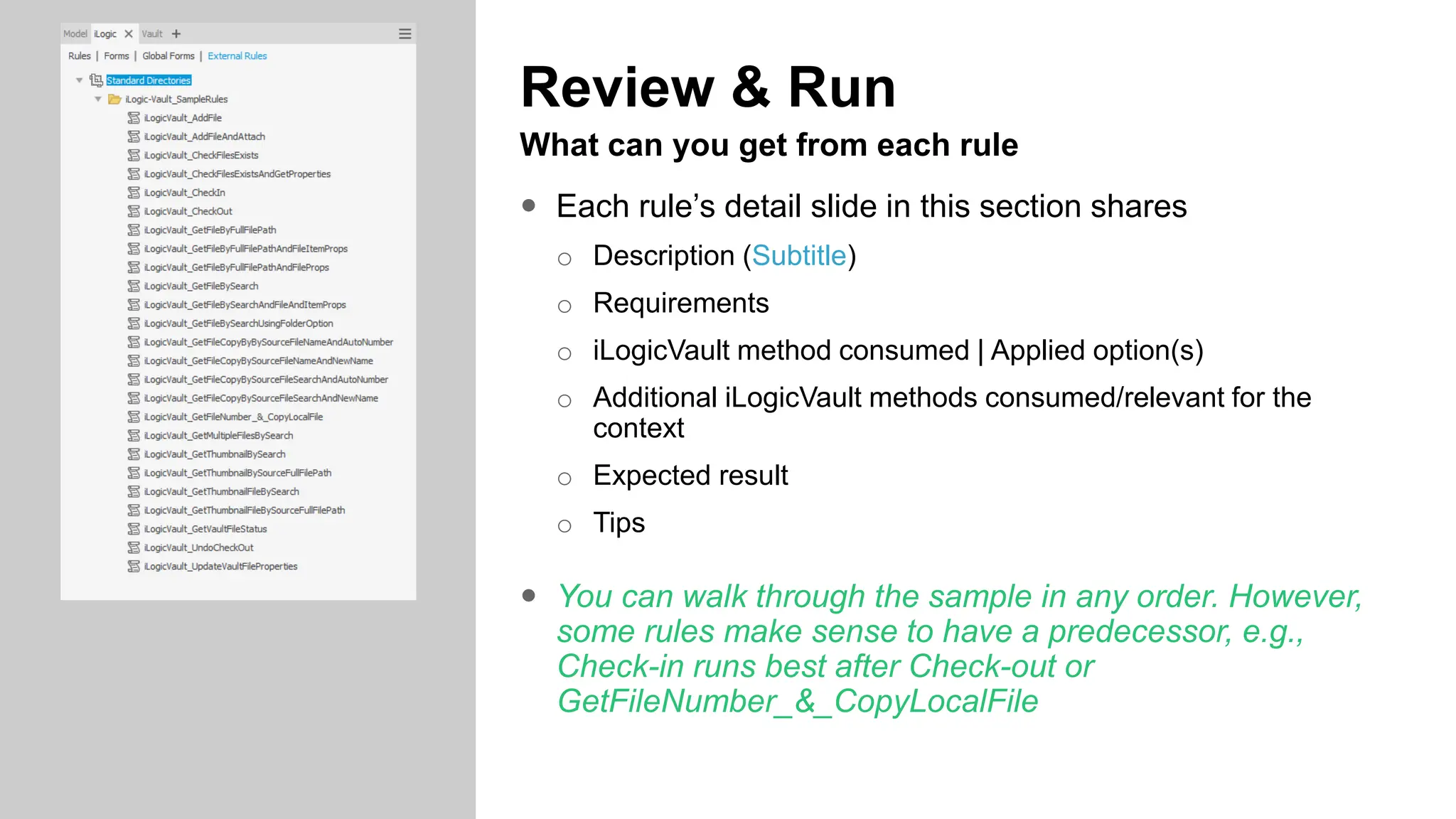
Review & Run
What can you get from each rule
 Each rule’s detail slide in this section shares
o Description (Subtitle)
o Requirements
o iLogicVault method consumed | Applied option(s)
o Additional iLogicVault methods consumed/relevant for the
context
o Expected result
o Tips
 You can walk through the sample in any order. However,
some rules make sense to have a predecessor, e.g.,
Check-in runs best after Check-out or
GetFileNumber_&_CopyLocalFile
 Requirement
o Open any part or assembly
 Method
o iLogicVault.AddFile()
 Additional methods
o iLogicVault.ConvertLocalPathToVaultPath()
 Tips
o This rule demonstrates how to export bitmap files
without an active graphics window by creating a
camera object on the fly.
o The rule uses ThisServer instead of
ThisApplication and is compatible with Vault Job
execution.
 Options
o Update existing file in Vault = True
 Expected result
o iLogic Log success info
o Uploaded file in Vault
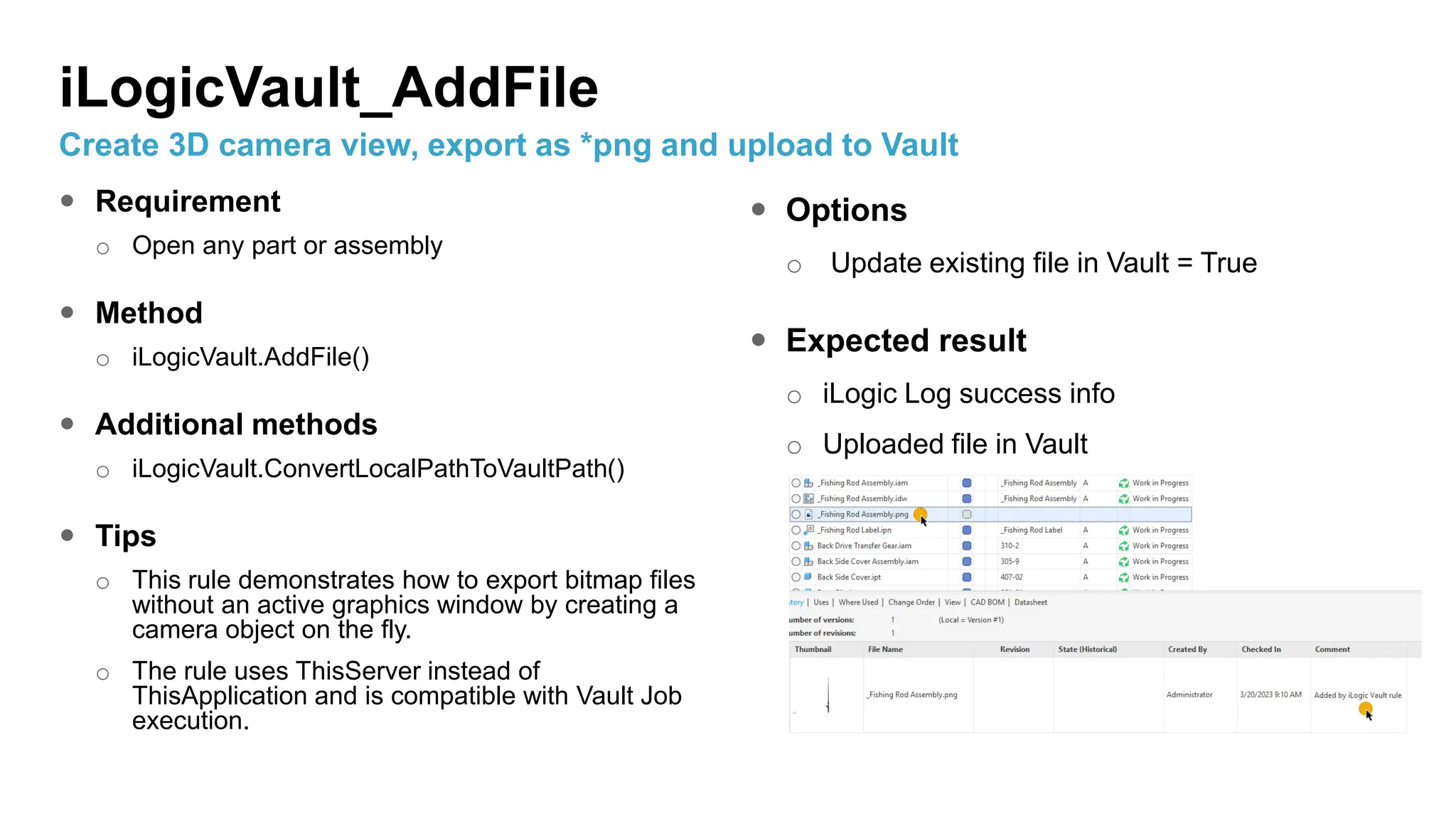
iLogicVault_AddFile
Create 3D camera view, export as *png and upload to Vault
 Requirement
o Open any part or assembly
 Method
o iLogicVault.AddFile()
 Additional methods
o iLogicVault.GetVaultFileStatus()
o iLogicVault.ConvertLocalPathToVaultPath()
 Tips
o This rule demonstrates how to export bitmap files
without an active graphics window by creating a
camera object on the fly.
o The rule uses ThisServer instead of ThisApplication
and is compatible with Vault Job execution.
 Options
o Update existing file in Vault = True
 Expected result
o iLogic Log success info
o Uploaded file in Vault
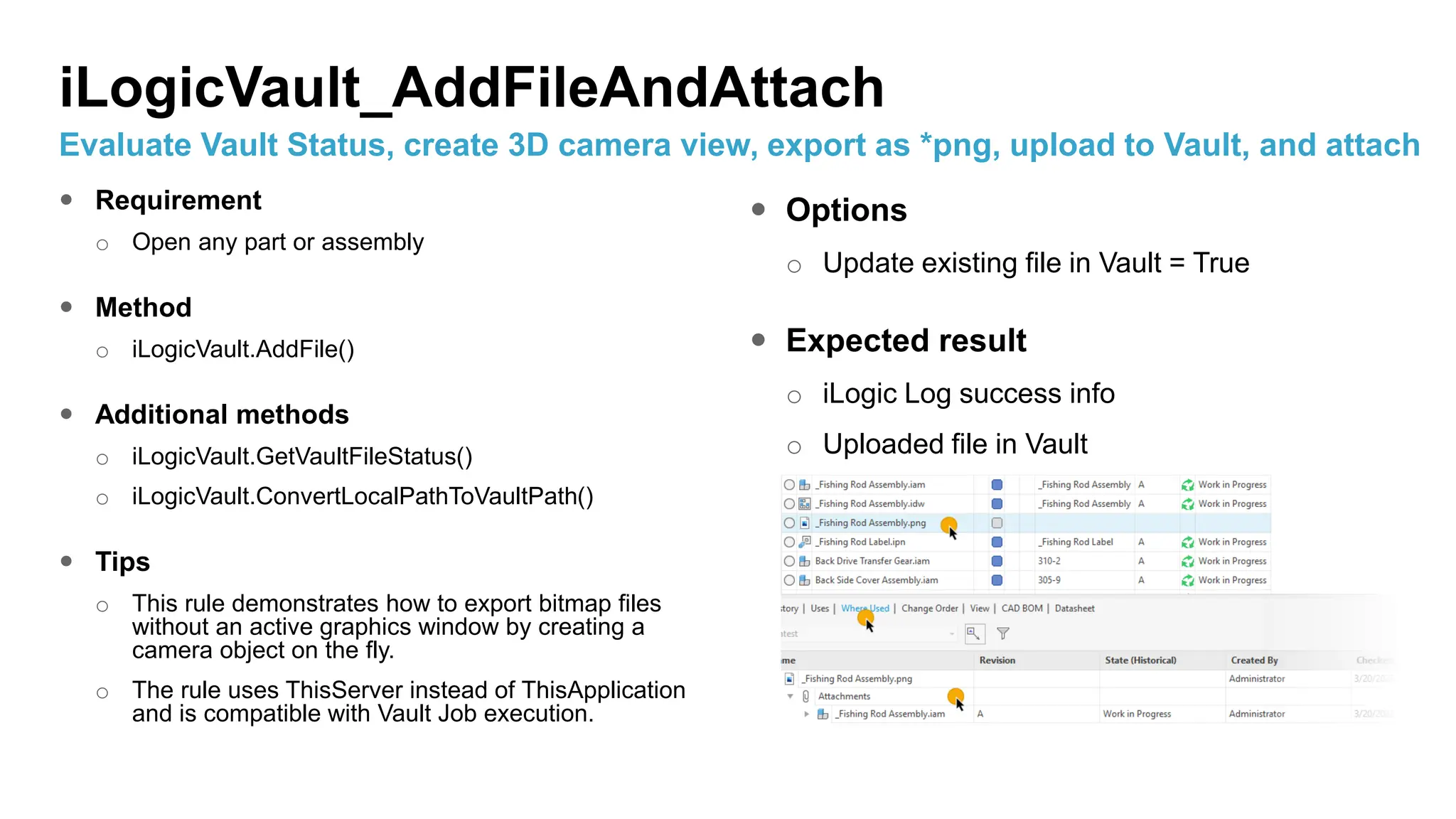
iLogicVault_AddFileAndAttach
Evaluate Vault Status, create 3D camera view, export as *png, upload to Vault, and attach
 Requirement
o Open any part or assembly
 Method
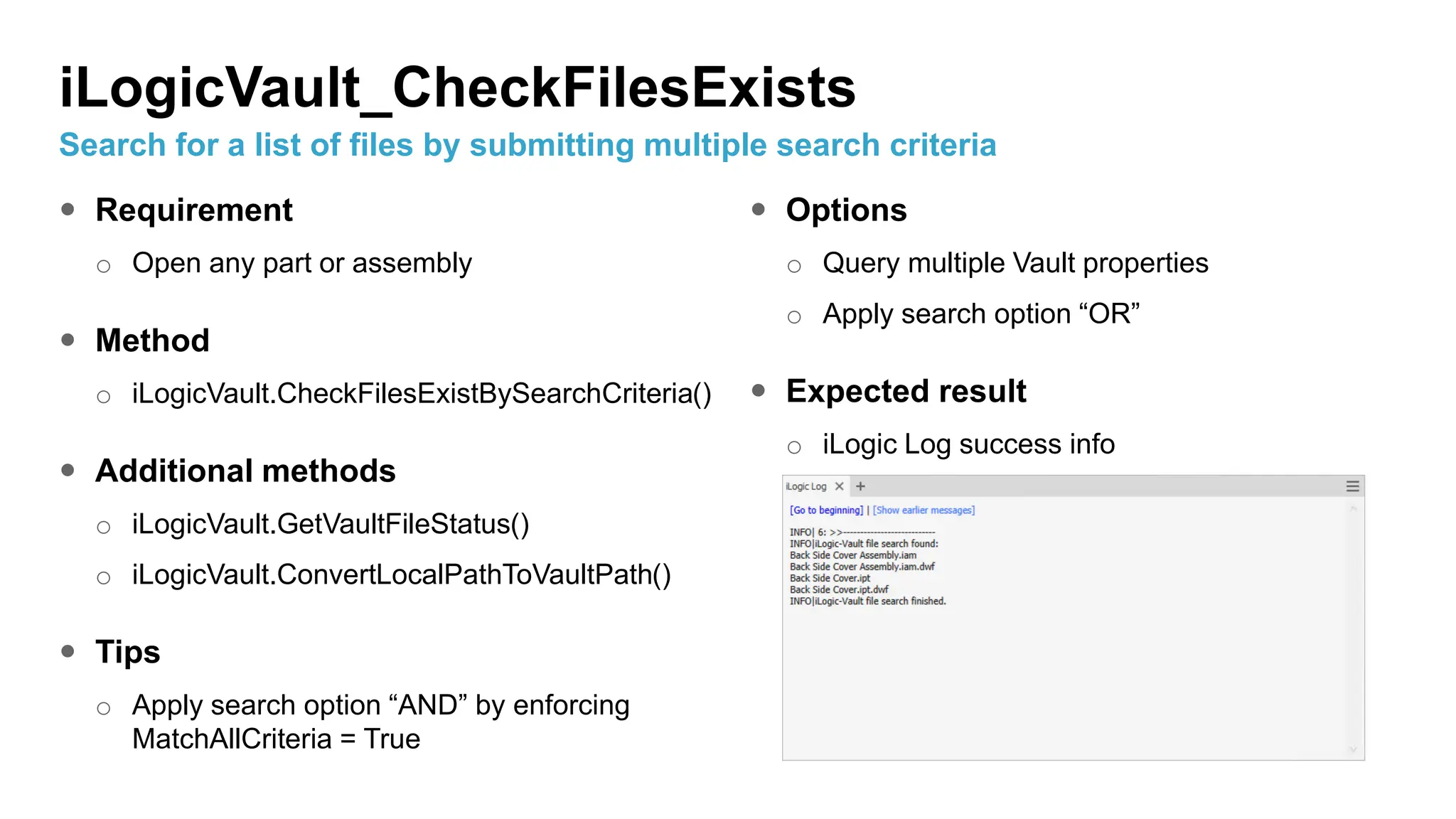
o iLogicVault.CheckFilesExistBySearchCriteria()
 Additional methods
o iLogicVault.GetVaultFileStatus()
o iLogicVault.ConvertLocalPathToVaultPath()
 Tips
o Apply search option “AND” by enforcing
MatchAllCriteria = True
 Options
o Query multiple Vault properties
o Apply search option “OR”
 Expected result
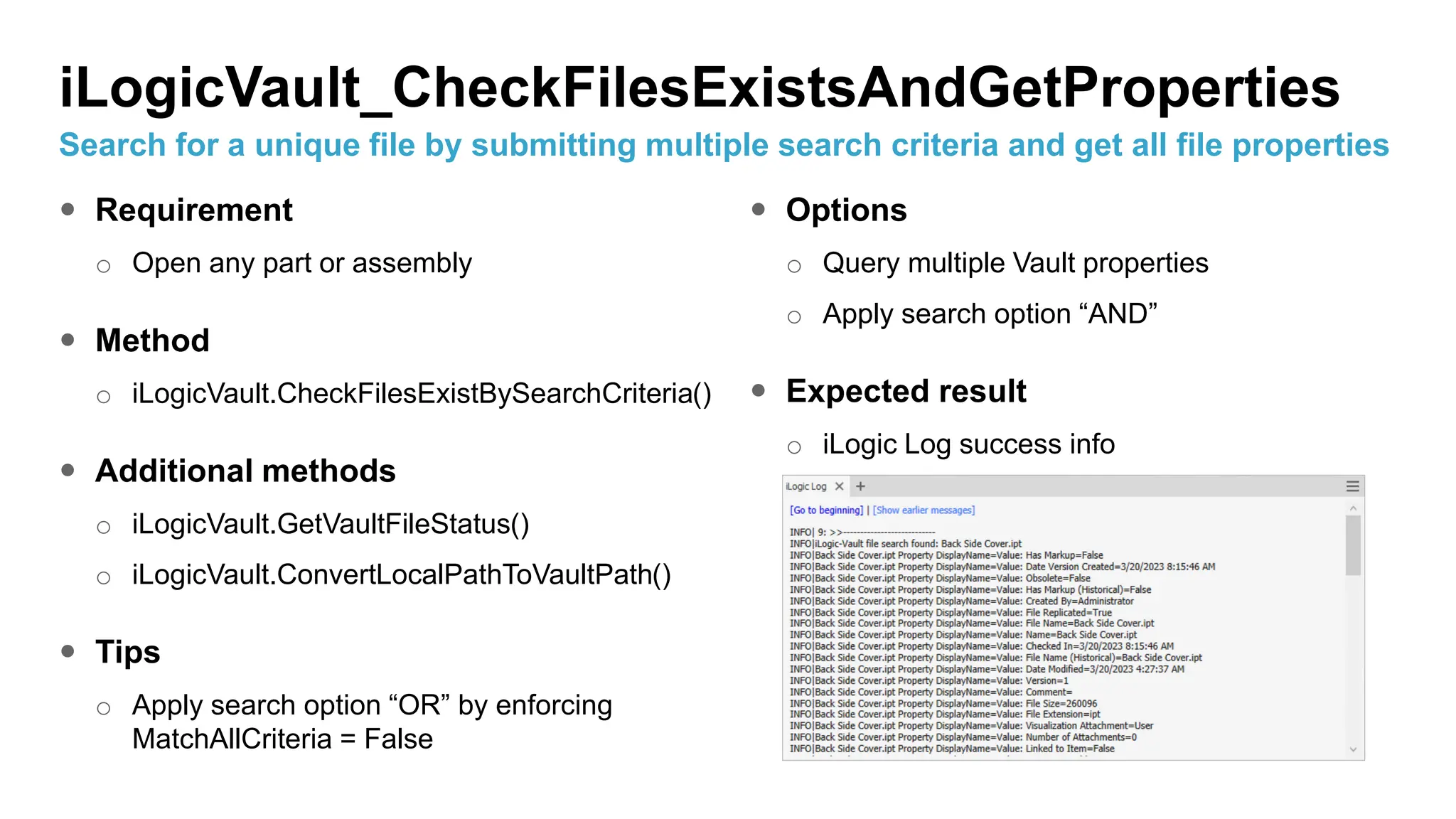
o iLogic Log success info
iLogicVault_CheckFilesExists
Search for a list of files by submitting multiple search criteria
 Requirement
o Open any part or assembly
 Method
o iLogicVault.CheckFilesExistBySearchCriteria()
 Additional methods
o iLogicVault.GetVaultFileStatus()
o iLogicVault.ConvertLocalPathToVaultPath()
 Tips
o Apply search option “OR” by enforcing
MatchAllCriteria = False
 Options
o Query multiple Vault properties
o Apply search option “AND”
 Expected result
o iLogic Log success info
iLogicVault_CheckFilesExistsAndGetProperties
Search for a unique file by submitting multiple search criteria and get all file properties
 Requirement
o Active Inventor file, either checked out or not
added to Vault yet
 Method
o --
 Additional methods
 Tip
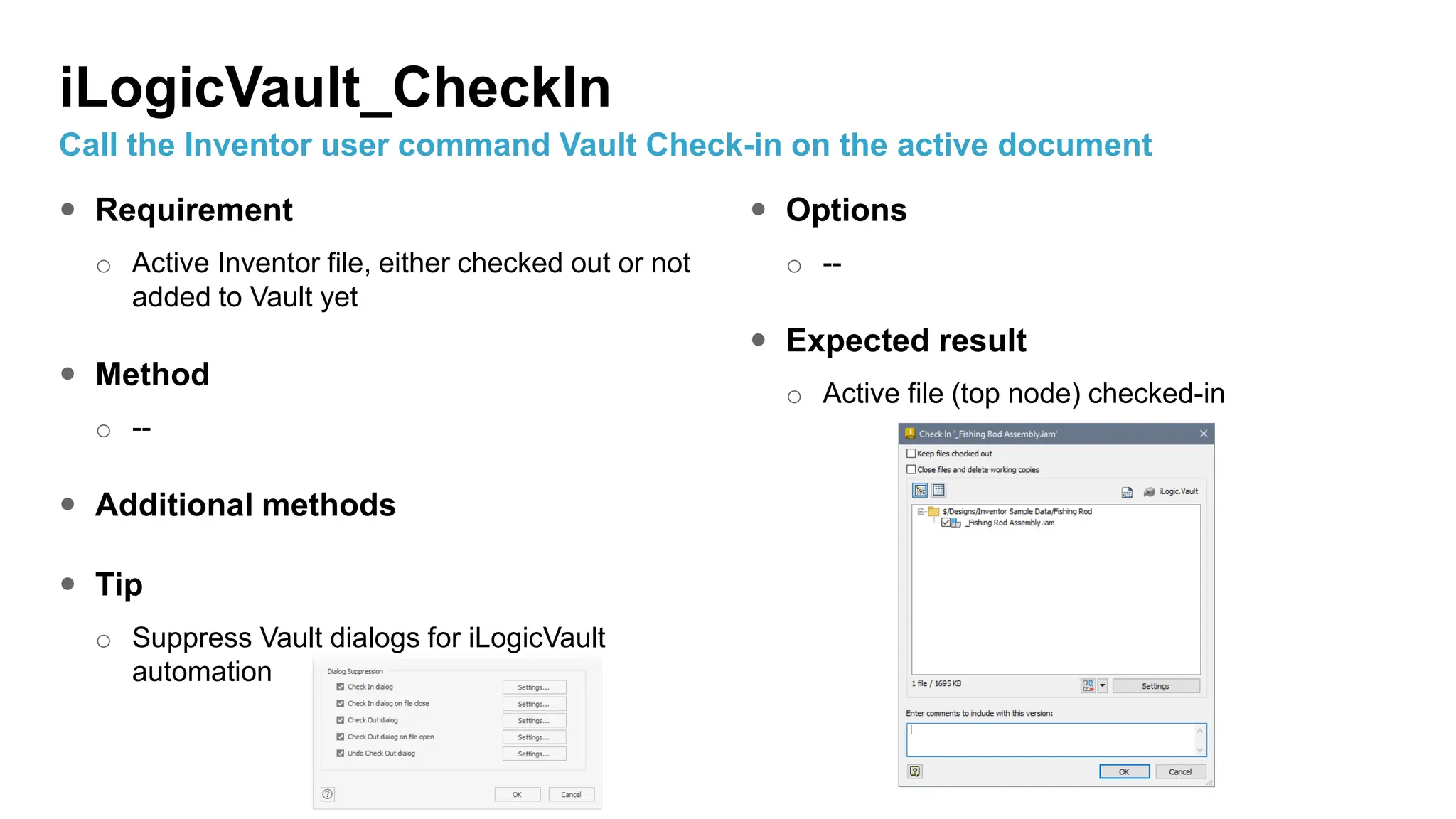
o Suppress Vault dialogs for iLogicVault
automation
 Options
o --
 Expected result
o Active file (top node) checked-in
iLogicVault_CheckIn
Call the Inventor user command Vault Check-in on the active document
 Requirement
o Active Inventor file, checked-in to Vault
 Method
o --
 Additional methods
 Tips
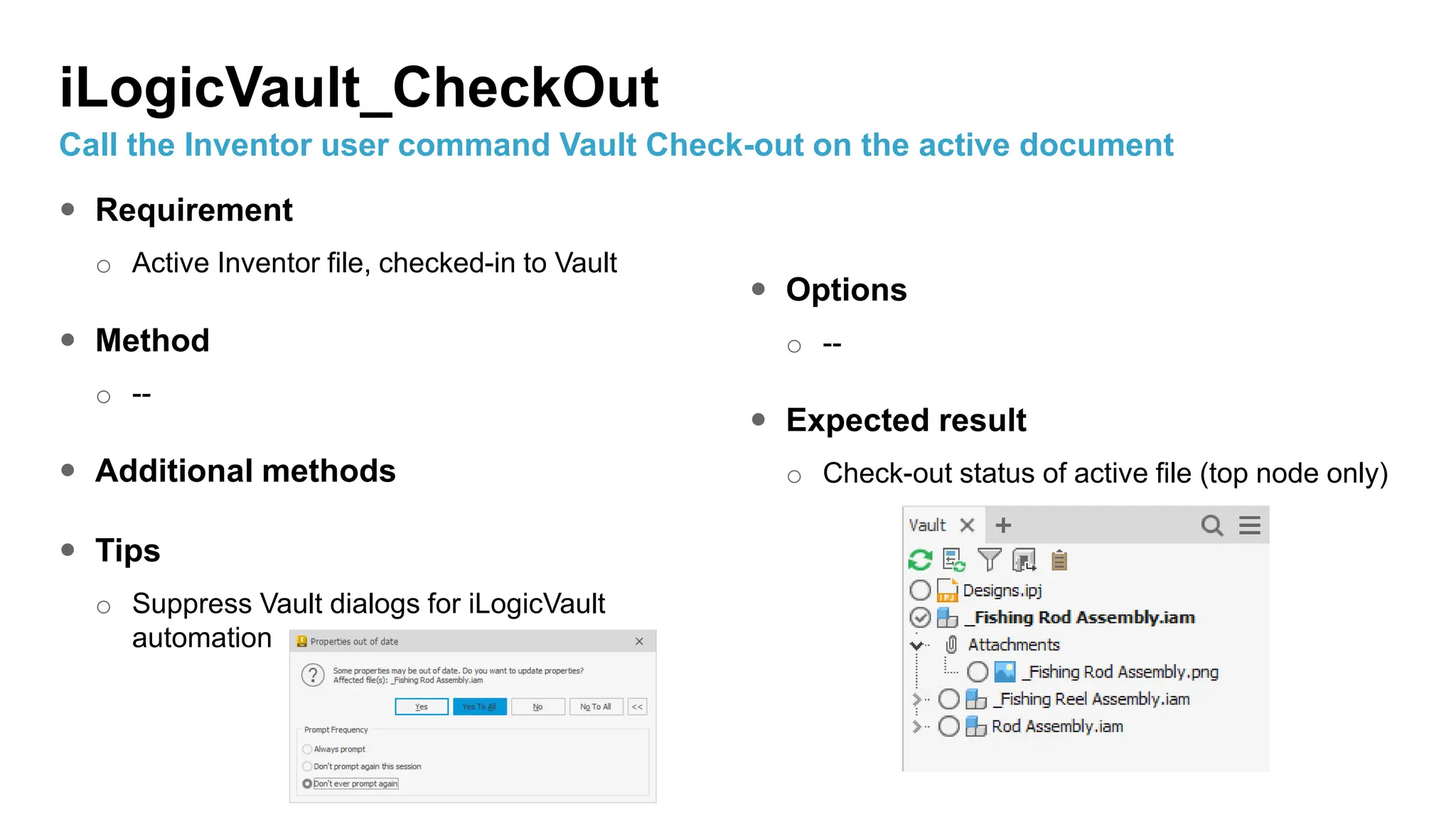
o Suppress Vault dialogs for iLogicVault
automation
 Options
o --
 Expected result
o Check-out status of active file (top node only)
iLogicVault_CheckOut
Call the Inventor user command Vault Check-out on the active document
 Requirement
o Active document = new file
o Empty working folder
 Method
o iLogicVault.GetFileByFullFilePath()
 Additional methods
o --
 Tips
o Try the optional Checkout=True
 Options
o Checkout = False
 Expected result
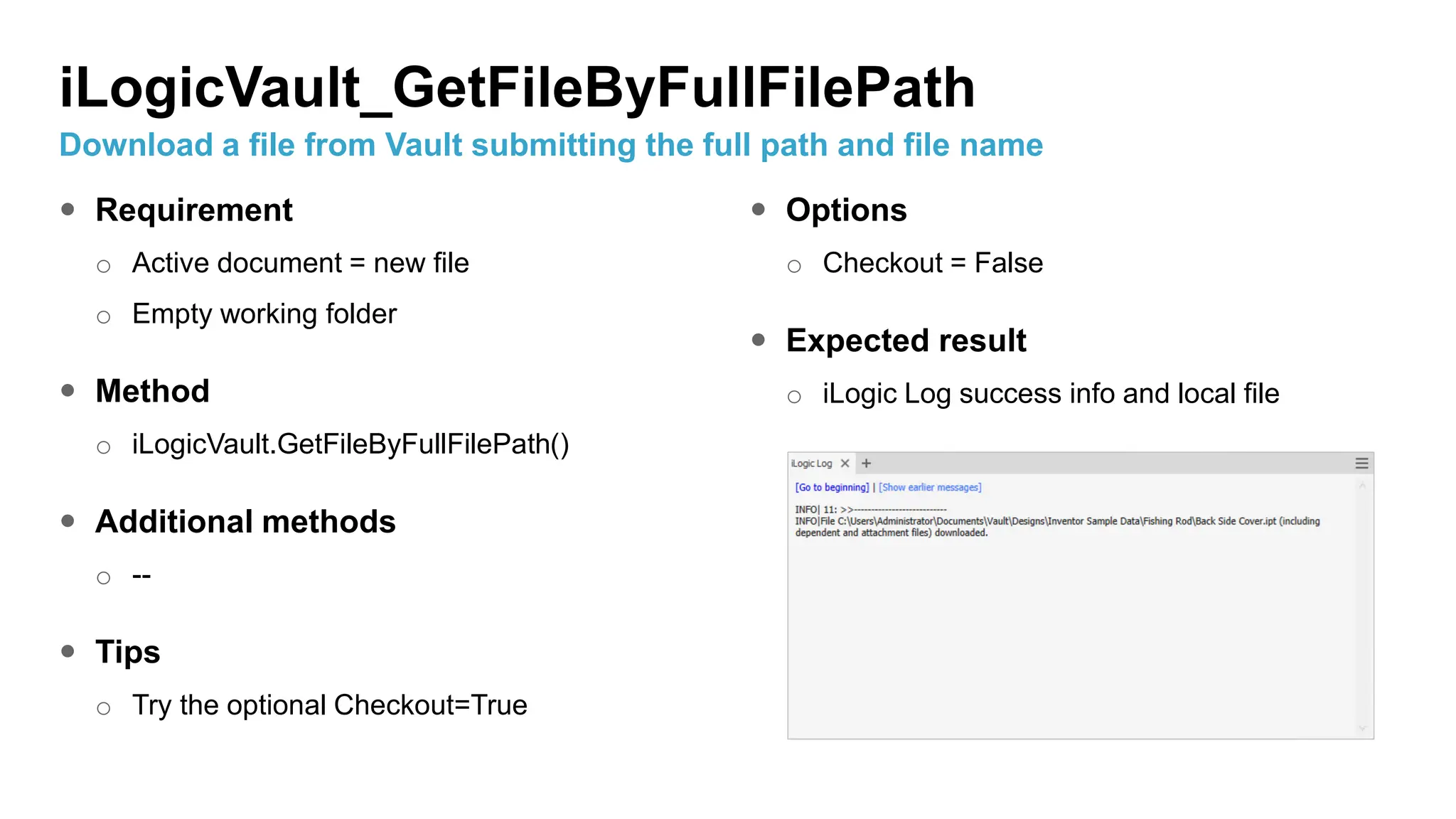
o iLogic Log success info and local file
iLogicVault_GetFileByFullFilePath
Download a file from Vault submitting the full path and file name
 Requirement
o Active document = new file
o Empty working folder
 Method
o iLogicVault.GetFileByFullFilePath()
 Additional methods
o --
 Tips
o Run the Assign/Update Item command on the
given file first to get the item properties
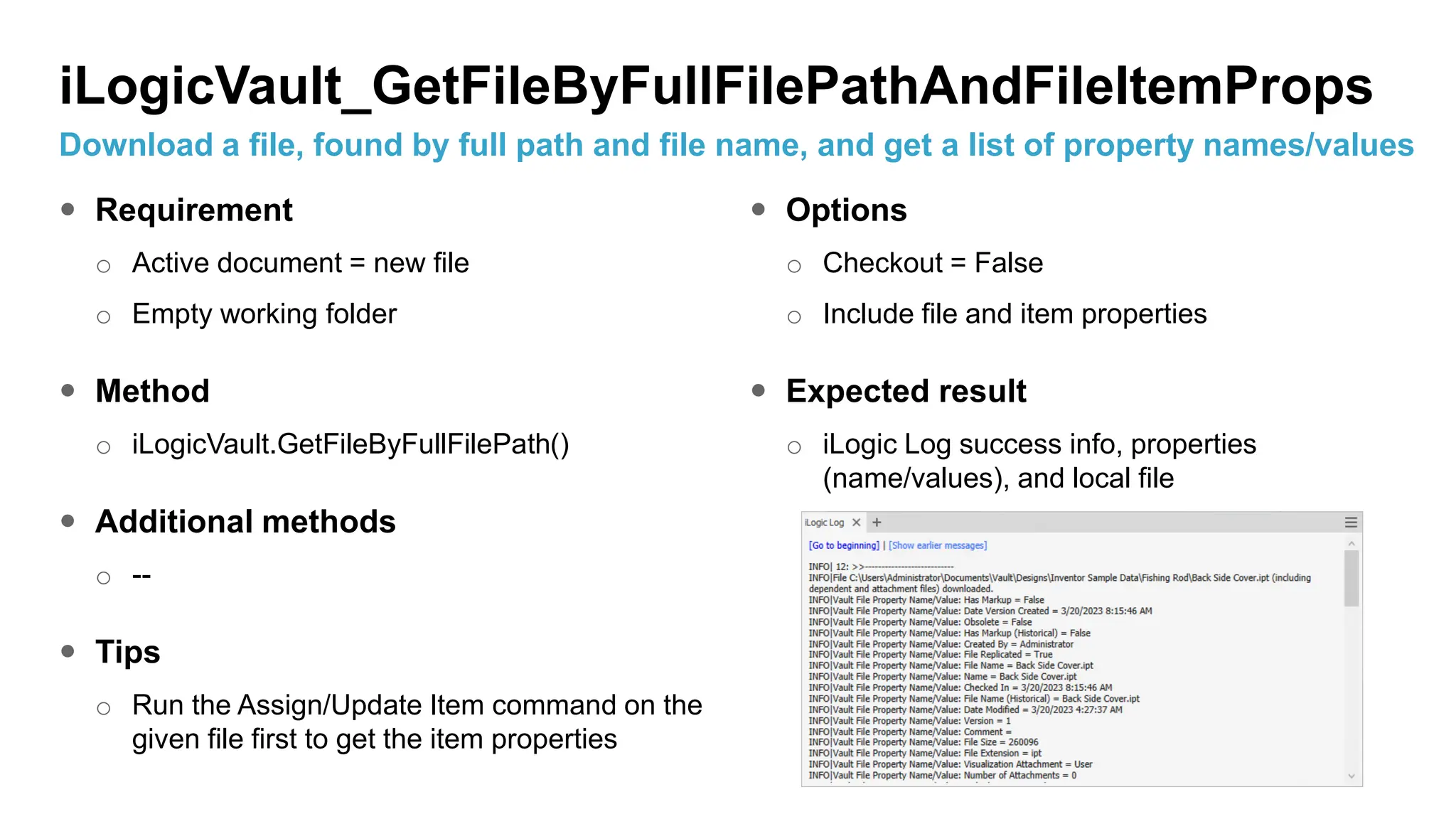
 Options
o Checkout = False
o Include file and item properties
 Expected result
o iLogic Log success info, properties
(name/values), and local file
iLogicVault_GetFileByFullFilePathAndFileItemProps
Download a file, found by full path and file name, and get a list of property names/values
 Requirement
o Active document = new file
o Empty working folder
 Method
o iLogicVault.GetFileByFullFilePath()
 Additional methods
o --
 Tips
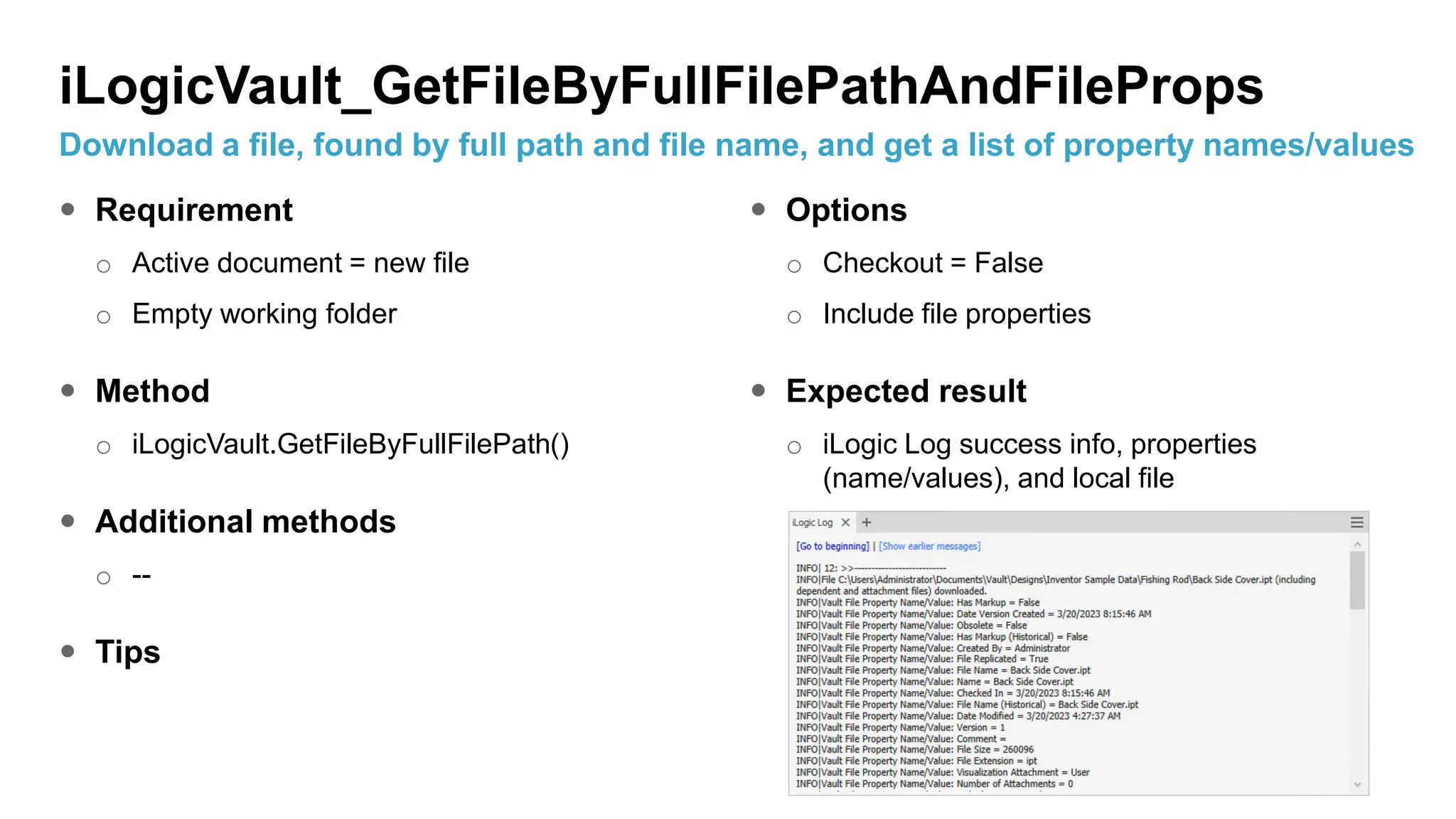
 Options
o Checkout = False
o Include file properties
 Expected result
o iLogic Log success info, properties
(name/values), and local file
iLogicVault_GetFileByFullFilePathAndFileProps
Download a file, found by full path and file name, and get a list of property names/values
 Requirement
o Active document = new file
o Empty working folder
 Method
o iLogicVault.GetFileBySearchCriteria()
 Additional methods
o --
 Tips
o Try the optional Checkout=True
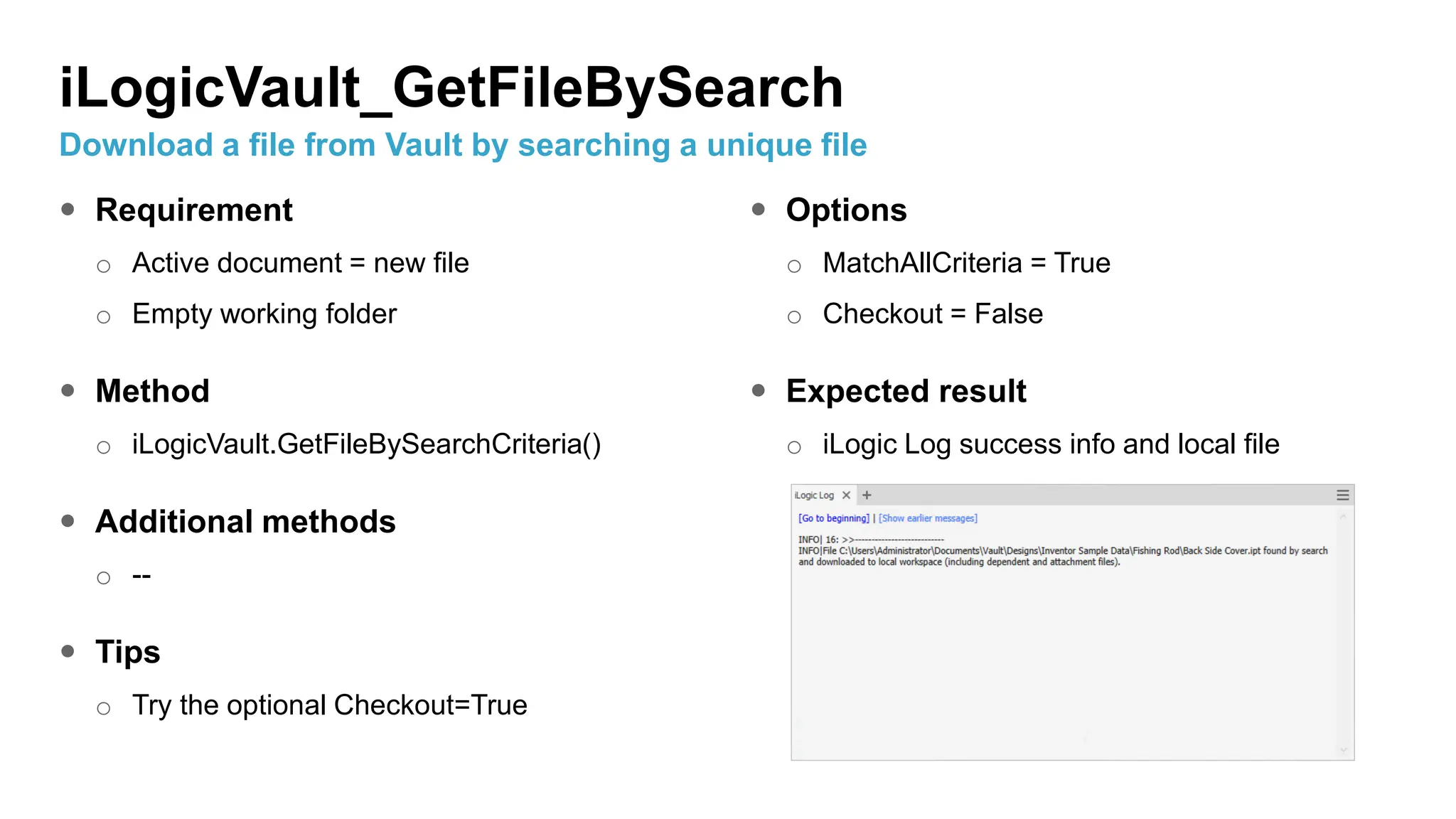
 Options
o MatchAllCriteria = True
o Checkout = False
 Expected result
o iLogic Log success info and local file
iLogicVault_GetFileBySearch
Download a file from Vault by searching a unique file
 Requirement
o Active document = new file
o Empty working folder
 Method
o iLogicVault.GetFileBySearchCriteria()
 Additional methods
o --
 Tips
o Run the Assign/Update Item command on the
given file first to get the item properties
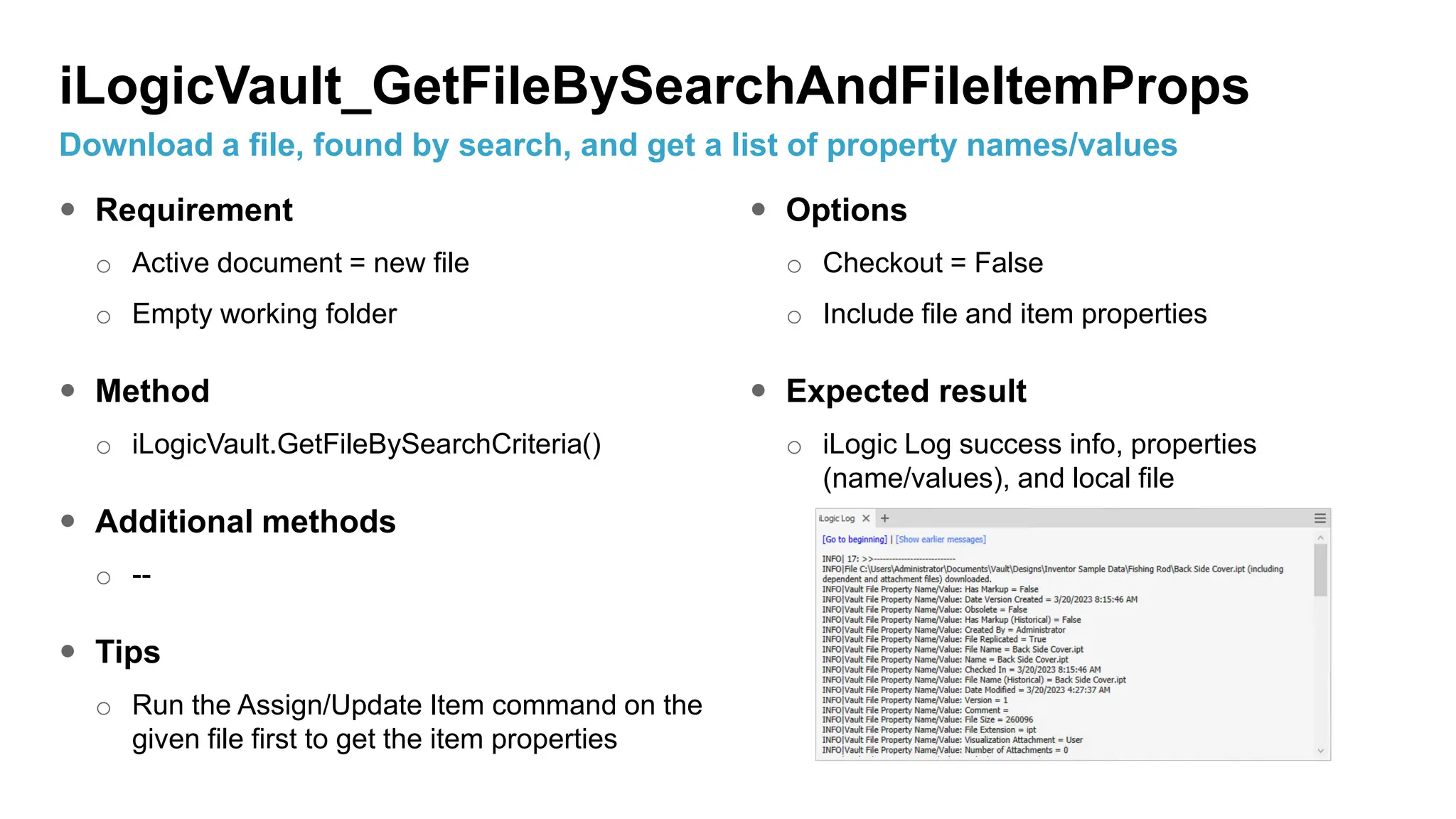
 Options
o Checkout = False
o Include file and item properties
 Expected result
o iLogic Log success info, properties
(name/values), and local file
iLogicVault_GetFileBySearchAndFileItemProps
Download a file, found by search, and get a list of property names/values
 Requirement
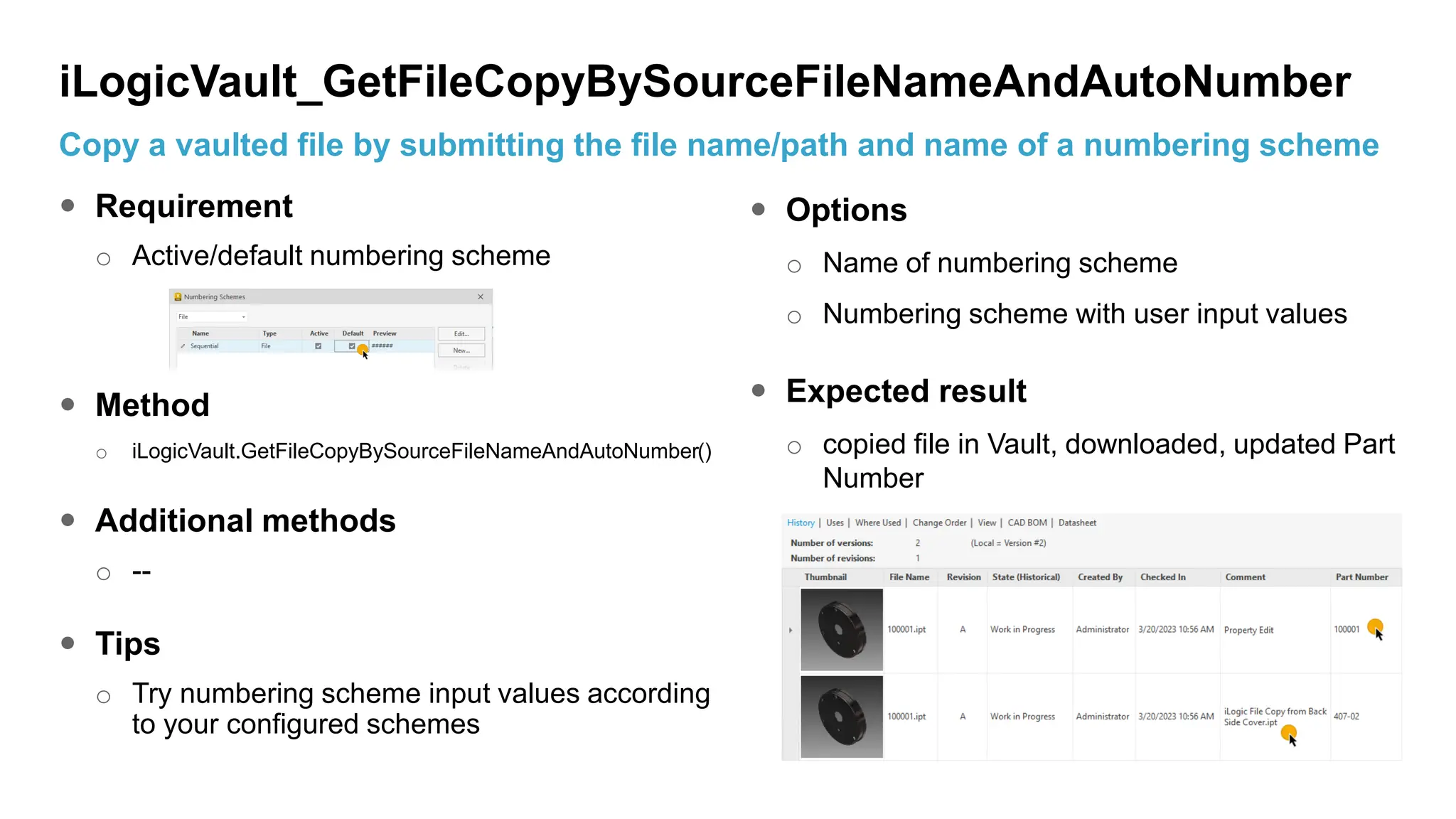
o Active/default numbering scheme
 Method
o iLogicVault.GetFileCopyBySourceFileNameAndAutoNumber()
 Additional methods
o --
 Tips
o Try numbering scheme input values according
to your configured schemes
 Options
o Name of numbering scheme
o Numbering scheme with user input values
 Expected result
o copied file in Vault, downloaded, updated Part
Number
iLogicVault_GetFileCopyBySourceFileNameAndAutoNumber
Copy a vaulted file by submitting the file name/path and name of a numbering scheme
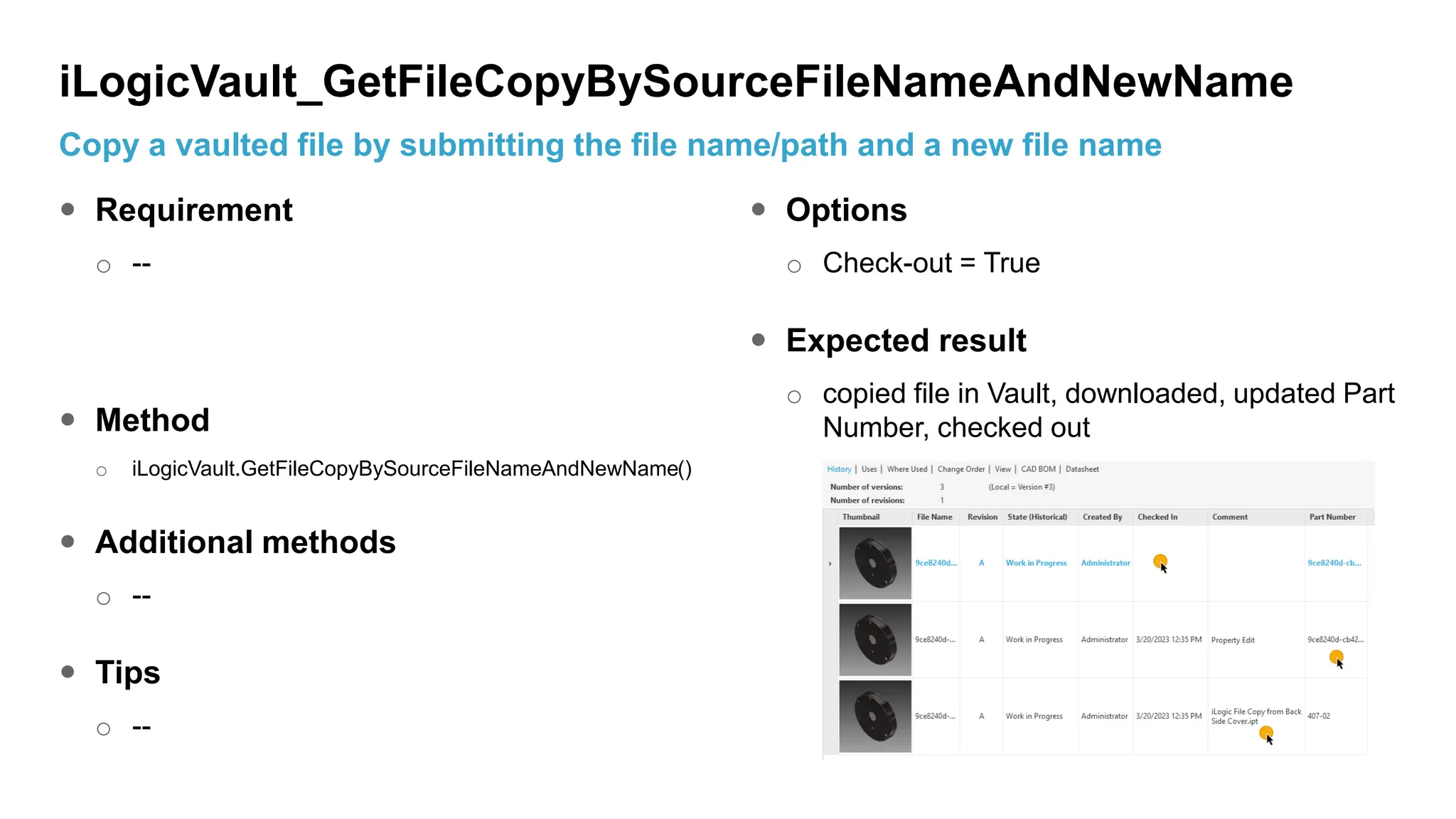
 Requirement
o --
 Method
o iLogicVault.GetFileCopyBySourceFileNameAndNewName()
 Additional methods
o --
 Tips
o --
 Options
o Check-out = True
 Expected result
o copied file in Vault, downloaded, updated Part
Number, checked out
iLogicVault_GetFileCopyBySourceFileNameAndNewName
Copy a vaulted file by submitting the file name/path and a new file name
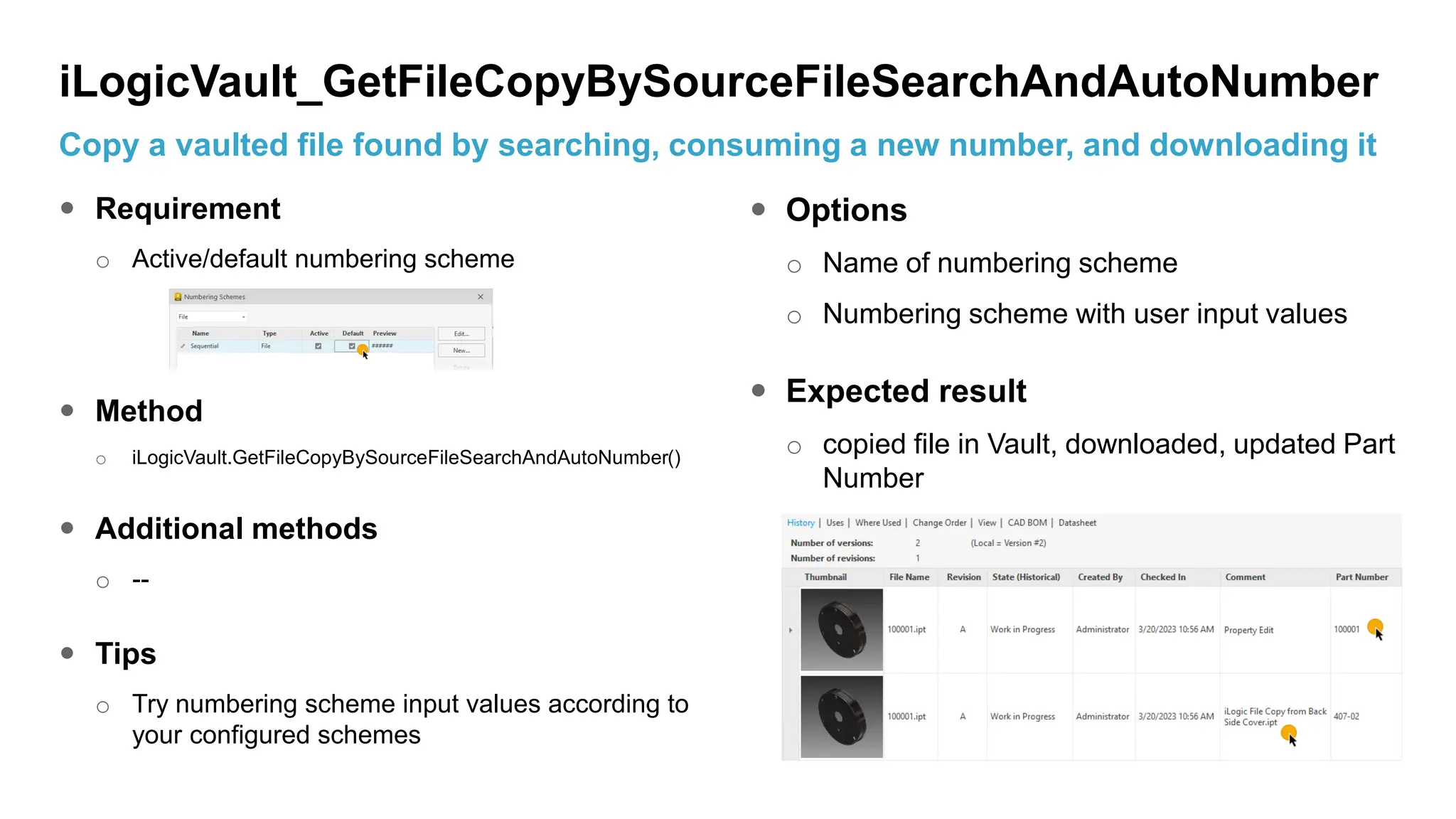
 Requirement
o Active/default numbering scheme
 Method
o iLogicVault.GetFileCopyBySourceFileSearchAndAutoNumber()
 Additional methods
o --
 Tips
o Try numbering scheme input values according to
your configured schemes
 Options
o Name of numbering scheme
o Numbering scheme with user input values
 Expected result
o copied file in Vault, downloaded, updated Part
Number
iLogicVault_GetFileCopyBySourceFileSearchAndAutoNumber
Copy a vaulted file found by searching, consuming a new number, and downloading it
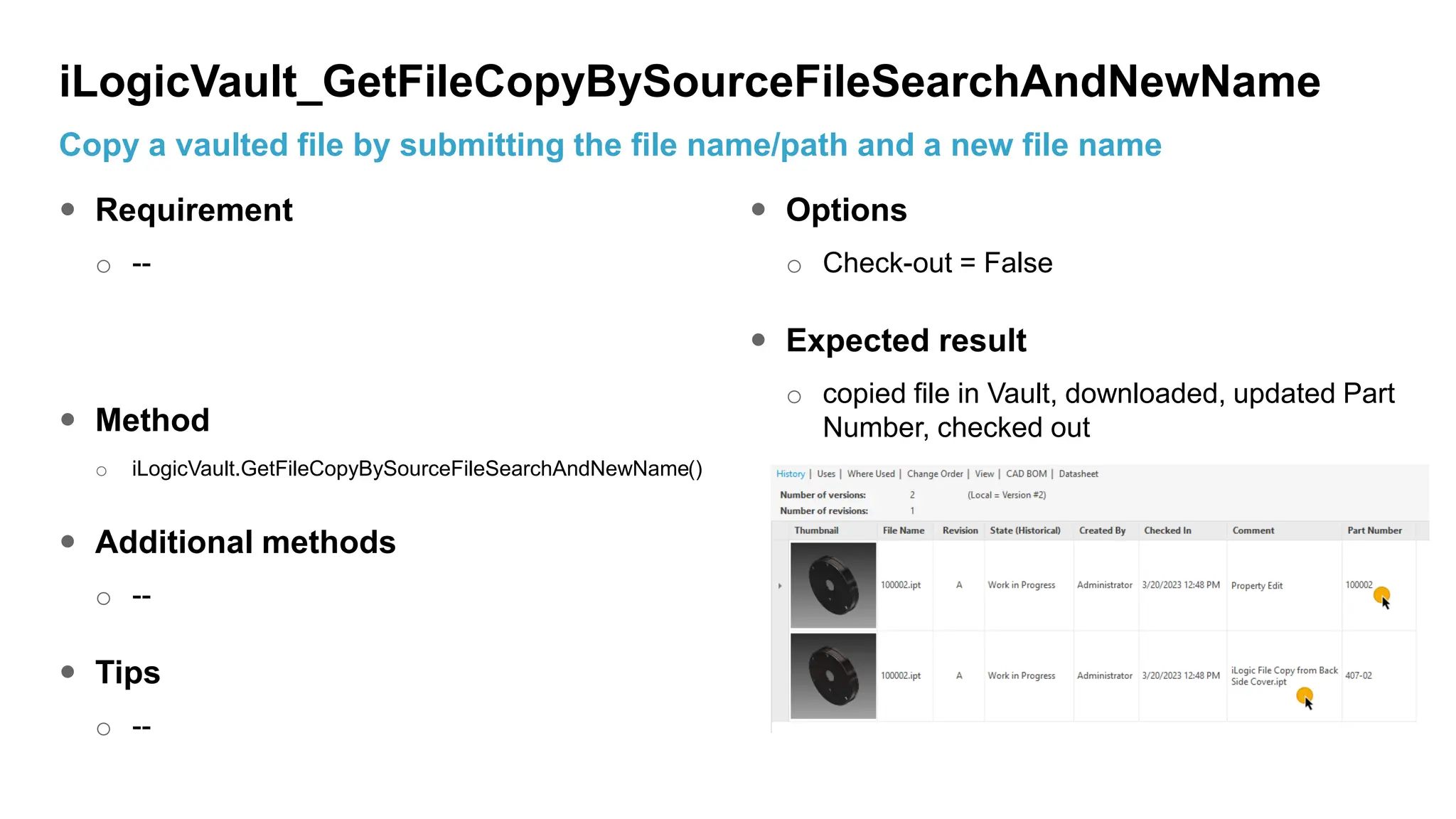
 Requirement
o --
 Method
o iLogicVault.GetFileCopyBySourceFileSearchAndNewName()
 Additional methods
o --
 Tips
o --
 Options
o Check-out = False
 Expected result
o copied file in Vault, downloaded, updated Part
Number, checked out
iLogicVault_GetFileCopyBySourceFileSearchAndNewName
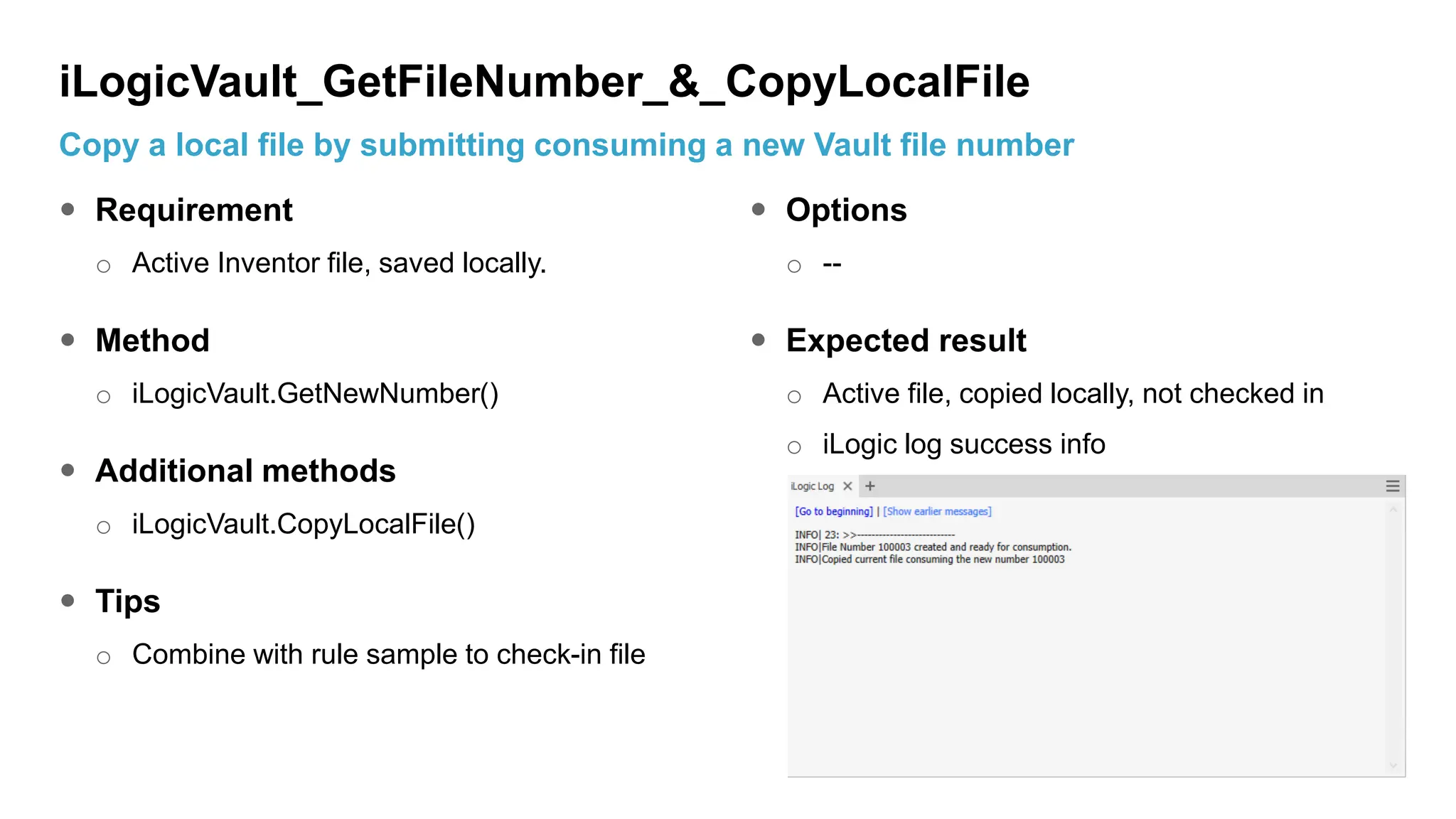
Copy a vaulted file by submitting the file name/path and a new file name
 Requirement
o Active Inventor file, saved locally.
 Method
o iLogicVault.GetNewNumber()
 Additional methods
o iLogicVault.CopyLocalFile()
 Tips
o Combine with rule sample to check-in file
 Options
o --
 Expected result
o Active file, copied locally, not checked in
o iLogic log success info
iLogicVault_GetFileNumber_&_CopyLocalFile
Copy a local file by submitting consuming a new Vault file number
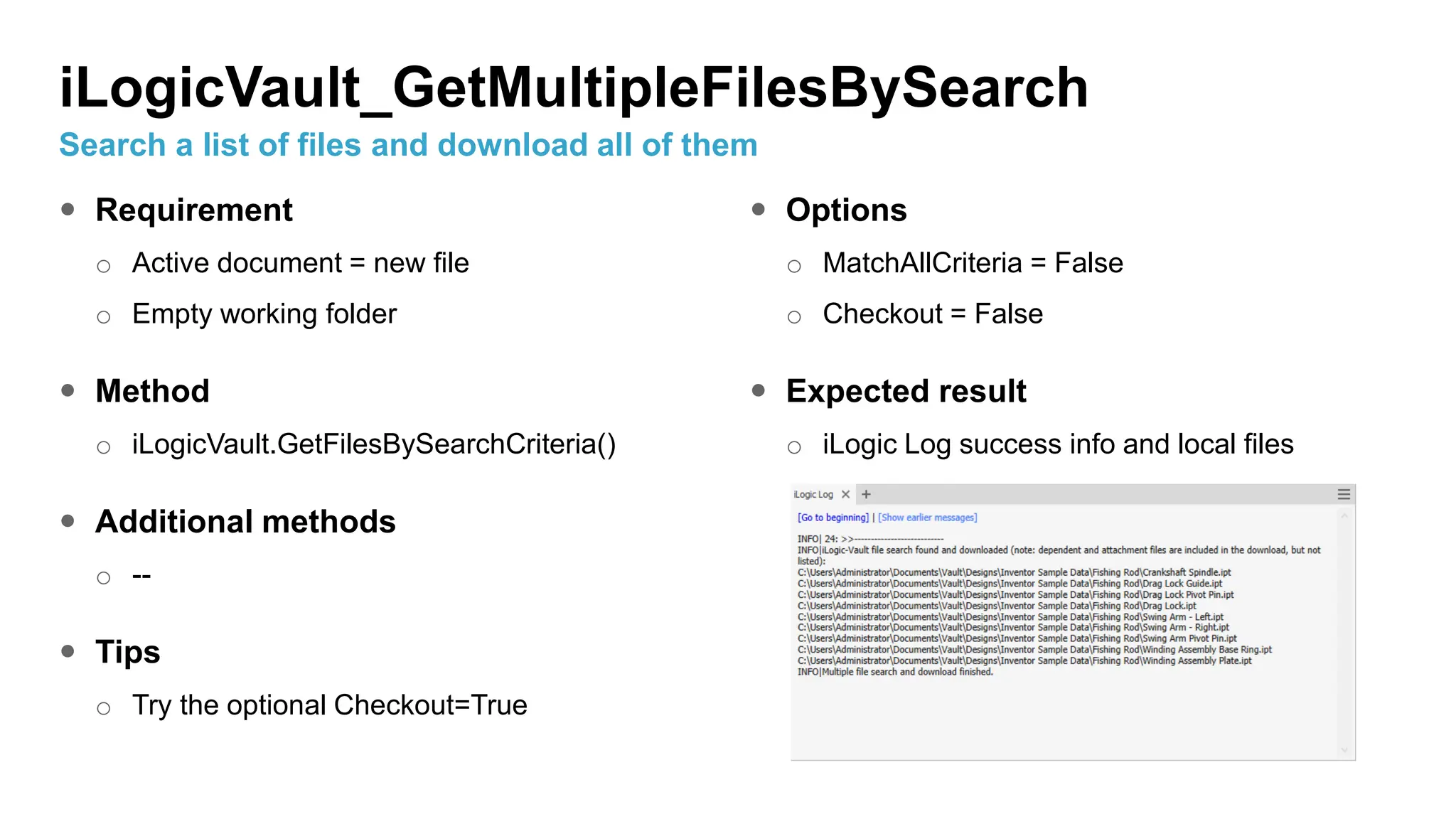
 Requirement
o Active document = new file
o Empty working folder
 Method
o iLogicVault.GetFilesBySearchCriteria()
 Additional methods
o --
 Tips
o Try the optional Checkout=True
 Options
o MatchAllCriteria = False
o Checkout = False
 Expected result
o iLogic Log success info and local files
iLogicVault_GetMultipleFilesBySearch
Search a list of files and download all of them
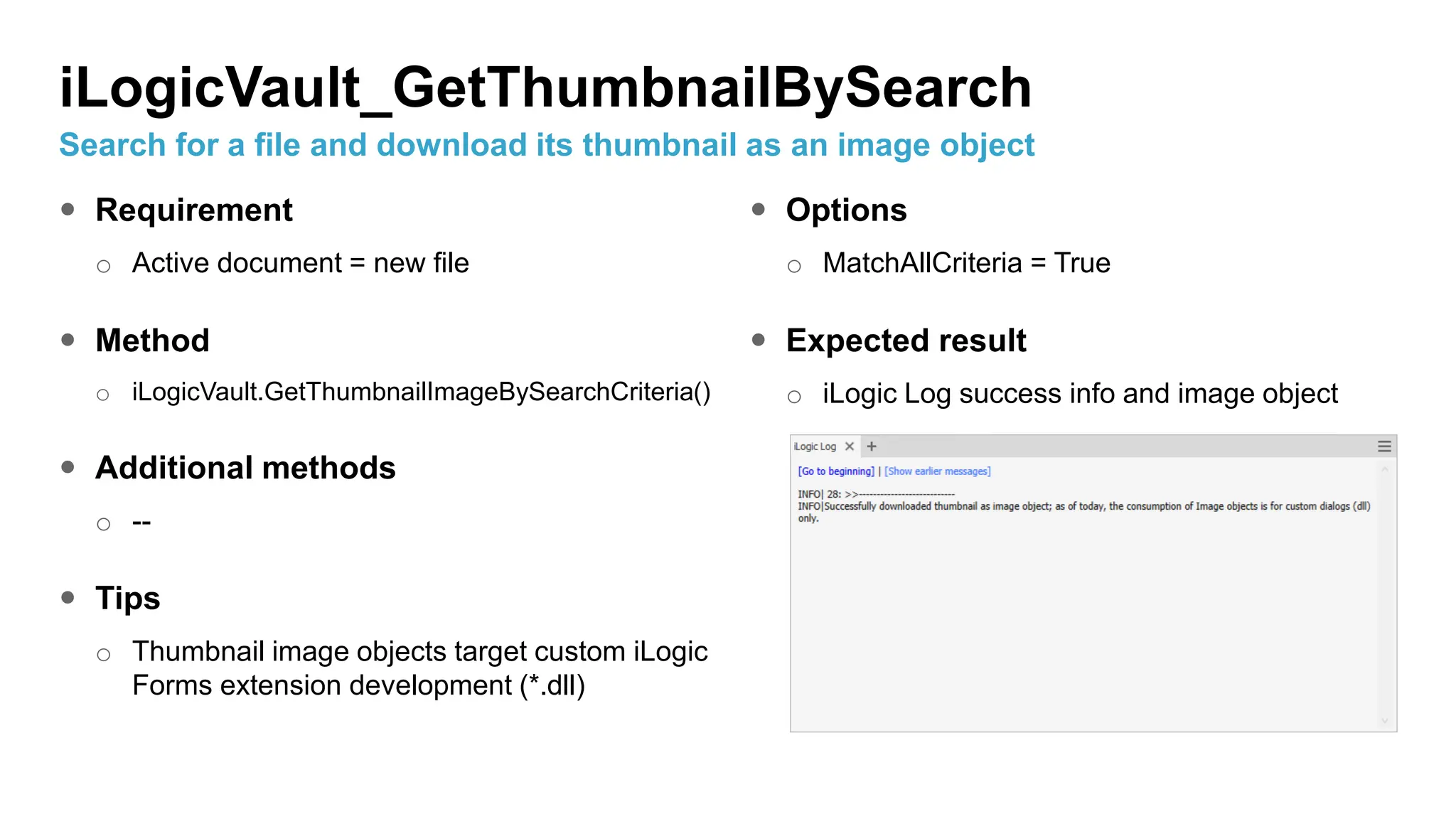
 Requirement
o Active document = new file
 Method
o iLogicVault.GetThumbnailImageBySearchCriteria()
 Additional methods
o --
 Tips
o Thumbnail image objects target custom iLogic
Forms extension development (*.dll)
 Options
o MatchAllCriteria = True
 Expected result
o iLogic Log success info and image object
iLogicVault_GetThumbnailBySearch
Search for a file and download its thumbnail as an image object
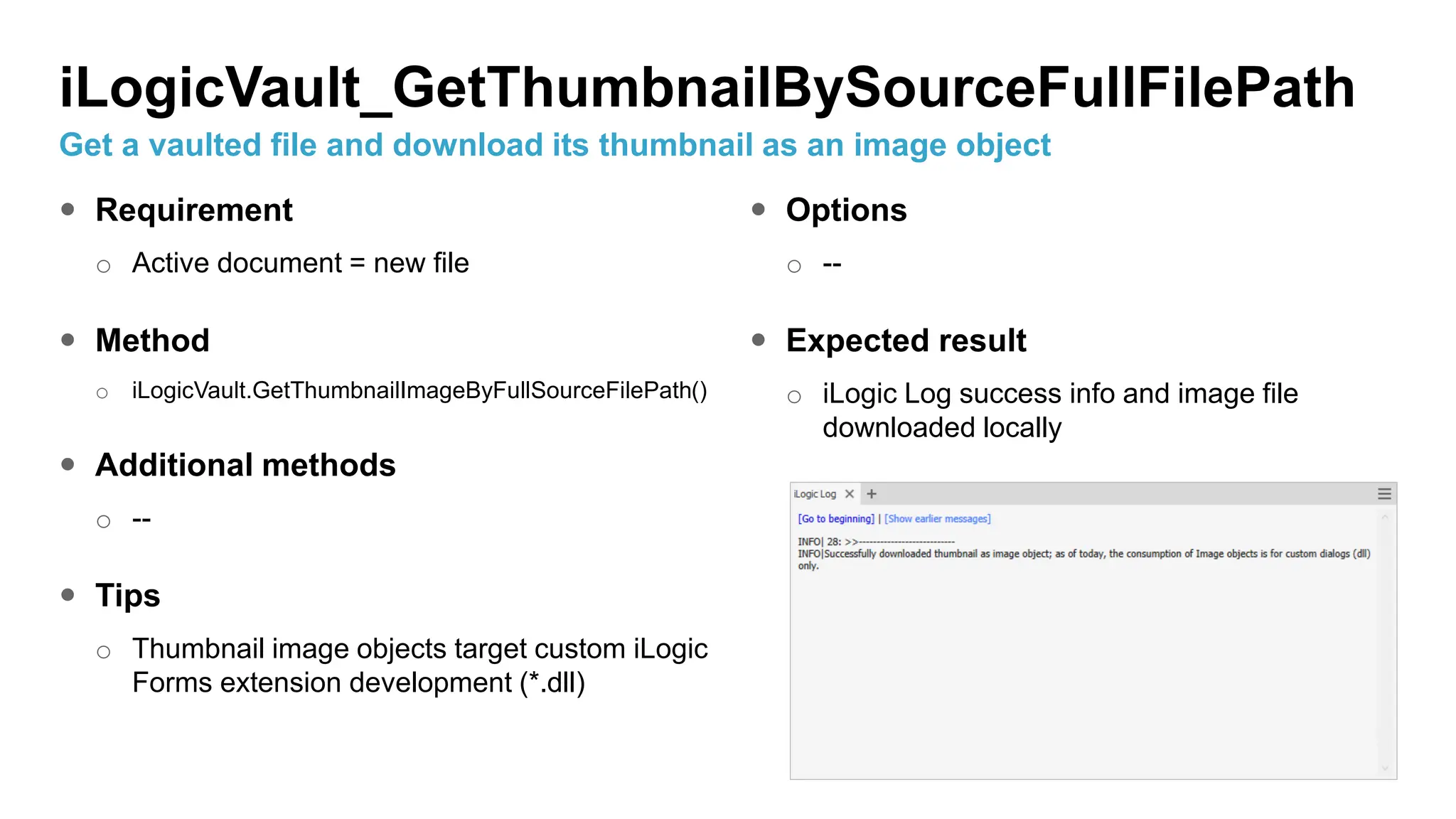
 Requirement
o Active document = new file
 Method
o iLogicVault.GetThumbnailImageByFullSourceFilePath()
 Additional methods
o --
 Tips
o Thumbnail image objects target custom iLogic
Forms extension development (*.dll)
 Options
o --
 Expected result
o iLogic Log success info and image file
downloaded locally
iLogicVault_GetThumbnailBySourceFullFilePath
Get a vaulted file and download its thumbnail as an image object
 Requirement
o Active document = new file
 Method
o iLogicVault.GetThumbnailFileBySearchCriteria()
 Additional methods
o --
 Tips
o --
 Options
o MatchAllCriteria = True
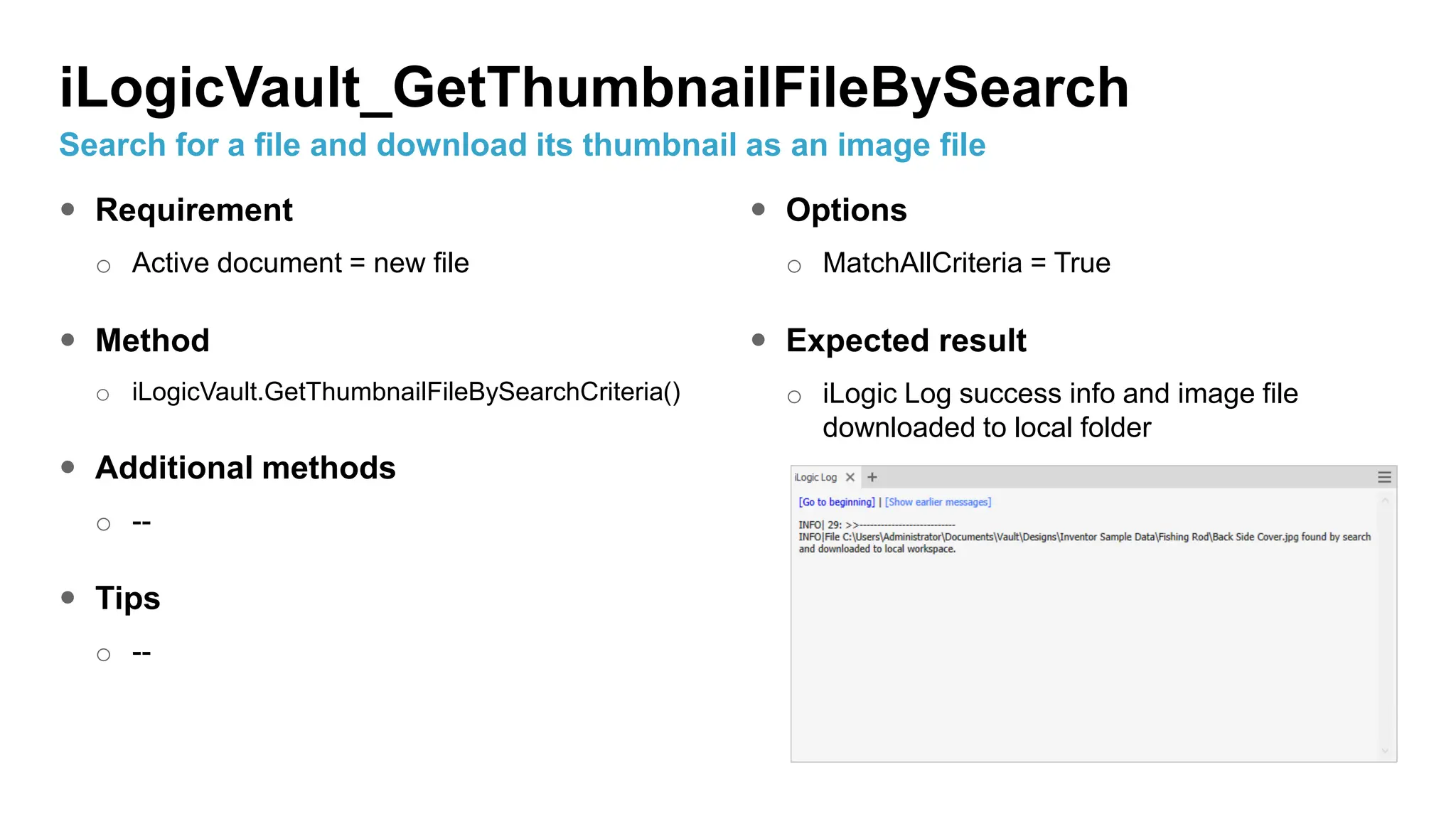
 Expected result
o iLogic Log success info and image file
downloaded to local folder
iLogicVault_GetThumbnailFileBySearch
Search for a file and download its thumbnail as an image file
 Requirement
o Active document = new file
 Method
o iLogicVault.GetThumbnailFileByFullSourceFilePath()
 Additional methods
o --
 Tips
o --
 Options
o --
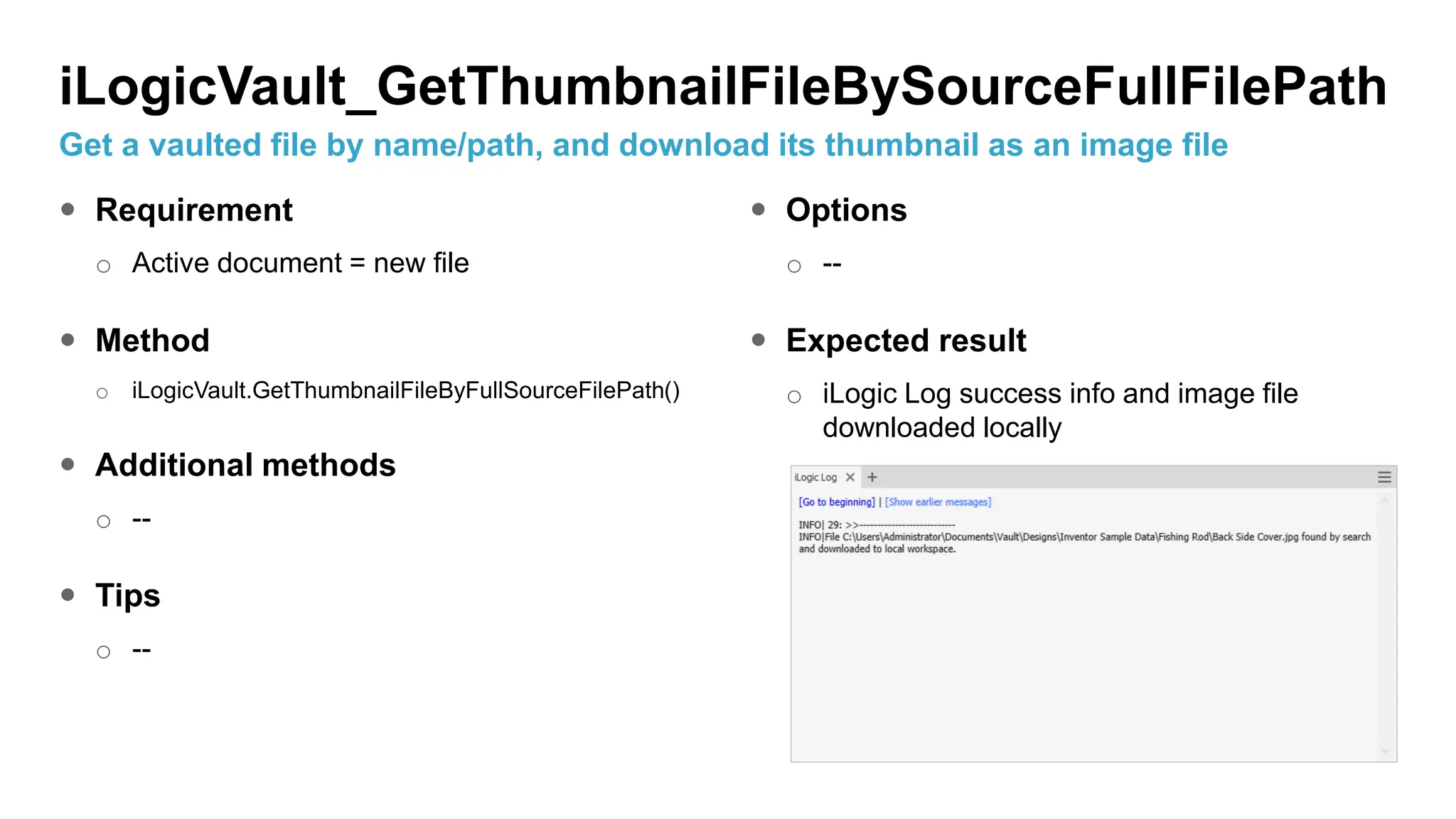
 Expected result
o iLogic Log success info and image file
downloaded locally
iLogicVault_GetThumbnailFileBySourceFullFilePath
Get a vaulted file by name/path, and download its thumbnail as an image file
 Requirement
o Open a vaulted file in Inventor
 Method
o iLogicVault.GetVaultFileStatus()
 Additional methods
o --
 Tips
o Run the rule on files checked-out, checked-
out by other users or locked files
 Options
o --
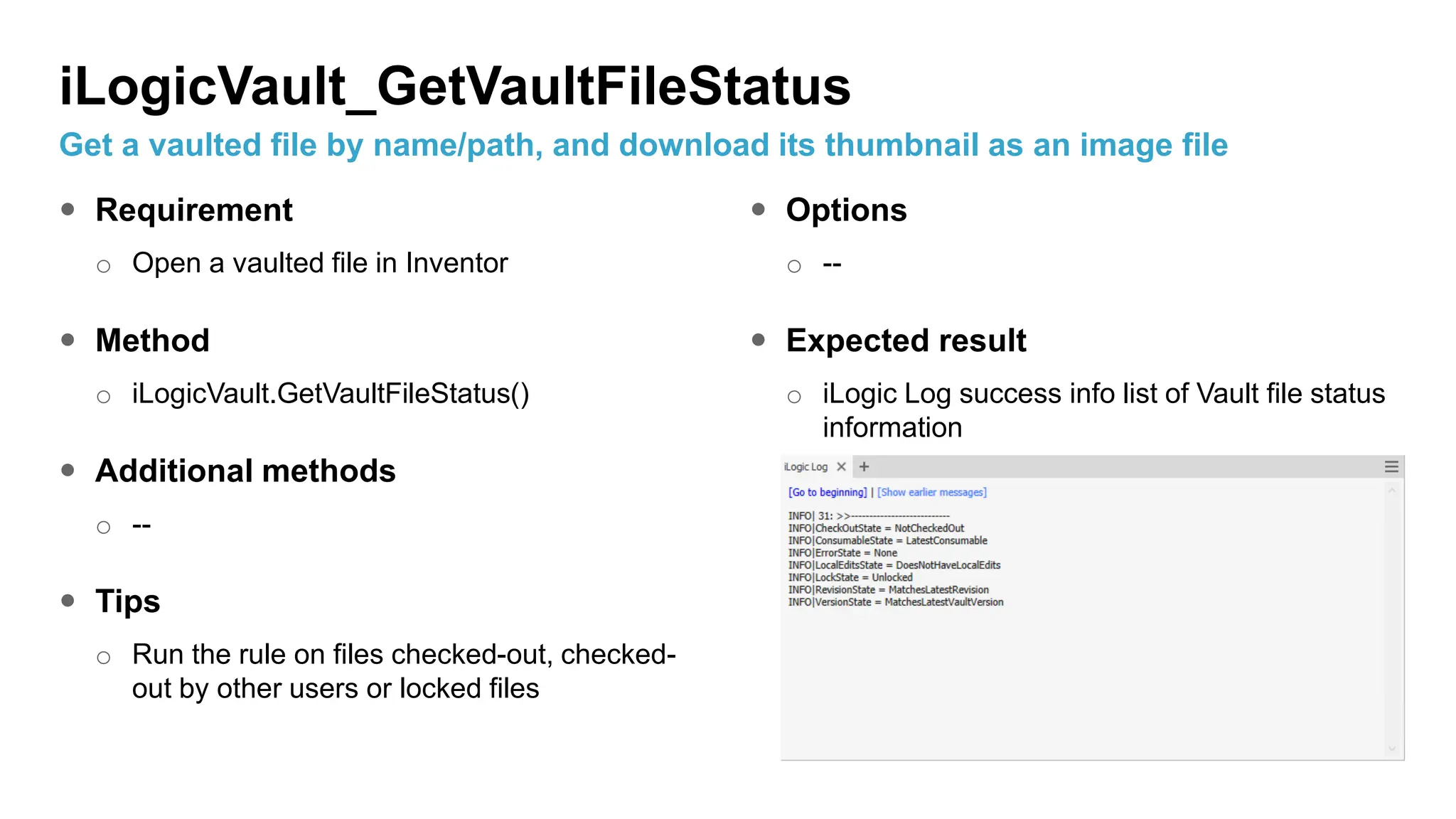
 Expected result
o iLogic Log success info list of Vault file status
information
iLogicVault_GetVaultFileStatus
Get a vaulted file by name/path, and download its thumbnail as an image file
 Requirement
o Active Inventor file vaulted, checked-out
 Method
o --
 Additional methods
o --
 Tips
o --
 Options
o --
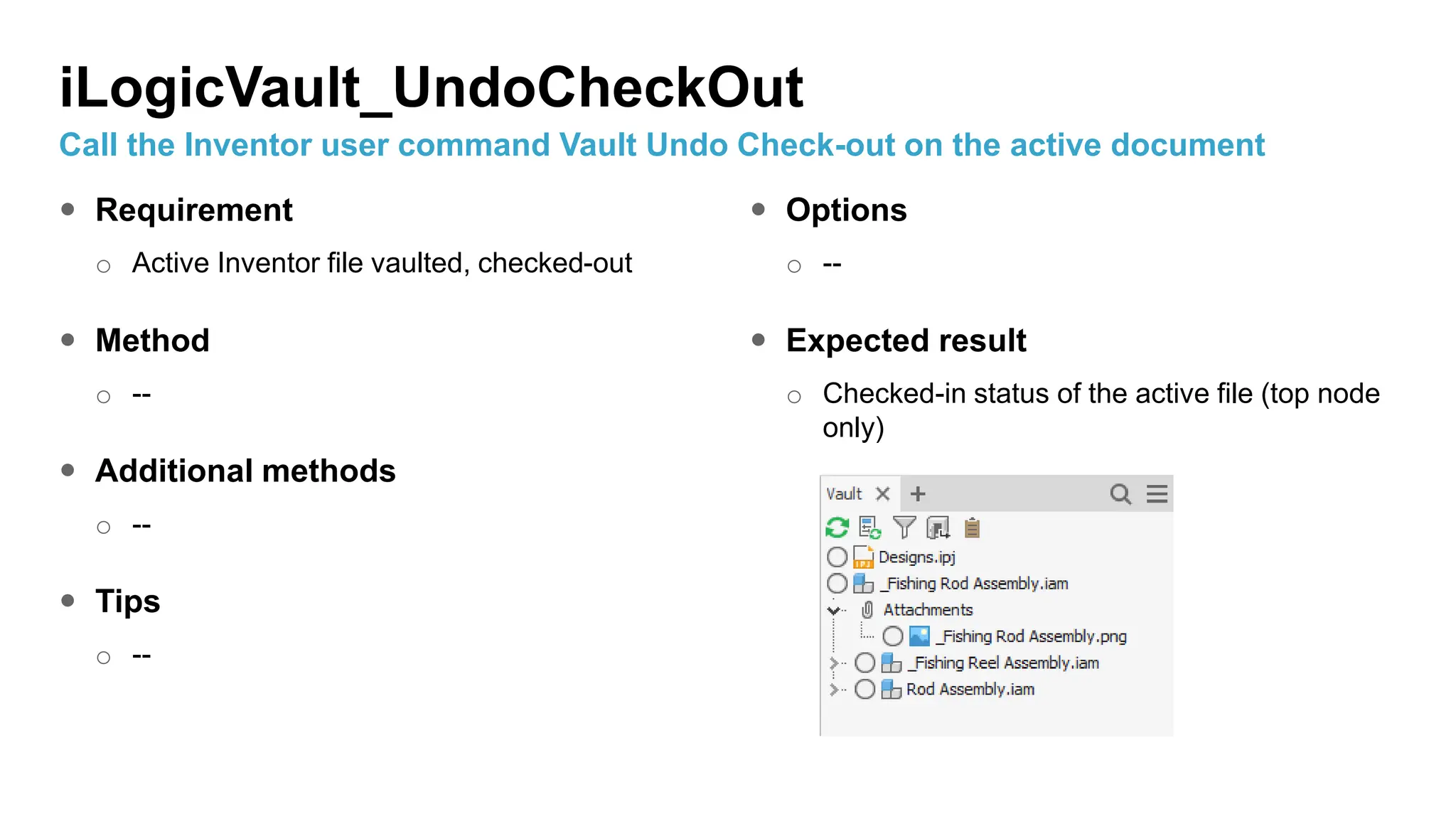
 Expected result
o Checked-in status of the active file (top node
only)
iLogicVault_UndoCheckOut
Call the Inventor user command Vault Undo Check-out on the active document
 Requirement
o Open a vaulted file in Inventor
 Method
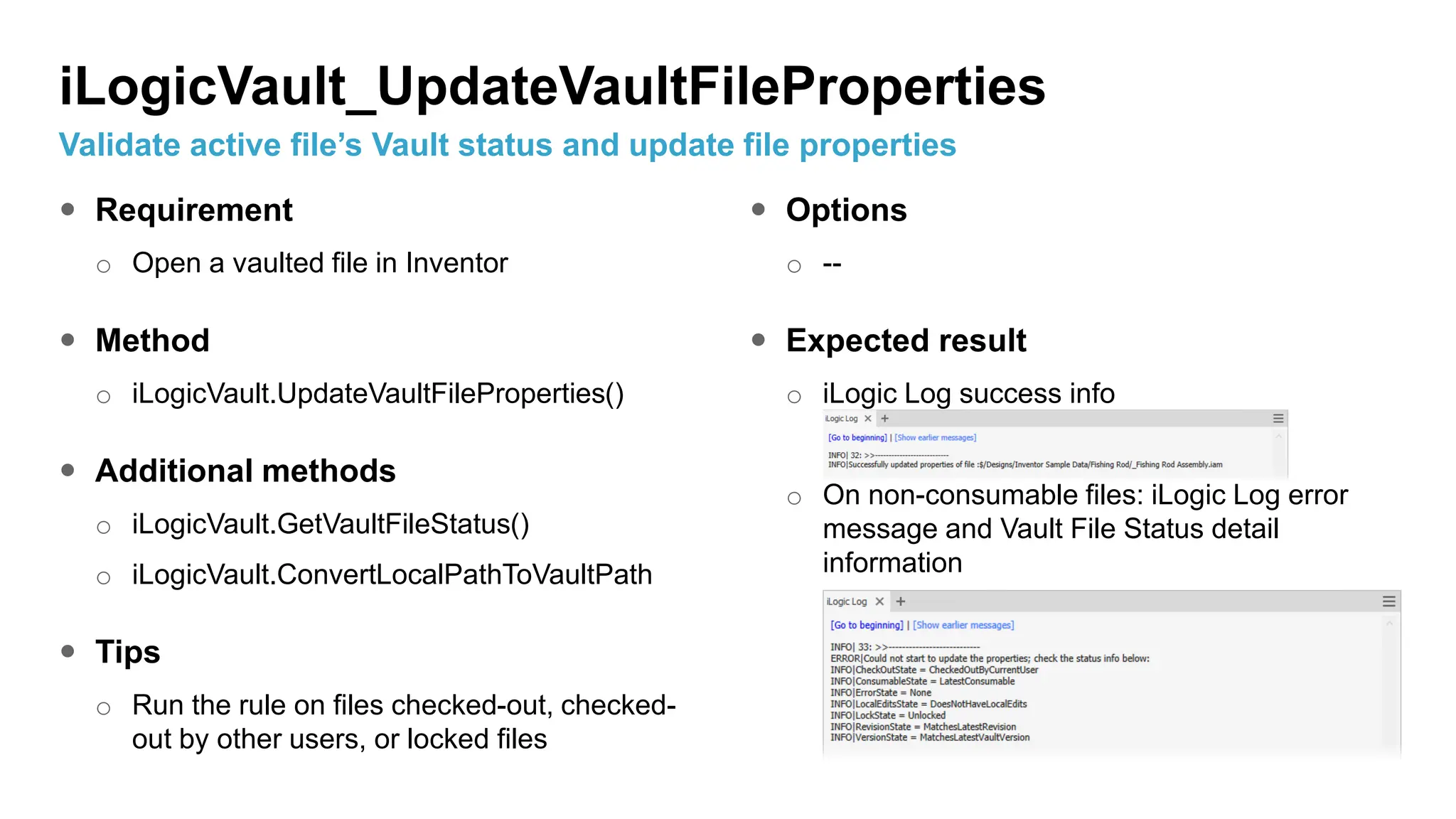
o iLogicVault.UpdateVaultFileProperties()
 Additional methods
o iLogicVault.GetVaultFileStatus()
o iLogicVault.ConvertLocalPathToVaultPath
 Tips
o Run the rule on files checked-out, checked-
out by other users, or locked files
 Options
o --
 Expected result
o iLogic Log success info
o On non-consumable files: iLogic Log error
message and Vault File Status detail
information
iLogicVault_UpdateVaultFileProperties
Validate active file’s Vault status and update file properties
Autodesk and the Autodesk logo are registered trademarks or trademarks of Autodesk, Inc., and/or its subsidiaries and/or affiliates in the USA and/or other countries. All other brand names, product names, or trademarks belong to their respective holders.
Autodesk reserves the right to alter product and services offerings, and specifications and pricing at any time without notice, and is not responsible for typographical or graphical errors that may appear in this document.
© 2023 Autodesk. All rights reserved.

705256066-Autodesk-Inventor-2024-iLogic-Vault-Sample-Rules.pdf

  • 1.
    © 2023 Autodesk.All rights reserved. Readme Autodesk Inventor 2024 iLogic-Vault Sample Rules
  • 2.
     What is“iLogic-Vault”? Inventor iLogic 2024 added new functions allowing to check out, get files, search Vault, and much more as part of your automation. Vault code snippets added to the editor make it easy to quickly get started.  Prerequisites to walk through the sample collection o Inventor 2024 or newer o Vault Professional 2024 or newer o Users should have a solid working knowledge of writing iLogic rules and managing or searching files using Vault Professional o Follow the setup instructions of this Readme document carefully before evaluating the sample rules Preamble
  • 3.
    Agenda Sample Rules  Downloads oInventor sample files o iLogic-Vault sample rules  Setup o Inventor iLogic | sample rules o Adding Inventor sample files to Vault Professional  Review and run iLogic-Vault sample rules
  • 4.
    Downloads Inventor Sample Files Fishing Rod Model o Fishing_Rod.zip  iLogic-Vault Sample Rules o iLogic-Vault_SampleRules.zip
  • 5.
    Setup iLogic Sample rules Download and extract the sample rules to a folder of your choice  Add this folder to Inventor iLogic Advanced Configuration
  • 6.
    Setup Vault Import samplemodel 1. Download and extract the Fishing_Rod model to a folder of your choice 2. Move the files into your Vault working folder structure o Content Center Files o DesignsInventor Sample DataFishing Rod Creating the path as shown is highly recommended, as it is referenced within several iLogic rules!
  • 7.
    Setup Vault Import samplemodel 3. Open the file “_Fishing Rod Assembly.idw” o Consume your default Inventor-Vault project 4. Check-in o Optionally, include related files
  • 8.
    Setup Vault |Result Import sample model  Expected Result
  • 9.
    Review & Run Whatcan you get from each rule  Each rule’s detail slide in this section shares o Description (Subtitle) o Requirements o iLogicVault method consumed | Applied option(s) o Additional iLogicVault methods consumed/relevant for the context o Expected result o Tips  You can walk through the sample in any order. However, some rules make sense to have a predecessor, e.g., Check-in runs best after Check-out or GetFileNumber_&_CopyLocalFile
  • 10.
     Requirement o Openany part or assembly  Method o iLogicVault.AddFile()  Additional methods o iLogicVault.ConvertLocalPathToVaultPath()  Tips o This rule demonstrates how to export bitmap files without an active graphics window by creating a camera object on the fly. o The rule uses ThisServer instead of ThisApplication and is compatible with Vault Job execution.  Options o Update existing file in Vault = True  Expected result o iLogic Log success info o Uploaded file in Vault iLogicVault_AddFile Create 3D camera view, export as *png and upload to Vault
  • 11.
     Requirement o Openany part or assembly  Method o iLogicVault.AddFile()  Additional methods o iLogicVault.GetVaultFileStatus() o iLogicVault.ConvertLocalPathToVaultPath()  Tips o This rule demonstrates how to export bitmap files without an active graphics window by creating a camera object on the fly. o The rule uses ThisServer instead of ThisApplication and is compatible with Vault Job execution.  Options o Update existing file in Vault = True  Expected result o iLogic Log success info o Uploaded file in Vault iLogicVault_AddFileAndAttach Evaluate Vault Status, create 3D camera view, export as *png, upload to Vault, and attach
  • 12.
     Requirement o Openany part or assembly  Method o iLogicVault.CheckFilesExistBySearchCriteria()  Additional methods o iLogicVault.GetVaultFileStatus() o iLogicVault.ConvertLocalPathToVaultPath()  Tips o Apply search option “AND” by enforcing MatchAllCriteria = True  Options o Query multiple Vault properties o Apply search option “OR”  Expected result o iLogic Log success info iLogicVault_CheckFilesExists Search for a list of files by submitting multiple search criteria
  • 13.
     Requirement o Openany part or assembly  Method o iLogicVault.CheckFilesExistBySearchCriteria()  Additional methods o iLogicVault.GetVaultFileStatus() o iLogicVault.ConvertLocalPathToVaultPath()  Tips o Apply search option “OR” by enforcing MatchAllCriteria = False  Options o Query multiple Vault properties o Apply search option “AND”  Expected result o iLogic Log success info iLogicVault_CheckFilesExistsAndGetProperties Search for a unique file by submitting multiple search criteria and get all file properties
  • 14.
     Requirement o ActiveInventor file, either checked out or not added to Vault yet  Method o --  Additional methods  Tip o Suppress Vault dialogs for iLogicVault automation  Options o --  Expected result o Active file (top node) checked-in iLogicVault_CheckIn Call the Inventor user command Vault Check-in on the active document
  • 15.
     Requirement o ActiveInventor file, checked-in to Vault  Method o --  Additional methods  Tips o Suppress Vault dialogs for iLogicVault automation  Options o --  Expected result o Check-out status of active file (top node only) iLogicVault_CheckOut Call the Inventor user command Vault Check-out on the active document
  • 16.
     Requirement o Activedocument = new file o Empty working folder  Method o iLogicVault.GetFileByFullFilePath()  Additional methods o --  Tips o Try the optional Checkout=True  Options o Checkout = False  Expected result o iLogic Log success info and local file iLogicVault_GetFileByFullFilePath Download a file from Vault submitting the full path and file name
  • 17.
     Requirement o Activedocument = new file o Empty working folder  Method o iLogicVault.GetFileByFullFilePath()  Additional methods o --  Tips o Run the Assign/Update Item command on the given file first to get the item properties  Options o Checkout = False o Include file and item properties  Expected result o iLogic Log success info, properties (name/values), and local file iLogicVault_GetFileByFullFilePathAndFileItemProps Download a file, found by full path and file name, and get a list of property names/values
  • 18.
     Requirement o Activedocument = new file o Empty working folder  Method o iLogicVault.GetFileByFullFilePath()  Additional methods o --  Tips  Options o Checkout = False o Include file properties  Expected result o iLogic Log success info, properties (name/values), and local file iLogicVault_GetFileByFullFilePathAndFileProps Download a file, found by full path and file name, and get a list of property names/values
  • 19.
     Requirement o Activedocument = new file o Empty working folder  Method o iLogicVault.GetFileBySearchCriteria()  Additional methods o --  Tips o Try the optional Checkout=True  Options o MatchAllCriteria = True o Checkout = False  Expected result o iLogic Log success info and local file iLogicVault_GetFileBySearch Download a file from Vault by searching a unique file
  • 20.
     Requirement o Activedocument = new file o Empty working folder  Method o iLogicVault.GetFileBySearchCriteria()  Additional methods o --  Tips o Run the Assign/Update Item command on the given file first to get the item properties  Options o Checkout = False o Include file and item properties  Expected result o iLogic Log success info, properties (name/values), and local file iLogicVault_GetFileBySearchAndFileItemProps Download a file, found by search, and get a list of property names/values
  • 21.
     Requirement o Active/defaultnumbering scheme  Method o iLogicVault.GetFileCopyBySourceFileNameAndAutoNumber()  Additional methods o --  Tips o Try numbering scheme input values according to your configured schemes  Options o Name of numbering scheme o Numbering scheme with user input values  Expected result o copied file in Vault, downloaded, updated Part Number iLogicVault_GetFileCopyBySourceFileNameAndAutoNumber Copy a vaulted file by submitting the file name/path and name of a numbering scheme
  • 22.
     Requirement o -- Method o iLogicVault.GetFileCopyBySourceFileNameAndNewName()  Additional methods o --  Tips o --  Options o Check-out = True  Expected result o copied file in Vault, downloaded, updated Part Number, checked out iLogicVault_GetFileCopyBySourceFileNameAndNewName Copy a vaulted file by submitting the file name/path and a new file name
  • 23.
     Requirement o Active/defaultnumbering scheme  Method o iLogicVault.GetFileCopyBySourceFileSearchAndAutoNumber()  Additional methods o --  Tips o Try numbering scheme input values according to your configured schemes  Options o Name of numbering scheme o Numbering scheme with user input values  Expected result o copied file in Vault, downloaded, updated Part Number iLogicVault_GetFileCopyBySourceFileSearchAndAutoNumber Copy a vaulted file found by searching, consuming a new number, and downloading it
  • 24.
     Requirement o -- Method o iLogicVault.GetFileCopyBySourceFileSearchAndNewName()  Additional methods o --  Tips o --  Options o Check-out = False  Expected result o copied file in Vault, downloaded, updated Part Number, checked out iLogicVault_GetFileCopyBySourceFileSearchAndNewName Copy a vaulted file by submitting the file name/path and a new file name
  • 25.
     Requirement o ActiveInventor file, saved locally.  Method o iLogicVault.GetNewNumber()  Additional methods o iLogicVault.CopyLocalFile()  Tips o Combine with rule sample to check-in file  Options o --  Expected result o Active file, copied locally, not checked in o iLogic log success info iLogicVault_GetFileNumber_&_CopyLocalFile Copy a local file by submitting consuming a new Vault file number
  • 26.
     Requirement o Activedocument = new file o Empty working folder  Method o iLogicVault.GetFilesBySearchCriteria()  Additional methods o --  Tips o Try the optional Checkout=True  Options o MatchAllCriteria = False o Checkout = False  Expected result o iLogic Log success info and local files iLogicVault_GetMultipleFilesBySearch Search a list of files and download all of them
  • 27.
     Requirement o Activedocument = new file  Method o iLogicVault.GetThumbnailImageBySearchCriteria()  Additional methods o --  Tips o Thumbnail image objects target custom iLogic Forms extension development (*.dll)  Options o MatchAllCriteria = True  Expected result o iLogic Log success info and image object iLogicVault_GetThumbnailBySearch Search for a file and download its thumbnail as an image object
  • 28.
     Requirement o Activedocument = new file  Method o iLogicVault.GetThumbnailImageByFullSourceFilePath()  Additional methods o --  Tips o Thumbnail image objects target custom iLogic Forms extension development (*.dll)  Options o --  Expected result o iLogic Log success info and image file downloaded locally iLogicVault_GetThumbnailBySourceFullFilePath Get a vaulted file and download its thumbnail as an image object
  • 29.
     Requirement o Activedocument = new file  Method o iLogicVault.GetThumbnailFileBySearchCriteria()  Additional methods o --  Tips o --  Options o MatchAllCriteria = True  Expected result o iLogic Log success info and image file downloaded to local folder iLogicVault_GetThumbnailFileBySearch Search for a file and download its thumbnail as an image file
  • 30.
     Requirement o Activedocument = new file  Method o iLogicVault.GetThumbnailFileByFullSourceFilePath()  Additional methods o --  Tips o --  Options o --  Expected result o iLogic Log success info and image file downloaded locally iLogicVault_GetThumbnailFileBySourceFullFilePath Get a vaulted file by name/path, and download its thumbnail as an image file
  • 31.
     Requirement o Opena vaulted file in Inventor  Method o iLogicVault.GetVaultFileStatus()  Additional methods o --  Tips o Run the rule on files checked-out, checked- out by other users or locked files  Options o --  Expected result o iLogic Log success info list of Vault file status information iLogicVault_GetVaultFileStatus Get a vaulted file by name/path, and download its thumbnail as an image file
  • 32.
     Requirement o ActiveInventor file vaulted, checked-out  Method o --  Additional methods o --  Tips o --  Options o --  Expected result o Checked-in status of the active file (top node only) iLogicVault_UndoCheckOut Call the Inventor user command Vault Undo Check-out on the active document
  • 33.
     Requirement o Opena vaulted file in Inventor  Method o iLogicVault.UpdateVaultFileProperties()  Additional methods o iLogicVault.GetVaultFileStatus() o iLogicVault.ConvertLocalPathToVaultPath  Tips o Run the rule on files checked-out, checked- out by other users, or locked files  Options o --  Expected result o iLogic Log success info o On non-consumable files: iLogic Log error message and Vault File Status detail information iLogicVault_UpdateVaultFileProperties Validate active file’s Vault status and update file properties
  • 34.
    Autodesk and theAutodesk logo are registered trademarks or trademarks of Autodesk, Inc., and/or its subsidiaries and/or affiliates in the USA and/or other countries. All other brand names, product names, or trademarks belong to their respective holders. Autodesk reserves the right to alter product and services offerings, and specifications and pricing at any time without notice, and is not responsible for typographical or graphical errors that may appear in this document. © 2023 Autodesk. All rights reserved.