Portable Analyzer
DA/HA/MA/PA/VA
Operations
Manual
© Windrock, Inc. 2011
1/12/2011
Legal Notices
Copyright
1997-2011 by Windrock Incorporated, All rights reserved.
No part of this publication may be reproduced, transmitted, transcribed, stored in a retrieval system, or translated
into any language in any form by any means without the written permission of Windrock, Incorporated.
Software and Firmware License Notice
Your license agreement with Windrock, Incorporated, authorizes the number of copies which can be made and
the computer systems on which they may be used. Any unauthorized duplication or use of Windrock software or
firmware in whole or in part, in print, or in any other storage and retrieval system, is forbidden.
Disclaimer
This manual is provided for informational purposes. Windrock, Incorporated, makes no warranty of any kind with
regard to this material, including, but not limited to, the implied warranties of merchantability and fitness for a
particular purpose. Windrock, Incorporated shall not be liable for errors, omissions, or inconsistencies which may
be contained herein or for incidental or consequential damages in connection with the furnishing, performance, or
use of this material. Information in this document is subject to change without notice and does not represent a
commitment on the part of Windrock, Incorporated. Any software described in this document is furnished under a
license agreement or nondisclosure agreement. The software may be used or copied only in accordance with the
terms of the agreement.
Portable Analyzer DA/HA/MA/PA/VA Operations Manual
If you have comments about this documentation, the software, or products it describes, please contact the
Customer Support Group at Windrock.
© Windrock, Inc. 2011
I
...............
......
...............
...
..............
........
..
...........
................................
............................
......
..............
....
.............
.........................
................
......................
...................
.................
................
.........................
...............................................
.............
.................
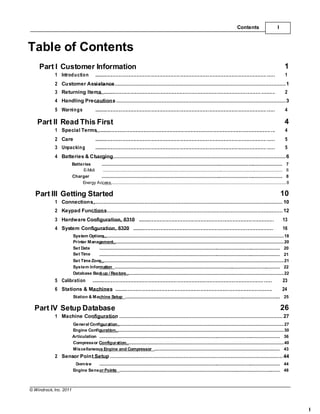
Table of Contents
Contents I
Part I Customer Information 1
1 Introduction ............................................................................................................................. ...... 1
2 Customer Assistance.............................................................................................................1
3 Returning Items ................................................................................................................... .......... 2
4 Handling Precautions ............................................................................................................3
5 Warnings ............................................................................................................................. ...... 4
Part II Read This First 4
1 Special Terms ............................................................................................................................. ... 4
2 Care
3 Unpacking
............................................................................................................................. ...... 5
............................................................................................................................. ...... 5
4 Batteries & Charging..............................................................................................................6
Batteries
E-Moli
Charger
.......................................................................................................................................................... 7
......................................................................................................................................................... 8
.......................................................................................................................................................... 8
Energy Access.....................................................................................................................................................8
Part III Getting Started 10
1 Connections ........................................................................................................................ 10
2 Keypad Functions................................................................................................................ 12
3 Hardware Configuration, 6310 ................................................................................................... 13
4 System Configuration, 6320 ....................................................................................................... 16
System Options........................................................................................................................................................18
Printer Management.................................................................................................................................................20
Set Date
Set Time
.......................................................................................................................................................... 20
.......................................................................................................................................................... 21
Set Time Zone...........................................................................................................................................................21
System Information ............................................................................................................................................. 22
Database Backup / Restore......................................................................................................................................22
5 Calibration ............................................................................................................................. ...... 23
6 Stations & Machines ................................................................................................................... 24
Station & Machine Setup .................................................................................................................................... 25
Part IV Setup Database 26
1 Machine Configuration ........................................................................................................ 27
General Configuration.............................................................................................................................................27
Engine Configuration...............................................................................................................................................30
Articulation .......................................................................................................................................................... 36
Compressor Configuration......................................................................................................................................40
Miscellaneous Engine and Compressor ........................................................................................................... 43
2 Sensor Point Setup .............................................................................................................. 44
Overview .......................................................................................................................................................... 44
Engine Sensor Points ......................................................................................................................................... 48
© Windrock, Inc. 2011
..........................
...............................
............................
..................
.........
......
...................
.....................
...................................
....................
..........................
...........
.......................................
......
........................
...................................
..........
....................
................................
...........................................
.........................
...................
...................................................
..
......................................
.....................
...........................
.........................
.......
.........
.........................................
......................
....................
..........
..............
............
.....
...............................
...............
.........................
..................
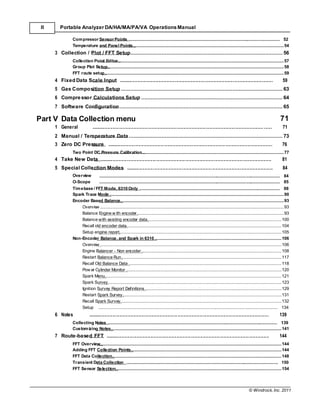
II Portable Analyzer DA/HA/MA/PA/VA Operations Manual
Compressor Sensor Points ................................................................................................................................ 52
Temperature and Panel Points................................................................................................................................54
3 Collection / Plot / FFT Setup................................................................................................. 56
Collection Point Editor.............................................................................................................................................57
Group Plot Setup......................................................................................................................................................58
FFT route setup........................................................................................................................................................59
4 Fixed Data Scale Input ................................................................................................................ 59
5 Gas Composition Setup ....................................................................................................... 63
6 Compressor Calculations Setup .......................................................................................... 64
7 Software Configuration........................................................................................................ 65
Part V Data Collection menu 71
1 General ............................................................................................................................. ...... 71
2 Manual / Temperature Data.................................................................................................. 73
3 Zero DC Pressure ........................................................................................................................ 76
Two Point DC Pressure Calibration........................................................................................................................77
4 Take New Data ............................................................................................................................. 81
5 Special Collection Modes ........................................................................................................... 84
Overview
O-Scope
.......................................................................................................................................................... 84
.......................................................................................................................................................... 85
Timebase / FFT Mode, 6310 Only ....................................................................................................................... 88
Spark Trace Mode ....................................................................................................................................................90
Encoder Based Balance...........................................................................................................................................93
Overview ............................................................................................................................................................93
Balance Engine w ith encoder.............................................................................................................................93
Balance with existing encoder data..................................................................................................................100
Recall old encoder data....................................................................................................................................104
Setup engine report..........................................................................................................................................105
Non-Encoder Balance, and Spark in 6310............................................................................................................106
Overview ..........................................................................................................................................................106
Engine Balancer - Non encoder.......................................................................................................................108
Restart Balance Run........................................................................................................................................117
Recall Old Balance Data ..................................................................................................................................118
Pow er Cylinder Monitor ....................................................................................................................................120
Spark Menu......................................................................................................................................................121
Spark Survey...................................................................................................................................................123
Ignition Survey Report Definitions....................................................................................................................129
Restart Spark Survey.......................................................................................................................................131
Recall Spark Survey.........................................................................................................................................132
Setup ......................................................................................................................................................... 134
6 Notes ................................................................................................................................... 139
Collecting Notes ................................................................................................................................................ 139
Customizing Notes.................................................................................................................................................141
7 Route-based FFT ....................................................................................................................... 144
FFT Overview..........................................................................................................................................................144
Adding FFT Collection Points................................................................................................................................144
FFT Data Collection................................................................................................................................................148
Transient Data Collection ................................................................................................................................. 150
FFT Sensor Selection.............................................................................................................................................154
© Windrock, Inc. 2011
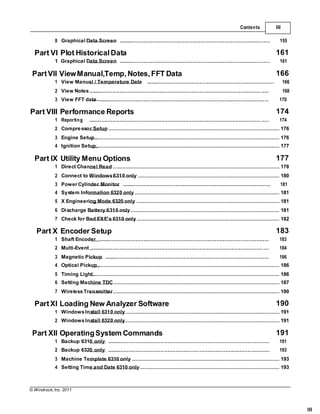
III
.....................
.....................
......................................
............................................................................................................................. ......
.......
..............
.....
......
.................
...................................
.......................
.................................
..................................
..............................
...................................
.......
..
...........
.......
....
..................
..................
...........................
...........................
.............
.............
...............................
.....................................
Contents III
8 Graphical Data Screen .............................................................................................................. 155
Part VI Plot Historical Data 161
1 Graphical Data Screen .............................................................................................................. 161
PartVII ViewManual,Temp, Notes,FFT Data 166
1 View Manual / Temperature Data
2 View Notes
............................................................................................. 166
168
3 View FFT data ............................................................................................................................ 170
Part VIII Performance Reports 174
1 Reporting ............................................................................................................................. ...... 174
2 Compressor Setup ............................................................................................................. 176
3 Engine Setup ..................................................................................................................... 176
4 Ignition Setup..................................................................................................................... 177
Part IX Utility Menu Options 177
1 Direct Channel Read .......................................................................................................... 178
2 Connect to Windows6310 only .......................................................................................... 180
3 Power Cylinder Monitor ............................................................................................................ 181
4 System Information 6320 only ............................................................................................ 181
5 X Engineering Mode 6320 only ........................................................................................... 181
6 Discharge Battery 6310 only............................................................................................... 181
7 Check for Bad EXE's 6310 only........................................................................................... 182
Part X Encoder Setup 183
1 Shaft Encoder ............................................................................................................................ 183
2 Multi-Event ............................................................................................................................. .... 184
3 Magnetic Pickup ........................................................................................................................ 186
4 Optical Pickup.................................................................................................................... 186
5 Timing Light....................................................................................................................... 186
6 Setting Machine TDC.......................................................................................................... 187
7 WirelessTransmitter.......................................................................................................... 190
PartXI Loading New Analyzer Software 190
1 WindowsInstall 6310 only.................................................................................................. 191
2 WindowsInstall 6320 only.................................................................................................. 191
Part XII OperatingSystem Commands 191
1 Backup 6310 only
2 Backup 6320 only
...................................................................................................................... 191
...................................................................................................................... 193
3 Machine Template 6310 only .............................................................................................. 193
4 Setting Time and Date 6310 only......................................................................................... 193
© Windrock, Inc. 2011
................................................
.....
.....
..............................
..........................
.......................................................
.........
......
......................................
...............................
..........
......................
...........................
............
........
..................................
................
..................
..................
........................
.............................................
..........
....................
IV Portable Analyzer DA/HA/MA/PA/VA Operations Manual
5 Set Date, Time or Time Zone 6320 only .............................................................................. 194
6 Printing 6310
7 Printing 6320
............................................................................................................................. . 195
............................................................................................................................. . 197
Part XIII Appendix 199
1 Data Collection Techniques ..................................................................................................... 199
2 Class 1, Div II Information .................................................................................................. 200
Hazardous Location Information,6320 only ................................................................................................... 200
Control Drawing.....................................................................................................................................................201
3 Sensors ............................................................................................................................. ...... 201
Accelerometer.........................................................................................................................................................203
Compressor DC Pressure Sensor.........................................................................................................................207
Infrared Temperature Sensor ........................................................................................................................... 209
Magnetic Pickup ................................................................................................................................................ 213
Primary Ignition Sensor.........................................................................................................................................216
Secondary Ignition Sensor ............................................................................................................................... 216
Ultrasonic Sensor...................................................................................................................................................216
Velocity Sensor.......................................................................................................................................................219
Water-cooled Pressure Sensor ........................................................................................................................ 220
Displacement Probe...............................................................................................................................................220
4 Specifications - 6310
5 Specifications - 6320
................................................................................................................. 220
................................................................................................................. 222
6 Specifications - Sensors.................................................................................................... 224
7 Specifications - Wireless Transmitter ................................................................................ 225
8 PKZIP 6310 only................................................................................................................. 225
9 Terms and Conditions ....................................................................................................... 227
Part XIV Glossary ofTerms 228
Index 241
© Windrock, Inc. 2011
Customer Information 1
1 Customer Information
1.1 Introduction
Portable Analyzer Manual
The following sections briefly summarize the functions you will use to set up and operate your
portable analyzer DA/HA/MA/PA/VA by Windrock, Inc. This help version is 3.3.
The analyzer is a low-power instrument used for analyzing reciprocating machinery. The analyzer
can obtain four simultaneously sampled sensor inputs as related to crank shaft position. In addition,
the analyzer can sample vibration in both oscilloscope mode and FFT mode.
If your analyzer is approved for use in a hazardous location, you MUST read and follow the
information in the Appendix section Class 1, Div II Information.
Data storage and machine setups are stored locally to the analyzer thus no host PC is required.
Data stored within the analyzer can be directly backed up to such devices as zip drives if your
analyzer is a 6310 or to a flash drive for the 6320.
Special Emphasis
These conventions are used throughout this manual to call attention to adjacent text:
Note: A note indicates special comments or instructions.
Caution! A caution indicates actions that may have a major impact on the hardware,
software, database files, etc.
Warning! A warning indication a condition which has severe impact on hardware, or
safety.
Prerequisites
The manual is written with the assumption that you are familiar with the basic operation of a
personal computer. A brief review of MS-DOS commands is included in the appendix for
convenience; however, it is not intended to be a substitute for the documentation supplied with a
computer or MS-DOS software.
If you are unfamiliar with a personal computer or peripheral hardware, Windrock strongly
recommends review of the appropriate documentation before using the analyzer and software.
1.2 Customer Assistance
Direct any questions you may have about the product you have purchased to Windrock's Product
Support department at (865) 330-1100 Ext. 1114
Hardware
1. Please have the serial number of your analyzer available when you call. The serial number is
located either on the back of the analyzer and/or on the sliding battery door.
2. If you have a problem, explain the exact nature of your problem. For example, what are the
error messages? When do they occur? What you were doing when the problem occurred?
For example, what mode were you in? What steps did you go through? Try to determine
© Windrock, Inc. 2011
2 Portable Analyzer DA/HA/MA/PA/VA Operations Manual
before you call whether the problem is repeatable.
Software
1. Please have the number of the current version of your software ready when you call. The
version of the software appears under the system information screen.
2. If you have a problem, explain the exact nature of your problem. For example, what are the
error messages? When do they occur? What you were doing when the problem occurred?
For example, what mode were you in? What steps did you go through? Try to determine
before you call whether the problem is repeatable.
3. Please have your analyzer ready and any accessories in question when you call. We can
serve you better when we can work through the problem together.
1.3 Returning Items
For Repair
1. Call Product Support at (865) 330-1100 Ext. 1114 to obtain a return materials authorization
number (RMA). Please write it clearly and prominently on the outside of the shipping
container.
2. Please enclose a letter that describes the reason(s) you are returning the item.
3. Insure your package for return shipment. Shipping costs and any losses during shipment are
your responsibility. COD packages cannot be accepted and will be returned unopened.
For Credit
1. Call Product Support at (865) 330-1100 Ext. 1114 to obtain a return materials authorization
number (RMA). Please write it clearly and prominently on the outside of the shipping
container.
2. Return all accessories originally shipped with the item(s). Include cables, software diskettes,
manuals, etc.
3. Enclose a note that describes the reason(s) you are returning the item(s) for credit.
Hardware Repair
Windrock repairs its hardware products free for one year from the date of shipment. This service
warranty includes minor hardware improvement, modification, correction, re-calibration, updates,
and maintenance for normal wear. This service warranty excludes repair of damage from misuse,
abuse, neglect, carelessness, or modification performed by anyone other than Windrock.
Windrock automatically sends updated manuals on the software update CD-ROM in electronic
format to all customers who are under warranty.
After the one year service warranty expires, each return of a Windrock hardware product is subject
to a minimum service fee. If the cost of repair exceeds this minimum fee, we will call you with an
estimate before performing any work. Contact Product Support for information concerning the
current rates.
Refer to the Warranty section of the Terms and Conditions section of this manual for a complete
description of your warranty.
© Windrock, Inc. 2011
Customer Information 3
Extended Service Plan
Windrock offers an Extended Service Plan (ESP) on analyzer equipment. Software benefits
include program corrections and improvements, modifications, manual revisions and telephone
assistance. Hardware benefits cover malfunctions due to normal wear, annual calibration, and
updates. Contact Inside Sales at (865) 330-1100 Ext. 1143 for information concerning the current
cost of Extended Service Plan.
1.4 Handling Precautions
STATIC ELECTRICITY
The CMOS integrated circuits in the analyzer can be damaged by exposure to electrostatic
discharges.
LITHIUM-ION BATTERIES
The analyzer contains a Lithum-ion cell pack which can create a fire or explosion hazard if
improperly handled.
Do not expose battery to temperatures in excess of 100 degrees Celsius or dispose of in fire.
Do not attempt to charge pack with a charger other than specified or modify battery-related circuitry
on the analyzer.
Do not short circuit battery.
Dispose of properly - do not throw away in the trash (please recycle to help the environment)
LOOSE CLOTHING AND LONG HAIR (MOVING PARTS)
Be careful not to get hands, hair, or clothes near any moving parts such as fan blades, belts, pulleys,
or fly wheels. Never wear neckties or loose clothing when working around machinery.
ElectroMagnetic Interference (EMI)
Do not attempt repairs on the analyzer. Any loosening of the exterior metal case may damage the
EMI protection of the case and interconnecting pieces.
© Windrock, Inc. 2011
4 Portable Analyzer DA/HA/MA/PA/VA Operations Manual
1.5 Warnings
Caution!
The pressure sensor used with this kit may become hot when used on either an engine,
compressor, or any related piping. The sensor, when hot, may cause severe burns to the
hands or other body parts that come in contact with the hot surface. Use precautions
such as leather glovesto handle the sensor.
When using the water-cooled pressure sensor, the water used for cooling may become
hot and cause scalding. Use precaution when handling the sensor to prevent the hot
water from contacting the skin.
Caution!
The shaft encoder used with this kit comes in contact with a high-powered rotating
element. Keep all clothing and hair away from the rotating parts as they may become
tangled with the rotating parts and cause severe injury or death.
Keep hands away from the rotating equipment at all timesto prevent injury.
Caution!
The timing light used with this kit may be used near high-powered rotating elements.
Keep all clothing and hair away from the rotating parts as they may become tangled with
the rotating parts and cause severe injury or death.
Keep hands away from the rotating equipment at all timesto prevent injury.
Caution!
Several cablesare used with the analyzer and shaft encoder that may be used near
high-powered rotating elements. Keep all clothing and hair away from the rotating parts
as they may become tangled with the rotating parts and cause severe injury or death.
Keep hands and cables away from the rotating equipment at all timesto prevent injury.
Be aware of the trip hazard cableson the floor can create.
2 Read This First
2.1 SpecialTerms
6310 / 6320
Portable analyzer
Collection Point Setup
A grouping of sensor inputs pre-defined for easy data collection
FFT
© Windrock, Inc. 2011
Read ThisFirst 5
Fast Fourier Transform. A method of converting the time domain signal into its individual
frequency components
Parallel Port
Printer and communications link between the analyzer and host computer
Shaft Encoder
Device used to convert crankshaft position into electrical impulses
Transducer / Sensor
Device used to convert mechanical measurements into electrical signals
USB
A communications link between the analyzer and host computer
VGA
Video Graphics Array, or common computer color monitor type
2.2 Care
Use only a damp rag with a mild soap to clean the surfaces. Strong degreaser and other chemicals
may damage the keypad and clear display window.
2.3 Unpacking
Check to verify the following items are in the instrument case upon arrival. Refer to the enclosed
packing list for exact parts and / or options shipped. Compare the shipment to what parts were
ordered.
© Windrock, Inc. 2011
6 Portable Analyzer DA/HA/MA/PA/VA Operations Manual
PARTS LIST (Standard Package)
Part 6310 6320
Analyzer A6310-00/PA A6320-00/PA
Battery A6301-02
Battery Charger A6312-00
Carrying Case 04100004
Keyboard 02200006 02202110
USB to parallel communications cable A6306-02-06
Leather Case (on analyzer) A6304-01
Carry Strap A6305-00
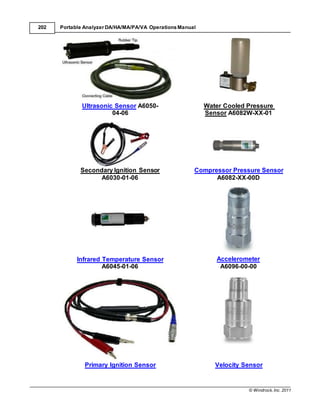
Infrared Temperature Sensor A6045-01-06
Accelerometer A6096-00-00
Magnetic Base 1" Round Flat A905-02
Velocity Sensor A6095-00-00
Magnetic Base 1" Round 2-Pole A905-01
Accelerometer Cable A6061-00-06
DC Pressure Cable A6060-00-08
Ultrasonic Pick Up A6050-04-06
DC Pressure Sensor A6082-XX-00
DC Pressure Sensor (High Temp) A6082-XX-01
Manual A6310-00-M/PA
Software CD-ROM A6310-00-SW/PA
USB to USB Cable A6306-03-00
Other parts may be present depending on the options selected and/or purchased.
Note: 6310 only.
A battery is typically shipped in the analyzer. Under normal circumstances, a battery
should be kept in the analyzer when not in use. Having a battery in the unit will help keep
the internal CPU's CMOS coin cell charged and the operating configuration parameters
intact for many years. Leaving the battery out of the unit may shorten the life of this coin
cell requiring replacement and loss of the operating configuration parameters.
2.4 Batteries & Charging
General Battery Care information.
Each kit may contain one of the pictured batteries and chargers shown below.
© Windrock, Inc. 2011
Read ThisFirst 7
E-Moli Li-Ion Energy Access
2.4.1 Batteries
For Optimum Performance of Your Batteries
This battery needs to be charged before use. Refer to the "Instructions for Use of the Battery
Recharger" section of this manual for charging instructions.
When the battery is charged for the first time, the charger may indicate that charging has been
completed after just 10 to 15 minutes. This is normal and can happen with any rechargeable battery
when it is first charged or if it has been stored unused for a prolonged period. Simply remove the
battery from the charger and repeat the charging procedure. There is no need to discharge this
battery between these charges.
Best charging results are obtained at normal room temperature, 70°F (21°C) +/- 8°F (2°C). Charging
beyond this range is permissible but will not result in the battery's full capacity being reached.
Charging at temperatures below 50°F (10°C) or above 95°F (35°C) is not recommended.
It is normal for the battery to become warm during charging or after use.
It is not necessary to fully discharge this Li-ion battery before recharging. However, top-off type
charging can confuse the battery if charged this way consistently.
All rechargeable batteries will gradually lose their charge over time when they are left in storage. If this
battery will be left in storage for more than a few days prior to use, a top-off charge to regain full
capacity is recommended.
Note: 6310 only
A battery is typically shipped in the analyzer. Under normal circumstances, a battery
should be kept in the analyzer when not in use. Having a battery in the unit will help keep
the internal CPU's CMOS coin cell charged and the operating configuration parameters
intact for many years. Leaving the battery out of the unit may shorten the life of this coin
cell requiring replacement and loss of the operating configuration parameters.
Wipe the metal terminals with a soft, dry cloth if they become dirty.
Safety Precautions for the Batteries
Do not disassemble or attempt to open the battery under any circumstances.
The battery can explode, leak or catch fire if heated or exposed to fire or high temperatures. Do not
short circuit the battery by directly connecting the metal terminals (+,-). Be certain that no metal
objects such as coins, paper clips, etc., touch the terminals.
Only use the charger recommended by the device manufacturer.
To Avoid Damage to this Battery
Do not drop this battery or subject it to mechanical shock.
Use this battery only with equipment that specifies its use.
Recycling Information
Windrock is committed to environmental responsibility and would like our customers to recycle this
© Windrock, Inc. 2011
8 Portable Analyzer DA/HA/MA/PA/VA Operations Manual
battery. For instructions on how to recycle this battery, call your local battery recycler
2.4.1.1 E-Moli
LITHIUM-ION STYLE BATTERY
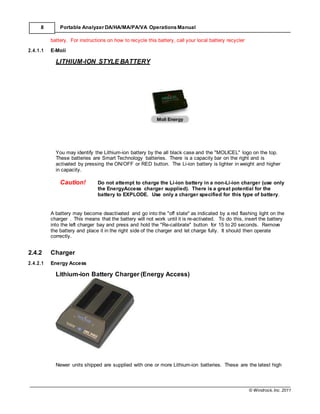
You may identify the Lithium-ion battery by the all black case and the "MOLICEL" logo on the top.
These batteries are Smart Technology batteries. There is a capacity bar on the right and is
activated by pressing the ON/OFF or RED button. The Li-ion battery is lighter in weight and higher
in capacity.
Caution! Do not attempt to charge the Li-ion battery in a non-Li-ion charger (use only
the EnergyAccess charger supplied). There is a great potential for the
battery to EXPLODE. Use only a charger specified for this type of battery.
A battery may become deactivated and go into the "off state" as indicated by a red flashing light on the
charger . This means that the battery will not work until it is re-activated. To do this, insert the battery
into the left charger bay and press and hold the "Re-calibrate" button for 15 to 20 seconds. Remove
the battery and place it in the right side of the charger and let charge fully. It should then operate
correctly.
2.4.2 Charger
2.4.2.1 Energy Access
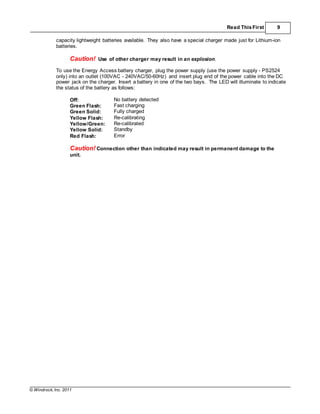
Lithium-ion Battery Charger (Energy Access)
Newer units shipped are supplied with one or more Lithium-ion batteries. These are the latest high
© Windrock, Inc. 2011
Read ThisFirst 9
capacity lightweight batteries available. They also have a special charger made just for Lithium-ion
batteries.
Caution! Use of other charger may result in an explosion.
To use the Energy Access battery charger, plug the power supply (use the power supply - PS2524
only) into an outlet (100VAC - 240VAC/50-60Hz) and insert plug end of the power cable into the DC
power jack on the charger. Insert a battery in one of the two bays. The LED will illuminate to indicate
the status of the battery as follows:
Off: No battery detected
Green Flash: Fast charging
Green Solid: Fully charged
Yellow Flash: Re-calibrating
Yellow/Green: Re-calibrated
Yellow Solid: Standby
Red Flash: Error
Caution! Connection other than indicated may result in permanent damage to the
unit.
© Windrock, Inc. 2011
10 Portable Analyzer DA/HA/MA/PA/VA Operations Manual
Re-calibration:
SMBus Smart Batteries contain a microchip that monitors battery usage and tracks how much
capacity is available from the pack. It is possible for this process to accumulate errors due to
temperature fluctuations, aging, self-discharge, and other factors.
To keep the internal information as accurate as possible, it is occasionally necessary to run the
pack through the calibration cycle. This involves fully charging the pack, completely discharging it,
and then recharging it again. The charger performs these steps automatically when a calibration
is initiated.
To calibrate a pack, place it in the left bay and push the red (or blue) arrow located between the
bays. This process can take 16 hours. Some packs do not have the capability to be re-calibrated.
The charger automatically senses this and simply drops back into the normal charge mode.
Specifications
SMBus: Level 3
Charge Rate: 3.0 Amps
2 Bays: Sequential
Charge Time: 3 hours each
Recalibration: SMBus 12v@1.2A
Recal Time: 9 hours
Weight: 9.5 oz
Material: ABS GSM
Color: Black
Dimension Inches: 4.89 x 6.89 x 2.02
3
Dimension mm:
Getting Started
124 x 175 x 50
3.1 Connections
Several connections are provided on the analyzer unit. See the figures below for placement of the
connections. The portable analyzer series have the following layouts:
/PA (Performance analyzer) contains all connections shown below
/MA (Maintenance analyzer) does not have channels 3 or 4 installed
/CA (Combustion analyzer) does not have channels 2, 3, or 4 installed
6310 Only
Looking at the rear panel to the far right, a connector labeled "KBD" is used for attachment of an
external PS2 style keyboard (included in the /PA & /MA kits only). If a PS2 style keyboard is not
available, a standard PC keyboard may be used, but the number pad on the right of a large
keyboard is not supported (Num Lock will do nothing). The connector on older stylekeyboards is a
5 pin DIN style and an adapter will be needed. These are available at most office supply or
computer retailers. You may also contact Windrock, Inc. to purchase this adapter.
6320 Only
A standard USB keyboard may be used by connecting it to the USB port found on the left side of the
analyzer.
Caution! Do not connect the external keyboard while near engine ignition systems.
This may damage both the keyboard and the analyzer.
© Windrock, Inc. 2011
Getting Started 11
Next, there are five round six-pin (referred to as "Lemo") transducer input connectors. These
connectors are for the transducers and shaft (crank-angle) encoder provided in the analyzer kit.
The connector labeled "ANT" is for the wireless encoder receiver antenna. Attach the supplied
antenna by screwing it on hand tight.
Caution! Do not over-tighten the antenna. The antenna only needs to be finger tight.
There is potential to break the connector by over-tightening.
On the far left, an external AC-adapter connector is provided for use with the supplied charger power
pack. You may simply unplug the power pack from the charger base and plug it directly into the
analyzer. This will provide sufficient power to leave the instrument on for reviewing stored data
without using up the battery.
Caution! Make sure to keep a battery in the analyzer when using the external power
adapter.
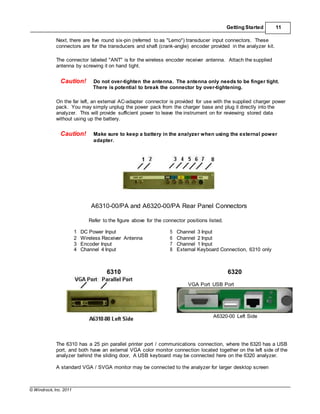
A6310-00/PA and A6320-00/PA Rear Panel Connectors
Refer to the figure above for the connector positions listed.
1 DC Power Input 5 Channel 3 Input
2 Wireless Receiver Antenna 6 Channel 2 Input
3 Encoder Input 7 Channel 1 Input
4 Channel 4 Input 8 External Keyboard Connection, 6310 only
6310 6320
VGA Port USB Port
A6320-00 Left Side
The 6310 has a 25 pin parallel printer port / communications connection, where the 6320 has a USB
port, and both have an external VGA color monitor connection located together on the left side of the
analyzer behind the sliding door, A USB keyboard may be connected here on the 6320 analyzer.
A standard VGA / SVGA monitor may be connected to the analyzer for larger desktop screen
© Windrock, Inc. 2011
12 Portable Analyzer DA/HA/MA/PA/VA Operations Manual
viewing. The operating software is set for 640 x 480 pixels of resolution. There are no settings to
change this resolution for different monitor types. However, both color and B&W are supported.
Please see the chapter on "Utilities" in this manual for use of the 25 pin parallel port for file transfer
to Windows and "Hardware Configuration" later in this chapter on printing from the parallel port of
your 6310. For information on use of the USB port see the Appendix in the Windows software
manual.
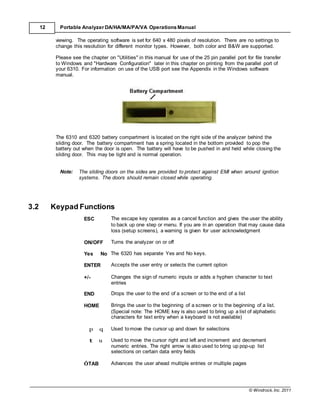
The 6310 and 6320 battery compartment is located on the right side of the analyzer behind the
sliding door. The battery compartment has a spring located in the bottom provided to pop the
battery out when the door is open. The battery will have to be pushed in and held while closing the
sliding door. This may be tight and is normal operation.
Note: The sliding doors on the sides are provided to protect against EMI when around ignition
systems. The doors should remain closed while operating.
3.2 Keypad Functions
ESC The escape key operates as a cancel function and gives the user the ability
to back up one step or menu. If you are in an operation that may cause data
loss (setup screens), a warning is given for user acknowledgment
ON/OFF Turns the analyzer on or off
Yes No The 6320 has separate Yes and No keys.
ENTER Accepts the user entry or selects the current option
+/- Changes the sign of numeric inputs or adds a hyphen character to text
entries
END Drops the user to the end of a screen or to the end of a list
HOME Brings the user to the beginning of a screen or to the beginning of a list.
(Special note: The HOME key is also used to bring up a list of alphabetic
characters for text entry when a keyboard is not available)
p q Used tomove the cursor up and down for selections
t u Used to move the cursor right and left and increment and decrement
numeric entries. The right arrow is also used to bring up pop-up list
selections on certain data entry fields
ÓTAB Advances the user ahead multiple entries or multiple pages
© Windrock, Inc. 2011
Getting Started 13
Ñ
ÔTAB
Ò
Returns the user back multiple entries or multiple pages
Period Enters a decimal point as needed for numeric entries
Numeric
Keys
Enters the numeric character in data entry fields and provides short cut
menu/function selections. If the user is on a menu screen, simply pressing
the number associated with the option will execute the option
Note: If the entry screen has multiple lines requiring duplicate entries, you can press the
"ENTER" key and all the data from the previous line will be transferred to the new
line. For example, each cylinder's bore, stroke, and connecting rod length may be
copied from line to line since they may all be of the same values.
3.3 HardwareConfiguration, 6310
Before using the analyzer, take the time to become familiar with the basic operation and set up. There
are a number of options, setup entries, and keystrokes with which you should be familiar prior to taking
your first set of data.
When you first receive your analyzer prior to your data collection, you must first set up your own
stations, machines, and databases for those machines. Subsequently, when the analyzer is turned on,
you will be positioned at the menu for the last used station and machine. This enables you to power
down the analyzer to exchange batteries and power back up to the current machine or station, thus
saving time in selecting the same station and machine again. From this menu, you can select a new
machine or station by pressing "ESC" once or twice, respectively.
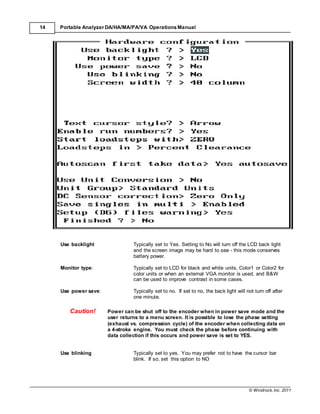
There is a basic set of configuration parameters that may be set on the analyzer to optimize the
operation for your needs. These are located in the Hardware Configuration option of the Station
Selection Menu.
© Windrock, Inc. 2011
14 Portable Analyzer DA/HA/MA/PA/VA Operations Manual
Use backlight Typically set to Yes. Setting to No will turn off the LCD back light
and the screen image may be hard to see - this mode conserves
battery power.
Monitor type: Typically set to LCD for black and white units, Color1 or Color2 for
color units or when an external VGA monitor is used, and B&W
can be used to improve contrast in some cases.
Use power save: Typically set to no. If set to no, the back light will not turn off after
one minute.
Caution! Power can be shut off to the encoder when in power save mode and the
user returns to a menu screen. It is possible to lose the phase setting
(exhaust vs. compression cycle) of the encoder when collecting data on
a 4-stroke engine. You must check the phase before continuing with
data collection if this occurs and power save is set to YES.
Use blinking Typically set to yes. You may prefer not to have the cursor bar
blink. If so, set this option to NO
© Windrock, Inc. 2011
Getting Started 15
Screen width Typically set to 40 column
Text Cursor Style The style of the cursor may be changed between ARROW, BAR,
or BOX
Enable run numbers: This allows the collection of data using run numbers. A run is an
individual set of data collected in sequence on the same day. By
assigning a run number, the data sets are then separated and
recalled for reporting individually. If this option is turned on, the
user will be prompted to enter a run number at the time the data is
collected. Run numbers start with 1 and can be incremented at any
time by the user. If one hour has passed without collecting data,
the user will be prompted "Do you want to change run number?".
At that time, you may continue with the same run number or
change it if needed
Start load steps with: "Load steps" are a control mechanism for many compressors and
each load step has clearance data associated with it. In the
"Compressor Setup" section, a load step table is used to hold this
clearance data. This option, to start with ZERO, ONE, or a
LETTER for the load step increment, should be set prior to doing
compressor setups.
Load steps in: Clearance data for each end of a cylinder is entered in the
"Compressor Setup" section. The clearance may be entered in
either "Percent clearance" (percent of swept volume) or "Cubic
inches".
Autoscan first in take data: This option controls how the data collection process runs. '
Autoscan first in take data' has four options.
1. When set to yes, entering the data collection process will
automatically start the analyzer auto scanning data and updating
the screen with each collection of data until the 3 key [STOP
AUTOSCAN] is pressed.
2. 'Yes auto save' If this is selected during take data, the last
single scan of auto scanning will be saved before taking the
normal data without asking if you want it saved.
3. 'Yes no save' will not save the last single autoscan and proceed
to taking normal data without asking.
4. 'No' turns off "Autoscan"
Use unit conversion: NO uses the default standard units that have always been
available. Setting to YES will allow selecting from different
conversion groups (see "Unit group" below).
Unit group: Allows selecting either Standard or Metric Units. If you have added
additional custom groups in the Win63X0PA software and
downloaded them to the analyzer, those custom groups will also be
available for selection.
DC Sensor correction: Allows you to select from three choices.
1. "Zero Only" allows you to reference the zero pressure to the
current atmospheric pressure.
2. "Two Point one channel" allows you to provide known pressures
for calibration, one channel at a time.
3. "Two Point four channel" allows you to provide known pressures
for calibration, four channels at a time.
© Windrock, Inc. 2011
16 Portable Analyzer DA/HA/MA/PA/VA Operations Manual
For multi cycle scans: You have the options of "Average multi scans" or "Use a
representative scan".
(D6) files warning This is set to yes to receive a reminder to transfer the setups to the
computer after setups have changed in the analyzer.
The analyzer contains a status line at the bottom of the display. This line contains information about
the battery capacity and the date and time. The battery capacity is monitored when the unit is
operating from the battery. If the unit is on AC power, the status line will add "Using AC" to the battery
voltage value. If the battery capacity drops to approximately 9 volts, a warning will be displayed and
the analyzer will automatically turn off.
Caution! When the battery goes below 10.0V, save the current data and change
the battery. Any data stored up to this point is safe. Only data that is
currently being collected and displayed or setup information currently
being entered could be lost.
3.4 System Configuration, 6320
Before using the analyzer, take the time to become familiar with the basic operation and set up. There
are a number of options, setup entries, and keystrokes with which you should be familiar prior to taking
your first set of data.
When you first receive your analyzer prior to your data collection, you must first set up your own
stations, machines, and databases for those machines. Subsequently, when the analyzer is turned on,
you will be positioned at the menu for the last used station and machine. This enables you to power
down the analyzer to exchange batteries and power back up to the current machine or station, thus
saving time in selecting the same station and machine again. From this menu, you can select a new
machine or station by pressing "ESC" once or twice, respectively.
There is a basic set of configuration parameters that may be set on the analyzer to optimize the
operation for your needs. These are located in the System Configuration option of the Station Selection
Menu.
© Windrock, Inc. 2011
Getting Started 17
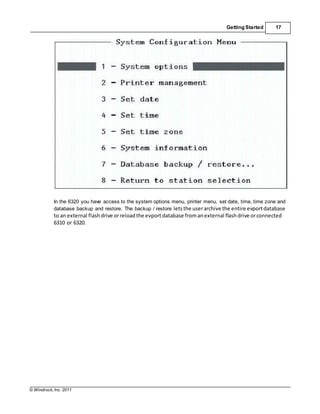
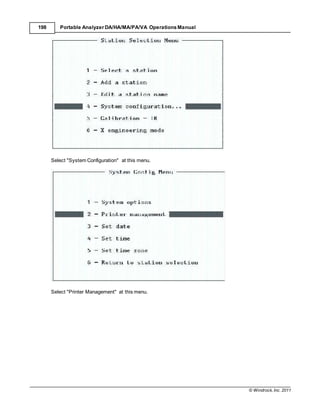
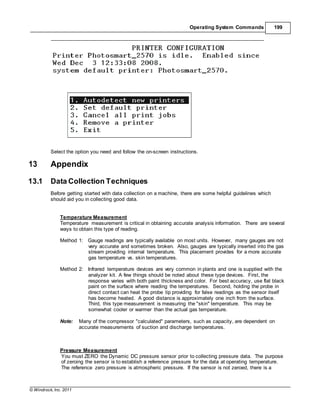
In the 6320 you have access to the system options menu, printer menu, set date, time, time zone and
database backup and restore. The backup / restore letsthe userarchive the entire evportdatabase
to an external flashdrive orreloadthe evport database fromanexternal flashdrive orconnected
6310 or 6320.
© Windrock, Inc. 2011
18 Portable Analyzer DA/HA/MA/PA/VA Operations Manual
3.4.1 System Options
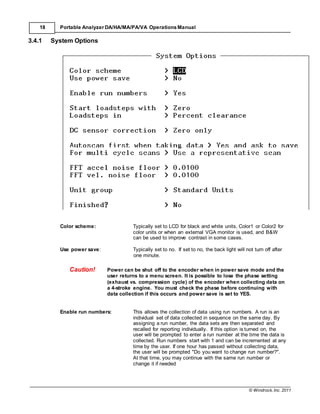
Color scheme: Typically set to LCD for black and white units, Color1 or Color2 for
color units or when an external VGA monitor is used, and B&W
can be used to improve contrast in some cases.
Use power save: Typically set to no. If set to no, the back light will not turn off after
one minute.
Caution! Power can be shut off to the encoder when in power save mode and the
user returns to a menu screen. It is possible to lose the phase setting
(exhaust vs. compression cycle) of the encoder when collecting data on
a 4-stroke engine. You must check the phase before continuing with
data collection if this occurs and power save is set to YES.
Enable run numbers: This allows the collection of data using run numbers. A run is an
individual set of data collected in sequence on the same day. By
assigning a run number, the data sets are then separated and
recalled for reporting individually. If this option is turned on, the
user will be prompted to enter a run number at the time the data is
collected. Run numbers start with 1 and can be incremented at any
time by the user. If one hour has passed without collecting data,
the user will be prompted "Do you want to change run number?".
At that time, you may continue with the same run number or
change it if needed
© Windrock, Inc. 2011
Getting Started 19
© Windrock, Inc. 2011
20 Portable Analyzer DA/HA/MA/PA/VA Operations Manual
Caution! When the battery goes below 10.0V, save the current data and change
the battery. Any data stored up to this point is safe. Only data that is
currently being collected and displayed or setup information currently
being entered could be lost.
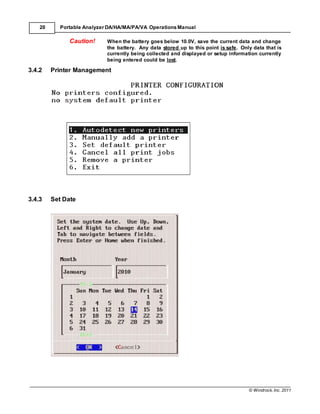
3.4.2 Printer Management
3.4.3 Set Date
© Windrock, Inc. 2011
Getting Started 21
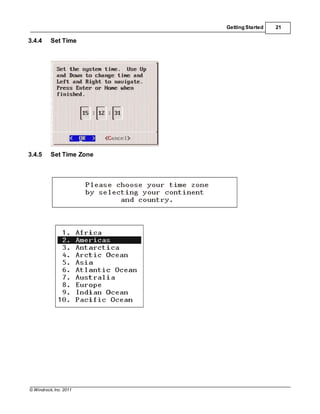
3.4.4 Set Time
3.4.5 Set Time Zone
© Windrock, Inc. 2011
22 Portable Analyzer DA/HA/MA/PA/VA Operations Manual
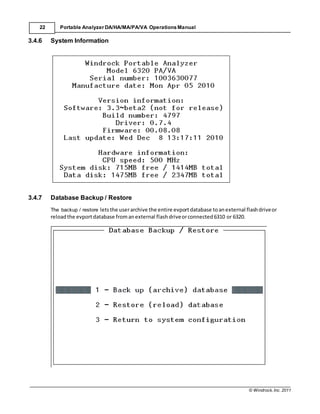
3.4.6 System Information
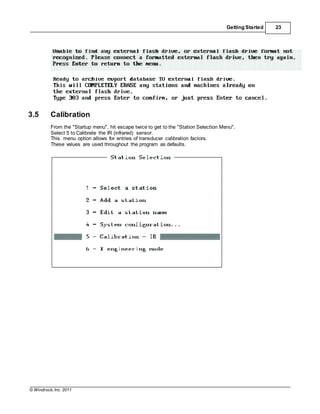
3.4.7 Database Backup / Restore
The backup / restore letsthe userarchive the entire evportdatabase toanexternal flashdriveor
reloadthe evportdatabase fromanexternal flashdriveorconnected6310 or 6320.
© Windrock, Inc. 2011
Getting Started 23
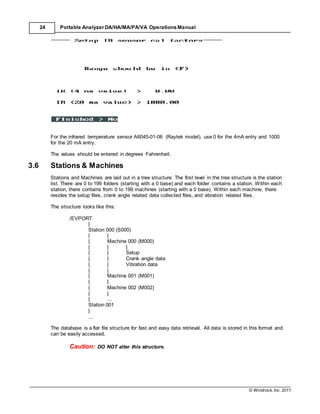
3.5 Calibration
From the "Startup menu", hit escape twice to get to the "Station Selection Menu".
Select 5 to Calibrate the IR (infrared) sensor.
This menu option allows for entries of transducer calibration factors.
These values are used throughout the program as defaults.
© Windrock, Inc. 2011
24 Portable Analyzer DA/HA/MA/PA/VA Operations Manual
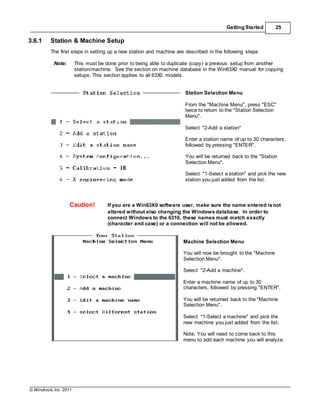
For the infrared temperature sensor A6045-01-06 (Raytek model), use 0 for the 4mA entry and 1000
for the 20 mA entry.
The values should be entered in degrees Fahrenheit.
3.6 Stations & Machines
Stations and Machines are laid out in a tree structure. The first level in the tree structure is the station
list. There are 0 to 199 folders (starting with a 0 base) and each folder contains a station. Within each
station, there contains from 0 to 199 machines (starting with a 0 base). Within each machine, there
resides the setup files, crank angle related data collected files, and vibration related files.
The structure looks like this:
/EVPORT
|
Station 000 (S000)
| |
| Machine 000 (M000)
| | |
| | Setup
| | Crank angle data
| | Vibration data
| |
| Machine 001 (M001)
| |
| Machine 002 (M002)
| |
| ...
Station 001
|
...
The database is a flat file structure for fast and easy data retrieval. All data is stored in this format and
can be easily accessed.
Caution: DO NOT alter this structure.
© Windrock, Inc. 2011
Getting Started 25
3.6.1 Station & Machine Setup
The first steps in setting up a new station and machine are described in the following steps:
Note: This must be done prior to being able to duplicate (copy) a previous setup from another
station/machine. See the section on machine database in the Win63X0 manual for copying
setups. This section applies to all 63X0 models.
Station Selection Menu
From the "Machine Menu", press "ESC"
twice to return to the "Station Selection
Menu".
Select "2-Add a station"
Enter a station name of up to 30 characters,
followed by pressing "ENTER".
You will be returned back to the "Station
Selection Menu".
Select "1-Select a station" and pick the new
station you just added from the list.
Caution! If you are a Win63X0 software user, make sure the name entered isnot
altered without also changing the Windows database. In order to
connect Windows to the 6310, these names must match exactly
(character and case) or a connection will not be allowed.
Machine Selection Menu
You will now be brought to the "Machine
Selection Menu".
Select "2-Add a machine".
Enter a machine name of up to 30
characters, followed by pressing "ENTER".
You will be returned back to the "Machine
Selection Menu".
Select "1-Select a machine" and pick the
new machine you just added from the list.
Note; You will need to come back to this
menu to add each machine you will analyze.
© Windrock, Inc. 2011
26 Portable Analyzer DA/HA/MA/PA/VA Operations Manual
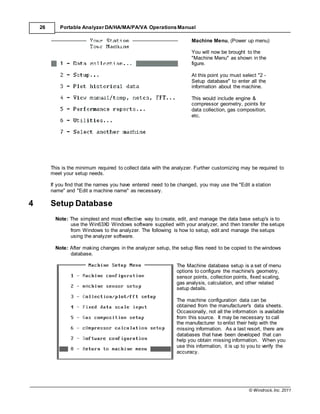
Machine Menu, (Power up menu)
You will now be brought to the
"Machine Menu" as shown in the
figure.
At this point you must select "2 -
Setup database" to enter all the
information about the machine.
This would include engine &
compressor geometry, points for
data collection, gas composition,
etc.
This is the minimum required to collect data with the analyzer. Further customizing may be required to
meet your setup needs.
If you find that the names you have entered need to be changed, you may use the "Edit a station
name" and "Edit a machine name" as necessary.
4 Setup Database
Note: The simplest and most effective way to create, edit, and manage the data base setup's is to
use the Win63X0 Windows software supplied with your analyzer, and then transfer the setups
from Windows to the analyzer. The following is how to setup, edit and manage the setups
using the analyzer software.
Note: After making changes in the analyzer setup, the setup files need to be copied to the windows
database.
The Machine database setup is a set of menu
options to configure the machine's geometry,
sensor points, collection points, fixed scaling,
gas analysis, calculation, and other related
setup details.
The machine configuration data can be
obtained from the manufacturer's data sheets.
Occasionally, not all the information is available
from this source. It may be necessary to call
the manufacturer to enlist their help with the
missing information. As a last resort, there are
databases that have been developed that can
help you obtain missing information. When you
use this information, it is up to you to verify the
accuracy.
© Windrock, Inc. 2011
Setup Database 27
Prior to actually setting up machine configuration, it would be prudent to read the section on "Fixed
data scale input" and "Gas composition setup" as these are used in the machine configuration
portion of the setup.
Below is an outline to setting up the machine database. It is a guide to organizing your data before
continuing. We suggest you gather the required data prior to starting the entry process.
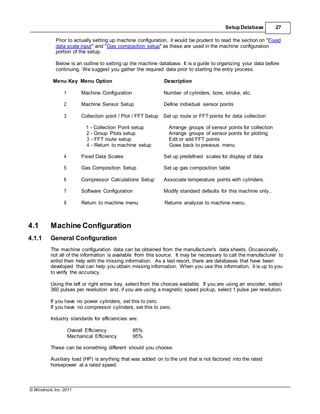
Menu Key Menu Option Description
1 Machine Configuration Number of cylinders, bore, stroke, etc.
2 Machine Sensor Setup Define individual sensor points
3 Collection point / Plot / FFT Setup Set up route or FFT points for data collection
1 - Collection Point setup Arrange groups of sensor points for collection
2 - Group Plots setup Arrange groups of sensor points for plotting
3 - FFT route setup Edit or add FFT points
4 - Return to machine setup Goes back to previous menu
4 Fixed Data Scales Set up predefined scales for display of data
5 Gas Composition Setup Set up gas composition table
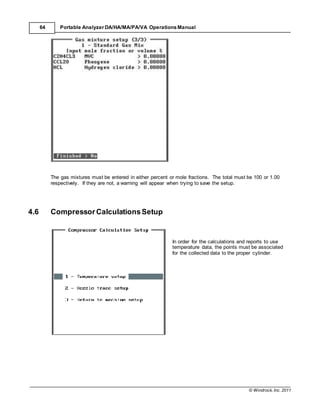
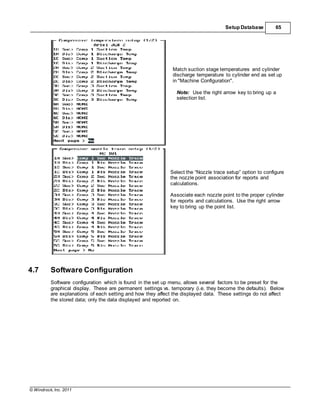
6 Compressor Calculations Setup Associate temperature points with cylinders.
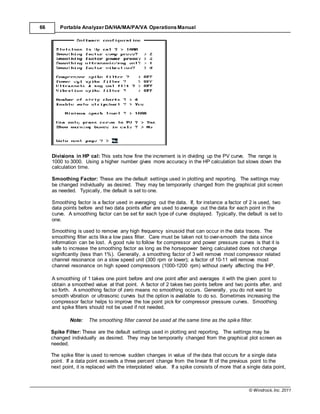
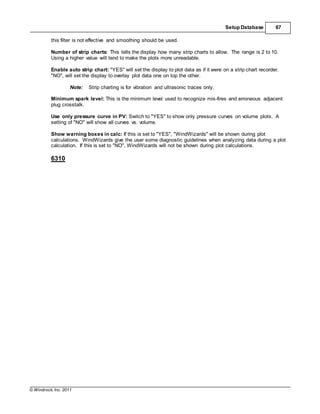
7 Software Configuration Modify standard defaults for this machine only..
8 Return to machine menu Returns analyzer to machine menu.
4.1 Machine Configuration
4.1.1 General Configuration
The machine configuration data can be obtained from the manufacturer's data sheets. Occasionally,
not all of the information is available from this source. It may be necessary to call the manufacturer to
enlist their help with the missing information. As a last resort, there are databases that have been
developed that can help you obtain missing information. When you use this information, it is up to you
to verify the accuracy.
Using the left or right arrow key, select from the choices available. If you are using an encoder, select
360 pulses per revolution and, if you are using a magnetic speed pickup, select 1 pulse per revolution.
If you have no power cylinders, set this to zero.
If you have no compressor cylinders, set this to zero.
Industry standards for efficiencies are:
Overall Efficiency 85%
Mechanical Efficiency 95%
These can be something different should you choose.
Auxiliary load (HP) is anything that was added on to the unit that is not factored into the rated
horsepower at a rated speed.
© Windrock, Inc. 2011
28 Portable Analyzer DA/HA/MA/PA/VA Operations Manual
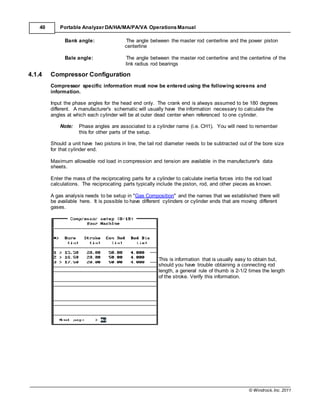
This is information that is usually easy to obtain but, should you have trouble obtaining a connecting
rod length, a general rule of thumb is 2-1/2 times the length of the stroke. Verify this information. The
screen and entries listed below relate to the engine portion of the setup. The compressor
configuration, if required, continues in the next section.
Note: The angle values entered for the engine and compressor phase angles, engine event
angles, ignition timing angle and power cylinder pressure tracking angles are to be entered
as degrees after TDC. On four-stroke engines the angles are after TDC of the
compression stroke using a range of 0 to 720 degrees.
Strokes per cyl 2/4: is used to set the analyzer up for either a two-cycle or four-cycle machine. Note
that all compressor data is automatically set to two-cycle mode regardless of this setting. If the shaft
encoder is used, the switch on the side should always be left in four-stroke mode even if on the
compressor of an integral style machine. See the section on encoders for more information.
Note: In the following setup screens, use the left or right arrow keys to select from the choices
available, or enter the numeric values as required.
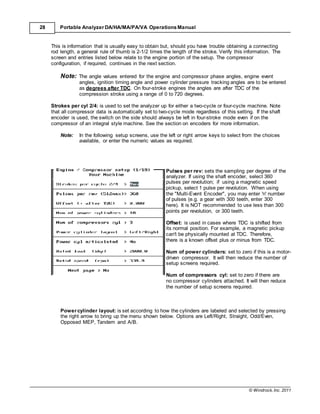
Pulses per rev: sets the sampling per degree of the
analyzer. If using the shaft encoder, select 360
pulses per revolution; if using a magnetic speed
pickup, select 1 pulse per revolution. When using
the "Multi-Event Encoder", you may enter 'n' number
of pulses (e.g. a gear with 300 teeth, enter 300
here). It is NOT recommended to use less than 300
points per revolution, or 300 teeth.
Offset: is used in cases where TDC is shifted from
its normal position. For example, a magnetic pickup
can't be physically mounted at TDC. Therefore,
there is a known offset plus or minus from TDC.
Num of power cylinders: set to zero if this is a motor-
driven compressor. It will then reduce the number of
setup screens required.
Num of compressors cyl: set to zero if there are
no compressor cylinders attached. It will then reduce
the number of setup screens required.
Power cylinder layout: is set according to how the cylinders are labeled and selected by pressing
the right arrow to bring up the menu shown below. Options are Left/Right, Straight, Odd/Even,
Opposed MEP, Tandem and A/B.
© Windrock, Inc. 2011
Setup Database 29
Note: Ingersol-Rand "V" style should use straight for sequential numbering.
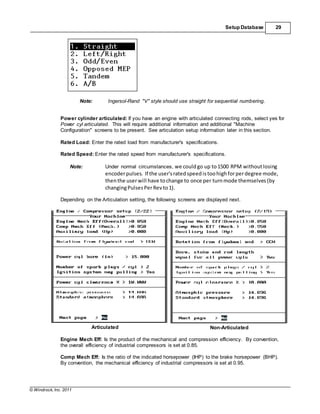
Power cylinder articulated: If you have an engine with articulated connecting rods, select yes for
Power cyl articulated. This will require additional information and additional "Machine
Configuration" screens to be present. See articulation setup information later in this section.
Rated Load: Enter the rated load from manufacturer's specifications.
Rated Speed: Enter the rated speed from manufacturer's specifications.
Note: Under normal circumstances, we couldgo up to1500 RPM withoutlosing
encoderpulses. If the user'sratedspeed istoohighforperdegree mode,
thenthe userwill have tochange to once per turnmode themselves (by
changingPulsesPerRev to1).
Depending on the Articulation setting, the following screens are displayed next.
Articulated Non-Articulated
Engine Mech Eff: Is the product of the mechanical and compression efficiency. By convention,
the overall efficiency of industrial compressors is set at 0.85.
Comp Mech Eff: Is the ratio of the indicated horsepower (IHP) to the brake horsepower (BHP).
By convention, the mechanical efficiency of industrial compressors is set at 0.95.
© Windrock, Inc. 2011
30 Portable Analyzer DA/HA/MA/PA/VA Operations Manual
Auxiliaryload (HP): Enter the total BHP of any additional pieces of equipment driven from the
crankshaft.
Note: Engine mechanical efficiency, compressor mechanical efficiency, and auxiliary
horsepower are used for compressor calculations only.
For non-articulated engines:
Bore, stroke and rod length equal for all power cylinders: This selection gives the user the
ability to enter a common size bore for all power cylinders, or the ability to enter each individual
power cylinder's bore. This would be important if power cylinder(s) have been rebuilt and are a
different size. An additional screen will be available later in the setup for entering the bores.
Or for articulated engines enter:
Power cyl bore (in): This is the power cylinder's bore in inches.
Number of spark plugs: Select the number of spark plugs located on each cylinder. The options
are 0, 1, or 2 plugs per cylinder.
Ignition system neg pulling: (6310 Only) Enter YES if the ignition system you are analyzing goes
negative with respect to ground.
Power cylinder clearance: This entry is used for the display of LogP-LogV curves of a power
cylinder. This value is not used in any power cylinder calculations.
Atmospheric pressure: This is the atmospheric pressure reported at the location of the engine.
Standard pressure: The weight of air as measured at sea level. This is typically set at 14.696
PSI.
Note: If the articulation setting is set to Yes, please refer to the end of this section for the
data entry screens that will require entries.
4.1.2 Engine Configuration
Engine specific information must now be entered using the following screens and information.
© Windrock, Inc. 2011
Setup Database 31
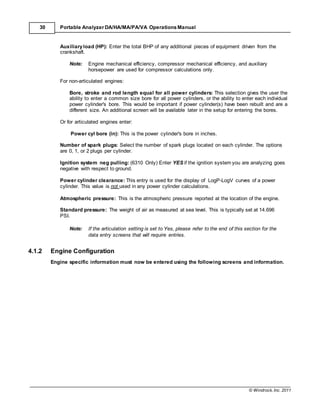
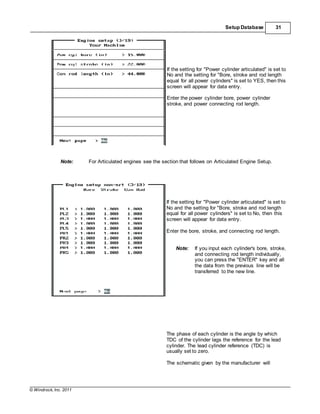
If the setting for "Power cylinder articulated" is set to
No and the setting for "Bore, stroke and rod length
equal for all power cylinders" is set to YES, then this
screen will appear for data entry.
Enter the power cylinder bore, power cylinder
stroke, and power connecting rod length.
Note: For Articulated engines see the section that follows on Articulated Engine Setup.
If the setting for "Power cylinder articulated" is set to
No and the setting for "Bore, stroke and rod length
equal for all power cylinders" is set to No, then this
screen will appear for data entry.
Enter the bore, stroke, and connecting rod length.
Note: If you input each cylinder's bore, stroke,
and connecting rod length individually,
you can press the "ENTER" key and all
the data from the previous line will be
transferred to the new line.
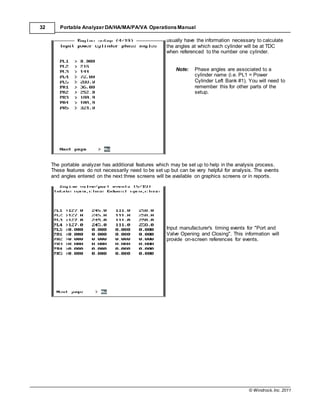
The phase of each cylinder is the angle by which
TDC of the cylinder lags the reference for the lead
cylinder. The lead cylinder reference (TDC) is
usually set to zero.
The schematic given by the manufacturer will
© Windrock, Inc. 2011
32 Portable Analyzer DA/HA/MA/PA/VA Operations Manual
usually have the information necessary to calculate
the angles at which each cylinder will be at TDC
when referenced to the number one cylinder.
Note: Phase angles are associated to a
cylinder name (i.e. PL1 = Power
Cylinder Left Bank #1). You will need to
remember this for other parts of the
setup.
The portable analyzer has additional features which may be set up to help in the analysis process.
These features do not necessarily need to be set up but can be very helpful for analysis. The events
and angles entered on the next three screens will be available on graphics screens or in reports.
Input manufacturer's timing events for "Port and
Valve Opening and Closing". This information will
provide on-screen references for events.
© Windrock, Inc. 2011
Articulated Engine Setup:
SetupDatabase 33
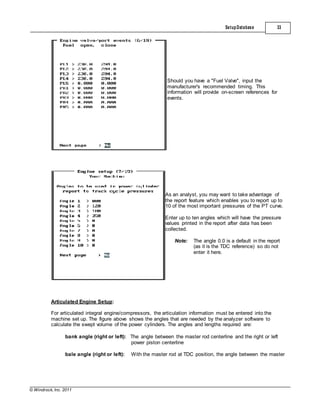
Should you have a "Fuel Valve", input the
manufacturer's recommended timing. This
information will provide on-screen references for
events.
As an analyst, you may want to take advantage of
the report feature which enables you to report up to
10 of the most important pressures of the PT curve.
Enter up to ten angles which will have the pressure
values printed in the report after data has been
collected.
Note: The angle 0.0 is a default in the report
(as it is the TDC reference) so do not
enter it here.
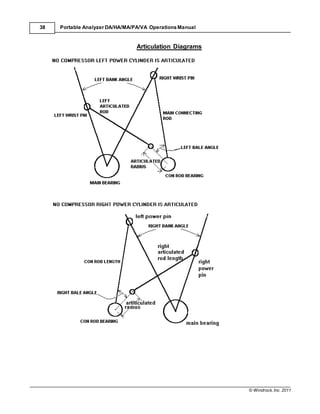
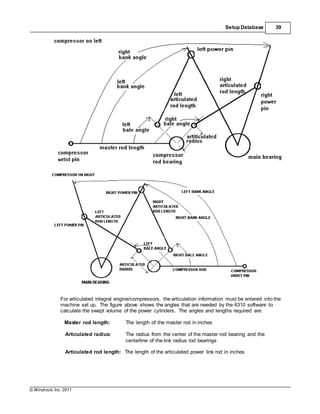
For articulated integral engine/compressors, the articulation information must be entered into the
machine set up. The figure above shows the angles that are needed by the analyzer software to
calculate the swept volume of the power cylinders. The angles and lengths required are:
bank angle (right or left): The angle between the master rod centerline and the right or left
power piston centerline
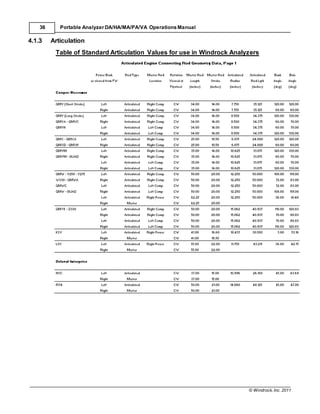
bale angle (right or left): With the master rod at TDC position, the angle between the master
© Windrock, Inc. 2011
34 Portable Analyzer DA/HA/MA/PA/VA Operations Manual
rod centerline and the right or left articulated pin centerline
link radius: The radius from the center of the rod bearing and the centerline of the link rod
pins
rod length: The length of the master rod from center of pin to center of bearing
link rod: The length of the power link rod centerline-to-centerline
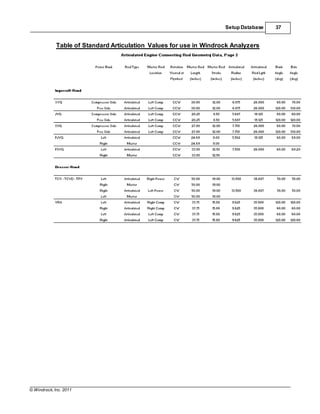
Refer to the table and diagrams in the Articulation appendix.
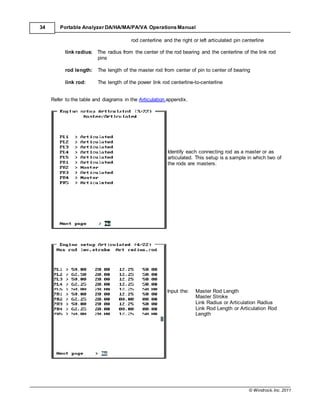
Identify each connecting rod as a master or as
articulated. This setup is a sample in which two of
the rods are masters.
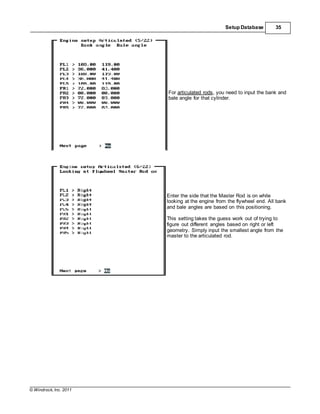
Input the: Master Rod Length
Master Stroke
Link Radius or Articulation Radius
Link Rod Length or Articulation Rod
Length
© Windrock, Inc. 2011
Setup Database 35
For articulated rods, you need to input the bank and
bale angle for that cylinder.
Enter the side that the Master Rod is on while
looking at the engine from the flywheel end. All bank
and bale angles are based on this positioning.
This setting takes the guess work out of trying to
figure out different angles based on right or left
geometry. Simply input the smallest angle from the
master to the articulated rod.
© Windrock, Inc. 2011
36 Portable Analyzer DA/HA/MA/PA/VA Operations Manual
4.1.3 Articulation
Table of Standard Articulation Values for use in Windrock Analyzers
© Windrock, Inc. 2011
Setup Database 37
Table of Standard Articulation Values for use in Windrock Analyzers
© Windrock, Inc. 2011
38 Portable Analyzer DA/HA/MA/PA/VA Operations Manual
Articulation Diagrams
© Windrock, Inc. 2011
Setup Database 39
For articulated integral engine/compressors, the articulation information must be entered into the
machine set up. The figure above shows the angles that are needed by the 6310 software to
calculate the swept volume of the power cylinders. The angles and lengths required are:
Master rod length: The length of the master rod in inches
Articulated radius: The radius from the center of the master rod bearing and the
centerline of the link radius rod bearings
Articulated rod length: The length of the articulated power link rod in inches
© Windrock, Inc. 2011
40 Portable Analyzer DA/HA/MA/PA/VA Operations Manual
Bank angle: The angle between the master rod centerline and the power piston
centerline
Bale angle: The angle between the master rod centerline and the centerline of the
link radius rod bearings
4.1.4 Compressor Configuration
Compressor specific information must now be entered using the following screens and
information.
Input the phase angles for the head end only. The crank end is always assumed to be 180 degrees
different. A manufacturer's schematic will usually have the information necessary to calculate the
angles at which each cylinder will be at outer dead center when referenced to one cylinder.
Note: Phase angles are associated to a cylinder name (i.e. CH1). You will need to remember
this for other parts of the setup.
Should a unit have two pistons in line, the tail rod diameter needs to be subtracted out of the bore size
for that cylinder end.
Maximum allowable rod load in compression and tension are available in the manufacturer's data
sheets.
Enter the mass of the reciprocating parts for a cylinder to calculate inertia forces into the rod load
calculations. The reciprocating parts typically include the piston, rod, and other pieces as known.
A gas analysis needs to be setup in "Gas Composition" and the names that we established there will
be available here. It is possible to have different cylinders or cylinder ends that are moving different
gases.
This is information that is usually easy to obtain but,
should you have trouble obtaining a connecting rod
length, a general rule of thumb is 2-1/2 times the length
of the stroke. Verify this information.
© Windrock, Inc. 2011
Setup Database 41
Input the phase angles for the head end only. The
crank end is always assumed to be 180 degrees
different. A manufacturer's schematic will usually have
the information necessary to calculate the angles at
which each cylinder will be at outer dead center when
referenced to one cylinder.
Note: Phase angles are associated to a cylinder
name (i.e. CH1). You will need to
remember this for other parts of the setup.
Enter the load steps into the table for each cylinder's
end. Use the tab key to shift the screen right or left to
the next set of cylinder ends. Select next page to enter
the set of 16-30 and so on up to 90 load steps
maximum.
If the global setting for "Loadstep in" is set for percent
clearance, enter these values in percent. Otherwise,
for cubic inches, enter these values in cubic inches.
© Windrock, Inc. 2011
42 Portable Analyzer DA/HA/MA/PA/VA Operations Manual
Should a unit have two pistons in line, the tail rod
diameter needs to be subtracted out of the bore size
for that cylinder end.
Maximum allowable rod load in compression and
tension are available in the manufacturer's data
sheets.
Enter the mass of the reciprocating parts for a cylinder
to calculate inertia forces into the rod load calculations.
The reciprocating parts typically include the piston, rod,
and other pieces as known.
For reporting purposes, each cylinder end may be
assigned a stage from 1 to 10. On the reports, the
capacity will be summed by this stage assignment.
© Windrock, Inc. 2011
Setup Database 43
A gas analysis needs to be set up using the "Gas
Composition" setup menu option. The names that
have been entered there will be available here for
selection. It is possible to have different cylinders or
cylinder ends that are moving different gases. See
Section 6 "Gas composition setup" for entering gas
analyses.
4.1.5 Miscellaneous Engine and Compressor
Power Cyl Recip Mass: Enter the mass, in pounds, of
the power cylinder reciprocating parts. This value is
used in the power rod loading calculation.
Crankcase pressure: Enter the pressure, in PSI, of
the crank case. This value is used in the power rod
loading calculation.
Suggested Spark Timing: Enter the expected value
of the timing event. This value is used for piston
animation only.
Crankshaft is offset: The default setting is NO. Very
few engine/compressor combinations will require a
setting of YES (the IR KVT/KVH and other compressor
uses this feature). If you select YES, then you will have
the option to enter the vertical offset in inches of either
the engine or compressor crankshaft centerline related
to the corresponding cylinder centerline. Example: If
the cross head centerline is 1 inch below the
crankshaft centerline, then enter +1 as the compressor
crankshaft offset value.
© Windrock, Inc. 2011
44 Portable Analyzer DA/HA/MA/PA/VA Operations Manual
4.2 SensorPointSetup
If the crankshaft offset is set to "YES", you will be able
to input the offset for compressor or engine.
If you select "YES" for finished or if you hit the "ESC"
key, you will be asked if you want to save the
changes. If changes are made in the analyzer, the
next time yow download data to your computer, be
sure to download the setup "d6*.*" files
Sensor points may be added or edited in two ways.
1. In the Win63X0 software: This is the most convenient way to generate several sensor points at once
using the auto generator. This will reduce the data base set up time. The auto generator will also setup
collection points, fixed data scales and group plots.
2. In the 63X0 analyzer: All setups can be completed and / or edited in the analyzer.
4.2.1 Overview
Machine sensor points are the identifiers in the software for external sensors attached to the analyzer.
The sensor point requires information to be set defining the type of point and parameters for that type
of sensor. Once set, the analyzer knows how the data that is electronically sampled should be
displayed and calculated. Each point requires the following parameters:
· Name of the point (up to 30 characters)
· Point type
· Point engineering units (e.g. pressure in PSI, vibration in g's, ignition in volts, etc.)
· Phasing reference (TDC reference)
· Scaling for plots
· Gain
· Units-low (zero)
· Units-high (full scale)
The sensor point list has a maximum number of 800 points per machine. If more points are required,
you may wish to separate the engine and compressor into separate database machines.
Once all the points are entered, the next step is to group the points into a planned collection route.
This will be done with the "Collection point editor" later in this section.
© Windrock, Inc. 2011
Setup Database 45
Sensor Point Name
The sensor name can be up to 30 characters in length and should be named to describe the
position on the machine, type of point, and full scale (if a pressure point and there are multiple
pressure range sensors in the kit). Examples of naming would be:
P1L DC Pressure 1000 PSI 1H DC Pressure 2000 PSI
P2L DC Pressure 1000 PSI 1C DC Pressure 2000 PSI
Cyl #1 HD/BOLT (HIGH FREQ) Cyl #1 HD/BOLT (ULTRASONIC)
Cyl #2 HD/BOLT (HIGH FREQ).... Cyl #2 HD/BOLT (ULTRASONIC)....
Cyl #1 FUEL VALVE (ULTRASONIC) FRAME VIB (WEB #1) LOW FREQ
Cyl #2 FUEL VALVE (ULTRASONIC).... FRAME VIB (WEB #2) LOW FREQ....
Point Types
Angular velocity is the measurement of the speed of a crankshaft at each degree of crank angle.
Manual temperature input are temperature values entered via the keypad that are to be used in
compressor performance calculations.
Power cylinder AC pressure vs. Crank is a AC pressure sensor measuring the pressure inside
a power cylinder. This type sensor may be used with the analyzer but is not typically supplied with
the kit.
Power cylinder DC pressure vs. Crank is a DC pressure sensor measuring the pressure inside
a power cylinder. Note that DC pressure sensors are supplied with the standard kit.
Power cylinder lo frequency vs. Crank is a vibration sensor point vs. power cylinder crank angle
that uses the low-pass vibration filter. The default low-pass vibration filter setting passes
accelerometer frequencies from 1.5 Hz up to 2.5 KHz.
Power cylinder hi frequency vs. Crank is a vibration sensor point vs. power cylinder crank
angle that uses the high-pass vibration filter. The default high-pass vibration filter setting passes
accelerometer frequencies from 2.5 KHz up to 10 KHz.
Power cylinder ultrasonic vs. Crank is an ultrasonic sensor point vs. power cylinder crank angle
that should be used for all power cylinder ultrasonic data collection.
Spark plug voltage vs. Crank is the secondary ignition voltage measurement vs. crank angle.
The secondary ignition clip is used for this type of measurement.
Compressor nozzle trace is a pressure point for taking pressure at the suction or discharge
bottle.
Raw vibration vs. Crank is a vibration sensor point vs. crank angle that passes all
accelerometer frequencies.
Primary ignition vs. Crank is the primary ignition voltage measurement vs. crank angle. The
primary ignition clip is used for this type of measurement.
4-20mA sensor vs. Crank is the measurement using a sensor type with 4-20mA output vs. crank
angle. An example of this type sensor may be a proximity probe measuring connecting rod run
out.
© Windrock, Inc. 2011
46 Portable Analyzer DA/HA/MA/PA/VA Operations Manual
Voltage sensor vs. Crank is the measurement using a sensor type with voltage output vs. crank
angle.
Manual panel reading input is a panel gauge reading entered via the keypad.
Infrared temperature input is a temperature value entered via the infrared temperature sensor.
Vibration in velocity vs. Crank uses a velocity sensor to take a vibration reading vs. crankangle
in ips engineering units.
Proximity probe vs. Crank uses a proximity displacement sensor to take a gap readings vs.
crankangle in mil engineering units.
Point engineering units
Sets the display units for the type of sensor being used (e.g. pressure in PSI, vibration in g's,
ignition in volts, etc.).
Phasing reference
Sets the TDC reference for the point. For
example, when sampling pressure on the head
end of #4 compressor cylinder, set the phasing
to CH4. When displaying data, the curves will
plot correctly. If the phase is not set correct,
incorrect data will be displayed and reporting will
generate errors. Use the right arrow key to bring
up the pick box and select the proper phasing
from the list.
© Windrock, Inc. 2011
Setup Database 47
Scaling for plots
Scaling for plots presets the displayed plot scale to
the value. For example, a pressure point uses a
2000 PSI sensor for collecting data, but the actual
pressure sampled has a maximum operating
pressure of 800 PSI. Scaling to 2000 would make
the curve look small and on the lower half of the
screen. Setting the scale to 1000 would make the
curve take up more of the screen and present
more detail. The plot scale can always be
changed later if needed. Also, the plotted data can
be re-scaled on-the-fly at any time. Use the right
arrow key to bring up the pick box and select the
proper scaling from the list.
Gain, 6310
Gain is used for accelerometer input types.
Setting the gain higher provides more resolution
of the signal. However, if the gain is too high, the
input may be overloaded and distort the plot. Use
the right arrow key to bring up the pick box and
select the required gain from the list.
Gain, 6320
The gain will be set to one in the 6320.
Units-low
Units low should be set to the zero point of the sensor being used. Typically this is 0.
Units-high
Units high should be set to the full scale of the sensor being used.
Some notes on the sensor point list:
1. Once entered, the list cannot be re-arranged (use collection point list to group and form
routes)
2. Sensor names can be changed anytime
3. Additional sensor points can be added to the end of the list
4. Scales and point type will affect collected data
5. Use the "CTRL + G" key (the control key and G key pressed together on the keyboard) to copy
the previous point's sensor point name and paste to the new point. This speeds up entering
similar names and changing only one character.
Caution! Do not try to re-arrange the data point setup after taking a set of data. The
point list and data are linked together. Use the collection point setup to group
the points as needed.
On the next several pages are examples of sensor points that would be used in engine analysis.
© Windrock, Inc. 2011
48 Portable Analyzer DA/HA/MA/PA/VA Operations Manual
4.2.2 Engine Sensor Points
DC Pressure Point
The Point Type list to the left can be used in the
following data point setup screens. In the "Pt.
Type >" field, press the right arrow key to bring
up this list and make a selection.
Raw vibration has a sensor point selection of
sample density of one, two, or four samples per
degree.
Give a detailed name that gives test point
location and pressure sensor range. This will
alleviate problems associated with using the
wrong transducer. It may be helpful to write
down a planned route before you start entering it
into the computer. Distinguish cylinders 1-10 or
1L-5L and 1R-5R.
Example:
Cyl #1 Power Pressure (0-1000)
Cyl #2 Power Pressure (0-1000)
© Windrock, Inc. 2011
AC Pressure Point
SetupDatabase 49
The 1V - 5V scales for the AC pressure
transducer should be as follows: For example, if
you are using a 0-3000 psi sensor, 1V = 600 and
5V = 3000. 1V is set to 20% of full scale. This
sensor has a 1-5 volt output.
6320
The 6320 will only have a gain setting of one.
Head Vibration Point
When using high and low frequency vibration,
use a gain of 5 initially. High speed (1000 RPM
or greater) and diesel engines may benefit using
a gain of 1.
Note: Scale may be set to "Scale to exhaust
blowdown" for analysts who wish to have
the vibration scale automatically set to 1/4
of the mean amplitude level at the exhaust
blowdown event.
6320
The 6320 will only have a gain setting of one.
© Windrock, Inc. 2011
50 Portable Analyzer DA/HA/MA/PA/VA Operations Manual
Power Cyl Ultrasonic Point
When using ultrasonic, set the 4 mA line to 0 and
set the 20 mA line to 10.
Low Freq Vibration Point
Low frequency points are used to detect
mechanical knocks, such as loose wrist pins,
loose piston nut, and other mechanical faults.
6320
The 6320 will only have a gain setting of one.
© Windrock, Inc. 2011
Spark Point
SetupDatabase 51
Set up a spark plug voltage vs. crank angle for
each spark plug. Distinguish the plugs so that
they are easily identified: Top/Bottom, Right/Left,
Right/Center Left, etc.
Note: The maximum voltage is typically set to
50,000 but may need to be adjusted
depending on the diameter of the
secondary ignition wire.
Primary Ignition Point
Primary ignition point is used to collect the ignition
system's supply voltage pattern.
© Windrock, Inc. 2011
52 Portable Analyzer DA/HA/MA/PA/VA Operations Manual
Angular Velocity Point
By having an angular velocity test point, you will be
able to graphically display the speed of the flywheel
over 360 degrees for two-cycles and 720 degrees
for four-cycles.
Note: The machine setup must have the number
of pulses-per-revolution set to greater than
one to acquire angular velocity. Angular
velocity can not be obtained from a single
magnetic pickup, a single optical pickup, or
single hall effect pickup.
4.2.3 Compressor Sensor Points
Cylinder Pressure Point
Set up cylinder and nozzle pressures in the
order in which you expect to collect the data.
Give a detailed name that gives test point
location and pressure sensor range. This will
alleviate problems associated with using the
wrong transducer. It is best to write down a
planned route before you start entering it into
the computer.
Cyl #1 HE Pressure (0-2000)
Cyl #1 CE Pressure (0-2000)
Note: The 4 mA - 20 mA scales should be set
to the pressure sensor range. For example, if
you are using a 0-300 psi sensor, 4 mA = 0 and
20 mA = 300.
© Windrock, Inc. 2011
Suction Nozzle Point
SetupDatabase 53
Set up compressor nozzle trace points as needed.
Vibration Point
Set up valve and cross head vibrations in the order
in which you expect to collect the data. Give a
detailed name that gives test point location and
vibration frequency range. This will help you
identify the pattern. A sample setup may look like
this:
Cyl #1 X-HD Hor (Low Freq)
Cyl #1 X-HD Hor (High Freq)
Cyl #1 X-HD Ver (High Freq)
Cyl #1 CE S3 (High Freq)
Cyl #1 CE S4 (High Freq)
6320
The 6320 will only have a gain setting of one.
© Windrock, Inc. 2011
54 Portable Analyzer DA/HA/MA/PA/VA Operations Manual
Ultrasonic Point
Note: When using high and low frequency
vibrations, use a gain of 5. When using
ultrasonic, set 4 mA to 0 and 20 mA to
10.
Cyl #1 CE S4 (Ult)
Cyl #1 CE S3 (Ult)
6320
The 6320 will only have a gain setting of one.
Cylinder Vibration Point
4.2.4 Temperature and Panel Points
Several temperature points should be taken with the compressor data collected. Most importantly,
stage suction and cylinder discharge temperatures should also be taken because they are required for
calculation of capacity, flow balance, etc. Temperatures may be entered into the analyzer in two ways;
the infrared temperature sensor or panel reading entered via the keypad.
Note: A temperature point should be set up for each stage suction and cylinder discharge.
When taking data from a compressor, these temperatures should be entered prior to
collecting pressure crankangle data. The temperatures are used in calculations of
capacity, flow balance, etc. and may be displayed on the screen while looking at PV
cards. If the temperatures are entered later, these calculation results will not be
available for display while collecting data.
© Windrock, Inc. 2011
Suction Temperature Point
SetupDatabase 55
Set up suction temperatures per stage as manual
inputs. A sample setup may look like this:
1st Stage Suction Temp
Note: The infrared temperature sensor may be
used instead of manual input of data. It is
attached to channel one of the portable
analyzer. Please refer to the “Engine
Setup” section to see those setup
screens. Also, compressor gauge
readings may be entered using the “Panel
readings” point setup.
Discharge Temperature Point
Set up discharge temperatures per cylinder as
manual inputs. A sample setup may look like this:
Cyl. #1 Discharge Temp
Cyl. #2 Discharge Temp
Cyl. #3 Discharge Temp
© Windrock, Inc. 2011
56 Portable Analyzer DA/HA/MA/PA/VA Operations Manual
Infrared Temperature
The infrared transducer has a calibration sticker
attached. The 4mA and 20mA values on the
calibration sticker must be entered into the
calibration using the Calibration Menu Option for
proper temperature readings. They are shown
above for reference only and can not be changed
here.
Note: The infrared temperature sensor is
always assigned to channel one input on
the portable analyzer for input of manual
temperatures. When using collection
points, the sensor may be attached to the
channel to which it is assigned. See the
section on “Collection Point Setup” for
more details.
Panel Reading Point
4.3 Collection / Plot / FFT Setup
Panel readings can include any information you
would like to collect. They will show up in the
order in which you create them. Enter the
readings in the order you want to collect them or
the order you want them to appear on the report.
Collection points may be added or edited in two ways.
1. In the Win63X0 software: This is the most convenient way to generate several collection points at
once using the auto generator. This will reduce the data base set up time. The auto generator will also
setup sensor points, fixed data scales and group plots.
2. In the 63X0 analyzer: All setups can be completed and / or edited in the analyzer.
© Windrock, Inc. 2011
Setup Database 57
4.3.1 Collection Point Editor
Collection Point Setup is used to expedite data collection by following a predefined order with multiple
sensors selected for simultaneous data collection. It is not necessary to set up all test points here
because you can always use the "MANUAL SELECTION OF SENSORS" option while you are at the
unit. For example, it may only be necessary to collect enough data on the cylinder to accurately
determine if further investigation is necessary.
Ch 1 > Cyl #1 HES1 (HIGH FREQ)
Ch 2 > Cyl #1 HE Pressure (0-1000)
Ch 3 > Cyl #1 HES1 (ULT)
This would be enough information to preliminarily determine the health of the cylinder. If something is
identified with these readings, other test points should be collected to further identify cylinder
malfunctions.
6310 compatibility:
Each of the 6320's two (MA, CA, DA) or four(PA, HA) channelsare identical;any sensortype maybe
usedonany channel. On the 6310, certain sensortypescould only be usedoncertainchannels (for
example, sparkisalwayssetupforthe lastchannel),and prox sensors couldnotbe usedatthe same
time as any othersensortype. If youcheck"Keep 6310 compatibility,"then Win6320 will enforce
the 6310's restrictions, tomake sure that yourcollection points canbe still be usedona6310.
The 6320 has two exceptions tothe conditions statedabove. First, the 6320's samplingrate for
spark(secondary ignition) dataismuchhigherthanthe 6310's, but due to the extraprocessingthis
requires, youcanonly use one spark sensorata time, andyoucannot combine itwithothersensor
points. Second, becausethe 6320 takesangularvelocity dataat the same time as othertypesof
data, you cannotsetup a collection pointthatusesall fourregularchannels andchannel 5(angular
velocity) atthe same time. (Youcan, however, assignanangularvelocity sensorpointtoany of
channels 1 through5, and youcan mix an angularvelocity sensorpointwithuptothree other
sensorpointsinthe same collection point.)
© Windrock, Inc. 2011
58 Portable Analyzer DA/HA/MA/PA/VA Operations Manual
Analyzing an engine requires the use of statistics obtained from the pressure time curve and
secondary ignition data. As you will notice, the first data collection point setup screen has only cylinder
pressure and secondary ignition test points. The "Number of Cycle in Average" is set to 30. The
"Number of Cycles in Average" is a user defined number up to 250.
The second data collection test point setup is on the same cylinder. It collects data from the head bolt
in both high frequency and ultrasonic, as well as cylinder pressures. This configuration will only take
one cycle of data for display.
Continue the sequence for all remaining cylinders.
4.3.2 Group Plot Setup
Select the “Group plot Setup”
menu option from the Machine
Configuration /
"Collection/plot/FFT setup” menu
to configure automatic plotting.
The group plot setup allows for a
set (up to 100) of predefined
groups of preselected points to
be configured. These groups
can be selected at a later time to
automatically plot all the points in
a group at one time. This saves
on keystrokes during the point
selection process in the plot
historical function.
© Windrock, Inc. 2011
4.3.3 FFT route setup
Data points may be added or edited in two ways.
SetupDatabase 59
Give the group a name with up to
30 characters. This name is
used later in selecting what to
plot.
Select each of ten lines by
pressing the right arrow key and
selecting from the point list.
Preset the type of plot (i.e.
crankangle, volume, log).
Predefine the settings you would
like for the plot characteristics.
Save the setups.
1. In the Win63X0 software. This is the most convenient way to generate several test points at once
using the auto generator. Or, you may edit the current data points which includes changing their order
in the list. The new setup must then be transferred to the analyzer.
2. In the 6320 Analyzer you can add or edit any setup in the analyzer. At "FINISHED?", use the right/
left arrow key to change the selection to "Add setup to route". The new collection point will be added to
the bottom of the collection point list. If a collection point needs to be edited, make the necessary
changes and at "FINISHED?", use the right/left arrow key to change the selection to "Update Setup in
route". Any time new collection points are added or edited, you will need to transfer them to the
Win63X0 software as you transfer the vibration data. Transferring the setup to the Win63X0 software
is done by downloading from the analyzer the "D6" files. Changing the order of the points in the list is
still done in the Win63X0 software. See FFT Overview for more information.
4.4 Fixed Data Scale Input
It is suggested that you set up fixed scales to provide consistent data display. Below are suggested
starting points for the scales you set up. Others may be needed dependent on your particular needs.
Pressure ranges are dictated by the expected peak firing pressure. Sometimes manufacturers provide
maximum limits. Vibration and ultrasonic ranges should be fairly constant for all units.
To change from scale to scale, tab down to Scale number > ?, then use the left or right arrow or tab
key to scroll through the scales, or to the next scale.
After completing your entries, tab down to Finished > No, and use the right or left arrow to change to
"yes", hit enter, and save.
© Windrock, Inc. 2011
60 Portable Analyzer DA/HA/MA/PA/VA Operations Manual
Or hit "Escape" at any time and save.
Typical Fixed Scales for Engines
Set up pressure range scales based upon
expected maximum peak firing pressures for your
unit. You can change scales if needed after data
collection.
Set up vibration range scales in g's. This scale
may need to be adjusted for different units. As a
starting point, use -5g's to 5g's. You can change
scales if needed after data collection. This scale
can be used for engines and compressors.
© Windrock, Inc. 2011
Typical Fixed Scalesfor Compressors
SetupDatabase 61
Set up ultrasonic range scales. This scale may
need to be adjusted for different units. As a
starting point, use -10 to 10. You can change
scales if needed after data collection. This scale
can be used for engines and compressors.
Note: Other fixed scale definitions may be
required for your setup. The ones
shown are typical setups.
It is suggested that you set up fixed scales to provide consistent data display. Below are suggested
starting points for the scales you set up. Pressure ranges are dictated by the number of stages you
have. Vibration ranges should be fairly consistent for all units. Should these ranges not work for your
particular unit, modify these screens as necessary.
Set up pressure range scales that make sense for
your unit. You can use stage pressure ranges as
a guideline. These fixed scales allow for
consistent displays for viewing patterns. It is not a
problem to change the scales after data collection
if they are either too small or too large for scale.
© Windrock, Inc. 2011
62 Portable Analyzer DA/HA/MA/PA/VA Operations Manual
Set up vibration range scales in g's. This scale
may need to be adjusted for different units. As a
starting point, use -2 g's to 2 g's. It is not a
problem to change the scale after data collection.
This scale can be used for engines and
compressors.
Set up ultrasonic range scales. This scale may
need to be adjusted for different units. As a
starting point, use -5 to 5. It is not a problem to
change the scales after data collection. This scale
can be used for engines and compressors.
© Windrock, Inc. 2011
Setup Database 63
4.5 Gas CompositionSetup
Set up gas analysis based upon most current operating gas analysis of the unit. It is possible to have
more than one gas in a unit. The analyzer will accept up to six pre-defined gas mixtures per machine.
Each of the six entries can be given a name that
will be referred to in other parts of the setup
procedure. To enter the actual gas mixture,
select the number or hit ENTER while on the
selected position and you will be taken to the
entry screens as shown below.
© Windrock, Inc. 2011
64 Portable Analyzer DA/HA/MA/PA/VA Operations Manual
The gas mixtures must be entered in either percent or mole fractions. The total must be 100 or 1.00
respectively. If they are not, a warning will appear when trying to save the setup.
4.6 CompressorCalculationsSetup
In order for the calculations and reports to use
temperature data, the points must be associated
for the collected data to the proper cylinder.
© Windrock, Inc. 2011
Setup Database 65
Match suction stage temperatures and cylinder
discharge temperature to cylinder end as set up
in "Machine Configuration".
Note: Use the right arrow key to bring up a
selection list.
Select the “Nozzle trace setup” option to configure
the nozzle point association for reports and
calculations.
Associate each nozzle point to the proper cylinder
for reports and calculations. Use the right arrow
key to bring up the point list.
4.7 Software Configuration
Software configuration which is found in the set up menu, allows several factors to be preset for the
graphical display. These are permanent settings vs. temporary (i.e. they become the defaults). Below
are explanations of each setting and how they affect the displayed data. These settings do not affect
the stored data; only the data displayed and reported on.
© Windrock, Inc. 2011
66 Portable Analyzer DA/HA/MA/PA/VA Operations Manual
Divisions in HP cal: This sets how fine the increment is in dividing up the PV curve. The range is
1000 to 3000. Using a higher number gives more accuracy in the HP calculation but slows down the
calculation time.
Smoothing Factor: These are the default settings used in plotting and reporting. The settings may
be changed individually as desired. They may be temporarily changed from the graphical plot screen
as needed. Typically, the default is set to one.
Smoothing factor is a factor used in averaging out the data. If, for instance a factor of 2 is used, two
data points before and two data points after are used to average out the data for each point in the
curve. A smoothing factor can be set for each type of curve displayed. Typically, the default is set to
one.
Smoothing is used to remove any high frequency sinusoid that can occur in the data traces. The
smoothing filter acts like a low pass filter. Care must be taken not to over-smooth the data since
information can be lost. A good rule to follow for compressor and power pressure curves is that it is
safe to increase the smoothing factor as long as the horsepower being calculated does not change
significantly (less than 1%). Generally, a smoothing factor of 3 will remove most compressor related
channel resonance on a slow speed unit (300 rpm or lower); a factor of 10-11 will remove most
channel resonance on high speed compressors (1000-1200 rpm) without overly affecting the IHP.
A smoothing of 1 takes one point before and one point after and averages it with the given point to
obtain a smoothed value at that point. A factor of 2 takes two points before and two points after, and
so forth. A smoothing factor of zero means no smoothing occurs. Generally, you do not want to
smooth vibration or ultrasonic curves but the option is available to do so. Sometimes increasing the
compressor factor helps to improve the toe point pick for compressor pressure curves. Smoothing
and spike filters should not be used if not needed.
Note: The smoothing filter cannot be used at the same time as the spike filter.
Spike Filter: These are the default settings used in plotting and reporting. The settings may be
changed individually as desired. They may be temporarily changed from the graphical plot screen as
needed.
The spike filter is used to remove sudden changes in value of the data that occurs for a single data
point. If a data point exceeds a three percent change from the linear fit of the previous point to the
next point, it is replaced with the interpolated value. If a spike consists of more that a single data point,
© Windrock, Inc. 2011
Setup Database 67
this filter is not effective and smoothing should be used.
Number of strip charts: This tells the display how many strip charts to allow. The range is 2 to 10.
Using a higher value will tend to make the plots more unreadable.
Enable auto strip chart: "YES" will set the display to plot data as if it were on a strip chart recorder.
"NO", will set the display to overlay plot data one on top the other.
Note: Strip charting is for vibration and ultrasonic traces only.
Minimum spark level: This is the minimum level used to recognize mis-fires and erroneous adjacent
plug crosstalk.
Use only pressure curve in PV: Switch to "YES" to show only pressure curves on volume plots. A
setting of "NO" will show all curves vs. volume.
Show warning boxes in calc: If this is set to "YES", "WindWizards" will be shown during plot
calculations. WindWizards give the user some diagnostic guidelines when analyzing data during a plot
calculation. If this is set to "NO", WindWizards will not be shown during plot calculations.
6310
© Windrock, Inc. 2011
68 Portable Analyzer DA/HA/MA/PA/VA Operations Manual
6320
© Windrock, Inc. 2011
Setup Database 69
Volumetric efficiency settings: These factors are used in determining the unloaded state for a
compressor cylinder end. The default is 98. Some machines will stretch these tolerances beyond the
default settings. If this occurs, the reports and calculations will say "unloaded" when the compressor
end is loaded. In this case, you may need to set the defaults differently to accommodate this
condition.
Use nozzle trace:There are three options available; "No", "Yes-loss only", "Yes-loss & VE". Setting
this option will use nozzle pressure traces in the calculations associated with pressure data.
Fix VE on toe sides: This option affects the Volumetric Efficiency (VE) that is obtained when the user
adjusts the toe point picks. It only effects compressor pressure curves. For example working with the
discharge toe point on a head end compressor pressure curve. When this option is off and the toe
point is adjusted up or down (in effect, setting a new toe pressure), the VE is measured from where
the new toe pressure crossed the compressor pressure curve on the left side to where it crosses on
the right side (when viewed as a PV plot).
If this option is turned on, the VE is measured from the 0 percent swept volume side of the plot to the
place where the new toe pressure crosses the compressor pressure on the right side, making the VE
larger than if this option was turned off. This is an advanced option. It is only used to allow an
experienced analyst to gain a greater range of VE's while he is adjusting the toe points. Toe points
should only be adjusted by an experienced analyst. Otherwise, bad results can be obtained from the
compressor performance and condition calculations.
On multi spark pick: Choose HIGHEST to have the statistical data (peak ionization voltage and
angle) based on the highest measured voltage for each sample. Choose FIRST to have the statistics
based on the first peak voltage event of each sample. This option has to be selected prior to collecting
© Windrock, Inc. 2011
70 Portable Analyzer DA/HA/MA/PA/VA Operations Manual
the spark data.
Use all comp curve in report: The default is "NO". Choose "YES" if you receive a phasing error or
negative horsepower error from a compressor cylinder end when you are sure that the pressure
pattern reflects a valid condition. The horsepower will be included in the report and a notation made
that the curve is abnormal. An example might be for an unloaded cylinder end that appears to have
reversed phasing to the software logic.
Max freq lo vib (2.5kHz): The default is 2.5kHz. Pressing the right or left arrow key will select
different low pass filter frequencies. The choices are 78Hz, 156Hz, 312Hz, 625Hz, 1.25kHz, 2.5kHz,
5kHz and 10kHz.
Max freq hi vib (10kHz) 6310 only: This setting is only available on analyzers that have the hardware
option installed. The setting should be left at 10KHz unless otherwise directed by Windrock.
Range Hi Freq Vib (4-15kHz) 6320 only: The default is 4 to 15kHz. Pressing the right or left arrow
key will select different low pass and high pass filter frequencies. The choices are .5-4kHz, .5-6kHz,
.5-8kHz, .5-10kHz, 2-4kHz, 2-6kHz, 2-8kHz, 2-10kHz, 4-6kHz, 4-8kHz, 4-10kHz, 6-8kHz, 6-10kHz, 2-
15kHz, 4-15kHz, 6-15kHz, 8-15kHz, and 10-15kHz.
Use alternate IHP cal: The alternate IHP Calc is a force distance calculation similar to the one used in
the PFM analyzer. Windrock uses area calculation method as a default.
Disable gas phase warning: The default is "NO". If there is/are component/s in the gas sample that
do not converge at the current pressure and temperature conditions, a warning is displayed when
calculations are made that require the use of a gas sample. To disable the warnings, choose the
"YES" option. Calculations will be made without a warning display. The calculations will ignore the
component(s) that are not in convergence.
Pin Power Press curves: The power cylinder pressure curves can be pinned to a manifold pressure.
If the engine is natural aspirated four stroke cycle, the correct manifold pressure would be zero.
Manifold Press for Pin (PSI): Enter the manifold pressure to which to pin the power cylinder pressure
curves to.
Enable Late Combustion check: The default is "YES". When set to YES, the software will look for
another peak in the firing pressure which is later and lower than compression pressure. If set to "NO"
and there is a late firing pressure which is lower than the compression pressure, the peak firing
pressure and angle will be reported for what is actually compression pressure.
© Windrock, Inc. 2011
Late Combustion Check
SetupDatabase 71
Raw vibration sample density 6320 only: Pressing the right or left arrow key will select different raw
vibration sample density. The choices are 1, 2, and 4 samples per degree.
Theoretical model: You may pre define which theoretical model to use or select ask each time .
Clearance calc. method: You may select either 84-10a or GPSA
5 Data Collection menu
5.1 General
Data Collection is used to acquire data from the machine being analyzed. There are certain
requirements associated with data collection to which you must adhered. These will be pointed out in
the following paragraphs.
© Windrock, Inc. 2011
72 Portable Analyzer DA/HA/MA/PA/VA Operations Manual
The "Data Collection Menu" is arranged in an order to help facilitate the process of data collection.
First, collection of manual data such as temperatures (suction and discharge) will provide more
specific on-screen calculation information.
Second, the DC pressure sensors must be zeroed.
Third, new data is collected.
Below are detailed descriptions of each menu selection.
Input manual data: Used to collect gauge readings from panels and other readout
devices. Most importantly, use this function to collect Stage Suction
temperatures and Cylinder Discharge temperatures. These two
measurements are required for calculations and are critical for
accurate calculation results.
Zero DC press sensors: OR Two point DC pressure adjust for one or four channel;
This function is used to set the reference point for DC pressure
sensors. This is critical in acquiring accurate pressure
measurements. The typical procedure for this function is to warm
the sensor up to operating temperature by placing the sensor on the
indicator port and exposing it to the hot gas. After a short period,
remove the sensor from the pressure and hit "ENTER" to collect
the ZERO reference.
Take new data: This function begins the process of data collection. See the
following pages for a complete description of functions available.
Special collection modes: Sub-menu for additional functions related to data collection,
O-Scope mode, FFT/Timebase mode, Spark mode
Notes on machine: This selection allows the user to enter notes for the sensor point
and/or the machine in general.
FFT take route: In this mode, vibration data may be taken in a pre-programmed
route.
© Windrock, Inc. 2011
Data Collection menu 73
Return to machine menu: Steps back one menu level
5.2 Manual/ TemperatureData
This sub-menu provides for the input of manual
data in three ways. First, "Take IR temperature
reading" uses the infrared temperature sensor
connected to channel one of the analyzer.
Second, "Input manual temp reading" brings up a
data entry screen where the temperature can be
typed in. Third, "Input panel reading" provides a
data entry screen for miscellaneous gauge
readings from local panels.
Input Manual/Temp Menu
"Take IR temperature reading" displays a pop up
point list to select from.
Note: The infrared temperature sensor is
assigned to the channel one input on
the analyzer.
IR Point Selection Screen
© Windrock, Inc. 2011
74 Portable Analyzer DA/HA/MA/PA/VA Operations Manual
Data Entry Screen
A screen appears (as shown on the left)
updating continuously with the measured
temperature. The following information is listed:
The channel number being used, the sensor
point name, the current reading, and the current
mode.
The mode line shows the current mode of the screen updating process. There are several modes
which can be used for various purposes. Below is a listing and the function key explanations. The
default is [7 - Save/Next] to facilitate ease of use and reduce key strokes. Simply hit the enter key to
save and move to the next point.
Key
0
Function
Single Scan
Description
Updates the screen one time per hit of the key
1 Continuous Updates the screen continuously
2 Peak Scan Updates the screen if the new value exceeds the previous
value
3 Low SCAN Updates the screen if the new values is less than the previous
value.
4 Exit Exits the "Manual/Temperature" menu
5 Run/Hold Stops the screen update temporarily
6 New Run # Allows changing of run number
7 Save/Next Allows selection of a different sensor point after saving the
current data point
8 New Date/Time Allows changing of date and time stamp for the current and
succeeding data sample. This new date and time will be used
until another menu is selected or until the date and time is
manually updated.
9 Manual Input Allows an override of the measured value by entering a value
from the keypad.
© Windrock, Inc. 2011
Manual Point Selection Screen
Data Collection menu 75
"Input manual temp reading" displays a pop up
point list to select from. After selection a data
entry screen appears and a number may be
entered via the keypad. If the data will be entered
at a later date (e.g. temperatures are written
down from gauges), the time and date will need
to be entered for the date the dynamic data was
taken.
Caution! Reports are based on a 24-hour day.
The reports use the last values taken for a
24-hour day (i.e. data taken at 11PM in the
evening that continues over midnight will be
two different dates).
Data Entry Screen
When the input box appears, enter the value and
press "ENTER".
Caution: Make sure to enter a decimal
point at the proper position in the
number. Failure to enter the
decimal point will store an invalid
value.
Press "7" to save and advance to the next point
or press "4" to exit. If you press "4", you will be
prompted to verify that you want to exit without
saving the data.
If run numbers are enabled, press the 6 key
("NEW RUN #") to change the run number as
necessary.
Press "8" to change the date and time.
© Windrock, Inc. 2011
76 Portable Analyzer DA/HA/MA/PA/VA Operations Manual
Verification Screen
Date & Time Verification
To alleviate the situation where readings are
written down and entered at a later time, there is
an additional prompt to verify the correct time
and date.
Caution! Verify the proper date/time, run #,
and load step when saving the
data. If these values are different
from the crankangle data stored
and the "Use run numbers"
feature is enabled, reporting may
not associate the values and
some report data will be missing.
"Input panel reading" provides a pop up point selection list and data entry screen for entering values
similar to input manual temperatures.
5.3 Zero DC Pressure
This function is used to set the reference pressure point for DC pressure sensors. The reference zero
pressure is atmospheric pressure. This is critical in acquiring accurate pressure measurements. If
zeroing is not done, the PT data acquired may have an arbitrary offset.
Note: This procedure reduces the effect of thermal or calibration drift in the sensor.
The typical procedure for this function is to warm the sensor up to operating temperature by placing
the sensor on the indicator port and exposing it to the hot gas. After a short period (two to three
minutes), remove the sensor from the pressure and zero the input channel using the following
procedure:
© Windrock, Inc. 2011
Zero only, any channel
Data Collection menu 77
Select "Data collection Menu" and press enter.
Then select "Zero DC press sensors" and press
"ENTER" and the screen shown to the left will
come up.
To zero a pressure sensor input, select the
channel number 1, 2, 3, or 4, that the pressure
sensor is connected to and press "ENTER". The
sensor will be sampled and the value displayed
on the screen.
Note: It is not necessary to zero all channels;
only the channel to which the pressure
sensor(s) is attached.
Select "Finished" to save zero offset
Typical values for zeroing should be a low of 3.90
ma to 4.10 ma with a difference of not more than
0.10 ma. If the numbers vary too much from
these values, there may be a problem with the
transducer.
Caution! If you turn off the analyzer or leave
the software program, you will
have to re-zero the sensors.
When finished zeroing all required channels,
press "6" to finish the process. If you wish to
re-zero the sensor, repeat the above steps.
Note: Hitting "ESC" and exiting before
selecting "Finished" and hitting "Enter"
will not store the zero offset.
5.3.1 Two Point DC Pressure Calibration
This function is used to field calibrate the reference pressure points for DC pressure sensors. The
reference zero pressure and span pressure should extend below and above the compressor's suction
and discharge pressure. This is critical in acquiring accurate pressure measurements. If calibration is
not done, the PT data acquired may have an arbitrary offset.
Note: This procedure reduces the effect of thermal or calibration drift in the sensor.
© Windrock, Inc. 2011
78 Portable Analyzer DA/HA/MA/PA/VA Operations Manual
The typical procedure for this function is to warm the sensor up to operating temperature by placing
the sensor on the indicator port and exposing it to the hot gas. After a short period (two to three
minutes), remove the sensor from the pressure and calibrate the input channel using the following
procedure;
Two point, one channel calibration
Reminder
If you have set "DC Sensor Correction" in the
"Hardware Setup" to two point, one channel or two
point four channel, the reminder to calibrate the
sensor pressure will appear when you turn on the
analyzer or change to another unit.
Two point, one channel menu
After warming up the DC pressure sensor,
remove it from the compressor and connect it to
a known static pressure, usually a dead weight
tester. From the "Data Collection Menu", select
"2 - Two Point DC pressure Adjustment, 1
channel". Use the up/down arrow keys and hit
enter or hit the number 2 key.
You will be prompted where you want to start.
Using the old calibrations or from the
transducers zero and span.
© Windrock, Inc. 2011
Data Collection menu 79
Use the up/down arrow keys to select the
channel you want to calibrate, and hit "Enter".
Note: It is not necessary to calibrate all
channels, only the channel to which
the pressure sensor(s) is attached.
This menu will allow you to adjust the
transducer channel you selected to the low and
high reference pressures.
If you have set "DC Sensor Correction" in the
"Hardware Setup" to two point, one channel or
two point four channel, the reminder to
calibrate the sensor pressure will appear when
you turn on the analyzer. To reload the current
calibration factors, press the "Home/Yes" key.
Hit any other key if you intend to recalibrate the
DC pressure transducer instead.
© Windrock, Inc. 2011
80 Portable Analyzer DA/HA/MA/PA/VA Operations Manual
Two point, four channel calibration
Two point, 4 channel menu
After warming up the DC pressure sensors,
remove them from the compressor and connect
them all to the same known static pressure,
usually a dead weight tester. From the "Data
Collection Menu" select "2 - Two Point DC
pressure Adjustment, 4 channel". Use the
up/down arrow keys and hit enter, or hit the
number 2 key.
Note: Connecting all transducers to the
same pressure at the same time will
remove any sensor-to-sensor
calibration issues.
This menu will allow you to adjust the
transducer channel you selected to the low and
high reference pressures. After calibrating
channel one, select Finished ? >No - select
another channel. Proceed to channels 2, 3, and
4, calibrating each transducer. After calibrating
each channel, select Finished ? >Yes hit enter
to save the current calibrations.
© Windrock, Inc. 2011
5.4 Take New Data
Data Collection menu 81
The calibration results will then be displayed.
You will have the opportunity to recalibrate if
necessary. Hit "No/End" to recalibrate or any
other key to accept the current calibrations.
If the analyzer detects that the high and low
readings are too close to each other, you will get
this warning and an opportunity to recalibrate.
The high and low readings can NOT be the
same. You will be prompted to recalibrate.
This is the process of taking new crankangle data. Upon selecting this menu option, one of two things
will occur. First, if run numbers are enabled (as set in the global hardware options), the following
screen will appear prior to selecting collection points from a pop up list. If one hour has passed without
collecting data, the user will be prompted "Do you want to change run number?" At that time, you may
continue with the same run number or change it you needed. Second, a pop up list of collection points
will appear from which to select.
Run numbers are a method of separating data sets
within a day. An elapse of one hour without collecting
© Windrock, Inc. 2011
82 Portable Analyzer DA/HA/MA/PA/VA Operations Manual
Point Selection List
Manual Sensor Selection
data may indicate a new run is in progress. So, a
warning box appears to ask if you want to increment
the run number index. If you press 'Y' or the HOME
key, the run number will increment by one. By pressing
any other key, the index will not be incremented,
leaving the run number the same.
The pre-defined list of collection points from which to
choose will appear next in the sequence. There is
also a "Manual selection of sensors" which will allow
you to pick your own sensor for each channel to be
used.
Picking one of the predefined collection point setups
will automatically fill in the selection of collection
points screen which is the next step in the data
collection process.
If you selected "Manual selection of sensors", use the
right arrow key to pop up a sensor selection list from
which to choose for each channel.
In addition to setting the channels, you may also set
the number of cycles to average.
Enter the current load step if other than the defined
default setting.
If run numbers are enabled, the run number may be
changed at this point to help separate data into
multiple runs during a single day.
© Windrock, Inc. 2011
Data Collection menu 83
Caution! Be careful that the proper run number is assigned to the data being
collected. If the run number is changed by mistake, the data collected
will not be grouped together for reporting and will result in data being
split between run numbers. The same is true for the load step.
Hitting "END" and pressing "ENTER" will start the acquisition of data.
If there are signal errors from the encoder or
once-per-turn input, they will be shown at this point.
Also, if the number of averages is set high and you
are collecting data on a slow speed machine, there
may be a long delay at this point before graphics are
displayed.
The sampled speed is checked against the entered speed value in the Machine Configuration. If the
sampled speed is less than 75% or greater than 125%, a warning message box will appear to let you
know there may be a problem. Either check the setup and connections or press the "HOME" or "Yes"
key to continue.
Once the data acquisition has been completed, a graphical screen will appear. At this point, you may
manipulate the data as needed.
Remember, if the option for "Autoscan in take data" is enabled, this option controls how the data
collection process runs. When set to yes, entering the data collection process will automatically start
the analyzer auto scanning data and updating the screen with each collection of data until the 3 key
[STOP AUTOSCAN] is pressed. Once the autoscan is stopped, the user is prompted to save the
latest data capture.
NOTE: Prior to saving data, you should review what is presented on the analyzer screen for
obvious problems such as a transducer connected to the wrong channel or any problem
that would give you a flat line in place of good data.
The data collection process then continues to collect the statistical data and display it, at which time
you will be able to evaluate and save the latest data capture. Hitting the "7" key or enter when
"Save/Next" is the hot key, will save the latest data capture and return you to the point selection list,
with the next collection point highlighted. At this time, you can hit enter to select the collection point
highlighted or use the up/down arrow keys to select another point. If you are finished collecting route
data, hit escape to return you to the "Data Collection Menu".
In the next section, the Graphical Data Screen functions and options will be discussed in more detail.
© Windrock, Inc. 2011
84 Portable Analyzer DA/HA/MA/PA/VA Operations Manual
5.5 SpecialCollection Modes
5.5.1 Overview
6310
This menu allows access to several special
modes for the analyzer. With these modes,
several detail functions may be accomplished
that are non-crankangle related.
O-Scope mode: This function is used to collect and display oscilloscope style data. See
the following sections for a complete description of the functions
available.
Timebase/FFT mode This function is used to collect and display time base and FFT data. See
the following sections for a complete description of the functions
available. Note; this is the non-route mode and is similar to a spectrum
analyzer.
Spark trace mode: This function is used to collect and display ignition data. See the
following sections for a complete description of the functions available.
Balancer menu: This is a submenu with two main functions for balancing an engine using
peak firing pressure and ignition survey mode to look at ignition system
details.
6320
© Windrock, Inc. 2011
Data Collection menu 85
O-Scope mode: This function is used to collect and display oscilloscope style data. See
the following sections for a complete description of the functions
available.
Spark Menu: This function is used to collect and display ignition data. See the
following sections for a complete description of the functions available.
Encoder based balance: This menu is for balancing an engine using encoder referenced peak
firing pressure.
Non encoder balance This menu is for balancing an engine using only peak firing pressure.
5.5.2 O-Scope
The O-scope mode allows the user to utilize the analyzer as a digitizing oscilloscope. Any signal
(pressure, vibration, ultrasonic, temperature, etc.) that can be used with the analyzer may be viewed in
a time-domain mode by the digitizing O-scope mode. Examples of the utility of O-scope are viewing
ultrasonic real-time signals to detect leaks; viewing multiple real-time traces of cylinder pressure to
observe variability of cycles; and observing real-time vibration signals to find knocking or detonation.
© Windrock, Inc. 2011
86 Portable Analyzer DA/HA/MA/PA/VA Operations Manual
When O-scope is started, there are several options and choices displayed. Using the right/left arrow
keys, you may set up this mode as required. Below are a list of the possible settings.
STEP SIZE: The time between digitized samples of the signal. For a 300 RPM
engine, 1 milli sec is a good selection.
Options: 20 µsec - 640 µsec & 1.28 msec - 12.8 msec
TRIGGER: TRIGGER LEVEL is the voltage level where scope triggering occurs if
the trigger is not set to FREE RUN.
Typical: 0.0000
COUNT: The number of samples that one window displays. The time length of
a screen window is the STEP SIZE X COUNT. Normally on a recip,
one wants the screen window to be at least one rotation of the
machine. If more rotations are desired, either increase the STEP
SIZE or increase the COUNT.
Typical: 200
CHANNEL: CHANNEL is the physical connector into which the sensor is plugged.
Options: PA 1, 2, 3, 4 or MA 1,2
INPUT: INPUT tells the analyzer what kind of sensor is selected. Select
CURRENT LOOP for ultrasonic, temperature, and DC pressure.
Select VOLTAGE for accelerometer and AC pressure.
Options: Current loop, Vibration, Prox, or Voltage
FILTER (6320): Filter uses a sharp cut-off filter set to the frequencies selected.
© Windrock, Inc. 2011
Data Collection menu 87
Options: none, 78, 156, 312, 625, 1,250, 2,500, 5,000, and
10,000 Hz, low pass
and band pass filters starting at .5, 2, and 4 kHz,
and ending at 4, 6, 8, 10, and 15 kHz.
TRIGGER TYPE: TRIGGER TYPE is just like an oscilloscope. FREE RUN is no
triggering. POSITIVE triggers when the voltage is positive going and
reaches the TRIGGER LEVEL. ENCODER triggers at the encoder
TDC.
Options: FREE RUN, POSITIVE, ENCODER
UPPER SCALE: UPPER SCALE is the voltage level of the top of the o-scope window.
Full scale is 5.000.
Typical: 5.00000
LOWER SCALE: LOWER SCALE is the voltage level of the bottom of the o-scope
window. Full scale is -5.000 for voltage signals and -3.000 for current
loop signals.
Typical: -5.0000 Voltage signals
-3.0000 Current signals
ACCEL GAIN: ACCEL GAIN is the amplification factor for voltage signals
(accelerometer and AC pressure). The real sensor voltage is the
screen display divided by the ACCEL GAIN.
Options (6310): 1, 5
Options (6320): None
When the selections are correct, press END to start the real-time signal display. While the display is
shown, the user may do one of the hot box menu options:
Key Function
2 Hold the display (toggle between run and pause the scan)
9 Toggle the grid off/on
4, ESC Return to the setup menu
© Windrock, Inc. 2011
88 Portable Analyzer DA/HA/MA/PA/VA Operations Manual
5.5.3 Timebase / FFT Mode, 6310 Only
This section of the manual deals with using the spectrum analyzer mode of the analyzer.
Functions
This menu option is similar to a two-channel spectrum analyzer. Data is collected based on the setup
and is then displayed. There are several options available to manipulate the collected data: First,
standard averaged or non-averaged FFT and time base data; second, time synchronous averaged
data for eliminating background noise; third, peak hold data for finding the maximum amplitudes at
certain frequencies.
The "peak trigger" mode allows for structural 'bump' testing to find resonate frequencies.
ID: Allows the user to enter up to 10 characters for the channel
description
GAIN: Allows the user to set the gain for accelerometers and other
constant current devices up or down to allow for better resolution
of the input signal
RUN SPEED: A RPM value may be entered in this field for use on graphs when
a once-per-turn marker is not available. This value is used in lieu
of true RPM for the orders cursor display.
MAN SCALE: To autoscale graphic displays set this field to 0.0. To use manual
scales, enter a value in this field.
SENSOR TYPE: Select the type of sensor being used for the input. The choices
are:
Options: Accelerometer, Velocity, Displacement, DC Pressure,
AC Pressure, 4-20 ma
CONVERT TO: Allows the displayed data to be integrated
© Windrock, Inc. 2011
Data Collection menu 89
SENSITIVITY: Enter the transducer's sensitivity in volts per engineering unit. An
example would be an accelerometer which is typically 0.100
volts/g. To calculate a pressure scale, divide four by the
transducer range in psig. A pressure transducer of 0 to 2000 psig
would be (4 volts / 2000 PSI)= 0.002 volts/PSI.
SYNC: Select one of the following:
Free run - no relation to the crankshaft rotation is required
TDC (synchronous) - the encoder or other shaft reference is
required
Peak Trigger - the signal must be above a certain amplitude
DISPLAY: Select what type of graph is to be displayed
AVERAGES: Set the number of averages to sample. This can be set from 1 to
100.
AVE MODE: Select from one of the following:
Instantaneous No averaging is done
Linear + Averaging is done without regard to shaft
position
Linear - (Not implemented in this version)
Time Synchronous Averaging is done with respect to shaft
position
Peak The maximum amplitude for each frequency
is kept over the number of averages taken
LINES: This parameter controls the number of lines that make up the
frequency spectrum in the baseband. The values for this
parameter are 200, 400, 800, and 1600 (except @ 625 Hz which
is limited to 800). Using more lines increases frequency
resolution but requires more data samples to be acquired, which
results in taking more time.
FMAX: Set the upper frequency for FFT analysis
FFT WINDOW: Select the type of weighting function applied to the input signals
before they are transformed into frequency spectra
Uniform Used for transient data collection and bump test..
Hanning Recommended for most continuous data
analysis.
Hamming Obsolete, no longer used.
FREQ SCALE: Select either CPM or Hz for the frequency scale.
FILE: Use the right/left arrow keys to scan through a file list. Hit
"ENTER" to put in a new file name. This is the file where data will
be stored/recalled.
© Windrock, Inc. 2011
90 Portable Analyzer DA/HA/MA/PA/VA Operations Manual
FINISHED: By using the left/right arrow keys, the following selections are
available:
Note: By hitting the "END" key, this line is set to take
new data as a short cut to selecting.
Take new data: Collects new data from the sensor(s)
Re-display: Re-displays data already in the buffers
Save data: Stores the current data in the buffers to the
selected file
Recall data: Recalls data from the selected file
Data Storage and Recall
All FFT data is stored in the directory "C:EVDATA" and is stored in the following manner:
The filename listed under "FILE:" in the setup is the major holding bin for all data captured and stored
using that name. Within that name, several sets of data may be stored with a 30 character description
for each set. There is a total of 99 allowed sets per filename. A data storage name prompt will appear
when saving the data. Note: having the small keyboard available is preferred to enter the names at
this point.
5.5.4 Spark Trace Mode
6310
Data Collection menu
Special Collection Modes
Spark Trace Mode
6320
Data Collection menu
Special Collection Modes
Spark Menu
Spark Trace Mode
The spark module is used to observe the waveform and voltage levels of the secondary ignition traces.
When the spark program is started, the user is shown 4 options:
NEW SCAN: Take new data
© Windrock, Inc. 2011
Data Collection menu 91
PLOT OLD DATA: Recall stored data
PURGE SPARK FILES:This is for deleting saved data
EXIT PROGRAM: Return to the menu
Selecting "NEW SCAN" brings up the following options:
STEP SIZE 0.000015
COUNT 400
BANK L (R & S)
CYLINDER 1 (UP TO 9)
STEP SIZE: This is a fixed field and is shown only for information. It is the time
between digitized samples.
COUNT: This is the number of digitized samples that are taken for a trace. For a
longer view select, increase this number. For multi-strike systems,
increase this number to about 1200.
BANK: This identifies the trace for storage and later plotting
CYLINDER: This identifies the trace for storage and later plotting
Note: Pressing END starts a sample
The following sample screen is displayed and has several menu options.
© Windrock, Inc. 2011
92 Portable Analyzer DA/HA/MA/PA/VA Operations Manual
While in the spark trace window, the cursor is active and is moved with the TAB and arrow keys.
Key Function
1 To zoom in on the signal, set the cursor to the left side and press 1 - the zoom will
then occur. To restore the original view, press 1 a third time.
2 To resample the signal
4, ESC Return to the setup menu
5 Turn on autoscan to sample the signal continuously
6 This option will overlay six consecutive traces, then clear the screen and repeat
another six traces
7 To store the trace to disk
8 To print the display to a printer if setup and connected
9 Toggle the grid off/on
© Windrock, Inc. 2011
Data Collection menu 93
5.5.5 Encoder Based Balance
5.5.5.1 Overview
The analyzer will power on to the "Last Station" and the "Last Machine" it was in prior to powering the
unit off.
In the case of the /MA and /PA models navigate through the following menu options to reach the menu
shown below:
6310
Data collection menu
Special collection modes
Balancer / Bal & spark menu
Encoder based balance
6320
Data collection menu
Special collection modes
Encoder based balance
5.5.5.2 Balance Engine with encoder
First you will be prompted to take as found peak firing pressure data and index the run number.
© Windrock, Inc. 2011
94 Portable Analyzer DA/HA/MA/PA/VA Operations Manual
Select number of cycles to take. The
default number is pre-selected Simply hit
enter to continue. If a different number of
cycles is to be collected, select it now by
using the up / down arrow keys (for one
step at a time) or the “UP or DOWN TAB”
keys (for five steps at a time) and pressing
enter.
Note: The number of cycles selected in
this screen will be the number of
cycles used in the "As Found",
"Adjust cylinder" and "As Left" data
collection modes.
After you have set the number of cycles,
a list of the cylinders will be shown.
Select the first one to start collecting
data.
A '?' represents a point for which data
has not been taken.
A '*' represents a point for which data
has been already taken.
© Windrock, Inc. 2011
Data Collection menu 95
Once the point has been selected, you
are given the option to change the
cylinder selection or the load step before
actually collecting the data. On this
screen, the cylinder selection can be
changed by placing the cursor on the
"Chan 1 >" field and pressing the
right/left arrow keys. The current load
step may also be changed by placing the
cursor on the appropriate field and
pressing the right/left arrow keys.
As pressure data is collected a screen
indicating the number of cycles
collected will appear. After all the
samples for a given cylinder have been
collected you will returned to the pick
cylinder list
© Windrock, Inc. 2011
96 Portable Analyzer DA/HA/MA/PA/VA Operations Manual
When the last cylinder's data is
collected, the screen will show a
message box with "Finished collecting
as found data, Now adjust cylinders, Hit
any key to continue". Press any key to
display the "As Found" balance report
shown below or Hit the "END/NO" key
to resample the last point.
© Windrock, Inc. 2011
Data Collection menu 97
Below is a sample of an "as found" report. Once the last cylinder is collected, a screen will pop up
showing the "as found" balance results. Each cylinder will have the average peak pressure seen for
that cylinder. If the average pressure is outside the OK band, then that cylinder should be adjusted.
After the adjustments are made, take "as left" pressures data.
Report Column Explanations
Top Box (Text Information Section)
Power Cylinder Name: This is the cylinder ID for identification
Peak Pressure - Mean: The mean (average) peak firing pressure for each cylinder
based on the number of cycles selected
Peak Pressure - Diff: The difference each cylinder's PFP is from the engine average
mean peak pressure
Peak Pressure - SD: The standard deviation of the cylinder's peak pressure sample
based on the number of cycles selected
Peak Pressure - Spread: The cylinder's difference from the high to low peak pressures of
the number of cycles selected
© Windrock, Inc. 2011
98 Portable Analyzer DA/HA/MA/PA/VA Operations Manual
Center Box (Bar chart statistics section)
Shows the individual cylinder values in bar chart format on the left side.
On the right side is a single bar summing the individual cylinders.
Bottom Box (Individual cylinder balance bars)
This shows the OK band based on the +/-% values
On the right side are the engine parameters: Speed, Pressure Spread, Run Number, and
Load Step.
Menu "Hot Box" Keys
The menu section of the "AS FOUND REPORT" has many menu options.
0-Options:
A submenu will pop up with the following selections:
"0- CHANGE PRESSURE MAXIMUM", this is for changing the maximum pressure
scale on the statistical bar graph.
"1-CHANGE PRESSURE PERCENT BAND", this is for changing the plus and minus
percent bands on the cylinder balance bars.
"2-CHANGE PRESSURE MINIMUM", this is for changing the minimum pressure
scale on the statistical bar graph.
2 - Adjust cylinder When you select this, a list of the cylinders pop up. Highlight the
cylinder that you wish to adjust, then when you have the pressure
transducer attached, hit the enter key. A screen will then pop up
showing you the average peak firing pressure continuously for that
cylinder. It will also show you the engine average (this will not change,
it is based on the as found data or as left data only). Use this screen
to adjust the cylinder. When you have finished adjusting the cylinder,
hit any key. You will return to the report showing data for all the
cylinders. The cylinder you have just adjusted will now be marked
with "A" for adjusted . You can readjust this cylinder if you wish by
selecting it again.
4 - Take As Left When you have finished adjusting cylinders, hit this option to take the
as left report. You will be indexed again through each cylinder to take
data. When done, the screen will reappear listing the results of all
cylinders. If the balance is OK, you are done. Hit the ESC to exit. If
the balance still looks off, use the 2-Adjust cylinder option again to
adjust the power cylinders. When finished adjusting, take another as
left report. Repeat this cycle until a satisfactory as left report is
obtained. Then hit the ESC key to exit. You are now ready to connect
the 6310 to the PC and print your reports.
7 - Print If a printer is attached and configured' pressing the "7" key will make
a hardcopy of the current screen to the printer. As Found and As Left
report data can be transferred to a PC running Application
Win63X0/CA software. Printouts can then be made from Windows.
© Windrock, Inc. 2011
Data Collection menu 99
9 - Exit This will exit the program back to the main menu
Using the information on the "As Found Report" to determine which cylinders need to be adjusted,
select the "2-ADJUST CYL" option. The next screen in the adjust cylinder mode is the cylinder
selection list. This list is a pop up selection in which you must use the cursor keys to select which
cylinder to adjust.
The "U" - UNADJUSTED shows that the listed cylinder has not been adjusted yet. The "A" -
ADJUSTED shows that the listed cylinder has been adjusted and new data saved. Select the cylinder
to adjust and the next screen will come up. On the screen will be live data.
If adjusting another cylinder, the next screen "ADJUST CYLINDER" is the cylinder selection list and will
indicate that a cylinder has been adjusted. Select the cylinder to adjust by pressing the "UP or DOWN
Arrow" keys to highlight the cylinder and then press the "ENTER" key.
"U – UNADJUSTED"
"A – ADJUSTED"
When finished adjusting the desired cylinders, press the "4-TAKE AS LEFT" key to move on to taking
a final set of balance data. Taking as left data is the same as taking "AS FOUND" data. After the last
cylinder is taken, the "AS LEFT" report will display.
If more cylinders are adjusted once the "Take as Left" has been performed, it will be necessary to
retake the "As Left" data for all cylinders to get an accurate "AS LEFT REPORT".
© Windrock, Inc. 2011
100 Portable Analyzer DA/HA/MA/PA/VA Operations Manual
5.5.5.3 Balance with existing encoder data
Hit enter to progress to selection screen
Select the date / time / and number of
averages to use in the as found balance
report.
Windows is creating an as found balance
report from the data selected.
© Windrock, Inc. 2011
Report Column Explanations
Data Collection menu 101
Top Box (Text Information Section)
Power Cylinder Name: This is the cylinder ID for identification
Peak Pressure - Mean: The mean (average) peak firing pressure for each cylinder
based on the number of cycles selected
Peak Pressure - Diff: The difference each cylinder's PFP is from the engine average
mean peak pressure
Peak Pressure - SD: The standard deviation of the cylinder's peak pressure sample
based on the number of cycles selected
Peak Pressure - Spread: The cylinder's difference from the high to low peak pressures of
the number of cycles selected
Center Box (Bar chart statistics section)
Shows the individual cylinder values in bar chart format on the left side.
On the right side is a single bar summing the individual cylinders.
© Windrock, Inc. 2011
102 Portable Analyzer DA/HA/MA/PA/VA Operations Manual
Bottom Box (Individual cylinder balance bars)
This shows the OK band based on the +/-% values
On the right side are the engine parameters: Speed, Pressure Spread, Run Number, and
Load Step.
Menu "Hot Box" Keys
The menu section of the "AS FOUND REPORT" has many menu options.
0-Options:
A submenu will pop up with the following selections:
"0- CHANGE PRESSURE MAXIMUM", this is for changing the maximum pressure
scale on the statistical bar graph.
"1-CHANGE PRESSURE PERCENT BAND", this is for changing the plus and minus
percent bands on the cylinder balance bars.
"2-CHANGE PRESSURE MINIMUM", this is for changing the minimum pressure
scale on the statistical bar graph.
2 - Adjust cylinder When you select this, a list of the cylinders pop up. Highlight the
cylinder that you wish to adjust, then when you have the pressure
transducer attached, hit the enter key. A screen will then pop up
showing you the average peak firing pressure continuously for that
cylinder. It will also show you the engine average (this will not change,
it is based on the as found data or as left data only). Use this screen
to adjust the cylinder. When you have finished adjusting the cylinder,
hit any key. You will return to the report showing data for all the
cylinders. The cylinder you have just adjusted will now be marked
with "A" for adjusted . You can readjust this cylinder if you wish by
selecting it again.
4 - Take As Left When you have finished adjusting cylinders, hit this option to take the
as left report. You will be indexed again through each cylinder to take
data. When done, the screen will reappear listing the results of all
cylinders. If the balance is OK, you are done. Hit the ESC to exit. If
the balance still looks off, use the 2-Adjust cylinder option again to
adjust the power cylinders. When finished adjusting, take another as
left report. Repeat this cycle until a satisfactory as left report is
obtained. Then hit the ESC key to exit. You are now ready to connect
the portable analyzer to the PC and print your reports.
7 - Print If a printer is attached and configured' pressing the "7" key will make
a hardcopy of the current screen to the printer. As Found and As Left
report data can be transferred to a PC running Application
Win63X0/CA software. Printouts can then be made from Windows.
9 - Exit This will exit the program back to the main menu
© Windrock, Inc. 2011
Data Collection menu 103
Using the information on the "As Found Report" to determine which cylinders need to be adjusted,
select the "2-ADJUST CYL" option. The next screen in the adjust cylinder mode is the cylinder
selection list. This list is a pop up selection in which you must use the cursor keys to select which
cylinder to adjust.
The "U" - UNADJUSTED shows that the listed cylinder has not been adjusted yet. The "A" -
ADJUSTED shows that the listed cylinder has been adjusted and new data saved. Select the cylinder
to adjust and the next screen will come up. On the screen will be live data.
If adjusting another cylinder, the next screen "ADJUST CYLINDER" is the cylinder selection list and will
indicate that a cylinder has been adjusted. Select the cylinder to adjust by pressing the "UP or DOWN
Arrow" keys to highlight the cylinder and then press the "ENTER" key.
"U – UNADJUSTED"
"A – ADJUSTED"
When finished adjusting the desired cylinders, press the "4-TAKE AS LEFT" key to move on to taking
a final set of balance data. Taking as left data is the same as taking "AS FOUND" data. After the last
cylinder is taken, the "AS LEFT" report will display.
If more cylinders are adjusted once the "Take as Left" has been performed, it will be necessary to
retake the "As Left" data for all cylinders to get an accurate "AS LEFT REPORT".
© Windrock, Inc. 2011
104 Portable Analyzer DA/HA/MA/PA/VA Operations Manual
5.5.5.4 Recall old encoder data
Select the date for which you want to extract
the data.
© Windrock, Inc. 2011
Data Collection menu 105
5.5.5.5 Setup engine report
Verify the sequence and selection of
test points to be reported on the
engine balance report.
© Windrock, Inc. 2011
106 Portable Analyzer DA/HA/MA/PA/VA Operations Manual
5.5.6 Non-Encoder Balance, and Spark in 6310
5.5.6.1 Overview
The analyzer will power on to the "Last Station" and the "Last Machine" it was in prior to powering the
unit off. In the case of the /CA, the screen below will be shown after power up.
In the case of the /MA and /PA models, navigate through the following menu options to reach this
menu shown below:
6310
Data collection menu
Special collection modes
Balancer / Bal & spark menu
Non-encoder balance and spark
6310
Data collection menu
Special collection modes
Non-encoder balance
6310
6320
© Windrock, Inc. 2011
Data Collection menu 107
The balancer mode has several menu options from which to choose. It is best to start with the setup
menu first when using the analyzer for the first time on a new unit. After the setup has been completed,
it need only be entered to make changes as needed.
Menu Item Function
Balance engine non-encoder Balance an engine using the pressure sensor without
crankangle position
Restart balance run Used to start the program after a battery change at the last
cylinder where data was collected
Recall old balance data Recall data that has been stored on the analyzer from a
previous balance
Spark menu (6310 only) Enter the spark survey menu
Utilities (6310 only) A set of analyzer utilities - specifically connection to the
Windows application software (Win63X0/CA, /MA, or /PA)
Power cylinder monitor (6320 only) The "Power Cylinder Monitor" is a stand-alone pressure
monitoring utility that can be used to check individual cylinders
without entering the "Balance engine non-encoder" mode
Online balance Link Connects the analyzer to an "online" system
NOx sensor The NOx sensormenuoption letsthe 6320 receive NOx and O
2 readings wirelessly fromWindrock’s NOx sensor. The 6320
will continuously receiveanddisplay readings onitsscreen;
pressEsc to exitthismode.
Setup balancer / spark Enter configuration parameters for the program
© Windrock, Inc. 2011
108 Portable Analyzer DA/HA/MA/PA/VA Operations Manual
5.5.6.2 Engine Balancer - Non encoder
This is the option to select when you are ready to balance the engine.
Note: If record panel points is selected in the setup, you will be prompted to record those
readings before taking 'As Found data'.
In taking data, there are three main steps in balancing:
1. Take 'As Found' data, this is the engine balance before any adjustments are made. If record
panel points is selected in the setup, you will be prompted to record
those readings.
2. Adjust cylinders, this is when the cylinders are adjusted to even out the peak
pressures.
3. Take 'As Left' data, this is the engine balance after all adjustments are made.
Note: If record panel points is selected in the setup, you will be prompted to record those
readings.
Note: You can bring up the last as found and as left balance run for the day on the analyzer.
Other run numbers are available for viewing in the Windows software package.
When first starting, the engine speed is determined by sampling the pressure curves. This engine
speed will then appear on the 'As Found' report.
The first screen you see will ask you to connect the
pressure transducer to a power cylinder and apply
pressure. After you hit any key, the estimate speed
routine will run. This function will count the number
of pressure peaks within a measured time frame
and calculate an estimated RPM.
Note: The pressure sensor must be attached to channel one.
This will take 5 to 15 seconds. If the estimated speed is not close to the known speed, then you need
to go back and adjust the debounce factor and trigger level in ENGINE SETUP. This speed is
reported on the 'As Found' or 'As Left' reports depending in which part of the sequence you are.
© Windrock, Inc. 2011
Data Collection menu 109
Note: The pressure sensor must be attached to the power cylinder and the indicator valve
must be opened to apply pressure.
After the speed has been estimated, the
starting balancer screen will appear. Hit
any key to go to the select number of
cycles to take screen. The default number
is pre-selected Simply hit enter to
continue. If a different number of cycles is
to be collected, select it now by using the
up / down arrow keys (for one step at a
time) or the “UP or DOWN TAB” keys (for
five steps at a time) and pressing enter.
Note: The number of cycles selected in
this screen will be the number of
cycles used in the "As Found",
"Adjust cylinder" and "As Left"
data collection modes.
After you have set the number of cycles,
a list of the cylinders will be shown.
Select the first one to start collecting
data.
A '?' represents a point for which data
has not been taken.
A '*' represents a point for which data
has been already taken.
© Windrock, Inc. 2011
110 Portable Analyzer DA/HA/MA/PA/VA Operations Manual
Once the point has been selected, you
are given the option to change the
cylinder selection or the load step before
actually collecting the data. On this
screen, the cylinder selection can be
changed by placing the cursor on the
"Chan 1 >" field and pressing the
right/left arrow keys. The current load
step may also be changed by placing the
cursor on the appropriate field and
pressing the right/left arrow keys.
As pressure data is collected, the curve and peak pressure are displayed (if the 'Show Curves' option
is set to Yes in the setup) along with the cylinder number as shown in figure below. Once all samples
are collected, the screen will return to the point selection list unless the 'Show curves with pause'
option is selected. If so, the screen will show the curves for viewing until a key is pressed.
© Windrock, Inc. 2011
Data Collection menu 111
The "Pick Cylinder" screen will
appear and the "?" indicator will
change to a "*" showing that the
data has been collected and the
cursor bar will advance to the next
cylinder. Any cylinders with a "?"
still require data to be taken.
When the last cylinder's data is
collected, the screen will show a
message box with "Finished
collecting as found data, Now adjust
cylinders, Hit any key to continue".
Press any key to display the "As
Found" balance report shown below
or Hit the "END/NO" key to resample
the last point.
© Windrock, Inc. 2011
112 Portable Analyzer DA/HA/MA/PA/VA Operations Manual
Below is a sample of an "as found" report. Once the last cylinder is collected, a screen will pop up
showing the "as found" balance results. Each cylinder will have the average peak pressure seen for
that cylinder. If the average pressure is outside the OK band, then that cylinder should be adjusted.
After the adjustments are made, take "as left" pressures data.
Report Column Explanations
Top Box (Text Information Section)
Power Cylinder Name: This is the cylinder ID for identification
Peak Pressure - Mean: The mean (average) peak firing pressure for each cylinder
based on the number of cycles selected
Peak Pressure - Diff: The difference each cylinder's PFP is from the engine average
mean peak pressure
Peak Pressure - SD: The standard deviation of the cylinder's peak pressure sample
based on the number of cycles selected
Peak Pressure - Spread: The cylinder's difference from the high to low peak pressures of
the number of cycles selected
© Windrock, Inc. 2011
Data Collection menu 113
Center Box (Bar chart statistics section)
Shows the individual cylinder values in bar chart format on the left side.
On the right side is a single bar summing the individual cylinders.
Bottom Box (Individual cylinder balance bars)
This shows the OK band based on the +/-% values
On the right side are the engine parameters: speed, pressure spread, run number, and
load step.
Menu "Hot Box" Keys
The menu section of the "AS FOUND REPORT" has many menu options.
0-Options:
A submenu will pop up with the following selections:
"0- CHANGE PRESSURE MAXIMUM", this is for changing the maximum pressure
scale on the statistical bar graph.
"1-CHANGE PRESSURE PERCENT BAND", this is for changing the plus and minus
percent bands on the cylinder balance bars.
"2-CHANGE PRESSURE MINIMUM", this is for changing the minimum pressure
scale on the statistical bar graph.
2 - Adjust cylinder When you select this, a list of the cylinders pop up. Highlight the
cylinder that you wish to adjust, then when you have the pressure
transducer attached, hit the enter key. A screen will then pop up
showing you the average peak firing pressure continuously for that
cylinder. It will also show you the engine average (this will not change,
it is based on the as found data or as left data only). Use this screen
to adjust the cylinder. When you have finished adjusting the cylinder,
hit any key. You will return to the report showing data for all the
cylinders. The cylinder you have just adjusted will now be marked
with "A" for adjusted . You can readjust this cylinder if you wish by
selecting it again.
4 - Take As Left When you have finished adjusting cylinders, hit this option to take the
as left report. You will be indexed again through each cylinder to take
data. When done, the screen will reappear listing the results of all
cylinders. If the balance is OK, you are done. Hit the ESC to exit. If
the balance still looks off, use the 2-Adjust cylinder option again to
adjust the power cylinders. When finished adjusting, take another as
left report. Repeat this cycle until a satisfactory as left report is
obtained. Then hit the ESC key to exit. You are now ready to connect
the 6310 to the PC and print your reports.
6 - Est. Speed This will run the estimate speed routine again (it takes 60 seconds)
and the new speed value is then displayed and written in the as left
report.
© Windrock, Inc. 2011
114 Portable Analyzer DA/HA/MA/PA/VA Operations Manual
7 - Print If a printer is attached and configured' pressing the "7" key will make
a hardcopy of the current screen to the printer. As Found and As Left
report data can be transferred to a PC running Application
Win63X0/CA software. Printouts can then be made from Windows.
8 - Show hi/lo # This will change the display and replace the SD and Spread columns
with the hi/lo pressure count data
9 - Exit This will exit the program back to the main menu
Using the information on the "As Found Report" to determine which cylinders need to be adjusted,
select the "2-ADJUST CYL" option. The next screen in the adjust cylinder mode is the cylinder
selection list. This list is a pop up selection in which you must use the cursor keys to select which
cylinder to adjust.
© Windrock, Inc. 2011
Data Collection menu 115
The "U" - UNADJUSTED shows that the listed cylinder has not been adjusted yet. The "A" -
ADJUSTED shows that the listed cylinder has been adjusted and new data saved. Select the cylinder
to adjust and the next screen will come up. On the screen will be live data.
© Windrock, Inc. 2011
116 Portable Analyzer DA/HA/MA/PA/VA Operations Manual
The target zone is the area in which you want to keep the peak pressure within.
The cylinder balance bar shows where the current cylinder's pressure is relative to the engine average.
It also shows the OK band that you are trying to stay within.
The current peak pressure is the actual pressure being measured. This allows reading the pressure
while adjusting the fuel valve.
The engine average mean peak pressure is the value you are trying to attain on this individual cylinder.
If adjusting another cylinder, the next screen "ADJUST CYLINDER" is the cylinder selection list and will
indicate that a cylinder has been adjusted. Select the cylinder to adjust by pressing the "UP or DOWN
Arrow" keys to highlight the cylinder and then press the "ENTER" key.
"U – UNADJUSTED"
"A – ADJUSTED"
When finished adjusting the desired cylinders, press the "4-TAKE AS LEFT" key to move on to taking
a final set of balance data. Taking as left data is the same as taking "AS FOUND" data. After the last
cylinder is taken, the "AS LEFT" report will display.
© Windrock, Inc. 2011
Data Collection menu 117
If more cylinders are adjusted once the "Take as Left" has been performed, it will be necessary to
retake the "As Left" data for all cylinders to get an accurate "AS LEFT REPORT".
5.5.6.3 Restart Balance Run
If a partial balance run is performed and, for any reason, the portable analyzer is turned off (i.e –
phone call, dead battery, etc.), when the unit is powered back on, press the “3” key “3-rEstart a
balance run” to resume the balance run that was in progress.
The next screen in the restart a balance run mode is the “ESTIMATE SPEED” screen. This function
will count the number of peak pressures within a measured time and calculate an estimated RPM. To
continue, press any key.
Note: The pressure sensor must be attached to the power cylinder and the indicator valve
must be opened to apply pressure. “Hit any key when ready”.
© Windrock, Inc. 2011
118 Portable Analyzer DA/HA/MA/PA/VA Operations Manual
The next screen in the restart a balance run mode will appear as below. “Hit any key to continue”
The next screen in the restart a balance run mode will appear as below. The program will automatically
search and find where the balance run was stopped. “Hit any key to continue”.
If a complete “As Found collection”, “Cylinder adjustment”, and “As Left collection” has been
performed, the "restart a balance run" will display the message below. More cylinders can be adjusted.
 If more cylinder are adjusted once “Take as Left” has been performed, it's necessary to retake
the “As Left” data for all cylinder, to get an accurate “AS LEFT REPORT”.
5.5.6.4 Recall Old Balance Data
The portable analyzer will save all the "As Found" and "As Left" balance runs for each machine. To
recall an existing balance run, on the main menu, press the "4" key or press the "UP or DOWN Arrow"
key to highlight the "4-recall Old balance data". Then press the "ENTER" key.
The next screen in the "recall Old balance data" will appear as below. The message "PICK DAY TO
EXTRACT BALANCE DATA" will appear. Press the "UP or DOWN Arrow" keys to highlight the desired
day, then press the "ENTER" key to select.
© Windrock, Inc. 2011
Data Collection menu 119
The next screen will be the "As Found Report" for the desired day. From this screen, the menu options
are the same as when the data was taken. See the section on Engine Balancing for more details. Use
the menu option "Recall as left" to see the final report.
© Windrock, Inc. 2011
120 Portable Analyzer DA/HA/MA/PA/VA Operations Manual
5.5.6.5 Power Cylinder Monitor
The "Power Cylinder Monitor" is a stand-alone pressure monitoring utility that can be used to check
individual cylinders without entering the "Balance engine nonencoder" mode.
When first starting, the engine speed is determined by sampling the pressure curves.
The first screen you see will ask you to connect the
pressure transducer to a power cylinder and apply
pressure. After you hit any key, the estimate speed
routine will run. This function will count the number
of pressure peaks within a measured time frame and
calculate an estimated RPM.
Note: The pressure sensor must be attached to channel one.
This will take 10 seconds. If the estimated speed is not close to the known speed, then you need to
go back and adjust the debounce factor and trigger level in ENGINE SETUP.
Note: The pressure sensor must be attached to the power cylinder and the indicator valve
must be opened to apply pressure.
The next screen in the "Power Cylinder Monitor" mode will display the live data collection. This will
continuously cycle until any key is hit to exit.
© Windrock, Inc. 2011
There are six menu items with Control keys assigned.
Key Function Respons e
Data Collection menu 121
1 Reset Reference to Running
Average
press to reset the running average bar
4 Increase Cycles press to increase the cycle averages (5 cycle steps)
6 Decrease Cycles press to decrease the cycle averages (5 cycle steps)
5 Increase Pressure Range press to raise the pressure range of the Sample average
bars
7 Decrease Pressure Range press to lower the pressure range of the Sample average
bars
8 Increase SD Range press to raise the standard deviation range
5.5.6.6 Spark Menu
The Spark Survey mode is used for a detailed evaluation of the condition and integrity of the
secondary ignition system of a spark ignited (SI) engine.
The Spark Survey Mode is an automated function that allows the user to simply connect the secondary
ignition capacitive clip to each spark plug lead and collect all the important parameters of the
secondary ignition signal. Once the user performs the set-up of the machine in the 63X0/CA/MA/PA
© Windrock, Inc. 2011
122 Portable Analyzer DA/HA/MA/PA/VA Operations Manual
analyzer for each machine the first time, the on-screen menus will instruct the operation of the
collection of the spark data. When the user is finished collecting the data on each spark plug, the user
will have access to eight reports showing detailed ignition statistical parameters including:
1. Ionization Voltage
2. Arc Duration
3. Arc Voltage
4. Rise Time (Ionization Time)
5. Arc Slope
6. Ring Down Voltage
7. No Arc, Voltage Problems
8. Arc Flyback
The major benefits of the Spark Survey Mode is to allow any individual to collect spark data quickly
and have intuitive information about the secondary ignition system. This eliminates the need for having
an ignition specialist to understand the detailed secondary spark traces to evaluate the condition of
each spark plug. With the computer performing all the timing and voltage measurements automatically
on each parameter, this feature saves the time of having to manually record these parameters. The
analyzer will store these reports in memory for recalling old spark surveys and trending of the
secondary ignition system.
The spark survey function is designed to perform multiple spark survey per machine per day.
From the Spark Menu, select one of the options listed.
Key Function
1 Start a secondary ignition survey
2 Re-start and already in progress survey
3 Recall saved data for display and reporting
4 Jump to the oscilloscope mode for continuous display of a single point
5 Setup balancer and ignition parameters.
© Windrock, Inc. 2011
Data Collection menu 123
5.5.6.7 Spark Survey
The first screen in the ignition survey mode is the "START IGNITION SURVEY" screen. Press any key
to continue.
The next screen in the spark survey mode will display the message "Set number of cycles to collect".
The number of cycles can be set from 10 to 250 by pressing the "UP or DOWN Arrow" keys (one step
at a time) or the "UP or DOWN TAB" keys (five steps at a time). When the desired number of cycles is
highlighted, press the "ENTER" key to select.
The next screen in the spark survey mode will display the message "Pick cylinder to collect data". The
desired spark plug can be selected by pressing the "UP or DOWN Arrow" keys (one step at a time) or
the "UP or DOWN TAB" keys (five steps at a time). When the desired spark plu is highlighted, press
the "ENTER" key to select.
Note: The spark plug will display a question mark before taking data "? – NEED DATA"
Note: The spark plug will display an asterisk after taking data "* - HAVE DATA"
© Windrock, Inc. 2011
124 Portable Analyzer DA/HA/MA/PA/VA Operations Manual
The next screen in the spark survey mode will display the message "Hit enter to take data". Pressing
the "ENTER" key will continue the display of the live data collection screen.
Note: The secondary ignition sensor must be attached to the spark plug lead before
proceeding. Press the "ENTER" key when ready.
Note: The spark plug selection can be changed on this screen by pressing the "UP or
DOWN Arrow" keys to highlight "Chan 1 > L1 Side", then pressing the "RIGHT or
LEFT Arrow" keys to select the desired spark plug.
Note: The loadstep selection can be changed on this screen by pressing the "UP or DOWN
Arrow" keys to highlight "Current loadstep > 0", then pressing the "RIGHT or LEFT
Arrow" keys to select the desired loadstep.
© Windrock, Inc. 2011
Data Collection menu 125
Live data collection screen
Below are explanations of the values show on the plot:
Negative Pulling – The voltage is pulled negative with reference to ground.
© Windrock, Inc. 2011
126 Portable Analyzer DA/HA/MA/PA/VA Operations Manual
This is the normal polarity of a secondary circuit. This means the voltage and current are going from
the spark plugs center electrode to the ground electrode.
Positive Pulling – The voltage and current is going from negative to positive.
This is reverse polarity of a secondary circuit. This means the voltage and current are going from the
ground electrode to the spark plugs center electrode.
Ionization Voltage – The voltage level reached to ionize (splitting apart the gas molecules) in the
spark gap (5-20 KV)
Rise Time – The time required to ionize the spark gap (8-40 Us)
Arc Duration – The time the actual arc occurs
Arc Voltage – The voltage level across the spark gap during the arc
Slope – The slope of the arc duration (Flat, Positive, Negative)
In the spark survey mode live data collection screen, the Time scale (Micro-seconds) and/or the
Voltage scale (Kilovolts) can be changed at any time during the data sample.
 To change the time scale, press the "0" key to select "HIT 0 – TO INDEX TIME SCALE
(usec)". The time scale will toggle through the available scales each time the "0" key is
pressed.
 To change the voltage scale, press the "1" key to select "HIT 1 – TO INDEX VOLTAGE
SCALE (KV)". The time scale will toggle through the available scales each time the "0" key is
pressed.
© Windrock, Inc. 2011
Data Collection menu 127
Following the live data collection screen, the next screen in the spark survey mode will return to the
pick cylinder list. Continue collecting data for all the spark plugs with a question mark "?"
Note: The spark plug will display a question mark before taking data "? – NEED DATA"
Note: The spark plug will display an asterisk after taking data "* - HAVE DATA"
When the final spark plug is finished with live data collection, the following message will pop up:
"Finished collecting spark survey, Hit any key to continue"
© Windrock, Inc. 2011
128 Portable Analyzer DA/HA/MA/PA/VA Operations Manual
The next screen in the spark survey mode is the "Ionization Voltage Report". The values shown are
derived from the portion of the spark trace shown to the right in the square box.
The menu section of the "Ignition Survey Reports" has many menu options.
To select "0-Options", press the "0" key or press the "LEFT or RIGHT Arrow" keys to highlight with
the "HOTBOX" then press the "ENTER" key. The option menu selection pops up a screen as above
for selecting the following options:
"0- CHANGE KV MAXIMUM" This is for changing the maximum kilo-volt scale on the statistical
bar graph.
"1-CHANGE KV PERCENT BAND" This is for changing the plus and minus percent bands on the
spark plug statistical bars.
"2-CHANGE KV MINIMUM" This is for changing the minimum kilo-volt scale on the statistical bar
graph.
To select "2-Report Type", press the "2" key or press the "LEFT or RIGHT Arrow" keys to highlight
with the "HOTBOX" then press the "ENTER" key. The option menu selection pops up a screen as
above for selecting the following options: To select, press the associated number key or highlight and
press the "ENTER" key.
© Windrock, Inc. 2011
Data Collection menu 129
"0- Spark Ionization Voltage"
"1- Spark Arc Duration"
"2- Spark Arc Voltage"
"3- Peak Voltage Ramp Time"
"4- Spark Arc Slope"
"5- Ring Down Peak Voltage"
"6- No Arc, Dead, Max Count"
"7- Flyback count"
Note: Report definitions are further described in the next section. Each report can be viewed
and printed as necessary.
To select "3-Restart", press the "3" key or press the "LEFT or RIGHT Arrow" keys to highlight with the
"HOTBOX" then press the "ENTER" key. The next screen will display the message "PICK DAY TO
EXTRACT SPARK DATA". Highlight the desired day and press the "ENTER" key.
To select "5-Single Sample", press the "5" key or press the "LEFT or RIGHT Arrow" keys to highlight
with the "HOTBOX" then press the "ENTER" key.
 The next screen will display a single sample of the spark plug secondary trace. Pressing the
"5" key or the "ENTER" key will take another single sample.
Note: Single samples are for troubleshooting purposes and will not affect to statistical
reports.
To select "7-PRINT", press the "7" key or press the "LEFT or RIGHT Arrow" keys to highlight with the
"HOTBOX" then press the "ENTER" key. If a compatible printer is set up and connected to the printer
port, the "Selected Ignition Report" will print directly from the 6310/CA/MA/PA.
Press the "9" key or press the LEFT or RIGHT Arrow" keys to highlight the "9-EXIT" with the HOTBOX,
then press the "ENTER" key to select.
5.5.6.8 Ignition Survey Report Definitions
The following report descriptions give the details of what is displayed and the meanings of the values.
Ionization Voltage – The voltage level required to Ionize the compressed air/fuel molecules within the
gap of the spark plug. This is also referred to as the ignition breakdown voltage. Ionization refers to the
splitting apart of the molecules to enable a current path for arcing of the spark plug. Higher ionization
voltages produce a higher rise time.The typical units are in Kilo-Volts (Kv).
In a controlled environment:
1. The wider the spark plug gap, the more voltage required to ionize the gap.
2. The narrower the spark plug gap, the less voltage required to ionize the gap.
3. Typical voltage measurements will range from 5,000 to 25,000 volts, with voltages over
20,000 indicating wide gaps and a greater potential for external flashover.
4. Note: In a non-controlled environment, the air/fuel ratio and mixture consistency can
affect the ionization voltage level from cycle-to-cycle measurements.
© Windrock, Inc. 2011
130 Portable Analyzer DA/HA/MA/PA/VA Operations Manual
5. This voltage should go negative (-) with respect to ground if the secondary circuit is wired
properly. If the voltage is going positive (+) with respect to ground, this is referred to as
reverse polarity and indicates the wiring to the coil is reversed and may result in shorter
spark plug life.
Arc Duration – The measured time period the actual arcing of the spark plug occurs. This is the time
measured between ionization voltage (breakdown) and the beginning of the ring-down voltage. The arc
duration is inversely proportional to the ionization voltage and rise time. The typical units is in
micro-seconds (uS)
In a controlled environment:
1. The wider the spark plug gap, the shorter the arc duration.
2. The narrower the spark plug gap, the longer the arc Dduration.
3. Typical arc duration measurements will range from 125 micro-seconds to 700
micro-seconds for different ignition systems. When measured times reduce, this indicates
widening gap and/or excessive Ionization voltage requirements. As measured times
increase, this indicates a narrow gap and/or an incorrect measurement due to a low
ring-down voltage level.
Arc Voltage – The voltage level required to maintain the arcing of the spark plug gap. This is the
voltage measured between the zero reference line and the arc duration level. This voltage is typically
less than 1 KV with high current flow. The typical units is in volts.
Rise Time - The measured time required to Ionize the compressed air/fuel molecules within the gap
of the spark plug. This is also referred to as the ionization time. Ionization refers to the splitting apart of
the molecules to enable a current path for arcing of the spark plug. The rise time increases with an
increase in the ionization voltage. The typical units is in micro-seconds (uS)
In a controlled environment:
1. The wider the spark plug gap, the more time required to ionize the gap.
2. The narrower the spark plug gap, the less less required to ionize the gap.
3. Typical rise time measurements will range from 5 to 50 micro seconds (uS). With rise times
over 40 uS indicating wide gaps and a greater potential for external flashover.
Arc Slope – The measured slope of the arc duration. The measured slope can be one of the following:
1 – Flat. This indicates the voltage level during the arc duration remained constant as the
voltage requirements to maintain the arc did not change during the arc.
0 – Negative. This indicates the voltage level during the arc duration started at a lower voltage
and increased as the voltage requirements to maintain the Arc increased during the arc.
This is an indication of high resistance across the spark plug gap.
2 – Positive. This indicates the voltage level during the arc duration started at a higher voltage
and decreased as the voltage requirements to maintain the arc decreased during the arc.
This is an indication of high resistance in the secondary wiring and connections, exclusive
of the plug gap.
© Windrock, Inc. 2011
Data Collection menu 131
Ring Down Voltage – The measured peak-to-peak voltage of the ring down oscillation of the coil. This
is also referred to as coil oscillation and or unused energy. This is the energy remaining after the spark
plug arc demands cannot be maintained. The typical units is in volts peak-to-peak. Anything that
affects the R-C time constant affects the amplitude and frequency of the ring down oscillations. A lack
of ring down typically indicates a poor plug wire connection in the coil tower.
No Arc, Voltage Problems Report – This report identifies problems with spark plugs and/or other
secondary ignition components based on ionization voltage levels and arc duration measurements.
Please refer to the report for detailed description of each of the problems identified.
Arc Flyback – This report identifies the number of times each coil has a flyback following the
ionization ramp. Please refer to the report for detailed description of the problem.
5.5.6.9 Restart Spark Survey
If a partial spark survey is performed and, for any reason the portable analyzer is turned off (i.e –
phone call, dead battery, etc.), when the unit is powered back on, press the “2” key “2-rEstart spark
survey” to resume the spark survey that is in progress.
The next screen in the restart spark survey mode is the “TO RESTART IGNITION SURVEY” screen.
To continue, press any key.
The next screen in the restart spark survey mode is the “RESTART OF DATA COLLECTION FOR
SPARK SURVEY” screen. To continue, press any key.
The next screen in the restart spark survey mode is the “Pick cylinder to collect data” screen. The
spark plugs that have data will have an asterisk (*), and the spark plugs the need data will have a
question mark (?). Select the desired spark plug by highlighting to continue the data collection process.
© Windrock, Inc. 2011
132 Portable Analyzer DA/HA/MA/PA/VA Operations Manual
At this point continue as normal during a spark survey.
5.5.6.10 Recall Spark Survey
The portable analyzer will save all the "Spark Surveys" for each machine. To recall an existing spark
survey on the main spark menu, press the "3" key or press the "UP or DOWN Arrow" key to highlight
the "3 – recall Old spark survey" and then press the "ENTER" key. A popup box will display all dates
for data taken and stored on the analyzer. Use the up / down arrow keys to highlight the date to view
and press the ENTER key.
© Windrock, Inc. 2011
Data Collection menu 133
The next screen will be the "Arc Duration Report" for the desired day. From this screen, the menu
options are the same as for when the data was taken. See the section on spark survey for more
details.
© Windrock, Inc. 2011
134 Portable Analyzer DA/HA/MA/PA/VA Operations Manual
5.5.6.11 Setup
Press the "1" key or the "ENTER" key if the menu item is highlighted to select the 1 – Setup
balancer/spark
Every new machine added will have to be set up in the analyzer non-encoder balance mode prior to
running a peak pressure balance and/or a spark survey. Once the new machine is set up, the set up
information will remain the same unless changed.
NOTE: Be sure to copy the d6 setup files to the windows host computer after making these
setup changes.
6310
6320
© Windrock, Inc. 2011
Data Collection menu 135
MAX SENSOR PRESSURE: Select the desired pressure sensor range (1000, 2000, 3000,
5000, or 7500 psig @ 20ma) by pressing the "LEFT or
RIGHT Arrow" keys
NUM POW CYL: Select the number of power cylinders (1 – 20) for the machine
by pressing the "LEFT or RIGHT Arrow" keys
CYL LAYOUT: Select the power cylinder numbering scheme (STRAIGHT,
LEFT/RIGHT, ODD/EVEN) by pressing the "LEFT or RIGHT
Arrow" keys
USE SPIKE FILTER: Select the use of the spike filter (NO or YES or YES-HEAVY)
by pressing the "LEFT or RIGHT Arrow" keys. The spike filter
should be used when indicator tube detonation is present on
the pressure trace. (i.e. – IR-KVS, Nordberg)
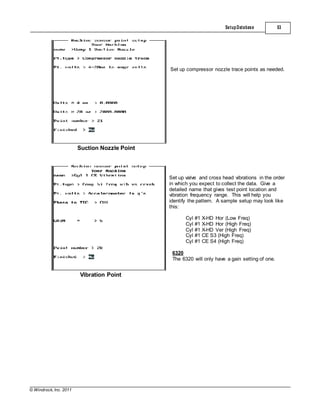
PERCENT +/- OK BAND: Select the desired maximum percentage of power cylinder
imbalance (0 – 10) by pressing the "LEFT or RIGHT Arrow"
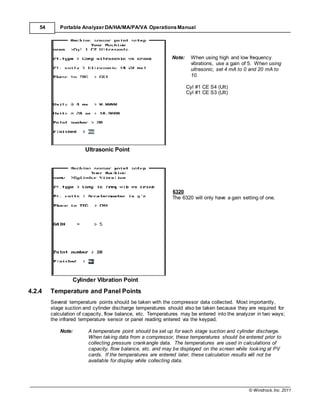
keys
2 OR 4 CYCLE ENGINE: Select the proper number of cycles (2 CY., 4 CY.) by pressing
the "LEFT or RIGHT Arrow" keys
DEBOUNCE FACTOR: Select the desired debounce factor (1 – 33) by pressing the
© Windrock, Inc. 2011
136 Portable Analyzer DA/HA/MA/PA/VA Operations Manual
"LEFT or RIGHT Arrow" keys The debounce factor defaults to
3 and should work satisfactory on the majority of machines.
This is the number of consecutive pressures that must
exceed the trigger level (psi) before the peak detector
engages or ends.
TRIGGER LEVEL (psi): Select the desired trigger level (30 – 100) by pressing the
"LEFT or RIGHT Arrow" keys. The trigger level defaults to 30
and should work satisfactory on the majority of machines.
This is the trigger level that pressure must exceed before the
peak detector is enabled. It is also the level that pressure
must fall below to reset the peak detector. The level is in psi.
It is normally set somewhere between 30-60 psi.
PAUSE AFTER TAKING DATA: Select the desired viewing option (NO, YES) by pressing the
"LEFT or RIGHT Arrow" keys
NO – When taking data, the peak pressure text data only will
be present on the screen. When finished with the data
sample, it will automatically go to the select cylinder list.
YES with pause – When taking data, the peak pressure
curves will be present on the screen. When finished with the
data sample, it will be necessary to hit any key to return to the
select cylinder list.
DISPLAY SCALE ON CURVES: Select the desired scaling option (NO, HALF, 3/8, QUARTER,
5/8, 3/4) by pressing the "LEFT or RIGHT Arrow" keys
This scaling factor is used for the pressure curves vertical
scale. When set to NO, the vertical pressure scale will be
zero up to the "MAX SENSOR PRESSURE" that has been
selected. Other scale selections will scale to vertical pressure
scale to the selected fraction of the "MAX SENSOR
PRESSURE"
# SPARK PER CYLINDER: Select the desired number of spark plugs per cylinder (0, 1, 2)
by pressing the "LEFT or RIGHT Arrow" keys
SPARK LAYOUT: Select the desired spark plug layout and naming convention
(Use Side/Center, Use Left Right, Use A/B, Use Top/Bottom,
Use CS/OCS) by pressing the "LEFT or RIGHT Arrow" keys
SPARK SAMPLE LENGTH (6320): Range of 500 usec to 10,400 usec.
SPARK TRIGGER +/-V (6320): Range 500 to 50,000
SHORT SPARK DURATION (6310): Select the desired horizontal scaling factor (NO, YES)
by pressing the "LEFT or RIGHT Arrow" keys. Most CD
(capacitor discharge) ignition systems have 500 Us or less
arc durations and the SHORT DURATION can be set to YES.
This will be the default scaling factor while taking data,
however, this scaling factor can be changed while taking
data.
© Windrock, Inc. 2011
Data Collection menu 137
MULTI STRIKE SPARK: Select the proper machine spark type (NO, YES) by pressing
the "LEFT or RIGHT Arrow" keys. When using the spark
survey on a Multi Strike Ignition system, the software will
attempt to analyze the first ignition event of the series.
FAST RAMP TIME (6310): This is typically set to NO. YES should only be used if
directed so by Windrock Product Support or Engineering. If
this is set to YES, the Ramp Time will not be shown on the
reports.
PRESS CUTOFF LOW: Select the low pressure cutoff value for the report by pressing
the “LEFT or RIGHT Arrow” key. The balancer will report the
number of cycles that the peak pressure was below the low
cutoff value.
PRESS CUTOFF HIGH: Select the high pressure cutoff value for the report by
pressing the “LEFT or RIGHT Arrow” key. The balancer will
report the number of cycles that the peak pressure was above
the high cutoff value.
RECORD PANEL POINTS: Select the PANEL POINT OPTION (NO, YES) by pressing
the “LEFT or RIGHT Arrow” key. Selecting “YES” will allow
recording “as found” and “as left” panel data including fuel
usage and bsfc values. Selecting NO will deactivate panel
points in the collection routine. There are 12 predefined panel
points to choose from. 6 user defined points and exhaust
temperatures for each cylinder.
FINISHED: Select the desired option (NO, YES hit enter) by pressing the
"LEFT or RIGHT Arrow" keys. If "YES hit enter", follow by
pressing the "ENTER" key to finish the machine set up, and
return the analyzer to the initial Balance and Spark Menu
screen. If the RECORD PANEL POINTS option was selected,
additional screens will be displayed to define the panel points
to be selected.
If you hit "ESC", the program will then prompt a "WARNING –
Escape was hit - If you have made changes, they will be lost.
Save changes? (Y/N)"
If you want to save the set up changes, press the "HOME-
YES" key
If you do not want to save the set up changes, press the "END-
NO" key
Pressing the "HOME-YES" key or the "END-NO" key will
return the 6310/CA to the initial Balance and Spark Menu
screen.
Note: Every new machine will have to be set up in the 63X0/CA prior to running a peak
pressure balance and/or a spark survey. Once the new machine is set up, the set up
information will remain the same unless changed.
If you selected "YES" to "Record Panel Points", the following setup screens will allow you to define
© Windrock, Inc. 2011
138 Portable Analyzer DA/HA/MA/PA/VA Operations Manual
those selections prior to returning to the Spark Menu screen.
Turn individual selections to “YES” or sequence number by using the "LEFT or RIGHT Arrow" keys if
you want the point added to the panel report. Panel points will show up in the order of their sequence
number. Go to the next page to continue the setup.
Identify the names of the user panel points selected on the previous menu page. The HOME key is
used to bring up a list of alphabetic characters for text entry when a keyboard is not available. Looking
at the rear panel to the far right, a connector labeled "KBD" is used for attachment of an external PS2
stylekeyboard.
Est Fuel Savings: If panel fuel flow is recorded, you may estimate the fuel
© Windrock, Inc. 2011
Data Collection menu 139
savings from the as found readings to the as left readings by
using the "LEFT or RIGHT Arrow" keys, to tab to the correct
measurement unit. (YES ft3/min, Yes ft3/hr, Yes MMft3/day,
Yes m3/min, Yes m3/hr, Yes MMm3/day, or No).
Fuel Cost ($/unit): Enter the current fuel cost in $/MSCF or $/Mm3.
FINISHED: Select the desired option (NO, YES hit enter) by pressing the
"LEFT or RIGHT Arrow" keys. If "YES hit enter", follow by
pressing the "ENTER" key to finish the machine set up, and
return the analyzer to the initial Balance and Spark Menu
screen.
If you hit "ESC" the program will then prompt a "WARNING –
Escape was hit - If you have made changes they will be lost.
Save changes? (Y/N)"
If you want to save the set up changes, press the "HOME-
YES" key
If you do not want to save the set up changes, press the
"END-NO" key
5.6 Notes
5.6.1 Collecting Notes
Entering notes for the data collected
Pressing the "HOME-YES" key or the "END-NO" key will
return the analyzer to the initial Balance and Spark Menu
screen.
Notes can be stored for both the machine in
general and for each individual point that has
been set up to collect data. When option "5 -
Notes on the machine" is selected, the pop up list
to the left will be displayed. Select the point using
the up/down arrow keys and then press "Enter".
If the "General machine comment" is selected, a
prompt specifying the date to use will be
displayed.
Note: Enter the date that the note should be
associated with if it is not the default
date shown. Otherwise, the note may not
show up on the report as you would
expect.
If a point is selected, skip to the "PICK
RECORD..." screen below.
© Windrock, Inc. 2011
140 Portable Analyzer DA/HA/MA/PA/VA Operations Manual
Enter the proper date if necessary.
The "General machine comment" allows for a
typed note of free text to be entered up to 100
characters. The simulated alphanumeric
keyboard can be used or the small portable
keyboard may be plugged in and used. There is
no spelling checker, word wrap, or editing after
saving the notes.
Select the date for which to enter the note. This
will associate the note with the selected point and
selected day on which the data was taken.
© Windrock, Inc. 2011
Manually input a sensor note
Data Collection menu 141
Use the up/down arrow keys to select a note from
the pre-entered notes list and press the "Enter"
key to save.
The "Manually input a sensor note" allows for a
typed note of free text to be entered up to 126
characters. The simulated alphanumeric
keyboard can be used or the small portable
keyboard may be plugged in and used. There is
no spelling checker, word wrap, or editing after
saving the notes.
If the list of notes do not meet your needs, see the next section on how to modify and add notes to the
default files.
5.6.2 Customizing Notes
Modifying the default note files
You can input up to 40 one-line notes for each of five categories. Each line can be up to 78 characters
long. Use a text editor to create a file using the names shown below. After you have input your one-line
comments, place an extra line at the bottom with "end of list".
Category File name
1)Angular Velocity -> d6atext.dat
2)Compressor Points -> d6ctext.dat
3)Temperature Points -> d6ttext.dat
4)Power Points -> d6ptext.dat
5)Spark Points -> d6stext.dat
Once you have created your files, place them in the /var/evport directory on your analyzer. Remember
this replaces the system default comments. You do not have to create all five files. For the categories
for which you do not create a file for, the system default comments will be available.
The system defaults are as follows:
Angular Velocity Notes
File: D6ATEXT
MANUALLY INPUT A SENSOR NOTE
Excess spread from hi to lo
Pattern has changed
Possible encoder slippage
© Windrock, Inc. 2011
142 Portable Analyzer DA/HA/MA/PA/VA Operations Manual
end of list
Compressor Notes
File: D6CTEXT
MANUALLY INPUT A SENSOR NOTE
Valve leakage suction
Valve leakage discharge
Valve knock
Valve late closure (spring damage)
Valve cap external leakage
Cylinder head external leakage
Packing leakage
Rings leaking
Unloaded at suction pressure
Unloaded at discharge pressure
Low VE
Unloaded due to low VE
Restricted indicator passage or valve
Reciprocating component looseness
Loose piston
Crosshead knock
Crosshead P&B non-reversal
Excessive rod load
Excessive suction losses
Excessive discharge losses
Unloader leakage
Cylinder mounting looseness
Excessive vertical rod runout
Excessive horizontal rod runout
end of list
Power Notes
File: D6PTEXT
MANUALLY INPUT A SENSOR NOTE
No combustion
Late combustion
Early combustion
Pre-ignition
Detonation (post ignition knock)
Intermittent combustion cycle to cycle
Poor combustion
Valve leakage
Valve early closure
Valve late closure
Excessive valve lash
Insufficient valve lash
Valve spring damage
Excessive valve recession
Improper rocker arm bridge adjustment
Cam lobe damage indicated
Valve guide wear
Ring blow-by
Piston slap
Piston to cylinder scuffing
Ring vibration
Possible stuck or missing rings
© Windrock, Inc. 2011
Data Collection menu 143
Possible broken rings
Head gasket leakage
Fuel valve base gasket leakage
Indicator valve leakage
Restricted indicator passage or valve
Exhaust manifold leak
Intake manifold leak
Fuel manifold leak
Pin & bushing knock
Cylinder mounting looseness
Early injection timing
Late injection timing
Defective injector pump
Defective injector nozzle
end of list
Spark Notes
File: D6STEXT
MANUALLY INPUT A SENSOR NOTE
Late timing
Early timing
Excessive timing spread
Long arc duration
Short arc duration
No arc
Defective plug wire
Excessive ionization voltage
Intermittent no arc
Leaking gasket
High arc resistance
Poor ringdown
High secondary circuit resistance
Low primary voltage
Primary capacitor leakage
Missing primary discharge event
Weak/defective coil indicated
end of list
Temperature Notes
File: D6TTEXT
MANUALLY INPUT A SENSOR NOTE
Reading seems high
Reading seems low
Check against historical levels
end of list
© Windrock, Inc. 2011
144 Portable Analyzer DA/HA/MA/PA/VA Operations Manual
5.7 Route-based FFT
5.7.1 FFT Overview
The route-based FFT allows you to use a predefined setup to collect FFT, time wave form, and
transient data. If there are NO predefined setups, you can edit the test or first setup in the analyzer or
create the data points in the Windows software.
5.7.2 Adding FFT Collection Points
Data points may be added or edited in two ways.
1. In the Win63X0 software. This is the most convenient way to generate several test points at once
using the auto generator. Or, you may edit the current data points which includes changing their order
in the list. The new setup must then be transferred to the analyzer.
2. In the Analyzer you can edit the setup in the analyzer. At "FINISHED?", use the right/left arrow key
to change the selection to "Update Setup in Route" or "Add Setup to Route". The new collection point
will be added to the bottom of the collection point list. Any time new collection points are added, or a
point is updated, you will need to transfer them to the Win63X0 software as you transfer the vibration
data. Changing the order of the points in the list is still done in the Win63X0 software.
Select "FFT Take route" and press enter, or hit the
"6" key.
© Windrock, Inc. 2011
POINT SETUP
Data Collection menu 145
If there are NO predefined setups, you can edit the
test or any setup in the analyzer for one collection
point. The HOME key is also used to bring up a
list of alphabetic characters for text entry when a
keyboard is not available. The route point must
have a unique name. Names can be up to 30
characters long and should describe the
measurement point as completely as possible. If
multiple channels are used, an indication of what
each channel is used for is recommended.
Point Name -- the route point must have a unique name
# Channels – number of channels of data at this point
Run RPM – used to enter the actual machine speed for this point
Run Number – used to integrate the run number.
Scale – manual scale to use for plotting data on the analyzer
Sensor – sensor used for this measurement. Toggles between accel, velocity. prox,
and 4-20.
Units – units to use for display of data. Toggles between g's, in/s, and mils.
Disp – toggles between RMS, peak, and peak-to-peak
V/unit – sensor response volts per engineering unit
Averages – number of samples to average
Lines – number of lines of resolution in the FFT. Toggles between 200, 400, 800,
1600, 3200, 6400, and 12,800.
Fmin -- sets minimum FFT frequency to display up to 10% of Fmax.
Fmax – maximum frequency for FFT, (4,689 to 2,400,000 in the 6320)
Window – window for FFT data collection. Toggles between hanning and uniform.
Mode – data collection options. Toggles between Linear+, FFT Subtraction, and
Transient.
Sync – trigger mode for data collection. Toggles between free run and TDC
Alarm Limit – alarm limit for all channels at this point
Delta Time – maximum time between samples in transient measurements
Delta RPM – RPM change between samples in transient measurements
Trans File -- Enter transient file name
Finished -- Yes to Add/Edit points or collect data
© Windrock, Inc. 2011
146 Portable Analyzer DA/HA/MA/PA/VA Operations Manual
When you have completed editing, select
"Finished". At "FINISHED?" use the right/left
arrow key to change the selection to "Add
setup to route". The new collection point will be
added to the bottom of the collection point list.
After adding the last collection point, hit
"Escape" to return to the pick a route point
selection box.
Or select Yes - Hit Enter at Finished ? to
preview the data collection.
© Windrock, Inc. 2011
Data Collection menu 147
When adding a start up transient data point
1.The run RPM is used to terminate data
collection. It should be just below the expected
maximum RPM.
2. The delta RPM should be positive.
When adding a shut down transient data point
1.The run RPM is used to terminate data
collection. It should be just above the expected
minimum RPM.
2. The delta RPM should be negative.
© Windrock, Inc. 2011
148 Portable Analyzer DA/HA/MA/PA/VA Operations Manual
5.7.3 FFT Data Collection
Select "FFT Take route" and press enter or hit
the "6" key.
Pick the collection point from the Route point
selection box. Using the up / down arrow keys,
hit enter to select the highlighted collection
point.
© Windrock, Inc. 2011
Data Collection menu 149
If free run is selected for SYNC, enter the
actual RPM and hit "ENTER" to start the data
collection process.
If TDC is selected for SYNC, hit enter to start
the data collection process.
If mode is transit, enter the terminal RPM. This
is the RPM at which you want to stop collecting
data. This number should be "high" if the
transient is startup. This number should be
"low" if the transient is shutdown.
A screen will appear showing the progress of the
data collection process. The length of time this
screen is visible depends on several setup
selections, including number of samples and
number of lines.
When the collection process is completed, a
summary screen appears. If the first
character of the overall value line is an "A",
then the overall value exceeds the setup
alarm level. Included is the current overall
level and the previous overall level. If
transient is selected for mode, data
collection will continue until the terminal
RPM is reached.
© Windrock, Inc. 2011
150 Portable Analyzer DA/HA/MA/PA/VA Operations Manual
Menu Selections
When the FFT of the current sample is first
displayed, you can hit enter to save/next, or
select from the menu items listed.
0-SCALING
0 - Autoscale
1 - Manual scale. You will be prompted for the full scale Y axis value.
1-SET ZOOM Sets the beginning and end of zoom
2-CONTINUOUS Toggles between continuous data sampling and stop
3-UNZOOM Turns ZOOM off
4-CHANGE DISPLAY Toggles display between FFT and time based
5-MULTIPLES Will add 9 multiples of the current cursor position
6-ORDERS Toggles orders of run speed on and off
7-SAVE / NEXT Saves the current data collection
8-X CH PHASE Displays channel 1 to 2 phase relationship in time waveform
ESC-EXIT Exits to the Pick a Route Point selection box without saving current data
5.7.4 Transient Data Collection
Equipment
Equipment Needed:
1. 6310/VA or PA/VA Analyzer
2. One cable, BNC to BNC
3. One cable, Lemo to Lemo (Encoder)
4. Two or four cables, BNC to Lemo
5. Prox Trigger module
© Windrock, Inc. 2011
Data Collection menu 151
Connect toBentley Panel
Connect to Bentley:
1. Connect the Key phaser to the prox
trigger box.
2. Adjust trigger level for a dim light, check
RPM reading
3. Connect channels 1 through 4 to the
appropriate BNC channel connector
© Windrock, Inc. 2011
152 Portable Analyzer DA/HA/MA/PA/VA Operations Manual
Low Trigger level
Adjust Level
High trigger level
If light is OFF, then adjust the trigger level
so light is dim. The trigger level is too low.
The Key phaser output is a negative 18
volts DC signal. The minimum voltage is
dependent on the probe gap and it's
distance from the target shaft. When the
trigger level is correct, the light will be
dim. It actually is flashing on and off as
the key phaser slot passes below the
probe. At this point, the RPM reading
should match other tachometer
readings.
If light is BRIGHT, adjust the trigger level
so light is dim. The trigger level is too high.
© Windrock, Inc. 2011
Data Collection menu 153
Select the appropriate sensor point.
Enter the correct "Terminal" RPM.
This number should be "high" if the transit
is startup
Enter the correct "Terminal" RPM.
This number should be "low" if the transit
is shutdown.
© Windrock, Inc. 2011
154 Portable Analyzer DA/HA/MA/PA/VA Operations Manual
Moving on down the line
5.7.5 FFT Sensor Selection
Data points with like sensors are usually grouped together.
Transient data points (Prox Probe)
******Change Sensor******
Accelerometer data points
******Change Sensor******
Velocity data points (Velometer)
******Change Sensor******
4-20 mA data points
Move to next channels and / or key
phaser;
1. Move key phaser input when needed
2. Adjust trigger level for a dim light,
check RPM reading
3. Connect channels 1 through 4 to the
appropriate BNC channel connector
© Windrock, Inc. 2011
Data Collection menu 155
5.8 GraphicalData Screen
The Graphical Data Screen is the initial screen as data is being collected. There are several options
available at this point. Each is described in the following segments. Each of the function keys at the
bottom may be selected simply by pressing the number key on the keypad, or using the left/fight arrow
keys to scroll through the menu items. If the menu item is outlined in bold, you may hit "Enter" to
select the menu item.
The top row of keys (5 - 9) are toggle keys. This means that you simply hit the key once to turn that
function on or off. The bottom row of keys (0-4) are option keys that have many selections available to
the user.
To exit back to the menu, simply hit the "ESC" key and you will return back to the "Data Collection
Menu".
This screen and many of its options are the same as the "Plot historical" menu option. Please note,
that the "HISTORICAL" key will, in fact, allow you to bring up previously stored data for overlay with the
current data.
FUNCTION POP-UPS:
5.-PT/PV: Switches the display between a Pressure vs. Time (PT)
and Pressure vs. Volume (PV)
6.-CALC OFF: Displays the calculated results for the pressure curves
displayed. This would include IHP, peak pressures, flow
balance, volumetric efficiencies, etc.
1.-ZOOM/CURSOR: Allows the user to set both LEFT and RIGHT cursor bars
© Windrock, Inc. 2011
156 Portable Analyzer DA/HA/MA/PA/VA Operations Manual
and expand the plot. To move the cursor bars, use the
TAB key for large moves and the ARROW keys for small
moves. Hit enter to advance through the prompts.
0-OPTIONS:
Use the up/down arrow keys to select the option or press the number key associated with the
option. The current state is shown in parentheses( ).
0.-RESET: This function resets all settings to original defaults.
1.-AUTOSCALE: Autoscale ON changes the plots to fit the full screen.
Autoscale OFF uses the predefined scales from the
Fixed Data Scale configuration. This is a toggle type
function.
2.-MANUAL RESCALE: Allows the scale for the selected trace to be set manually.
If more than one plot is shown, an individually selected
plot may be rescaled or all plots may be rescaled at the
same time.
3.-SMOOTHING: The smoothing factor used is as defined in the "Software
Configuration" or it can be manually set at this point by
selecting the type of curve and selecting a smoothing
factor from the list. Smoothing can also be set per sensor
point.
4.-SHOW TOE POINT: Shows the toe point and highlights the area under the
pressure curve between the toe point and maximum
© Windrock, Inc. 2011
Data Collection menu 157
pressure. This is for compressor PV data only.
5.-SHOW RPM / LOADSTEP: Brings up a message box showing the RPM or loadstep
collected for that data point.
6.-SHOW VALVE/PORT EVENT: Turns on or off the graphical lines showing the event
timing angles. This is used for engine PT data only.
7.-REMOVE LINE FROM DATABASE: This removes the selected data from the database.
Caution! The data is NOT recoverable. This function is used to delete bad data from
reports and statistical information.
9-ANALYZE:
Selecting the cylinder end will bring up the rod load plot, Log P vs. Log V, or the Power Stats Box.
© Windrock, Inc. 2011
158 Portable Analyzer DA/HA/MA/PA/VA Operations Manual
4-FORMAT:
0.-OVERLAY: Changes the 'Y' scale from individual scales to one
common scale. This may make certain plots very small
in relation to others based on the scale differences.
1.-PHASING: Data is phased to the individual cylinder angles vs. TDC.
This option allows, for instance, all power cylinder plots to
be lined up to TDC or as a PT parade.
2.-TDC shift: Data is normally displayed with '0' degrees on the left
axis. This option shifts 0-360 to be (-180 0 +180 ) and
0-720 to be (-360 0 +360 ).
3.-STRIP CHART: Allows clearing of individual strip charts and manually
forcing a plot to be strip charted.
4.-Theoretical: Turns on /off the theoretical curves for PV and
LogP-LogV diagrams.
5.-Show TDC: This toggles the vertical dashed lines indicating each
individual cylinders TDC position in relation to the other
cylinders. Turning on TDC, select one of the following
options:
1. Don't Show TDC
2. Show Power TDC
3. Show Compressor TDC
4. Show Power and Compressor TDC
6.-Line and Plot Styles: Changes the way the vibration and ultrasonic traces are
displayed on the screen.
© Windrock, Inc. 2011
Data Collection menu 159
Envelope Only
Envelope with fill
Grid mode turns on the background grid to simulate a oscilloscope display.
Intensity darkens or lightens the lines.
Line style changes the look of the plotted lines.
7.-Reflective Cursor: The reflective cursor will indicate the same degrees
before or after TDC of the piston position during the other
stroke(s).
8.-Show IR Temp: Toggles on / off the IR temperature display.
9.- Flip A/B for 4 Cycle: Provides the user the ability to shift data display 360
degrees on four-cycle engines as necessary.
- Angular velocity filter: The angular velocity filter has three choices, off, low or
high.
© Windrock, Inc. 2011
160 Portable Analyzer DA/HA/MA/PA/VA Operations Manual
2-RESAMPLE:
0.-TAKE ANOTHER DATA SCAN: This option re-samples the data and displays it along with
the first set.
1.-CLEAR & RETAKE DATA: This option clears the current data and re-samples the
data.
2.-SAVE SCAN DATA: This option saves the current data collected.
3.-START AUTOSCAN (SINGLES): This option runs in a continuous loop automatically taking
a set of data and displaying up to 10 traces. After 10
traces are displayed, the analyzer will clear and start over
again until ESC is pressed. Note: there may be a slight
delay to the ESC keystroke stopping the updates.
4.-AUTOSCAN (NO MULTI SAMPLES): This option will sample data and display it, erasing the
previous. This will continue until the "3" key is pressed or
the "ESC" key is pressed.
5.-AUTOSCAN (w MULTI SAMPLES): This option will sample data based on the number of
averages preset and will display the averaged trace,
erasing the previous. This will continue until the "3" key is
pressed or the "ESC" key is pressed.
6.-CHANGE SETUP AND RESCAN: Allows the setup to be changed for re-sampling.
7.-RESCAN LAST DATA: Allows the rescan of the last single line of data that was
taken. This will not work with collection points where you
are taking multiple channels at the same time. It is
intended for overlaying single pressure traces to look for
pocket volume changes. (ie. MA Users)
Note: Up to 10 traces may be displayed at one time.
7-SAVE/NEXT:
Hit the "7" key or enter when "Save/Next" is the hot key will save the latest data capture and return
you to the point selection list with the next collection point highlighted. At this time, you can hit
enter to select the collection point highlighted or use the up/down arrow keys to select another
point. If you are finished collecting route data, hit escape to return you to the "Data Collection
© Windrock, Inc. 2011
Data Collection menu 161
Menu".
6 Plot Historical Data
6.1 GraphicalData Screen
Plot historical is the place where previously collected data may be recalled and analyzed. In this
mode, several points may be recalled and overlaid and/or strip charted.
When plot historical is selected, a pop up list appears for selection of a point to display. Once the
point is selected, a second pop up list appears with a list of dates from which to select. Next to each
date there is a number telling you how many samples were stored for that date for that point. Move
the cursor to the date required and press enter. A second pop-up list appears with a list of actual
data points for that date. Note that two types of entries may be shown in this list. Single scan
contains one sampled data point. Averaged contains an averaged sample data point.
After the enter key has been pressed, the graphical screen appears with the data point displayed. At
this point, several functions are available and are listed at the bottom of the screen. You may select
one of these functions by moving the cursor to that selection by simply hitting the number key
associated with the function.
This is the plot historical screen. It is very similar to the data collection screen. There are several
options available at this point. Each is described in the following segments. Each of the function
keys at the bottom may be selected simply by pressing the number key on the keypad.
The top row of keys (5 - 9) are toggle keys. This means that you simply hit the key once to turn that
function on or off. The bottom row of keys (0-4) are option keys that have many selections available
to the user.
To exit back to the menu, simply hit the "ESC" key and you will return back to the "Data Collection
Menu".
Function pop-ups:
5-PT/PV: Switches the display between a pressure vs. time (PT) and pressure vs.
volume (PV).
© Windrock, Inc. 2011
162 Portable Analyzer DA/HA/MA/PA/VA Operations Manual
6-CALC OFF: Displays the calculated results for the pressure curves displayed. This
would include IHP, peak pressures, flow balance, volumetric efficiencies,
etc.
7-PRINT: Prints the screen contents to the selected printer.
1-ZOOM/CURSOR: Allows the user to set both LEFT and RIGHT cursor bars and expand the
plot. To move the cursor bars, use the TAB key for large moves and the
ARROW keys for small moves. Hit enter to advance through the prompts.
3-HISTORICAL: This function allows you to select multiple points from the previously
sampled data. The point may be of different types and dates.
2-NEXT PLOT: This function takes you back to the list of group plots where you can select
the next plot to view.
0-OPTIONS:
Use the up/down arrow keys to select the option or press the number key associated with the option.
The current state is shown in parentheses( ).
0.-RESET:
This function resets all settings to original defaults.
1.-AUTOSCALE:
Autoscale ON changes the plots to fit the full screen. Autoscale OFF uses the predefined scales
from the Fixed Data Scale configuration. This is a toggle-type function.
2.-MANUAL RESCALE:
Allows the scale for the selected trace to be set manually. If more than one plot is shown, an
individually selected plot may be rescaled or all plots may be rescaled at the same time.
3.-SMOOTHING OR SPIKE FILTER:
The smoothing factor used is as defined in the "Software Configuration" or it can be manually set
at this point by selecting the type of curve and selecting a smoothing factor from the list.
Smoothing can also be set per sensor point.
© Windrock, Inc. 2011
Plot Historical Data 163
4.-SHOW / ADJUST TOE POINT / NOZZLE TRACES:
Shows the toe point and highlights the area under the pressure curve between the toe point and
maximum pressure. This is for compressor PV data only. The toe point may also be changed and
saved by using one of the following menu options. If nozzle (line) pressure traces were taken, they
may be displayed and used in the calculations.
Show / Adjust Toe Point Options
5.-SHOW RPM / LOADSTEP:
Brings up a message box showing the RPM collected for that data point.
6.-SHOW VALVE/PORT EVENT:
Turns on or off the graphical lines showing the event timing angles.
7.-REMOVE LINE FROM DATABASE:
This removes the selected data from the database. The data is not recoverable. This function is
used to delete bad data from reports and statistical information.
Caution! The data is not recoverable. This function is used to delete bad data from
reports and statistical information.
9-ANALYZE:
Selecting the cylinder end will bring up the rod load plot, Log P vs. Log V, or the power stats box.
© Windrock, Inc. 2011
164 Portable Analyzer DA/HA/MA/PA/VA Operations Manual
The analyze menu allows for selection of
either rod load plot, LogP-LogV plot, or
power stats box.
On power curves, the statistical information shown is
in a graphical format: The highest and lowest peak
pressure, mean, and standard deviation plus and
minus. The highest and lowest peak pressure angle,
mean, and standard deviation plus and minus.
For rod load plots, select the cylinder head
end and crank end point to bring up the rod
load plot.
4-FORMAT:
Function Key "4" Options
0.-OVERLAY:
Changes the 'Y' scale from individual scales to one common scale. This may make certain plots
very small in relation to others based on the scale differences.
1.-PHASING:
Data is phased to the individual cylinder angles vs. TDC. This option allows, for instance, all power
cylinder plots to be lined up to TDC or as a PT parade.
© Windrock, Inc. 2011
Plot Historical Data 165
2.-TDC shift:
Data is normally displayed with '0' degrees on the left axis. This option shifts 0-3600 to be (-1800
0 +1800 ) and 0-7200 to be (-3600 0 +3600 ).
3.-STRIPCHART:
Allows clearing of individual strip charts and manually forcing a plot to be strip charted.
4.-Theoretical:
Turns on /off the theoretical curves for PV and LogP-LogV diagrams.
5.-Show TDC:
This toggles the vertical dashed lines indicating each individual cylinders TDC position in relation
to the other cylinders. Turning on TDC, select one of the following options:
1. Don't Show TDC
2. Show Power TDC
3. Show Compressor TDC
4. Show Power and Compressor TDC
6.-Line / Plot Styles:
Changes the way the vibration and ultrasonic traces are displayed on the screen.
Envelope Only
Envelope with fill
Grid mode turns on the background grid to simulate a oscilloscope display.
Intensity darkens or lightens the lines.
© Windrock, Inc. 2011
166 Portable Analyzer DA/HA/MA/PA/VA Operations Manual
Line style changes the look of the plotted lines.
7.-Reflective Cursor:
The reflective cursor will indicate the same degrees before or after TDC of the piston position
during the other stroke(s).
8.-Piston Animation:
Turns on/off the piston animation display in the graphical display.
7 View Manual,Temp, Notes, FFT Data
To view previously entered temperatures or
manual panel readings, select number four
"View manual / temps, notes, FFT" from the
start up menu.
7.1 View Manual / Temperature Data
Sensor point data collected as IR temperatures or manual panel readings may be viewed. Changes in
the load step or changes in the run number may be made along with removing individual readings from
the data base.
© Windrock, Inc. 2011
View Manual,Temp, Notes, FFT Data 167
At the View menu, select number one
"View manual / temp data".
A point selection box will appear where you
may use the up / down "arrow" or "tab" keys
to select the point you want to view. The up /
down "arrow" keys will move you one sensor
point at a time through the list. The "tab"
keys will move you through the list six
sensor points at a time. At any time, you
may use the "home" or "end" keys to select
the top or bottom of the list. An asterisk at
the end of the sensor point indicated there is
data stored in the analyzer that matches the
date set in the analyzer. A question mark
indicates the data is not stored for today's
date.
The pick date selection box allows you to
select the date you want to view.
© Windrock, Inc. 2011
168 Portable Analyzer DA/HA/MA/PA/VA Operations Manual
7.2 View Notes
Along with viewing the sensor point reading,
you may make the following changes:
4- Exit
5- Modify load step
6- Modify run number
7- Next sensor point
9- Remove from data base
General machine or sensor specific notes may be viewed as illustrated below.
To view previously entered notes, select
number four "View manual / temps, notes,
FFT" from the start up menu.
© Windrock, Inc. 2011
View Manual,Temp, Notes, FFT Data 169
At the View menu, select number two
"View notes".
If no notes exist for this machine, you will be
informed.
The pick date selection box allows you to
select the date you want to view.
© Windrock, Inc. 2011
170 Portable Analyzer DA/HA/MA/PA/VA Operations Manual
7.3 View FFT data
Notes 1 and 2 are from the predefined list.
Notes 3 and 4 are typed in free text using the
key board.
0 - Page Down
1 - Page up
4 - Exit
7 - Next
© IM'ndiock, /ne.2011
View Manual,Temp, Notes, FFT Datal 171
Windrock 6320/VA FFT/'
Cyl 1 Vert
Cyl 1 Axial
Cyl 2 Horiz
Cyl 2 Vert
Cyl 2 Axial
Cyl 3 Horiz
Cyl 3 Vert
Cyl 3 Axial
Cyl 4 Horiz
Cyl 4 Vert
Cyl 4 Axial
Windrock 6320/VA F FT1
05-16-2008 has 1 record
05-30-2007 has 2 records
1 1-10-2005 has 1 record
04-21-2005 has 1 record
02-1 1-2005 has 1 record
07-16-2004 has 1 record
06-30-2003 has 1 record
------ Windrock 6320/VA FFT.
5-30-07 1 1 :41 :32 l R
5-30-07 11 :42:1 5 lR
© Windrock, Inc. 2011
172 Portable Analyzer DA/HA/MA/PA/VA Operations Manual
In the 6320 you may plot the historical FFT data. You have the option of selecting the sensor point,
date and run number. After the data has been re-plotted you may use the left / right arrows to move
the cursor and option 5 will present you with multiples of the current curser position. Option 6 will
present you orders of run speed and option 4 will toggle the display between FFT and time waveform.
Option 8 presents you with cross channel phase information when multiple channels of data are taken
simultaneously using the 6320 analyzer. To use the ZOOM, first use the left/right arrows to set the
curser at the start of the zoom frequency and select 1, then use the right arrow to set the end zoom
frequency and again select 1. Select 3 to un-zoom. When two channels are displayed use the up/down
arrows to select the active window, which is indicated by a small triangle in the top left corner of the
window.
© Windrock, Inc. 2011
View Manual,Temp, Notes, FFT Data 173
Cross channel phase information requires an accurate RPM and a predominant one times run speed
(1x) vibration level. A TDC sync is not needed.
© Windrock, Inc. 2011
174 Portable Analyzer DA/HA/MA/PA/VA Operations Manual
8 Performance Reports
8.1 Reporting
This section covers the type of reports available and the steps required to set up the reports. There
are four types of reports currently available in the analyzer. They are:
Compressor Report
Engine Report
Ignition Report
Manual Panel Reading / Temperature Report
The "Compressor Report" gives details about the compressor's performance based on the data
collected. This is a tabular listing of parameters associated with the compressor such as IHP, BHP,
Flow Balance, etc.
The "Engine Report" gives details about the engine's performance based on the data collected. This
is a tabular listing of parameters associated with the engine such as IHP, peak firing pressure, etc.
The "Ignition Report" gives details about the ignition performance such as statistical values, peaks,
timing, etc. This is a tabular listing.
The "Manual Panel Reading Report" displays a tabular list of values entered during a data collection
© Windrock, Inc. 2011
Performance Reports 175
period. This report will help document the panel gauge readings and general operating condition of
the unit when the dynamic data was taken.
Running Reports
This figure shows the menu options available for
reports. Prior to running any of the reports, they
must be set up to present the proper data. See
the setups in the following paragraphs.
After data has been collected, several reports are available to run. To run a report, select the report
type from the menu. The selections are:
Compressor Report
Engine Report
Ignition Report
Manual Panel/temp Report
A selection box will appear to select the "LAST MULTI DATA" or run number to use for the report. If
run numbers were not used, select "LAST MULTI DATA". The next selection box to appear will be
the date selection box (if more than one date exists). Pick the required date and hit enter. The report
will be calculated and displayed one page at a time.
"USE LAST MULTI DATA" is the last available set of data the
user collected regardless of run number assigned.
Run number is the run number that was assigned to the data
when it was collected.
© Windrock, Inc. 2011
176 Portable Analyzer DA/HA/MA/PA/VA Operations Manual
8.2 CompressorSetup
Select "Setup Compressor Report" from the menu. The screen shown below will appear and the
entries must be filled in.
Match the pressure test point from the pop-up list with the
cylinder name as defined in "Machine Configuration".
Use the right arrow key to bring up the pop-up list. Additional
cylinders are listed on the next page of entries.
8.3 Engine Setup
Select "Setup Engine Report" from the menu. The screen shown below will appear and the entries
must be filled in.
Match the pressure test point from the pop-up list with a
cylinder number. The cylinder numbers are listed in numeric
order and must be matched to your naming convention. A
sample is shown in the figure.
Use the right arrow key to display the pop-up list.
© Windrock, Inc. 2011
Performance Reports 177
8.4 Ignition Setup
Select "Setup Ignition Report" from the menu. The screen shown below will appear and the entries
must be filled in.
Match the spark plug test point from the pop-up list with the
cylinder number. Spark plug test points are referenced with
"S".
Use the right arrow key to dispay the pop-up list.
9 Utility Menu Options
6310
The options listed in the menu to the left provide
the user with extra utilities to help with sensor
calibration, data transfer, battery management, and
operating software integrity.
6320
© Windrock, Inc. 2011
178 Portable Analyzer DA/HA/MA/PA/VA Operations Manual
9.1 DirectChannel Read
This function allows the user to directly read out a sensor's static voltage or current. The primary
use of direct channel read is for verifying calibration and proper operation of pressure transducers.
First, pick a sensor from the sensor list to
display. By picking the sensor from the sensor
list, calibration parameters and engineering units
are used from the database previously set up.
© Windrock, Inc. 2011
Utility Menu Options 179
Second, select the channel to which the sensor
is physically attached on the rear panel.
Third, a screen appears as shown above updating continuously with the input. Depending on the
sensor type, there may be variations to the screen shown.
For DC pressure sensors, the screen shown has the following information:
The channel number being used, the sensor point name, three columns of data, the zero factor
(explained below), and the current mode.
The left column shows the zero adjusted values. If the "Zero dc press sensors" menu option under
"Data Collection Menu" was used, an atmospheric reference point is applied. The center column is
non zero adjusted. No correction is applied and the raw values are listed. The third column show the
line's value type. For most cases, the "Engr. Units" (engineering units) line is used. This will show
the actual readout of the pressure applied to the sensor.
© Windrock, Inc. 2011
180 Portable Analyzer DA/HA/MA/PA/VA Operations Manual
The additional three lines are used by Windrock in calibration of the analyzer and other types of
sensors.
The Zero Factor line shows the bit count of the correction applied when the sensor was zeroed. Bit
count is a digital electronics value.
At the top of the display, a bar graph will display the current sensor value and will update based on
the mode selected. By default, the bar graph is in continuous mode. Below the bar graph is a small
bar showing the peak value reached until the [9-Reset Bar] hot key is pressed to reset the bar to
zero.
The mode line shows the current mode of the screen updating process. There are several modes
which can be used for various purposes. Below are explanations.
Key Function Description
0 Single Scan Updates the screen one time per hit of the key
1 Continuous Updates the screen continuously
2 Peak Scan Updates the screen if the new value exceeds the previous
value
3 Low Scan Updates the screen if the new value is less than the previous
value
4 Exit Exits the direct channel read function
5 Run/Hold Stops the screen update temporarily
6 1 or 4 channel
mode
Allows selection number of channels.
7 Next Allows selection of a different sensor point
8 Bar Range Select appropriate bar range
9 Reset Bar Reset bar range
9.2 Connect to Windows 6310 only
Provides a link to Win6300 / Win63X0 Windows analysis software for the analyzer. This allows the
transfer of data and setups between the analyzer and a Windows desktop/laptop.
© Windrock, Inc. 2011
Utility Menu Options 181
When the screen is first shown, it will show the current Station and Machine in which it is operating.
To select a different machine, ESCape back to the Station and/or Machine selection menus.
The Station number and Machine number are shown to help the user identify the sub-directory
where the data is stored (Refer to the - Data Backup Procedure for more information on the directory
structure). The station name and machine name are listed to insure the correct station and machine
are selected.
Note: If the directory is changed remotely from the Win63X0 software, the change will be
reflected on this screen.
The current directory is listed on the last line to show where the data is coming from or going to in
the analyzer (depending on the current Win63X0 applications function selected).
9.3 Power CylinderMonitor
Refer to the previous section on the Power Cylinder Monitor under Non Encoder Balance and Spark
for more details.
9.4 System Information 6320only
The system information provides information on software and hardware versions.
9.5 X EngineeringMode6320 only
The Engineering mode provides access to the command prompt. Hitting the zero and enter keys will
return you to the menu system.
9.6 DischargeBattery6310 only
This option helps to completely discharge a battery to a minimum amount each time it is used. It is
necessary, on a periodic interval, to fully discharge and re-charge the batteries supplied with the
6310 to maintain full operating capacity of the batteries.
© Windrock, Inc. 2011
182 Portable Analyzer DA/HA/MA/PA/VA Operations Manual
This screen will read out in % capacity for Hardware option 3 users with smart batteries and in volts
for Hardware option 4, 5, and 6 users with non-smart batteries.
As the battery reaches a preset minimum, the unit will automatically turn off protecting the battery
from full discharge beyond the manufacturer's recommended minimum.
9.7 Check for Bad EXE's 6310 only
This function will check the analyzer foe proper operating software. The operating software is
comprised of several individual modules which must be from the same date. If the files become
mixed or corrupted, this utility will notify the user when the check is run. Any files that are incorrect
will be displayed on the screen below. These files should be reported to Windrock immediately.
Caution: If files are found to be mixed or corrupted, DO NOT continue using the
analyzer. Unexpected results may occur or collected data will be invalid.
Pressing "enter" will bring up this screen. Press "enter" again to continue.
© Windrock, Inc. 2011
Listing of files found to be mixed or corrupted.
10 Encoder Setup
10.1 Shaft Encoder
Utility Menu Options 183
Several fittings have been provided for adapting the encoder to your needs. It is preferred that a direct
connection be used over a friction connection. It is possible that a friction connection can slip, causing
instability in the encoder signal. If the friction connection must be used, clean the flywheel surface to
remove any grease or oils that could cause slippage.
Mount the encoder assembly on the tripod provided. Adjust the tripod height to center the encoder
shaft with the center of the flywheel. If needed, use the provided elastic cord to provide additional
stability by placing the cord around the tripod neck and securing it to the machine frame.
Once the encoder is set up, attach the 50 foot encoder cable to the connection marked "To Analyzer".
Prior to taking data, make sure the "STROKE 4 - 2" switch is set properly for the engine type (defined
in the machine setup). Also make sure that the number of pulses per revolution is set to the correct
number.
Caution! On four-cycle machines, do not switch the encoder or change the software
configuration when moving from the engine to the compressor. The analyzer
and software know the difference between the engine 4-cycle 0-7200 and
compressor 0 to 3600 .
Also, it must be noted here that in order to collect angular velocity information, you must be able to
collect more than one pulse per revolution.
The "PHASE A-B" switch is provided to give the user the ability to shift data collection 360 degrees on
four-cycle engines as necessary; for instance, if you are collecting data on a 4-cycle diesel engine and
are unsure as to which stroke TDC is set.
© Windrock, Inc. 2011
184 Portable Analyzer DA/HA/MA/PA/VA Operations Manual
The shaft encoder is directly powered by the analyzer. Note that, if the encoder cable is disconnected,
the encoder will retain its settings and TDC for up to one hour. This allows the analyzer to be
disconnected and reconnected as necessary without disruption except as cautioned above.
Please note that in four-cycle mode, the encoder uses the A/B switch to swap between the power and
exhaust stroke. This setting is retained as long as the encoder is connected to the analyzer and
powered up.
Caution! Note that the software uses power conservation methods which will power
down the encoder while outside the data collection menu (this will turn off
power to the encoder). Either of these situations will re-power the encoder in a
undetermined state for the power/exhaust cycle. To avoid this situation, do not
disconnect the encoder and use the power save setting under hardware
configuration and set it to NO.
Caution! Make sure the BNC terminator (a shorting connector) is placed on the "MAG
PU" input when not in use. This will reduce ignition interference in the
encoder.
Note: It is strongly recommended that TDC be checked periodically, at least prior to
and after data collection.
Note: The BNC attenuator is no longer needed.
10.2 Multi-Event
The multi-event encoder provides for attachment of either an optical pickup (WRI P/N: A6056-01-08)
or a magnetic pickup (WRI P/N: A3012-00-00) for TDC measurement. In addition, a magnetic pickup
can be used to measure individual teeth on a gear or flywheel for more resolution of crankangle.
© Windrock, Inc. 2011
Encoder Setup 185
A strobe light can be attached to the multi-event encoder to check the positioning of the TDC event.
Note that the forward/reverse switch has no effect on the TDC offset of the older model, but will
advance or retard the TDC of the new (Black case) model.
Once the multi-event encoder is set up, attach the 50-foot encoder cable to the connection marked "To
Analyzer". Prior to taking data, make sure the "STROKE 4 - 2" switch is set properly for the engine
type (defined in the machine setup). Also, make sure that the number of pulses per revolution is set to
the correct number.
Caution! On four-cycle machines, do not switch the encoder or change the software
configuration when moving from the engine to the compressor. The analyzer
and software know the difference between the engine 4-cycle 0 to 7200 and
compressor 0 to 3600.
Also, it must be noted here that in order to collect angular velocity information, you must be able to
collect more than one pulse per revolution.
The "PHASE A-B" switch is provided to give the user the ability to shift data collection 360 degrees on
four-cycle engines as necessary; for instance, if you are collecting data on a 4-cycle diesel engine and
are unsure as to which stroke TDC is set.
Caution! Make sure the BNC terminator (a shorting connector) is placed on the "MAG
PU" input when not in use. This will reduce ignition interference in the encoder.
© Windrock, Inc. 2011
186 Portable Analyzer DA/HA/MA/PA/VA Operations Manual
10.3 Magnetic Pickup
A magnetic or hall effect sensor may be used with the shaft encoder or the multi-event encoder.
To use these devices, they must be placed on the machine with a known reference to TDC to
ensure proper timing information. Connect these devices to the connector marked "MAG
PICKUP".
10.4 OpticalPickup
A self-contained optical type pickup with a TTL output may be used with the shaft encoder or the
multi-event encoder. The Windrock optical sensor may be used directly with the multi-event
encoder. To use this type device, it must be placed on the machine with a known reference to TDC
to ensure proper timing information. If the self-contained style pickup is used, connect this device
to the connector marked "MAG PICKUP". Reflective tape must be placed on the flywheel or
rotating element with the leading edge at the TDC position for proper timing information.
10.5 Timing Light
With the encoder set up, attach the timing light to the connector marked "STROBE". Aim the timing
light at the timing marks on the engine flywheel and pull the trigger switch.
With the trigger switch pulled and while observing the flywheel, look for the timing marks. Using the
toggle switch or the up/down arrow buttons, you can adjust movement clockwise or counterclockwise
as necessary to bring the timing marks into view. Each toggle of the switch moves one-half degree of
© Windrock, Inc. 2011
Encoder Setup 187
rotation.
Once TDC has been found, the timing light should be disconnected from the encoder to conserve
battery power.
Caution! The timing mark is crucial for accurate analysis. Make sure that there is only
one timing mark on the observed surface. Having more than one timing mark
will cause confusion and create the possibility of collecting data based on the
wrong TDC of the machine.
10.6 Setting MachineTDC
Timing Procedure
THE TIMING MARK IS CRUCIAL FOR ACCURATE ANALYSIS
1.) Choose a reference compressor cylinder and remove the dog house door. Typically,
you should chose the compressor closest to the flywheel.
2.) Open Kiene valves (exhaust) for ease of rolling engine.
3.) Choose a location on the flywheel guard to make a reference mark. Allow 6-10"
between the reference mark and location where the flywheel is covered by the guard.
Mark the reference mark/line with a permanent marker.
4.) Roll flywheel in the direction of normal operation until reference compressor
cylinder is very close (40 to 50 ) to head end TDC.
5.) Set up dial indicator mechanism so that the indicator displays the linear movement of
the compressor rod with respect to the fixed housing.
Case a.) Indicator fixed to crosshead with indicator shaft against dog house door
frame.
Case b.) Indicator fixed to dog house door frame with indicator shaft against
crosshead.
6.) Be sure that the tip of the dial indicator is screwed on tight. Set dial to "0". Manipulate
indicator shaft in and out several times and make sure that dial returns to the "0"
position.
7.) Make a mark/line on the flywheel at the reference "0" mark/line to represent the initial
© Windrock, Inc. 2011
188 Portable Analyzer DA/HA/MA/PA/VA Operations Manual
flywheel position.
8.) Slowly roll flywheel through head end TDC. The pointer will turn in one direction and will
reverse direction after passing through TDC. Rotate flywheel slowly until dial returns to
the initial "0" position. If you pass "0", you will have to completely start over since the
engine must be rolled in the normal direction of rotation.
Note: a.) It is best to perform the final positioning (last .050 or so) by rolling the
unit with a bar or hydraulic jack since stopping at exactly the "0" position is
difficult to do with an air jack.
b.) The pointer may go around more than once. Be sure to travel the same
distance after TDC as before. If pointer turns several times and does not
appear to be slowing down or nearing TDC, stop, reset to "0", and make a
new initial mark/line on the flywheel at the reference mark/line.
9.) Make a mark on the flywheel at the reference mark/line to represent the final flywheel
position.
10.) Use a tape measure or flexible straight edge to measure the distance (on the flywheel)
between initial and final positions. Make a mark/line exactly halfway between the initial
and final mark/lines.
THIS IS TOP DEAD CENTER
All other cylinders will be referenced to this cylinder.
11.) After removing the dial indicator, roll the engine in the same direction and repeat the
process until you are sure of the TDC mark/line. Do not roll the engine backwards.
© Windrock, Inc. 2011
Encoder Setup 189
Note: When repeating the process, use the previous initial mark/line to select a
new initial position. Try to keep the measurement between initial and final
mark/line between 6-10".
12.) Upon confirmation of the TDC position, make a mark/line with permanent marker. Put
the dog house door back on and close the Kiene valves.
Caution! The timing mark is crucial for accurate analysis. Make sure that
there is only one timing mark on the observed surface. Having
more than one timing mark will cause confusion and create the
possibility of collecting data based on the wrong TDC of the
machine.
Return the Unit to Service
1.) Be sure all the valves that have been installed on the compressors and piping are in the
closed position.
2.) Make sure you have opened the main fuel valve and closed the Kiene valves.
3.) Have the operator pressure up the compressor cylinders slowly, then leak check the
valves and fittings to make sure they are all sealed properly.
4.) Fix any leaks and have the operator bring the unit back on line.
© Windrock, Inc. 2011
190 Portable Analyzer DA/HA/MA/PA/VA Operations Manual
10.7 Wireless Transmitter
If your system has been supplied with a wireless transmitter and receiver, these will take the place of
the 50-foot encoder cable. By attaching the transmitter to the encoder, the transmitter will transmit the
TDC measurement and individual encoder degree pulses to the receiver.
The transmitter requires the same battery as the analyzer to operate. The battery supplies power to the
transmitter, encoder, and timing light. Expected life of the battery is one day of continuous operation.
The receiver is powered directly from the analyzer and requires very little additional power to operate.
Attach the antennas when ready to use by screwing them on finder tight. Insert a battery into the
transmitter and attach the 50-ft. encoder cable to the transmitter.
Caution! Do not over-tighten as damage may occur to the connector. The antenna does
not have to be tight to operate correctly.
The transmitter can be moved to obtain a strong signal as necessary.
Note: Some installations may have significant structures that will impede the wireless
connection. Try re-orienting the transmitter and try again if this occurs. See the section
in the appendix on the wireless transmitter for more information.
11 Loading New Analyzer Software
DOS Install
Windows Install 6310
Windows Install 6320
© Windrock, Inc. 2011
Loading New Analyzer Software 191
11.1 Windows Install 6310 only
Prior to starting, make sure the update has been installed on the desktop/laptop. There should be
two or more new files located in the WindrockWin63xxEXE folder that were part of the upgrade CD
ROM.
On the analyzer:
1. Attach either parallel interlink or USB cable between the desktop and the 6310.
2. Turn the analyzer on.
3. Select 7 "Utilities" from the menu and press Enter.
4. Select 2 "Connect to windows" from the menu and press Enter.
In the Win63X0 Windows application:
5. Before opening a database, select "Utilities" from the menu bar.
6. Select "Connect to analyzer" from the menu.
7. Press the "Connect now" button (the connection should be established - note this by a
box listing files on the analyzer appearing to the right of the window).
8. Select "Transfer" from the menu bar.
9. Select "Update EXE's" on the menu.
Transfer will now begin and may take several minutes to complete. Once the process has
completed, exit the function in WindrockWin63xx and restart the analyzer. The new operating
software will be in place.
Note: Verify the version on the startup screen to make sure the update has been
transferred.
11.2 Windows Install 6320 only
Prior to starting, make sure the update has been installed on the desktop/laptop. Follow the
instructions found in the Win63X0 manual, under "Connect with closed database" and then "Send
software updates to Analyzer". While updating the 6320 software the analyzer may appear to have
locked up. If this happens, the analyzer upgrade is still occurring and should successfully complete
after several minutes.
12 Operating System Commands
12.1 Backup6310 only
On a periodic basis, the analyzer should be backed up just like any other personal computer or laptop
computer. The data stored on the analyzer is your history of the machinery being analyzed and
should be treated with care.
There are several ways in which to backup the analyzer data files.
Interlnk: Interlink / Interserve are MS-DOS programs that create a link between two PCs via a
serial or parallel cable. Once the link has been established, the analyzer becomes a
remote drive to the host. This allows data to be transferred directly from the analyzer
to the host hard drive.
Laplink: A third party software program similar to Interlink where two PC's are connected
together via serial or parallel connections. Data can then be transferred between the
two devices.
© Windrock, Inc. 2011
192 Portable Analyzer DA/HA/MA/PA/VA Operations Manual
Zip Drive: A device which can be directly connected to the parallel printer port of the analyzer.
This device requires a set of driver programs which must first be loaded on the
analyzer via the Interlink method. Once this is done, the zip drive acts as a large
floppy drive and data can be transferred to it.
Tape: A less common device similar to a zip drive.
With each of the above methods there is the need to know where and which data to transfer from the
analyzer. Below is a short description of the file layout within the analyzer unit itself.
C:EVCODE This is the directory where the executable code is stored. These are the
programs that make the analyzer operate. On occasion, Windrock will
provide a new set for you to upgrade your existing system. These files should
be copied to this directory.
/var/evport Is the main directory where the data files are kept. Each station and machine
are put into sub..sub directories as shown below.
C: EVPORT S000
S001 M000
M001
M002
Where S000 is the first station in the list, M000 is the first machine for the
station. The easiest way to find which subdirectory belongs to a machine is to
select the station and machine of interest and then back up and exit to DOS.
The subdirectory displayed is the current machine. These would be the files
for that machine including setup and data.
C:EVDATA This subdirectory contains the FFT analysis data. This would be data saved
from the timebase/FFT menu selection.
Note: The individual test point data from route-based collection remains with
the machine files.
To backup data simply connect one of the devices listed above and copy over either one machine, an
entire station, or the entire database. Don't forget the FFT analysis data in this process.
To help in saving data in the smallest possible area PKZIP (see Appendix E for informatiopn on this
program) have been included on the 6300 for your use in zipping the data files. PKUNZIP (see
Appendix E for informatiopn on this program) has been included to unzip data files and executable
program files.
A typical example of zipping a machine's set of data is as follows:
PKZIP -a m000.zip *.*
This would zip all the files in the subdirectory into one file named m000.zip. This file could then be
transferred via the Internet to Windrock or to your corporate headquarters for evaluation.
A typical example of zipping the entire database of all machines is as follows:
PKZIP -rP evbackup.zip /evport*.*
This would zip all the files in the evport subdirectory and it's subdirectories into one file named
evbackup.zip. This file could then be transferred via the Internet to Windrock or to your corporate
headquarters for evaluation. It could also be transferred to a zip drive or other long term storage
device.
© Windrock, Inc. 2011
Operating System Commands 193
12.2 Backup6320 only
For information on backing up the data in your 6320 see Database Backup / Restore.
12.3 Machine Template 6310only
To copy a setup from one machine to another, use the following procedure:
/evport is the main directory where the data files are kept. Each station and machine are put into
sub..sub directories as shown below.
C:  EVPORT  S000
 S001  M000
 M001
 M002
Where S000 is the first station in the list, M000 is the first machine for the station. The easiest way to
find which subdirectory belongs to a machine is to select the station and machine of interest and then
back up and exit to DOS. The subdirectory displayed is the current machine. These would be the files
for that machine including setup and data.
You must then re-enter the 6310 program by typing "0" (Zero) and Enter. Back up in the menu to "Add
a new station" and/or "Add a new machine". Add the new machine and select it. Repeat the above
procedure to find the subdirectory.
At the DOS prompt type: copy /evportsxxxmxxxxd6*.dat
The "xxx" should represent the directory from which you want to copy. Once the copy function is
complete, type "0" (Zero) and Enter to re-start the program. When the program is started, you must
now select the new station/machine. It will have a complete copy of the other machine's setup.
12.4 Setting Time and Date 6310 only
To set the date and time in the analyzer, use the following steps:
1. Plug the small keyboard into the analyzer
2. Return to the upper-most menu level by hitting the "ESC" key twice from the "Machine Menu"
3. Select 6 "Exit toenginerring mode"
4. At the "/var/evportSXXXMXXX" prompt, type time and press Enter
5. At the time prompt, enter the time in 24 hour format (HH:MM:SS) and press Enter
6. At the "/var/evportSXXXMXXX" prompt, type date and press Enter
7. At the date prompt, enter the date using the format (MM-DD-YYYY) and press Enter
Note: The year must be entered using four digit format to comply with year 2000. If only the
last two digits are entered, the date will be incorrectly set.
Once the time and date have been set, press the "0" (Zero) key and then press the "Enter" key to
restart the analyzer.
© Windrock, Inc. 2011
194 Portable Analyzer DA/HA/MA/PA/VA Operations Manual
12.5 Set Date, Time or Time Zone 6320 only
To manually set the Date, Time, or Time Zone:
From the startup menu, hit "Escape" twice, to access the Station Selection Menu.
Select "System Configuration" at this menu.
© Windrock, Inc. 2011
Operating System Commands 195
12.6 Printing 6310
To print directly from the analyzer there must be a printer driver loaded prior to running the software.
Once this has been done, select PRINT from the menu will print the current graphics or report screen.
The analyzer must be in LCD mode to print properly in black and white. You cannot use the print
function to print to a PostScript type printer.
Using the GRAPHICS command:
The GRAPHICS loads a program into upper memory that allows the analyzer to print the information
displayed on the screen. To load the GRAPHICS driver, you may do it one of two ways using the
syntax that follows. The first method requires the word GRAPHICS be typed in at the command
prompt. The second method requires adding the GRAPHICS command to the autoexec.bat file in
the root directory of the analyzer.
Syntax:
LOADHIGH C:DOSGRAPHICS [type] (example: LOADHIGH C:DOSGRAPHICS
LASERJETII )
type:
Specifies the type of printer. The following list shows each valid value for this parameter and
gives a brief description of its meaning:
HPDEFAULT Any Hewlett-Packard PCL printer.
DESKJET Hewlett-Packard DeskJet printer
GRAPHICS An IBM Personal Graphics Printer, IBM Proprinter, or IBM
Quietwriter printer
LASERJET A Hewlett-Packard LaserJet printer
LASERJETII A Hewlett-Packard LaserJet II printer
PAINTJET A Hewlett-Packard PaintJet printer
THINKJET A Hewlett-Packard ThinkJet printer
Installing the GRAPHICS command on the analyzer requires the following steps:
1. Press the "ESC" key until the "Select a station" menu is reached
2. Attach the small keyboard to the analyzer
3. Press the "6" key to exit to DOS
4. Type CD C: and press the "Enter" key
5. Type EDIT AUTOEXEC.BAT and press the "Enter" key
6. Press the "Down Arrow" key until the M_P line is highlighted and press the "Enter" key
7. Press the "Up Arrow" key to the blank line
8. Type LOADHIGH C:DOSGRAPHICS LASERJETII (or the type from the above list) and press
the "Enter" key
9. Type mode LPT1 RETRY=R
10. Press and hold the "ALT" and "F" keys together, then "ALT" and "X" and select "Save and exit",
press the "Enter" key to return to the DOS prompt
11. Turn the analyzer off then on or press the "CTRL" + "ALT" + "DEL" keys to reboot the analyzer
© Windrock, Inc. 2011
196 Portable Analyzer DA/HA/MA/PA/VA Operations Manual
Add lines if necessary.
loadhigh c:dosgraphicslaserjetll
mode LPT1 RETRY=R
Note: this example is for a laserjetll printer.
If your printer is different, the add the name for
your printer.
Hit ALT-F then ALT-X and select yes to save.
© Windrock, Inc. 2011
Operating System Commands 197
Select "Yes" to save changes, then reboot the
analyzer.
At this point, try printing by pressing the "PRTSC" key on the keyboard, or select print from a menu. It
may take a few seconds to start printing.
Loading a printer profile:
If you have already loaded a printer profile and you want to load another one by using the
GRAPHICS command, repeat the above steps.
12.7 Printing 6320
To print directly from the analyzer, there must be a printer driver loaded. Once this has been done,
PRINT from the menu will PRINT the current graphics or report screen. The analyzer must be in B &
W or Color 2 mode to print properly.
To set up a printer:
From the startup menu, hit "Escape" twice to access the Station Selection Menu.
© Windrock, Inc. 2011
198 Portable Analyzer DA/HA/MA/PA/VA Operations Manual
Select "System Configuration" at this menu.
Select "Printer Management" at this menu.
© Windrock, Inc. 2011
Operating System Commands 199
Select the option you need and follow the on-screen instructions.
13 Appendix
13.1 Data Collection Techniques
Before getting started with data collection on a machine, there are some helpful guidelines which
should aid you in collecting good data.
Temperature Measurement
Temperature measurement is critical in obtaining accurate analysis information. There are several
ways to obtain this type of reading.
Method 1: Gauge readings are typically available on most units. However, many gauges are not
very accurate and sometimes broken. Also, gauges are typically inserted into the gas
stream providing internal temperature. This placement provides for a more accurate
gas temperature vs. skin temperatures.
Method 2: Infrared temperature devices are very common in plants and one is supplied with the
analyzer kit. A few things should be noted about these type devices. First, the
response varies with both paint thickness and color. For best accuracy, use flat black
paint on the surface where reading the temperatures. Second, holding the probe in
direct contact can heat the probe tip providing for false readings as the sensor itself
has become heated. A good distance is approximately one inch from the surface.
Third, this type measurement is measuring the "skin" temperature. This may be
somewhat cooler or warmer than the actual gas temperature.
Note: Many of the compressor "calculated" parameters, such as capacity, are dependent on
accurate measurements of suction and discharge temperatures.
Pressure Measurement
You must ZERO the Dynamic DC pressure sensor prior to collecting pressure data. The purpose
of zeroing the sensor is to establish a reference pressure for the data at operating temperature.
The reference zero pressure is atmospheric pressure. If the sensor is not zeroed, there is a
© Windrock, Inc. 2011
200 Portable Analyzer DA/HA/MA/PA/VA Operations Manual
possibility of a thermal offset causing the pressure data to be slightly elevated.
Vibration Measurement
Make sure the accelerometer is well mounted (i.e., no rocking, rough surface, etc.). To extend
the life and accuracy of the accelerometer, do not drop, "plunk" down on the surface, and keep
retaining washer ("keeper") on the sensor when not in use. Do not overheat.
13.2 Class 1, Div II Information
The information and requirements contained in this chapter apply only to the Windrock Portable
analyzer models that are "Hazardous Area Approved"
The 6320 family of analyzers are approved for indoor locations only or areas protected from exposure
to the weather. This does NOT mean the analyzer can not be used outside but it does mean it needs
to be protected from rain, etc.
The analyzer is to be used only if encased in the leather case.
13.2.1 Hazardous Location Information, 6320 only
Warning!
If your 6320 analyzer hasbeen approved for use in a hazardous location, Class 1 Div. II,
there will be a hazardous atmosphere warning label on the back of the analyzer. If there is
no warning label on your analyzer, follow all hazardousatmosphere precautions prior to
and while using your analyzer.
Warning!
1. THIS EQUIPMENT IS SUITABLE FOR USE IN CLASS I, DIVISION II, GROUPS A, B, C, D,
T5 HAZARDOUS LOCATIONS ONLY.
2. WARNING - EXPLOSION HAZARD – SUBSTITUTION OF COMPONENTS MAY IMPAIR
SUITABILITY FOR CLASS I, DIVISION II, (MOLICEL LI-ION BATTERY MODEL ME202C)
and
AVERTISSEMENT - RISQUE D’EXPLOSION – LA SUBSTITUTION DECOMPOSANTS
PEUT RENDRE CE MATÉRIEL INACCEPTABLE POUR LES EMPLACEMENTSDE
CLASSE I, DIVISION II (MOLICEL LI-ION BATTERY MODEL ME202C).
3. WARNING - EXPLOSION HAZARD - DO NOT DISCONNECT EQUIPMENT (AC POWER,
USB, VGA, ETHERNET, OR BATTERY) FROM ANALYZER UNLESS POWER HAS BEEN
SWITCHED OFF OR THE AREA IS KNOWN TO BE NON-HAZARDOUS AND FREE OF
IGNITABLE CONCENTRATIONS OF FLAMMABLE SUBSTANCES, and
AVERTISSEMENT - RISQUE D’EXPLOSION - AVANT DE DÉCONNECTER L’
EQUIPEMENT, (AC POWER, USB, VGA, OUETHERNET, OR BATTERIE) COUPER LE
COURANT OU S’ASSURER QUE L’EMPLACEMENT EST DÉSIGNÉ NON DANGEREUX.
© Windrock, Inc. 2011
Appendix 201
4. WARNING - EXPLOSION HAZARD - DO NOT REPLACE BATTERY UNLESS POWER HAS
BEEN SWITCHED OFF OR THE AREA IS KNOWN TO BE NON-HAZARDOUS AND FREE
OF IGNITABLE CONCENTRATIONS OF FLAMMABLE SUBSTANCES, and
AVERTISSEMENT - RISQUE D’EXPLOSION - COUPER LE COURANT OU S’ASSURER
QUE L‘EMPLACEMENT EST DÉSIGNÉ NON DANGEREUX AVANT DE REPLACER LA
BATTERIE.
5. DO NOT modify / replace / repair any parts on PC board. (All repairs / modifications of
board components must be preformed by Windrock personnel).
6. DO NOT attempt repair / modification of this unit. (All repairs / modifications must be
preformed by Windrock personnel).
7. USE ONLY cables and connectors supplied by Windrock for connections to J1, J2, J3,
J4 (sensor input channels 1 through 4) and encoder. Windrock cables will EXCLUDE
Aluminum, Cadmium, Magnesium and Zinc for any make / break connections.
8. Normal operating range is -20 to 50 degrees C (-4 to 122 degrees F).
9. The analyzer must be used while encased in the protective leather case.
13.2.2 Control Drawing
Refer to the control drawings manual.
13.3 Sensors
Transducer Scaling Entries:
SENSOR TYPE UNITS
SCALE
ZERO
or 1V
FULL
or 5V
4mA 20mA
Engine AC AC PSI 0 1000 200 1000
Engine DC DC PSI 0 1000 0 1000
Compressor DC PSI 0 2000 0 2000
Accelerometer AC g's 0 5 0 5
Ultrasonic DC uPIS 0 10 0 5
Other Voltage AC Volts min max 20%max
Other Current DC ma min max min max
Spark DC Volts 0 50,000 0 50,000
© Windrock, Inc. 2011
202 Portable Analyzer DA/HA/MA/PA/VA Operations Manual
Ultrasonic Sensor A6050-
04-06
Secondary Ignition Sensor
A6030-01-06
Infrared Temperature Sensor
A6045-01-06
Water Cooled Pressure
Sensor A6082W-XX-01
Compressor Pressure Sensor
A6082-XX-00D
Accelerometer
A6096-00-00
Primary Ignition Sensor Velocity Sensor
© Windrock, Inc. 2011
Appendix 203
A6032-02-06 A6093-00-00
Displacement Probe
13.3.1 Accelerometer
GENERAL DESCRIPTION
Proper sensor selection requires special attention to three main areas: sensor design, dynamic
expectations, and application environment.
Figure 1. Typical Industrial Shear Mode Accelerometer
Sensor design encompasses the actual sensing element, the physical material, and component
selection for the sensor. Preferred industrial accelerometers employ a shear sensing element with
© Windrock, Inc. 2011
204 Portable Analyzer DA/HA/MA/PA/VA Operations Manual
either a quartz or ceramic crystal.
Quartz sensing elements are typically used when long-term stability and minimum output shifts
due to temperature changes are desired. Ceramic sensing elements provide excellent resolution
and durability in noisy environments, and can be designed to supply low-frequency and
high-frequency measurements. Shear-design sensors are preferred because of their inherent
insensitivity to adverse environmental influences, such as case or base strain and thermal
transients. Internal case isolation and shielding is important in avoiding erroneous signals resulting
from ground loops and pickup of electromagnetic and radio frequency interference. Other critical
material selection criteria include non-magnetic stainless steel housing, hermetic sealing, and
industrial military connectors. See Figure 1.
Dynamic expectations are application-specific and refer to the frequency range of measurement
and the anticipated amplitudes of vibration. After careful review of the machinery to be monitored,
minimum and maximum measurement frequency range may be established. The minimum
measurement frequency is normally related to any sub-harmonics of running speed or any lower
frequencies where vibration data is to be collected. The maximum measurement frequency of
interest is determined by the maximum number of harmonics of an event like running speed,
bearing frequencies, or gear mesh. This measurement frequency range should be well within the
specified frequency range of the sensor.
Amplitude range refers to the anticipated levels of vibration to be measured. These values are
related to the alarm levels set for the machine. By carefully evaluating the idiosyncrasies of the
machinery, the predictive maintenance engineer can estimate the minimum expected vibration
levels and ensure that the electrical noise floor of the accelerometer is less than those levels.
The environment of the application is a critical consideration during program implementation. The
sensor chosen must be capable of surviving the wide range of conditions to ,which it is subjected;
therefore, take time to evaluate potential conditions, such as high temperatures and chemical
contaminants. The specified temperature range of the sensor must conform to the fluctuations of
the environmental temperature. If harsh industrial chemicals are present, the sensor requires
hermetic sealing and construction that resists corrosion. Finally, specific location of the sensor
within the environment must be sensible, as both cable and sensor may be damaged by
imprudent installation in heavily traveled, physically punishing areas.
INSTALLATION OVERVIEW
When choosing a mounting method, consider closely both the advantages and disadvantages of
each technique. Characteristics like location, ruggedness, amplitude range, accessibility,
temperature, and portability are extremely critical. However, the most important and often
overlooked consideration is the effect the mounting technique has on the high-frequency
operating range of the accelerometer.
Shown in Figure 2 are six possible mounting techniques and their effects on the performance of a
typical piezoelectric accelerometer. (Note: Not all of the mounting methods may apply to your
particular sensor.) The mounting configurations and corresponding graph demonstrate how the
high-frequency response of the accelerometer may be compromised as mass is added to the
system and/or the mounting stiffness is reduced.
Note: The low-frequency response is unaffected by the mounting technique. This roll-off
behavior is typically fixed by the sensor's built-in electronics. However, when operating
AC-coupled signal conditioners with readout devices having an input impedance of less
than one megaohm, the low frequency range may be affected
© Windrock, Inc. 2011
Appendix 205
Figure 2. Assorted Mounting Configurations and Their Effects on High Frequency
MAGNETIC MOUNT
Magnetic mounting provides a convenient means for making portable measurements and is
commonly used for machinery monitoring and other portable or trending applications.
Note: The correct magnet choice and an adequately prepared mounting surface is critical for
obtaining reliable measurements, especially at high frequencies. Poor installations can
cause as much as a 50% drop in the sensor frequency range.
Not every magnet is suitable for all applications. For example, rare earth magnets are commonly
used because of their high strength. Flat magnets work well on smooth, flat surfaces, while
dual-rail magnets are required for curved surfaces. In the case of non-magnetic or rough
surfaces, it is recommended that the user first weld, epoxy, or otherwise adhere a steel mounting
pad to the test surface. This provides a smooth and repeatable location for mounting (figure 3).
Figure 3. Magnetic mount
STEP 1: After choosing the correct magnet type, inspect the unit, verifying that the mounting
surfaces are flat and smooth.
STEP 2: Stud-mount the accelerometer to the appropriate magnet according to the guidelines set
forth in STEPS 2 and 3 of the Stud Mount Procedure.
STEP 3: Prepare a smooth, flat mounting surface. A minimum surface finish of 63 Fin (0,00016
© Windrock, Inc. 2011
206 Portable Analyzer DA/HA/MA/PA/VA Operations Manual
mm) generally works best. After cleaning the surface and checking for burrs, wipe on a
light film of silicone grease, machine oil, or similar-type coupling fluid.
STEP 4: Mount the magnet/sensor assembly to the prepared test surface by gently "rocking" or
"sliding" it into place.
Note: Magnetically mounting accelerometers carelessly has the potential to generate very high
(and very damaging) g levels. To prevent damage, install the assembly gently. If unsure,
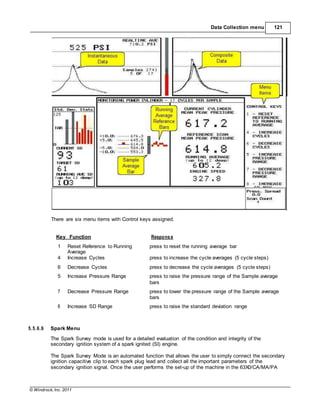
please contact the factory for assistance.
Figure 4. Attachment of accelerometer to surface
HANDHELD OR PROBE TIP MOUNT
This method is NOT recommended for most applications. It is generally used where access to
machinery may be a safety concern. Both the accuracy and repeatability at low (<5 Hz) and high
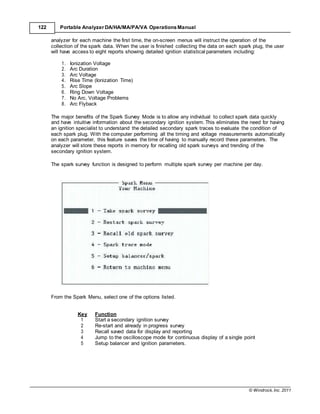
frequency (>1 kHz) ranges are questionable
© Windrock, Inc. 2011
Appendix 207
CABLE WIRING DIAGRAM
Figure 5. Cable Wiring Diagram
13.3.2 Compressor DC Pressure Sensor
GENERAL DESCRIPTION
A transducer is a device which provides a usable output in response to a specified physical
condition. In the case of a pressure transducer, the usable output is an electric signal and the
specified physical condition is an application of pressure.
Pressure transducers are able to convert applied pressure to an electric signal through various
technologies. The technology used in the A6082 series of pressure transducers is inorganically
bonded strain gauge.
The Model A6082 pressure transmitter is a complete pressure measurement device for use in on
line reciprocating compressor monitoring systems. These transmitters are ideally designed to be
incorporated in head-end and crank-end indicator ports. Using the specifically designed
transmitters, the C-Guard system is capable of producing on line continuous PT/PV pressure
traces.
PRINCIPLE OF OPERATION
The A6082 pressure sensor provides a standard two-wire current loop output and has been
designed for harsh environments.
MACHINE CONNECTION
Indicator ports allow pressure measurement inside the cylinder and are required on any
compressor cylinder requiring pressure measurements.
Install a full-opening valve with a ½" NPT connector for the sensor. A straight-through port of 1/8"
diameter or larger is acceptable in a valve. Restricted port valves such as needle valves are not
desirable for compressor analysis as they dampen higher frequencies.
© Windrock, Inc. 2011
208 Portable Analyzer DA/HA/MA/PA/VA Operations Manual
We recommend a Whitey Valve with PEEK material or Kiene valve for easy shutoff and removal
of the sensor for calibration and replacement.
Cylinders must be drilled and tapped into the clearance volume (for compressors, both the head
end and crank end) where the piston will not cover the opening.
The sensor requires five (5) inches minimum clearance in line with the end of the valve so as to
leave enough room to install and remove.
Keep the connection as short as possible. Avoid using elbows if at all possible. Elbows may
obstruct the pressure flow into the sensor.
CALIBRATION
To calibrate the sensor, a deadweight tester must be used to simulate full scale pressure on the
sensor. The following steps should be followed.
STEP 1: Remove the sensor from the compressor indicator port.
Caution!: Make sure the pressure is removed from the sensor prior to removing.
STEP 2: Unscrew the connector assembly from the sensor body. This is done by removing the
four (4) outer screws on the top connector assembly and sliding the assembly out using
caution not to extend the wires too far causing breakage.
STEP 3: Attach cable to sensor and connect per figure 1 making sure to observe proper polarity.
Figure 1
Caution!: Reversing the polarity may cause permanent damage to the sensor.
STEP4: Adjust ZERO pot until 4.00 mA is displayed on meter. Refer to Figure 2 for ZERO and
SPAN pot locations.
Figure 2
STEP5: Place sensor on deadweight tester and apply full scale pressure. Adjust SPAN pot for
20.00mA on meter.
© Windrock, Inc. 2011
Appendix 209
Repeat steps 4 and 5 once more to verify zero and full scale. Reassemble the sensor.
CABLE WIRING DIAGRAM
Figure 3. Cable Wiring Diagram
13.3.3 Infrared Temperature Sensor
Emissivity of Target Object
Determine the emissivity of the target object as described on the next page. If emissivity is low,
measured results could be falsified by interfering infrared radiation from background objects (such
as heating systems, flames, fire clay bricks, etc. close beside or behind the target object). This
type of problem can occur when measuring reflecting surfaces and very thin materials such as
plastic films and glass.
This measuring error when measuring objects with low emissivity can be reduced to a minimum if
particular care is taken during installation and the sensing head is shielded from these reflecting
radiation sources.
Cleaning the Lens
Care should be taken to keep the lens clean. Any foreign matter on the lens will affect the
accuracy of the measurements. Be sure to take care when cleaning the lens. Please observe the
following:
1. Blow off loose particles with clean air.
2. Gently brush off remaining particles with a soft camel hairbrush.
3. To remove any severe contamination use a clean, soft cloth dampened with distilled water.
In any case, do not scratch the lens surface!
For fingerprints or other grease, use any of the following:
 Denatured alcohol
 Ethanol
© Windrock, Inc. 2011
210 Portable Analyzer DA/HA/MA/PA/VA Operations Manual
 Kodak lens cleaner
Apply any of the above to the lens. Wipe gently with a clean, soft cloth until you see colors on the
lens surface then allow to air dry. Never wipe the surface dry. This may scratch the surface. If the
lens is contaminated with silicones (e.g. from hand creams), clean it carefully using Hexane. Allow
the lens to air dry.
Caution! Do not use any ammonia or any cleaners containing ammonia to clean the
lens. This may result in permanent damage to the lens' surface.
Replacing a Protective Window (Models produced after May 1999)
Attention! Beginning production date May 1999, the models contain a thread allowing an easier
protective window exchange. (If you received your model together with this manual, your model
was produced after May 1999.)
Make sure to use the appropriate protective window for the spectral range of your sensor model.
For more information see section Fehler! Verweisquelle konnte nicht gefunden werden. Fehler!
Verseisquelle konnte nicht gefunden werden. on page Fehler! Textmarke nicht definiert.
The window material is placed in a metal ring with a thread with an inner rubber gasket. This
rubber gasket hermetically seals the sensor against atmospheric contaminants. Replace the
protective window using the special tool supplied with the spare window. Put the tool's nozzles
into the holes on the window's mounting ring. Now, gently unscrew the protective window from its
mount by turning to the left. Take care to screw in the new protective window as tight as possible
but do not over tighten!
Determination of Emissivity
Emissivity is a measure of an object's ability to absorb and emit infrared energy. It can have a
value between 0 and 1.0. For example a mirror has an emissivity of 0.1, while the so-called
"Blackbody" reaches an emissivity value of 1.0. If a higher than actual emissivity value is set, the
output will read low, provided the target temperature is above its ambient temperature. For
example, if you have set 0.95 and the actual emissivity is 0.9, the temperature reading will be
lower than the true temperature. An object's emissivity can be determined by one of the following
methods:
1. Determine the actual temperature of the material using an RTD (PT100), a thermocouple,
or any other suitable method. Next, measure the object's temperature and adjust the
emissivity setting until the correct temperature value is reached. This is the correct
emissivity for the measured material.
2. For relatively low temperatures (up to 260 degrees Celsius, 500 degrees Fahrenheit), place
a plastic sticker on the object to be measured. This sticker should be large enough to cover
the target spot. Next, measure the sticker's temperature using an emissivity setting of 0.95.
Finally, measure the temperature of an adjacent area on the object and adjust the
emissivity setting until the same temperature is reached. This is the correct emissivity for
the measured material.
3. If possible, apply flat black paint to a portion of the surface of the object. The emissivity of
the paint must be above 0.98. Next, measure the temperature of the painted area using an
emissivity setting of 0.98. Finally, measure the temperature of an adjacent area on the
object and adjust the emissivity until the same temperature is reached. This is the correct
emissivity for the measured material.
© Windrock, Inc. 2011
Appendix 211
Typical Emissivity Values
The following table provides a brief reference guide for determining emissivity and can be used
when one of the above methods is not practical. Emissivity values shown in the table are only
approximate since several parameters may affect the emissivity of a material. These include the
following:
1. Temperature
2. Angle of measurement
3. Geometry (plane, concave, convex)
4. Thickness
5. Surface quality (polished, rough, oxidized, sandblasted)
6. Spectral range of measurement
7. Transmissivity (e.g., thin films, plastics)
Aluminum 0.02 – 0.1
Brass Polished 0.01-0.05
Brass Burnished 0.3
Chromium 0.02-0.2
Copper Polished 0.03
Copper Oxidized 0.01-0.1
Iron Oxidized 0.5-0.9
Iron Unoxidized 0.05-0.2
Rust 0.5-0.7
Iron Cast 0.6-0.95
Iron, Wrought 0.9
Steel Cold rolled 0.7-0.9
Steel Polished 0.1
Steel Stainless 0.1-0.8
Asbestos 0.95
Asphalt 0.95
Carbon 0.8-0.9
Paint 0.9-0.95
Plastic opaque 0.95
Wood 0.9-0.95
Adjusting the Windrock Raytek Emissivity Value
To adjust the emissivity of the infrared, remove the rear covering by unscrewing. If the cable is too
tight to uncover the emissivity rotary switches shown in figure 1, remove the Lemo connector and
loosen the Lemo crimp to allow the cable to slip through the rear cover. See figure 2. The power
connector is removable.
Figure 1 shows the two emissivity adjustments. The default is set to 0.95. One adjustment is for the
tenths place and the other is for the hundredths place.
© Windrock, Inc. 2011
212 Portable Analyzer DA/HA/MA/PA/VA Operations Manual
Figure 1 – Emissivity Adjustments
Figure 2 – Infrared rear disassembly
© Windrock, Inc. 2011
Appendix 213
13.3.4 Magnetic Pickup
GENERAL DESCRIPTION
Completely self-powered, the VRS (magnetic) sensor are rugged devices that do not require an
external voltage source for operation. They are generally used to provide speed, timing or
synchronization data to a display (or control circuitry) in the form of a pulse train.
PRINCIPLE OF OPERATION
The output signal of a VRS sensor is an AC voltage that varies in amplitude and wave shape as
the speed of the monitored device changes and is usually expressed in peak-to-peak voltage (V
P-P). One complete waveform (cycle) occurs as each actuator passes the sensing area (pole
piece) of the sensor. The most commonly used actuator is a metal gear, but also appropriate are
bolt heads (cap screws are not recommended), keys, keyways, magnets, holes in a metal disc,
and turbine blades. In all cases, the target material must be a ferrous metal, preferably
unhardened.
A permanent magnet is the heart of a VRS sensor and establishes a fixed magnetic field. An
output signal is generated by changing the strength of this field. This is caused by the approach
and passing of a ferrous metal target near the sensing area (pole piece). The alternating presence
and absence of ferrous metal (gear tooth) varies the reluctance, or "resistance of flow", of the
magnetic field which dynamically changes the magnetic field strength. This change in magnetic
field strength induces a current into a coil winding which is attached to the output terminals. If a
standard gear is used as an actuator, this output signal would resemble a sine wave if viewed on
an oscilloscope.
© Windrock, Inc. 2011
214 Portable Analyzer DA/HA/MA/PA/VA Operations Manual
APPLICA TION CONSIDERATIONS
VRS sensors are not designed for sensing extremely low speeds. The target passing the pole
piece of the sensor must be traveling at a minimum velocity, or surface speed, to provide an
adequate output voltage. The bottom line in proper VRS sensor selection is to choose one that will
meet the following two conditions:
1) Provide the required peak-to-peak voltage at the minimum speed of interest.
2) Will still function properly at the maximum operating frequency of the application.
To choose an appropriate sensor, the following data must be obtained:
1) Minimum and maximum speed of interest.
2) Diameter of gear (or shaft) and number of teeth (or actuators) per revolution.
3) Load resistance and the input resistance of the device being driven.
4) Air gap setting (pole piece clearance) and distance between sensor face (pole piece) and
top of gear tooth (or other actuator).
5) Minimum acceptable peak-to-peak voltage level (V P-P) of the device being driven and
typically, a display or frequency to DC converter.
USE OF MAGNETIC PICKUP WITH WINDROCK INSTRUMENTATION
When using the magnetic pickup for TDC (top dead center) triggering in reciprocating machine
analysis, it is extremely important that the pickup triggers data acquisition exactly at TDC. Errors
of only 2 degrees can produce measurement errors of up to 5% in horsepower and throughput
calculations. For the magnetic pickup to operate properly with Windrock analyzers, several issues
must be addressed.
PICKUP DISTANCE FROM TARGET
Often, the magnetic pickup is placed too close to the target. When this happens, the pickup can
trigger data acquisition on scratches, nicks, or magnetic deformities in the flywheel or shaft.
Usually, a gap of about 1/4 inch is sufficient.
TARGET TYPE
Some sort of target must be placed on the flywheel or shaft to trigger the magnetic pickup. The
target must be of a ferrous material. It may be a hole drilled into the flywheel or shaft or may be a
protruding object such as a bolt head. Either way, the target must produce the largest magnetic
interference of any other scratch, hole, or deformity in the flywheel or shaft. The center of the hole
or bolt head must be placed at TDC of the machine. A hole is preferred because it is always
round, and the center of the hole is the magnetic center of the target. A good choice for hole size
is 1/4" diameter 1/4" deep. Sometimes, when using a bolt head, the flats of the bolt cause the
magnetic center to be other than the geometric center of the bolt.
Sometimes, we have seen a sharp edge used as a target. This is OK, but due to the small
magnetic interference, the gap must be smaller in order to get a sufficient signal.
© Windrock, Inc. 2011
Appendix 215
SIGNAL POLARITY
This is where many problems occur when using a magnetic pickup. The circuit in the Windrock
analyzers arms itself on a POSITIVE going signal. The actual trigger occurs upon
ZERO-CROSSING after the circuit is armed. Zero-crossing occurs at the magnetic center of the
magnetic pickup or when the magnetic pickup is centered on the target.
When using a hole as a target, pin A of the magnetic pickup is the signal.
When using a protruding object as a target, pin B of the magnetic pickup is the signal.
If in doubt, use the analyzer in o-scope mode, or an oscilloscope to view the signal. The signal
should look like the figure below. If the polarity is reversed from this, swap the signal, lead and
ground leads in the connector.
SIZE OF SIGNAL
The magnetic pickup contains a permanent magnet with a coil. When the magnetic field changes
due to the pickup going over a hole or object, a voltage is generated in the coil. The size of the
signal is proportional to the magnetic field change. Several factors determine the field change:
permanent magnet strength, number of turns in the coil, gap from pickup to target, material of
target, and size of target.
The bottom line is that you want a signal of about 1V peak and it must be at least 10 times the
size of any other noise or spurious signals in the output of the pickup. If the polarity of the signal is
reversed, the trigger point will be much later than actual TDC.
© Windrock, Inc. 2011
216 Portable Analyzer DA/HA/MA/PA/VA Operations Manual
13.3.5 Primary Ignition Sensor
13.3.6 Secondary Ignition Sensor
13.3.7 Ultrasonic Sensor
GENERAL DESCRIPTION
The primary ignition pick-up is used to
accurately measure and capture the primary
ignition voltages. The attenuation is 100 times
and the voltage range is 500 volts. The primary
ignition pick-up is clipped to the positive “N” or
“G” or other lead in the junction box depending
on the type of ignition system with the red
alligator clip and the black alligator clip is
connected to engine ground for zero voltage
reference. You may also use a permanently
installed BNC connector.
The calibrated secondary ignition capacitive clip
is used to accurately measure the secondary
ignition voltages. The attenuation is 10,000
times and the voltage range is 50 kilo volts. The
capacitive clip is clipped around the spark plug
wire. The alligator clip may be connected to
engine ground but is not usually necessary.
A transducer is a device which provides a usable output in response to a specified physical
condition. In the case of a ultrasonic transducer, the usable output is an electric signal and the
specified physical condition is an application of sound.
Ultrasonic transducers are able to convert applied sound pressure to an electric signal through
various technologies. The technology used in the A6050 is an ultra sensitive microphone with a
frequency response of 35 kHz to 40 kHz.
The model A6050 ultrasonic transducer is a complete sound-sensing device for use in
reciprocating compressor diagnostic systems. These transducers are ideally designed for use with
© Windrock, Inc. 2011
Appendix 217
portable analyzers in the measurement of:
External Leakage Identification (Stand Alone)
Spark plug seat areas
Power cylinder head gaskets
Valve guides
Exhaust leaks
Air manifold leaks
Air starter valve seat gaskets
Fuel valve seat gaskets
Fuel manifold control valve
Process line and vessel gas leaks
Pneumatic control supply and shutdowns
Valve caps
Pocket stems
Unloader stems
Rod packing and packing gland gasket leaks
Internal Leakage Identification (Stand Alone)
By-pass valves
Relief valves
Compressor valves
Internal Leakage Identification and Mechanical Condition Indication (crank angle related)
Power valve leakage (exhaust and intake)
Fuel valve leakage
Ring blow-by
Event timing
Valve recession
Fuel valve flow restriction
Cylinder liner ring ridge
Liner scuffing
Compressor valve leakage
Compressor valve spring and lift deficiencies
PRINCIPLE OF OPERATION
The A6050 ultrasonic transducer provides a standard two-wire current loop output. It has an
additional output for attaching noise reducing headphones to enable listening to the measured
signals.
The frequencies involved in the measurement are converted to frequencies that can be heard by
the user and amplified for headphone output. By using headphones, background noise is reduced
and the measured ultrasonic sound can be heard more easily.
A raw output electrical signal from the amplifier is fed to the analyzer input. The analyzer can then
display the electronic signal in a visual pattern for interpretation.
MACHINE CONNECTION
The probe direction and placement will affect the quality of the patterns obtained. A direct
mechanical path to the object to be monitored is best. Use head-bolts, solid castings, etc. on
which to mount the probe. When looking at compressor valves, it is sometimes better to place the
© Windrock, Inc. 2011
218 Portable Analyzer DA/HA/MA/PA/VA Operations Manual
probe tip on the cylinder casting just below the valve cap or on the valve cap jack-bolt if so
equipped. This will give a better pattern than placing on the surface of the valve cap.
HELPFUL HINTS
The rubber tip probe is the preferred choice for all ultrasonic-related sampling. It is highly
directional and insures that you are only looking at either leakage or the ultra-high frequency
components of a mechanical event.
When using as a listening device with a head set and rubber general purpose tip, use a low gain
setting (2-3) and test the output by making a "kissing" sound in the microphone. Use the lowest
setting possible while obtaining the desired level of sensitivity.
When using in the "Take new data" mode (crank angle related) of the portable analyzer, adjust the
gain setting to get the resolution desired. Reduce the gain setting if you see clipping of the
mechanical events (e.g., flat tops on valve closure events). Slow speed (250-450 RPM) units will
normally require a gain setting of 4-6 and a scaling factor of +/- 2 to +/- 5. High speed engines and
compressors may require a gain setting of 2-4 and a scaling factor of +/- 5 to +/- 10. Once you
have decided on a gain setting and scale factor, record for future use and comparisons.
When you come to a collection point that will sample crank angle related data, you might consider
starting the auto scan function and then use the ultrasonic to check for external leaks. Pass the
probe tip near the spark plugs, head gasket, indicator valve, intake and exhaust connections, fuel
connections and watch where the ultrasonic leakage indication appears. If the leakage is
compression related, it will show up where compression and peak firing pressure would be. If the
leakage is exhaust related, it will show up where the exhaust blow-down would occur. If you have
the head-phones connected, you can see and hear the leak at the same time.
The probe direction and placement will affect the quality of the patterns obtained. A direct
mechanical path to the object to be monitored is best. Use head-bolts, solid castings, etc. on
which to mount the probe. When looking at compressor valves, it is sometimes better to place the
probe tip on the cylinder casting just below the valve cap or on the valve cap jack-bolt if so
equipped. This will give a better pattern than placing on the surface of the valve cap.
PRECAUTIONS
 Do not immerse in liquid.
 Keep the probe body isolated from near-by objects.
 Do not drape the probe cable on the secondary leads or on the exhaust or indicator
passage components.
 Obtain a good seal between the probe rubber tip and the object thfrom whichat you are
measuring internal emissions.
CALIBRATION
To calibrate the sensor, a frequency counter must be used to measure the heterodyne frequency
of the sensor. The following steps should be followed:
Caution: Make sure calibration is done in a quiet room without high pitch noises such as
computer monitors.
STEP 1: Unscrew the rear cap holding the connector assembly from the sensor body. There are
approximately six turns.
STEP 2: Attach cable to sensor and connect to the portable analyzer and use direct channel read
mode.
© Windrock, Inc. 2011
Appendix 219
STEP 3: Attach frequency counter between ground (case) and test point indicated in figure 2.
Adjust R22 for 41.4kHz on display of frequency counter. Refer to figure 1 for R22
location.
STEP4: Reassemble sensor.
Figure 1
The output of the ultrasonic can be directed to the headset, direct channel read output, the display
screen or any two combinations of these.
13.3.8 Velocity Sensor
This probe’s output is in inches per second (ips)
velocity. Its output can be accurately integrated to
displacement for measurement of components
vibrating at relatively low frequencies (frames,
cylinders, skids).
© Windrock, Inc. 2011
220 Portable Analyzer DA/HA/MA/PA/VA Operations Manual
13.3.9 Water-cooled Pressure Sensor
13.3.10 Displacement Probe
This pressure sensor used with Windrock's
portable analyzer is for conditions of extreme
temperature for extended periods of time. This
device outputs a 4 mA to 20 mA electrical signal
that is directed to the analyzer. The pressure
transducer is typically connected to kiene or other
indicator valve type, on the power cylinders.
13.4 Specifications - 6310
Basic Capabilities, 6310:
Non-contact eddy current probe (proximity or
displacement probe) measures static and
dynamic displacement and relative motion.
Requires a stable mounting
Setup as a 4-20 mA sensor point
The data acquisition capabilities of the instrument are based upon 4-channel simultaneous
dynamic signal capture as a function of crank angle position. The crank angle position is captured
via an shaft encoder coupled mechanically to the machine being analyzed or magnetic/optical
pickup. The 4 simultaneous signal inputs can be a combination of pressures, vibration, ultrasonic,
or other voltage or current signals. A fifth channel is dedicated for capture of high-speed primary
and secondary ignition systems. Four channel simultaneous vibration spectral analysis for
auxiliary rotating machines is supported in the /VA option. Angular velocity measurements are
captured and displayed using the encoder information.
© Windrock, Inc. 2011
Appendix 221
Input Signals
Channel 1: Software selectable between Current Loop, Constant Current, Voltage Input
Channel 2: Software selectable between Current Loop, Constant Current, Voltage Input
Channel 3: Software selectable between Current Loop, Constant Current, Voltage Input
Channel 4: Software selectable between Current Loop, Constant Current, Voltage Input,
Ignition primary and secondary (secondary uses a capacitive voltage clip)
Channel 5: Supplies 12 VDC to encoder or magnetic/optical pickup conditioner 2 inputs, TTL
compatible with 10Kohm pull-ups
Current loop input
Range: 0-20 mA
Frequency response: DC to 5 KHz
Supply voltage: 24 VDC
Over-voltage protection to 2000V
Current loop input is used for the DC pressure sensor
Input impedance 470 ohm
Ignition secondary using capacitive coupling probe
Range: 1 KV to 50 KV
Software selectable for positive or negative ignition systems
Secondary ignition data capture rate is 75 KHz
Over voltage protection
Voltage input
Range: 0-10V
Frequency response: DC to 5 KHz
Supply voltage: 24 VDC
Over voltage protection to 2000V
Voltage input is used for voltage signals
Input impedance: >1 Meg ohm
Memory Capacity
16 Mb on-board RAM memory
3 Gigabytes of internal disk or flash memory storage
Communications
Parallel or USB interface for host communications
Power Supply
12V Lithium Ion rechargeable 3200 milliamp-hour battery
Three batteries standard
Battery is removable
External charger provided - 1.5 hr recharge time
External power input 12 - 18 VDC
Battery life: approximately 6 hours depending on use
Operating Conditions
Temperature: 15-120 F
Humidity: 0-90% non-condensing
Display
8.25" diagonal LDC, transmissive, with back light, color option
Size of display: 8.25" diagonal
Pixels: 640 x 480
© Windrock, Inc. 2011
222 Portable Analyzer DA/HA/MA/PA/VA Operations Manual
Contrast: software controlled
Processor
133 MHz AMD 586 with (2) Microchip RISC signal conditioning processors
Chassis
Material: EMI hardened anodized aluminum
Size and Weight: 10.5" X 8.5" X 2" (6.75 lbs.)
Power: Long-life, field replaceable, rechargeable Lithium ion battery
Keypad: 24 keys
13.5 Specifications - 6320
Basic Capabilities, 6320:
The data acquisition capabilities of the instrument are based upon 4-channel simultaneous
dynamic signal capture as a function of crank angle position. The crank angle position is captured
via a shaft encoder coupled mechanically to the machine being analyzed or magnetic/optical
pickup. The 4 simultaneous signal inputs can be a combination of pressure, vibration, ultrasonic,
or other voltage or current signals. Four channel simultaneous vibration spectral analysis for
auxiliary rotating machines is supported in the /VA option. Angular velocity measurements are
captured and displayed using the encoder information.
Input Signals
Channel 1-4: Software selectable between Current Loop, Constant Current, Voltage Input,
Ignition primary and secondary (secondary uses a capacitive voltage clip).
Channel 5: Supplies 12 VDC to encoder or magnetic/optical pickup conditioner 2 inputs,
TTL compatible with 10 Kohm pull-ups
Current loop input
Range: 0-20 mA
Frequency response: DC to 5 KHz
Supply voltage: 24 VDC
Over-voltage protection to 2000V
Current loop input is used for the DC pressure sensor
Input impedance 470 ohm
Ignition secondary using capacitive coupling probe
Range: 1 KV to 50 KV
Software selectable for positive or negative ignition systems
Secondary ignition data capture rate is 1 mHz
Over voltage protection
Voltage input
Range: 0-10V
Frequency response: DC to 5 KHz
Supply voltage: 24 VDC
Over voltage protection to 2000V
Voltage input is used for voltage signals
Input impedance: >1 Meg ohm
Memory Capacity
256 Mb on-board RAM memory
4 Gb flash memory storage
Communications
© Windrock, Inc. 2011
Appendix 223
USB interface for host communications
Power Supply
12V Lithium Ion rechargeable 3200 milliamp-hour battery
Three batteries standard
Battery is removable
External charger provided - 1.5 hr recharge time
External power input 12 - 18 VDC
Battery life: approximately 6 hours depending on use
Operating Conditions
Temperature: 15-120 F
Humidity: 0-90% non-condensing
Display
8.25" diagonal LDC, transmissive, with back light, color option
Size of display: 8.25" diagonal
Pixels: 640 x 480
Contrast: software controlled
Chassis
Material: EMI hardened anodized aluminum
Size and Weight: 10.5" X 8.5" X 2" (6.75 lbs.)
Power: Long-life, field replaceable, rechargeable Lithium ion battery
Keypad: 28 keys
Resolution 16 bits
HF vibration channels 4
Pressure, ultrasonic, prox channels 4
Ignition Analysis Channels 4
HF vibration filters unlimited (DSP programmable)
Ignition Analysis Speed 1 Mhz
Operating system Linux
Real-time speed 1800 RPM
Battery Life 7 hours
Data Transfer method USB - USB
Printers supported USB printer w/ Linux driver
Signal Processing Technology quad DSP processors
Main user interface processor AMD Geode 500 Mhz
Crankangle samples per degree 1, 2, or 4
A/D converters 8
Debian GNU/Linux software included on the 6320 Portable Analyzer is covered by the GNU
General Public License, the GNU Lesser General Public License, and other licenses.
Additional software libraries included on the 6320 Portable Analyzer are covered by the GNU
Lesser General Public License. Copies of relevant licenses are available under
/usr/share/doc/*/copyright on the Portable Analyzer file system. To receive a DVD containing
the source code used to build the Debian GNU/Linux software and additional software
libraries, mail a copy of this page and a check for $10 shipping and handling to the following
address:
Windrock, Inc.
Suite 102
1832 Midpark Road
Knoxville, TN (USA) 37921
© Windrock, Inc. 2011
224 Portable Analyzer DA/HA/MA/PA/VA Operations Manual
13.6 Specifications - Sensors
AC Pressure Sensor for Power Cylinder PT/PV Measurement
Range: 0-2000 psi (other ranges available 3000)
Frequency Response: 12 Khz
Resolution: 0.01 psi
Linearity: <1 % full scale
Acceleration Sensitivity: .05 psi/g
Operating Temperature Range: -65 to 600 F
Connector: 2-pin military
Pressure fitting: Kiene adapter
DC Pressure Sensor for Power Cylinder PT/PV Measurement
Range: 0-2000 psi (other ranges available 1000, 3000) (A 5000 psi sensor is also available in the
water cooled model)
Response Time: <0.5 ms (A6082-XX-01 <0.1ms)
Accuracy: 1%
Linearity: <1% full scale
Cycle Life: >1.5 billion cycles
Operating Temperature Range: 0-450 F (temperature compensated)
Pressure Fitting: Kiene adapter
Output: 4-20 mA, loop powered
DC Pressure Sensor for Compressor Cylinder PT/PV Measurement
Range: 0-2000 psi (other ranges available 300, 500, 1000, 3000, 5000)
Response Time: <0.5 ms (A6082-XX-XX <0.1ms)
Accuracy: 1%
Linearity: <1% full scale
Cycle Life: >1.5 billion cycles
Operating Temperature Range: 0-212 F (temperature compensated)
Pressure Fitting: Kiene adapter
Output: 4-20 mA, loop powered
Accelerometer:
Sensitivity: 100 mV/g
Range: +/- 50 g
Frequency Range (3 db) : 0.4 hz to 14 Khz
Linearity: 1% full scale
Off-axis Sensitivity: <5%
Shock Limit: 5000 g
Temperature Range: -65 to 250 F
Excitation Voltage: 18 to 28 V
Connector: 2-pin MIL-C-5015
Ultrasonic:
Sensitivity: -75 dbv / mbar
Frequency Response: 35 Khz to 45 Khz
Temperature Range: -40 to 120 C
Power Requirement: 24V power supplied by analyzer
Cable Length: 6 ft
Secondary Ignition Capacitive Pickup
Attenuation: 10,000 times
Range: 50 KV
Output Connector: BNC
Temperature Range: 200 F
Cable Length: 6 ft
© Windrock, Inc. 2011
Appendix 225
13.7 Specifications - Wireless Transmitter
Electrical
Frequency: 928.0 MHz ±25KHz
Power: 36mW
Voltage: Transmitter 12VDC Ni-MH rechargeable 3500 mA-hr battery
Receiver Power from Analyzer
Antenna
VSWR: <1.3
Type: 1/4 Wave Omnidirectional
Environmental
Weight: Transmitter 1 lb
Operating Conditions
Temperature: 150F - 1200F
Humidity: 0-90% non-condensing
INFORMATION TO USER
This device complies with Part 15 of the FCC Rules. Operation is subject to the following two
conditions: (1) This device may not cause harmful interference, and (2) This device must accept any
interference received, including interference that may cause undesired operation.
This equipment has been tested and found to comply with the limits for Class B Digital Device,
pursuant to Part 15 of the FCC Rules. These limits are designed to provide reasonable protection
against harmful interference in a residential installation. This equipment generates and can radiate
radio frequency energy and, if not installed and used in accordance with the instructions, may cause
harmful interference to radio communications. However, there is no guarantee that interference will not
occur in a particular installation. If this equipment does cause harmful interference to radio or television
reception, which can be determined by turning the equipment off and on, the user is encouraged to try
to correct the interference by one or more of the following measures:
• Reorient or relocate the receiving antenna
• Increase the separation between the equipment and receiver
Connect the equipment into an outlet on a circuit different from that to which the receiver is
connected
• Consult the dealer or an experienced radio / TV technician for help
Any changes or modifications not expressly approved by the party responsible for compliance could
void the user’s authority to operate the equipment.
This device has been designed to operate with the antennas supplied by Windrock. Antennas not
supplied by Windrock are strictly prohibited for use with this device. The required antenna impedance
is 50 ohms.
13.8 PKZIP 6310 only
PKZIP (R) FAST! Create/Update Utility Version 2.04g 02-01-93
Copr. 1989-1993 PKWARE Inc. All Rights Reserved. Registered Version
PKZIP Reg. U.S. Pat. and Tm. Off. Patent No. 5,051,745
PKZIP /h[1] for basic help PKZIP /h[2|3|4] for other help screens.
Usage: PKZIP [options] zipfile [@list] [files...]
© Windrock, Inc. 2011
226 Portable Analyzer DA/HA/MA/PA/VA Operations Manual
-a Add files
-b[drive] create temp zipfile on alternative drive
-d Delete files
-e[x,n,f,s,0] use [eXtra|Normal (default)|Fast|Super fast|NO compression]
-f Freshen files
-l Display software License agreement
-m[f,u] Move files [with Freshen | with Update]
-u Update files
-p|P store Pathnames|p=recursed into|P=specified & recursed into
-r Recurse subdirectories
-s[pwd] Scramble with password [If no pwd is given, prompt for pwd]
-v[b][r][m][t][c] View .ZIP [Brief][Reverse][More][Technical][Comment] sort by [d,e,n,o,p,s]
[Date|Extension|N ame|natural Order(default)|Percentage|Size]
-&[f|l|u|ul|w|v][s[
drive]
Span disks [Format|format Low density|Unconditional format|
This is a registered version of PKZIP and is only for use on those machine(s) that it is licensed for.
This version is NOT TO BE DISTRIBUTED as Shareware.
PKWARE, Inc
9025 N. Deerwood Drive
Brown Deer, WI 53223
PKUNZIP (R) FAST! Extract Utility Version 2.04g 02-01-93
Copr. 1989-1993 PKWARE Inc. All Rights Reserved. Registered version
PKUNZIP Reg. U.S. Pat. and Tm. Off.
Usage: PKUNZIP [options] zipfile [@list] [files...]
-c[m] extract files to Console [with More]
-d restore/create Directory structure stored in .ZIP file
-e[c|d|e|n|p|r|s] Extract files. Sort by [CRC | Date | Extension | Name | Percentage | Reverse |
Size]
-f Freshen files in destination directory
-j|J<h,r,s> mask|don't mask <Hidden/System/Readonly> files (def.=jhrs)
-n extract only Newer files
-o Overwrite previously existing files
-p[a/b][c][#] extract to Printer [Asc mode,Bin mode,Com port] [port #]
-q Enable ANSI comments
-s[pwd] Decrypt with password [If no pwd is given, prompt for pwd]
-t Test .ZIP file integrity
-v[b][r][m][t] View .ZIP [Brief][Reverse][More][Technical] sort by [CRC| [c,d,e,n,o,p,s]
Date|Extension|Nam e|natural Order(default)|Perce ntage|Size]
-x<filespec> eXclude file(s) from extraction
-$ Restore volume label on destination drive
-@listfile Generate list file
This is a registered version of PKUNZIP and is only for use on those machine(s) that it is licensed for.
This version is NOT TO BE DISTRIBUTED as Shareware.
PKWARE, Inc
9025 N. Deerwood Drive
Brown Deer, WI 53223
© Windrock, Inc. 2011
Appendix 227
13.9 Termsand Conditions
STATEMENT OF GENERAL TERMS, CONDITIONS, AND WARRANTIES
ACCEPTANCE. Offers topurchase are subject to andeffective only upon acceptanceby WindrockInc.(hereinafter "WRI") inKnoxville,
Tennessee,UnitedStates of America. This quotation andsolicitationfor orders is limitedtothe quantities anditems specifically mentioned
herein; WRI assumes no responsibility for furnishing other equipment, software, or materials shown in any plan or specification.
Acceptance of offers to purchase goods or license software is expressly conditioned upon Purchaser's assent to the terms and conditions
contained herein, which assent is acknowledged by Purchaser upon accepting shipment, and shall prevail as the final expression for the
parties in theevent ofconflict.
PRICES. Prices are FOB shipping point and remain in effect for thirty (30) days from quotation date. In all other respects, the quotation
and solicitation for orders may be withdrawn at any time prior to acceptance by WRI. Quotations are valid for deliveries within six (6)
months of the quotation date.
TAXES. Liability for all taxes,licenses,or other fees imposedby any governmental authorityupon the production, sale, shipment, oruse of
equipment or services coveredby this solicitation shall be assumed and paidfor by the Purchaser. Purchaser shall indemnify WRI against
any such liability. Applicable sales or use taxes are billed by WRI unless Purchaser furnishes suitable exemption certificates before
acceptance by WRI.
SHIPMENT. Shipment shall occur upondelivery of the products or materials by WRI to a carrier at WRI's factory, at which time all risks
pass to Purchaser. WRI shall attempt to make shipment within the time specified by WRI after its acceptance and/or after receipt of full
data. Purchaseragrees to furnish completeshipping instructions toWRI within a reasonable periodof time before the datesuch shipment is
required to be made.
PAYMENT. Unless otherwise specified in WRI's quotation andsolicitationforoffers,payment terms are net thirty (30) days from the date
of WRI's invoice, payable in United States dollars. Upon WRI's failure to receive payment within thirty (30) days, in addition to other
remedies that WRI may have, it shall havethe right torepossess equipment or products as to which full payment has not been received. On
all currency-basedtransactions, interest of one andone-half percent (1-1/2%)per month, eighteenpercent (18%)annuallyshall be added to
past due accounts.
CANCELLATION AND RETURNED EQUIPMENT. Orders may be canceled or terminated by Purchaser only upon WRI's written
consent anduponpayment of reasonable andproper cancellationcharges, includingfactory costs andexpenses incurredby WRI in carrying
forward the order to date of WRI's agreement to terminate. If the order or any part thereof has been shipped from the shipping point, the
equipment shall be returned only when specifically authorized, and credit for this returned equipment shall be determined by WRI after
factory inspection and granted only after prior written authorization from WRI has been given. If equipment has been manufactured or
outside purchases made by WRI pursuant to orders prior toreceipt of Purchaser's holdnotice, the equipment shall be heldin storage for ten
(10) days with no charge. After ten (10) days, storage charges will be leviedon the Purchaser. The order will be invoiced on the date the
equipment was placed in storage. Storage charges will be invoiced after the equipment has been removed from storage.
CATALOGAND SPECIFICATION ILLUSTRATIONS. The illustrations andengravings in WRI's catalogs and specificationsheets are
intended toshowthe general features of the product materials, but WRI reserves the right to supply products and materials of latest design
and manufacture and does not warrant that products will conform to either samples or illustrations.
INDEMNIFICATION. Purchaser hereby promises and covenants to indemnify and hold harmless and defend WRI from and against all
claims, losses, andliability of any kindwhatsoever, brought by any personor entity, causedin whole or in part by thenegligence or willful
acts of Purchaser, its representatives,agents, or employees in connectionwith thegoods furnishedhereunder, including, without limitation,
erection, repair, adjustment, or operation thereof.
PRECEDENCE. These terms andconditions take precedenceover Purchaser's additional or different terms andconditions, towhich notice
of objection is hereby given. Acceptance of goods by the Purchaser is limited to these terms and conditions. Neither commencement nor
delivery by WRI shall be acceptance of Purchaser's additional or different terms and conditions.
FORCEMAJEURE. WRI shall not be liable for delays in the performance of this purchaseorder arising out of causes beyondthe control
and without the fault or negligence of WRI. Such causes include, but are not restricted to, acts of God or the public enemy, acts of
Government, fires, floods, epidemics, quarantine restrictions, strikes, freight embargoes, unusually severe weather, and defaults of
subcontracts due to any such causes where the supplies or services to be furnished by the subcontractor were not obtainable from other
sources in sufficient time to permit WRI to meet the required delivery schedule.
EXPORTING/RE-EXPORTING OFPRODUCT TO RESTRICTED COUNTRIES. The Purchaser certifies that this product will not
be exported and/orre-exported to a country where export is prohibitedby the United States Government or where the product is currently
under governmental restrictions. Notification of destination and end user is required of all product scheduled for overseas shipment.
HARDWARELIMITED WARRANTY. Purchaserassumes the responsibilityfor the selection of a particular WRI product to achieve its
intended results, andfor the installation, use and results obtained there from. WRI warrants the hardware it manufactures to be free from
defects in material and workmanship under normal use for a period of twelve (12) months from the date of purchase. WRI's obligation
under this warranty shall be limited to the repair or exchange of any part or parts which mayprove defective under normal use andservice
within one (1)year fromthe date of purchase and which our examination shall disclose to our reasonable satisfaction to be defective.
THIS LIMITED WARRANTY IS EXPRESSLY IN LIEU OF ALL OTHER WARRANTIES EXPRESSED OR IMPLIED
INCLUDING THE WARRANTY OF MERCHANTABILITY AND FITNESS FOR A PARTICULAR PURPOSE AND OF ALL
OTHER OBLIGATIONS OR LIABILITIES ON WRI's PART, AND NEITHER ASSUMES NOR AUTHORIZES ANY OTHER
PERSON TO ASSUME FOR IT ANY OTHER LIABILITY IN CONNECTION WITH THE SALE OF THIS PRODUCT. BY
USING THIS PRODUCT, THE PURCHASER ACKNOWLEDGES THATNO OTHER REPRESENTATIONS WERE MADE TO
HIM OR RELIED UPON BY HIM WITH RESPECTTO THE QUALITY AND FUNCTION OF THE GOODS HEREIN SOLD.
SOFTWARELIMITED WARRANTY. WRI warrants the magnetic diskettes or CDROMs upon which software is furnished, but not the
software itself, to be free from defects in materials and workmanship for a period of ninety (90) days from the date of purchase. Our
obligation under thewarranty shall be limitedto repairor replacement ofa defective diskette or CDROM duringtheninety(90) day period.
Defectivehardware or defective diskettes/CDROMs shall be returnedprepaidto WRI forservice. WRI reserves the right to determine in its
sole discretion whether to repair or replace defective parts, diskettes, CDROMs, or products.
© Windrock, Inc. 2011
228 Portable Analyzer DA/HA/MA/PA/VA Operations Manual
WARNING. Misuse, abuse, or modification of WRI's products terminates the express warranty contained herein.
WRI MAKES NO WARRANTY, EXPRESS OR IMPLIED, WITH RESPECT TO ITS SOFTWARE, AND IT IS SOLD "AS IS."
THIS SALE IS MADE ON THE EXPRESS UNDERSTANDING THAT THERE IS NO IMPLIED WARRANTY, THAT THE
SOFTWARESHALL BEMERCHANTABLE, AND NO IMPLIED WARRANTY THAT THE SOFTWARESHALL BEFIT FOR
ANY PARTICULAR PURPOSE. BY USE OF THE SOFTWARE, THE PURCHASER ACKNOWLEDGES THAT HE IS NOT
RELYING ON WRI's SKILL OR JUDGMENT TO SELECT OR FURNISH PRODUCTS SUITABLE FOR ANY PARTICULAR
PURPOSE AND THAT THERE ARE NO WARRANTIES ON SOFTWARE THAT EXTEND BEYOND THE DESCRIPTION
HEREOF.
EXCLUSIVE REMEDY. The exclusiveremedy available to Purchaser is the repair or replacement by WRI of defective hardware, add-in
boards, or magnetic diskettes as provided above. All other remedies, statutory or otherwise, are hereby expressly waived by Purchaser.
Because of the nature of this product and the circumstances peculiar to it, the Purchaser acknowledges that the exclusion of remedies is
neither unreasonable norunconscionable.
EXCLUSION OF SPECIAL OR CONSEQUENTIAL DAMAGES--WRI's
LIABILITY LIMITED TO PRICEOFPRODUCT. WRI assumes no liability for special, indirect, incidental, or consequential damages
suffered as a result of defects in WRI's product, materials, design, manufacture or installation. The remedies of the Purchaser set forth
herein are exclusive. Theliabilityof WRI with respect to anycontract or sale or anythingdone in connection therewith,whetherin contract,
in tort, under any warranty, or otherwise, directly or indirectly, including, but not limited to any interruption of service, damage to
equipment, or loss of business or anticipatory profits, shall not exceed the price of the product.
EQUIPMENT MANUFACTURED BY OTHERS. Computer equipment and peripherals sold by WRI but manufactured by other
companies carry the manufacturer's original warranty, and WRI does not warrant and shall not be liable for equipment or instruments
supplied by WRI but manufactured by others.
SOFTWAREMAINTENANCE. WRI agrees to provide Purchaser, at no charge except for media, preparation, and shipping charges, for
one (1) yearfrom the date of purchase, all released upgrades, changes, and enhancements to thesoftware andall released new versions of
the software. WRI also agrees to provide telephone support for one (1) year from date of purchase. Should Purchaser desire to continue
software maintenance for the next succeeding year following the first year from the date of purchase, and thereafter on an annual basis,
Purchaser may purchase the same, annually, at the then existing rate.
LIABILITY. WRI neither assumes nor authorizes any other person to assume for it any other liability in connection with the sale of any
product, and by use of this product Purchaser acknowledges that no other representations were made to him or relied upon by him with
respect to the quality and function of this product.
PROPERTY INFORMATION AND COPYRIGHT. Any data supplied by WRI is for use in support of its manufactured and supplied
equipment only. Reproduction or use of supplied data for any other purpose is prohibited, except with the express written permission of
WRI. Any software supplied is copyrighted. The Purchaser may copy the software for backup or modification purposes in support of
Purchaser's use of the software only.
LICENSE. WRI grants to Purchasera license touse WRI software on one computer at anyone time.A separate license is required for each
additional computer on which the software will be used. The software may be transferred to other computers provided it is first deleted
from the previous computer upon which thesoftwarewas loaded. All right, title, andinterest in andto the software shall at all times remain
the sole and exclusive property of WRI. Violation of these terms immediately terminates said license.
ACCEPTANCEOFTERMS. The Purchaser's use of the product(s) constitutes acceptance of the terms of WRI's warranty, disclaimer, and
limitation of remedies. WRI expects and Purchaser acknowledges that if Purchaser disagrees with the terms contained herein, Purchaser
will immediately return the product to WRI--prior to use--and the purchase price will be refunded.
ENTIRE CONTRACT. This writing constitutes the entire agreement and understandingbetween the parties as of the date of acceptance
by WRI and shall not thereafter be modified in any way except in writing by an authorized WRI representative. This writing governs all
United States transactions, and all foreign transactions where WRI has not specifically issued different terms and conditions.
APPLICABLE LAW. The foregoing Statement of General Terms, Conditions,and Warranties, and the validity, interpretation, and
enforcement hereof, will be governed by the substantive laws of the State of Tennessee, with the exception of any "choice of law" rules
under Tennessee law, which will not apply.
03/08
14 Glossary of Terms
Absolute Pressure - Pressure in psi above zero pressure (or complete vacuum) that amounts to the
weight of air in pounds per square inch at sea level under normal barometric conditions. (i.e., 14.7 psi.)
Absolute Temperature - In theoretical calculations related to gases, the absolute or Rankine scale is
used. On the Fahrenheit scale, the absolute temperature is -4600F.
Accelerometer - A sensor that detects vibrational energy and outputs an electrical signal proportional
to g's. A "g" is the acceleration of gravity at approximately 32.2 feet per second.
Advanced Ignition Timing - Ignition timing before normal ignition (i.e.100 BTDC is 20 advance of 80).
Aftercooler - A heat exchanger which cools air that has been compressed; used on turbocharged
engines.
© Windrock, Inc. 2011
Glossary of Terms 229
After Top Dead Center - After a piston in a reciprocating engine has reached the top of its travel and
starts downward. Abbreviated ATDC.
Air Filter - A device used for filtering, cleaning, and removing dust particles from the air admitted into
an engine.
Air/Fuel Ratio - The ratio of air to fuel by weight or volume which is significant to proper combustion of
a fuel.
Air Manifold Pressure - The pressure present in an engine's air manifold.
Air Manifold Temperature - The temperature of the air present in an air manifold.
Air Starting Valve - A valve that introduces air into the combustion chamber of an engine, normally
after top dead center of the power stroke, in order to roll the engine for start-up.
Ambient Temperature - Typically referred to as the present atmospheric temperature.
Analyst - A person who collects engine/compressor data using an analyzer and reviews the data for
machinery malfunctions.
Angular Velocity - The change in angular velocity measured in RPM as the machine rotates in a single
revolution.
Articulated Connecting Rod - A connecting rod that attaches to a master rod. An articulated rod on an
engine with integral mounted compressors is always a power connecting rod.
Articulation - In an integral engine/compressor, the irregular movement of the power pistons in relation
to the compressor piston due to the manner in which the power rods are connected to the compressor
rod instead of directly to the crank shaft.
Atmospheric Pressure - The weight of air measured at sea level; about 14.7 psi.
Bacarach - A trade name for a device or indicator used to measure peak firing pressures in a power
cylinder.
Backfire - Ignition of a mixture in the intake manifold.
Balancing - Adjusting the amount of fuel being admitted into an individual power cylinder in order to
maintain peak firing pressures.
Bearing - A part in which a journal or pivot turns or moves.
Before Top Dead Center - Before a piston in a reciprocating engine has reached the top of its travel.
Abbreviated BTDC.
Blow-by - The leakage or loss of pressure (either combustion or peak firing pressure) past the rings
into the crankcase.
Blowdown Event - The detail of the pressure curve during and just after the exhaust port (or valve) is
opened.
Blower - A mechanically driven (gear, belt, or chain driven) centrifugal compressor used to compress
air in engines for combustion and scavenging.
Bore - The width or diameter of a hole on an engine or compressor cylinder.
© Windrock, Inc. 2011
230 Portable Analyzer DA/HA/MA/PA/VA Operations Manual
Bottom Dead Center - When a piston in a reciprocating engine reaches the bottom of its stroke.
Brake Horsepower (BHP) - The usable output of an engine as measured at the crankshaft or flywheel.
Brake Mean Effective Pressure (BMEP) - That theoretical constant pressure that can be imagined
exerted during each power stroke of the cylinder to produce power at the flywheel or crankshaft. BMEP
is the IMEP less all friction and parasitic losses. BMEP cannot be measured. It must be calculated.
Brake Specific Fuel Consumption (BSFC)- As applied to internal combustion engines, it is the amount
of BTU's (lower heating value) required to make one (1) brake horsepower for an hour. Measured in
BTU/BHP/Hr.
British Thermal Unit (Btu) - The amount of heat required to raise the temperature of one pound of
water one degree Fahrenheit.
Bushing - A removable piece of soft metal used as a bearing to support a shaft.
Cam - An eccentric which changes rotary motion into linear motion.
Camshaft - A shaft containing lobes or cams which operate valves on engines.
Carbon - An element of mass 12. A byproduct of combustion which tends to accumulate on exhaust
ports and manifolds.
Carburetor - A device that controls the proportions and quantity of air/fuel mixture fed to a spark-
ignited internal combustion engine.
Cathode Ray Tube - The portion of an oscilloscope which graphically displays time and voltage.
Abbreviated CRT.
Channel Resonance - Distortions of the pressure information caused by the excitation of the acoustic
resonance in the gas passage connecting the indicator transducer and the cylinder volume.
Clearance Volume - The volume in cubic inches remaining in the compressor cylinder at the end of the
discharge stroke; the space between the piston head end and the end of the cylinder plus the space
that exists around the valves, which are located near the cylinder ends.
Clearance Volume - With the piston at top dead center, it is the remaining space which holds the
gases at full compression. This is the combustion chamber in a power cylinder.
Coking - Breaking down oil under extreme heat to a hard granular carbon.
Combustion - The burning of gas in which the fuel is converted into heat energy by rapid oxidization.
Combustion Chamber - The space at top dead center in a reciprocating internal combustion engine
where combustion takes place.
Combustion Characteristics - The effects of various aspects of engine operation on the combustion
process in a reciprocating engine.
Compression - As applied to internal combustion engines, it is the mechanical ability of combustion
chamber components to hold pressure by the upward motion of the piston at the end of the
compression stroke. Compression in reciprocating engines can be measured dry (engine is down
without lubrication) or running (engine is running with lubrication).
Compression Pressure - The pressure of the air/fuel charge at the end of the compression stroke with
no ignition of the mixture. In a compressor cylinder, this is the pressure of the gas charge at the end of
© Windrock, Inc. 2011
Glossary of Terms 231
the compression stroke.
Compression Ratio - The ratio of the volume of the charge at the beginning of the compression stroke
to that at the end of the compression stroke.
Compression/Tension - The force in pounds that the compressor rod is undergoing due to pressure
differential on each side of the piston and the inertial acceleration of the reciprocating motion. The
force is displayed as pounds compression and pounds tension.
Connecting Rod - The connection between the piston and the crankshaft.
COV - Coefficient of Variation (or Variance) in statistics. COV is the magnitude of variance or
dispersion relative to the mean or average. CV = SD/Avg.
We use COV in two different ways:
1. In a spark ignited (SI) engine, we use COV to measure the peak firing pressure stability.
A normal COV would be from ten to twenty. A high COV indicates a mechanical problem
and/or a lean air fuel mixture in the main or pre-combustion chamber.
2. Engine Calculations:
Cylinder COV = Std. Dev. of the power cylinder PFP
Average of the power cylinder PFP
Engine COV = Std. Dev. of the power cylinder Std. Dev.
Average of the power cylinder Std. Dev.
3. When using vibration history to set warning and alarm levels, a COV of less than .33 is
desired. If the COV is greater than .33, the average times 1.5 may give a better warning
level (with less false vibrations alarms) than using the average plus three standard
deviations where there are no malfunctions present in the equipment.
Crank Angle Encoder - A signal used on an engine analyzer to generate a signal per degree of rotation
on a crankshaft. Critical for determining horsepower.
Crankcase - The lower part of the engine that acts as an oil reservoir and holds the crankshaft.
Crankshaft - The main shaft of an engine which, turned by the connecting rods, changes the
reciprocating motion of the pistons to rotary motion in the power train. In a compressor, the motion is
transferred from the crankshaft to the pistons for compression.
Crosshead - The part of a compressor that connects the piston rod to the main rod. The crosshead
slides back and forth.
Crank End (CE) - That end of the compressor cylinder nearest the engine or frame.
Cubic Inch - Abbreviated Cu. In.
Cycle -A series of events that repeat themselves in a regular sequence. Four-stroke cycle: intake,
compression, power and exhaust. Two-stroke cycle: intake/compression and power/exhaust.
Cylinder - A chamber in which a piston travels.
Cylinder Liner - A cylindrical lining, either wet or dry, which is inserted in the cylinder block in which the
piston slides.
© Windrock, Inc. 2011
232 Portable Analyzer DA/HA/MA/PA/VA Operations Manual
Cylinder Stretch - The mechanical stretching of a compressor cylinder due to the internal pressure
inside the cylinder.
Detonation - Uncontrolled, rapid combustion rate. It is spontaneous combustion of the remaining
portion of the charge of air and fuel causing too rapid a combustion rate, extremely high flame front
speed and excessively high pressure within the cylinder.
Discharge Pressure - The pressure at which compressed gas is forced out of a cylinder.
Discharge Valve - A valve through which compressed gas leaves the cylinder.
Discharge Temperature (TD) - The temperature of the gas leaving the cylinder through the discharge
valve. Typically, this is measured at or near the discharge bottle or nozzle.
Displacement - The actual volume displaced by the piston as it moves from bottom dead center to top
dead center.
Double Acting - Indicates that the piston pumps gas on both ends; i.e., as the gas discharges out the
bottom valve on the head end, the piston draws gas into the cylinder through the top suction valve on
the crank end. The reverse happens as the piston strokes toward the crank end or the engine.
DTD - (Delta Discharge Temperature) The difference of the measured discharge temperature and the
theoretical calculated discharge temperature.
Dynamic Compression Pressure - The pressure in the cylinder at the end of the compression stroke
with normal combustion occurring. Dynamic compression is usually higher than cranking compression
due to temperature and combustion.
Encoder - Crankangle transducer changes the rotational motion of the crankshaft into electrical pulses
(normally one pulse per degree of crankangle rotation).
Engine Derating - Reducing the standard horsepower or speed ratings on an engine because of the
kind of service it performs or existing ambient conditions. For example: An intermittent rating will be
higher than a continuous rating on an engine. An engine running at high altitude or high ambient
temperatures will be rated for a lower output.
Engine Displacement - The sum of the displacements of the individual cylinders which compose the
engine.
Exhaust - The stroke or portion of the stroke in an internal combustion engine in which burnt gases left
over from combustion are released from the cylinder.
Exhaust Bypass - A valve used to control turbocharger speed by diverting exhaust energy around the
turbocharger and out the exhaust. Commonly used to control air/fuel ratio on engines with mixture
controls.
Exhaust Gas Analyzer - An instrument for determining the effectiveness with which an engine is
burning fuel. Normally measures O2, NOX, CO, or combustible gases.
Exhaust Port - An opening in the cylinder wall through which exhaust gas is expelled when the exhaust
port is uncovered by the piston.
Exhaust Valve - The part of a four-stroke-cycle engine which releases exhaust from a combustion
chamber into the exhaust manifold.
Fixed-Volume Pocket - A fixed-volume chamber with a valve that can be opened or closed by a
© Windrock, Inc. 2011
Glossary of Terms 233
handwheel or air cylinder from outside the cylinder. A fixed-volume pocket adds a specific volume to
the cylinder when it is open.
Flame Front - The leading edge of a flame propagating from its ignition source.
Foot-Pound - This is the amount of energy or work required to lift one pound a distance of one foot.
Four-stroke (Cycle) Engine - An engine that requires four piston strokes and two complete crankshaft
revolutions to complete each cycle.
Friction Horsepower - Power consumed within an engine from friction of its moving parts.
Fuel Event - The event measure in degrees of crank angle where fuel is entering the combustion
chamber.
Fuel Injector - A device which sprays fuel into the combustion chamber.
Fuel Valve - A cam-actuated valve that allows fuel to enter the combustion chamber.
Flywheel - The round massive component used to provide inertia that damps angular velocity changes
of the machine.
Gas - A substance that changes volume and shape according to temperature and pressure applied to
it. Often, a combustible substance.
Gas Analysis - Mole Fractions of each gas contained in the mix of gases passing through the
compressor.
Governor - A device (either mechanical, electrical, or hydraulic) to control and regulate speed (RPM).
Head End (HE) - That end of the compressor cylinder away from the engine or frame.
Horsepower - The energy required to lift 550 lbs. one foot in one second or 33,000 lbs. one foot in one
minute.
Horizontal Engines - An engine with cylinders lying in the horizontal plane.
Hot Spots - Hot metals usually on the cylinder wall or piston created by friction from poor lubrication,
abnormal clearances, abnormal temperatures, or unusually high pressures. A common source of pre-
ignition.
Hydraulic Lifters - A mechanical device used to (1) compensate for changes in temperatures, valve
wear and valve recession as it maintains a zero lash (clearance), and (2) cushion the opening and
closing of the various valves (intake, exhaust, etc.)
Ignition - The combustion of the fuel mixture in the combustion chamber. In a spark ignited engine,
ignition is the electrical spark that provides the source of igniting the air/fuel mixture.
Ignition Delay - The time from initial injection of air and fuel to actual ignition of the mixture in a
compression-ignited engine. In a spark-ignited engine, it is the total time required from the initial spark
until a pressure rise occurs due to combustion. It is the total time required for the physical and
chemical reactions required to propagate a flame front.
Ignition Temperature - The lowest temperature at which a particular fuel in combination with air will
start combustion.
Ignition Timing - The point at which the ignition systems delivers a spark to the spark plug to begin
© Windrock, Inc. 2011
234 Portable Analyzer DA/HA/MA/PA/VA Operations Manual
burning the air/fuel mixture in relationship to crankshaft rotation or TDC.
Indicated Horsepower - The actual horsepower developed on the surface of the piston in a
reciprocating power cylinder or consumed surface of the piston in a reciprocating compressor cylinder.
Indicated Mean Effective Pressure (IMEP) - That theoretical constant pressure that can be imagined
exerted on the piston during each power stroke of the cylinder to produce power equal to the indicated
power work. It is the average pressure exerted on the piston through the functional cycle.
Indicator - A device such as Bacarach ®, Maihak ®, or Beta-Trap ® which is used to measure peak
firing pressure for the purpose of balancing an engine.
Indicator Port - A direct connection from the outside to the inside of the cylinder clearance area. The
port is used for connection of instrumentation to investigate pressures inside the cylinder.
Inertia - A physical law which tends to keep a motionless body at rest or also tends to keep a moving
body in motion; effort is thus required to start a mass moving or to retard or stop it once it is in motion.
Injection Valve - A device used to inject fuel into the combustion chamber of an engine.
In-line Engines - An engine design where all the power cylinders are in a block or frame located one
behind the other.
Intake Manifold - The manifold that holds air or air and fuel before it enters the combustion chamber.
Intake Port - An opening in the cylinder wall through which gas flows into the cylinder when the intake
port is uncovered by the piston on a two-stroke engine.
Intake Valve - The valve which permits air to enter the cylinder of an engine.
Integral - A compressor having a common crankshaft for both power and compressor cylinder or
cylinders. The prime mover and the compressor are combined into a single frame.
Jacket Water - The water system of the engine used for cooling the cylinder, head, and other parts.
Jacket Water Pressure - Pressure produced normally by a centrifugal pump to circulate jacket water
throughout an engine.
Journal - A part or support within which a shaft operates.
Kiene Valve - A special valve used in the indicator port for connection to pressure transducers.
Lean Mixture - A mixture with a volumetric air/fuel ratio with more parts air than 10:1 (i.e., 11:1).
Liner - A replaceable cylinder in an engine block.
Load - The quantity of gas delivered by a compressor.
LogP - LogV - A pressure vs. volume plot which uses log scales. The sides of a compressor LogP vs
LogV plot should be straight and parallel. If not straight and parallel, this is an indication of leaks.
L/R Ratio - The L/R ratio is the ratio of the connecting rod length to the radius of the crankshaft throw.
Maihak - An indicator or device used to measure peak firing pressure.
Main Bearing - Bearings which act as the support between offset throws on a crankshaft.
© Windrock, Inc. 2011
Glossary of Terms 235
Maintenance Analyzer - An analyzer with an oscilloscope that provides displays of PV, PT, ignition, and
vibration patterns. The displays are used to detect defective parts and poor engine operation that
cause unit malfunctions.
Manometer - A device used to measure vacuum or lesser pressures. It is a U-shaped tube partially
filled with a fluid. One end is open to atmosphere, the other to the pressure or vacuum being
measured. Readings are given in inches of the liquid in the tube (i.e., inches of mercury).
Mean Effective Pressure (MEP) - The MEP of a cycle or stroke of a heat engine is the average net
pressure in pounds per unit area that operates on the piston through its stroke.
Mechanical Efficiency - The ratio of brake horsepower delivered by an engine to the indicated
horsepower developed.
Misfire - Incomplete combustion in a power cylinder. The condition may be intermittent or continuous.
Mixture Controls - Devices on an engine to control the air/fuel mixture. Normally the system monitors
some indication of load (fuel manifold pressure, fuel, flow, or fuel energy rate), engine speed, air
manifold pressure, and air manifold temperature, and controls air delivery by means of a turbocharger
bypass or an air manifold waste gate.
Naturally Aspirated Engine - An engine without a supercharger, turbocharger, or reciprocating
scavenging cylinder. At the start of compression, these units operate on a cylinder air charge at a
pressure very near to or slightly below atmospheric pressure.
Nozzle - The passage that provides an inlet or outlet to the compressor cylinder.
Oil Cooler Piston Dome - A power piston in which lube oil is sprayed on the back side of the piston for
cooling.
Oil Cooler - A shell and tube type heat exchanger in which cooling water passes through the tubes
while lube oil flows around the tubes to transfer heat from the oil to the water. Subsequently, the water
is typically cooled by fans.
Once-Per-Turn - Transducer to generate one pulse per revolution of the crankshaft. This usually is in
line with TDC on the flywheel.
Opposed Piston Engine - An engine consisting of one power cylinder containing two pistons which
drive two different crankshafts, connected at one end with a vertical shaft. Combustion occurs
between the two pistons.
Oxidation - Indicated by oil analysis, saturation of the oil with soluble or insoluble oxy-products
associated with high heat. It is characterized by light brown to black varnish, causes sticky rings, high
oil consumption and engine wear. It is caused by high oil and water temperatures, insufficient oil flow,
scale build up in the jacket water systems, overload, excessive length of service, and localized hot
spots.
Parametric emissions monitoring (PEMS) - A computer model used in conjunction with transducers to
calculate the amount or oxygen, carbon monoxide, and nitrous oxide present in the exhaust of an
engine.
Parasitic Horsepower - Horsepower used to drive auxiliary equipment such as pumps, generators,
motors, etc.
Peak Firing Pressure (PFP) - The maximum pressure developed in a power cylinder due to
combustion of the mixture. Under normal conditions, peak pressure occurs between 100 to 250 after
top dead center on a spark ignited cylinder. The precise degree of crankshaft rotation will be affected
© Windrock, Inc. 2011
236 Portable Analyzer DA/HA/MA/PA/VA Operations Manual
by speed, combustion chamber design, and fuel.
© Windrock, Inc. 2011
Glossary of Terms 237
Performance Analyzer - A device that has all the capabilities of the maintenance analyzer plus RPM,
accurate pressure versus volume display, and digital readout of horsepower developed or consumed
by a cylinder.
Performance Calculations - Calculations that indicate the performance of a compressor or engine.
These calculations include:
Flow Balance
Capacity
IHP, BHP, HP, Aux HP
PI-meter - A Pendulum-dampened pressure gauge actuated by a spring loaded piston. Indicates the
time averaged cylinder pressure used for individual cylinder balance.
Piston - A cylindrical part closed at one end which is connected to the crankshaft by the connecting
rod. It is the force from combustion, exerted on the closed end of the piston, which causes the
connecting rod to move the crankshaft.
Piston Displacement - The volume of air moved or displaced by movement of the piston as it goes
from bottom dead center to top dead center.
Piston Rings - An expanding ring placed in the grooves of a piston to seal off the passage of pressure.
Piston Ring Gap - The clearance between the ends of the piston rings.
Piston Ring Groove - The channel or slots in the piston in which rings are installed.
Piston Ring Lands - That portion of the piston between the rings.
Piston Skirt - That part of the piston below the rings.
Piston Speed - Piston speed is equal to twice the stroke times the RPM. It is a measurement of the
loading resulting from the motion of the various parts of the engine.
Plate Valve - A type of valve used in gas compressors consisting of plates and springs.
Poppet Valve - A type of valve used in gas compressors consisting of many individual small round
poppets. Each poppet has a spring and a sealing seat.
Ports - Openings in the lower half of a two-stroke-cycle engine which allow intake air to enter and
exhaust gases to escape the cylinder.
Pounds per Square Inch Absolute - Pounds per square inch gauge plus atmospheric pressure.
Abbreviated PSIA.
Pounds per Square Inch Gauge - Pounds per square inch gauge. Abbreviated PSIG.
Power - (1) Rate of doing work (2) Stroke or portion of the stroke in which energy from combustion is
used to turn the crankshaft.
Power Valves - The combination of all valves (intake and exhaust) on a four-stroke-cycle engine.
Pre-lgnition - A common fault with a spark-ignited engine where the mixture begins to burn prior to an
electrical spark being introduced into the cylinder. The usual cause is overheated parts or particles in
the combustion chamber.
Pressure Versus Crank Angle - A function of the engine analyzer to display pressure as it relates to
degrees of crankshaft rotation.
© Windrock, Inc. 2011
238 Portable Analyzer DA/HA/MA/PA/VA Operations Manual
Pressure Volume - A function of the engine analyzer to display pressure in relation to volume of a
cylinder.
PT - (Pressure vs. Time trace) The dynamic pressure inside a cylinder referenced to crank-angle
position.
Pulsation - The pressure fluctuation in the nozzles, bottles, and piping due to flow variations in the gas
from the reciprocating compressor.
Pulsation Bottle - A receiver or vessel mounted directly to the flanges of a cylinder to minimize
pulsations. Sometimes called a pulsation damper.
Push Rod - A connecting rod between the cam lobe and the power valve rocker arm assembly.
PV - (Pressure vs. Volume) curve (sometimes referred to as "PV Cards"). It is the pressure in pounds
per square inch times the displaced volume in cubic feet. Pressure volume is used as an indication of
work performed.
Pyrometers - Used to indicate exhaust cylinder and manifold temperatures.
Rack - A type of gear that is flat, usually associated with a pinion gear to convert rotational motion to
linear motion .
Rated Horsepower - The value used by engine/compressor manufacturers and operators to rate the
power of an engine or compressor allowing for safe and efficient operations.
Ratio - The relation or proportion of one number or quantity to another.
Reciprocating - To move back and forth alternately, such as the action of a piston in a cylinder.
Reciprocating Weight (Compressor)- The weight of the reciprocating components (piston nut,
compressor rod, piston, cross head assembly).
Retarded Ignition Timing - Ignition timing after normal ignition, (i.e., 100 BTDC is 20 retarded of 120)
Rich Mixture - A mixture with a volumetric air/fuel ratio with less parts air than 10:1 (i.e., 9:1).
Riderband - The bands that support the mass of the piston and rod in a reciprocating compressor.
Rings - The sealing devices which prevent gas from leaking around the piston and cylinder wall of a
reciprocating machine.
Rocker Arm - That portion of the valve linkage which acts as a fulcrum or pivot from the push rod to
the valve stem.
Rod Diameter - The diameter of the piston rod.
Rod Drop - The distance that the compressor piston rod moves over a long period of time as the rider
bands wear.
Rod Knock - A mechanical impact due to excessive clearance in the rod bearing or due to a lack of
proper lubrication of the rod bearing.
Rod Motion - The movement in the X or Y axes of the compressor rod.
Rod Runout - The dynamic movement of the piston rod of a compressor over a single stroke.
© Windrock, Inc. 2011
Glossary of Terms 239
RPM - Revolutions per minute.
Scale - A flaky deposit ordinarily described as the accumulation of minerals and metals in an engine's
cooling system.
Scavenging - Removal of exhaust gases from the cylinder, usually by a flow of air.
Scavenging Air -The air induced into a cylinder for three major purposes (1) To help purge the cylinder
of the contaminated gases from the previous combustion cycle; (2) To cool the internal surfaces of the
cylinder; (3) To fill the cylinder with a fresh charge of oxygen-filled air.
Score - A scratch, ridge, or groove marring the finish of a surface, such as a power cylinder.
Seat - A surface, usually machined, upon which another part rests or seals.
Separable - A compressor that is built into a frame that is separate from the driver.
Shim - Thin sheets of metal used as a spacer between two parts, such as two halves of a non-
precision fit bearing.
Sour Gas - A typical gas being compressed containing a high content of hydrogen-sulfide (H2S).
Spark Plug - An electrical device used to ignite the air/fuel mixture in an internal combustion engine.
Spark Plug Gasket - A gasket between a spark plug and the seat which seals pressure, serves as a
ground, and transfers heat.
Speed Classifications - Low (below 400 RPM)
Medium (400 - 750 RPM)
High Speed (over 750 RPM)
SQ. FT. - Area measurement in square feet.
SQ. IN. - Area measurement in square inches.
Stoichiometric Mixture - The ideal mixture of air and fuel for complete combustion (for methane
approximately 10:1 (volumetric) and15:1 (mass).
Stroke - The movement of the reciprocating machine during one rotation of the flywheel.
Suction Bottle - A container of large volume at the inlet of a compressor whose purpose is to reduce
pressure pulsations in the suction piping and increase the efficiency of the compressor.
Suction Pressure - The pressure of a gas entering the suction valve of a compressor.
Suction Temperature (TS) - The temperature of the gas entering the suction valve of a compressor.
Typically, this is measured at or near the suction bottle or nozzle.
Supercharging - Pressurizing the inlet air above atmospheric pressure with a mechanically driven
blower or reciprocating cylinder.
Tachometer - A device used for measuring rotational speed per minute.
Tappet - An adjusting device for setting the clearance between the valve stem and the cam lobe.
Thermal Efficiency - The ratio of work accomplished to the total quantity of the heat in the fuel.
© Windrock, Inc. 2011
240 Portable Analyzer DA/HA/MA/PA/VA Operations Manual
Throw - The distance from the center of the crankshaft main bearing to the center of the connecting
rod journal.
Thrust Bearing - A bearing that controls the lateral movement of a shaft (i.e., crankshaft).
Top Dead Center (TDC) - A marking indicating that the lead cylinder is at its most extended position.
A mark is usually placed on the flywheel indicating this position.
Torque - A moment of force applied to the rotation of a shaft by a lever arm.
Theoretical PV - The ideal PV curve calculated from the suction and discharge conditions and the
equations of state of the gas mixture being used.
Turbocharging - Induction of gas in a turbulent manner. Used with reference to pressurizing the inlet
air above atmospheric pressure with an exhaust-driven blower.
Two-stroke (Cycle) Engine - An engine requiring only one complete revolution of the crankshaft to
complete a cycle of combustion events.
Ultrasonic - A sensor that detects sound above that frequency detectable by the human ear.
Unloader - A device used to cause gas to surge into and out of the compressor cylinder without going
through the discharge valve. An unloader has plungers that hold the valve plates or channels open.
"V" Engine - An engine that consists of two banks of cylinders connected to the same crankshaft which
gives the appearance of a "V".
Vacuum - Pressure less than atmospheric pressure.
Valve - A device to permit relatively unrestricted flow of gas in one direction but to block all flow of gas
in the opposite direction.
Valve Dynamics - The mechanical movement of the valve as it responds to pressure differentials.
Valve Guide - A bushing in which a valve stem travels to guide the valve to the valve seat.
Variable Pocket - A chamber that adds clearance volume in direct proportion to its setting. The setting
may be adjusted to any volume within the limits of the pocket.
Viscosity - The resistance of oil to flow.
Volumetric Efficiency - The ratio of the volume of gas actually drawn into a cylinder to the total cylinder
volume.
Work - Force times distance.
Wrist Pin - The pin and bearing connecting a power piston to the power connecting rod.
Wrist Pin Bushing - The bushing in which the wrist pin pivots, normally in the eye of the connecting
rod.
© Windrock, Inc. 2011
- B -
Backup 22, 193
Balancer 106
Index 241
Index
- 6 -
6310
Backup 191
Compatibility 57
6320
Archive 22, 193
Backup 22, 193
Restore 22, 193
- 8 -
84-10a 65
- A -
Animation 161
Archive 22, 193
Articulation 36
Assistance 1
Auto generate
Collection points 56
Autoscale 161
Autoscan 18
Avertissement
Risque D'Explosion 200
Battery 6
Care 7
Discharging 181
E-Moli 8
Performance 7
- C -
Calculations 161
Calibration
Two point 77
Two point, four channel 77
Two point, one channel 77
Zero 76
Care 5
Caution
Multi-Event 184
Chargers
Energy Access 8
Check for Bad EXE's 182
Class 1, Div II Information 200
Cleaning 5
Clearance Calculation 65
Clock 21
Collection point
Auto generate 56
Editor 57
List 57, 81
Color scheme 18
Compatibility
6310 57
6320 57
Compressor Points 52
Configuration 30
Compressor 40
Engine 30
Engine Points 48
Hardware 13
Machine 27
Connect to Windows 180
Connections 10
6310 10
6320 10
Control Drawing 201
Crankcase Pressure 43
Crankshaft Offset 43
Customer 1
Assistance 1
Repairs 1
Trouble 1
- D -
Data Backup 191
Data Collection 71, 73, 199
FFT 148
General 71
© Windrock, Inc. 2011
Multi-Event 184
Shaft Encoder 183
Line Types 161
Load steps 18
Engine Balancer 106 Log P Log V 161
FFT Mode 88 Measuring 199
Fixed Data Scales 59 Pressure 199
242 Portable Analyzer DA/HA/MA/PA/VA Operations Manual
Data Collection 71, 73, 199
Manual Input 73
Plot Display 155
Take New Data81
Transient FFT 150
Zero Pressure Sensor 76
Database 25
Archive 13
Backup 13
Copy from 6310 to 6320 13
Copy to flash drive 13
Restore 13
Date 20
Date in 6310 193
Date in 6320 194
DC sencor correction 18
Direct Channel Read 178
Displacement probe 220
- E -
Emissivity
Adjusting 209
Determining actual value of target 209
Factory Default 209
Table 209
Encoder
- H -
Handling 3
Hardware Configuration 13
Hazardous Location Information 200
High Freq vibration
Ranges 65
- I -
Ignition Survey 123
Infrared 23
Introduction 1
- K -
Keyboard 12
Emulation 12
Keyboard Connection 10
Keypad 12
- L -
Late Combustion Check 65
Leather Case Required 200
Engine Points 48
- F -
FFT 4
adding sensor points 59
editing sensor points 59
setup 59
Low Freq vibration
Density 65
Max frequency 65
- M -
Machine 25
Magnetic Pickup 186
Flash drive 13
- G -
Gas Analysis 63
GPSA 65
Temperature 199
Vibration 199
Multi scan 18
Multi spark 65
© Windrock, Inc. 2011
Engine 176
Ignition 177
Types 174
Index 243
- N -
Non-contact eddy current probe 220
Notes 139
Collecting 139
Customizing 141
- O -
Operating Temperature
6320 200
T5 200
Optical Pickup 186
Options
Hardware 13
Oscope Mode 85
Overlay 161
- P -
Panel Points 54
Parallel Port 10
Phasing 161
Pin power pressures 65
PKZip 225
Plot Historical 161
Plot Styles 161
Power Cylinder Monitor 120
Power save 18
Pressure Measurements 199
Printer
Add 20
Autodetect 20
Cancel all print jobs 20
Default 20
Management 13, 20
Menu 13
Remove 20
Printing
6310 195
6320 197
Graphics 161
Problems 1
Proximity probe 220
- R -
Recall Old Data 161
Reciprocating Mass 43
Reload calibration factors 77
Removing Data 161
Repairs 2
Reports 174
Compressor 176
Restore 22, 193
Return Material Authorization 2
Returning Products 2
Route 57
Run Number 81
Run numbers 18
- S -
Safety 3, 4
Save/Next 81
Scaling 59
Autoscale 161
Compressor 59
Engine 59
Sensor 48, 52, 201
Accelerometer 203
Compressor 52
Compressor Pressure 207
Displacement probe 220
Engine List 48
Infrared Temperature 209
Magnetic Pickup 213
Point Editor 48, 52
Pressure Water Cooled 220
Primary Ignition 216
Scaling 201
Secondary Ignition 216
Specifications 224
Ultrasonic 216
Velocity 219
Set
Date 13
Time 13
© Windrock, Inc. 2011
Date in 6310 193
Date in 6320 194
Time in 6310 193
Time in 6320 194
Time in 6310 193
Time in 6320 194
Timing Light 186
Transient
Check for Bad EXE's 182
Connect to Windows 180
Direct Channel Read 178
244 Portable Analyzer DA/HA/MA/PA/VA Operations Manual
Set
Time Zone 13
Information 13
Options 13
Setting TDC 187
Settings
Time Zone in 6320 194
Setup 40
84-10a 65
Clearance Calculation 65
Compressor 40
Compressor Calculations 64
Engine 30
FFT 144
Gas Analysis 63
General Machine 26
GPSA 65
High Freq vibration 65
Late Combustion Check 65
Low Freq vibration 65
Multi spark 65
Pin power pressures 65
Software Configuration 65
Theoretical Model 65
Transient FFT 150
VE 65
Volumetric Effencies 65
Smoothing 161
Software 190
6320 install 191
Installation 190
Windows 6310 191
Windows 6320
Spark Mode 90
191
Spark Survey 123
Special Collection Modes 84
Speciifications
6310 220
Sensors 224
Wireless Transmitter 225
Spike Filter 161
Station 25
Stripchart 161
Strobe Light 186
System
Configration 13
- T -
T5 200
TDC 183, 186, 187
TDC Shift 161
Temperature Measurements 199
Temperature Points 54
Templates 193
Terms 4
Theoretical 161
Theoretical Model 65
Time 21
Data Collection 150
Setup 150
Transmitter
Antenna 225
FCC Rules, Part 15 225
Frequency 225
User Information 225
Wireless 225
- U -
Units
Metric 18
Standard 18
User defined 18
Unpacking 5
USB Port 10
Utilities
Discharging Battery 181
Power Cylinder Monitor 181
- V -
Valve Events 161
© Windrock, Inc. 2011
USB 200
VGA 200
Windows 180, 191
Wireless
Index 245
VE 65
Vibration
Filters 65
High Frequency 65
Low Frequency 65
Ranges 65
Vibration Measurements 199
View
FFT data 170
manual data 166
notes 168
temperature data 166
Volumetric Effencies 65
- W -
Warning 4
AC Power 200
Battery Replacement 200
Battery Substitution 200
Board repair / replacement / modification 200
Cables used with sensors and encoder 200
Encoder 4
Ethernet 200
Explosion Hazard 200
Hazardous atmosphere 200
Pressure Sensor 4
Shaft Encoder 183
Timing Light 4, 186
Unit repair / modification 200
Transmitter 190
- Y -
Yime Zone 21
- Z -
Zip 191, 225
Zip Drive 191
Zoom 161

63 x0 manual windrock

  • 1.
  • 3.
    Legal Notices Copyright 1997-2011 byWindrock Incorporated, All rights reserved. No part of this publication may be reproduced, transmitted, transcribed, stored in a retrieval system, or translated into any language in any form by any means without the written permission of Windrock, Incorporated. Software and Firmware License Notice Your license agreement with Windrock, Incorporated, authorizes the number of copies which can be made and the computer systems on which they may be used. Any unauthorized duplication or use of Windrock software or firmware in whole or in part, in print, or in any other storage and retrieval system, is forbidden. Disclaimer This manual is provided for informational purposes. Windrock, Incorporated, makes no warranty of any kind with regard to this material, including, but not limited to, the implied warranties of merchantability and fitness for a particular purpose. Windrock, Incorporated shall not be liable for errors, omissions, or inconsistencies which may be contained herein or for incidental or consequential damages in connection with the furnishing, performance, or use of this material. Information in this document is subject to change without notice and does not represent a commitment on the part of Windrock, Incorporated. Any software described in this document is furnished under a license agreement or nondisclosure agreement. The software may be used or copied only in accordance with the terms of the agreement. Portable Analyzer DA/HA/MA/PA/VA Operations Manual If you have comments about this documentation, the software, or products it describes, please contact the Customer Support Group at Windrock.
  • 5.
    © Windrock, Inc.2011 I ............... ...... ............... ... .............. ........ .. ........... ................................ ............................ ...... .............. .... ............. ......................... ................ ...................... ................... ................. ................ ......................... ............................................... ............. ................. Table of Contents Contents I Part I Customer Information 1 1 Introduction ............................................................................................................................. ...... 1 2 Customer Assistance.............................................................................................................1 3 Returning Items ................................................................................................................... .......... 2 4 Handling Precautions ............................................................................................................3 5 Warnings ............................................................................................................................. ...... 4 Part II Read This First 4 1 Special Terms ............................................................................................................................. ... 4 2 Care 3 Unpacking ............................................................................................................................. ...... 5 ............................................................................................................................. ...... 5 4 Batteries & Charging..............................................................................................................6 Batteries E-Moli Charger .......................................................................................................................................................... 7 ......................................................................................................................................................... 8 .......................................................................................................................................................... 8 Energy Access.....................................................................................................................................................8 Part III Getting Started 10 1 Connections ........................................................................................................................ 10 2 Keypad Functions................................................................................................................ 12 3 Hardware Configuration, 6310 ................................................................................................... 13 4 System Configuration, 6320 ....................................................................................................... 16 System Options........................................................................................................................................................18 Printer Management.................................................................................................................................................20 Set Date Set Time .......................................................................................................................................................... 20 .......................................................................................................................................................... 21 Set Time Zone...........................................................................................................................................................21 System Information ............................................................................................................................................. 22 Database Backup / Restore......................................................................................................................................22 5 Calibration ............................................................................................................................. ...... 23 6 Stations & Machines ................................................................................................................... 24 Station & Machine Setup .................................................................................................................................... 25 Part IV Setup Database 26 1 Machine Configuration ........................................................................................................ 27 General Configuration.............................................................................................................................................27 Engine Configuration...............................................................................................................................................30 Articulation .......................................................................................................................................................... 36 Compressor Configuration......................................................................................................................................40 Miscellaneous Engine and Compressor ........................................................................................................... 43 2 Sensor Point Setup .............................................................................................................. 44 Overview .......................................................................................................................................................... 44 Engine Sensor Points ......................................................................................................................................... 48
  • 6.
    © Windrock, Inc.2011 .......................... ............................... ............................ .................. ......... ...... ................... ..................... ................................... .................... .......................... ........... ....................................... ...... ........................ ................................... .......... .................... ................................ ........................................... ......................... ................... ................................................... .. ...................................... ..................... ........................... ......................... ....... ......... ......................................... ...................... .................... .......... .............. ............ ..... ............................... ............... ......................... .................. II Portable Analyzer DA/HA/MA/PA/VA Operations Manual Compressor Sensor Points ................................................................................................................................ 52 Temperature and Panel Points................................................................................................................................54 3 Collection / Plot / FFT Setup................................................................................................. 56 Collection Point Editor.............................................................................................................................................57 Group Plot Setup......................................................................................................................................................58 FFT route setup........................................................................................................................................................59 4 Fixed Data Scale Input ................................................................................................................ 59 5 Gas Composition Setup ....................................................................................................... 63 6 Compressor Calculations Setup .......................................................................................... 64 7 Software Configuration........................................................................................................ 65 Part V Data Collection menu 71 1 General ............................................................................................................................. ...... 71 2 Manual / Temperature Data.................................................................................................. 73 3 Zero DC Pressure ........................................................................................................................ 76 Two Point DC Pressure Calibration........................................................................................................................77 4 Take New Data ............................................................................................................................. 81 5 Special Collection Modes ........................................................................................................... 84 Overview O-Scope .......................................................................................................................................................... 84 .......................................................................................................................................................... 85 Timebase / FFT Mode, 6310 Only ....................................................................................................................... 88 Spark Trace Mode ....................................................................................................................................................90 Encoder Based Balance...........................................................................................................................................93 Overview ............................................................................................................................................................93 Balance Engine w ith encoder.............................................................................................................................93 Balance with existing encoder data..................................................................................................................100 Recall old encoder data....................................................................................................................................104 Setup engine report..........................................................................................................................................105 Non-Encoder Balance, and Spark in 6310............................................................................................................106 Overview ..........................................................................................................................................................106 Engine Balancer - Non encoder.......................................................................................................................108 Restart Balance Run........................................................................................................................................117 Recall Old Balance Data ..................................................................................................................................118 Pow er Cylinder Monitor ....................................................................................................................................120 Spark Menu......................................................................................................................................................121 Spark Survey...................................................................................................................................................123 Ignition Survey Report Definitions....................................................................................................................129 Restart Spark Survey.......................................................................................................................................131 Recall Spark Survey.........................................................................................................................................132 Setup ......................................................................................................................................................... 134 6 Notes ................................................................................................................................... 139 Collecting Notes ................................................................................................................................................ 139 Customizing Notes.................................................................................................................................................141 7 Route-based FFT ....................................................................................................................... 144 FFT Overview..........................................................................................................................................................144 Adding FFT Collection Points................................................................................................................................144 FFT Data Collection................................................................................................................................................148 Transient Data Collection ................................................................................................................................. 150 FFT Sensor Selection.............................................................................................................................................154
  • 7.
    © Windrock, Inc.2011 III ..................... ..................... ...................................... ............................................................................................................................. ...... ....... .............. ..... ...... ................. ................................... ....................... ................................. .................................. .............................. ................................... ....... .. ........... ....... .... .................. .................. ........................... ........................... ............. ............. ............................... ..................................... Contents III 8 Graphical Data Screen .............................................................................................................. 155 Part VI Plot Historical Data 161 1 Graphical Data Screen .............................................................................................................. 161 PartVII ViewManual,Temp, Notes,FFT Data 166 1 View Manual / Temperature Data 2 View Notes ............................................................................................. 166 168 3 View FFT data ............................................................................................................................ 170 Part VIII Performance Reports 174 1 Reporting ............................................................................................................................. ...... 174 2 Compressor Setup ............................................................................................................. 176 3 Engine Setup ..................................................................................................................... 176 4 Ignition Setup..................................................................................................................... 177 Part IX Utility Menu Options 177 1 Direct Channel Read .......................................................................................................... 178 2 Connect to Windows6310 only .......................................................................................... 180 3 Power Cylinder Monitor ............................................................................................................ 181 4 System Information 6320 only ............................................................................................ 181 5 X Engineering Mode 6320 only ........................................................................................... 181 6 Discharge Battery 6310 only............................................................................................... 181 7 Check for Bad EXE's 6310 only........................................................................................... 182 Part X Encoder Setup 183 1 Shaft Encoder ............................................................................................................................ 183 2 Multi-Event ............................................................................................................................. .... 184 3 Magnetic Pickup ........................................................................................................................ 186 4 Optical Pickup.................................................................................................................... 186 5 Timing Light....................................................................................................................... 186 6 Setting Machine TDC.......................................................................................................... 187 7 WirelessTransmitter.......................................................................................................... 190 PartXI Loading New Analyzer Software 190 1 WindowsInstall 6310 only.................................................................................................. 191 2 WindowsInstall 6320 only.................................................................................................. 191 Part XII OperatingSystem Commands 191 1 Backup 6310 only 2 Backup 6320 only ...................................................................................................................... 191 ...................................................................................................................... 193 3 Machine Template 6310 only .............................................................................................. 193 4 Setting Time and Date 6310 only......................................................................................... 193
  • 8.
    © Windrock, Inc.2011 ................................................ ..... ..... .............................. .......................... ....................................................... ......... ...... ...................................... ............................... .......... ...................... ........................... ............ ........ .................................. ................ .................. .................. ........................ ............................................. .......... .................... IV Portable Analyzer DA/HA/MA/PA/VA Operations Manual 5 Set Date, Time or Time Zone 6320 only .............................................................................. 194 6 Printing 6310 7 Printing 6320 ............................................................................................................................. . 195 ............................................................................................................................. . 197 Part XIII Appendix 199 1 Data Collection Techniques ..................................................................................................... 199 2 Class 1, Div II Information .................................................................................................. 200 Hazardous Location Information,6320 only ................................................................................................... 200 Control Drawing.....................................................................................................................................................201 3 Sensors ............................................................................................................................. ...... 201 Accelerometer.........................................................................................................................................................203 Compressor DC Pressure Sensor.........................................................................................................................207 Infrared Temperature Sensor ........................................................................................................................... 209 Magnetic Pickup ................................................................................................................................................ 213 Primary Ignition Sensor.........................................................................................................................................216 Secondary Ignition Sensor ............................................................................................................................... 216 Ultrasonic Sensor...................................................................................................................................................216 Velocity Sensor.......................................................................................................................................................219 Water-cooled Pressure Sensor ........................................................................................................................ 220 Displacement Probe...............................................................................................................................................220 4 Specifications - 6310 5 Specifications - 6320 ................................................................................................................. 220 ................................................................................................................. 222 6 Specifications - Sensors.................................................................................................... 224 7 Specifications - Wireless Transmitter ................................................................................ 225 8 PKZIP 6310 only................................................................................................................. 225 9 Terms and Conditions ....................................................................................................... 227 Part XIV Glossary ofTerms 228 Index 241
  • 9.
    © Windrock, Inc.2011 Customer Information 1 1 Customer Information 1.1 Introduction Portable Analyzer Manual The following sections briefly summarize the functions you will use to set up and operate your portable analyzer DA/HA/MA/PA/VA by Windrock, Inc. This help version is 3.3. The analyzer is a low-power instrument used for analyzing reciprocating machinery. The analyzer can obtain four simultaneously sampled sensor inputs as related to crank shaft position. In addition, the analyzer can sample vibration in both oscilloscope mode and FFT mode. If your analyzer is approved for use in a hazardous location, you MUST read and follow the information in the Appendix section Class 1, Div II Information. Data storage and machine setups are stored locally to the analyzer thus no host PC is required. Data stored within the analyzer can be directly backed up to such devices as zip drives if your analyzer is a 6310 or to a flash drive for the 6320. Special Emphasis These conventions are used throughout this manual to call attention to adjacent text: Note: A note indicates special comments or instructions. Caution! A caution indicates actions that may have a major impact on the hardware, software, database files, etc. Warning! A warning indication a condition which has severe impact on hardware, or safety. Prerequisites The manual is written with the assumption that you are familiar with the basic operation of a personal computer. A brief review of MS-DOS commands is included in the appendix for convenience; however, it is not intended to be a substitute for the documentation supplied with a computer or MS-DOS software. If you are unfamiliar with a personal computer or peripheral hardware, Windrock strongly recommends review of the appropriate documentation before using the analyzer and software. 1.2 Customer Assistance Direct any questions you may have about the product you have purchased to Windrock's Product Support department at (865) 330-1100 Ext. 1114 Hardware 1. Please have the serial number of your analyzer available when you call. The serial number is located either on the back of the analyzer and/or on the sliding battery door. 2. If you have a problem, explain the exact nature of your problem. For example, what are the error messages? When do they occur? What you were doing when the problem occurred? For example, what mode were you in? What steps did you go through? Try to determine
  • 10.
    © Windrock, Inc.2011 2 Portable Analyzer DA/HA/MA/PA/VA Operations Manual before you call whether the problem is repeatable. Software 1. Please have the number of the current version of your software ready when you call. The version of the software appears under the system information screen. 2. If you have a problem, explain the exact nature of your problem. For example, what are the error messages? When do they occur? What you were doing when the problem occurred? For example, what mode were you in? What steps did you go through? Try to determine before you call whether the problem is repeatable. 3. Please have your analyzer ready and any accessories in question when you call. We can serve you better when we can work through the problem together. 1.3 Returning Items For Repair 1. Call Product Support at (865) 330-1100 Ext. 1114 to obtain a return materials authorization number (RMA). Please write it clearly and prominently on the outside of the shipping container. 2. Please enclose a letter that describes the reason(s) you are returning the item. 3. Insure your package for return shipment. Shipping costs and any losses during shipment are your responsibility. COD packages cannot be accepted and will be returned unopened. For Credit 1. Call Product Support at (865) 330-1100 Ext. 1114 to obtain a return materials authorization number (RMA). Please write it clearly and prominently on the outside of the shipping container. 2. Return all accessories originally shipped with the item(s). Include cables, software diskettes, manuals, etc. 3. Enclose a note that describes the reason(s) you are returning the item(s) for credit. Hardware Repair Windrock repairs its hardware products free for one year from the date of shipment. This service warranty includes minor hardware improvement, modification, correction, re-calibration, updates, and maintenance for normal wear. This service warranty excludes repair of damage from misuse, abuse, neglect, carelessness, or modification performed by anyone other than Windrock. Windrock automatically sends updated manuals on the software update CD-ROM in electronic format to all customers who are under warranty. After the one year service warranty expires, each return of a Windrock hardware product is subject to a minimum service fee. If the cost of repair exceeds this minimum fee, we will call you with an estimate before performing any work. Contact Product Support for information concerning the current rates. Refer to the Warranty section of the Terms and Conditions section of this manual for a complete description of your warranty.
  • 11.
    © Windrock, Inc.2011 Customer Information 3 Extended Service Plan Windrock offers an Extended Service Plan (ESP) on analyzer equipment. Software benefits include program corrections and improvements, modifications, manual revisions and telephone assistance. Hardware benefits cover malfunctions due to normal wear, annual calibration, and updates. Contact Inside Sales at (865) 330-1100 Ext. 1143 for information concerning the current cost of Extended Service Plan. 1.4 Handling Precautions STATIC ELECTRICITY The CMOS integrated circuits in the analyzer can be damaged by exposure to electrostatic discharges. LITHIUM-ION BATTERIES The analyzer contains a Lithum-ion cell pack which can create a fire or explosion hazard if improperly handled. Do not expose battery to temperatures in excess of 100 degrees Celsius or dispose of in fire. Do not attempt to charge pack with a charger other than specified or modify battery-related circuitry on the analyzer. Do not short circuit battery. Dispose of properly - do not throw away in the trash (please recycle to help the environment) LOOSE CLOTHING AND LONG HAIR (MOVING PARTS) Be careful not to get hands, hair, or clothes near any moving parts such as fan blades, belts, pulleys, or fly wheels. Never wear neckties or loose clothing when working around machinery. ElectroMagnetic Interference (EMI) Do not attempt repairs on the analyzer. Any loosening of the exterior metal case may damage the EMI protection of the case and interconnecting pieces.
  • 12.
    © Windrock, Inc.2011 4 Portable Analyzer DA/HA/MA/PA/VA Operations Manual 1.5 Warnings Caution! The pressure sensor used with this kit may become hot when used on either an engine, compressor, or any related piping. The sensor, when hot, may cause severe burns to the hands or other body parts that come in contact with the hot surface. Use precautions such as leather glovesto handle the sensor. When using the water-cooled pressure sensor, the water used for cooling may become hot and cause scalding. Use precaution when handling the sensor to prevent the hot water from contacting the skin. Caution! The shaft encoder used with this kit comes in contact with a high-powered rotating element. Keep all clothing and hair away from the rotating parts as they may become tangled with the rotating parts and cause severe injury or death. Keep hands away from the rotating equipment at all timesto prevent injury. Caution! The timing light used with this kit may be used near high-powered rotating elements. Keep all clothing and hair away from the rotating parts as they may become tangled with the rotating parts and cause severe injury or death. Keep hands away from the rotating equipment at all timesto prevent injury. Caution! Several cablesare used with the analyzer and shaft encoder that may be used near high-powered rotating elements. Keep all clothing and hair away from the rotating parts as they may become tangled with the rotating parts and cause severe injury or death. Keep hands and cables away from the rotating equipment at all timesto prevent injury. Be aware of the trip hazard cableson the floor can create. 2 Read This First 2.1 SpecialTerms 6310 / 6320 Portable analyzer Collection Point Setup A grouping of sensor inputs pre-defined for easy data collection FFT
  • 13.
    © Windrock, Inc.2011 Read ThisFirst 5 Fast Fourier Transform. A method of converting the time domain signal into its individual frequency components Parallel Port Printer and communications link between the analyzer and host computer Shaft Encoder Device used to convert crankshaft position into electrical impulses Transducer / Sensor Device used to convert mechanical measurements into electrical signals USB A communications link between the analyzer and host computer VGA Video Graphics Array, or common computer color monitor type 2.2 Care Use only a damp rag with a mild soap to clean the surfaces. Strong degreaser and other chemicals may damage the keypad and clear display window. 2.3 Unpacking Check to verify the following items are in the instrument case upon arrival. Refer to the enclosed packing list for exact parts and / or options shipped. Compare the shipment to what parts were ordered.
  • 14.
    © Windrock, Inc.2011 6 Portable Analyzer DA/HA/MA/PA/VA Operations Manual PARTS LIST (Standard Package) Part 6310 6320 Analyzer A6310-00/PA A6320-00/PA Battery A6301-02 Battery Charger A6312-00 Carrying Case 04100004 Keyboard 02200006 02202110 USB to parallel communications cable A6306-02-06 Leather Case (on analyzer) A6304-01 Carry Strap A6305-00 Infrared Temperature Sensor A6045-01-06 Accelerometer A6096-00-00 Magnetic Base 1" Round Flat A905-02 Velocity Sensor A6095-00-00 Magnetic Base 1" Round 2-Pole A905-01 Accelerometer Cable A6061-00-06 DC Pressure Cable A6060-00-08 Ultrasonic Pick Up A6050-04-06 DC Pressure Sensor A6082-XX-00 DC Pressure Sensor (High Temp) A6082-XX-01 Manual A6310-00-M/PA Software CD-ROM A6310-00-SW/PA USB to USB Cable A6306-03-00 Other parts may be present depending on the options selected and/or purchased. Note: 6310 only. A battery is typically shipped in the analyzer. Under normal circumstances, a battery should be kept in the analyzer when not in use. Having a battery in the unit will help keep the internal CPU's CMOS coin cell charged and the operating configuration parameters intact for many years. Leaving the battery out of the unit may shorten the life of this coin cell requiring replacement and loss of the operating configuration parameters. 2.4 Batteries & Charging General Battery Care information. Each kit may contain one of the pictured batteries and chargers shown below.
  • 15.
    © Windrock, Inc.2011 Read ThisFirst 7 E-Moli Li-Ion Energy Access 2.4.1 Batteries For Optimum Performance of Your Batteries This battery needs to be charged before use. Refer to the "Instructions for Use of the Battery Recharger" section of this manual for charging instructions. When the battery is charged for the first time, the charger may indicate that charging has been completed after just 10 to 15 minutes. This is normal and can happen with any rechargeable battery when it is first charged or if it has been stored unused for a prolonged period. Simply remove the battery from the charger and repeat the charging procedure. There is no need to discharge this battery between these charges. Best charging results are obtained at normal room temperature, 70°F (21°C) +/- 8°F (2°C). Charging beyond this range is permissible but will not result in the battery's full capacity being reached. Charging at temperatures below 50°F (10°C) or above 95°F (35°C) is not recommended. It is normal for the battery to become warm during charging or after use. It is not necessary to fully discharge this Li-ion battery before recharging. However, top-off type charging can confuse the battery if charged this way consistently. All rechargeable batteries will gradually lose their charge over time when they are left in storage. If this battery will be left in storage for more than a few days prior to use, a top-off charge to regain full capacity is recommended. Note: 6310 only A battery is typically shipped in the analyzer. Under normal circumstances, a battery should be kept in the analyzer when not in use. Having a battery in the unit will help keep the internal CPU's CMOS coin cell charged and the operating configuration parameters intact for many years. Leaving the battery out of the unit may shorten the life of this coin cell requiring replacement and loss of the operating configuration parameters. Wipe the metal terminals with a soft, dry cloth if they become dirty. Safety Precautions for the Batteries Do not disassemble or attempt to open the battery under any circumstances. The battery can explode, leak or catch fire if heated or exposed to fire or high temperatures. Do not short circuit the battery by directly connecting the metal terminals (+,-). Be certain that no metal objects such as coins, paper clips, etc., touch the terminals. Only use the charger recommended by the device manufacturer. To Avoid Damage to this Battery Do not drop this battery or subject it to mechanical shock. Use this battery only with equipment that specifies its use. Recycling Information Windrock is committed to environmental responsibility and would like our customers to recycle this
  • 16.
    © Windrock, Inc.2011 8 Portable Analyzer DA/HA/MA/PA/VA Operations Manual battery. For instructions on how to recycle this battery, call your local battery recycler 2.4.1.1 E-Moli LITHIUM-ION STYLE BATTERY You may identify the Lithium-ion battery by the all black case and the "MOLICEL" logo on the top. These batteries are Smart Technology batteries. There is a capacity bar on the right and is activated by pressing the ON/OFF or RED button. The Li-ion battery is lighter in weight and higher in capacity. Caution! Do not attempt to charge the Li-ion battery in a non-Li-ion charger (use only the EnergyAccess charger supplied). There is a great potential for the battery to EXPLODE. Use only a charger specified for this type of battery. A battery may become deactivated and go into the "off state" as indicated by a red flashing light on the charger . This means that the battery will not work until it is re-activated. To do this, insert the battery into the left charger bay and press and hold the "Re-calibrate" button for 15 to 20 seconds. Remove the battery and place it in the right side of the charger and let charge fully. It should then operate correctly. 2.4.2 Charger 2.4.2.1 Energy Access Lithium-ion Battery Charger (Energy Access) Newer units shipped are supplied with one or more Lithium-ion batteries. These are the latest high
  • 17.
    © Windrock, Inc.2011 Read ThisFirst 9 capacity lightweight batteries available. They also have a special charger made just for Lithium-ion batteries. Caution! Use of other charger may result in an explosion. To use the Energy Access battery charger, plug the power supply (use the power supply - PS2524 only) into an outlet (100VAC - 240VAC/50-60Hz) and insert plug end of the power cable into the DC power jack on the charger. Insert a battery in one of the two bays. The LED will illuminate to indicate the status of the battery as follows: Off: No battery detected Green Flash: Fast charging Green Solid: Fully charged Yellow Flash: Re-calibrating Yellow/Green: Re-calibrated Yellow Solid: Standby Red Flash: Error Caution! Connection other than indicated may result in permanent damage to the unit.
  • 18.
    © Windrock, Inc.2011 10 Portable Analyzer DA/HA/MA/PA/VA Operations Manual Re-calibration: SMBus Smart Batteries contain a microchip that monitors battery usage and tracks how much capacity is available from the pack. It is possible for this process to accumulate errors due to temperature fluctuations, aging, self-discharge, and other factors. To keep the internal information as accurate as possible, it is occasionally necessary to run the pack through the calibration cycle. This involves fully charging the pack, completely discharging it, and then recharging it again. The charger performs these steps automatically when a calibration is initiated. To calibrate a pack, place it in the left bay and push the red (or blue) arrow located between the bays. This process can take 16 hours. Some packs do not have the capability to be re-calibrated. The charger automatically senses this and simply drops back into the normal charge mode. Specifications SMBus: Level 3 Charge Rate: 3.0 Amps 2 Bays: Sequential Charge Time: 3 hours each Recalibration: SMBus 12v@1.2A Recal Time: 9 hours Weight: 9.5 oz Material: ABS GSM Color: Black Dimension Inches: 4.89 x 6.89 x 2.02 3 Dimension mm: Getting Started 124 x 175 x 50 3.1 Connections Several connections are provided on the analyzer unit. See the figures below for placement of the connections. The portable analyzer series have the following layouts: /PA (Performance analyzer) contains all connections shown below /MA (Maintenance analyzer) does not have channels 3 or 4 installed /CA (Combustion analyzer) does not have channels 2, 3, or 4 installed 6310 Only Looking at the rear panel to the far right, a connector labeled "KBD" is used for attachment of an external PS2 style keyboard (included in the /PA & /MA kits only). If a PS2 style keyboard is not available, a standard PC keyboard may be used, but the number pad on the right of a large keyboard is not supported (Num Lock will do nothing). The connector on older stylekeyboards is a 5 pin DIN style and an adapter will be needed. These are available at most office supply or computer retailers. You may also contact Windrock, Inc. to purchase this adapter. 6320 Only A standard USB keyboard may be used by connecting it to the USB port found on the left side of the analyzer. Caution! Do not connect the external keyboard while near engine ignition systems. This may damage both the keyboard and the analyzer.
  • 19.
    © Windrock, Inc.2011 Getting Started 11 Next, there are five round six-pin (referred to as "Lemo") transducer input connectors. These connectors are for the transducers and shaft (crank-angle) encoder provided in the analyzer kit. The connector labeled "ANT" is for the wireless encoder receiver antenna. Attach the supplied antenna by screwing it on hand tight. Caution! Do not over-tighten the antenna. The antenna only needs to be finger tight. There is potential to break the connector by over-tightening. On the far left, an external AC-adapter connector is provided for use with the supplied charger power pack. You may simply unplug the power pack from the charger base and plug it directly into the analyzer. This will provide sufficient power to leave the instrument on for reviewing stored data without using up the battery. Caution! Make sure to keep a battery in the analyzer when using the external power adapter. A6310-00/PA and A6320-00/PA Rear Panel Connectors Refer to the figure above for the connector positions listed. 1 DC Power Input 5 Channel 3 Input 2 Wireless Receiver Antenna 6 Channel 2 Input 3 Encoder Input 7 Channel 1 Input 4 Channel 4 Input 8 External Keyboard Connection, 6310 only 6310 6320 VGA Port USB Port A6320-00 Left Side The 6310 has a 25 pin parallel printer port / communications connection, where the 6320 has a USB port, and both have an external VGA color monitor connection located together on the left side of the analyzer behind the sliding door, A USB keyboard may be connected here on the 6320 analyzer. A standard VGA / SVGA monitor may be connected to the analyzer for larger desktop screen
  • 20.
    © Windrock, Inc.2011 12 Portable Analyzer DA/HA/MA/PA/VA Operations Manual viewing. The operating software is set for 640 x 480 pixels of resolution. There are no settings to change this resolution for different monitor types. However, both color and B&W are supported. Please see the chapter on "Utilities" in this manual for use of the 25 pin parallel port for file transfer to Windows and "Hardware Configuration" later in this chapter on printing from the parallel port of your 6310. For information on use of the USB port see the Appendix in the Windows software manual. The 6310 and 6320 battery compartment is located on the right side of the analyzer behind the sliding door. The battery compartment has a spring located in the bottom provided to pop the battery out when the door is open. The battery will have to be pushed in and held while closing the sliding door. This may be tight and is normal operation. Note: The sliding doors on the sides are provided to protect against EMI when around ignition systems. The doors should remain closed while operating. 3.2 Keypad Functions ESC The escape key operates as a cancel function and gives the user the ability to back up one step or menu. If you are in an operation that may cause data loss (setup screens), a warning is given for user acknowledgment ON/OFF Turns the analyzer on or off Yes No The 6320 has separate Yes and No keys. ENTER Accepts the user entry or selects the current option +/- Changes the sign of numeric inputs or adds a hyphen character to text entries END Drops the user to the end of a screen or to the end of a list HOME Brings the user to the beginning of a screen or to the beginning of a list. (Special note: The HOME key is also used to bring up a list of alphabetic characters for text entry when a keyboard is not available) p q Used tomove the cursor up and down for selections t u Used to move the cursor right and left and increment and decrement numeric entries. The right arrow is also used to bring up pop-up list selections on certain data entry fields ÓTAB Advances the user ahead multiple entries or multiple pages
  • 21.
    © Windrock, Inc.2011 Getting Started 13 Ñ ÔTAB Ò Returns the user back multiple entries or multiple pages Period Enters a decimal point as needed for numeric entries Numeric Keys Enters the numeric character in data entry fields and provides short cut menu/function selections. If the user is on a menu screen, simply pressing the number associated with the option will execute the option Note: If the entry screen has multiple lines requiring duplicate entries, you can press the "ENTER" key and all the data from the previous line will be transferred to the new line. For example, each cylinder's bore, stroke, and connecting rod length may be copied from line to line since they may all be of the same values. 3.3 HardwareConfiguration, 6310 Before using the analyzer, take the time to become familiar with the basic operation and set up. There are a number of options, setup entries, and keystrokes with which you should be familiar prior to taking your first set of data. When you first receive your analyzer prior to your data collection, you must first set up your own stations, machines, and databases for those machines. Subsequently, when the analyzer is turned on, you will be positioned at the menu for the last used station and machine. This enables you to power down the analyzer to exchange batteries and power back up to the current machine or station, thus saving time in selecting the same station and machine again. From this menu, you can select a new machine or station by pressing "ESC" once or twice, respectively. There is a basic set of configuration parameters that may be set on the analyzer to optimize the operation for your needs. These are located in the Hardware Configuration option of the Station Selection Menu.
  • 22.
    © Windrock, Inc.2011 14 Portable Analyzer DA/HA/MA/PA/VA Operations Manual Use backlight Typically set to Yes. Setting to No will turn off the LCD back light and the screen image may be hard to see - this mode conserves battery power. Monitor type: Typically set to LCD for black and white units, Color1 or Color2 for color units or when an external VGA monitor is used, and B&W can be used to improve contrast in some cases. Use power save: Typically set to no. If set to no, the back light will not turn off after one minute. Caution! Power can be shut off to the encoder when in power save mode and the user returns to a menu screen. It is possible to lose the phase setting (exhaust vs. compression cycle) of the encoder when collecting data on a 4-stroke engine. You must check the phase before continuing with data collection if this occurs and power save is set to YES. Use blinking Typically set to yes. You may prefer not to have the cursor bar blink. If so, set this option to NO
  • 23.
    © Windrock, Inc.2011 Getting Started 15 Screen width Typically set to 40 column Text Cursor Style The style of the cursor may be changed between ARROW, BAR, or BOX Enable run numbers: This allows the collection of data using run numbers. A run is an individual set of data collected in sequence on the same day. By assigning a run number, the data sets are then separated and recalled for reporting individually. If this option is turned on, the user will be prompted to enter a run number at the time the data is collected. Run numbers start with 1 and can be incremented at any time by the user. If one hour has passed without collecting data, the user will be prompted "Do you want to change run number?". At that time, you may continue with the same run number or change it if needed Start load steps with: "Load steps" are a control mechanism for many compressors and each load step has clearance data associated with it. In the "Compressor Setup" section, a load step table is used to hold this clearance data. This option, to start with ZERO, ONE, or a LETTER for the load step increment, should be set prior to doing compressor setups. Load steps in: Clearance data for each end of a cylinder is entered in the "Compressor Setup" section. The clearance may be entered in either "Percent clearance" (percent of swept volume) or "Cubic inches". Autoscan first in take data: This option controls how the data collection process runs. ' Autoscan first in take data' has four options. 1. When set to yes, entering the data collection process will automatically start the analyzer auto scanning data and updating the screen with each collection of data until the 3 key [STOP AUTOSCAN] is pressed. 2. 'Yes auto save' If this is selected during take data, the last single scan of auto scanning will be saved before taking the normal data without asking if you want it saved. 3. 'Yes no save' will not save the last single autoscan and proceed to taking normal data without asking. 4. 'No' turns off "Autoscan" Use unit conversion: NO uses the default standard units that have always been available. Setting to YES will allow selecting from different conversion groups (see "Unit group" below). Unit group: Allows selecting either Standard or Metric Units. If you have added additional custom groups in the Win63X0PA software and downloaded them to the analyzer, those custom groups will also be available for selection. DC Sensor correction: Allows you to select from three choices. 1. "Zero Only" allows you to reference the zero pressure to the current atmospheric pressure. 2. "Two Point one channel" allows you to provide known pressures for calibration, one channel at a time. 3. "Two Point four channel" allows you to provide known pressures for calibration, four channels at a time.
  • 24.
    © Windrock, Inc.2011 16 Portable Analyzer DA/HA/MA/PA/VA Operations Manual For multi cycle scans: You have the options of "Average multi scans" or "Use a representative scan". (D6) files warning This is set to yes to receive a reminder to transfer the setups to the computer after setups have changed in the analyzer. The analyzer contains a status line at the bottom of the display. This line contains information about the battery capacity and the date and time. The battery capacity is monitored when the unit is operating from the battery. If the unit is on AC power, the status line will add "Using AC" to the battery voltage value. If the battery capacity drops to approximately 9 volts, a warning will be displayed and the analyzer will automatically turn off. Caution! When the battery goes below 10.0V, save the current data and change the battery. Any data stored up to this point is safe. Only data that is currently being collected and displayed or setup information currently being entered could be lost. 3.4 System Configuration, 6320 Before using the analyzer, take the time to become familiar with the basic operation and set up. There are a number of options, setup entries, and keystrokes with which you should be familiar prior to taking your first set of data. When you first receive your analyzer prior to your data collection, you must first set up your own stations, machines, and databases for those machines. Subsequently, when the analyzer is turned on, you will be positioned at the menu for the last used station and machine. This enables you to power down the analyzer to exchange batteries and power back up to the current machine or station, thus saving time in selecting the same station and machine again. From this menu, you can select a new machine or station by pressing "ESC" once or twice, respectively. There is a basic set of configuration parameters that may be set on the analyzer to optimize the operation for your needs. These are located in the System Configuration option of the Station Selection Menu.
  • 25.
    © Windrock, Inc.2011 Getting Started 17 In the 6320 you have access to the system options menu, printer menu, set date, time, time zone and database backup and restore. The backup / restore letsthe userarchive the entire evportdatabase to an external flashdrive orreloadthe evport database fromanexternal flashdrive orconnected 6310 or 6320.
  • 26.
    © Windrock, Inc.2011 18 Portable Analyzer DA/HA/MA/PA/VA Operations Manual 3.4.1 System Options Color scheme: Typically set to LCD for black and white units, Color1 or Color2 for color units or when an external VGA monitor is used, and B&W can be used to improve contrast in some cases. Use power save: Typically set to no. If set to no, the back light will not turn off after one minute. Caution! Power can be shut off to the encoder when in power save mode and the user returns to a menu screen. It is possible to lose the phase setting (exhaust vs. compression cycle) of the encoder when collecting data on a 4-stroke engine. You must check the phase before continuing with data collection if this occurs and power save is set to YES. Enable run numbers: This allows the collection of data using run numbers. A run is an individual set of data collected in sequence on the same day. By assigning a run number, the data sets are then separated and recalled for reporting individually. If this option is turned on, the user will be prompted to enter a run number at the time the data is collected. Run numbers start with 1 and can be incremented at any time by the user. If one hour has passed without collecting data, the user will be prompted "Do you want to change run number?". At that time, you may continue with the same run number or change it if needed
  • 27.
    © Windrock, Inc.2011 Getting Started 19
  • 28.
    © Windrock, Inc.2011 20 Portable Analyzer DA/HA/MA/PA/VA Operations Manual Caution! When the battery goes below 10.0V, save the current data and change the battery. Any data stored up to this point is safe. Only data that is currently being collected and displayed or setup information currently being entered could be lost. 3.4.2 Printer Management 3.4.3 Set Date
  • 29.
    © Windrock, Inc.2011 Getting Started 21 3.4.4 Set Time 3.4.5 Set Time Zone
  • 30.
    © Windrock, Inc.2011 22 Portable Analyzer DA/HA/MA/PA/VA Operations Manual 3.4.6 System Information 3.4.7 Database Backup / Restore The backup / restore letsthe userarchive the entire evportdatabase toanexternal flashdriveor reloadthe evportdatabase fromanexternal flashdriveorconnected6310 or 6320.
  • 31.
    © Windrock, Inc.2011 Getting Started 23 3.5 Calibration From the "Startup menu", hit escape twice to get to the "Station Selection Menu". Select 5 to Calibrate the IR (infrared) sensor. This menu option allows for entries of transducer calibration factors. These values are used throughout the program as defaults.
  • 32.
    © Windrock, Inc.2011 24 Portable Analyzer DA/HA/MA/PA/VA Operations Manual For the infrared temperature sensor A6045-01-06 (Raytek model), use 0 for the 4mA entry and 1000 for the 20 mA entry. The values should be entered in degrees Fahrenheit. 3.6 Stations & Machines Stations and Machines are laid out in a tree structure. The first level in the tree structure is the station list. There are 0 to 199 folders (starting with a 0 base) and each folder contains a station. Within each station, there contains from 0 to 199 machines (starting with a 0 base). Within each machine, there resides the setup files, crank angle related data collected files, and vibration related files. The structure looks like this: /EVPORT | Station 000 (S000) | | | Machine 000 (M000) | | | | | Setup | | Crank angle data | | Vibration data | | | Machine 001 (M001) | | | Machine 002 (M002) | | | ... Station 001 | ... The database is a flat file structure for fast and easy data retrieval. All data is stored in this format and can be easily accessed. Caution: DO NOT alter this structure.
  • 33.
    © Windrock, Inc.2011 Getting Started 25 3.6.1 Station & Machine Setup The first steps in setting up a new station and machine are described in the following steps: Note: This must be done prior to being able to duplicate (copy) a previous setup from another station/machine. See the section on machine database in the Win63X0 manual for copying setups. This section applies to all 63X0 models. Station Selection Menu From the "Machine Menu", press "ESC" twice to return to the "Station Selection Menu". Select "2-Add a station" Enter a station name of up to 30 characters, followed by pressing "ENTER". You will be returned back to the "Station Selection Menu". Select "1-Select a station" and pick the new station you just added from the list. Caution! If you are a Win63X0 software user, make sure the name entered isnot altered without also changing the Windows database. In order to connect Windows to the 6310, these names must match exactly (character and case) or a connection will not be allowed. Machine Selection Menu You will now be brought to the "Machine Selection Menu". Select "2-Add a machine". Enter a machine name of up to 30 characters, followed by pressing "ENTER". You will be returned back to the "Machine Selection Menu". Select "1-Select a machine" and pick the new machine you just added from the list. Note; You will need to come back to this menu to add each machine you will analyze.
  • 34.
    © Windrock, Inc.2011 26 Portable Analyzer DA/HA/MA/PA/VA Operations Manual Machine Menu, (Power up menu) You will now be brought to the "Machine Menu" as shown in the figure. At this point you must select "2 - Setup database" to enter all the information about the machine. This would include engine & compressor geometry, points for data collection, gas composition, etc. This is the minimum required to collect data with the analyzer. Further customizing may be required to meet your setup needs. If you find that the names you have entered need to be changed, you may use the "Edit a station name" and "Edit a machine name" as necessary. 4 Setup Database Note: The simplest and most effective way to create, edit, and manage the data base setup's is to use the Win63X0 Windows software supplied with your analyzer, and then transfer the setups from Windows to the analyzer. The following is how to setup, edit and manage the setups using the analyzer software. Note: After making changes in the analyzer setup, the setup files need to be copied to the windows database. The Machine database setup is a set of menu options to configure the machine's geometry, sensor points, collection points, fixed scaling, gas analysis, calculation, and other related setup details. The machine configuration data can be obtained from the manufacturer's data sheets. Occasionally, not all the information is available from this source. It may be necessary to call the manufacturer to enlist their help with the missing information. As a last resort, there are databases that have been developed that can help you obtain missing information. When you use this information, it is up to you to verify the accuracy.
  • 35.
    © Windrock, Inc.2011 Setup Database 27 Prior to actually setting up machine configuration, it would be prudent to read the section on "Fixed data scale input" and "Gas composition setup" as these are used in the machine configuration portion of the setup. Below is an outline to setting up the machine database. It is a guide to organizing your data before continuing. We suggest you gather the required data prior to starting the entry process. Menu Key Menu Option Description 1 Machine Configuration Number of cylinders, bore, stroke, etc. 2 Machine Sensor Setup Define individual sensor points 3 Collection point / Plot / FFT Setup Set up route or FFT points for data collection 1 - Collection Point setup Arrange groups of sensor points for collection 2 - Group Plots setup Arrange groups of sensor points for plotting 3 - FFT route setup Edit or add FFT points 4 - Return to machine setup Goes back to previous menu 4 Fixed Data Scales Set up predefined scales for display of data 5 Gas Composition Setup Set up gas composition table 6 Compressor Calculations Setup Associate temperature points with cylinders. 7 Software Configuration Modify standard defaults for this machine only.. 8 Return to machine menu Returns analyzer to machine menu. 4.1 Machine Configuration 4.1.1 General Configuration The machine configuration data can be obtained from the manufacturer's data sheets. Occasionally, not all of the information is available from this source. It may be necessary to call the manufacturer to enlist their help with the missing information. As a last resort, there are databases that have been developed that can help you obtain missing information. When you use this information, it is up to you to verify the accuracy. Using the left or right arrow key, select from the choices available. If you are using an encoder, select 360 pulses per revolution and, if you are using a magnetic speed pickup, select 1 pulse per revolution. If you have no power cylinders, set this to zero. If you have no compressor cylinders, set this to zero. Industry standards for efficiencies are: Overall Efficiency 85% Mechanical Efficiency 95% These can be something different should you choose. Auxiliary load (HP) is anything that was added on to the unit that is not factored into the rated horsepower at a rated speed.
  • 36.
    © Windrock, Inc.2011 28 Portable Analyzer DA/HA/MA/PA/VA Operations Manual This is information that is usually easy to obtain but, should you have trouble obtaining a connecting rod length, a general rule of thumb is 2-1/2 times the length of the stroke. Verify this information. The screen and entries listed below relate to the engine portion of the setup. The compressor configuration, if required, continues in the next section. Note: The angle values entered for the engine and compressor phase angles, engine event angles, ignition timing angle and power cylinder pressure tracking angles are to be entered as degrees after TDC. On four-stroke engines the angles are after TDC of the compression stroke using a range of 0 to 720 degrees. Strokes per cyl 2/4: is used to set the analyzer up for either a two-cycle or four-cycle machine. Note that all compressor data is automatically set to two-cycle mode regardless of this setting. If the shaft encoder is used, the switch on the side should always be left in four-stroke mode even if on the compressor of an integral style machine. See the section on encoders for more information. Note: In the following setup screens, use the left or right arrow keys to select from the choices available, or enter the numeric values as required. Pulses per rev: sets the sampling per degree of the analyzer. If using the shaft encoder, select 360 pulses per revolution; if using a magnetic speed pickup, select 1 pulse per revolution. When using the "Multi-Event Encoder", you may enter 'n' number of pulses (e.g. a gear with 300 teeth, enter 300 here). It is NOT recommended to use less than 300 points per revolution, or 300 teeth. Offset: is used in cases where TDC is shifted from its normal position. For example, a magnetic pickup can't be physically mounted at TDC. Therefore, there is a known offset plus or minus from TDC. Num of power cylinders: set to zero if this is a motor- driven compressor. It will then reduce the number of setup screens required. Num of compressors cyl: set to zero if there are no compressor cylinders attached. It will then reduce the number of setup screens required. Power cylinder layout: is set according to how the cylinders are labeled and selected by pressing the right arrow to bring up the menu shown below. Options are Left/Right, Straight, Odd/Even, Opposed MEP, Tandem and A/B.
  • 37.
    © Windrock, Inc.2011 Setup Database 29 Note: Ingersol-Rand "V" style should use straight for sequential numbering. Power cylinder articulated: If you have an engine with articulated connecting rods, select yes for Power cyl articulated. This will require additional information and additional "Machine Configuration" screens to be present. See articulation setup information later in this section. Rated Load: Enter the rated load from manufacturer's specifications. Rated Speed: Enter the rated speed from manufacturer's specifications. Note: Under normal circumstances, we couldgo up to1500 RPM withoutlosing encoderpulses. If the user'sratedspeed istoohighforperdegree mode, thenthe userwill have tochange to once per turnmode themselves (by changingPulsesPerRev to1). Depending on the Articulation setting, the following screens are displayed next. Articulated Non-Articulated Engine Mech Eff: Is the product of the mechanical and compression efficiency. By convention, the overall efficiency of industrial compressors is set at 0.85. Comp Mech Eff: Is the ratio of the indicated horsepower (IHP) to the brake horsepower (BHP). By convention, the mechanical efficiency of industrial compressors is set at 0.95.
  • 38.
    © Windrock, Inc.2011 30 Portable Analyzer DA/HA/MA/PA/VA Operations Manual Auxiliaryload (HP): Enter the total BHP of any additional pieces of equipment driven from the crankshaft. Note: Engine mechanical efficiency, compressor mechanical efficiency, and auxiliary horsepower are used for compressor calculations only. For non-articulated engines: Bore, stroke and rod length equal for all power cylinders: This selection gives the user the ability to enter a common size bore for all power cylinders, or the ability to enter each individual power cylinder's bore. This would be important if power cylinder(s) have been rebuilt and are a different size. An additional screen will be available later in the setup for entering the bores. Or for articulated engines enter: Power cyl bore (in): This is the power cylinder's bore in inches. Number of spark plugs: Select the number of spark plugs located on each cylinder. The options are 0, 1, or 2 plugs per cylinder. Ignition system neg pulling: (6310 Only) Enter YES if the ignition system you are analyzing goes negative with respect to ground. Power cylinder clearance: This entry is used for the display of LogP-LogV curves of a power cylinder. This value is not used in any power cylinder calculations. Atmospheric pressure: This is the atmospheric pressure reported at the location of the engine. Standard pressure: The weight of air as measured at sea level. This is typically set at 14.696 PSI. Note: If the articulation setting is set to Yes, please refer to the end of this section for the data entry screens that will require entries. 4.1.2 Engine Configuration Engine specific information must now be entered using the following screens and information.
  • 39.
    © Windrock, Inc.2011 Setup Database 31 If the setting for "Power cylinder articulated" is set to No and the setting for "Bore, stroke and rod length equal for all power cylinders" is set to YES, then this screen will appear for data entry. Enter the power cylinder bore, power cylinder stroke, and power connecting rod length. Note: For Articulated engines see the section that follows on Articulated Engine Setup. If the setting for "Power cylinder articulated" is set to No and the setting for "Bore, stroke and rod length equal for all power cylinders" is set to No, then this screen will appear for data entry. Enter the bore, stroke, and connecting rod length. Note: If you input each cylinder's bore, stroke, and connecting rod length individually, you can press the "ENTER" key and all the data from the previous line will be transferred to the new line. The phase of each cylinder is the angle by which TDC of the cylinder lags the reference for the lead cylinder. The lead cylinder reference (TDC) is usually set to zero. The schematic given by the manufacturer will
  • 40.
    © Windrock, Inc.2011 32 Portable Analyzer DA/HA/MA/PA/VA Operations Manual usually have the information necessary to calculate the angles at which each cylinder will be at TDC when referenced to the number one cylinder. Note: Phase angles are associated to a cylinder name (i.e. PL1 = Power Cylinder Left Bank #1). You will need to remember this for other parts of the setup. The portable analyzer has additional features which may be set up to help in the analysis process. These features do not necessarily need to be set up but can be very helpful for analysis. The events and angles entered on the next three screens will be available on graphics screens or in reports. Input manufacturer's timing events for "Port and Valve Opening and Closing". This information will provide on-screen references for events.
  • 41.
    © Windrock, Inc.2011 Articulated Engine Setup: SetupDatabase 33 Should you have a "Fuel Valve", input the manufacturer's recommended timing. This information will provide on-screen references for events. As an analyst, you may want to take advantage of the report feature which enables you to report up to 10 of the most important pressures of the PT curve. Enter up to ten angles which will have the pressure values printed in the report after data has been collected. Note: The angle 0.0 is a default in the report (as it is the TDC reference) so do not enter it here. For articulated integral engine/compressors, the articulation information must be entered into the machine set up. The figure above shows the angles that are needed by the analyzer software to calculate the swept volume of the power cylinders. The angles and lengths required are: bank angle (right or left): The angle between the master rod centerline and the right or left power piston centerline bale angle (right or left): With the master rod at TDC position, the angle between the master
  • 42.
    © Windrock, Inc.2011 34 Portable Analyzer DA/HA/MA/PA/VA Operations Manual rod centerline and the right or left articulated pin centerline link radius: The radius from the center of the rod bearing and the centerline of the link rod pins rod length: The length of the master rod from center of pin to center of bearing link rod: The length of the power link rod centerline-to-centerline Refer to the table and diagrams in the Articulation appendix. Identify each connecting rod as a master or as articulated. This setup is a sample in which two of the rods are masters. Input the: Master Rod Length Master Stroke Link Radius or Articulation Radius Link Rod Length or Articulation Rod Length
  • 43.
    © Windrock, Inc.2011 Setup Database 35 For articulated rods, you need to input the bank and bale angle for that cylinder. Enter the side that the Master Rod is on while looking at the engine from the flywheel end. All bank and bale angles are based on this positioning. This setting takes the guess work out of trying to figure out different angles based on right or left geometry. Simply input the smallest angle from the master to the articulated rod.
  • 44.
    © Windrock, Inc.2011 36 Portable Analyzer DA/HA/MA/PA/VA Operations Manual 4.1.3 Articulation Table of Standard Articulation Values for use in Windrock Analyzers
  • 45.
    © Windrock, Inc.2011 Setup Database 37 Table of Standard Articulation Values for use in Windrock Analyzers
  • 46.
    © Windrock, Inc.2011 38 Portable Analyzer DA/HA/MA/PA/VA Operations Manual Articulation Diagrams
  • 47.
    © Windrock, Inc.2011 Setup Database 39 For articulated integral engine/compressors, the articulation information must be entered into the machine set up. The figure above shows the angles that are needed by the 6310 software to calculate the swept volume of the power cylinders. The angles and lengths required are: Master rod length: The length of the master rod in inches Articulated radius: The radius from the center of the master rod bearing and the centerline of the link radius rod bearings Articulated rod length: The length of the articulated power link rod in inches
  • 48.
    © Windrock, Inc.2011 40 Portable Analyzer DA/HA/MA/PA/VA Operations Manual Bank angle: The angle between the master rod centerline and the power piston centerline Bale angle: The angle between the master rod centerline and the centerline of the link radius rod bearings 4.1.4 Compressor Configuration Compressor specific information must now be entered using the following screens and information. Input the phase angles for the head end only. The crank end is always assumed to be 180 degrees different. A manufacturer's schematic will usually have the information necessary to calculate the angles at which each cylinder will be at outer dead center when referenced to one cylinder. Note: Phase angles are associated to a cylinder name (i.e. CH1). You will need to remember this for other parts of the setup. Should a unit have two pistons in line, the tail rod diameter needs to be subtracted out of the bore size for that cylinder end. Maximum allowable rod load in compression and tension are available in the manufacturer's data sheets. Enter the mass of the reciprocating parts for a cylinder to calculate inertia forces into the rod load calculations. The reciprocating parts typically include the piston, rod, and other pieces as known. A gas analysis needs to be setup in "Gas Composition" and the names that we established there will be available here. It is possible to have different cylinders or cylinder ends that are moving different gases. This is information that is usually easy to obtain but, should you have trouble obtaining a connecting rod length, a general rule of thumb is 2-1/2 times the length of the stroke. Verify this information.
  • 49.
    © Windrock, Inc.2011 Setup Database 41 Input the phase angles for the head end only. The crank end is always assumed to be 180 degrees different. A manufacturer's schematic will usually have the information necessary to calculate the angles at which each cylinder will be at outer dead center when referenced to one cylinder. Note: Phase angles are associated to a cylinder name (i.e. CH1). You will need to remember this for other parts of the setup. Enter the load steps into the table for each cylinder's end. Use the tab key to shift the screen right or left to the next set of cylinder ends. Select next page to enter the set of 16-30 and so on up to 90 load steps maximum. If the global setting for "Loadstep in" is set for percent clearance, enter these values in percent. Otherwise, for cubic inches, enter these values in cubic inches.
  • 50.
    © Windrock, Inc.2011 42 Portable Analyzer DA/HA/MA/PA/VA Operations Manual Should a unit have two pistons in line, the tail rod diameter needs to be subtracted out of the bore size for that cylinder end. Maximum allowable rod load in compression and tension are available in the manufacturer's data sheets. Enter the mass of the reciprocating parts for a cylinder to calculate inertia forces into the rod load calculations. The reciprocating parts typically include the piston, rod, and other pieces as known. For reporting purposes, each cylinder end may be assigned a stage from 1 to 10. On the reports, the capacity will be summed by this stage assignment.
  • 51.
    © Windrock, Inc.2011 Setup Database 43 A gas analysis needs to be set up using the "Gas Composition" setup menu option. The names that have been entered there will be available here for selection. It is possible to have different cylinders or cylinder ends that are moving different gases. See Section 6 "Gas composition setup" for entering gas analyses. 4.1.5 Miscellaneous Engine and Compressor Power Cyl Recip Mass: Enter the mass, in pounds, of the power cylinder reciprocating parts. This value is used in the power rod loading calculation. Crankcase pressure: Enter the pressure, in PSI, of the crank case. This value is used in the power rod loading calculation. Suggested Spark Timing: Enter the expected value of the timing event. This value is used for piston animation only. Crankshaft is offset: The default setting is NO. Very few engine/compressor combinations will require a setting of YES (the IR KVT/KVH and other compressor uses this feature). If you select YES, then you will have the option to enter the vertical offset in inches of either the engine or compressor crankshaft centerline related to the corresponding cylinder centerline. Example: If the cross head centerline is 1 inch below the crankshaft centerline, then enter +1 as the compressor crankshaft offset value.
  • 52.
    © Windrock, Inc.2011 44 Portable Analyzer DA/HA/MA/PA/VA Operations Manual 4.2 SensorPointSetup If the crankshaft offset is set to "YES", you will be able to input the offset for compressor or engine. If you select "YES" for finished or if you hit the "ESC" key, you will be asked if you want to save the changes. If changes are made in the analyzer, the next time yow download data to your computer, be sure to download the setup "d6*.*" files Sensor points may be added or edited in two ways. 1. In the Win63X0 software: This is the most convenient way to generate several sensor points at once using the auto generator. This will reduce the data base set up time. The auto generator will also setup collection points, fixed data scales and group plots. 2. In the 63X0 analyzer: All setups can be completed and / or edited in the analyzer. 4.2.1 Overview Machine sensor points are the identifiers in the software for external sensors attached to the analyzer. The sensor point requires information to be set defining the type of point and parameters for that type of sensor. Once set, the analyzer knows how the data that is electronically sampled should be displayed and calculated. Each point requires the following parameters: · Name of the point (up to 30 characters) · Point type · Point engineering units (e.g. pressure in PSI, vibration in g's, ignition in volts, etc.) · Phasing reference (TDC reference) · Scaling for plots · Gain · Units-low (zero) · Units-high (full scale) The sensor point list has a maximum number of 800 points per machine. If more points are required, you may wish to separate the engine and compressor into separate database machines. Once all the points are entered, the next step is to group the points into a planned collection route. This will be done with the "Collection point editor" later in this section.
  • 53.
    © Windrock, Inc.2011 Setup Database 45 Sensor Point Name The sensor name can be up to 30 characters in length and should be named to describe the position on the machine, type of point, and full scale (if a pressure point and there are multiple pressure range sensors in the kit). Examples of naming would be: P1L DC Pressure 1000 PSI 1H DC Pressure 2000 PSI P2L DC Pressure 1000 PSI 1C DC Pressure 2000 PSI Cyl #1 HD/BOLT (HIGH FREQ) Cyl #1 HD/BOLT (ULTRASONIC) Cyl #2 HD/BOLT (HIGH FREQ).... Cyl #2 HD/BOLT (ULTRASONIC).... Cyl #1 FUEL VALVE (ULTRASONIC) FRAME VIB (WEB #1) LOW FREQ Cyl #2 FUEL VALVE (ULTRASONIC).... FRAME VIB (WEB #2) LOW FREQ.... Point Types Angular velocity is the measurement of the speed of a crankshaft at each degree of crank angle. Manual temperature input are temperature values entered via the keypad that are to be used in compressor performance calculations. Power cylinder AC pressure vs. Crank is a AC pressure sensor measuring the pressure inside a power cylinder. This type sensor may be used with the analyzer but is not typically supplied with the kit. Power cylinder DC pressure vs. Crank is a DC pressure sensor measuring the pressure inside a power cylinder. Note that DC pressure sensors are supplied with the standard kit. Power cylinder lo frequency vs. Crank is a vibration sensor point vs. power cylinder crank angle that uses the low-pass vibration filter. The default low-pass vibration filter setting passes accelerometer frequencies from 1.5 Hz up to 2.5 KHz. Power cylinder hi frequency vs. Crank is a vibration sensor point vs. power cylinder crank angle that uses the high-pass vibration filter. The default high-pass vibration filter setting passes accelerometer frequencies from 2.5 KHz up to 10 KHz. Power cylinder ultrasonic vs. Crank is an ultrasonic sensor point vs. power cylinder crank angle that should be used for all power cylinder ultrasonic data collection. Spark plug voltage vs. Crank is the secondary ignition voltage measurement vs. crank angle. The secondary ignition clip is used for this type of measurement. Compressor nozzle trace is a pressure point for taking pressure at the suction or discharge bottle. Raw vibration vs. Crank is a vibration sensor point vs. crank angle that passes all accelerometer frequencies. Primary ignition vs. Crank is the primary ignition voltage measurement vs. crank angle. The primary ignition clip is used for this type of measurement. 4-20mA sensor vs. Crank is the measurement using a sensor type with 4-20mA output vs. crank angle. An example of this type sensor may be a proximity probe measuring connecting rod run out.
  • 54.
    © Windrock, Inc.2011 46 Portable Analyzer DA/HA/MA/PA/VA Operations Manual Voltage sensor vs. Crank is the measurement using a sensor type with voltage output vs. crank angle. Manual panel reading input is a panel gauge reading entered via the keypad. Infrared temperature input is a temperature value entered via the infrared temperature sensor. Vibration in velocity vs. Crank uses a velocity sensor to take a vibration reading vs. crankangle in ips engineering units. Proximity probe vs. Crank uses a proximity displacement sensor to take a gap readings vs. crankangle in mil engineering units. Point engineering units Sets the display units for the type of sensor being used (e.g. pressure in PSI, vibration in g's, ignition in volts, etc.). Phasing reference Sets the TDC reference for the point. For example, when sampling pressure on the head end of #4 compressor cylinder, set the phasing to CH4. When displaying data, the curves will plot correctly. If the phase is not set correct, incorrect data will be displayed and reporting will generate errors. Use the right arrow key to bring up the pick box and select the proper phasing from the list.
  • 55.
    © Windrock, Inc.2011 Setup Database 47 Scaling for plots Scaling for plots presets the displayed plot scale to the value. For example, a pressure point uses a 2000 PSI sensor for collecting data, but the actual pressure sampled has a maximum operating pressure of 800 PSI. Scaling to 2000 would make the curve look small and on the lower half of the screen. Setting the scale to 1000 would make the curve take up more of the screen and present more detail. The plot scale can always be changed later if needed. Also, the plotted data can be re-scaled on-the-fly at any time. Use the right arrow key to bring up the pick box and select the proper scaling from the list. Gain, 6310 Gain is used for accelerometer input types. Setting the gain higher provides more resolution of the signal. However, if the gain is too high, the input may be overloaded and distort the plot. Use the right arrow key to bring up the pick box and select the required gain from the list. Gain, 6320 The gain will be set to one in the 6320. Units-low Units low should be set to the zero point of the sensor being used. Typically this is 0. Units-high Units high should be set to the full scale of the sensor being used. Some notes on the sensor point list: 1. Once entered, the list cannot be re-arranged (use collection point list to group and form routes) 2. Sensor names can be changed anytime 3. Additional sensor points can be added to the end of the list 4. Scales and point type will affect collected data 5. Use the "CTRL + G" key (the control key and G key pressed together on the keyboard) to copy the previous point's sensor point name and paste to the new point. This speeds up entering similar names and changing only one character. Caution! Do not try to re-arrange the data point setup after taking a set of data. The point list and data are linked together. Use the collection point setup to group the points as needed. On the next several pages are examples of sensor points that would be used in engine analysis.
  • 56.
    © Windrock, Inc.2011 48 Portable Analyzer DA/HA/MA/PA/VA Operations Manual 4.2.2 Engine Sensor Points DC Pressure Point The Point Type list to the left can be used in the following data point setup screens. In the "Pt. Type >" field, press the right arrow key to bring up this list and make a selection. Raw vibration has a sensor point selection of sample density of one, two, or four samples per degree. Give a detailed name that gives test point location and pressure sensor range. This will alleviate problems associated with using the wrong transducer. It may be helpful to write down a planned route before you start entering it into the computer. Distinguish cylinders 1-10 or 1L-5L and 1R-5R. Example: Cyl #1 Power Pressure (0-1000) Cyl #2 Power Pressure (0-1000)
  • 57.
    © Windrock, Inc.2011 AC Pressure Point SetupDatabase 49 The 1V - 5V scales for the AC pressure transducer should be as follows: For example, if you are using a 0-3000 psi sensor, 1V = 600 and 5V = 3000. 1V is set to 20% of full scale. This sensor has a 1-5 volt output. 6320 The 6320 will only have a gain setting of one. Head Vibration Point When using high and low frequency vibration, use a gain of 5 initially. High speed (1000 RPM or greater) and diesel engines may benefit using a gain of 1. Note: Scale may be set to "Scale to exhaust blowdown" for analysts who wish to have the vibration scale automatically set to 1/4 of the mean amplitude level at the exhaust blowdown event. 6320 The 6320 will only have a gain setting of one.
  • 58.
    © Windrock, Inc.2011 50 Portable Analyzer DA/HA/MA/PA/VA Operations Manual Power Cyl Ultrasonic Point When using ultrasonic, set the 4 mA line to 0 and set the 20 mA line to 10. Low Freq Vibration Point Low frequency points are used to detect mechanical knocks, such as loose wrist pins, loose piston nut, and other mechanical faults. 6320 The 6320 will only have a gain setting of one.
  • 59.
    © Windrock, Inc.2011 Spark Point SetupDatabase 51 Set up a spark plug voltage vs. crank angle for each spark plug. Distinguish the plugs so that they are easily identified: Top/Bottom, Right/Left, Right/Center Left, etc. Note: The maximum voltage is typically set to 50,000 but may need to be adjusted depending on the diameter of the secondary ignition wire. Primary Ignition Point Primary ignition point is used to collect the ignition system's supply voltage pattern.
  • 60.
    © Windrock, Inc.2011 52 Portable Analyzer DA/HA/MA/PA/VA Operations Manual Angular Velocity Point By having an angular velocity test point, you will be able to graphically display the speed of the flywheel over 360 degrees for two-cycles and 720 degrees for four-cycles. Note: The machine setup must have the number of pulses-per-revolution set to greater than one to acquire angular velocity. Angular velocity can not be obtained from a single magnetic pickup, a single optical pickup, or single hall effect pickup. 4.2.3 Compressor Sensor Points Cylinder Pressure Point Set up cylinder and nozzle pressures in the order in which you expect to collect the data. Give a detailed name that gives test point location and pressure sensor range. This will alleviate problems associated with using the wrong transducer. It is best to write down a planned route before you start entering it into the computer. Cyl #1 HE Pressure (0-2000) Cyl #1 CE Pressure (0-2000) Note: The 4 mA - 20 mA scales should be set to the pressure sensor range. For example, if you are using a 0-300 psi sensor, 4 mA = 0 and 20 mA = 300.
  • 61.
    © Windrock, Inc.2011 Suction Nozzle Point SetupDatabase 53 Set up compressor nozzle trace points as needed. Vibration Point Set up valve and cross head vibrations in the order in which you expect to collect the data. Give a detailed name that gives test point location and vibration frequency range. This will help you identify the pattern. A sample setup may look like this: Cyl #1 X-HD Hor (Low Freq) Cyl #1 X-HD Hor (High Freq) Cyl #1 X-HD Ver (High Freq) Cyl #1 CE S3 (High Freq) Cyl #1 CE S4 (High Freq) 6320 The 6320 will only have a gain setting of one.
  • 62.
    © Windrock, Inc.2011 54 Portable Analyzer DA/HA/MA/PA/VA Operations Manual Ultrasonic Point Note: When using high and low frequency vibrations, use a gain of 5. When using ultrasonic, set 4 mA to 0 and 20 mA to 10. Cyl #1 CE S4 (Ult) Cyl #1 CE S3 (Ult) 6320 The 6320 will only have a gain setting of one. Cylinder Vibration Point 4.2.4 Temperature and Panel Points Several temperature points should be taken with the compressor data collected. Most importantly, stage suction and cylinder discharge temperatures should also be taken because they are required for calculation of capacity, flow balance, etc. Temperatures may be entered into the analyzer in two ways; the infrared temperature sensor or panel reading entered via the keypad. Note: A temperature point should be set up for each stage suction and cylinder discharge. When taking data from a compressor, these temperatures should be entered prior to collecting pressure crankangle data. The temperatures are used in calculations of capacity, flow balance, etc. and may be displayed on the screen while looking at PV cards. If the temperatures are entered later, these calculation results will not be available for display while collecting data.
  • 63.
    © Windrock, Inc.2011 Suction Temperature Point SetupDatabase 55 Set up suction temperatures per stage as manual inputs. A sample setup may look like this: 1st Stage Suction Temp Note: The infrared temperature sensor may be used instead of manual input of data. It is attached to channel one of the portable analyzer. Please refer to the “Engine Setup” section to see those setup screens. Also, compressor gauge readings may be entered using the “Panel readings” point setup. Discharge Temperature Point Set up discharge temperatures per cylinder as manual inputs. A sample setup may look like this: Cyl. #1 Discharge Temp Cyl. #2 Discharge Temp Cyl. #3 Discharge Temp
  • 64.
    © Windrock, Inc.2011 56 Portable Analyzer DA/HA/MA/PA/VA Operations Manual Infrared Temperature The infrared transducer has a calibration sticker attached. The 4mA and 20mA values on the calibration sticker must be entered into the calibration using the Calibration Menu Option for proper temperature readings. They are shown above for reference only and can not be changed here. Note: The infrared temperature sensor is always assigned to channel one input on the portable analyzer for input of manual temperatures. When using collection points, the sensor may be attached to the channel to which it is assigned. See the section on “Collection Point Setup” for more details. Panel Reading Point 4.3 Collection / Plot / FFT Setup Panel readings can include any information you would like to collect. They will show up in the order in which you create them. Enter the readings in the order you want to collect them or the order you want them to appear on the report. Collection points may be added or edited in two ways. 1. In the Win63X0 software: This is the most convenient way to generate several collection points at once using the auto generator. This will reduce the data base set up time. The auto generator will also setup sensor points, fixed data scales and group plots. 2. In the 63X0 analyzer: All setups can be completed and / or edited in the analyzer.
  • 65.
    © Windrock, Inc.2011 Setup Database 57 4.3.1 Collection Point Editor Collection Point Setup is used to expedite data collection by following a predefined order with multiple sensors selected for simultaneous data collection. It is not necessary to set up all test points here because you can always use the "MANUAL SELECTION OF SENSORS" option while you are at the unit. For example, it may only be necessary to collect enough data on the cylinder to accurately determine if further investigation is necessary. Ch 1 > Cyl #1 HES1 (HIGH FREQ) Ch 2 > Cyl #1 HE Pressure (0-1000) Ch 3 > Cyl #1 HES1 (ULT) This would be enough information to preliminarily determine the health of the cylinder. If something is identified with these readings, other test points should be collected to further identify cylinder malfunctions. 6310 compatibility: Each of the 6320's two (MA, CA, DA) or four(PA, HA) channelsare identical;any sensortype maybe usedonany channel. On the 6310, certain sensortypescould only be usedoncertainchannels (for example, sparkisalwayssetupforthe lastchannel),and prox sensors couldnotbe usedatthe same time as any othersensortype. If youcheck"Keep 6310 compatibility,"then Win6320 will enforce the 6310's restrictions, tomake sure that yourcollection points canbe still be usedona6310. The 6320 has two exceptions tothe conditions statedabove. First, the 6320's samplingrate for spark(secondary ignition) dataismuchhigherthanthe 6310's, but due to the extraprocessingthis requires, youcanonly use one spark sensorata time, andyoucannot combine itwithothersensor points. Second, becausethe 6320 takesangularvelocity dataat the same time as othertypesof data, you cannotsetup a collection pointthatusesall fourregularchannels andchannel 5(angular velocity) atthe same time. (Youcan, however, assignanangularvelocity sensorpointtoany of channels 1 through5, and youcan mix an angularvelocity sensorpointwithuptothree other sensorpointsinthe same collection point.)
  • 66.
    © Windrock, Inc.2011 58 Portable Analyzer DA/HA/MA/PA/VA Operations Manual Analyzing an engine requires the use of statistics obtained from the pressure time curve and secondary ignition data. As you will notice, the first data collection point setup screen has only cylinder pressure and secondary ignition test points. The "Number of Cycle in Average" is set to 30. The "Number of Cycles in Average" is a user defined number up to 250. The second data collection test point setup is on the same cylinder. It collects data from the head bolt in both high frequency and ultrasonic, as well as cylinder pressures. This configuration will only take one cycle of data for display. Continue the sequence for all remaining cylinders. 4.3.2 Group Plot Setup Select the “Group plot Setup” menu option from the Machine Configuration / "Collection/plot/FFT setup” menu to configure automatic plotting. The group plot setup allows for a set (up to 100) of predefined groups of preselected points to be configured. These groups can be selected at a later time to automatically plot all the points in a group at one time. This saves on keystrokes during the point selection process in the plot historical function.
  • 67.
    © Windrock, Inc.2011 4.3.3 FFT route setup Data points may be added or edited in two ways. SetupDatabase 59 Give the group a name with up to 30 characters. This name is used later in selecting what to plot. Select each of ten lines by pressing the right arrow key and selecting from the point list. Preset the type of plot (i.e. crankangle, volume, log). Predefine the settings you would like for the plot characteristics. Save the setups. 1. In the Win63X0 software. This is the most convenient way to generate several test points at once using the auto generator. Or, you may edit the current data points which includes changing their order in the list. The new setup must then be transferred to the analyzer. 2. In the 6320 Analyzer you can add or edit any setup in the analyzer. At "FINISHED?", use the right/ left arrow key to change the selection to "Add setup to route". The new collection point will be added to the bottom of the collection point list. If a collection point needs to be edited, make the necessary changes and at "FINISHED?", use the right/left arrow key to change the selection to "Update Setup in route". Any time new collection points are added or edited, you will need to transfer them to the Win63X0 software as you transfer the vibration data. Transferring the setup to the Win63X0 software is done by downloading from the analyzer the "D6" files. Changing the order of the points in the list is still done in the Win63X0 software. See FFT Overview for more information. 4.4 Fixed Data Scale Input It is suggested that you set up fixed scales to provide consistent data display. Below are suggested starting points for the scales you set up. Others may be needed dependent on your particular needs. Pressure ranges are dictated by the expected peak firing pressure. Sometimes manufacturers provide maximum limits. Vibration and ultrasonic ranges should be fairly constant for all units. To change from scale to scale, tab down to Scale number > ?, then use the left or right arrow or tab key to scroll through the scales, or to the next scale. After completing your entries, tab down to Finished > No, and use the right or left arrow to change to "yes", hit enter, and save.
  • 68.
    © Windrock, Inc.2011 60 Portable Analyzer DA/HA/MA/PA/VA Operations Manual Or hit "Escape" at any time and save. Typical Fixed Scales for Engines Set up pressure range scales based upon expected maximum peak firing pressures for your unit. You can change scales if needed after data collection. Set up vibration range scales in g's. This scale may need to be adjusted for different units. As a starting point, use -5g's to 5g's. You can change scales if needed after data collection. This scale can be used for engines and compressors.
  • 69.
    © Windrock, Inc.2011 Typical Fixed Scalesfor Compressors SetupDatabase 61 Set up ultrasonic range scales. This scale may need to be adjusted for different units. As a starting point, use -10 to 10. You can change scales if needed after data collection. This scale can be used for engines and compressors. Note: Other fixed scale definitions may be required for your setup. The ones shown are typical setups. It is suggested that you set up fixed scales to provide consistent data display. Below are suggested starting points for the scales you set up. Pressure ranges are dictated by the number of stages you have. Vibration ranges should be fairly consistent for all units. Should these ranges not work for your particular unit, modify these screens as necessary. Set up pressure range scales that make sense for your unit. You can use stage pressure ranges as a guideline. These fixed scales allow for consistent displays for viewing patterns. It is not a problem to change the scales after data collection if they are either too small or too large for scale.
  • 70.
    © Windrock, Inc.2011 62 Portable Analyzer DA/HA/MA/PA/VA Operations Manual Set up vibration range scales in g's. This scale may need to be adjusted for different units. As a starting point, use -2 g's to 2 g's. It is not a problem to change the scale after data collection. This scale can be used for engines and compressors. Set up ultrasonic range scales. This scale may need to be adjusted for different units. As a starting point, use -5 to 5. It is not a problem to change the scales after data collection. This scale can be used for engines and compressors.
  • 71.
    © Windrock, Inc.2011 Setup Database 63 4.5 Gas CompositionSetup Set up gas analysis based upon most current operating gas analysis of the unit. It is possible to have more than one gas in a unit. The analyzer will accept up to six pre-defined gas mixtures per machine. Each of the six entries can be given a name that will be referred to in other parts of the setup procedure. To enter the actual gas mixture, select the number or hit ENTER while on the selected position and you will be taken to the entry screens as shown below.
  • 72.
    © Windrock, Inc.2011 64 Portable Analyzer DA/HA/MA/PA/VA Operations Manual The gas mixtures must be entered in either percent or mole fractions. The total must be 100 or 1.00 respectively. If they are not, a warning will appear when trying to save the setup. 4.6 CompressorCalculationsSetup In order for the calculations and reports to use temperature data, the points must be associated for the collected data to the proper cylinder.
  • 73.
    © Windrock, Inc.2011 Setup Database 65 Match suction stage temperatures and cylinder discharge temperature to cylinder end as set up in "Machine Configuration". Note: Use the right arrow key to bring up a selection list. Select the “Nozzle trace setup” option to configure the nozzle point association for reports and calculations. Associate each nozzle point to the proper cylinder for reports and calculations. Use the right arrow key to bring up the point list. 4.7 Software Configuration Software configuration which is found in the set up menu, allows several factors to be preset for the graphical display. These are permanent settings vs. temporary (i.e. they become the defaults). Below are explanations of each setting and how they affect the displayed data. These settings do not affect the stored data; only the data displayed and reported on.
  • 74.
    © Windrock, Inc.2011 66 Portable Analyzer DA/HA/MA/PA/VA Operations Manual Divisions in HP cal: This sets how fine the increment is in dividing up the PV curve. The range is 1000 to 3000. Using a higher number gives more accuracy in the HP calculation but slows down the calculation time. Smoothing Factor: These are the default settings used in plotting and reporting. The settings may be changed individually as desired. They may be temporarily changed from the graphical plot screen as needed. Typically, the default is set to one. Smoothing factor is a factor used in averaging out the data. If, for instance a factor of 2 is used, two data points before and two data points after are used to average out the data for each point in the curve. A smoothing factor can be set for each type of curve displayed. Typically, the default is set to one. Smoothing is used to remove any high frequency sinusoid that can occur in the data traces. The smoothing filter acts like a low pass filter. Care must be taken not to over-smooth the data since information can be lost. A good rule to follow for compressor and power pressure curves is that it is safe to increase the smoothing factor as long as the horsepower being calculated does not change significantly (less than 1%). Generally, a smoothing factor of 3 will remove most compressor related channel resonance on a slow speed unit (300 rpm or lower); a factor of 10-11 will remove most channel resonance on high speed compressors (1000-1200 rpm) without overly affecting the IHP. A smoothing of 1 takes one point before and one point after and averages it with the given point to obtain a smoothed value at that point. A factor of 2 takes two points before and two points after, and so forth. A smoothing factor of zero means no smoothing occurs. Generally, you do not want to smooth vibration or ultrasonic curves but the option is available to do so. Sometimes increasing the compressor factor helps to improve the toe point pick for compressor pressure curves. Smoothing and spike filters should not be used if not needed. Note: The smoothing filter cannot be used at the same time as the spike filter. Spike Filter: These are the default settings used in plotting and reporting. The settings may be changed individually as desired. They may be temporarily changed from the graphical plot screen as needed. The spike filter is used to remove sudden changes in value of the data that occurs for a single data point. If a data point exceeds a three percent change from the linear fit of the previous point to the next point, it is replaced with the interpolated value. If a spike consists of more that a single data point,
  • 75.
    © Windrock, Inc.2011 Setup Database 67 this filter is not effective and smoothing should be used. Number of strip charts: This tells the display how many strip charts to allow. The range is 2 to 10. Using a higher value will tend to make the plots more unreadable. Enable auto strip chart: "YES" will set the display to plot data as if it were on a strip chart recorder. "NO", will set the display to overlay plot data one on top the other. Note: Strip charting is for vibration and ultrasonic traces only. Minimum spark level: This is the minimum level used to recognize mis-fires and erroneous adjacent plug crosstalk. Use only pressure curve in PV: Switch to "YES" to show only pressure curves on volume plots. A setting of "NO" will show all curves vs. volume. Show warning boxes in calc: If this is set to "YES", "WindWizards" will be shown during plot calculations. WindWizards give the user some diagnostic guidelines when analyzing data during a plot calculation. If this is set to "NO", WindWizards will not be shown during plot calculations. 6310
  • 76.
    © Windrock, Inc.2011 68 Portable Analyzer DA/HA/MA/PA/VA Operations Manual 6320
  • 77.
    © Windrock, Inc.2011 Setup Database 69 Volumetric efficiency settings: These factors are used in determining the unloaded state for a compressor cylinder end. The default is 98. Some machines will stretch these tolerances beyond the default settings. If this occurs, the reports and calculations will say "unloaded" when the compressor end is loaded. In this case, you may need to set the defaults differently to accommodate this condition. Use nozzle trace:There are three options available; "No", "Yes-loss only", "Yes-loss & VE". Setting this option will use nozzle pressure traces in the calculations associated with pressure data. Fix VE on toe sides: This option affects the Volumetric Efficiency (VE) that is obtained when the user adjusts the toe point picks. It only effects compressor pressure curves. For example working with the discharge toe point on a head end compressor pressure curve. When this option is off and the toe point is adjusted up or down (in effect, setting a new toe pressure), the VE is measured from where the new toe pressure crossed the compressor pressure curve on the left side to where it crosses on the right side (when viewed as a PV plot). If this option is turned on, the VE is measured from the 0 percent swept volume side of the plot to the place where the new toe pressure crosses the compressor pressure on the right side, making the VE larger than if this option was turned off. This is an advanced option. It is only used to allow an experienced analyst to gain a greater range of VE's while he is adjusting the toe points. Toe points should only be adjusted by an experienced analyst. Otherwise, bad results can be obtained from the compressor performance and condition calculations. On multi spark pick: Choose HIGHEST to have the statistical data (peak ionization voltage and angle) based on the highest measured voltage for each sample. Choose FIRST to have the statistics based on the first peak voltage event of each sample. This option has to be selected prior to collecting
  • 78.
    © Windrock, Inc.2011 70 Portable Analyzer DA/HA/MA/PA/VA Operations Manual the spark data. Use all comp curve in report: The default is "NO". Choose "YES" if you receive a phasing error or negative horsepower error from a compressor cylinder end when you are sure that the pressure pattern reflects a valid condition. The horsepower will be included in the report and a notation made that the curve is abnormal. An example might be for an unloaded cylinder end that appears to have reversed phasing to the software logic. Max freq lo vib (2.5kHz): The default is 2.5kHz. Pressing the right or left arrow key will select different low pass filter frequencies. The choices are 78Hz, 156Hz, 312Hz, 625Hz, 1.25kHz, 2.5kHz, 5kHz and 10kHz. Max freq hi vib (10kHz) 6310 only: This setting is only available on analyzers that have the hardware option installed. The setting should be left at 10KHz unless otherwise directed by Windrock. Range Hi Freq Vib (4-15kHz) 6320 only: The default is 4 to 15kHz. Pressing the right or left arrow key will select different low pass and high pass filter frequencies. The choices are .5-4kHz, .5-6kHz, .5-8kHz, .5-10kHz, 2-4kHz, 2-6kHz, 2-8kHz, 2-10kHz, 4-6kHz, 4-8kHz, 4-10kHz, 6-8kHz, 6-10kHz, 2- 15kHz, 4-15kHz, 6-15kHz, 8-15kHz, and 10-15kHz. Use alternate IHP cal: The alternate IHP Calc is a force distance calculation similar to the one used in the PFM analyzer. Windrock uses area calculation method as a default. Disable gas phase warning: The default is "NO". If there is/are component/s in the gas sample that do not converge at the current pressure and temperature conditions, a warning is displayed when calculations are made that require the use of a gas sample. To disable the warnings, choose the "YES" option. Calculations will be made without a warning display. The calculations will ignore the component(s) that are not in convergence. Pin Power Press curves: The power cylinder pressure curves can be pinned to a manifold pressure. If the engine is natural aspirated four stroke cycle, the correct manifold pressure would be zero. Manifold Press for Pin (PSI): Enter the manifold pressure to which to pin the power cylinder pressure curves to. Enable Late Combustion check: The default is "YES". When set to YES, the software will look for another peak in the firing pressure which is later and lower than compression pressure. If set to "NO" and there is a late firing pressure which is lower than the compression pressure, the peak firing pressure and angle will be reported for what is actually compression pressure.
  • 79.
    © Windrock, Inc.2011 Late Combustion Check SetupDatabase 71 Raw vibration sample density 6320 only: Pressing the right or left arrow key will select different raw vibration sample density. The choices are 1, 2, and 4 samples per degree. Theoretical model: You may pre define which theoretical model to use or select ask each time . Clearance calc. method: You may select either 84-10a or GPSA 5 Data Collection menu 5.1 General Data Collection is used to acquire data from the machine being analyzed. There are certain requirements associated with data collection to which you must adhered. These will be pointed out in the following paragraphs.
  • 80.
    © Windrock, Inc.2011 72 Portable Analyzer DA/HA/MA/PA/VA Operations Manual The "Data Collection Menu" is arranged in an order to help facilitate the process of data collection. First, collection of manual data such as temperatures (suction and discharge) will provide more specific on-screen calculation information. Second, the DC pressure sensors must be zeroed. Third, new data is collected. Below are detailed descriptions of each menu selection. Input manual data: Used to collect gauge readings from panels and other readout devices. Most importantly, use this function to collect Stage Suction temperatures and Cylinder Discharge temperatures. These two measurements are required for calculations and are critical for accurate calculation results. Zero DC press sensors: OR Two point DC pressure adjust for one or four channel; This function is used to set the reference point for DC pressure sensors. This is critical in acquiring accurate pressure measurements. The typical procedure for this function is to warm the sensor up to operating temperature by placing the sensor on the indicator port and exposing it to the hot gas. After a short period, remove the sensor from the pressure and hit "ENTER" to collect the ZERO reference. Take new data: This function begins the process of data collection. See the following pages for a complete description of functions available. Special collection modes: Sub-menu for additional functions related to data collection, O-Scope mode, FFT/Timebase mode, Spark mode Notes on machine: This selection allows the user to enter notes for the sensor point and/or the machine in general. FFT take route: In this mode, vibration data may be taken in a pre-programmed route.
  • 81.
    © Windrock, Inc.2011 Data Collection menu 73 Return to machine menu: Steps back one menu level 5.2 Manual/ TemperatureData This sub-menu provides for the input of manual data in three ways. First, "Take IR temperature reading" uses the infrared temperature sensor connected to channel one of the analyzer. Second, "Input manual temp reading" brings up a data entry screen where the temperature can be typed in. Third, "Input panel reading" provides a data entry screen for miscellaneous gauge readings from local panels. Input Manual/Temp Menu "Take IR temperature reading" displays a pop up point list to select from. Note: The infrared temperature sensor is assigned to the channel one input on the analyzer. IR Point Selection Screen
  • 82.
    © Windrock, Inc.2011 74 Portable Analyzer DA/HA/MA/PA/VA Operations Manual Data Entry Screen A screen appears (as shown on the left) updating continuously with the measured temperature. The following information is listed: The channel number being used, the sensor point name, the current reading, and the current mode. The mode line shows the current mode of the screen updating process. There are several modes which can be used for various purposes. Below is a listing and the function key explanations. The default is [7 - Save/Next] to facilitate ease of use and reduce key strokes. Simply hit the enter key to save and move to the next point. Key 0 Function Single Scan Description Updates the screen one time per hit of the key 1 Continuous Updates the screen continuously 2 Peak Scan Updates the screen if the new value exceeds the previous value 3 Low SCAN Updates the screen if the new values is less than the previous value. 4 Exit Exits the "Manual/Temperature" menu 5 Run/Hold Stops the screen update temporarily 6 New Run # Allows changing of run number 7 Save/Next Allows selection of a different sensor point after saving the current data point 8 New Date/Time Allows changing of date and time stamp for the current and succeeding data sample. This new date and time will be used until another menu is selected or until the date and time is manually updated. 9 Manual Input Allows an override of the measured value by entering a value from the keypad.
  • 83.
    © Windrock, Inc.2011 Manual Point Selection Screen Data Collection menu 75 "Input manual temp reading" displays a pop up point list to select from. After selection a data entry screen appears and a number may be entered via the keypad. If the data will be entered at a later date (e.g. temperatures are written down from gauges), the time and date will need to be entered for the date the dynamic data was taken. Caution! Reports are based on a 24-hour day. The reports use the last values taken for a 24-hour day (i.e. data taken at 11PM in the evening that continues over midnight will be two different dates). Data Entry Screen When the input box appears, enter the value and press "ENTER". Caution: Make sure to enter a decimal point at the proper position in the number. Failure to enter the decimal point will store an invalid value. Press "7" to save and advance to the next point or press "4" to exit. If you press "4", you will be prompted to verify that you want to exit without saving the data. If run numbers are enabled, press the 6 key ("NEW RUN #") to change the run number as necessary. Press "8" to change the date and time.
  • 84.
    © Windrock, Inc.2011 76 Portable Analyzer DA/HA/MA/PA/VA Operations Manual Verification Screen Date & Time Verification To alleviate the situation where readings are written down and entered at a later time, there is an additional prompt to verify the correct time and date. Caution! Verify the proper date/time, run #, and load step when saving the data. If these values are different from the crankangle data stored and the "Use run numbers" feature is enabled, reporting may not associate the values and some report data will be missing. "Input panel reading" provides a pop up point selection list and data entry screen for entering values similar to input manual temperatures. 5.3 Zero DC Pressure This function is used to set the reference pressure point for DC pressure sensors. The reference zero pressure is atmospheric pressure. This is critical in acquiring accurate pressure measurements. If zeroing is not done, the PT data acquired may have an arbitrary offset. Note: This procedure reduces the effect of thermal or calibration drift in the sensor. The typical procedure for this function is to warm the sensor up to operating temperature by placing the sensor on the indicator port and exposing it to the hot gas. After a short period (two to three minutes), remove the sensor from the pressure and zero the input channel using the following procedure:
  • 85.
    © Windrock, Inc.2011 Zero only, any channel Data Collection menu 77 Select "Data collection Menu" and press enter. Then select "Zero DC press sensors" and press "ENTER" and the screen shown to the left will come up. To zero a pressure sensor input, select the channel number 1, 2, 3, or 4, that the pressure sensor is connected to and press "ENTER". The sensor will be sampled and the value displayed on the screen. Note: It is not necessary to zero all channels; only the channel to which the pressure sensor(s) is attached. Select "Finished" to save zero offset Typical values for zeroing should be a low of 3.90 ma to 4.10 ma with a difference of not more than 0.10 ma. If the numbers vary too much from these values, there may be a problem with the transducer. Caution! If you turn off the analyzer or leave the software program, you will have to re-zero the sensors. When finished zeroing all required channels, press "6" to finish the process. If you wish to re-zero the sensor, repeat the above steps. Note: Hitting "ESC" and exiting before selecting "Finished" and hitting "Enter" will not store the zero offset. 5.3.1 Two Point DC Pressure Calibration This function is used to field calibrate the reference pressure points for DC pressure sensors. The reference zero pressure and span pressure should extend below and above the compressor's suction and discharge pressure. This is critical in acquiring accurate pressure measurements. If calibration is not done, the PT data acquired may have an arbitrary offset. Note: This procedure reduces the effect of thermal or calibration drift in the sensor.
  • 86.
    © Windrock, Inc.2011 78 Portable Analyzer DA/HA/MA/PA/VA Operations Manual The typical procedure for this function is to warm the sensor up to operating temperature by placing the sensor on the indicator port and exposing it to the hot gas. After a short period (two to three minutes), remove the sensor from the pressure and calibrate the input channel using the following procedure; Two point, one channel calibration Reminder If you have set "DC Sensor Correction" in the "Hardware Setup" to two point, one channel or two point four channel, the reminder to calibrate the sensor pressure will appear when you turn on the analyzer or change to another unit. Two point, one channel menu After warming up the DC pressure sensor, remove it from the compressor and connect it to a known static pressure, usually a dead weight tester. From the "Data Collection Menu", select "2 - Two Point DC pressure Adjustment, 1 channel". Use the up/down arrow keys and hit enter or hit the number 2 key. You will be prompted where you want to start. Using the old calibrations or from the transducers zero and span.
  • 87.
    © Windrock, Inc.2011 Data Collection menu 79 Use the up/down arrow keys to select the channel you want to calibrate, and hit "Enter". Note: It is not necessary to calibrate all channels, only the channel to which the pressure sensor(s) is attached. This menu will allow you to adjust the transducer channel you selected to the low and high reference pressures. If you have set "DC Sensor Correction" in the "Hardware Setup" to two point, one channel or two point four channel, the reminder to calibrate the sensor pressure will appear when you turn on the analyzer. To reload the current calibration factors, press the "Home/Yes" key. Hit any other key if you intend to recalibrate the DC pressure transducer instead.
  • 88.
    © Windrock, Inc.2011 80 Portable Analyzer DA/HA/MA/PA/VA Operations Manual Two point, four channel calibration Two point, 4 channel menu After warming up the DC pressure sensors, remove them from the compressor and connect them all to the same known static pressure, usually a dead weight tester. From the "Data Collection Menu" select "2 - Two Point DC pressure Adjustment, 4 channel". Use the up/down arrow keys and hit enter, or hit the number 2 key. Note: Connecting all transducers to the same pressure at the same time will remove any sensor-to-sensor calibration issues. This menu will allow you to adjust the transducer channel you selected to the low and high reference pressures. After calibrating channel one, select Finished ? >No - select another channel. Proceed to channels 2, 3, and 4, calibrating each transducer. After calibrating each channel, select Finished ? >Yes hit enter to save the current calibrations.
  • 89.
    © Windrock, Inc.2011 5.4 Take New Data Data Collection menu 81 The calibration results will then be displayed. You will have the opportunity to recalibrate if necessary. Hit "No/End" to recalibrate or any other key to accept the current calibrations. If the analyzer detects that the high and low readings are too close to each other, you will get this warning and an opportunity to recalibrate. The high and low readings can NOT be the same. You will be prompted to recalibrate. This is the process of taking new crankangle data. Upon selecting this menu option, one of two things will occur. First, if run numbers are enabled (as set in the global hardware options), the following screen will appear prior to selecting collection points from a pop up list. If one hour has passed without collecting data, the user will be prompted "Do you want to change run number?" At that time, you may continue with the same run number or change it you needed. Second, a pop up list of collection points will appear from which to select. Run numbers are a method of separating data sets within a day. An elapse of one hour without collecting
  • 90.
    © Windrock, Inc.2011 82 Portable Analyzer DA/HA/MA/PA/VA Operations Manual Point Selection List Manual Sensor Selection data may indicate a new run is in progress. So, a warning box appears to ask if you want to increment the run number index. If you press 'Y' or the HOME key, the run number will increment by one. By pressing any other key, the index will not be incremented, leaving the run number the same. The pre-defined list of collection points from which to choose will appear next in the sequence. There is also a "Manual selection of sensors" which will allow you to pick your own sensor for each channel to be used. Picking one of the predefined collection point setups will automatically fill in the selection of collection points screen which is the next step in the data collection process. If you selected "Manual selection of sensors", use the right arrow key to pop up a sensor selection list from which to choose for each channel. In addition to setting the channels, you may also set the number of cycles to average. Enter the current load step if other than the defined default setting. If run numbers are enabled, the run number may be changed at this point to help separate data into multiple runs during a single day.
  • 91.
    © Windrock, Inc.2011 Data Collection menu 83 Caution! Be careful that the proper run number is assigned to the data being collected. If the run number is changed by mistake, the data collected will not be grouped together for reporting and will result in data being split between run numbers. The same is true for the load step. Hitting "END" and pressing "ENTER" will start the acquisition of data. If there are signal errors from the encoder or once-per-turn input, they will be shown at this point. Also, if the number of averages is set high and you are collecting data on a slow speed machine, there may be a long delay at this point before graphics are displayed. The sampled speed is checked against the entered speed value in the Machine Configuration. If the sampled speed is less than 75% or greater than 125%, a warning message box will appear to let you know there may be a problem. Either check the setup and connections or press the "HOME" or "Yes" key to continue. Once the data acquisition has been completed, a graphical screen will appear. At this point, you may manipulate the data as needed. Remember, if the option for "Autoscan in take data" is enabled, this option controls how the data collection process runs. When set to yes, entering the data collection process will automatically start the analyzer auto scanning data and updating the screen with each collection of data until the 3 key [STOP AUTOSCAN] is pressed. Once the autoscan is stopped, the user is prompted to save the latest data capture. NOTE: Prior to saving data, you should review what is presented on the analyzer screen for obvious problems such as a transducer connected to the wrong channel or any problem that would give you a flat line in place of good data. The data collection process then continues to collect the statistical data and display it, at which time you will be able to evaluate and save the latest data capture. Hitting the "7" key or enter when "Save/Next" is the hot key, will save the latest data capture and return you to the point selection list, with the next collection point highlighted. At this time, you can hit enter to select the collection point highlighted or use the up/down arrow keys to select another point. If you are finished collecting route data, hit escape to return you to the "Data Collection Menu". In the next section, the Graphical Data Screen functions and options will be discussed in more detail.
  • 92.
    © Windrock, Inc.2011 84 Portable Analyzer DA/HA/MA/PA/VA Operations Manual 5.5 SpecialCollection Modes 5.5.1 Overview 6310 This menu allows access to several special modes for the analyzer. With these modes, several detail functions may be accomplished that are non-crankangle related. O-Scope mode: This function is used to collect and display oscilloscope style data. See the following sections for a complete description of the functions available. Timebase/FFT mode This function is used to collect and display time base and FFT data. See the following sections for a complete description of the functions available. Note; this is the non-route mode and is similar to a spectrum analyzer. Spark trace mode: This function is used to collect and display ignition data. See the following sections for a complete description of the functions available. Balancer menu: This is a submenu with two main functions for balancing an engine using peak firing pressure and ignition survey mode to look at ignition system details. 6320
  • 93.
    © Windrock, Inc.2011 Data Collection menu 85 O-Scope mode: This function is used to collect and display oscilloscope style data. See the following sections for a complete description of the functions available. Spark Menu: This function is used to collect and display ignition data. See the following sections for a complete description of the functions available. Encoder based balance: This menu is for balancing an engine using encoder referenced peak firing pressure. Non encoder balance This menu is for balancing an engine using only peak firing pressure. 5.5.2 O-Scope The O-scope mode allows the user to utilize the analyzer as a digitizing oscilloscope. Any signal (pressure, vibration, ultrasonic, temperature, etc.) that can be used with the analyzer may be viewed in a time-domain mode by the digitizing O-scope mode. Examples of the utility of O-scope are viewing ultrasonic real-time signals to detect leaks; viewing multiple real-time traces of cylinder pressure to observe variability of cycles; and observing real-time vibration signals to find knocking or detonation.
  • 94.
    © Windrock, Inc.2011 86 Portable Analyzer DA/HA/MA/PA/VA Operations Manual When O-scope is started, there are several options and choices displayed. Using the right/left arrow keys, you may set up this mode as required. Below are a list of the possible settings. STEP SIZE: The time between digitized samples of the signal. For a 300 RPM engine, 1 milli sec is a good selection. Options: 20 µsec - 640 µsec & 1.28 msec - 12.8 msec TRIGGER: TRIGGER LEVEL is the voltage level where scope triggering occurs if the trigger is not set to FREE RUN. Typical: 0.0000 COUNT: The number of samples that one window displays. The time length of a screen window is the STEP SIZE X COUNT. Normally on a recip, one wants the screen window to be at least one rotation of the machine. If more rotations are desired, either increase the STEP SIZE or increase the COUNT. Typical: 200 CHANNEL: CHANNEL is the physical connector into which the sensor is plugged. Options: PA 1, 2, 3, 4 or MA 1,2 INPUT: INPUT tells the analyzer what kind of sensor is selected. Select CURRENT LOOP for ultrasonic, temperature, and DC pressure. Select VOLTAGE for accelerometer and AC pressure. Options: Current loop, Vibration, Prox, or Voltage FILTER (6320): Filter uses a sharp cut-off filter set to the frequencies selected.
  • 95.
    © Windrock, Inc.2011 Data Collection menu 87 Options: none, 78, 156, 312, 625, 1,250, 2,500, 5,000, and 10,000 Hz, low pass and band pass filters starting at .5, 2, and 4 kHz, and ending at 4, 6, 8, 10, and 15 kHz. TRIGGER TYPE: TRIGGER TYPE is just like an oscilloscope. FREE RUN is no triggering. POSITIVE triggers when the voltage is positive going and reaches the TRIGGER LEVEL. ENCODER triggers at the encoder TDC. Options: FREE RUN, POSITIVE, ENCODER UPPER SCALE: UPPER SCALE is the voltage level of the top of the o-scope window. Full scale is 5.000. Typical: 5.00000 LOWER SCALE: LOWER SCALE is the voltage level of the bottom of the o-scope window. Full scale is -5.000 for voltage signals and -3.000 for current loop signals. Typical: -5.0000 Voltage signals -3.0000 Current signals ACCEL GAIN: ACCEL GAIN is the amplification factor for voltage signals (accelerometer and AC pressure). The real sensor voltage is the screen display divided by the ACCEL GAIN. Options (6310): 1, 5 Options (6320): None When the selections are correct, press END to start the real-time signal display. While the display is shown, the user may do one of the hot box menu options: Key Function 2 Hold the display (toggle between run and pause the scan) 9 Toggle the grid off/on 4, ESC Return to the setup menu
  • 96.
    © Windrock, Inc.2011 88 Portable Analyzer DA/HA/MA/PA/VA Operations Manual 5.5.3 Timebase / FFT Mode, 6310 Only This section of the manual deals with using the spectrum analyzer mode of the analyzer. Functions This menu option is similar to a two-channel spectrum analyzer. Data is collected based on the setup and is then displayed. There are several options available to manipulate the collected data: First, standard averaged or non-averaged FFT and time base data; second, time synchronous averaged data for eliminating background noise; third, peak hold data for finding the maximum amplitudes at certain frequencies. The "peak trigger" mode allows for structural 'bump' testing to find resonate frequencies. ID: Allows the user to enter up to 10 characters for the channel description GAIN: Allows the user to set the gain for accelerometers and other constant current devices up or down to allow for better resolution of the input signal RUN SPEED: A RPM value may be entered in this field for use on graphs when a once-per-turn marker is not available. This value is used in lieu of true RPM for the orders cursor display. MAN SCALE: To autoscale graphic displays set this field to 0.0. To use manual scales, enter a value in this field. SENSOR TYPE: Select the type of sensor being used for the input. The choices are: Options: Accelerometer, Velocity, Displacement, DC Pressure, AC Pressure, 4-20 ma CONVERT TO: Allows the displayed data to be integrated
  • 97.
    © Windrock, Inc.2011 Data Collection menu 89 SENSITIVITY: Enter the transducer's sensitivity in volts per engineering unit. An example would be an accelerometer which is typically 0.100 volts/g. To calculate a pressure scale, divide four by the transducer range in psig. A pressure transducer of 0 to 2000 psig would be (4 volts / 2000 PSI)= 0.002 volts/PSI. SYNC: Select one of the following: Free run - no relation to the crankshaft rotation is required TDC (synchronous) - the encoder or other shaft reference is required Peak Trigger - the signal must be above a certain amplitude DISPLAY: Select what type of graph is to be displayed AVERAGES: Set the number of averages to sample. This can be set from 1 to 100. AVE MODE: Select from one of the following: Instantaneous No averaging is done Linear + Averaging is done without regard to shaft position Linear - (Not implemented in this version) Time Synchronous Averaging is done with respect to shaft position Peak The maximum amplitude for each frequency is kept over the number of averages taken LINES: This parameter controls the number of lines that make up the frequency spectrum in the baseband. The values for this parameter are 200, 400, 800, and 1600 (except @ 625 Hz which is limited to 800). Using more lines increases frequency resolution but requires more data samples to be acquired, which results in taking more time. FMAX: Set the upper frequency for FFT analysis FFT WINDOW: Select the type of weighting function applied to the input signals before they are transformed into frequency spectra Uniform Used for transient data collection and bump test.. Hanning Recommended for most continuous data analysis. Hamming Obsolete, no longer used. FREQ SCALE: Select either CPM or Hz for the frequency scale. FILE: Use the right/left arrow keys to scan through a file list. Hit "ENTER" to put in a new file name. This is the file where data will be stored/recalled.
  • 98.
    © Windrock, Inc.2011 90 Portable Analyzer DA/HA/MA/PA/VA Operations Manual FINISHED: By using the left/right arrow keys, the following selections are available: Note: By hitting the "END" key, this line is set to take new data as a short cut to selecting. Take new data: Collects new data from the sensor(s) Re-display: Re-displays data already in the buffers Save data: Stores the current data in the buffers to the selected file Recall data: Recalls data from the selected file Data Storage and Recall All FFT data is stored in the directory "C:EVDATA" and is stored in the following manner: The filename listed under "FILE:" in the setup is the major holding bin for all data captured and stored using that name. Within that name, several sets of data may be stored with a 30 character description for each set. There is a total of 99 allowed sets per filename. A data storage name prompt will appear when saving the data. Note: having the small keyboard available is preferred to enter the names at this point. 5.5.4 Spark Trace Mode 6310 Data Collection menu Special Collection Modes Spark Trace Mode 6320 Data Collection menu Special Collection Modes Spark Menu Spark Trace Mode The spark module is used to observe the waveform and voltage levels of the secondary ignition traces. When the spark program is started, the user is shown 4 options: NEW SCAN: Take new data
  • 99.
    © Windrock, Inc.2011 Data Collection menu 91 PLOT OLD DATA: Recall stored data PURGE SPARK FILES:This is for deleting saved data EXIT PROGRAM: Return to the menu Selecting "NEW SCAN" brings up the following options: STEP SIZE 0.000015 COUNT 400 BANK L (R & S) CYLINDER 1 (UP TO 9) STEP SIZE: This is a fixed field and is shown only for information. It is the time between digitized samples. COUNT: This is the number of digitized samples that are taken for a trace. For a longer view select, increase this number. For multi-strike systems, increase this number to about 1200. BANK: This identifies the trace for storage and later plotting CYLINDER: This identifies the trace for storage and later plotting Note: Pressing END starts a sample The following sample screen is displayed and has several menu options.
  • 100.
    © Windrock, Inc.2011 92 Portable Analyzer DA/HA/MA/PA/VA Operations Manual While in the spark trace window, the cursor is active and is moved with the TAB and arrow keys. Key Function 1 To zoom in on the signal, set the cursor to the left side and press 1 - the zoom will then occur. To restore the original view, press 1 a third time. 2 To resample the signal 4, ESC Return to the setup menu 5 Turn on autoscan to sample the signal continuously 6 This option will overlay six consecutive traces, then clear the screen and repeat another six traces 7 To store the trace to disk 8 To print the display to a printer if setup and connected 9 Toggle the grid off/on
  • 101.
    © Windrock, Inc.2011 Data Collection menu 93 5.5.5 Encoder Based Balance 5.5.5.1 Overview The analyzer will power on to the "Last Station" and the "Last Machine" it was in prior to powering the unit off. In the case of the /MA and /PA models navigate through the following menu options to reach the menu shown below: 6310 Data collection menu Special collection modes Balancer / Bal & spark menu Encoder based balance 6320 Data collection menu Special collection modes Encoder based balance 5.5.5.2 Balance Engine with encoder First you will be prompted to take as found peak firing pressure data and index the run number.
  • 102.
    © Windrock, Inc.2011 94 Portable Analyzer DA/HA/MA/PA/VA Operations Manual Select number of cycles to take. The default number is pre-selected Simply hit enter to continue. If a different number of cycles is to be collected, select it now by using the up / down arrow keys (for one step at a time) or the “UP or DOWN TAB” keys (for five steps at a time) and pressing enter. Note: The number of cycles selected in this screen will be the number of cycles used in the "As Found", "Adjust cylinder" and "As Left" data collection modes. After you have set the number of cycles, a list of the cylinders will be shown. Select the first one to start collecting data. A '?' represents a point for which data has not been taken. A '*' represents a point for which data has been already taken.
  • 103.
    © Windrock, Inc.2011 Data Collection menu 95 Once the point has been selected, you are given the option to change the cylinder selection or the load step before actually collecting the data. On this screen, the cylinder selection can be changed by placing the cursor on the "Chan 1 >" field and pressing the right/left arrow keys. The current load step may also be changed by placing the cursor on the appropriate field and pressing the right/left arrow keys. As pressure data is collected a screen indicating the number of cycles collected will appear. After all the samples for a given cylinder have been collected you will returned to the pick cylinder list
  • 104.
    © Windrock, Inc.2011 96 Portable Analyzer DA/HA/MA/PA/VA Operations Manual When the last cylinder's data is collected, the screen will show a message box with "Finished collecting as found data, Now adjust cylinders, Hit any key to continue". Press any key to display the "As Found" balance report shown below or Hit the "END/NO" key to resample the last point.
  • 105.
    © Windrock, Inc.2011 Data Collection menu 97 Below is a sample of an "as found" report. Once the last cylinder is collected, a screen will pop up showing the "as found" balance results. Each cylinder will have the average peak pressure seen for that cylinder. If the average pressure is outside the OK band, then that cylinder should be adjusted. After the adjustments are made, take "as left" pressures data. Report Column Explanations Top Box (Text Information Section) Power Cylinder Name: This is the cylinder ID for identification Peak Pressure - Mean: The mean (average) peak firing pressure for each cylinder based on the number of cycles selected Peak Pressure - Diff: The difference each cylinder's PFP is from the engine average mean peak pressure Peak Pressure - SD: The standard deviation of the cylinder's peak pressure sample based on the number of cycles selected Peak Pressure - Spread: The cylinder's difference from the high to low peak pressures of the number of cycles selected
  • 106.
    © Windrock, Inc.2011 98 Portable Analyzer DA/HA/MA/PA/VA Operations Manual Center Box (Bar chart statistics section) Shows the individual cylinder values in bar chart format on the left side. On the right side is a single bar summing the individual cylinders. Bottom Box (Individual cylinder balance bars) This shows the OK band based on the +/-% values On the right side are the engine parameters: Speed, Pressure Spread, Run Number, and Load Step. Menu "Hot Box" Keys The menu section of the "AS FOUND REPORT" has many menu options. 0-Options: A submenu will pop up with the following selections: "0- CHANGE PRESSURE MAXIMUM", this is for changing the maximum pressure scale on the statistical bar graph. "1-CHANGE PRESSURE PERCENT BAND", this is for changing the plus and minus percent bands on the cylinder balance bars. "2-CHANGE PRESSURE MINIMUM", this is for changing the minimum pressure scale on the statistical bar graph. 2 - Adjust cylinder When you select this, a list of the cylinders pop up. Highlight the cylinder that you wish to adjust, then when you have the pressure transducer attached, hit the enter key. A screen will then pop up showing you the average peak firing pressure continuously for that cylinder. It will also show you the engine average (this will not change, it is based on the as found data or as left data only). Use this screen to adjust the cylinder. When you have finished adjusting the cylinder, hit any key. You will return to the report showing data for all the cylinders. The cylinder you have just adjusted will now be marked with "A" for adjusted . You can readjust this cylinder if you wish by selecting it again. 4 - Take As Left When you have finished adjusting cylinders, hit this option to take the as left report. You will be indexed again through each cylinder to take data. When done, the screen will reappear listing the results of all cylinders. If the balance is OK, you are done. Hit the ESC to exit. If the balance still looks off, use the 2-Adjust cylinder option again to adjust the power cylinders. When finished adjusting, take another as left report. Repeat this cycle until a satisfactory as left report is obtained. Then hit the ESC key to exit. You are now ready to connect the 6310 to the PC and print your reports. 7 - Print If a printer is attached and configured' pressing the "7" key will make a hardcopy of the current screen to the printer. As Found and As Left report data can be transferred to a PC running Application Win63X0/CA software. Printouts can then be made from Windows.
  • 107.
    © Windrock, Inc.2011 Data Collection menu 99 9 - Exit This will exit the program back to the main menu Using the information on the "As Found Report" to determine which cylinders need to be adjusted, select the "2-ADJUST CYL" option. The next screen in the adjust cylinder mode is the cylinder selection list. This list is a pop up selection in which you must use the cursor keys to select which cylinder to adjust. The "U" - UNADJUSTED shows that the listed cylinder has not been adjusted yet. The "A" - ADJUSTED shows that the listed cylinder has been adjusted and new data saved. Select the cylinder to adjust and the next screen will come up. On the screen will be live data. If adjusting another cylinder, the next screen "ADJUST CYLINDER" is the cylinder selection list and will indicate that a cylinder has been adjusted. Select the cylinder to adjust by pressing the "UP or DOWN Arrow" keys to highlight the cylinder and then press the "ENTER" key. "U – UNADJUSTED" "A – ADJUSTED" When finished adjusting the desired cylinders, press the "4-TAKE AS LEFT" key to move on to taking a final set of balance data. Taking as left data is the same as taking "AS FOUND" data. After the last cylinder is taken, the "AS LEFT" report will display. If more cylinders are adjusted once the "Take as Left" has been performed, it will be necessary to retake the "As Left" data for all cylinders to get an accurate "AS LEFT REPORT".
  • 108.
    © Windrock, Inc.2011 100 Portable Analyzer DA/HA/MA/PA/VA Operations Manual 5.5.5.3 Balance with existing encoder data Hit enter to progress to selection screen Select the date / time / and number of averages to use in the as found balance report. Windows is creating an as found balance report from the data selected.
  • 109.
    © Windrock, Inc.2011 Report Column Explanations Data Collection menu 101 Top Box (Text Information Section) Power Cylinder Name: This is the cylinder ID for identification Peak Pressure - Mean: The mean (average) peak firing pressure for each cylinder based on the number of cycles selected Peak Pressure - Diff: The difference each cylinder's PFP is from the engine average mean peak pressure Peak Pressure - SD: The standard deviation of the cylinder's peak pressure sample based on the number of cycles selected Peak Pressure - Spread: The cylinder's difference from the high to low peak pressures of the number of cycles selected Center Box (Bar chart statistics section) Shows the individual cylinder values in bar chart format on the left side. On the right side is a single bar summing the individual cylinders.
  • 110.
    © Windrock, Inc.2011 102 Portable Analyzer DA/HA/MA/PA/VA Operations Manual Bottom Box (Individual cylinder balance bars) This shows the OK band based on the +/-% values On the right side are the engine parameters: Speed, Pressure Spread, Run Number, and Load Step. Menu "Hot Box" Keys The menu section of the "AS FOUND REPORT" has many menu options. 0-Options: A submenu will pop up with the following selections: "0- CHANGE PRESSURE MAXIMUM", this is for changing the maximum pressure scale on the statistical bar graph. "1-CHANGE PRESSURE PERCENT BAND", this is for changing the plus and minus percent bands on the cylinder balance bars. "2-CHANGE PRESSURE MINIMUM", this is for changing the minimum pressure scale on the statistical bar graph. 2 - Adjust cylinder When you select this, a list of the cylinders pop up. Highlight the cylinder that you wish to adjust, then when you have the pressure transducer attached, hit the enter key. A screen will then pop up showing you the average peak firing pressure continuously for that cylinder. It will also show you the engine average (this will not change, it is based on the as found data or as left data only). Use this screen to adjust the cylinder. When you have finished adjusting the cylinder, hit any key. You will return to the report showing data for all the cylinders. The cylinder you have just adjusted will now be marked with "A" for adjusted . You can readjust this cylinder if you wish by selecting it again. 4 - Take As Left When you have finished adjusting cylinders, hit this option to take the as left report. You will be indexed again through each cylinder to take data. When done, the screen will reappear listing the results of all cylinders. If the balance is OK, you are done. Hit the ESC to exit. If the balance still looks off, use the 2-Adjust cylinder option again to adjust the power cylinders. When finished adjusting, take another as left report. Repeat this cycle until a satisfactory as left report is obtained. Then hit the ESC key to exit. You are now ready to connect the portable analyzer to the PC and print your reports. 7 - Print If a printer is attached and configured' pressing the "7" key will make a hardcopy of the current screen to the printer. As Found and As Left report data can be transferred to a PC running Application Win63X0/CA software. Printouts can then be made from Windows. 9 - Exit This will exit the program back to the main menu
  • 111.
    © Windrock, Inc.2011 Data Collection menu 103 Using the information on the "As Found Report" to determine which cylinders need to be adjusted, select the "2-ADJUST CYL" option. The next screen in the adjust cylinder mode is the cylinder selection list. This list is a pop up selection in which you must use the cursor keys to select which cylinder to adjust. The "U" - UNADJUSTED shows that the listed cylinder has not been adjusted yet. The "A" - ADJUSTED shows that the listed cylinder has been adjusted and new data saved. Select the cylinder to adjust and the next screen will come up. On the screen will be live data. If adjusting another cylinder, the next screen "ADJUST CYLINDER" is the cylinder selection list and will indicate that a cylinder has been adjusted. Select the cylinder to adjust by pressing the "UP or DOWN Arrow" keys to highlight the cylinder and then press the "ENTER" key. "U – UNADJUSTED" "A – ADJUSTED" When finished adjusting the desired cylinders, press the "4-TAKE AS LEFT" key to move on to taking a final set of balance data. Taking as left data is the same as taking "AS FOUND" data. After the last cylinder is taken, the "AS LEFT" report will display. If more cylinders are adjusted once the "Take as Left" has been performed, it will be necessary to retake the "As Left" data for all cylinders to get an accurate "AS LEFT REPORT".
  • 112.
    © Windrock, Inc.2011 104 Portable Analyzer DA/HA/MA/PA/VA Operations Manual 5.5.5.4 Recall old encoder data Select the date for which you want to extract the data.
  • 113.
    © Windrock, Inc.2011 Data Collection menu 105 5.5.5.5 Setup engine report Verify the sequence and selection of test points to be reported on the engine balance report.
  • 114.
    © Windrock, Inc.2011 106 Portable Analyzer DA/HA/MA/PA/VA Operations Manual 5.5.6 Non-Encoder Balance, and Spark in 6310 5.5.6.1 Overview The analyzer will power on to the "Last Station" and the "Last Machine" it was in prior to powering the unit off. In the case of the /CA, the screen below will be shown after power up. In the case of the /MA and /PA models, navigate through the following menu options to reach this menu shown below: 6310 Data collection menu Special collection modes Balancer / Bal & spark menu Non-encoder balance and spark 6310 Data collection menu Special collection modes Non-encoder balance 6310 6320
  • 115.
    © Windrock, Inc.2011 Data Collection menu 107 The balancer mode has several menu options from which to choose. It is best to start with the setup menu first when using the analyzer for the first time on a new unit. After the setup has been completed, it need only be entered to make changes as needed. Menu Item Function Balance engine non-encoder Balance an engine using the pressure sensor without crankangle position Restart balance run Used to start the program after a battery change at the last cylinder where data was collected Recall old balance data Recall data that has been stored on the analyzer from a previous balance Spark menu (6310 only) Enter the spark survey menu Utilities (6310 only) A set of analyzer utilities - specifically connection to the Windows application software (Win63X0/CA, /MA, or /PA) Power cylinder monitor (6320 only) The "Power Cylinder Monitor" is a stand-alone pressure monitoring utility that can be used to check individual cylinders without entering the "Balance engine non-encoder" mode Online balance Link Connects the analyzer to an "online" system NOx sensor The NOx sensormenuoption letsthe 6320 receive NOx and O 2 readings wirelessly fromWindrock’s NOx sensor. The 6320 will continuously receiveanddisplay readings onitsscreen; pressEsc to exitthismode. Setup balancer / spark Enter configuration parameters for the program
  • 116.
    © Windrock, Inc.2011 108 Portable Analyzer DA/HA/MA/PA/VA Operations Manual 5.5.6.2 Engine Balancer - Non encoder This is the option to select when you are ready to balance the engine. Note: If record panel points is selected in the setup, you will be prompted to record those readings before taking 'As Found data'. In taking data, there are three main steps in balancing: 1. Take 'As Found' data, this is the engine balance before any adjustments are made. If record panel points is selected in the setup, you will be prompted to record those readings. 2. Adjust cylinders, this is when the cylinders are adjusted to even out the peak pressures. 3. Take 'As Left' data, this is the engine balance after all adjustments are made. Note: If record panel points is selected in the setup, you will be prompted to record those readings. Note: You can bring up the last as found and as left balance run for the day on the analyzer. Other run numbers are available for viewing in the Windows software package. When first starting, the engine speed is determined by sampling the pressure curves. This engine speed will then appear on the 'As Found' report. The first screen you see will ask you to connect the pressure transducer to a power cylinder and apply pressure. After you hit any key, the estimate speed routine will run. This function will count the number of pressure peaks within a measured time frame and calculate an estimated RPM. Note: The pressure sensor must be attached to channel one. This will take 5 to 15 seconds. If the estimated speed is not close to the known speed, then you need to go back and adjust the debounce factor and trigger level in ENGINE SETUP. This speed is reported on the 'As Found' or 'As Left' reports depending in which part of the sequence you are.
  • 117.
    © Windrock, Inc.2011 Data Collection menu 109 Note: The pressure sensor must be attached to the power cylinder and the indicator valve must be opened to apply pressure. After the speed has been estimated, the starting balancer screen will appear. Hit any key to go to the select number of cycles to take screen. The default number is pre-selected Simply hit enter to continue. If a different number of cycles is to be collected, select it now by using the up / down arrow keys (for one step at a time) or the “UP or DOWN TAB” keys (for five steps at a time) and pressing enter. Note: The number of cycles selected in this screen will be the number of cycles used in the "As Found", "Adjust cylinder" and "As Left" data collection modes. After you have set the number of cycles, a list of the cylinders will be shown. Select the first one to start collecting data. A '?' represents a point for which data has not been taken. A '*' represents a point for which data has been already taken.
  • 118.
    © Windrock, Inc.2011 110 Portable Analyzer DA/HA/MA/PA/VA Operations Manual Once the point has been selected, you are given the option to change the cylinder selection or the load step before actually collecting the data. On this screen, the cylinder selection can be changed by placing the cursor on the "Chan 1 >" field and pressing the right/left arrow keys. The current load step may also be changed by placing the cursor on the appropriate field and pressing the right/left arrow keys. As pressure data is collected, the curve and peak pressure are displayed (if the 'Show Curves' option is set to Yes in the setup) along with the cylinder number as shown in figure below. Once all samples are collected, the screen will return to the point selection list unless the 'Show curves with pause' option is selected. If so, the screen will show the curves for viewing until a key is pressed.
  • 119.
    © Windrock, Inc.2011 Data Collection menu 111 The "Pick Cylinder" screen will appear and the "?" indicator will change to a "*" showing that the data has been collected and the cursor bar will advance to the next cylinder. Any cylinders with a "?" still require data to be taken. When the last cylinder's data is collected, the screen will show a message box with "Finished collecting as found data, Now adjust cylinders, Hit any key to continue". Press any key to display the "As Found" balance report shown below or Hit the "END/NO" key to resample the last point.
  • 120.
    © Windrock, Inc.2011 112 Portable Analyzer DA/HA/MA/PA/VA Operations Manual Below is a sample of an "as found" report. Once the last cylinder is collected, a screen will pop up showing the "as found" balance results. Each cylinder will have the average peak pressure seen for that cylinder. If the average pressure is outside the OK band, then that cylinder should be adjusted. After the adjustments are made, take "as left" pressures data. Report Column Explanations Top Box (Text Information Section) Power Cylinder Name: This is the cylinder ID for identification Peak Pressure - Mean: The mean (average) peak firing pressure for each cylinder based on the number of cycles selected Peak Pressure - Diff: The difference each cylinder's PFP is from the engine average mean peak pressure Peak Pressure - SD: The standard deviation of the cylinder's peak pressure sample based on the number of cycles selected Peak Pressure - Spread: The cylinder's difference from the high to low peak pressures of the number of cycles selected
  • 121.
    © Windrock, Inc.2011 Data Collection menu 113 Center Box (Bar chart statistics section) Shows the individual cylinder values in bar chart format on the left side. On the right side is a single bar summing the individual cylinders. Bottom Box (Individual cylinder balance bars) This shows the OK band based on the +/-% values On the right side are the engine parameters: speed, pressure spread, run number, and load step. Menu "Hot Box" Keys The menu section of the "AS FOUND REPORT" has many menu options. 0-Options: A submenu will pop up with the following selections: "0- CHANGE PRESSURE MAXIMUM", this is for changing the maximum pressure scale on the statistical bar graph. "1-CHANGE PRESSURE PERCENT BAND", this is for changing the plus and minus percent bands on the cylinder balance bars. "2-CHANGE PRESSURE MINIMUM", this is for changing the minimum pressure scale on the statistical bar graph. 2 - Adjust cylinder When you select this, a list of the cylinders pop up. Highlight the cylinder that you wish to adjust, then when you have the pressure transducer attached, hit the enter key. A screen will then pop up showing you the average peak firing pressure continuously for that cylinder. It will also show you the engine average (this will not change, it is based on the as found data or as left data only). Use this screen to adjust the cylinder. When you have finished adjusting the cylinder, hit any key. You will return to the report showing data for all the cylinders. The cylinder you have just adjusted will now be marked with "A" for adjusted . You can readjust this cylinder if you wish by selecting it again. 4 - Take As Left When you have finished adjusting cylinders, hit this option to take the as left report. You will be indexed again through each cylinder to take data. When done, the screen will reappear listing the results of all cylinders. If the balance is OK, you are done. Hit the ESC to exit. If the balance still looks off, use the 2-Adjust cylinder option again to adjust the power cylinders. When finished adjusting, take another as left report. Repeat this cycle until a satisfactory as left report is obtained. Then hit the ESC key to exit. You are now ready to connect the 6310 to the PC and print your reports. 6 - Est. Speed This will run the estimate speed routine again (it takes 60 seconds) and the new speed value is then displayed and written in the as left report.
  • 122.
    © Windrock, Inc.2011 114 Portable Analyzer DA/HA/MA/PA/VA Operations Manual 7 - Print If a printer is attached and configured' pressing the "7" key will make a hardcopy of the current screen to the printer. As Found and As Left report data can be transferred to a PC running Application Win63X0/CA software. Printouts can then be made from Windows. 8 - Show hi/lo # This will change the display and replace the SD and Spread columns with the hi/lo pressure count data 9 - Exit This will exit the program back to the main menu Using the information on the "As Found Report" to determine which cylinders need to be adjusted, select the "2-ADJUST CYL" option. The next screen in the adjust cylinder mode is the cylinder selection list. This list is a pop up selection in which you must use the cursor keys to select which cylinder to adjust.
  • 123.
    © Windrock, Inc.2011 Data Collection menu 115 The "U" - UNADJUSTED shows that the listed cylinder has not been adjusted yet. The "A" - ADJUSTED shows that the listed cylinder has been adjusted and new data saved. Select the cylinder to adjust and the next screen will come up. On the screen will be live data.
  • 124.
    © Windrock, Inc.2011 116 Portable Analyzer DA/HA/MA/PA/VA Operations Manual The target zone is the area in which you want to keep the peak pressure within. The cylinder balance bar shows where the current cylinder's pressure is relative to the engine average. It also shows the OK band that you are trying to stay within. The current peak pressure is the actual pressure being measured. This allows reading the pressure while adjusting the fuel valve. The engine average mean peak pressure is the value you are trying to attain on this individual cylinder. If adjusting another cylinder, the next screen "ADJUST CYLINDER" is the cylinder selection list and will indicate that a cylinder has been adjusted. Select the cylinder to adjust by pressing the "UP or DOWN Arrow" keys to highlight the cylinder and then press the "ENTER" key. "U – UNADJUSTED" "A – ADJUSTED" When finished adjusting the desired cylinders, press the "4-TAKE AS LEFT" key to move on to taking a final set of balance data. Taking as left data is the same as taking "AS FOUND" data. After the last cylinder is taken, the "AS LEFT" report will display.
  • 125.
    © Windrock, Inc.2011 Data Collection menu 117 If more cylinders are adjusted once the "Take as Left" has been performed, it will be necessary to retake the "As Left" data for all cylinders to get an accurate "AS LEFT REPORT". 5.5.6.3 Restart Balance Run If a partial balance run is performed and, for any reason, the portable analyzer is turned off (i.e – phone call, dead battery, etc.), when the unit is powered back on, press the “3” key “3-rEstart a balance run” to resume the balance run that was in progress. The next screen in the restart a balance run mode is the “ESTIMATE SPEED” screen. This function will count the number of peak pressures within a measured time and calculate an estimated RPM. To continue, press any key. Note: The pressure sensor must be attached to the power cylinder and the indicator valve must be opened to apply pressure. “Hit any key when ready”.
  • 126.
    © Windrock, Inc.2011 118 Portable Analyzer DA/HA/MA/PA/VA Operations Manual The next screen in the restart a balance run mode will appear as below. “Hit any key to continue” The next screen in the restart a balance run mode will appear as below. The program will automatically search and find where the balance run was stopped. “Hit any key to continue”. If a complete “As Found collection”, “Cylinder adjustment”, and “As Left collection” has been performed, the "restart a balance run" will display the message below. More cylinders can be adjusted.  If more cylinder are adjusted once “Take as Left” has been performed, it's necessary to retake the “As Left” data for all cylinder, to get an accurate “AS LEFT REPORT”. 5.5.6.4 Recall Old Balance Data The portable analyzer will save all the "As Found" and "As Left" balance runs for each machine. To recall an existing balance run, on the main menu, press the "4" key or press the "UP or DOWN Arrow" key to highlight the "4-recall Old balance data". Then press the "ENTER" key. The next screen in the "recall Old balance data" will appear as below. The message "PICK DAY TO EXTRACT BALANCE DATA" will appear. Press the "UP or DOWN Arrow" keys to highlight the desired day, then press the "ENTER" key to select.
  • 127.
    © Windrock, Inc.2011 Data Collection menu 119 The next screen will be the "As Found Report" for the desired day. From this screen, the menu options are the same as when the data was taken. See the section on Engine Balancing for more details. Use the menu option "Recall as left" to see the final report.
  • 128.
    © Windrock, Inc.2011 120 Portable Analyzer DA/HA/MA/PA/VA Operations Manual 5.5.6.5 Power Cylinder Monitor The "Power Cylinder Monitor" is a stand-alone pressure monitoring utility that can be used to check individual cylinders without entering the "Balance engine nonencoder" mode. When first starting, the engine speed is determined by sampling the pressure curves. The first screen you see will ask you to connect the pressure transducer to a power cylinder and apply pressure. After you hit any key, the estimate speed routine will run. This function will count the number of pressure peaks within a measured time frame and calculate an estimated RPM. Note: The pressure sensor must be attached to channel one. This will take 10 seconds. If the estimated speed is not close to the known speed, then you need to go back and adjust the debounce factor and trigger level in ENGINE SETUP. Note: The pressure sensor must be attached to the power cylinder and the indicator valve must be opened to apply pressure. The next screen in the "Power Cylinder Monitor" mode will display the live data collection. This will continuously cycle until any key is hit to exit.
  • 129.
    © Windrock, Inc.2011 There are six menu items with Control keys assigned. Key Function Respons e Data Collection menu 121 1 Reset Reference to Running Average press to reset the running average bar 4 Increase Cycles press to increase the cycle averages (5 cycle steps) 6 Decrease Cycles press to decrease the cycle averages (5 cycle steps) 5 Increase Pressure Range press to raise the pressure range of the Sample average bars 7 Decrease Pressure Range press to lower the pressure range of the Sample average bars 8 Increase SD Range press to raise the standard deviation range 5.5.6.6 Spark Menu The Spark Survey mode is used for a detailed evaluation of the condition and integrity of the secondary ignition system of a spark ignited (SI) engine. The Spark Survey Mode is an automated function that allows the user to simply connect the secondary ignition capacitive clip to each spark plug lead and collect all the important parameters of the secondary ignition signal. Once the user performs the set-up of the machine in the 63X0/CA/MA/PA
  • 130.
    © Windrock, Inc.2011 122 Portable Analyzer DA/HA/MA/PA/VA Operations Manual analyzer for each machine the first time, the on-screen menus will instruct the operation of the collection of the spark data. When the user is finished collecting the data on each spark plug, the user will have access to eight reports showing detailed ignition statistical parameters including: 1. Ionization Voltage 2. Arc Duration 3. Arc Voltage 4. Rise Time (Ionization Time) 5. Arc Slope 6. Ring Down Voltage 7. No Arc, Voltage Problems 8. Arc Flyback The major benefits of the Spark Survey Mode is to allow any individual to collect spark data quickly and have intuitive information about the secondary ignition system. This eliminates the need for having an ignition specialist to understand the detailed secondary spark traces to evaluate the condition of each spark plug. With the computer performing all the timing and voltage measurements automatically on each parameter, this feature saves the time of having to manually record these parameters. The analyzer will store these reports in memory for recalling old spark surveys and trending of the secondary ignition system. The spark survey function is designed to perform multiple spark survey per machine per day. From the Spark Menu, select one of the options listed. Key Function 1 Start a secondary ignition survey 2 Re-start and already in progress survey 3 Recall saved data for display and reporting 4 Jump to the oscilloscope mode for continuous display of a single point 5 Setup balancer and ignition parameters.
  • 131.
    © Windrock, Inc.2011 Data Collection menu 123 5.5.6.7 Spark Survey The first screen in the ignition survey mode is the "START IGNITION SURVEY" screen. Press any key to continue. The next screen in the spark survey mode will display the message "Set number of cycles to collect". The number of cycles can be set from 10 to 250 by pressing the "UP or DOWN Arrow" keys (one step at a time) or the "UP or DOWN TAB" keys (five steps at a time). When the desired number of cycles is highlighted, press the "ENTER" key to select. The next screen in the spark survey mode will display the message "Pick cylinder to collect data". The desired spark plug can be selected by pressing the "UP or DOWN Arrow" keys (one step at a time) or the "UP or DOWN TAB" keys (five steps at a time). When the desired spark plu is highlighted, press the "ENTER" key to select. Note: The spark plug will display a question mark before taking data "? – NEED DATA" Note: The spark plug will display an asterisk after taking data "* - HAVE DATA"
  • 132.
    © Windrock, Inc.2011 124 Portable Analyzer DA/HA/MA/PA/VA Operations Manual The next screen in the spark survey mode will display the message "Hit enter to take data". Pressing the "ENTER" key will continue the display of the live data collection screen. Note: The secondary ignition sensor must be attached to the spark plug lead before proceeding. Press the "ENTER" key when ready. Note: The spark plug selection can be changed on this screen by pressing the "UP or DOWN Arrow" keys to highlight "Chan 1 > L1 Side", then pressing the "RIGHT or LEFT Arrow" keys to select the desired spark plug. Note: The loadstep selection can be changed on this screen by pressing the "UP or DOWN Arrow" keys to highlight "Current loadstep > 0", then pressing the "RIGHT or LEFT Arrow" keys to select the desired loadstep.
  • 133.
    © Windrock, Inc.2011 Data Collection menu 125 Live data collection screen Below are explanations of the values show on the plot: Negative Pulling – The voltage is pulled negative with reference to ground.
  • 134.
    © Windrock, Inc.2011 126 Portable Analyzer DA/HA/MA/PA/VA Operations Manual This is the normal polarity of a secondary circuit. This means the voltage and current are going from the spark plugs center electrode to the ground electrode. Positive Pulling – The voltage and current is going from negative to positive. This is reverse polarity of a secondary circuit. This means the voltage and current are going from the ground electrode to the spark plugs center electrode. Ionization Voltage – The voltage level reached to ionize (splitting apart the gas molecules) in the spark gap (5-20 KV) Rise Time – The time required to ionize the spark gap (8-40 Us) Arc Duration – The time the actual arc occurs Arc Voltage – The voltage level across the spark gap during the arc Slope – The slope of the arc duration (Flat, Positive, Negative) In the spark survey mode live data collection screen, the Time scale (Micro-seconds) and/or the Voltage scale (Kilovolts) can be changed at any time during the data sample.  To change the time scale, press the "0" key to select "HIT 0 – TO INDEX TIME SCALE (usec)". The time scale will toggle through the available scales each time the "0" key is pressed.  To change the voltage scale, press the "1" key to select "HIT 1 – TO INDEX VOLTAGE SCALE (KV)". The time scale will toggle through the available scales each time the "0" key is pressed.
  • 135.
    © Windrock, Inc.2011 Data Collection menu 127 Following the live data collection screen, the next screen in the spark survey mode will return to the pick cylinder list. Continue collecting data for all the spark plugs with a question mark "?" Note: The spark plug will display a question mark before taking data "? – NEED DATA" Note: The spark plug will display an asterisk after taking data "* - HAVE DATA" When the final spark plug is finished with live data collection, the following message will pop up: "Finished collecting spark survey, Hit any key to continue"
  • 136.
    © Windrock, Inc.2011 128 Portable Analyzer DA/HA/MA/PA/VA Operations Manual The next screen in the spark survey mode is the "Ionization Voltage Report". The values shown are derived from the portion of the spark trace shown to the right in the square box. The menu section of the "Ignition Survey Reports" has many menu options. To select "0-Options", press the "0" key or press the "LEFT or RIGHT Arrow" keys to highlight with the "HOTBOX" then press the "ENTER" key. The option menu selection pops up a screen as above for selecting the following options: "0- CHANGE KV MAXIMUM" This is for changing the maximum kilo-volt scale on the statistical bar graph. "1-CHANGE KV PERCENT BAND" This is for changing the plus and minus percent bands on the spark plug statistical bars. "2-CHANGE KV MINIMUM" This is for changing the minimum kilo-volt scale on the statistical bar graph. To select "2-Report Type", press the "2" key or press the "LEFT or RIGHT Arrow" keys to highlight with the "HOTBOX" then press the "ENTER" key. The option menu selection pops up a screen as above for selecting the following options: To select, press the associated number key or highlight and press the "ENTER" key.
  • 137.
    © Windrock, Inc.2011 Data Collection menu 129 "0- Spark Ionization Voltage" "1- Spark Arc Duration" "2- Spark Arc Voltage" "3- Peak Voltage Ramp Time" "4- Spark Arc Slope" "5- Ring Down Peak Voltage" "6- No Arc, Dead, Max Count" "7- Flyback count" Note: Report definitions are further described in the next section. Each report can be viewed and printed as necessary. To select "3-Restart", press the "3" key or press the "LEFT or RIGHT Arrow" keys to highlight with the "HOTBOX" then press the "ENTER" key. The next screen will display the message "PICK DAY TO EXTRACT SPARK DATA". Highlight the desired day and press the "ENTER" key. To select "5-Single Sample", press the "5" key or press the "LEFT or RIGHT Arrow" keys to highlight with the "HOTBOX" then press the "ENTER" key.  The next screen will display a single sample of the spark plug secondary trace. Pressing the "5" key or the "ENTER" key will take another single sample. Note: Single samples are for troubleshooting purposes and will not affect to statistical reports. To select "7-PRINT", press the "7" key or press the "LEFT or RIGHT Arrow" keys to highlight with the "HOTBOX" then press the "ENTER" key. If a compatible printer is set up and connected to the printer port, the "Selected Ignition Report" will print directly from the 6310/CA/MA/PA. Press the "9" key or press the LEFT or RIGHT Arrow" keys to highlight the "9-EXIT" with the HOTBOX, then press the "ENTER" key to select. 5.5.6.8 Ignition Survey Report Definitions The following report descriptions give the details of what is displayed and the meanings of the values. Ionization Voltage – The voltage level required to Ionize the compressed air/fuel molecules within the gap of the spark plug. This is also referred to as the ignition breakdown voltage. Ionization refers to the splitting apart of the molecules to enable a current path for arcing of the spark plug. Higher ionization voltages produce a higher rise time.The typical units are in Kilo-Volts (Kv). In a controlled environment: 1. The wider the spark plug gap, the more voltage required to ionize the gap. 2. The narrower the spark plug gap, the less voltage required to ionize the gap. 3. Typical voltage measurements will range from 5,000 to 25,000 volts, with voltages over 20,000 indicating wide gaps and a greater potential for external flashover. 4. Note: In a non-controlled environment, the air/fuel ratio and mixture consistency can affect the ionization voltage level from cycle-to-cycle measurements.
  • 138.
    © Windrock, Inc.2011 130 Portable Analyzer DA/HA/MA/PA/VA Operations Manual 5. This voltage should go negative (-) with respect to ground if the secondary circuit is wired properly. If the voltage is going positive (+) with respect to ground, this is referred to as reverse polarity and indicates the wiring to the coil is reversed and may result in shorter spark plug life. Arc Duration – The measured time period the actual arcing of the spark plug occurs. This is the time measured between ionization voltage (breakdown) and the beginning of the ring-down voltage. The arc duration is inversely proportional to the ionization voltage and rise time. The typical units is in micro-seconds (uS) In a controlled environment: 1. The wider the spark plug gap, the shorter the arc duration. 2. The narrower the spark plug gap, the longer the arc Dduration. 3. Typical arc duration measurements will range from 125 micro-seconds to 700 micro-seconds for different ignition systems. When measured times reduce, this indicates widening gap and/or excessive Ionization voltage requirements. As measured times increase, this indicates a narrow gap and/or an incorrect measurement due to a low ring-down voltage level. Arc Voltage – The voltage level required to maintain the arcing of the spark plug gap. This is the voltage measured between the zero reference line and the arc duration level. This voltage is typically less than 1 KV with high current flow. The typical units is in volts. Rise Time - The measured time required to Ionize the compressed air/fuel molecules within the gap of the spark plug. This is also referred to as the ionization time. Ionization refers to the splitting apart of the molecules to enable a current path for arcing of the spark plug. The rise time increases with an increase in the ionization voltage. The typical units is in micro-seconds (uS) In a controlled environment: 1. The wider the spark plug gap, the more time required to ionize the gap. 2. The narrower the spark plug gap, the less less required to ionize the gap. 3. Typical rise time measurements will range from 5 to 50 micro seconds (uS). With rise times over 40 uS indicating wide gaps and a greater potential for external flashover. Arc Slope – The measured slope of the arc duration. The measured slope can be one of the following: 1 – Flat. This indicates the voltage level during the arc duration remained constant as the voltage requirements to maintain the arc did not change during the arc. 0 – Negative. This indicates the voltage level during the arc duration started at a lower voltage and increased as the voltage requirements to maintain the Arc increased during the arc. This is an indication of high resistance across the spark plug gap. 2 – Positive. This indicates the voltage level during the arc duration started at a higher voltage and decreased as the voltage requirements to maintain the arc decreased during the arc. This is an indication of high resistance in the secondary wiring and connections, exclusive of the plug gap.
  • 139.
    © Windrock, Inc.2011 Data Collection menu 131 Ring Down Voltage – The measured peak-to-peak voltage of the ring down oscillation of the coil. This is also referred to as coil oscillation and or unused energy. This is the energy remaining after the spark plug arc demands cannot be maintained. The typical units is in volts peak-to-peak. Anything that affects the R-C time constant affects the amplitude and frequency of the ring down oscillations. A lack of ring down typically indicates a poor plug wire connection in the coil tower. No Arc, Voltage Problems Report – This report identifies problems with spark plugs and/or other secondary ignition components based on ionization voltage levels and arc duration measurements. Please refer to the report for detailed description of each of the problems identified. Arc Flyback – This report identifies the number of times each coil has a flyback following the ionization ramp. Please refer to the report for detailed description of the problem. 5.5.6.9 Restart Spark Survey If a partial spark survey is performed and, for any reason the portable analyzer is turned off (i.e – phone call, dead battery, etc.), when the unit is powered back on, press the “2” key “2-rEstart spark survey” to resume the spark survey that is in progress. The next screen in the restart spark survey mode is the “TO RESTART IGNITION SURVEY” screen. To continue, press any key. The next screen in the restart spark survey mode is the “RESTART OF DATA COLLECTION FOR SPARK SURVEY” screen. To continue, press any key. The next screen in the restart spark survey mode is the “Pick cylinder to collect data” screen. The spark plugs that have data will have an asterisk (*), and the spark plugs the need data will have a question mark (?). Select the desired spark plug by highlighting to continue the data collection process.
  • 140.
    © Windrock, Inc.2011 132 Portable Analyzer DA/HA/MA/PA/VA Operations Manual At this point continue as normal during a spark survey. 5.5.6.10 Recall Spark Survey The portable analyzer will save all the "Spark Surveys" for each machine. To recall an existing spark survey on the main spark menu, press the "3" key or press the "UP or DOWN Arrow" key to highlight the "3 – recall Old spark survey" and then press the "ENTER" key. A popup box will display all dates for data taken and stored on the analyzer. Use the up / down arrow keys to highlight the date to view and press the ENTER key.
  • 141.
    © Windrock, Inc.2011 Data Collection menu 133 The next screen will be the "Arc Duration Report" for the desired day. From this screen, the menu options are the same as for when the data was taken. See the section on spark survey for more details.
  • 142.
    © Windrock, Inc.2011 134 Portable Analyzer DA/HA/MA/PA/VA Operations Manual 5.5.6.11 Setup Press the "1" key or the "ENTER" key if the menu item is highlighted to select the 1 – Setup balancer/spark Every new machine added will have to be set up in the analyzer non-encoder balance mode prior to running a peak pressure balance and/or a spark survey. Once the new machine is set up, the set up information will remain the same unless changed. NOTE: Be sure to copy the d6 setup files to the windows host computer after making these setup changes. 6310 6320
  • 143.
    © Windrock, Inc.2011 Data Collection menu 135 MAX SENSOR PRESSURE: Select the desired pressure sensor range (1000, 2000, 3000, 5000, or 7500 psig @ 20ma) by pressing the "LEFT or RIGHT Arrow" keys NUM POW CYL: Select the number of power cylinders (1 – 20) for the machine by pressing the "LEFT or RIGHT Arrow" keys CYL LAYOUT: Select the power cylinder numbering scheme (STRAIGHT, LEFT/RIGHT, ODD/EVEN) by pressing the "LEFT or RIGHT Arrow" keys USE SPIKE FILTER: Select the use of the spike filter (NO or YES or YES-HEAVY) by pressing the "LEFT or RIGHT Arrow" keys. The spike filter should be used when indicator tube detonation is present on the pressure trace. (i.e. – IR-KVS, Nordberg) PERCENT +/- OK BAND: Select the desired maximum percentage of power cylinder imbalance (0 – 10) by pressing the "LEFT or RIGHT Arrow" keys 2 OR 4 CYCLE ENGINE: Select the proper number of cycles (2 CY., 4 CY.) by pressing the "LEFT or RIGHT Arrow" keys DEBOUNCE FACTOR: Select the desired debounce factor (1 – 33) by pressing the
  • 144.
    © Windrock, Inc.2011 136 Portable Analyzer DA/HA/MA/PA/VA Operations Manual "LEFT or RIGHT Arrow" keys The debounce factor defaults to 3 and should work satisfactory on the majority of machines. This is the number of consecutive pressures that must exceed the trigger level (psi) before the peak detector engages or ends. TRIGGER LEVEL (psi): Select the desired trigger level (30 – 100) by pressing the "LEFT or RIGHT Arrow" keys. The trigger level defaults to 30 and should work satisfactory on the majority of machines. This is the trigger level that pressure must exceed before the peak detector is enabled. It is also the level that pressure must fall below to reset the peak detector. The level is in psi. It is normally set somewhere between 30-60 psi. PAUSE AFTER TAKING DATA: Select the desired viewing option (NO, YES) by pressing the "LEFT or RIGHT Arrow" keys NO – When taking data, the peak pressure text data only will be present on the screen. When finished with the data sample, it will automatically go to the select cylinder list. YES with pause – When taking data, the peak pressure curves will be present on the screen. When finished with the data sample, it will be necessary to hit any key to return to the select cylinder list. DISPLAY SCALE ON CURVES: Select the desired scaling option (NO, HALF, 3/8, QUARTER, 5/8, 3/4) by pressing the "LEFT or RIGHT Arrow" keys This scaling factor is used for the pressure curves vertical scale. When set to NO, the vertical pressure scale will be zero up to the "MAX SENSOR PRESSURE" that has been selected. Other scale selections will scale to vertical pressure scale to the selected fraction of the "MAX SENSOR PRESSURE" # SPARK PER CYLINDER: Select the desired number of spark plugs per cylinder (0, 1, 2) by pressing the "LEFT or RIGHT Arrow" keys SPARK LAYOUT: Select the desired spark plug layout and naming convention (Use Side/Center, Use Left Right, Use A/B, Use Top/Bottom, Use CS/OCS) by pressing the "LEFT or RIGHT Arrow" keys SPARK SAMPLE LENGTH (6320): Range of 500 usec to 10,400 usec. SPARK TRIGGER +/-V (6320): Range 500 to 50,000 SHORT SPARK DURATION (6310): Select the desired horizontal scaling factor (NO, YES) by pressing the "LEFT or RIGHT Arrow" keys. Most CD (capacitor discharge) ignition systems have 500 Us or less arc durations and the SHORT DURATION can be set to YES. This will be the default scaling factor while taking data, however, this scaling factor can be changed while taking data.
  • 145.
    © Windrock, Inc.2011 Data Collection menu 137 MULTI STRIKE SPARK: Select the proper machine spark type (NO, YES) by pressing the "LEFT or RIGHT Arrow" keys. When using the spark survey on a Multi Strike Ignition system, the software will attempt to analyze the first ignition event of the series. FAST RAMP TIME (6310): This is typically set to NO. YES should only be used if directed so by Windrock Product Support or Engineering. If this is set to YES, the Ramp Time will not be shown on the reports. PRESS CUTOFF LOW: Select the low pressure cutoff value for the report by pressing the “LEFT or RIGHT Arrow” key. The balancer will report the number of cycles that the peak pressure was below the low cutoff value. PRESS CUTOFF HIGH: Select the high pressure cutoff value for the report by pressing the “LEFT or RIGHT Arrow” key. The balancer will report the number of cycles that the peak pressure was above the high cutoff value. RECORD PANEL POINTS: Select the PANEL POINT OPTION (NO, YES) by pressing the “LEFT or RIGHT Arrow” key. Selecting “YES” will allow recording “as found” and “as left” panel data including fuel usage and bsfc values. Selecting NO will deactivate panel points in the collection routine. There are 12 predefined panel points to choose from. 6 user defined points and exhaust temperatures for each cylinder. FINISHED: Select the desired option (NO, YES hit enter) by pressing the "LEFT or RIGHT Arrow" keys. If "YES hit enter", follow by pressing the "ENTER" key to finish the machine set up, and return the analyzer to the initial Balance and Spark Menu screen. If the RECORD PANEL POINTS option was selected, additional screens will be displayed to define the panel points to be selected. If you hit "ESC", the program will then prompt a "WARNING – Escape was hit - If you have made changes, they will be lost. Save changes? (Y/N)" If you want to save the set up changes, press the "HOME- YES" key If you do not want to save the set up changes, press the "END- NO" key Pressing the "HOME-YES" key or the "END-NO" key will return the 6310/CA to the initial Balance and Spark Menu screen. Note: Every new machine will have to be set up in the 63X0/CA prior to running a peak pressure balance and/or a spark survey. Once the new machine is set up, the set up information will remain the same unless changed. If you selected "YES" to "Record Panel Points", the following setup screens will allow you to define
  • 146.
    © Windrock, Inc.2011 138 Portable Analyzer DA/HA/MA/PA/VA Operations Manual those selections prior to returning to the Spark Menu screen. Turn individual selections to “YES” or sequence number by using the "LEFT or RIGHT Arrow" keys if you want the point added to the panel report. Panel points will show up in the order of their sequence number. Go to the next page to continue the setup. Identify the names of the user panel points selected on the previous menu page. The HOME key is used to bring up a list of alphabetic characters for text entry when a keyboard is not available. Looking at the rear panel to the far right, a connector labeled "KBD" is used for attachment of an external PS2 stylekeyboard. Est Fuel Savings: If panel fuel flow is recorded, you may estimate the fuel
  • 147.
    © Windrock, Inc.2011 Data Collection menu 139 savings from the as found readings to the as left readings by using the "LEFT or RIGHT Arrow" keys, to tab to the correct measurement unit. (YES ft3/min, Yes ft3/hr, Yes MMft3/day, Yes m3/min, Yes m3/hr, Yes MMm3/day, or No). Fuel Cost ($/unit): Enter the current fuel cost in $/MSCF or $/Mm3. FINISHED: Select the desired option (NO, YES hit enter) by pressing the "LEFT or RIGHT Arrow" keys. If "YES hit enter", follow by pressing the "ENTER" key to finish the machine set up, and return the analyzer to the initial Balance and Spark Menu screen. If you hit "ESC" the program will then prompt a "WARNING – Escape was hit - If you have made changes they will be lost. Save changes? (Y/N)" If you want to save the set up changes, press the "HOME- YES" key If you do not want to save the set up changes, press the "END-NO" key 5.6 Notes 5.6.1 Collecting Notes Entering notes for the data collected Pressing the "HOME-YES" key or the "END-NO" key will return the analyzer to the initial Balance and Spark Menu screen. Notes can be stored for both the machine in general and for each individual point that has been set up to collect data. When option "5 - Notes on the machine" is selected, the pop up list to the left will be displayed. Select the point using the up/down arrow keys and then press "Enter". If the "General machine comment" is selected, a prompt specifying the date to use will be displayed. Note: Enter the date that the note should be associated with if it is not the default date shown. Otherwise, the note may not show up on the report as you would expect. If a point is selected, skip to the "PICK RECORD..." screen below.
  • 148.
    © Windrock, Inc.2011 140 Portable Analyzer DA/HA/MA/PA/VA Operations Manual Enter the proper date if necessary. The "General machine comment" allows for a typed note of free text to be entered up to 100 characters. The simulated alphanumeric keyboard can be used or the small portable keyboard may be plugged in and used. There is no spelling checker, word wrap, or editing after saving the notes. Select the date for which to enter the note. This will associate the note with the selected point and selected day on which the data was taken.
  • 149.
    © Windrock, Inc.2011 Manually input a sensor note Data Collection menu 141 Use the up/down arrow keys to select a note from the pre-entered notes list and press the "Enter" key to save. The "Manually input a sensor note" allows for a typed note of free text to be entered up to 126 characters. The simulated alphanumeric keyboard can be used or the small portable keyboard may be plugged in and used. There is no spelling checker, word wrap, or editing after saving the notes. If the list of notes do not meet your needs, see the next section on how to modify and add notes to the default files. 5.6.2 Customizing Notes Modifying the default note files You can input up to 40 one-line notes for each of five categories. Each line can be up to 78 characters long. Use a text editor to create a file using the names shown below. After you have input your one-line comments, place an extra line at the bottom with "end of list". Category File name 1)Angular Velocity -> d6atext.dat 2)Compressor Points -> d6ctext.dat 3)Temperature Points -> d6ttext.dat 4)Power Points -> d6ptext.dat 5)Spark Points -> d6stext.dat Once you have created your files, place them in the /var/evport directory on your analyzer. Remember this replaces the system default comments. You do not have to create all five files. For the categories for which you do not create a file for, the system default comments will be available. The system defaults are as follows: Angular Velocity Notes File: D6ATEXT MANUALLY INPUT A SENSOR NOTE Excess spread from hi to lo Pattern has changed Possible encoder slippage
  • 150.
    © Windrock, Inc.2011 142 Portable Analyzer DA/HA/MA/PA/VA Operations Manual end of list Compressor Notes File: D6CTEXT MANUALLY INPUT A SENSOR NOTE Valve leakage suction Valve leakage discharge Valve knock Valve late closure (spring damage) Valve cap external leakage Cylinder head external leakage Packing leakage Rings leaking Unloaded at suction pressure Unloaded at discharge pressure Low VE Unloaded due to low VE Restricted indicator passage or valve Reciprocating component looseness Loose piston Crosshead knock Crosshead P&B non-reversal Excessive rod load Excessive suction losses Excessive discharge losses Unloader leakage Cylinder mounting looseness Excessive vertical rod runout Excessive horizontal rod runout end of list Power Notes File: D6PTEXT MANUALLY INPUT A SENSOR NOTE No combustion Late combustion Early combustion Pre-ignition Detonation (post ignition knock) Intermittent combustion cycle to cycle Poor combustion Valve leakage Valve early closure Valve late closure Excessive valve lash Insufficient valve lash Valve spring damage Excessive valve recession Improper rocker arm bridge adjustment Cam lobe damage indicated Valve guide wear Ring blow-by Piston slap Piston to cylinder scuffing Ring vibration Possible stuck or missing rings
  • 151.
    © Windrock, Inc.2011 Data Collection menu 143 Possible broken rings Head gasket leakage Fuel valve base gasket leakage Indicator valve leakage Restricted indicator passage or valve Exhaust manifold leak Intake manifold leak Fuel manifold leak Pin & bushing knock Cylinder mounting looseness Early injection timing Late injection timing Defective injector pump Defective injector nozzle end of list Spark Notes File: D6STEXT MANUALLY INPUT A SENSOR NOTE Late timing Early timing Excessive timing spread Long arc duration Short arc duration No arc Defective plug wire Excessive ionization voltage Intermittent no arc Leaking gasket High arc resistance Poor ringdown High secondary circuit resistance Low primary voltage Primary capacitor leakage Missing primary discharge event Weak/defective coil indicated end of list Temperature Notes File: D6TTEXT MANUALLY INPUT A SENSOR NOTE Reading seems high Reading seems low Check against historical levels end of list
  • 152.
    © Windrock, Inc.2011 144 Portable Analyzer DA/HA/MA/PA/VA Operations Manual 5.7 Route-based FFT 5.7.1 FFT Overview The route-based FFT allows you to use a predefined setup to collect FFT, time wave form, and transient data. If there are NO predefined setups, you can edit the test or first setup in the analyzer or create the data points in the Windows software. 5.7.2 Adding FFT Collection Points Data points may be added or edited in two ways. 1. In the Win63X0 software. This is the most convenient way to generate several test points at once using the auto generator. Or, you may edit the current data points which includes changing their order in the list. The new setup must then be transferred to the analyzer. 2. In the Analyzer you can edit the setup in the analyzer. At "FINISHED?", use the right/left arrow key to change the selection to "Update Setup in Route" or "Add Setup to Route". The new collection point will be added to the bottom of the collection point list. Any time new collection points are added, or a point is updated, you will need to transfer them to the Win63X0 software as you transfer the vibration data. Changing the order of the points in the list is still done in the Win63X0 software. Select "FFT Take route" and press enter, or hit the "6" key.
  • 153.
    © Windrock, Inc.2011 POINT SETUP Data Collection menu 145 If there are NO predefined setups, you can edit the test or any setup in the analyzer for one collection point. The HOME key is also used to bring up a list of alphabetic characters for text entry when a keyboard is not available. The route point must have a unique name. Names can be up to 30 characters long and should describe the measurement point as completely as possible. If multiple channels are used, an indication of what each channel is used for is recommended. Point Name -- the route point must have a unique name # Channels – number of channels of data at this point Run RPM – used to enter the actual machine speed for this point Run Number – used to integrate the run number. Scale – manual scale to use for plotting data on the analyzer Sensor – sensor used for this measurement. Toggles between accel, velocity. prox, and 4-20. Units – units to use for display of data. Toggles between g's, in/s, and mils. Disp – toggles between RMS, peak, and peak-to-peak V/unit – sensor response volts per engineering unit Averages – number of samples to average Lines – number of lines of resolution in the FFT. Toggles between 200, 400, 800, 1600, 3200, 6400, and 12,800. Fmin -- sets minimum FFT frequency to display up to 10% of Fmax. Fmax – maximum frequency for FFT, (4,689 to 2,400,000 in the 6320) Window – window for FFT data collection. Toggles between hanning and uniform. Mode – data collection options. Toggles between Linear+, FFT Subtraction, and Transient. Sync – trigger mode for data collection. Toggles between free run and TDC Alarm Limit – alarm limit for all channels at this point Delta Time – maximum time between samples in transient measurements Delta RPM – RPM change between samples in transient measurements Trans File -- Enter transient file name Finished -- Yes to Add/Edit points or collect data
  • 154.
    © Windrock, Inc.2011 146 Portable Analyzer DA/HA/MA/PA/VA Operations Manual When you have completed editing, select "Finished". At "FINISHED?" use the right/left arrow key to change the selection to "Add setup to route". The new collection point will be added to the bottom of the collection point list. After adding the last collection point, hit "Escape" to return to the pick a route point selection box. Or select Yes - Hit Enter at Finished ? to preview the data collection.
  • 155.
    © Windrock, Inc.2011 Data Collection menu 147 When adding a start up transient data point 1.The run RPM is used to terminate data collection. It should be just below the expected maximum RPM. 2. The delta RPM should be positive. When adding a shut down transient data point 1.The run RPM is used to terminate data collection. It should be just above the expected minimum RPM. 2. The delta RPM should be negative.
  • 156.
    © Windrock, Inc.2011 148 Portable Analyzer DA/HA/MA/PA/VA Operations Manual 5.7.3 FFT Data Collection Select "FFT Take route" and press enter or hit the "6" key. Pick the collection point from the Route point selection box. Using the up / down arrow keys, hit enter to select the highlighted collection point.
  • 157.
    © Windrock, Inc.2011 Data Collection menu 149 If free run is selected for SYNC, enter the actual RPM and hit "ENTER" to start the data collection process. If TDC is selected for SYNC, hit enter to start the data collection process. If mode is transit, enter the terminal RPM. This is the RPM at which you want to stop collecting data. This number should be "high" if the transient is startup. This number should be "low" if the transient is shutdown. A screen will appear showing the progress of the data collection process. The length of time this screen is visible depends on several setup selections, including number of samples and number of lines. When the collection process is completed, a summary screen appears. If the first character of the overall value line is an "A", then the overall value exceeds the setup alarm level. Included is the current overall level and the previous overall level. If transient is selected for mode, data collection will continue until the terminal RPM is reached.
  • 158.
    © Windrock, Inc.2011 150 Portable Analyzer DA/HA/MA/PA/VA Operations Manual Menu Selections When the FFT of the current sample is first displayed, you can hit enter to save/next, or select from the menu items listed. 0-SCALING 0 - Autoscale 1 - Manual scale. You will be prompted for the full scale Y axis value. 1-SET ZOOM Sets the beginning and end of zoom 2-CONTINUOUS Toggles between continuous data sampling and stop 3-UNZOOM Turns ZOOM off 4-CHANGE DISPLAY Toggles display between FFT and time based 5-MULTIPLES Will add 9 multiples of the current cursor position 6-ORDERS Toggles orders of run speed on and off 7-SAVE / NEXT Saves the current data collection 8-X CH PHASE Displays channel 1 to 2 phase relationship in time waveform ESC-EXIT Exits to the Pick a Route Point selection box without saving current data 5.7.4 Transient Data Collection Equipment Equipment Needed: 1. 6310/VA or PA/VA Analyzer 2. One cable, BNC to BNC 3. One cable, Lemo to Lemo (Encoder) 4. Two or four cables, BNC to Lemo 5. Prox Trigger module
  • 159.
    © Windrock, Inc.2011 Data Collection menu 151 Connect toBentley Panel Connect to Bentley: 1. Connect the Key phaser to the prox trigger box. 2. Adjust trigger level for a dim light, check RPM reading 3. Connect channels 1 through 4 to the appropriate BNC channel connector
  • 160.
    © Windrock, Inc.2011 152 Portable Analyzer DA/HA/MA/PA/VA Operations Manual Low Trigger level Adjust Level High trigger level If light is OFF, then adjust the trigger level so light is dim. The trigger level is too low. The Key phaser output is a negative 18 volts DC signal. The minimum voltage is dependent on the probe gap and it's distance from the target shaft. When the trigger level is correct, the light will be dim. It actually is flashing on and off as the key phaser slot passes below the probe. At this point, the RPM reading should match other tachometer readings. If light is BRIGHT, adjust the trigger level so light is dim. The trigger level is too high.
  • 161.
    © Windrock, Inc.2011 Data Collection menu 153 Select the appropriate sensor point. Enter the correct "Terminal" RPM. This number should be "high" if the transit is startup Enter the correct "Terminal" RPM. This number should be "low" if the transit is shutdown.
  • 162.
    © Windrock, Inc.2011 154 Portable Analyzer DA/HA/MA/PA/VA Operations Manual Moving on down the line 5.7.5 FFT Sensor Selection Data points with like sensors are usually grouped together. Transient data points (Prox Probe) ******Change Sensor****** Accelerometer data points ******Change Sensor****** Velocity data points (Velometer) ******Change Sensor****** 4-20 mA data points Move to next channels and / or key phaser; 1. Move key phaser input when needed 2. Adjust trigger level for a dim light, check RPM reading 3. Connect channels 1 through 4 to the appropriate BNC channel connector
  • 163.
    © Windrock, Inc.2011 Data Collection menu 155 5.8 GraphicalData Screen The Graphical Data Screen is the initial screen as data is being collected. There are several options available at this point. Each is described in the following segments. Each of the function keys at the bottom may be selected simply by pressing the number key on the keypad, or using the left/fight arrow keys to scroll through the menu items. If the menu item is outlined in bold, you may hit "Enter" to select the menu item. The top row of keys (5 - 9) are toggle keys. This means that you simply hit the key once to turn that function on or off. The bottom row of keys (0-4) are option keys that have many selections available to the user. To exit back to the menu, simply hit the "ESC" key and you will return back to the "Data Collection Menu". This screen and many of its options are the same as the "Plot historical" menu option. Please note, that the "HISTORICAL" key will, in fact, allow you to bring up previously stored data for overlay with the current data. FUNCTION POP-UPS: 5.-PT/PV: Switches the display between a Pressure vs. Time (PT) and Pressure vs. Volume (PV) 6.-CALC OFF: Displays the calculated results for the pressure curves displayed. This would include IHP, peak pressures, flow balance, volumetric efficiencies, etc. 1.-ZOOM/CURSOR: Allows the user to set both LEFT and RIGHT cursor bars
  • 164.
    © Windrock, Inc.2011 156 Portable Analyzer DA/HA/MA/PA/VA Operations Manual and expand the plot. To move the cursor bars, use the TAB key for large moves and the ARROW keys for small moves. Hit enter to advance through the prompts. 0-OPTIONS: Use the up/down arrow keys to select the option or press the number key associated with the option. The current state is shown in parentheses( ). 0.-RESET: This function resets all settings to original defaults. 1.-AUTOSCALE: Autoscale ON changes the plots to fit the full screen. Autoscale OFF uses the predefined scales from the Fixed Data Scale configuration. This is a toggle type function. 2.-MANUAL RESCALE: Allows the scale for the selected trace to be set manually. If more than one plot is shown, an individually selected plot may be rescaled or all plots may be rescaled at the same time. 3.-SMOOTHING: The smoothing factor used is as defined in the "Software Configuration" or it can be manually set at this point by selecting the type of curve and selecting a smoothing factor from the list. Smoothing can also be set per sensor point. 4.-SHOW TOE POINT: Shows the toe point and highlights the area under the pressure curve between the toe point and maximum
  • 165.
    © Windrock, Inc.2011 Data Collection menu 157 pressure. This is for compressor PV data only. 5.-SHOW RPM / LOADSTEP: Brings up a message box showing the RPM or loadstep collected for that data point. 6.-SHOW VALVE/PORT EVENT: Turns on or off the graphical lines showing the event timing angles. This is used for engine PT data only. 7.-REMOVE LINE FROM DATABASE: This removes the selected data from the database. Caution! The data is NOT recoverable. This function is used to delete bad data from reports and statistical information. 9-ANALYZE: Selecting the cylinder end will bring up the rod load plot, Log P vs. Log V, or the Power Stats Box.
  • 166.
    © Windrock, Inc.2011 158 Portable Analyzer DA/HA/MA/PA/VA Operations Manual 4-FORMAT: 0.-OVERLAY: Changes the 'Y' scale from individual scales to one common scale. This may make certain plots very small in relation to others based on the scale differences. 1.-PHASING: Data is phased to the individual cylinder angles vs. TDC. This option allows, for instance, all power cylinder plots to be lined up to TDC or as a PT parade. 2.-TDC shift: Data is normally displayed with '0' degrees on the left axis. This option shifts 0-360 to be (-180 0 +180 ) and 0-720 to be (-360 0 +360 ). 3.-STRIP CHART: Allows clearing of individual strip charts and manually forcing a plot to be strip charted. 4.-Theoretical: Turns on /off the theoretical curves for PV and LogP-LogV diagrams. 5.-Show TDC: This toggles the vertical dashed lines indicating each individual cylinders TDC position in relation to the other cylinders. Turning on TDC, select one of the following options: 1. Don't Show TDC 2. Show Power TDC 3. Show Compressor TDC 4. Show Power and Compressor TDC 6.-Line and Plot Styles: Changes the way the vibration and ultrasonic traces are displayed on the screen.
  • 167.
    © Windrock, Inc.2011 Data Collection menu 159 Envelope Only Envelope with fill Grid mode turns on the background grid to simulate a oscilloscope display. Intensity darkens or lightens the lines. Line style changes the look of the plotted lines. 7.-Reflective Cursor: The reflective cursor will indicate the same degrees before or after TDC of the piston position during the other stroke(s). 8.-Show IR Temp: Toggles on / off the IR temperature display. 9.- Flip A/B for 4 Cycle: Provides the user the ability to shift data display 360 degrees on four-cycle engines as necessary. - Angular velocity filter: The angular velocity filter has three choices, off, low or high.
  • 168.
    © Windrock, Inc.2011 160 Portable Analyzer DA/HA/MA/PA/VA Operations Manual 2-RESAMPLE: 0.-TAKE ANOTHER DATA SCAN: This option re-samples the data and displays it along with the first set. 1.-CLEAR & RETAKE DATA: This option clears the current data and re-samples the data. 2.-SAVE SCAN DATA: This option saves the current data collected. 3.-START AUTOSCAN (SINGLES): This option runs in a continuous loop automatically taking a set of data and displaying up to 10 traces. After 10 traces are displayed, the analyzer will clear and start over again until ESC is pressed. Note: there may be a slight delay to the ESC keystroke stopping the updates. 4.-AUTOSCAN (NO MULTI SAMPLES): This option will sample data and display it, erasing the previous. This will continue until the "3" key is pressed or the "ESC" key is pressed. 5.-AUTOSCAN (w MULTI SAMPLES): This option will sample data based on the number of averages preset and will display the averaged trace, erasing the previous. This will continue until the "3" key is pressed or the "ESC" key is pressed. 6.-CHANGE SETUP AND RESCAN: Allows the setup to be changed for re-sampling. 7.-RESCAN LAST DATA: Allows the rescan of the last single line of data that was taken. This will not work with collection points where you are taking multiple channels at the same time. It is intended for overlaying single pressure traces to look for pocket volume changes. (ie. MA Users) Note: Up to 10 traces may be displayed at one time. 7-SAVE/NEXT: Hit the "7" key or enter when "Save/Next" is the hot key will save the latest data capture and return you to the point selection list with the next collection point highlighted. At this time, you can hit enter to select the collection point highlighted or use the up/down arrow keys to select another point. If you are finished collecting route data, hit escape to return you to the "Data Collection
  • 169.
    © Windrock, Inc.2011 Data Collection menu 161 Menu". 6 Plot Historical Data 6.1 GraphicalData Screen Plot historical is the place where previously collected data may be recalled and analyzed. In this mode, several points may be recalled and overlaid and/or strip charted. When plot historical is selected, a pop up list appears for selection of a point to display. Once the point is selected, a second pop up list appears with a list of dates from which to select. Next to each date there is a number telling you how many samples were stored for that date for that point. Move the cursor to the date required and press enter. A second pop-up list appears with a list of actual data points for that date. Note that two types of entries may be shown in this list. Single scan contains one sampled data point. Averaged contains an averaged sample data point. After the enter key has been pressed, the graphical screen appears with the data point displayed. At this point, several functions are available and are listed at the bottom of the screen. You may select one of these functions by moving the cursor to that selection by simply hitting the number key associated with the function. This is the plot historical screen. It is very similar to the data collection screen. There are several options available at this point. Each is described in the following segments. Each of the function keys at the bottom may be selected simply by pressing the number key on the keypad. The top row of keys (5 - 9) are toggle keys. This means that you simply hit the key once to turn that function on or off. The bottom row of keys (0-4) are option keys that have many selections available to the user. To exit back to the menu, simply hit the "ESC" key and you will return back to the "Data Collection Menu". Function pop-ups: 5-PT/PV: Switches the display between a pressure vs. time (PT) and pressure vs. volume (PV).
  • 170.
    © Windrock, Inc.2011 162 Portable Analyzer DA/HA/MA/PA/VA Operations Manual 6-CALC OFF: Displays the calculated results for the pressure curves displayed. This would include IHP, peak pressures, flow balance, volumetric efficiencies, etc. 7-PRINT: Prints the screen contents to the selected printer. 1-ZOOM/CURSOR: Allows the user to set both LEFT and RIGHT cursor bars and expand the plot. To move the cursor bars, use the TAB key for large moves and the ARROW keys for small moves. Hit enter to advance through the prompts. 3-HISTORICAL: This function allows you to select multiple points from the previously sampled data. The point may be of different types and dates. 2-NEXT PLOT: This function takes you back to the list of group plots where you can select the next plot to view. 0-OPTIONS: Use the up/down arrow keys to select the option or press the number key associated with the option. The current state is shown in parentheses( ). 0.-RESET: This function resets all settings to original defaults. 1.-AUTOSCALE: Autoscale ON changes the plots to fit the full screen. Autoscale OFF uses the predefined scales from the Fixed Data Scale configuration. This is a toggle-type function. 2.-MANUAL RESCALE: Allows the scale for the selected trace to be set manually. If more than one plot is shown, an individually selected plot may be rescaled or all plots may be rescaled at the same time. 3.-SMOOTHING OR SPIKE FILTER: The smoothing factor used is as defined in the "Software Configuration" or it can be manually set at this point by selecting the type of curve and selecting a smoothing factor from the list. Smoothing can also be set per sensor point.
  • 171.
    © Windrock, Inc.2011 Plot Historical Data 163 4.-SHOW / ADJUST TOE POINT / NOZZLE TRACES: Shows the toe point and highlights the area under the pressure curve between the toe point and maximum pressure. This is for compressor PV data only. The toe point may also be changed and saved by using one of the following menu options. If nozzle (line) pressure traces were taken, they may be displayed and used in the calculations. Show / Adjust Toe Point Options 5.-SHOW RPM / LOADSTEP: Brings up a message box showing the RPM collected for that data point. 6.-SHOW VALVE/PORT EVENT: Turns on or off the graphical lines showing the event timing angles. 7.-REMOVE LINE FROM DATABASE: This removes the selected data from the database. The data is not recoverable. This function is used to delete bad data from reports and statistical information. Caution! The data is not recoverable. This function is used to delete bad data from reports and statistical information. 9-ANALYZE: Selecting the cylinder end will bring up the rod load plot, Log P vs. Log V, or the power stats box.
  • 172.
    © Windrock, Inc.2011 164 Portable Analyzer DA/HA/MA/PA/VA Operations Manual The analyze menu allows for selection of either rod load plot, LogP-LogV plot, or power stats box. On power curves, the statistical information shown is in a graphical format: The highest and lowest peak pressure, mean, and standard deviation plus and minus. The highest and lowest peak pressure angle, mean, and standard deviation plus and minus. For rod load plots, select the cylinder head end and crank end point to bring up the rod load plot. 4-FORMAT: Function Key "4" Options 0.-OVERLAY: Changes the 'Y' scale from individual scales to one common scale. This may make certain plots very small in relation to others based on the scale differences. 1.-PHASING: Data is phased to the individual cylinder angles vs. TDC. This option allows, for instance, all power cylinder plots to be lined up to TDC or as a PT parade.
  • 173.
    © Windrock, Inc.2011 Plot Historical Data 165 2.-TDC shift: Data is normally displayed with '0' degrees on the left axis. This option shifts 0-3600 to be (-1800 0 +1800 ) and 0-7200 to be (-3600 0 +3600 ). 3.-STRIPCHART: Allows clearing of individual strip charts and manually forcing a plot to be strip charted. 4.-Theoretical: Turns on /off the theoretical curves for PV and LogP-LogV diagrams. 5.-Show TDC: This toggles the vertical dashed lines indicating each individual cylinders TDC position in relation to the other cylinders. Turning on TDC, select one of the following options: 1. Don't Show TDC 2. Show Power TDC 3. Show Compressor TDC 4. Show Power and Compressor TDC 6.-Line / Plot Styles: Changes the way the vibration and ultrasonic traces are displayed on the screen. Envelope Only Envelope with fill Grid mode turns on the background grid to simulate a oscilloscope display. Intensity darkens or lightens the lines.
  • 174.
    © Windrock, Inc.2011 166 Portable Analyzer DA/HA/MA/PA/VA Operations Manual Line style changes the look of the plotted lines. 7.-Reflective Cursor: The reflective cursor will indicate the same degrees before or after TDC of the piston position during the other stroke(s). 8.-Piston Animation: Turns on/off the piston animation display in the graphical display. 7 View Manual,Temp, Notes, FFT Data To view previously entered temperatures or manual panel readings, select number four "View manual / temps, notes, FFT" from the start up menu. 7.1 View Manual / Temperature Data Sensor point data collected as IR temperatures or manual panel readings may be viewed. Changes in the load step or changes in the run number may be made along with removing individual readings from the data base.
  • 175.
    © Windrock, Inc.2011 View Manual,Temp, Notes, FFT Data 167 At the View menu, select number one "View manual / temp data". A point selection box will appear where you may use the up / down "arrow" or "tab" keys to select the point you want to view. The up / down "arrow" keys will move you one sensor point at a time through the list. The "tab" keys will move you through the list six sensor points at a time. At any time, you may use the "home" or "end" keys to select the top or bottom of the list. An asterisk at the end of the sensor point indicated there is data stored in the analyzer that matches the date set in the analyzer. A question mark indicates the data is not stored for today's date. The pick date selection box allows you to select the date you want to view.
  • 176.
    © Windrock, Inc.2011 168 Portable Analyzer DA/HA/MA/PA/VA Operations Manual 7.2 View Notes Along with viewing the sensor point reading, you may make the following changes: 4- Exit 5- Modify load step 6- Modify run number 7- Next sensor point 9- Remove from data base General machine or sensor specific notes may be viewed as illustrated below. To view previously entered notes, select number four "View manual / temps, notes, FFT" from the start up menu.
  • 177.
    © Windrock, Inc.2011 View Manual,Temp, Notes, FFT Data 169 At the View menu, select number two "View notes". If no notes exist for this machine, you will be informed. The pick date selection box allows you to select the date you want to view.
  • 178.
    © Windrock, Inc.2011 170 Portable Analyzer DA/HA/MA/PA/VA Operations Manual 7.3 View FFT data Notes 1 and 2 are from the predefined list. Notes 3 and 4 are typed in free text using the key board. 0 - Page Down 1 - Page up 4 - Exit 7 - Next
  • 179.
    © IM'ndiock, /ne.2011 ViewManual,Temp, Notes, FFT Datal 171 Windrock 6320/VA FFT/' Cyl 1 Vert Cyl 1 Axial Cyl 2 Horiz Cyl 2 Vert Cyl 2 Axial Cyl 3 Horiz Cyl 3 Vert Cyl 3 Axial Cyl 4 Horiz Cyl 4 Vert Cyl 4 Axial Windrock 6320/VA F FT1 05-16-2008 has 1 record 05-30-2007 has 2 records 1 1-10-2005 has 1 record 04-21-2005 has 1 record 02-1 1-2005 has 1 record 07-16-2004 has 1 record 06-30-2003 has 1 record ------ Windrock 6320/VA FFT. 5-30-07 1 1 :41 :32 l R 5-30-07 11 :42:1 5 lR
  • 180.
    © Windrock, Inc.2011 172 Portable Analyzer DA/HA/MA/PA/VA Operations Manual In the 6320 you may plot the historical FFT data. You have the option of selecting the sensor point, date and run number. After the data has been re-plotted you may use the left / right arrows to move the cursor and option 5 will present you with multiples of the current curser position. Option 6 will present you orders of run speed and option 4 will toggle the display between FFT and time waveform. Option 8 presents you with cross channel phase information when multiple channels of data are taken simultaneously using the 6320 analyzer. To use the ZOOM, first use the left/right arrows to set the curser at the start of the zoom frequency and select 1, then use the right arrow to set the end zoom frequency and again select 1. Select 3 to un-zoom. When two channels are displayed use the up/down arrows to select the active window, which is indicated by a small triangle in the top left corner of the window.
  • 181.
    © Windrock, Inc.2011 View Manual,Temp, Notes, FFT Data 173 Cross channel phase information requires an accurate RPM and a predominant one times run speed (1x) vibration level. A TDC sync is not needed.
  • 182.
    © Windrock, Inc.2011 174 Portable Analyzer DA/HA/MA/PA/VA Operations Manual 8 Performance Reports 8.1 Reporting This section covers the type of reports available and the steps required to set up the reports. There are four types of reports currently available in the analyzer. They are: Compressor Report Engine Report Ignition Report Manual Panel Reading / Temperature Report The "Compressor Report" gives details about the compressor's performance based on the data collected. This is a tabular listing of parameters associated with the compressor such as IHP, BHP, Flow Balance, etc. The "Engine Report" gives details about the engine's performance based on the data collected. This is a tabular listing of parameters associated with the engine such as IHP, peak firing pressure, etc. The "Ignition Report" gives details about the ignition performance such as statistical values, peaks, timing, etc. This is a tabular listing. The "Manual Panel Reading Report" displays a tabular list of values entered during a data collection
  • 183.
    © Windrock, Inc.2011 Performance Reports 175 period. This report will help document the panel gauge readings and general operating condition of the unit when the dynamic data was taken. Running Reports This figure shows the menu options available for reports. Prior to running any of the reports, they must be set up to present the proper data. See the setups in the following paragraphs. After data has been collected, several reports are available to run. To run a report, select the report type from the menu. The selections are: Compressor Report Engine Report Ignition Report Manual Panel/temp Report A selection box will appear to select the "LAST MULTI DATA" or run number to use for the report. If run numbers were not used, select "LAST MULTI DATA". The next selection box to appear will be the date selection box (if more than one date exists). Pick the required date and hit enter. The report will be calculated and displayed one page at a time. "USE LAST MULTI DATA" is the last available set of data the user collected regardless of run number assigned. Run number is the run number that was assigned to the data when it was collected.
  • 184.
    © Windrock, Inc.2011 176 Portable Analyzer DA/HA/MA/PA/VA Operations Manual 8.2 CompressorSetup Select "Setup Compressor Report" from the menu. The screen shown below will appear and the entries must be filled in. Match the pressure test point from the pop-up list with the cylinder name as defined in "Machine Configuration". Use the right arrow key to bring up the pop-up list. Additional cylinders are listed on the next page of entries. 8.3 Engine Setup Select "Setup Engine Report" from the menu. The screen shown below will appear and the entries must be filled in. Match the pressure test point from the pop-up list with a cylinder number. The cylinder numbers are listed in numeric order and must be matched to your naming convention. A sample is shown in the figure. Use the right arrow key to display the pop-up list.
  • 185.
    © Windrock, Inc.2011 Performance Reports 177 8.4 Ignition Setup Select "Setup Ignition Report" from the menu. The screen shown below will appear and the entries must be filled in. Match the spark plug test point from the pop-up list with the cylinder number. Spark plug test points are referenced with "S". Use the right arrow key to dispay the pop-up list. 9 Utility Menu Options 6310 The options listed in the menu to the left provide the user with extra utilities to help with sensor calibration, data transfer, battery management, and operating software integrity. 6320
  • 186.
    © Windrock, Inc.2011 178 Portable Analyzer DA/HA/MA/PA/VA Operations Manual 9.1 DirectChannel Read This function allows the user to directly read out a sensor's static voltage or current. The primary use of direct channel read is for verifying calibration and proper operation of pressure transducers. First, pick a sensor from the sensor list to display. By picking the sensor from the sensor list, calibration parameters and engineering units are used from the database previously set up.
  • 187.
    © Windrock, Inc.2011 Utility Menu Options 179 Second, select the channel to which the sensor is physically attached on the rear panel. Third, a screen appears as shown above updating continuously with the input. Depending on the sensor type, there may be variations to the screen shown. For DC pressure sensors, the screen shown has the following information: The channel number being used, the sensor point name, three columns of data, the zero factor (explained below), and the current mode. The left column shows the zero adjusted values. If the "Zero dc press sensors" menu option under "Data Collection Menu" was used, an atmospheric reference point is applied. The center column is non zero adjusted. No correction is applied and the raw values are listed. The third column show the line's value type. For most cases, the "Engr. Units" (engineering units) line is used. This will show the actual readout of the pressure applied to the sensor.
  • 188.
    © Windrock, Inc.2011 180 Portable Analyzer DA/HA/MA/PA/VA Operations Manual The additional three lines are used by Windrock in calibration of the analyzer and other types of sensors. The Zero Factor line shows the bit count of the correction applied when the sensor was zeroed. Bit count is a digital electronics value. At the top of the display, a bar graph will display the current sensor value and will update based on the mode selected. By default, the bar graph is in continuous mode. Below the bar graph is a small bar showing the peak value reached until the [9-Reset Bar] hot key is pressed to reset the bar to zero. The mode line shows the current mode of the screen updating process. There are several modes which can be used for various purposes. Below are explanations. Key Function Description 0 Single Scan Updates the screen one time per hit of the key 1 Continuous Updates the screen continuously 2 Peak Scan Updates the screen if the new value exceeds the previous value 3 Low Scan Updates the screen if the new value is less than the previous value 4 Exit Exits the direct channel read function 5 Run/Hold Stops the screen update temporarily 6 1 or 4 channel mode Allows selection number of channels. 7 Next Allows selection of a different sensor point 8 Bar Range Select appropriate bar range 9 Reset Bar Reset bar range 9.2 Connect to Windows 6310 only Provides a link to Win6300 / Win63X0 Windows analysis software for the analyzer. This allows the transfer of data and setups between the analyzer and a Windows desktop/laptop.
  • 189.
    © Windrock, Inc.2011 Utility Menu Options 181 When the screen is first shown, it will show the current Station and Machine in which it is operating. To select a different machine, ESCape back to the Station and/or Machine selection menus. The Station number and Machine number are shown to help the user identify the sub-directory where the data is stored (Refer to the - Data Backup Procedure for more information on the directory structure). The station name and machine name are listed to insure the correct station and machine are selected. Note: If the directory is changed remotely from the Win63X0 software, the change will be reflected on this screen. The current directory is listed on the last line to show where the data is coming from or going to in the analyzer (depending on the current Win63X0 applications function selected). 9.3 Power CylinderMonitor Refer to the previous section on the Power Cylinder Monitor under Non Encoder Balance and Spark for more details. 9.4 System Information 6320only The system information provides information on software and hardware versions. 9.5 X EngineeringMode6320 only The Engineering mode provides access to the command prompt. Hitting the zero and enter keys will return you to the menu system. 9.6 DischargeBattery6310 only This option helps to completely discharge a battery to a minimum amount each time it is used. It is necessary, on a periodic interval, to fully discharge and re-charge the batteries supplied with the 6310 to maintain full operating capacity of the batteries.
  • 190.
    © Windrock, Inc.2011 182 Portable Analyzer DA/HA/MA/PA/VA Operations Manual This screen will read out in % capacity for Hardware option 3 users with smart batteries and in volts for Hardware option 4, 5, and 6 users with non-smart batteries. As the battery reaches a preset minimum, the unit will automatically turn off protecting the battery from full discharge beyond the manufacturer's recommended minimum. 9.7 Check for Bad EXE's 6310 only This function will check the analyzer foe proper operating software. The operating software is comprised of several individual modules which must be from the same date. If the files become mixed or corrupted, this utility will notify the user when the check is run. Any files that are incorrect will be displayed on the screen below. These files should be reported to Windrock immediately. Caution: If files are found to be mixed or corrupted, DO NOT continue using the analyzer. Unexpected results may occur or collected data will be invalid. Pressing "enter" will bring up this screen. Press "enter" again to continue.
  • 191.
    © Windrock, Inc.2011 Listing of files found to be mixed or corrupted. 10 Encoder Setup 10.1 Shaft Encoder Utility Menu Options 183 Several fittings have been provided for adapting the encoder to your needs. It is preferred that a direct connection be used over a friction connection. It is possible that a friction connection can slip, causing instability in the encoder signal. If the friction connection must be used, clean the flywheel surface to remove any grease or oils that could cause slippage. Mount the encoder assembly on the tripod provided. Adjust the tripod height to center the encoder shaft with the center of the flywheel. If needed, use the provided elastic cord to provide additional stability by placing the cord around the tripod neck and securing it to the machine frame. Once the encoder is set up, attach the 50 foot encoder cable to the connection marked "To Analyzer". Prior to taking data, make sure the "STROKE 4 - 2" switch is set properly for the engine type (defined in the machine setup). Also make sure that the number of pulses per revolution is set to the correct number. Caution! On four-cycle machines, do not switch the encoder or change the software configuration when moving from the engine to the compressor. The analyzer and software know the difference between the engine 4-cycle 0-7200 and compressor 0 to 3600 . Also, it must be noted here that in order to collect angular velocity information, you must be able to collect more than one pulse per revolution. The "PHASE A-B" switch is provided to give the user the ability to shift data collection 360 degrees on four-cycle engines as necessary; for instance, if you are collecting data on a 4-cycle diesel engine and are unsure as to which stroke TDC is set.
  • 192.
    © Windrock, Inc.2011 184 Portable Analyzer DA/HA/MA/PA/VA Operations Manual The shaft encoder is directly powered by the analyzer. Note that, if the encoder cable is disconnected, the encoder will retain its settings and TDC for up to one hour. This allows the analyzer to be disconnected and reconnected as necessary without disruption except as cautioned above. Please note that in four-cycle mode, the encoder uses the A/B switch to swap between the power and exhaust stroke. This setting is retained as long as the encoder is connected to the analyzer and powered up. Caution! Note that the software uses power conservation methods which will power down the encoder while outside the data collection menu (this will turn off power to the encoder). Either of these situations will re-power the encoder in a undetermined state for the power/exhaust cycle. To avoid this situation, do not disconnect the encoder and use the power save setting under hardware configuration and set it to NO. Caution! Make sure the BNC terminator (a shorting connector) is placed on the "MAG PU" input when not in use. This will reduce ignition interference in the encoder. Note: It is strongly recommended that TDC be checked periodically, at least prior to and after data collection. Note: The BNC attenuator is no longer needed. 10.2 Multi-Event The multi-event encoder provides for attachment of either an optical pickup (WRI P/N: A6056-01-08) or a magnetic pickup (WRI P/N: A3012-00-00) for TDC measurement. In addition, a magnetic pickup can be used to measure individual teeth on a gear or flywheel for more resolution of crankangle.
  • 193.
    © Windrock, Inc.2011 Encoder Setup 185 A strobe light can be attached to the multi-event encoder to check the positioning of the TDC event. Note that the forward/reverse switch has no effect on the TDC offset of the older model, but will advance or retard the TDC of the new (Black case) model. Once the multi-event encoder is set up, attach the 50-foot encoder cable to the connection marked "To Analyzer". Prior to taking data, make sure the "STROKE 4 - 2" switch is set properly for the engine type (defined in the machine setup). Also, make sure that the number of pulses per revolution is set to the correct number. Caution! On four-cycle machines, do not switch the encoder or change the software configuration when moving from the engine to the compressor. The analyzer and software know the difference between the engine 4-cycle 0 to 7200 and compressor 0 to 3600. Also, it must be noted here that in order to collect angular velocity information, you must be able to collect more than one pulse per revolution. The "PHASE A-B" switch is provided to give the user the ability to shift data collection 360 degrees on four-cycle engines as necessary; for instance, if you are collecting data on a 4-cycle diesel engine and are unsure as to which stroke TDC is set. Caution! Make sure the BNC terminator (a shorting connector) is placed on the "MAG PU" input when not in use. This will reduce ignition interference in the encoder.
  • 194.
    © Windrock, Inc.2011 186 Portable Analyzer DA/HA/MA/PA/VA Operations Manual 10.3 Magnetic Pickup A magnetic or hall effect sensor may be used with the shaft encoder or the multi-event encoder. To use these devices, they must be placed on the machine with a known reference to TDC to ensure proper timing information. Connect these devices to the connector marked "MAG PICKUP". 10.4 OpticalPickup A self-contained optical type pickup with a TTL output may be used with the shaft encoder or the multi-event encoder. The Windrock optical sensor may be used directly with the multi-event encoder. To use this type device, it must be placed on the machine with a known reference to TDC to ensure proper timing information. If the self-contained style pickup is used, connect this device to the connector marked "MAG PICKUP". Reflective tape must be placed on the flywheel or rotating element with the leading edge at the TDC position for proper timing information. 10.5 Timing Light With the encoder set up, attach the timing light to the connector marked "STROBE". Aim the timing light at the timing marks on the engine flywheel and pull the trigger switch. With the trigger switch pulled and while observing the flywheel, look for the timing marks. Using the toggle switch or the up/down arrow buttons, you can adjust movement clockwise or counterclockwise as necessary to bring the timing marks into view. Each toggle of the switch moves one-half degree of
  • 195.
    © Windrock, Inc.2011 Encoder Setup 187 rotation. Once TDC has been found, the timing light should be disconnected from the encoder to conserve battery power. Caution! The timing mark is crucial for accurate analysis. Make sure that there is only one timing mark on the observed surface. Having more than one timing mark will cause confusion and create the possibility of collecting data based on the wrong TDC of the machine. 10.6 Setting MachineTDC Timing Procedure THE TIMING MARK IS CRUCIAL FOR ACCURATE ANALYSIS 1.) Choose a reference compressor cylinder and remove the dog house door. Typically, you should chose the compressor closest to the flywheel. 2.) Open Kiene valves (exhaust) for ease of rolling engine. 3.) Choose a location on the flywheel guard to make a reference mark. Allow 6-10" between the reference mark and location where the flywheel is covered by the guard. Mark the reference mark/line with a permanent marker. 4.) Roll flywheel in the direction of normal operation until reference compressor cylinder is very close (40 to 50 ) to head end TDC. 5.) Set up dial indicator mechanism so that the indicator displays the linear movement of the compressor rod with respect to the fixed housing. Case a.) Indicator fixed to crosshead with indicator shaft against dog house door frame. Case b.) Indicator fixed to dog house door frame with indicator shaft against crosshead. 6.) Be sure that the tip of the dial indicator is screwed on tight. Set dial to "0". Manipulate indicator shaft in and out several times and make sure that dial returns to the "0" position. 7.) Make a mark/line on the flywheel at the reference "0" mark/line to represent the initial
  • 196.
    © Windrock, Inc.2011 188 Portable Analyzer DA/HA/MA/PA/VA Operations Manual flywheel position. 8.) Slowly roll flywheel through head end TDC. The pointer will turn in one direction and will reverse direction after passing through TDC. Rotate flywheel slowly until dial returns to the initial "0" position. If you pass "0", you will have to completely start over since the engine must be rolled in the normal direction of rotation. Note: a.) It is best to perform the final positioning (last .050 or so) by rolling the unit with a bar or hydraulic jack since stopping at exactly the "0" position is difficult to do with an air jack. b.) The pointer may go around more than once. Be sure to travel the same distance after TDC as before. If pointer turns several times and does not appear to be slowing down or nearing TDC, stop, reset to "0", and make a new initial mark/line on the flywheel at the reference mark/line. 9.) Make a mark on the flywheel at the reference mark/line to represent the final flywheel position. 10.) Use a tape measure or flexible straight edge to measure the distance (on the flywheel) between initial and final positions. Make a mark/line exactly halfway between the initial and final mark/lines. THIS IS TOP DEAD CENTER All other cylinders will be referenced to this cylinder. 11.) After removing the dial indicator, roll the engine in the same direction and repeat the process until you are sure of the TDC mark/line. Do not roll the engine backwards.
  • 197.
    © Windrock, Inc.2011 Encoder Setup 189 Note: When repeating the process, use the previous initial mark/line to select a new initial position. Try to keep the measurement between initial and final mark/line between 6-10". 12.) Upon confirmation of the TDC position, make a mark/line with permanent marker. Put the dog house door back on and close the Kiene valves. Caution! The timing mark is crucial for accurate analysis. Make sure that there is only one timing mark on the observed surface. Having more than one timing mark will cause confusion and create the possibility of collecting data based on the wrong TDC of the machine. Return the Unit to Service 1.) Be sure all the valves that have been installed on the compressors and piping are in the closed position. 2.) Make sure you have opened the main fuel valve and closed the Kiene valves. 3.) Have the operator pressure up the compressor cylinders slowly, then leak check the valves and fittings to make sure they are all sealed properly. 4.) Fix any leaks and have the operator bring the unit back on line.
  • 198.
    © Windrock, Inc.2011 190 Portable Analyzer DA/HA/MA/PA/VA Operations Manual 10.7 Wireless Transmitter If your system has been supplied with a wireless transmitter and receiver, these will take the place of the 50-foot encoder cable. By attaching the transmitter to the encoder, the transmitter will transmit the TDC measurement and individual encoder degree pulses to the receiver. The transmitter requires the same battery as the analyzer to operate. The battery supplies power to the transmitter, encoder, and timing light. Expected life of the battery is one day of continuous operation. The receiver is powered directly from the analyzer and requires very little additional power to operate. Attach the antennas when ready to use by screwing them on finder tight. Insert a battery into the transmitter and attach the 50-ft. encoder cable to the transmitter. Caution! Do not over-tighten as damage may occur to the connector. The antenna does not have to be tight to operate correctly. The transmitter can be moved to obtain a strong signal as necessary. Note: Some installations may have significant structures that will impede the wireless connection. Try re-orienting the transmitter and try again if this occurs. See the section in the appendix on the wireless transmitter for more information. 11 Loading New Analyzer Software DOS Install Windows Install 6310 Windows Install 6320
  • 199.
    © Windrock, Inc.2011 Loading New Analyzer Software 191 11.1 Windows Install 6310 only Prior to starting, make sure the update has been installed on the desktop/laptop. There should be two or more new files located in the WindrockWin63xxEXE folder that were part of the upgrade CD ROM. On the analyzer: 1. Attach either parallel interlink or USB cable between the desktop and the 6310. 2. Turn the analyzer on. 3. Select 7 "Utilities" from the menu and press Enter. 4. Select 2 "Connect to windows" from the menu and press Enter. In the Win63X0 Windows application: 5. Before opening a database, select "Utilities" from the menu bar. 6. Select "Connect to analyzer" from the menu. 7. Press the "Connect now" button (the connection should be established - note this by a box listing files on the analyzer appearing to the right of the window). 8. Select "Transfer" from the menu bar. 9. Select "Update EXE's" on the menu. Transfer will now begin and may take several minutes to complete. Once the process has completed, exit the function in WindrockWin63xx and restart the analyzer. The new operating software will be in place. Note: Verify the version on the startup screen to make sure the update has been transferred. 11.2 Windows Install 6320 only Prior to starting, make sure the update has been installed on the desktop/laptop. Follow the instructions found in the Win63X0 manual, under "Connect with closed database" and then "Send software updates to Analyzer". While updating the 6320 software the analyzer may appear to have locked up. If this happens, the analyzer upgrade is still occurring and should successfully complete after several minutes. 12 Operating System Commands 12.1 Backup6310 only On a periodic basis, the analyzer should be backed up just like any other personal computer or laptop computer. The data stored on the analyzer is your history of the machinery being analyzed and should be treated with care. There are several ways in which to backup the analyzer data files. Interlnk: Interlink / Interserve are MS-DOS programs that create a link between two PCs via a serial or parallel cable. Once the link has been established, the analyzer becomes a remote drive to the host. This allows data to be transferred directly from the analyzer to the host hard drive. Laplink: A third party software program similar to Interlink where two PC's are connected together via serial or parallel connections. Data can then be transferred between the two devices.
  • 200.
    © Windrock, Inc.2011 192 Portable Analyzer DA/HA/MA/PA/VA Operations Manual Zip Drive: A device which can be directly connected to the parallel printer port of the analyzer. This device requires a set of driver programs which must first be loaded on the analyzer via the Interlink method. Once this is done, the zip drive acts as a large floppy drive and data can be transferred to it. Tape: A less common device similar to a zip drive. With each of the above methods there is the need to know where and which data to transfer from the analyzer. Below is a short description of the file layout within the analyzer unit itself. C:EVCODE This is the directory where the executable code is stored. These are the programs that make the analyzer operate. On occasion, Windrock will provide a new set for you to upgrade your existing system. These files should be copied to this directory. /var/evport Is the main directory where the data files are kept. Each station and machine are put into sub..sub directories as shown below. C: EVPORT S000 S001 M000 M001 M002 Where S000 is the first station in the list, M000 is the first machine for the station. The easiest way to find which subdirectory belongs to a machine is to select the station and machine of interest and then back up and exit to DOS. The subdirectory displayed is the current machine. These would be the files for that machine including setup and data. C:EVDATA This subdirectory contains the FFT analysis data. This would be data saved from the timebase/FFT menu selection. Note: The individual test point data from route-based collection remains with the machine files. To backup data simply connect one of the devices listed above and copy over either one machine, an entire station, or the entire database. Don't forget the FFT analysis data in this process. To help in saving data in the smallest possible area PKZIP (see Appendix E for informatiopn on this program) have been included on the 6300 for your use in zipping the data files. PKUNZIP (see Appendix E for informatiopn on this program) has been included to unzip data files and executable program files. A typical example of zipping a machine's set of data is as follows: PKZIP -a m000.zip *.* This would zip all the files in the subdirectory into one file named m000.zip. This file could then be transferred via the Internet to Windrock or to your corporate headquarters for evaluation. A typical example of zipping the entire database of all machines is as follows: PKZIP -rP evbackup.zip /evport*.* This would zip all the files in the evport subdirectory and it's subdirectories into one file named evbackup.zip. This file could then be transferred via the Internet to Windrock or to your corporate headquarters for evaluation. It could also be transferred to a zip drive or other long term storage device.
  • 201.
    © Windrock, Inc.2011 Operating System Commands 193 12.2 Backup6320 only For information on backing up the data in your 6320 see Database Backup / Restore. 12.3 Machine Template 6310only To copy a setup from one machine to another, use the following procedure: /evport is the main directory where the data files are kept. Each station and machine are put into sub..sub directories as shown below. C: EVPORT S000 S001 M000 M001 M002 Where S000 is the first station in the list, M000 is the first machine for the station. The easiest way to find which subdirectory belongs to a machine is to select the station and machine of interest and then back up and exit to DOS. The subdirectory displayed is the current machine. These would be the files for that machine including setup and data. You must then re-enter the 6310 program by typing "0" (Zero) and Enter. Back up in the menu to "Add a new station" and/or "Add a new machine". Add the new machine and select it. Repeat the above procedure to find the subdirectory. At the DOS prompt type: copy /evportsxxxmxxxxd6*.dat The "xxx" should represent the directory from which you want to copy. Once the copy function is complete, type "0" (Zero) and Enter to re-start the program. When the program is started, you must now select the new station/machine. It will have a complete copy of the other machine's setup. 12.4 Setting Time and Date 6310 only To set the date and time in the analyzer, use the following steps: 1. Plug the small keyboard into the analyzer 2. Return to the upper-most menu level by hitting the "ESC" key twice from the "Machine Menu" 3. Select 6 "Exit toenginerring mode" 4. At the "/var/evportSXXXMXXX" prompt, type time and press Enter 5. At the time prompt, enter the time in 24 hour format (HH:MM:SS) and press Enter 6. At the "/var/evportSXXXMXXX" prompt, type date and press Enter 7. At the date prompt, enter the date using the format (MM-DD-YYYY) and press Enter Note: The year must be entered using four digit format to comply with year 2000. If only the last two digits are entered, the date will be incorrectly set. Once the time and date have been set, press the "0" (Zero) key and then press the "Enter" key to restart the analyzer.
  • 202.
    © Windrock, Inc.2011 194 Portable Analyzer DA/HA/MA/PA/VA Operations Manual 12.5 Set Date, Time or Time Zone 6320 only To manually set the Date, Time, or Time Zone: From the startup menu, hit "Escape" twice, to access the Station Selection Menu. Select "System Configuration" at this menu.
  • 203.
    © Windrock, Inc.2011 Operating System Commands 195 12.6 Printing 6310 To print directly from the analyzer there must be a printer driver loaded prior to running the software. Once this has been done, select PRINT from the menu will print the current graphics or report screen. The analyzer must be in LCD mode to print properly in black and white. You cannot use the print function to print to a PostScript type printer. Using the GRAPHICS command: The GRAPHICS loads a program into upper memory that allows the analyzer to print the information displayed on the screen. To load the GRAPHICS driver, you may do it one of two ways using the syntax that follows. The first method requires the word GRAPHICS be typed in at the command prompt. The second method requires adding the GRAPHICS command to the autoexec.bat file in the root directory of the analyzer. Syntax: LOADHIGH C:DOSGRAPHICS [type] (example: LOADHIGH C:DOSGRAPHICS LASERJETII ) type: Specifies the type of printer. The following list shows each valid value for this parameter and gives a brief description of its meaning: HPDEFAULT Any Hewlett-Packard PCL printer. DESKJET Hewlett-Packard DeskJet printer GRAPHICS An IBM Personal Graphics Printer, IBM Proprinter, or IBM Quietwriter printer LASERJET A Hewlett-Packard LaserJet printer LASERJETII A Hewlett-Packard LaserJet II printer PAINTJET A Hewlett-Packard PaintJet printer THINKJET A Hewlett-Packard ThinkJet printer Installing the GRAPHICS command on the analyzer requires the following steps: 1. Press the "ESC" key until the "Select a station" menu is reached 2. Attach the small keyboard to the analyzer 3. Press the "6" key to exit to DOS 4. Type CD C: and press the "Enter" key 5. Type EDIT AUTOEXEC.BAT and press the "Enter" key 6. Press the "Down Arrow" key until the M_P line is highlighted and press the "Enter" key 7. Press the "Up Arrow" key to the blank line 8. Type LOADHIGH C:DOSGRAPHICS LASERJETII (or the type from the above list) and press the "Enter" key 9. Type mode LPT1 RETRY=R 10. Press and hold the "ALT" and "F" keys together, then "ALT" and "X" and select "Save and exit", press the "Enter" key to return to the DOS prompt 11. Turn the analyzer off then on or press the "CTRL" + "ALT" + "DEL" keys to reboot the analyzer
  • 204.
    © Windrock, Inc.2011 196 Portable Analyzer DA/HA/MA/PA/VA Operations Manual Add lines if necessary. loadhigh c:dosgraphicslaserjetll mode LPT1 RETRY=R Note: this example is for a laserjetll printer. If your printer is different, the add the name for your printer. Hit ALT-F then ALT-X and select yes to save.
  • 205.
    © Windrock, Inc.2011 Operating System Commands 197 Select "Yes" to save changes, then reboot the analyzer. At this point, try printing by pressing the "PRTSC" key on the keyboard, or select print from a menu. It may take a few seconds to start printing. Loading a printer profile: If you have already loaded a printer profile and you want to load another one by using the GRAPHICS command, repeat the above steps. 12.7 Printing 6320 To print directly from the analyzer, there must be a printer driver loaded. Once this has been done, PRINT from the menu will PRINT the current graphics or report screen. The analyzer must be in B & W or Color 2 mode to print properly. To set up a printer: From the startup menu, hit "Escape" twice to access the Station Selection Menu.
  • 206.
    © Windrock, Inc.2011 198 Portable Analyzer DA/HA/MA/PA/VA Operations Manual Select "System Configuration" at this menu. Select "Printer Management" at this menu.
  • 207.
    © Windrock, Inc.2011 Operating System Commands 199 Select the option you need and follow the on-screen instructions. 13 Appendix 13.1 Data Collection Techniques Before getting started with data collection on a machine, there are some helpful guidelines which should aid you in collecting good data. Temperature Measurement Temperature measurement is critical in obtaining accurate analysis information. There are several ways to obtain this type of reading. Method 1: Gauge readings are typically available on most units. However, many gauges are not very accurate and sometimes broken. Also, gauges are typically inserted into the gas stream providing internal temperature. This placement provides for a more accurate gas temperature vs. skin temperatures. Method 2: Infrared temperature devices are very common in plants and one is supplied with the analyzer kit. A few things should be noted about these type devices. First, the response varies with both paint thickness and color. For best accuracy, use flat black paint on the surface where reading the temperatures. Second, holding the probe in direct contact can heat the probe tip providing for false readings as the sensor itself has become heated. A good distance is approximately one inch from the surface. Third, this type measurement is measuring the "skin" temperature. This may be somewhat cooler or warmer than the actual gas temperature. Note: Many of the compressor "calculated" parameters, such as capacity, are dependent on accurate measurements of suction and discharge temperatures. Pressure Measurement You must ZERO the Dynamic DC pressure sensor prior to collecting pressure data. The purpose of zeroing the sensor is to establish a reference pressure for the data at operating temperature. The reference zero pressure is atmospheric pressure. If the sensor is not zeroed, there is a
  • 208.
    © Windrock, Inc.2011 200 Portable Analyzer DA/HA/MA/PA/VA Operations Manual possibility of a thermal offset causing the pressure data to be slightly elevated. Vibration Measurement Make sure the accelerometer is well mounted (i.e., no rocking, rough surface, etc.). To extend the life and accuracy of the accelerometer, do not drop, "plunk" down on the surface, and keep retaining washer ("keeper") on the sensor when not in use. Do not overheat. 13.2 Class 1, Div II Information The information and requirements contained in this chapter apply only to the Windrock Portable analyzer models that are "Hazardous Area Approved" The 6320 family of analyzers are approved for indoor locations only or areas protected from exposure to the weather. This does NOT mean the analyzer can not be used outside but it does mean it needs to be protected from rain, etc. The analyzer is to be used only if encased in the leather case. 13.2.1 Hazardous Location Information, 6320 only Warning! If your 6320 analyzer hasbeen approved for use in a hazardous location, Class 1 Div. II, there will be a hazardous atmosphere warning label on the back of the analyzer. If there is no warning label on your analyzer, follow all hazardousatmosphere precautions prior to and while using your analyzer. Warning! 1. THIS EQUIPMENT IS SUITABLE FOR USE IN CLASS I, DIVISION II, GROUPS A, B, C, D, T5 HAZARDOUS LOCATIONS ONLY. 2. WARNING - EXPLOSION HAZARD – SUBSTITUTION OF COMPONENTS MAY IMPAIR SUITABILITY FOR CLASS I, DIVISION II, (MOLICEL LI-ION BATTERY MODEL ME202C) and AVERTISSEMENT - RISQUE D’EXPLOSION – LA SUBSTITUTION DECOMPOSANTS PEUT RENDRE CE MATÉRIEL INACCEPTABLE POUR LES EMPLACEMENTSDE CLASSE I, DIVISION II (MOLICEL LI-ION BATTERY MODEL ME202C). 3. WARNING - EXPLOSION HAZARD - DO NOT DISCONNECT EQUIPMENT (AC POWER, USB, VGA, ETHERNET, OR BATTERY) FROM ANALYZER UNLESS POWER HAS BEEN SWITCHED OFF OR THE AREA IS KNOWN TO BE NON-HAZARDOUS AND FREE OF IGNITABLE CONCENTRATIONS OF FLAMMABLE SUBSTANCES, and AVERTISSEMENT - RISQUE D’EXPLOSION - AVANT DE DÉCONNECTER L’ EQUIPEMENT, (AC POWER, USB, VGA, OUETHERNET, OR BATTERIE) COUPER LE COURANT OU S’ASSURER QUE L’EMPLACEMENT EST DÉSIGNÉ NON DANGEREUX.
  • 209.
    © Windrock, Inc.2011 Appendix 201 4. WARNING - EXPLOSION HAZARD - DO NOT REPLACE BATTERY UNLESS POWER HAS BEEN SWITCHED OFF OR THE AREA IS KNOWN TO BE NON-HAZARDOUS AND FREE OF IGNITABLE CONCENTRATIONS OF FLAMMABLE SUBSTANCES, and AVERTISSEMENT - RISQUE D’EXPLOSION - COUPER LE COURANT OU S’ASSURER QUE L‘EMPLACEMENT EST DÉSIGNÉ NON DANGEREUX AVANT DE REPLACER LA BATTERIE. 5. DO NOT modify / replace / repair any parts on PC board. (All repairs / modifications of board components must be preformed by Windrock personnel). 6. DO NOT attempt repair / modification of this unit. (All repairs / modifications must be preformed by Windrock personnel). 7. USE ONLY cables and connectors supplied by Windrock for connections to J1, J2, J3, J4 (sensor input channels 1 through 4) and encoder. Windrock cables will EXCLUDE Aluminum, Cadmium, Magnesium and Zinc for any make / break connections. 8. Normal operating range is -20 to 50 degrees C (-4 to 122 degrees F). 9. The analyzer must be used while encased in the protective leather case. 13.2.2 Control Drawing Refer to the control drawings manual. 13.3 Sensors Transducer Scaling Entries: SENSOR TYPE UNITS SCALE ZERO or 1V FULL or 5V 4mA 20mA Engine AC AC PSI 0 1000 200 1000 Engine DC DC PSI 0 1000 0 1000 Compressor DC PSI 0 2000 0 2000 Accelerometer AC g's 0 5 0 5 Ultrasonic DC uPIS 0 10 0 5 Other Voltage AC Volts min max 20%max Other Current DC ma min max min max Spark DC Volts 0 50,000 0 50,000
  • 210.
    © Windrock, Inc.2011 202 Portable Analyzer DA/HA/MA/PA/VA Operations Manual Ultrasonic Sensor A6050- 04-06 Secondary Ignition Sensor A6030-01-06 Infrared Temperature Sensor A6045-01-06 Water Cooled Pressure Sensor A6082W-XX-01 Compressor Pressure Sensor A6082-XX-00D Accelerometer A6096-00-00 Primary Ignition Sensor Velocity Sensor
  • 211.
    © Windrock, Inc.2011 Appendix 203 A6032-02-06 A6093-00-00 Displacement Probe 13.3.1 Accelerometer GENERAL DESCRIPTION Proper sensor selection requires special attention to three main areas: sensor design, dynamic expectations, and application environment. Figure 1. Typical Industrial Shear Mode Accelerometer Sensor design encompasses the actual sensing element, the physical material, and component selection for the sensor. Preferred industrial accelerometers employ a shear sensing element with
  • 212.
    © Windrock, Inc.2011 204 Portable Analyzer DA/HA/MA/PA/VA Operations Manual either a quartz or ceramic crystal. Quartz sensing elements are typically used when long-term stability and minimum output shifts due to temperature changes are desired. Ceramic sensing elements provide excellent resolution and durability in noisy environments, and can be designed to supply low-frequency and high-frequency measurements. Shear-design sensors are preferred because of their inherent insensitivity to adverse environmental influences, such as case or base strain and thermal transients. Internal case isolation and shielding is important in avoiding erroneous signals resulting from ground loops and pickup of electromagnetic and radio frequency interference. Other critical material selection criteria include non-magnetic stainless steel housing, hermetic sealing, and industrial military connectors. See Figure 1. Dynamic expectations are application-specific and refer to the frequency range of measurement and the anticipated amplitudes of vibration. After careful review of the machinery to be monitored, minimum and maximum measurement frequency range may be established. The minimum measurement frequency is normally related to any sub-harmonics of running speed or any lower frequencies where vibration data is to be collected. The maximum measurement frequency of interest is determined by the maximum number of harmonics of an event like running speed, bearing frequencies, or gear mesh. This measurement frequency range should be well within the specified frequency range of the sensor. Amplitude range refers to the anticipated levels of vibration to be measured. These values are related to the alarm levels set for the machine. By carefully evaluating the idiosyncrasies of the machinery, the predictive maintenance engineer can estimate the minimum expected vibration levels and ensure that the electrical noise floor of the accelerometer is less than those levels. The environment of the application is a critical consideration during program implementation. The sensor chosen must be capable of surviving the wide range of conditions to ,which it is subjected; therefore, take time to evaluate potential conditions, such as high temperatures and chemical contaminants. The specified temperature range of the sensor must conform to the fluctuations of the environmental temperature. If harsh industrial chemicals are present, the sensor requires hermetic sealing and construction that resists corrosion. Finally, specific location of the sensor within the environment must be sensible, as both cable and sensor may be damaged by imprudent installation in heavily traveled, physically punishing areas. INSTALLATION OVERVIEW When choosing a mounting method, consider closely both the advantages and disadvantages of each technique. Characteristics like location, ruggedness, amplitude range, accessibility, temperature, and portability are extremely critical. However, the most important and often overlooked consideration is the effect the mounting technique has on the high-frequency operating range of the accelerometer. Shown in Figure 2 are six possible mounting techniques and their effects on the performance of a typical piezoelectric accelerometer. (Note: Not all of the mounting methods may apply to your particular sensor.) The mounting configurations and corresponding graph demonstrate how the high-frequency response of the accelerometer may be compromised as mass is added to the system and/or the mounting stiffness is reduced. Note: The low-frequency response is unaffected by the mounting technique. This roll-off behavior is typically fixed by the sensor's built-in electronics. However, when operating AC-coupled signal conditioners with readout devices having an input impedance of less than one megaohm, the low frequency range may be affected
  • 213.
    © Windrock, Inc.2011 Appendix 205 Figure 2. Assorted Mounting Configurations and Their Effects on High Frequency MAGNETIC MOUNT Magnetic mounting provides a convenient means for making portable measurements and is commonly used for machinery monitoring and other portable or trending applications. Note: The correct magnet choice and an adequately prepared mounting surface is critical for obtaining reliable measurements, especially at high frequencies. Poor installations can cause as much as a 50% drop in the sensor frequency range. Not every magnet is suitable for all applications. For example, rare earth magnets are commonly used because of their high strength. Flat magnets work well on smooth, flat surfaces, while dual-rail magnets are required for curved surfaces. In the case of non-magnetic or rough surfaces, it is recommended that the user first weld, epoxy, or otherwise adhere a steel mounting pad to the test surface. This provides a smooth and repeatable location for mounting (figure 3). Figure 3. Magnetic mount STEP 1: After choosing the correct magnet type, inspect the unit, verifying that the mounting surfaces are flat and smooth. STEP 2: Stud-mount the accelerometer to the appropriate magnet according to the guidelines set forth in STEPS 2 and 3 of the Stud Mount Procedure. STEP 3: Prepare a smooth, flat mounting surface. A minimum surface finish of 63 Fin (0,00016
  • 214.
    © Windrock, Inc.2011 206 Portable Analyzer DA/HA/MA/PA/VA Operations Manual mm) generally works best. After cleaning the surface and checking for burrs, wipe on a light film of silicone grease, machine oil, or similar-type coupling fluid. STEP 4: Mount the magnet/sensor assembly to the prepared test surface by gently "rocking" or "sliding" it into place. Note: Magnetically mounting accelerometers carelessly has the potential to generate very high (and very damaging) g levels. To prevent damage, install the assembly gently. If unsure, please contact the factory for assistance. Figure 4. Attachment of accelerometer to surface HANDHELD OR PROBE TIP MOUNT This method is NOT recommended for most applications. It is generally used where access to machinery may be a safety concern. Both the accuracy and repeatability at low (<5 Hz) and high frequency (>1 kHz) ranges are questionable
  • 215.
    © Windrock, Inc.2011 Appendix 207 CABLE WIRING DIAGRAM Figure 5. Cable Wiring Diagram 13.3.2 Compressor DC Pressure Sensor GENERAL DESCRIPTION A transducer is a device which provides a usable output in response to a specified physical condition. In the case of a pressure transducer, the usable output is an electric signal and the specified physical condition is an application of pressure. Pressure transducers are able to convert applied pressure to an electric signal through various technologies. The technology used in the A6082 series of pressure transducers is inorganically bonded strain gauge. The Model A6082 pressure transmitter is a complete pressure measurement device for use in on line reciprocating compressor monitoring systems. These transmitters are ideally designed to be incorporated in head-end and crank-end indicator ports. Using the specifically designed transmitters, the C-Guard system is capable of producing on line continuous PT/PV pressure traces. PRINCIPLE OF OPERATION The A6082 pressure sensor provides a standard two-wire current loop output and has been designed for harsh environments. MACHINE CONNECTION Indicator ports allow pressure measurement inside the cylinder and are required on any compressor cylinder requiring pressure measurements. Install a full-opening valve with a ½" NPT connector for the sensor. A straight-through port of 1/8" diameter or larger is acceptable in a valve. Restricted port valves such as needle valves are not desirable for compressor analysis as they dampen higher frequencies.
  • 216.
    © Windrock, Inc.2011 208 Portable Analyzer DA/HA/MA/PA/VA Operations Manual We recommend a Whitey Valve with PEEK material or Kiene valve for easy shutoff and removal of the sensor for calibration and replacement. Cylinders must be drilled and tapped into the clearance volume (for compressors, both the head end and crank end) where the piston will not cover the opening. The sensor requires five (5) inches minimum clearance in line with the end of the valve so as to leave enough room to install and remove. Keep the connection as short as possible. Avoid using elbows if at all possible. Elbows may obstruct the pressure flow into the sensor. CALIBRATION To calibrate the sensor, a deadweight tester must be used to simulate full scale pressure on the sensor. The following steps should be followed. STEP 1: Remove the sensor from the compressor indicator port. Caution!: Make sure the pressure is removed from the sensor prior to removing. STEP 2: Unscrew the connector assembly from the sensor body. This is done by removing the four (4) outer screws on the top connector assembly and sliding the assembly out using caution not to extend the wires too far causing breakage. STEP 3: Attach cable to sensor and connect per figure 1 making sure to observe proper polarity. Figure 1 Caution!: Reversing the polarity may cause permanent damage to the sensor. STEP4: Adjust ZERO pot until 4.00 mA is displayed on meter. Refer to Figure 2 for ZERO and SPAN pot locations. Figure 2 STEP5: Place sensor on deadweight tester and apply full scale pressure. Adjust SPAN pot for 20.00mA on meter.
  • 217.
    © Windrock, Inc.2011 Appendix 209 Repeat steps 4 and 5 once more to verify zero and full scale. Reassemble the sensor. CABLE WIRING DIAGRAM Figure 3. Cable Wiring Diagram 13.3.3 Infrared Temperature Sensor Emissivity of Target Object Determine the emissivity of the target object as described on the next page. If emissivity is low, measured results could be falsified by interfering infrared radiation from background objects (such as heating systems, flames, fire clay bricks, etc. close beside or behind the target object). This type of problem can occur when measuring reflecting surfaces and very thin materials such as plastic films and glass. This measuring error when measuring objects with low emissivity can be reduced to a minimum if particular care is taken during installation and the sensing head is shielded from these reflecting radiation sources. Cleaning the Lens Care should be taken to keep the lens clean. Any foreign matter on the lens will affect the accuracy of the measurements. Be sure to take care when cleaning the lens. Please observe the following: 1. Blow off loose particles with clean air. 2. Gently brush off remaining particles with a soft camel hairbrush. 3. To remove any severe contamination use a clean, soft cloth dampened with distilled water. In any case, do not scratch the lens surface! For fingerprints or other grease, use any of the following:  Denatured alcohol  Ethanol
  • 218.
    © Windrock, Inc.2011 210 Portable Analyzer DA/HA/MA/PA/VA Operations Manual  Kodak lens cleaner Apply any of the above to the lens. Wipe gently with a clean, soft cloth until you see colors on the lens surface then allow to air dry. Never wipe the surface dry. This may scratch the surface. If the lens is contaminated with silicones (e.g. from hand creams), clean it carefully using Hexane. Allow the lens to air dry. Caution! Do not use any ammonia or any cleaners containing ammonia to clean the lens. This may result in permanent damage to the lens' surface. Replacing a Protective Window (Models produced after May 1999) Attention! Beginning production date May 1999, the models contain a thread allowing an easier protective window exchange. (If you received your model together with this manual, your model was produced after May 1999.) Make sure to use the appropriate protective window for the spectral range of your sensor model. For more information see section Fehler! Verweisquelle konnte nicht gefunden werden. Fehler! Verseisquelle konnte nicht gefunden werden. on page Fehler! Textmarke nicht definiert. The window material is placed in a metal ring with a thread with an inner rubber gasket. This rubber gasket hermetically seals the sensor against atmospheric contaminants. Replace the protective window using the special tool supplied with the spare window. Put the tool's nozzles into the holes on the window's mounting ring. Now, gently unscrew the protective window from its mount by turning to the left. Take care to screw in the new protective window as tight as possible but do not over tighten! Determination of Emissivity Emissivity is a measure of an object's ability to absorb and emit infrared energy. It can have a value between 0 and 1.0. For example a mirror has an emissivity of 0.1, while the so-called "Blackbody" reaches an emissivity value of 1.0. If a higher than actual emissivity value is set, the output will read low, provided the target temperature is above its ambient temperature. For example, if you have set 0.95 and the actual emissivity is 0.9, the temperature reading will be lower than the true temperature. An object's emissivity can be determined by one of the following methods: 1. Determine the actual temperature of the material using an RTD (PT100), a thermocouple, or any other suitable method. Next, measure the object's temperature and adjust the emissivity setting until the correct temperature value is reached. This is the correct emissivity for the measured material. 2. For relatively low temperatures (up to 260 degrees Celsius, 500 degrees Fahrenheit), place a plastic sticker on the object to be measured. This sticker should be large enough to cover the target spot. Next, measure the sticker's temperature using an emissivity setting of 0.95. Finally, measure the temperature of an adjacent area on the object and adjust the emissivity setting until the same temperature is reached. This is the correct emissivity for the measured material. 3. If possible, apply flat black paint to a portion of the surface of the object. The emissivity of the paint must be above 0.98. Next, measure the temperature of the painted area using an emissivity setting of 0.98. Finally, measure the temperature of an adjacent area on the object and adjust the emissivity until the same temperature is reached. This is the correct emissivity for the measured material.
  • 219.
    © Windrock, Inc.2011 Appendix 211 Typical Emissivity Values The following table provides a brief reference guide for determining emissivity and can be used when one of the above methods is not practical. Emissivity values shown in the table are only approximate since several parameters may affect the emissivity of a material. These include the following: 1. Temperature 2. Angle of measurement 3. Geometry (plane, concave, convex) 4. Thickness 5. Surface quality (polished, rough, oxidized, sandblasted) 6. Spectral range of measurement 7. Transmissivity (e.g., thin films, plastics) Aluminum 0.02 – 0.1 Brass Polished 0.01-0.05 Brass Burnished 0.3 Chromium 0.02-0.2 Copper Polished 0.03 Copper Oxidized 0.01-0.1 Iron Oxidized 0.5-0.9 Iron Unoxidized 0.05-0.2 Rust 0.5-0.7 Iron Cast 0.6-0.95 Iron, Wrought 0.9 Steel Cold rolled 0.7-0.9 Steel Polished 0.1 Steel Stainless 0.1-0.8 Asbestos 0.95 Asphalt 0.95 Carbon 0.8-0.9 Paint 0.9-0.95 Plastic opaque 0.95 Wood 0.9-0.95 Adjusting the Windrock Raytek Emissivity Value To adjust the emissivity of the infrared, remove the rear covering by unscrewing. If the cable is too tight to uncover the emissivity rotary switches shown in figure 1, remove the Lemo connector and loosen the Lemo crimp to allow the cable to slip through the rear cover. See figure 2. The power connector is removable. Figure 1 shows the two emissivity adjustments. The default is set to 0.95. One adjustment is for the tenths place and the other is for the hundredths place.
  • 220.
    © Windrock, Inc.2011 212 Portable Analyzer DA/HA/MA/PA/VA Operations Manual Figure 1 – Emissivity Adjustments Figure 2 – Infrared rear disassembly
  • 221.
    © Windrock, Inc.2011 Appendix 213 13.3.4 Magnetic Pickup GENERAL DESCRIPTION Completely self-powered, the VRS (magnetic) sensor are rugged devices that do not require an external voltage source for operation. They are generally used to provide speed, timing or synchronization data to a display (or control circuitry) in the form of a pulse train. PRINCIPLE OF OPERATION The output signal of a VRS sensor is an AC voltage that varies in amplitude and wave shape as the speed of the monitored device changes and is usually expressed in peak-to-peak voltage (V P-P). One complete waveform (cycle) occurs as each actuator passes the sensing area (pole piece) of the sensor. The most commonly used actuator is a metal gear, but also appropriate are bolt heads (cap screws are not recommended), keys, keyways, magnets, holes in a metal disc, and turbine blades. In all cases, the target material must be a ferrous metal, preferably unhardened. A permanent magnet is the heart of a VRS sensor and establishes a fixed magnetic field. An output signal is generated by changing the strength of this field. This is caused by the approach and passing of a ferrous metal target near the sensing area (pole piece). The alternating presence and absence of ferrous metal (gear tooth) varies the reluctance, or "resistance of flow", of the magnetic field which dynamically changes the magnetic field strength. This change in magnetic field strength induces a current into a coil winding which is attached to the output terminals. If a standard gear is used as an actuator, this output signal would resemble a sine wave if viewed on an oscilloscope.
  • 222.
    © Windrock, Inc.2011 214 Portable Analyzer DA/HA/MA/PA/VA Operations Manual APPLICA TION CONSIDERATIONS VRS sensors are not designed for sensing extremely low speeds. The target passing the pole piece of the sensor must be traveling at a minimum velocity, or surface speed, to provide an adequate output voltage. The bottom line in proper VRS sensor selection is to choose one that will meet the following two conditions: 1) Provide the required peak-to-peak voltage at the minimum speed of interest. 2) Will still function properly at the maximum operating frequency of the application. To choose an appropriate sensor, the following data must be obtained: 1) Minimum and maximum speed of interest. 2) Diameter of gear (or shaft) and number of teeth (or actuators) per revolution. 3) Load resistance and the input resistance of the device being driven. 4) Air gap setting (pole piece clearance) and distance between sensor face (pole piece) and top of gear tooth (or other actuator). 5) Minimum acceptable peak-to-peak voltage level (V P-P) of the device being driven and typically, a display or frequency to DC converter. USE OF MAGNETIC PICKUP WITH WINDROCK INSTRUMENTATION When using the magnetic pickup for TDC (top dead center) triggering in reciprocating machine analysis, it is extremely important that the pickup triggers data acquisition exactly at TDC. Errors of only 2 degrees can produce measurement errors of up to 5% in horsepower and throughput calculations. For the magnetic pickup to operate properly with Windrock analyzers, several issues must be addressed. PICKUP DISTANCE FROM TARGET Often, the magnetic pickup is placed too close to the target. When this happens, the pickup can trigger data acquisition on scratches, nicks, or magnetic deformities in the flywheel or shaft. Usually, a gap of about 1/4 inch is sufficient. TARGET TYPE Some sort of target must be placed on the flywheel or shaft to trigger the magnetic pickup. The target must be of a ferrous material. It may be a hole drilled into the flywheel or shaft or may be a protruding object such as a bolt head. Either way, the target must produce the largest magnetic interference of any other scratch, hole, or deformity in the flywheel or shaft. The center of the hole or bolt head must be placed at TDC of the machine. A hole is preferred because it is always round, and the center of the hole is the magnetic center of the target. A good choice for hole size is 1/4" diameter 1/4" deep. Sometimes, when using a bolt head, the flats of the bolt cause the magnetic center to be other than the geometric center of the bolt. Sometimes, we have seen a sharp edge used as a target. This is OK, but due to the small magnetic interference, the gap must be smaller in order to get a sufficient signal.
  • 223.
    © Windrock, Inc.2011 Appendix 215 SIGNAL POLARITY This is where many problems occur when using a magnetic pickup. The circuit in the Windrock analyzers arms itself on a POSITIVE going signal. The actual trigger occurs upon ZERO-CROSSING after the circuit is armed. Zero-crossing occurs at the magnetic center of the magnetic pickup or when the magnetic pickup is centered on the target. When using a hole as a target, pin A of the magnetic pickup is the signal. When using a protruding object as a target, pin B of the magnetic pickup is the signal. If in doubt, use the analyzer in o-scope mode, or an oscilloscope to view the signal. The signal should look like the figure below. If the polarity is reversed from this, swap the signal, lead and ground leads in the connector. SIZE OF SIGNAL The magnetic pickup contains a permanent magnet with a coil. When the magnetic field changes due to the pickup going over a hole or object, a voltage is generated in the coil. The size of the signal is proportional to the magnetic field change. Several factors determine the field change: permanent magnet strength, number of turns in the coil, gap from pickup to target, material of target, and size of target. The bottom line is that you want a signal of about 1V peak and it must be at least 10 times the size of any other noise or spurious signals in the output of the pickup. If the polarity of the signal is reversed, the trigger point will be much later than actual TDC.
  • 224.
    © Windrock, Inc.2011 216 Portable Analyzer DA/HA/MA/PA/VA Operations Manual 13.3.5 Primary Ignition Sensor 13.3.6 Secondary Ignition Sensor 13.3.7 Ultrasonic Sensor GENERAL DESCRIPTION The primary ignition pick-up is used to accurately measure and capture the primary ignition voltages. The attenuation is 100 times and the voltage range is 500 volts. The primary ignition pick-up is clipped to the positive “N” or “G” or other lead in the junction box depending on the type of ignition system with the red alligator clip and the black alligator clip is connected to engine ground for zero voltage reference. You may also use a permanently installed BNC connector. The calibrated secondary ignition capacitive clip is used to accurately measure the secondary ignition voltages. The attenuation is 10,000 times and the voltage range is 50 kilo volts. The capacitive clip is clipped around the spark plug wire. The alligator clip may be connected to engine ground but is not usually necessary. A transducer is a device which provides a usable output in response to a specified physical condition. In the case of a ultrasonic transducer, the usable output is an electric signal and the specified physical condition is an application of sound. Ultrasonic transducers are able to convert applied sound pressure to an electric signal through various technologies. The technology used in the A6050 is an ultra sensitive microphone with a frequency response of 35 kHz to 40 kHz. The model A6050 ultrasonic transducer is a complete sound-sensing device for use in reciprocating compressor diagnostic systems. These transducers are ideally designed for use with
  • 225.
    © Windrock, Inc.2011 Appendix 217 portable analyzers in the measurement of: External Leakage Identification (Stand Alone) Spark plug seat areas Power cylinder head gaskets Valve guides Exhaust leaks Air manifold leaks Air starter valve seat gaskets Fuel valve seat gaskets Fuel manifold control valve Process line and vessel gas leaks Pneumatic control supply and shutdowns Valve caps Pocket stems Unloader stems Rod packing and packing gland gasket leaks Internal Leakage Identification (Stand Alone) By-pass valves Relief valves Compressor valves Internal Leakage Identification and Mechanical Condition Indication (crank angle related) Power valve leakage (exhaust and intake) Fuel valve leakage Ring blow-by Event timing Valve recession Fuel valve flow restriction Cylinder liner ring ridge Liner scuffing Compressor valve leakage Compressor valve spring and lift deficiencies PRINCIPLE OF OPERATION The A6050 ultrasonic transducer provides a standard two-wire current loop output. It has an additional output for attaching noise reducing headphones to enable listening to the measured signals. The frequencies involved in the measurement are converted to frequencies that can be heard by the user and amplified for headphone output. By using headphones, background noise is reduced and the measured ultrasonic sound can be heard more easily. A raw output electrical signal from the amplifier is fed to the analyzer input. The analyzer can then display the electronic signal in a visual pattern for interpretation. MACHINE CONNECTION The probe direction and placement will affect the quality of the patterns obtained. A direct mechanical path to the object to be monitored is best. Use head-bolts, solid castings, etc. on which to mount the probe. When looking at compressor valves, it is sometimes better to place the
  • 226.
    © Windrock, Inc.2011 218 Portable Analyzer DA/HA/MA/PA/VA Operations Manual probe tip on the cylinder casting just below the valve cap or on the valve cap jack-bolt if so equipped. This will give a better pattern than placing on the surface of the valve cap. HELPFUL HINTS The rubber tip probe is the preferred choice for all ultrasonic-related sampling. It is highly directional and insures that you are only looking at either leakage or the ultra-high frequency components of a mechanical event. When using as a listening device with a head set and rubber general purpose tip, use a low gain setting (2-3) and test the output by making a "kissing" sound in the microphone. Use the lowest setting possible while obtaining the desired level of sensitivity. When using in the "Take new data" mode (crank angle related) of the portable analyzer, adjust the gain setting to get the resolution desired. Reduce the gain setting if you see clipping of the mechanical events (e.g., flat tops on valve closure events). Slow speed (250-450 RPM) units will normally require a gain setting of 4-6 and a scaling factor of +/- 2 to +/- 5. High speed engines and compressors may require a gain setting of 2-4 and a scaling factor of +/- 5 to +/- 10. Once you have decided on a gain setting and scale factor, record for future use and comparisons. When you come to a collection point that will sample crank angle related data, you might consider starting the auto scan function and then use the ultrasonic to check for external leaks. Pass the probe tip near the spark plugs, head gasket, indicator valve, intake and exhaust connections, fuel connections and watch where the ultrasonic leakage indication appears. If the leakage is compression related, it will show up where compression and peak firing pressure would be. If the leakage is exhaust related, it will show up where the exhaust blow-down would occur. If you have the head-phones connected, you can see and hear the leak at the same time. The probe direction and placement will affect the quality of the patterns obtained. A direct mechanical path to the object to be monitored is best. Use head-bolts, solid castings, etc. on which to mount the probe. When looking at compressor valves, it is sometimes better to place the probe tip on the cylinder casting just below the valve cap or on the valve cap jack-bolt if so equipped. This will give a better pattern than placing on the surface of the valve cap. PRECAUTIONS  Do not immerse in liquid.  Keep the probe body isolated from near-by objects.  Do not drape the probe cable on the secondary leads or on the exhaust or indicator passage components.  Obtain a good seal between the probe rubber tip and the object thfrom whichat you are measuring internal emissions. CALIBRATION To calibrate the sensor, a frequency counter must be used to measure the heterodyne frequency of the sensor. The following steps should be followed: Caution: Make sure calibration is done in a quiet room without high pitch noises such as computer monitors. STEP 1: Unscrew the rear cap holding the connector assembly from the sensor body. There are approximately six turns. STEP 2: Attach cable to sensor and connect to the portable analyzer and use direct channel read mode.
  • 227.
    © Windrock, Inc.2011 Appendix 219 STEP 3: Attach frequency counter between ground (case) and test point indicated in figure 2. Adjust R22 for 41.4kHz on display of frequency counter. Refer to figure 1 for R22 location. STEP4: Reassemble sensor. Figure 1 The output of the ultrasonic can be directed to the headset, direct channel read output, the display screen or any two combinations of these. 13.3.8 Velocity Sensor This probe’s output is in inches per second (ips) velocity. Its output can be accurately integrated to displacement for measurement of components vibrating at relatively low frequencies (frames, cylinders, skids).
  • 228.
    © Windrock, Inc.2011 220 Portable Analyzer DA/HA/MA/PA/VA Operations Manual 13.3.9 Water-cooled Pressure Sensor 13.3.10 Displacement Probe This pressure sensor used with Windrock's portable analyzer is for conditions of extreme temperature for extended periods of time. This device outputs a 4 mA to 20 mA electrical signal that is directed to the analyzer. The pressure transducer is typically connected to kiene or other indicator valve type, on the power cylinders. 13.4 Specifications - 6310 Basic Capabilities, 6310: Non-contact eddy current probe (proximity or displacement probe) measures static and dynamic displacement and relative motion. Requires a stable mounting Setup as a 4-20 mA sensor point The data acquisition capabilities of the instrument are based upon 4-channel simultaneous dynamic signal capture as a function of crank angle position. The crank angle position is captured via an shaft encoder coupled mechanically to the machine being analyzed or magnetic/optical pickup. The 4 simultaneous signal inputs can be a combination of pressures, vibration, ultrasonic, or other voltage or current signals. A fifth channel is dedicated for capture of high-speed primary and secondary ignition systems. Four channel simultaneous vibration spectral analysis for auxiliary rotating machines is supported in the /VA option. Angular velocity measurements are captured and displayed using the encoder information.
  • 229.
    © Windrock, Inc.2011 Appendix 221 Input Signals Channel 1: Software selectable between Current Loop, Constant Current, Voltage Input Channel 2: Software selectable between Current Loop, Constant Current, Voltage Input Channel 3: Software selectable between Current Loop, Constant Current, Voltage Input Channel 4: Software selectable between Current Loop, Constant Current, Voltage Input, Ignition primary and secondary (secondary uses a capacitive voltage clip) Channel 5: Supplies 12 VDC to encoder or magnetic/optical pickup conditioner 2 inputs, TTL compatible with 10Kohm pull-ups Current loop input Range: 0-20 mA Frequency response: DC to 5 KHz Supply voltage: 24 VDC Over-voltage protection to 2000V Current loop input is used for the DC pressure sensor Input impedance 470 ohm Ignition secondary using capacitive coupling probe Range: 1 KV to 50 KV Software selectable for positive or negative ignition systems Secondary ignition data capture rate is 75 KHz Over voltage protection Voltage input Range: 0-10V Frequency response: DC to 5 KHz Supply voltage: 24 VDC Over voltage protection to 2000V Voltage input is used for voltage signals Input impedance: >1 Meg ohm Memory Capacity 16 Mb on-board RAM memory 3 Gigabytes of internal disk or flash memory storage Communications Parallel or USB interface for host communications Power Supply 12V Lithium Ion rechargeable 3200 milliamp-hour battery Three batteries standard Battery is removable External charger provided - 1.5 hr recharge time External power input 12 - 18 VDC Battery life: approximately 6 hours depending on use Operating Conditions Temperature: 15-120 F Humidity: 0-90% non-condensing Display 8.25" diagonal LDC, transmissive, with back light, color option Size of display: 8.25" diagonal Pixels: 640 x 480
  • 230.
    © Windrock, Inc.2011 222 Portable Analyzer DA/HA/MA/PA/VA Operations Manual Contrast: software controlled Processor 133 MHz AMD 586 with (2) Microchip RISC signal conditioning processors Chassis Material: EMI hardened anodized aluminum Size and Weight: 10.5" X 8.5" X 2" (6.75 lbs.) Power: Long-life, field replaceable, rechargeable Lithium ion battery Keypad: 24 keys 13.5 Specifications - 6320 Basic Capabilities, 6320: The data acquisition capabilities of the instrument are based upon 4-channel simultaneous dynamic signal capture as a function of crank angle position. The crank angle position is captured via a shaft encoder coupled mechanically to the machine being analyzed or magnetic/optical pickup. The 4 simultaneous signal inputs can be a combination of pressure, vibration, ultrasonic, or other voltage or current signals. Four channel simultaneous vibration spectral analysis for auxiliary rotating machines is supported in the /VA option. Angular velocity measurements are captured and displayed using the encoder information. Input Signals Channel 1-4: Software selectable between Current Loop, Constant Current, Voltage Input, Ignition primary and secondary (secondary uses a capacitive voltage clip). Channel 5: Supplies 12 VDC to encoder or magnetic/optical pickup conditioner 2 inputs, TTL compatible with 10 Kohm pull-ups Current loop input Range: 0-20 mA Frequency response: DC to 5 KHz Supply voltage: 24 VDC Over-voltage protection to 2000V Current loop input is used for the DC pressure sensor Input impedance 470 ohm Ignition secondary using capacitive coupling probe Range: 1 KV to 50 KV Software selectable for positive or negative ignition systems Secondary ignition data capture rate is 1 mHz Over voltage protection Voltage input Range: 0-10V Frequency response: DC to 5 KHz Supply voltage: 24 VDC Over voltage protection to 2000V Voltage input is used for voltage signals Input impedance: >1 Meg ohm Memory Capacity 256 Mb on-board RAM memory 4 Gb flash memory storage Communications
  • 231.
    © Windrock, Inc.2011 Appendix 223 USB interface for host communications Power Supply 12V Lithium Ion rechargeable 3200 milliamp-hour battery Three batteries standard Battery is removable External charger provided - 1.5 hr recharge time External power input 12 - 18 VDC Battery life: approximately 6 hours depending on use Operating Conditions Temperature: 15-120 F Humidity: 0-90% non-condensing Display 8.25" diagonal LDC, transmissive, with back light, color option Size of display: 8.25" diagonal Pixels: 640 x 480 Contrast: software controlled Chassis Material: EMI hardened anodized aluminum Size and Weight: 10.5" X 8.5" X 2" (6.75 lbs.) Power: Long-life, field replaceable, rechargeable Lithium ion battery Keypad: 28 keys Resolution 16 bits HF vibration channels 4 Pressure, ultrasonic, prox channels 4 Ignition Analysis Channels 4 HF vibration filters unlimited (DSP programmable) Ignition Analysis Speed 1 Mhz Operating system Linux Real-time speed 1800 RPM Battery Life 7 hours Data Transfer method USB - USB Printers supported USB printer w/ Linux driver Signal Processing Technology quad DSP processors Main user interface processor AMD Geode 500 Mhz Crankangle samples per degree 1, 2, or 4 A/D converters 8 Debian GNU/Linux software included on the 6320 Portable Analyzer is covered by the GNU General Public License, the GNU Lesser General Public License, and other licenses. Additional software libraries included on the 6320 Portable Analyzer are covered by the GNU Lesser General Public License. Copies of relevant licenses are available under /usr/share/doc/*/copyright on the Portable Analyzer file system. To receive a DVD containing the source code used to build the Debian GNU/Linux software and additional software libraries, mail a copy of this page and a check for $10 shipping and handling to the following address: Windrock, Inc. Suite 102 1832 Midpark Road Knoxville, TN (USA) 37921
  • 232.
    © Windrock, Inc.2011 224 Portable Analyzer DA/HA/MA/PA/VA Operations Manual 13.6 Specifications - Sensors AC Pressure Sensor for Power Cylinder PT/PV Measurement Range: 0-2000 psi (other ranges available 3000) Frequency Response: 12 Khz Resolution: 0.01 psi Linearity: <1 % full scale Acceleration Sensitivity: .05 psi/g Operating Temperature Range: -65 to 600 F Connector: 2-pin military Pressure fitting: Kiene adapter DC Pressure Sensor for Power Cylinder PT/PV Measurement Range: 0-2000 psi (other ranges available 1000, 3000) (A 5000 psi sensor is also available in the water cooled model) Response Time: <0.5 ms (A6082-XX-01 <0.1ms) Accuracy: 1% Linearity: <1% full scale Cycle Life: >1.5 billion cycles Operating Temperature Range: 0-450 F (temperature compensated) Pressure Fitting: Kiene adapter Output: 4-20 mA, loop powered DC Pressure Sensor for Compressor Cylinder PT/PV Measurement Range: 0-2000 psi (other ranges available 300, 500, 1000, 3000, 5000) Response Time: <0.5 ms (A6082-XX-XX <0.1ms) Accuracy: 1% Linearity: <1% full scale Cycle Life: >1.5 billion cycles Operating Temperature Range: 0-212 F (temperature compensated) Pressure Fitting: Kiene adapter Output: 4-20 mA, loop powered Accelerometer: Sensitivity: 100 mV/g Range: +/- 50 g Frequency Range (3 db) : 0.4 hz to 14 Khz Linearity: 1% full scale Off-axis Sensitivity: <5% Shock Limit: 5000 g Temperature Range: -65 to 250 F Excitation Voltage: 18 to 28 V Connector: 2-pin MIL-C-5015 Ultrasonic: Sensitivity: -75 dbv / mbar Frequency Response: 35 Khz to 45 Khz Temperature Range: -40 to 120 C Power Requirement: 24V power supplied by analyzer Cable Length: 6 ft Secondary Ignition Capacitive Pickup Attenuation: 10,000 times Range: 50 KV Output Connector: BNC Temperature Range: 200 F Cable Length: 6 ft
  • 233.
    © Windrock, Inc.2011 Appendix 225 13.7 Specifications - Wireless Transmitter Electrical Frequency: 928.0 MHz ±25KHz Power: 36mW Voltage: Transmitter 12VDC Ni-MH rechargeable 3500 mA-hr battery Receiver Power from Analyzer Antenna VSWR: <1.3 Type: 1/4 Wave Omnidirectional Environmental Weight: Transmitter 1 lb Operating Conditions Temperature: 150F - 1200F Humidity: 0-90% non-condensing INFORMATION TO USER This device complies with Part 15 of the FCC Rules. Operation is subject to the following two conditions: (1) This device may not cause harmful interference, and (2) This device must accept any interference received, including interference that may cause undesired operation. This equipment has been tested and found to comply with the limits for Class B Digital Device, pursuant to Part 15 of the FCC Rules. These limits are designed to provide reasonable protection against harmful interference in a residential installation. This equipment generates and can radiate radio frequency energy and, if not installed and used in accordance with the instructions, may cause harmful interference to radio communications. However, there is no guarantee that interference will not occur in a particular installation. If this equipment does cause harmful interference to radio or television reception, which can be determined by turning the equipment off and on, the user is encouraged to try to correct the interference by one or more of the following measures: • Reorient or relocate the receiving antenna • Increase the separation between the equipment and receiver Connect the equipment into an outlet on a circuit different from that to which the receiver is connected • Consult the dealer or an experienced radio / TV technician for help Any changes or modifications not expressly approved by the party responsible for compliance could void the user’s authority to operate the equipment. This device has been designed to operate with the antennas supplied by Windrock. Antennas not supplied by Windrock are strictly prohibited for use with this device. The required antenna impedance is 50 ohms. 13.8 PKZIP 6310 only PKZIP (R) FAST! Create/Update Utility Version 2.04g 02-01-93 Copr. 1989-1993 PKWARE Inc. All Rights Reserved. Registered Version PKZIP Reg. U.S. Pat. and Tm. Off. Patent No. 5,051,745 PKZIP /h[1] for basic help PKZIP /h[2|3|4] for other help screens. Usage: PKZIP [options] zipfile [@list] [files...]
  • 234.
    © Windrock, Inc.2011 226 Portable Analyzer DA/HA/MA/PA/VA Operations Manual -a Add files -b[drive] create temp zipfile on alternative drive -d Delete files -e[x,n,f,s,0] use [eXtra|Normal (default)|Fast|Super fast|NO compression] -f Freshen files -l Display software License agreement -m[f,u] Move files [with Freshen | with Update] -u Update files -p|P store Pathnames|p=recursed into|P=specified & recursed into -r Recurse subdirectories -s[pwd] Scramble with password [If no pwd is given, prompt for pwd] -v[b][r][m][t][c] View .ZIP [Brief][Reverse][More][Technical][Comment] sort by [d,e,n,o,p,s] [Date|Extension|N ame|natural Order(default)|Percentage|Size] -&[f|l|u|ul|w|v][s[ drive] Span disks [Format|format Low density|Unconditional format| This is a registered version of PKZIP and is only for use on those machine(s) that it is licensed for. This version is NOT TO BE DISTRIBUTED as Shareware. PKWARE, Inc 9025 N. Deerwood Drive Brown Deer, WI 53223 PKUNZIP (R) FAST! Extract Utility Version 2.04g 02-01-93 Copr. 1989-1993 PKWARE Inc. All Rights Reserved. Registered version PKUNZIP Reg. U.S. Pat. and Tm. Off. Usage: PKUNZIP [options] zipfile [@list] [files...] -c[m] extract files to Console [with More] -d restore/create Directory structure stored in .ZIP file -e[c|d|e|n|p|r|s] Extract files. Sort by [CRC | Date | Extension | Name | Percentage | Reverse | Size] -f Freshen files in destination directory -j|J<h,r,s> mask|don't mask <Hidden/System/Readonly> files (def.=jhrs) -n extract only Newer files -o Overwrite previously existing files -p[a/b][c][#] extract to Printer [Asc mode,Bin mode,Com port] [port #] -q Enable ANSI comments -s[pwd] Decrypt with password [If no pwd is given, prompt for pwd] -t Test .ZIP file integrity -v[b][r][m][t] View .ZIP [Brief][Reverse][More][Technical] sort by [CRC| [c,d,e,n,o,p,s] Date|Extension|Nam e|natural Order(default)|Perce ntage|Size] -x<filespec> eXclude file(s) from extraction -$ Restore volume label on destination drive -@listfile Generate list file This is a registered version of PKUNZIP and is only for use on those machine(s) that it is licensed for. This version is NOT TO BE DISTRIBUTED as Shareware. PKWARE, Inc 9025 N. Deerwood Drive Brown Deer, WI 53223
  • 235.
    © Windrock, Inc.2011 Appendix 227 13.9 Termsand Conditions STATEMENT OF GENERAL TERMS, CONDITIONS, AND WARRANTIES ACCEPTANCE. Offers topurchase are subject to andeffective only upon acceptanceby WindrockInc.(hereinafter "WRI") inKnoxville, Tennessee,UnitedStates of America. This quotation andsolicitationfor orders is limitedtothe quantities anditems specifically mentioned herein; WRI assumes no responsibility for furnishing other equipment, software, or materials shown in any plan or specification. Acceptance of offers to purchase goods or license software is expressly conditioned upon Purchaser's assent to the terms and conditions contained herein, which assent is acknowledged by Purchaser upon accepting shipment, and shall prevail as the final expression for the parties in theevent ofconflict. PRICES. Prices are FOB shipping point and remain in effect for thirty (30) days from quotation date. In all other respects, the quotation and solicitation for orders may be withdrawn at any time prior to acceptance by WRI. Quotations are valid for deliveries within six (6) months of the quotation date. TAXES. Liability for all taxes,licenses,or other fees imposedby any governmental authorityupon the production, sale, shipment, oruse of equipment or services coveredby this solicitation shall be assumed and paidfor by the Purchaser. Purchaser shall indemnify WRI against any such liability. Applicable sales or use taxes are billed by WRI unless Purchaser furnishes suitable exemption certificates before acceptance by WRI. SHIPMENT. Shipment shall occur upondelivery of the products or materials by WRI to a carrier at WRI's factory, at which time all risks pass to Purchaser. WRI shall attempt to make shipment within the time specified by WRI after its acceptance and/or after receipt of full data. Purchaseragrees to furnish completeshipping instructions toWRI within a reasonable periodof time before the datesuch shipment is required to be made. PAYMENT. Unless otherwise specified in WRI's quotation andsolicitationforoffers,payment terms are net thirty (30) days from the date of WRI's invoice, payable in United States dollars. Upon WRI's failure to receive payment within thirty (30) days, in addition to other remedies that WRI may have, it shall havethe right torepossess equipment or products as to which full payment has not been received. On all currency-basedtransactions, interest of one andone-half percent (1-1/2%)per month, eighteenpercent (18%)annuallyshall be added to past due accounts. CANCELLATION AND RETURNED EQUIPMENT. Orders may be canceled or terminated by Purchaser only upon WRI's written consent anduponpayment of reasonable andproper cancellationcharges, includingfactory costs andexpenses incurredby WRI in carrying forward the order to date of WRI's agreement to terminate. If the order or any part thereof has been shipped from the shipping point, the equipment shall be returned only when specifically authorized, and credit for this returned equipment shall be determined by WRI after factory inspection and granted only after prior written authorization from WRI has been given. If equipment has been manufactured or outside purchases made by WRI pursuant to orders prior toreceipt of Purchaser's holdnotice, the equipment shall be heldin storage for ten (10) days with no charge. After ten (10) days, storage charges will be leviedon the Purchaser. The order will be invoiced on the date the equipment was placed in storage. Storage charges will be invoiced after the equipment has been removed from storage. CATALOGAND SPECIFICATION ILLUSTRATIONS. The illustrations andengravings in WRI's catalogs and specificationsheets are intended toshowthe general features of the product materials, but WRI reserves the right to supply products and materials of latest design and manufacture and does not warrant that products will conform to either samples or illustrations. INDEMNIFICATION. Purchaser hereby promises and covenants to indemnify and hold harmless and defend WRI from and against all claims, losses, andliability of any kindwhatsoever, brought by any personor entity, causedin whole or in part by thenegligence or willful acts of Purchaser, its representatives,agents, or employees in connectionwith thegoods furnishedhereunder, including, without limitation, erection, repair, adjustment, or operation thereof. PRECEDENCE. These terms andconditions take precedenceover Purchaser's additional or different terms andconditions, towhich notice of objection is hereby given. Acceptance of goods by the Purchaser is limited to these terms and conditions. Neither commencement nor delivery by WRI shall be acceptance of Purchaser's additional or different terms and conditions. FORCEMAJEURE. WRI shall not be liable for delays in the performance of this purchaseorder arising out of causes beyondthe control and without the fault or negligence of WRI. Such causes include, but are not restricted to, acts of God or the public enemy, acts of Government, fires, floods, epidemics, quarantine restrictions, strikes, freight embargoes, unusually severe weather, and defaults of subcontracts due to any such causes where the supplies or services to be furnished by the subcontractor were not obtainable from other sources in sufficient time to permit WRI to meet the required delivery schedule. EXPORTING/RE-EXPORTING OFPRODUCT TO RESTRICTED COUNTRIES. The Purchaser certifies that this product will not be exported and/orre-exported to a country where export is prohibitedby the United States Government or where the product is currently under governmental restrictions. Notification of destination and end user is required of all product scheduled for overseas shipment. HARDWARELIMITED WARRANTY. Purchaserassumes the responsibilityfor the selection of a particular WRI product to achieve its intended results, andfor the installation, use and results obtained there from. WRI warrants the hardware it manufactures to be free from defects in material and workmanship under normal use for a period of twelve (12) months from the date of purchase. WRI's obligation under this warranty shall be limited to the repair or exchange of any part or parts which mayprove defective under normal use andservice within one (1)year fromthe date of purchase and which our examination shall disclose to our reasonable satisfaction to be defective. THIS LIMITED WARRANTY IS EXPRESSLY IN LIEU OF ALL OTHER WARRANTIES EXPRESSED OR IMPLIED INCLUDING THE WARRANTY OF MERCHANTABILITY AND FITNESS FOR A PARTICULAR PURPOSE AND OF ALL OTHER OBLIGATIONS OR LIABILITIES ON WRI's PART, AND NEITHER ASSUMES NOR AUTHORIZES ANY OTHER PERSON TO ASSUME FOR IT ANY OTHER LIABILITY IN CONNECTION WITH THE SALE OF THIS PRODUCT. BY USING THIS PRODUCT, THE PURCHASER ACKNOWLEDGES THATNO OTHER REPRESENTATIONS WERE MADE TO HIM OR RELIED UPON BY HIM WITH RESPECTTO THE QUALITY AND FUNCTION OF THE GOODS HEREIN SOLD. SOFTWARELIMITED WARRANTY. WRI warrants the magnetic diskettes or CDROMs upon which software is furnished, but not the software itself, to be free from defects in materials and workmanship for a period of ninety (90) days from the date of purchase. Our obligation under thewarranty shall be limitedto repairor replacement ofa defective diskette or CDROM duringtheninety(90) day period. Defectivehardware or defective diskettes/CDROMs shall be returnedprepaidto WRI forservice. WRI reserves the right to determine in its sole discretion whether to repair or replace defective parts, diskettes, CDROMs, or products.
  • 236.
    © Windrock, Inc.2011 228 Portable Analyzer DA/HA/MA/PA/VA Operations Manual WARNING. Misuse, abuse, or modification of WRI's products terminates the express warranty contained herein. WRI MAKES NO WARRANTY, EXPRESS OR IMPLIED, WITH RESPECT TO ITS SOFTWARE, AND IT IS SOLD "AS IS." THIS SALE IS MADE ON THE EXPRESS UNDERSTANDING THAT THERE IS NO IMPLIED WARRANTY, THAT THE SOFTWARESHALL BEMERCHANTABLE, AND NO IMPLIED WARRANTY THAT THE SOFTWARESHALL BEFIT FOR ANY PARTICULAR PURPOSE. BY USE OF THE SOFTWARE, THE PURCHASER ACKNOWLEDGES THAT HE IS NOT RELYING ON WRI's SKILL OR JUDGMENT TO SELECT OR FURNISH PRODUCTS SUITABLE FOR ANY PARTICULAR PURPOSE AND THAT THERE ARE NO WARRANTIES ON SOFTWARE THAT EXTEND BEYOND THE DESCRIPTION HEREOF. EXCLUSIVE REMEDY. The exclusiveremedy available to Purchaser is the repair or replacement by WRI of defective hardware, add-in boards, or magnetic diskettes as provided above. All other remedies, statutory or otherwise, are hereby expressly waived by Purchaser. Because of the nature of this product and the circumstances peculiar to it, the Purchaser acknowledges that the exclusion of remedies is neither unreasonable norunconscionable. EXCLUSION OF SPECIAL OR CONSEQUENTIAL DAMAGES--WRI's LIABILITY LIMITED TO PRICEOFPRODUCT. WRI assumes no liability for special, indirect, incidental, or consequential damages suffered as a result of defects in WRI's product, materials, design, manufacture or installation. The remedies of the Purchaser set forth herein are exclusive. Theliabilityof WRI with respect to anycontract or sale or anythingdone in connection therewith,whetherin contract, in tort, under any warranty, or otherwise, directly or indirectly, including, but not limited to any interruption of service, damage to equipment, or loss of business or anticipatory profits, shall not exceed the price of the product. EQUIPMENT MANUFACTURED BY OTHERS. Computer equipment and peripherals sold by WRI but manufactured by other companies carry the manufacturer's original warranty, and WRI does not warrant and shall not be liable for equipment or instruments supplied by WRI but manufactured by others. SOFTWAREMAINTENANCE. WRI agrees to provide Purchaser, at no charge except for media, preparation, and shipping charges, for one (1) yearfrom the date of purchase, all released upgrades, changes, and enhancements to thesoftware andall released new versions of the software. WRI also agrees to provide telephone support for one (1) year from date of purchase. Should Purchaser desire to continue software maintenance for the next succeeding year following the first year from the date of purchase, and thereafter on an annual basis, Purchaser may purchase the same, annually, at the then existing rate. LIABILITY. WRI neither assumes nor authorizes any other person to assume for it any other liability in connection with the sale of any product, and by use of this product Purchaser acknowledges that no other representations were made to him or relied upon by him with respect to the quality and function of this product. PROPERTY INFORMATION AND COPYRIGHT. Any data supplied by WRI is for use in support of its manufactured and supplied equipment only. Reproduction or use of supplied data for any other purpose is prohibited, except with the express written permission of WRI. Any software supplied is copyrighted. The Purchaser may copy the software for backup or modification purposes in support of Purchaser's use of the software only. LICENSE. WRI grants to Purchasera license touse WRI software on one computer at anyone time.A separate license is required for each additional computer on which the software will be used. The software may be transferred to other computers provided it is first deleted from the previous computer upon which thesoftwarewas loaded. All right, title, andinterest in andto the software shall at all times remain the sole and exclusive property of WRI. Violation of these terms immediately terminates said license. ACCEPTANCEOFTERMS. The Purchaser's use of the product(s) constitutes acceptance of the terms of WRI's warranty, disclaimer, and limitation of remedies. WRI expects and Purchaser acknowledges that if Purchaser disagrees with the terms contained herein, Purchaser will immediately return the product to WRI--prior to use--and the purchase price will be refunded. ENTIRE CONTRACT. This writing constitutes the entire agreement and understandingbetween the parties as of the date of acceptance by WRI and shall not thereafter be modified in any way except in writing by an authorized WRI representative. This writing governs all United States transactions, and all foreign transactions where WRI has not specifically issued different terms and conditions. APPLICABLE LAW. The foregoing Statement of General Terms, Conditions,and Warranties, and the validity, interpretation, and enforcement hereof, will be governed by the substantive laws of the State of Tennessee, with the exception of any "choice of law" rules under Tennessee law, which will not apply. 03/08 14 Glossary of Terms Absolute Pressure - Pressure in psi above zero pressure (or complete vacuum) that amounts to the weight of air in pounds per square inch at sea level under normal barometric conditions. (i.e., 14.7 psi.) Absolute Temperature - In theoretical calculations related to gases, the absolute or Rankine scale is used. On the Fahrenheit scale, the absolute temperature is -4600F. Accelerometer - A sensor that detects vibrational energy and outputs an electrical signal proportional to g's. A "g" is the acceleration of gravity at approximately 32.2 feet per second. Advanced Ignition Timing - Ignition timing before normal ignition (i.e.100 BTDC is 20 advance of 80). Aftercooler - A heat exchanger which cools air that has been compressed; used on turbocharged engines.
  • 237.
    © Windrock, Inc.2011 Glossary of Terms 229 After Top Dead Center - After a piston in a reciprocating engine has reached the top of its travel and starts downward. Abbreviated ATDC. Air Filter - A device used for filtering, cleaning, and removing dust particles from the air admitted into an engine. Air/Fuel Ratio - The ratio of air to fuel by weight or volume which is significant to proper combustion of a fuel. Air Manifold Pressure - The pressure present in an engine's air manifold. Air Manifold Temperature - The temperature of the air present in an air manifold. Air Starting Valve - A valve that introduces air into the combustion chamber of an engine, normally after top dead center of the power stroke, in order to roll the engine for start-up. Ambient Temperature - Typically referred to as the present atmospheric temperature. Analyst - A person who collects engine/compressor data using an analyzer and reviews the data for machinery malfunctions. Angular Velocity - The change in angular velocity measured in RPM as the machine rotates in a single revolution. Articulated Connecting Rod - A connecting rod that attaches to a master rod. An articulated rod on an engine with integral mounted compressors is always a power connecting rod. Articulation - In an integral engine/compressor, the irregular movement of the power pistons in relation to the compressor piston due to the manner in which the power rods are connected to the compressor rod instead of directly to the crank shaft. Atmospheric Pressure - The weight of air measured at sea level; about 14.7 psi. Bacarach - A trade name for a device or indicator used to measure peak firing pressures in a power cylinder. Backfire - Ignition of a mixture in the intake manifold. Balancing - Adjusting the amount of fuel being admitted into an individual power cylinder in order to maintain peak firing pressures. Bearing - A part in which a journal or pivot turns or moves. Before Top Dead Center - Before a piston in a reciprocating engine has reached the top of its travel. Abbreviated BTDC. Blow-by - The leakage or loss of pressure (either combustion or peak firing pressure) past the rings into the crankcase. Blowdown Event - The detail of the pressure curve during and just after the exhaust port (or valve) is opened. Blower - A mechanically driven (gear, belt, or chain driven) centrifugal compressor used to compress air in engines for combustion and scavenging. Bore - The width or diameter of a hole on an engine or compressor cylinder.
  • 238.
    © Windrock, Inc.2011 230 Portable Analyzer DA/HA/MA/PA/VA Operations Manual Bottom Dead Center - When a piston in a reciprocating engine reaches the bottom of its stroke. Brake Horsepower (BHP) - The usable output of an engine as measured at the crankshaft or flywheel. Brake Mean Effective Pressure (BMEP) - That theoretical constant pressure that can be imagined exerted during each power stroke of the cylinder to produce power at the flywheel or crankshaft. BMEP is the IMEP less all friction and parasitic losses. BMEP cannot be measured. It must be calculated. Brake Specific Fuel Consumption (BSFC)- As applied to internal combustion engines, it is the amount of BTU's (lower heating value) required to make one (1) brake horsepower for an hour. Measured in BTU/BHP/Hr. British Thermal Unit (Btu) - The amount of heat required to raise the temperature of one pound of water one degree Fahrenheit. Bushing - A removable piece of soft metal used as a bearing to support a shaft. Cam - An eccentric which changes rotary motion into linear motion. Camshaft - A shaft containing lobes or cams which operate valves on engines. Carbon - An element of mass 12. A byproduct of combustion which tends to accumulate on exhaust ports and manifolds. Carburetor - A device that controls the proportions and quantity of air/fuel mixture fed to a spark- ignited internal combustion engine. Cathode Ray Tube - The portion of an oscilloscope which graphically displays time and voltage. Abbreviated CRT. Channel Resonance - Distortions of the pressure information caused by the excitation of the acoustic resonance in the gas passage connecting the indicator transducer and the cylinder volume. Clearance Volume - The volume in cubic inches remaining in the compressor cylinder at the end of the discharge stroke; the space between the piston head end and the end of the cylinder plus the space that exists around the valves, which are located near the cylinder ends. Clearance Volume - With the piston at top dead center, it is the remaining space which holds the gases at full compression. This is the combustion chamber in a power cylinder. Coking - Breaking down oil under extreme heat to a hard granular carbon. Combustion - The burning of gas in which the fuel is converted into heat energy by rapid oxidization. Combustion Chamber - The space at top dead center in a reciprocating internal combustion engine where combustion takes place. Combustion Characteristics - The effects of various aspects of engine operation on the combustion process in a reciprocating engine. Compression - As applied to internal combustion engines, it is the mechanical ability of combustion chamber components to hold pressure by the upward motion of the piston at the end of the compression stroke. Compression in reciprocating engines can be measured dry (engine is down without lubrication) or running (engine is running with lubrication). Compression Pressure - The pressure of the air/fuel charge at the end of the compression stroke with no ignition of the mixture. In a compressor cylinder, this is the pressure of the gas charge at the end of
  • 239.
    © Windrock, Inc.2011 Glossary of Terms 231 the compression stroke. Compression Ratio - The ratio of the volume of the charge at the beginning of the compression stroke to that at the end of the compression stroke. Compression/Tension - The force in pounds that the compressor rod is undergoing due to pressure differential on each side of the piston and the inertial acceleration of the reciprocating motion. The force is displayed as pounds compression and pounds tension. Connecting Rod - The connection between the piston and the crankshaft. COV - Coefficient of Variation (or Variance) in statistics. COV is the magnitude of variance or dispersion relative to the mean or average. CV = SD/Avg. We use COV in two different ways: 1. In a spark ignited (SI) engine, we use COV to measure the peak firing pressure stability. A normal COV would be from ten to twenty. A high COV indicates a mechanical problem and/or a lean air fuel mixture in the main or pre-combustion chamber. 2. Engine Calculations: Cylinder COV = Std. Dev. of the power cylinder PFP Average of the power cylinder PFP Engine COV = Std. Dev. of the power cylinder Std. Dev. Average of the power cylinder Std. Dev. 3. When using vibration history to set warning and alarm levels, a COV of less than .33 is desired. If the COV is greater than .33, the average times 1.5 may give a better warning level (with less false vibrations alarms) than using the average plus three standard deviations where there are no malfunctions present in the equipment. Crank Angle Encoder - A signal used on an engine analyzer to generate a signal per degree of rotation on a crankshaft. Critical for determining horsepower. Crankcase - The lower part of the engine that acts as an oil reservoir and holds the crankshaft. Crankshaft - The main shaft of an engine which, turned by the connecting rods, changes the reciprocating motion of the pistons to rotary motion in the power train. In a compressor, the motion is transferred from the crankshaft to the pistons for compression. Crosshead - The part of a compressor that connects the piston rod to the main rod. The crosshead slides back and forth. Crank End (CE) - That end of the compressor cylinder nearest the engine or frame. Cubic Inch - Abbreviated Cu. In. Cycle -A series of events that repeat themselves in a regular sequence. Four-stroke cycle: intake, compression, power and exhaust. Two-stroke cycle: intake/compression and power/exhaust. Cylinder - A chamber in which a piston travels. Cylinder Liner - A cylindrical lining, either wet or dry, which is inserted in the cylinder block in which the piston slides.
  • 240.
    © Windrock, Inc.2011 232 Portable Analyzer DA/HA/MA/PA/VA Operations Manual Cylinder Stretch - The mechanical stretching of a compressor cylinder due to the internal pressure inside the cylinder. Detonation - Uncontrolled, rapid combustion rate. It is spontaneous combustion of the remaining portion of the charge of air and fuel causing too rapid a combustion rate, extremely high flame front speed and excessively high pressure within the cylinder. Discharge Pressure - The pressure at which compressed gas is forced out of a cylinder. Discharge Valve - A valve through which compressed gas leaves the cylinder. Discharge Temperature (TD) - The temperature of the gas leaving the cylinder through the discharge valve. Typically, this is measured at or near the discharge bottle or nozzle. Displacement - The actual volume displaced by the piston as it moves from bottom dead center to top dead center. Double Acting - Indicates that the piston pumps gas on both ends; i.e., as the gas discharges out the bottom valve on the head end, the piston draws gas into the cylinder through the top suction valve on the crank end. The reverse happens as the piston strokes toward the crank end or the engine. DTD - (Delta Discharge Temperature) The difference of the measured discharge temperature and the theoretical calculated discharge temperature. Dynamic Compression Pressure - The pressure in the cylinder at the end of the compression stroke with normal combustion occurring. Dynamic compression is usually higher than cranking compression due to temperature and combustion. Encoder - Crankangle transducer changes the rotational motion of the crankshaft into electrical pulses (normally one pulse per degree of crankangle rotation). Engine Derating - Reducing the standard horsepower or speed ratings on an engine because of the kind of service it performs or existing ambient conditions. For example: An intermittent rating will be higher than a continuous rating on an engine. An engine running at high altitude or high ambient temperatures will be rated for a lower output. Engine Displacement - The sum of the displacements of the individual cylinders which compose the engine. Exhaust - The stroke or portion of the stroke in an internal combustion engine in which burnt gases left over from combustion are released from the cylinder. Exhaust Bypass - A valve used to control turbocharger speed by diverting exhaust energy around the turbocharger and out the exhaust. Commonly used to control air/fuel ratio on engines with mixture controls. Exhaust Gas Analyzer - An instrument for determining the effectiveness with which an engine is burning fuel. Normally measures O2, NOX, CO, or combustible gases. Exhaust Port - An opening in the cylinder wall through which exhaust gas is expelled when the exhaust port is uncovered by the piston. Exhaust Valve - The part of a four-stroke-cycle engine which releases exhaust from a combustion chamber into the exhaust manifold. Fixed-Volume Pocket - A fixed-volume chamber with a valve that can be opened or closed by a
  • 241.
    © Windrock, Inc.2011 Glossary of Terms 233 handwheel or air cylinder from outside the cylinder. A fixed-volume pocket adds a specific volume to the cylinder when it is open. Flame Front - The leading edge of a flame propagating from its ignition source. Foot-Pound - This is the amount of energy or work required to lift one pound a distance of one foot. Four-stroke (Cycle) Engine - An engine that requires four piston strokes and two complete crankshaft revolutions to complete each cycle. Friction Horsepower - Power consumed within an engine from friction of its moving parts. Fuel Event - The event measure in degrees of crank angle where fuel is entering the combustion chamber. Fuel Injector - A device which sprays fuel into the combustion chamber. Fuel Valve - A cam-actuated valve that allows fuel to enter the combustion chamber. Flywheel - The round massive component used to provide inertia that damps angular velocity changes of the machine. Gas - A substance that changes volume and shape according to temperature and pressure applied to it. Often, a combustible substance. Gas Analysis - Mole Fractions of each gas contained in the mix of gases passing through the compressor. Governor - A device (either mechanical, electrical, or hydraulic) to control and regulate speed (RPM). Head End (HE) - That end of the compressor cylinder away from the engine or frame. Horsepower - The energy required to lift 550 lbs. one foot in one second or 33,000 lbs. one foot in one minute. Horizontal Engines - An engine with cylinders lying in the horizontal plane. Hot Spots - Hot metals usually on the cylinder wall or piston created by friction from poor lubrication, abnormal clearances, abnormal temperatures, or unusually high pressures. A common source of pre- ignition. Hydraulic Lifters - A mechanical device used to (1) compensate for changes in temperatures, valve wear and valve recession as it maintains a zero lash (clearance), and (2) cushion the opening and closing of the various valves (intake, exhaust, etc.) Ignition - The combustion of the fuel mixture in the combustion chamber. In a spark ignited engine, ignition is the electrical spark that provides the source of igniting the air/fuel mixture. Ignition Delay - The time from initial injection of air and fuel to actual ignition of the mixture in a compression-ignited engine. In a spark-ignited engine, it is the total time required from the initial spark until a pressure rise occurs due to combustion. It is the total time required for the physical and chemical reactions required to propagate a flame front. Ignition Temperature - The lowest temperature at which a particular fuel in combination with air will start combustion. Ignition Timing - The point at which the ignition systems delivers a spark to the spark plug to begin
  • 242.
    © Windrock, Inc.2011 234 Portable Analyzer DA/HA/MA/PA/VA Operations Manual burning the air/fuel mixture in relationship to crankshaft rotation or TDC. Indicated Horsepower - The actual horsepower developed on the surface of the piston in a reciprocating power cylinder or consumed surface of the piston in a reciprocating compressor cylinder. Indicated Mean Effective Pressure (IMEP) - That theoretical constant pressure that can be imagined exerted on the piston during each power stroke of the cylinder to produce power equal to the indicated power work. It is the average pressure exerted on the piston through the functional cycle. Indicator - A device such as Bacarach ®, Maihak ®, or Beta-Trap ® which is used to measure peak firing pressure for the purpose of balancing an engine. Indicator Port - A direct connection from the outside to the inside of the cylinder clearance area. The port is used for connection of instrumentation to investigate pressures inside the cylinder. Inertia - A physical law which tends to keep a motionless body at rest or also tends to keep a moving body in motion; effort is thus required to start a mass moving or to retard or stop it once it is in motion. Injection Valve - A device used to inject fuel into the combustion chamber of an engine. In-line Engines - An engine design where all the power cylinders are in a block or frame located one behind the other. Intake Manifold - The manifold that holds air or air and fuel before it enters the combustion chamber. Intake Port - An opening in the cylinder wall through which gas flows into the cylinder when the intake port is uncovered by the piston on a two-stroke engine. Intake Valve - The valve which permits air to enter the cylinder of an engine. Integral - A compressor having a common crankshaft for both power and compressor cylinder or cylinders. The prime mover and the compressor are combined into a single frame. Jacket Water - The water system of the engine used for cooling the cylinder, head, and other parts. Jacket Water Pressure - Pressure produced normally by a centrifugal pump to circulate jacket water throughout an engine. Journal - A part or support within which a shaft operates. Kiene Valve - A special valve used in the indicator port for connection to pressure transducers. Lean Mixture - A mixture with a volumetric air/fuel ratio with more parts air than 10:1 (i.e., 11:1). Liner - A replaceable cylinder in an engine block. Load - The quantity of gas delivered by a compressor. LogP - LogV - A pressure vs. volume plot which uses log scales. The sides of a compressor LogP vs LogV plot should be straight and parallel. If not straight and parallel, this is an indication of leaks. L/R Ratio - The L/R ratio is the ratio of the connecting rod length to the radius of the crankshaft throw. Maihak - An indicator or device used to measure peak firing pressure. Main Bearing - Bearings which act as the support between offset throws on a crankshaft.
  • 243.
    © Windrock, Inc.2011 Glossary of Terms 235 Maintenance Analyzer - An analyzer with an oscilloscope that provides displays of PV, PT, ignition, and vibration patterns. The displays are used to detect defective parts and poor engine operation that cause unit malfunctions. Manometer - A device used to measure vacuum or lesser pressures. It is a U-shaped tube partially filled with a fluid. One end is open to atmosphere, the other to the pressure or vacuum being measured. Readings are given in inches of the liquid in the tube (i.e., inches of mercury). Mean Effective Pressure (MEP) - The MEP of a cycle or stroke of a heat engine is the average net pressure in pounds per unit area that operates on the piston through its stroke. Mechanical Efficiency - The ratio of brake horsepower delivered by an engine to the indicated horsepower developed. Misfire - Incomplete combustion in a power cylinder. The condition may be intermittent or continuous. Mixture Controls - Devices on an engine to control the air/fuel mixture. Normally the system monitors some indication of load (fuel manifold pressure, fuel, flow, or fuel energy rate), engine speed, air manifold pressure, and air manifold temperature, and controls air delivery by means of a turbocharger bypass or an air manifold waste gate. Naturally Aspirated Engine - An engine without a supercharger, turbocharger, or reciprocating scavenging cylinder. At the start of compression, these units operate on a cylinder air charge at a pressure very near to or slightly below atmospheric pressure. Nozzle - The passage that provides an inlet or outlet to the compressor cylinder. Oil Cooler Piston Dome - A power piston in which lube oil is sprayed on the back side of the piston for cooling. Oil Cooler - A shell and tube type heat exchanger in which cooling water passes through the tubes while lube oil flows around the tubes to transfer heat from the oil to the water. Subsequently, the water is typically cooled by fans. Once-Per-Turn - Transducer to generate one pulse per revolution of the crankshaft. This usually is in line with TDC on the flywheel. Opposed Piston Engine - An engine consisting of one power cylinder containing two pistons which drive two different crankshafts, connected at one end with a vertical shaft. Combustion occurs between the two pistons. Oxidation - Indicated by oil analysis, saturation of the oil with soluble or insoluble oxy-products associated with high heat. It is characterized by light brown to black varnish, causes sticky rings, high oil consumption and engine wear. It is caused by high oil and water temperatures, insufficient oil flow, scale build up in the jacket water systems, overload, excessive length of service, and localized hot spots. Parametric emissions monitoring (PEMS) - A computer model used in conjunction with transducers to calculate the amount or oxygen, carbon monoxide, and nitrous oxide present in the exhaust of an engine. Parasitic Horsepower - Horsepower used to drive auxiliary equipment such as pumps, generators, motors, etc. Peak Firing Pressure (PFP) - The maximum pressure developed in a power cylinder due to combustion of the mixture. Under normal conditions, peak pressure occurs between 100 to 250 after top dead center on a spark ignited cylinder. The precise degree of crankshaft rotation will be affected
  • 244.
    © Windrock, Inc.2011 236 Portable Analyzer DA/HA/MA/PA/VA Operations Manual by speed, combustion chamber design, and fuel.
  • 245.
    © Windrock, Inc.2011 Glossary of Terms 237 Performance Analyzer - A device that has all the capabilities of the maintenance analyzer plus RPM, accurate pressure versus volume display, and digital readout of horsepower developed or consumed by a cylinder. Performance Calculations - Calculations that indicate the performance of a compressor or engine. These calculations include: Flow Balance Capacity IHP, BHP, HP, Aux HP PI-meter - A Pendulum-dampened pressure gauge actuated by a spring loaded piston. Indicates the time averaged cylinder pressure used for individual cylinder balance. Piston - A cylindrical part closed at one end which is connected to the crankshaft by the connecting rod. It is the force from combustion, exerted on the closed end of the piston, which causes the connecting rod to move the crankshaft. Piston Displacement - The volume of air moved or displaced by movement of the piston as it goes from bottom dead center to top dead center. Piston Rings - An expanding ring placed in the grooves of a piston to seal off the passage of pressure. Piston Ring Gap - The clearance between the ends of the piston rings. Piston Ring Groove - The channel or slots in the piston in which rings are installed. Piston Ring Lands - That portion of the piston between the rings. Piston Skirt - That part of the piston below the rings. Piston Speed - Piston speed is equal to twice the stroke times the RPM. It is a measurement of the loading resulting from the motion of the various parts of the engine. Plate Valve - A type of valve used in gas compressors consisting of plates and springs. Poppet Valve - A type of valve used in gas compressors consisting of many individual small round poppets. Each poppet has a spring and a sealing seat. Ports - Openings in the lower half of a two-stroke-cycle engine which allow intake air to enter and exhaust gases to escape the cylinder. Pounds per Square Inch Absolute - Pounds per square inch gauge plus atmospheric pressure. Abbreviated PSIA. Pounds per Square Inch Gauge - Pounds per square inch gauge. Abbreviated PSIG. Power - (1) Rate of doing work (2) Stroke or portion of the stroke in which energy from combustion is used to turn the crankshaft. Power Valves - The combination of all valves (intake and exhaust) on a four-stroke-cycle engine. Pre-lgnition - A common fault with a spark-ignited engine where the mixture begins to burn prior to an electrical spark being introduced into the cylinder. The usual cause is overheated parts or particles in the combustion chamber. Pressure Versus Crank Angle - A function of the engine analyzer to display pressure as it relates to degrees of crankshaft rotation.
  • 246.
    © Windrock, Inc.2011 238 Portable Analyzer DA/HA/MA/PA/VA Operations Manual Pressure Volume - A function of the engine analyzer to display pressure in relation to volume of a cylinder. PT - (Pressure vs. Time trace) The dynamic pressure inside a cylinder referenced to crank-angle position. Pulsation - The pressure fluctuation in the nozzles, bottles, and piping due to flow variations in the gas from the reciprocating compressor. Pulsation Bottle - A receiver or vessel mounted directly to the flanges of a cylinder to minimize pulsations. Sometimes called a pulsation damper. Push Rod - A connecting rod between the cam lobe and the power valve rocker arm assembly. PV - (Pressure vs. Volume) curve (sometimes referred to as "PV Cards"). It is the pressure in pounds per square inch times the displaced volume in cubic feet. Pressure volume is used as an indication of work performed. Pyrometers - Used to indicate exhaust cylinder and manifold temperatures. Rack - A type of gear that is flat, usually associated with a pinion gear to convert rotational motion to linear motion . Rated Horsepower - The value used by engine/compressor manufacturers and operators to rate the power of an engine or compressor allowing for safe and efficient operations. Ratio - The relation or proportion of one number or quantity to another. Reciprocating - To move back and forth alternately, such as the action of a piston in a cylinder. Reciprocating Weight (Compressor)- The weight of the reciprocating components (piston nut, compressor rod, piston, cross head assembly). Retarded Ignition Timing - Ignition timing after normal ignition, (i.e., 100 BTDC is 20 retarded of 120) Rich Mixture - A mixture with a volumetric air/fuel ratio with less parts air than 10:1 (i.e., 9:1). Riderband - The bands that support the mass of the piston and rod in a reciprocating compressor. Rings - The sealing devices which prevent gas from leaking around the piston and cylinder wall of a reciprocating machine. Rocker Arm - That portion of the valve linkage which acts as a fulcrum or pivot from the push rod to the valve stem. Rod Diameter - The diameter of the piston rod. Rod Drop - The distance that the compressor piston rod moves over a long period of time as the rider bands wear. Rod Knock - A mechanical impact due to excessive clearance in the rod bearing or due to a lack of proper lubrication of the rod bearing. Rod Motion - The movement in the X or Y axes of the compressor rod. Rod Runout - The dynamic movement of the piston rod of a compressor over a single stroke.
  • 247.
    © Windrock, Inc.2011 Glossary of Terms 239 RPM - Revolutions per minute. Scale - A flaky deposit ordinarily described as the accumulation of minerals and metals in an engine's cooling system. Scavenging - Removal of exhaust gases from the cylinder, usually by a flow of air. Scavenging Air -The air induced into a cylinder for three major purposes (1) To help purge the cylinder of the contaminated gases from the previous combustion cycle; (2) To cool the internal surfaces of the cylinder; (3) To fill the cylinder with a fresh charge of oxygen-filled air. Score - A scratch, ridge, or groove marring the finish of a surface, such as a power cylinder. Seat - A surface, usually machined, upon which another part rests or seals. Separable - A compressor that is built into a frame that is separate from the driver. Shim - Thin sheets of metal used as a spacer between two parts, such as two halves of a non- precision fit bearing. Sour Gas - A typical gas being compressed containing a high content of hydrogen-sulfide (H2S). Spark Plug - An electrical device used to ignite the air/fuel mixture in an internal combustion engine. Spark Plug Gasket - A gasket between a spark plug and the seat which seals pressure, serves as a ground, and transfers heat. Speed Classifications - Low (below 400 RPM) Medium (400 - 750 RPM) High Speed (over 750 RPM) SQ. FT. - Area measurement in square feet. SQ. IN. - Area measurement in square inches. Stoichiometric Mixture - The ideal mixture of air and fuel for complete combustion (for methane approximately 10:1 (volumetric) and15:1 (mass). Stroke - The movement of the reciprocating machine during one rotation of the flywheel. Suction Bottle - A container of large volume at the inlet of a compressor whose purpose is to reduce pressure pulsations in the suction piping and increase the efficiency of the compressor. Suction Pressure - The pressure of a gas entering the suction valve of a compressor. Suction Temperature (TS) - The temperature of the gas entering the suction valve of a compressor. Typically, this is measured at or near the suction bottle or nozzle. Supercharging - Pressurizing the inlet air above atmospheric pressure with a mechanically driven blower or reciprocating cylinder. Tachometer - A device used for measuring rotational speed per minute. Tappet - An adjusting device for setting the clearance between the valve stem and the cam lobe. Thermal Efficiency - The ratio of work accomplished to the total quantity of the heat in the fuel.
  • 248.
    © Windrock, Inc.2011 240 Portable Analyzer DA/HA/MA/PA/VA Operations Manual Throw - The distance from the center of the crankshaft main bearing to the center of the connecting rod journal. Thrust Bearing - A bearing that controls the lateral movement of a shaft (i.e., crankshaft). Top Dead Center (TDC) - A marking indicating that the lead cylinder is at its most extended position. A mark is usually placed on the flywheel indicating this position. Torque - A moment of force applied to the rotation of a shaft by a lever arm. Theoretical PV - The ideal PV curve calculated from the suction and discharge conditions and the equations of state of the gas mixture being used. Turbocharging - Induction of gas in a turbulent manner. Used with reference to pressurizing the inlet air above atmospheric pressure with an exhaust-driven blower. Two-stroke (Cycle) Engine - An engine requiring only one complete revolution of the crankshaft to complete a cycle of combustion events. Ultrasonic - A sensor that detects sound above that frequency detectable by the human ear. Unloader - A device used to cause gas to surge into and out of the compressor cylinder without going through the discharge valve. An unloader has plungers that hold the valve plates or channels open. "V" Engine - An engine that consists of two banks of cylinders connected to the same crankshaft which gives the appearance of a "V". Vacuum - Pressure less than atmospheric pressure. Valve - A device to permit relatively unrestricted flow of gas in one direction but to block all flow of gas in the opposite direction. Valve Dynamics - The mechanical movement of the valve as it responds to pressure differentials. Valve Guide - A bushing in which a valve stem travels to guide the valve to the valve seat. Variable Pocket - A chamber that adds clearance volume in direct proportion to its setting. The setting may be adjusted to any volume within the limits of the pocket. Viscosity - The resistance of oil to flow. Volumetric Efficiency - The ratio of the volume of gas actually drawn into a cylinder to the total cylinder volume. Work - Force times distance. Wrist Pin - The pin and bearing connecting a power piston to the power connecting rod. Wrist Pin Bushing - The bushing in which the wrist pin pivots, normally in the eye of the connecting rod.
  • 249.
    © Windrock, Inc.2011 - B - Backup 22, 193 Balancer 106 Index 241 Index - 6 - 6310 Backup 191 Compatibility 57 6320 Archive 22, 193 Backup 22, 193 Restore 22, 193 - 8 - 84-10a 65 - A - Animation 161 Archive 22, 193 Articulation 36 Assistance 1 Auto generate Collection points 56 Autoscale 161 Autoscan 18 Avertissement Risque D'Explosion 200 Battery 6 Care 7 Discharging 181 E-Moli 8 Performance 7 - C - Calculations 161 Calibration Two point 77 Two point, four channel 77 Two point, one channel 77 Zero 76 Care 5 Caution Multi-Event 184 Chargers Energy Access 8 Check for Bad EXE's 182 Class 1, Div II Information 200 Cleaning 5 Clearance Calculation 65 Clock 21 Collection point Auto generate 56 Editor 57 List 57, 81 Color scheme 18 Compatibility 6310 57 6320 57 Compressor Points 52 Configuration 30 Compressor 40 Engine 30 Engine Points 48 Hardware 13 Machine 27 Connect to Windows 180 Connections 10 6310 10 6320 10 Control Drawing 201 Crankcase Pressure 43 Crankshaft Offset 43 Customer 1 Assistance 1 Repairs 1 Trouble 1 - D - Data Backup 191 Data Collection 71, 73, 199 FFT 148 General 71
  • 250.
    © Windrock, Inc.2011 Multi-Event 184 Shaft Encoder 183 Line Types 161 Load steps 18 Engine Balancer 106 Log P Log V 161 FFT Mode 88 Measuring 199 Fixed Data Scales 59 Pressure 199 242 Portable Analyzer DA/HA/MA/PA/VA Operations Manual Data Collection 71, 73, 199 Manual Input 73 Plot Display 155 Take New Data81 Transient FFT 150 Zero Pressure Sensor 76 Database 25 Archive 13 Backup 13 Copy from 6310 to 6320 13 Copy to flash drive 13 Restore 13 Date 20 Date in 6310 193 Date in 6320 194 DC sencor correction 18 Direct Channel Read 178 Displacement probe 220 - E - Emissivity Adjusting 209 Determining actual value of target 209 Factory Default 209 Table 209 Encoder - H - Handling 3 Hardware Configuration 13 Hazardous Location Information 200 High Freq vibration Ranges 65 - I - Ignition Survey 123 Infrared 23 Introduction 1 - K - Keyboard 12 Emulation 12 Keyboard Connection 10 Keypad 12 - L - Late Combustion Check 65 Leather Case Required 200 Engine Points 48 - F - FFT 4 adding sensor points 59 editing sensor points 59 setup 59 Low Freq vibration Density 65 Max frequency 65 - M - Machine 25 Magnetic Pickup 186 Flash drive 13 - G - Gas Analysis 63 GPSA 65 Temperature 199 Vibration 199 Multi scan 18 Multi spark 65
  • 251.
    © Windrock, Inc.2011 Engine 176 Ignition 177 Types 174 Index 243 - N - Non-contact eddy current probe 220 Notes 139 Collecting 139 Customizing 141 - O - Operating Temperature 6320 200 T5 200 Optical Pickup 186 Options Hardware 13 Oscope Mode 85 Overlay 161 - P - Panel Points 54 Parallel Port 10 Phasing 161 Pin power pressures 65 PKZip 225 Plot Historical 161 Plot Styles 161 Power Cylinder Monitor 120 Power save 18 Pressure Measurements 199 Printer Add 20 Autodetect 20 Cancel all print jobs 20 Default 20 Management 13, 20 Menu 13 Remove 20 Printing 6310 195 6320 197 Graphics 161 Problems 1 Proximity probe 220 - R - Recall Old Data 161 Reciprocating Mass 43 Reload calibration factors 77 Removing Data 161 Repairs 2 Reports 174 Compressor 176 Restore 22, 193 Return Material Authorization 2 Returning Products 2 Route 57 Run Number 81 Run numbers 18 - S - Safety 3, 4 Save/Next 81 Scaling 59 Autoscale 161 Compressor 59 Engine 59 Sensor 48, 52, 201 Accelerometer 203 Compressor 52 Compressor Pressure 207 Displacement probe 220 Engine List 48 Infrared Temperature 209 Magnetic Pickup 213 Point Editor 48, 52 Pressure Water Cooled 220 Primary Ignition 216 Scaling 201 Secondary Ignition 216 Specifications 224 Ultrasonic 216 Velocity 219 Set Date 13 Time 13
  • 252.
    © Windrock, Inc.2011 Date in 6310 193 Date in 6320 194 Time in 6310 193 Time in 6320 194 Time in 6310 193 Time in 6320 194 Timing Light 186 Transient Check for Bad EXE's 182 Connect to Windows 180 Direct Channel Read 178 244 Portable Analyzer DA/HA/MA/PA/VA Operations Manual Set Time Zone 13 Information 13 Options 13 Setting TDC 187 Settings Time Zone in 6320 194 Setup 40 84-10a 65 Clearance Calculation 65 Compressor 40 Compressor Calculations 64 Engine 30 FFT 144 Gas Analysis 63 General Machine 26 GPSA 65 High Freq vibration 65 Late Combustion Check 65 Low Freq vibration 65 Multi spark 65 Pin power pressures 65 Software Configuration 65 Theoretical Model 65 Transient FFT 150 VE 65 Volumetric Effencies 65 Smoothing 161 Software 190 6320 install 191 Installation 190 Windows 6310 191 Windows 6320 Spark Mode 90 191 Spark Survey 123 Special Collection Modes 84 Speciifications 6310 220 Sensors 224 Wireless Transmitter 225 Spike Filter 161 Station 25 Stripchart 161 Strobe Light 186 System Configration 13 - T - T5 200 TDC 183, 186, 187 TDC Shift 161 Temperature Measurements 199 Temperature Points 54 Templates 193 Terms 4 Theoretical 161 Theoretical Model 65 Time 21 Data Collection 150 Setup 150 Transmitter Antenna 225 FCC Rules, Part 15 225 Frequency 225 User Information 225 Wireless 225 - U - Units Metric 18 Standard 18 User defined 18 Unpacking 5 USB Port 10 Utilities Discharging Battery 181 Power Cylinder Monitor 181 - V - Valve Events 161
  • 253.
    © Windrock, Inc.2011 USB 200 VGA 200 Windows 180, 191 Wireless Index 245 VE 65 Vibration Filters 65 High Frequency 65 Low Frequency 65 Ranges 65 Vibration Measurements 199 View FFT data 170 manual data 166 notes 168 temperature data 166 Volumetric Effencies 65 - W - Warning 4 AC Power 200 Battery Replacement 200 Battery Substitution 200 Board repair / replacement / modification 200 Cables used with sensors and encoder 200 Encoder 4 Ethernet 200 Explosion Hazard 200 Hazardous atmosphere 200 Pressure Sensor 4 Shaft Encoder 183 Timing Light 4, 186 Unit repair / modification 200 Transmitter 190 - Y - Yime Zone 21 - Z - Zip 191, 225 Zip Drive 191 Zoom 161