Getting Started.
So what’s next after logging in…
There is a lot of information for each result .  We just can’t fit it all on the screen The Exported Results.  Type in the information that you have and press Buy  Search. Let’s search by Property and Address. Viola – here are the results. How do you want to search? Need to export the data – press Export There’s a lot more information  for  your search .  Press Export to Excel to see it.  Need to export the data – press Export For additional result information. Press Export to Excel.
There is a lot of information for each result .  We just can’t fit it all on the screen The Exported Results.  Type in the information that you have and press Buy  Search. Let’s search by Property and Individual. There’s a lot more information  for  your search .  Press Export to Excel to see it.  Need to export the data – press Export Need to export the data – press Export For additional result information. Press Export to Excel.
There is a lot of information for each result .  We just can’t fit it all on the screen The Exported Results.  Type in the information that you have and press Buy  Search. Viola – here are the results. Type a name and narrow your search by adding the location.  Click Search.There’s a lot more information  for  your search .  Press Export to Excel to see it.  Need to export the data – press Export Need to export the data – press Export For additional result information. Press Export to Excel.
Voila – Here are the results.
For additional result information. Click Export/Save .   There is a lot more info including deed  data.    Need to export the data – press Export
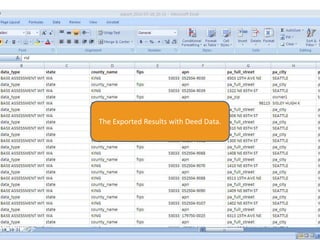
The Exported Results with Deed Data.
Want to contact Hugh?  Click Contact.
Type in Hugh Sisley and narrow your search by adding the location.  Click Search.
Here is  Hugh’s contact info including his unlisted phone number  (part of it ).
Go Start Searching.

Corpsurf - Getting Started

  • 1.
  • 2.
    So what’s nextafter logging in…
  • 3.
    There is alot of information for each result . We just can’t fit it all on the screen The Exported Results. Type in the information that you have and press Buy Search. Let’s search by Property and Address. Viola – here are the results. How do you want to search? Need to export the data – press Export There’s a lot more information for your search . Press Export to Excel to see it. Need to export the data – press Export For additional result information. Press Export to Excel.
  • 4.
    There is alot of information for each result . We just can’t fit it all on the screen The Exported Results. Type in the information that you have and press Buy Search. Let’s search by Property and Individual. There’s a lot more information for your search . Press Export to Excel to see it. Need to export the data – press Export Need to export the data – press Export For additional result information. Press Export to Excel.
  • 5.
    There is alot of information for each result . We just can’t fit it all on the screen The Exported Results. Type in the information that you have and press Buy Search. Viola – here are the results. Type a name and narrow your search by adding the location. Click Search.There’s a lot more information for your search . Press Export to Excel to see it. Need to export the data – press Export Need to export the data – press Export For additional result information. Press Export to Excel.
  • 6.
    Voila – Hereare the results.
  • 7.
    For additional resultinformation. Click Export/Save . There is a lot more info including deed data. Need to export the data – press Export
  • 8.
    The Exported Resultswith Deed Data.
  • 9.
    Want to contactHugh? Click Contact.
  • 10.
    Type in HughSisley and narrow your search by adding the location. Click Search.
  • 11.
    Here is Hugh’s contact info including his unlisted phone number (part of it ).
  • 12.