How to Add a User on
Windows 11
By – Rajat Gupta
(chnm)
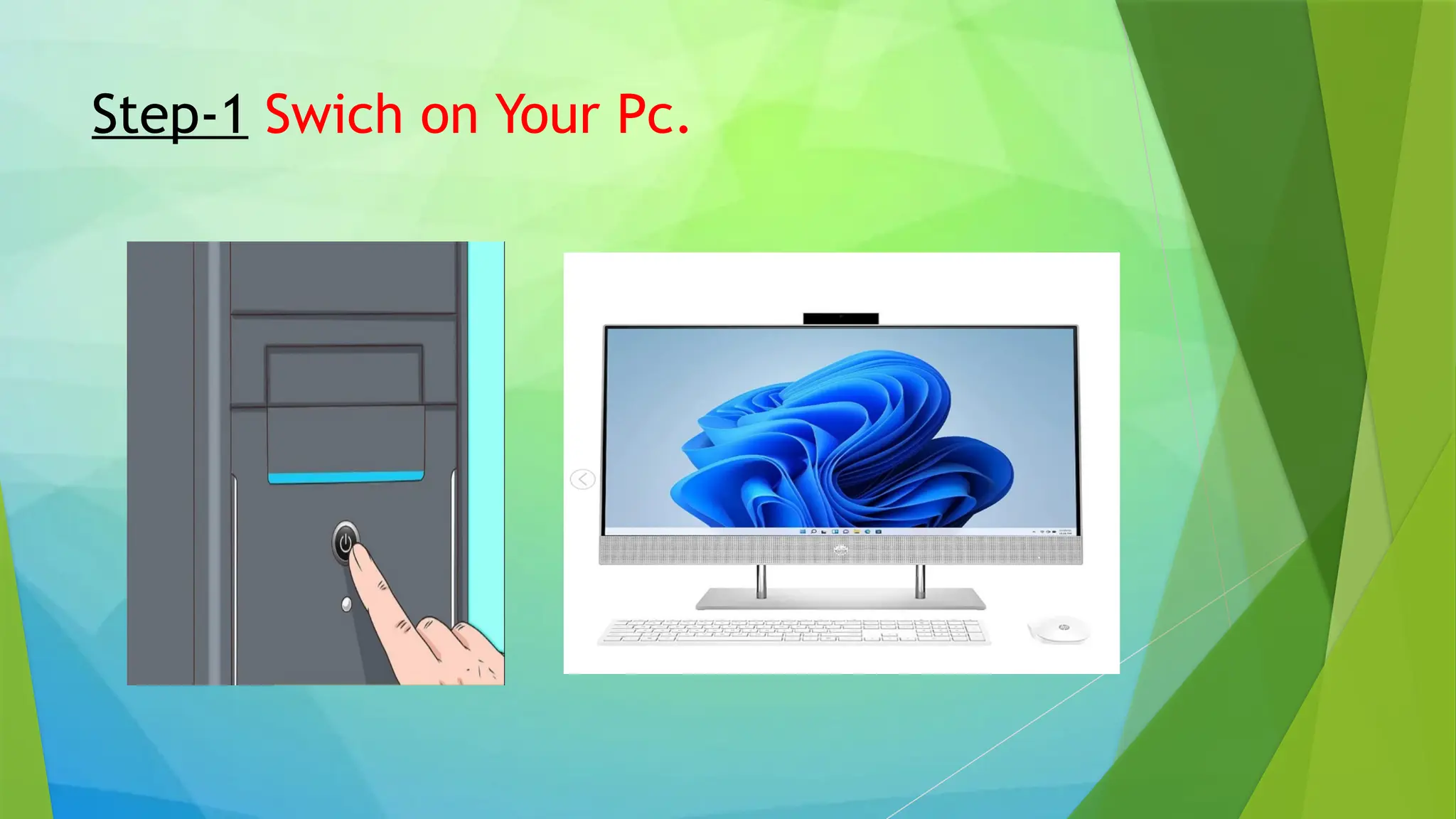
Step-1 Swich on Your Pc.
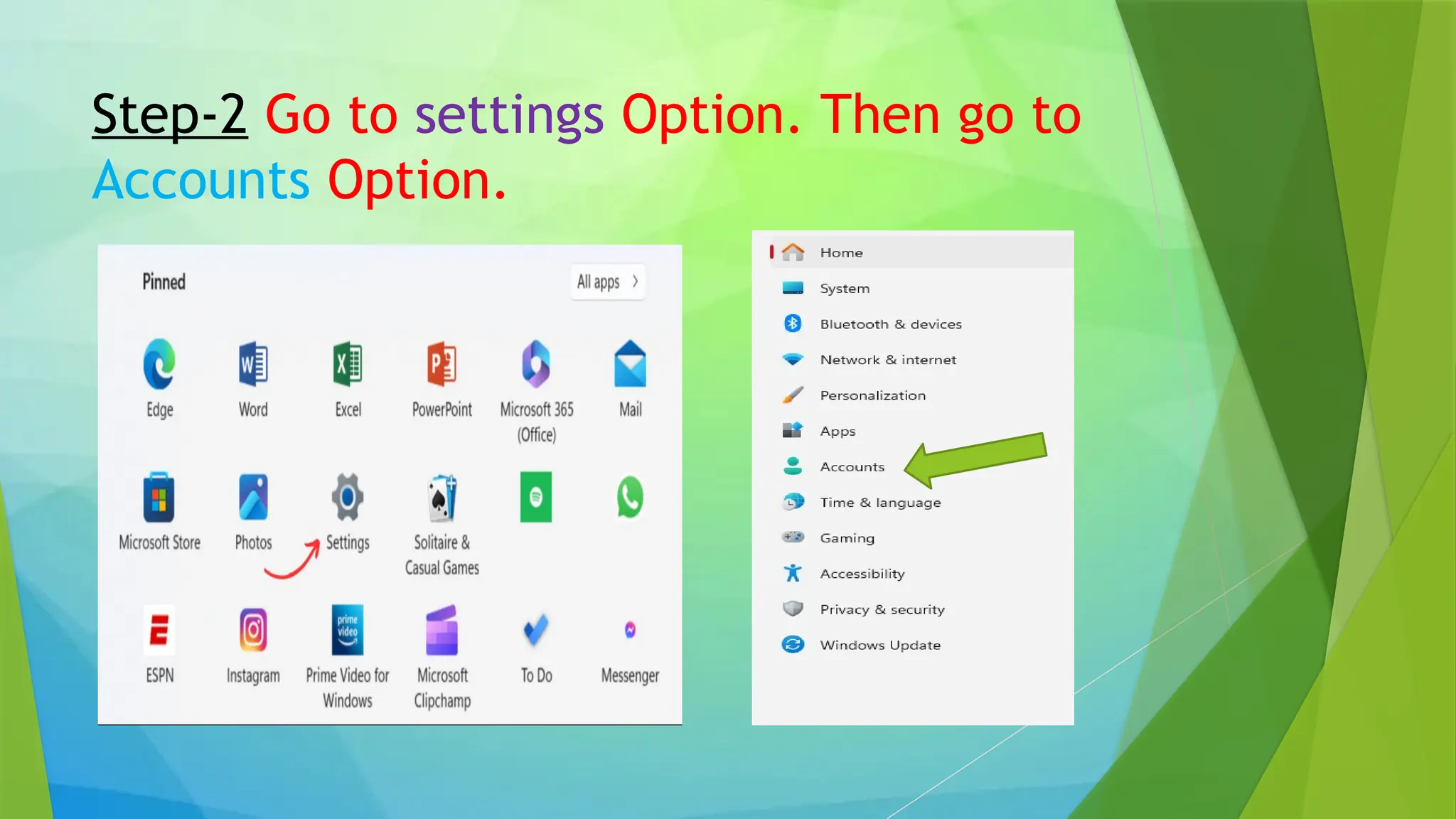
Step-2 Go to settings Option. Then go to
Accounts Option.
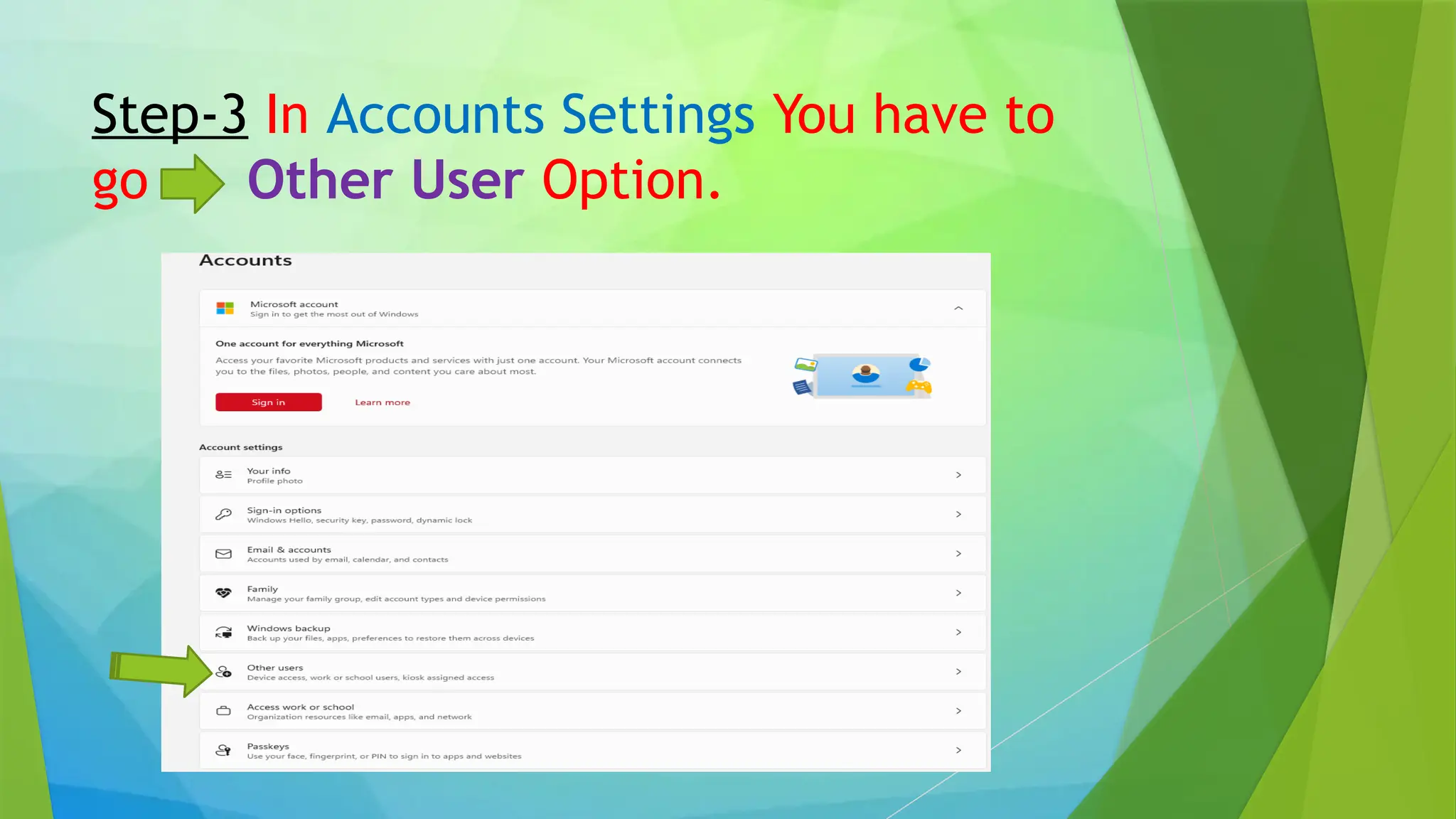
Step-3 In Accounts Settings You have to
go Other User Option.
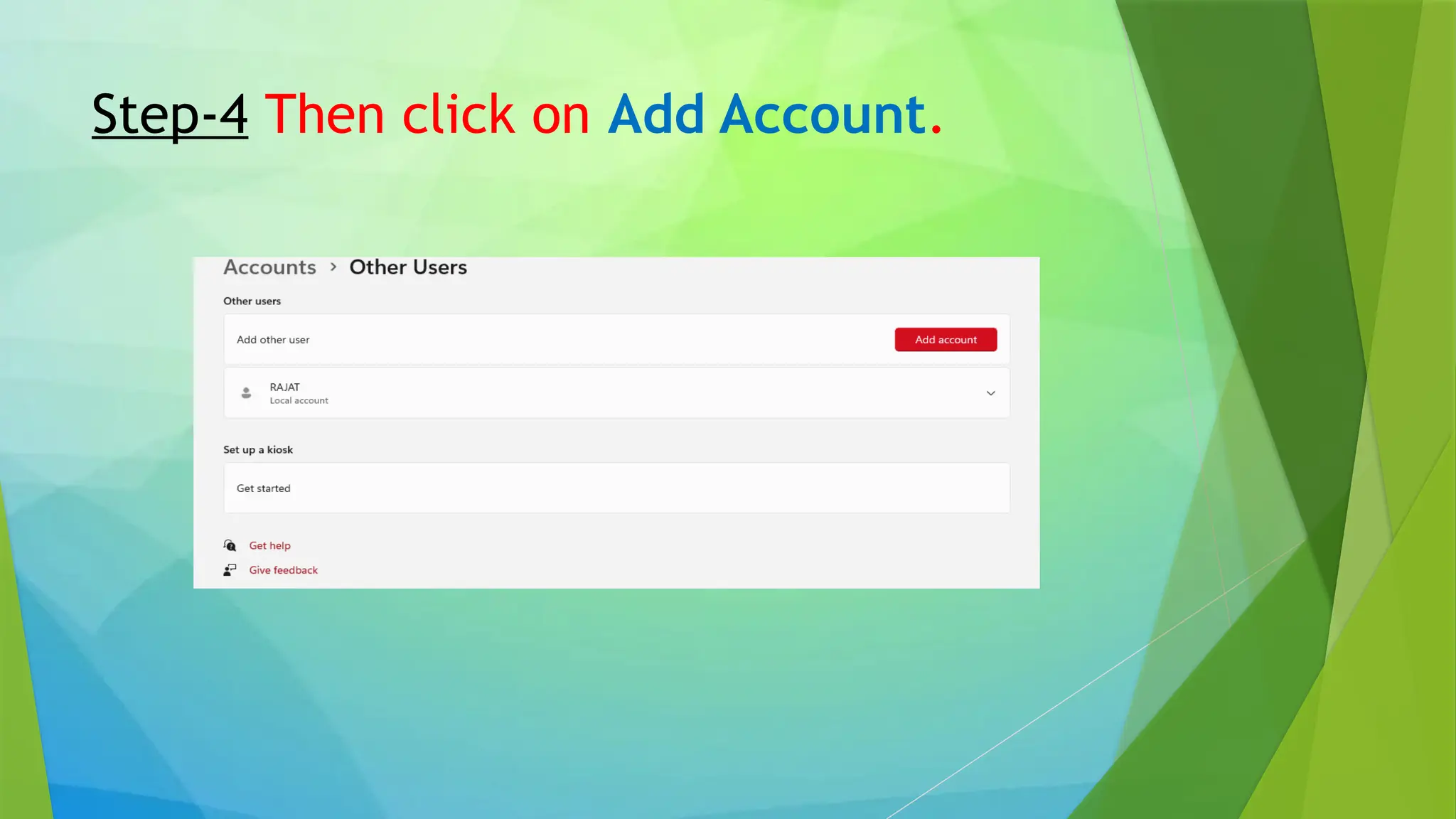
Step-4 Then click on Add Account.
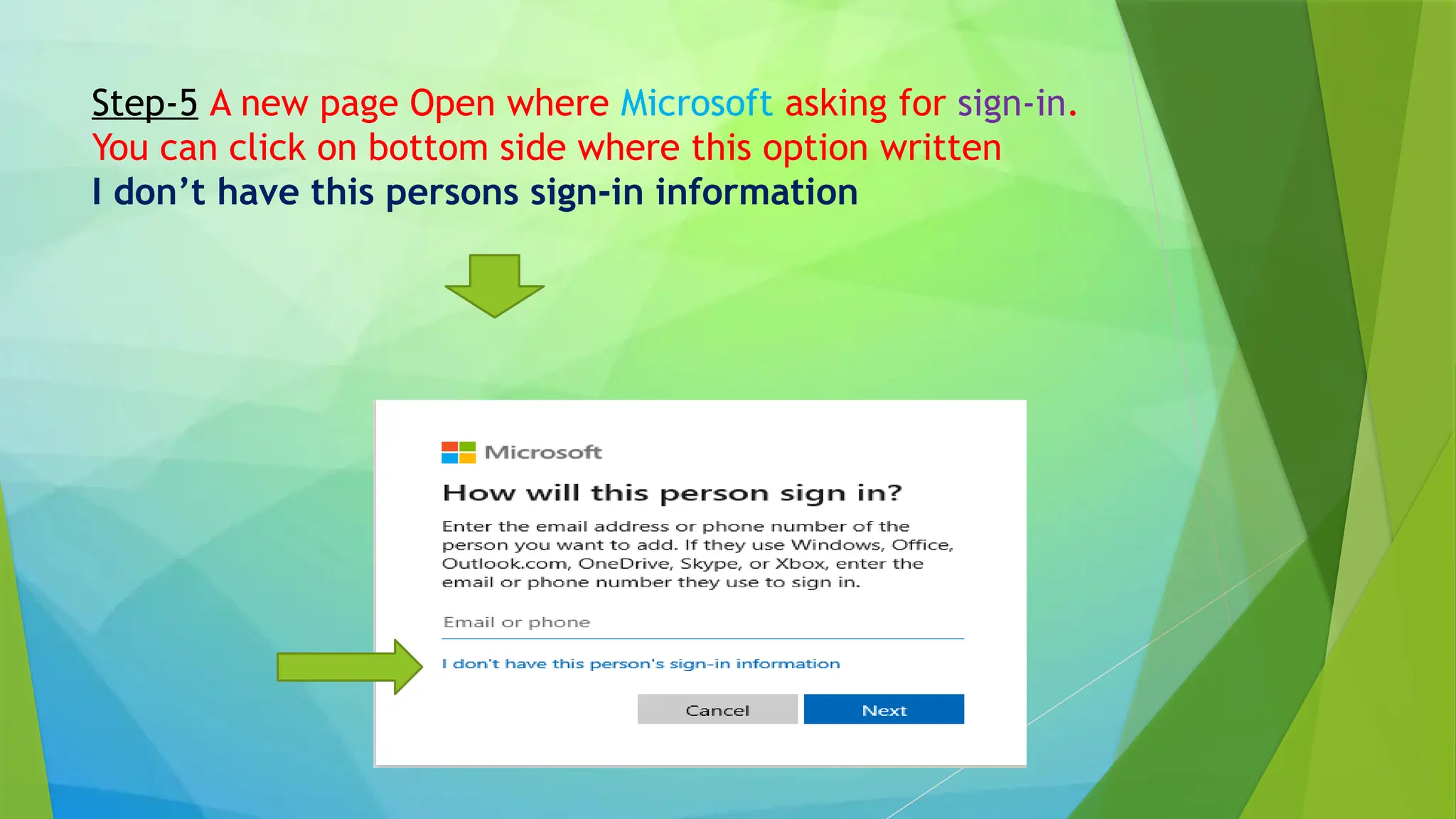
Step-5 A new page Open where Microsoft asking for sign-in.
You can click on bottom side where this option written
I don’t have this persons sign-in information
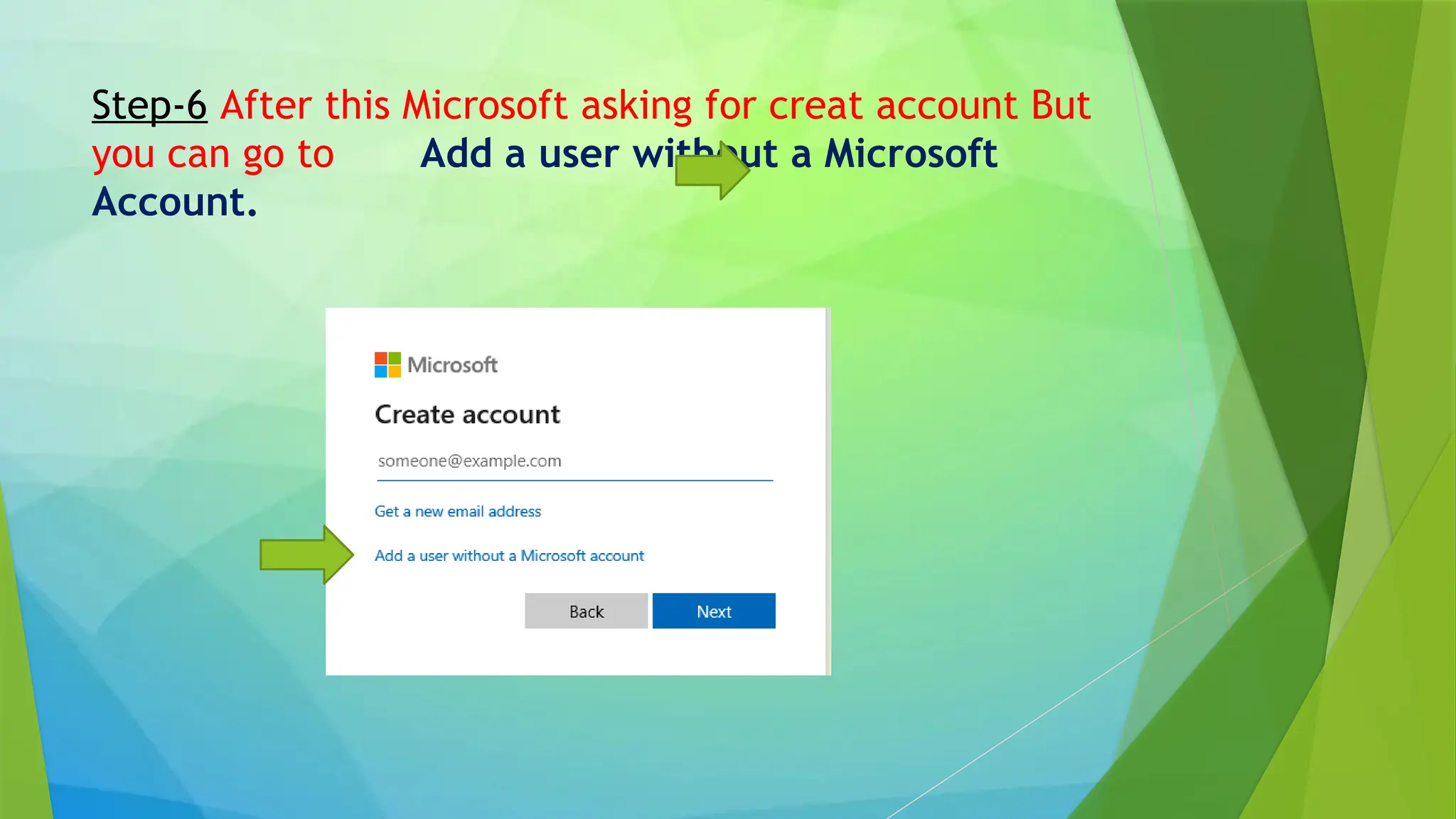
Step-6 After this Microsoft asking for creat account But
you can go to Add a user without a Microsoft
Account.
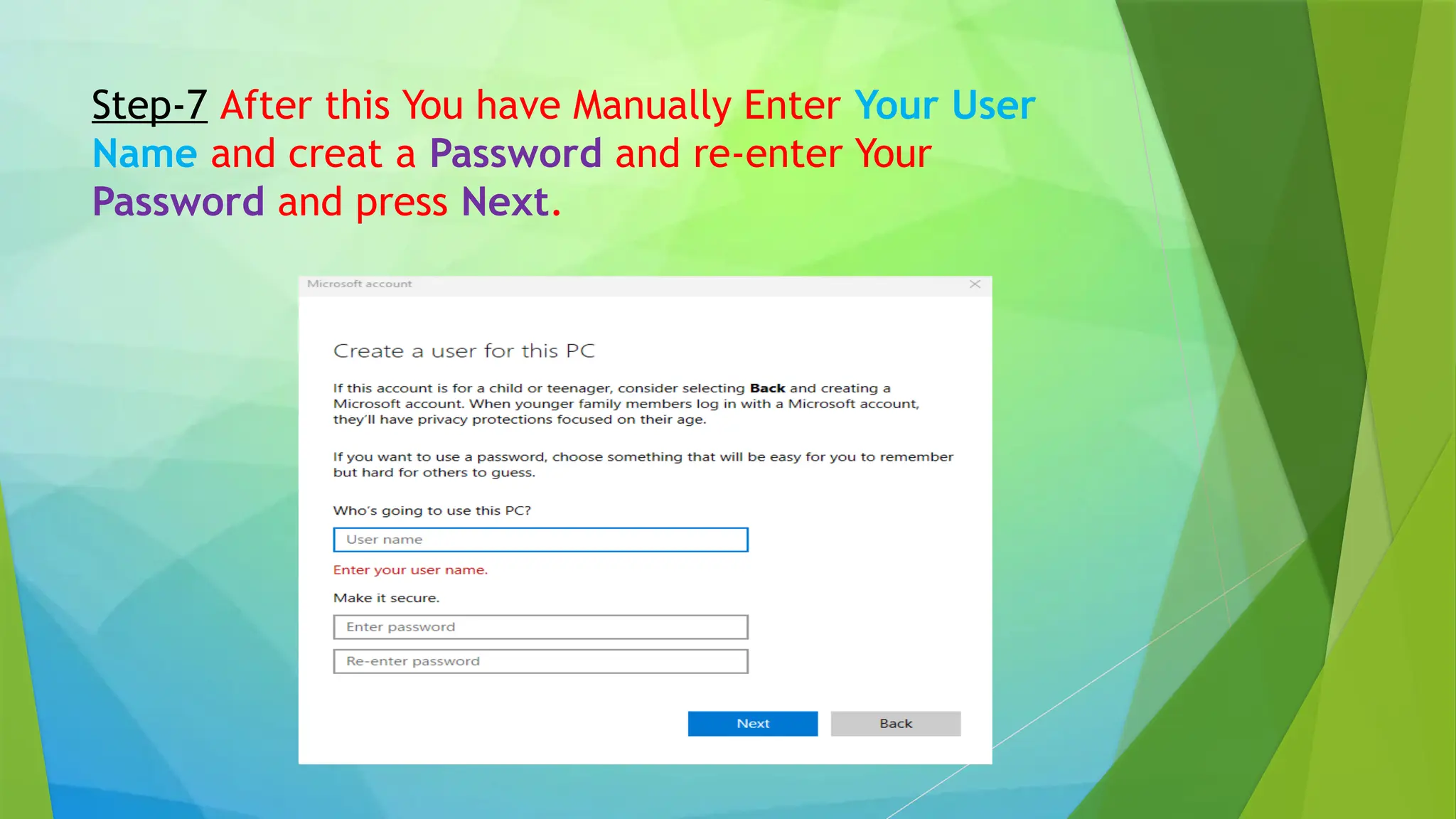
Step-7 After this You have Manually Enter Your User
Name and creat a Password and re-enter Your
Password and press Next.
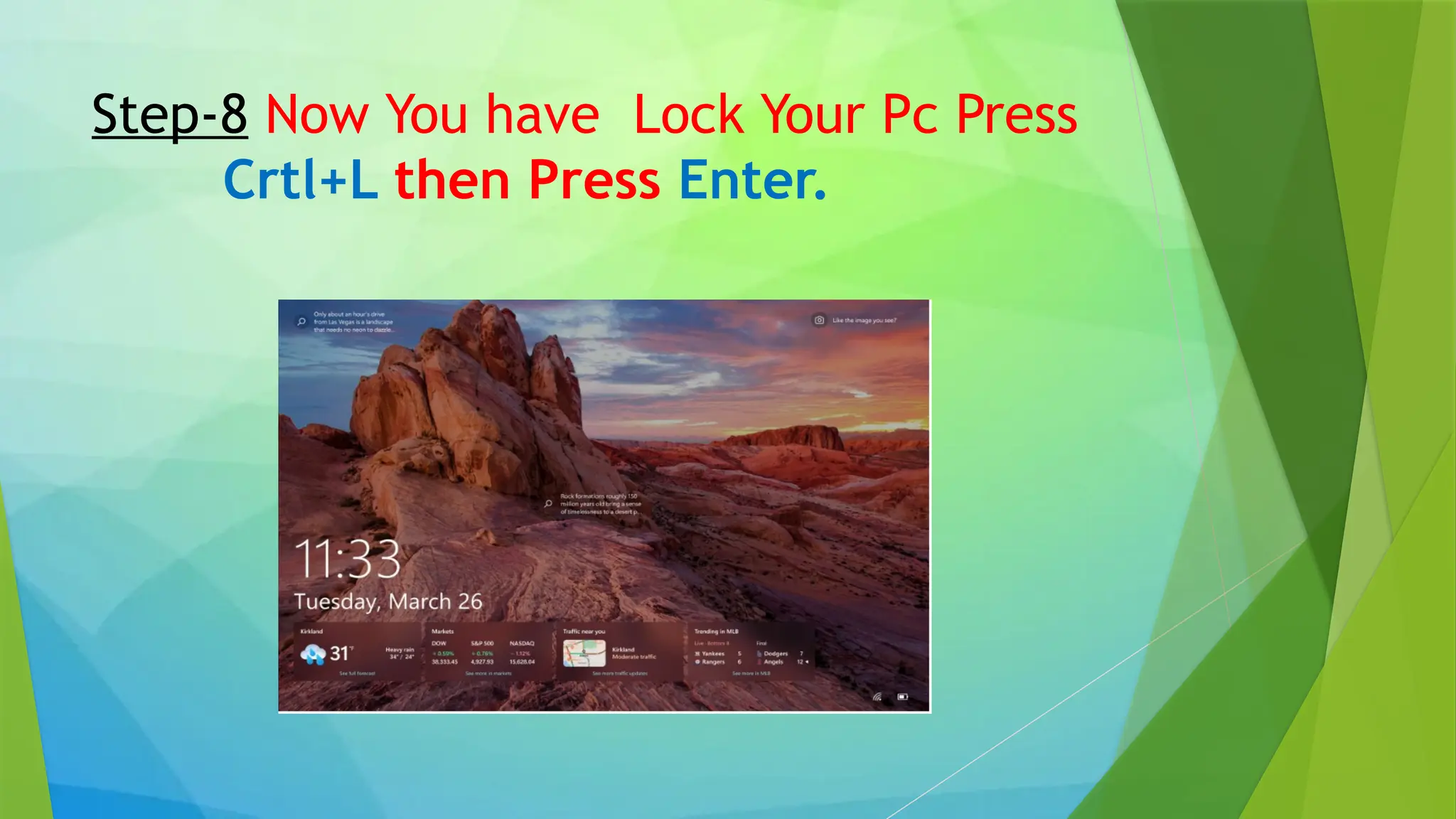
Step-8 Now You have Lock Your Pc Press
Crtl+L then Press Enter.
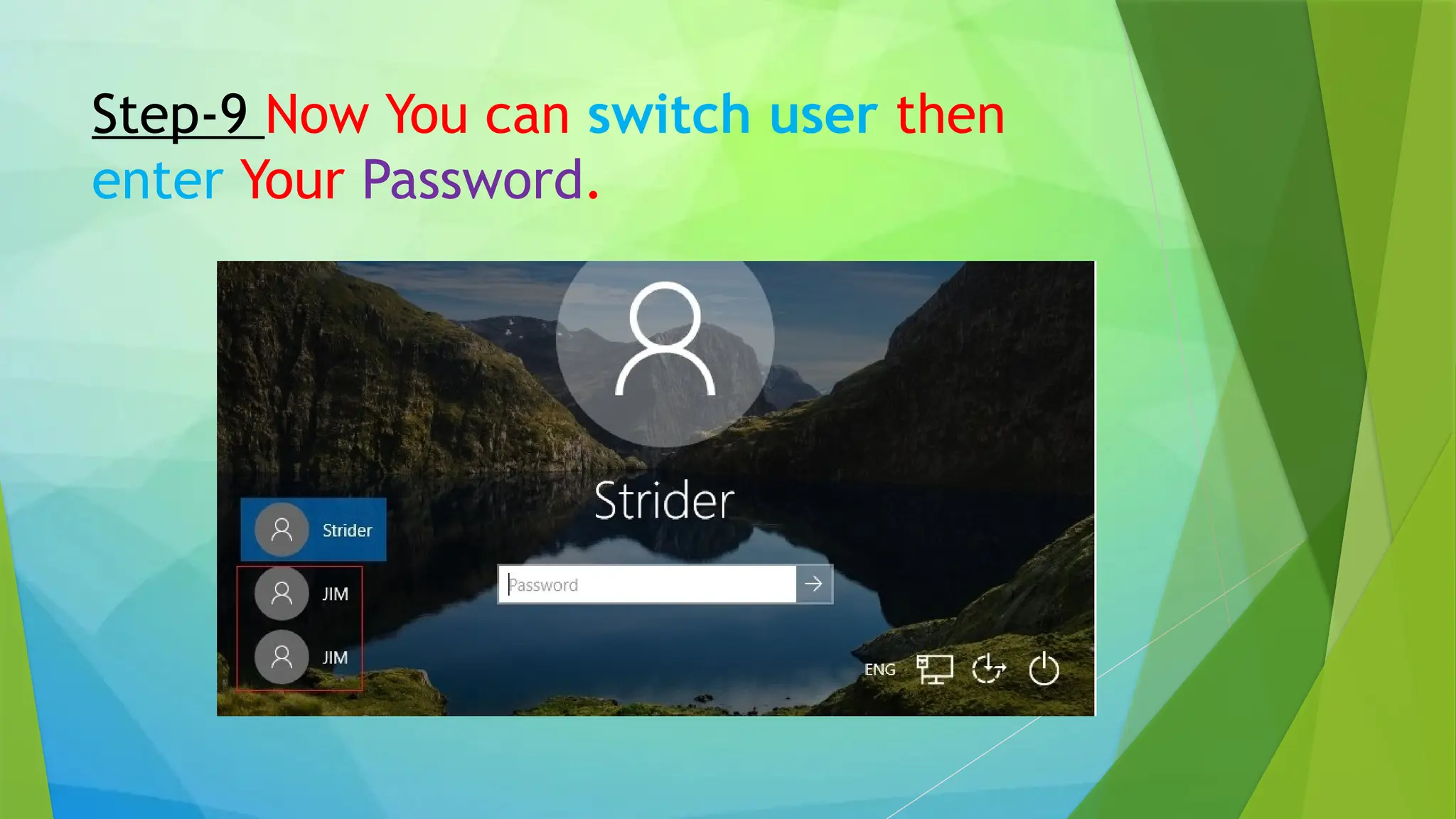
Step-9 Now You can switch user then
enter Your Password.
Thank You!

11 How to Add a User on Windows 11 .pptx

  • 1.
    How to Adda User on Windows 11 By – Rajat Gupta (chnm)
  • 2.
  • 3.
    Step-2 Go tosettings Option. Then go to Accounts Option.
  • 4.
    Step-3 In AccountsSettings You have to go Other User Option.
  • 5.
    Step-4 Then clickon Add Account.
  • 6.
    Step-5 A newpage Open where Microsoft asking for sign-in. You can click on bottom side where this option written I don’t have this persons sign-in information
  • 7.
    Step-6 After thisMicrosoft asking for creat account But you can go to Add a user without a Microsoft Account.
  • 8.
    Step-7 After thisYou have Manually Enter Your User Name and creat a Password and re-enter Your Password and press Next.
  • 9.
    Step-8 Now Youhave Lock Your Pc Press Crtl+L then Press Enter.
  • 10.
    Step-9 Now Youcan switch user then enter Your Password.
  • 11.