Republic of the Philippines
Philippine Statistics Authority
2022 CBMS Nationwide Rollout
Installation of CBMS Mobile Application and Other
Applications
CHARLIE JOE R. MADREGALLEJO
Information System Analyst II
System Development Division
Republic of the Philippines
Philippine Statistics Authority
Training Presentation Format and Outline 2
Outline of the Presentation
• System Requirements
• Applications for Installations
• Guide on how to Install
Republic of the Philippines
Philippine Statistics Authority
2022 CBMS Nationwide Rollout
System Requirements
Republic of the Philippines
Philippine Statistics Authority
Minimum System Requirements:
1. Processor: 2.0 GHz Quad-Core Qualcom SDM 429
2. Internal Memory: 3GB RAM, 32GB ROM
3. Battery: 4200mAh
4. Display 8.0” WXGA
5. Resolution: 1280 x 800 pixel
6. OS: Android version 7 – 11
7. Suggested Brand: Samsung excluding Huawei (due to Google Play Restriction)
4
System Requirements
Republic of the Philippines
Philippine Statistics Authority
2022 CBMS Nationwide Rollout
Applications for Installations
Republic of the Philippines
Philippine Statistics Authority
CBMS Mobile Application 6
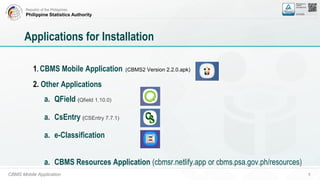
Applications for Installation
1. CBMS Mobile Application (CBMS2 Version 2.2.0.apk)
2. Other Applications
a. QField (Qfield 1.10.0)
a. CsEntry (CSEntry 7.7.1)
a. e-Classification
a. CBMS Resources Application (cbmsr.netlify.app or cbms.psa.gov.ph/resources)
Republic of the Philippines
Philippine Statistics Authority
CBMS Mobile Application 7
Other files to be loaded in the CBMS tablet
1. 2022 CBMS Form 2 (Household Profile Questionnaire)
2. 2022 CBMS Form 4 (Barangay Profile Questionnaire)
3. Geopackage
4. Additional Instructions/Errata
5. Error Codes
Republic of the Philippines
Philippine Statistics Authority
2022 CBMS Nationwide Rollout
Guide on How to Install
Republic of the Philippines
Philippine Statistics Authority
2022 CBMS Nationwide Rollout
DESKTOP/LAPTOP
Republic of the Philippines
Philippine Statistics Authority
Guide on how to Install 10
Guide on How to Install
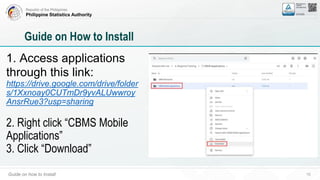
1. Access applications
through this link:
https://drive.google.com/drive/folder
s/1Xxnoay0CUTmDr9yvALUwwroy
AnsrRue3?usp=sharing
2. Right click “CBMS Mobile
Applications”
3. Click “Download”
Republic of the Philippines
Philippine Statistics Authority
Guide on how to Install 11
Guide on How to Install
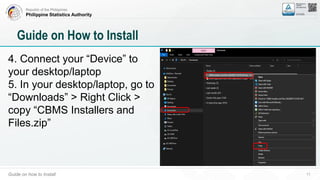
4. Connect your “Device” to
your desktop/laptop
5. In your desktop/laptop, go to
“Downloads” > Right Click >
copy “CBMS Installers and
Files.zip”
Republic of the Philippines
Philippine Statistics Authority
Guide on how to Install 12
Guide on How to Install
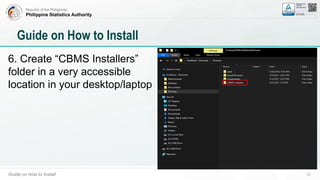
6. Create “CBMS Installers”
folder in a very accessible
location in your desktop/laptop
Republic of the Philippines
Philippine Statistics Authority
Guide on how to Install 13
Guide on How to Install
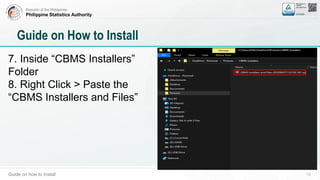
7. Inside “CBMS Installers”
Folder
8. Right Click > Paste the
“CBMS Installers and Files”
Republic of the Philippines
Philippine Statistics Authority
Guide on how to Install 14
Guide on How to Install
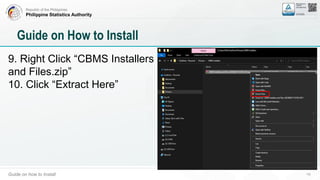
9. Right Click “CBMS Installers
and Files.zip”
10. Click “Extract Here”
Republic of the Philippines
Philippine Statistics Authority
Guide on how to Install 15
Guide on How to Install
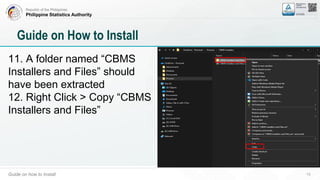
11. A folder named “CBMS
Installers and Files” should
have been extracted
12. Right Click > Copy “CBMS
Installers and Files”
Republic of the Philippines
Philippine Statistics Authority
Guide on how to Install 16
Guide on How to Install
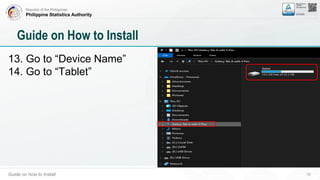
13. Go to “Device Name”
14. Go to “Tablet”
Republic of the Philippines
Philippine Statistics Authority
Guide on how to Install 17
Guide on How to Install
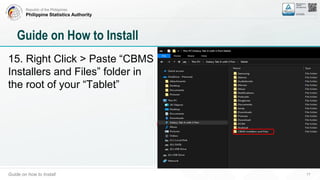
15. Right Click > Paste “CBMS
Installers and Files” folder in
the root of your “Tablet”
Republic of the Philippines
Philippine Statistics Authority
Guide on how to Install 18
Guide on How to Install
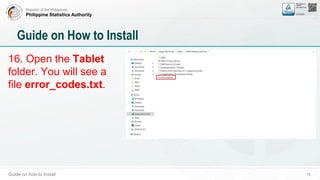
16. Open the Tablet
folder. You will see a
file error_codes.txt.
Republic of the Philippines
Philippine Statistics Authority
Guide on how to Install 19
Guide on How to Install
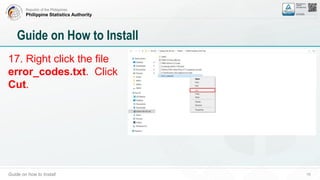
17. Right click the file
error_codes.txt. Click
Cut.
Republic of the Philippines
Philippine Statistics Authority
Guide on how to Install 20
Guide on How to Install
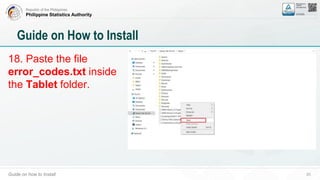
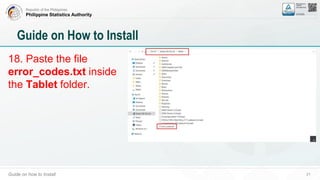
18. Paste the file
error_codes.txt inside
the Tablet folder.
Republic of the Philippines
Philippine Statistics Authority
Guide on how to Install 21
Guide on How to Install
18. Paste the file
error_codes.txt inside
the Tablet folder.
Republic of the Philippines
Philippine Statistics Authority
2022 CBMS Nationwide Rollout
TABLET
Republic of the Philippines
Philippine Statistics Authority
2022 CBMS Nationwide Rollout
How to Install : CBMS Mobile Application
Republic of the Philippines
Philippine Statistics Authority
Guide on How to Install 24
Guide on How to Install : CBMS Mobile Application
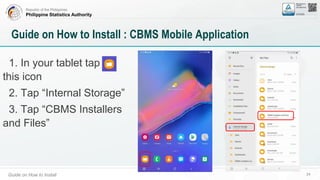
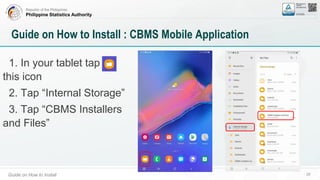
1. In your tablet tap
this icon
2. Tap “Internal Storage”
3. Tap “CBMS Installers
and Files”
Republic of the Philippines
Philippine Statistics Authority
Guide on How to Install 25
Guide on How to Install : CBMS Mobile Application
1. In your tablet tap
this icon
2. Tap “Internal Storage”
3. Tap “CBMS Installers
and Files”
Republic of the Philippines
Philippine Statistics Authority
Guide on How to Install 26
Guide on How to Install : CBMS Mobile Application
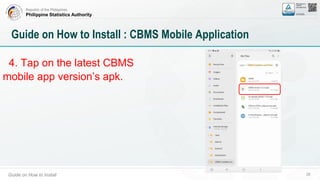
4. Tap on the latest CBMS
mobile app version’s apk.
Republic of the Philippines
Philippine Statistics Authority
Guide on How to Install 27
Guide on How to Install : CBMS Mobile Application
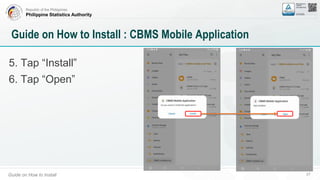
5. Tap “Install”
6. Tap “Open”
Republic of the Philippines
Philippine Statistics Authority
Guide on How to Install 28
Guide on How to Install : CBMS Mobile Application
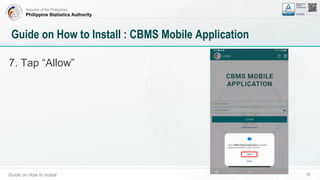
7. Tap “Allow”
Republic of the Philippines
Philippine Statistics Authority
Guide on How to Install 29
Guide on How to Install : CBMS Mobile Application
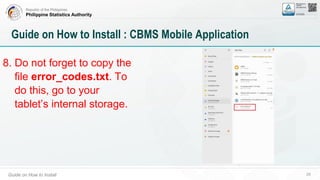
8. Do not forget to copy the
file error_codes.txt. To
do this, go to your
tablet’s internal storage.
Republic of the Philippines
Philippine Statistics Authority
Guide on How to Install 30
Guide on How to Install : CBMS Mobile Application
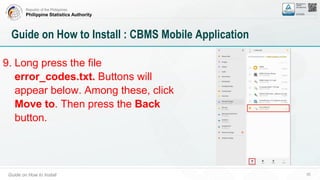
9. Long press the file
error_codes.txt. Buttons will
appear below. Among these, click
Move to. Then press the Back
button.
Republic of the Philippines
Philippine Statistics Authority
Guide on How to Install 31
Guide on How to Install : CBMS Mobile Application
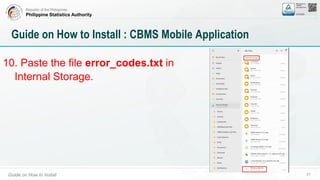
10. Paste the file error_codes.txt in
Internal Storage.
Republic of the Philippines
Philippine Statistics Authority
Guide on How to Install 32
Guide on How to Install : CBMS Mobile Application
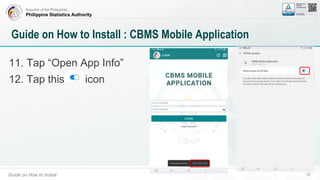
11. Tap “Open App Info”
12. Tap this icon
Republic of the Philippines
Philippine Statistics Authority
2022 CBMS Nationwide Rollout
How to Install : QField
Republic of the Philippines
Philippine Statistics Authority
Guide on How to Install 34
Guide on How to Install : QField
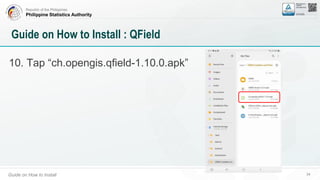
10. Tap “ch.opengis.qfield-1.10.0.apk”
Republic of the Philippines
Philippine Statistics Authority
Guide on How to Install 35
Guide on How to Install : QField
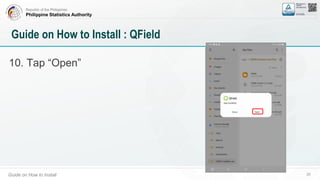
10. Tap “Open”
Republic of the Philippines
Philippine Statistics Authority
Guide on How to Install 36
Guide on How to Install : QField
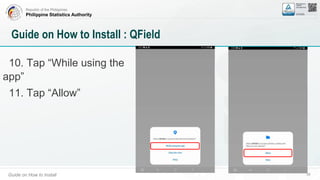
10. Tap “While using the
app”
11. Tap “Allow”
Republic of the Philippines
Philippine Statistics Authority
2022 CBMS Nationwide Rollout
How to Install : CSEntry
Republic of the Philippines
Philippine Statistics Authority
Guide on How to Install 38
Guide on How to Install : CSEntry
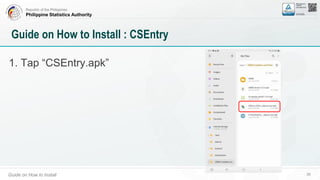
1. Tap “CSEntry.apk”
Republic of the Philippines
Philippine Statistics Authority
Guide on How to Install 39
Guide on How to Install : CSEntry
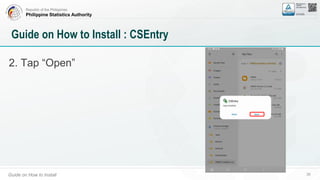
2. Tap “Open”
Republic of the Philippines
Philippine Statistics Authority
Guide on How to Install 40
Guide on How to Install : CSEntry
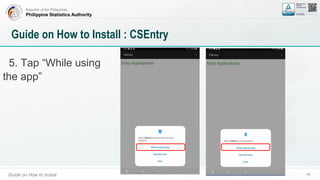
5. Tap “While using
the app”
Republic of the Philippines
Philippine Statistics Authority
Guide on How to Install 41
Guide on How to Install : CSEntry
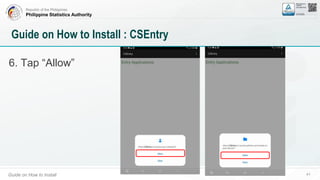
6. Tap “Allow”
Republic of the Philippines
Philippine Statistics Authority
2022 CBMS Nationwide Rollout
DESKTOP/LAPTOP
Republic of the Philippines
Philippine Statistics Authority
Guide on how to Install 43
Guide on How to Install
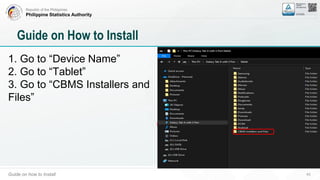
1. Go to “Device Name”
2. Go to “Tablet”
3. Go to “CBMS Installers and
Files”
Republic of the Philippines
Philippine Statistics Authority
Guide on how to Install 44
Guide on How to Install
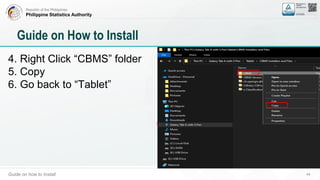
4. Right Click “CBMS” folder
5. Copy
6. Go back to “Tablet”
Republic of the Philippines
Philippine Statistics Authority
Guide on how to Install 45
Guide on How to Install
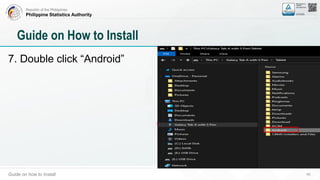
7. Double click “Android”
Republic of the Philippines
Philippine Statistics Authority
Guide on how to Install 46
Guide on How to Install
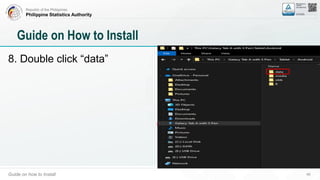
8. Double click “data”
Republic of the Philippines
Philippine Statistics Authority
Guide on how to Install 47
Guide on How to Install
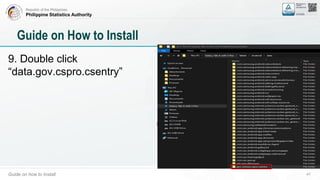
9. Double click
“data.gov.cspro.csentry”
Republic of the Philippines
Philippine Statistics Authority
Guide on how to Install 48
Guide on How to Install
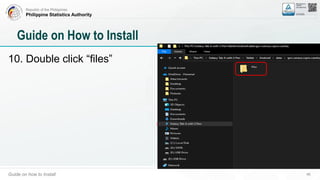
10. Double click “files”
Republic of the Philippines
Philippine Statistics Authority
Guide on how to Install 49
Guide on How to Install
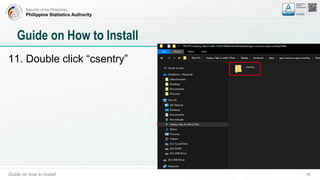
11. Double click “csentry”
Republic of the Philippines
Philippine Statistics Authority
Guide on how to Install 50
Guide on How to Install
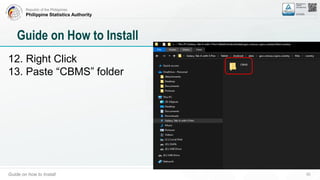
12. Right Click
13. Paste “CBMS” folder
Republic of the Philippines
Philippine Statistics Authority
2022 CBMS Nationwide Rollout
TABLET
Republic of the Philippines
Philippine Statistics Authority
2022 CBMS Nationwide Rollout
How to Install : e-Classification
Republic of the Philippines
Philippine Statistics Authority
Guide on How to Install 53
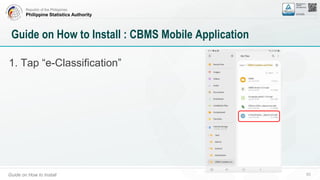
Guide on How to Install : CBMS Mobile Application
1. Tap “e-Classification”
Republic of the Philippines
Philippine Statistics Authority
Guide on How to Install 54
Important Note:
1. Enumerators are required to download the CBMS
Form 2/HPQ in the tablet as reference.
Republic of the Philippines
Philippine Statistics Authority
Guide on How to Install 55
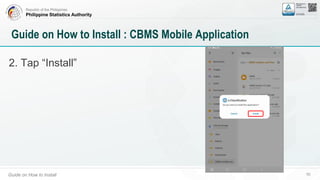
Guide on How to Install : CBMS Mobile Application
2. Tap “Install”
Republic of the Philippines
Philippine Statistics Authority
2022 CBMS Nationwide Rollout
How to Update the Version of the CBMS Mobile App
Republic of the Philippines
Philippine Statistics Authority
Guide on How to Install 57
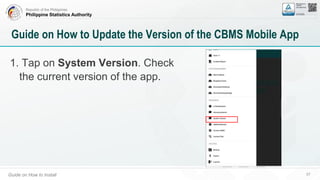
Guide on How to Update the Version of the CBMS Mobile App
1. Tap on System Version. Check
the current version of the app.
Republic of the Philippines
Philippine Statistics Authority
Guide on How to Install 58
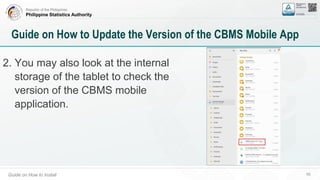
Guide on How to Update the Version of the CBMS Mobile App
2. You may also look at the internal
storage of the tablet to check the
version of the CBMS mobile
application.
Republic of the Philippines
Philippine Statistics Authority
Guide on How to Install 59
Guide on How to Update the Version of the CBMS Mobile App
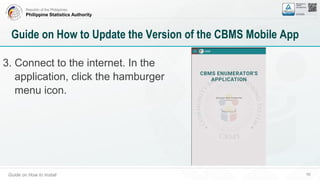
3. Connect to the internet. In the
application, click the hamburger
menu icon.
Republic of the Philippines
Philippine Statistics Authority
Guide on How to Install 60
Guide on How to Update the Version of the CBMS Mobile App
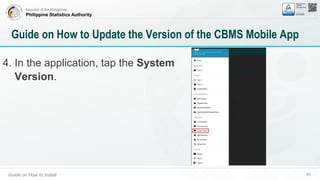
4. In the application, tap the System
Version.
Republic of the Philippines
Philippine Statistics Authority
Guide on How to Install 61
Guide on How to Update the Version of the CBMS Mobile App
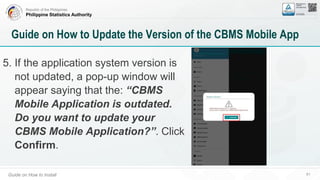
5. If the application system version is
not updated, a pop-up window will
appear saying that the: “CBMS
Mobile Application is outdated.
Do you want to update your
CBMS Mobile Application?”. Click
Confirm.
Republic of the Philippines
Philippine Statistics Authority
Guide on How to Install 62
Guide on How to Update the Version of the CBMS Mobile App
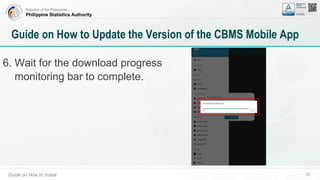
6. Wait for the download progress
monitoring bar to complete.
Republic of the Philippines
Philippine Statistics Authority
Guide on How to Install 63
Guide on How to Update the Version of the CBMS Mobile App
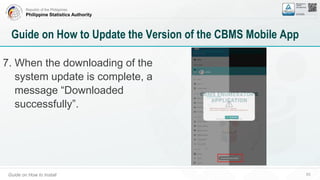
7. When the downloading of the
system update is complete, a
message “Downloaded
successfully”.
Republic of the Philippines
Philippine Statistics Authority
Guide on How to Install 64
Guide on How to Update the Version of the CBMS Mobile App
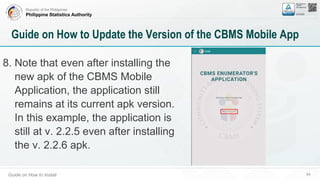
8. Note that even after installing the
new apk of the CBMS Mobile
Application, the application still
remains at its current apk version.
In this example, the application is
still at v. 2.2.5 even after installing
the v. 2.2.6 apk.
Republic of the Philippines
Philippine Statistics Authority
Guide on How to Install 65
Guide on How to Update the Version of the CBMS Mobile App
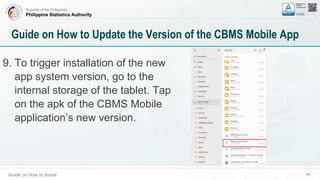
9. To trigger installation of the new
app system version, go to the
internal storage of the tablet. Tap
on the apk of the CBMS Mobile
application’s new version.
Republic of the Philippines
Philippine Statistics Authority
Guide on How to Install 66
Guide on How to Update the Version of the CBMS Mobile App
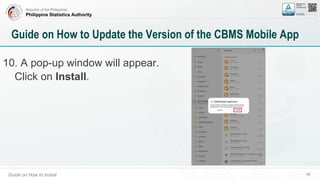
10. A pop-up window will appear.
Click on Install.
Republic of the Philippines
Philippine Statistics Authority
2022 CBMS Nationwide Rollout
How to Update the Version of the HPQ CAPI App PEN
Republic of the Philippines
Philippine Statistics Authority
Guide on How to Install 68
Guide on How to Update the Version of the HPQ CAPI App PEN
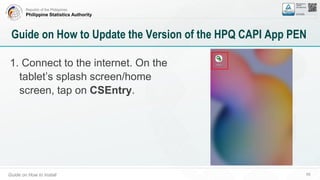
1. Connect to the internet. On the
tablet’s splash screen/home
screen, tap on CSEntry.
Republic of the Philippines
Philippine Statistics Authority
Guide on How to Install 69
Guide on How to Update the Version of the HPQ CAPI App PEN
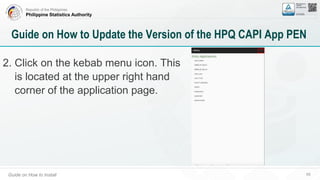
2. Click on the kebab menu icon. This
is located at the upper right hand
corner of the application page.
Republic of the Philippines
Philippine Statistics Authority
Guide on How to Install 70
Guide on How to Update the Version of the HPQ CAPI App PEN
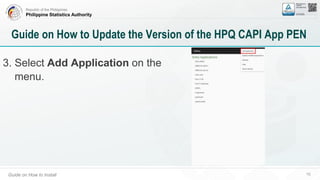
3. Select Add Application on the
menu.
Republic of the Philippines
Philippine Statistics Authority
Guide on How to Install 71
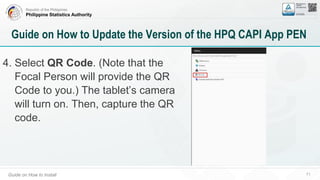
Guide on How to Update the Version of the HPQ CAPI App PEN
4. Select QR Code. (Note that the
Focal Person will provide the QR
Code to you.) The tablet’s camera
will turn on. Then, capture the QR
code.
Republic of the Philippines
Philippine Statistics Authority
Guide on How to Install 72
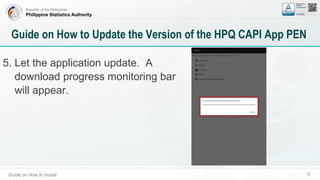
Guide on How to Update the Version of the HPQ CAPI App PEN
5. Let the application update. A
download progress monitoring bar
will appear.
Republic of the Philippines
Philippine Statistics Authority
Guide on How to Install 73
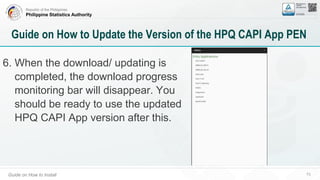
Guide on How to Update the Version of the HPQ CAPI App PEN
6. When the download/ updating is
completed, the download progress
monitoring bar will disappear. You
should be ready to use the updated
HPQ CAPI App version after this.
Republic of the Philippines
Philippine Statistics Authority
psa.gov.ph
openstat.psa.gov.ph
twitter.com/PSAgovph
facebook.com/PSAgovph
psa.gov.ph/cbms
https://cbms.psa.gov.ph

11. CBMS-Application-and-Other-Applications (1).pptx
  • 1.
    Republic of thePhilippines Philippine Statistics Authority 2022 CBMS Nationwide Rollout Installation of CBMS Mobile Application and Other Applications CHARLIE JOE R. MADREGALLEJO Information System Analyst II System Development Division
  • 2.
    Republic of thePhilippines Philippine Statistics Authority Training Presentation Format and Outline 2 Outline of the Presentation • System Requirements • Applications for Installations • Guide on how to Install
  • 3.
    Republic of thePhilippines Philippine Statistics Authority 2022 CBMS Nationwide Rollout System Requirements
  • 4.
    Republic of thePhilippines Philippine Statistics Authority Minimum System Requirements: 1. Processor: 2.0 GHz Quad-Core Qualcom SDM 429 2. Internal Memory: 3GB RAM, 32GB ROM 3. Battery: 4200mAh 4. Display 8.0” WXGA 5. Resolution: 1280 x 800 pixel 6. OS: Android version 7 – 11 7. Suggested Brand: Samsung excluding Huawei (due to Google Play Restriction) 4 System Requirements
  • 5.
    Republic of thePhilippines Philippine Statistics Authority 2022 CBMS Nationwide Rollout Applications for Installations
  • 6.
    Republic of thePhilippines Philippine Statistics Authority CBMS Mobile Application 6 Applications for Installation 1. CBMS Mobile Application (CBMS2 Version 2.2.0.apk) 2. Other Applications a. QField (Qfield 1.10.0) a. CsEntry (CSEntry 7.7.1) a. e-Classification a. CBMS Resources Application (cbmsr.netlify.app or cbms.psa.gov.ph/resources)
  • 7.
    Republic of thePhilippines Philippine Statistics Authority CBMS Mobile Application 7 Other files to be loaded in the CBMS tablet 1. 2022 CBMS Form 2 (Household Profile Questionnaire) 2. 2022 CBMS Form 4 (Barangay Profile Questionnaire) 3. Geopackage 4. Additional Instructions/Errata 5. Error Codes
  • 8.
    Republic of thePhilippines Philippine Statistics Authority 2022 CBMS Nationwide Rollout Guide on How to Install
  • 9.
    Republic of thePhilippines Philippine Statistics Authority 2022 CBMS Nationwide Rollout DESKTOP/LAPTOP
  • 10.
    Republic of thePhilippines Philippine Statistics Authority Guide on how to Install 10 Guide on How to Install 1. Access applications through this link: https://drive.google.com/drive/folder s/1Xxnoay0CUTmDr9yvALUwwroy AnsrRue3?usp=sharing 2. Right click “CBMS Mobile Applications” 3. Click “Download”
  • 11.
    Republic of thePhilippines Philippine Statistics Authority Guide on how to Install 11 Guide on How to Install 4. Connect your “Device” to your desktop/laptop 5. In your desktop/laptop, go to “Downloads” > Right Click > copy “CBMS Installers and Files.zip”
  • 12.
    Republic of thePhilippines Philippine Statistics Authority Guide on how to Install 12 Guide on How to Install 6. Create “CBMS Installers” folder in a very accessible location in your desktop/laptop
  • 13.
    Republic of thePhilippines Philippine Statistics Authority Guide on how to Install 13 Guide on How to Install 7. Inside “CBMS Installers” Folder 8. Right Click > Paste the “CBMS Installers and Files”
  • 14.
    Republic of thePhilippines Philippine Statistics Authority Guide on how to Install 14 Guide on How to Install 9. Right Click “CBMS Installers and Files.zip” 10. Click “Extract Here”
  • 15.
    Republic of thePhilippines Philippine Statistics Authority Guide on how to Install 15 Guide on How to Install 11. A folder named “CBMS Installers and Files” should have been extracted 12. Right Click > Copy “CBMS Installers and Files”
  • 16.
    Republic of thePhilippines Philippine Statistics Authority Guide on how to Install 16 Guide on How to Install 13. Go to “Device Name” 14. Go to “Tablet”
  • 17.
    Republic of thePhilippines Philippine Statistics Authority Guide on how to Install 17 Guide on How to Install 15. Right Click > Paste “CBMS Installers and Files” folder in the root of your “Tablet”
  • 18.
    Republic of thePhilippines Philippine Statistics Authority Guide on how to Install 18 Guide on How to Install 16. Open the Tablet folder. You will see a file error_codes.txt.
  • 19.
    Republic of thePhilippines Philippine Statistics Authority Guide on how to Install 19 Guide on How to Install 17. Right click the file error_codes.txt. Click Cut.
  • 20.
    Republic of thePhilippines Philippine Statistics Authority Guide on how to Install 20 Guide on How to Install 18. Paste the file error_codes.txt inside the Tablet folder.
  • 21.
    Republic of thePhilippines Philippine Statistics Authority Guide on how to Install 21 Guide on How to Install 18. Paste the file error_codes.txt inside the Tablet folder.
  • 22.
    Republic of thePhilippines Philippine Statistics Authority 2022 CBMS Nationwide Rollout TABLET
  • 23.
    Republic of thePhilippines Philippine Statistics Authority 2022 CBMS Nationwide Rollout How to Install : CBMS Mobile Application
  • 24.
    Republic of thePhilippines Philippine Statistics Authority Guide on How to Install 24 Guide on How to Install : CBMS Mobile Application 1. In your tablet tap this icon 2. Tap “Internal Storage” 3. Tap “CBMS Installers and Files”
  • 25.
    Republic of thePhilippines Philippine Statistics Authority Guide on How to Install 25 Guide on How to Install : CBMS Mobile Application 1. In your tablet tap this icon 2. Tap “Internal Storage” 3. Tap “CBMS Installers and Files”
  • 26.
    Republic of thePhilippines Philippine Statistics Authority Guide on How to Install 26 Guide on How to Install : CBMS Mobile Application 4. Tap on the latest CBMS mobile app version’s apk.
  • 27.
    Republic of thePhilippines Philippine Statistics Authority Guide on How to Install 27 Guide on How to Install : CBMS Mobile Application 5. Tap “Install” 6. Tap “Open”
  • 28.
    Republic of thePhilippines Philippine Statistics Authority Guide on How to Install 28 Guide on How to Install : CBMS Mobile Application 7. Tap “Allow”
  • 29.
    Republic of thePhilippines Philippine Statistics Authority Guide on How to Install 29 Guide on How to Install : CBMS Mobile Application 8. Do not forget to copy the file error_codes.txt. To do this, go to your tablet’s internal storage.
  • 30.
    Republic of thePhilippines Philippine Statistics Authority Guide on How to Install 30 Guide on How to Install : CBMS Mobile Application 9. Long press the file error_codes.txt. Buttons will appear below. Among these, click Move to. Then press the Back button.
  • 31.
    Republic of thePhilippines Philippine Statistics Authority Guide on How to Install 31 Guide on How to Install : CBMS Mobile Application 10. Paste the file error_codes.txt in Internal Storage.
  • 32.
    Republic of thePhilippines Philippine Statistics Authority Guide on How to Install 32 Guide on How to Install : CBMS Mobile Application 11. Tap “Open App Info” 12. Tap this icon
  • 33.
    Republic of thePhilippines Philippine Statistics Authority 2022 CBMS Nationwide Rollout How to Install : QField
  • 34.
    Republic of thePhilippines Philippine Statistics Authority Guide on How to Install 34 Guide on How to Install : QField 10. Tap “ch.opengis.qfield-1.10.0.apk”
  • 35.
    Republic of thePhilippines Philippine Statistics Authority Guide on How to Install 35 Guide on How to Install : QField 10. Tap “Open”
  • 36.
    Republic of thePhilippines Philippine Statistics Authority Guide on How to Install 36 Guide on How to Install : QField 10. Tap “While using the app” 11. Tap “Allow”
  • 37.
    Republic of thePhilippines Philippine Statistics Authority 2022 CBMS Nationwide Rollout How to Install : CSEntry
  • 38.
    Republic of thePhilippines Philippine Statistics Authority Guide on How to Install 38 Guide on How to Install : CSEntry 1. Tap “CSEntry.apk”
  • 39.
    Republic of thePhilippines Philippine Statistics Authority Guide on How to Install 39 Guide on How to Install : CSEntry 2. Tap “Open”
  • 40.
    Republic of thePhilippines Philippine Statistics Authority Guide on How to Install 40 Guide on How to Install : CSEntry 5. Tap “While using the app”
  • 41.
    Republic of thePhilippines Philippine Statistics Authority Guide on How to Install 41 Guide on How to Install : CSEntry 6. Tap “Allow”
  • 42.
    Republic of thePhilippines Philippine Statistics Authority 2022 CBMS Nationwide Rollout DESKTOP/LAPTOP
  • 43.
    Republic of thePhilippines Philippine Statistics Authority Guide on how to Install 43 Guide on How to Install 1. Go to “Device Name” 2. Go to “Tablet” 3. Go to “CBMS Installers and Files”
  • 44.
    Republic of thePhilippines Philippine Statistics Authority Guide on how to Install 44 Guide on How to Install 4. Right Click “CBMS” folder 5. Copy 6. Go back to “Tablet”
  • 45.
    Republic of thePhilippines Philippine Statistics Authority Guide on how to Install 45 Guide on How to Install 7. Double click “Android”
  • 46.
    Republic of thePhilippines Philippine Statistics Authority Guide on how to Install 46 Guide on How to Install 8. Double click “data”
  • 47.
    Republic of thePhilippines Philippine Statistics Authority Guide on how to Install 47 Guide on How to Install 9. Double click “data.gov.cspro.csentry”
  • 48.
    Republic of thePhilippines Philippine Statistics Authority Guide on how to Install 48 Guide on How to Install 10. Double click “files”
  • 49.
    Republic of thePhilippines Philippine Statistics Authority Guide on how to Install 49 Guide on How to Install 11. Double click “csentry”
  • 50.
    Republic of thePhilippines Philippine Statistics Authority Guide on how to Install 50 Guide on How to Install 12. Right Click 13. Paste “CBMS” folder
  • 51.
    Republic of thePhilippines Philippine Statistics Authority 2022 CBMS Nationwide Rollout TABLET
  • 52.
    Republic of thePhilippines Philippine Statistics Authority 2022 CBMS Nationwide Rollout How to Install : e-Classification
  • 53.
    Republic of thePhilippines Philippine Statistics Authority Guide on How to Install 53 Guide on How to Install : CBMS Mobile Application 1. Tap “e-Classification”
  • 54.
    Republic of thePhilippines Philippine Statistics Authority Guide on How to Install 54 Important Note: 1. Enumerators are required to download the CBMS Form 2/HPQ in the tablet as reference.
  • 55.
    Republic of thePhilippines Philippine Statistics Authority Guide on How to Install 55 Guide on How to Install : CBMS Mobile Application 2. Tap “Install”
  • 56.
    Republic of thePhilippines Philippine Statistics Authority 2022 CBMS Nationwide Rollout How to Update the Version of the CBMS Mobile App
  • 57.
    Republic of thePhilippines Philippine Statistics Authority Guide on How to Install 57 Guide on How to Update the Version of the CBMS Mobile App 1. Tap on System Version. Check the current version of the app.
  • 58.
    Republic of thePhilippines Philippine Statistics Authority Guide on How to Install 58 Guide on How to Update the Version of the CBMS Mobile App 2. You may also look at the internal storage of the tablet to check the version of the CBMS mobile application.
  • 59.
    Republic of thePhilippines Philippine Statistics Authority Guide on How to Install 59 Guide on How to Update the Version of the CBMS Mobile App 3. Connect to the internet. In the application, click the hamburger menu icon.
  • 60.
    Republic of thePhilippines Philippine Statistics Authority Guide on How to Install 60 Guide on How to Update the Version of the CBMS Mobile App 4. In the application, tap the System Version.
  • 61.
    Republic of thePhilippines Philippine Statistics Authority Guide on How to Install 61 Guide on How to Update the Version of the CBMS Mobile App 5. If the application system version is not updated, a pop-up window will appear saying that the: “CBMS Mobile Application is outdated. Do you want to update your CBMS Mobile Application?”. Click Confirm.
  • 62.
    Republic of thePhilippines Philippine Statistics Authority Guide on How to Install 62 Guide on How to Update the Version of the CBMS Mobile App 6. Wait for the download progress monitoring bar to complete.
  • 63.
    Republic of thePhilippines Philippine Statistics Authority Guide on How to Install 63 Guide on How to Update the Version of the CBMS Mobile App 7. When the downloading of the system update is complete, a message “Downloaded successfully”.
  • 64.
    Republic of thePhilippines Philippine Statistics Authority Guide on How to Install 64 Guide on How to Update the Version of the CBMS Mobile App 8. Note that even after installing the new apk of the CBMS Mobile Application, the application still remains at its current apk version. In this example, the application is still at v. 2.2.5 even after installing the v. 2.2.6 apk.
  • 65.
    Republic of thePhilippines Philippine Statistics Authority Guide on How to Install 65 Guide on How to Update the Version of the CBMS Mobile App 9. To trigger installation of the new app system version, go to the internal storage of the tablet. Tap on the apk of the CBMS Mobile application’s new version.
  • 66.
    Republic of thePhilippines Philippine Statistics Authority Guide on How to Install 66 Guide on How to Update the Version of the CBMS Mobile App 10. A pop-up window will appear. Click on Install.
  • 67.
    Republic of thePhilippines Philippine Statistics Authority 2022 CBMS Nationwide Rollout How to Update the Version of the HPQ CAPI App PEN
  • 68.
    Republic of thePhilippines Philippine Statistics Authority Guide on How to Install 68 Guide on How to Update the Version of the HPQ CAPI App PEN 1. Connect to the internet. On the tablet’s splash screen/home screen, tap on CSEntry.
  • 69.
    Republic of thePhilippines Philippine Statistics Authority Guide on How to Install 69 Guide on How to Update the Version of the HPQ CAPI App PEN 2. Click on the kebab menu icon. This is located at the upper right hand corner of the application page.
  • 70.
    Republic of thePhilippines Philippine Statistics Authority Guide on How to Install 70 Guide on How to Update the Version of the HPQ CAPI App PEN 3. Select Add Application on the menu.
  • 71.
    Republic of thePhilippines Philippine Statistics Authority Guide on How to Install 71 Guide on How to Update the Version of the HPQ CAPI App PEN 4. Select QR Code. (Note that the Focal Person will provide the QR Code to you.) The tablet’s camera will turn on. Then, capture the QR code.
  • 72.
    Republic of thePhilippines Philippine Statistics Authority Guide on How to Install 72 Guide on How to Update the Version of the HPQ CAPI App PEN 5. Let the application update. A download progress monitoring bar will appear.
  • 73.
    Republic of thePhilippines Philippine Statistics Authority Guide on How to Install 73 Guide on How to Update the Version of the HPQ CAPI App PEN 6. When the download/ updating is completed, the download progress monitoring bar will disappear. You should be ready to use the updated HPQ CAPI App version after this.
  • 74.
    Republic of thePhilippines Philippine Statistics Authority psa.gov.ph openstat.psa.gov.ph twitter.com/PSAgovph facebook.com/PSAgovph psa.gov.ph/cbms https://cbms.psa.gov.ph