Download to read offline

![cut
• The “cut” command is used to filter out either fields or
columns of text.
• Syntax:
cut [options] [filename(s)]
• Options:
-f’[n]’ : [n] refers to field number(s); the fields must be separated by
a delimiter.
-d’[delimiter]’ : this option defines which character in our string is
the delimiter; if this option is not supplied by the user, the default
will be used (TAB).
# cut -f'6','7' -d':' /etc/passwd | grep user1
/home/user1:/bin/bash](https://image.slidesharecdn.com/08textprocessingtools-130801014816-phpapp02/85/08-text-processing_tools-5-320.jpg)
![sort
• The “sort” command enabled sorting of data in numerical or
alphabetical orders.
• Syntax:
sort [options] [filename(s)]
• Options:
-m – merge already sorted files
-r - reverse sort order
-M – month name sort
-n – numeric sort
-u – unique sort; display only the first match of a repetitive string in
the file, only once.](https://image.slidesharecdn.com/08textprocessingtools-130801014816-phpapp02/85/08-text-processing_tools-6-320.jpg)
![uniq
• The “uniq” command searches for duplicates line of data.
• Syntax:
uniq [options] [filename(s)]
• Options:
-u – show only lines that are not repeated
-d – show only one copy of the duplicate line
-c – output each line with the count of occurrences
-I – case-insensitive](https://image.slidesharecdn.com/08textprocessingtools-130801014816-phpapp02/85/08-text-processing_tools-7-320.jpg)
![tr
• The “tr” command is used to translate characters.
It uses two sets of characters, given as command arguments and converts
them on a char-to-char basis. Is can also:
Converts letter cases; upper to lower and vice-versa.
Recognizes special characters, such as n (newline)
Cannot open files; can only use data from pipes or redirections from
within files.
• Syntax:
tr [options] charter-list1 charter-list2 < [file]
• Options:
-d – delete all characters appearing in “chars1”
-s - replace instances of repeated characters with a single character.
-cd – delete all characters that are NOT in “chars1”](https://image.slidesharecdn.com/08textprocessingtools-130801014816-phpapp02/85/08-text-processing_tools-8-320.jpg)
![tail
• The “tail” command prints the end of a file
• Syntax:
tail [options] [filename(s)]
• Options:
-n+N print the last N lines (default is 10)
-n-N print the entire file starting from line N
-f follow mode. tail will stay active and update on each new line to the
file](https://image.slidesharecdn.com/08textprocessingtools-130801014816-phpapp02/85/08-text-processing_tools-9-320.jpg)
![head
• The “head” command prints the start of a file
• Syntax:
head [options] [filename(s)]
• Options:
-n+N print the first N lines (default is 10)
-n-N print the entire file until the Nth line](https://image.slidesharecdn.com/08textprocessingtools-130801014816-phpapp02/85/08-text-processing_tools-10-320.jpg)

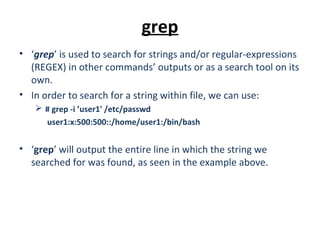
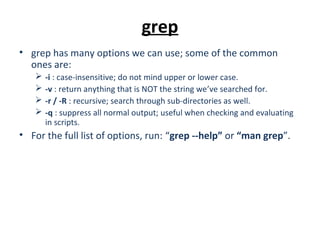
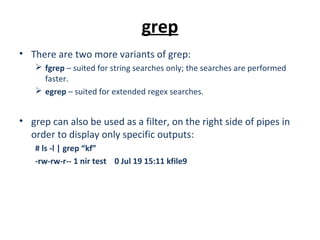
grep is used to search for strings and regular expressions in files and outputs. It has options like -i for case-insensitive searching, -v to return non-matching lines, and -r for recursive searching. cut filters out fields or columns delimited by a character like a colon. sort sorts data alphabetically or numerically with options like -r to reverse the sort order. uniq searches for duplicate lines and has options like -c to output a count of occurrences. tr translates characters between two given sets on a character-to-character basis. tail and head print the end or beginning of a file, with options to specify the number of lines.


![Unix environment [autosaved]](https://cdn.slidesharecdn.com/ss_thumbnails/unixenvironmentautosaved-151015111256-lva1-app6892-thumbnail.jpg?width=640&height=640&fit=bounds)


