Shell Programming & Scripting Languages
Dr.K.Sasidhar
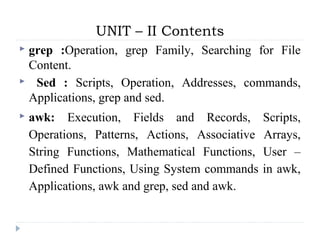
UNIT – II Contents
 grep :Operation, grep Family, Searching for File
Content.
 Sed : Scripts, Operation, Addresses, commands,
Applications, grep and sed.
 awk: Execution, Fields and Records, Scripts,
Operations, Patterns, Actions, Associative Arrays,
String Functions, Mathematical Functions, User –
Defined Functions, Using System commands in awk,
Applications, awk and grep, sed and awk.
grep
( global regular expression )
• grep: Stands for "global regular expression & print”,
processes text line by line and prints any lines which
matches a specified pattern.
• grep is a powerful tool for matching a regular expression
against text in a file, multiple files, or a stream of input
• A regular expression is a pattern that describes a set of
strings.
• A bracket expression is a list of characters enclosed
by [ and ]
• Within a bracket expression, a range expression consists of
two characters separated by a hyphen.
 For example: [a-d] is equivalent to [abcd]
 Syntax: grep options pattern filename (s)
 Ex: grep “sales” emp.lst
 This will display lines containing sales from the file emp.lst
 Patterns with and without quotes is possible. Its safe to
quote the pattern.
 Quote is compulsory when searching for multiple words.
grep
( global regular expression )
grep options
( global regular expression )
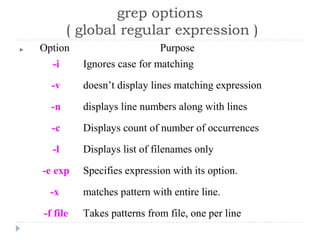
 Option Purpose
-i Ignores case for matching
-v doesn’t display lines matching expression
-n displays line numbers along with lines
-c Displays count of number of occurrences
-l Displays list of filenames only
-e exp Specifies expression with its option.
-x matches pattern with entire line.
-f file Takes patterns from file, one per line
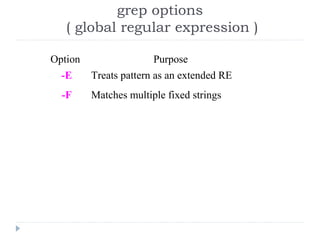
Option Purpose
-E Treats pattern as an extended RE
-F Matches multiple fixed strings
grep options
( global regular expression )
More Examples on grep
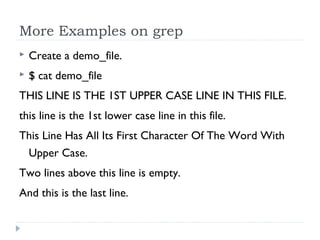
 Create a demo_file.
 $ cat demo_file
THIS LINE IS THE 1ST UPPER CASE LINE IN THIS FILE.
this line is the 1st lower case line in this file.
This Line Has All Its First Character Of The Word With
Upper Case.
Two lines above this line is empty.
And this is the last line.
Examples on grep
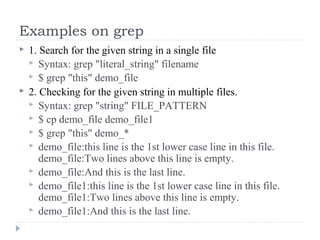
 1. Search for the given string in a single file
 Syntax: grep "literal_string" filename
 $ grep "this" demo_file
 2. Checking for the given string in multiple files.
 Syntax: grep "string" FILE_PATTERN
 $ cp demo_file demo_file1
 $ grep "this" demo_*
 demo_file:this line is the 1st lower case line in this file.
demo_file:Two lines above this line is empty.
 demo_file:And this is the last line.
 demo_file1:this line is the 1st lower case line in this file.
demo_file1:Two lines above this line is empty.
 demo_file1:And this is the last line.
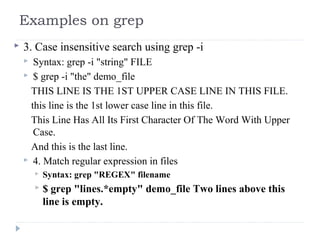
 3. Case insensitive search using grep -i
 Syntax: grep -i "string" FILE
 $ grep -i "the" demo_file
THIS LINE IS THE 1ST UPPER CASE LINE IN THIS FILE.
this line is the 1st lower case line in this file.
This Line Has All Its First Character Of The Word With Upper
Case.
And this is the last line.
 4. Match regular expression in files
 Syntax: grep "REGEX" filename
 $ grep "lines.*empty" demo_file Two lines above this
line is empty.
Examples on grep
 In the above example, it searches for all the pattern that
starts with “lines” and ends with “empty” with anything
in-between. i.e To search “lines [anything in-between]
empty” in the demo_file.
Examples on grep
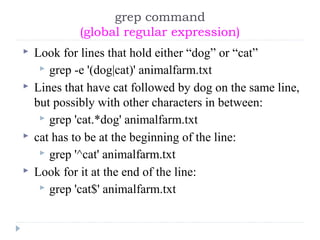
 Look for lines that hold either “dog” or “cat”
 grep -e '(dog|cat)' animalfarm.txt
 Lines that have cat followed by dog on the same line,
but possibly with other characters in between:
 grep 'cat.*dog' animalfarm.txt
 cat has to be at the beginning of the line:
 grep '^cat' animalfarm.txt
 Look for it at the end of the line:
 grep 'cat$' animalfarm.txt
grep command
(global regular expression)
Assignment -1
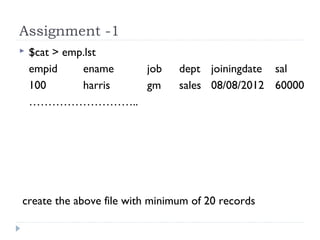
 $cat > emp.lst
empid ename job dept joiningdate sal
100 harris gm sales 08/08/2012 60000
………………………..
create the above file with minimum of 20 records
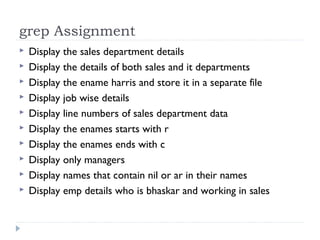
grep Assignment
 Display the sales department details
 Display the details of both sales and it departments
 Display the ename harris and store it in a separate file
 Display job wise details
 Display line numbers of sales department data
 Display the enames starts with r
 Display the enames ends with c
 Display only managers
 Display names that contain nil or ar in their names
 Display emp details who is bhaskar and working in sales
egrep
(extended global regular expression)
 egrep scans a specified file line by line, returning lines that
contain a pattern matching a given regular expression.
 egrep is essentially the same as running grep with the -E option.
 egrep [options] PATTERN [FILE...]
 Examples:
 egrep '^(0|1)+ [a-zA-Z]+$' searchfile.txt
 Match all lines in search file.txt which start with a non-empty bit
string, followed by a space, followed by a non-empty alphabetic
word which ends the line
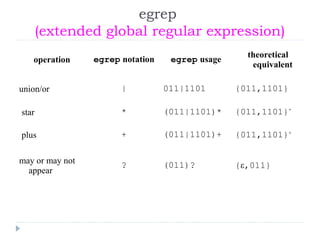
operation egrep notation egrep usage
theoretical
equivalent
union/or | 011|1101 {011,1101}
 star * (011|1101)* {011,1101}*
 plus + (011|1101)+ {011,1101}+
may or may not
appear
? (011)? {ε,011}
egrep
(extended global regular expression)
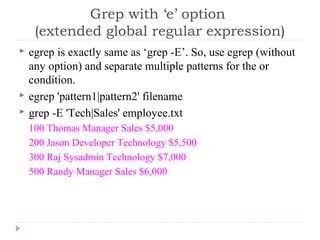
 egrep is exactly same as ‘grep -E’. So, use egrep (without
any option) and separate multiple patterns for the or
condition.
 egrep 'pattern1|pattern2' filename
 grep -E 'Tech|Sales' employee.txt
100 Thomas Manager Sales $5,000
200 Jason Developer Technology $5,500
300 Raj Sysadmin Technology $7,000
500 Randy Manager Sales $6,000
Grep with ‘e’ option
(extended global regular expression)
fgrep
(fixed string grep or fast grep)
 fgrep command is used to search one or more files for
lines that match the given string or word.
 fgrep is faster than grep search, but less flexible:
 fgrep can only find fixed text, not regular expressions.
 Syntax: fgrep [options] pattern [file]
fgrep options
-a Don't suppress output lines with binary data, treat as text.
-b Print the byte offset of input file before each line of output.
-c Print's the count of line matched.
-h Print matched lines but not filenames.
-i
Ignore changes in case; consider upper- and lower-case letters
equivalent.
-n Print line and line number.
-q Prints in quite mode, prints nothing.
-r Recursively read all files in directories and in subdirectories found.
-v Prints all the lines that do not match.
-V Print Version.
-w Match on whole word only.
Sed : a “Stream EDitor”
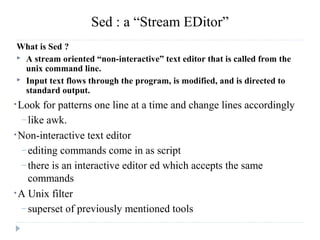
What is Sed ?
 A stream oriented “non-interactive” text editor that is called from the
unix command line.
 Input text flows through the program, is modified, and is directed to
standard output.
•Look for patterns one line at a time and change lines accordingly
– like awk.
•Non-interactive text editor
– editing commands come in as script
– there is an interactive editor ed which accepts the same
commands
•A Unix filter
– superset of previously mentioned tools
Advantages & disadvantages
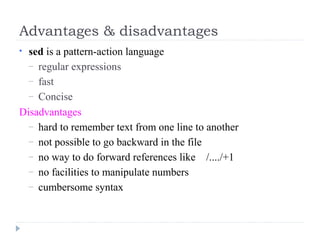
• sed is a pattern-action language
– regular expressions
– fast
– Concise
Disadvantages
– hard to remember text from one line to another
– not possible to go backward in the file
– no way to do forward references like /..../+1
– no facilities to manipulate numbers
– cumbersome syntax
sed Usage
Edit files too large for interactive editing
Edit any size files where editing sequence is too
complicated to type in interactive mode
Perform “multiple global” editing functions efficiently in
one pass through the input
Edit multiples files automatically
Good tool for writing conversion programs
Conceptual overview
A script is read which contains a list of editing commands
 Can be specified in a file or as an argument
Before any editing is done, all editing commands are compiled into a
form to be more efficient during the execution phase.
All editing commands in a sed script are applied in order to each input
line.
If a command changes the input, subsequent command address will be
applied to the current (modified) line in the pattern space, not the
original input line.
The original input file is unchanged (sed is a filter), and the results are
sent to standard output (but can be redirected to a file).
Architecture
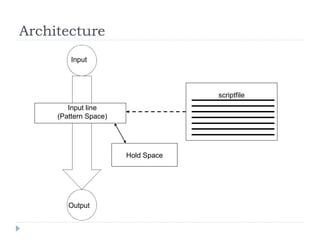
scriptfile
Input
Output
Input line
(Pattern Space)
Hold Space
sed Syntax
sed [-n] [-e] [‘command’] [file…]
sed [-n] [-f scriptfile] [file…]
-n - only print lines specified with the print command (or the ‘p’ flag of the
substitute (‘s’) command)
-f scriptfile - next argument is a filename containing editing commands
-e command - the next argument is an editing command rather than a
filename, useful if multiple commands are specified
If the first line of a scriptfile is “#n”, sed acts as though -n had been specified
Sed Flow of Control
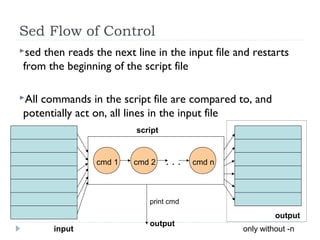
sed then reads the next line in the input file and restarts
from the beginning of the script file
All commands in the script file are compared to, and
potentially act on, all lines in the input file
. . .cmd 1 cmd ncmd 2
script
input
output
output
only without -n
print cmd
26
sed Commands
•sed commands have the general form
•[address[, address]][!]command [arguments]
•sed copies each input line into a pattern space
– if the address of the command matches the line in the pattern
space, the command is applied to that line
– if the command has no address, it is applied to each line as it
enters pattern space
– if a command changes the line in pattern space, subsequent
commands operate on the modified line
27
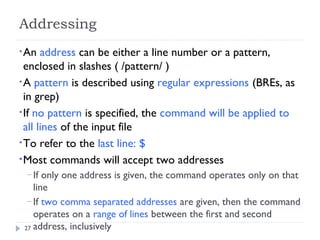
Addressing
•An address can be either a line number or a pattern,
enclosed in slashes ( /pattern/ )
•A pattern is described using regular expressions (BREs, as
in grep)
•If no pattern is specified, the command will be applied to
all lines of the input file
•To refer to the last line: $
•Most commands will accept two addresses
– If only one address is given, the command operates only on that
line
– If two comma separated addresses are given, then the command
operates on a range of lines between the first and second
address, inclusively
28
Commands
•command is a single letter
•Example:
•Deletion: d
•[address1][,address2]d
•Delete the addressed line(s) from the pattern space; line(s)
not passed to standard output.
•A new line of input is read and editing resumes with the
first command of the script.
29
Address and Command Examples:
delete
•d deletes all lines
•6d deletes line 6
•/^$/d deletes all blank lines
•1,10d deletes lines 1 through 10
•1,/^$/d deletes from line 1 through the first
blank line
•/^$/,$d deletes from the first blank line
through the last line of the file
•/^$/,10d deletes from the first blank line
through line 10
•/^ya*y/,/[0-9]$/d deletes from the first line that begins
with yay, yaay, yaaay, etc through
the first line that ends with a digit
 Eliminate the tedium of routine editing tasks! (find, replace, delete,
append, insert)
… but your word processor can already do that right? Wrong.
Sed is extremely powerful AND comes with every Unix system in the
world!
 Sed is designed to be especially useful in three cases:
1. To edit files too large for comfortable interactive editing;
2. To edit any size file when the sequence of editing commands is too
complicated to be comfortably typed in interactive mode.
3. To perform multiple `global' editing functions efficiently in one
pass through the input.
Why Use Sed?
sed options
 Sed H function
 The H function appends the contents of the pattern space to the
contents of the holding area. The former and new contents are
separated by a newline.
 Sed g function
 The g function copies the contents of the holding area into the pattern
space, destroying the previous contents of the pattern space.
 Sed G function
 The G function appends the contents of the holding area to the
contents of the pattern space. The former and new contents are
separated by a newline. The maximum number of addresses is two.
 Sed x function
 The exchange function interchanges the contents of the pattern space
and the holding area. The maximum number of addresses is two.
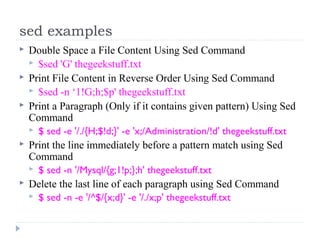
sed examples
 Double Space a File Content Using Sed Command
 $sed 'G' thegeekstuff.txt
 Print File Content in Reverse Order Using Sed Command
 $sed -n ‘1!G;h;$p' thegeekstuff.txt
 Print a Paragraph (Only if it contains given pattern) Using Sed
Command
 $ sed -e '/./{H;$!d;}' -e 'x;/Administration/!d' thegeekstuff.txt
 Print the line immediately before a pattern match using Sed
Command
 $ sed -n '/Mysql/{g;1!p;};h' thegeekstuff.txt
 Delete the last line of each paragraph using Sed Command
 $ sed -n -e '/^$/{x;d}' -e '/./x;p' thegeekstuff.txt
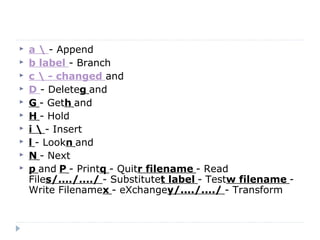
 a  - Append
 b label - Branch
 c  - changed and 
 D - Deleteg and 
 G - Geth and 
 H - Hold
 i  - Insert
 l - Lookn and 
 N - Next
 p and P - Printq - Quitr filename - Read
Files/..../..../ - Substitutet label - Testw filename -
Write Filenamex - eXchangey/..../..../ - Transform
awk command
 AWK was developed in the 1970s at Bell Labs by Alfred 
Aho, Weinberger, and Kernighan. 
 It  was  designed  to  execute  complex  pattern-matching 
operations on streams of textual data. It makes heavy use 
of strings, associative arrays, and regular expressions.
 useful for parsing system data and generating automatic
reports.
uses of AWK
 Text processing,
 Produce formatted text reports,
 Perform arithmetic operations,
 Perform string operations.
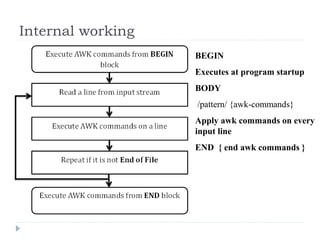
Internal working
BEGIN
Executes at program startup
BODY
/pattern/ {awk-commands} 
Apply awk commands on every
input line
END { end awk commands }
-F fs Sets the input field separator to the regular expression fs.
-v var=value Assigns the value to the variable var before executing the awk program.
'prog' An awk program.
-f progfile Specify a file, progfile, which contains the awk program to be executed.
file ... A file to be processed by the specified awk program
Syntax:
awk [ -F fs ] [ -v var=value ] [ 'prog' | -f progfile ] [ file ... ]
Examples
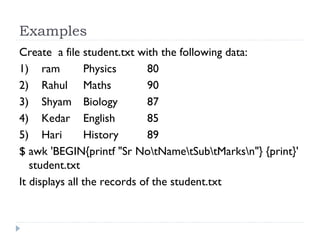
Create a file student.txt with the following data:
1)    ram      Physics     80
2)    Rahul     Maths     90
3)    Shyam    Biology  87
4)    Kedar    English   85
5)    Hari      History     89
$ awk 'BEGIN{printf "Sr NotNametSubtMarksn"} {print}'
student.txt
It displays all the records of the student.txt
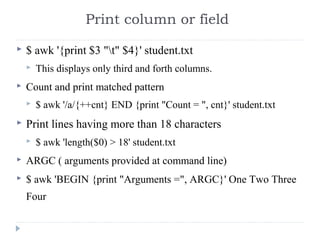
Print column or field
 $ awk '{print $3 "t" $4}' student.txt 
 This displays only third and forth columns.
 Count and print matched pattern
 $ awk '/a/{++cnt} END {print "Count = ", cnt}' student.txt
 Print lines having more than 18 characters
 $ awk 'length($0) > 18' student.txt  
 ARGC ( arguments provided at command line)
 $ awk 'BEGIN {print "Arguments =", ARGC}' One Two Three 
Four 
More examples with awk
 ARGV (stores the command line arguments)
 $ awk 'BEGIN { for (i = 0; i < ARGC - 1; ++i) { printf 
"ARGV[%d] = %sn", i, ARGV[i] } }' one two three four 
 ARGV[0] = awk 
 ARGV[1] = one 
 ARGV[2] = two 
 ARGV[3] = three 
 ARGV[4] = four
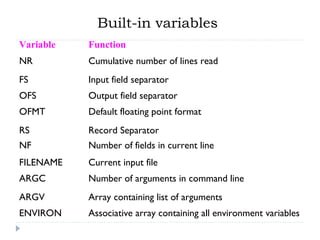
Built-in variables
Variable Function
NR Cumulative number of lines read
FS Input field separator
OFS Output field separator
OFMT Default floating point format
RS Record Separator
NF Number of fields in current line
FILENAME Current input file
ARGC Number of arguments in command line
ARGV Array containing list of arguments
ENVIRON Associative array containing all environment variables
More examples with awk
 $ awk '/a/ {print $0}' student.txt
 $0 represents all records.
 awk 'BEGIN { print ENVIRON["USER"] }'
 Displays the environment variable
 NF
 No. of fields in the file.
 $ echo -e "One TwonOne Two ThreenOne Two Three Four" | 
awk 'NF > 2' 
 NR
 It represents the no. of the current record
More examples with awk
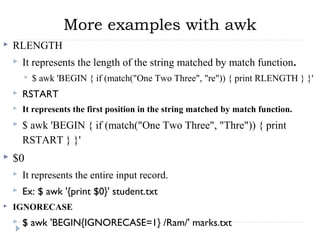
 RLENGTH
 It represents the length of the string matched by match function.  
 $ awk 'BEGIN { if (match("One Two Three", "re")) { print RLENGTH } }' 
 RSTART
 It represents the first position in the string matched by match function.
 $ awk 'BEGIN { if (match("One Two Three", "Thre")) { print 
RSTART } }' 
 $0
 It represents the entire input record.
 Ex: $ awk '{print $0}' student.txt
 IGNORECASE
 $ awk 'BEGIN{IGNORECASE=1} /Ram/' marks.txt
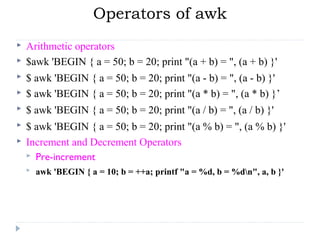
Operators of awk
 Arithmetic operators
 $awk 'BEGIN { a = 50; b = 20; print "(a + b) = ", (a + b) }' 
 $ awk 'BEGIN { a = 50; b = 20; print "(a - b) = ", (a - b) }'
 $ awk 'BEGIN { a = 50; b = 20; print "(a * b) = ", (a * b) }’
 $ awk 'BEGIN { a = 50; b = 20; print "(a / b) = ", (a / b) }'
 $ awk 'BEGIN { a = 50; b = 20; print "(a % b) = ", (a % b) }'
 Increment and Decrement Operators
 Pre-increment
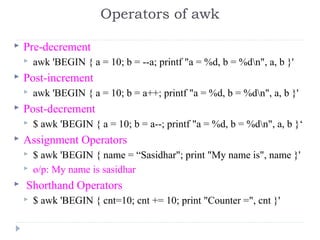
 awk 'BEGIN { a = 10; b = ++a; printf "a = %d, b = %dn", a, b }'
 Pre-decrement
 awk 'BEGIN { a = 10; b = --a; printf "a = %d, b = %dn", a, b }' 
 Post-increment
 awk 'BEGIN { a = 10; b = a++; printf "a = %d, b = %dn", a, b }' 
 Post-decrement
 $ awk 'BEGIN { a = 10; b = a--; printf "a = %d, b = %dn", a, b }‘
 Assignment Operators
 $ awk 'BEGIN { name = “Sasidhar"; print "My name is", name }' 
 o/p: My name is sasidhar
  Shorthand Operators
 $ awk 'BEGIN { cnt=10; cnt += 10; print "Counter =", cnt }'
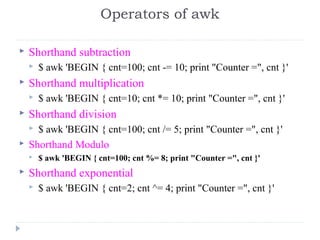
Operators of awk
 Shorthand subtraction
 $ awk 'BEGIN { cnt=100; cnt -= 10; print "Counter =", cnt }' 
 Shorthand multiplication
 $ awk 'BEGIN { cnt=10; cnt *= 10; print "Counter =", cnt }' 
 Shorthand division
 $ awk 'BEGIN { cnt=100; cnt /= 5; print "Counter =", cnt }' 
 Shorthand Modulo
 $ awk 'BEGIN { cnt=100; cnt %= 8; print "Counter =", cnt }'
 Shorthand exponential
 $ awk 'BEGIN { cnt=2; cnt ^= 4; print "Counter =", cnt }' 
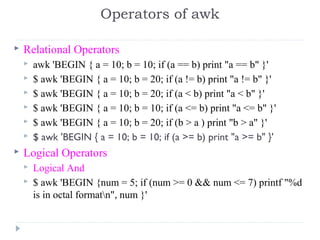
Operators of awk
 Relational Operators
 awk 'BEGIN { a = 10; b = 10; if (a == b) print "a == b" }' 
 $ awk 'BEGIN { a = 10; b = 20; if (a != b) print "a != b" }' 
 $ awk 'BEGIN { a = 10; b = 20; if (a < b) print "a < b" }' 
 $ awk 'BEGIN { a = 10; b = 10; if (a <= b) print "a <= b" }' 
 $ awk 'BEGIN { a = 10; b = 20; if (b > a ) print "b > a" }' 
 $ awk 'BEGIN { a = 10; b = 10; if (a >= b) print "a >= b" }'
 Logical Operators
 Logical And
 $ awk 'BEGIN {num = 5; if (num >= 0 && num <= 7) printf "%d 
is in octal formatn", num }' 
Operators of awk
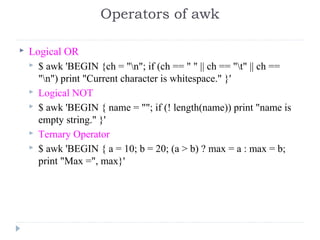
 Logical OR
 $ awk 'BEGIN {ch = "n"; if (ch == " " || ch == "t" || ch == 
"n") print "Current character is whitespace." }' 
 Logical NOT
 $ awk 'BEGIN { name = ""; if (! length(name)) print "name is 
empty string." }' 
 Ternary Operator
 $ awk 'BEGIN { a = 10; b = 20; (a > b) ? max = a : max = b; 
print "Max =", max}' 
Operators of awk
 String concatenation operator
 Space is the string concatenation operator
 $ awk 'BEGIN { str1="Hello, "; str2="World"; str3 = str1 str2;
print str3 }'
 Array membership operator
 $ awk 'BEGIN { arr[0] = 1; arr[1] = 2; arr[2] = 3; for (i in arr)
printf "arr[%d] = %dn", i, arr[i] }'
Operators of awk
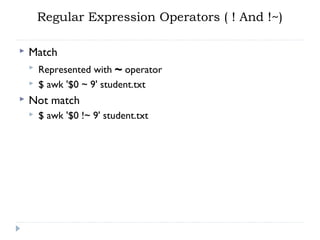
Regular Expression Operators ( ! And !~)
 Match
 Represented with ~ operator
 $ awk '$0 ~ 9' student.txt
 Not match
 $ awk '$0 !~ 9' student.txt
Arrays
 Arrays are not formally defined. Considered declared the moment it
is used.
 Initialized to zero or an empty string unless initialized explicitly
 Arrays expand automatically
 Index can be anything.
 Syntax: array_name[index]=value
 $ awk 'BEGIN {
 fruits["mango"]="yellow"; fruits["orange"]="orange"
 print fruits["orange"] "n" fruits["mango"]
 }'
 To delete an array element
 Syntax: delete array_name[index]
 $ awk 'BEGIN { fruits["mango"]="yellow"; fruits["orange"]="orange";
delete fruits["orange"]; print fruits["orange"] }'
Associative (Hash) Arrays
 awk doesn’t treat the integer subscripts as integers.
 awk arrays are associative, where information is held as
key-value pairs.
 The index is the key that is saved as a string internally.
 For ex: mon[2]=“feb”, awk converts 2 to a string.
 There is no specific order in which array elements are
stored.
Example for associative arrays
 awk ‘BEGIN {
direction[“N”] = “North”; direction[“S”] = “South”;
direction[“E”] = “East” ; direction[“W”] = “West”;
printf(“N is %s and W is %sn, direction[“N”], direction[“W”];
mon[1] = “jan” ; mon[“1”] = “january” ; mon[“01”] = “JAN”;
printf(“mon[1] is %sn”, mon[1]);
printf(“mon[01] is also %sn”, mon[01]);
printf(“mon[“1”] is also %sn”, mon[“1”]);
printf(“but mon[“01” is %sn”, mon[“01”]);
}’
Multi-dimensional arrays
 Syntax: array["0,0"] = value;
 $ awk 'BEGIN { array["0,0"] = 100;
 array["0,1"] = 200;
 array["0,2"] = 300;
 array["1,0"] = 400;
 rray["1,1"] = 500;
 array["1,2"] = 600;
 # print array elements
 print "array[0,0] = " array["0,0"];
 print "array[0,1] = " array["0,1"];
 print "array[0,2] = " array["0,2"];
 print "array[1,0] = " array["1,0"];
 print "array[1,1] = " array["1,1"];
 print "array[1,2] = " array["1,2"]; }'
Control Statements
 if (condition) statement [ else statement ]
 while (condition) statement
 do statement while (condition)
 for (expr1; expr2; expr3) statement
 for (var in array) statement
 break
 continue
 delete
 array[index]
 delete array
 exit [ expression ] { statements }
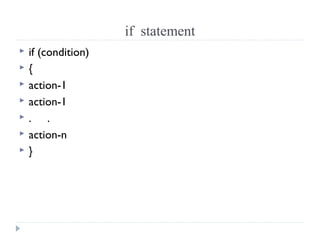
if statement
 if (condition)
 {     
 action-1     
 action-1     
 .     .     
 action-n
 }
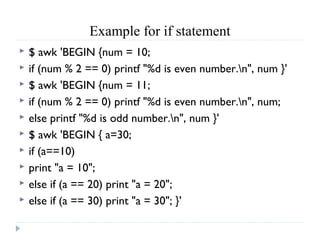
Example for if statement
 $ awk 'BEGIN {num = 10;
 if (num % 2 == 0) printf "%d is even number.n", num }'
 $ awk 'BEGIN {num = 11;
 if (num % 2 == 0) printf "%d is even number.n", num;
 else printf "%d is odd number.n", num }'
 $ awk 'BEGIN { a=30;
 if (a==10)
 print "a = 10";
 else if (a == 20) print "a = 20";
 else if (a == 30) print "a = 30"; }'
looping statements
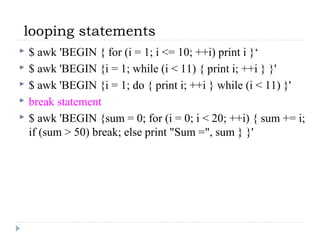
 $ awk 'BEGIN { for (i = 1; i <= 10; ++i) print i }‘
 $ awk 'BEGIN {i = 1; while (i < 11) { print i; ++i } }'
 $ awk 'BEGIN {i = 1; do { print i; ++i } while (i < 11) }'
 break statement
 $ awk 'BEGIN {sum = 0; for (i = 0; i < 20; ++i) { sum += i;
if (sum > 50) break; else print "Sum =", sum } }'
awk Built-in functions
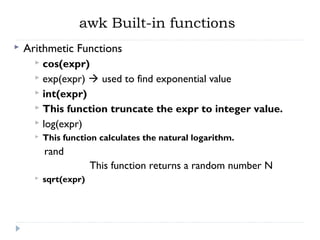
 Arithmetic Functions
 cos(expr)
 exp(expr)  used to find exponential value
 int(expr)
 This function truncate the expr to integer value.
 log(expr)
 This function calculates the natural logarithm.
rand
This function returns a random number N
 sqrt(expr)
Built-in functions with awk
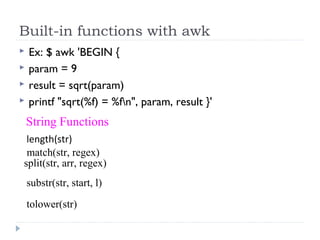
 Ex: $ awk 'BEGIN {
 param = 9
 result = sqrt(param)
 printf "sqrt(%f) = %fn", param, result }'
String Functions
length(str)
match(str, regex)
split(str, arr, regex)
substr(str, start, l)
tolower(str)
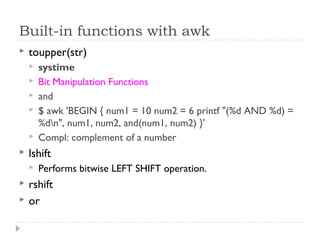
 toupper(str)
 systime
 Bit Manipulation Functions
 and
 $ awk 'BEGIN { num1 = 10 num2 = 6 printf "(%d AND %d) =
%dn", num1, num2, and(num1, num2) }'
 Compl: complement of a number
 lshift
 Performs bitwise LEFT SHIFT operation.
 rshift
 or
Built-in functions with awk
 xor
Built-in functions with awk

Spsl II unit

  • 1.
    Shell Programming &Scripting Languages Dr.K.Sasidhar
  • 2.
    UNIT – IIContents  grep :Operation, grep Family, Searching for File Content.  Sed : Scripts, Operation, Addresses, commands, Applications, grep and sed.  awk: Execution, Fields and Records, Scripts, Operations, Patterns, Actions, Associative Arrays, String Functions, Mathematical Functions, User – Defined Functions, Using System commands in awk, Applications, awk and grep, sed and awk.
  • 3.
    grep ( global regularexpression ) • grep: Stands for "global regular expression & print”, processes text line by line and prints any lines which matches a specified pattern. • grep is a powerful tool for matching a regular expression against text in a file, multiple files, or a stream of input • A regular expression is a pattern that describes a set of strings. • A bracket expression is a list of characters enclosed by [ and ] • Within a bracket expression, a range expression consists of two characters separated by a hyphen.
  • 4.
     For example:[a-d] is equivalent to [abcd]  Syntax: grep options pattern filename (s)  Ex: grep “sales” emp.lst  This will display lines containing sales from the file emp.lst  Patterns with and without quotes is possible. Its safe to quote the pattern.  Quote is compulsory when searching for multiple words. grep ( global regular expression )
  • 5.
    grep options ( globalregular expression )  Option Purpose -i Ignores case for matching -v doesn’t display lines matching expression -n displays line numbers along with lines -c Displays count of number of occurrences -l Displays list of filenames only -e exp Specifies expression with its option. -x matches pattern with entire line. -f file Takes patterns from file, one per line
  • 6.
    Option Purpose -E Treatspattern as an extended RE -F Matches multiple fixed strings grep options ( global regular expression )
  • 7.
    More Examples ongrep  Create a demo_file.  $ cat demo_file THIS LINE IS THE 1ST UPPER CASE LINE IN THIS FILE. this line is the 1st lower case line in this file. This Line Has All Its First Character Of The Word With Upper Case. Two lines above this line is empty. And this is the last line.
  • 8.
    Examples on grep 1. Search for the given string in a single file  Syntax: grep "literal_string" filename  $ grep "this" demo_file  2. Checking for the given string in multiple files.  Syntax: grep "string" FILE_PATTERN  $ cp demo_file demo_file1  $ grep "this" demo_*  demo_file:this line is the 1st lower case line in this file. demo_file:Two lines above this line is empty.  demo_file:And this is the last line.  demo_file1:this line is the 1st lower case line in this file. demo_file1:Two lines above this line is empty.  demo_file1:And this is the last line.
  • 9.
     3. Caseinsensitive search using grep -i  Syntax: grep -i "string" FILE  $ grep -i "the" demo_file THIS LINE IS THE 1ST UPPER CASE LINE IN THIS FILE. this line is the 1st lower case line in this file. This Line Has All Its First Character Of The Word With Upper Case. And this is the last line.  4. Match regular expression in files  Syntax: grep "REGEX" filename  $ grep "lines.*empty" demo_file Two lines above this line is empty. Examples on grep
  • 10.
     In theabove example, it searches for all the pattern that starts with “lines” and ends with “empty” with anything in-between. i.e To search “lines [anything in-between] empty” in the demo_file. Examples on grep
  • 11.
     Look forlines that hold either “dog” or “cat”  grep -e '(dog|cat)' animalfarm.txt  Lines that have cat followed by dog on the same line, but possibly with other characters in between:  grep 'cat.*dog' animalfarm.txt  cat has to be at the beginning of the line:  grep '^cat' animalfarm.txt  Look for it at the end of the line:  grep 'cat$' animalfarm.txt grep command (global regular expression)
  • 12.
    Assignment -1  $cat> emp.lst empid ename job dept joiningdate sal 100 harris gm sales 08/08/2012 60000 ……………………….. create the above file with minimum of 20 records
  • 13.
    grep Assignment  Displaythe sales department details  Display the details of both sales and it departments  Display the ename harris and store it in a separate file  Display job wise details  Display line numbers of sales department data  Display the enames starts with r  Display the enames ends with c  Display only managers  Display names that contain nil or ar in their names  Display emp details who is bhaskar and working in sales
  • 14.
    egrep (extended global regularexpression)  egrep scans a specified file line by line, returning lines that contain a pattern matching a given regular expression.  egrep is essentially the same as running grep with the -E option.  egrep [options] PATTERN [FILE...]  Examples:  egrep '^(0|1)+ [a-zA-Z]+$' searchfile.txt  Match all lines in search file.txt which start with a non-empty bit string, followed by a space, followed by a non-empty alphabetic word which ends the line
  • 15.
    operation egrep notation egrep usage theoretical equivalent union/or| 011|1101 {011,1101}  star * (011|1101)* {011,1101}*  plus + (011|1101)+ {011,1101}+ may or may not appear ? (011)? {ε,011} egrep (extended global regular expression)
  • 16.
     egrep isexactly same as ‘grep -E’. So, use egrep (without any option) and separate multiple patterns for the or condition.  egrep 'pattern1|pattern2' filename  grep -E 'Tech|Sales' employee.txt 100 Thomas Manager Sales $5,000 200 Jason Developer Technology $5,500 300 Raj Sysadmin Technology $7,000 500 Randy Manager Sales $6,000 Grep with ‘e’ option (extended global regular expression)
  • 17.
    fgrep (fixed string grepor fast grep)  fgrep command is used to search one or more files for lines that match the given string or word.  fgrep is faster than grep search, but less flexible:  fgrep can only find fixed text, not regular expressions.  Syntax: fgrep [options] pattern [file]
  • 18.
    fgrep options -a Don'tsuppress output lines with binary data, treat as text. -b Print the byte offset of input file before each line of output. -c Print's the count of line matched. -h Print matched lines but not filenames. -i Ignore changes in case; consider upper- and lower-case letters equivalent. -n Print line and line number. -q Prints in quite mode, prints nothing. -r Recursively read all files in directories and in subdirectories found. -v Prints all the lines that do not match. -V Print Version. -w Match on whole word only.
  • 19.
    Sed : a“Stream EDitor” What is Sed ?  A stream oriented “non-interactive” text editor that is called from the unix command line.  Input text flows through the program, is modified, and is directed to standard output. •Look for patterns one line at a time and change lines accordingly – like awk. •Non-interactive text editor – editing commands come in as script – there is an interactive editor ed which accepts the same commands •A Unix filter – superset of previously mentioned tools
  • 20.
    Advantages & disadvantages •sed is a pattern-action language – regular expressions – fast – Concise Disadvantages – hard to remember text from one line to another – not possible to go backward in the file – no way to do forward references like /..../+1 – no facilities to manipulate numbers – cumbersome syntax
  • 21.
    sed Usage Edit filestoo large for interactive editing Edit any size files where editing sequence is too complicated to type in interactive mode Perform “multiple global” editing functions efficiently in one pass through the input Edit multiples files automatically Good tool for writing conversion programs
  • 22.
    Conceptual overview A scriptis read which contains a list of editing commands  Can be specified in a file or as an argument Before any editing is done, all editing commands are compiled into a form to be more efficient during the execution phase. All editing commands in a sed script are applied in order to each input line. If a command changes the input, subsequent command address will be applied to the current (modified) line in the pattern space, not the original input line. The original input file is unchanged (sed is a filter), and the results are sent to standard output (but can be redirected to a file).
  • 23.
  • 24.
    sed Syntax sed [-n][-e] [‘command’] [file…] sed [-n] [-f scriptfile] [file…] -n - only print lines specified with the print command (or the ‘p’ flag of the substitute (‘s’) command) -f scriptfile - next argument is a filename containing editing commands -e command - the next argument is an editing command rather than a filename, useful if multiple commands are specified If the first line of a scriptfile is “#n”, sed acts as though -n had been specified
  • 25.
    Sed Flow ofControl sed then reads the next line in the input file and restarts from the beginning of the script file All commands in the script file are compared to, and potentially act on, all lines in the input file . . .cmd 1 cmd ncmd 2 script input output output only without -n print cmd
  • 26.
    26 sed Commands •sed commandshave the general form •[address[, address]][!]command [arguments] •sed copies each input line into a pattern space – if the address of the command matches the line in the pattern space, the command is applied to that line – if the command has no address, it is applied to each line as it enters pattern space – if a command changes the line in pattern space, subsequent commands operate on the modified line
  • 27.
    27 Addressing •An address canbe either a line number or a pattern, enclosed in slashes ( /pattern/ ) •A pattern is described using regular expressions (BREs, as in grep) •If no pattern is specified, the command will be applied to all lines of the input file •To refer to the last line: $ •Most commands will accept two addresses – If only one address is given, the command operates only on that line – If two comma separated addresses are given, then the command operates on a range of lines between the first and second address, inclusively
  • 28.
    28 Commands •command is asingle letter •Example: •Deletion: d •[address1][,address2]d •Delete the addressed line(s) from the pattern space; line(s) not passed to standard output. •A new line of input is read and editing resumes with the first command of the script.
  • 29.
    29 Address and CommandExamples: delete •d deletes all lines •6d deletes line 6 •/^$/d deletes all blank lines •1,10d deletes lines 1 through 10 •1,/^$/d deletes from line 1 through the first blank line •/^$/,$d deletes from the first blank line through the last line of the file •/^$/,10d deletes from the first blank line through line 10 •/^ya*y/,/[0-9]$/d deletes from the first line that begins with yay, yaay, yaaay, etc through the first line that ends with a digit
  • 30.
     Eliminate thetedium of routine editing tasks! (find, replace, delete, append, insert) … but your word processor can already do that right? Wrong. Sed is extremely powerful AND comes with every Unix system in the world!  Sed is designed to be especially useful in three cases: 1. To edit files too large for comfortable interactive editing; 2. To edit any size file when the sequence of editing commands is too complicated to be comfortably typed in interactive mode. 3. To perform multiple `global' editing functions efficiently in one pass through the input. Why Use Sed?
  • 31.
    sed options  SedH function  The H function appends the contents of the pattern space to the contents of the holding area. The former and new contents are separated by a newline.  Sed g function  The g function copies the contents of the holding area into the pattern space, destroying the previous contents of the pattern space.  Sed G function  The G function appends the contents of the holding area to the contents of the pattern space. The former and new contents are separated by a newline. The maximum number of addresses is two.  Sed x function  The exchange function interchanges the contents of the pattern space and the holding area. The maximum number of addresses is two.
  • 32.
    sed examples  DoubleSpace a File Content Using Sed Command  $sed 'G' thegeekstuff.txt  Print File Content in Reverse Order Using Sed Command  $sed -n ‘1!G;h;$p' thegeekstuff.txt  Print a Paragraph (Only if it contains given pattern) Using Sed Command  $ sed -e '/./{H;$!d;}' -e 'x;/Administration/!d' thegeekstuff.txt  Print the line immediately before a pattern match using Sed Command  $ sed -n '/Mysql/{g;1!p;};h' thegeekstuff.txt  Delete the last line of each paragraph using Sed Command  $ sed -n -e '/^$/{x;d}' -e '/./x;p' thegeekstuff.txt
  • 33.
     a - Append  b label - Branch  c - changed and   D - Deleteg and   G - Geth and   H - Hold  i  - Insert  l - Lookn and   N - Next  p and P - Printq - Quitr filename - Read Files/..../..../ - Substitutet label - Testw filename - Write Filenamex - eXchangey/..../..../ - Transform
  • 34.
    awk command  AWK was developed in the 1970s at Bell Labs by Alfred  Aho, Weinberger, and Kernighan.  It  was  designed  to  execute  complex  pattern-matching  operations on streams of textual data. It makes heavy use  of strings, associative arrays, and regular expressions.  useful for parsing system data and generating automatic reports.
  • 35.
    uses of AWK Text processing,  Produce formatted text reports,  Perform arithmetic operations,  Perform string operations.
  • 36.
    Internal working BEGIN Executes atprogram startup BODY /pattern/ {awk-commands}  Apply awk commands on every input line END { end awk commands }
  • 37.
    -F fs Sets the input field separator to the regular expression fs. -v var=value Assigns the value to the variable var before executing the awk program. 'prog'An awk program. -f progfile Specify a file, progfile, which contains the awk program to be executed. file ... A file to be processed by the specified awk program Syntax: awk [ -F fs ] [ -v var=value ] [ 'prog' | -f progfile ] [ file ... ]
  • 38.
    Examples Create a filestudent.txt with the following data: 1)    ram      Physics     80 2)    Rahul     Maths     90 3)    Shyam    Biology  87 4)    Kedar    English   85 5)    Hari      History     89 $ awk 'BEGIN{printf "Sr NotNametSubtMarksn"} {print}' student.txt It displays all the records of the student.txt
  • 39.
    Print column orfield  $ awk '{print $3 "t" $4}' student.txt   This displays only third and forth columns.  Count and print matched pattern  $ awk '/a/{++cnt} END {print "Count = ", cnt}' student.txt  Print lines having more than 18 characters  $ awk 'length($0) > 18' student.txt    ARGC ( arguments provided at command line)  $ awk 'BEGIN {print "Arguments =", ARGC}' One Two Three  Four 
  • 40.
    More examples withawk  ARGV (stores the command line arguments)  $ awk 'BEGIN { for (i = 0; i < ARGC - 1; ++i) { printf  "ARGV[%d] = %sn", i, ARGV[i] } }' one two three four   ARGV[0] = awk   ARGV[1] = one   ARGV[2] = two   ARGV[3] = three   ARGV[4] = four
  • 41.
    Built-in variables Variable Function NRCumulative number of lines read FS Input field separator OFS Output field separator OFMT Default floating point format RS Record Separator NF Number of fields in current line FILENAME Current input file ARGC Number of arguments in command line ARGV Array containing list of arguments ENVIRON Associative array containing all environment variables
  • 42.
    More examples withawk  $ awk '/a/ {print $0}' student.txt  $0 represents all records.  awk 'BEGIN { print ENVIRON["USER"] }'  Displays the environment variable  NF  No. of fields in the file.  $ echo -e "One TwonOne Two ThreenOne Two Three Four" |  awk 'NF > 2'   NR  It represents the no. of the current record
  • 43.
    More examples withawk  RLENGTH  It represents the length of the string matched by match function.    $ awk 'BEGIN { if (match("One Two Three", "re")) { print RLENGTH } }'   RSTART  It represents the first position in the string matched by match function.  $ awk 'BEGIN { if (match("One Two Three", "Thre")) { print  RSTART } }'   $0  It represents the entire input record.  Ex: $ awk '{print $0}' student.txt  IGNORECASE  $ awk 'BEGIN{IGNORECASE=1} /Ram/' marks.txt
  • 44.
    Operators of awk Arithmetic operators  $awk 'BEGIN { a = 50; b = 20; print "(a + b) = ", (a + b) }'   $ awk 'BEGIN { a = 50; b = 20; print "(a - b) = ", (a - b) }'  $ awk 'BEGIN { a = 50; b = 20; print "(a * b) = ", (a * b) }’  $ awk 'BEGIN { a = 50; b = 20; print "(a / b) = ", (a / b) }'  $ awk 'BEGIN { a = 50; b = 20; print "(a % b) = ", (a % b) }'  Increment and Decrement Operators  Pre-increment  awk 'BEGIN { a = 10; b = ++a; printf "a = %d, b = %dn", a, b }'
  • 45.
     Pre-decrement  awk 'BEGIN { a = 10; b = --a; printf "a = %d, b = %dn", a, b }'  Post-increment  awk 'BEGIN { a = 10; b = a++; printf "a = %d, b = %dn", a, b }'   Post-decrement  $ awk 'BEGIN { a = 10; b = a--; printf "a = %d, b = %dn", a, b }‘  Assignment Operators  $ awk 'BEGIN { name = “Sasidhar"; print "My name is", name }'   o/p: My name is sasidhar   Shorthand Operators  $ awk 'BEGIN { cnt=10; cnt += 10; print "Counter =", cnt }' Operators of awk
  • 46.
     Shorthand subtraction  $ awk 'BEGIN { cnt=100; cnt -= 10; print "Counter =", cnt }'  Shorthand multiplication  $ awk 'BEGIN { cnt=10; cnt *= 10; print "Counter =", cnt }'   Shorthand division  $ awk 'BEGIN { cnt=100; cnt /= 5; print "Counter =", cnt }'   Shorthand Modulo  $ awk 'BEGIN { cnt=100; cnt %= 8; print "Counter =", cnt }'  Shorthand exponential  $ awk 'BEGIN { cnt=2; cnt ^= 4; print "Counter =", cnt }'  Operators of awk
  • 47.
     Relational Operators  awk 'BEGIN { a = 10; b = 10; if (a == b) print "a == b" }'  $ awk 'BEGIN { a = 10; b = 20; if (a != b) print "a != b" }'   $ awk 'BEGIN { a = 10; b = 20; if (a < b) print "a < b" }'   $ awk 'BEGIN { a = 10; b = 10; if (a <= b) print "a <= b" }'   $ awk 'BEGIN { a = 10; b = 20; if (b > a ) print "b > a" }'   $ awk 'BEGIN { a = 10; b = 10; if (a >= b) print "a >= b" }'  Logical Operators  Logical And  $ awk 'BEGIN {num = 5; if (num >= 0 && num <= 7) printf "%d  is in octal formatn", num }'  Operators of awk
  • 48.
     Logical OR  $ awk 'BEGIN {ch = "n"; if (ch == " " || ch == "t" || ch ==  "n") print "Current character is whitespace." }'  Logical NOT  $ awk 'BEGIN { name = ""; if (! length(name)) print "name is  empty string." }'   Ternary Operator  $ awk 'BEGIN { a = 10; b = 20; (a > b) ? max = a : max = b;  print "Max =", max}'  Operators of awk
  • 49.
     String concatenationoperator  Space is the string concatenation operator  $ awk 'BEGIN { str1="Hello, "; str2="World"; str3 = str1 str2; print str3 }'  Array membership operator  $ awk 'BEGIN { arr[0] = 1; arr[1] = 2; arr[2] = 3; for (i in arr) printf "arr[%d] = %dn", i, arr[i] }' Operators of awk
  • 50.
    Regular Expression Operators( ! And !~)  Match  Represented with ~ operator  $ awk '$0 ~ 9' student.txt  Not match  $ awk '$0 !~ 9' student.txt
  • 51.
    Arrays  Arrays arenot formally defined. Considered declared the moment it is used.  Initialized to zero or an empty string unless initialized explicitly  Arrays expand automatically  Index can be anything.  Syntax: array_name[index]=value  $ awk 'BEGIN {  fruits["mango"]="yellow"; fruits["orange"]="orange"  print fruits["orange"] "n" fruits["mango"]  }'  To delete an array element  Syntax: delete array_name[index]  $ awk 'BEGIN { fruits["mango"]="yellow"; fruits["orange"]="orange"; delete fruits["orange"]; print fruits["orange"] }'
  • 52.
    Associative (Hash) Arrays awk doesn’t treat the integer subscripts as integers.  awk arrays are associative, where information is held as key-value pairs.  The index is the key that is saved as a string internally.  For ex: mon[2]=“feb”, awk converts 2 to a string.  There is no specific order in which array elements are stored.
  • 53.
    Example for associativearrays  awk ‘BEGIN { direction[“N”] = “North”; direction[“S”] = “South”; direction[“E”] = “East” ; direction[“W”] = “West”; printf(“N is %s and W is %sn, direction[“N”], direction[“W”]; mon[1] = “jan” ; mon[“1”] = “january” ; mon[“01”] = “JAN”; printf(“mon[1] is %sn”, mon[1]); printf(“mon[01] is also %sn”, mon[01]); printf(“mon[“1”] is also %sn”, mon[“1”]); printf(“but mon[“01” is %sn”, mon[“01”]); }’
  • 54.
    Multi-dimensional arrays  Syntax:array["0,0"] = value;  $ awk 'BEGIN { array["0,0"] = 100;  array["0,1"] = 200;  array["0,2"] = 300;  array["1,0"] = 400;  rray["1,1"] = 500;  array["1,2"] = 600;  # print array elements  print "array[0,0] = " array["0,0"];  print "array[0,1] = " array["0,1"];  print "array[0,2] = " array["0,2"];  print "array[1,0] = " array["1,0"];  print "array[1,1] = " array["1,1"];  print "array[1,2] = " array["1,2"]; }'
  • 55.
    Control Statements  if(condition) statement [ else statement ]  while (condition) statement  do statement while (condition)  for (expr1; expr2; expr3) statement  for (var in array) statement  break  continue  delete  array[index]  delete array  exit [ expression ] { statements }
  • 56.
    if statement  if(condition)  {       action-1       action-1       .     .       action-n  }
  • 57.
    Example for ifstatement  $ awk 'BEGIN {num = 10;  if (num % 2 == 0) printf "%d is even number.n", num }'  $ awk 'BEGIN {num = 11;  if (num % 2 == 0) printf "%d is even number.n", num;  else printf "%d is odd number.n", num }'  $ awk 'BEGIN { a=30;  if (a==10)  print "a = 10";  else if (a == 20) print "a = 20";  else if (a == 30) print "a = 30"; }'
  • 58.
    looping statements  $awk 'BEGIN { for (i = 1; i <= 10; ++i) print i }‘  $ awk 'BEGIN {i = 1; while (i < 11) { print i; ++i } }'  $ awk 'BEGIN {i = 1; do { print i; ++i } while (i < 11) }'  break statement  $ awk 'BEGIN {sum = 0; for (i = 0; i < 20; ++i) { sum += i; if (sum > 50) break; else print "Sum =", sum } }'
  • 59.
    awk Built-in functions Arithmetic Functions  cos(expr)  exp(expr)  used to find exponential value  int(expr)  This function truncate the expr to integer value.  log(expr)  This function calculates the natural logarithm. rand This function returns a random number N  sqrt(expr)
  • 60.
    Built-in functions withawk  Ex: $ awk 'BEGIN {  param = 9  result = sqrt(param)  printf "sqrt(%f) = %fn", param, result }' String Functions length(str) match(str, regex) split(str, arr, regex) substr(str, start, l) tolower(str)
  • 61.
     toupper(str)  systime Bit Manipulation Functions  and  $ awk 'BEGIN { num1 = 10 num2 = 6 printf "(%d AND %d) = %dn", num1, num2, and(num1, num2) }'  Compl: complement of a number  lshift  Performs bitwise LEFT SHIFT operation.  rshift  or Built-in functions with awk
  • 62.

Editor's Notes

  • #31 1) Great for working with a LOT of files!