INTRODUCTION
TO
COMMUNICATION
TECHNOLOGY
BS (CS & AI) – Semester 1 – Section A & B
Faryal Shamsi
Lab 5 – Operating System
(MS DOS + Windows)
Merit, Quality & Excellence
SUKKUR IBA UNIVERSITY
DEPARTMENT OF COMPUTER SCIENCE
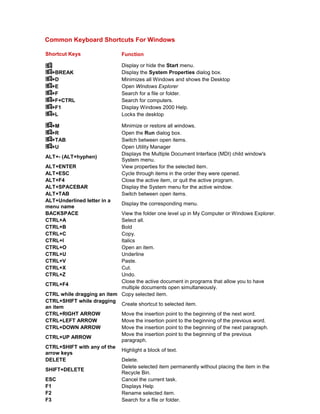
Common Keyboard Shortcuts For Windows
Shortcut Keys Function
Display or hide the Start menu.
+BREAK Display the System Properties dialog box.
+D Minimizes all Windows and shows the Desktop
+E Open Windows Explorer
+F Search for a file or folder.
+F+CTRL Search for computers.
+F1 Display Windows 2000 Help.
+L Locks the desktop
+M Minimize or restore all windows.
+R Open the Run dialog box.
+TAB Switch between open items.
+U Open Utility Manager
ALT+- (ALT+hyphen)
Displays the Multiple Document Interface (MDI) child window's
System menu.
ALT+ENTER View properties for the selected item.
ALT+ESC Cycle through items in the order they were opened.
ALT+F4 Close the active item, or quit the active program.
ALT+SPACEBAR Display the System menu for the active window.
ALT+TAB Switch between open items.
ALT+Underlined letter in a
menu name
Display the corresponding menu.
BACKSPACE View the folder one level up in My Computer or Windows Explorer.
CTRL+A Select all.
CTRL+B Bold
CTRL+C Copy.
CTRL+I Italics
CTRL+O Open an item.
CTRL+U Underline
CTRL+V Paste.
CTRL+X Cut.
CTRL+Z Undo.
CTRL+F4
Close the active document in programs that allow you to have
multiple documents open simultaneously.
CTRL while dragging an item Copy selected item.
CTRL+SHIFT while dragging
an item
Create shortcut to selected item.
CTRL+RIGHT ARROW Move the insertion point to the beginning of the next word.
CTRL+LEFT ARROW Move the insertion point to the beginning of the previous word.
CTRL+DOWN ARROW Move the insertion point to the beginning of the next paragraph.
CTRL+UP ARROW
Move the insertion point to the beginning of the previous
paragraph.
CTRL+SHIFT with any of the
arrow keys
Highlight a block of text.
DELETE Delete.
SHIFT+DELETE
Delete selected item permanently without placing the item in the
Recycle Bin.
ESC Cancel the current task.
F1 Displays Help
F2 Rename selected item.
F3 Search for a file or folder.
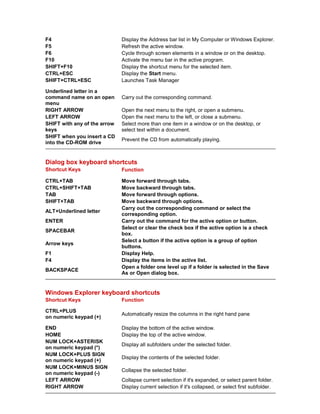
F4 Display the Address bar list in My Computer or Windows Explorer.
F5 Refresh the active window.
F6 Cycle through screen elements in a window or on the desktop.
F10 Activate the menu bar in the active program.
SHIFT+F10 Display the shortcut menu for the selected item.
CTRL+ESC Display the Start menu.
SHIFT+CTRL+ESC Launches Task Manager
Underlined letter in a
command name on an open
menu
Carry out the corresponding command.
RIGHT ARROW Open the next menu to the right, or open a submenu.
LEFT ARROW Open the next menu to the left, or close a submenu.
SHIFT with any of the arrow
keys
Select more than one item in a window or on the desktop, or
select text within a document.
SHIFT when you insert a CD
into the CD-ROM drive
Prevent the CD from automatically playing.
Dialog box keyboard shortcuts
Shortcut Keys Function
CTRL+TAB Move forward through tabs.
CTRL+SHIFT+TAB Move backward through tabs.
TAB Move forward through options.
SHIFT+TAB Move backward through options.
ALT+Underlined letter
Carry out the corresponding command or select the
corresponding option.
ENTER Carry out the command for the active option or button.
SPACEBAR
Select or clear the check box if the active option is a check
box.
Arrow keys
Select a button if the active option is a group of option
buttons.
F1 Display Help.
F4 Display the items in the active list.
BACKSPACE
Open a folder one level up if a folder is selected in the Save
As or Open dialog box.
Windows Explorer keyboard shortcuts
Shortcut Keys Function
CTRL+PLUS
on numeric keypad (+)
Automatically resize the columns in the right hand pane
END Display the bottom of the active window.
HOME Display the top of the active window.
NUM LOCK+ASTERISK
on numeric keypad (*)
Display all subfolders under the selected folder.
NUM LOCK+PLUS SIGN
on numeric keypad (+)
Display the contents of the selected folder.
NUM LOCK+MINUS SIGN
on numeric keypad (-)
Collapse the selected folder.
LEFT ARROW Collapse current selection if it's expanded, or select parent folder.
RIGHT ARROW Display current selection if it's collapsed, or select first subfolder.
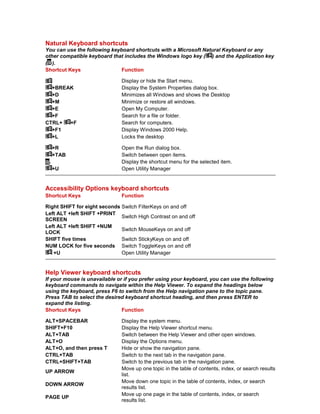
Natural Keyboard shortcuts
You can use the following keyboard shortcuts with a Microsoft Natural Keyboard or any
other compatible keyboard that includes the Windows logo key ( ) and the Application key
( ).
Shortcut Keys Function
Display or hide the Start menu.
+BREAK Display the System Properties dialog box.
+D Minimizes all Windows and shows the Desktop
+M Minimize or restore all windows.
+E Open My Computer.
+F Search for a file or folder.
CTRL+ +F Search for computers.
+F1 Display Windows 2000 Help.
+L Locks the desktop
+R Open the Run dialog box.
+TAB Switch between open items.
Display the shortcut menu for the selected item.
+U Open Utility Manager
Accessibility Options keyboard shortcuts
Shortcut Keys Function
Right SHIFT for eight seconds Switch FilterKeys on and off
Left ALT +left SHIFT +PRINT
SCREEN
Switch High Contrast on and off
Left ALT +left SHIFT +NUM
LOCK
Switch MouseKeys on and off
SHIFT five times Switch StickyKeys on and off
NUM LOCK for five seconds Switch ToggleKeys on and off
+U Open Utility Manager
Help Viewer keyboard shortcuts
If your mouse is unavailable or if you prefer using your keyboard, you can use the following
keyboard commands to navigate within the Help Viewer. To expand the headings below
using the keyboard, press F6 to switch from the Help navigation pane to the topic pane.
Press TAB to select the desired keyboard shortcut heading, and then press ENTER to
expand the listing.
Shortcut Keys Function
ALT+SPACEBAR Display the system menu.
SHIFT+F10 Display the Help Viewer shortcut menu.
ALT+TAB Switch between the Help Viewer and other open windows.
ALT+O Display the Options menu.
ALT+O, and then press T Hide or show the navigation pane.
CTRL+TAB Switch to the next tab in the navigation pane.
CTRL+SHIFT+TAB Switch to the previous tab in the navigation pane.
UP ARROW
Move up one topic in the table of contents, index, or search results
list.
DOWN ARROW
Move down one topic in the table of contents, index, or search
results list.
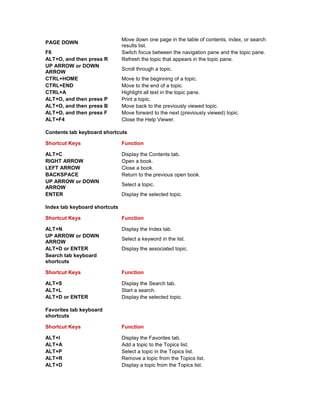
PAGE UP
Move up one page in the table of contents, index, or search
results list.
PAGE DOWN
Move down one page in the table of contents, index, or search
results list.
F6 Switch focus between the navigation pane and the topic pane.
ALT+O, and then press R Refresh the topic that appears in the topic pane.
UP ARROW or DOWN
ARROW
Scroll through a topic.
CTRL+HOME Move to the beginning of a topic.
CTRL+END Move to the end of a topic.
CTRL+A Highlight all text in the topic pane.
ALT+O, and then press P Print a topic.
ALT+O, and then press B Move back to the previously viewed topic.
ALT+O, and then press F Move forward to the next (previously viewed) topic.
ALT+F4 Close the Help Viewer.
Contents tab keyboard shortcuts
Shortcut Keys Function
ALT+C Display the Contents tab.
RIGHT ARROW Open a book.
LEFT ARROW Close a book.
BACKSPACE Return to the previous open book.
UP ARROW or DOWN
ARROW
Select a topic.
ENTER Display the selected topic.
Index tab keyboard shortcuts
Shortcut Keys Function
ALT+N Display the Index tab.
UP ARROW or DOWN
ARROW
Select a keyword in the list.
ALT+D or ENTER Display the associated topic.
Search tab keyboard
shortcuts
Shortcut Keys Function
ALT+S Display the Search tab.
ALT+L Start a search.
ALT+D or ENTER Display the selected topic.
Favorites tab keyboard
shortcuts
Shortcut Keys Function
ALT+I Display the Favorites tab.
ALT+A Add a topic to the Topics list.
ALT+P Select a topic in the Topics list.
ALT+R Remove a topic from the Topics list.
ALT+D Display a topic from the Topics list.
INTRODUCTION TO MS DOS
MS-DOS short for Microsoft Disk Operating System is an operating
system for x86-based personal computers. It was the most commonly used
member of the DOS family of operating systems, and was the main operating
system for IBM PC compatible personal computers during the 1980s to the mid
1990s, until it was gradually superseded by operating systems offering a graphical
user interface (GUI), in particular by various generations of the Microsoft
Windows operating system.
In the personal computer operating systems MS-DOS and PC DOS, a number of
standard system commands were provided for common tasks such as listing files
on a disk or moving files. Some commands were built-in to the command
interpreter; others existed as transient commands loaded into memory when
required. Over the several generations of MS-DOS, commands were added for the
additional functions of the operating system. In the current Microsoft
Windows operating system a text-mode command prompt window can still
be used. Some DOS commands carry out functions equivalent to those
in a UNIX system but always with differences in details of the function.
 Windows command prompt
Microsoft Windows supports a number of commands which may be invoked by
typing them in a command window; they are usually similar to their MS-DOS
equivalents. Typing help followed by a carriage return at a command prompt will
list the commands. File and path names used as arguments may be long, unlike
MS-DOS names in "8.3" form, and may contain embedded spaces; names with
spaces must be enclosed between a pair of double-quote character (").
Commend List:
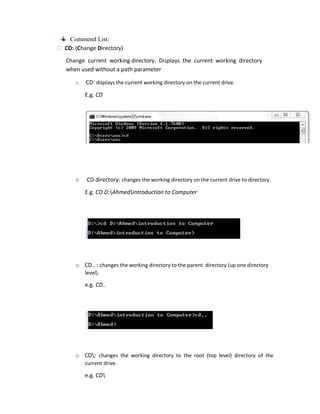
CD: (Change Directory)
Change current working directory. Displays the current working directory
when used without a path parameter
o CD: displays the current working directory on the current drive.
E.g. CD
o CD directory: changes the working directory on the current drive to directory.
E.g. CD D:Ahmedintroduction to Computer
o CD.. : changes the working directory to the parent directory (up one directory
level).
e.g. CD..
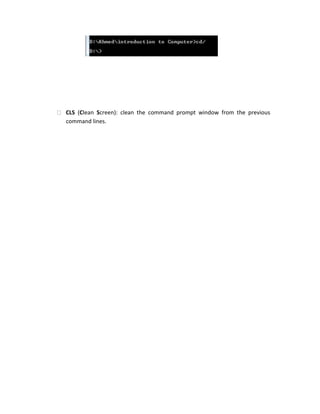
o CD: changes the working directory to the root (top level) directory of the
current drive.
e.g. CD
CLS (Clean Screen): clean the command prompt window from the previous
command lines.
DIR: Lists the contents of a directory.
The dir command typed by itself, displays the disk's volume label and serial number; one
directory or filename per line, including the filename extension, the file size in bytes, and
the date and time the file was last modified; and the total number of files listed,
their cumulative size, and the free space (in bytes) remaining on the disk.
dir [drive:][path][filename] [parameters]
o Parameter:
o /W: Displays the listing in wide format, with as many as five filenames or
directory names on each line.
o /P : Pause at every page
o /S : Also look in subdirectories
o /Axx: Display files with the specified attributes only
o /B : Uses bare format (no heading information or summary)
o > [drive:][path]filename : To Store Result in a text file.
attrib
Attrib views or changes the attributes of one or more files. It defaults to displaying the
attributes of all files in the current directory.
ATTRIB [+R|-R] [+A|-A] [+S|-S] [+H|-H][drive:][path][filename] [/S [/D]]
To add an attribute attach a '+' in front of it.
To remove an attribute attach a '-' in front of it
Attributes include
R - Read-only
A - Archive
S - System
H - Hidden
/D - Process folders as well.
/S - Process matching files in the current folder and all subfolders.
Copy:
Copies files from one location to another. The destination defaults to the current
directory. If multiple source files are indicated, the destination must be a directory, or an error
will result.
Copy [sourcefilename] [destinationfolder]
Del: Deletes one or more files.
Deltree: Deletes a directory along with all of the files and subdirectories that it contains.
Normally, it will ask for confirmation of such a drastic action.
For Microsoft windows use
Del /s /f [/q] directory && rd /s [/q] directory
Move: moves files or rename directories.
move filename newname
move driveletter:olddir driveletter:newdir
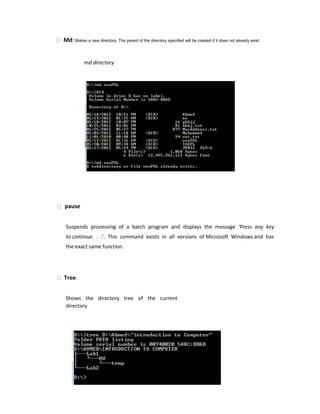
Md: Makes a new directory. The parent of the directory specified will be created if it does not already exist.
md directory
pause
Suspends processing of a batch program and displays the message 'Press any key
to continue. . .'. This command exists in all versions of Microsoft Windows and has
the exact same function.
Tree:
Shows the directory tree of the current
directory
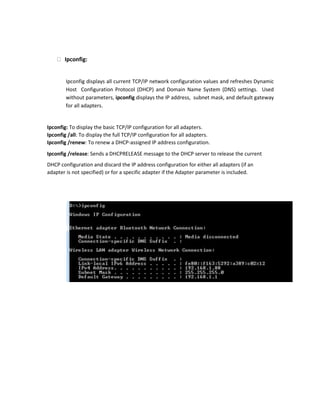
Ipconfig:
Ipconfig displays all current TCP/IP network configuration values and refreshes Dynamic
Host Configuration Protocol (DHCP) and Domain Name System (DNS) settings. Used
without parameters, ipconfig displays the IP address, subnet mask, and default gateway
for all adapters.
Ipconfig: To display the basic TCP/IP configuration for all adapters.
Ipconfig /all: To display the full TCP/IP configuration for all adapters.
Ipconfig /renew: To renew a DHCP-assigned IP address configuration.
Ipconfig /release: Sends a DHCPRELEASE message to the DHCP server to release the current
DHCP configuration and discard the IP address configuration for either all adapters (if an
adapter is not specified) or for a specific adapter if the Adapter parameter is included.
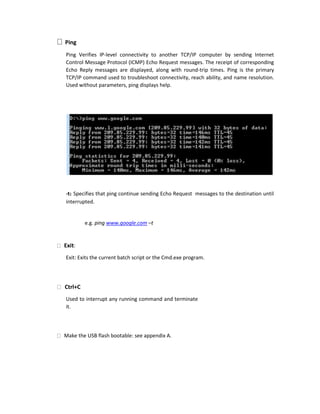
Ping
Ping Verifies IP-level connectivity to another TCP/IP computer by sending Internet
Control Message Protocol (ICMP) Echo Request messages. The receipt of corresponding
Echo Reply messages are displayed, along with round-trip times. Ping is the primary
TCP/IP command used to troubleshoot connectivity, reach ability, and name resolution.
Used without parameters, ping displays help.
-t: Specifies that ping continue sending Echo Request messages to the destination until
interrupted.
e.g. ping www.google.com –t
Exit:
Exit: Exits the current batch script or the Cmd.exe program.
Ctrl+C
Used to interrupt any running command and terminate
it.
Make the USB flash bootable: see appendix A.
Appendix A:
To make your USB flash memory bootable its mean that the computer can use its
data to begin with it.
Steps:
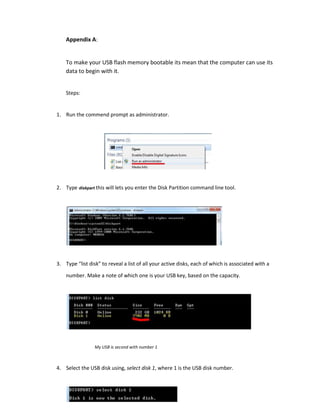
1. Run the commend prompt as administrator.
2. Type diskpart this will lets you enter the Disk Partition command line tool.
3. Type “list disk” to reveal a list of all your active disks, each of which is associated with a
number. Make a note of which one is your USB key, based on the capacity.
My USB is second with number 1
4. Select the USB disk using, select disk 1, where 1 is the USB disk number.
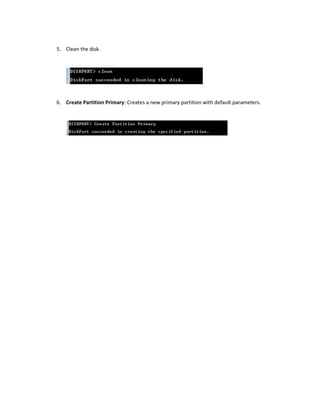
5. Clean the disk.
6. Create Partition Primary: Creates a new primary partition with default parameters.
Page 18 of 19
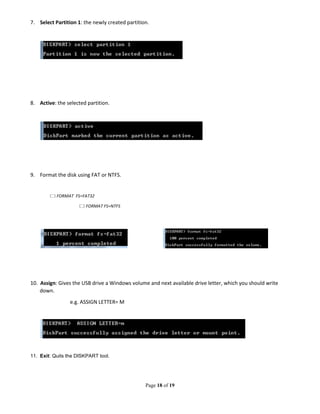
7. Select Partition 1: the newly created partition.
8. Active: the selected partition.
9. Format the disk using FAT or NTFS.
FORMAT FS=FAT32
FORMAT FS=NTFS
10. Assign: Gives the USB drive a Windows volume and next available drive letter, which you should write
down.
e.g. ASSIGN LETTER= M
11. Exit: Quits the DISKPART tool.
Page 19 of 19
12. Finally: now copy your file into the USB memory (to install windows copy the content of
ISO file).

05 LAB - Operating Systems.docx

  • 1.
    INTRODUCTION TO COMMUNICATION TECHNOLOGY BS (CS &AI) – Semester 1 – Section A & B Faryal Shamsi Lab 5 – Operating System (MS DOS + Windows) Merit, Quality & Excellence SUKKUR IBA UNIVERSITY DEPARTMENT OF COMPUTER SCIENCE
  • 2.
    Common Keyboard ShortcutsFor Windows Shortcut Keys Function Display or hide the Start menu. +BREAK Display the System Properties dialog box. +D Minimizes all Windows and shows the Desktop +E Open Windows Explorer +F Search for a file or folder. +F+CTRL Search for computers. +F1 Display Windows 2000 Help. +L Locks the desktop +M Minimize or restore all windows. +R Open the Run dialog box. +TAB Switch between open items. +U Open Utility Manager ALT+- (ALT+hyphen) Displays the Multiple Document Interface (MDI) child window's System menu. ALT+ENTER View properties for the selected item. ALT+ESC Cycle through items in the order they were opened. ALT+F4 Close the active item, or quit the active program. ALT+SPACEBAR Display the System menu for the active window. ALT+TAB Switch between open items. ALT+Underlined letter in a menu name Display the corresponding menu. BACKSPACE View the folder one level up in My Computer or Windows Explorer. CTRL+A Select all. CTRL+B Bold CTRL+C Copy. CTRL+I Italics CTRL+O Open an item. CTRL+U Underline CTRL+V Paste. CTRL+X Cut. CTRL+Z Undo. CTRL+F4 Close the active document in programs that allow you to have multiple documents open simultaneously. CTRL while dragging an item Copy selected item. CTRL+SHIFT while dragging an item Create shortcut to selected item. CTRL+RIGHT ARROW Move the insertion point to the beginning of the next word. CTRL+LEFT ARROW Move the insertion point to the beginning of the previous word. CTRL+DOWN ARROW Move the insertion point to the beginning of the next paragraph. CTRL+UP ARROW Move the insertion point to the beginning of the previous paragraph. CTRL+SHIFT with any of the arrow keys Highlight a block of text. DELETE Delete. SHIFT+DELETE Delete selected item permanently without placing the item in the Recycle Bin. ESC Cancel the current task. F1 Displays Help F2 Rename selected item. F3 Search for a file or folder.
  • 3.
    F4 Display theAddress bar list in My Computer or Windows Explorer. F5 Refresh the active window. F6 Cycle through screen elements in a window or on the desktop. F10 Activate the menu bar in the active program. SHIFT+F10 Display the shortcut menu for the selected item. CTRL+ESC Display the Start menu. SHIFT+CTRL+ESC Launches Task Manager Underlined letter in a command name on an open menu Carry out the corresponding command. RIGHT ARROW Open the next menu to the right, or open a submenu. LEFT ARROW Open the next menu to the left, or close a submenu. SHIFT with any of the arrow keys Select more than one item in a window or on the desktop, or select text within a document. SHIFT when you insert a CD into the CD-ROM drive Prevent the CD from automatically playing. Dialog box keyboard shortcuts Shortcut Keys Function CTRL+TAB Move forward through tabs. CTRL+SHIFT+TAB Move backward through tabs. TAB Move forward through options. SHIFT+TAB Move backward through options. ALT+Underlined letter Carry out the corresponding command or select the corresponding option. ENTER Carry out the command for the active option or button. SPACEBAR Select or clear the check box if the active option is a check box. Arrow keys Select a button if the active option is a group of option buttons. F1 Display Help. F4 Display the items in the active list. BACKSPACE Open a folder one level up if a folder is selected in the Save As or Open dialog box. Windows Explorer keyboard shortcuts Shortcut Keys Function CTRL+PLUS on numeric keypad (+) Automatically resize the columns in the right hand pane END Display the bottom of the active window. HOME Display the top of the active window. NUM LOCK+ASTERISK on numeric keypad (*) Display all subfolders under the selected folder. NUM LOCK+PLUS SIGN on numeric keypad (+) Display the contents of the selected folder. NUM LOCK+MINUS SIGN on numeric keypad (-) Collapse the selected folder. LEFT ARROW Collapse current selection if it's expanded, or select parent folder. RIGHT ARROW Display current selection if it's collapsed, or select first subfolder.
  • 4.
    Natural Keyboard shortcuts Youcan use the following keyboard shortcuts with a Microsoft Natural Keyboard or any other compatible keyboard that includes the Windows logo key ( ) and the Application key ( ). Shortcut Keys Function Display or hide the Start menu. +BREAK Display the System Properties dialog box. +D Minimizes all Windows and shows the Desktop +M Minimize or restore all windows. +E Open My Computer. +F Search for a file or folder. CTRL+ +F Search for computers. +F1 Display Windows 2000 Help. +L Locks the desktop +R Open the Run dialog box. +TAB Switch between open items. Display the shortcut menu for the selected item. +U Open Utility Manager Accessibility Options keyboard shortcuts Shortcut Keys Function Right SHIFT for eight seconds Switch FilterKeys on and off Left ALT +left SHIFT +PRINT SCREEN Switch High Contrast on and off Left ALT +left SHIFT +NUM LOCK Switch MouseKeys on and off SHIFT five times Switch StickyKeys on and off NUM LOCK for five seconds Switch ToggleKeys on and off +U Open Utility Manager Help Viewer keyboard shortcuts If your mouse is unavailable or if you prefer using your keyboard, you can use the following keyboard commands to navigate within the Help Viewer. To expand the headings below using the keyboard, press F6 to switch from the Help navigation pane to the topic pane. Press TAB to select the desired keyboard shortcut heading, and then press ENTER to expand the listing. Shortcut Keys Function ALT+SPACEBAR Display the system menu. SHIFT+F10 Display the Help Viewer shortcut menu. ALT+TAB Switch between the Help Viewer and other open windows. ALT+O Display the Options menu. ALT+O, and then press T Hide or show the navigation pane. CTRL+TAB Switch to the next tab in the navigation pane. CTRL+SHIFT+TAB Switch to the previous tab in the navigation pane. UP ARROW Move up one topic in the table of contents, index, or search results list. DOWN ARROW Move down one topic in the table of contents, index, or search results list. PAGE UP Move up one page in the table of contents, index, or search results list.
  • 5.
    PAGE DOWN Move downone page in the table of contents, index, or search results list. F6 Switch focus between the navigation pane and the topic pane. ALT+O, and then press R Refresh the topic that appears in the topic pane. UP ARROW or DOWN ARROW Scroll through a topic. CTRL+HOME Move to the beginning of a topic. CTRL+END Move to the end of a topic. CTRL+A Highlight all text in the topic pane. ALT+O, and then press P Print a topic. ALT+O, and then press B Move back to the previously viewed topic. ALT+O, and then press F Move forward to the next (previously viewed) topic. ALT+F4 Close the Help Viewer. Contents tab keyboard shortcuts Shortcut Keys Function ALT+C Display the Contents tab. RIGHT ARROW Open a book. LEFT ARROW Close a book. BACKSPACE Return to the previous open book. UP ARROW or DOWN ARROW Select a topic. ENTER Display the selected topic. Index tab keyboard shortcuts Shortcut Keys Function ALT+N Display the Index tab. UP ARROW or DOWN ARROW Select a keyword in the list. ALT+D or ENTER Display the associated topic. Search tab keyboard shortcuts Shortcut Keys Function ALT+S Display the Search tab. ALT+L Start a search. ALT+D or ENTER Display the selected topic. Favorites tab keyboard shortcuts Shortcut Keys Function ALT+I Display the Favorites tab. ALT+A Add a topic to the Topics list. ALT+P Select a topic in the Topics list. ALT+R Remove a topic from the Topics list. ALT+D Display a topic from the Topics list.
  • 6.
    INTRODUCTION TO MSDOS MS-DOS short for Microsoft Disk Operating System is an operating system for x86-based personal computers. It was the most commonly used member of the DOS family of operating systems, and was the main operating system for IBM PC compatible personal computers during the 1980s to the mid 1990s, until it was gradually superseded by operating systems offering a graphical user interface (GUI), in particular by various generations of the Microsoft Windows operating system. In the personal computer operating systems MS-DOS and PC DOS, a number of standard system commands were provided for common tasks such as listing files on a disk or moving files. Some commands were built-in to the command interpreter; others existed as transient commands loaded into memory when required. Over the several generations of MS-DOS, commands were added for the additional functions of the operating system. In the current Microsoft Windows operating system a text-mode command prompt window can still be used. Some DOS commands carry out functions equivalent to those in a UNIX system but always with differences in details of the function.  Windows command prompt Microsoft Windows supports a number of commands which may be invoked by typing them in a command window; they are usually similar to their MS-DOS equivalents. Typing help followed by a carriage return at a command prompt will list the commands. File and path names used as arguments may be long, unlike MS-DOS names in "8.3" form, and may contain embedded spaces; names with spaces must be enclosed between a pair of double-quote character (").
  • 7.
    Commend List: CD: (ChangeDirectory) Change current working directory. Displays the current working directory when used without a path parameter o CD: displays the current working directory on the current drive. E.g. CD o CD directory: changes the working directory on the current drive to directory. E.g. CD D:Ahmedintroduction to Computer o CD.. : changes the working directory to the parent directory (up one directory level). e.g. CD.. o CD: changes the working directory to the root (top level) directory of the current drive. e.g. CD
  • 8.
    CLS (Clean Screen):clean the command prompt window from the previous command lines.
  • 9.
    DIR: Lists thecontents of a directory. The dir command typed by itself, displays the disk's volume label and serial number; one directory or filename per line, including the filename extension, the file size in bytes, and the date and time the file was last modified; and the total number of files listed, their cumulative size, and the free space (in bytes) remaining on the disk. dir [drive:][path][filename] [parameters] o Parameter: o /W: Displays the listing in wide format, with as many as five filenames or directory names on each line. o /P : Pause at every page o /S : Also look in subdirectories o /Axx: Display files with the specified attributes only o /B : Uses bare format (no heading information or summary) o > [drive:][path]filename : To Store Result in a text file. attrib Attrib views or changes the attributes of one or more files. It defaults to displaying the attributes of all files in the current directory.
  • 10.
    ATTRIB [+R|-R] [+A|-A][+S|-S] [+H|-H][drive:][path][filename] [/S [/D]] To add an attribute attach a '+' in front of it. To remove an attribute attach a '-' in front of it
  • 11.
    Attributes include R -Read-only A - Archive S - System H - Hidden /D - Process folders as well. /S - Process matching files in the current folder and all subfolders. Copy: Copies files from one location to another. The destination defaults to the current directory. If multiple source files are indicated, the destination must be a directory, or an error will result. Copy [sourcefilename] [destinationfolder] Del: Deletes one or more files.
  • 12.
    Deltree: Deletes adirectory along with all of the files and subdirectories that it contains. Normally, it will ask for confirmation of such a drastic action. For Microsoft windows use Del /s /f [/q] directory && rd /s [/q] directory Move: moves files or rename directories. move filename newname move driveletter:olddir driveletter:newdir
  • 13.
    Md: Makes anew directory. The parent of the directory specified will be created if it does not already exist. md directory pause Suspends processing of a batch program and displays the message 'Press any key to continue. . .'. This command exists in all versions of Microsoft Windows and has the exact same function. Tree: Shows the directory tree of the current directory
  • 14.
    Ipconfig: Ipconfig displays allcurrent TCP/IP network configuration values and refreshes Dynamic Host Configuration Protocol (DHCP) and Domain Name System (DNS) settings. Used without parameters, ipconfig displays the IP address, subnet mask, and default gateway for all adapters. Ipconfig: To display the basic TCP/IP configuration for all adapters. Ipconfig /all: To display the full TCP/IP configuration for all adapters. Ipconfig /renew: To renew a DHCP-assigned IP address configuration. Ipconfig /release: Sends a DHCPRELEASE message to the DHCP server to release the current DHCP configuration and discard the IP address configuration for either all adapters (if an adapter is not specified) or for a specific adapter if the Adapter parameter is included.
  • 15.
    Ping Ping Verifies IP-levelconnectivity to another TCP/IP computer by sending Internet Control Message Protocol (ICMP) Echo Request messages. The receipt of corresponding Echo Reply messages are displayed, along with round-trip times. Ping is the primary TCP/IP command used to troubleshoot connectivity, reach ability, and name resolution. Used without parameters, ping displays help. -t: Specifies that ping continue sending Echo Request messages to the destination until interrupted. e.g. ping www.google.com –t Exit: Exit: Exits the current batch script or the Cmd.exe program. Ctrl+C Used to interrupt any running command and terminate it. Make the USB flash bootable: see appendix A.
  • 16.
    Appendix A: To makeyour USB flash memory bootable its mean that the computer can use its data to begin with it. Steps: 1. Run the commend prompt as administrator. 2. Type diskpart this will lets you enter the Disk Partition command line tool. 3. Type “list disk” to reveal a list of all your active disks, each of which is associated with a number. Make a note of which one is your USB key, based on the capacity. My USB is second with number 1 4. Select the USB disk using, select disk 1, where 1 is the USB disk number.
  • 17.
    5. Clean thedisk. 6. Create Partition Primary: Creates a new primary partition with default parameters.
  • 18.
    Page 18 of19 7. Select Partition 1: the newly created partition. 8. Active: the selected partition. 9. Format the disk using FAT or NTFS. FORMAT FS=FAT32 FORMAT FS=NTFS 10. Assign: Gives the USB drive a Windows volume and next available drive letter, which you should write down. e.g. ASSIGN LETTER= M 11. Exit: Quits the DISKPART tool.
  • 19.
    Page 19 of19 12. Finally: now copy your file into the USB memory (to install windows copy the content of ISO file).