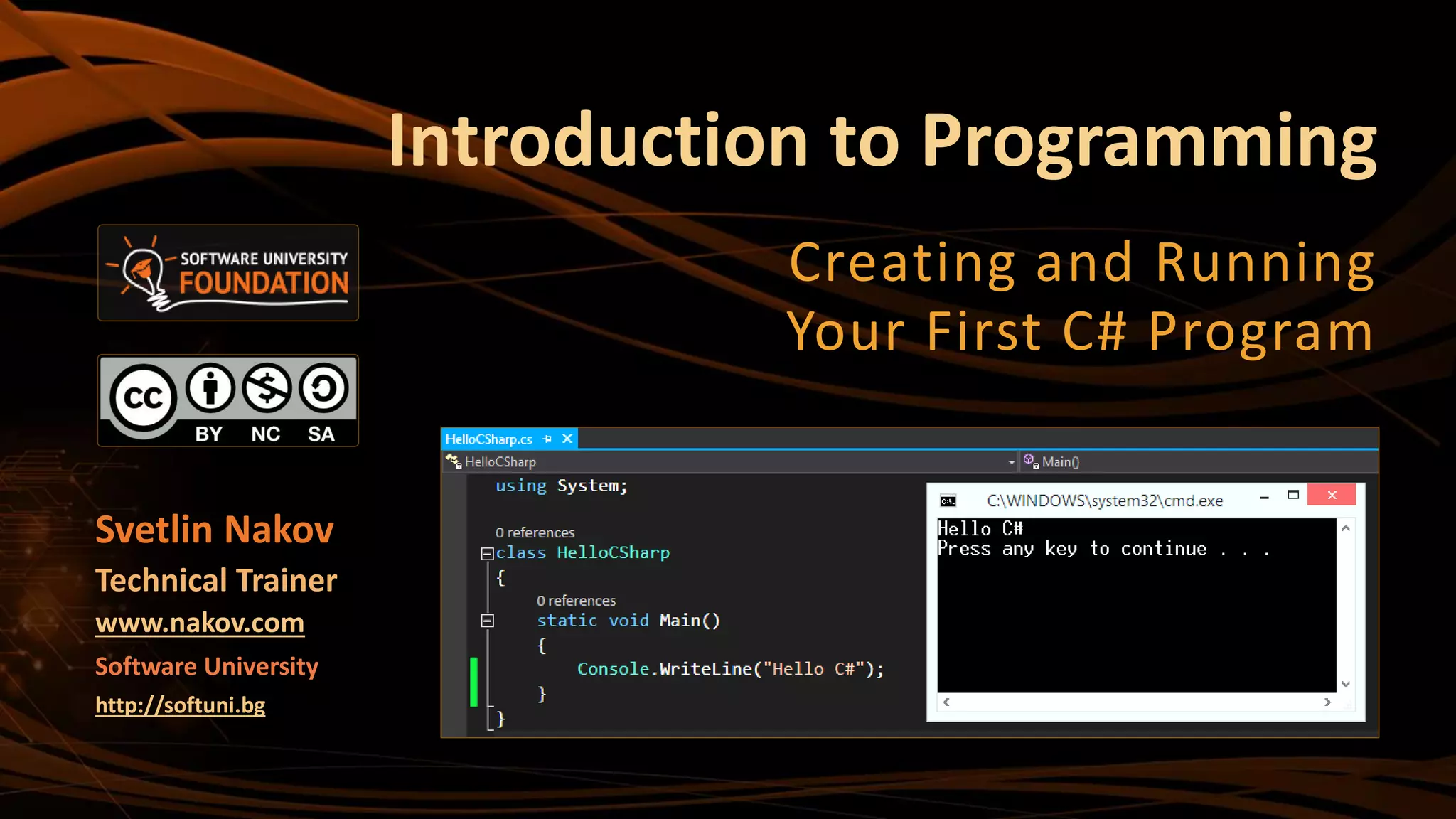

Introduction to Programming
Creating and Running
Your First C# Program
Svetlin Nakov
Technical Trainer
www.nakov.com
Software University
http://softuni.bg
2
1. What is Computer Programming?
2. Your First C# Program
3. What is C#?
4. What is .NET Framework?
5. What is Visual Studio?
 Compiling, Running and
Debugging C# Programs
6. What is MSDN Library?
Table of Contents
What is Computer Programming?
4
Computer programming: creating a sequence of
instructions to enable the computer to do something
Define: Computer Programming
Definition by Google
5
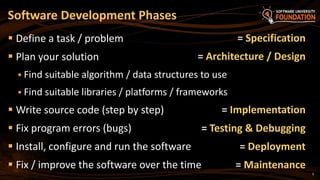
 Define a task / problem
 Plan your solution
 Find suitable algorithm / data structures to use
 Find suitable libraries / platforms / frameworks
 Write source code (step by step)
 Fix program errors (bugs)
 Install, configure and run the software
 Fix / improve the software over the time
Software Development Phases
= Specification
= Architecture / Design
= Implementation
= Testing & Debugging
= Deployment
= Maintenance
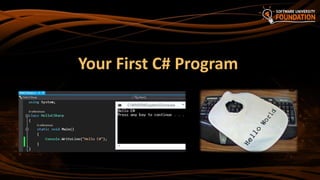
Your First C# Program
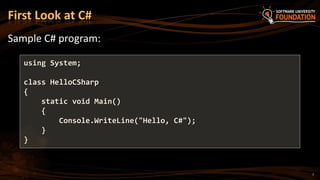
Sample C# program:
using System;
class HelloCSharp
{
static void Main()
{
Console.WriteLine("Hello, C#");
}
}
First Look at C#
7
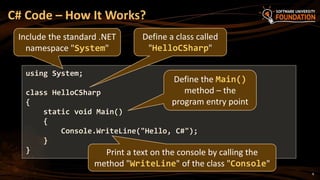
C# Code – How It Works?
8
using System;
class HelloCSharp
{
static void Main()
{
Console.WriteLine("Hello, C#");
}
}
Include the standard .NET
namespace "System"
Define a class called
"HelloCSharp"
Define the Main()
method – the
program entry point
Print a text on the console by calling the
method "WriteLine" of the class "Console"
9
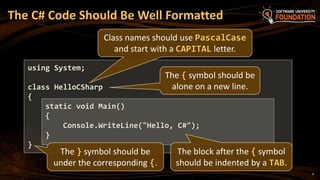
The C# Code Should Be Well Formatted
using System;
class HelloCSharp
{
static void Main()
{
Console.WriteLine("Hello, C#");
}
}
The { symbol should be
alone on a new line.
The block after the { symbol
should be indented by a TAB.
The } symbol should be
under the corresponding {.
Class names should use PascalCase
and start with a CAPITAL letter.
10
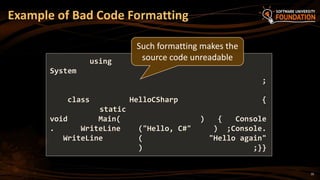
Example of Bad Code Formatting
using
System
;
class HelloCSharp {
static
void Main( ) { Console
. WriteLine ("Hello, C#" ) ;Console.
WriteLine ( "Hello again"
) ;}}
Such formatting makes the
source code unreadable
11
 C# is a modern programming language
 A syntax that allows to give instructions to the computer
 C# features:
 Extremely powerful
 Easy to learn
 Easy to read and understand
 Object-oriented
 Functional programming features
What is "C#"?
12
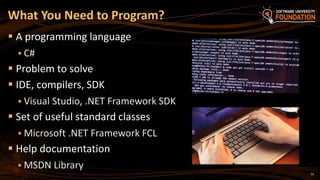
 A programming language
 C#
 Problem to solve
 IDE, compilers, SDK
 Visual Studio, .NET Framework SDK
 Set of useful standard classes
 Microsoft .NET Framework FCL
 Help documentation
 MSDN Library
What You Need to Program?
Your First C# Program
Live Demo
What is .NET
Framework?
15
 Environment for execution of .NET programs (CLR)
 Powerful library of classes (FCL)
 Programming model
 Common execution engine for many programming languages
 C#
 Visual Basic .NET
 Managed C++
 ... and many others
What is .NET Framework?
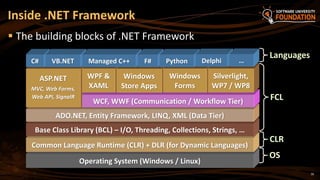
 The building blocks of .NET Framework
16
Inside .NET Framework
Operating System (Windows / Linux)
FCL
CLR
Languages
OS
Common Language Runtime (CLR) + DLR (for Dynamic Languages)
Base Class Library (BCL) – I/O, Threading, Collections, Strings, …
ADO.NET, Entity Framework, LINQ, XML (Data Tier)
ASP.NET
MVC, Web Forms,
Web API, SignalR
WCF, WWF (Communication / Workflow Tier)
WPF &
XAML
Windows
Store Apps
Windows
Forms
Silverlight,
WP7 / WP8
C# VB.NET Managed C++ F# Python Delphi …
17
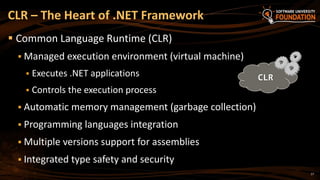
 Common Language Runtime (CLR)
 Managed execution environment (virtual machine)
 Executes .NET applications
 Controls the execution process
 Automatic memory management (garbage collection)
 Programming languages integration
 Multiple versions support for assemblies
 Integrated type safety and security
CLR – The Heart of .NET Framework
CLR
18
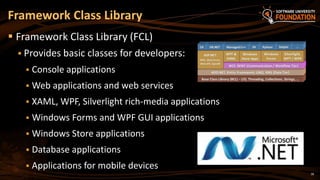
 Framework Class Library (FCL)
 Provides basic classes for developers:
 Console applications
 Web applications and web services
 XAML, WPF, Silverlight rich-media applications
 Windows Forms and WPF GUI applications
 Windows Store applications
 Database applications
 Applications for mobile devices
Framework Class Library
What is Visual Studio?
20
 Visual Studio – Integrated Development Environment (IDE)
 Development tool that helps us to:
 Write code
 Design user interface
 Compile code
 Execute / test / debug applications
 Browse the help
 Manage project's files
Visual Studio
21
 Single tool for:
 Writing code in many languages (C#, VB.NET, Python, …)
 Using different technologies (Web Forms, MVC, WPF, EF, WCF, …)
 For different platforms (Win8, Silverlight, Windows Phone, …)
 Full integration of most development activities (coding,
compiling, testing, debugging, deployment, version control, ...)
 Very easy to use!
Benefits of Visual Studio
22
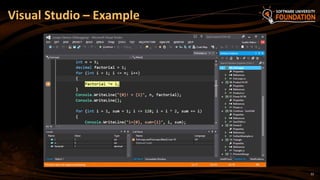
Visual Studio – Example
Visual Studio
Compiling, Running and Debugging C# Programs
24
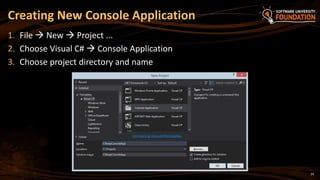
1. File  New  Project ...
2. Choose Visual C#  Console Application
3. Choose project directory and name
Creating New Console Application
25
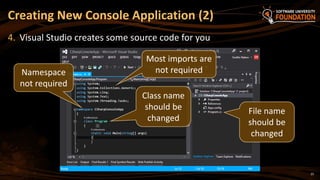
4. Visual Studio creates some source code for you
Creating New Console Application (2)
Namespace
not required
Class name
should be
changed
Most imports are
not required
File name
should be
changed
26
 The process of compiling includes:
 Syntactic checks
 Type safety checks
 Translation of the source code to lower level language (MSIL)
 Creating executable files (assemblies)
 You can start compilation by
 Using Build->Build Solution/Project
 Pressing [F6] or [Shift+Ctrl+B]
Compiling the Source Code
27
 The process of running application includes:
 Compiling (if project not compiled)
 Starting the application
 You can run application by:
 Using Debug->Start menu
 By pressing [F5] or [Ctrl+F5]
* NOTE: Not all types of projects are able to be started!
Running Programs
28
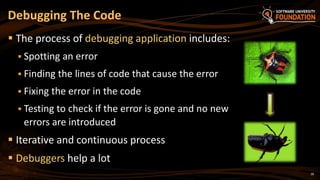
 The process of debugging application includes:
 Spotting an error
 Finding the lines of code that cause the error
 Fixing the error in the code
 Testing to check if the error is gone and no new
errors are introduced
 Iterative and continuous process
 Debuggers help a lot
Debugging The Code
29
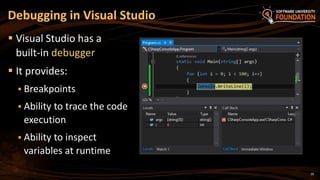
 Visual Studio has a
built-in debugger
 It provides:
 Breakpoints
 Ability to trace the code
execution
 Ability to inspect
variables at runtime
Debugging in Visual Studio
Visual Studio
Compiling, Running and Debugging
C# Programs – Live Demo
Visual Studio
Blank Solution
Creating a Solution without any Projects
32
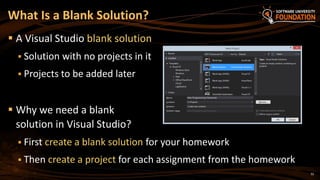
 A Visual Studio blank solution
 Solution with no projects in it
 Projects to be added later
 Why we need a blank
solution in Visual Studio?
 First create a blank solution for your homework
 Then create a project for each assignment from the homework
What Is a Blank Solution?
33
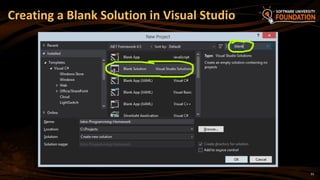
Creating a Blank Solution in Visual Studio
Visual Studio Blank Solution
Live Demo
What is MSDN
Library?
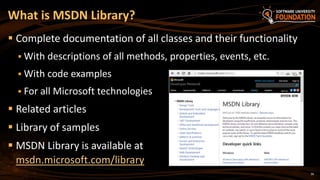
 Complete documentation of all classes and their functionality
 With descriptions of all methods, properties, events, etc.
 With code examples
 For all Microsoft technologies
 Related articles
 Library of samples
 MSDN Library is available at
msdn.microsoft.com/library
36
What is MSDN Library?
37
 Search in Google for certain class / method / property
 E.g.
 Or
 Or
 Use Visual Studio's built-in help system
 Press [F1] in Visual Studio in the code
 Browse http://msdn.microsoft.com
How to Use MSDN Library?
Press [F1] to view
the documentation
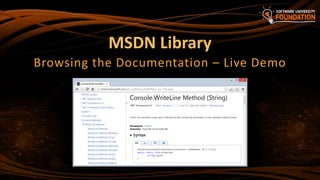
MSDN Library
Browsing the Documentation – Live Demo
39
 Programming: creating a sequence of instructions
(source code)
 C#: modern programming language, easy to learn
 C# programs: class + main method + code in it
 .NET Framework – a modern platform for
software development by Microsoft
 Visual Studio – powerful IDE for .NET developers:
write / compile / execute / debug code
 MSDN Library – the C# and .NET documentation
Summary
?
Introduction to Programming
http://softuni.bg/courses/csharp-basics
License
 This course (slides, examples, demos, videos, homework, etc.)
is licensed under the "Creative Commons Attribution-
NonCommercial-ShareAlike 4.0 International" license
41
 Attribution: this work may contain portions from
 "Fundamentals of Computer Programming with C#" book by Svetlin Nakov & Co. under CC-BY-SA license
 "C# Part I" course by Telerik Academy under CC-BY-NC-SA license
Free Trainings @ Software University
 Software University Foundation – softuni.org
 Software University – High-Quality Education,
Profession and Job for Software Developers
 softuni.bg
 Software University @ Facebook
 facebook.com/SoftwareUniversity
 Software University @ YouTube
 youtube.com/SoftwareUniversity
 Software University Forums – forum.softuni.bg

01. Introduction to Programming

  • 1.
    Introduction to Programming Creatingand Running Your First C# Program Svetlin Nakov Technical Trainer www.nakov.com Software University http://softuni.bg
  • 2.
    2 1. What isComputer Programming? 2. Your First C# Program 3. What is C#? 4. What is .NET Framework? 5. What is Visual Studio?  Compiling, Running and Debugging C# Programs 6. What is MSDN Library? Table of Contents
  • 3.
    What is ComputerProgramming?
  • 4.
    4 Computer programming: creatinga sequence of instructions to enable the computer to do something Define: Computer Programming Definition by Google
  • 5.
    5  Define atask / problem  Plan your solution  Find suitable algorithm / data structures to use  Find suitable libraries / platforms / frameworks  Write source code (step by step)  Fix program errors (bugs)  Install, configure and run the software  Fix / improve the software over the time Software Development Phases = Specification = Architecture / Design = Implementation = Testing & Debugging = Deployment = Maintenance
  • 6.
  • 7.
    Sample C# program: usingSystem; class HelloCSharp { static void Main() { Console.WriteLine("Hello, C#"); } } First Look at C# 7
  • 8.
    C# Code –How It Works? 8 using System; class HelloCSharp { static void Main() { Console.WriteLine("Hello, C#"); } } Include the standard .NET namespace "System" Define a class called "HelloCSharp" Define the Main() method – the program entry point Print a text on the console by calling the method "WriteLine" of the class "Console"
  • 9.
    9 The C# CodeShould Be Well Formatted using System; class HelloCSharp { static void Main() { Console.WriteLine("Hello, C#"); } } The { symbol should be alone on a new line. The block after the { symbol should be indented by a TAB. The } symbol should be under the corresponding {. Class names should use PascalCase and start with a CAPITAL letter.
  • 10.
    10 Example of BadCode Formatting using System ; class HelloCSharp { static void Main( ) { Console . WriteLine ("Hello, C#" ) ;Console. WriteLine ( "Hello again" ) ;}} Such formatting makes the source code unreadable
  • 11.
    11  C# isa modern programming language  A syntax that allows to give instructions to the computer  C# features:  Extremely powerful  Easy to learn  Easy to read and understand  Object-oriented  Functional programming features What is "C#"?
  • 12.
    12  A programminglanguage  C#  Problem to solve  IDE, compilers, SDK  Visual Studio, .NET Framework SDK  Set of useful standard classes  Microsoft .NET Framework FCL  Help documentation  MSDN Library What You Need to Program?
  • 13.
    Your First C#Program Live Demo
  • 14.
  • 15.
    15  Environment forexecution of .NET programs (CLR)  Powerful library of classes (FCL)  Programming model  Common execution engine for many programming languages  C#  Visual Basic .NET  Managed C++  ... and many others What is .NET Framework?
  • 16.
     The buildingblocks of .NET Framework 16 Inside .NET Framework Operating System (Windows / Linux) FCL CLR Languages OS Common Language Runtime (CLR) + DLR (for Dynamic Languages) Base Class Library (BCL) – I/O, Threading, Collections, Strings, … ADO.NET, Entity Framework, LINQ, XML (Data Tier) ASP.NET MVC, Web Forms, Web API, SignalR WCF, WWF (Communication / Workflow Tier) WPF & XAML Windows Store Apps Windows Forms Silverlight, WP7 / WP8 C# VB.NET Managed C++ F# Python Delphi …
  • 17.
    17  Common LanguageRuntime (CLR)  Managed execution environment (virtual machine)  Executes .NET applications  Controls the execution process  Automatic memory management (garbage collection)  Programming languages integration  Multiple versions support for assemblies  Integrated type safety and security CLR – The Heart of .NET Framework CLR
  • 18.
    18  Framework ClassLibrary (FCL)  Provides basic classes for developers:  Console applications  Web applications and web services  XAML, WPF, Silverlight rich-media applications  Windows Forms and WPF GUI applications  Windows Store applications  Database applications  Applications for mobile devices Framework Class Library
  • 19.
  • 20.
    20  Visual Studio– Integrated Development Environment (IDE)  Development tool that helps us to:  Write code  Design user interface  Compile code  Execute / test / debug applications  Browse the help  Manage project's files Visual Studio
  • 21.
    21  Single toolfor:  Writing code in many languages (C#, VB.NET, Python, …)  Using different technologies (Web Forms, MVC, WPF, EF, WCF, …)  For different platforms (Win8, Silverlight, Windows Phone, …)  Full integration of most development activities (coding, compiling, testing, debugging, deployment, version control, ...)  Very easy to use! Benefits of Visual Studio
  • 22.
  • 23.
    Visual Studio Compiling, Runningand Debugging C# Programs
  • 24.
    24 1. File New  Project ... 2. Choose Visual C#  Console Application 3. Choose project directory and name Creating New Console Application
  • 25.
    25 4. Visual Studiocreates some source code for you Creating New Console Application (2) Namespace not required Class name should be changed Most imports are not required File name should be changed
  • 26.
    26  The processof compiling includes:  Syntactic checks  Type safety checks  Translation of the source code to lower level language (MSIL)  Creating executable files (assemblies)  You can start compilation by  Using Build->Build Solution/Project  Pressing [F6] or [Shift+Ctrl+B] Compiling the Source Code
  • 27.
    27  The processof running application includes:  Compiling (if project not compiled)  Starting the application  You can run application by:  Using Debug->Start menu  By pressing [F5] or [Ctrl+F5] * NOTE: Not all types of projects are able to be started! Running Programs
  • 28.
    28  The processof debugging application includes:  Spotting an error  Finding the lines of code that cause the error  Fixing the error in the code  Testing to check if the error is gone and no new errors are introduced  Iterative and continuous process  Debuggers help a lot Debugging The Code
  • 29.
    29  Visual Studiohas a built-in debugger  It provides:  Breakpoints  Ability to trace the code execution  Ability to inspect variables at runtime Debugging in Visual Studio
  • 30.
    Visual Studio Compiling, Runningand Debugging C# Programs – Live Demo
  • 31.
    Visual Studio Blank Solution Creatinga Solution without any Projects
  • 32.
    32  A VisualStudio blank solution  Solution with no projects in it  Projects to be added later  Why we need a blank solution in Visual Studio?  First create a blank solution for your homework  Then create a project for each assignment from the homework What Is a Blank Solution?
  • 33.
    33 Creating a BlankSolution in Visual Studio
  • 34.
    Visual Studio BlankSolution Live Demo
  • 35.
  • 36.
     Complete documentationof all classes and their functionality  With descriptions of all methods, properties, events, etc.  With code examples  For all Microsoft technologies  Related articles  Library of samples  MSDN Library is available at msdn.microsoft.com/library 36 What is MSDN Library?
  • 37.
    37  Search inGoogle for certain class / method / property  E.g.  Or  Or  Use Visual Studio's built-in help system  Press [F1] in Visual Studio in the code  Browse http://msdn.microsoft.com How to Use MSDN Library? Press [F1] to view the documentation
  • 38.
    MSDN Library Browsing theDocumentation – Live Demo
  • 39.
    39  Programming: creatinga sequence of instructions (source code)  C#: modern programming language, easy to learn  C# programs: class + main method + code in it  .NET Framework – a modern platform for software development by Microsoft  Visual Studio – powerful IDE for .NET developers: write / compile / execute / debug code  MSDN Library – the C# and .NET documentation Summary
  • 40.
  • 41.
    License  This course(slides, examples, demos, videos, homework, etc.) is licensed under the "Creative Commons Attribution- NonCommercial-ShareAlike 4.0 International" license 41  Attribution: this work may contain portions from  "Fundamentals of Computer Programming with C#" book by Svetlin Nakov & Co. under CC-BY-SA license  "C# Part I" course by Telerik Academy under CC-BY-NC-SA license
  • 42.
    Free Trainings @Software University  Software University Foundation – softuni.org  Software University – High-Quality Education, Profession and Job for Software Developers  softuni.bg  Software University @ Facebook  facebook.com/SoftwareUniversity  Software University @ YouTube  youtube.com/SoftwareUniversity  Software University Forums – forum.softuni.bg