1


 Citing Sources with Easybib


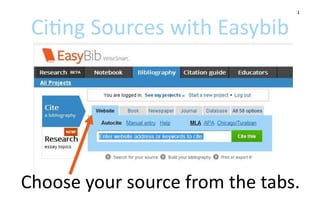
Choose your source from the tabs.
2


Citing a Website
1) Copy & paste the web address into this
   spot, click on “Autocite” & then fill in
   any blanks that are left unfilled.
2) Circled boxes are the most important
   to complete, but you should try to fill
   in all of them if possible.
3) Sometimes the site isn’t written by an
   author, but by a group of people. In
   that case, list it in the “last/corp.” box.
       Ex) The Associated Press.
4) Websites often add ‘extra stuff’ to
   their titles. Make sure you check this!
 **If your website is not listed in green as
   credible, consider using another site
                  instead**
3


Citing a Book
1) Type your book title or
   ISBN number into this spot,
   click on “Autocite” & then
   fill in any blanks you can
   find.
2) Circled boxes are the most
   important to complete.
3) If your book is part of a
   series or has more than
   one edition or volume, you
   need to fill in the advanced
   info!
4


Copy & Paste a
Citation Part 1
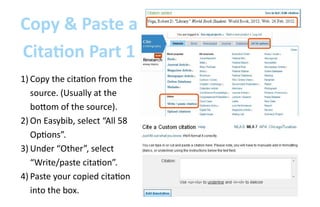
1) Copy the citation from the
   source. (Usually at the
   bottom of the source).
2) On Easybib, select “All 58
   Options”.
3) Under “Other”, select
   “Write/paste citation”.
4) Paste your copied citation
   into the box.
5


Copy & Paste a
Citation Part 2
5) When you paste the
   citation, the formatting
   will be removed. You
   will need to use the
   html codes provided to
   underline or add italics.
6) Select “Create
   Citation”.
6

Citing a Picture
1) Select “All 58 options”
   from the main page &
   then “Photograph”.
2) If the photo doesn’t have
   an official title, name it
   something that represents
   the picture.
3) Try to find the information
   to fill in all the boxes.
4) Select the tab that
   matches where you found
   the picture.
7


   Citing a Picture from a Website
1) The website title will
   never be “Google” or
   “Bing” because those
   are search engines. The
   website title is where
   the picture is actually
   posted on the internet.
2) Try to find the publisher
   of the website that
   contains the picture.
8


 Citing a Picture from a Database
1) Select the “Online
   Database” tab.
2) Most databases will
   provide all the
   information you need
   to create a citation.
3) Some databases we use
   are EBSCO, Gale, and
   Opposing Viewpoints.
9

Citing a Movie from a
       Website
1) Select “All 58 options” from the main
   page & then select “Film/Online Video”.
2) Select the “Online” tab.
3) If the movie doesn’t have an official
   title, name it something that represents
   the movie.
4) The website title will never be “Google”
   or “Bing” because those are search
   engines. The website title is where the
   movie is actually posted on the internet.
5) Try to find the publisher of the website
   that contains the movie.
10

Citing a Movie from a
       Database
1) Select “All 58 options” from the
   main page & then select “Film/
   Online Video”.
2) Select the “Online Database” tab.
3) Most databases will provide all
   the information you need to
   create a citation.
4) Some databases we use are
   EBSCO, Gale, and Opposing
   Viewpoints.
11

  Citing Music from a
        Website
1) Select “All 58 options” from the main
   page, and then select “Musical
   Recording”.
2) Select the “Online” tab.
3) The website title will never be “Google”
   or “Bing” because those are search
   engines. The website title is where the
   music is actually posted on the internet.
4) Try to find as much information as
   possible.
12

  Citing Music from a
       Database
1) Select “All 58 options” from the
   main page, and then select
   “Musical Recording.”
2) Select the “Online Database” tab.
3) Most databases will provide all
   the information you need to
   create a citation.
4) Some databases we use are
   EBSCO, Gale, and Opposing
   Viewpoints.
13

 Citing Articles from a
      Database 1
1) Some databases we use are EBSCO, Gale,
   and Opposing Viewpoints.
2) First, check to see if the citation is provided,
   if so, follow the directions for Copying &
   Pasting a Citation. If not, select “Database”
   from the main page.
3) Choose what kind of database article you
   are trying to cite.
4) If you don’t know, just choose Article
   published by database. You will usually be
   able to figure out if the article is from a
   magazine/newspaper,/journal or book/
   encyclopedia.
14
                         5) Most databases will provide all the
Citing Articles from a      information you need to create a
                            citation.
     Database 2

Easybib instructions

  • 1.
    1 Citing Sourceswith Easybib Choose your source from the tabs.
  • 2.
    2 Citing a Website 1)Copy & paste the web address into this spot, click on “Autocite” & then fill in any blanks that are left unfilled. 2) Circled boxes are the most important to complete, but you should try to fill in all of them if possible. 3) Sometimes the site isn’t written by an author, but by a group of people. In that case, list it in the “last/corp.” box. Ex) The Associated Press. 4) Websites often add ‘extra stuff’ to their titles. Make sure you check this! **If your website is not listed in green as credible, consider using another site instead**
  • 3.
    3 Citing a Book 1)Type your book title or ISBN number into this spot, click on “Autocite” & then fill in any blanks you can find. 2) Circled boxes are the most important to complete. 3) If your book is part of a series or has more than one edition or volume, you need to fill in the advanced info!
  • 4.
    4 Copy & Pastea Citation Part 1 1) Copy the citation from the source. (Usually at the bottom of the source). 2) On Easybib, select “All 58 Options”. 3) Under “Other”, select “Write/paste citation”. 4) Paste your copied citation into the box.
  • 5.
    5 Copy & Pastea Citation Part 2 5) When you paste the citation, the formatting will be removed. You will need to use the html codes provided to underline or add italics. 6) Select “Create Citation”.
  • 6.
    6 Citing a Picture 1)Select “All 58 options” from the main page & then “Photograph”. 2) If the photo doesn’t have an official title, name it something that represents the picture. 3) Try to find the information to fill in all the boxes. 4) Select the tab that matches where you found the picture.
  • 7.
    7 Citing a Picture from a Website 1) The website title will never be “Google” or “Bing” because those are search engines. The website title is where the picture is actually posted on the internet. 2) Try to find the publisher of the website that contains the picture.
  • 8.
    8 Citing aPicture from a Database 1) Select the “Online Database” tab. 2) Most databases will provide all the information you need to create a citation. 3) Some databases we use are EBSCO, Gale, and Opposing Viewpoints.
  • 9.
    9 Citing a Moviefrom a Website 1) Select “All 58 options” from the main page & then select “Film/Online Video”. 2) Select the “Online” tab. 3) If the movie doesn’t have an official title, name it something that represents the movie. 4) The website title will never be “Google” or “Bing” because those are search engines. The website title is where the movie is actually posted on the internet. 5) Try to find the publisher of the website that contains the movie.
  • 10.
    10 Citing a Moviefrom a Database 1) Select “All 58 options” from the main page & then select “Film/ Online Video”. 2) Select the “Online Database” tab. 3) Most databases will provide all the information you need to create a citation. 4) Some databases we use are EBSCO, Gale, and Opposing Viewpoints.
  • 11.
    11 CitingMusic from a Website 1) Select “All 58 options” from the main page, and then select “Musical Recording”. 2) Select the “Online” tab. 3) The website title will never be “Google” or “Bing” because those are search engines. The website title is where the music is actually posted on the internet. 4) Try to find as much information as possible.
  • 12.
    12 CitingMusic from a Database 1) Select “All 58 options” from the main page, and then select “Musical Recording.” 2) Select the “Online Database” tab. 3) Most databases will provide all the information you need to create a citation. 4) Some databases we use are EBSCO, Gale, and Opposing Viewpoints.
  • 13.
    13 Citing Articlesfrom a Database 1 1) Some databases we use are EBSCO, Gale, and Opposing Viewpoints. 2) First, check to see if the citation is provided, if so, follow the directions for Copying & Pasting a Citation. If not, select “Database” from the main page. 3) Choose what kind of database article you are trying to cite. 4) If you don’t know, just choose Article published by database. You will usually be able to figure out if the article is from a magazine/newspaper,/journal or book/ encyclopedia.
  • 14.
    14 5) Most databases will provide all the Citing Articles from a information you need to create a citation. Database 2