

Manage your Reservations
                            &
Maintain Live Inventory of your rooms on our network portals
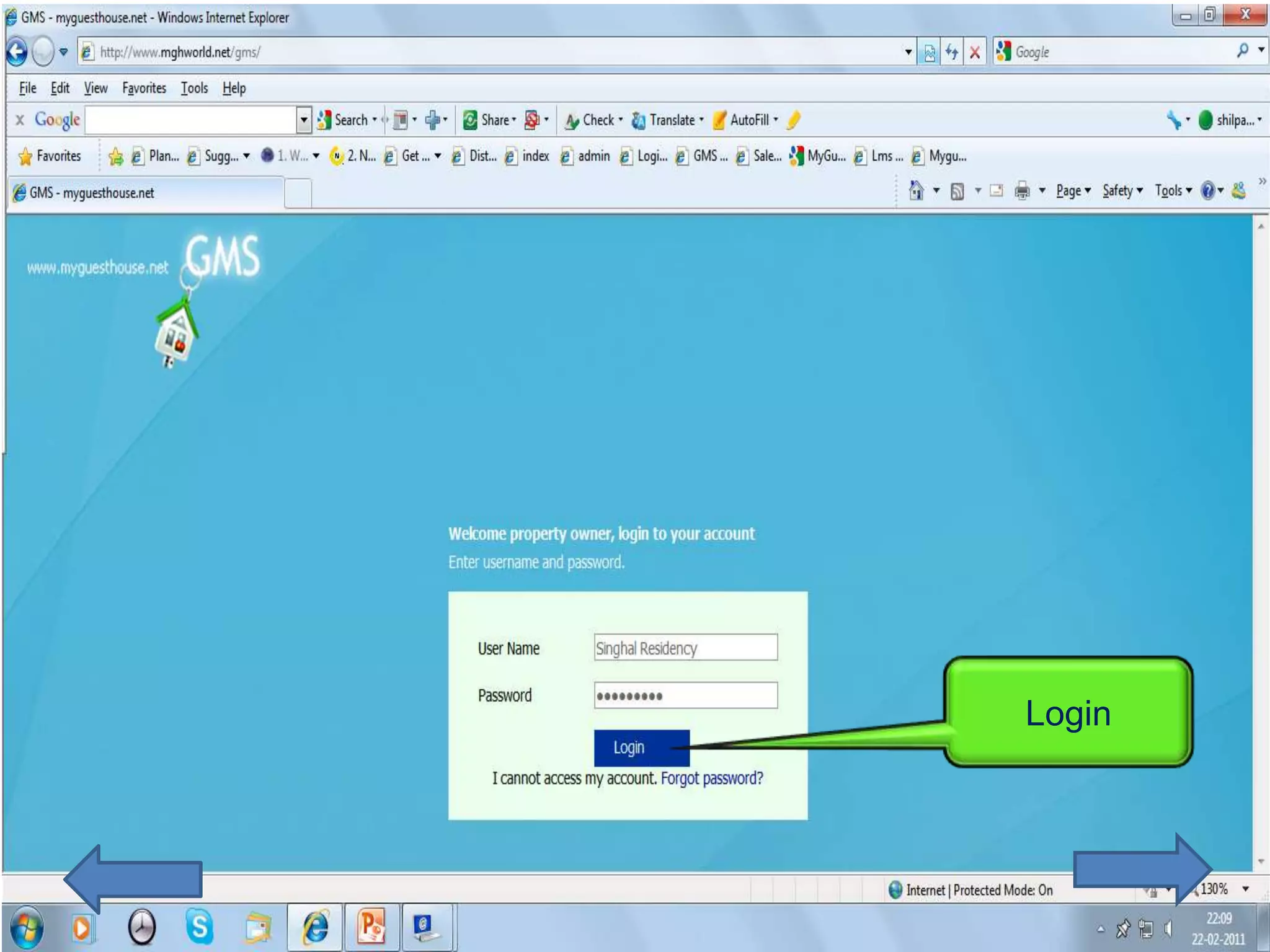
Login to your Property
Management System (PMS) on
  www.mghworld.net/gms/
Login
First lets update the Rooms in
              PMS
       Need to do this only once.
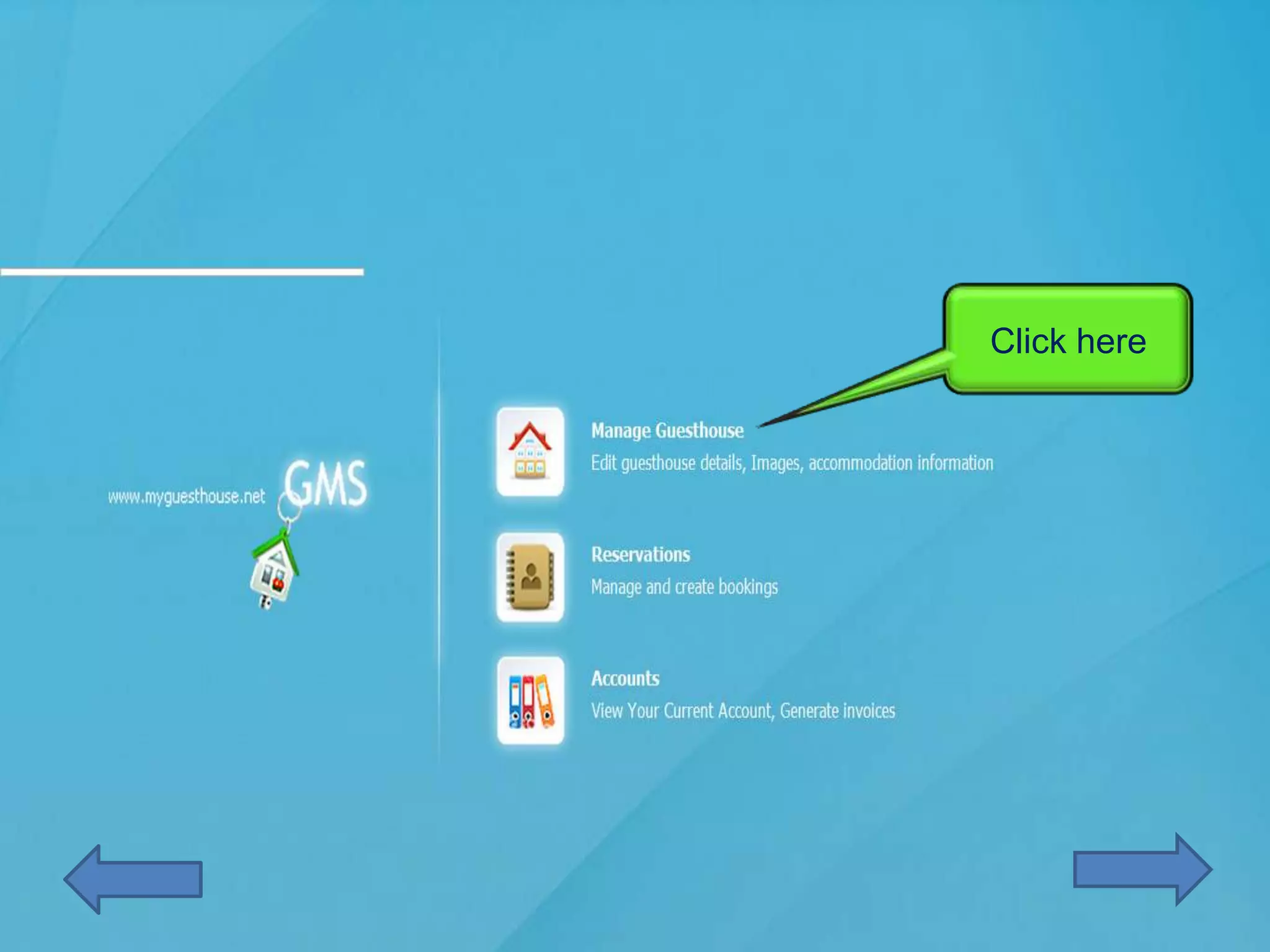
Click here
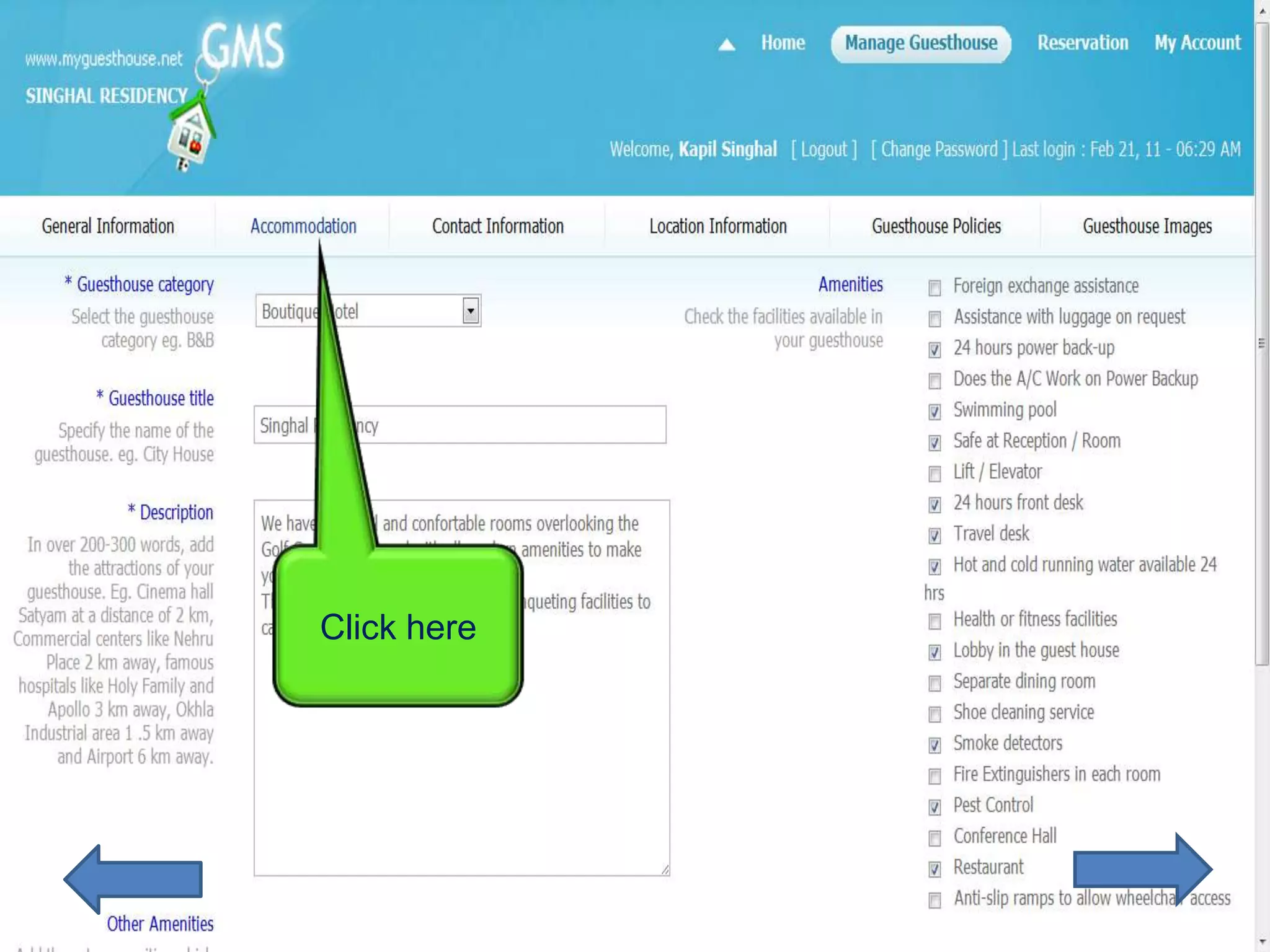
Click here
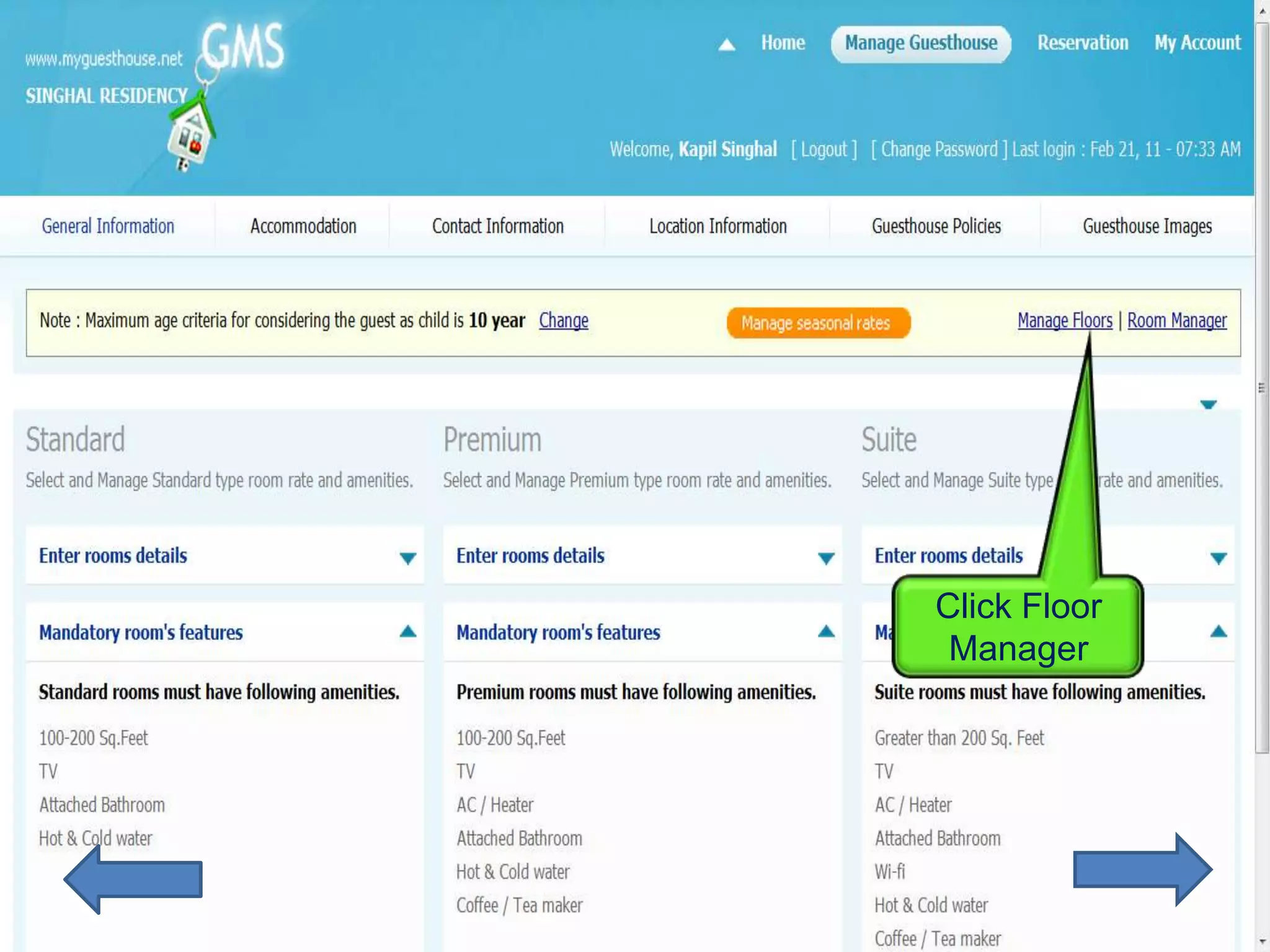
Click Floor
 Manager
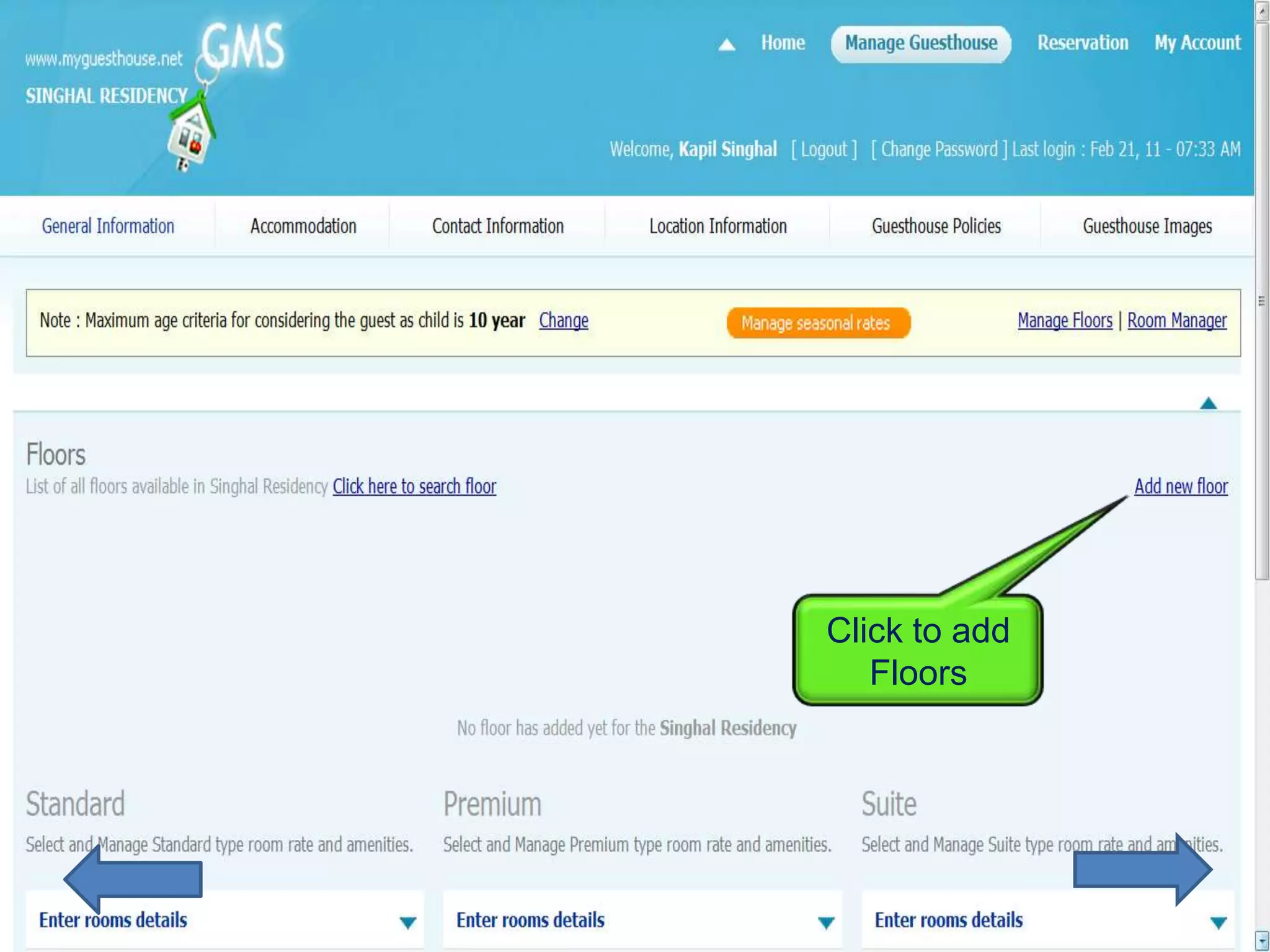
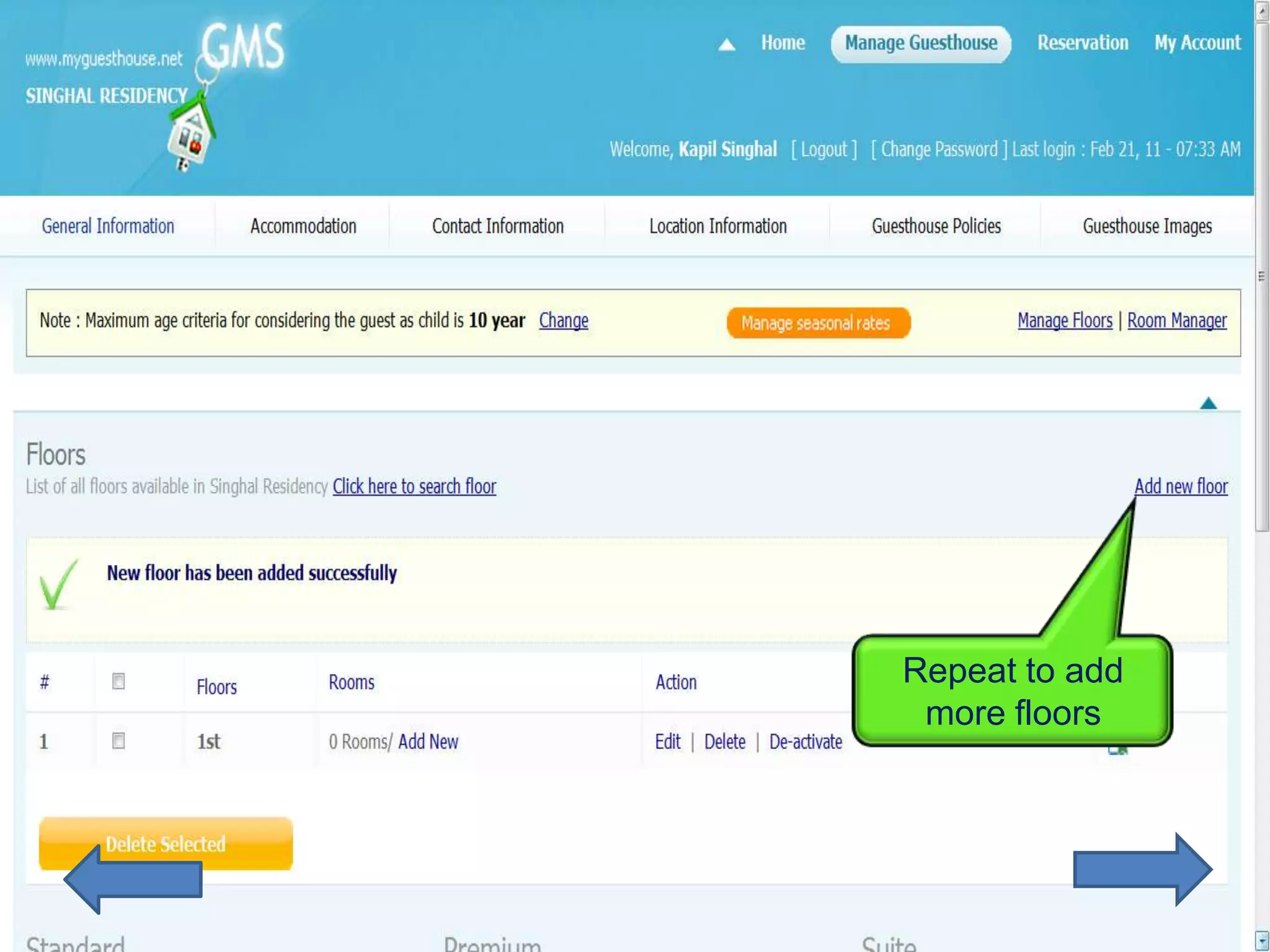
Click to add
   Floors
Update Floor


   Save
Repeat to add
 more floors
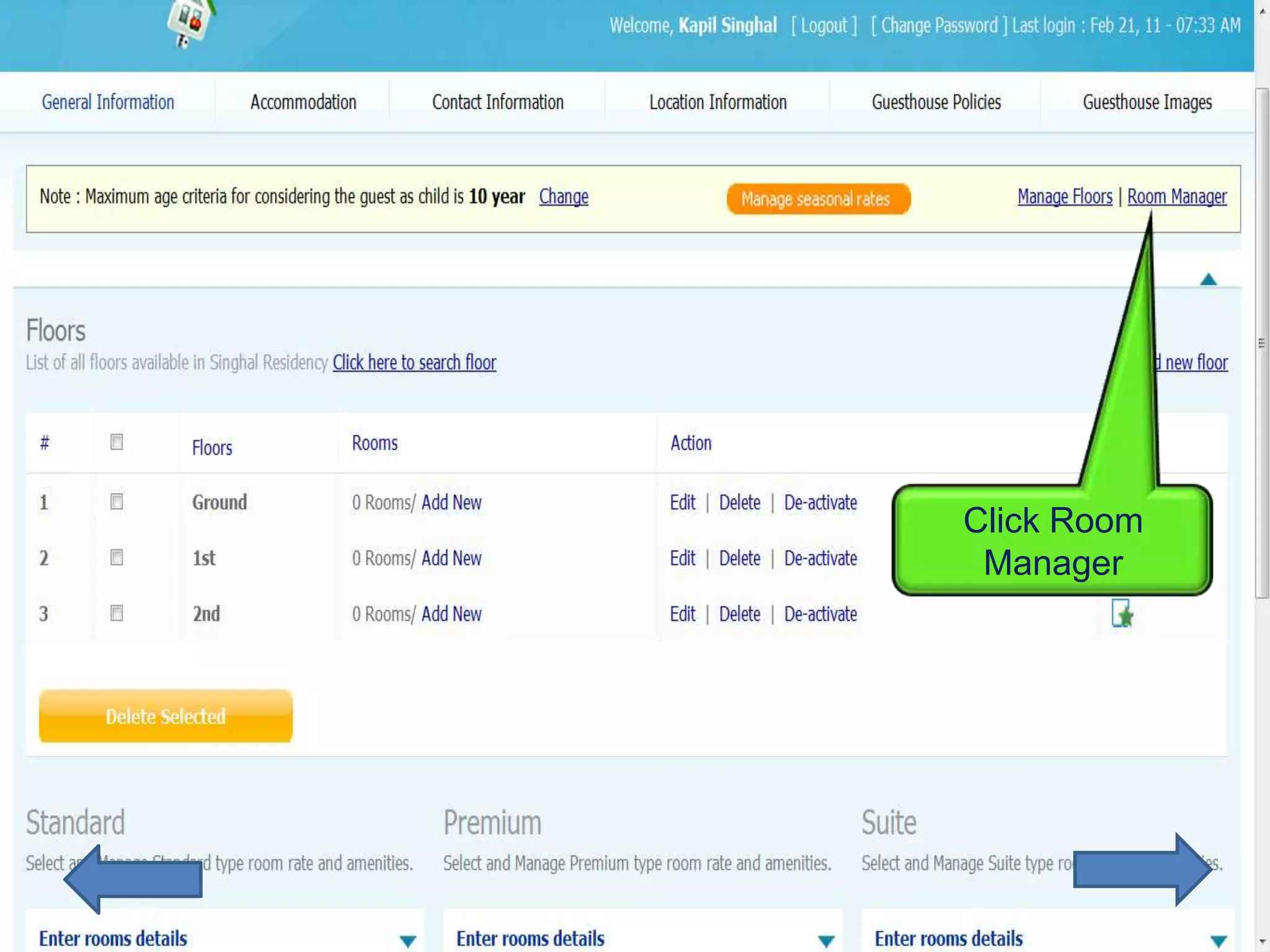
Click Room
 Manager
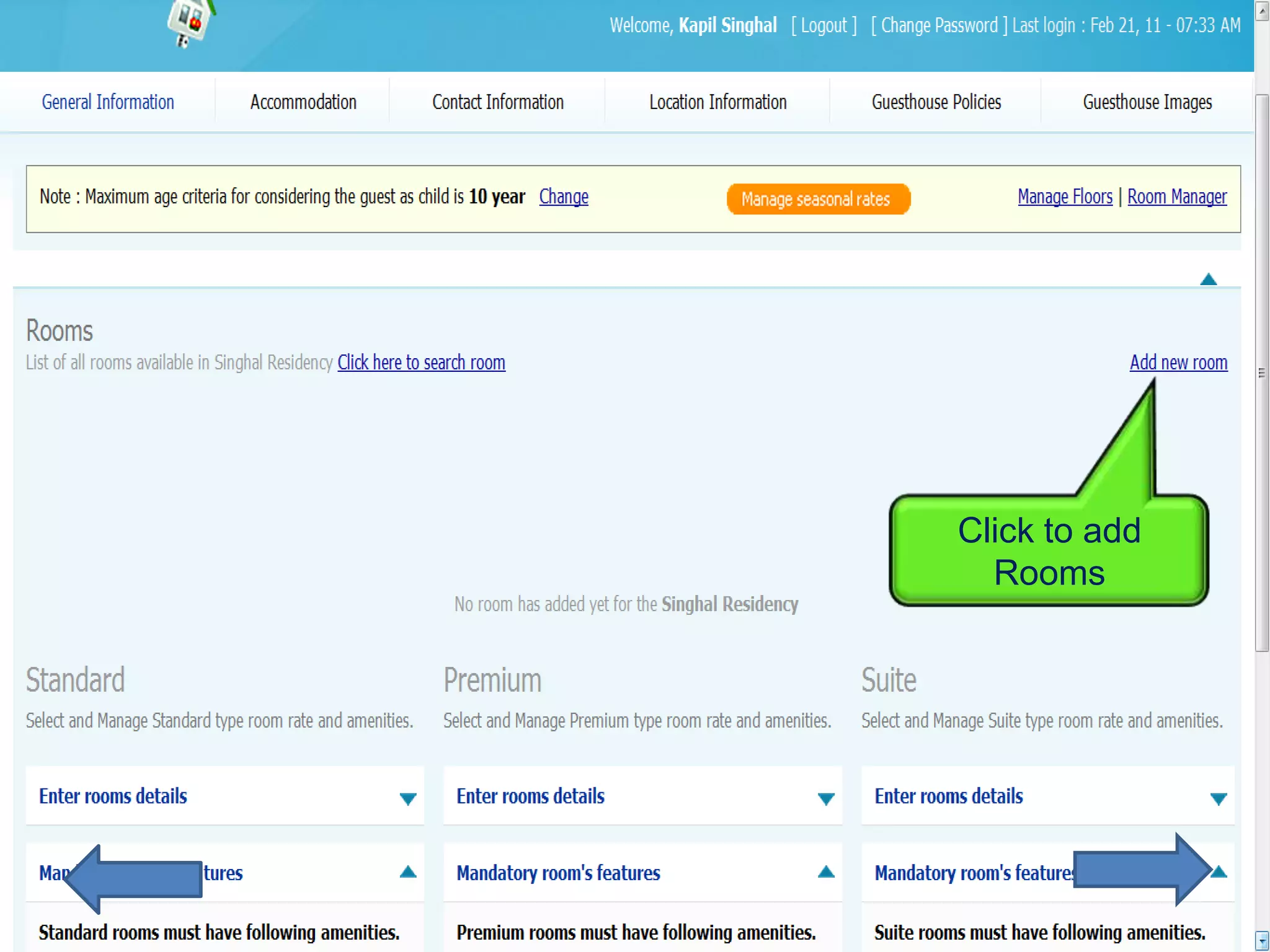
Click to add
  Rooms
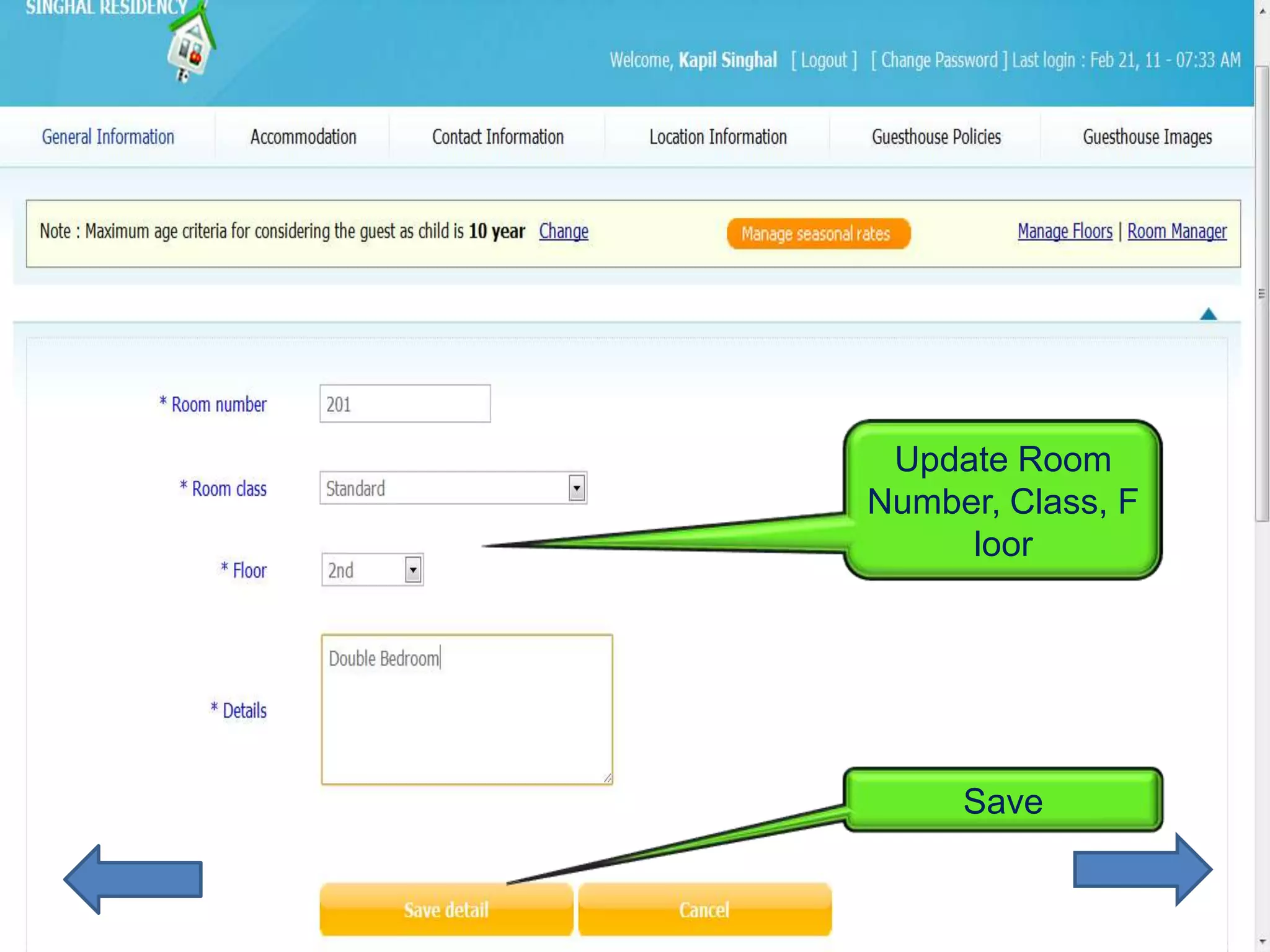
Update Room
Number, Class, F
     loor


     Save
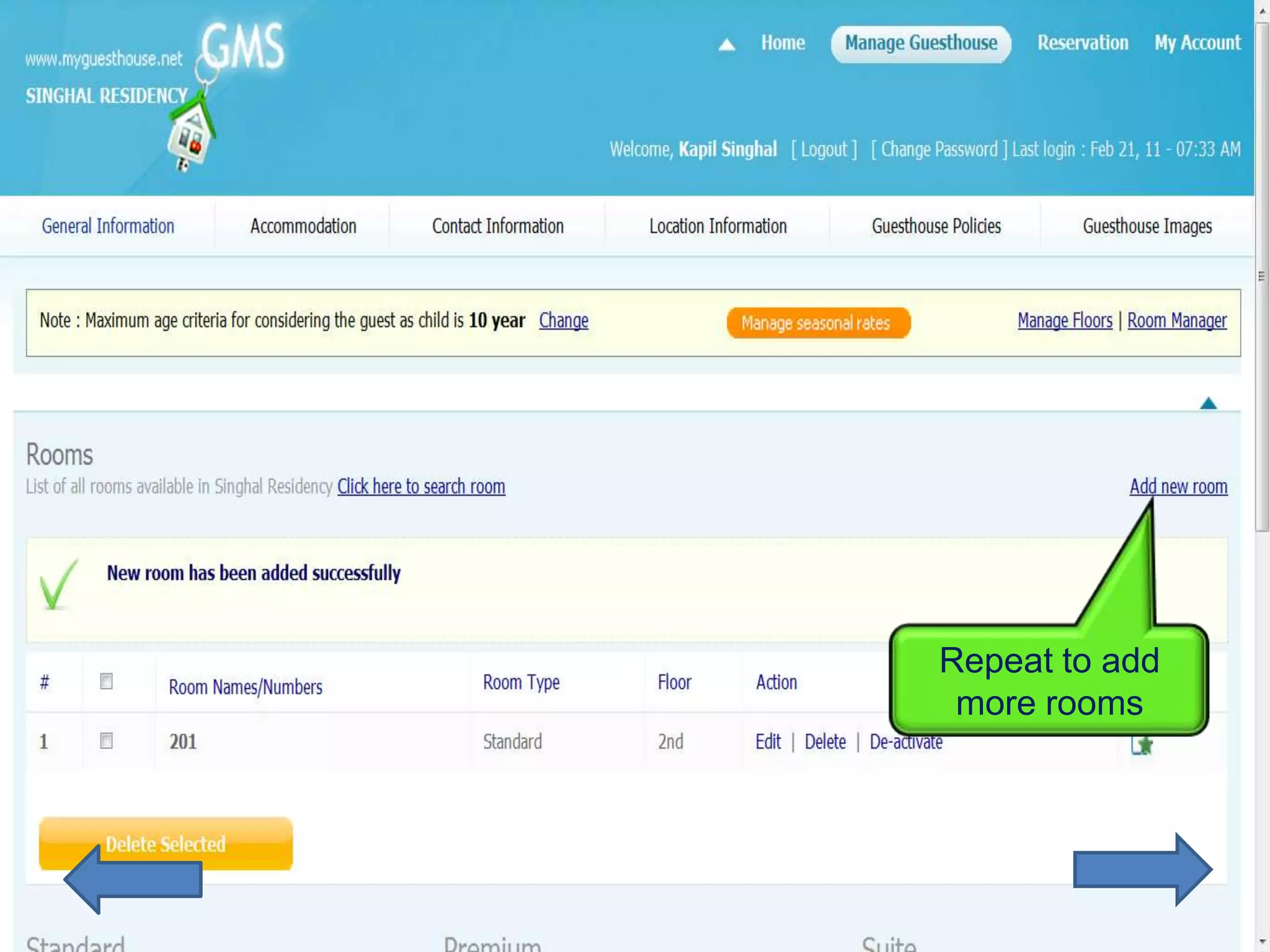
Repeat to add
 more rooms
Congrats!
Your rooms inventory has been
          updated.

You can start managing your reservations now.
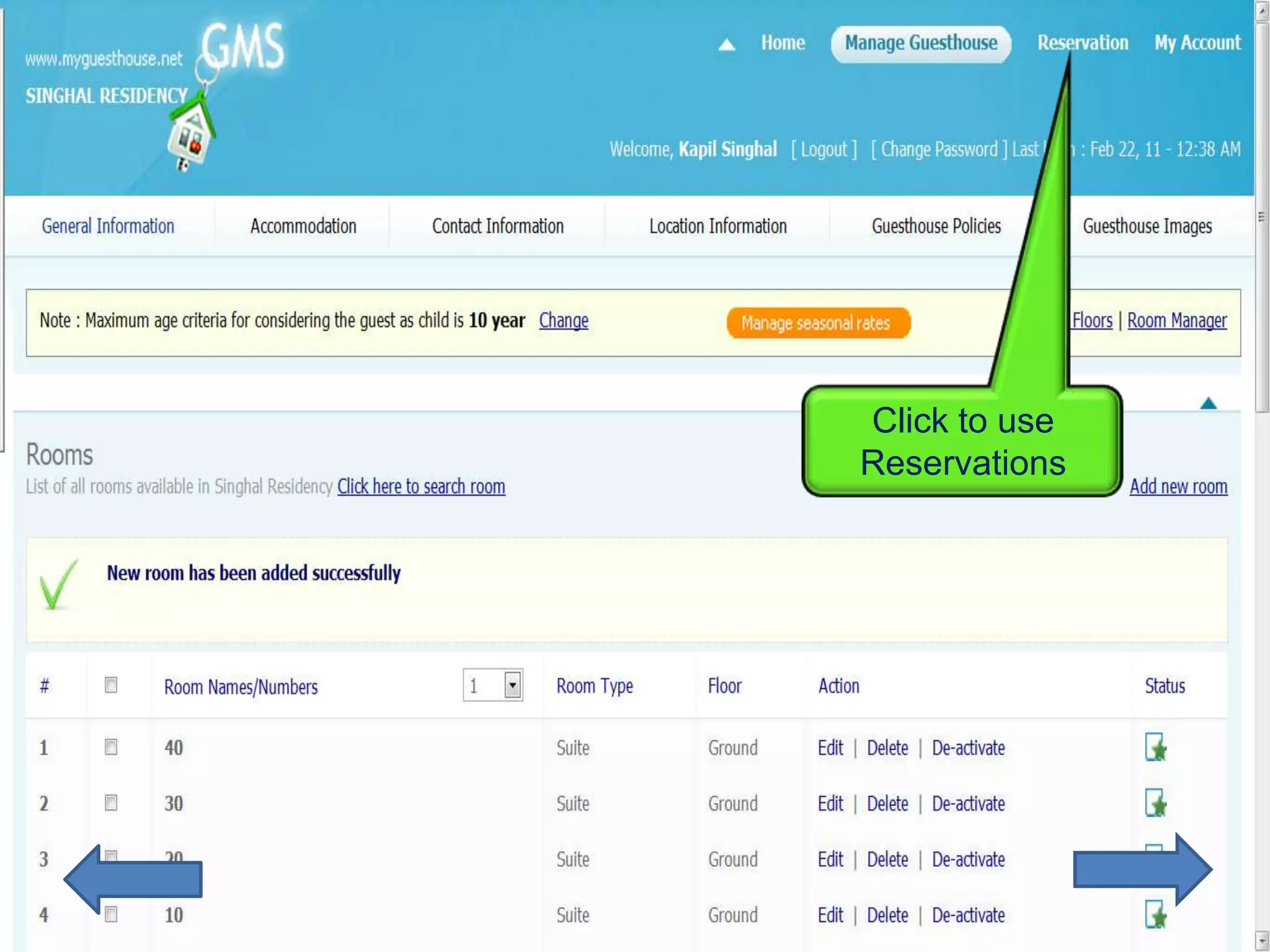
Click to use
Reservations
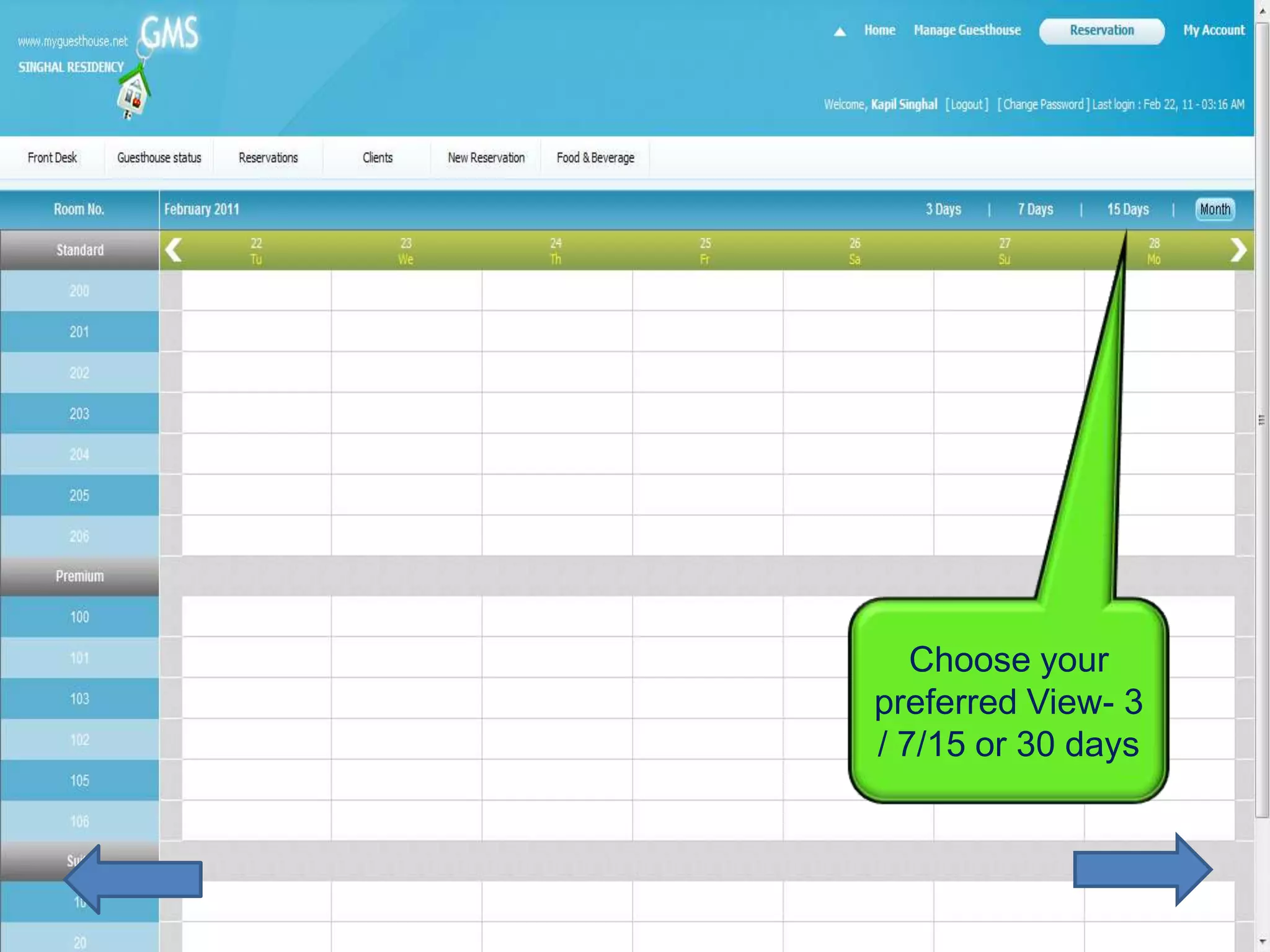
Choose your
preferred View- 3
/ 7/15 or 30 days
Bookings are easy with MGH
        Tape Chart
   Lets book a premium room for 3 days
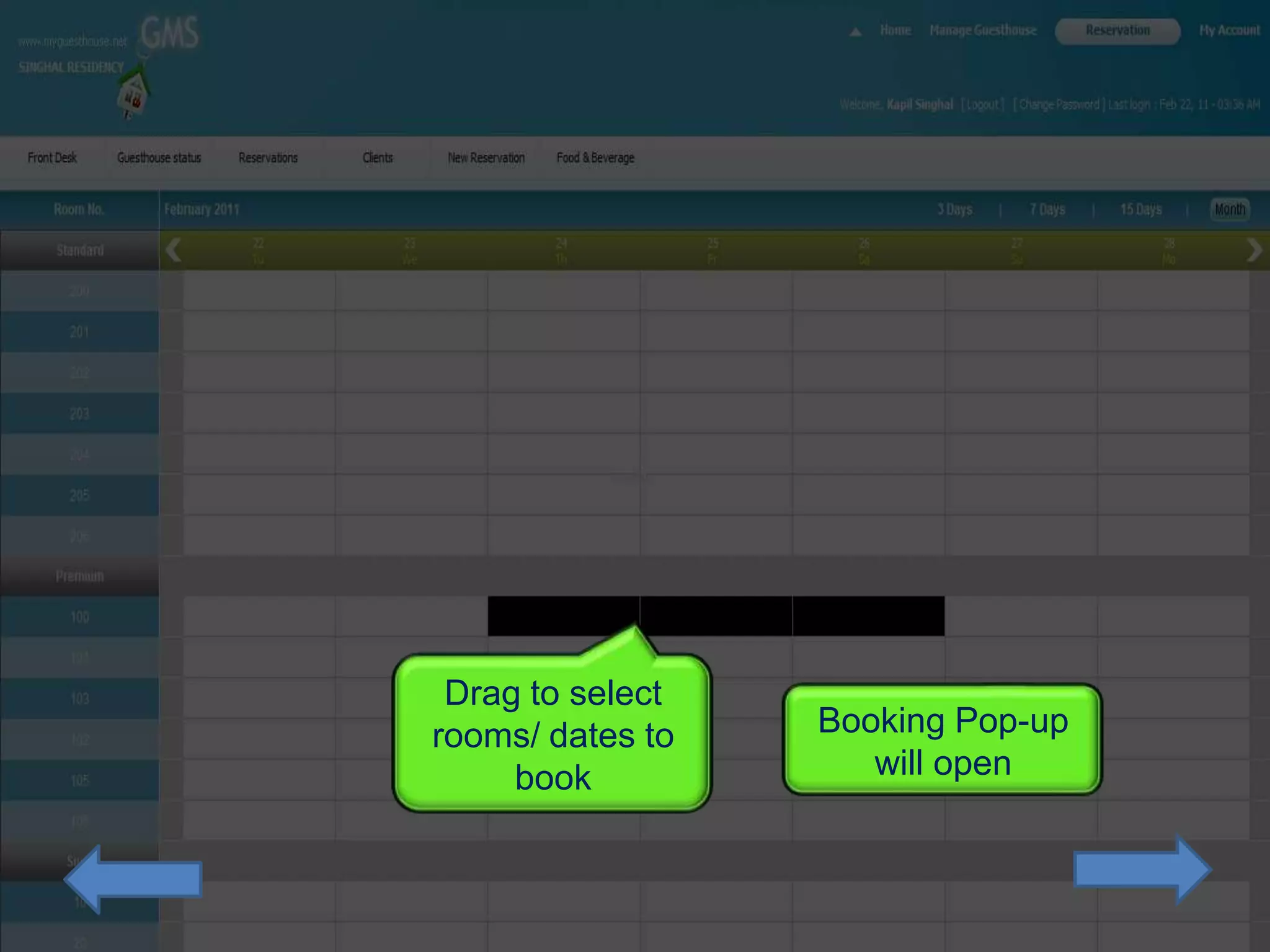
Drag to select
rooms/ dates to   Booking Pop-up
     book            will open
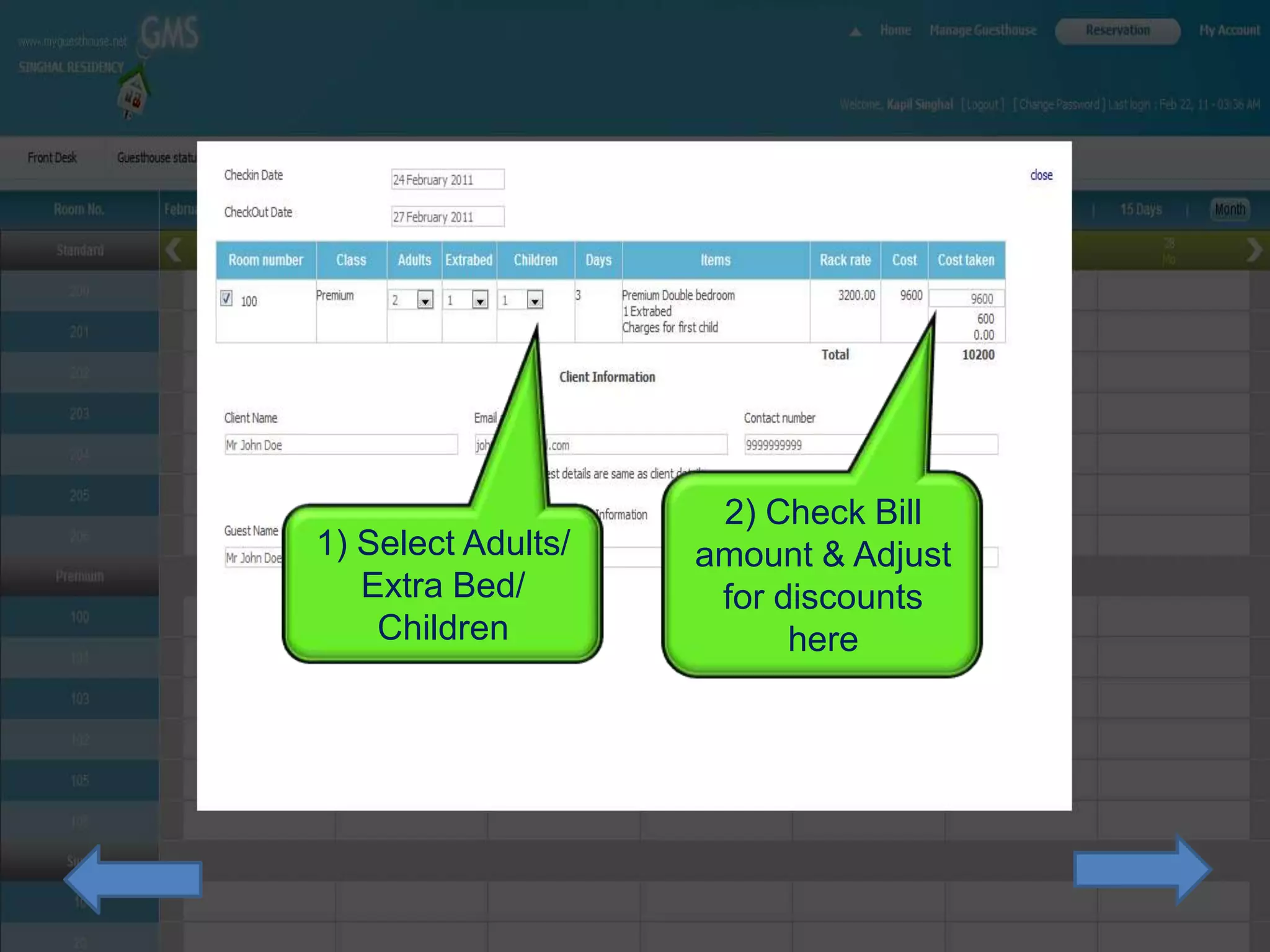
2) Check Bill
1) Select Adults/   amount & Adjust
   Extra Bed/        for discounts
    Children              here
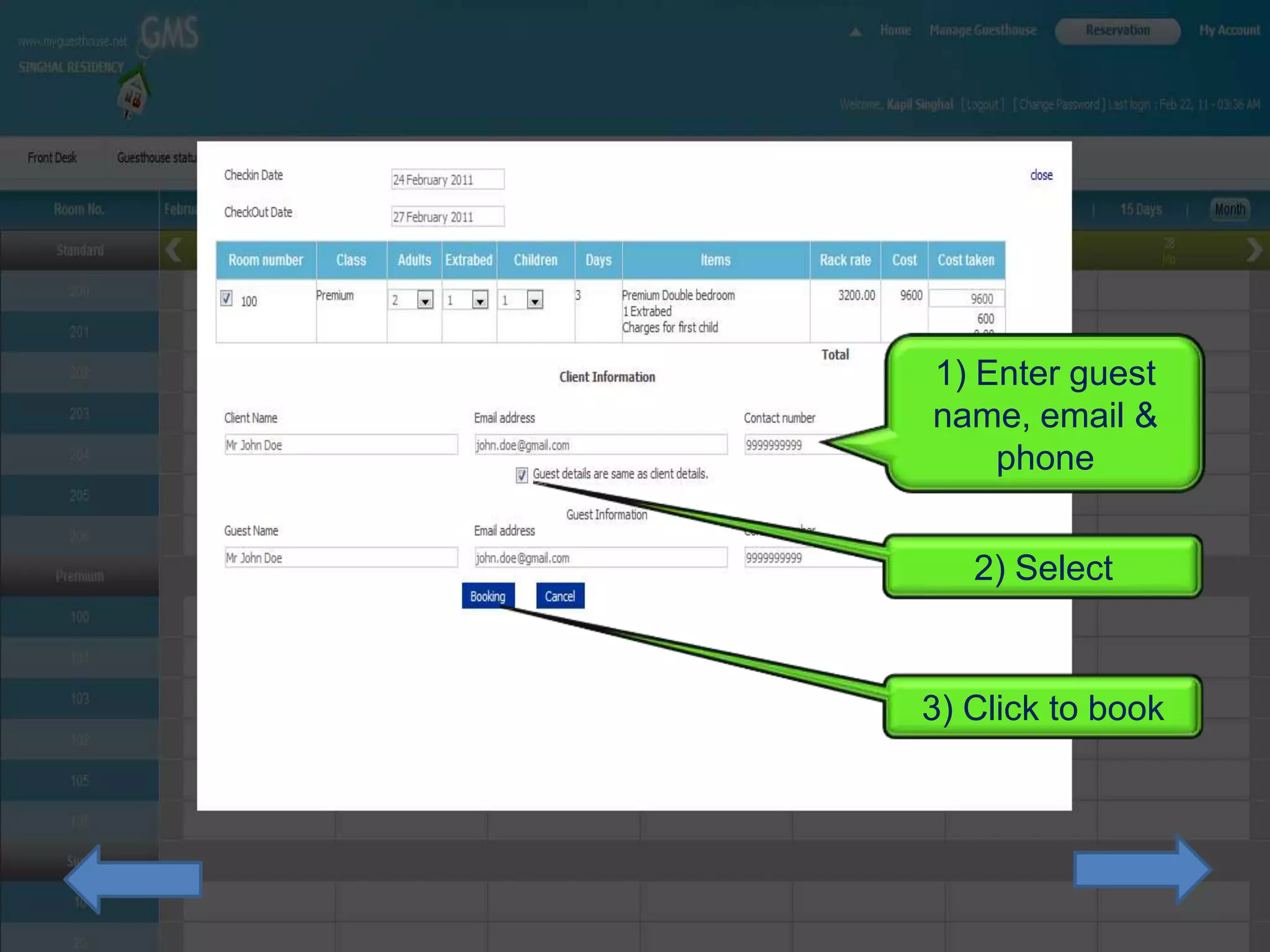
1) Enter guest
name, email &
    phone


   2) Select


3) Click to book
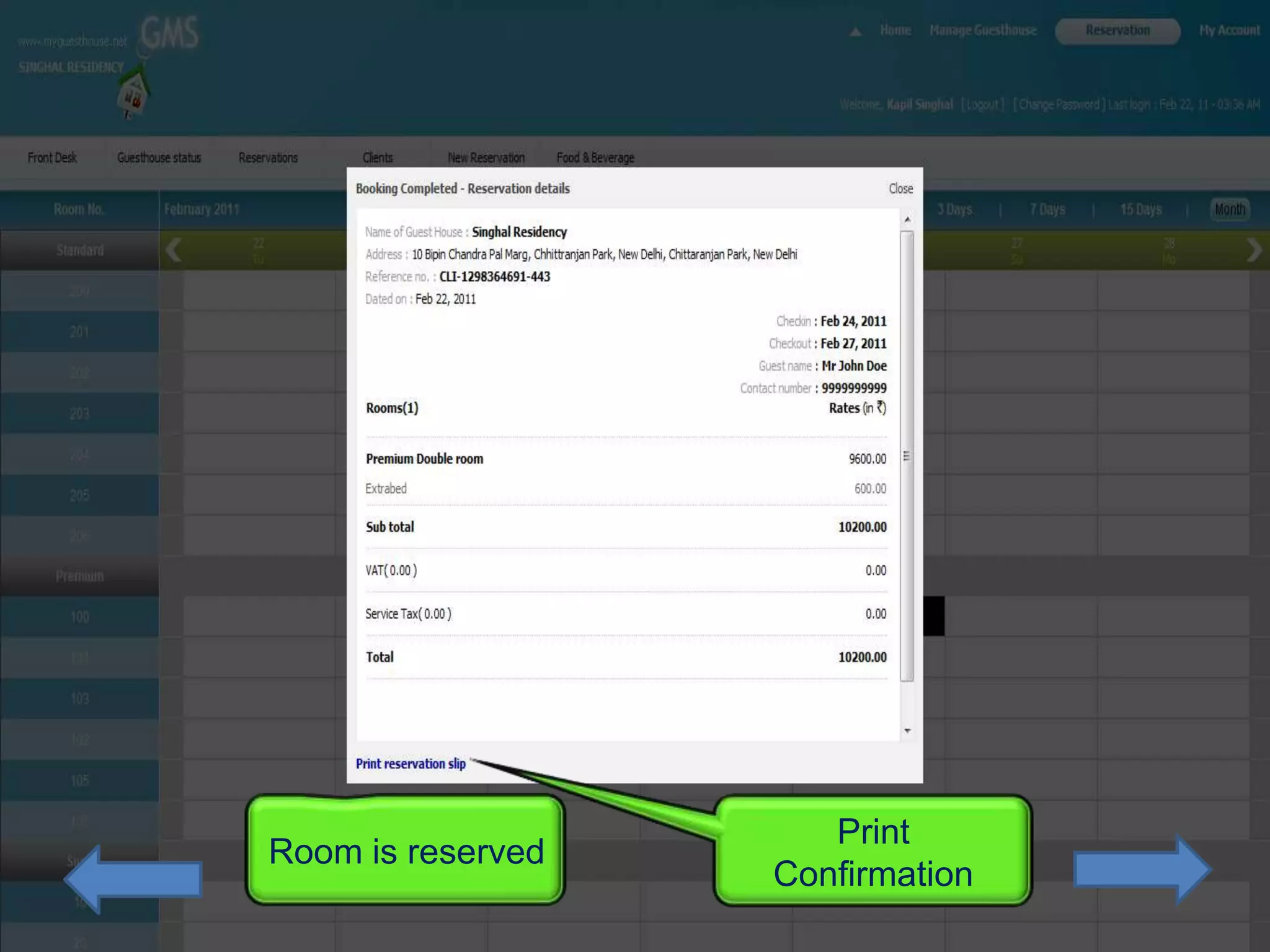
Print
Room is reserved
                   Confirmation
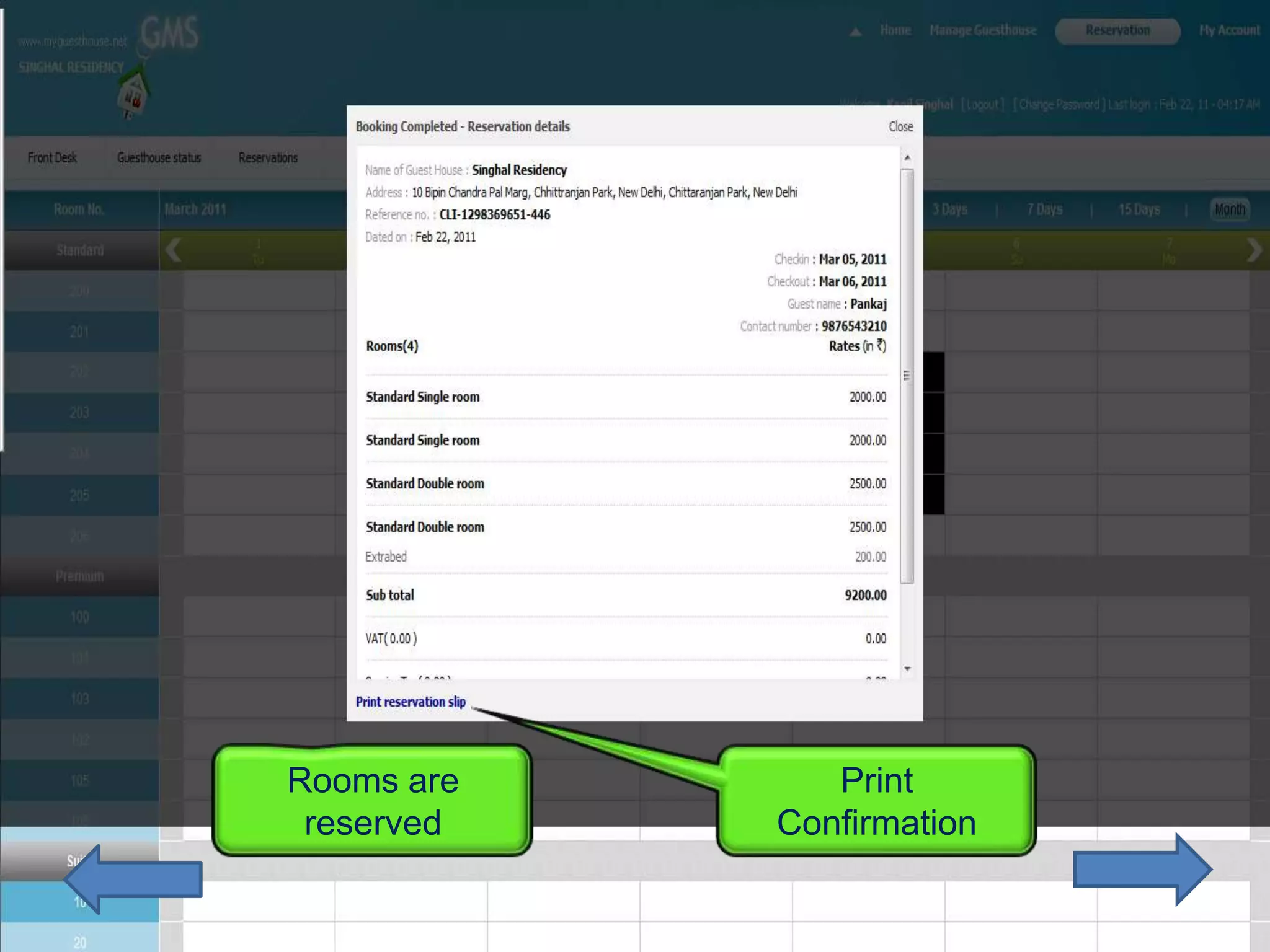
Book 4 Standard Rooms for one
            Day
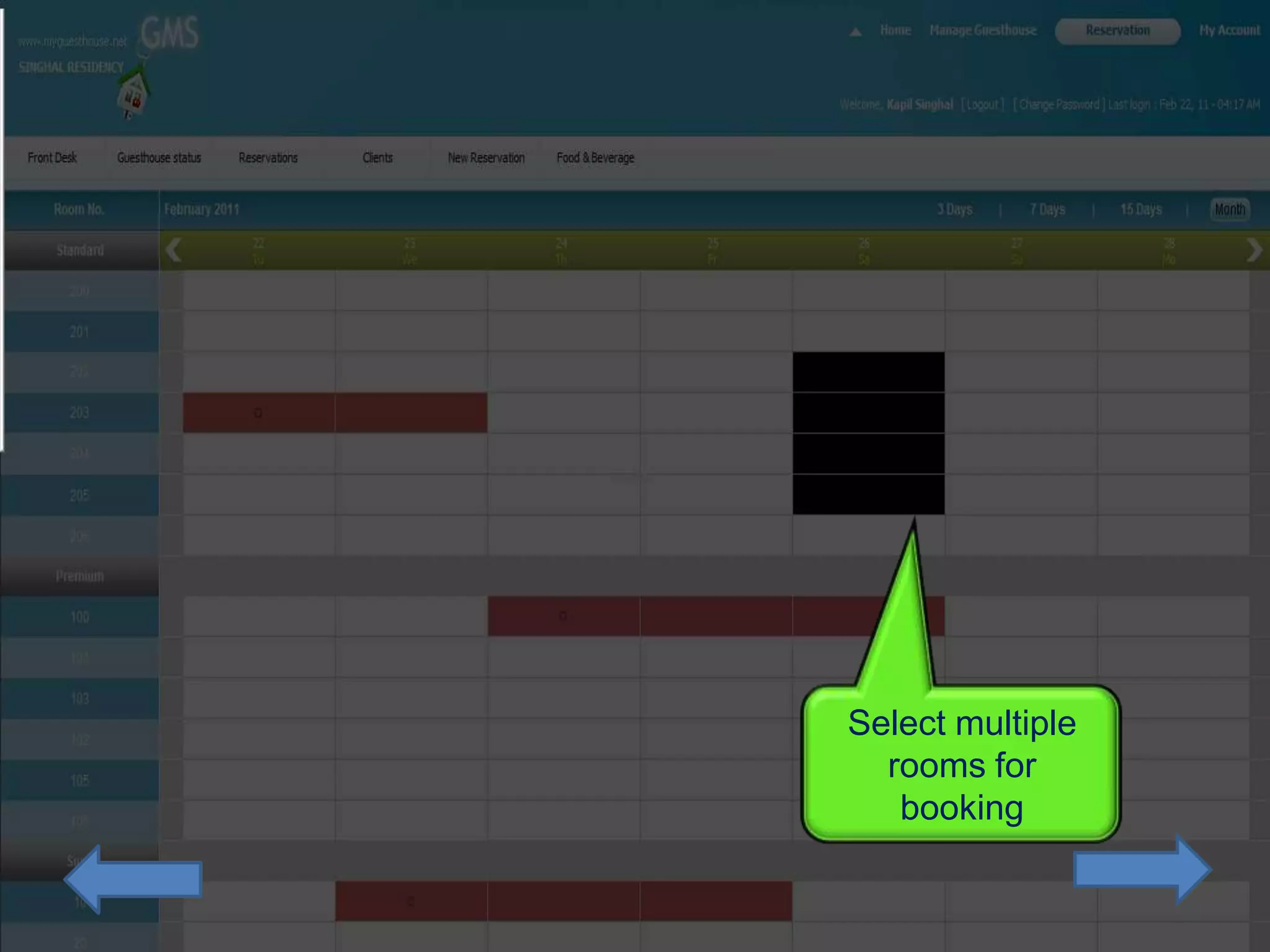
Select multiple
  rooms for
   booking
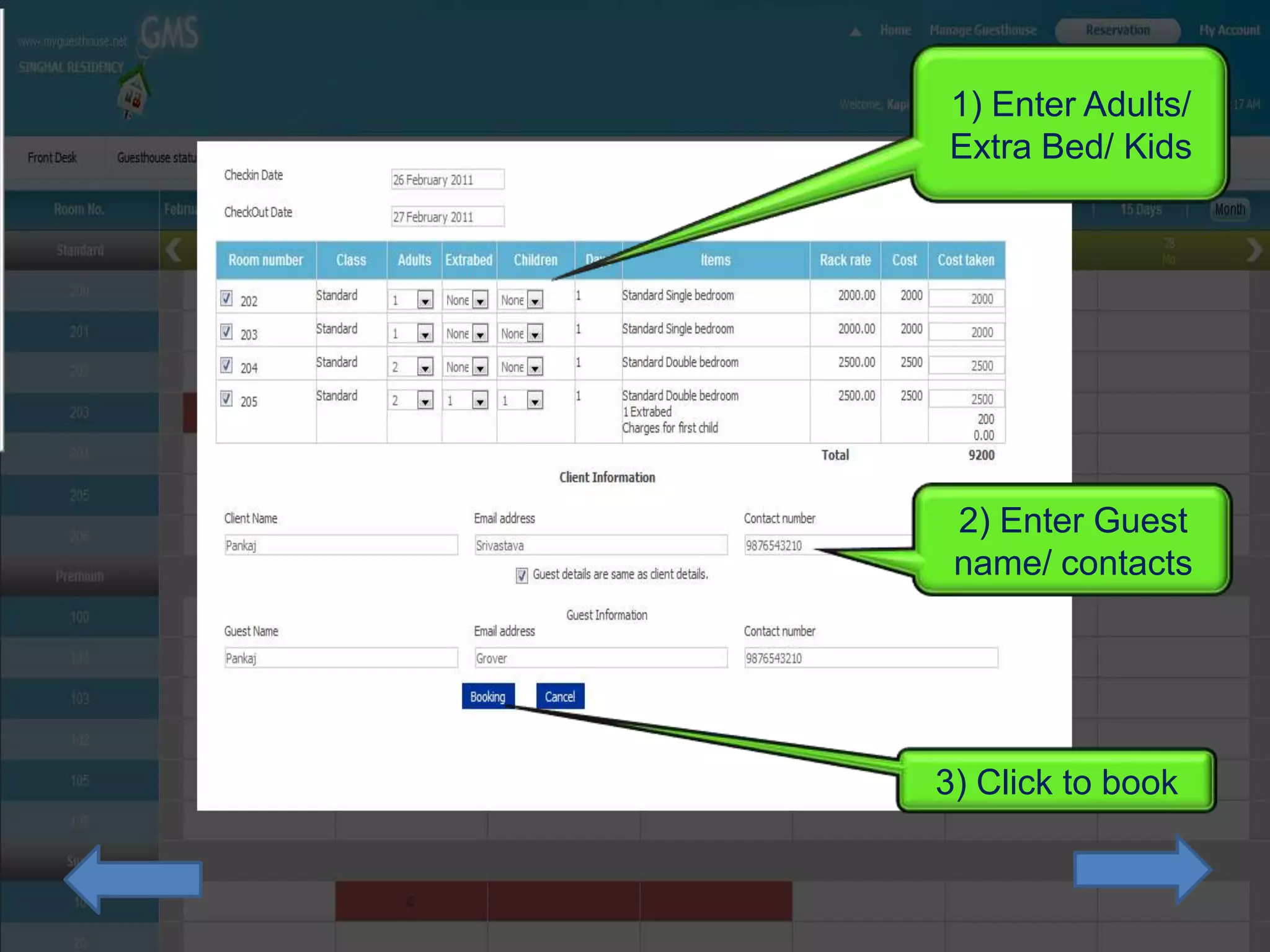
1) Enter Adults/
Extra Bed/ Kids


 2) Enter Guest
 name/ contacts


3) Click to book
Rooms are      Print
 reserved   Confirmation
Check-In a Guest
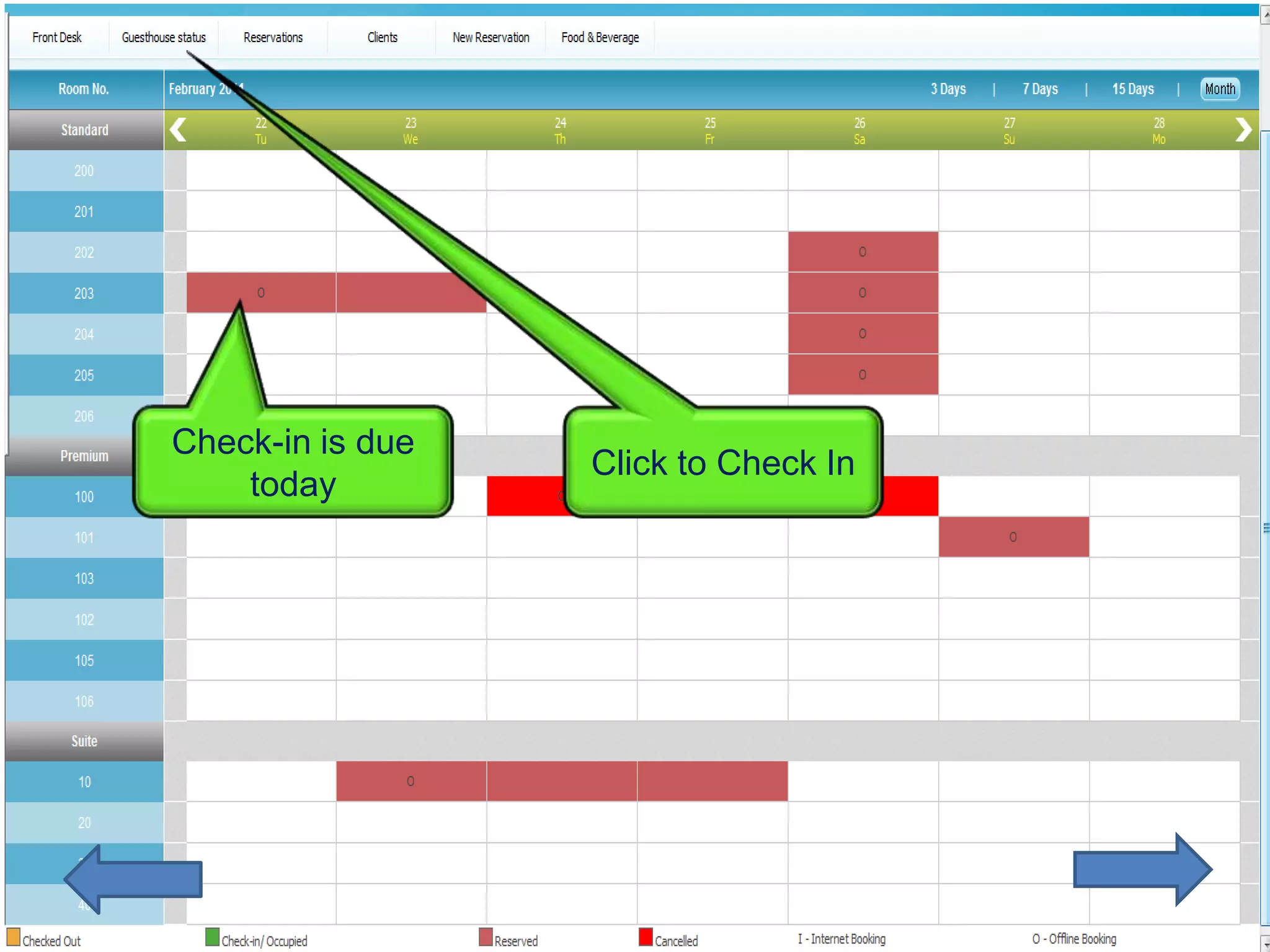
Check-in is due
                  Click to Check In
    today
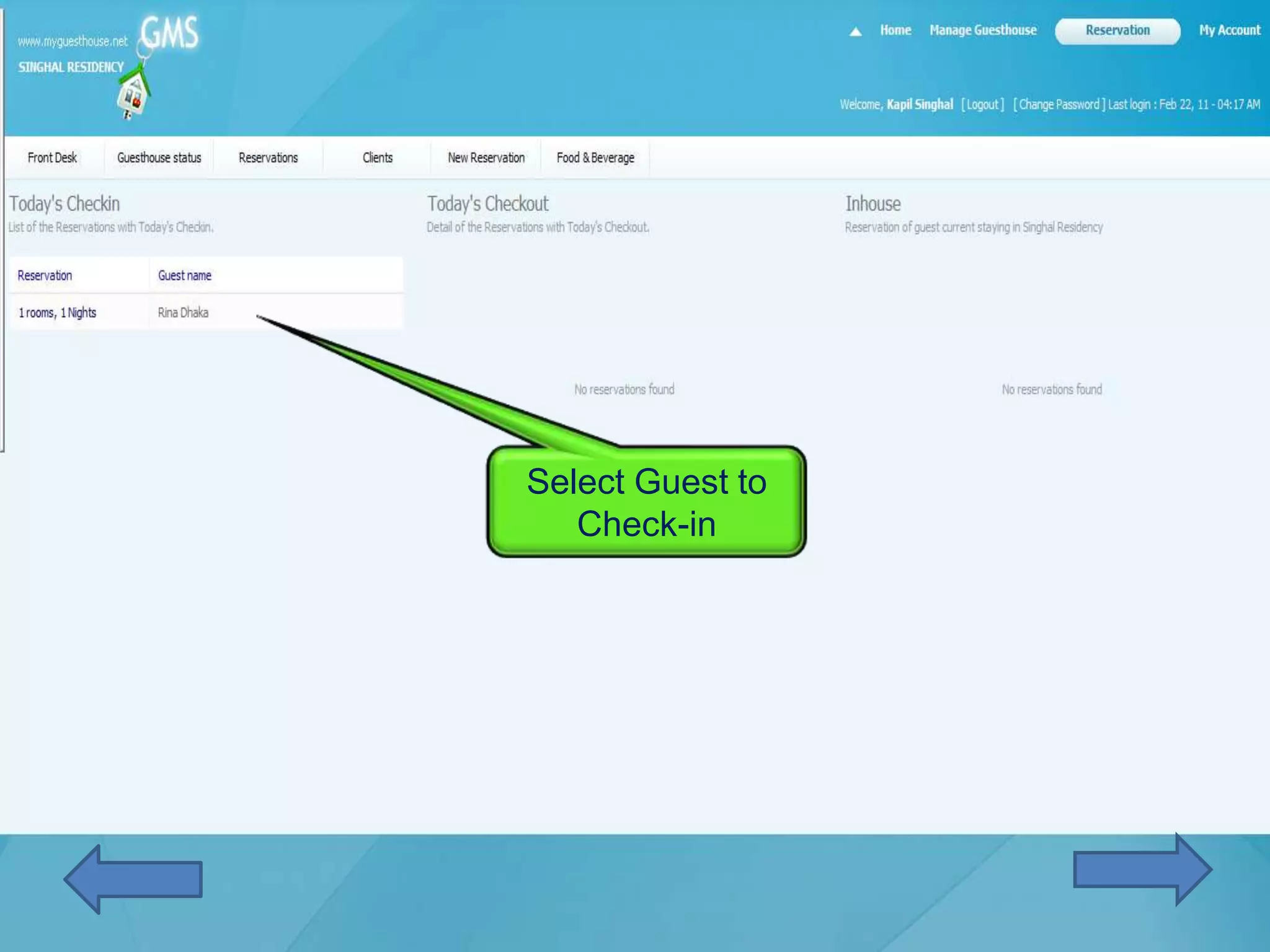
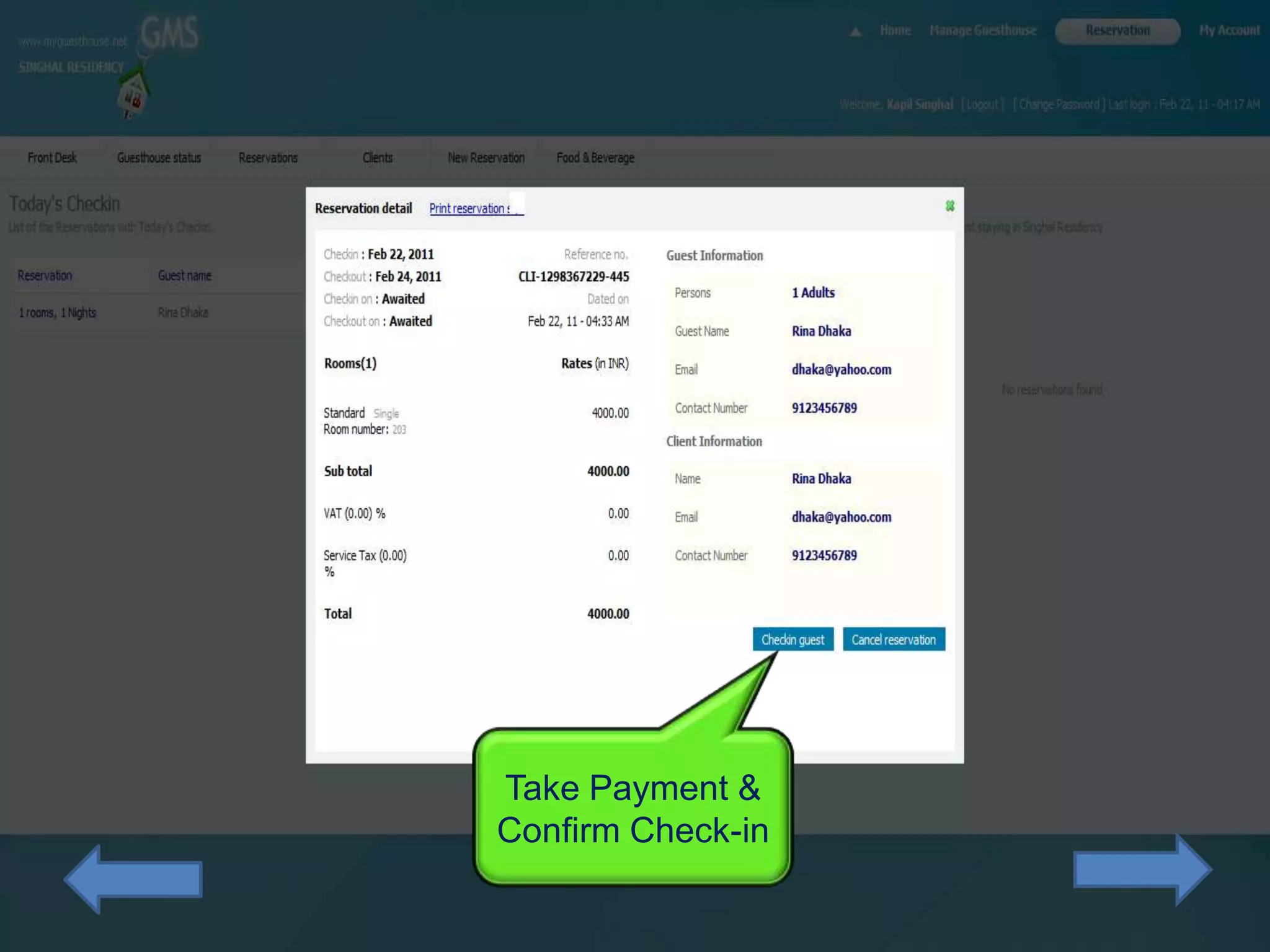
Select Guest to
   Check-in
Take Payment &
Confirm Check-in
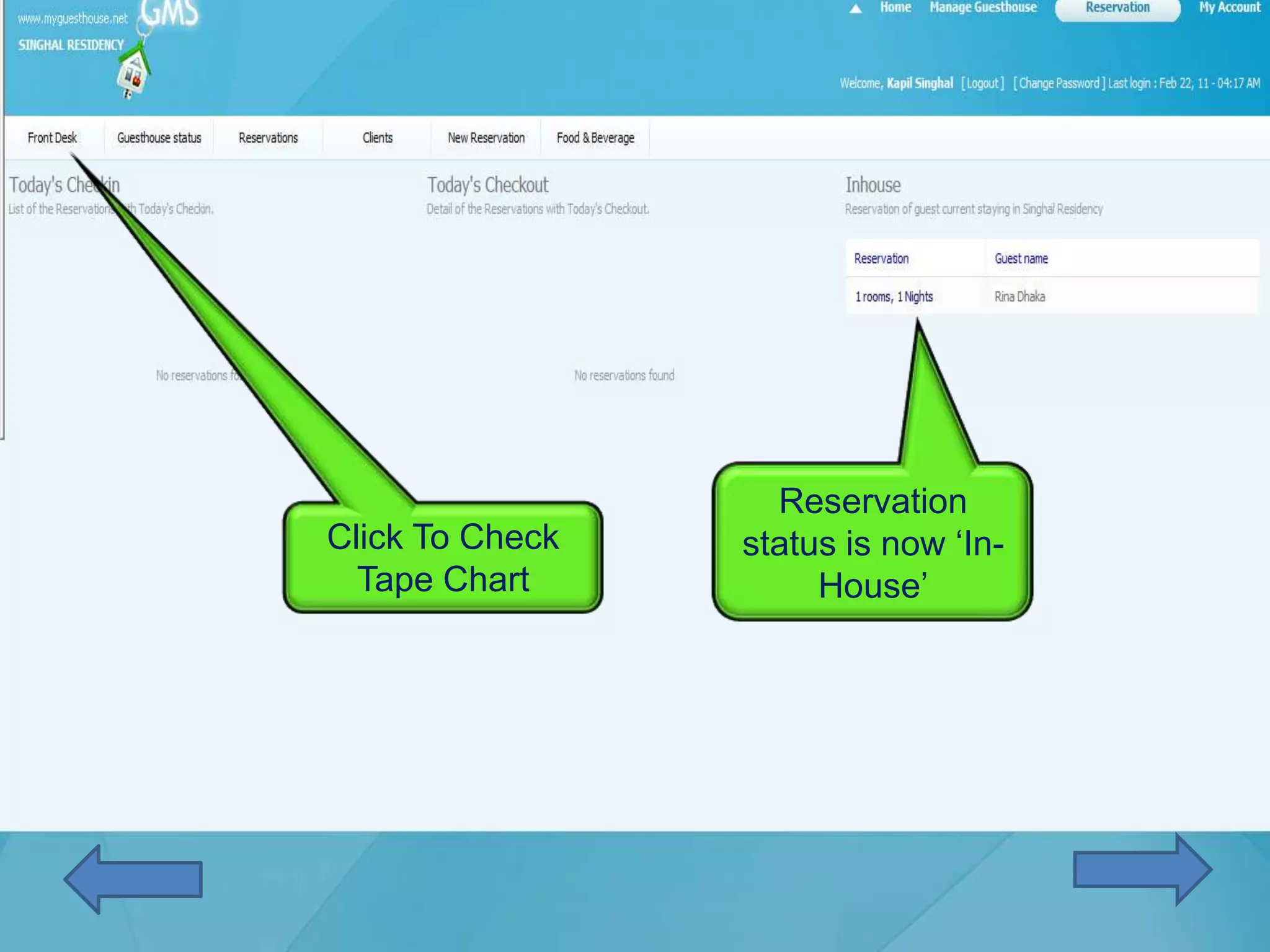
Reservation
Click To Check   status is now ‘In-
  Tape Chart          House’
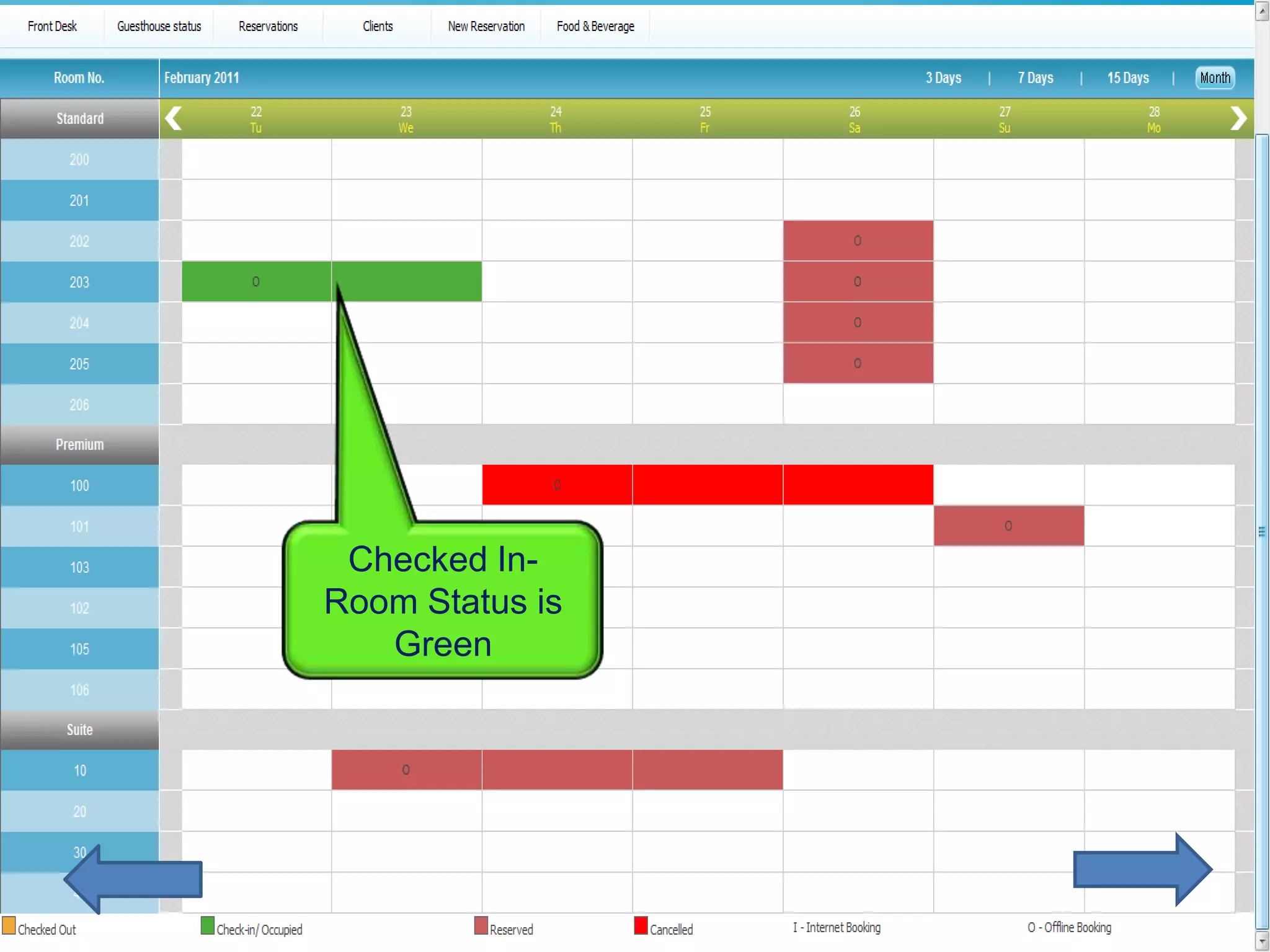
Checked In-
Room Status is
   Green
Check-Out a Guest
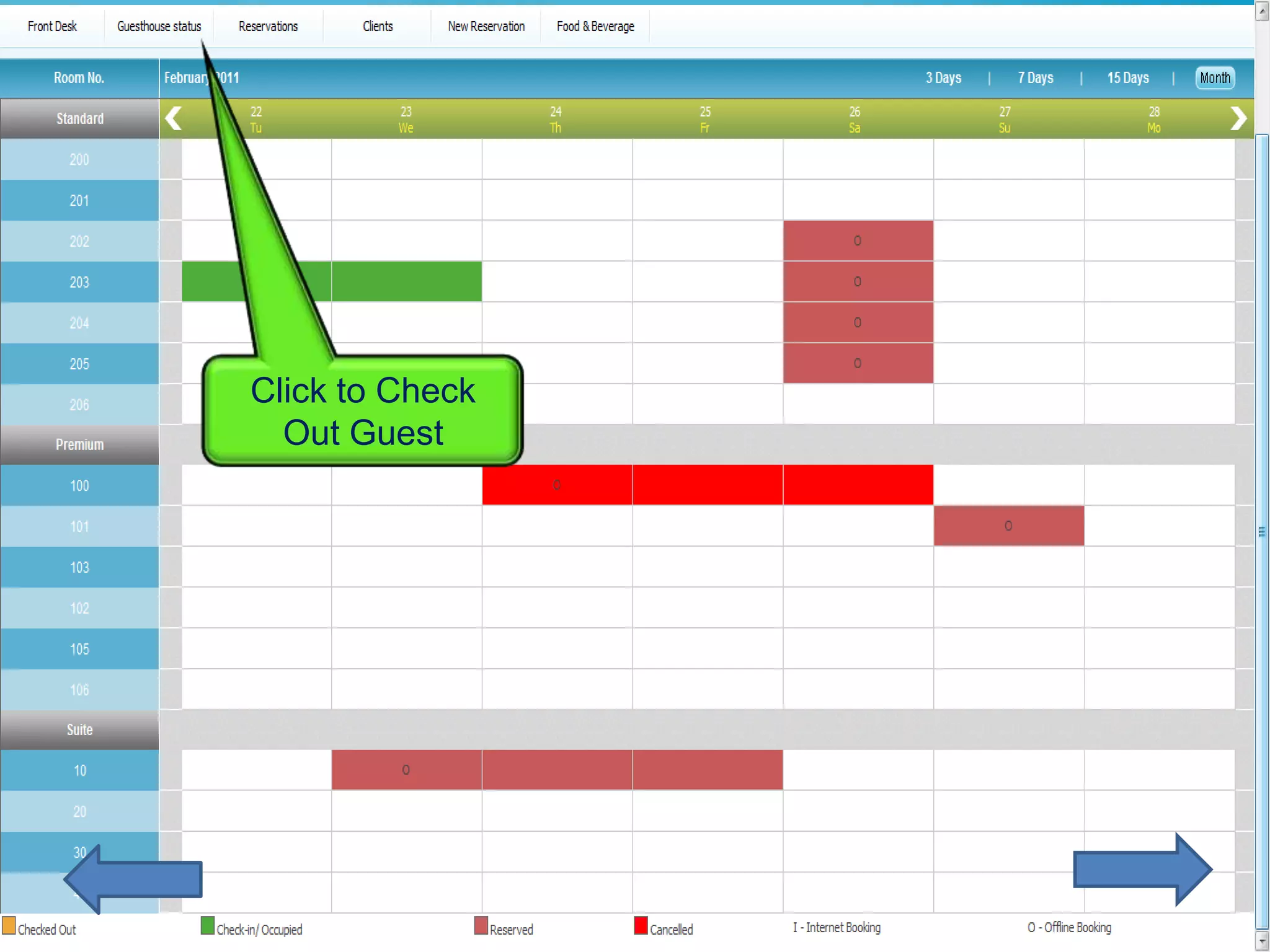
Click to Check
  Out Guest
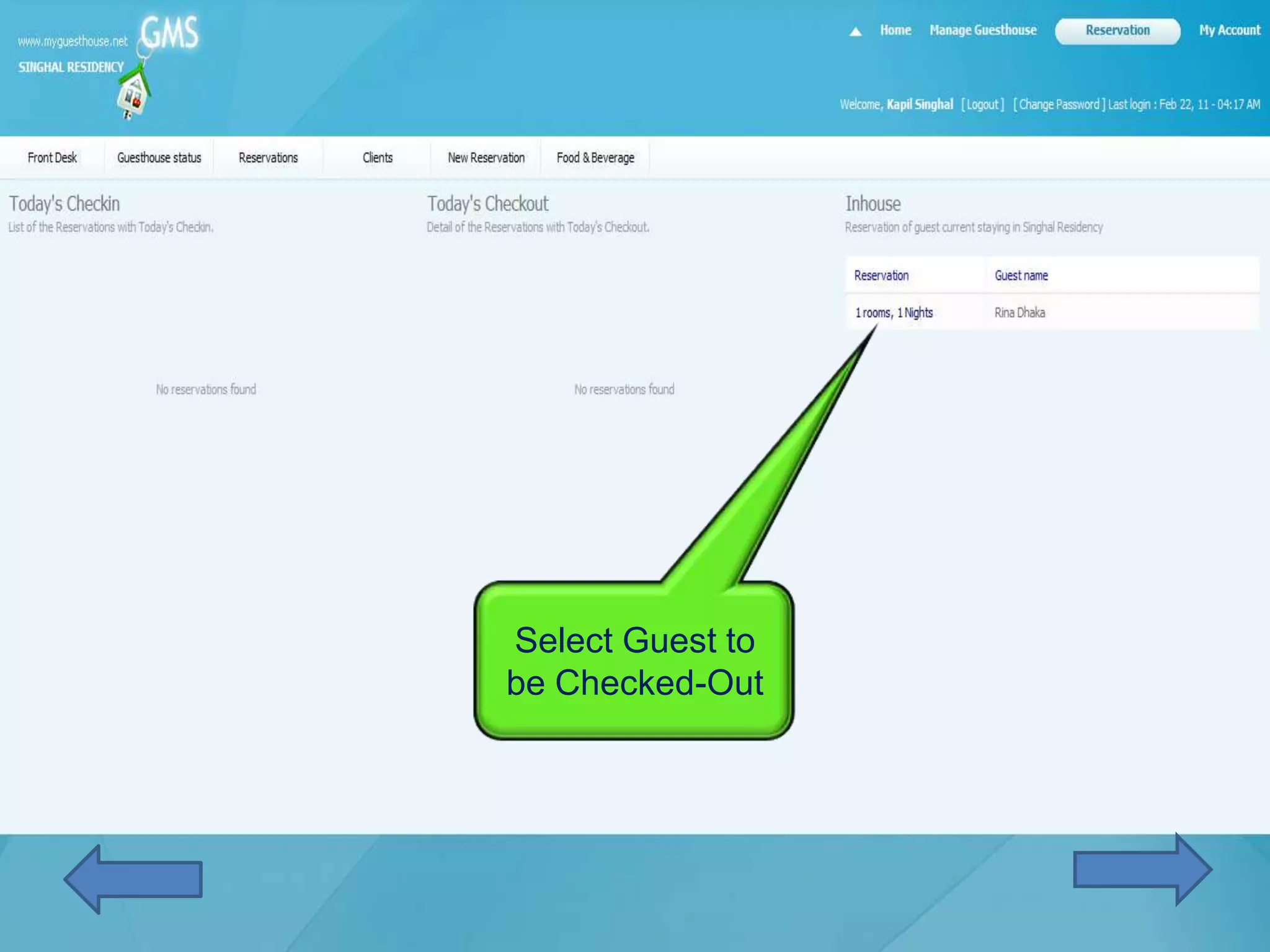
Select Guest to
be Checked-Out
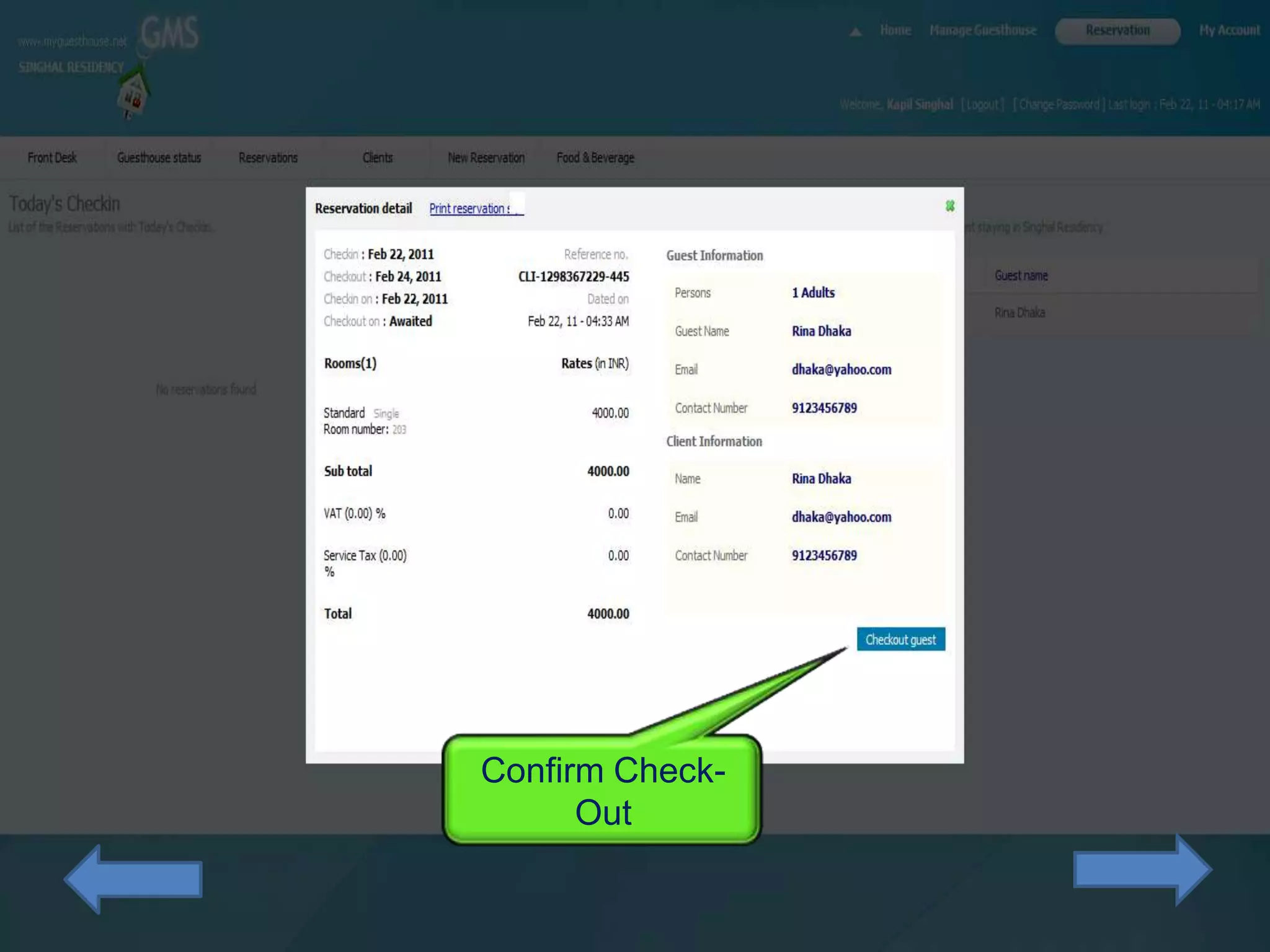
Confirm Check-
      Out
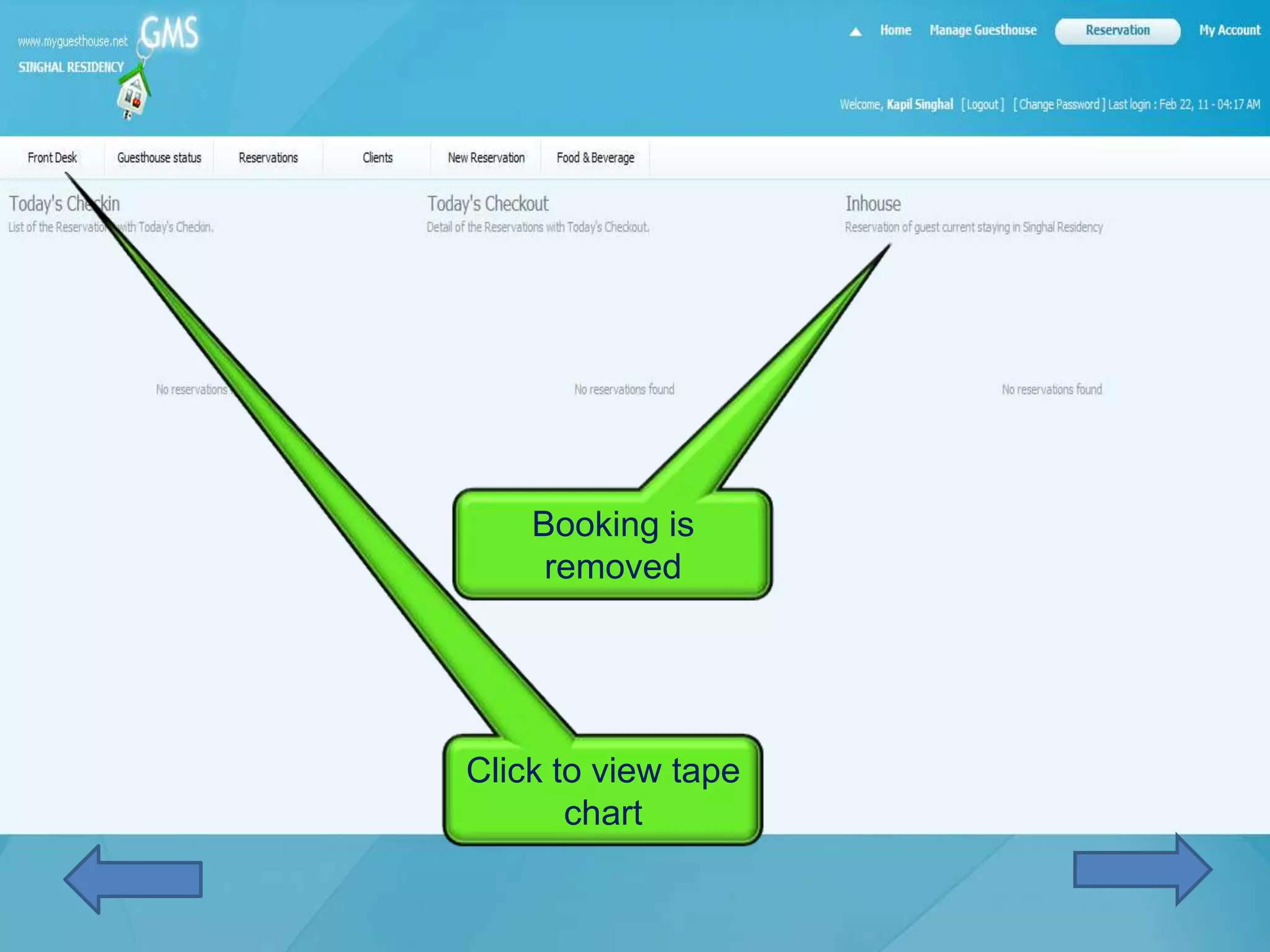
Booking is
     removed


Click to view tape
       chart
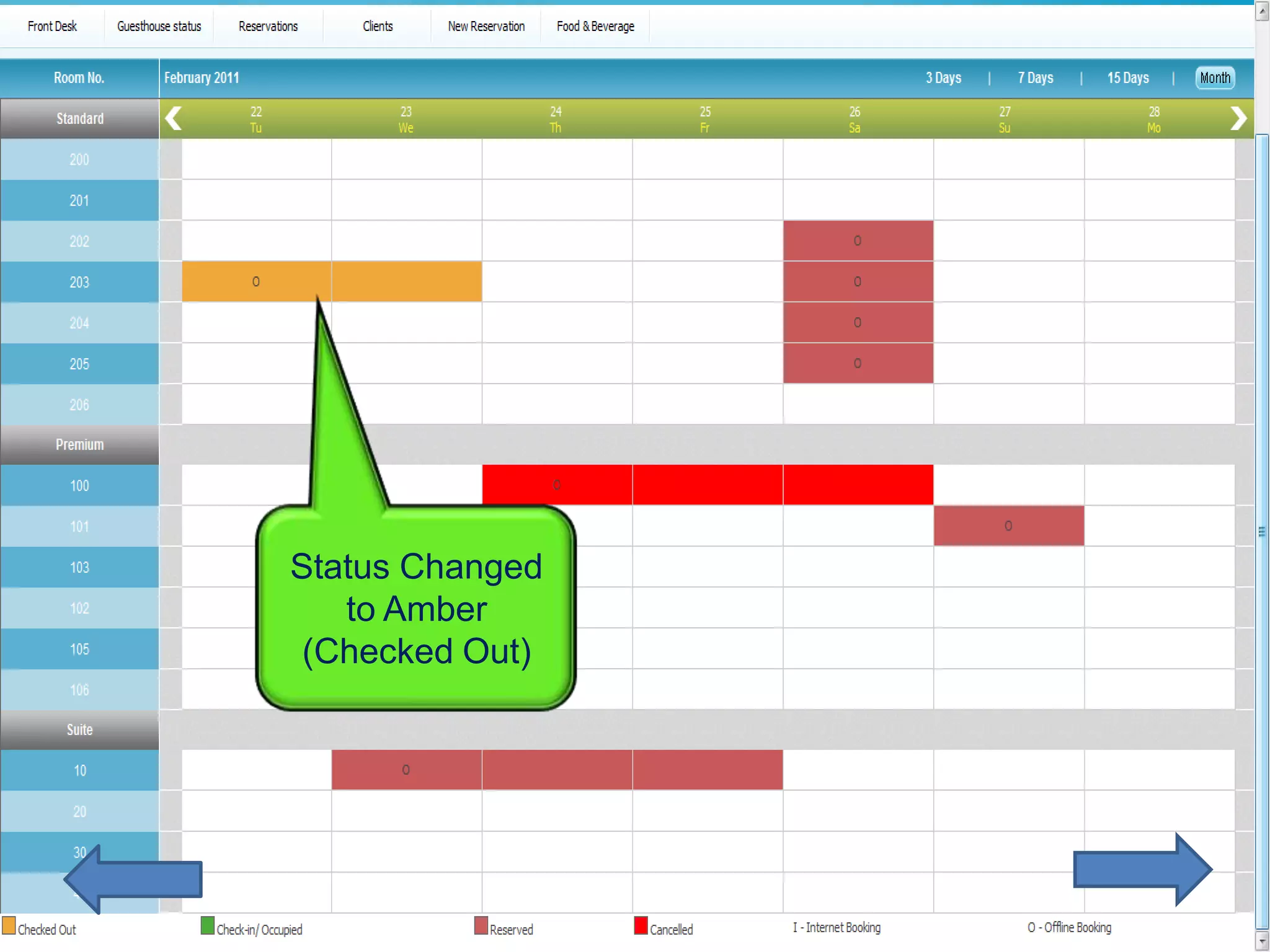
Status Changed
   to Amber
 (Checked Out)
Cancel a Booking
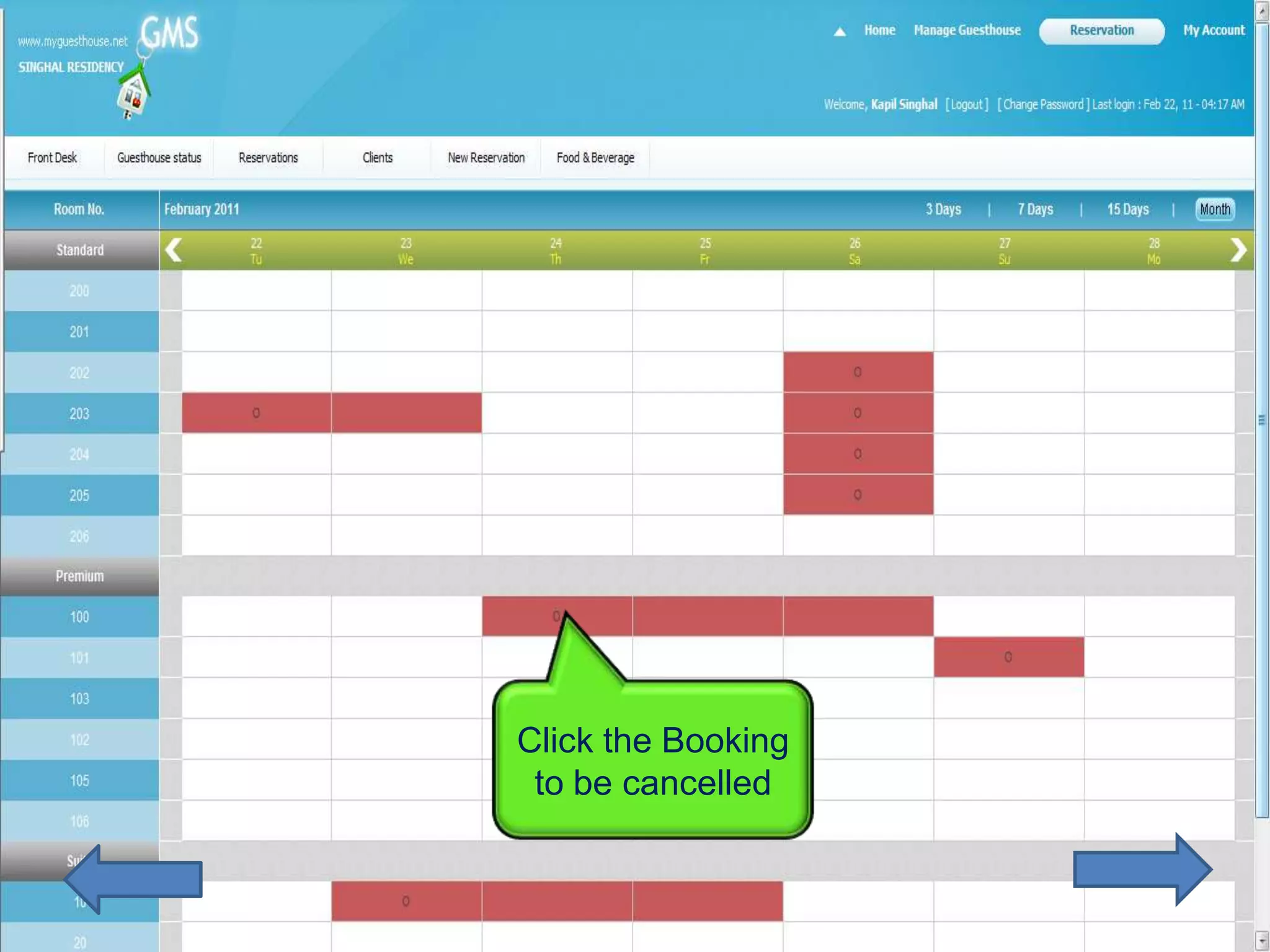
Click the Booking
 to be cancelled
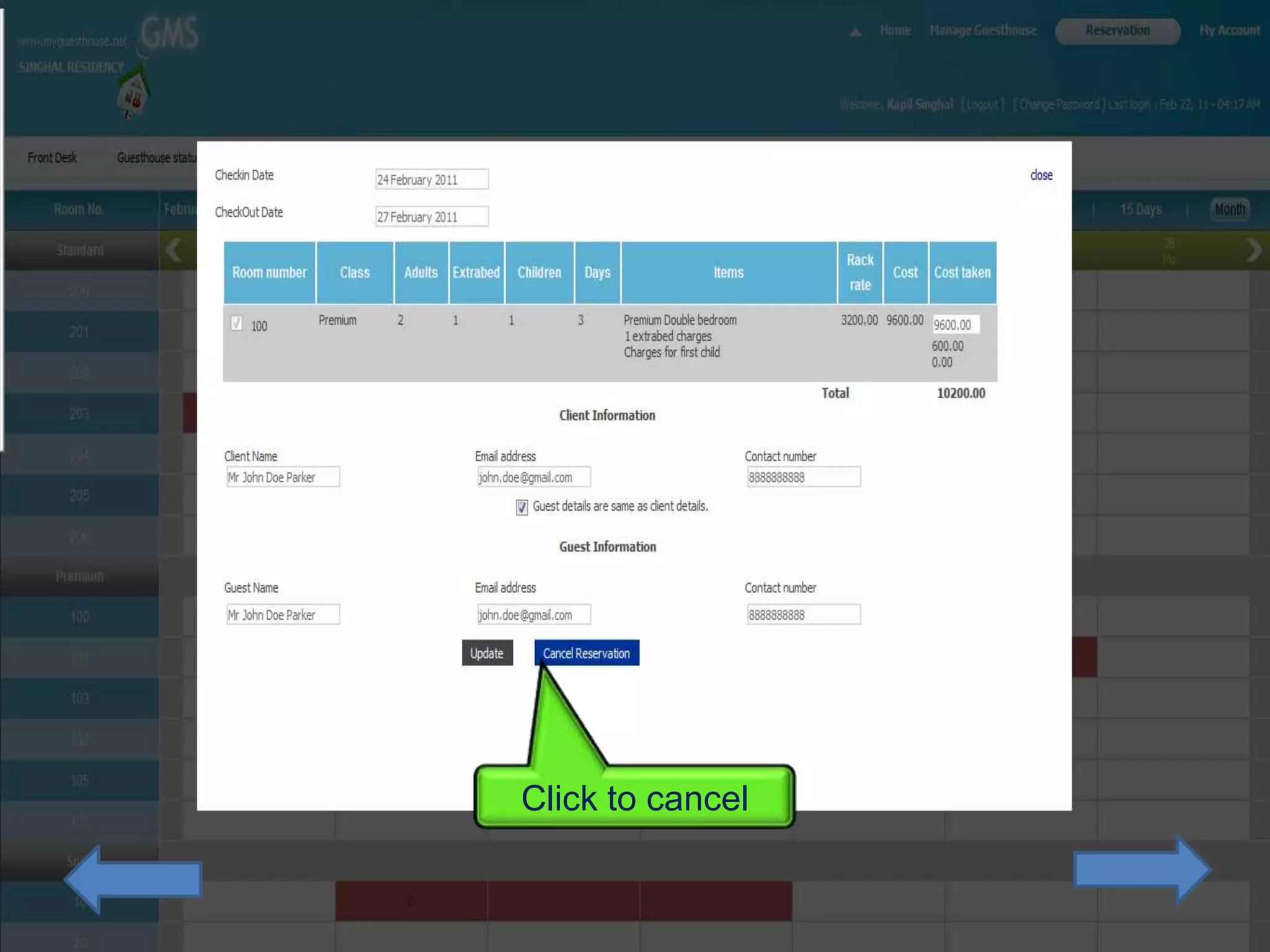
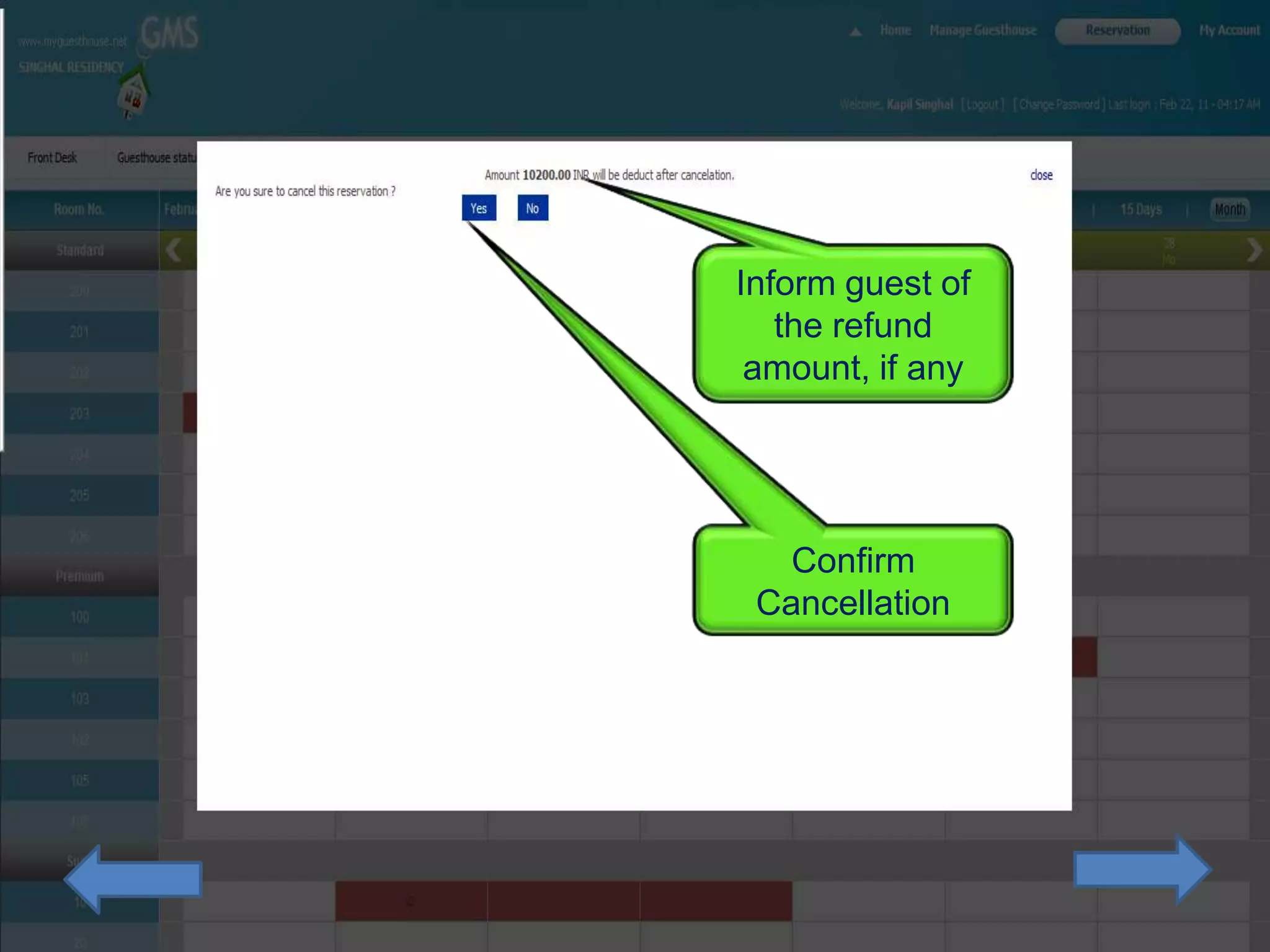
Click to cancel
Inform guest of
   the refund
 amount, if any


   Confirm
 Cancellation
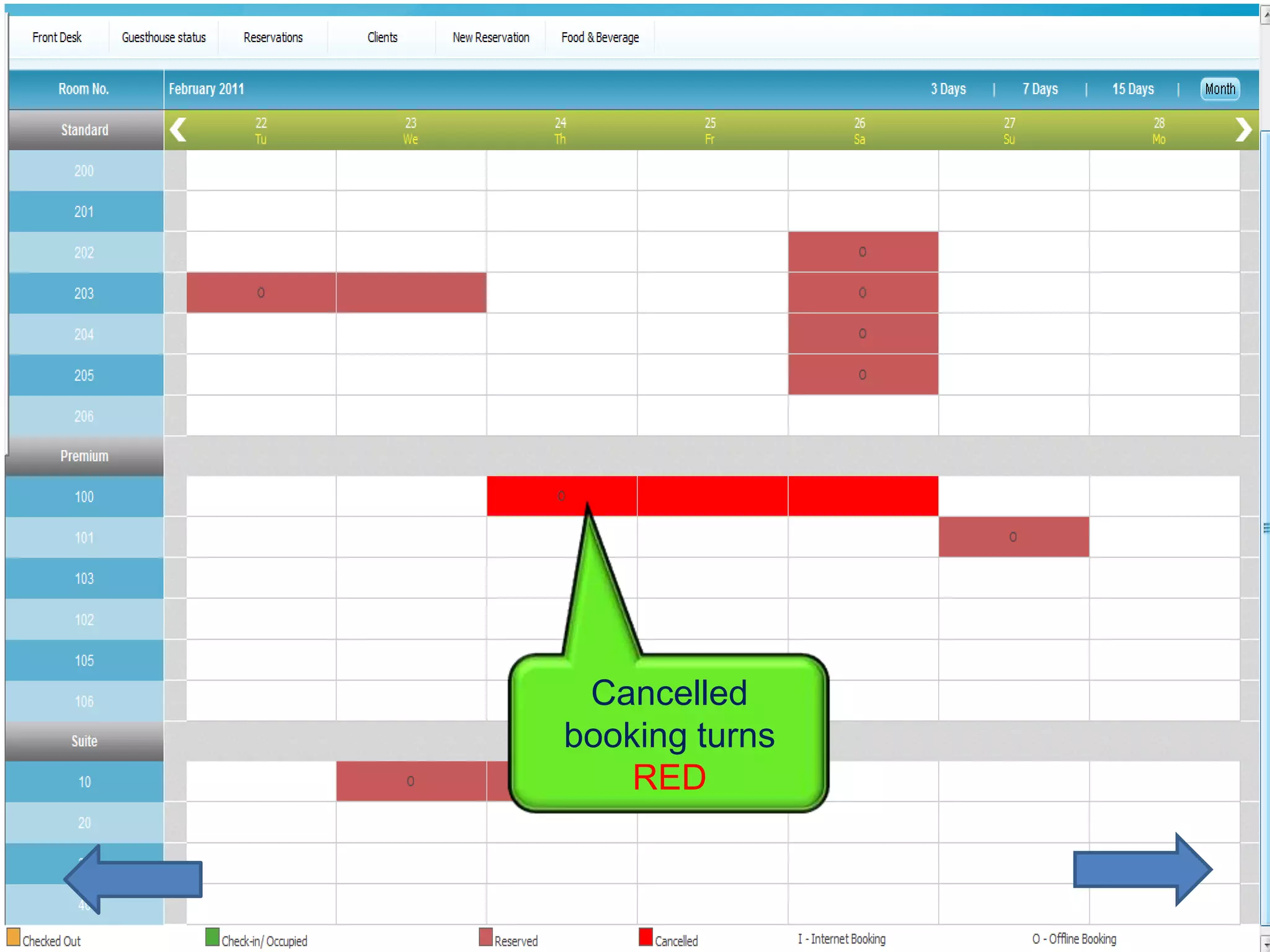
Cancelled
booking turns
    RED
Occupancy Summary on Tape
          Chart
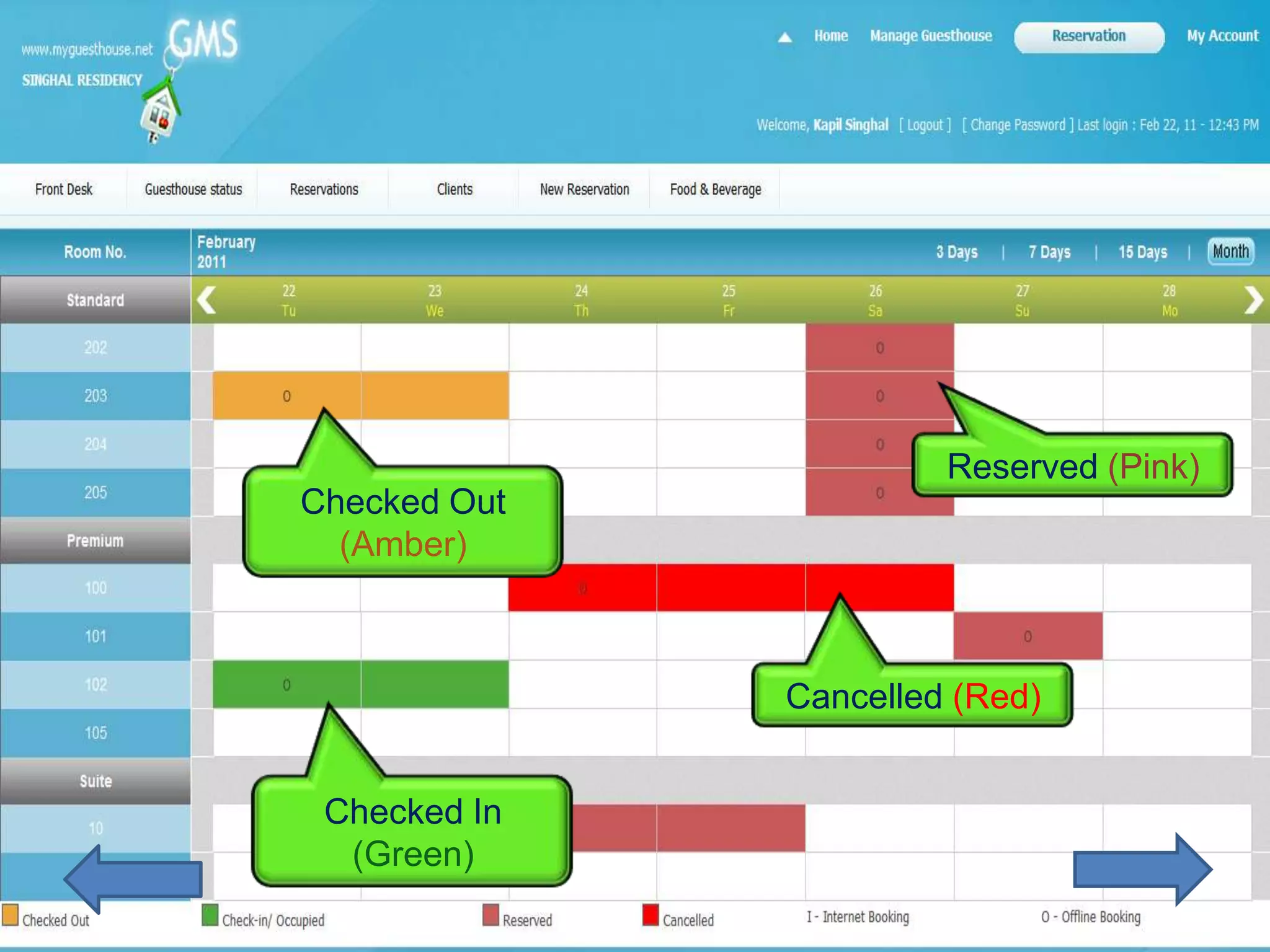
Reserved (Pink)
Checked Out
  (Amber)


              Cancelled (Red)


 Checked In
  (Green)
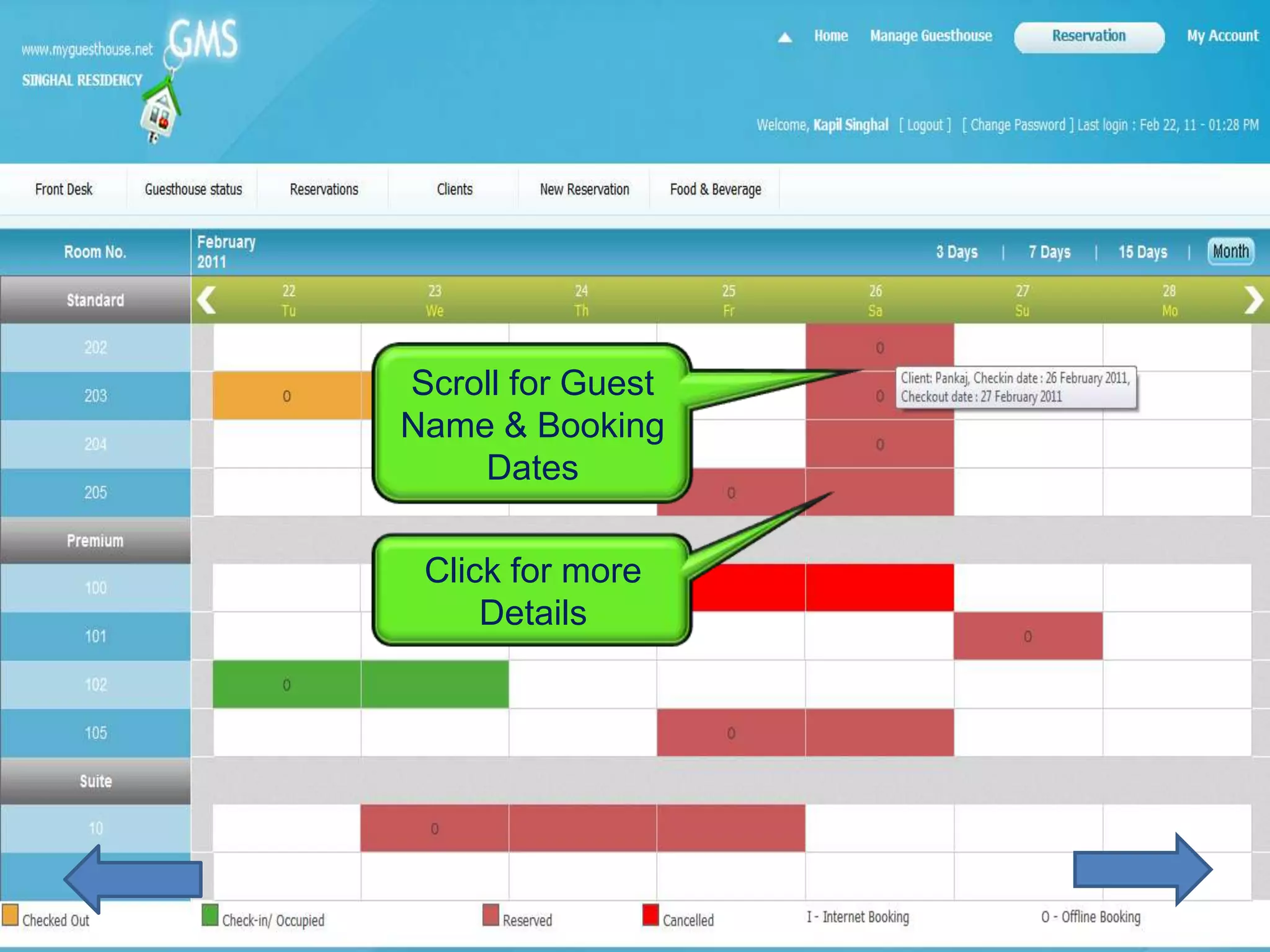
Scroll for Guest
Name & Booking
    Dates

 Click for more
     Details
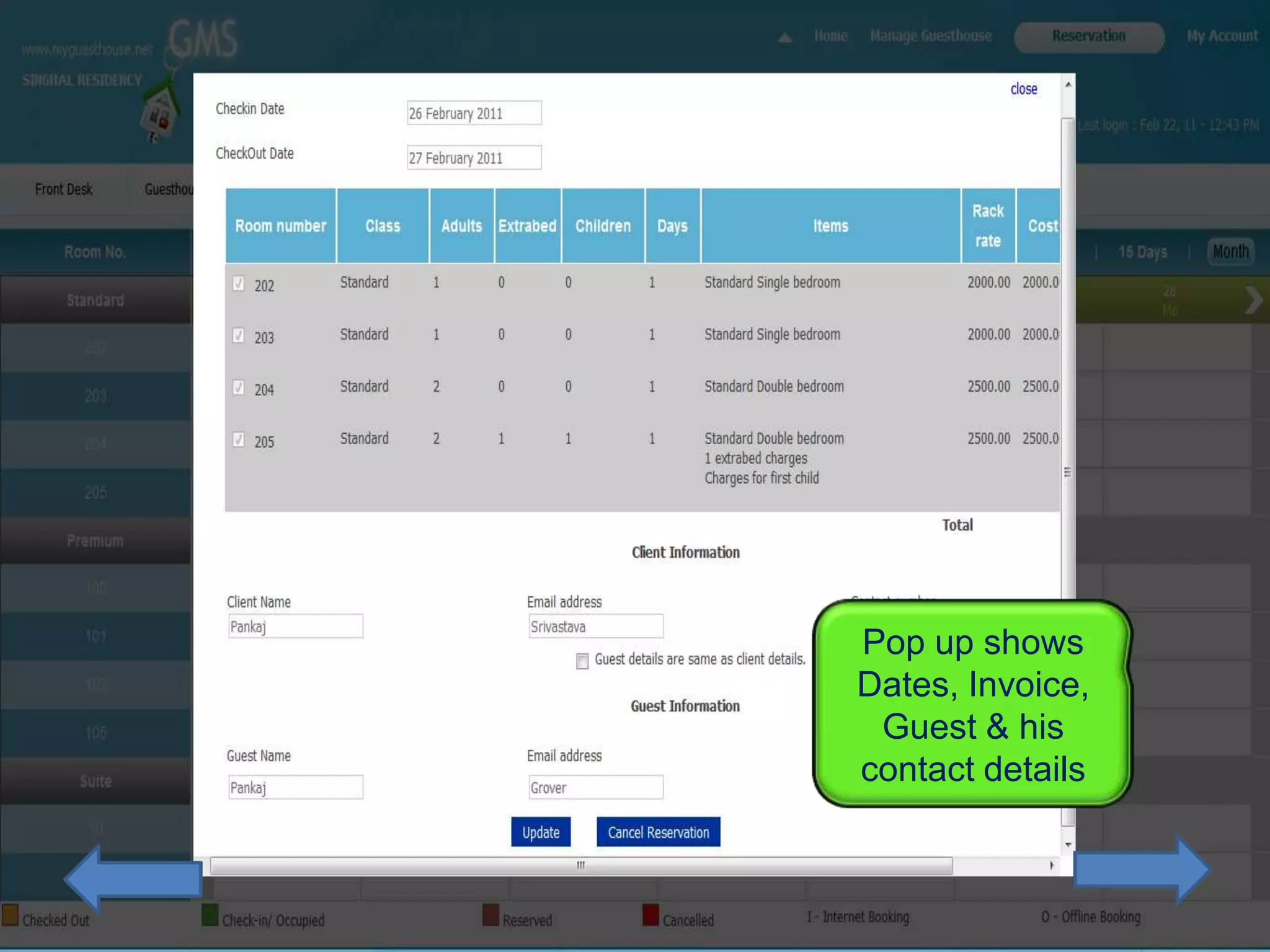
Pop up shows
Dates, Invoice,
 Guest & his
contact details
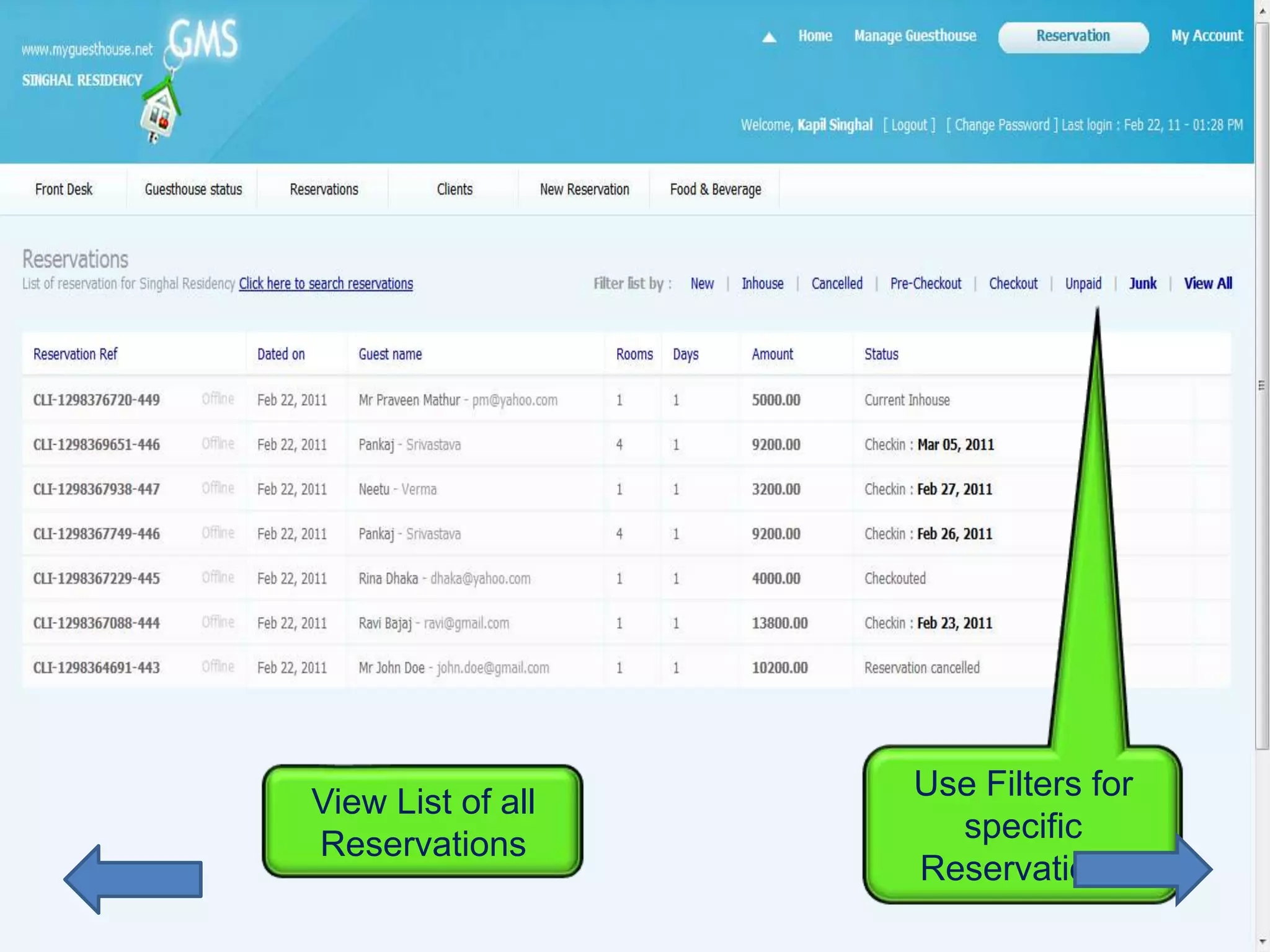
Reservation Details –
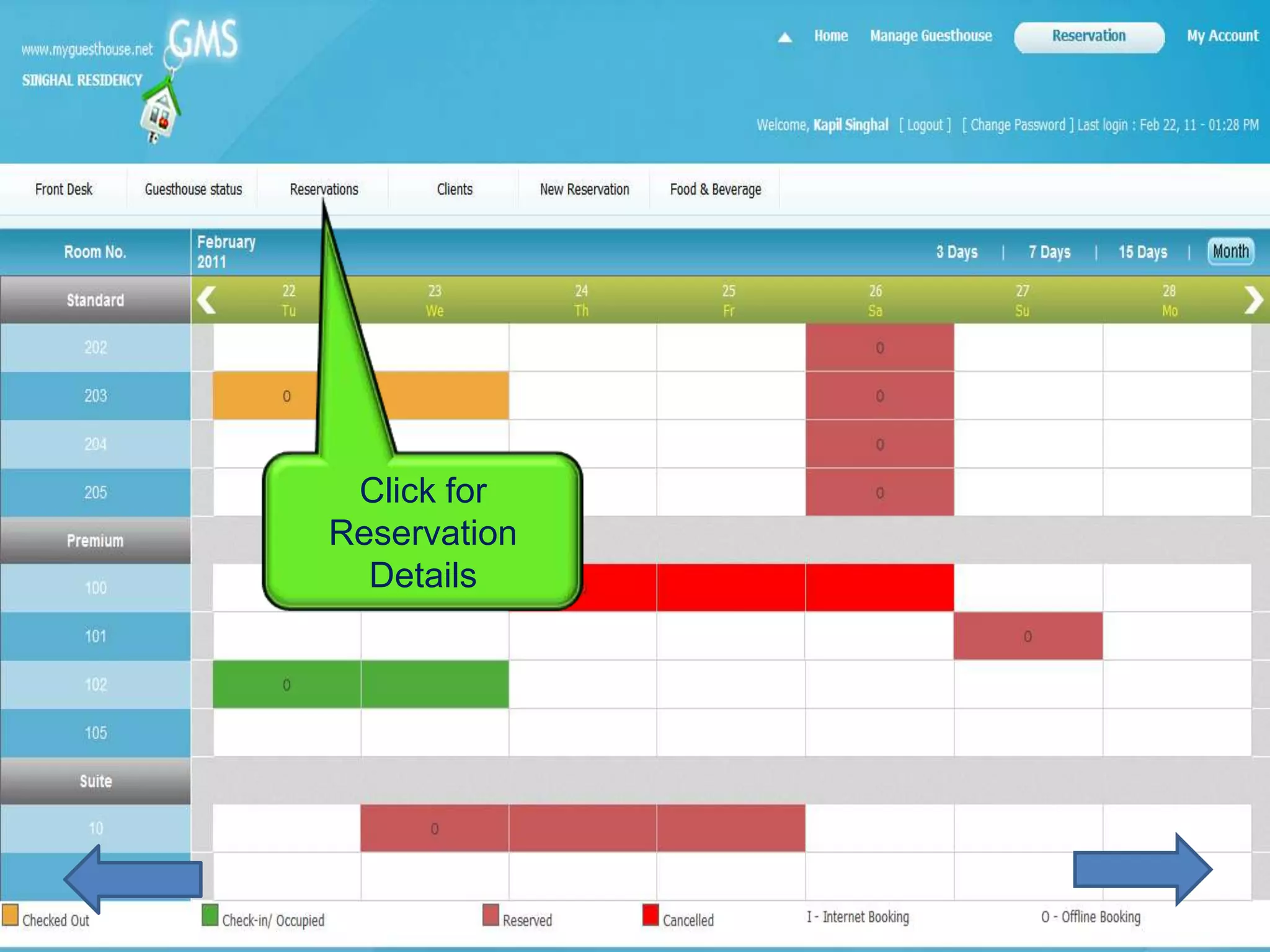
Click for
Reservation
  Details
Use Filters for
View List of all
                     specific
Reservations
                   Reservations
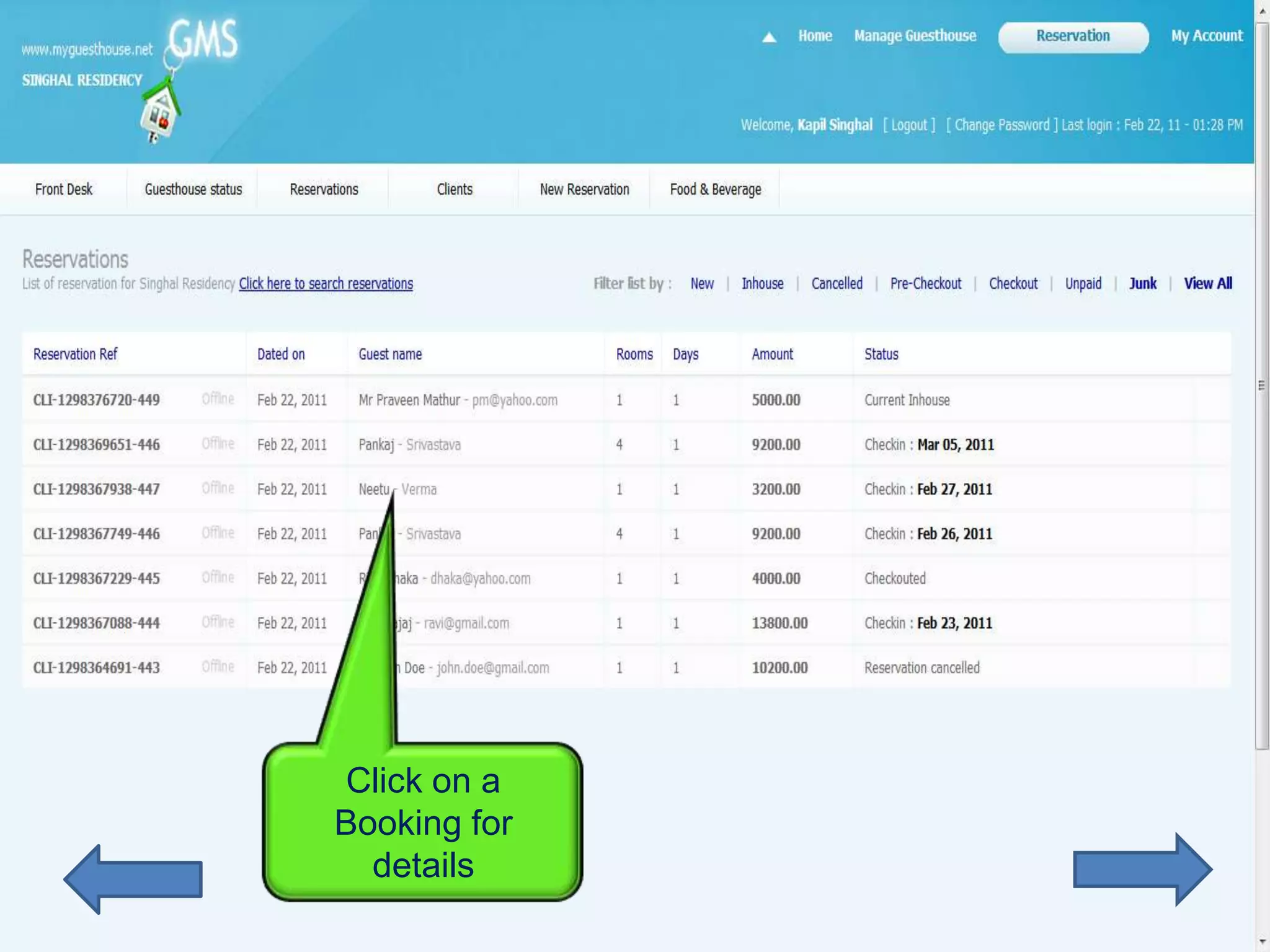
Click on a
Booking for
  details
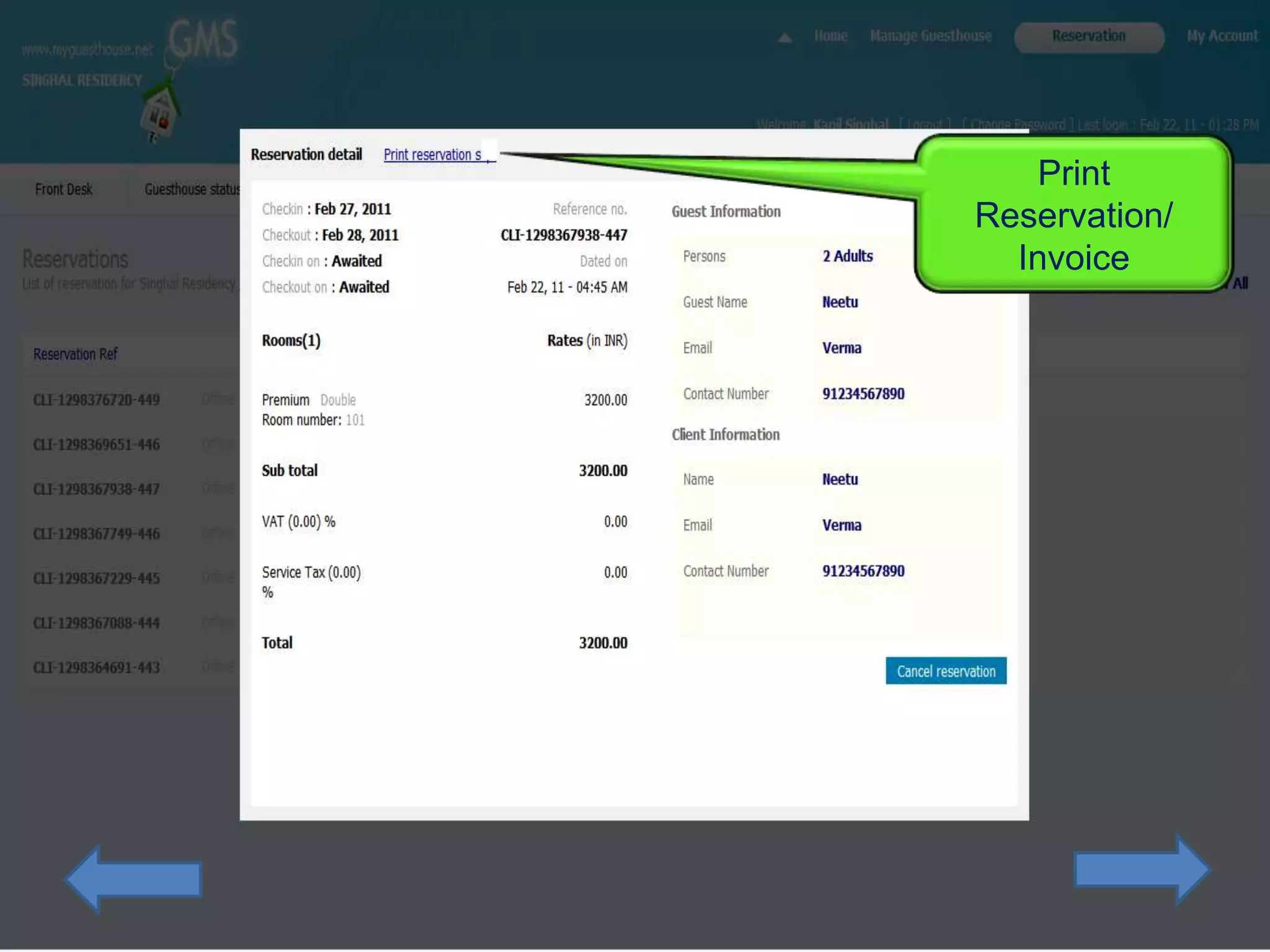
Print
Reservation/
  Invoice
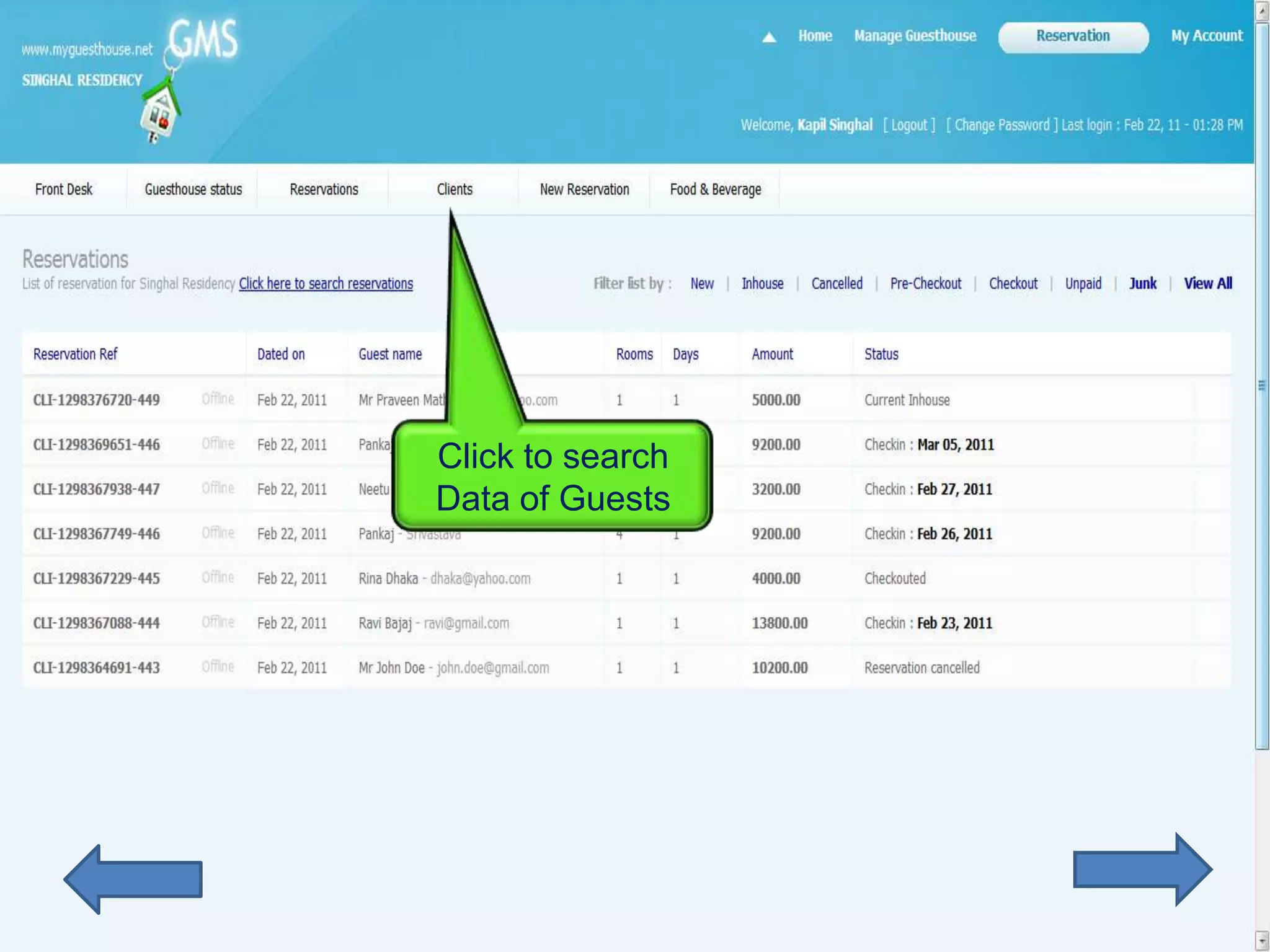
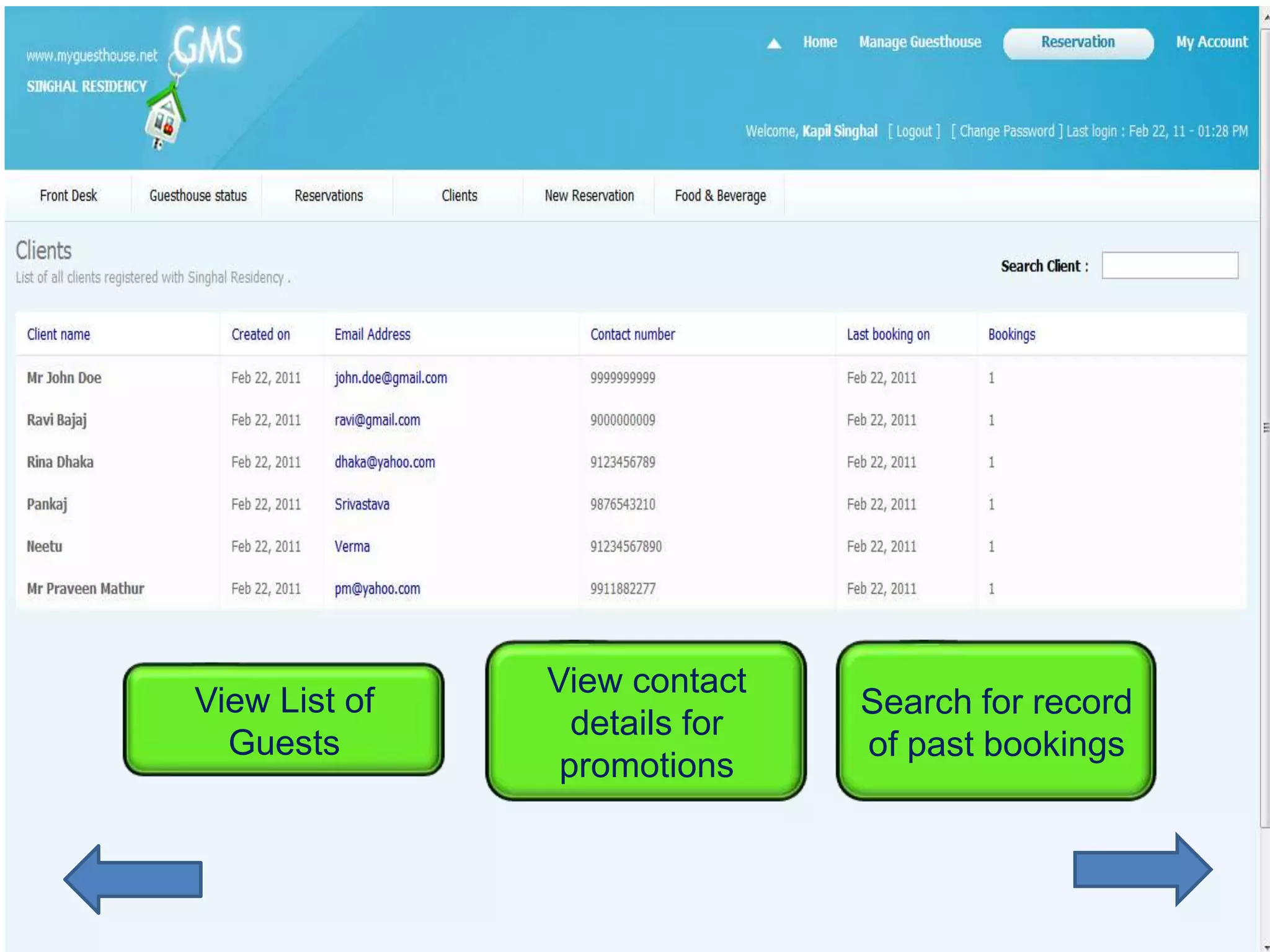
Click to search
Data of Guests
View contact
View List of                   Search for record
                 details for
  Guests                       of past bookings
                promotions
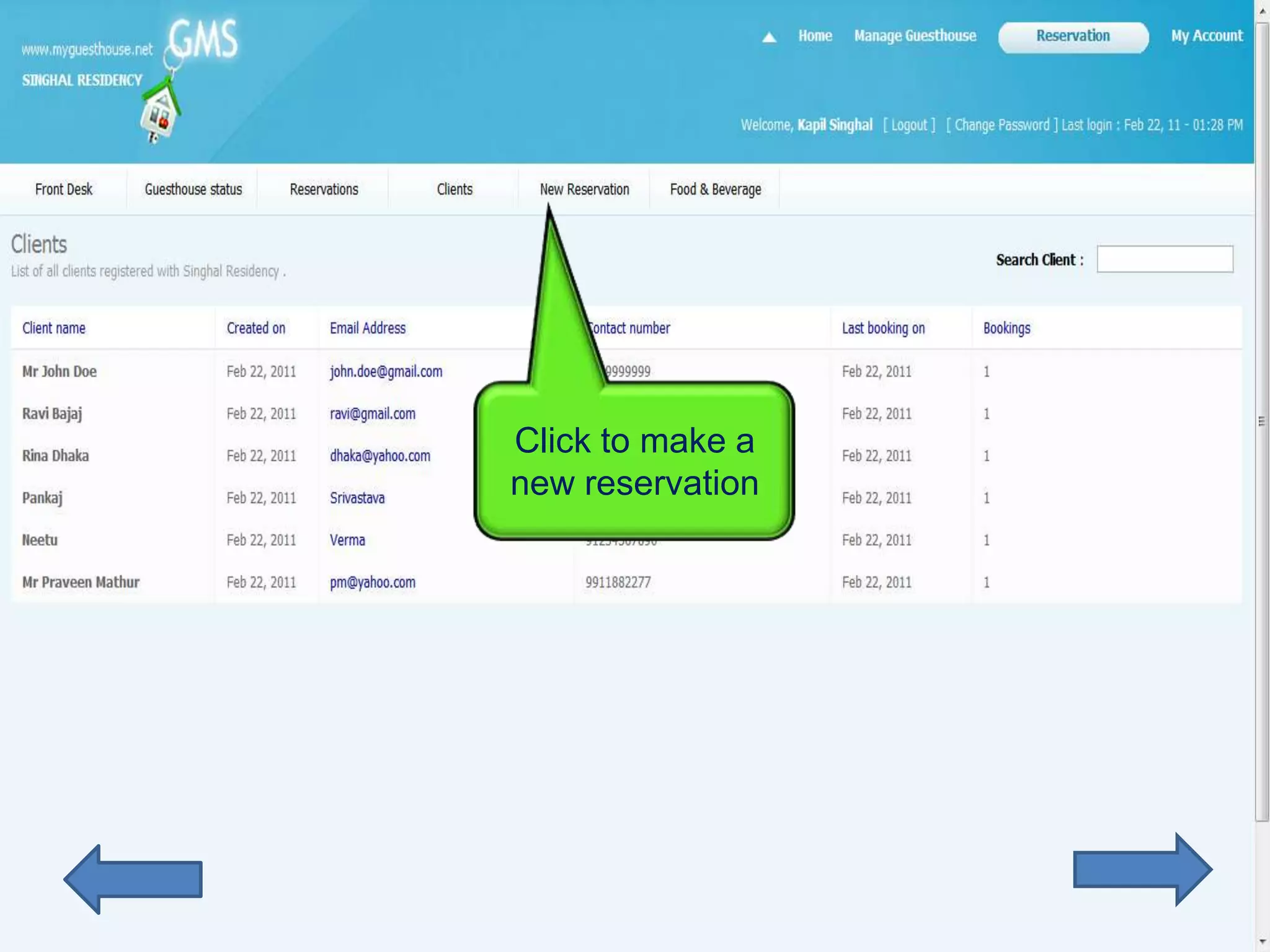
Click to make a
new reservation
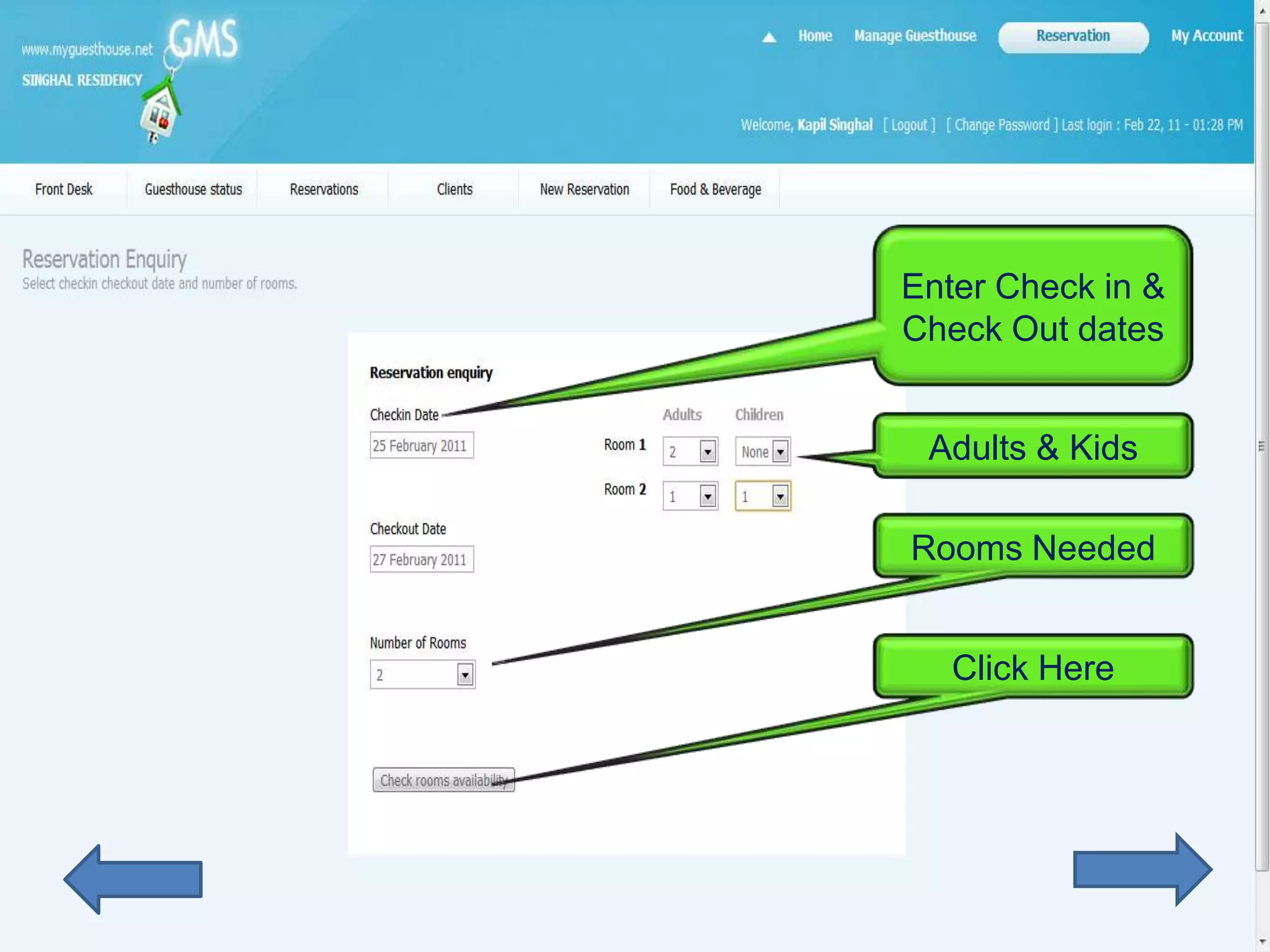
Enter Check in &
Check Out dates


 Adults & Kids

Rooms Needed


   Click Here
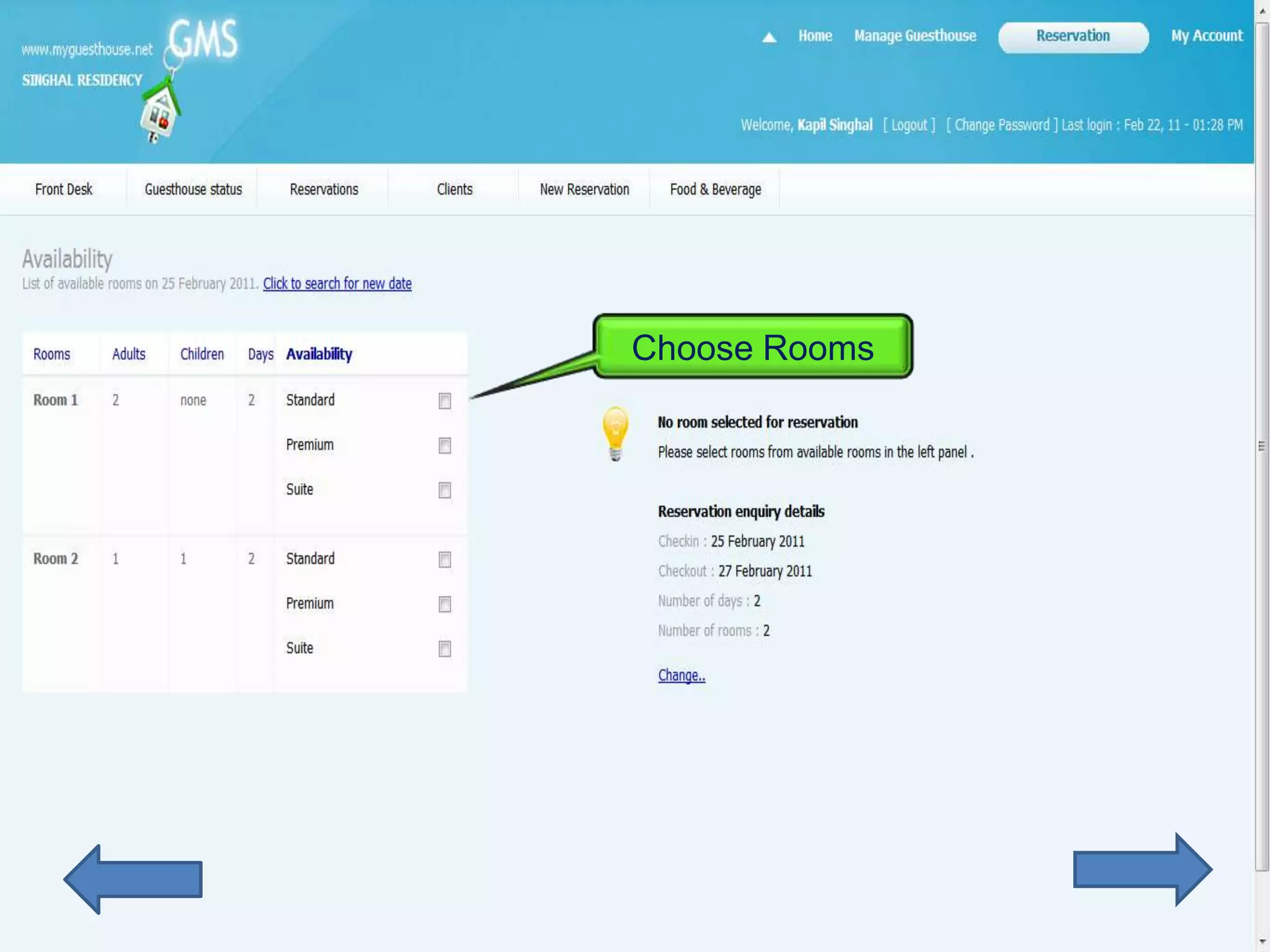
Choose Rooms
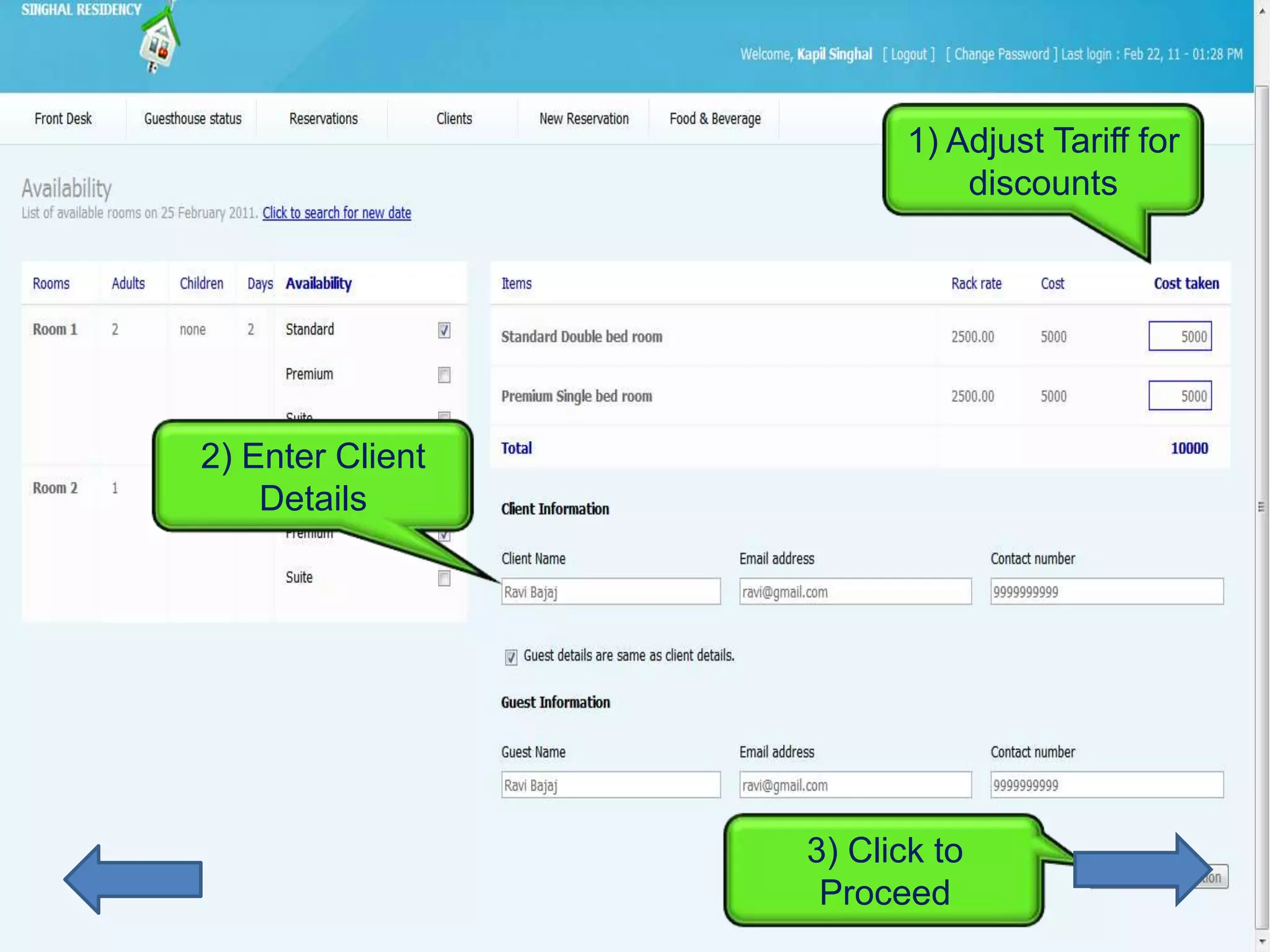
1) Adjust Tariff for
                             discounts


2) Enter Client
    Details


                  3) Click to
                   Proceed
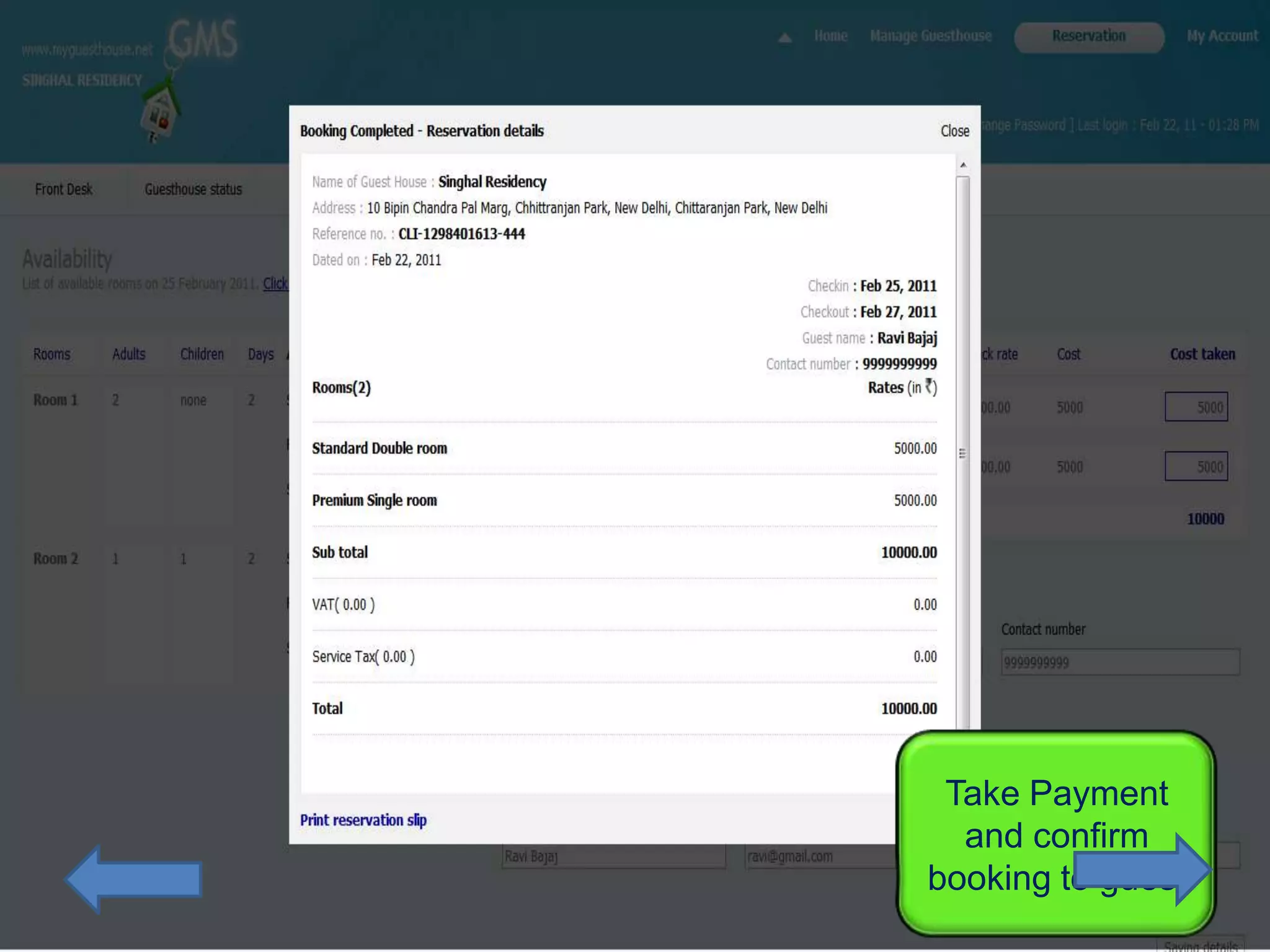
Take Payment
  and confirm
booking to guest
Miscellaneous services &
         Billings
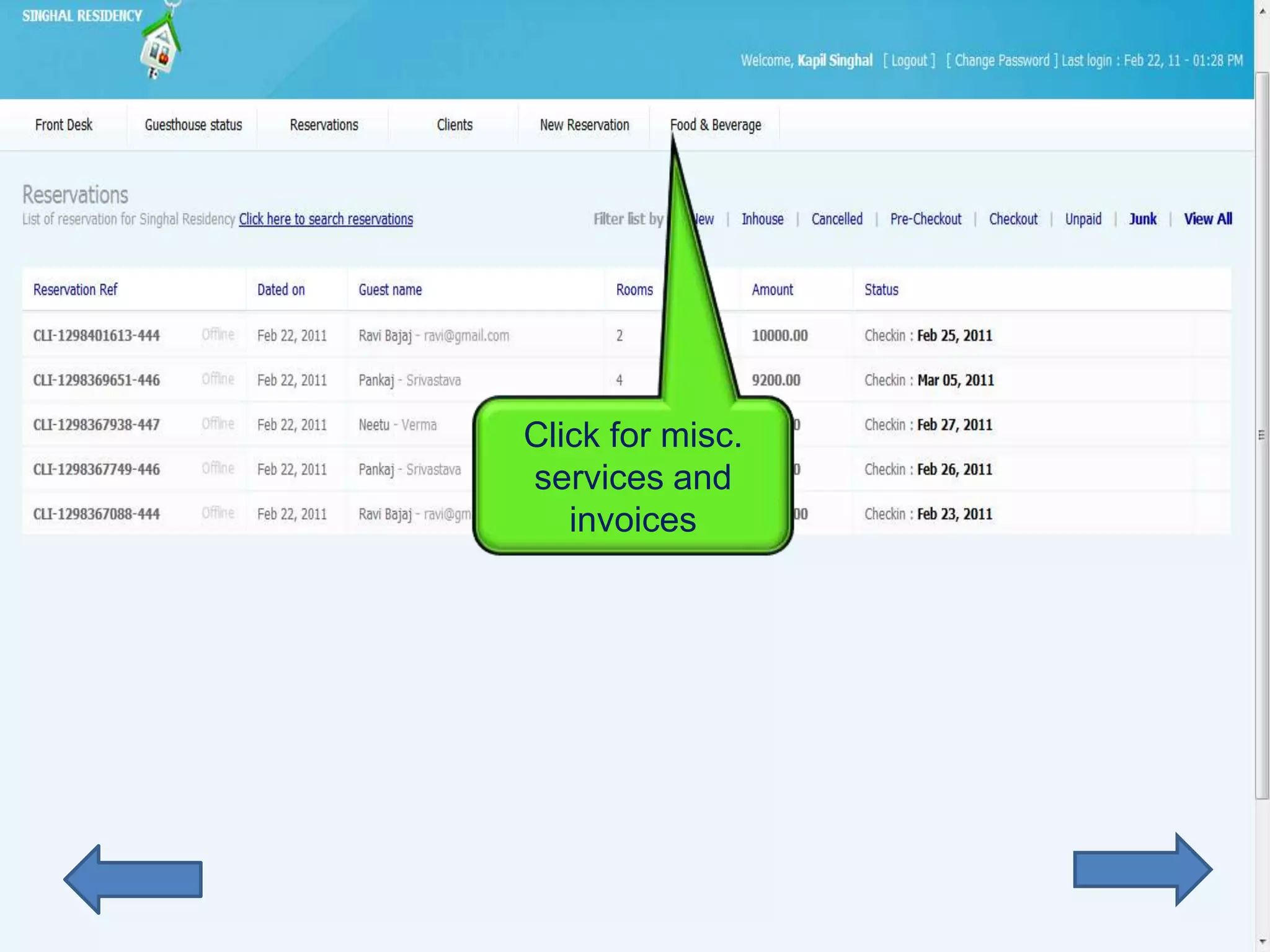
Click for misc.
services and
   invoices
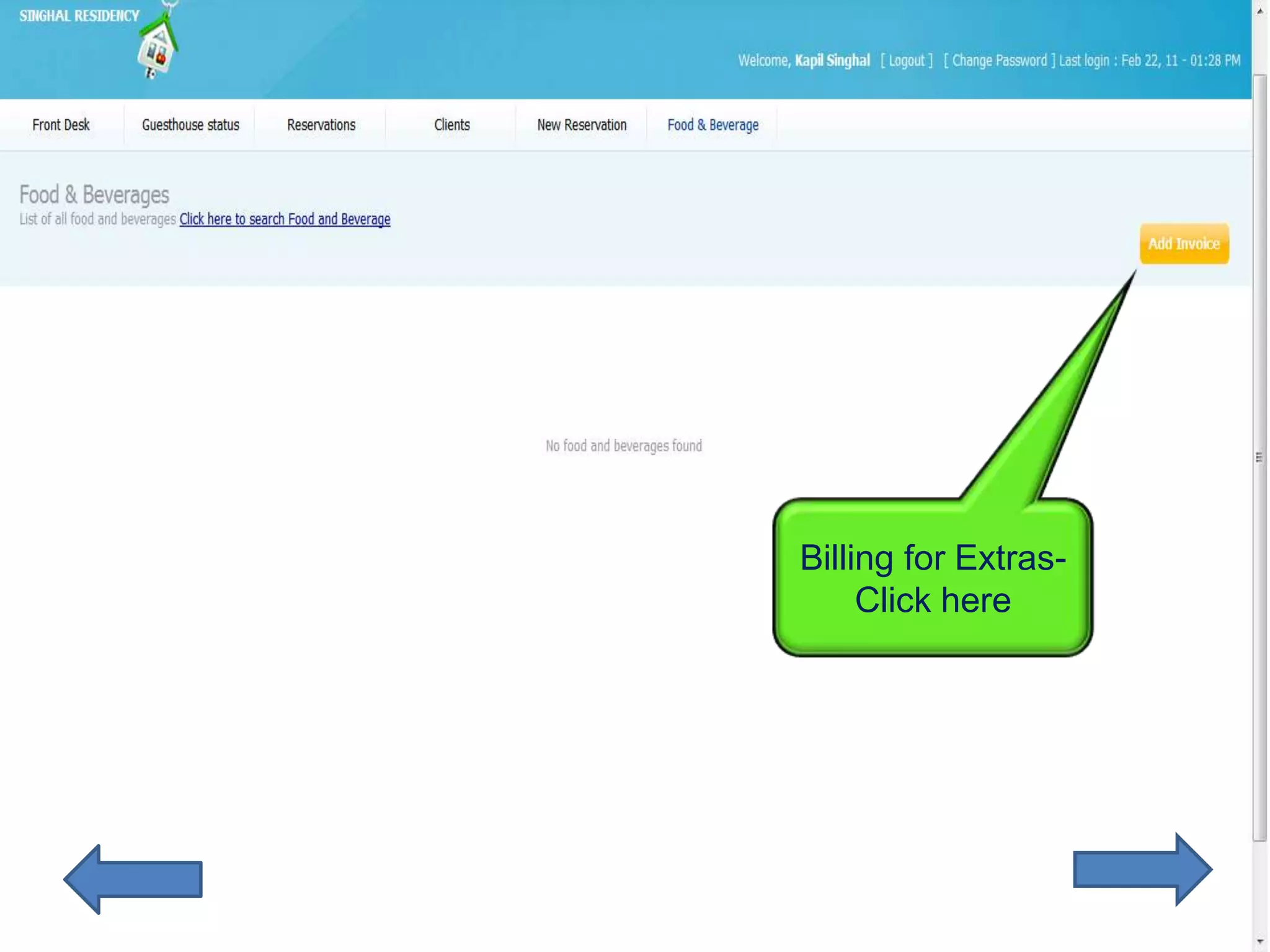
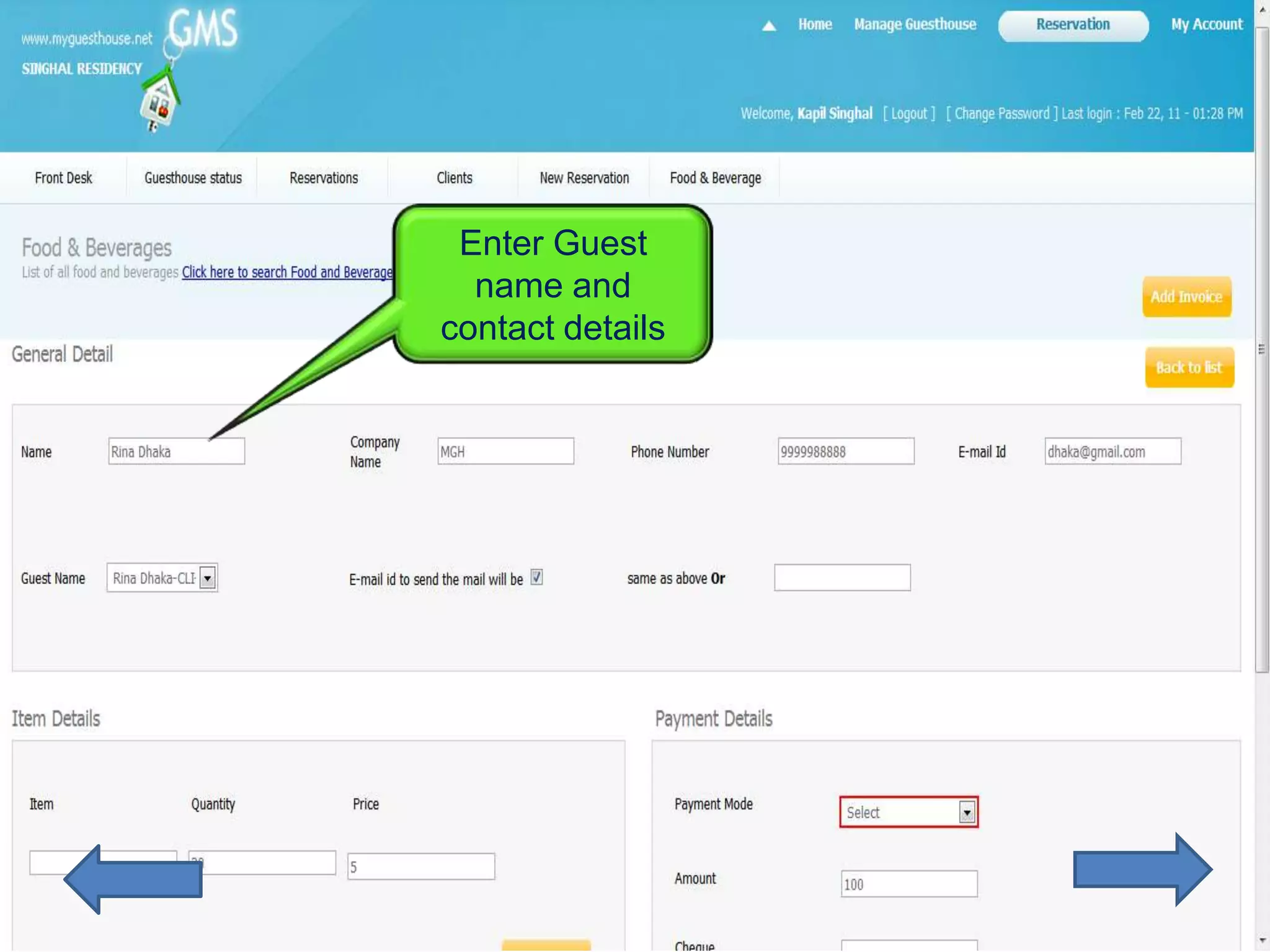
Billing for Extras-
     Click here
Enter Guest
  name and
contact details
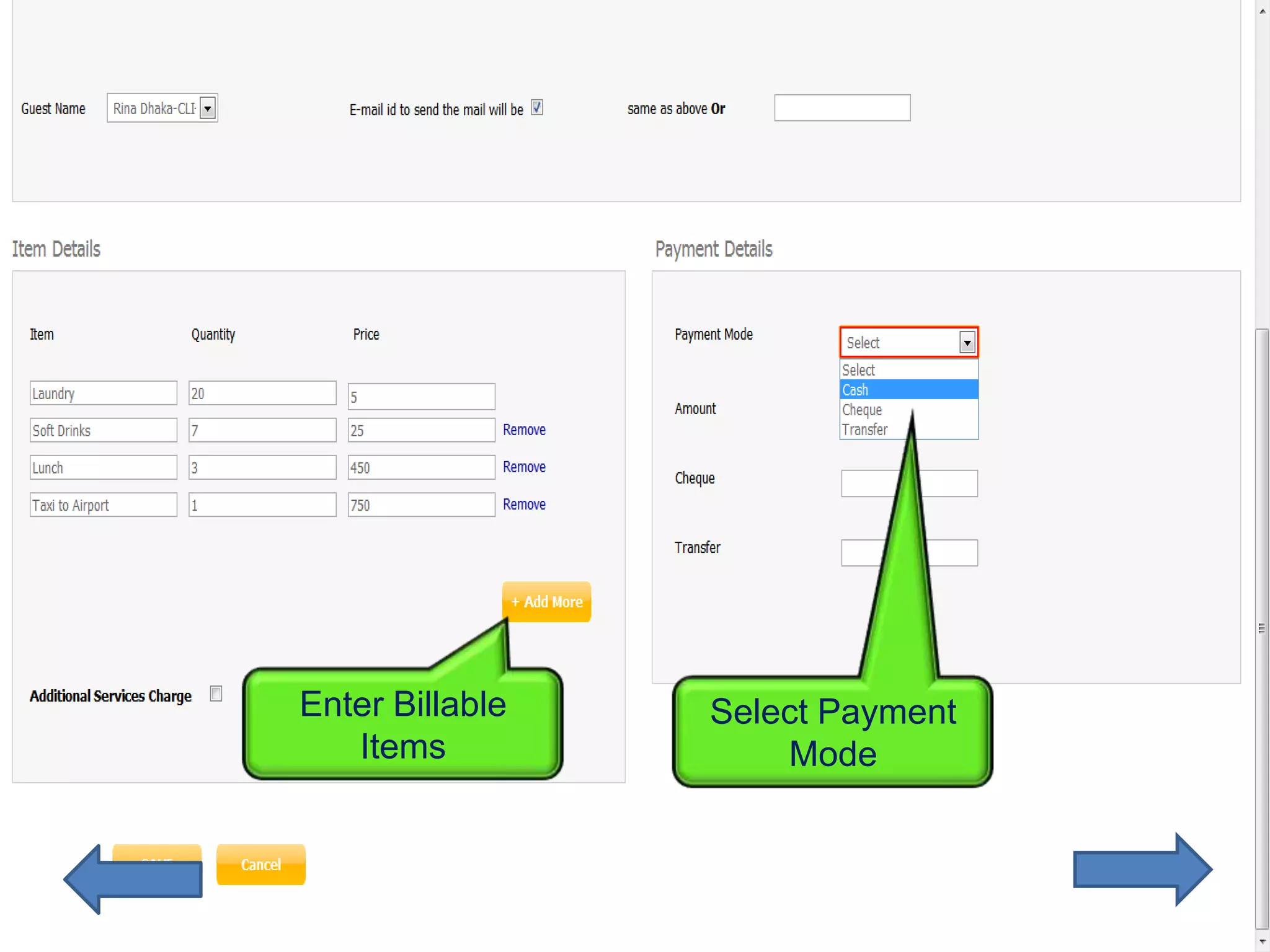
Enter Billable   Select Payment
   Items             Mode
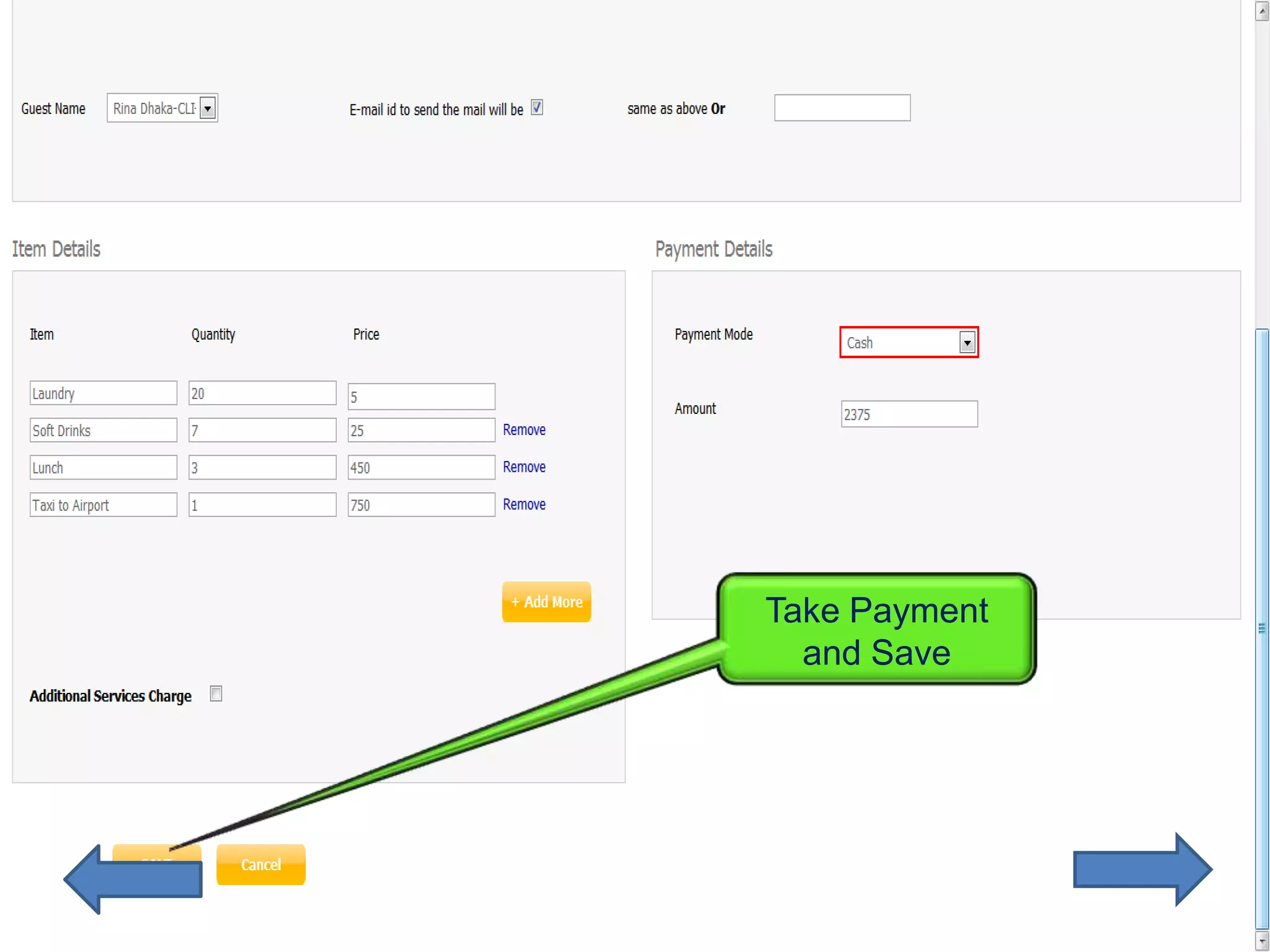
Take Payment
  and Save
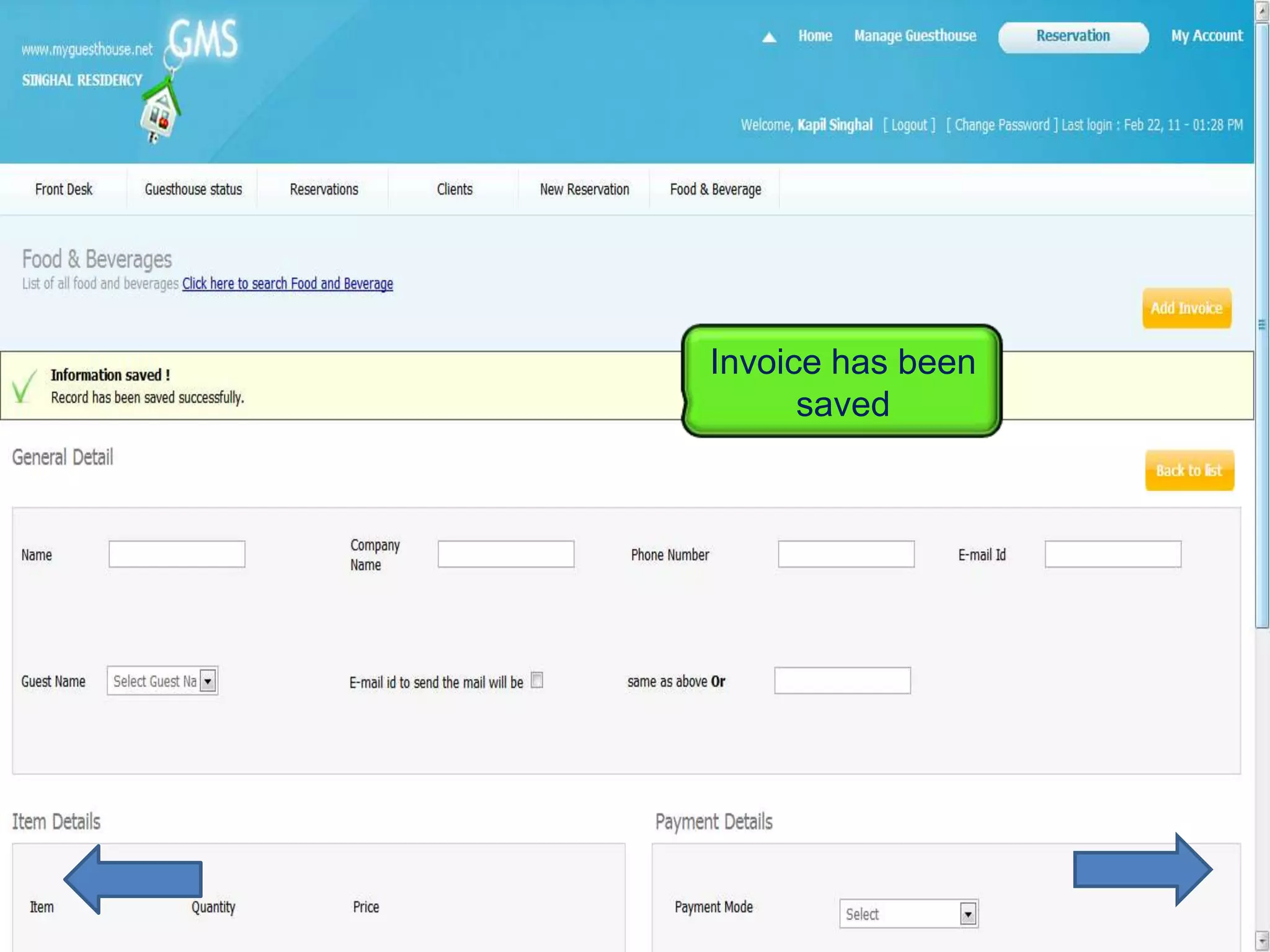
Invoice has been
      saved
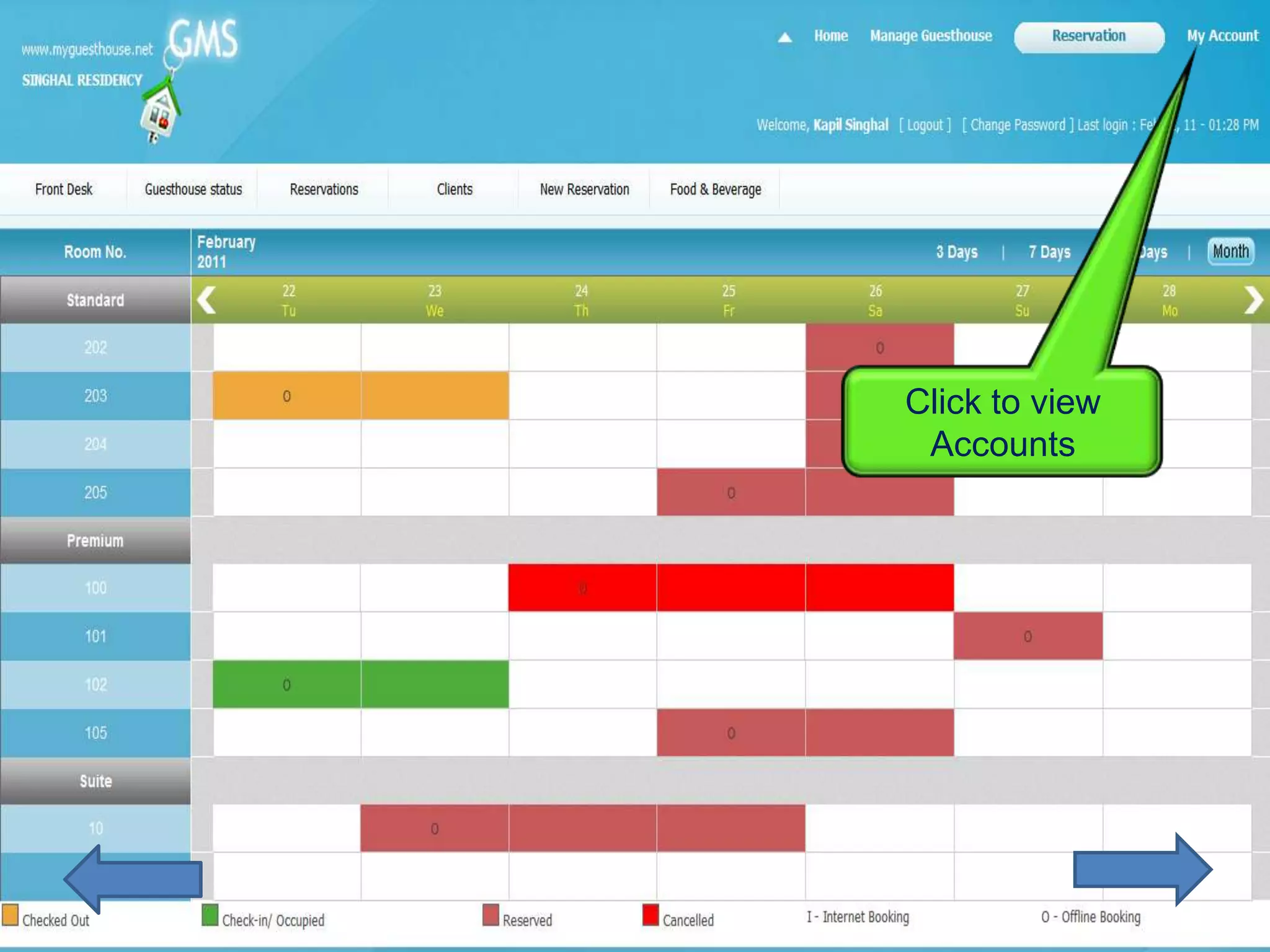
View your Accounts
Click to view
 Accounts
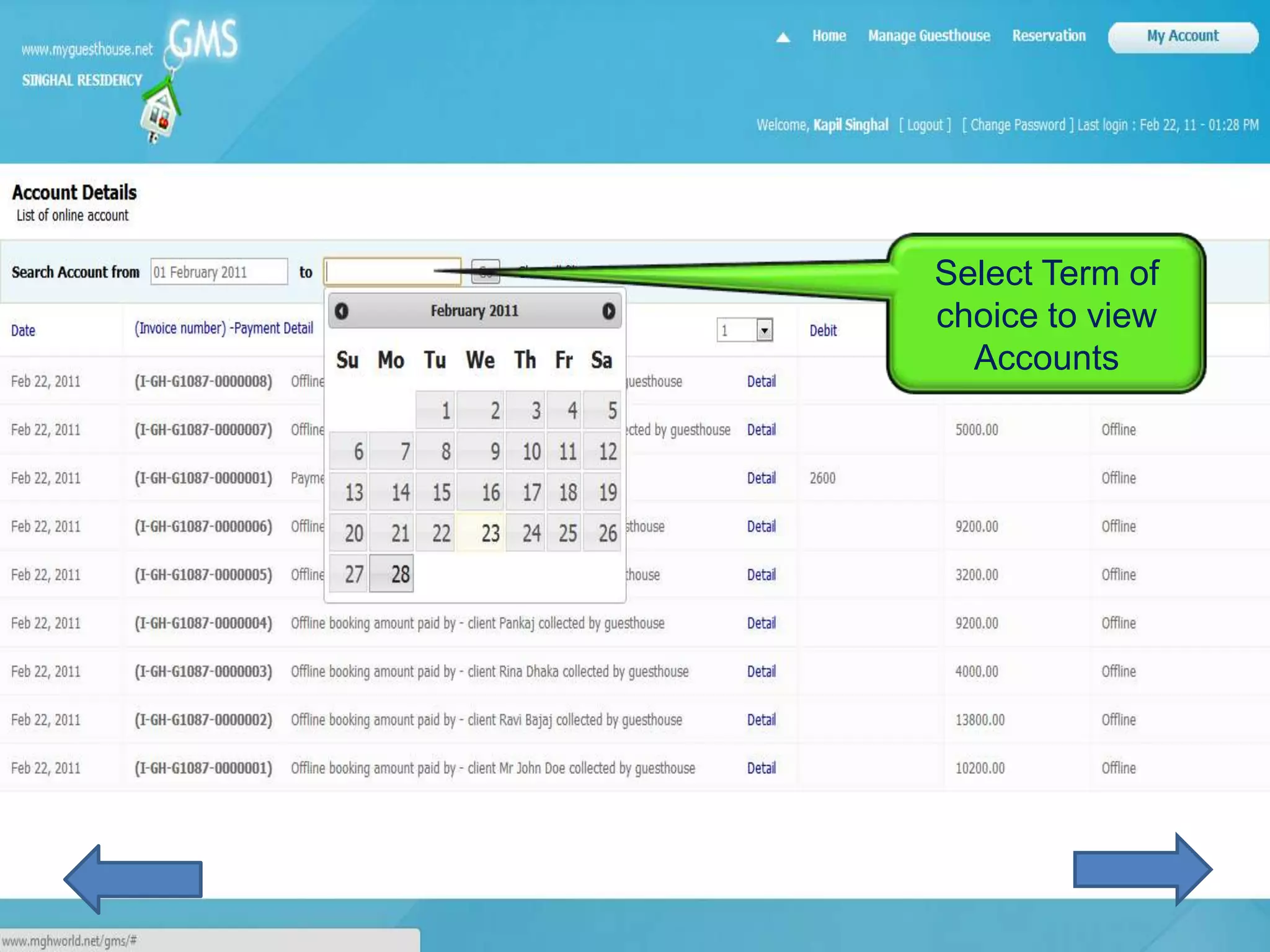
Select Term of
choice to view
  Accounts
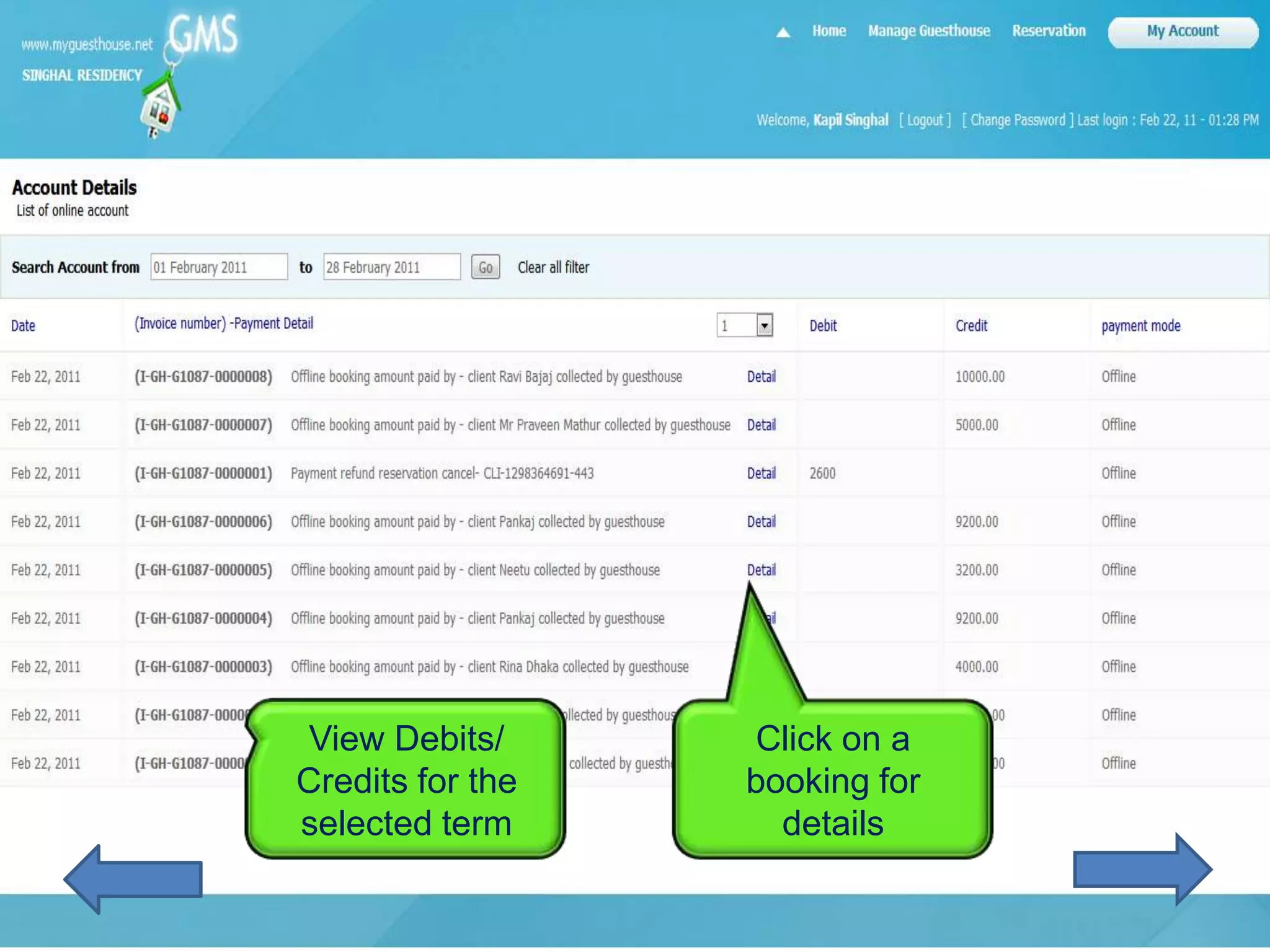
View Debits/      Click on a
Credits for the   booking for
selected term       details
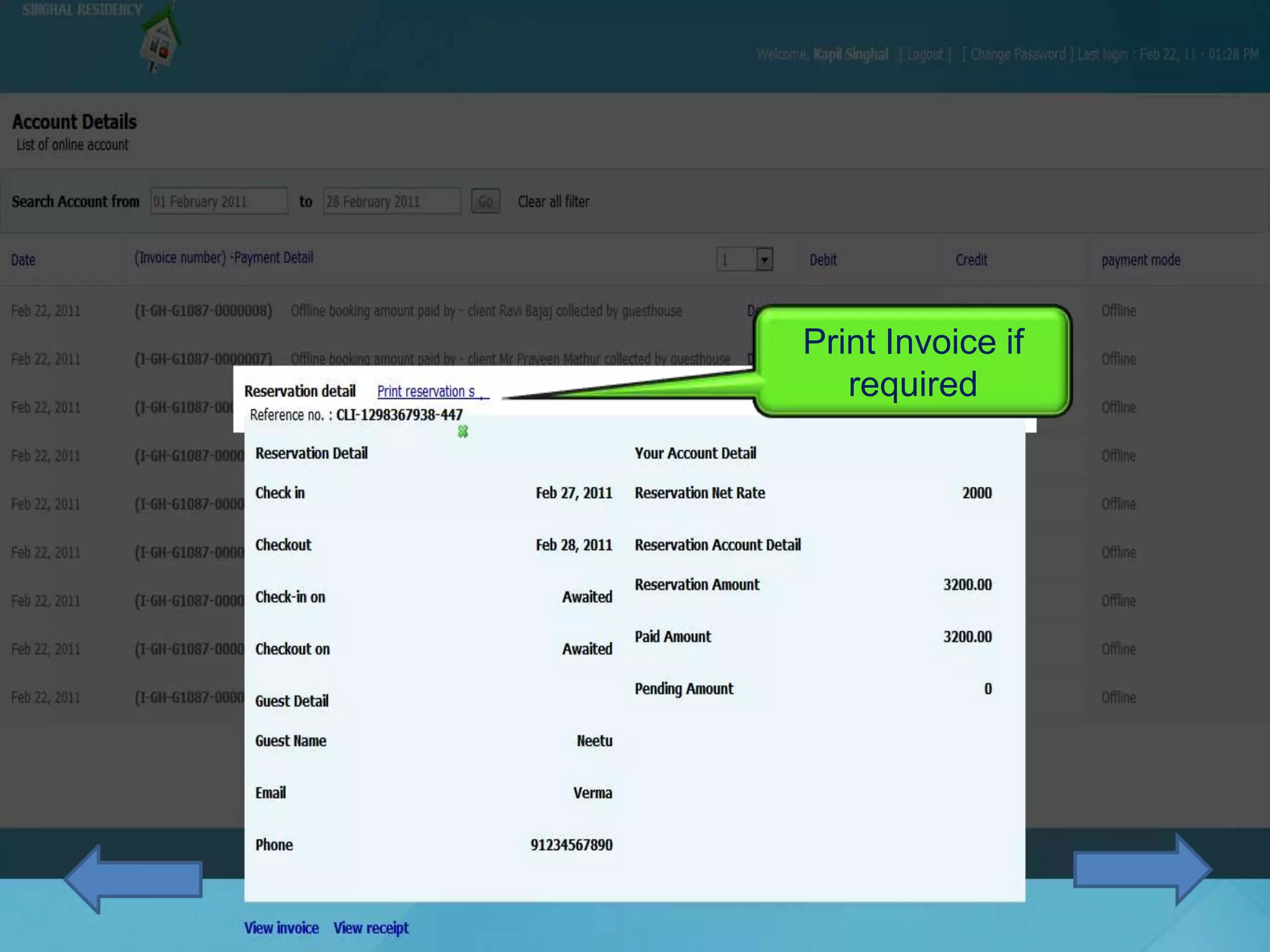
Print Invoice if
   required
Any doubts? Need help?
        Call me on 0 88003 99113
 Or mail me at shilpa.pal@mghworld.net

PMS Reservations Demo