1	
	
Seat Reservation
Version: 1.1.0
Website: http://magenkit.com/magento-plugins/magento-seat-reservation.html
Support: supporto@magenkit.com
2	
	
Index:
	
1. Setup	 	 	 	 	 	 	 	 	 	 	 	 P.3	
2. General	Setting:	 	 	 	 	 	 	 	 	 	 													P.4
	 	 	 	 	
3. Create	the	event	page:	 	 	 	 	 	 	 	 	 	 P.5	
	 	 	 	 	 	 	 	 	 	 	 	 	 	
4. Set	an	Event:	 	 	 	 	 	 	 	 	 	 	 P.7	
4.1) Location	 	 	 	 	 	 	 	 	 	 P.7	
4.2) Event	 	 	 	 	 	 	 	 	 	 	 P.7	
4.2)1. Note:	Event	duplication	 	 	 	 	 	 	 P.7	
4.2)2. Note:	Adding	reservations	 	 	 	 	 	 	 P.8	
4.2)3. Note:	Removing	reservations	 	 	 	 	 	 P.9	
4.3) Ticket	Configuration	 	 	 	 	 	 	 	 	 P.10	
	 	 	 	 	 	 	 	 	 	 	 	 	
5. Frontend	 	 	 	 	 	 	 	 	 	 	 	 P.11	
	 	 	 	 	 	 	 	 	 	 	 	 	 	
6. Listing	of	reservations	and	print		 	 	 	 	 	 	 	 P.12	


Setup
3	
	
	
The	installation	of	the	module	is	very	simple:	
	
1. Go	to	your	Magento	Admin	Panel	and	disable	cache	
2. Unzip	the	package	on	your	computer	
3. Log	in	to	the	Magento	website	via	ftp	
4. Upload	the	folder	"app"	and	"skin”	in	the	root	of	your	Magento	site.		
	
Check	if	module	work:	
	
1. Go	to	your	Magento	Admin	Panel	
2. Go	to	System	→	Configuration	→	Seat	Reservation	
	
If	the	module	doesn’t	work	refresh	the	cache	


If	you	use	a	different	from	default	theme	-	be	sure	to	rename	
app/design/frontend/default/default	folders	to	your	store's	values.
4	
	
General	settings	
	
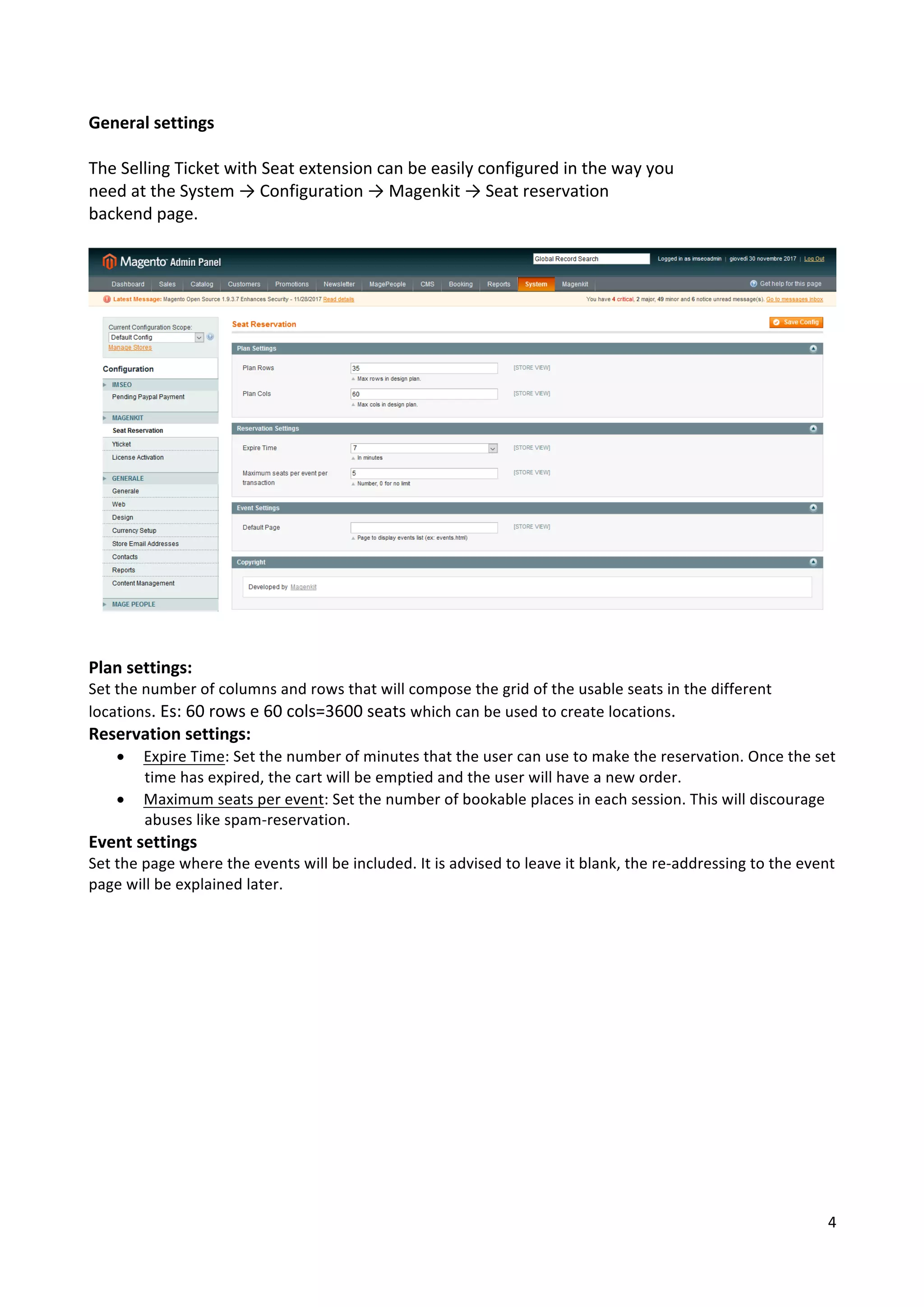
The	Selling	Ticket	with	Seat	extension	can	be	easily	configured	in	the	way	you	
need	at	the	System	→	Configuration	→	Magenkit	→	Seat	reservation	
backend	page.	


Plan	settings:	
Set	the	number	of	columns	and	rows	that	will	compose	the	grid	of	the	usable	seats	in	the	different	
locations.	Es:	60	rows	e	60	cols=3600	seats	which	can	be	used	to	create	locations.	
Reservation	settings:	
• Expire	Time:	Set	the	number	of	minutes	that	the	user	can	use	to	make	the	reservation.	Once	the	set	
time	has	expired,	the	cart	will	be	emptied	and	the	user	will	have	a	new	order.	
• Maximum	seats	per	event:	Set	the	number	of	bookable	places	in	each	session.	This	will	discourage	
abuses	like	spam-reservation.	
Event	settings	
Set	the	page	where	the	events	will	be	included.	It	is	advised	to	leave	it	blank,	the	re-addressing	to	the	event	
page	will	be	explained	later.
5	
	
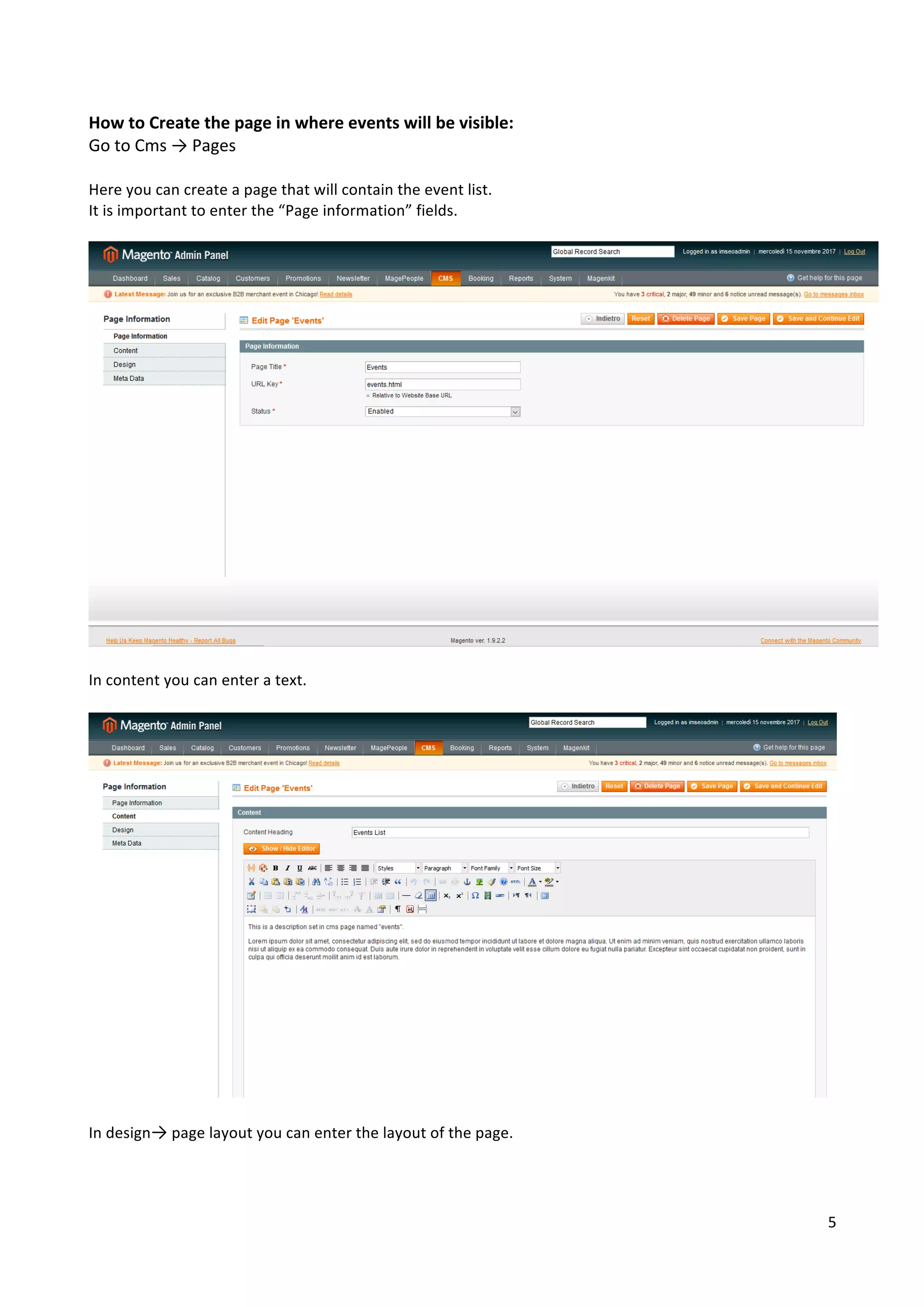
How	to	Create	the	page	in	where	events	will	be	visible:	
Go	to	Cms	→	Pages	
	
Here	you	can	create	a	page	that	will	contain	the	event	list.	
It	is	important	to	enter	the	“Page	information”	fields.	


In	content	you	can	enter	a	text.	


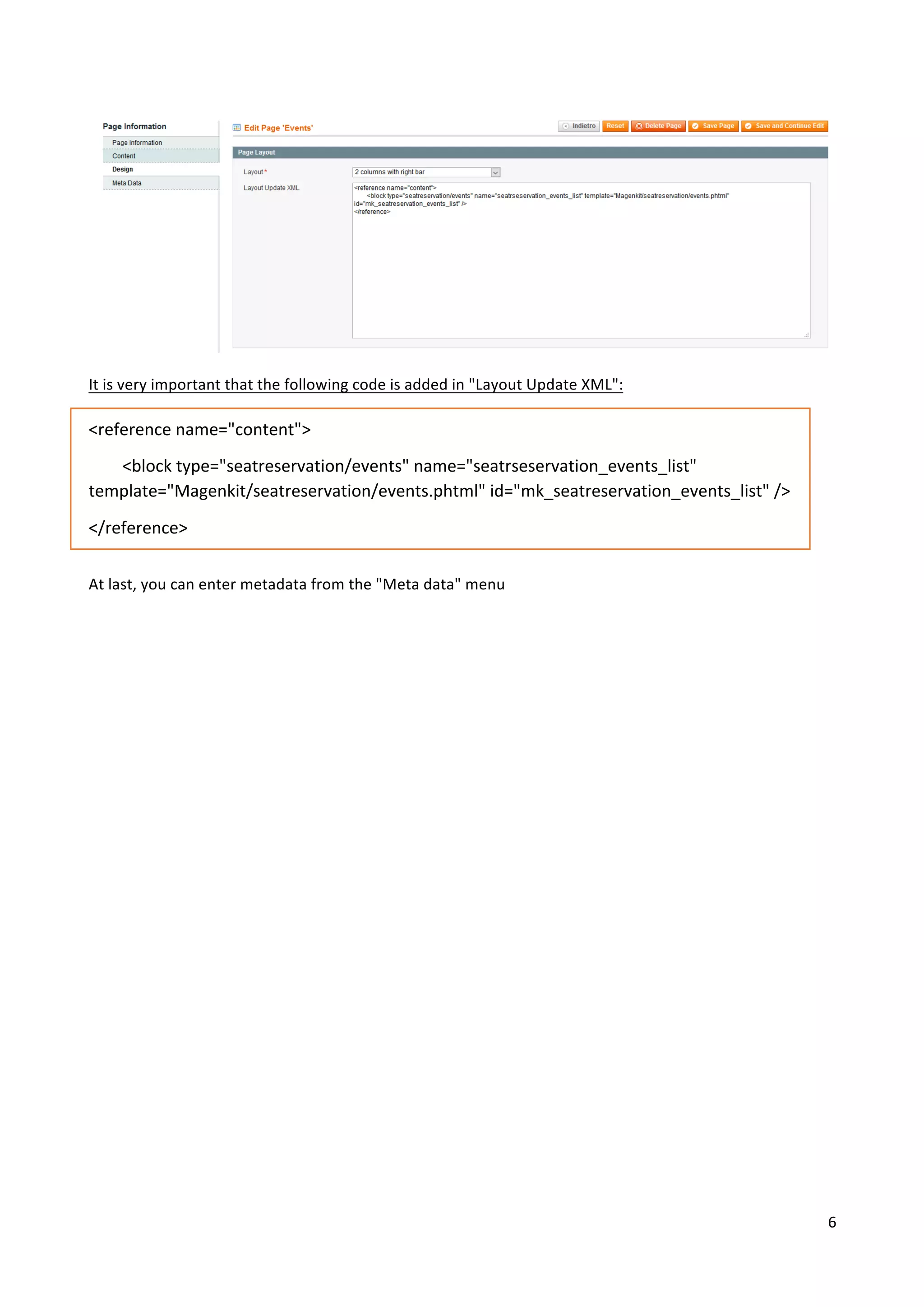
In	design→	page	layout	you	can	enter	the	layout	of	the	page.
6	


It	is	very	important	that	the	following	code	is	added	in	"Layout	Update	XML":	
	
<reference	name="content">	
								<block	type="seatreservation/events"	name="seatrseservation_events_list"	
template="Magenkit/seatreservation/events.phtml"	id="mk_seatreservation_events_list"	/>	
</reference>	
	
At	last,	you	can	enter	metadata	from	the	"Meta	data"	menu
7	
	
How	to	set	an	Event:	
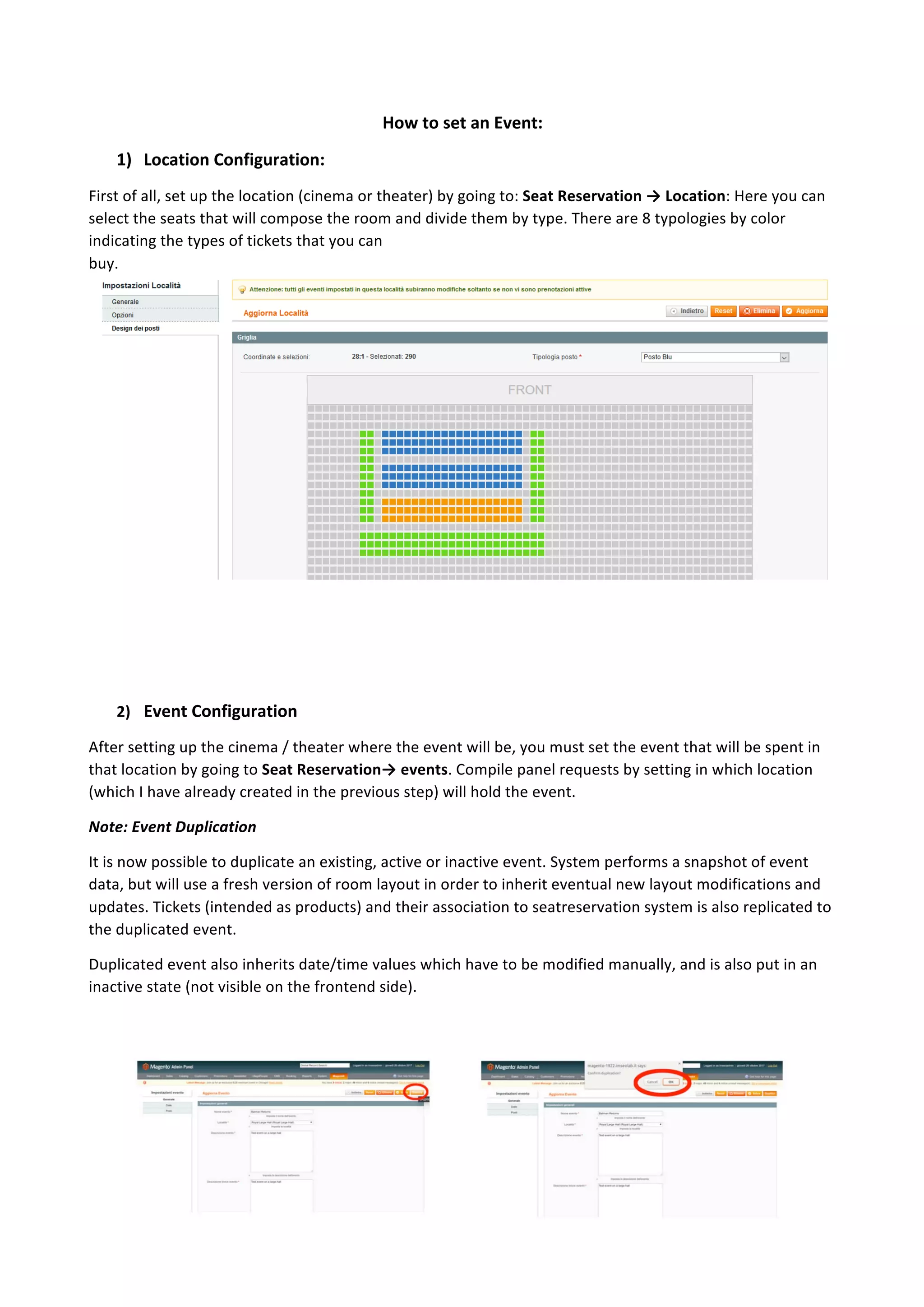
1) Location	Configuration:	
First	of	all,	set	up	the	location	(cinema	or	theater)	by	going	to:	Seat	Reservation	→	Location:	Here	you	can	
select	the	seats	that	will	compose	the	room	and	divide	them	by	type.	There	are	8	typologies	by	color	
indicating	the	types	of	tickets	that	you	can	
buy.


2) Event	Configuration	
After	setting	up	the	cinema	/	theater	where	the	event	will	be,	you	must	set	the	event	that	will	be	spent	in	
that	location	by	going	to	Seat	Reservation→	events.	Compile	panel	requests	by	setting	in	which	location	
(which	I	have	already	created	in	the	previous	step)	will	hold	the	event.	
Note:	Event	Duplication	
It	is	now	possible	to	duplicate	an	existing,	active	or	inactive	event.	System	performs	a	snapshot	of	event	
data,	but	will	use	a	fresh	version	of	room	layout	in	order	to	inherit	eventual	new	layout	modifications	and	
updates.	Tickets	(intended	as	products)	and	their	association	to	seatreservation	system	is	also	replicated	to	
the	duplicated	event.	
Duplicated	event	also	inherits	date/time	values	which	have	to	be	modified	manually,	and	is	also	put	in	an	
inactive	state	(not	visible	on	the	frontend	side).
8	
	
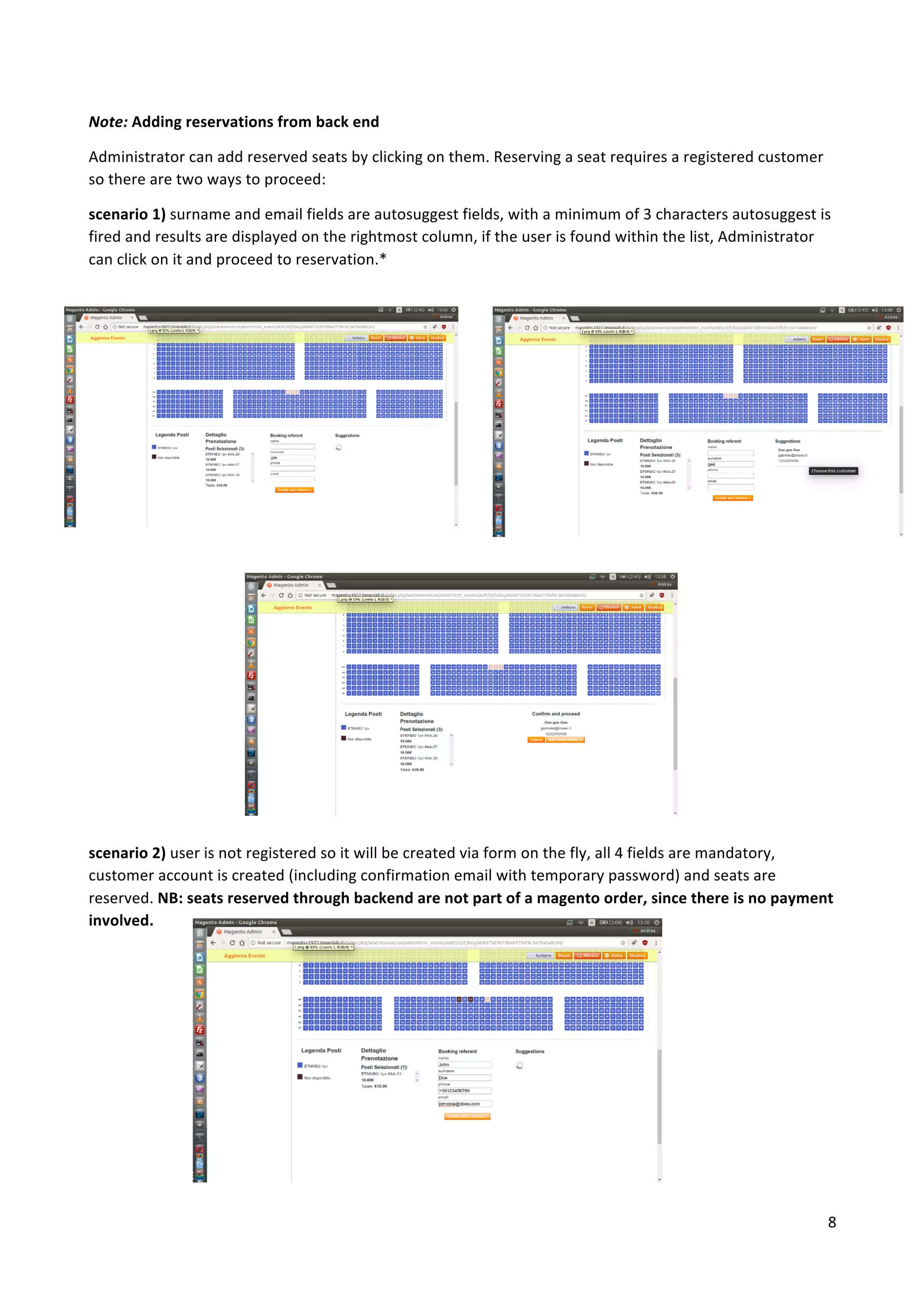
Note:	Adding	reservations	from	back	end	
Administrator	can	add	reserved	seats	by	clicking	on	them.	Reserving	a	seat	requires	a	registered	customer	
so	there	are	two	ways	to	proceed:	
scenario	1)	surname	and	email	fields	are	autosuggest	fields,	with	a	minimum	of	3	characters	autosuggest	is	
fired	and	results	are	displayed	on	the	rightmost	column,	if	the	user	is	found	within	the	list,	Administrator	
can	click	on	it	and	proceed	to	reservation.*	


scenario	2)	user	is	not	registered	so	it	will	be	created	via	form	on	the	fly,	all	4	fields	are	mandatory,	
customer	account	is	created	(including	confirmation	email	with	temporary	password)	and	seats	are	
reserved.	NB:	seats	reserved	through	backend	are	not	part	of	a	magento	order,	since	there	is	no	payment	
involved.
9	
	
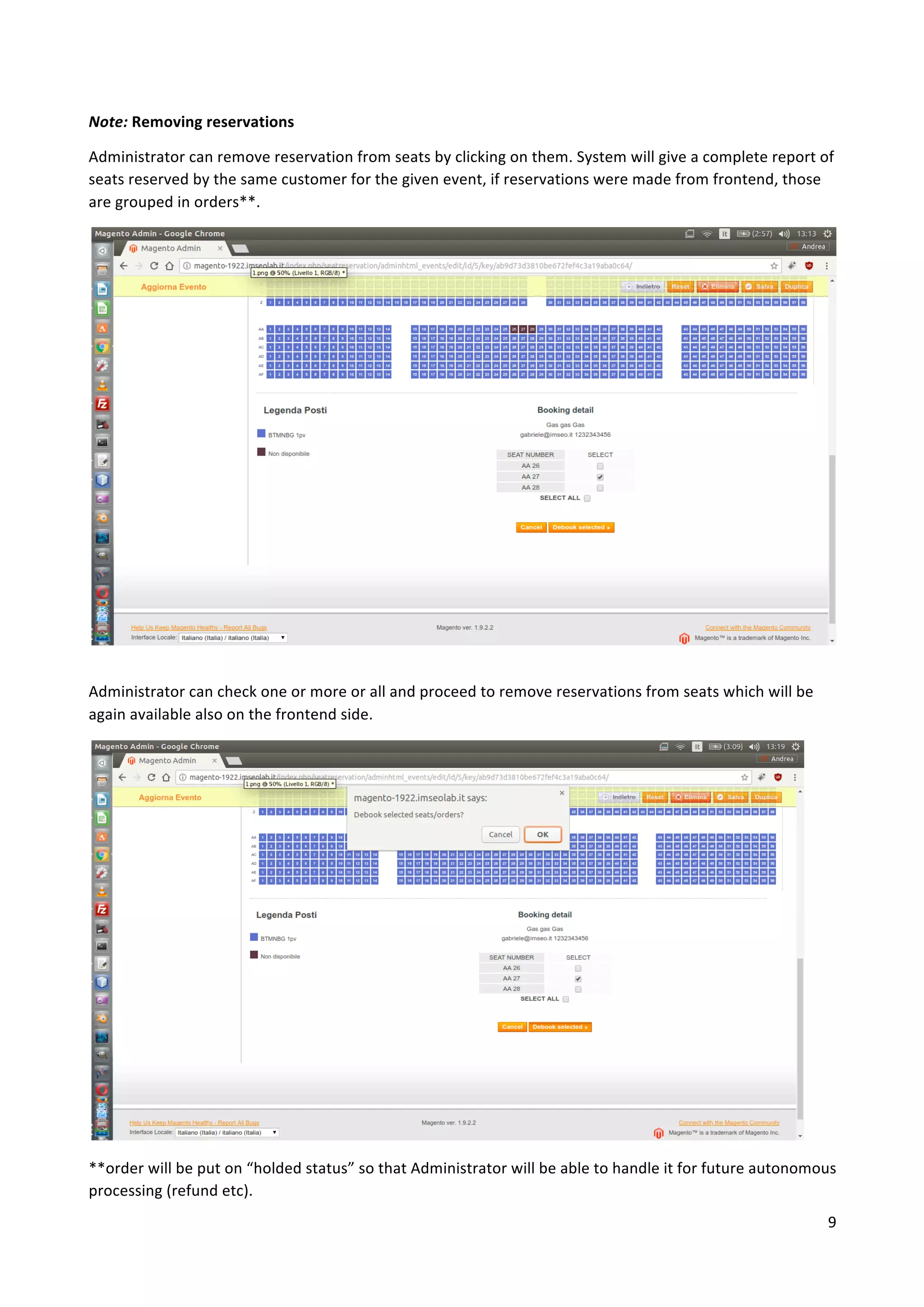
Note:	Removing	reservations		
Administrator	can	remove	reservation	from	seats	by	clicking	on	them.	System	will	give	a	complete	report	of	
seats	reserved	by	the	same	customer	for	the	given	event,	if	reservations	were	made	from	frontend,	those	
are	grouped	in	orders**.	
	
Administrator	can	check	one	or	more	or	all	and	proceed	to	remove	reservations	from	seats	which	will	be	
again	available	also	on	the	frontend	side.	


**order	will	be	put	on	“holded	status”	so	that	Administrator	will	be	able	to	handle	it	for	future	autonomous	
processing	(refund	etc).
10	
	
3) Ticket	(Product)	Configuration	
	
To	configure	tickets	for	sale	must	proceed	in	this	way:	
	
Catalogo	→	manage	product:	qui	creo	i	prodotti	che	sarebbero	i	tipi	di	biglietto	per	l’evento.	
	
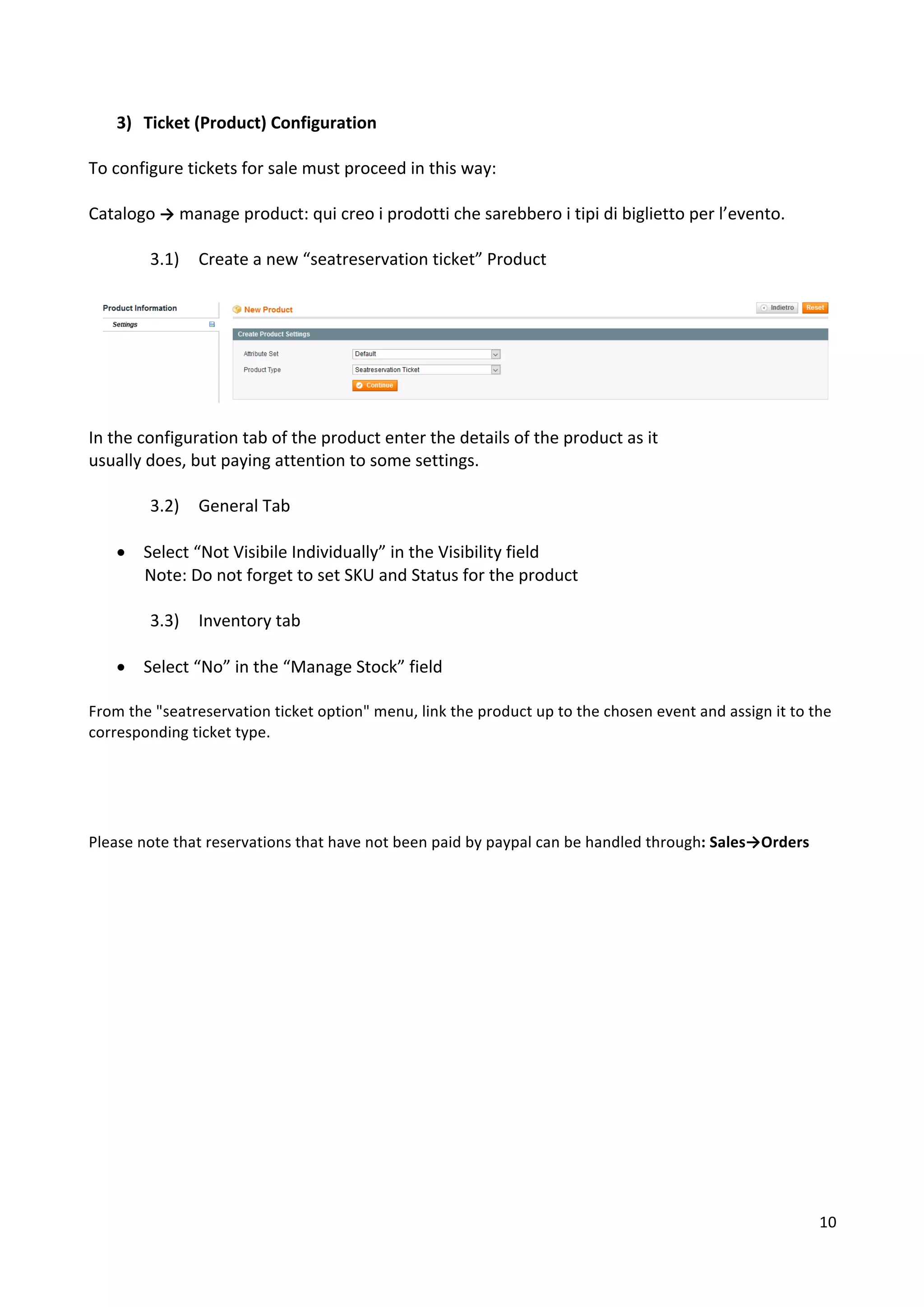
3.1) Create	a	new	“seatreservation	ticket”	Product	


In	the	configuration	tab	of	the	product	enter	the	details	of	the	product	as	it	
usually	does,	but	paying	attention	to	some	settings.	
	
3.2) General	Tab	
	
• Select	“Not	Visibile	Individually”	in	the	Visibility	field	
Note:	Do	not	forget	to	set	SKU	and	Status	for	the	product	
	
3.3) Inventory	tab	
	
• Select	“No”	in	the	“Manage	Stock”	field	
	
From	the	"seatreservation	ticket	option"	menu,	link	the	product	up	to	the	chosen	event	and	assign	it	to	the	
corresponding	ticket	type.		


Please	note	that	reservations	that	have	not	been	paid	by	paypal	can	be	handled	through:	Sales→Orders
11	
	
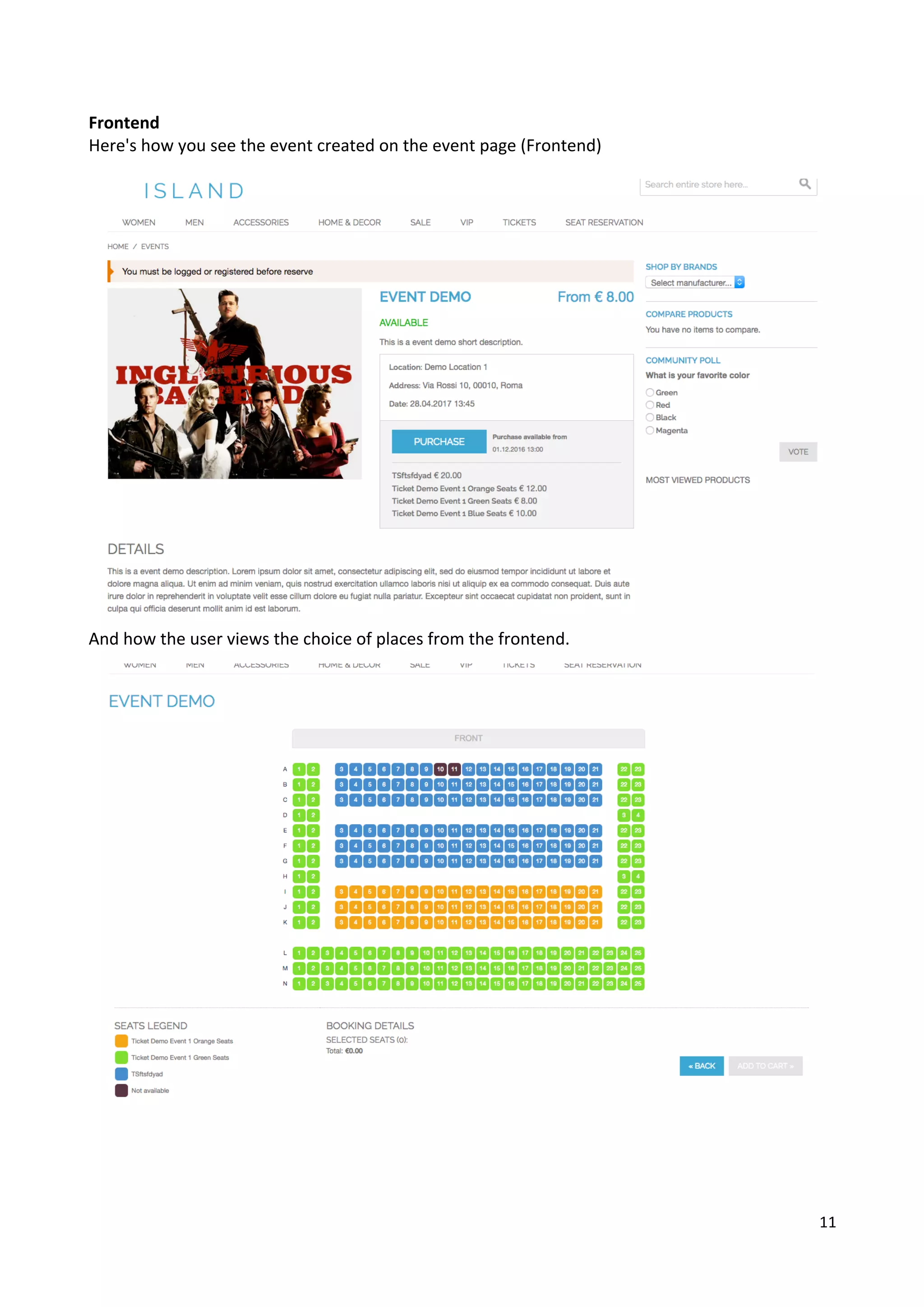
Frontend	
Here's	how	you	see	the	event	created	on	the	event	page	(Frontend)	
	
	
And	how	the	user	views	the	choice	of	places	from	the	frontend.
12	
	
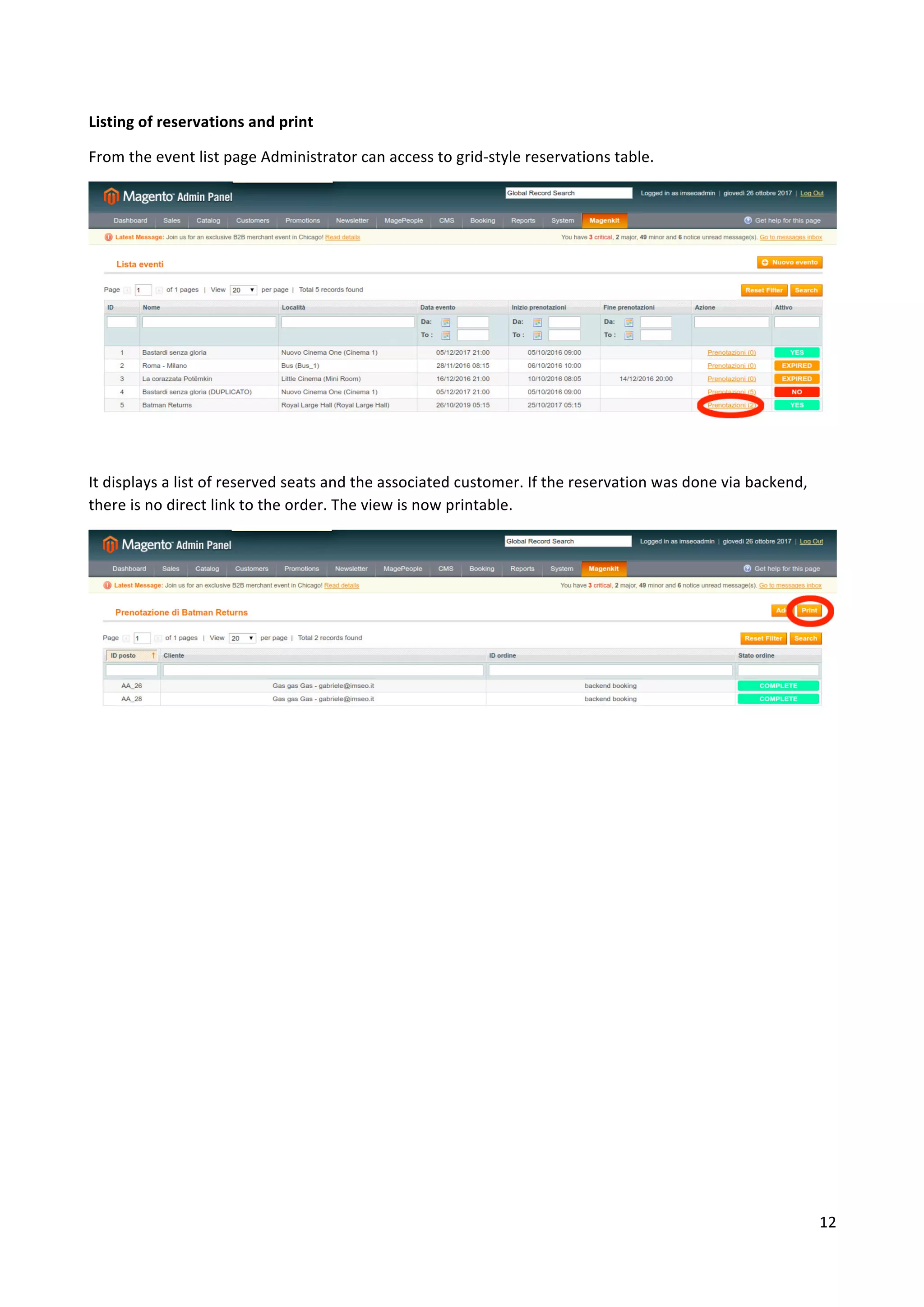
Listing	of	reservations	and	print	
From	the	event	list	page	Administrator	can	access	to	grid-style	reservations	table.	
	
It	displays	a	list	of	reserved	seats	and	the	associated	customer.	If	the	reservation	was	done	via	backend,	
there	is	no	direct	link	to	the	order.	The	view	is	now	printable.

Seat reservation setup and configuration