Download to read offline

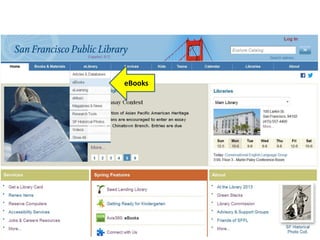
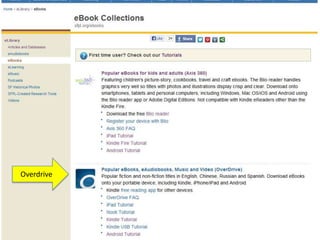
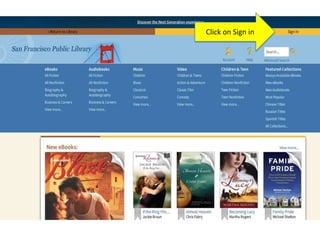
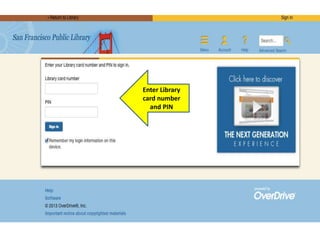
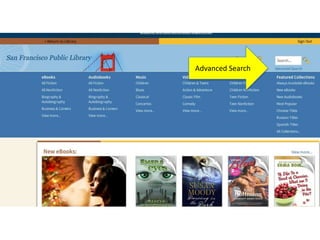
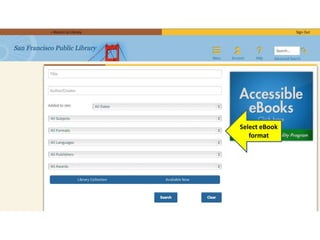
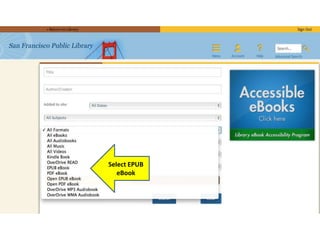
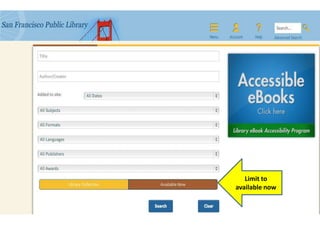
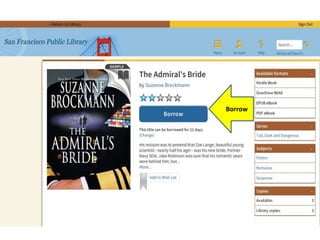
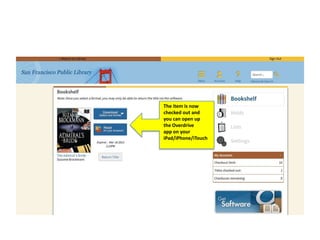
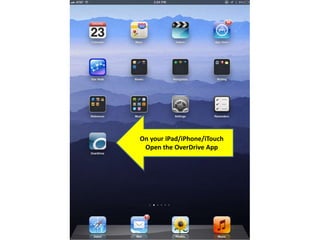
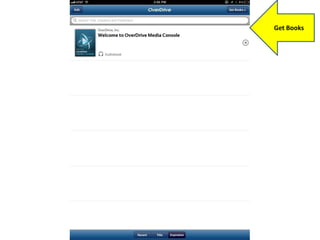
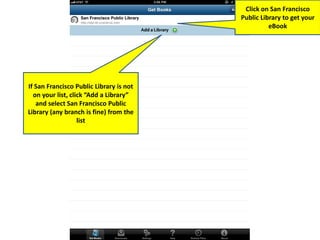
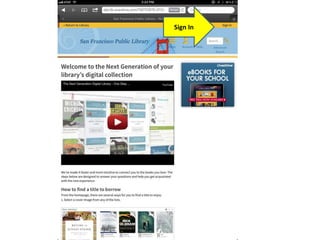
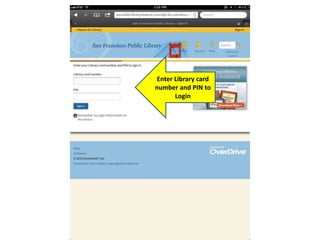
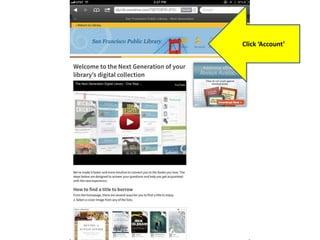
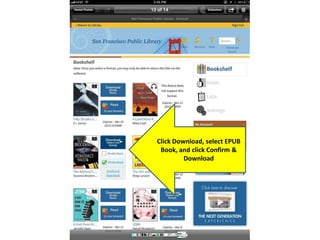

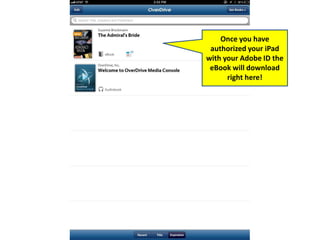
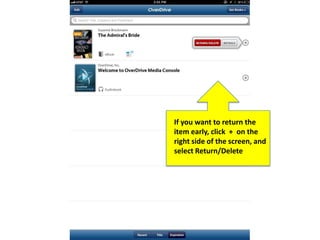

This document provides instructions for borrowing and downloading eBooks from the Overdrive app on an iPad, iPhone, or iTouch. It outlines the steps to sign into the Overdrive app and San Francisco Public Library using a library card number and PIN, search for and borrow available eBooks in EPUB format, and download checked out eBooks to read on the mobile device. The instructions also explain how to return borrowed items early through the Overdrive app.


