Play PC Games on VR Headset. Enjoy Virtual Reality at home on your smartphone.Play PC Games on VR Headset. Steps to enjoy PC VR using smartphone. Lot more elitcan.com
Introduction
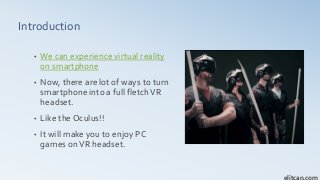
• We canexperience virtual reality
on smartphone
• Now, there are lot of ways to turn
smartphone into a full fletchVR
headset.
• Like the Oculus!!
• It will make you to enjoy PC
games onVR headset.
elitcan.com
3.
Requirements of PCVR
•Smartphone with gyro
• VR kit
• PC*
• Some Software
• PC Game
• 5 GHz router or 6 Ft long USB Cable (any one
is necessary)
• Headphone (optional)
• Controller or Game-pad (like always
recommended but still optional)
elitcan.com
4.
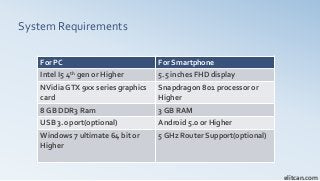
System Requirements
elitcan.com
For PCFor Smartphone
Intel I5 4th gen or Higher 5.5 inches FHD display
NVidia GTX 9xx series graphics
card
Snapdragon 801 processor or
Higher
8 GB DDR3 Ram 3 GB RAM
USB 3.0 port(optional) Android 5.0 or Higher
Windows 7 ultimate 64 bit or
Higher
5 GHz Router Support(optional)
5.
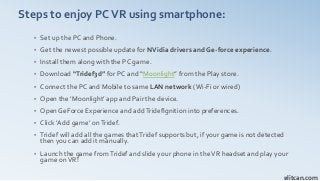
Steps to enjoyPCVR using smartphone:
• Set up the PC and Phone.
• Get the newest possible update for NVidia drivers and Ge-force experience.
• Install them along with the PC game.
• Download “Tridef3d” for PC and “Moonlight” from the Play store.
• Connect the PC and Mobile to same LAN network (Wi-Fi or wired)
• Open the ‘Moonlight’ app and Pair the device.
• Open GeForce Experience and addTridefIgnition into preferences.
• Click ‘Add game’ onTridef.
• Tridef will add all the games thatTridef supports but, if your game is not detected
then you can add it manually.
• Launch the game fromTridef and slide your phone in theVR headset and play your
game onVR!
elitcan.com
6.
Enjoy your favoritePC game onVR
New way to play PC game with a better and immersive
game-play.
More details and information
elitcan.com