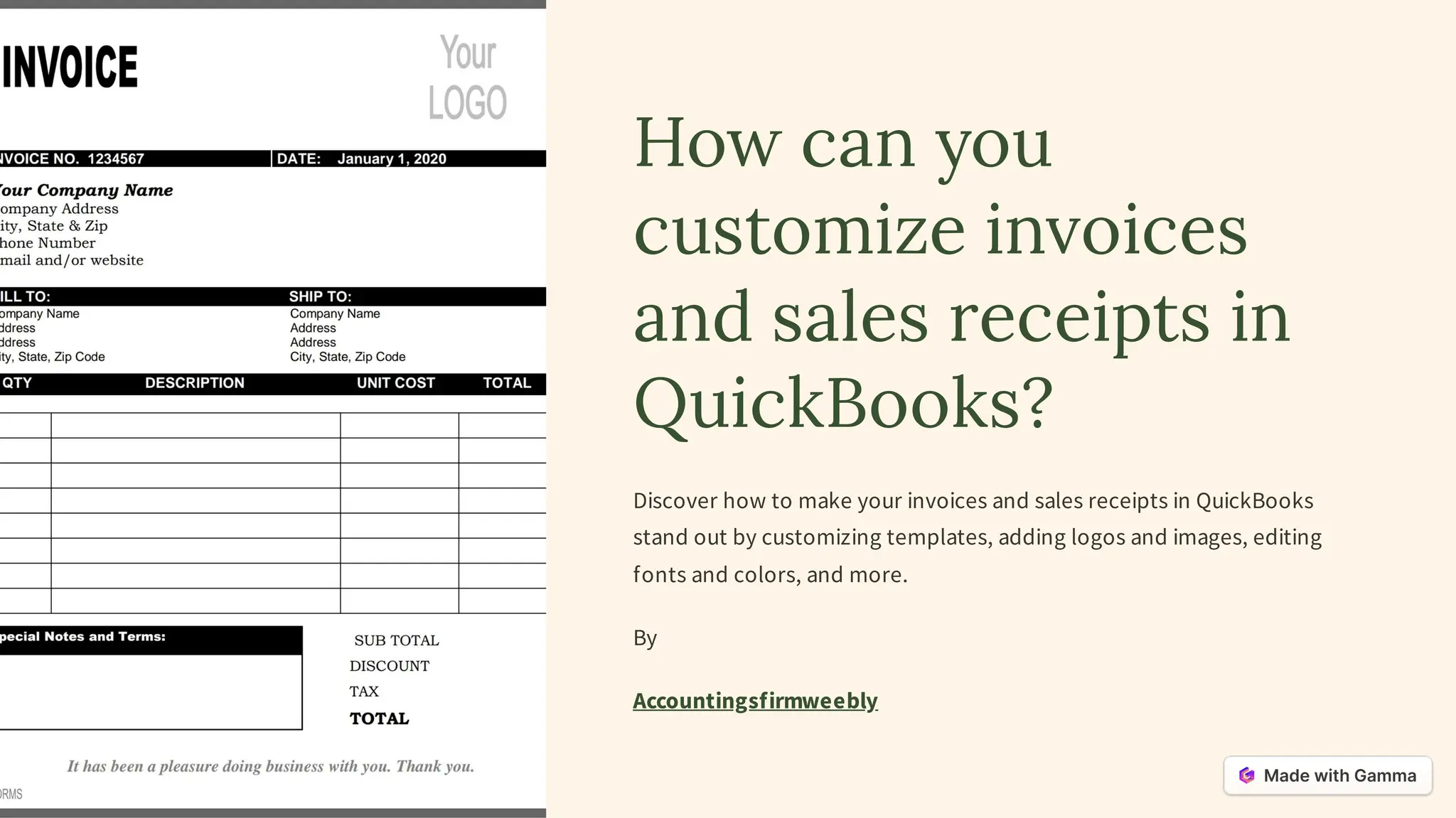
How can you
customize invoices
and sales receipts in
QuickBooks?
Discover how to make your invoices and sales receipts in QuickBooks
stand out by customizing templates, adding logos and images, editing
fonts and colors, and more.
By
Accountingsfirmweebly
Setting up Custom Templates
Choose a Template
Select from a variety of default templates in
QuickBooks or create a new one from scratch.
Customize Header and Footer
Add your company logo, contact details, and
personalized messages to create a
professional look.
Define Default Settings
Set your preferences for terms, due dates,
numbering, and other invoice details.
Save and Set as Default
Save your customized template and set it as
the default for future invoices and sales
receipts.
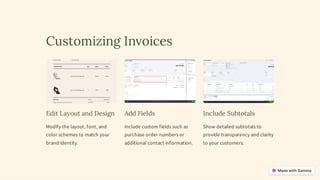
Customizing Invoices
Edit Layout and Design
Modify the layout, font, and
color schemes to match your
brand identity.
Add Fields
Include custom fields such as
purchase order numbers or
additional contact information.
Include Subtotals
Show detailed subtotals to
provide transparency and clarity
to your customers.
Customizing Sales Receipts
1 Personalize Receipt Details
Add specific transaction details such as
order numbers, payment methods, or
special instructions.
2
Attach Product Images
Include images of the purchased
products to give customers a visual
confirmation. 3 Display Discounts &
Promotions
Show any applied discounts or
promotions to enhance customer
satisfaction.
Adding a Logo or Background Image
Add a Logo
Upload your company logo to build brand
recognition and lend credibility to your invoices
and sales receipts.
Background Image
Make your invoices and sales receipts visually
appealing by adding a captivating background
image.
Editing Fonts, Colors, and Layouts
Font Selection
Choose from a wide range
of font styles to match your
brand personality.
Color Customization
Select colors that align with
your brand identity for
headers, text, and
backgrounds.
Layout Options
Optimize the placement of
elements, such as your logo,
customer details, and
itemized list.
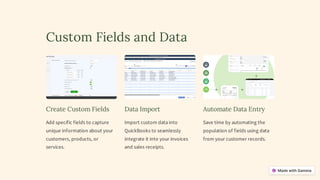
Custom Fields and Data
Create Custom Fields
Add specific fields to capture
unique information about your
customers, products, or
services.
Data Import
Import custom data into
QuickBooks to seamlessly
integrate it into your invoices
and sales receipts.
Automate Data Entry
Save time by automating the
population of fields using data
from your customer records.
Testing and Saving Your
Templates
1 Test Printing
Print sample invoices and
sales receipts to ensure the
layout and design appear as
intended.
2 Send Test Emails
Email template samples to
yourself and preview how
they will look in your
customers' inbox.
3 Save Templates
Once you're satisfied with your customization, save the templates
for future use.

How-can-you-customize-invoices-and-sales-receipts-in-QuickBooks.pdf

  • 1.
    How can you customizeinvoices and sales receipts in QuickBooks? Discover how to make your invoices and sales receipts in QuickBooks stand out by customizing templates, adding logos and images, editing fonts and colors, and more. By Accountingsfirmweebly
  • 2.
    Setting up CustomTemplates Choose a Template Select from a variety of default templates in QuickBooks or create a new one from scratch. Customize Header and Footer Add your company logo, contact details, and personalized messages to create a professional look. Define Default Settings Set your preferences for terms, due dates, numbering, and other invoice details. Save and Set as Default Save your customized template and set it as the default for future invoices and sales receipts.
  • 3.
    Customizing Invoices Edit Layoutand Design Modify the layout, font, and color schemes to match your brand identity. Add Fields Include custom fields such as purchase order numbers or additional contact information. Include Subtotals Show detailed subtotals to provide transparency and clarity to your customers.
  • 4.
    Customizing Sales Receipts 1Personalize Receipt Details Add specific transaction details such as order numbers, payment methods, or special instructions. 2 Attach Product Images Include images of the purchased products to give customers a visual confirmation. 3 Display Discounts & Promotions Show any applied discounts or promotions to enhance customer satisfaction.
  • 5.
    Adding a Logoor Background Image Add a Logo Upload your company logo to build brand recognition and lend credibility to your invoices and sales receipts. Background Image Make your invoices and sales receipts visually appealing by adding a captivating background image.
  • 6.
    Editing Fonts, Colors,and Layouts Font Selection Choose from a wide range of font styles to match your brand personality. Color Customization Select colors that align with your brand identity for headers, text, and backgrounds. Layout Options Optimize the placement of elements, such as your logo, customer details, and itemized list.
  • 7.
    Custom Fields andData Create Custom Fields Add specific fields to capture unique information about your customers, products, or services. Data Import Import custom data into QuickBooks to seamlessly integrate it into your invoices and sales receipts. Automate Data Entry Save time by automating the population of fields using data from your customer records.
  • 8.
    Testing and SavingYour Templates 1 Test Printing Print sample invoices and sales receipts to ensure the layout and design appear as intended. 2 Send Test Emails Email template samples to yourself and preview how they will look in your customers' inbox. 3 Save Templates Once you're satisfied with your customization, save the templates for future use.