

Wait, IPython can do that?!
Sebastian Witowski
Python consultant and trainer
@SebaWitowski
https://switowski.com/blog
$ whoami
Technical remarks
Here are the slides of my talk:
bit.ly/advanced-ipython
I’m using:
IPython version 7.4
Python version 3.7.2
Motivation
• I’ve been using IPython since version 0.x (over 6 years) …
• … and I thought that everyone is using it (which is not the case)
• There are many features!
• And today we will talk about the most interesting ones
IPython REPL
What’s a REPL?
• Read-Eval-Print Loop:
• Read the code
• Evaluate it
• Print the results
• Repeat
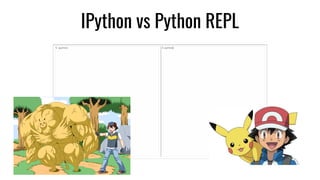
IPython vs Python REPL
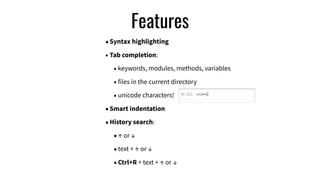
Features
•Syntax highlighting
• Tab completion:
• keywords, modules, methods, variables
• files in the current directory
• unicode characters!
•Smart indentation
•History search:
•↑ or ↓
•text + ↑ or ↓
•Ctrl+R + text + ↑ or ↓
FEATURES !!!
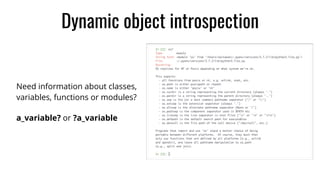
Dynamic object introspection
Need information about classes,
variables, functions or modules?
a_variable? or ?a_variable
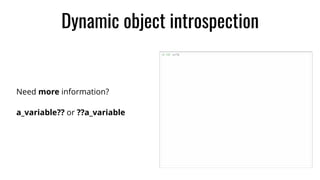
Dynamic object introspection
Need more information?
a_variable?? or ??a_variable
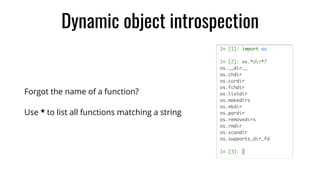
Dynamic object introspection
Forgot the name of a function?
Use * to list all functions matching a string
Input and output caching
• IPython stores the input and output of each command in the current
session
• It also stores the input (and output - if enabled in the settings) of the
previous sessions
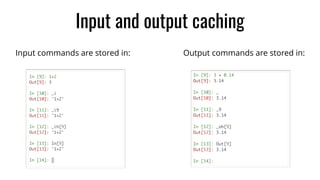
Input commands are stored in:
Input and output caching
Output commands are stored in:
Why caching matters?
• Did you ever run a command that returns a value just to realize later
that you want to do something with that value?
• And maybe it’s a very slow command or you can’t rerun it
(authentication expired)
• With IPython you can just retrieve the output from the cache!
Magic functions
• Magic functions - helper functions that starts with % or %%, e.g:	
%history -n -o 1-10
• IPython magic functions != Python magic methods (__add__)!
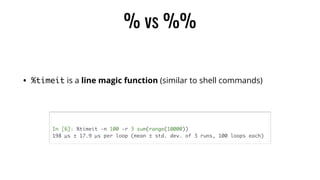
% vs %%
• %timeit is a line magic function (similar to shell commands)
# Measure how long it takes to run "sum(range(10000)"
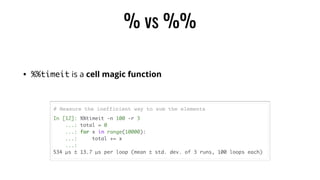
% vs %%
• %%timeit is a cell magic function
# Measure the inefficient way to sum the elements
124 magic functions of IPython
In [2]: %lsmagic
Out[2]:
Available line magics:
%alias %alias_magic %autoawait %autocall %autoindent %automagic %bookmark %cat %cd %clear
%colors %conda %config %cp %cpaste %debug %dhist %dirs %doctest_mode %ed %edit %env %gui
%hist %history %killbgscripts %ldir %less %lf %lk %ll %load %load_ext %loadpy %logoff %logon
%logstart %logstate %logstop %ls %lsmagic %lx %macro %magic %man %matplotlib %mkdir %more %mv
%notebook %page %paste %pastebin %pdb %pdef %pdoc %pfile %pinfo %pinfo2 %pip %popd %pprint
%precision %prun %psearch %psource %pushd %pwd %pycat %pylab %quickref %recall %rehashx
%reload_ext %rep %rerun %reset %reset_selective %rm %rmdir %run %save %sc %set_env %store %sx
%system %tb %time %timeit %unalias %unload_ext %who %who_ls %whos %xdel %xmode
Available cell magics:
%%! %%HTML %%SVG %%bash %%capture %%debug %%file %%html %%javascript %%js %%latex %%markdown
%%perl %%prun %%pypy %%python %%python2 %%python3 %%ruby %%script %%sh %%svg %%sx %%system %
%time %%timeit %%writefile
Automagic is ON, % prefix IS NOT needed for line magics.
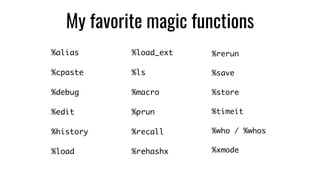
My favorite magic functions
%load_ext
%ls
%macro
%prun
%recall
%rehashx
%rerun
%save
%store
%timeit
%who / %whos
%xmode
%alias
%cpaste
%debug
%edit
%history
%load
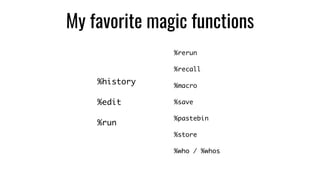
My favorite magic functions
%history
%edit
%run
%rerun
%recall
%macro
%save
%pastebin
%store
%who / %whos
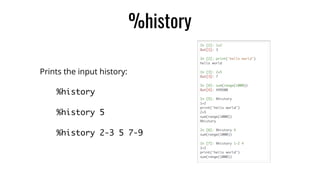
%history
Prints the input history:
%history
%history 5
%history 2-3 5 7-9
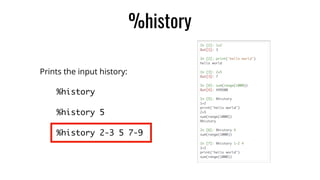
%history
Prints the input history:
%history
%history 5
%history 2-3 5 7-9
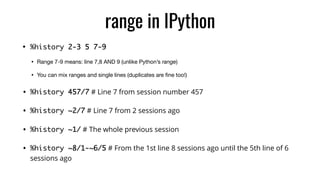
range in IPython
• %history 2-3 5 7-9
• Range 7-9 means: line 7,8 AND 9 (unlike Python’s range)

• You can mix ranges and single lines (duplicates are fine too!)

• %history 457/7 # Line 7 from session number 457
• %history ~2/7 # Line 7 from 2 sessions ago
• %history ~1/ # The whole previous session
• %history ~8/1-~6/5 # From the 1st line 8 sessions ago until the 5th line of 6
sessions ago
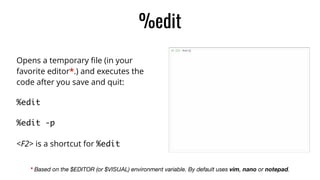
%edit
Opens a temporary file (in your
favorite editor*.) and executes the
code after you save and quit:
%edit	
%edit -p	
<F2> is a shortcut for %edit
* Based on the $EDITOR (or $VISUAL) environment variable. By default uses vim, nano or notepad.
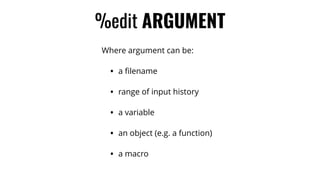
%edit ARGUMENT
Where argument can be:
• a filename
• range of input history
• a variable
• an object (e.g. a function)
• a macro
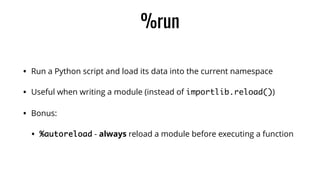
%run
• Run a Python script and load its data into the current namespace
• Useful when writing a module (instead of importlib.reload())
• Bonus:
• %autoreload - always reload a module before executing a function
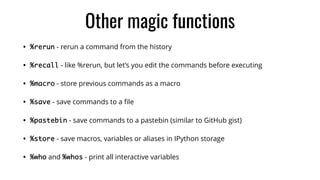
Other magic functions
• %rerun - rerun a command from the history
• %recall - like %rerun, but let’s you edit the commands before executing
• %macro - store previous commands as a macro
• %save - save commands to a file
• %pastebin - save commands to a pastebin (similar to GitHub gist)
• %store - save macros, variables or aliases in IPython storage
• %who and %whos - print all interactive variables
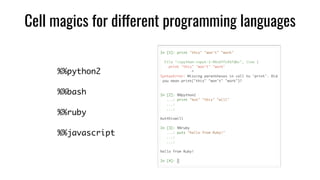
Cell magics for different programming languages
%%python2	
%%bash	
%%ruby	
%%javascript
Writing magic functions
1. Write a function
2. Decorate it with

@register_line_magic or
@register_cell_magic
from IPython.core.magic import register_line_magic
@register_line_magic("reverse")
def lmagic(line):
"Line magic to reverse a string"
return line[::-1]
In [2]: %reverse hello world
Out[2]: 'dlrow olleh'
Cell magic function that runs mypy
Extensions
• Extensions - an easy way to make your magic functions reusable and
share them with others through PyPI…
• … but they not only limited to magic functions (key bindings, custom
colors, custom IPython configuration, etc.)
• To create an extension you need to
create a file containing
load_ipython_extension function.
• Put the magic method inside that
function
• And save the file in a folder
called .ipython/extensions
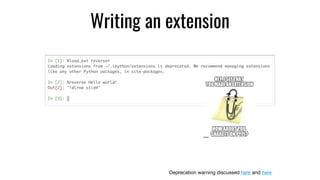
Writing an extension
from IPython.core.magic import register_line_magic	
def load_ipython_extension(ipython):	
@register_line_magic("reverse")	
def lmagic(line):	
"Line magic to reverse a string"	
return line[::-1]	
# Save it as ~/.ipython/extensions/reverser.py
Writing an extension
Deprecation warning discussed here and here
Extension can be published
and installed from PyPI
• Extensions Index - a wiki page in IPython repository (some extensions
are old!)
• Framework::IPython filter on PyPI - the recommended way to share
extensions
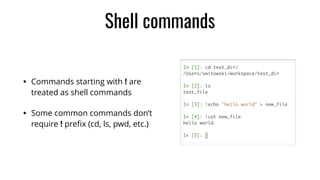
Shell commands
• Commands starting with ! are
treated as shell commands
• Some common commands don’t
require ! prefix (cd, ls, pwd, etc.)
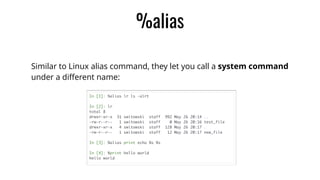
%alias
Similar to Linux alias command, they let you call a system command
under a different name:
%rehashx
Loads all executables from $PATH into the alias table
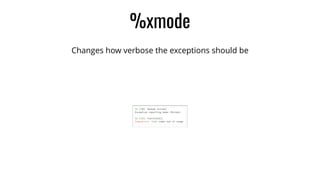
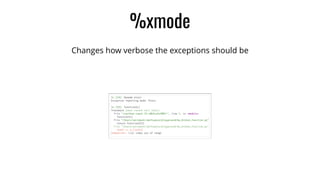
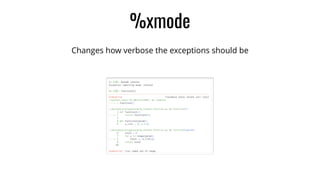
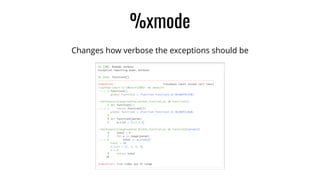
%xmode
Changes how verbose the exceptions should be
%xmode
Changes how verbose the exceptions should be
%xmode
Changes how verbose the exceptions should be
%xmode
Changes how verbose the exceptions should be
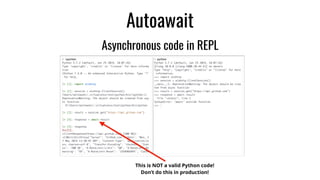
Autoawait
Asynchronous code in REPL
This is NOT a valid Python code!
Don’t do this in production!
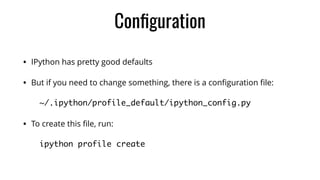
Configuration
• IPython has pretty good defaults
• But if you need to change something, there is a configuration file:
~/.ipython/profile_default/ipython_config.py
• To create this file, run:
ipython profile create
# ipython_config.py
# Configuration file for ipython.
#------------------------------------------------------------------------------
# InteractiveShellApp(Configurable) configuration
#------------------------------------------------------------------------------
## Execute the given command string.
#c.InteractiveShellApp.code_to_run = ''
## Run the file referenced by the PYTHONSTARTUP environment variable at IPython
# startup.
#c.InteractiveShellApp.exec_PYTHONSTARTUP = True
## List of files to run at IPython startup.
#c.InteractiveShellApp.exec_files = []
## lines of code to run at IPython startup.
#c.InteractiveShellApp.exec_lines = []
## A list of dotted module names of IPython extensions to load.
#c.InteractiveShellApp.extensions = []
## dotted module name of an IPython extension to load.
#c.InteractiveShellApp.extra_extension = ‘'
(…)
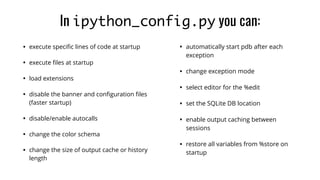
• execute specific lines of code at startup
• execute files at startup
• load extensions
• disable the banner and configuration files
(faster startup)
• disable/enable autocalls
• change the color schema
• change the size of output cache or history
length
• automatically start pdb after each
exception
• change exception mode
• select editor for the %edit
• set the SQLite DB location
• enable output caching between
sessions
• restore all variables from %store on
startup
In ipython_config.py you can:
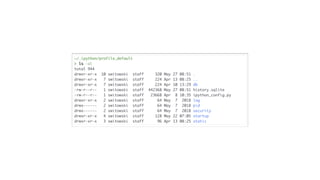
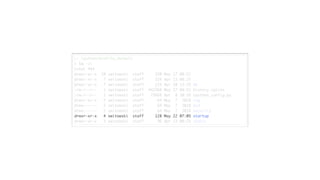
Startup files
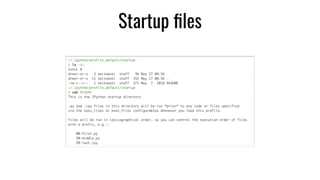
Startup files
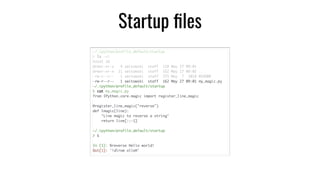
Startup files
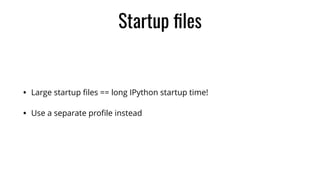
• Large startup files == long IPython startup time!
• Use a separate profile instead
Profiles
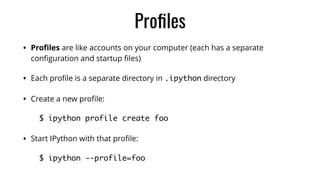
• Profiles are like accounts on your computer (each has a separate
configuration and startup files)
• Each profile is a separate directory in .ipython directory
• Create a new profile:
$ ipython profile create foo	
• Start IPython with that profile:
$ ipython --profile=foo
Events & Hooks
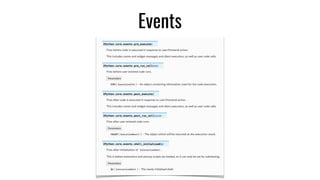
Events
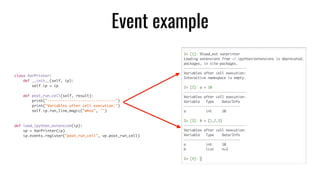
class VarPrinter:	
def __init__(self, ip):	
self.ip = ip	
def post_run_cell(self, result):	
print("-------------------------------")	
print("Variables after cell execution:")	
self.ip.run_line_magic("whos", '')	
def load_ipython_extension(ip):	
vp = VarPrinter(ip)	
ip.events.register("post_run_cell", vp.post_run_cell)
Event example
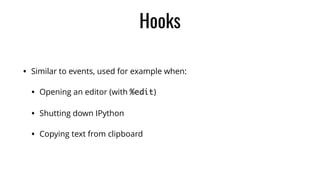
Hooks
• Similar to events, used for example when:
• Opening an editor (with %edit)
• Shutting down IPython
• Copying text from clipboard
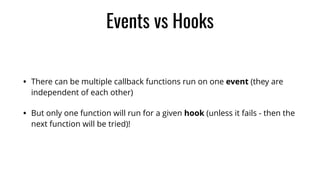
Events vs Hooks
• There can be multiple callback functions run on one event (they are
independent of each other)
• But only one function will run for a given hook (unless it fails - then the
next function will be tried)!
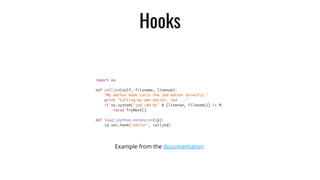
Hooks
import os	
def calljed(self, filename, linenum):	
"My editor hook calls the jed editor directly."	
print "Calling my own editor, jed ..."	
if os.system('jed +%d %s' % (linenum, filename)) != 0:	
raise TryNext()	
def load_ipython_extension(ip):	
ip.set_hook('editor', calljed)
Example from the documentation
Hooks
import os	
def calljed(self, filename, linenum):	
"My editor hook calls the jed editor directly."	
print "Calling my own editor, jed ..."	
if os.system('jed +%d %s' % (linenum, filename)) != 0:	
raise TryNext()	
def load_ipython_extension(ip):	
ip.set_hook('editor', calljed)
Debugging
• IPython has been my default debugger since a long time (because of
Sublime Text that I have used for years)
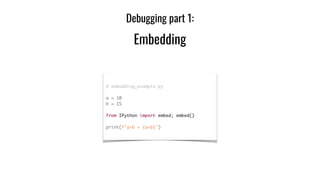
Debugging part 1:
Embedding
# embedding_example.py	
a = 10	
b = 15	
from IPython import embed; embed()	
print(f"a+b = {a+b}")
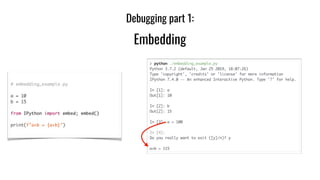
# embedding_example.py	
a = 10	
b = 15	
from IPython import embed; embed()	
print(f"a+b = {a+b}")
Debugging part 1:
Embedding
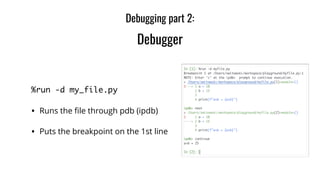
%run -d my_file.py	
• Runs the file through pdb (ipdb)
• Puts the breakpoint on the 1st line
Debugging part 2:
Debugger
Imagine you are running a Python script:
Debugging part 3:
Post mortem debugger
Debugging part 3:
Post mortem debugger
” I wish I ran this script with a debugger enabled! 

Now I have to wait again to see what’s the problem 😭 “
-Me (and You?)
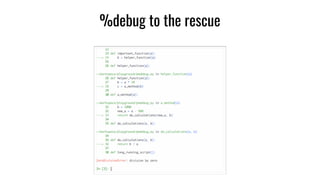
%debug to the rescue
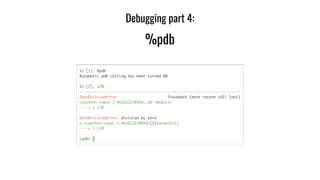
Debugging part 4:
%pdb
Profiling
%time
Measure how long it takes to execute some code:
In [2]: %time run_calculations()	
CPU times: user 2.68 s, sys: 10.9 ms, total: 2.69 s	
Wall time: 2.71 s	
Out[2]: 166616670000
%timeit
Measure how long it takes to execute some code.
But also figures out how many times it should run to give you reliable
results:
In [5]: %timeit run_calculations()	
2.82 s ± 124 ms per loop (mean ± std. dev. of 7 runs, 1 loop each)
%%timeit
In [1]: %%timeit [arguments] <optional_setup_code>	
...: total = 0	
...: for x in range(10000):	
...: for y in range(x):	
...: total += y	
...:	
2.7 s ± 25.7 ms per loop (mean ± std. dev. of 7 runs, 1 loop each)
%prun
In [1]: %prun a_slow_function()
50035004 function calls in 12.653 seconds
Ordered by: internal time
ncalls tottime percall cumtime percall filename:lineno(function)
10000 8.683 0.001 12.645 0.001 my_file.py:6(helper_function)
49995000 3.956 0.000 3.956 0.000 my_file.py:15(check_factor)
10000 0.005 0.000 12.650 0.001 my_file.py:1(important_function)
10000 0.004 0.000 0.006 0.000 my_file.py:19(a_method)
1 0.003 0.003 12.653 12.653 my_file.py:28(long_running_script)
10000 0.001 0.000 0.001 0.000 my_file.py:24(do_calculations)
1 0.000 0.000 12.653 12.653 {built-in method builtins.exec}
1 0.000 0.000 12.653 12.653 <string>:1(<module>)
1 0.000 0.000 0.000 0.000 {method 'disable' of '_lsprof.Profiler' objects}
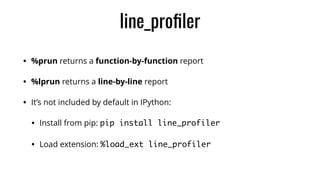
line_profiler
• %prun returns a function-by-function report
• %lprun returns a line-by-line report
• It’s not included by default in IPython:
• Install from pip: pip install line_profiler
• Load extension: %load_ext line_profiler
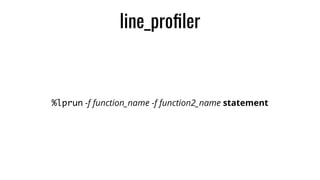
line_profiler
%lprun -f function_name -f function2_name statement
line_profiler
In [1]: %lprun -f long_running_script -f important_function long_running_script()
Timer unit: 1e-06 s
Total time: 27.3258 s
File: /Users/switowski/workspace/playground/my_file.py
Function: important_function at line 1
Line # Hits Time Per Hit % Time Line Contents
==============================================================
1 def important_function(a, num):
2 10000 27310547.0 2731.1 99.9 b = helper_function(a, num)
3 10000 11686.0 1.2 0.0 b += 10
4 10000 3560.0 0.4 0.0 return b
Total time: 27.3539 s
File: /Users/switowski/workspace/playground/my_file.py
Function: long_running_script at line 28
Line # Hits Time Per Hit % Time Line Contents
==============================================================
28 def long_running_script():
29 1 2.0 2.0 0.0 total = 1
30 10001 4033.0 0.4 0.0 for x in range(10000):
31 10000 27349839.0 2735.0 100.0 total += important_function(total, x)
32 1 0.0 0.0 0.0 return total
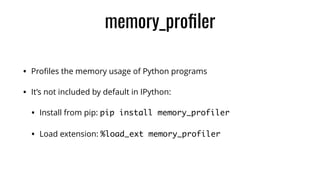
memory_profiler
• Profiles the memory usage of Python programs
• It’s not included by default in IPython:
• Install from pip: pip install memory_profiler	
• Load extension: %load_ext memory_profiler
memory_profiler
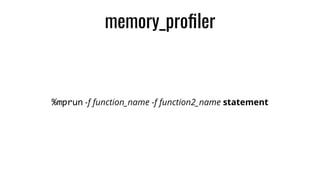
%mprun -f function_name -f function2_name statement
memory_profiler
In [1]: %mprun -f memory_intensive memory_intensive()
Filename: /Users/switowski/workspace/playground/my_file.py
Line # Mem usage Increment Line Contents
================================================
1 57.4 MiB 57.4 MiB def memory_intensive():
2 820.3 MiB 762.9 MiB a = [1] * (10 ** 8)
3 2159.0 MiB 1338.6 MiB b = [2] * (2 * 10 ** 8)
4 618.1 MiB 0.0 MiB del b
5 618.1 MiB 0.0 MiB return a
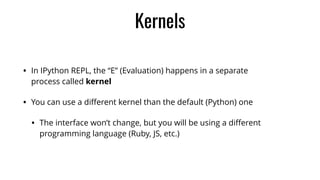
• In IPython REPL, the “E” (Evaluation) happens in a separate
process called kernel
• You can use a different kernel than the default (Python) one
• The interface won’t change, but you will be using a different
programming language (Ruby, JS, etc.)
Kernels
Using a different kernel
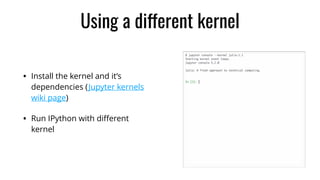
• Install the kernel and it’s
dependencies (Jupyter kernels
wiki page)
• Run IPython with different
kernel
And if you really love IPython…
You can:
• Enable autocalls, so you can skip brackets when calling functions (any or fans?)
You can:
• Enable autocalls, so you can skip brackets when calling functions (any or fans?)
• Or run commands like that:
• ,print a b c # Equivalent to print(“a”, “b”, “c”)
You can:
• Enable autocalls, so you can skip brackets when calling functions (any or fans?)
• Or run commands like that:
• ,print a b c # Equivalent to print(“a”, “b”, “c”)
• Enable autoreloading, so you can change modules on the fly (no need to reimport them after changes)
You can:
• Enable autocalls, so you can skip brackets when calling functions (any or fans?)
• Or run commands like that:
• ,print a b c # Equivalent to print(“a”, “b”, “c”)
• Enable autoreloading, so you can change modules on the fly (no need to reimport them after changes)
• Turn on the “doctest mode” so you can easily write the doctest documentation
You can:
• Enable autocalls, so you can skip brackets when calling functions (any or fans?)
• Or run commands like that:
• ,print a b c # Equivalent to print(“a”, “b”, “c”)
• Enable autoreloading, so you can change modules on the fly (no need to reimport them after changes)
• Turn on the “doctest mode” so you can easily write the doctest documentation
• Use the “demo mode” for interactive IPython presentations in your terminal.
You can:
• Enable autocalls, so you can skip brackets when calling functions (any or fans?)
• Or run commands like that:
• ,print a b c # Equivalent to print(“a”, “b”, “c”)
• Enable autoreloading, so you can change modules on the fly (no need to reimport them after changes)
• Turn on the “doctest mode” so you can easily write the doctest documentation
• Use the “demo mode” for interactive IPython presentations in your terminal.
• Turn IPython into your system shell (show current directory in prompt + autocalls + %rehashx)
You can:
• Enable autocalls, so you can skip brackets when calling functions (any or fans?)
• Or run commands like that:
• ,print a b c # Equivalent to print(“a”, “b”, “c”)
• Enable autoreloading, so you can change modules on the fly (no need to reimport them after changes)
• Turn on the “doctest mode” so you can easily write the doctest documentation
• Use the “demo mode” for interactive IPython presentations in your terminal.
• Turn IPython into your system shell (show current directory in prompt + autocalls + %rehashx)
• Add custom keyboard shortcuts
• Or input transformations
• Or AST transformations
IPython alternatives
• bpython (https://bpython-interpreter.org)
• ptpython (https://pypi.org/project/ptpython/)
• xonsh shell (https://xon.sh/index.html)
Thank you for listening!
Questions?
@SebaWitowski
Slides:
bit.ly/advanced-ipython

Wait, IPython can do that?! (30 minutes)

  • 1.
    Wait, IPython cando that?! Sebastian Witowski
  • 2.
    Python consultant andtrainer @SebaWitowski https://switowski.com/blog $ whoami
  • 3.
    Technical remarks Here arethe slides of my talk: bit.ly/advanced-ipython I’m using: IPython version 7.4 Python version 3.7.2
  • 4.
    Motivation • I’ve beenusing IPython since version 0.x (over 6 years) … • … and I thought that everyone is using it (which is not the case) • There are many features! • And today we will talk about the most interesting ones
  • 5.
    IPython REPL What’s aREPL? • Read-Eval-Print Loop: • Read the code • Evaluate it • Print the results • Repeat
  • 6.
  • 7.
    Features •Syntax highlighting • Tabcompletion: • keywords, modules, methods, variables • files in the current directory • unicode characters! •Smart indentation •History search: •↑ or ↓ •text + ↑ or ↓ •Ctrl+R + text + ↑ or ↓
  • 8.
  • 9.
    Dynamic object introspection Needinformation about classes, variables, functions or modules? a_variable? or ?a_variable
  • 10.
    Dynamic object introspection Needmore information? a_variable?? or ??a_variable
  • 11.
    Dynamic object introspection Forgotthe name of a function? Use * to list all functions matching a string
  • 12.
    Input and outputcaching • IPython stores the input and output of each command in the current session • It also stores the input (and output - if enabled in the settings) of the previous sessions
  • 13.
    Input commands arestored in: Input and output caching Output commands are stored in:
  • 14.
    Why caching matters? •Did you ever run a command that returns a value just to realize later that you want to do something with that value? • And maybe it’s a very slow command or you can’t rerun it (authentication expired) • With IPython you can just retrieve the output from the cache!
  • 15.
    Magic functions • Magicfunctions - helper functions that starts with % or %%, e.g: %history -n -o 1-10 • IPython magic functions != Python magic methods (__add__)!
  • 16.
    % vs %% •%timeit is a line magic function (similar to shell commands) # Measure how long it takes to run "sum(range(10000)"
  • 17.
    % vs %% •%%timeit is a cell magic function # Measure the inefficient way to sum the elements
  • 18.
    124 magic functionsof IPython In [2]: %lsmagic Out[2]: Available line magics: %alias %alias_magic %autoawait %autocall %autoindent %automagic %bookmark %cat %cd %clear %colors %conda %config %cp %cpaste %debug %dhist %dirs %doctest_mode %ed %edit %env %gui %hist %history %killbgscripts %ldir %less %lf %lk %ll %load %load_ext %loadpy %logoff %logon %logstart %logstate %logstop %ls %lsmagic %lx %macro %magic %man %matplotlib %mkdir %more %mv %notebook %page %paste %pastebin %pdb %pdef %pdoc %pfile %pinfo %pinfo2 %pip %popd %pprint %precision %prun %psearch %psource %pushd %pwd %pycat %pylab %quickref %recall %rehashx %reload_ext %rep %rerun %reset %reset_selective %rm %rmdir %run %save %sc %set_env %store %sx %system %tb %time %timeit %unalias %unload_ext %who %who_ls %whos %xdel %xmode Available cell magics: %%! %%HTML %%SVG %%bash %%capture %%debug %%file %%html %%javascript %%js %%latex %%markdown %%perl %%prun %%pypy %%python %%python2 %%python3 %%ruby %%script %%sh %%svg %%sx %%system % %time %%timeit %%writefile Automagic is ON, % prefix IS NOT needed for line magics.
  • 19.
    My favorite magicfunctions %load_ext %ls %macro %prun %recall %rehashx %rerun %save %store %timeit %who / %whos %xmode %alias %cpaste %debug %edit %history %load
  • 20.
    My favorite magicfunctions %history %edit %run %rerun %recall %macro %save %pastebin %store %who / %whos
  • 21.
    %history Prints the inputhistory: %history %history 5 %history 2-3 5 7-9
  • 22.
    %history Prints the inputhistory: %history %history 5 %history 2-3 5 7-9
  • 23.
    range in IPython •%history 2-3 5 7-9 • Range 7-9 means: line 7,8 AND 9 (unlike Python’s range) • You can mix ranges and single lines (duplicates are fine too!) • %history 457/7 # Line 7 from session number 457 • %history ~2/7 # Line 7 from 2 sessions ago • %history ~1/ # The whole previous session • %history ~8/1-~6/5 # From the 1st line 8 sessions ago until the 5th line of 6 sessions ago
  • 24.
    %edit Opens a temporaryfile (in your favorite editor*.) and executes the code after you save and quit: %edit %edit -p <F2> is a shortcut for %edit * Based on the $EDITOR (or $VISUAL) environment variable. By default uses vim, nano or notepad.
  • 25.
    %edit ARGUMENT Where argumentcan be: • a filename • range of input history • a variable • an object (e.g. a function) • a macro
  • 26.
    %run • Run aPython script and load its data into the current namespace • Useful when writing a module (instead of importlib.reload()) • Bonus: • %autoreload - always reload a module before executing a function
  • 27.
    Other magic functions •%rerun - rerun a command from the history • %recall - like %rerun, but let’s you edit the commands before executing • %macro - store previous commands as a macro • %save - save commands to a file • %pastebin - save commands to a pastebin (similar to GitHub gist) • %store - save macros, variables or aliases in IPython storage • %who and %whos - print all interactive variables
  • 28.
    Cell magics fordifferent programming languages %%python2 %%bash %%ruby %%javascript
  • 29.
    Writing magic functions 1.Write a function 2. Decorate it with
 @register_line_magic or @register_cell_magic from IPython.core.magic import register_line_magic @register_line_magic("reverse") def lmagic(line): "Line magic to reverse a string" return line[::-1] In [2]: %reverse hello world Out[2]: 'dlrow olleh' Cell magic function that runs mypy
  • 30.
    Extensions • Extensions -an easy way to make your magic functions reusable and share them with others through PyPI… • … but they not only limited to magic functions (key bindings, custom colors, custom IPython configuration, etc.)
  • 31.
    • To createan extension you need to create a file containing load_ipython_extension function. • Put the magic method inside that function • And save the file in a folder called .ipython/extensions Writing an extension from IPython.core.magic import register_line_magic def load_ipython_extension(ipython): @register_line_magic("reverse") def lmagic(line): "Line magic to reverse a string" return line[::-1] # Save it as ~/.ipython/extensions/reverser.py
  • 32.
    Writing an extension Deprecationwarning discussed here and here
  • 33.
    Extension can bepublished and installed from PyPI • Extensions Index - a wiki page in IPython repository (some extensions are old!) • Framework::IPython filter on PyPI - the recommended way to share extensions
  • 34.
    Shell commands • Commandsstarting with ! are treated as shell commands • Some common commands don’t require ! prefix (cd, ls, pwd, etc.)
  • 35.
    %alias Similar to Linuxalias command, they let you call a system command under a different name:
  • 36.
    %rehashx Loads all executablesfrom $PATH into the alias table
  • 37.
    %xmode Changes how verbosethe exceptions should be
  • 38.
    %xmode Changes how verbosethe exceptions should be
  • 39.
    %xmode Changes how verbosethe exceptions should be
  • 40.
    %xmode Changes how verbosethe exceptions should be
  • 41.
    Autoawait Asynchronous code inREPL This is NOT a valid Python code! Don’t do this in production!
  • 42.
    Configuration • IPython haspretty good defaults • But if you need to change something, there is a configuration file: ~/.ipython/profile_default/ipython_config.py • To create this file, run: ipython profile create
  • 43.
    # ipython_config.py # Configurationfile for ipython. #------------------------------------------------------------------------------ # InteractiveShellApp(Configurable) configuration #------------------------------------------------------------------------------ ## Execute the given command string. #c.InteractiveShellApp.code_to_run = '' ## Run the file referenced by the PYTHONSTARTUP environment variable at IPython # startup. #c.InteractiveShellApp.exec_PYTHONSTARTUP = True ## List of files to run at IPython startup. #c.InteractiveShellApp.exec_files = [] ## lines of code to run at IPython startup. #c.InteractiveShellApp.exec_lines = [] ## A list of dotted module names of IPython extensions to load. #c.InteractiveShellApp.extensions = [] ## dotted module name of an IPython extension to load. #c.InteractiveShellApp.extra_extension = ‘' (…)
  • 44.
    • execute specificlines of code at startup • execute files at startup • load extensions • disable the banner and configuration files (faster startup) • disable/enable autocalls • change the color schema • change the size of output cache or history length • automatically start pdb after each exception • change exception mode • select editor for the %edit • set the SQLite DB location • enable output caching between sessions • restore all variables from %store on startup In ipython_config.py you can:
  • 47.
  • 48.
  • 49.
    Startup files • Largestartup files == long IPython startup time! • Use a separate profile instead
  • 50.
    Profiles • Profiles arelike accounts on your computer (each has a separate configuration and startup files) • Each profile is a separate directory in .ipython directory • Create a new profile: $ ipython profile create foo • Start IPython with that profile: $ ipython --profile=foo
  • 51.
  • 52.
  • 53.
    class VarPrinter: def __init__(self,ip): self.ip = ip def post_run_cell(self, result): print("-------------------------------") print("Variables after cell execution:") self.ip.run_line_magic("whos", '') def load_ipython_extension(ip): vp = VarPrinter(ip) ip.events.register("post_run_cell", vp.post_run_cell) Event example
  • 54.
    Hooks • Similar toevents, used for example when: • Opening an editor (with %edit) • Shutting down IPython • Copying text from clipboard
  • 55.
    Events vs Hooks •There can be multiple callback functions run on one event (they are independent of each other) • But only one function will run for a given hook (unless it fails - then the next function will be tried)!
  • 56.
    Hooks import os def calljed(self,filename, linenum): "My editor hook calls the jed editor directly." print "Calling my own editor, jed ..." if os.system('jed +%d %s' % (linenum, filename)) != 0: raise TryNext() def load_ipython_extension(ip): ip.set_hook('editor', calljed) Example from the documentation
  • 57.
    Hooks import os def calljed(self,filename, linenum): "My editor hook calls the jed editor directly." print "Calling my own editor, jed ..." if os.system('jed +%d %s' % (linenum, filename)) != 0: raise TryNext() def load_ipython_extension(ip): ip.set_hook('editor', calljed)
  • 58.
    Debugging • IPython hasbeen my default debugger since a long time (because of Sublime Text that I have used for years)
  • 59.
    Debugging part 1: Embedding #embedding_example.py a = 10 b = 15 from IPython import embed; embed() print(f"a+b = {a+b}")
  • 60.
    # embedding_example.py a =10 b = 15 from IPython import embed; embed() print(f"a+b = {a+b}") Debugging part 1: Embedding
  • 61.
    %run -d my_file.py •Runs the file through pdb (ipdb) • Puts the breakpoint on the 1st line Debugging part 2: Debugger
  • 62.
    Imagine you arerunning a Python script: Debugging part 3: Post mortem debugger
  • 63.
    Debugging part 3: Postmortem debugger
  • 64.
    ” I wishI ran this script with a debugger enabled! 
 Now I have to wait again to see what’s the problem 😭 “ -Me (and You?)
  • 65.
  • 66.
  • 67.
  • 68.
    %time Measure how longit takes to execute some code: In [2]: %time run_calculations() CPU times: user 2.68 s, sys: 10.9 ms, total: 2.69 s Wall time: 2.71 s Out[2]: 166616670000
  • 69.
    %timeit Measure how longit takes to execute some code. But also figures out how many times it should run to give you reliable results: In [5]: %timeit run_calculations() 2.82 s ± 124 ms per loop (mean ± std. dev. of 7 runs, 1 loop each)
  • 70.
    %%timeit In [1]: %%timeit[arguments] <optional_setup_code> ...: total = 0 ...: for x in range(10000): ...: for y in range(x): ...: total += y ...: 2.7 s ± 25.7 ms per loop (mean ± std. dev. of 7 runs, 1 loop each)
  • 71.
    %prun In [1]: %pruna_slow_function() 50035004 function calls in 12.653 seconds Ordered by: internal time ncalls tottime percall cumtime percall filename:lineno(function) 10000 8.683 0.001 12.645 0.001 my_file.py:6(helper_function) 49995000 3.956 0.000 3.956 0.000 my_file.py:15(check_factor) 10000 0.005 0.000 12.650 0.001 my_file.py:1(important_function) 10000 0.004 0.000 0.006 0.000 my_file.py:19(a_method) 1 0.003 0.003 12.653 12.653 my_file.py:28(long_running_script) 10000 0.001 0.000 0.001 0.000 my_file.py:24(do_calculations) 1 0.000 0.000 12.653 12.653 {built-in method builtins.exec} 1 0.000 0.000 12.653 12.653 <string>:1(<module>) 1 0.000 0.000 0.000 0.000 {method 'disable' of '_lsprof.Profiler' objects}
  • 72.
    line_profiler • %prun returnsa function-by-function report • %lprun returns a line-by-line report • It’s not included by default in IPython: • Install from pip: pip install line_profiler • Load extension: %load_ext line_profiler
  • 73.
    line_profiler %lprun -f function_name-f function2_name statement
  • 74.
    line_profiler In [1]: %lprun-f long_running_script -f important_function long_running_script() Timer unit: 1e-06 s Total time: 27.3258 s File: /Users/switowski/workspace/playground/my_file.py Function: important_function at line 1 Line # Hits Time Per Hit % Time Line Contents ============================================================== 1 def important_function(a, num): 2 10000 27310547.0 2731.1 99.9 b = helper_function(a, num) 3 10000 11686.0 1.2 0.0 b += 10 4 10000 3560.0 0.4 0.0 return b Total time: 27.3539 s File: /Users/switowski/workspace/playground/my_file.py Function: long_running_script at line 28 Line # Hits Time Per Hit % Time Line Contents ============================================================== 28 def long_running_script(): 29 1 2.0 2.0 0.0 total = 1 30 10001 4033.0 0.4 0.0 for x in range(10000): 31 10000 27349839.0 2735.0 100.0 total += important_function(total, x) 32 1 0.0 0.0 0.0 return total
  • 75.
    memory_profiler • Profiles thememory usage of Python programs • It’s not included by default in IPython: • Install from pip: pip install memory_profiler • Load extension: %load_ext memory_profiler
  • 76.
    memory_profiler %mprun -f function_name-f function2_name statement
  • 77.
    memory_profiler In [1]: %mprun-f memory_intensive memory_intensive() Filename: /Users/switowski/workspace/playground/my_file.py Line # Mem usage Increment Line Contents ================================================ 1 57.4 MiB 57.4 MiB def memory_intensive(): 2 820.3 MiB 762.9 MiB a = [1] * (10 ** 8) 3 2159.0 MiB 1338.6 MiB b = [2] * (2 * 10 ** 8) 4 618.1 MiB 0.0 MiB del b 5 618.1 MiB 0.0 MiB return a
  • 78.
    • In IPythonREPL, the “E” (Evaluation) happens in a separate process called kernel • You can use a different kernel than the default (Python) one • The interface won’t change, but you will be using a different programming language (Ruby, JS, etc.) Kernels
  • 79.
    Using a differentkernel • Install the kernel and it’s dependencies (Jupyter kernels wiki page) • Run IPython with different kernel
  • 80.
    And if youreally love IPython…
  • 81.
    You can: • Enableautocalls, so you can skip brackets when calling functions (any or fans?)
  • 82.
    You can: • Enableautocalls, so you can skip brackets when calling functions (any or fans?) • Or run commands like that: • ,print a b c # Equivalent to print(“a”, “b”, “c”)
  • 83.
    You can: • Enableautocalls, so you can skip brackets when calling functions (any or fans?) • Or run commands like that: • ,print a b c # Equivalent to print(“a”, “b”, “c”) • Enable autoreloading, so you can change modules on the fly (no need to reimport them after changes)
  • 84.
    You can: • Enableautocalls, so you can skip brackets when calling functions (any or fans?) • Or run commands like that: • ,print a b c # Equivalent to print(“a”, “b”, “c”) • Enable autoreloading, so you can change modules on the fly (no need to reimport them after changes) • Turn on the “doctest mode” so you can easily write the doctest documentation
  • 85.
    You can: • Enableautocalls, so you can skip brackets when calling functions (any or fans?) • Or run commands like that: • ,print a b c # Equivalent to print(“a”, “b”, “c”) • Enable autoreloading, so you can change modules on the fly (no need to reimport them after changes) • Turn on the “doctest mode” so you can easily write the doctest documentation • Use the “demo mode” for interactive IPython presentations in your terminal.
  • 86.
    You can: • Enableautocalls, so you can skip brackets when calling functions (any or fans?) • Or run commands like that: • ,print a b c # Equivalent to print(“a”, “b”, “c”) • Enable autoreloading, so you can change modules on the fly (no need to reimport them after changes) • Turn on the “doctest mode” so you can easily write the doctest documentation • Use the “demo mode” for interactive IPython presentations in your terminal. • Turn IPython into your system shell (show current directory in prompt + autocalls + %rehashx)
  • 87.
    You can: • Enableautocalls, so you can skip brackets when calling functions (any or fans?) • Or run commands like that: • ,print a b c # Equivalent to print(“a”, “b”, “c”) • Enable autoreloading, so you can change modules on the fly (no need to reimport them after changes) • Turn on the “doctest mode” so you can easily write the doctest documentation • Use the “demo mode” for interactive IPython presentations in your terminal. • Turn IPython into your system shell (show current directory in prompt + autocalls + %rehashx) • Add custom keyboard shortcuts • Or input transformations • Or AST transformations
  • 88.
    IPython alternatives • bpython(https://bpython-interpreter.org) • ptpython (https://pypi.org/project/ptpython/) • xonsh shell (https://xon.sh/index.html)
  • 89.
    Thank you forlistening!
  • 90.