UMLKit - quickstart
prerequisites
● Java 8 Development Kit (JDK) available from
here
http://www.oracle.com/technetwork/java/javase/downloads/index.html
● Note: Java Runtime Environment (JRE) is not
sufficient!
prepare UMLKit
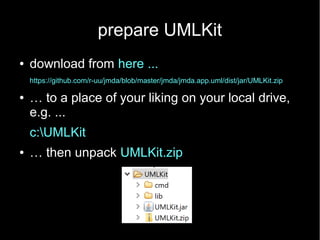
● download from here ...
https://github.com/r-uu/jmda/blob/master/jmda/jmda.app.uml/dist/jar/UMLKit.zip
● … to a place of your liking on your local drive,
e.g. ...
c:UMLKit
● … then unpack UMLKit.zip
configure startup procedure
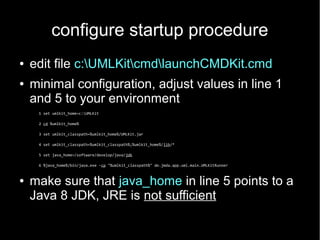
● edit file c:UMLKitcmdlaunchCMDKit.cmd
● minimal configuration, adjust values in line 1
and 5 to your environment
1 set umlkit_home=c:UMLKit
2 cd %umlkit_home%
3 set umlkit_classpath=%umlkit_home%/UMLKit.jar
4 set umlkit_classpath=%umlkit_classpath%;%umlkit_home%/lib/*
5 set java_home=/software/develop/java/jdk
6 %java_home%/bin/java.exe -cp "%umlkit_classpath%" de.jmda.app.uml.main.UMLKitRunner
● make sure that java_home in line 5 points to a
Java 8 JDK, JRE is not sufficient
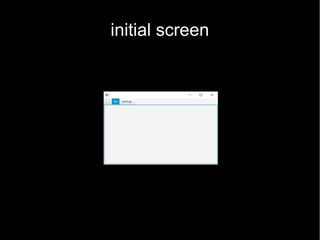
initial screen
UMLKit java model
● in UMLKit the java model defines the java types
that can be used in diagrams
● the types of the java model may be located as
binaries in .jar files or as sources in .java files
adding types to the java model
● initially there are no types in the java model
● types can be added to the java model via the
settings/settings … menu
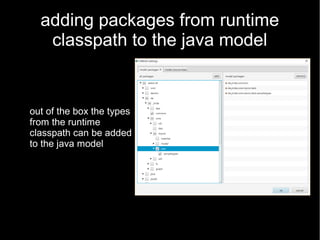
adding packages from runtime
classpath to the java model
out of the box the types
from the runtime
classpath can be added
to the java model
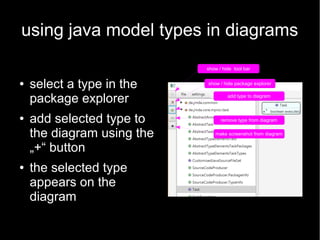
using java model types in diagrams
● select a type in the
package explorer
● add selected type to
the diagram using the
„+“ button
● the selected type
appears on the
diagram
show / hide tool bar
show / hide package explorer
add type to diagram
remove type from diagram
make screenshot from diagram
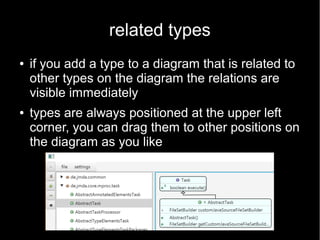
related types
● if you add a type to a diagram that is related to
other types on the diagram the relations are
visible immediately
● types are always positioned at the upper left
corner, you can drag them to other positions on
the diagram as you like
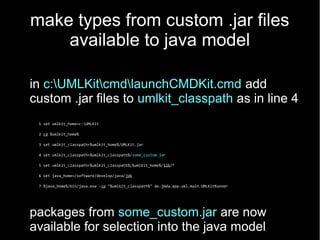
make types from custom .jar files
available to java model
in c:UMLKitcmdlaunchCMDKit.cmd add
custom .jar files to umlkit_classpath as in line 4
1 set umlkit_home=c:UMLKit
2 cd %umlkit_home%
3 set umlkit_classpath=%umlkit_home%/UMLKit.jar
4 set umlkit_classpath=%umlkit_classpath%/some_custom.jar
5 set umlkit_classpath=%umlkit_classpath%;%umlkit_home%/lib/*
6 set java_home=/software/develop/java/jdk
7 %java_home%/bin/java.exe -cp "%umlkit_classpath%" de.jmda.app.uml.main.UMLKitRunner
packages from some_custom.jar are now
available for selection into the java model
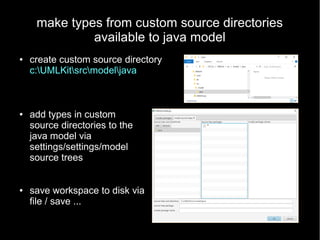
make types from custom source directories
available to java model
● add types in custom
source directories to the
java model via
settings/settings/model
source trees
● save workspace to disk via
file / save ...
● create custom source directory
c:UMLKitsrcmodeljava
add custom types to custom source
directories
put custom types into custom source directory
– src/model/java/sample/jMDA.java
– src/model/java/sample/ProofOfConcept.java
add custom types from custom
directories to java model
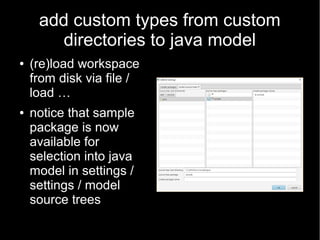
● (re)load workspace
from disk via file /
load …
● notice that sample
package is now
available for
selection into java
model in settings /
settings / model
source trees
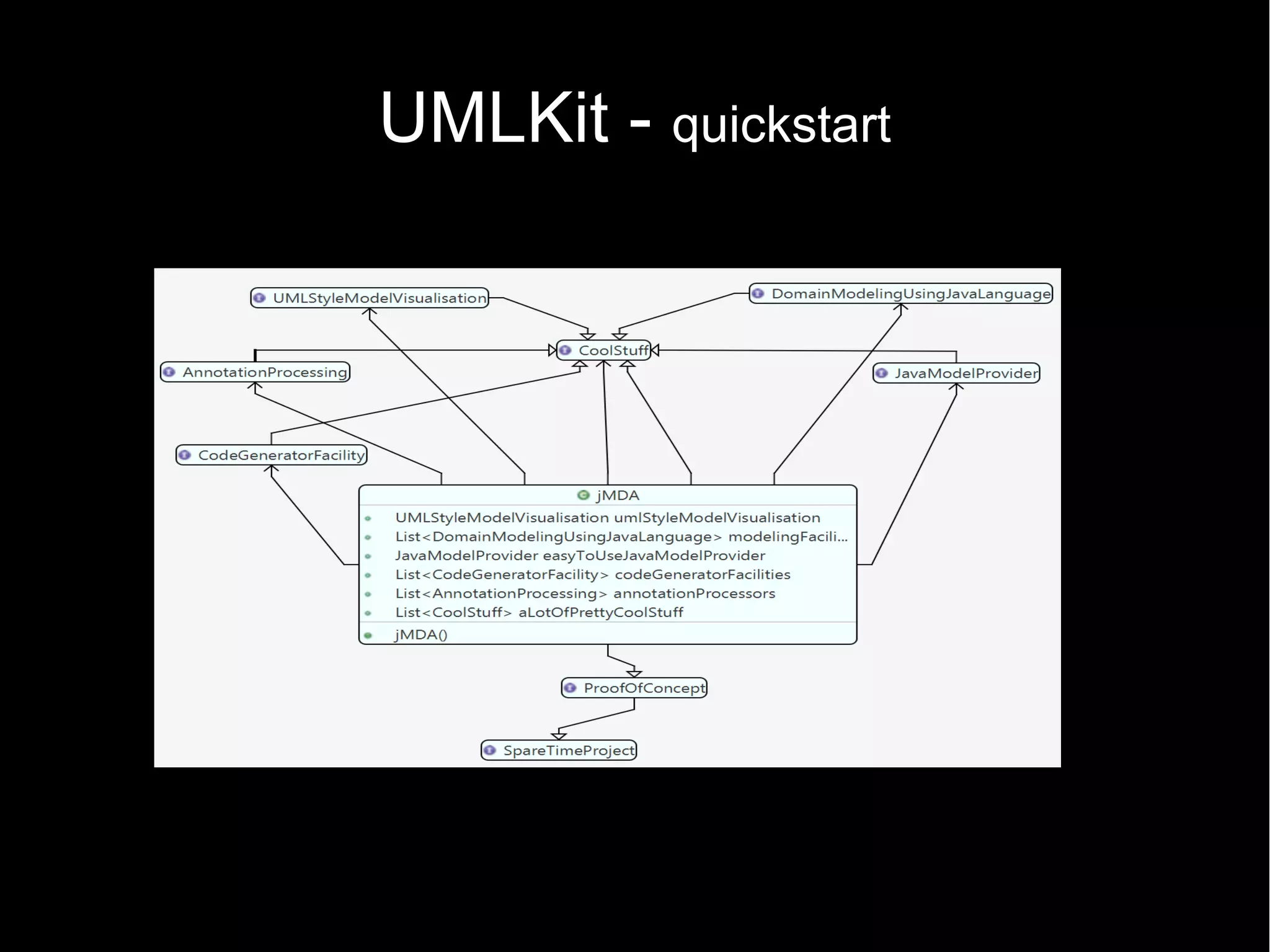
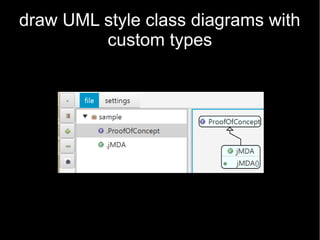
draw UML style class diagrams with
custom types

jMDA UMLKit

  • 1.
  • 2.
    prerequisites ● Java 8Development Kit (JDK) available from here http://www.oracle.com/technetwork/java/javase/downloads/index.html ● Note: Java Runtime Environment (JRE) is not sufficient!
  • 3.
    prepare UMLKit ● downloadfrom here ... https://github.com/r-uu/jmda/blob/master/jmda/jmda.app.uml/dist/jar/UMLKit.zip ● … to a place of your liking on your local drive, e.g. ... c:UMLKit ● … then unpack UMLKit.zip
  • 4.
    configure startup procedure ●edit file c:UMLKitcmdlaunchCMDKit.cmd ● minimal configuration, adjust values in line 1 and 5 to your environment 1 set umlkit_home=c:UMLKit 2 cd %umlkit_home% 3 set umlkit_classpath=%umlkit_home%/UMLKit.jar 4 set umlkit_classpath=%umlkit_classpath%;%umlkit_home%/lib/* 5 set java_home=/software/develop/java/jdk 6 %java_home%/bin/java.exe -cp "%umlkit_classpath%" de.jmda.app.uml.main.UMLKitRunner ● make sure that java_home in line 5 points to a Java 8 JDK, JRE is not sufficient
  • 5.
  • 6.
    UMLKit java model ●in UMLKit the java model defines the java types that can be used in diagrams ● the types of the java model may be located as binaries in .jar files or as sources in .java files
  • 7.
    adding types tothe java model ● initially there are no types in the java model ● types can be added to the java model via the settings/settings … menu
  • 8.
    adding packages fromruntime classpath to the java model out of the box the types from the runtime classpath can be added to the java model
  • 9.
    using java modeltypes in diagrams ● select a type in the package explorer ● add selected type to the diagram using the „+“ button ● the selected type appears on the diagram show / hide tool bar show / hide package explorer add type to diagram remove type from diagram make screenshot from diagram
  • 10.
    related types ● ifyou add a type to a diagram that is related to other types on the diagram the relations are visible immediately ● types are always positioned at the upper left corner, you can drag them to other positions on the diagram as you like
  • 11.
    make types fromcustom .jar files available to java model in c:UMLKitcmdlaunchCMDKit.cmd add custom .jar files to umlkit_classpath as in line 4 1 set umlkit_home=c:UMLKit 2 cd %umlkit_home% 3 set umlkit_classpath=%umlkit_home%/UMLKit.jar 4 set umlkit_classpath=%umlkit_classpath%/some_custom.jar 5 set umlkit_classpath=%umlkit_classpath%;%umlkit_home%/lib/* 6 set java_home=/software/develop/java/jdk 7 %java_home%/bin/java.exe -cp "%umlkit_classpath%" de.jmda.app.uml.main.UMLKitRunner packages from some_custom.jar are now available for selection into the java model
  • 12.
    make types fromcustom source directories available to java model ● add types in custom source directories to the java model via settings/settings/model source trees ● save workspace to disk via file / save ... ● create custom source directory c:UMLKitsrcmodeljava
  • 13.
    add custom typesto custom source directories put custom types into custom source directory – src/model/java/sample/jMDA.java – src/model/java/sample/ProofOfConcept.java
  • 14.
    add custom typesfrom custom directories to java model ● (re)load workspace from disk via file / load … ● notice that sample package is now available for selection into java model in settings / settings / model source trees
  • 15.
    draw UML styleclass diagrams with custom types