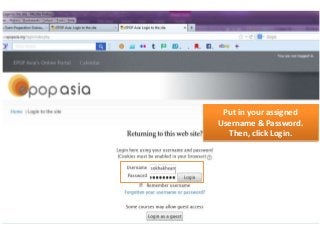
Put in yourassigned
Username & Password.
Then, click Login.
4.
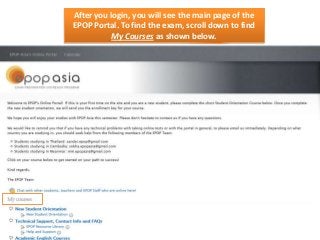
After you login,you will see the main page of the
EPOP Portal. To find the exam, scroll down to find
My Courses as shown below.
5.
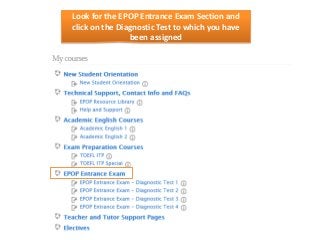
Look for theEPOP Entrance Exam Section and
click on the Diagnostic Test to which you have
been assigned
6.
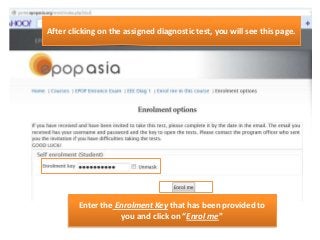
After clicking onthe assigned diagnostic test, you will see this page.
Enter the Enrolment Key that has been provided to
you and click on “Enrol me”
7.
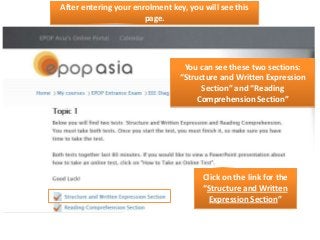
After entering yourenrolment key, you will see this
page.
You can see these two sections:
“Structure and Written Expression
Section” and “Reading
Comprehension Section”
Click on the link for the
“Structure and Written
Expression Section”
8.
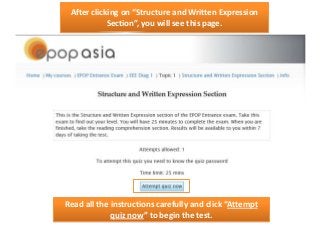
After clicking on“Structure and Written Expression
Section”, you will see this page.
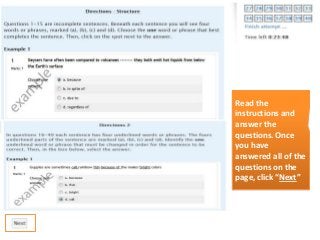
Read all the instructions carefully and click “Attempt
quiz now” to begin the test.
9.
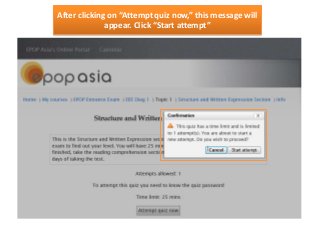
After clicking on“Attempt quiz now,” this message will
appear. Click “Start attempt”
10.
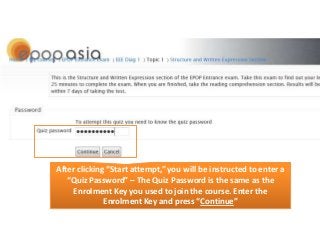
After clicking “Startattempt,” you will be instructed to enter a
“Quiz Password” – The Quiz Password is the same as the
Enrolment Key you used to join the course. Enter the
Enrolment Key and press “Continue”
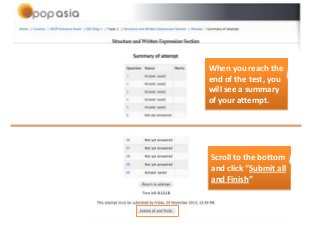
When you reachthe
end of the test, you
will see a summary
of your attempt.
Scroll to the bottom
and click “Submit all
and Finish”
13.
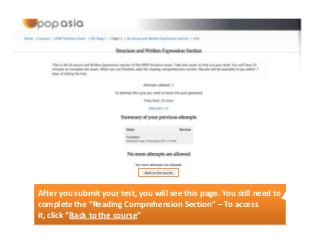
After you submityour test, you will see this page. You still need to
complete the “Reading Comprehension Section” – To access
it, click “Back to the course”
14.
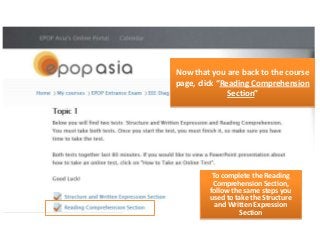
Now that youare back to the course
page, click “Reading Comprehension
Section”
To complete the Reading
Comprehension Section,
follow the same steps you
used to take the Structure
and Written Expression
Section
15.
Good Luck!
If youhave any concerns or technical problems, do not hesitate to
contact the EPOP team:
Michael: epopasia@gmail.com
Sokha: sokha.epopasia@gmail.com
KMH: mm.epopasia@gmail.com
Sandar: sandar.epop@gmail.com