It’s really all up to aes-
thetics and personal pref-
erence. When using a
tool found on the toolbar,
it’s as easy as a mouse
click to activate it.
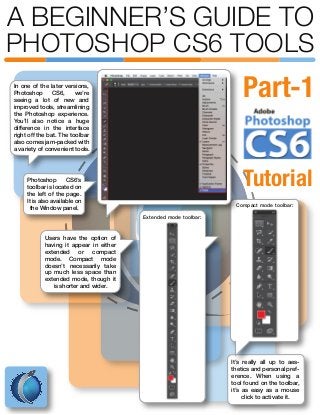
Photoshop CS6’s
toolbar is located on
the left of the page.
It is also available on
the Window panel.
In one of the later versions,
Photoshop CS6, we’re
seeing a lot of new and
improved tools, streamlining
the Photoshop experience.
You’ll also notice a huge
difference in the interface
right off the bat. The toolbar
also comes jam-packed with
a variety of convenient tools.
Users have the option of
having it appear in either
extended or compact
mode. Compact mode
doesn’t necessarily take
up much less space than
extended mode, though it
is shorter and wider.
Extended mode toolbar:
Compact mode toolbar:
Part-1
Tutorial
A BEGINNER’S GUIDE TO
PHOTOSHOP CS6 TOOLS
You can also copy or cut the pixel selection and move it to a
different window or in the same window.
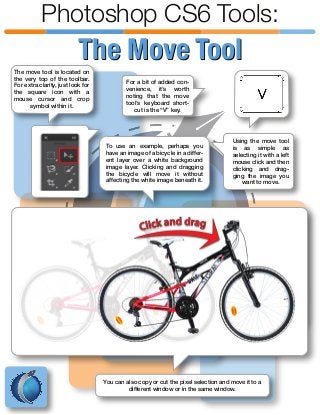
The move tool is located on
the very top of the toolbar.
For extra clarity, just look for
the square icon with a
mouse cursor and crop
symbol within it.
For a bit of added con-
venience, it’s worth
noting that the move
tool’s keyboard short-
cut is the “V” key.
To use an example, perhaps you
have an image of a bicycle in a differ-
ent layer over a white background
image layer. Clicking and dragging
the bicycle will move it without
affecting the white image beneath it.
Using the move tool
is as simple as
selecting it with a left
mouse click and then
clicking and drag-
ging the image you
want to move.
Photoshop CS6 Tools:
The Move ToolThe Move Tool
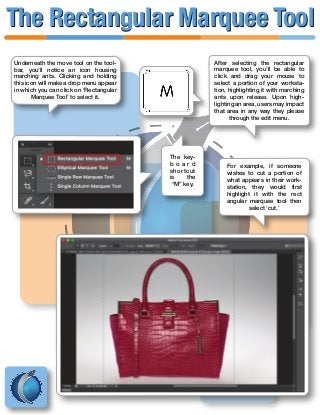
Underneath the move tool on the tool-
bar, you’ll notice an icon housing
marching ants. Clicking and holding
this icon will make a drop menu appear
in which you can click on ‘Rectangular
Marquee Tool’ to select it.
The key-
b o a r d
shortcut
is the
“M” key.
After selecting the rectangular
marquee tool, you’ll be able to
click and drag your mouse to
select a portion of your worksta-
tion, highlighting it with marching
ants upon release. Upon high-
lighting an area, users may impact
that area in any way they please
through the edit menu.
For example, if someone
wishes to cut a portion of
what appears in their work-
station, they would first
highlight it with the rect
angular marquee tool then
select ‘cut.’
The Rectangular Marquee ToolThe Rectangular Marquee Tool
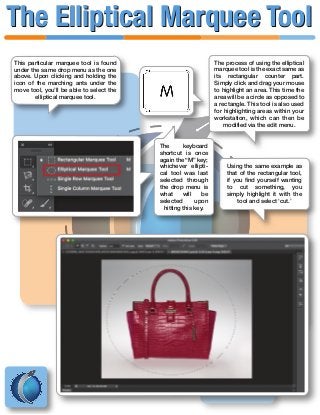
This particular marquee tool is found
under the same drop menu as the one
above. Upon clicking and holding the
icon of the marching ants under the
move tool, you’ll be able to select the
elliptical marquee tool.
The keyboard
shortcut is once
again the “M” key;
whichever ellipti-
cal tool was last
selected through
the drop menu is
what will be
selected upon
hitting this key.
The process of using the elliptical
marquee tool is the exact same as
its rectangular counter part.
Simply click and drag your mouse
to highlight an area. This time the
area will be a circle as opposed to
a rectangle. This tool is also used
for highlighting areas within your
workstation, which can then be
modified via the edit menu.
Using the same example as
that of the rectangular tool,
if you find yourself wanting
to cut something, you
simply highlight it with the
tool and select ‘cut.’
The Elliptical Marquee ToolThe Elliptical Marquee Tool
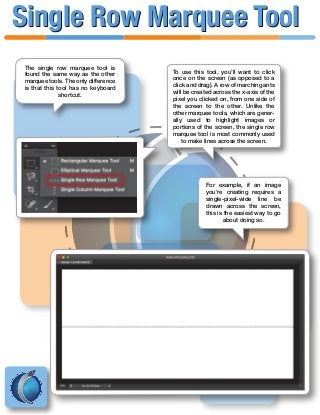
The single row marquee tool is
found the same way as the other
marquee tools. The only difference
is that this tool has no keyboard
shortcut.
To use this tool, you’ll want to click
once on the screen (as opposed to a
click and drag). A row of marching ants
will be created across the x-axis of the
pixel you clicked on, from one side of
the screen to the other. Unlike the
other marquee tools, which are gener-
ally used to highlight images or
portions of the screen, the single row
marquee tool is most commonly used
to make lines across the screen.
For example, if an image
you’re creating requires a
single-pixel-wide line be
drawn across the screen,
this is the easiest way to go
about doing so.
Single Row Marquee ToolSingle Row Marquee Tool
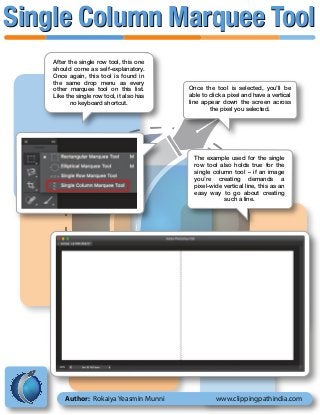
After the single row tool, this one
should come as self-explanatory.
Once again, this tool is found in
the same drop menu as every
other marquee tool on this list.
Like the single row tool, it also has
no keyboard shortcut.
Once the tool is selected, you’ll be
able to click a pixel and have a vertical
line appear down the screen across
the pixel you selected.
The example used for the single
row tool also holds true for the
single column tool – if an image
you’re creating demands a
pixel-wide vertical line, this as an
easy way to go about creating
such a line.
Author: Rokaiya Yeasmin Munni www.clippingpathindia.com
Single Column Marquee ToolSingle Column Marquee Tool

A Beginner’s Guide to Photoshop CS6 Tools – Part 1

  • 1.
    It’s really allup to aes- thetics and personal pref- erence. When using a tool found on the toolbar, it’s as easy as a mouse click to activate it. Photoshop CS6’s toolbar is located on the left of the page. It is also available on the Window panel. In one of the later versions, Photoshop CS6, we’re seeing a lot of new and improved tools, streamlining the Photoshop experience. You’ll also notice a huge difference in the interface right off the bat. The toolbar also comes jam-packed with a variety of convenient tools. Users have the option of having it appear in either extended or compact mode. Compact mode doesn’t necessarily take up much less space than extended mode, though it is shorter and wider. Extended mode toolbar: Compact mode toolbar: Part-1 Tutorial A BEGINNER’S GUIDE TO PHOTOSHOP CS6 TOOLS
  • 2.
    You can alsocopy or cut the pixel selection and move it to a different window or in the same window. The move tool is located on the very top of the toolbar. For extra clarity, just look for the square icon with a mouse cursor and crop symbol within it. For a bit of added con- venience, it’s worth noting that the move tool’s keyboard short- cut is the “V” key. To use an example, perhaps you have an image of a bicycle in a differ- ent layer over a white background image layer. Clicking and dragging the bicycle will move it without affecting the white image beneath it. Using the move tool is as simple as selecting it with a left mouse click and then clicking and drag- ging the image you want to move. Photoshop CS6 Tools: The Move ToolThe Move Tool
  • 3.
    Underneath the movetool on the tool- bar, you’ll notice an icon housing marching ants. Clicking and holding this icon will make a drop menu appear in which you can click on ‘Rectangular Marquee Tool’ to select it. The key- b o a r d shortcut is the “M” key. After selecting the rectangular marquee tool, you’ll be able to click and drag your mouse to select a portion of your worksta- tion, highlighting it with marching ants upon release. Upon high- lighting an area, users may impact that area in any way they please through the edit menu. For example, if someone wishes to cut a portion of what appears in their work- station, they would first highlight it with the rect angular marquee tool then select ‘cut.’ The Rectangular Marquee ToolThe Rectangular Marquee Tool
  • 4.
    This particular marqueetool is found under the same drop menu as the one above. Upon clicking and holding the icon of the marching ants under the move tool, you’ll be able to select the elliptical marquee tool. The keyboard shortcut is once again the “M” key; whichever ellipti- cal tool was last selected through the drop menu is what will be selected upon hitting this key. The process of using the elliptical marquee tool is the exact same as its rectangular counter part. Simply click and drag your mouse to highlight an area. This time the area will be a circle as opposed to a rectangle. This tool is also used for highlighting areas within your workstation, which can then be modified via the edit menu. Using the same example as that of the rectangular tool, if you find yourself wanting to cut something, you simply highlight it with the tool and select ‘cut.’ The Elliptical Marquee ToolThe Elliptical Marquee Tool
  • 5.
    The single rowmarquee tool is found the same way as the other marquee tools. The only difference is that this tool has no keyboard shortcut. To use this tool, you’ll want to click once on the screen (as opposed to a click and drag). A row of marching ants will be created across the x-axis of the pixel you clicked on, from one side of the screen to the other. Unlike the other marquee tools, which are gener- ally used to highlight images or portions of the screen, the single row marquee tool is most commonly used to make lines across the screen. For example, if an image you’re creating requires a single-pixel-wide line be drawn across the screen, this is the easiest way to go about doing so. Single Row Marquee ToolSingle Row Marquee Tool
  • 6.
    After the singlerow tool, this one should come as self-explanatory. Once again, this tool is found in the same drop menu as every other marquee tool on this list. Like the single row tool, it also has no keyboard shortcut. Once the tool is selected, you’ll be able to click a pixel and have a vertical line appear down the screen across the pixel you selected. The example used for the single row tool also holds true for the single column tool – if an image you’re creating demands a pixel-wide vertical line, this as an easy way to go about creating such a line. Author: Rokaiya Yeasmin Munni www.clippingpathindia.com Single Column Marquee ToolSingle Column Marquee Tool