Drawing Text
A brief Android tutorial on drawing text using Canvas.drawText()

Richard Creamer
2to32minus1 (at) gmail (dot) com

Links
Home Page
LinkedIn Profile
Google+ Profile

1
Copyright (c) Richard Creamer 2011 - 2012 - All Rights Reserved
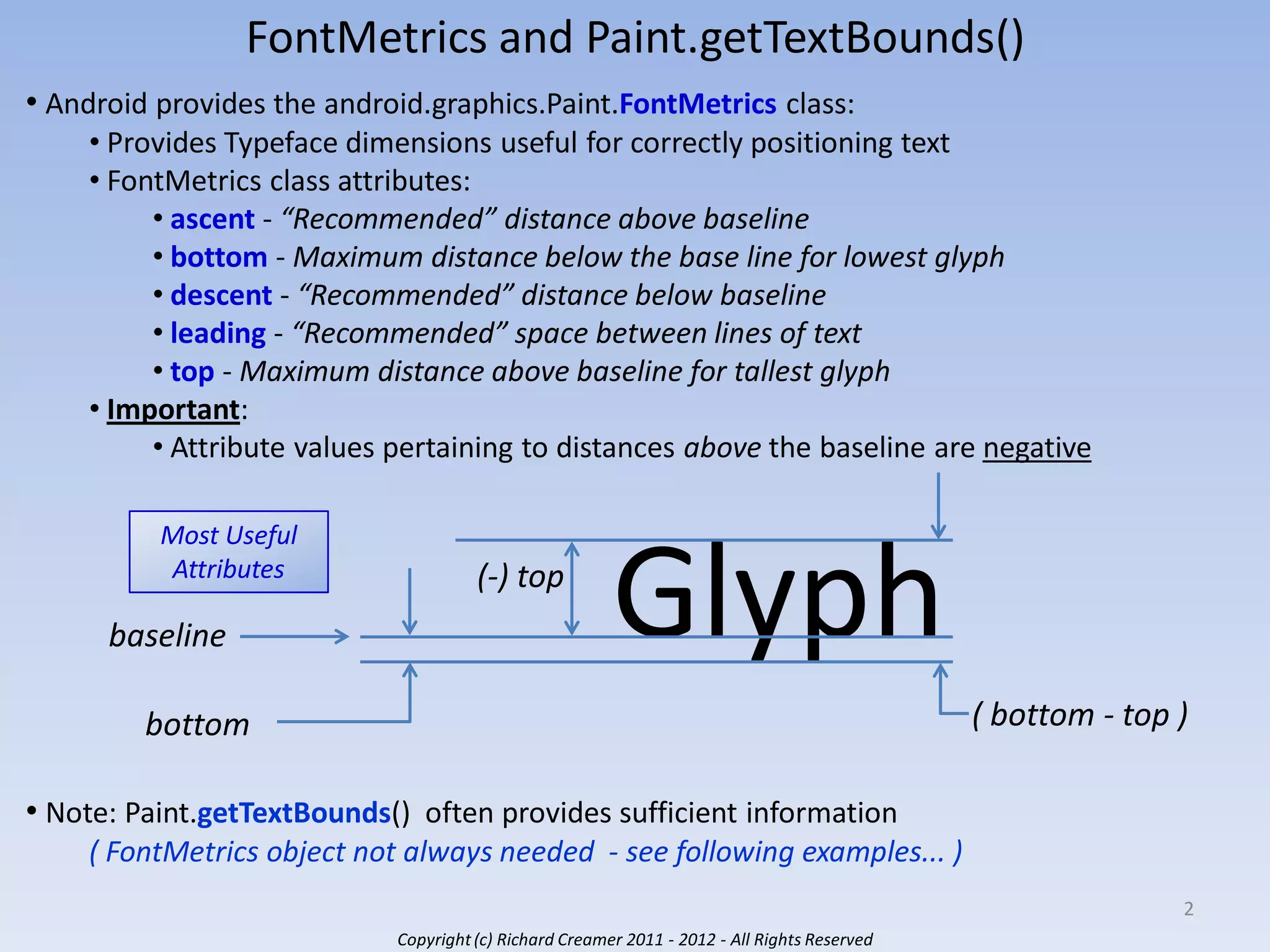
FontMetrics and Paint.getTextBounds()
• Android provides the android.graphics.Paint.FontMetrics class:
• Provides Typeface dimensions useful for correctly positioning text
• FontMetrics class attributes:
• ascent - “Recommended” distance above baseline
• bottom - Maximum distance below the base line for lowest glyph
• descent - “Recommended” distance below baseline
• leading - “Recommended” space between lines of text
• top - Maximum distance above baseline for tallest glyph
• Important:
• Attribute values pertaining to distances above the baseline are negative
Most Useful
Attributes

baseline

(-) top

Glyph
( bottom - top )

bottom
• Note: Paint.getTextBounds() often provides sufficient information
( FontMetrics object not always needed - see following examples... )

2
Copyright (c) Richard Creamer 2011 - 2012 - All Rights Reserved
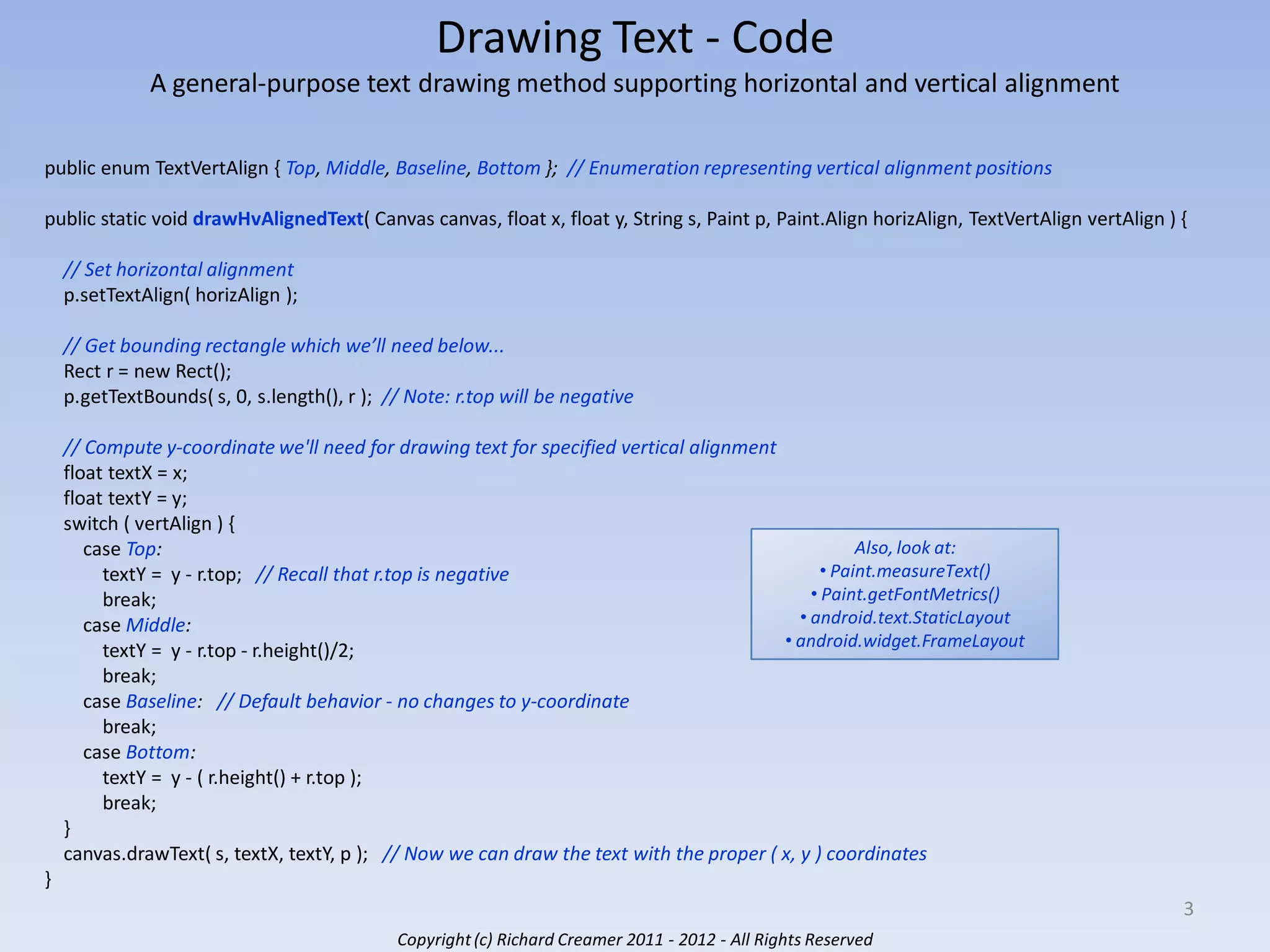
Drawing Text - Code
A general-purpose text drawing method supporting horizontal and vertical alignment
public enum TextVertAlign { Top, Middle, Baseline, Bottom }; // Enumeration representing vertical alignment positions
public static void drawHvAlignedText( Canvas canvas, float x, float y, String s, Paint p, Paint.Align horizAlign, TextVertAlign vertAlign ) {
// Set horizontal alignment
p.setTextAlign( horizAlign );

// Get bounding rectangle which we’ll need below...
Rect r = new Rect();
p.getTextBounds( s, 0, s.length(), r ); // Note: r.top will be negative
// Compute y-coordinate we'll need for drawing text for specified vertical alignment
float textX = x;
float textY = y;
switch ( vertAlign ) {
Also, look at:
case Top:
• Paint.measureText()
textY = y - r.top; // Recall that r.top is negative
• Paint.getFontMetrics()
break;
• android.text.StaticLayout
case Middle:
• android.widget.FrameLayout
textY = y - r.top - r.height()/2;
break;
case Baseline: // Default behavior - no changes to y-coordinate
break;
case Bottom:
textY = y - ( r.height() + r.top );
break;
}
canvas.drawText( s, textX, textY, p ); // Now we can draw the text with the proper ( x, y ) coordinates
}
3
Copyright (c) Richard Creamer 2011 - 2012 - All Rights Reserved
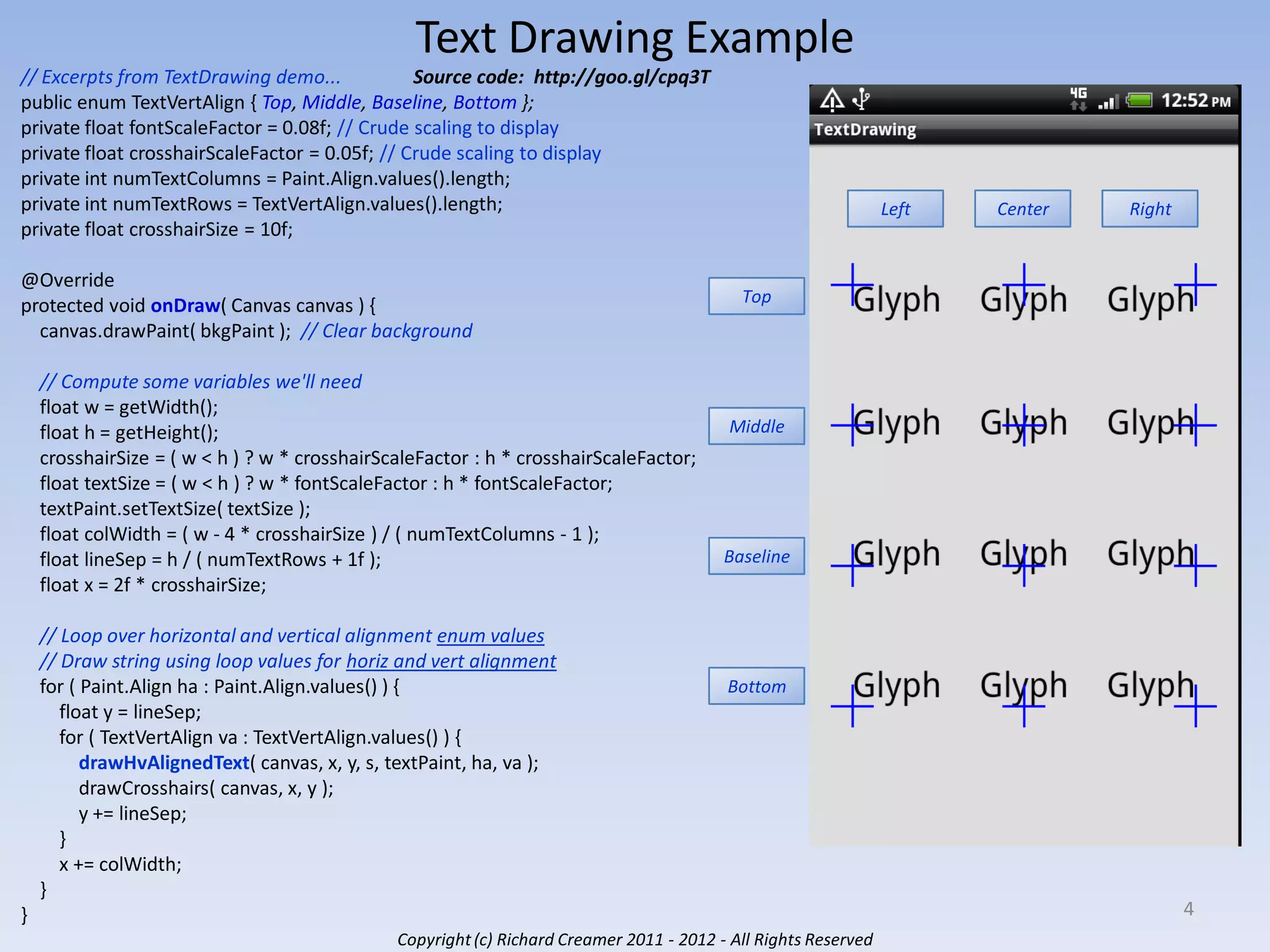
Text Drawing Example
// Excerpts from TextDrawing demo...
Source code: http://goo.gl/cpq3T
public enum TextVertAlign { Top, Middle, Baseline, Bottom };
private float fontScaleFactor = 0.08f; // Crude scaling to display
private float crosshairScaleFactor = 0.05f; // Crude scaling to display
private int numTextColumns = Paint.Align.values().length;
private int numTextRows = TextVertAlign.values().length;
private float crosshairSize = 10f;
@Override
protected void onDraw( Canvas canvas ) {
canvas.drawPaint( bkgPaint ); // Clear background
// Compute some variables we'll need
float w = getWidth();
float h = getHeight();
crosshairSize = ( w < h ) ? w * crosshairScaleFactor : h * crosshairScaleFactor;
float textSize = ( w < h ) ? w * fontScaleFactor : h * fontScaleFactor;
textPaint.setTextSize( textSize );
float colWidth = ( w - 4 * crosshairSize ) / ( numTextColumns - 1 );
float lineSep = h / ( numTextRows + 1f );
float x = 2f * crosshairSize;

// Loop over horizontal and vertical alignment enum values
// Draw string using loop values for horiz and vert alignment
for ( Paint.Align ha : Paint.Align.values() ) {
float y = lineSep;
for ( TextVertAlign va : TextVertAlign.values() ) {
drawHvAlignedText( canvas, x, y, s, textPaint, ha, va );
drawCrosshairs( canvas, x, y );
y += lineSep;
}
x += colWidth;
}

Left

Center

Right

Top

Middle

Baseline

Bottom

}
Copyright (c) Richard Creamer 2011 - 2012 - All Rights Reserved

4
Drawing Text
A brief Android tutorial on drawing text using Canvas.drawText()

Richard Creamer
2to32minus1 (at) gmail (dot) com

Links
Home Page
LinkedIn Profile
Google+ Profile

5
Copyright (c) Richard Creamer 2011 - 2012 - All Rights Reserved

Precise Android Text Drawing

  • 1.
    Drawing Text A briefAndroid tutorial on drawing text using Canvas.drawText() Richard Creamer 2to32minus1 (at) gmail (dot) com Links Home Page LinkedIn Profile Google+ Profile 1 Copyright (c) Richard Creamer 2011 - 2012 - All Rights Reserved
  • 2.
    FontMetrics and Paint.getTextBounds() •Android provides the android.graphics.Paint.FontMetrics class: • Provides Typeface dimensions useful for correctly positioning text • FontMetrics class attributes: • ascent - “Recommended” distance above baseline • bottom - Maximum distance below the base line for lowest glyph • descent - “Recommended” distance below baseline • leading - “Recommended” space between lines of text • top - Maximum distance above baseline for tallest glyph • Important: • Attribute values pertaining to distances above the baseline are negative Most Useful Attributes baseline (-) top Glyph ( bottom - top ) bottom • Note: Paint.getTextBounds() often provides sufficient information ( FontMetrics object not always needed - see following examples... ) 2 Copyright (c) Richard Creamer 2011 - 2012 - All Rights Reserved
  • 3.
    Drawing Text -Code A general-purpose text drawing method supporting horizontal and vertical alignment public enum TextVertAlign { Top, Middle, Baseline, Bottom }; // Enumeration representing vertical alignment positions public static void drawHvAlignedText( Canvas canvas, float x, float y, String s, Paint p, Paint.Align horizAlign, TextVertAlign vertAlign ) { // Set horizontal alignment p.setTextAlign( horizAlign ); // Get bounding rectangle which we’ll need below... Rect r = new Rect(); p.getTextBounds( s, 0, s.length(), r ); // Note: r.top will be negative // Compute y-coordinate we'll need for drawing text for specified vertical alignment float textX = x; float textY = y; switch ( vertAlign ) { Also, look at: case Top: • Paint.measureText() textY = y - r.top; // Recall that r.top is negative • Paint.getFontMetrics() break; • android.text.StaticLayout case Middle: • android.widget.FrameLayout textY = y - r.top - r.height()/2; break; case Baseline: // Default behavior - no changes to y-coordinate break; case Bottom: textY = y - ( r.height() + r.top ); break; } canvas.drawText( s, textX, textY, p ); // Now we can draw the text with the proper ( x, y ) coordinates } 3 Copyright (c) Richard Creamer 2011 - 2012 - All Rights Reserved
  • 4.
    Text Drawing Example //Excerpts from TextDrawing demo... Source code: http://goo.gl/cpq3T public enum TextVertAlign { Top, Middle, Baseline, Bottom }; private float fontScaleFactor = 0.08f; // Crude scaling to display private float crosshairScaleFactor = 0.05f; // Crude scaling to display private int numTextColumns = Paint.Align.values().length; private int numTextRows = TextVertAlign.values().length; private float crosshairSize = 10f; @Override protected void onDraw( Canvas canvas ) { canvas.drawPaint( bkgPaint ); // Clear background // Compute some variables we'll need float w = getWidth(); float h = getHeight(); crosshairSize = ( w < h ) ? w * crosshairScaleFactor : h * crosshairScaleFactor; float textSize = ( w < h ) ? w * fontScaleFactor : h * fontScaleFactor; textPaint.setTextSize( textSize ); float colWidth = ( w - 4 * crosshairSize ) / ( numTextColumns - 1 ); float lineSep = h / ( numTextRows + 1f ); float x = 2f * crosshairSize; // Loop over horizontal and vertical alignment enum values // Draw string using loop values for horiz and vert alignment for ( Paint.Align ha : Paint.Align.values() ) { float y = lineSep; for ( TextVertAlign va : TextVertAlign.values() ) { drawHvAlignedText( canvas, x, y, s, textPaint, ha, va ); drawCrosshairs( canvas, x, y ); y += lineSep; } x += colWidth; } Left Center Right Top Middle Baseline Bottom } Copyright (c) Richard Creamer 2011 - 2012 - All Rights Reserved 4
  • 5.
    Drawing Text A briefAndroid tutorial on drawing text using Canvas.drawText() Richard Creamer 2to32minus1 (at) gmail (dot) com Links Home Page LinkedIn Profile Google+ Profile 5 Copyright (c) Richard Creamer 2011 - 2012 - All Rights Reserved