Introduction
   ●
       kasahorow keyboard installer for Windows works for both XP and Vista. This guide
       will show you how to install the keyboard installer on Windows XP. It also shows how
       to install your preferred language keyboard and fonts. It assumes that you are
       installing the kasahorow keyboard installer in a fresh installation of Windows XP.


© 2009 kasahorow Communication Group | How to Install and Use kasahorow Keyboard on Windows XP
Download & Extract
   ●
       Get an archive of the Windows XP installer from
       http://code.google.com/p/africakeyboards/downloads/list. The file you are looking for
       has a ‘.zip’ extension (without the quotes).
   ●
       Extract the files in the zipped folder to any location on your computer.


© 2009 kasahorow Communication Group | How to Install and Use kasahorow Keyboard on Windows XP
Check for .NET 2.0
   ●
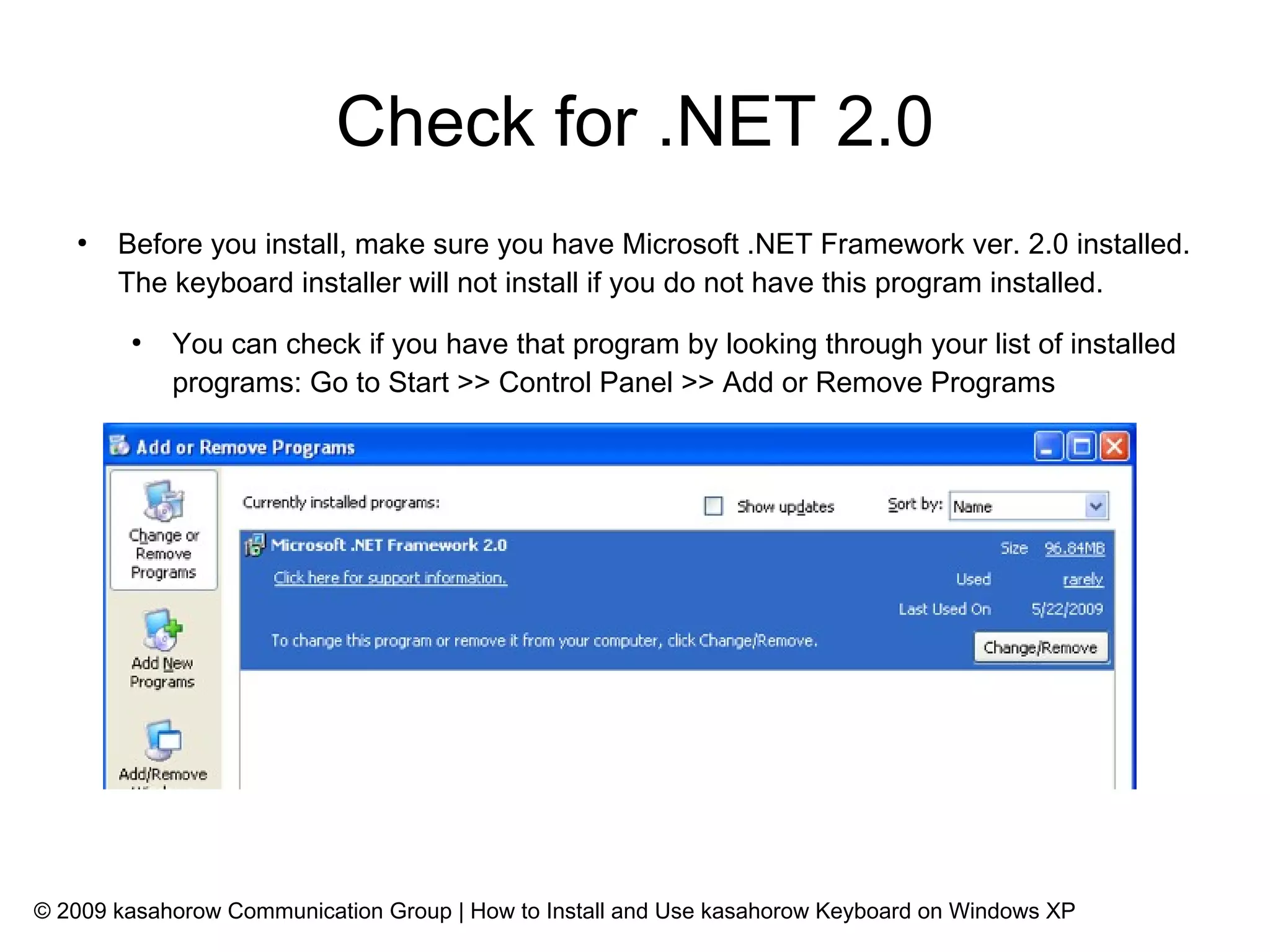
       Before you install, make sure you have Microsoft .NET Framework ver. 2.0 installed.
       The keyboard installer will not install if you do not have this program installed.
        ●
            You can check if you have that program by looking through your list of installed
            programs: Go to Start >> Control Panel >> Add or Remove Programs


© 2009 kasahorow Communication Group | How to Install and Use kasahorow Keyboard on Windows XP
Get .NET 2.0
   ●
       Get Microsoft .NET Framework 2.0 from Microsoft's website
        ●
            Get the x86 binary if you have a 32-bit Intel processor from here --
            http://www.microsoft.com/downloads/details.aspx?FamilyID=0856EACB-4362-4B0D-8E
        ●
            Get the x64 binary if you have a 64-bit processor from here --
            http://www.microsoft.com/downloads/details.aspx?familyid=B44A0000-ACF8-4FA1-AF
   ●
       If you are unsure what binary of .NET you need, download both binaries and try to
       install the 32-bit version first.
   ●
       Proceed to install the kasahorow keyboard installer.


© 2009 kasahorow Communication Group | How to Install and Use kasahorow Keyboard on Windows XP
Install
   ●
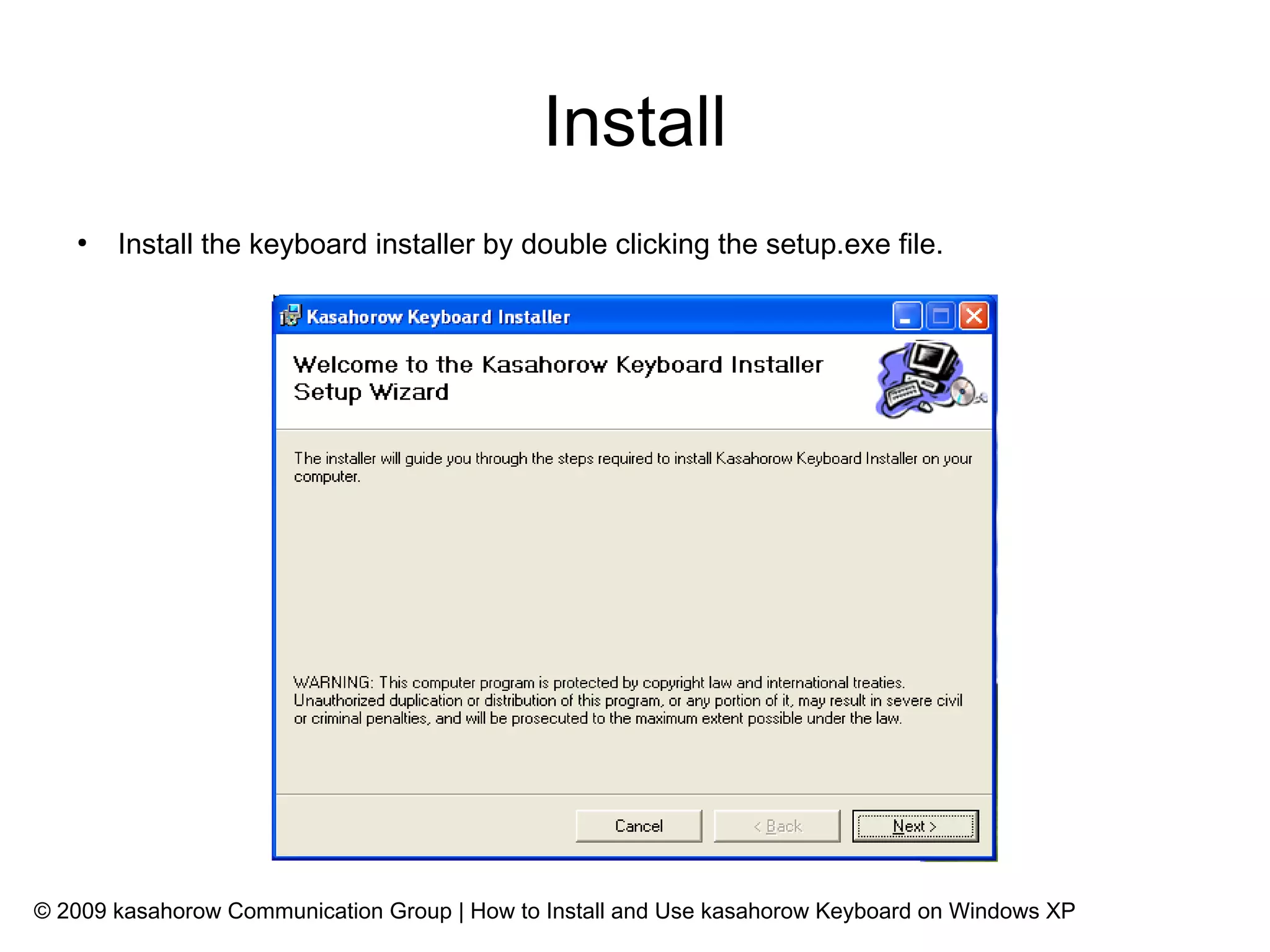
       Install the keyboard installer by double clicking the setup.exe file.


© 2009 kasahorow Communication Group | How to Install and Use kasahorow Keyboard on Windows XP
Install cont'd
   ●
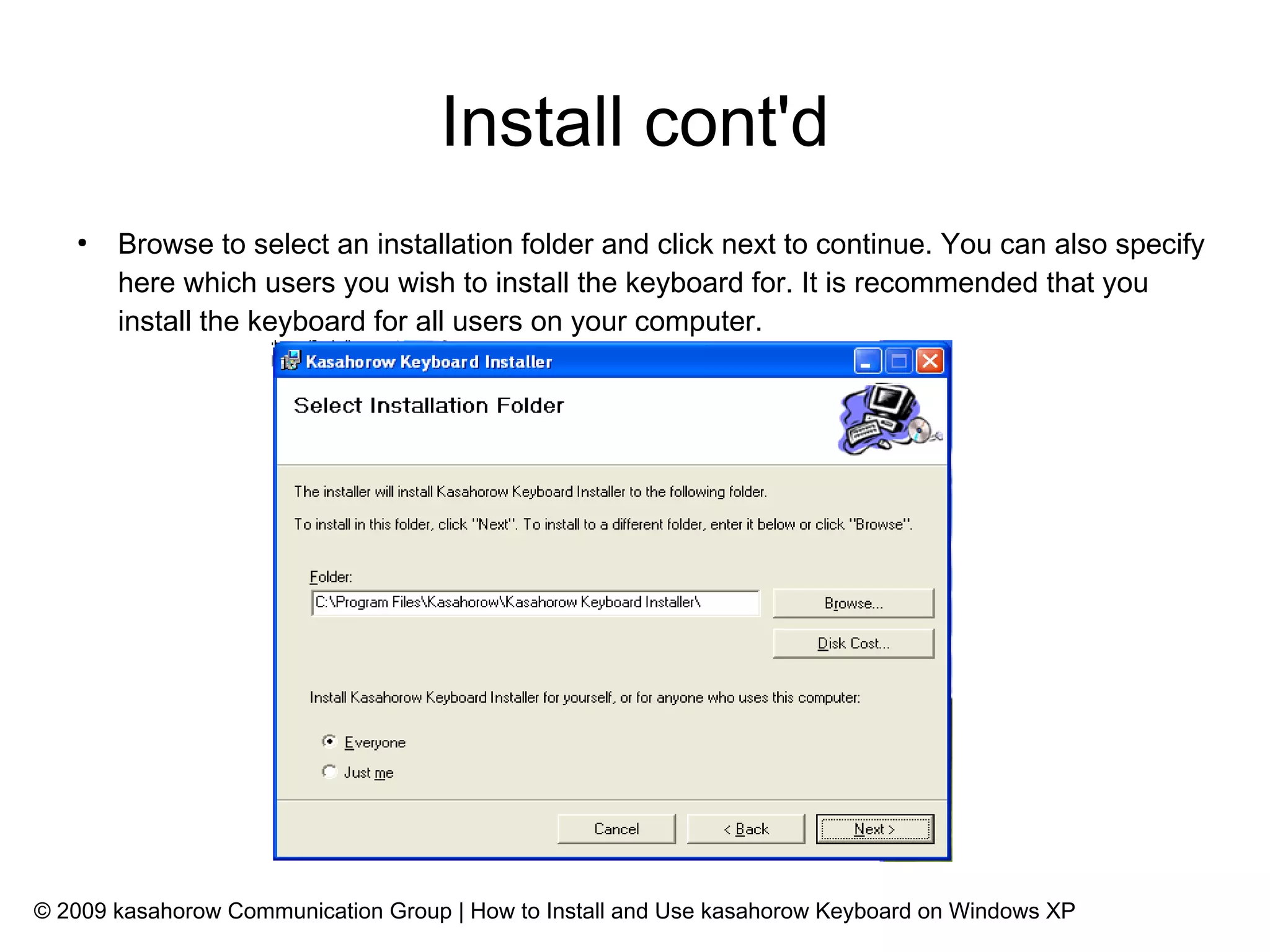
       Browse to select an installation folder and click next to continue. You can also specify
       here which users you wish to install the keyboard for. It is recommended that you
       install the keyboard for all users on your computer.


© 2009 kasahorow Communication Group | How to Install and Use kasahorow Keyboard on Windows XP
Install cont'd
   ●
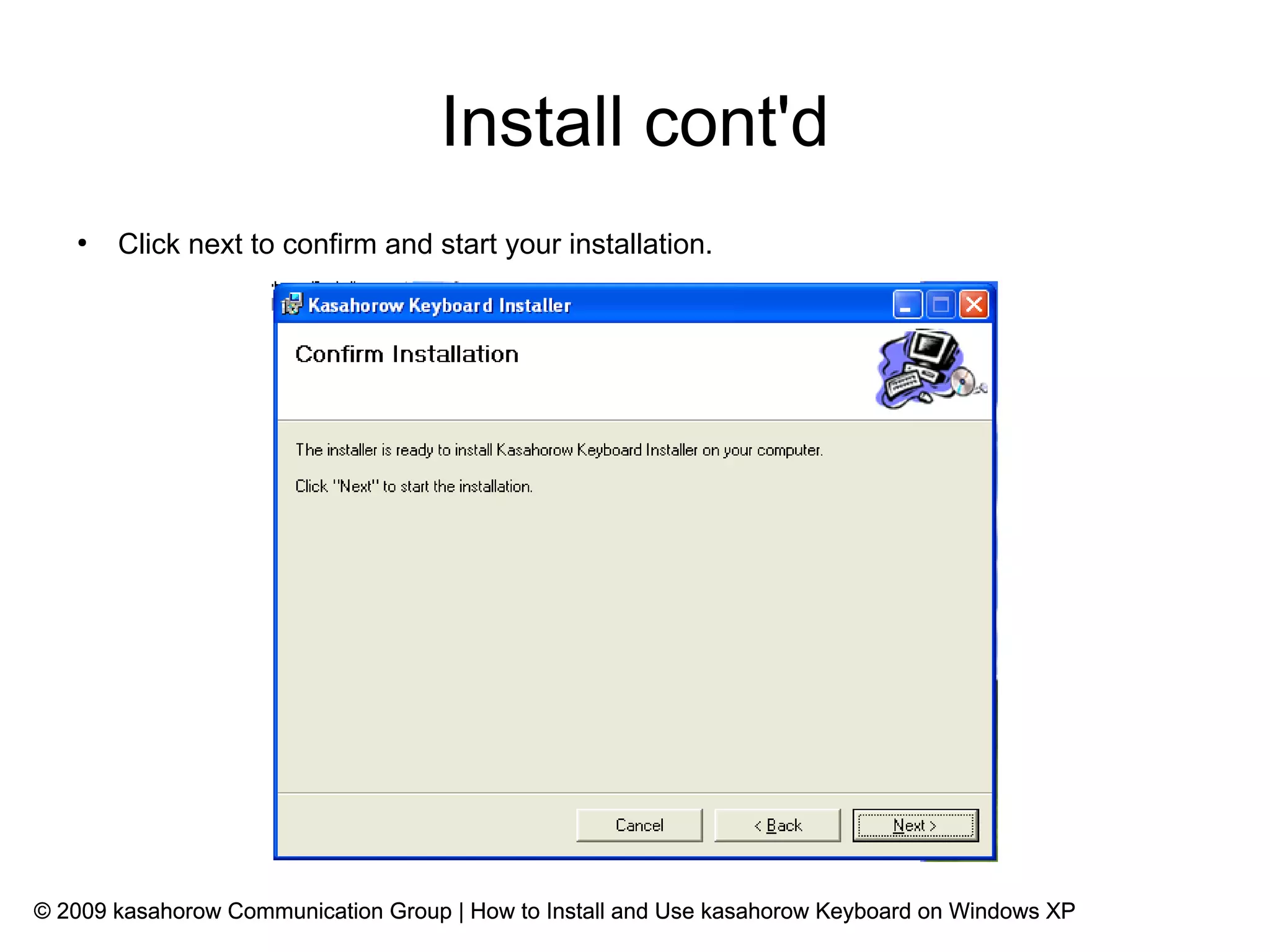
       Click next to confirm and start your installation.


© 2009 kasahorow Communication Group | How to Install and Use kasahorow Keyboard on Windows XP
Installation complete
   ●
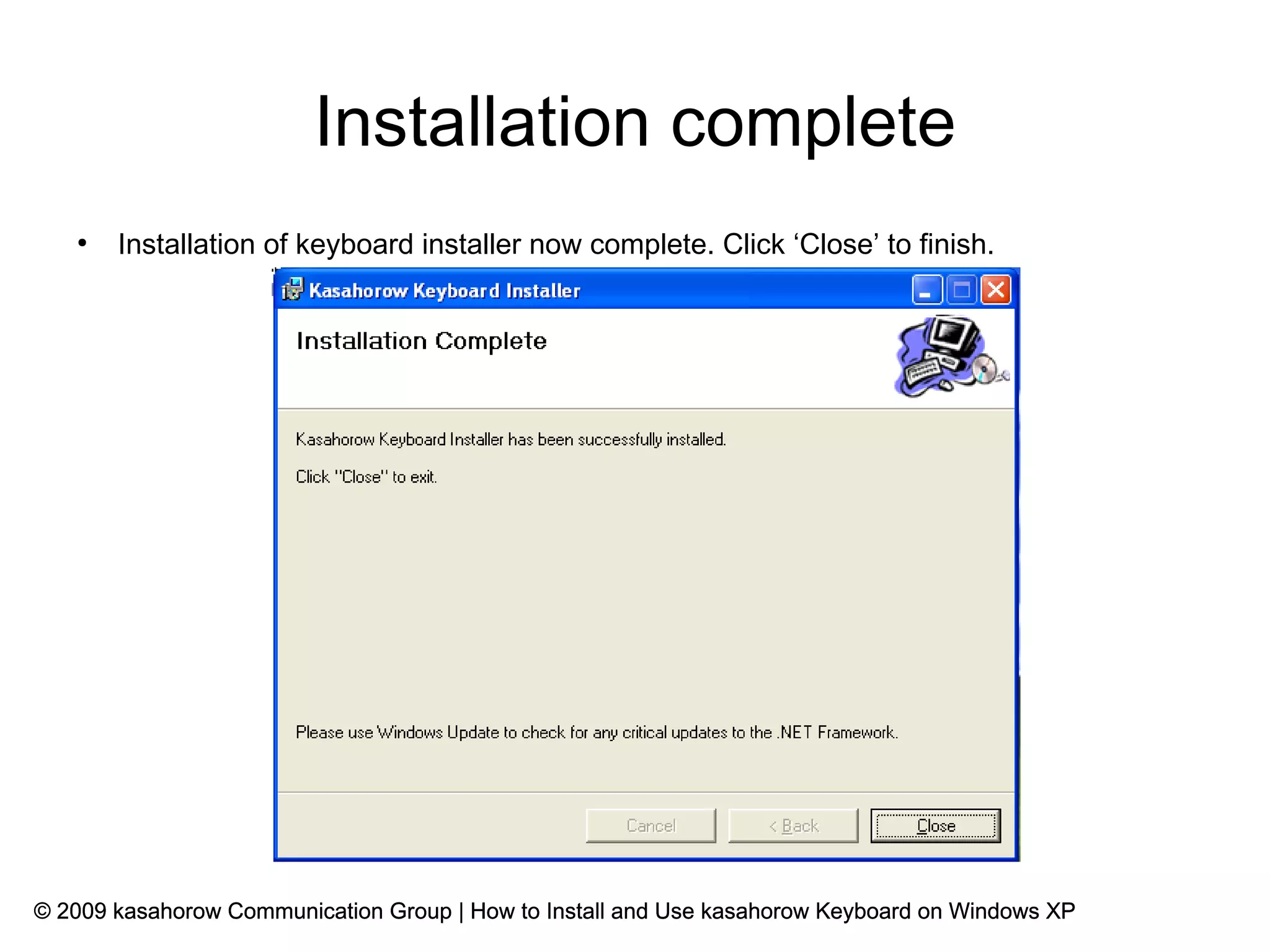
       Installation of keyboard installer now complete. Click ‘Close’ to finish.


© 2009 kasahorow Communication Group | How to Install and Use kasahorow Keyboard on Windows XP
Start keyboard installer
   ●
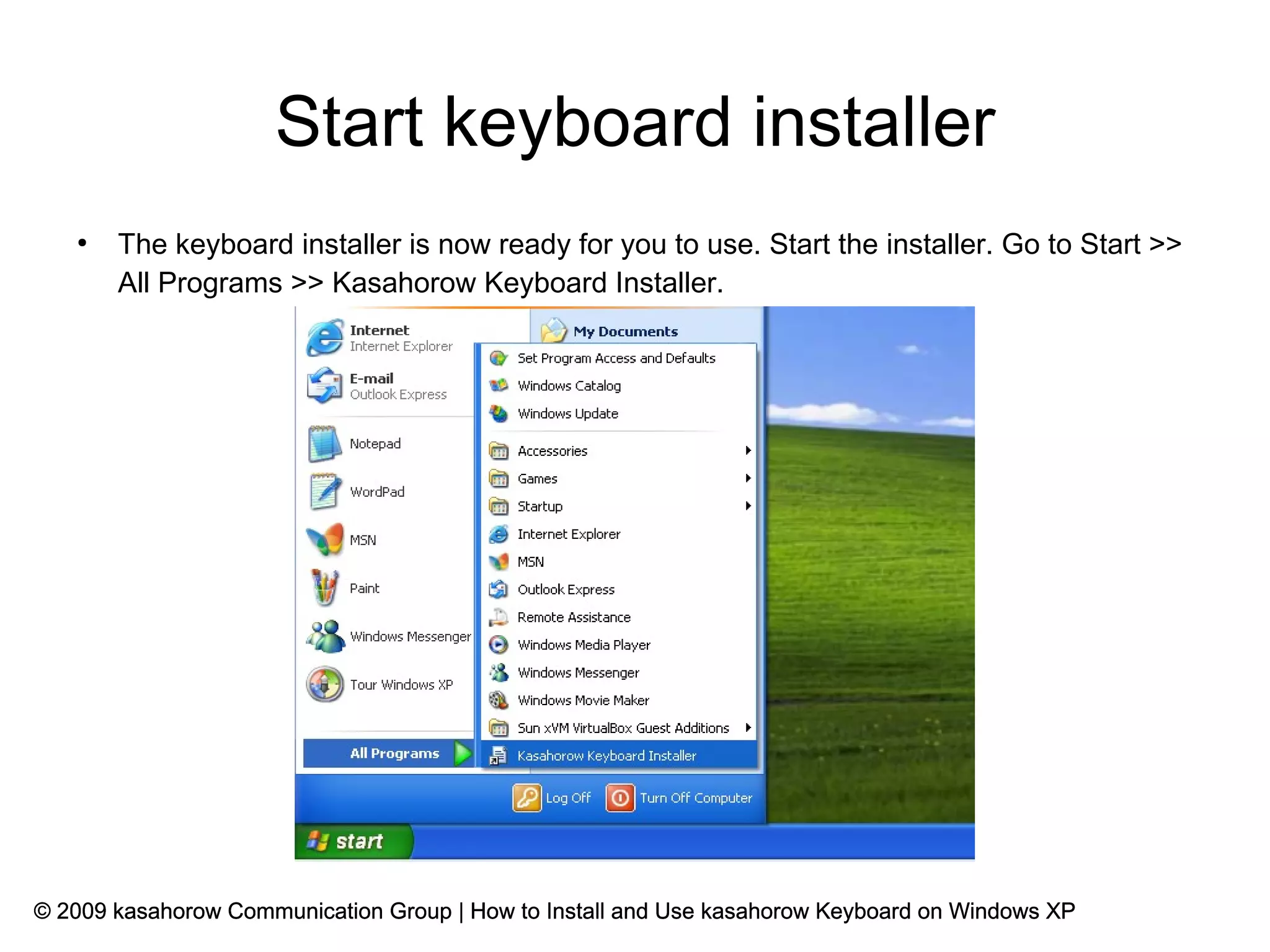
       The keyboard installer is now ready for you to use. Start the installer. Go to Start >>
       All Programs >> Kasahorow Keyboard Installer.


© 2009 kasahorow Communication Group | How to Install and Use kasahorow Keyboard on Windows XP
Install keyboard
   ●
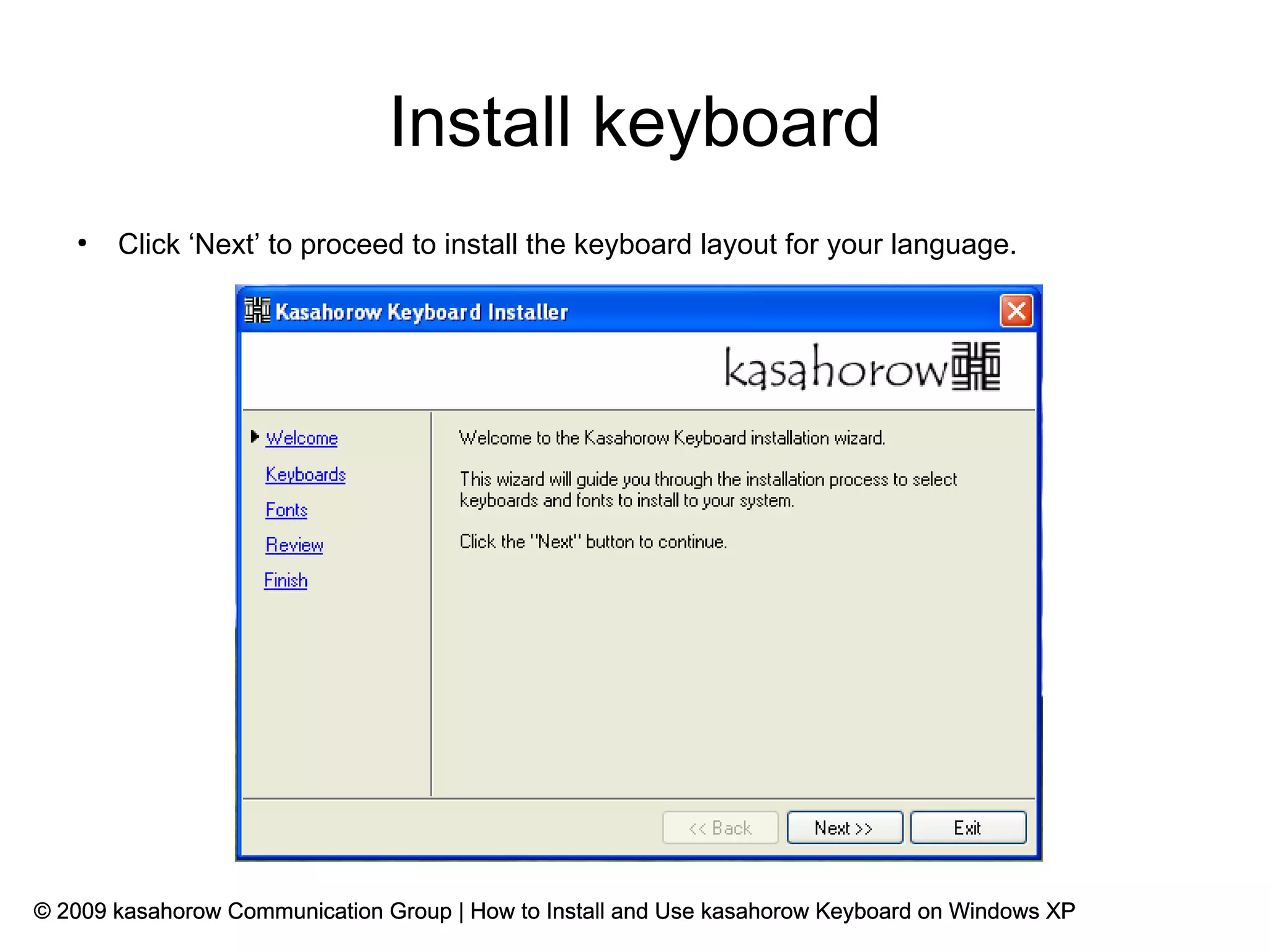
       Click ‘Next’ to proceed to install the keyboard layout for your language.


© 2009 kasahorow Communication Group | How to Install and Use kasahorow Keyboard on Windows XP
Install keyboard cont'd
   ●
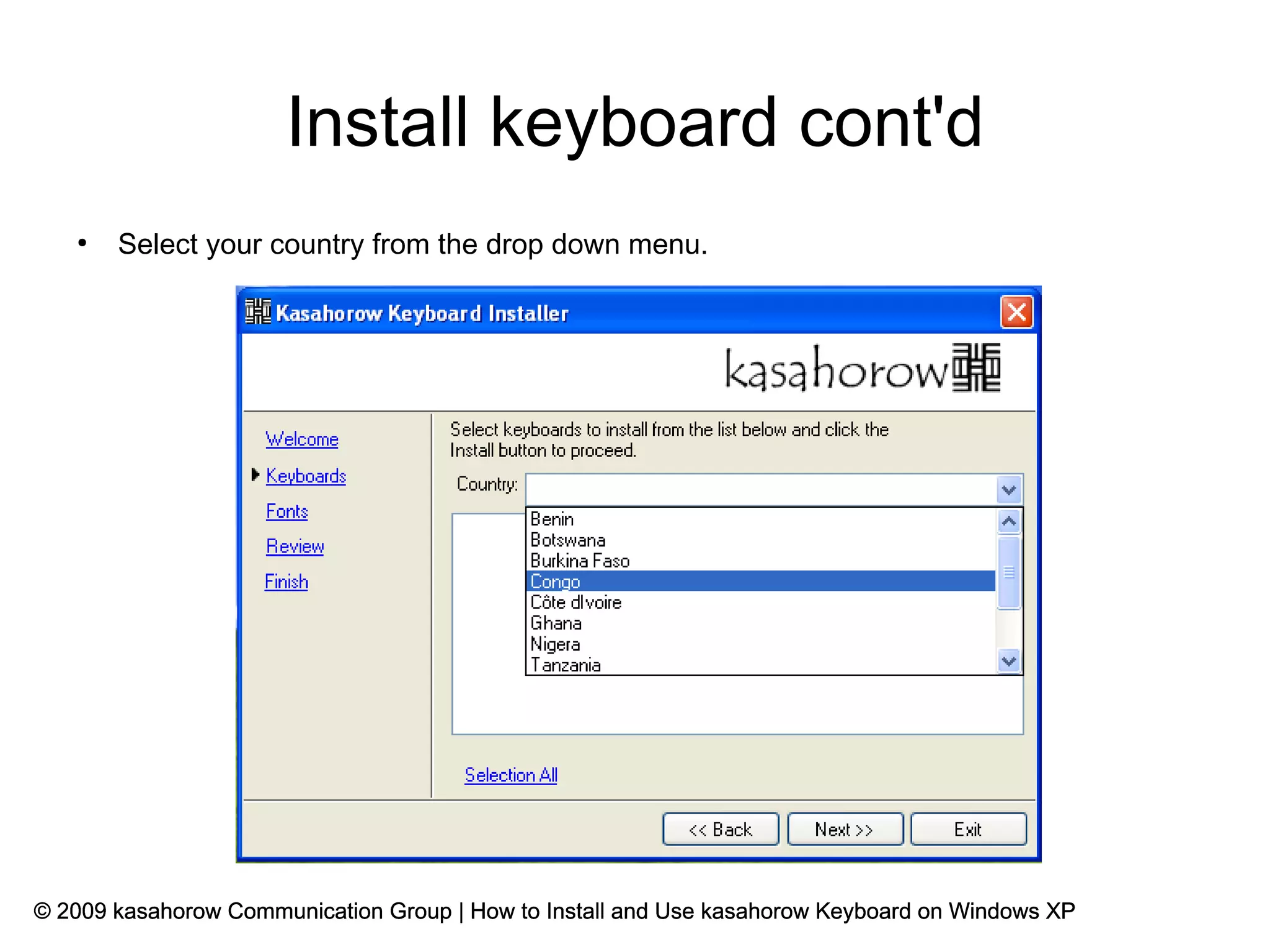
       Select your country from the drop down menu.


© 2009 kasahorow Communication Group | How to Install and Use kasahorow Keyboard on Windows XP
Install keyboard cont'd
   ●
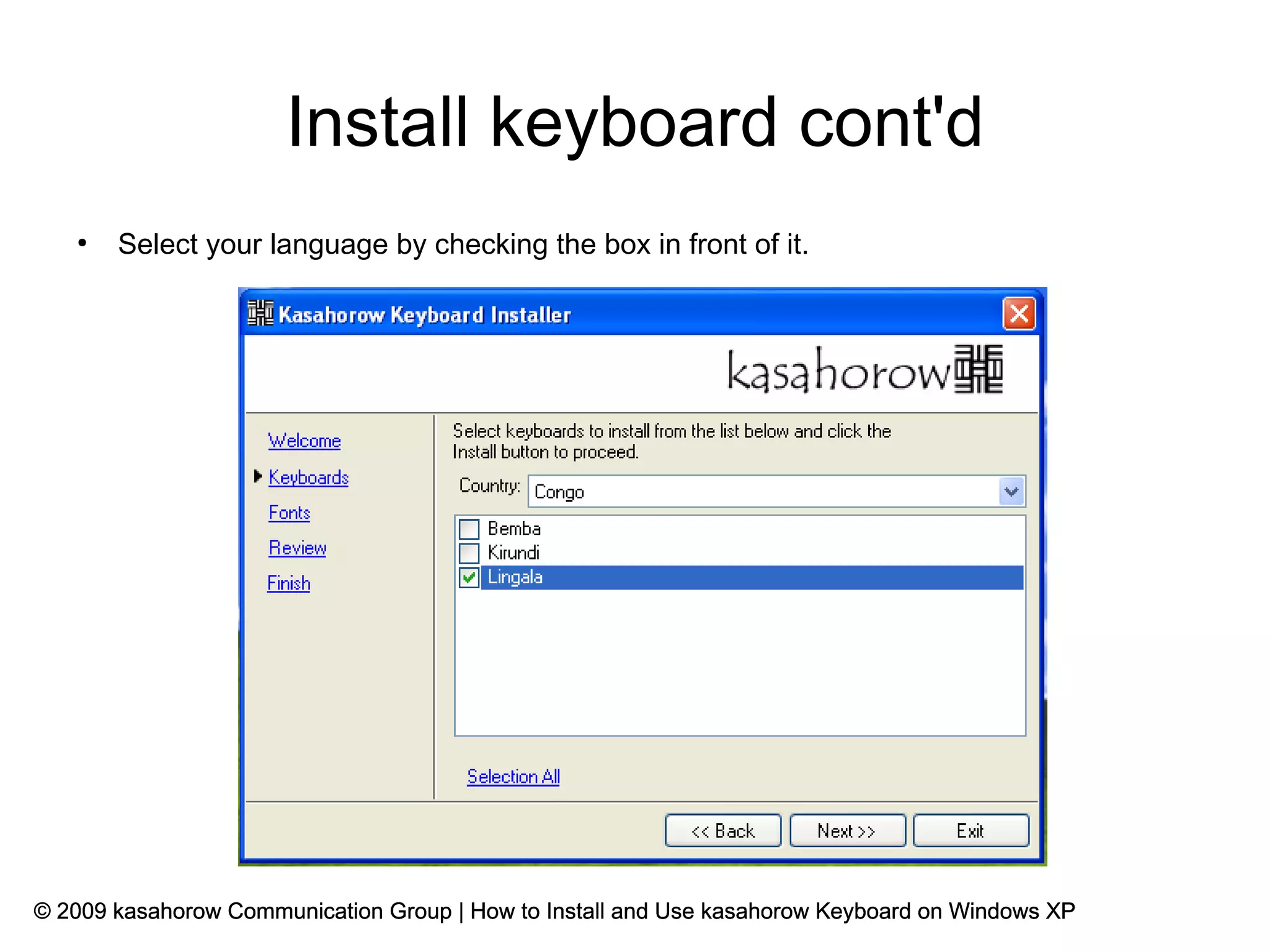
       Select your language by checking the box in front of it.


© 2009 kasahorow Communication Group | How to Install and Use kasahorow Keyboard on Windows XP
Select fonts
   ●
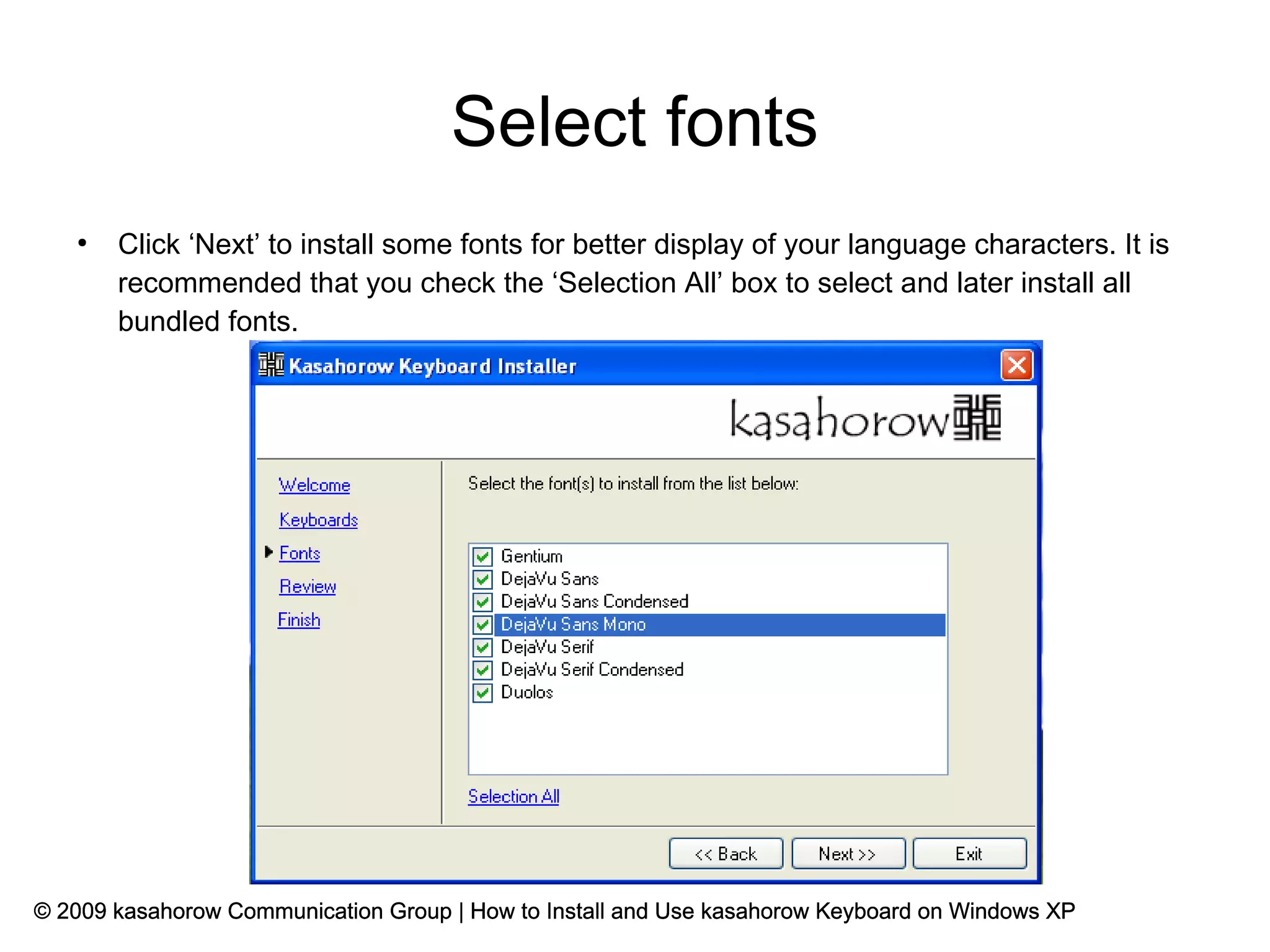
       Click ‘Next’ to install some fonts for better display of your language characters. It is
       recommended that you check the ‘Selection All’ box to select and later install all
       bundled fonts.


© 2009 kasahorow Communication Group | How to Install and Use kasahorow Keyboard on Windows XP
Install keyboard and fonts
   ●
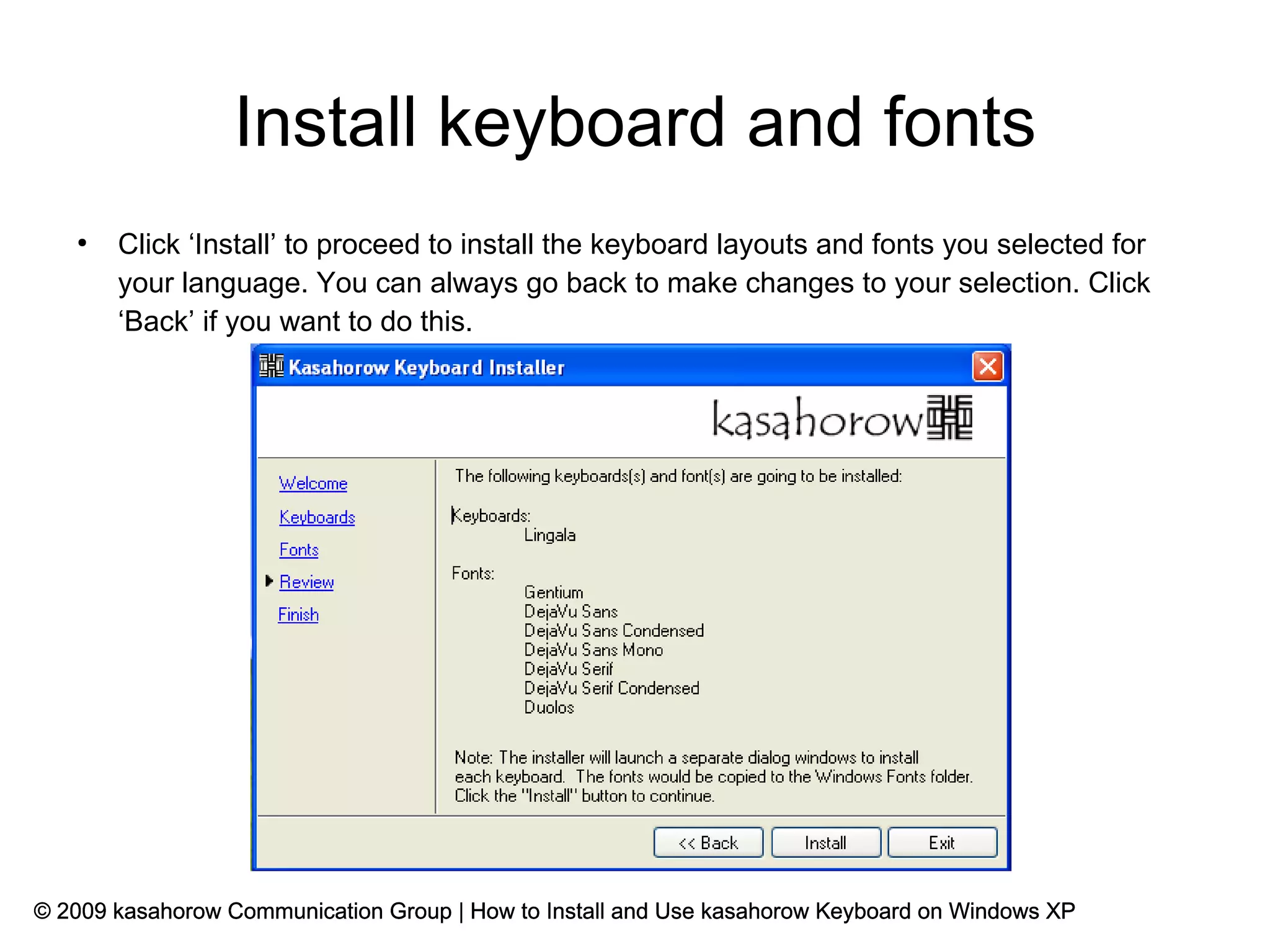
       Click ‘Install’ to proceed to install the keyboard layouts and fonts you selected for
       your language. You can always go back to make changes to your selection. Click
       ‘Back’ if you want to do this.


© 2009 kasahorow Communication Group | How to Install and Use kasahorow Keyboard on Windows XP
Install keyboard and fonts cont'd
   ●
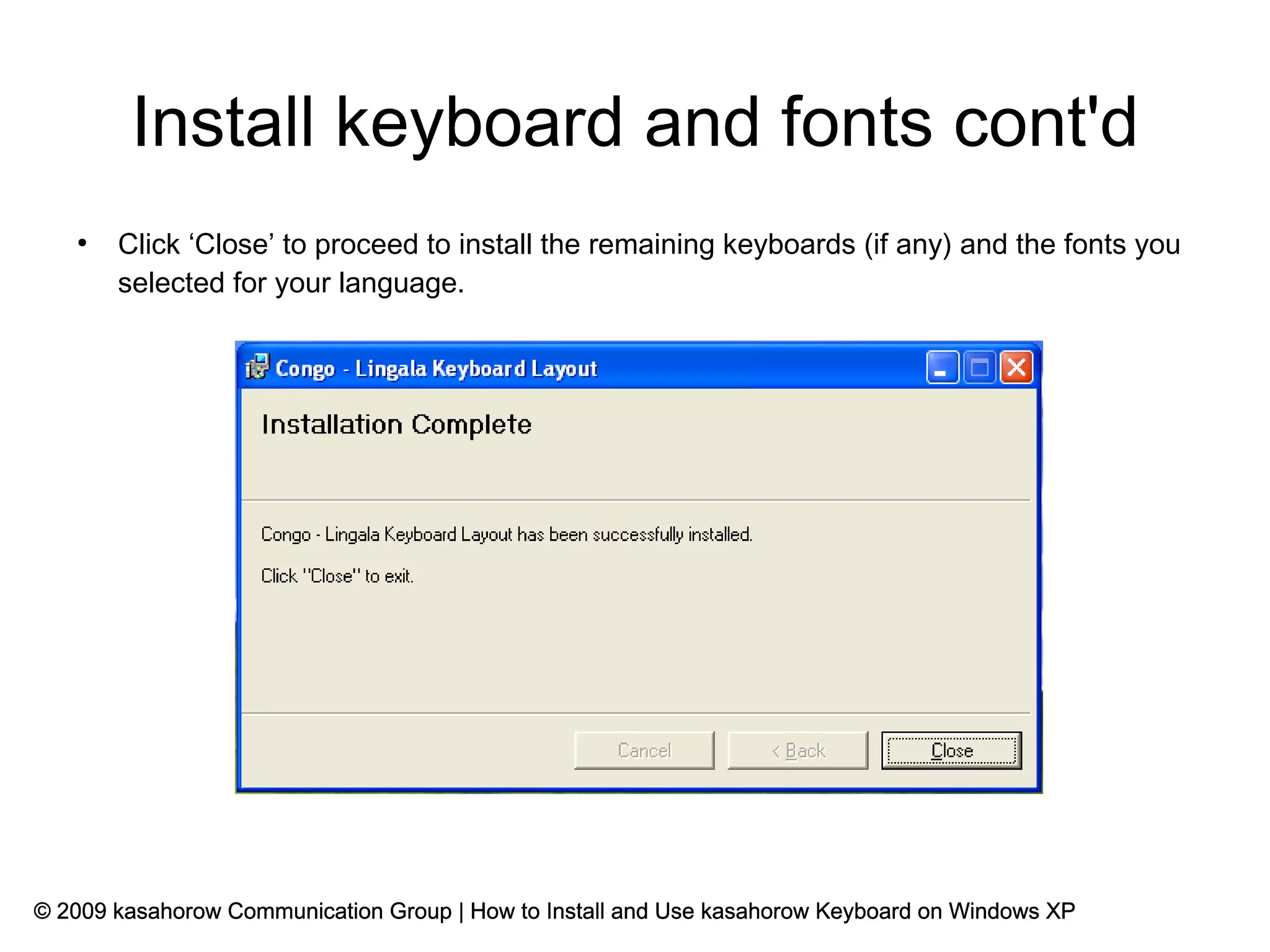
       Click ‘Close’ to proceed to install the remaining keyboards (if any) and the fonts you
       selected for your language.


© 2009 kasahorow Communication Group | How to Install and Use kasahorow Keyboard on Windows XP
Installation complete
   ●
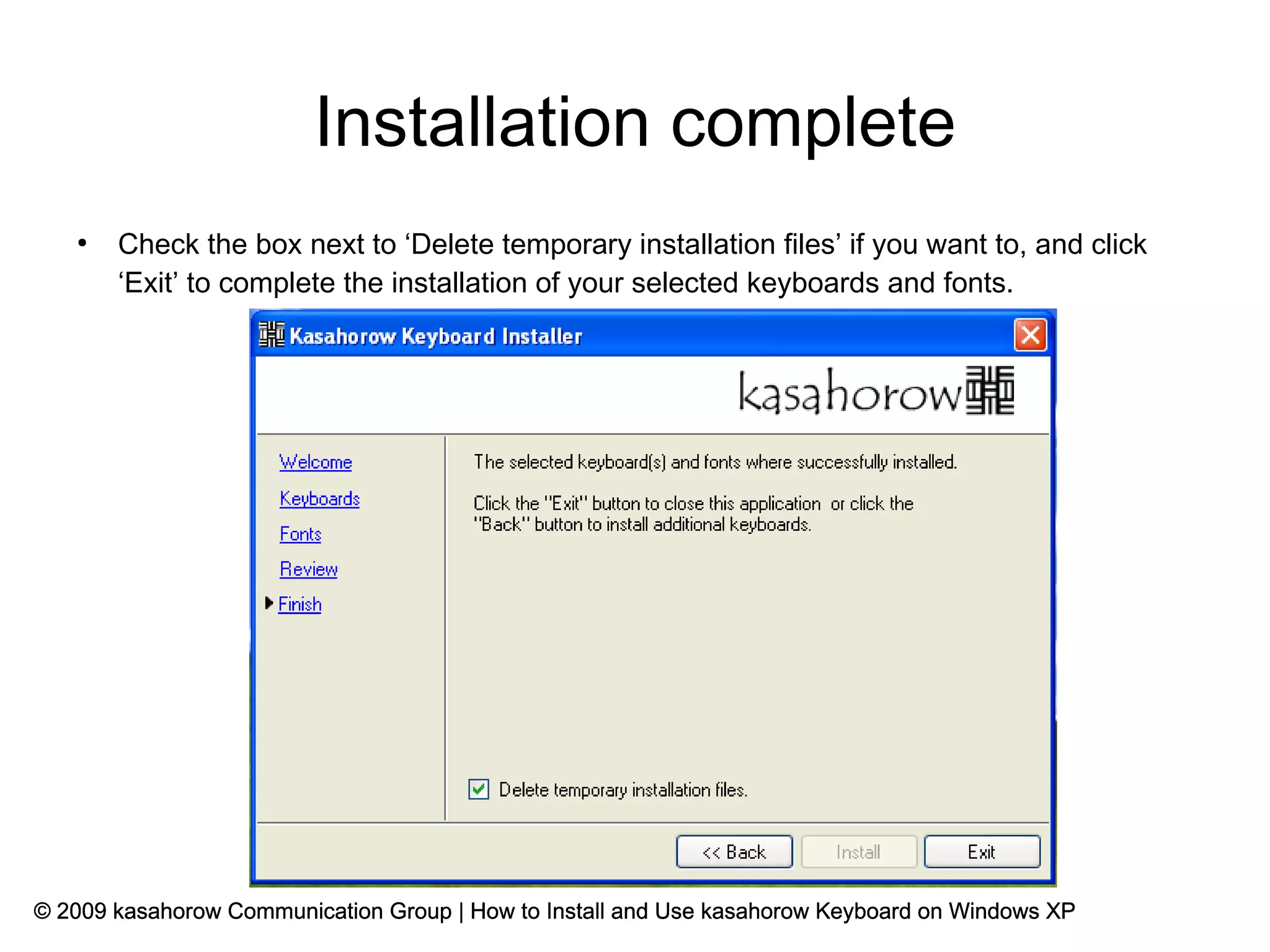
       Check the box next to ‘Delete temporary installation files’ if you want to, and click
       ‘Exit’ to complete the installation of your selected keyboards and fonts.


© 2009 kasahorow Communication Group | How to Install and Use kasahorow Keyboard on Windows XP
Open document or application first
   ●
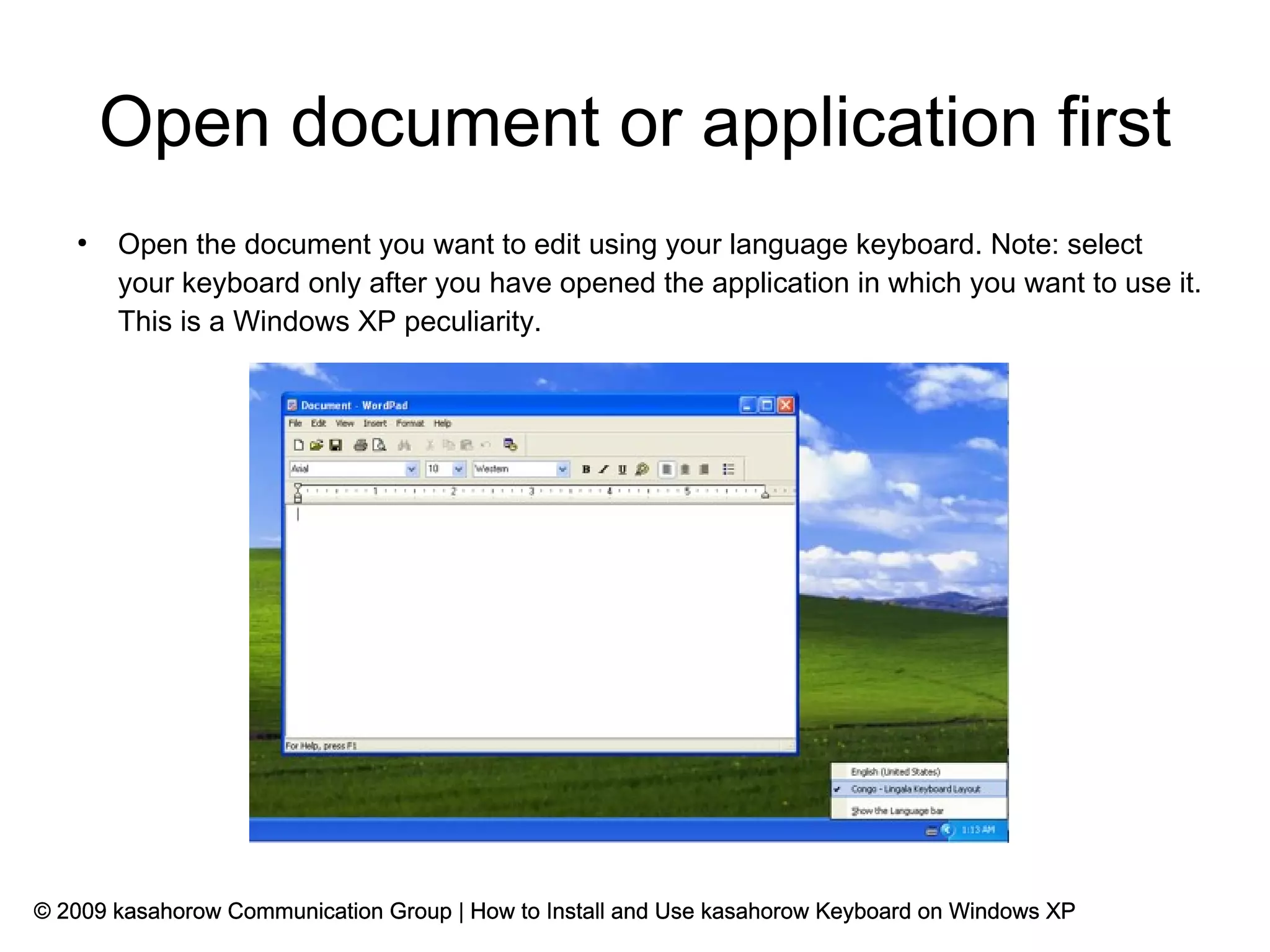
       Open the document you want to edit using your language keyboard. Note: select
       your keyboard only after you have opened the application in which you want to use it.
       This is a Windows XP peculiarity.


© 2009 kasahorow Communication Group | How to Install and Use kasahorow Keyboard on Windows XP
Use
   ●
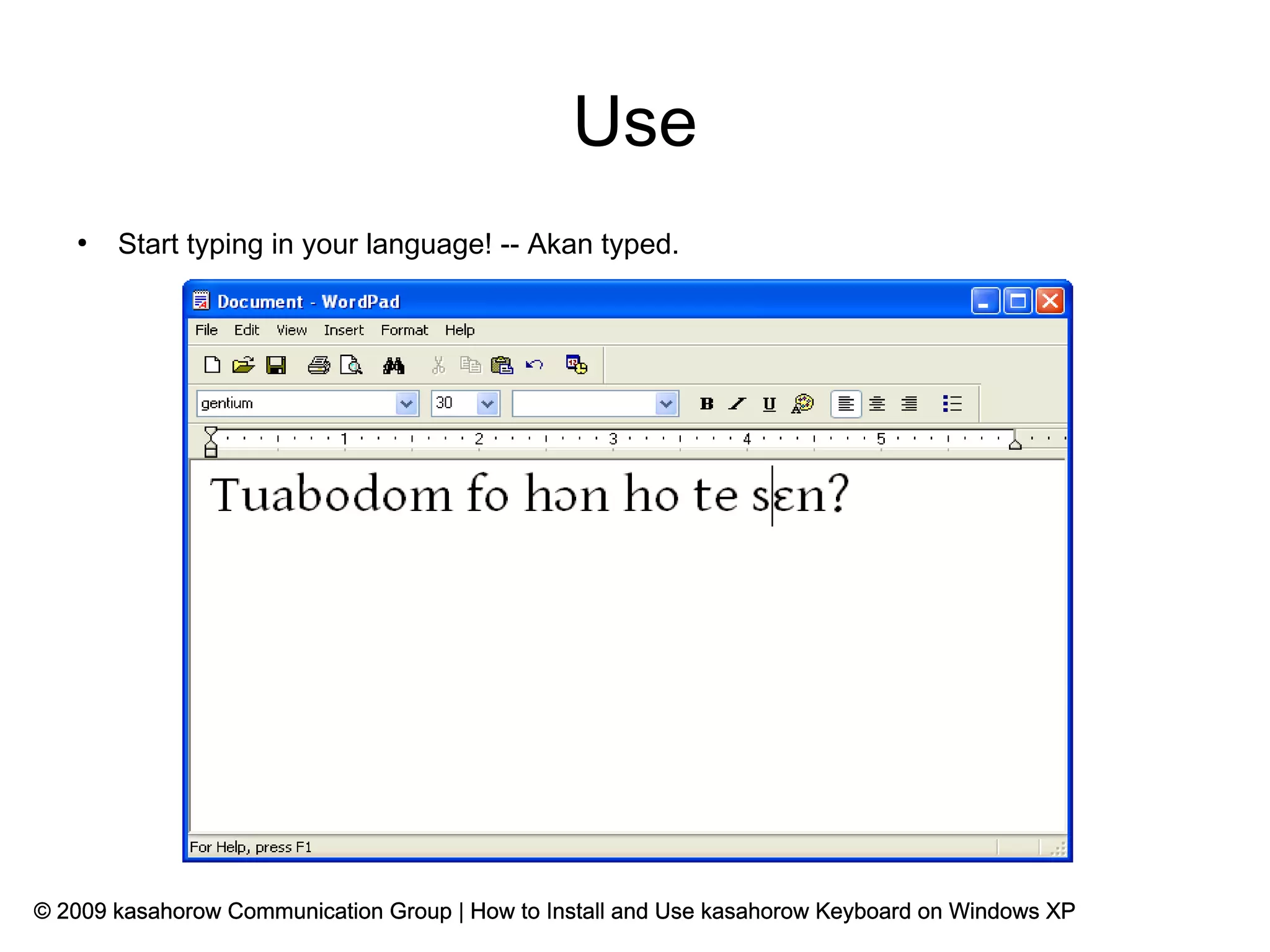
       Start typing in your language! -- Akan typed.


© 2009 kasahorow Communication Group | How to Install and Use kasahorow Keyboard on Windows XP
Preview keyboard
   ●
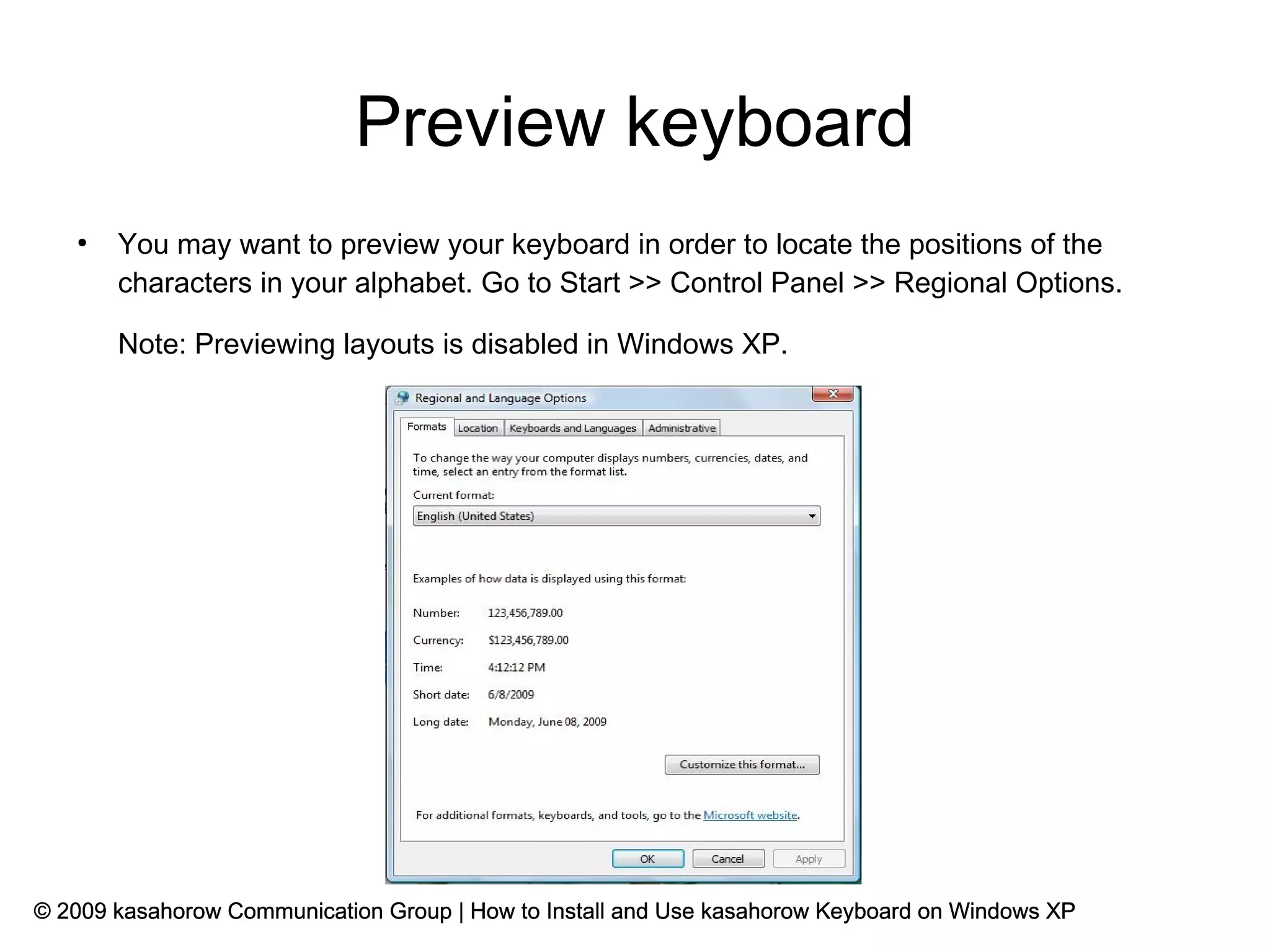
       You may want to preview your keyboard in order to locate the positions of the
       characters in your alphabet. Go to Start >> Control Panel >> Regional Options.

       Note: Previewing layouts is disabled in Windows XP.


© 2009 kasahorow Communication Group | How to Install and Use kasahorow Keyboard on Windows XP
Preview keyboard cont'd
   ●
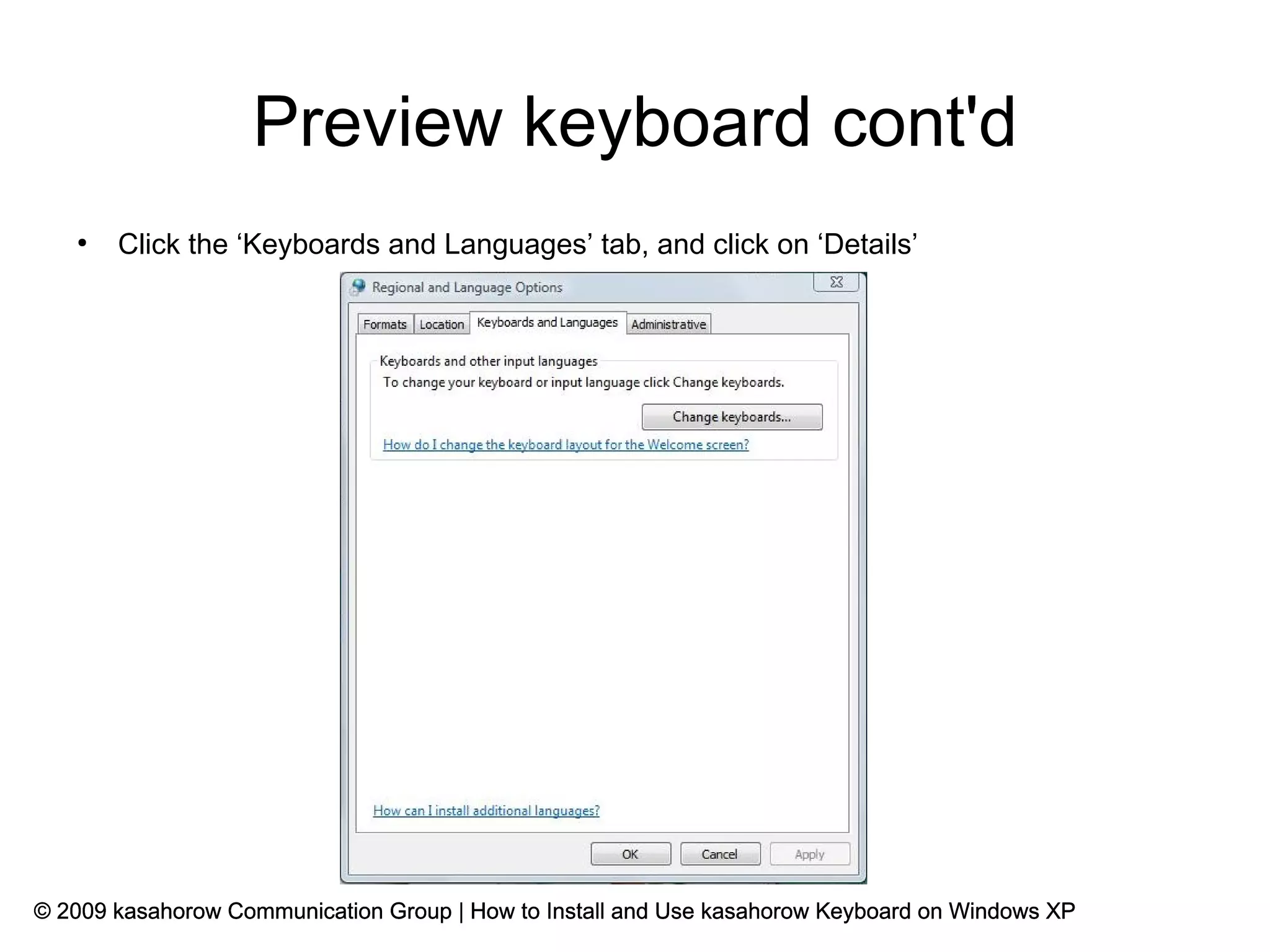
       Click the ‘Keyboards and Languages’ tab, and click on ‘Details’


© 2009 kasahorow Communication Group | How to Install and Use kasahorow Keyboard on Windows XP
Preview keyboard cont'd
   ●
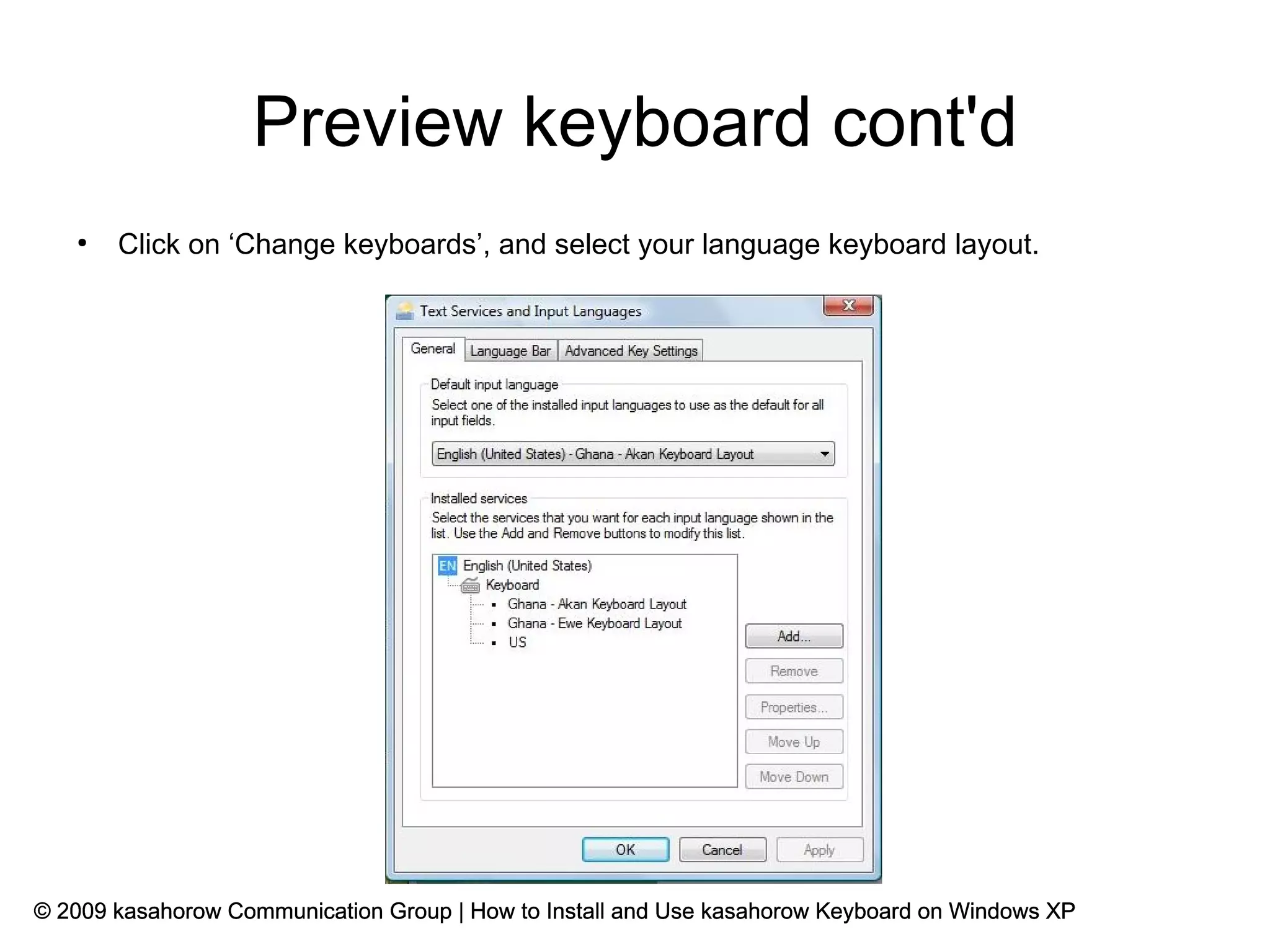
       Click on ‘Change keyboards’, and select your language keyboard layout.


© 2009 kasahorow Communication Group | How to Install and Use kasahorow Keyboard on Windows XP
Preview keyboard complete
   ●
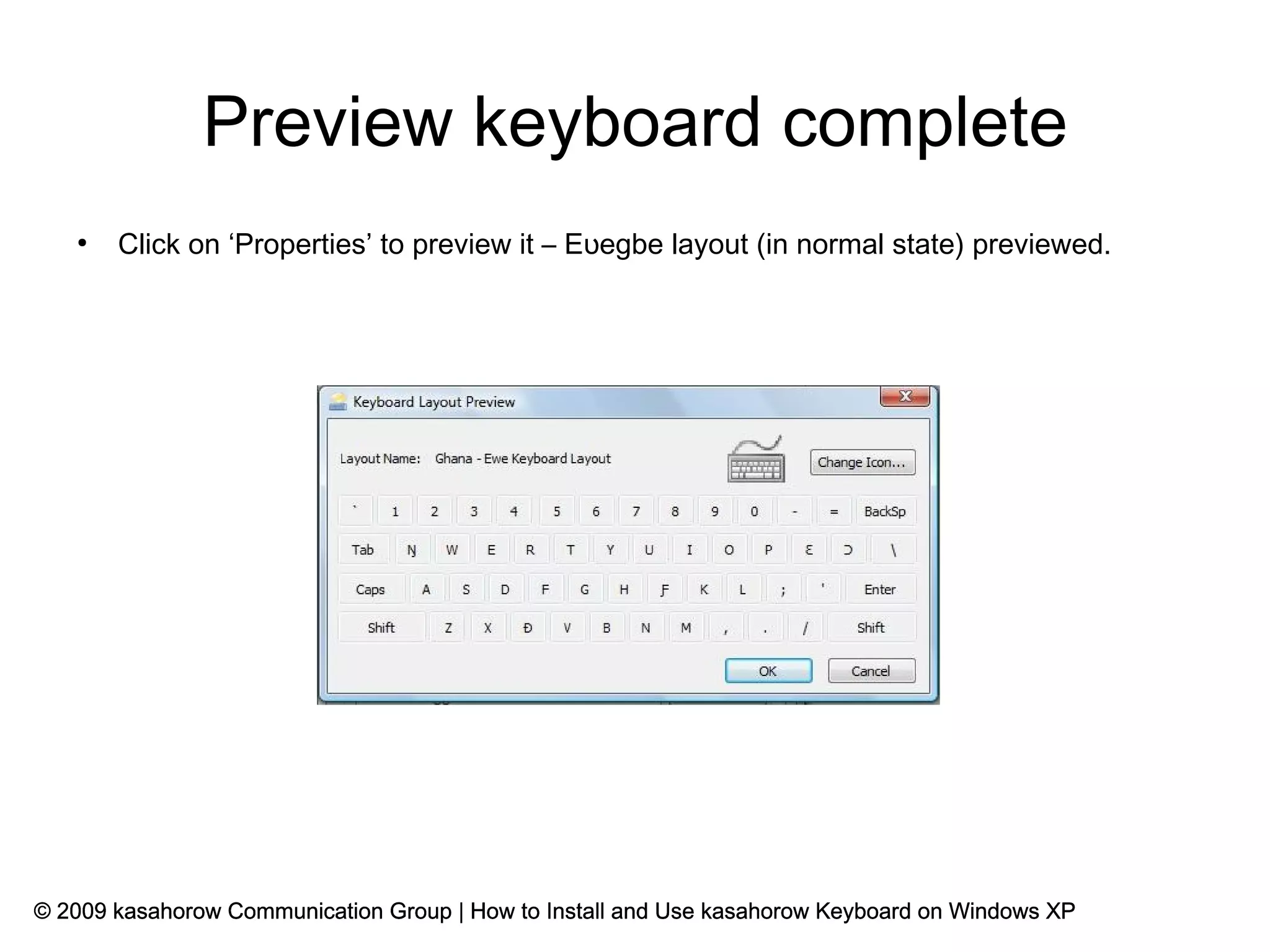
       Click on ‘Properties’ to preview it – Eʋegbe layout (in normal state) previewed.


© 2009 kasahorow Communication Group | How to Install and Use kasahorow Keyboard on Windows XP

How To Install kasahorow Keyboard For Windows

  • 1.
    Introduction ● kasahorow keyboard installer for Windows works for both XP and Vista. This guide will show you how to install the keyboard installer on Windows XP. It also shows how to install your preferred language keyboard and fonts. It assumes that you are installing the kasahorow keyboard installer in a fresh installation of Windows XP. © 2009 kasahorow Communication Group | How to Install and Use kasahorow Keyboard on Windows XP
  • 2.
    Download & Extract ● Get an archive of the Windows XP installer from http://code.google.com/p/africakeyboards/downloads/list. The file you are looking for has a ‘.zip’ extension (without the quotes). ● Extract the files in the zipped folder to any location on your computer. © 2009 kasahorow Communication Group | How to Install and Use kasahorow Keyboard on Windows XP
  • 3.
    Check for .NET2.0 ● Before you install, make sure you have Microsoft .NET Framework ver. 2.0 installed. The keyboard installer will not install if you do not have this program installed. ● You can check if you have that program by looking through your list of installed programs: Go to Start >> Control Panel >> Add or Remove Programs © 2009 kasahorow Communication Group | How to Install and Use kasahorow Keyboard on Windows XP
  • 4.
    Get .NET 2.0 ● Get Microsoft .NET Framework 2.0 from Microsoft's website ● Get the x86 binary if you have a 32-bit Intel processor from here -- http://www.microsoft.com/downloads/details.aspx?FamilyID=0856EACB-4362-4B0D-8E ● Get the x64 binary if you have a 64-bit processor from here -- http://www.microsoft.com/downloads/details.aspx?familyid=B44A0000-ACF8-4FA1-AF ● If you are unsure what binary of .NET you need, download both binaries and try to install the 32-bit version first. ● Proceed to install the kasahorow keyboard installer. © 2009 kasahorow Communication Group | How to Install and Use kasahorow Keyboard on Windows XP
  • 5.
    Install ● Install the keyboard installer by double clicking the setup.exe file. © 2009 kasahorow Communication Group | How to Install and Use kasahorow Keyboard on Windows XP
  • 6.
    Install cont'd ● Browse to select an installation folder and click next to continue. You can also specify here which users you wish to install the keyboard for. It is recommended that you install the keyboard for all users on your computer. © 2009 kasahorow Communication Group | How to Install and Use kasahorow Keyboard on Windows XP
  • 7.
    Install cont'd ● Click next to confirm and start your installation. © 2009 kasahorow Communication Group | How to Install and Use kasahorow Keyboard on Windows XP
  • 8.
    Installation complete ● Installation of keyboard installer now complete. Click ‘Close’ to finish. © 2009 kasahorow Communication Group | How to Install and Use kasahorow Keyboard on Windows XP
  • 9.
    Start keyboard installer ● The keyboard installer is now ready for you to use. Start the installer. Go to Start >> All Programs >> Kasahorow Keyboard Installer. © 2009 kasahorow Communication Group | How to Install and Use kasahorow Keyboard on Windows XP
  • 10.
    Install keyboard ● Click ‘Next’ to proceed to install the keyboard layout for your language. © 2009 kasahorow Communication Group | How to Install and Use kasahorow Keyboard on Windows XP
  • 11.
    Install keyboard cont'd ● Select your country from the drop down menu. © 2009 kasahorow Communication Group | How to Install and Use kasahorow Keyboard on Windows XP
  • 12.
    Install keyboard cont'd ● Select your language by checking the box in front of it. © 2009 kasahorow Communication Group | How to Install and Use kasahorow Keyboard on Windows XP
  • 13.
    Select fonts ● Click ‘Next’ to install some fonts for better display of your language characters. It is recommended that you check the ‘Selection All’ box to select and later install all bundled fonts. © 2009 kasahorow Communication Group | How to Install and Use kasahorow Keyboard on Windows XP
  • 14.
    Install keyboard andfonts ● Click ‘Install’ to proceed to install the keyboard layouts and fonts you selected for your language. You can always go back to make changes to your selection. Click ‘Back’ if you want to do this. © 2009 kasahorow Communication Group | How to Install and Use kasahorow Keyboard on Windows XP
  • 15.
    Install keyboard andfonts cont'd ● Click ‘Close’ to proceed to install the remaining keyboards (if any) and the fonts you selected for your language. © 2009 kasahorow Communication Group | How to Install and Use kasahorow Keyboard on Windows XP
  • 16.
    Installation complete ● Check the box next to ‘Delete temporary installation files’ if you want to, and click ‘Exit’ to complete the installation of your selected keyboards and fonts. © 2009 kasahorow Communication Group | How to Install and Use kasahorow Keyboard on Windows XP
  • 17.
    Open document orapplication first ● Open the document you want to edit using your language keyboard. Note: select your keyboard only after you have opened the application in which you want to use it. This is a Windows XP peculiarity. © 2009 kasahorow Communication Group | How to Install and Use kasahorow Keyboard on Windows XP
  • 18.
    Use ● Start typing in your language! -- Akan typed. © 2009 kasahorow Communication Group | How to Install and Use kasahorow Keyboard on Windows XP
  • 19.
    Preview keyboard ● You may want to preview your keyboard in order to locate the positions of the characters in your alphabet. Go to Start >> Control Panel >> Regional Options. Note: Previewing layouts is disabled in Windows XP. © 2009 kasahorow Communication Group | How to Install and Use kasahorow Keyboard on Windows XP
  • 20.
    Preview keyboard cont'd ● Click the ‘Keyboards and Languages’ tab, and click on ‘Details’ © 2009 kasahorow Communication Group | How to Install and Use kasahorow Keyboard on Windows XP
  • 21.
    Preview keyboard cont'd ● Click on ‘Change keyboards’, and select your language keyboard layout. © 2009 kasahorow Communication Group | How to Install and Use kasahorow Keyboard on Windows XP
  • 22.
    Preview keyboard complete ● Click on ‘Properties’ to preview it – Eʋegbe layout (in normal state) previewed. © 2009 kasahorow Communication Group | How to Install and Use kasahorow Keyboard on Windows XP