Scaling SWT on high-res screens 
Christian Campo, ECE 2014
Overview 
• High resolution Displays 
• „Windows“ based Scaling 
• Desktop Applications based Scaling 
› Layout (Size, Gap) 
› Icons 
› SVG 
• Use Eclipse Riena as an example
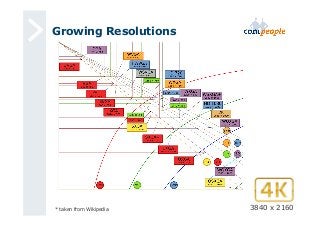
Growing Resolutions 
* taken from Wikipedia 3840 x 2160
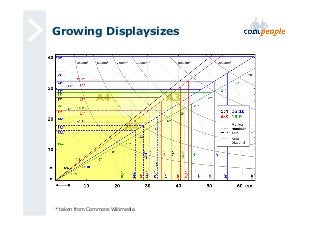
Growing Displaysizes 
* taken from Commons Wikimedia
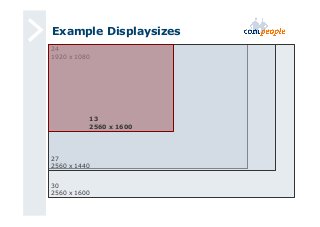
Example Displaysizes 
24 
1920 x 1080 
13 
2560 x 1600 
27 
2560 x 1440 
30 
2560 x 1600
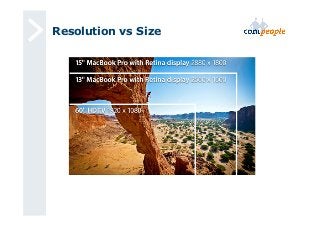
Resolution vs Size
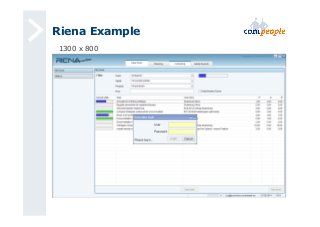
Riena Example 
1300 x 800
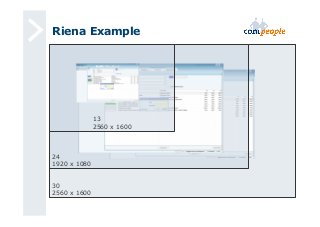
Riena Example 
24 
1920 x 1080 
30 
2560 x 1600 
13 
2560 x 1600
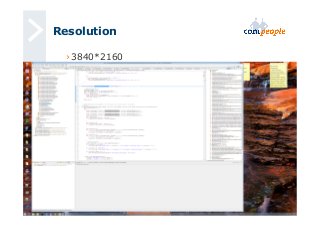
Resolution 
› 3840*2160
Scaling Up 
• Smartphones 
› Scaling Up is very common 
› Same UI on different resolution / sizes 
• „Windows“ 
› no automatic scaling 
› Ability for the user to define a scaling
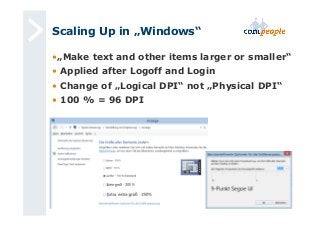
Scaling Up in „Windows“ 
• „Make text and other items larger or smaller“ 
• Applied after Logoff and Login 
• Change of „Logical DPI“ not „Physical DPI“ 
• 100 % = 96 DPI
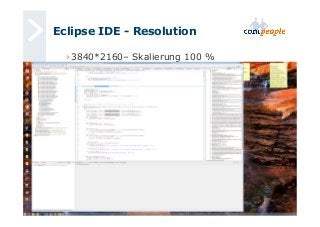
Eclipse IDE - Resolution 
› 3840*2160– Skalierung 100 %
Eclipse IDE - Resolution 
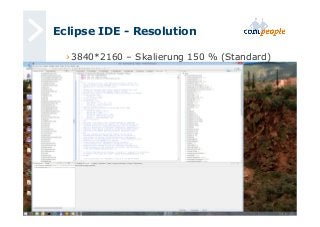
› 3840*2160 – Skalierung 150 % (Standard)
Eclipse IDE - Resolution 
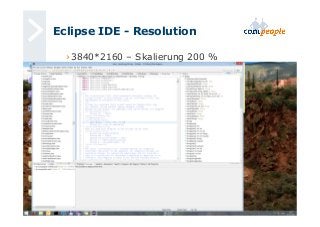
› 3840*2160 – Skalierung 200 %
Scaling Up in „Windows“ 
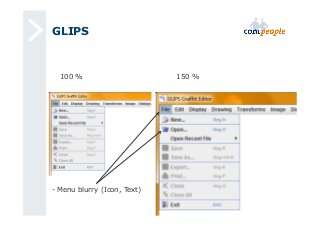
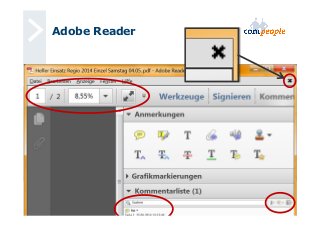
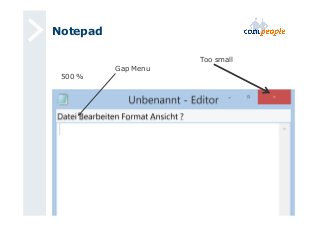
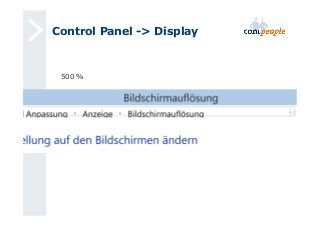
• Doesnt work well with all applications 
• Problems 
› Widgets or text are not scaled 
› Blury Icons, Images 
› Icons are upscaled
VLC 
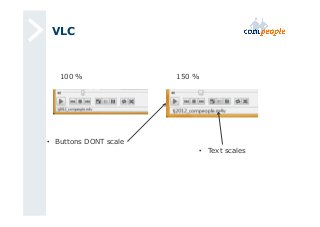
100 % 150 % 
• Buttons DONT scale 
• Text scales
GLIPS 
100 % 150 % 
- Menu blurry (Icon, Text)
Adobe Reader
Notepad 
500 % 
Too small 
Gap Menu
Control Panel -> Display 
500 %
The Goal 
• Change „DPI“ in „Windows“ 
• Application should adapt Scaling: 
› Windows size 
› Navigationpanel size (if exists) 
› Icon size, Toolbars, Menus 
› Fonts, Textfield length 
› Tree 
› Etc.
SWT 
› SWT Standard-Widgets 
› native Widgets of the Operation System 
› Fonts are scaled 
› Sizes (mostly) correct ?? 
› Images are partially scaled 
› OS Images are scaled 
(e.g. Button with Arrow) 
› Custom Images (gif, png) are NOT scaled 
(e.g. Tree Images) 
› SWT Standard-Layouts 
(i.e. GridLayout, FormLayout etc.) 
› Uses information from the SWT Widgets 
› Sizes are not scaled 
› i.e. widthHint, horizontalIndent
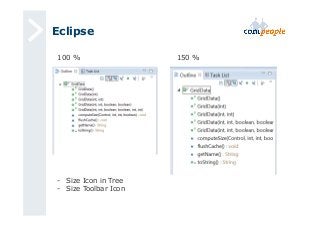
Eclipse 
100 % 150 % 
- Size Icon in Tree 
- Size Toolbar Icon
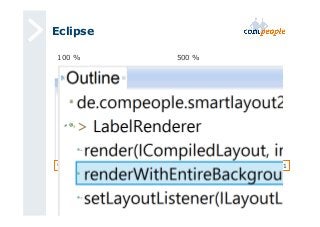
Eclipse 
100 % 500 % 
Windows 7 Windows 8.1 
- Tree icons 
- Toolbar icons
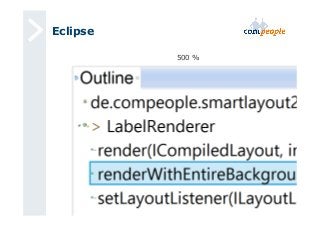
Eclipse 
500 %
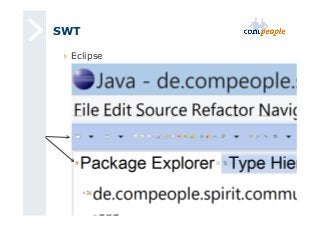
SWT 
› Eclipse
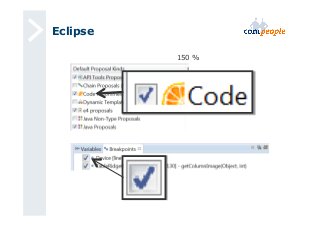
Eclipse 
150 %
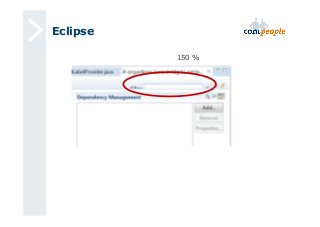
Eclipse 
150 %
SWT 
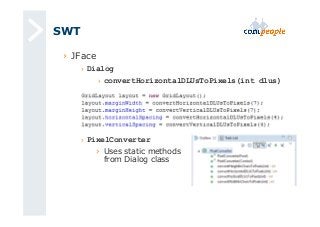
› JFace 
› Dialog 
› convertHorizontalDLUsToPixels(int dlus) 
› PixelConverter 
› Uses static methods 
from Dialog class
SWT 
› Eclipse Riena 
› Framework for Enterprise Client/Server Application 
› Based on OSGi, RCP, SWT 
› Enduser Driven Navigation Concept 
› Navigationtree 
› Widgets / Ridgets Abstraktion
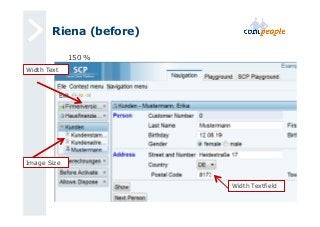
Riena (before) 
Image Size 
Width Textfield 
Width Text 
150 %
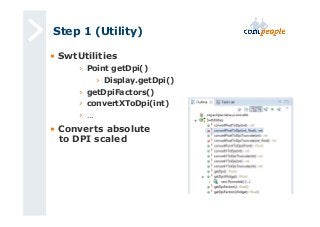
Step 1 (Utility) 
• SwtUtilities 
› Point getDpi() 
› Display.getDpi() 
› getDpiFactors() 
› convertXToDpi(int) 
› … 
• Converts absolute 
to DPI scaled
SWT (Utility) 
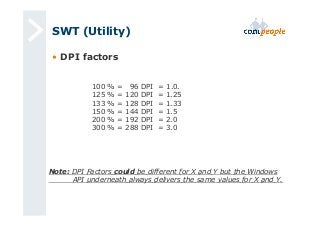
• DPI factors 
100 % = 96 DPI = 1.0. 
125 % = 120 DPI = 1.25 
133 % = 128 DPI = 1.33 
150 % = 144 DPI = 1.5 
200 % = 192 DPI = 2.0 
300 % = 288 DPI = 3.0 
Note: DPI Factors could be different for X and Y but the Windows 
API underneath always delivers the same values for X and Y.
Step 2 (Layout) 
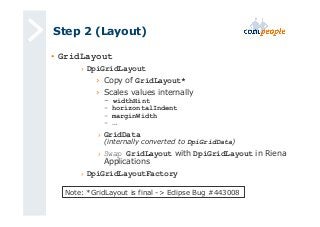
• GridLayout 
› DpiGridLayout 
› Copy of GridLayout* 
› Scales values internally 
- widthHint 
- horizontalIndent 
- marginWidth 
- … 
› GridData 
(internally converted to DpiGridData) 
› Swap GridLayout with DpiGridLayout in Riena 
Applications 
› DpiGridLayoutFactory 
Note: *GridLayout is final -> Eclipse Bug #443008
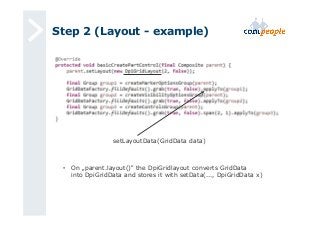
Step 2 (Layout - example) 
setLayoutData(GridData data) 
• On „parent.layout()“ the DpiGridlayout converts GridData 
into DpiGridData and stores it with setData(..., DpiGridData x)
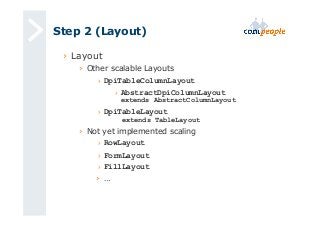
Step 2 (Layout) 
› Layout 
› Other scalable Layouts 
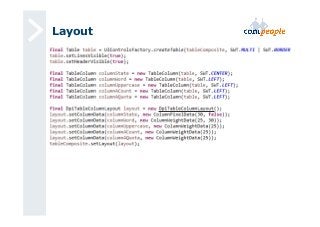
› DpiTableColumnLayout 
› AbstractDpiColumnLayout 
extends AbstractColumnLayout 
› DpiTableLayout 
extends TableLayout 
› Not yet implemented scaling 
› RowLayout 
› FormLayout 
› FillLayout 
› …
Layout
Step3 (Icons and Images) 
› Images 
› „Scaling“ 
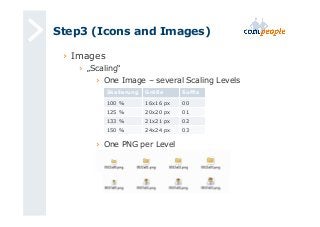
› One Image – several Scaling Levels 
Skalierung Größe Suffix 
100 % 16x16 px 00 
125 % 20x20 px 01 
133 % 21x21 px 02 
150 % 24x24 px 03 
› One PNG per Level
Step3 (Icons and Images) 
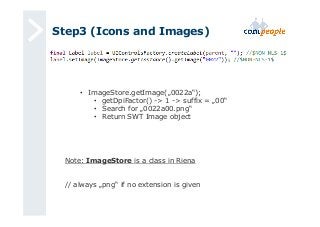
• ImageStore.getImage(„0022a“); 
• getDpiFactor() -> 1 -> suffix = „00“ 
• Search for „0022a00.png“ 
• Return SWT Image object 
Note: ImageStore is a class in Riena 
// always „png“ if no extension is given
Step3 (Images „extended“) 
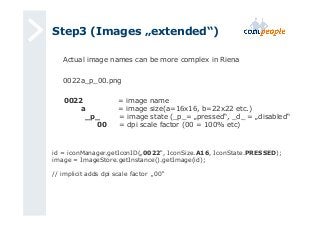
Actual image names can be more complex in Riena 
0022a_p_00.png 
0022 = image name 
a = image size(a=16x16, b=22x22 etc.) 
_p_ = image state (_p_= „pressed“, _d_ = „disabled“ 
00 = dpi scale factor (00 = 100% etc) 
id = iconManager.getIconID(„0022“, IconSize.A16, IconState.PRESSED); 
image = ImageStore.getInstance().getImage(id); 
// implicit adds dpi scale factor „00“
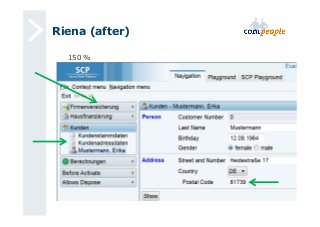
Riena (after) 
150 %
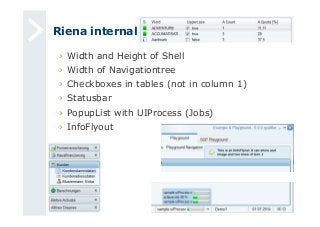
Riena internal 
› Width and Height of Shell 
› Width of Navigationtree 
› Checkboxes in tables (not in column 1) 
› Statusbar 
› PopupList with UIProcess (Jobs) 
› InfoFlyout
Step 4: More Scaling 
• DPI Factors get larger and larger 
• Many different images for the various levels 
• Use vector graphics and scale at runtime ? 
• SVG ?
Step 4: More Scaling 
• Image as SVG 
› Vectorgraphics – stepless – limitless 
› Not directly supported by SWT 
› Using SVG Salamander 
› https://svgsalamander.java.net/ 
› SVG -> AWT Image 
› AWT Image -> SWT Image 
› converted SWT Images are cached
Step 4: More Scaling 
• Image as SVG 
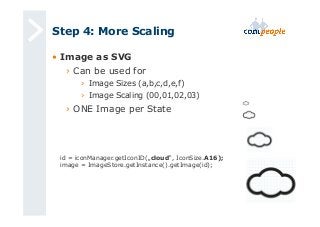
› Can be used for 
› Image Sizes (a,b,c,d,e,f) 
› Image Scaling (00,01,02,03) 
› ONE Image per State 
id = iconManager.getIconID(„cloud“, IconSize.A16); 
image = ImageStore.getInstance().getImage(id);
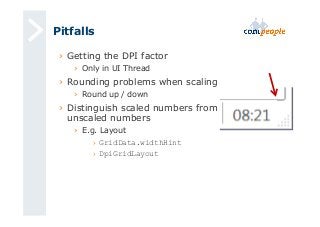
Pitfalls 
› Getting the DPI factor 
› Only in UI Thread 
› Rounding problems when scaling 
› Round up / down 
› Distinguish scaled numbers from 
unscaled numbers 
› E.g. Layout 
› GridData.widthHint 
› DpiGridLayout
Roundup 
SWTUtilities 
Riena 
Scaling 
Layouts 
Icons 
DpiGridLayout Images 
Scaling Levels 
SVG 
DpiTableColumnLayout 
ImageFactory 
Thank you

Scaling SWT on high-resolution screens

  • 1.
    Scaling SWT onhigh-res screens Christian Campo, ECE 2014
  • 2.
    Overview • Highresolution Displays • „Windows“ based Scaling • Desktop Applications based Scaling › Layout (Size, Gap) › Icons › SVG • Use Eclipse Riena as an example
  • 3.
    Growing Resolutions *taken from Wikipedia 3840 x 2160
  • 4.
    Growing Displaysizes *taken from Commons Wikimedia
  • 5.
    Example Displaysizes 24 1920 x 1080 13 2560 x 1600 27 2560 x 1440 30 2560 x 1600
  • 6.
  • 7.
  • 8.
    Riena Example 24 1920 x 1080 30 2560 x 1600 13 2560 x 1600
  • 9.
  • 10.
    Scaling Up •Smartphones › Scaling Up is very common › Same UI on different resolution / sizes • „Windows“ › no automatic scaling › Ability for the user to define a scaling
  • 11.
    Scaling Up in„Windows“ • „Make text and other items larger or smaller“ • Applied after Logoff and Login • Change of „Logical DPI“ not „Physical DPI“ • 100 % = 96 DPI
  • 12.
    Eclipse IDE -Resolution › 3840*2160– Skalierung 100 %
  • 13.
    Eclipse IDE -Resolution › 3840*2160 – Skalierung 150 % (Standard)
  • 14.
    Eclipse IDE -Resolution › 3840*2160 – Skalierung 200 %
  • 15.
    Scaling Up in„Windows“ • Doesnt work well with all applications • Problems › Widgets or text are not scaled › Blury Icons, Images › Icons are upscaled
  • 16.
    VLC 100 %150 % • Buttons DONT scale • Text scales
  • 17.
    GLIPS 100 %150 % - Menu blurry (Icon, Text)
  • 18.
  • 19.
    Notepad 500 % Too small Gap Menu
  • 20.
    Control Panel ->Display 500 %
  • 21.
    The Goal •Change „DPI“ in „Windows“ • Application should adapt Scaling: › Windows size › Navigationpanel size (if exists) › Icon size, Toolbars, Menus › Fonts, Textfield length › Tree › Etc.
  • 22.
    SWT › SWTStandard-Widgets › native Widgets of the Operation System › Fonts are scaled › Sizes (mostly) correct ?? › Images are partially scaled › OS Images are scaled (e.g. Button with Arrow) › Custom Images (gif, png) are NOT scaled (e.g. Tree Images) › SWT Standard-Layouts (i.e. GridLayout, FormLayout etc.) › Uses information from the SWT Widgets › Sizes are not scaled › i.e. widthHint, horizontalIndent
  • 23.
    Eclipse 100 %150 % - Size Icon in Tree - Size Toolbar Icon
  • 24.
    Eclipse 100 %500 % Windows 7 Windows 8.1 - Tree icons - Toolbar icons
  • 25.
  • 26.
  • 27.
  • 28.
  • 29.
    SWT › JFace › Dialog › convertHorizontalDLUsToPixels(int dlus) › PixelConverter › Uses static methods from Dialog class
  • 30.
    SWT › EclipseRiena › Framework for Enterprise Client/Server Application › Based on OSGi, RCP, SWT › Enduser Driven Navigation Concept › Navigationtree › Widgets / Ridgets Abstraktion
  • 31.
    Riena (before) ImageSize Width Textfield Width Text 150 %
  • 32.
    Step 1 (Utility) • SwtUtilities › Point getDpi() › Display.getDpi() › getDpiFactors() › convertXToDpi(int) › … • Converts absolute to DPI scaled
  • 33.
    SWT (Utility) •DPI factors 100 % = 96 DPI = 1.0. 125 % = 120 DPI = 1.25 133 % = 128 DPI = 1.33 150 % = 144 DPI = 1.5 200 % = 192 DPI = 2.0 300 % = 288 DPI = 3.0 Note: DPI Factors could be different for X and Y but the Windows API underneath always delivers the same values for X and Y.
  • 34.
    Step 2 (Layout) • GridLayout › DpiGridLayout › Copy of GridLayout* › Scales values internally - widthHint - horizontalIndent - marginWidth - … › GridData (internally converted to DpiGridData) › Swap GridLayout with DpiGridLayout in Riena Applications › DpiGridLayoutFactory Note: *GridLayout is final -> Eclipse Bug #443008
  • 35.
    Step 2 (Layout- example) setLayoutData(GridData data) • On „parent.layout()“ the DpiGridlayout converts GridData into DpiGridData and stores it with setData(..., DpiGridData x)
  • 36.
    Step 2 (Layout) › Layout › Other scalable Layouts › DpiTableColumnLayout › AbstractDpiColumnLayout extends AbstractColumnLayout › DpiTableLayout extends TableLayout › Not yet implemented scaling › RowLayout › FormLayout › FillLayout › …
  • 37.
  • 38.
    Step3 (Icons andImages) › Images › „Scaling“ › One Image – several Scaling Levels Skalierung Größe Suffix 100 % 16x16 px 00 125 % 20x20 px 01 133 % 21x21 px 02 150 % 24x24 px 03 › One PNG per Level
  • 39.
    Step3 (Icons andImages) • ImageStore.getImage(„0022a“); • getDpiFactor() -> 1 -> suffix = „00“ • Search for „0022a00.png“ • Return SWT Image object Note: ImageStore is a class in Riena // always „png“ if no extension is given
  • 40.
    Step3 (Images „extended“) Actual image names can be more complex in Riena 0022a_p_00.png 0022 = image name a = image size(a=16x16, b=22x22 etc.) _p_ = image state (_p_= „pressed“, _d_ = „disabled“ 00 = dpi scale factor (00 = 100% etc) id = iconManager.getIconID(„0022“, IconSize.A16, IconState.PRESSED); image = ImageStore.getInstance().getImage(id); // implicit adds dpi scale factor „00“
  • 41.
  • 42.
    Riena internal ›Width and Height of Shell › Width of Navigationtree › Checkboxes in tables (not in column 1) › Statusbar › PopupList with UIProcess (Jobs) › InfoFlyout
  • 43.
    Step 4: MoreScaling • DPI Factors get larger and larger • Many different images for the various levels • Use vector graphics and scale at runtime ? • SVG ?
  • 44.
    Step 4: MoreScaling • Image as SVG › Vectorgraphics – stepless – limitless › Not directly supported by SWT › Using SVG Salamander › https://svgsalamander.java.net/ › SVG -> AWT Image › AWT Image -> SWT Image › converted SWT Images are cached
  • 45.
    Step 4: MoreScaling • Image as SVG › Can be used for › Image Sizes (a,b,c,d,e,f) › Image Scaling (00,01,02,03) › ONE Image per State id = iconManager.getIconID(„cloud“, IconSize.A16); image = ImageStore.getInstance().getImage(id);
  • 46.
    Pitfalls › Gettingthe DPI factor › Only in UI Thread › Rounding problems when scaling › Round up / down › Distinguish scaled numbers from unscaled numbers › E.g. Layout › GridData.widthHint › DpiGridLayout
  • 47.
    Roundup SWTUtilities Riena Scaling Layouts Icons DpiGridLayout Images Scaling Levels SVG DpiTableColumnLayout ImageFactory Thank you