Using Google Slides to Create an Interactive Quiz
www.synergyse.com
Learning to use a presentation tool is important, especially with Common Core and Project-Based Learning emphases
on communication and sharing learning. Kids, and adults for that matter, need to be able to present in front of others,
without reading the slides, and connect with their audience.
Let’s look at how you can build interactive quizzes using Slides.
www.synergyse.com
How to Begin
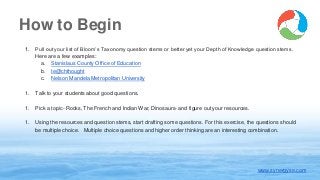
1. Pull out your list of Bloom’s Taxonomy question stems or better yet your Depth of Knowledge question stems.
Here are a few examples:
a. Stanislaus County Office of Education
b. te@chthought
c. Nelson Mandela Metropolitan University
1. Talk to your students about good questions.
1. Pick a topic- Rocks, The French and Indian War, Dinosaurs- and figure out your resources.
1. Using the resources and question stems, start drafting some questions. For this exercise, the questions should
be multiple choice. Multiple choice questions and higher order thinking are an interesting combination.
www.synergyse.com
Create the Quiz in Slides
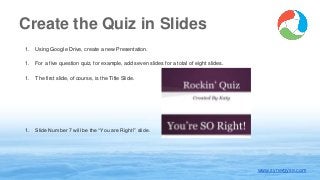
1. Using Google Drive, create a new Presentation.
1. For a five question quiz, for example, add seven slides for a total of eight slides.
1. The first slide, of course, is the Title Slide.
1. Slide Number 7 will be the “You are Right!” slide.
www.synergyse.com
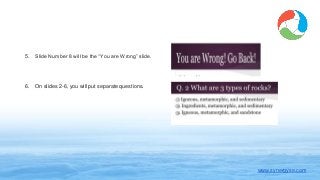
5. Slide Number 8 will be the “You are Wrong” slide.
6. On slides 2-6, you will put separate questions.
www.synergyse.com
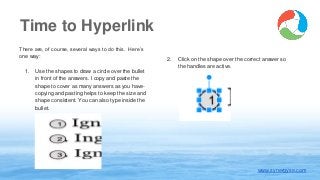
There are, of course, several ways to do this. Here’s
one way:
1. Use the shapes to draw a circle over the bullet
in front of the answers. I copy and paste the
shape to cover as many answers as you have-
copying and pasting helps to keep the size and
shape consistent. You can also type inside the
bullet.
www.synergyse.com
Time to Hyperlink
2. Click on the shape over the correct answer so
the handles are active.
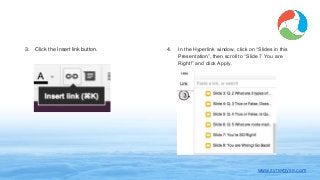
3. Click the Insert link button.
www.synergyse.com
4. In the Hyperlink window, click on “Slides in this
Presentation”, then scroll to “Slide 7 You are
Right!” and click Apply.
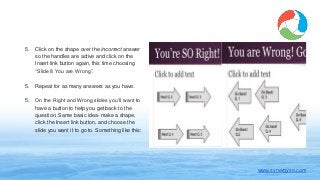
5. Click on the shape over the incorrect answer
so the handles are active and click on the
Insert link button again, this time choosing
“Slide 8 You are Wrong”.
5. Repeat for as many answers as you have.
5. On the Right and Wrong slides you’ll want to
have a button to help you get back to the
question. Same basic idea- make a shape,
click the Insert link button, and choose the
slide you want it to go to. Something like this:
www.synergyse.com
Tips for Success
1. The buttons consistently work well in Chrome. In Firefox, the buttons/links are temperamental.
1. Spend some time on the questions. Making multiple choice questions at a DOK 3 is a great exercise.
1. Have students share the quizzes. They can also peer- and self- evaluate for rigor.
www.synergyse.com
Join the conversation and follow us:
www.synergyse.com

Using Google Slides to Create an Interactive Quiz

  • 1.
    Using Google Slidesto Create an Interactive Quiz www.synergyse.com
  • 2.
    Learning to usea presentation tool is important, especially with Common Core and Project-Based Learning emphases on communication and sharing learning. Kids, and adults for that matter, need to be able to present in front of others, without reading the slides, and connect with their audience. Let’s look at how you can build interactive quizzes using Slides. www.synergyse.com
  • 3.
    How to Begin 1.Pull out your list of Bloom’s Taxonomy question stems or better yet your Depth of Knowledge question stems. Here are a few examples: a. Stanislaus County Office of Education b. te@chthought c. Nelson Mandela Metropolitan University 1. Talk to your students about good questions. 1. Pick a topic- Rocks, The French and Indian War, Dinosaurs- and figure out your resources. 1. Using the resources and question stems, start drafting some questions. For this exercise, the questions should be multiple choice. Multiple choice questions and higher order thinking are an interesting combination. www.synergyse.com
  • 4.
    Create the Quizin Slides 1. Using Google Drive, create a new Presentation. 1. For a five question quiz, for example, add seven slides for a total of eight slides. 1. The first slide, of course, is the Title Slide. 1. Slide Number 7 will be the “You are Right!” slide. www.synergyse.com
  • 5.
    5. Slide Number8 will be the “You are Wrong” slide. 6. On slides 2-6, you will put separate questions. www.synergyse.com
  • 6.
    There are, ofcourse, several ways to do this. Here’s one way: 1. Use the shapes to draw a circle over the bullet in front of the answers. I copy and paste the shape to cover as many answers as you have- copying and pasting helps to keep the size and shape consistent. You can also type inside the bullet. www.synergyse.com Time to Hyperlink 2. Click on the shape over the correct answer so the handles are active.
  • 7.
    3. Click theInsert link button. www.synergyse.com 4. In the Hyperlink window, click on “Slides in this Presentation”, then scroll to “Slide 7 You are Right!” and click Apply.
  • 8.
    5. Click onthe shape over the incorrect answer so the handles are active and click on the Insert link button again, this time choosing “Slide 8 You are Wrong”. 5. Repeat for as many answers as you have. 5. On the Right and Wrong slides you’ll want to have a button to help you get back to the question. Same basic idea- make a shape, click the Insert link button, and choose the slide you want it to go to. Something like this: www.synergyse.com
  • 9.
    Tips for Success 1.The buttons consistently work well in Chrome. In Firefox, the buttons/links are temperamental. 1. Spend some time on the questions. Making multiple choice questions at a DOK 3 is a great exercise. 1. Have students share the quizzes. They can also peer- and self- evaluate for rigor. www.synergyse.com
  • 10.
    Join the conversationand follow us: www.synergyse.com

Editor's Notes

  • #2 Blog link: https://www.synergyse.com/blog/using-google-slides-to-create-an-interactive-quiz/