VPN Remote access
Basics
 So you forgot to Email
yourself an essay, but it
needs to be finished for
tomorrow…
 Luckily, with the Chariho
VPN access you can
open files from your
school U drive anywhere
Access
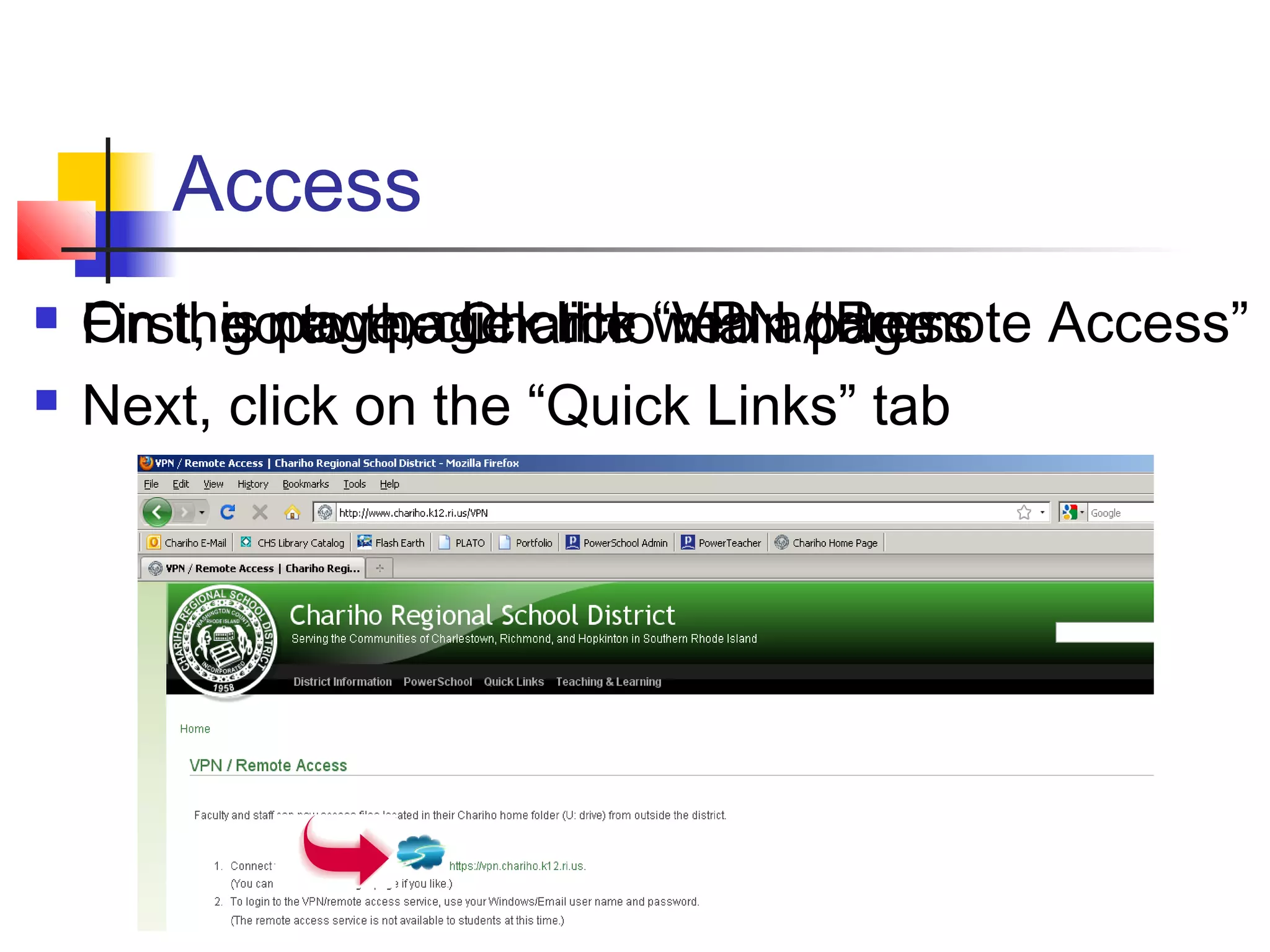
 First, go to the Chariho main page
 Next, click on the “Quick Links” tab
 On the new page click “VPN / Remote Access” On this page, click the web address
VPN Login
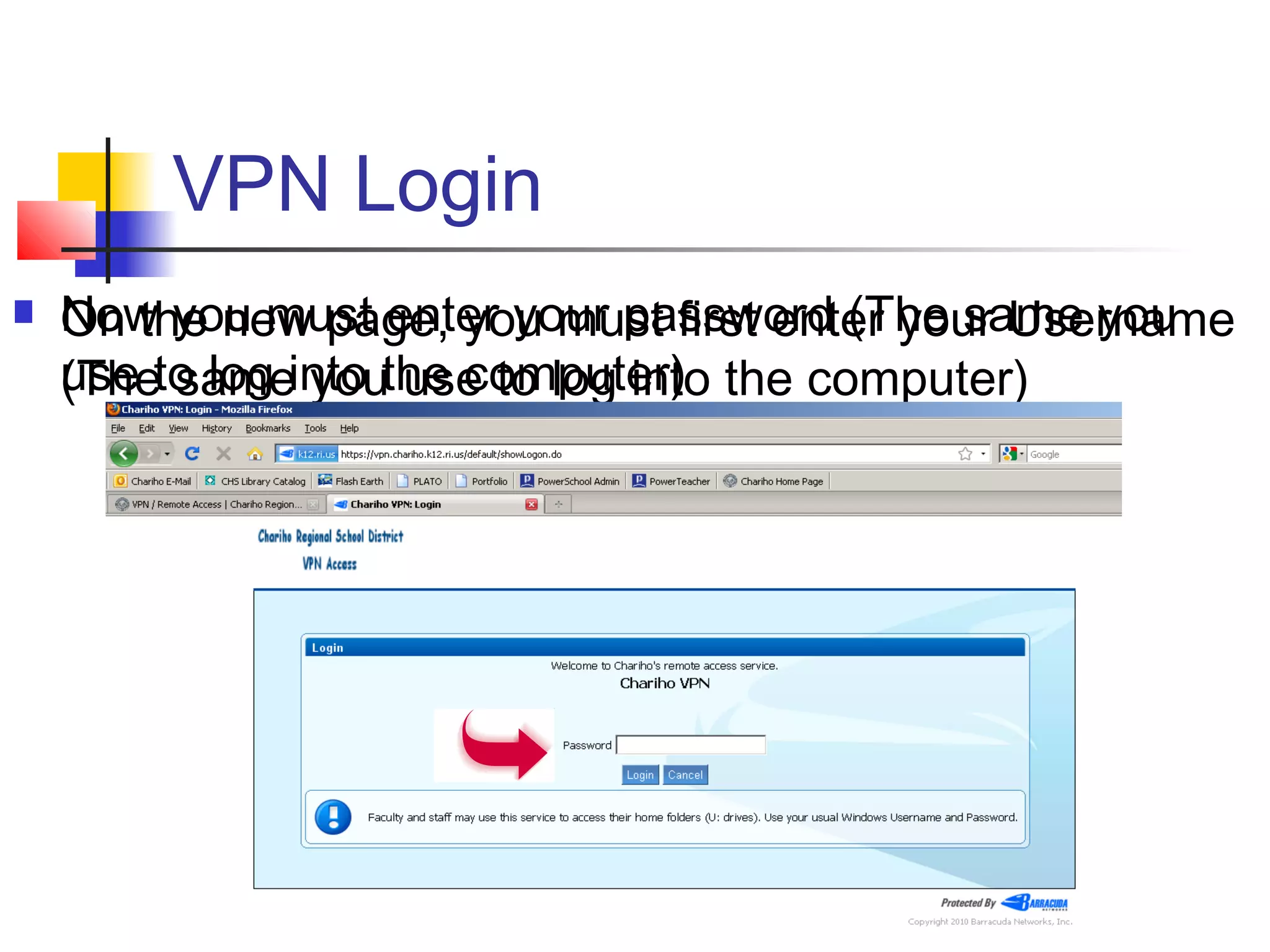
 On the new page, you must first enter your Username
(The same you use to log into the computer)
 Now you must enter your password (The same you
use to log into the computer)
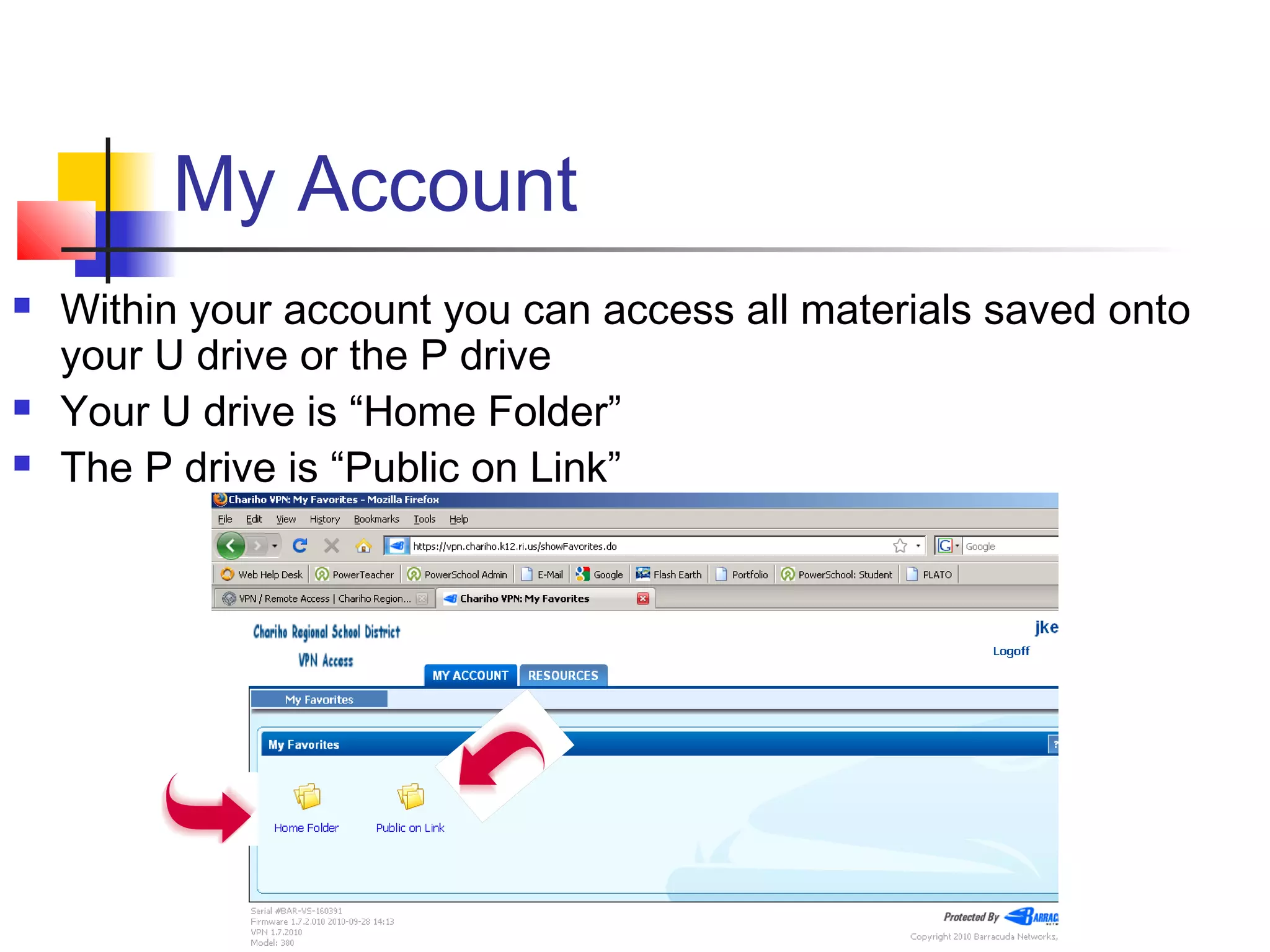
My Account
 Within your account you can access all materials saved onto
your U drive or the P drive
 Your U drive is “Home Folder”
 The P drive is “Public on Link”
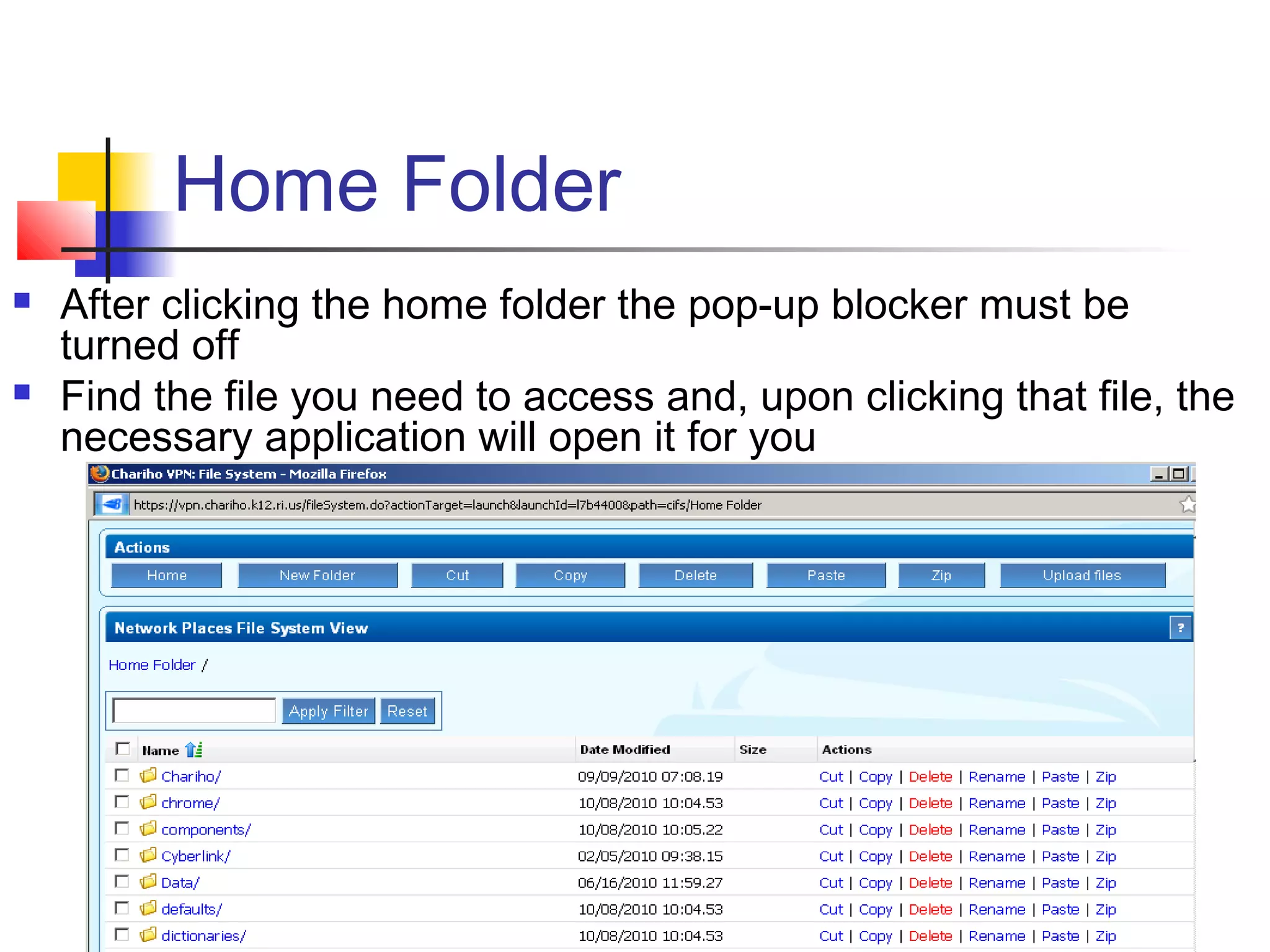
Home Folder
 After clicking the home folder the pop-up blocker must be
turned off
 Find the file you need to access and, upon clicking that file, the
necessary application will open it for you
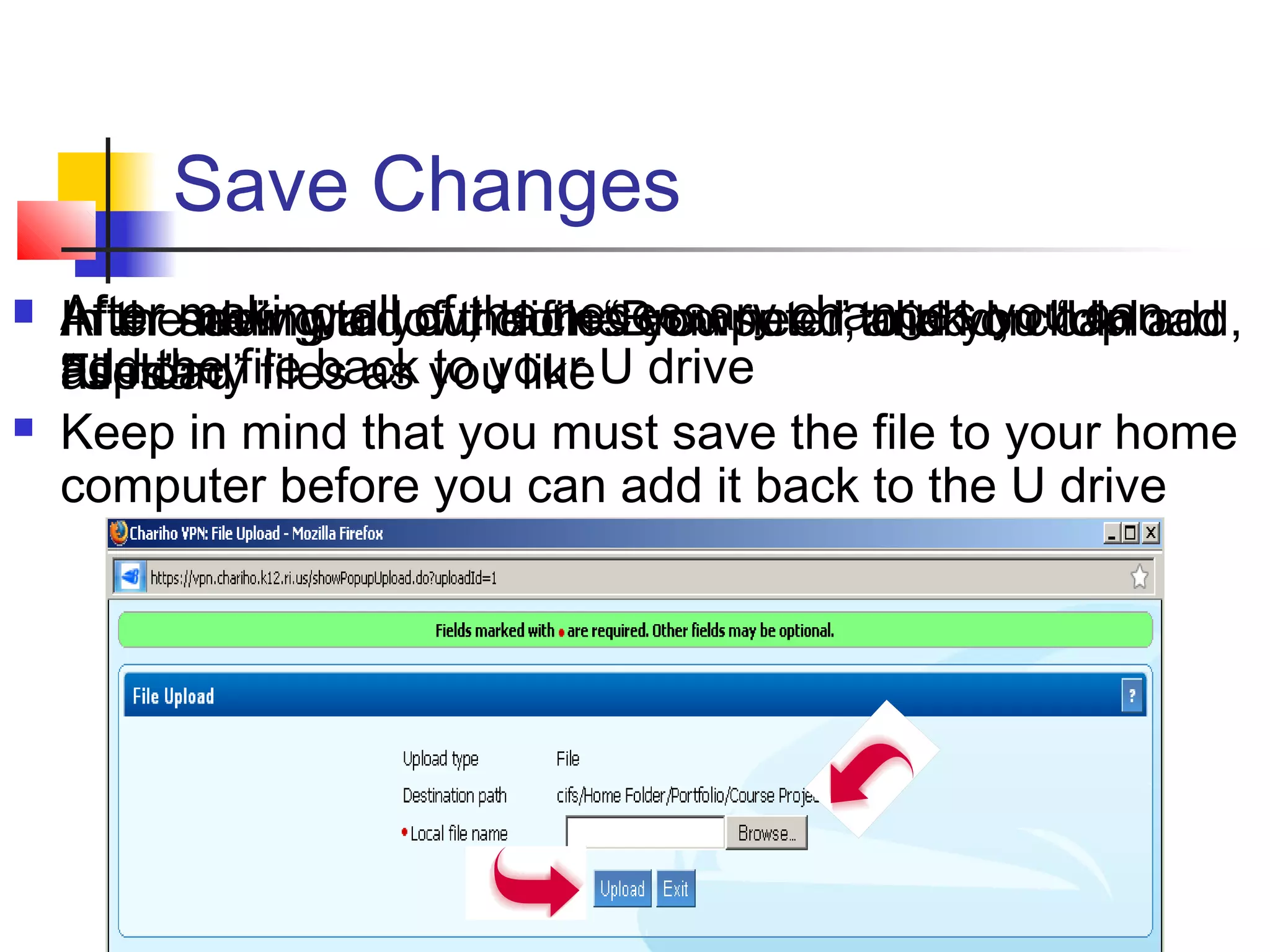
Save Changes
 After making all of the necessary changes you can
add the file back to your U drive
 Keep in mind that you must save the file to your home
computer before you can add it back to the U drive
 After saving to your home computer, click on “Upload
Files”
 In the new window, click “Browse…” and you can add,
as many files as you like
 After adding all of the files you need to add, click
“Upload”
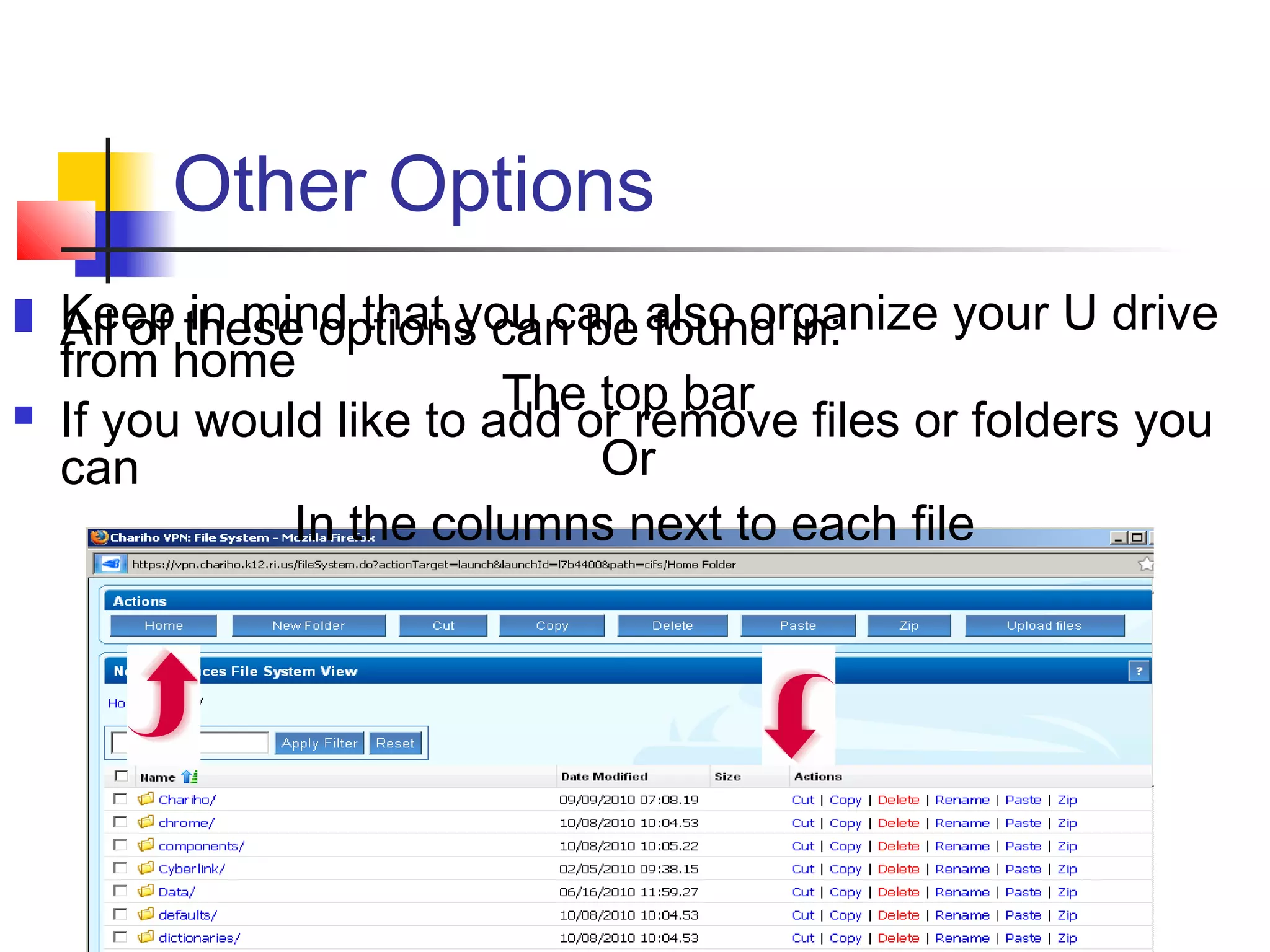
Other Options
 Keep in mind that you can also organize your U drive
from home
 If you would like to add or remove files or folders you
can
 All of these options can be found in:
The top bar
Or
In the columns next to each file
Great Success
 You have now completed the VPN
Remote Access tutorial and are now
one step further to graduating!!!
Great Success
 You have now completed the VPN
Remote Access tutorial and are now
one step further to graduating!!!

VPN Remote Access for Dummies

  • 1.
  • 2.
    Basics  So youforgot to Email yourself an essay, but it needs to be finished for tomorrow…  Luckily, with the Chariho VPN access you can open files from your school U drive anywhere
  • 3.
    Access  First, goto the Chariho main page  Next, click on the “Quick Links” tab  On the new page click “VPN / Remote Access” On this page, click the web address
  • 4.
    VPN Login  Onthe new page, you must first enter your Username (The same you use to log into the computer)  Now you must enter your password (The same you use to log into the computer)
  • 5.
    My Account  Withinyour account you can access all materials saved onto your U drive or the P drive  Your U drive is “Home Folder”  The P drive is “Public on Link”
  • 6.
    Home Folder  Afterclicking the home folder the pop-up blocker must be turned off  Find the file you need to access and, upon clicking that file, the necessary application will open it for you
  • 7.
    Save Changes  Aftermaking all of the necessary changes you can add the file back to your U drive  Keep in mind that you must save the file to your home computer before you can add it back to the U drive  After saving to your home computer, click on “Upload Files”  In the new window, click “Browse…” and you can add, as many files as you like  After adding all of the files you need to add, click “Upload”
  • 8.
    Other Options  Keepin mind that you can also organize your U drive from home  If you would like to add or remove files or folders you can  All of these options can be found in: The top bar Or In the columns next to each file
  • 9.
    Great Success  Youhave now completed the VPN Remote Access tutorial and are now one step further to graduating!!!
  • 10.
    Great Success  Youhave now completed the VPN Remote Access tutorial and are now one step further to graduating!!!