

© 2014 VMware Inc. All rights reserved.
VMware Solutions
Mohamed El Shorbagy
Cloud Consultant @ eSky IT
2
Agenda
1 eSky IT Profile
2 VMware Vision
3 VMware Solutions
4 VMware vCloud Suite
5 VMware vCenter Operation Manager
6 VMware Health Check Service
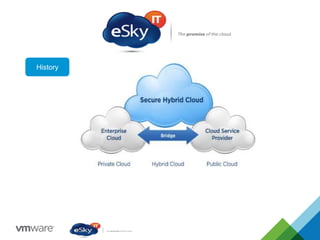
History
CONFIDENTIAL 4
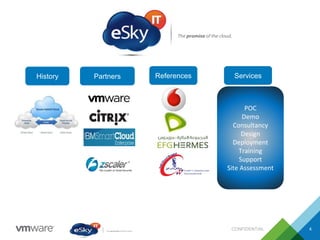
History Partners References Services
POC
Demo
Consultancy
Design
Deployment
Training
Support
Site Assessment
CONFIDENTIAL 5
The VMware Vision
Empower people and organizations by radically
simplifying IT through virtualization software
CONFIDENTIAL 8
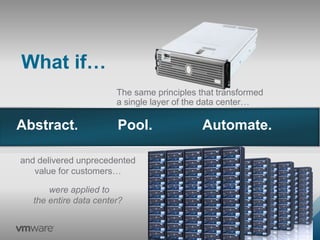
The same principles that transformed
a single layer of the data center…
and delivered unprecedented
value for customers…
What if…
Abstract. Pool. Automate.
were applied to
the entire data center?
CONFIDENTIAL 9
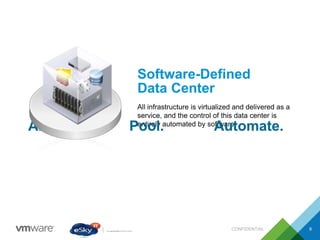
Software-Defined
Data Center
All infrastructure is virtualized and delivered as a
service, and the control of this data center is
entirely automated by software.
Abstract. Pool. Automate.
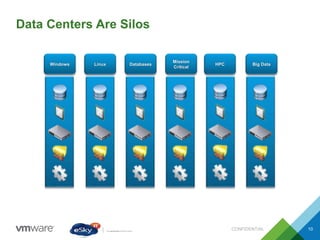
Data Centers Are Silos
CONFIDENTIAL 10
Windows Linux Databases
Mission
Critical
HPC Big Data
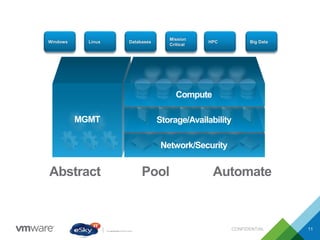
CONFIDENTIAL 11
Abstract Pool Automate
Windows Linux Databases
Mission
Critical
HPC Big Data
MGMT
Network/Security
Storage/Availability
Compute
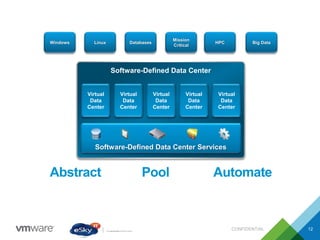
CONFIDENTIAL 12
Software-Defined Data Center
Virtual
Data
Center
Virtual
Data
Center
Virtual
Data
Center
Virtual
Data
Center
Virtual
Data
Center
Software-Defined Data Center Services
Windows Linux Databases
Mission
Critical
HPC Big Data
Abstract Pool Automate
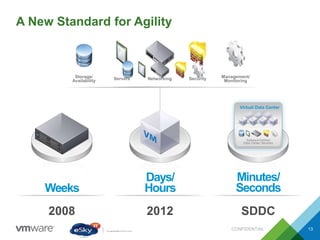
A New Standard for Agility
CONFIDENTIAL 13
Storage/
Availability Servers Networking Security Management/
Monitoring
2008 2012 SDDC
Weeks
Days/
Hours
Minutes/
Seconds
Software-Defined
Data Center Services
Virtual Data Center
CONFIDENTIAL 14
Real Business Results:
Innovation Velocity
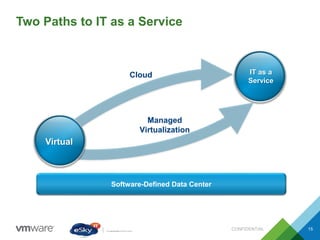
Two Paths to IT as a Service
CONFIDENTIAL 15
Software-Defined Data Center
Virtual
Cloud IT as a
Service
Managed
Virtualization
CONFIDENTIAL 16
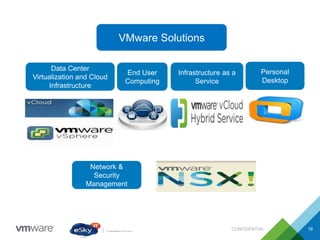
Data Center
Virtualization and Cloud
Infrastructure
VMware Solutions
End User
Computing
Infrastructure as a
Service
Personal
Desktop
Network &
Security
Management
VMware vSphere Solution
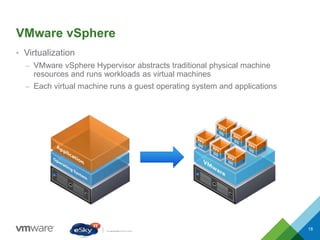
VMware vSphere
• Virtualization
– VMware vSphere Hypervisor abstracts traditional physical machine
resources and runs workloads as virtual machines
– Each virtual machine runs a guest operating system and applications
18
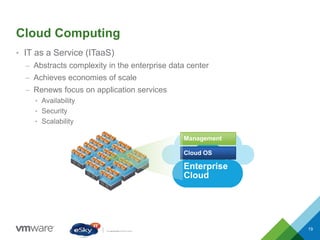
Cloud Computing
• IT as a Service (ITaaS)
– Abstracts complexity in the enterprise data center
– Achieves economies of scale
– Renews focus on application services
• Availability
• Security
• Scalability
Enterprise
Cloud
Cloud OS
Management
19
VMware vCloud Solution
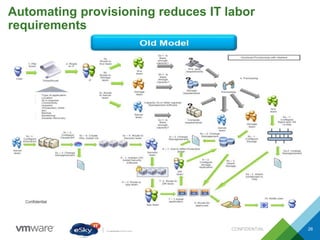
CONFIDENTIAL 26
Automating provisioning reduces IT labor
requirements
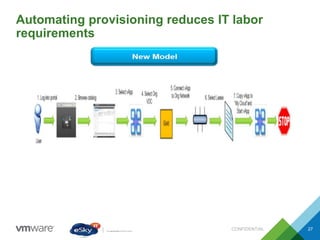
Automating provisioning reduces IT labor
requirements
CONFIDENTIAL 27
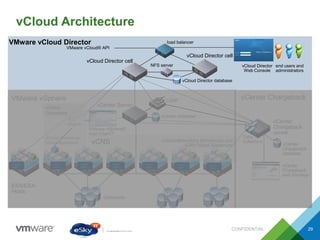
vCloud Architecture
CONFIDENTIAL 29
vCenter Server
ESX/ESXi
Hosts
vCloud
Agent
vCloud
Agent
vCloud
Agent
vCloud
Agent
vCloud
Agent
vCloud
Agent
Datastores
VMware vSphere
vCenter database
LDAP
VMware vSphere®
Web Client™
vCenter
Chargeback
web interface
vCenter
Chargeback
database
vCenter Chargeback
vCenter
Chargeback
server
VMware vCloud Director
vCloud Director cell
vCloud Director database
vCloud Director
Web Console
end users and
administrators
VMware vCloud® API
vCNS vCloud Networking and security and
vCNS Virtual Appliances
Data
Collectors
NFS server
vCloud Director cell
load balancer
vCloud
Agent
vCloud Connector
Virtual Appliance
vCC
plug-in
vCloud
Connector
CONFIDENTIAL 32
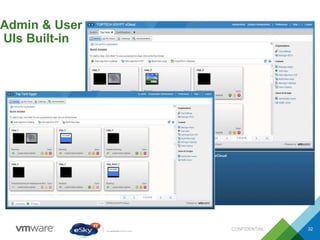
Admin & User
UIs Built-in
VMware vCenter Operation
Manager
vSphere has transformed how companies deploy
and use IT
CONFIDENTIAL 46
Agility. Efficiency. Resiliency.
• How much time before my current
capacity runs out?
• Which virtual machines are over-
provisioned?
• How can I identify emerging
performance issues before they
impact the business?
…but new customer challenges
arise
Virtualize Smarter with Insight to Workload
Capacity and Health
CONFIDENTIAL 47
vSphere vCenter Server
• Capacity planning – know how many
days before capacity runs out so IT can
continue to be responsive
• Optimize efficiency – know on which
virtual machines might be overprovisioned
• Improve performance - faster root cause
identification of emerging issues
• Proven virtualization platform – provide
availability for your business applications
VMware vSphere
The proven compute virtualization platform
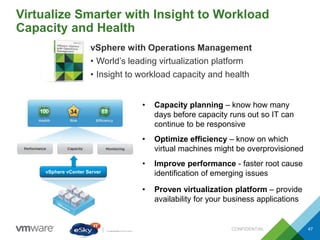
vSphere with Operations Management
• World’s leading virtualization platform
• Insight to workload capacity and health
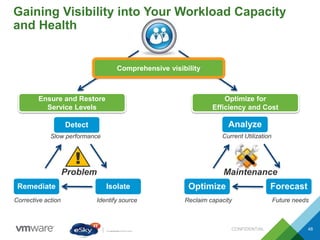
Gaining Visibility into Your Workload Capacity
and Health
CONFIDENTIAL 48
!
Problem Maintenance
Slow performance
Identify sourceCorrective action
Current Utilization
Reclaim capacity
Ensure and Restore
Service Levels
Optimize for
Efficiency and Cost
Future needs
Detect
IsolateRemediate
Analyze
ForecastOptimize
Comprehensive visibility
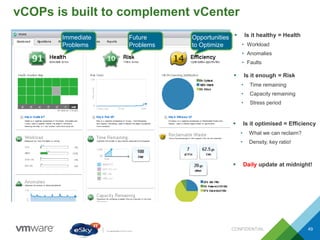
vCOPs is built to complement vCenter
CONFIDENTIAL 49
 Is it healthy = Health
• Workload
• Anomalies
• Faults
 Is it enough = Risk
• Time remaining
• Capacity remaining
• Stress period
 Is it optimised = Efficiency
• What we can reclaim?
• Density, key ratio!
 Daily update at midnight!
Immediate
Problems
Future
Problems
Opportunities
to Optimize
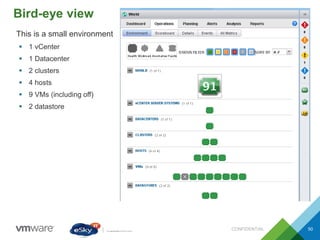
Bird-eye view
CONFIDENTIAL 50
This is a small environment
 1 vCenter
 1 Datacenter
 2 clusters
 4 hosts
 9 VMs (including off)
 2 datastore
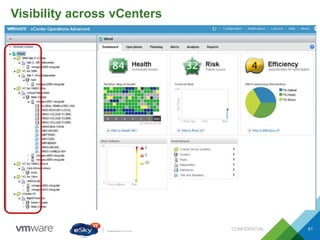
Visibility across vCenters
CONFIDENTIAL 51
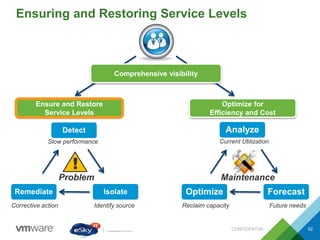
Ensuring and Restoring Service Levels
CONFIDENTIAL 52
!
Problem Maintenance
Slow performance
Identify sourceCorrective action
Current Utilization
Reclaim capacity
Ensure and Restore
Service Levels
Optimize for
Efficiency and Cost
Future needs
Detect
IsolateRemediate
Analyze
ForecastOptimize
Comprehensive visibility
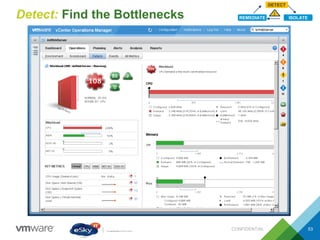
Detect: Find the Bottlenecks
CONFIDENTIAL 53
DETECT
REMEDIATE ISOLATE
!
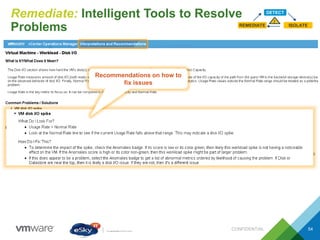
Remediate: Intelligent Tools to Resolve
Problems
CONFIDENTIAL 54
DETECT
REMEDIATE ISOLATE
!
Recommendations on how to
fix issues
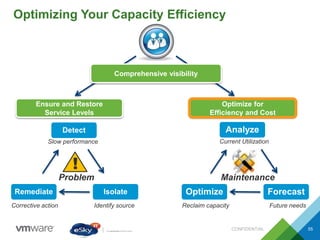
Optimizing Your Capacity Efficiency
CONFIDENTIAL 55
!
Problem Maintenance
Slow performance
Identify sourceCorrective action
Current Utilization
Reclaim capacity
Ensure and Restore
Service Levels
Optimize for
Efficiency and Cost
Future needs
Detect
IsolateRemediate
Analyze
ForecastOptimize
Comprehensive visibility
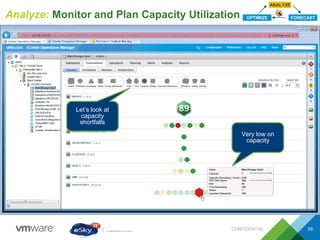
Analyze: Monitor and Plan Capacity Utilization
CONFIDENTIAL 56
ANALYZE
OPTIMIZE FORECAST
Let’s look at
capacity
shortfalls
Very low on
capacity
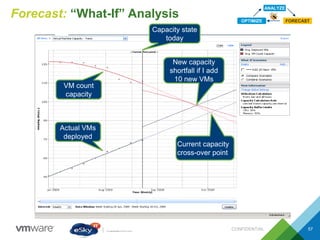
Forecast: “What-If” Analysis
CONFIDENTIAL 57
ANALYZE
OPTIMIZE FORECAST
Current capacity
cross-over point
Actual VMs
deployed
VM count
capacity
Capacity state
today
New capacity
shortfall if I add
10 new VMs
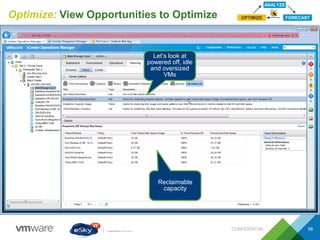
Optimize: View Opportunities to Optimize
CONFIDENTIAL 58
ANALYZE
OPTIMIZE FORECAST
Let’s look at
powered off, idle
and oversized
VMs
Reclaimable
capacity
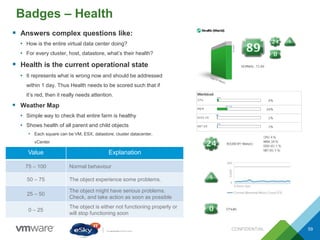
Badges – Health
CONFIDENTIAL 59
 Answers complex questions like:
• How is the entire virtual data center doing?
• For every cluster, host, datastore, what’s their health?
 Health is the current operational state
• It represents what is wrong now and should be addressed
within 1 day. Thus Health needs to be scored such that if
it’s red, then it really needs attention.
 Weather Map
• Simple way to check that entire farm is healthy
• Shows health of all parent and child objects
• Each square can be VM, ESX, datastore, cluster datacenter,
vCenter
Value Explanation
75 – 100 Normal behaviour
50 – 75 The object experience some problems.
25 – 50
The object might have serious problems.
Check, and take action as soon as possible
0 – 25
The object is either not functioning properly or
will stop functioning soon
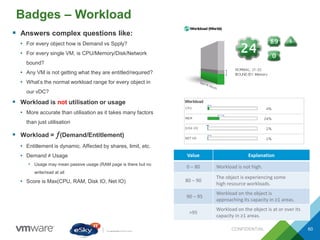
Badges – Workload
CONFIDENTIAL 60
 Answers complex questions like:
• For every object how is Demand vs Spply?
• For every single VM, is CPU/Memory/Disk/Network
bound?
• Any VM is not getting what they are entitled/required?
• What’s the normal workload range for every object in
our vDC?
 Workload is not utilisation or usage
• More accurate than utilisation as it takes many factors
than just utilisation
 Workload = (Demand/Entitlement)
• Entitlement is dynamic. Affected by shares, limit, etc.
• Demand ≠ Usage
• Usage may mean passive usage (RAM page is there but no
write/read at all
• Score is Max(CPU, RAM, Disk IO, Net IO)
Value Explanation
0 – 80 Workload is not high.
80 – 90
The object is experiencing some
high resource workloads.
90 – 95
Workload on the object is
approaching its capacity in ≥1 areas.
>95
Workload on the object is at or over its
capacity in ≥1 areas.
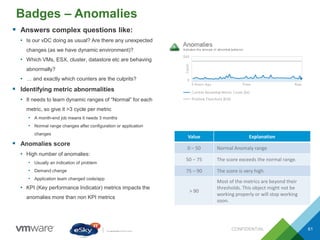
Badges – Anomalies
CONFIDENTIAL 61
 Answers complex questions like:
• Is our vDC doing as usual? Are there any unexpected
changes (as we have dynamic environment)?
• Which VMs, ESX, cluster, datastore etc are behaving
abnormally?
• … and exactly which counters are the culprits?
 Identifying metric abnormalities
• It needs to learn dynamic ranges of “Normal” for each
metric, so give it >3 cycle per metric
• A month-end job means it needs 3 months
• Normal range changes after configuration or application
changes
 Anomalies score
• High number of anomalies:
• Usually an indication of problem
• Demand change
• Application team changed code/app
• KPI (Key performance Indicator) metrics impacts the
anomalies more than non KPI metrics
Value Explanation
0 – 50 Normal Anomaly range
50 – 75 The score exceeds the normal range.
75 – 90 The score is very high.
> 90
Most of the metrics are beyond their
thresholds. This object might not be
working properly or will stop working
soon.
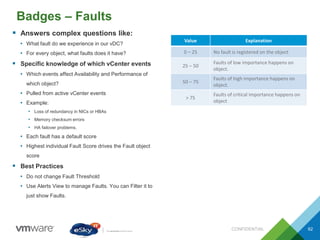
Badges – Faults
CONFIDENTIAL 62
 Answers complex questions like:
• What fault do we experience in our vDC?
• For every object, what faults does it have?
 Specific knowledge of which vCenter events
• Which events affect Availability and Performance of
which object?
• Pulled from active vCenter events
• Example:
• Loss of redundancy in NICs or HBAs
• Memory checksum errors
• HA failover problems.
• Each fault has a default score
• Highest individual Fault Score drives the Fault object
score
 Best Practices
• Do not change Fault Threshold
• Use Alerts View to manage Faults. You can Filter it to
just show Faults.
Value Explanation
0 – 25 No fault is registered on the object
25 – 50
Faults of low importance happens on
object.
50 – 75
Faults of high importance happens on
object.
> 75
Faults of critical importance happens on
object
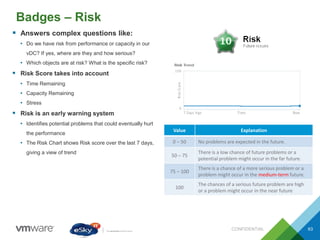
Badges – Risk
CONFIDENTIAL 63
 Answers complex questions like:
• Do we have risk from performance or capacity in our
vDC? If yes, where are they and how serious?
• Which objects are at risk? What is the specific risk?
 Risk Score takes into account
• Time Remaining
• Capacity Remaining
• Stress
 Risk is an early warning system
• Identifies potential problems that could eventually hurt
the performance
• The Risk Chart shows Risk score over the last 7 days,
giving a view of trend
Value Explanation
0 – 50 No problems are expected in the future.
50 – 75
There is a low chance of future problems or a
potential problem might occur in the far future.
75 – 100
There is a chance of a more serious problem or a
problem might occur in the medium-term future.
100
The chances of a serious future problem are high
or a problem might occur in the near future
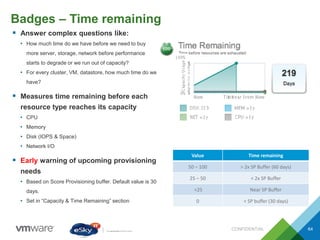
Badges – Time remaining
CONFIDENTIAL 64
 Answer complex questions like:
• How much time do we have before we need to buy
more server, storage, network before performance
starts to degrade or we run out of capacity?
• For every cluster, VM, datastore, how much time do we
have?
 Measures time remaining before each
resource type reaches its capacity
• CPU
• Memory
• Disk (IOPS & Space)
• Network I/O
 Early warning of upcoming provisioning
needs
• Based on Score Provisioning buffer. Default value is 30
days.
• Set in “Capacity & Time Remaining” section
Value Time remaining
50 – 100 > 2x SP Buffer (60 days)
25 – 50 < 2x SP Buffer
<25 Near SP Buffer
0 < SP buffer (30 days)
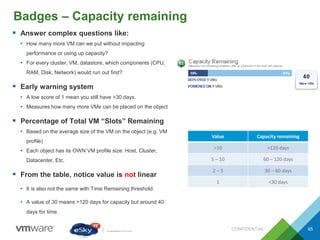
Badges – Capacity remaining
CONFIDENTIAL 65
 Answer complex questions like:
• How many more VM can we put without impacting
performance or using up capacity?
• For every cluster, VM, datastore, which components (CPU,
RAM, Disk, Network) would run out first?
 Early warning system
• A low score of 1 mean you still have >30 days.
• Measures how many more VMs can be placed on the object
 Percentage of Total VM “Slots” Remaining
• Based on the average size of the VM on the object (e.g. VM
profile)
• Each object has its OWN VM profile size: Host, Cluster,
Datacenter, Etc.
 From the table, notice value is not linear
• It is also not the same with Time Remaining threshold.
• A value of 30 means >120 days for capacity but around 40
days for time.
Value Capacity remaining
>10 >120 days
5 – 10 60 – 120 days
2 – 5 30 – 60 days
1 <30 days
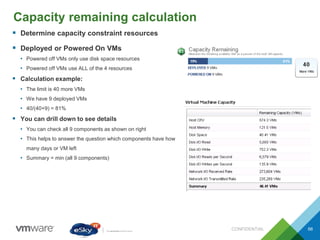
Capacity remaining calculation
CONFIDENTIAL 66
 Determine capacity constraint resources
 Deployed or Powered On VMs
• Powered off VMs only use disk space resources
• Powered off VMs use ALL of the 4 resources
 Calculation example:
• The limit is 40 more VMs
• We have 9 deployed VMs
• 40/(40+9) = 81%
 You can drill down to see details
• You can check all 9 components as shown on right
• This helps to answer the question which components have how
many days or VM left
• Summary = min (all 9 components)
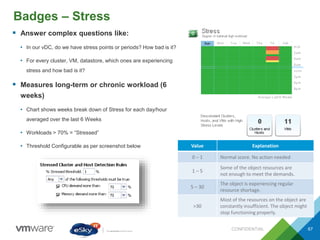
Badges – Stress
CONFIDENTIAL 67
 Answer complex questions like:
• In our vDC, do we have stress points or periods? How bad is it?
• For every cluster, VM, datastore, which ones are experiencing
stress and how bad is it?
 Measures long-term or chronic workload (6
weeks)
• Chart shows weeks break down of Stress for each day/hour
averaged over the last 6 Weeks
• Workloads > 70% = “Stressed”
• Threshold Configurable as per screenshot below Value Explanation
0 – 1 Normal score. No action needed
1 – 5
Some of the object resources are
not enough to meet the demands.
5 – 30
The object is experiencing regular
resource shortage.
>30
Most of the resources on the object are
constantly insufficient. The object might
stop functioning properly.
Stress Calculation
CONFIDENTIAL 68
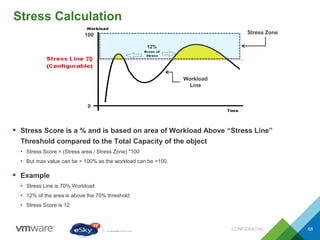
 Stress Score is a % and is based on area of Workload Above “Stress Line”
Threshold compared to the Total Capacity of the object
• Stress Score = (Stress area / Stress Zone) *100
• But max value can be > 100% as the workload can be >100.
 Example
• Stress Line is 70% Workload
• 12% of the area is above the 70% threshold
• Stress Score is 12
0
100
70
Stress Zone
Workload
Line
12%
Badges – Efficiency
CONFIDENTIAL 69
 Answer complex questions like:
• Are there optimization opportunities in our vDC?
• How well do we do in terms of VM provisioning? Do
we get them right?
 Efficiency Score factors
• Reclaimable waste
• Density ratio
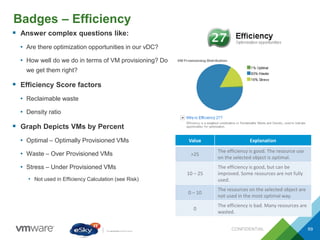
 Graph Depicts VMs by Percent
• Optimal – Optimally Provisioned VMs
• Waste – Over Provisioned VMs
• Stress – Under Provisioned VMs
• Not used in Efficiency Calculation (see Risk)
Value Explanation
>25
The efficiency is good. The resource use
on the selected object is optimal.
10 – 25
The efficiency is good, but can be
improved. Some resources are not fully
used.
0 – 10
The resources on the selected object are
not used in the most optimal way.
0
The efficiency is bad. Many resources are
wasted.
Badges – Reclaimable waste
CONFIDENTIAL 70
 Answer complex questions like:
• Do we over provisioned the VMs in terms of CPU, RAM and
Disk? If yes, what’s the degree of over provisioning?
• For every cluster, VM, datastore, what can we reclaim?
 It identifies the amount of reclaimable
resources
• CPU
• Memory
• Disk
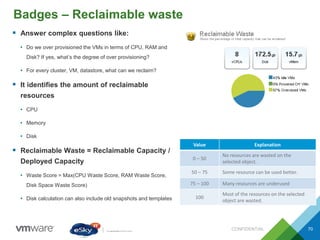
 Reclaimable Waste = Reclaimable Capacity /
Deployed Capacity
• Waste Score = Max(CPU Waste Score, RAM Waste Score,
Disk Space Waste Score)
• Disk calculation can also include old snapshots and templates
Value Explanation
0 – 50
No resources are wasted on the
selected object.
50 – 75 Some resource can be used better.
75 – 100 Many resources are underused
100
Most of the resources on the selected
object are wasted.
Badges – Density
CONFIDENTIAL 71
 Answer complex questions like:
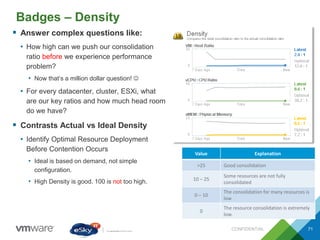
• How high can we push our consolidation
ratio before we experience performance
problem?
• Now that’s a million dollar question! 
• For every datacenter, cluster, ESXi, what
are our key ratios and how much head room
do we have?
 Contrasts Actual vs Ideal Density
• Identify Optimal Resource Deployment
Before Contention Occurs
• Ideal is based on demand, not simple
configuration.
• High Density is good. 100 is not too high.
Value Explanation
>25 Good consolidation
10 – 25
Some resources are not fully
consolidated
0 – 10
The consolidation for many resources is
low
0
The resource consolidation is extremely
low.
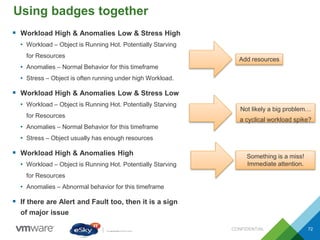
Using badges together
CONFIDENTIAL 72
 Workload High & Anomalies Low & Stress High
• Workload – Object is Running Hot. Potentially Starving
for Resources
• Anomalies – Normal Behavior for this timeframe
• Stress – Object is often running under high Workload.
 Workload High & Anomalies Low & Stress Low
• Workload – Object is Running Hot. Potentially Starving
for Resources
• Anomalies – Normal Behavior for this timeframe
• Stress – Object usually has enough resources
 Workload High & Anomalies High
• Workload – Object is Running Hot. Potentially Starving
for Resources
• Anomalies – Abnormal behavior for this timeframe
 If there are Alert and Fault too, then it is a sign
of major issue
Add resources
Not likely a big problem…
a cyclical workload spike?
Something is a miss!
Immediate attention.
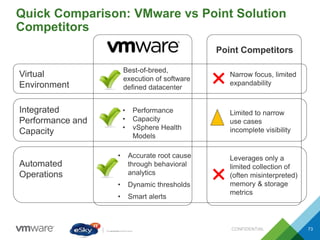
Quick Comparison: VMware vs Point Solution
Competitors
CONFIDENTIAL 73
Virtual
Environment
Best-of-breed,
execution of software
defined datacenter
Narrow focus, limited
expandability✖
Integrated
Performance and
Capacity
• Performance
• Capacity
• vSphere Health
Models
Limited to narrow
use cases
incomplete visibility
Automated
Operations
• Accurate root cause
through behavioral
analytics
• Dynamic thresholds
• Smart alerts
Leverages only a
limited collection of
(often misinterpreted)
memory & storage
metrics
✖
Point Competitors
VMware vSphere® Health
Check Service
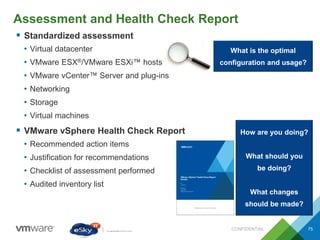
Assessment and Health Check Report
CONFIDENTIAL 75
 Standardized assessment
• Virtual datacenter
• VMware ESX®/VMware ESXi™ hosts
• VMware vCenter™ Server and plug-ins
• Networking
• Storage
• Virtual machines
 VMware vSphere Health Check Report
• Recommended action items
• Justification for recommendations
• Checklist of assessment performed
• Audited inventory list
What is the optimal
configuration and usage?
How are you doing?
What should you
be doing?
What changes
should be made?
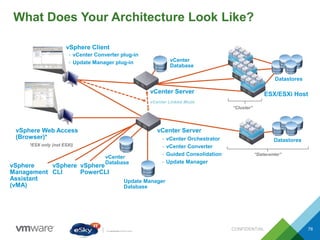
What Does Your Architecture Look Like?
CONFIDENTIAL 76
vCenter
Database
ESX/ESXi Host
vCenter Server
Datastores
“Datacenter”
“Cluster”
 vCenter Orchestrator
 vCenter Converter
 Guided Consolidation
 Update Manager
vSphere Web Access
(Browser)*
Update Manager
Database
Datastores
vSphere
CLI
*ESX only (not ESXi)
vSphere Client
 vCenter Converter plug-in
 Update Manager plug-in
vCenter Server
vCenter Linked Mode
vCenter
Database
vSphere
Management
Assistant
(vMA)
vSphere
PowerCLI
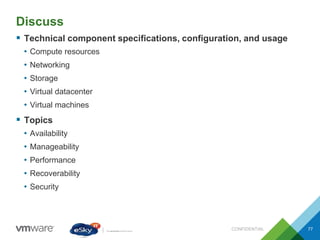
Discuss
CONFIDENTIAL 77
 Technical component specifications, configuration, and usage
• Compute resources
• Networking
• Storage
• Virtual datacenter
• Virtual machines
 Topics
• Availability
• Manageability
• Performance
• Recoverability
• Security
VMware Infrastructure / vSphere Topology and
Access
CONFIDENTIAL 78
 Have information available for ESX/ESXi and vCenter
• ESX/ESXi hosts
• IP address and host name
• Root login and password
• vCenter Server
• IP address and hostname
• vCenter administrator login and password (or account with vCenter Server Read-
Only+License role)
Follow-Up Interviews and Discussions
CONFIDENTIAL 79
 Identify key people and schedule follow-up interviews and
discussions
• Technical architects
• Administrators
• Operations
• Virtual machine administrators
• Security
• Storage
• Networking
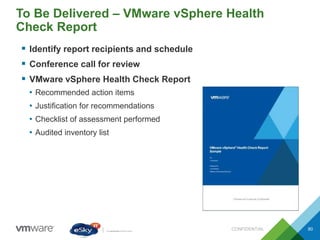
To Be Delivered – VMware vSphere Health
Check Report
CONFIDENTIAL 80
 Identify report recipients and schedule
 Conference call for review
 VMware vSphere Health Check Report
• Recommended action items
• Justification for recommendations
• Checklist of assessment performed
• Audited inventory list
Recommendations
CONFIDENTIAL 81
Host Avoid installing additional agents in the service console
Host
For large systems and existing systems with additional agents in the
service console, allocate the maximum size for service console memory
(800MB) and swap size (1600MB)
Host
Automate the ESX installation and configuration process using a
combination of kickstart scripts and host profiles
Host
Avoid logging in to the ESX service console—manage existing ESX hosts
like you would VMware vSphere ESXi™ using vCenter Server and
VMware vSphere Command-Line Interface (vCLI), VMware vSphere
Management Assistant (vMA), or VMware vSphere PowerCLI™
CONFIDENTIAL 82
Recommendations
Network Set 1Gbps physical adaptors to autonegotiation for optimum performance
Network
Change the default port group security settings ForgedTransmits and
MACAddressChange to Reject
Network
Avoid mixing NICs with different speeds and duplex settings on the same
uplink for a port group/dvportgroup
Storage
Separate the space allocations on shared datastores for templates and
media/ISOs from virtual machines
CONFIDENTIAL 83
Recommendations
Virtual
Machines
Set the memory reservation value for Java-based (JVM) virtual machines
to the OS required memory plus the JVM heap size
Virtual
Datacenter
Use vCenter Server roles, groups, and permissions to provide appropriate
access and authorization for virtual infrastructure administration. Avoid
using Windows built-in groups (Administrators)
Virtual
Machines
Use as few vCPUs as possible. Do not use virtual SMP if application is
single threaded and will not benefit from additional vCPUs
Virtual
Datacenter
Set up a redundant service console port group to use a separate vmnic on
a separate subnet for improved HA redundancy
Questions
101
Contacts
 Mohamed El Shorbagy
– Cloud Consultant
– Mohamed.Shorbagy@eskyit.com
 Thank you for your time!

VMware Solutions

  • 1.
    © 2014 VMwareInc. All rights reserved. VMware Solutions Mohamed El Shorbagy Cloud Consultant @ eSky IT
  • 2.
    2 Agenda 1 eSky ITProfile 2 VMware Vision 3 VMware Solutions 4 VMware vCloud Suite 5 VMware vCenter Operation Manager 6 VMware Health Check Service
  • 3.
  • 4.
    CONFIDENTIAL 4 History PartnersReferences Services POC Demo Consultancy Design Deployment Training Support Site Assessment
  • 5.
    CONFIDENTIAL 5 The VMwareVision Empower people and organizations by radically simplifying IT through virtualization software
  • 6.
    CONFIDENTIAL 8 The sameprinciples that transformed a single layer of the data center… and delivered unprecedented value for customers… What if… Abstract. Pool. Automate. were applied to the entire data center?
  • 7.
    CONFIDENTIAL 9 Software-Defined Data Center Allinfrastructure is virtualized and delivered as a service, and the control of this data center is entirely automated by software. Abstract. Pool. Automate.
  • 8.
    Data Centers AreSilos CONFIDENTIAL 10 Windows Linux Databases Mission Critical HPC Big Data
  • 9.
    CONFIDENTIAL 11 Abstract PoolAutomate Windows Linux Databases Mission Critical HPC Big Data MGMT Network/Security Storage/Availability Compute
  • 10.
    CONFIDENTIAL 12 Software-Defined DataCenter Virtual Data Center Virtual Data Center Virtual Data Center Virtual Data Center Virtual Data Center Software-Defined Data Center Services Windows Linux Databases Mission Critical HPC Big Data Abstract Pool Automate
  • 11.
    A New Standardfor Agility CONFIDENTIAL 13 Storage/ Availability Servers Networking Security Management/ Monitoring 2008 2012 SDDC Weeks Days/ Hours Minutes/ Seconds Software-Defined Data Center Services Virtual Data Center
  • 12.
    CONFIDENTIAL 14 Real BusinessResults: Innovation Velocity
  • 13.
    Two Paths toIT as a Service CONFIDENTIAL 15 Software-Defined Data Center Virtual Cloud IT as a Service Managed Virtualization
  • 14.
    CONFIDENTIAL 16 Data Center Virtualizationand Cloud Infrastructure VMware Solutions End User Computing Infrastructure as a Service Personal Desktop Network & Security Management
  • 15.
  • 16.
    VMware vSphere • Virtualization –VMware vSphere Hypervisor abstracts traditional physical machine resources and runs workloads as virtual machines – Each virtual machine runs a guest operating system and applications 18
  • 17.
    Cloud Computing • ITas a Service (ITaaS) – Abstracts complexity in the enterprise data center – Achieves economies of scale – Renews focus on application services • Availability • Security • Scalability Enterprise Cloud Cloud OS Management 19
  • 18.
  • 19.
    CONFIDENTIAL 26 Automating provisioningreduces IT labor requirements
  • 20.
    Automating provisioning reducesIT labor requirements CONFIDENTIAL 27
  • 21.
    vCloud Architecture CONFIDENTIAL 29 vCenterServer ESX/ESXi Hosts vCloud Agent vCloud Agent vCloud Agent vCloud Agent vCloud Agent vCloud Agent Datastores VMware vSphere vCenter database LDAP VMware vSphere® Web Client™ vCenter Chargeback web interface vCenter Chargeback database vCenter Chargeback vCenter Chargeback server VMware vCloud Director vCloud Director cell vCloud Director database vCloud Director Web Console end users and administrators VMware vCloud® API vCNS vCloud Networking and security and vCNS Virtual Appliances Data Collectors NFS server vCloud Director cell load balancer vCloud Agent vCloud Connector Virtual Appliance vCC plug-in vCloud Connector
  • 22.
    CONFIDENTIAL 32 Admin &User UIs Built-in
  • 23.
  • 24.
    vSphere has transformedhow companies deploy and use IT CONFIDENTIAL 46 Agility. Efficiency. Resiliency. • How much time before my current capacity runs out? • Which virtual machines are over- provisioned? • How can I identify emerging performance issues before they impact the business? …but new customer challenges arise
  • 25.
    Virtualize Smarter withInsight to Workload Capacity and Health CONFIDENTIAL 47 vSphere vCenter Server • Capacity planning – know how many days before capacity runs out so IT can continue to be responsive • Optimize efficiency – know on which virtual machines might be overprovisioned • Improve performance - faster root cause identification of emerging issues • Proven virtualization platform – provide availability for your business applications VMware vSphere The proven compute virtualization platform vSphere with Operations Management • World’s leading virtualization platform • Insight to workload capacity and health
  • 26.
    Gaining Visibility intoYour Workload Capacity and Health CONFIDENTIAL 48 ! Problem Maintenance Slow performance Identify sourceCorrective action Current Utilization Reclaim capacity Ensure and Restore Service Levels Optimize for Efficiency and Cost Future needs Detect IsolateRemediate Analyze ForecastOptimize Comprehensive visibility
  • 27.
    vCOPs is builtto complement vCenter CONFIDENTIAL 49  Is it healthy = Health • Workload • Anomalies • Faults  Is it enough = Risk • Time remaining • Capacity remaining • Stress period  Is it optimised = Efficiency • What we can reclaim? • Density, key ratio!  Daily update at midnight! Immediate Problems Future Problems Opportunities to Optimize
  • 28.
    Bird-eye view CONFIDENTIAL 50 Thisis a small environment  1 vCenter  1 Datacenter  2 clusters  4 hosts  9 VMs (including off)  2 datastore
  • 29.
  • 30.
    Ensuring and RestoringService Levels CONFIDENTIAL 52 ! Problem Maintenance Slow performance Identify sourceCorrective action Current Utilization Reclaim capacity Ensure and Restore Service Levels Optimize for Efficiency and Cost Future needs Detect IsolateRemediate Analyze ForecastOptimize Comprehensive visibility
  • 31.
    Detect: Find theBottlenecks CONFIDENTIAL 53 DETECT REMEDIATE ISOLATE !
  • 32.
    Remediate: Intelligent Toolsto Resolve Problems CONFIDENTIAL 54 DETECT REMEDIATE ISOLATE ! Recommendations on how to fix issues
  • 33.
    Optimizing Your CapacityEfficiency CONFIDENTIAL 55 ! Problem Maintenance Slow performance Identify sourceCorrective action Current Utilization Reclaim capacity Ensure and Restore Service Levels Optimize for Efficiency and Cost Future needs Detect IsolateRemediate Analyze ForecastOptimize Comprehensive visibility
  • 34.
    Analyze: Monitor andPlan Capacity Utilization CONFIDENTIAL 56 ANALYZE OPTIMIZE FORECAST Let’s look at capacity shortfalls Very low on capacity
  • 35.
    Forecast: “What-If” Analysis CONFIDENTIAL57 ANALYZE OPTIMIZE FORECAST Current capacity cross-over point Actual VMs deployed VM count capacity Capacity state today New capacity shortfall if I add 10 new VMs
  • 36.
    Optimize: View Opportunitiesto Optimize CONFIDENTIAL 58 ANALYZE OPTIMIZE FORECAST Let’s look at powered off, idle and oversized VMs Reclaimable capacity
  • 37.
    Badges – Health CONFIDENTIAL59  Answers complex questions like: • How is the entire virtual data center doing? • For every cluster, host, datastore, what’s their health?  Health is the current operational state • It represents what is wrong now and should be addressed within 1 day. Thus Health needs to be scored such that if it’s red, then it really needs attention.  Weather Map • Simple way to check that entire farm is healthy • Shows health of all parent and child objects • Each square can be VM, ESX, datastore, cluster datacenter, vCenter Value Explanation 75 – 100 Normal behaviour 50 – 75 The object experience some problems. 25 – 50 The object might have serious problems. Check, and take action as soon as possible 0 – 25 The object is either not functioning properly or will stop functioning soon
  • 38.
    Badges – Workload CONFIDENTIAL60  Answers complex questions like: • For every object how is Demand vs Spply? • For every single VM, is CPU/Memory/Disk/Network bound? • Any VM is not getting what they are entitled/required? • What’s the normal workload range for every object in our vDC?  Workload is not utilisation or usage • More accurate than utilisation as it takes many factors than just utilisation  Workload = (Demand/Entitlement) • Entitlement is dynamic. Affected by shares, limit, etc. • Demand ≠ Usage • Usage may mean passive usage (RAM page is there but no write/read at all • Score is Max(CPU, RAM, Disk IO, Net IO) Value Explanation 0 – 80 Workload is not high. 80 – 90 The object is experiencing some high resource workloads. 90 – 95 Workload on the object is approaching its capacity in ≥1 areas. >95 Workload on the object is at or over its capacity in ≥1 areas.
  • 39.
    Badges – Anomalies CONFIDENTIAL61  Answers complex questions like: • Is our vDC doing as usual? Are there any unexpected changes (as we have dynamic environment)? • Which VMs, ESX, cluster, datastore etc are behaving abnormally? • … and exactly which counters are the culprits?  Identifying metric abnormalities • It needs to learn dynamic ranges of “Normal” for each metric, so give it >3 cycle per metric • A month-end job means it needs 3 months • Normal range changes after configuration or application changes  Anomalies score • High number of anomalies: • Usually an indication of problem • Demand change • Application team changed code/app • KPI (Key performance Indicator) metrics impacts the anomalies more than non KPI metrics Value Explanation 0 – 50 Normal Anomaly range 50 – 75 The score exceeds the normal range. 75 – 90 The score is very high. > 90 Most of the metrics are beyond their thresholds. This object might not be working properly or will stop working soon.
  • 40.
    Badges – Faults CONFIDENTIAL62  Answers complex questions like: • What fault do we experience in our vDC? • For every object, what faults does it have?  Specific knowledge of which vCenter events • Which events affect Availability and Performance of which object? • Pulled from active vCenter events • Example: • Loss of redundancy in NICs or HBAs • Memory checksum errors • HA failover problems. • Each fault has a default score • Highest individual Fault Score drives the Fault object score  Best Practices • Do not change Fault Threshold • Use Alerts View to manage Faults. You can Filter it to just show Faults. Value Explanation 0 – 25 No fault is registered on the object 25 – 50 Faults of low importance happens on object. 50 – 75 Faults of high importance happens on object. > 75 Faults of critical importance happens on object
  • 41.
    Badges – Risk CONFIDENTIAL63  Answers complex questions like: • Do we have risk from performance or capacity in our vDC? If yes, where are they and how serious? • Which objects are at risk? What is the specific risk?  Risk Score takes into account • Time Remaining • Capacity Remaining • Stress  Risk is an early warning system • Identifies potential problems that could eventually hurt the performance • The Risk Chart shows Risk score over the last 7 days, giving a view of trend Value Explanation 0 – 50 No problems are expected in the future. 50 – 75 There is a low chance of future problems or a potential problem might occur in the far future. 75 – 100 There is a chance of a more serious problem or a problem might occur in the medium-term future. 100 The chances of a serious future problem are high or a problem might occur in the near future
  • 42.
    Badges – Timeremaining CONFIDENTIAL 64  Answer complex questions like: • How much time do we have before we need to buy more server, storage, network before performance starts to degrade or we run out of capacity? • For every cluster, VM, datastore, how much time do we have?  Measures time remaining before each resource type reaches its capacity • CPU • Memory • Disk (IOPS & Space) • Network I/O  Early warning of upcoming provisioning needs • Based on Score Provisioning buffer. Default value is 30 days. • Set in “Capacity & Time Remaining” section Value Time remaining 50 – 100 > 2x SP Buffer (60 days) 25 – 50 < 2x SP Buffer <25 Near SP Buffer 0 < SP buffer (30 days)
  • 43.
    Badges – Capacityremaining CONFIDENTIAL 65  Answer complex questions like: • How many more VM can we put without impacting performance or using up capacity? • For every cluster, VM, datastore, which components (CPU, RAM, Disk, Network) would run out first?  Early warning system • A low score of 1 mean you still have >30 days. • Measures how many more VMs can be placed on the object  Percentage of Total VM “Slots” Remaining • Based on the average size of the VM on the object (e.g. VM profile) • Each object has its OWN VM profile size: Host, Cluster, Datacenter, Etc.  From the table, notice value is not linear • It is also not the same with Time Remaining threshold. • A value of 30 means >120 days for capacity but around 40 days for time. Value Capacity remaining >10 >120 days 5 – 10 60 – 120 days 2 – 5 30 – 60 days 1 <30 days
  • 44.
    Capacity remaining calculation CONFIDENTIAL66  Determine capacity constraint resources  Deployed or Powered On VMs • Powered off VMs only use disk space resources • Powered off VMs use ALL of the 4 resources  Calculation example: • The limit is 40 more VMs • We have 9 deployed VMs • 40/(40+9) = 81%  You can drill down to see details • You can check all 9 components as shown on right • This helps to answer the question which components have how many days or VM left • Summary = min (all 9 components)
  • 45.
    Badges – Stress CONFIDENTIAL67  Answer complex questions like: • In our vDC, do we have stress points or periods? How bad is it? • For every cluster, VM, datastore, which ones are experiencing stress and how bad is it?  Measures long-term or chronic workload (6 weeks) • Chart shows weeks break down of Stress for each day/hour averaged over the last 6 Weeks • Workloads > 70% = “Stressed” • Threshold Configurable as per screenshot below Value Explanation 0 – 1 Normal score. No action needed 1 – 5 Some of the object resources are not enough to meet the demands. 5 – 30 The object is experiencing regular resource shortage. >30 Most of the resources on the object are constantly insufficient. The object might stop functioning properly.
  • 46.
    Stress Calculation CONFIDENTIAL 68 Stress Score is a % and is based on area of Workload Above “Stress Line” Threshold compared to the Total Capacity of the object • Stress Score = (Stress area / Stress Zone) *100 • But max value can be > 100% as the workload can be >100.  Example • Stress Line is 70% Workload • 12% of the area is above the 70% threshold • Stress Score is 12 0 100 70 Stress Zone Workload Line 12%
  • 47.
    Badges – Efficiency CONFIDENTIAL69  Answer complex questions like: • Are there optimization opportunities in our vDC? • How well do we do in terms of VM provisioning? Do we get them right?  Efficiency Score factors • Reclaimable waste • Density ratio  Graph Depicts VMs by Percent • Optimal – Optimally Provisioned VMs • Waste – Over Provisioned VMs • Stress – Under Provisioned VMs • Not used in Efficiency Calculation (see Risk) Value Explanation >25 The efficiency is good. The resource use on the selected object is optimal. 10 – 25 The efficiency is good, but can be improved. Some resources are not fully used. 0 – 10 The resources on the selected object are not used in the most optimal way. 0 The efficiency is bad. Many resources are wasted.
  • 48.
    Badges – Reclaimablewaste CONFIDENTIAL 70  Answer complex questions like: • Do we over provisioned the VMs in terms of CPU, RAM and Disk? If yes, what’s the degree of over provisioning? • For every cluster, VM, datastore, what can we reclaim?  It identifies the amount of reclaimable resources • CPU • Memory • Disk  Reclaimable Waste = Reclaimable Capacity / Deployed Capacity • Waste Score = Max(CPU Waste Score, RAM Waste Score, Disk Space Waste Score) • Disk calculation can also include old snapshots and templates Value Explanation 0 – 50 No resources are wasted on the selected object. 50 – 75 Some resource can be used better. 75 – 100 Many resources are underused 100 Most of the resources on the selected object are wasted.
  • 49.
    Badges – Density CONFIDENTIAL71  Answer complex questions like: • How high can we push our consolidation ratio before we experience performance problem? • Now that’s a million dollar question!  • For every datacenter, cluster, ESXi, what are our key ratios and how much head room do we have?  Contrasts Actual vs Ideal Density • Identify Optimal Resource Deployment Before Contention Occurs • Ideal is based on demand, not simple configuration. • High Density is good. 100 is not too high. Value Explanation >25 Good consolidation 10 – 25 Some resources are not fully consolidated 0 – 10 The consolidation for many resources is low 0 The resource consolidation is extremely low.
  • 50.
    Using badges together CONFIDENTIAL72  Workload High & Anomalies Low & Stress High • Workload – Object is Running Hot. Potentially Starving for Resources • Anomalies – Normal Behavior for this timeframe • Stress – Object is often running under high Workload.  Workload High & Anomalies Low & Stress Low • Workload – Object is Running Hot. Potentially Starving for Resources • Anomalies – Normal Behavior for this timeframe • Stress – Object usually has enough resources  Workload High & Anomalies High • Workload – Object is Running Hot. Potentially Starving for Resources • Anomalies – Abnormal behavior for this timeframe  If there are Alert and Fault too, then it is a sign of major issue Add resources Not likely a big problem… a cyclical workload spike? Something is a miss! Immediate attention.
  • 51.
    Quick Comparison: VMwarevs Point Solution Competitors CONFIDENTIAL 73 Virtual Environment Best-of-breed, execution of software defined datacenter Narrow focus, limited expandability✖ Integrated Performance and Capacity • Performance • Capacity • vSphere Health Models Limited to narrow use cases incomplete visibility Automated Operations • Accurate root cause through behavioral analytics • Dynamic thresholds • Smart alerts Leverages only a limited collection of (often misinterpreted) memory & storage metrics ✖ Point Competitors
  • 52.
  • 53.
    Assessment and HealthCheck Report CONFIDENTIAL 75  Standardized assessment • Virtual datacenter • VMware ESX®/VMware ESXi™ hosts • VMware vCenter™ Server and plug-ins • Networking • Storage • Virtual machines  VMware vSphere Health Check Report • Recommended action items • Justification for recommendations • Checklist of assessment performed • Audited inventory list What is the optimal configuration and usage? How are you doing? What should you be doing? What changes should be made?
  • 54.
    What Does YourArchitecture Look Like? CONFIDENTIAL 76 vCenter Database ESX/ESXi Host vCenter Server Datastores “Datacenter” “Cluster”  vCenter Orchestrator  vCenter Converter  Guided Consolidation  Update Manager vSphere Web Access (Browser)* Update Manager Database Datastores vSphere CLI *ESX only (not ESXi) vSphere Client  vCenter Converter plug-in  Update Manager plug-in vCenter Server vCenter Linked Mode vCenter Database vSphere Management Assistant (vMA) vSphere PowerCLI
  • 55.
    Discuss CONFIDENTIAL 77  Technicalcomponent specifications, configuration, and usage • Compute resources • Networking • Storage • Virtual datacenter • Virtual machines  Topics • Availability • Manageability • Performance • Recoverability • Security
  • 56.
    VMware Infrastructure /vSphere Topology and Access CONFIDENTIAL 78  Have information available for ESX/ESXi and vCenter • ESX/ESXi hosts • IP address and host name • Root login and password • vCenter Server • IP address and hostname • vCenter administrator login and password (or account with vCenter Server Read- Only+License role)
  • 57.
    Follow-Up Interviews andDiscussions CONFIDENTIAL 79  Identify key people and schedule follow-up interviews and discussions • Technical architects • Administrators • Operations • Virtual machine administrators • Security • Storage • Networking
  • 58.
    To Be Delivered– VMware vSphere Health Check Report CONFIDENTIAL 80  Identify report recipients and schedule  Conference call for review  VMware vSphere Health Check Report • Recommended action items • Justification for recommendations • Checklist of assessment performed • Audited inventory list
  • 59.
    Recommendations CONFIDENTIAL 81 Host Avoidinstalling additional agents in the service console Host For large systems and existing systems with additional agents in the service console, allocate the maximum size for service console memory (800MB) and swap size (1600MB) Host Automate the ESX installation and configuration process using a combination of kickstart scripts and host profiles Host Avoid logging in to the ESX service console—manage existing ESX hosts like you would VMware vSphere ESXi™ using vCenter Server and VMware vSphere Command-Line Interface (vCLI), VMware vSphere Management Assistant (vMA), or VMware vSphere PowerCLI™
  • 60.
    CONFIDENTIAL 82 Recommendations Network Set1Gbps physical adaptors to autonegotiation for optimum performance Network Change the default port group security settings ForgedTransmits and MACAddressChange to Reject Network Avoid mixing NICs with different speeds and duplex settings on the same uplink for a port group/dvportgroup Storage Separate the space allocations on shared datastores for templates and media/ISOs from virtual machines
  • 61.
    CONFIDENTIAL 83 Recommendations Virtual Machines Set thememory reservation value for Java-based (JVM) virtual machines to the OS required memory plus the JVM heap size Virtual Datacenter Use vCenter Server roles, groups, and permissions to provide appropriate access and authorization for virtual infrastructure administration. Avoid using Windows built-in groups (Administrators) Virtual Machines Use as few vCPUs as possible. Do not use virtual SMP if application is single threaded and will not benefit from additional vCPUs Virtual Datacenter Set up a redundant service console port group to use a separate vmnic on a separate subnet for improved HA redundancy
  • 62.
  • 63.
    Contacts  Mohamed ElShorbagy – Cloud Consultant – Mohamed.Shorbagy@eskyit.com  Thank you for your time!