Uploading Your
Video to
Youtube
Dr Tara Brooks
Step 1: File formats/extensions
 Make sure your video file format can be shared
through the internet.
 To be certain, check if your file extension is saved
as
 .mpeg4
 .wmv
 .mov
 .avi
 .mpegps
 .flv
 If your video file is not saved in any of the formats
listed above, YouTube may reject your video.
Step 2: Troubleshooting
 If your video file format is listed above, go
to your “Save As” command and resave
your video in any of the above file
extensions.
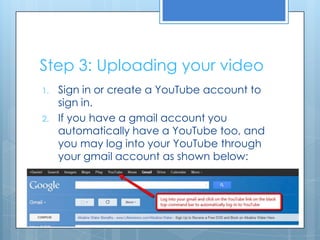
Step 3: Uploading your video
1. Sign in or create a YouTube account to
sign in.
2. If you have a gmail account you
automatically have a YouTube too, and
you may log into your YouTube through
your gmail account as shown below:
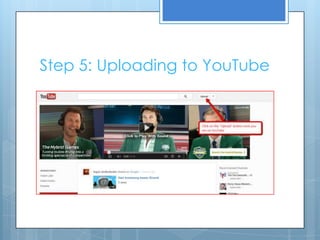
Step 5: Uploading to YouTube
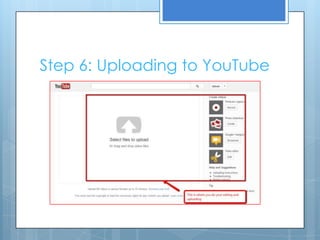
Step 6: Uploading to YouTube
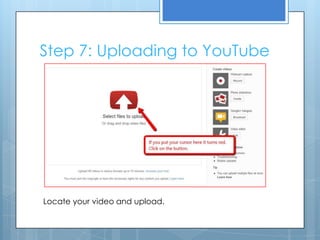
Step 7: Uploading to YouTube
Locate your video and upload.
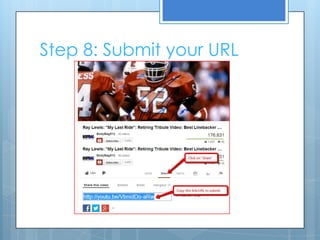
Step 8: Submit your URL

Uploading your video to youtube

  • 1.
  • 2.
    Step 1: Fileformats/extensions  Make sure your video file format can be shared through the internet.  To be certain, check if your file extension is saved as  .mpeg4  .wmv  .mov  .avi  .mpegps  .flv  If your video file is not saved in any of the formats listed above, YouTube may reject your video.
  • 3.
    Step 2: Troubleshooting If your video file format is listed above, go to your “Save As” command and resave your video in any of the above file extensions.
  • 4.
    Step 3: Uploadingyour video 1. Sign in or create a YouTube account to sign in. 2. If you have a gmail account you automatically have a YouTube too, and you may log into your YouTube through your gmail account as shown below:
  • 5.
  • 6.
  • 7.
    Step 7: Uploadingto YouTube Locate your video and upload.
  • 8.