Unix
i
AbouttheTutorial
Unix is a computer Operating System which is capable of handling activities from multiple
users at the same time. The development of Unix started around 1969 at AT&T Bell Labs
by Ken Thompson and Dennis Ritchie. This tutorial gives a very good understanding on
Unix.
Audience
This tutorial has been prepared for the beginners to help them understand the basics to
advanced concepts covering Unix commands, Unix shell scripting and various utilities.
Prerequisites
We assume you have adequate exposure to Operating Systems and their functionalities.
A basic understanding on various computer concepts will also help you in understanding
the various exercises given in this tutorial.
ExecuteUnixShellPrograms
If you are willing to learn the Unix/Linux basic commands and Shell script but you do not
have a setup for the same, then do not worry — The CodingGround is available on a high-
end dedicated server giving you real programming experience with the comfort of single-
click execution. Yes! It is absolutely free and online.
Copyright&Disclaimer
 Copyright 2016 by Tutorials Point (I) Pvt. Ltd.
All the content and graphics published in this e-book are the property of Tutorials Point (I)
Pvt. Ltd. The user of this e-book is prohibited to reuse, retain, copy, distribute or republish
any contents or a part of contents of this e-book in any manner without written consent
of the publisher.
We strive to update the contents of our website and tutorials as timely and as precisely as
possible, however, the contents may contain inaccuracies or errors. Tutorials Point (I) Pvt.
Ltd. provides no guarantee regarding the accuracy, timeliness or completeness of our
website or its contents including this tutorial. If you discover any errors on our website or
in this tutorial, please notify us at contact@tutorialspoint.com
Unix
ii
TableofContents
About the Tutorial ............................................................................................................................................i
Audience...........................................................................................................................................................i
Prerequisites.....................................................................................................................................................i
Execute Unix Shell Programs ............................................................................................................................i
Copyright & Disclaimer.....................................................................................................................................i
Table of Contents ............................................................................................................................................ ii
UNIX FOR BEGINNERS.................................................................................................................1
Unix — Getting Started.............................................................................................................................2
What is Unix?...................................................................................................................................................2
Unix Architecture.............................................................................................................................................2
Unix — File Management..........................................................................................................................8
Listing Files ......................................................................................................................................................8
Metacharacters .............................................................................................................................................10
Hidden Files ...................................................................................................................................................10
Creating Files .................................................................................................................................................11
Editing Files....................................................................................................................................................11
Display Content of a File................................................................................................................................12
Counting Words in a File ...............................................................................................................................12
Copying Files..................................................................................................................................................13
Renaming Files...............................................................................................................................................13
Deleting Files .................................................................................................................................................13
Standard Unix Streams..................................................................................................................................14
Unix — Directory Management ..............................................................................................................15
Home Directory .............................................................................................................................................15
Absolute/Relative Pathnames.......................................................................................................................15
Listing Directories..........................................................................................................................................16
Creating Directories.......................................................................................................................................16
Creating Parent Directories ...........................................................................................................................17
Removing Directories ....................................................................................................................................18
Changing Directories .....................................................................................................................................18
Renaming Directories ....................................................................................................................................18
The directories . (dot) and .. (dot dot)...........................................................................................................19
Unix — File Permission / Access Modes ..................................................................................................20
The Permission Indicators .............................................................................................................................20
File Access Modes..........................................................................................................................................20
Directory Access Modes ................................................................................................................................21
Changing Permissions....................................................................................................................................21
Using chmod with Absolute Permissions ......................................................................................................22
Changing Owners and Groups.......................................................................................................................23
Changing Ownership .....................................................................................................................................24
Changing Group Ownership ..........................................................................................................................24
SUID and SGID File Permission ......................................................................................................................24
Unix
iii
Unix — Environment...............................................................................................................................26
The .profile File..............................................................................................................................................27
Setting the Terminal Type .............................................................................................................................27
Setting the PATH............................................................................................................................................27
PS1 and PS2 Variables ...................................................................................................................................28
Environment Variables ..................................................................................................................................30
Unix — Basic Utilities..............................................................................................................................32
Printing Files ..................................................................................................................................................32
Sending Email ................................................................................................................................................35
Unix — Pipes and Filters .........................................................................................................................37
The grep Command .......................................................................................................................................37
The Sort Command........................................................................................................................................38
The pg and more Commands ........................................................................................................................39
Unix — Processes Management..............................................................................................................41
Starting a Process ..........................................................................................................................................41
Background Processes...................................................................................................................................42
Listing Running Processes..............................................................................................................................42
Stopping Processes........................................................................................................................................44
Parent and Child Processes ...........................................................................................................................44
Zombie and Orphan Processes......................................................................................................................44
Daemon Processes ........................................................................................................................................45
The top Command.........................................................................................................................................45
Job ID Versus Process ID................................................................................................................................45
Unix — Network Communication Utilities ..............................................................................................46
The ping Utility ..............................................................................................................................................46
The ftp Utility.................................................................................................................................................47
The telnet Utility............................................................................................................................................49
The finger Utility............................................................................................................................................50
Unix — The vi Editor ...............................................................................................................................52
Starting the vi Editor......................................................................................................................................52
Operation Modes ..........................................................................................................................................53
Getting Out of vi............................................................................................................................................53
Moving within a File ......................................................................................................................................54
Control Commands........................................................................................................................................56
Editing Files....................................................................................................................................................57
Deleting Characters .......................................................................................................................................57
Change Commands........................................................................................................................................58
Copy and Paste Commands...........................................................................................................................58
Advanced Commands....................................................................................................................................59
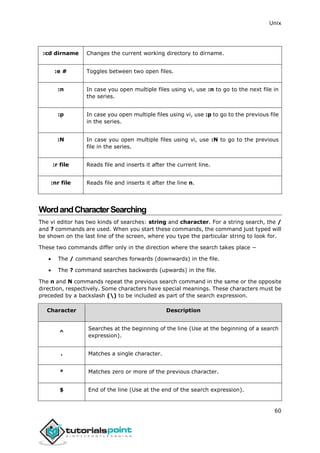
Word and Character Searching......................................................................................................................60
Set Commands...............................................................................................................................................61
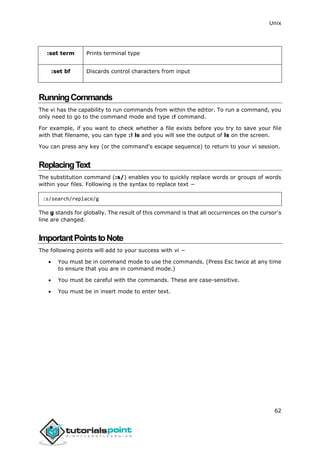
Running Commands ......................................................................................................................................62
Replacing Text ...............................................................................................................................................62
IMPORTANT...................................................................................................................................................62
Unix
iv
UNIX SHELL PROGRAMMING ....................................................................................................63
Unix — What is Shell?.............................................................................................................................64
Shell Prompt ..................................................................................................................................................64
Shell Types.....................................................................................................................................................64
Shell Scripts ...................................................................................................................................................65
Example Script...............................................................................................................................................65
Shell Comments.............................................................................................................................................66
Extended Shell Scripts ...................................................................................................................................66
Unix — Using Shell Variables ..................................................................................................................68
Variable Names .............................................................................................................................................68
Defining Variables..........................................................................................................................................68
Accessing Values............................................................................................................................................69
Read-only Variables.......................................................................................................................................69
Unsetting Variables .......................................................................................................................................70
Variable Types ...............................................................................................................................................70
Unix — Special Variables.........................................................................................................................71
Command-Line Arguments............................................................................................................................72
Special Parameters $* and $@......................................................................................................................72
Exit Status......................................................................................................................................................73
Unix — Using Shell Arrays.......................................................................................................................74
Defining Array Values ....................................................................................................................................74
Accessing Array Values..................................................................................................................................75
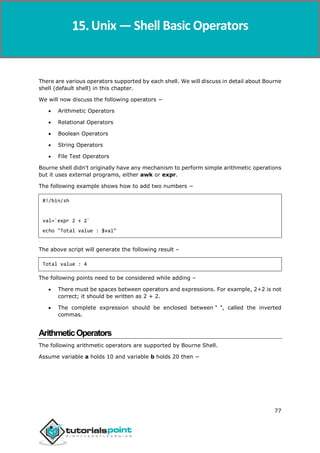
Unix — Shell Basic Operators..................................................................................................................77
Arithmetic Operators.....................................................................................................................................77
Unix - Shell Arithmetic Operators Example ...................................................................................................78
Relational Operators .....................................................................................................................................80
Unix - Shell Relational Operators Example....................................................................................................80
Boolean Operators ........................................................................................................................................82
Unix - Shell Boolean Operators Example.......................................................................................................82
String Operators ............................................................................................................................................84
Unix - Shell String Operators Example...........................................................................................................84
File Test Operators ........................................................................................................................................86
Unix - Shell File Test Operators Example.......................................................................................................87
C Shell Operators...........................................................................................................................................89
Unix - C Shell Operators.................................................................................................................................89
Korn Shell Operators .....................................................................................................................................92
Unix - Korn Shell Operators ...........................................................................................................................92
Unix — Shell Decision Making.................................................................................................................94
The if...else statements .................................................................................................................................94
Unix Shell - The if...fi statement ....................................................................................................................94
Unix Shell - The if...else...fi statement...........................................................................................................95
Unix Shell - The if...elif...fi statement ............................................................................................................96
The case...esac Statement.............................................................................................................................97
Unix Shell - The case...esac Statement..........................................................................................................98
Unix
v
Unix — Shell Loop Types.......................................................................................................................101
Unix Shell - The while Loop .........................................................................................................................101
Unix Shell - The for Loop..............................................................................................................................102
Unix Shell - The until Loop...........................................................................................................................103
Unix Shell - The select Loop.........................................................................................................................104
Nesting Loops ..............................................................................................................................................107
Nesting while Loops.....................................................................................................................................107
Unix — Shell Loop Control ....................................................................................................................109
The infinite Loop..........................................................................................................................................109
The break statement ...................................................................................................................................109
The continue statement ..............................................................................................................................111
Unix — Shell Substitution .....................................................................................................................113
What is Substitution? ..................................................................................................................................113
Command Substitution................................................................................................................................114
Variable Substitution...................................................................................................................................115
Unix — Shell Quoting Mechanisms .......................................................................................................117
The Metacharacters ....................................................................................................................................117
The Single Quotes........................................................................................................................................118
The Double Quotes......................................................................................................................................119
The Backquotes ...........................................................................................................................................120
Unix — Shell Input/Output Redirections...............................................................................................121
Output Redirection......................................................................................................................................121
Input Redirection.........................................................................................................................................122
Here Document ...........................................................................................................................................122
Discard the output.......................................................................................................................................124
Redirection Commands ...............................................................................................................................125
Unix — Shell Functions .........................................................................................................................126
Creating Functions.......................................................................................................................................126
Pass Parameters to a Function ....................................................................................................................127
Returning Values from Functions ................................................................................................................127
Nested Functions.........................................................................................................................................128
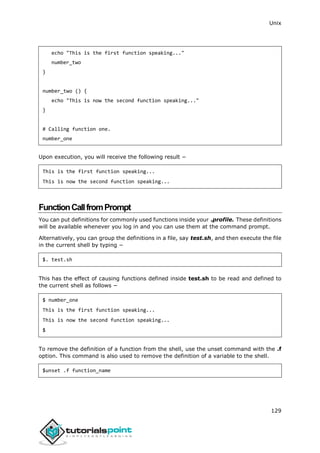
Function Call from Prompt ..........................................................................................................................129
Unix — Shell Man Page Help.................................................................................................................130
Man Page Sections ......................................................................................................................................130
Useful Shell Commands...............................................................................................................................131
Unix - Useful Commands .............................................................................................................................131
Files and Directories ....................................................................................................................................131
Manipulating data .......................................................................................................................................132
Compressed Files.........................................................................................................................................134
Getting Information.....................................................................................................................................135
Network Communication ............................................................................................................................135
Messages between Users............................................................................................................................136
Programming Utilities..................................................................................................................................136
Misc Commands ..........................................................................................................................................138
Unix
vi
ADVANCED UNIX.....................................................................................................................141
Unix — Regular Expressions with SED...................................................................................................142
Invoking sed.................................................................................................................................................142
The sed General Syntax ...............................................................................................................................142
Deleting All Lines with sed...........................................................................................................................143
The sed Addresses.......................................................................................................................................143
The sed Address Ranges ..............................................................................................................................144
The Substitution Command.........................................................................................................................145
Substitution Flags ........................................................................................................................................146
Using an Alternative String Separator .........................................................................................................146
Replacing with Empty Space........................................................................................................................146
Address Substitution ...................................................................................................................................147
The Matching Command .............................................................................................................................148
Using Regular Expression ............................................................................................................................148
Matching Characters ...................................................................................................................................149
Character Class Keywords ...........................................................................................................................150
Ampersand Referencing ..............................................................................................................................151
Using Multiple sed Commands....................................................................................................................152
Back References ..........................................................................................................................................152
Unix — File System Basics.....................................................................................................................154
Directory Structure......................................................................................................................................154
Navigating the File System ..........................................................................................................................155
The df Command .........................................................................................................................................157
The du Command ........................................................................................................................................157
Mounting the File System............................................................................................................................158
Unmounting the File System .......................................................................................................................159
User and Group Quotas...............................................................................................................................159
Unix — User Administration .................................................................................................................161
Managing Users and Groups .......................................................................................................................161
Create a Group ............................................................................................................................................162
Modify a Group ...........................................................................................................................................163
Delete a Group ............................................................................................................................................163
Create an Account .......................................................................................................................................163
Modify an Account ......................................................................................................................................165
Delete an Account .......................................................................................................................................165
Unix — System Performance.................................................................................................................166
Performance Components ..........................................................................................................................166
Performance Tools ......................................................................................................................................167
Unix — System Logging.........................................................................................................................168
Syslog Facilities............................................................................................................................................169
Syslog Priorities ...........................................................................................................................................170
The /etc/syslog.conf file ..............................................................................................................................171
Logging Actions............................................................................................................................................172
The logger Command ..................................................................................................................................172
Log Rotation ................................................................................................................................................173
Important Log Locations..............................................................................................................................173
Unix
vii
Unix — Signals and Traps......................................................................................................................174
List of Signals ...............................................................................................................................................174
Default Actions ............................................................................................................................................175
Sending Signals............................................................................................................................................175
Trapping Signals...........................................................................................................................................176
Cleaning Up Temporary Files.......................................................................................................................176
Ignoring Signals............................................................................................................................................177
Resetting Traps............................................................................................................................................177
Unix for Beginners
Unix
2
WhatisUnix?
The Unix operating system is a set of programs that act as a link between the computer
and the user.
The computer programs that allocate the system resources and coordinate all the details
of the computer's internals is called the operating system or the kernel.
Users communicate with the kernel through a program known as the shell. The shell is a
command line interpreter; it translates commands entered by the user and converts them
into a language that is understood by the kernel.
 Unix was originally developed in 1969 by a group of AT&T employees Ken
Thompson, Dennis Ritchie, Douglas McIlroy, and Joe Ossanna at Bell Labs.
 There are various Unix variants available in the market. Solaris Unix, AIX, HP Unix
and BSD are a few examples. Linux is also a flavor of Unix which is freely available.
 Several people can use a Unix computer at the same time; hence Unix is called a
multiuser system.
 A user can also run multiple programs at the same time; hence Unix is a
multitasking environment.
UnixArchitecture
Here is a basic block diagram of a Unix system –
Unix — Getting Started
Unix
3
The main concept that unites all the versions of Unix is the following four basics −
 Kernel: The kernel is the heart of the operating system. It interacts with the
hardware and most of the tasks like memory management, task scheduling and file
management.
 Shell: The shell is the utility that processes your requests. When you type in a
command at your terminal, the shell interprets the command and calls the program
that you want. The shell uses standard syntax for all commands. C Shell, Bourne
Shell and Korn Shell are the most famous shells which are available with most of
the Unix variants.
 Commands and Utilities: There are various commands and utilities which you
can make use of in your day to day activities. cp, mv, cat and grep, etc. are few
examples of commands and utilities. There are over 250 standard commands plus
numerous others provided through 3rd
party software. All the commands come
along with various options.
 Files and Directories: All the data of Unix is organized into files. All files are then
organized into directories. These directories are further organized into a tree-like
structure called the filesystem.
System Bootup
If you have a computer which has the Unix operating system installed in it, then you simply
need to turn on the system to make it live.
As soon as you turn on the system, it starts booting up and finally it prompts you to log
into the system, which is an activity to log into the system and use it for your day-to-day
activities.
Login Unix
When you first connect to a Unix system, you usually see a prompt such as the following:
login:
To log in
 Have your userid (user identification) and password ready. Contact your system
administrator if you don't have these yet.
 Type your userid at the login prompt, then press ENTER. Your userid is case-
sensitive, so be sure you type it exactly as your system administrator has
instructed.
 Type your password at the password prompt, then press ENTER. Your password is
also case-sensitive.
 If you provide the correct userid and password, then you will be allowed to enter
into the system. Read the information and messages that comes up on the screen,
which is as follows.
Unix
4
login : amrood
amrood's password:
Last login: Sun Jun 14 09:32:32 2009 from 62.61.164.73
$
[[
You will be provided with a command prompt (sometime called the $ prompt ) where you
type all your commands. For example, to check calendar, you need to type the
cal command as follows –
$ cal
June 2009
Su Mo Tu We Th Fr Sa
1 2 3 4 5 6
7 8 9 10 11 12 13
14 15 16 17 18 19 20
21 22 23 24 25 26 27
28 29 30
$
Change Password
All Unix systems require passwords to help ensure that your files and data remain your
own and that the system itself is secure from hackers and crackers. Following are the
steps to change your password –
Step 1: To start, type password at the command prompt as shown below.
Step 2: Enter your old password, the one you're currently using.
Step 3: Type in your new password. Always keep your password complex enough so that
nobody can guess it. But make sure, you remember it.
Step 4: You must verify the password by typing it again.
$ passwd
Changing password for amrood
(current) Unix password:******
New Unix password:*******
Retype new Unix password:*******
passwd: all authentication tokens updated successfully
$
Unix
5
Note − We have added asterisk (*) here just to show the location where you need to
enter the current and new passwords otherwise at your system. It does not show you any
character when you type.
Listing Directories and Files
All data in Unix is organized into files. All files are organized into directories. These
directories are organized into a tree-like structure called the filesystem.
You can use the ls command to list out all the files or directories available in a directory.
Following is the example of using ls command with -l option.
$ ls -l
total 19621
drwxrwxr-x 2 amrood amrood 4096 Dec 25 09:59 uml
-rw-rw-r-- 1 amrood amrood 5341 Dec 25 08:38 uml.jpg
drwxr-xr-x 2 amrood amrood 4096 Feb 15 2006 univ
drwxr-xr-x 2 root root 4096 Dec 9 2007 urlspedia
-rw-r--r-- 1 root root 276480 Dec 9 2007 urlspedia.tar
drwxr-xr-x 8 root root 4096 Nov 25 2007 usr
-rwxr-xr-x 1 root root 3192 Nov 25 2007 webthumb.php
-rw-rw-r-- 1 amrood amrood 20480 Nov 25 2007 webthumb.tar
-rw-rw-r-- 1 amrood amrood 5654 Aug 9 2007 yourfile.mid
-rw-rw-r-- 1 amrood amrood 166255 Aug 9 2007 yourfile.swf
$
Here entries starting with d..... represent directories. For example, uml, univ and urlspedia
are directories and rest of the entries are files.
Who Are You?
While you're logged into the system, you might be willing to know : Who am I?
The easiest way to find out "who you are" is to enter the whoami command −
$ whoami
amrood
$
Try it on your system. This command lists the account name associated with the current
login. You can try who am i command as well to get information about yourself.
Who is Logged in?
Unix
6
Sometime you might be interested to know who is logged in to the computer at the same
time.
There are three commands available to get you this information, based on how much you
wish to know about the other users: users, who, and w.
$ users
amrood bablu qadir
$ who
amrood ttyp0 Oct 8 14:10 (limbo)
bablu ttyp2 Oct 4 09:08 (calliope)
qadir ttyp4 Oct 8 12:09 (dent)
$
Try the w command on your system to check the output. This lists down information
associated with the users logged in the system.
Logging Out
When you finish your session, you need to log out of the system. This is to ensure that
nobody else accesses your files.
To log out
 Just type the logout command at the command prompt, and the system will clean
up everything and break the connection.
System Shutdown
The most consistent way to shut down a Unix system properly via the command line is to
use one of the following commands −
Command Description
halt Brings the system down immediately
init 0 Powers off the system using predefined scripts to synchronize and
clean up the system prior to shutting down
init 6 Reboots the system by shutting it down completely and then
restarting it
poweroff Shuts down the system by powering off
Unix
7
reboot Reboots the system
shutdown Shuts down the system
You typically need to be the super user or root (the most privileged account on a Unix
system) to shut down the system. However, on some standalone or personally-owned Unix
boxes, an administrative user and sometimes regular users can do so.
Unix
8
In this chapter, we will discuss in detail about file management in Unix. All data in Unix is
organized into files. All files are organized into directories. These directories are organized
into a tree-like structure called the filesystem.
When you work with Unix, one way or another, you spend most of your time working with
files. This tutorial will help you understand how to create and remove files, copy and
rename them, create links to them, etc.
In Unix, there are three basic types of files –
 Ordinary Files − An ordinary file is a file on the system that contains data, text,
or program instructions. In this tutorial, you look at working with ordinary files.
 Directories − Directories store both special and ordinary files. For users familiar
with Windows or Mac OS, Unix directories are equivalent to folders.
 Special Files − Some special files provide access to hardware such as hard drives,
CD-ROM drives, modems, and Ethernet adapters. Other special files are similar to
aliases or shortcuts and enable you to access a single file using different names.
ListingFiles
To list the files and directories stored in the current directory, use the following command:
$ls
Here is the sample output of the above command –
$ls
bin hosts lib res.03
ch07 hw1 pub test_results
ch07.bak hw2 res.01 users
docs hw3 res.02 work
The command ls supports the -l option which would help you to get more information
about the listed files –
$ls -l
total 1962188
drwxrwxr-x 2 amrood amrood 4096 Dec 25 09:59 uml
-rw-rw-r-- 1 amrood amrood 5341 Dec 25 08:38 uml.jpg
Unix — File Management
Unix
9
drwxr-xr-x 2 amrood amrood 4096 Feb 15 2006 univ
drwxr-xr-x 2 root root 4096 Dec 9 2007 urlspedia
-rw-r--r-- 1 root root 276480 Dec 9 2007 urlspedia.tar
drwxr-xr-x 8 root root 4096 Nov 25 2007 usr
drwxr-xr-x 2 200 300 4096 Nov 25 2007 webthumb-1.01
-rwxr-xr-x 1 root root 3192 Nov 25 2007 webthumb.php
-rw-rw-r-- 1 amrood amrood 20480 Nov 25 2007 webthumb.tar
-rw-rw-r-- 1 amrood amrood 5654 Aug 9 2007 yourfile.mid
-rw-rw-r-- 1 amrood amrood 166255 Aug 9 2007 yourfile.swf
drwxr-xr-x 11 amrood amrood 4096 May 29 2007 zlib-1.2.3
$
Here is the information about all the listed columns –
 First Column: Represents the file type and the permission given on the file. Below
is the description of all type of files.
 Second Column: Represents the number of memory blocks taken by the file or
directory.
 Third Column: Represents the owner of the file. This is the Unix user who created
this file.
 Fourth Column: Represents the group of the owner. Every Unix user will have an
associated group.
 Fifth Column: Represents the file size in bytes.
 Sixth Column: Represents the date and the time when this file was created or
modified for the last time.
 Seventh Column: Represents the file or the directory name.
In the ls -l listing example, every file line begins with a d, -, or l. These characters indicate
the type of the file that's listed.
Prefix Description
- Regular file, such as an ASCII text file, binary executable, or hard link
b Block special file. Block input/output device file such as a physical hard
drive
c Character special file. Raw input/output device file such as a physical
hard drive
Unix
10
d Directory file that contains a listing of other files and directories
l Symbolic link file. Links on any regular file
p Named pipe. A mechanism for interprocess communications
s Socket used for interprocess communication
Metacharacters
Metacharacters have a special meaning in Unix. For example, * and ? are metacharacters.
We use * to match 0 or more characters, a question mark (?) matches with a single
character.
For Example −
$ls ch*.doc
Displays all the files, the names of which start with ch and end with .doc –
ch01-1.doc ch010.doc ch02.doc ch03-2.doc
ch04-1.doc ch040.doc ch05.doc ch06-2.doc
ch01-2.doc ch02-1.doc c
Here, * works as meta character which matches with any character. If you want to display
all the files ending with just .doc, then you can use the following command –
$ls *.doc
HiddenFiles
An invisible file is one, the first character of which is the dot or the period character (.).
Unix programs (including the shell) use most of these files to store configuration
information.
Some common examples of the hidden files include the files −
 .profile − The Bourne shell ( sh) initialization script
 .kshrc − The Korn shell ( ksh) initialization script
 .cshrc − The C shell ( csh) initialization script
 .rhosts − The remote shell configuration file
Unix
11
To list the invisible files, specify the -a option to ls –
$ ls -a
. .profile docs lib test_results
.. .rhosts hosts pub users
.emacs bin hw1 res.01 work
.exrc ch07 hw2 res.02
.kshrc ch07.bak hw3 res.03
$
 Single dot (.) − This represents the current directory.
 Double dot (..) − This represents the parent directory.
CreatingFiles
You can use the vi editor to create ordinary files on any Unix system. You simply need to
give the following command −
$ vi filename
The above command will open a file with the given filename. Now, press the key i to come
into the edit mode. Once you are in the edit mode, you can start writing your content in
the file as in the following program –
This is unix file....I created it for the first time.....
I'm going to save this content in this file.
Once you are done with the program, follow these steps −
 Press the key esc to come out of the edit mode.
 Press two keys Shift + Z together to come out of the file completely.
You will now have a file created with filename in the current directory.
$ vi filename
$
EditingFiles
You can edit an existing file using the vi editor. We will discuss in short how to open an
existing file −
$ vi filename
Unix
12
Once the file is opened, you can come in the edit mode by pressing the key i and then you
can proceed by editing the file. If you want to move here and there inside a file, then first
you need to come out of the edit mode by pressing the key Esc. After this, you can use
the following keys to move inside a file –
 l key to move to the right side.
 h key to move to the left side.
 k key to move upside in the file.
 j key to move downside in the file.
So using the above keys, you can position your cursor wherever you want to edit. Once
you are positioned, then you can use the i key to come in the edit mode. Once you are
done with the editing in your file, press Esc and finally two keys Shift + ZZ together to
come out of the file completely.
DisplayContentofaFile
You can use the cat command to see the content of a file. Following is a simple example
to see the content of the above created file −
$ cat filename
This is unix file....I created it for the first time.....
I'm going to save this content in this file.
$
You can display the line numbers by using the -b option along with the cat command as
follows –
$ cat -b filename
1 This is unix file....I created it for the first time.....
2 I'm going to save this content in this file.
$
CountingWordsinaFile
You can use the wc command to get a count of the total number of lines, words, and
characters contained in a file. Following is a simple example to see the information about
the file created above −
$ wc filename
2 19 103 filename
$
Unix
13
Here is the detail of all the four columns −
 First Column: Represents the total number of lines in the file.
 Second Column: Represents the total number of words in the file.
 Third Column: Represents the total number of bytes in the file. This is the actual
size of the file.
 Fourth Column: Represents the file name.
You can give multiple files and get information about those files at a time. Following is
simple syntax −
$ wc filename1 filename2 filename3
CopyingFiles
To make a copy of a file use the cp command. The basic syntax of the command is −
$ cp source_file destination_file
Following is the example to create a copy of the existing file filename.
$ cp filename copyfile
$
You will now find one more file copyfile in your current directory. This file will exactly be
the same as the original file filename.
RenamingFiles
To change the name of a file, use the mv command. Following is the basic syntax −
$ mv old_file new_file
The following program will rename the existing file filename to newfile.
$ mv filename newfile
$
The mv command will move the existing file completely into the new file. In this case, you
will find only newfile in your current directory.
DeletingFiles
To delete an existing file, use the rm command. Following is the basic syntax −
$ rm filename
Unix
14
Caution: A file may contain useful information. It is always recommended to be careful
while using this Delete command. It is better to use the -i option along
with rm command.
Following is the example which shows how to completely remove the existing
file filename.
$ rm filename
$
You can remove multiple files at a time with the command given below –
$ rm filename1 filename2 filename3
$
StandardUnixStreams
Under normal circumstances, every Unix program has three streams (files) opened for it
when it starts up −
 stdin − This is referred to as the standard input and the associated file descriptor
is 0. This is also represented as STDIN. The Unix program will read the default
input from STDIN.
 stdout − This is referred to as the standard output and the associated file
descriptor is 1. This is also represented as STDOUT. The Unix program will write
the default output at STDOUT
 stderr − This is referred to as the standard error and the associated file descriptor
is 2. This is also represented as STDERR. The Unix program will write all the error
messages at STDERR.
Unix
15
In this chapter, we will discuss in detail about directory management in Unix.
A directory is a file the solo job of which is to store the file names and the related
information. All the files, whether ordinary, special, or directory, are contained in
directories.
Unix uses a hierarchical structure for organizing files and directories. This structure is often
referred to as a directory tree. The tree has a single root node, the slash character (/),
and all other directories are contained below it.
HomeDirectory
The directory in which you find yourself when you first login is called your home directory.
You will be doing much of your work in your home directory and subdirectories that you'll
be creating to organize your files.
You can go in your home directory anytime using the following command −
$cd ~
$
Here ~ indicates the home directory. Suppose you have to go in any other user's home
directory, use the following command –
$cd ~username
$
To go in your last directory, you can use the following command –
$cd -
$
Absolute/RelativePathnames
Directories are arranged in a hierarchy with root (/) at the top. The position of any file
within the hierarchy is described by its pathname.
Elements of a pathname are separated by a /. A pathname is absolute, if it is described
in relation to root, thus absolute pathnames always begin with a /.
Unix — Directory Management
Unix
16
Following are some examples of absolute filenames.
/etc/passwd
/users/sjones/chem/notes
/dev/rdsk/Os3
A pathname can also be relative to your current working directory. Relative pathnames
never begin with /. Relative to user amrood's home directory, some pathnames might
look like this –
chem/notes
personal/res
To determine where you are within the filesystem hierarchy at any time, enter the
command pwd to print the current working directory –
$pwd
/user0/home/amrood
$
ListingDirectories
To list the files in a directory, you can use the following syntax −
$ls dirname
Following is the example to list all the files contained in /usr/local directory –
$ls /usr/local
X11 bin gimp jikes sbin
ace doc include lib share
atalk etc info man ami
CreatingDirectories
We will now understand how to create directories. Directories are created by the following
command −
$mkdir dirname
Unix
17
Here, directory is the absolute or relative pathname of the directory you want to create.
For example, the command –
$mkdir mydir
$
Creates the directory mydir in the current directory. Here is another example –
$mkdir /tmp/test-dir
$
This command creates the directory test-dir in the /tmp directory. The mkdir command
produces no output if it successfully creates the requested directory.
If you give more than one directory on the command line, mkdir creates each of the
directories. For example, −
$mkdir docs pub
$
Creates the directories docs and pub under the current directory.
CreatingParentDirectories
We will now understand how to create parent directories. Sometimes when you want to
create a directory, its parent directory or directories might not exist. In this case, mkdir
issues an error message as follows −
$mkdir /tmp/amrood/test
mkdir: Failed to make directory "/tmp/amrood/test";
No such file or directory
$
In such cases, you can specify the -p option to the mkdir command. It creates all the
necessary directories for you. For example –
$mkdir -p /tmp/amrood/test
$
The above command creates all the required parent directories.
Unix
18
RemovingDirectories
Directories can be deleted using the rmdir command as follows −
$rmdir dirname
$
Note − To remove a directory, make sure it is empty which means there should not be
any file or sub-directory inside this directory.
You can remove multiple directories at a time as follows −
$rmdir dirname1 dirname2 dirname3
$
The above command removes the directories dirname1, dirname2, and dirname3, if they
are empty. The rmdir command produces no output if it is successful.
ChangingDirectories
You can use the cd command to do more than just change to a home directory. You can
use it to change to any directory by specifying a valid absolute or relative path. The syntax
is as given below −
$cd dirname
$
Here, dirname is the name of the directory that you want to change to. For example, the
command –
$cd /usr/local/bin
$
Changes to the directory /usr/local/bin. From this directory, you can cd to the directory
/usr/home/amrood using the following relative path –
$cd ../../home/amrood
$
RenamingDirectories
The mv (move) command can also be used to rename a directory. The syntax is as
follows:
$mv olddir newdir
$
Unix
19
You can rename a directory mydir to yourdir as follows –
$mv mydir yourdir
$
Thedirectories.(dot)and..(dotdot)
The filename . (dot) represents the current working directory; and the filename .. (dot
dot) represents the directory one level above the current working directory, often referred
to as the parent directory.
If we enter the command to show a listing of the current working directories/files and use
the -a option to list all the files and the -l option to provide the long listing, we will
receive the following result.
$ls -la
drwxrwxr-x 4 teacher class 2048 Jul 16 17.56 .
drwxr-xr-x 60 root 1536 Jul 13 14:18 ..
---------- 1 teacher class 4210 May 1 08:27 .profile
-rwxr-xr-x 1 teacher class 1948 May 12 13:42 memo
$
Unix
20
In this chapter, we will discuss in detail about file permission and access modes in Unix.
File ownership is an important component of Unix that provides a secure method for
storing files. Every file in Unix has the following attributes –
 Owner permissions − The owner's permissions determine what actions the owner
of the file can perform on the file.
 Group permissions − The group's permissions determine what actions a user,
who is a member of the group that a file belongs to, can perform on the file.
 Other (world) permissions − The permissions for others indicate what action all
other users can perform on the file.
ThePermissionIndicators
While using ls -l command, it displays various information related to file permission as
follows −
$ls -l /home/amrood
-rwxr-xr-- 1 amrood users 1024 Nov 2 00:10 myfile
drwxr-xr--- 1 amrood users 1024 Nov 2 00:10 mydir
Here, the first column represents different access modes, i.e., the permission associated
with a file or a directory.
The permissions are broken into groups of threes, and each position in the group denotes
a specific permission, in this order: read (r), write (w), execute (x) −
 The first three characters (2-4) represent the permissions for the file's owner. For
example, -rwxr-xr-- represents that the owner has read (r), write (w) and execute
(x) permission.
 The second group of three characters (5-7) consists of the permissions for the
group to which the file belongs. For example, -rwxr-xr-- represents that the group
has read (r) and execute (x) permission, but no write permission.
 The last group of three characters (8-10) represents the permissions for everyone
else. For example, -rwxr-xr-- represents that there is read (r) only permission.
FileAccessModes
The permissions of a file are the first line of defense in the security of a Unix system. The
basic building blocks of Unix permissions are the read, write, and execute permissions,
which have been described below −
Read
Grants the capability to read, i.e., view the contents of the file.
Unix — File Permission / Access Modes
Unix
21
Write
Grants the capability to modify, or remove the content of the file.
Execute
User with execute permissions can run a file as a program.
DirectoryAccessModes
Directory access modes are listed and organized in the same manner as any other file.
There are a few differences that need to be mentioned:
Read
Access to a directory means that the user can read the contents. The user can look at the
filenames inside the directory.
Write
Access means that the user can add or delete files from the directory.
Execute
Executing a directory doesn't really make sense, so think of this as a traverse permission.
A user must have execute access to the bin directory in order to execute the ls or the cd
command.
ChangingPermissions
To change the file or the directory permissions, you use the chmod (change mode)
command. There are two ways to use chmod — the symbolic mode and the absolute mode.
Using chmod in Symbolic Mode
The easiest way for a beginner to modify file or directory permissions is to use the symbolic
mode. With symbolic permissions you can add, delete, or specify the permission set you
want by using the operators in the following table.
chmod Operator Description
+ Adds the designated permission(s) to a file or directory.
- Removes the designated permission(s) from a file or
directory.
= Sets the designated permission(s).
[[[[
Unix
22
Here's an example using testfile. Running ls -1 on the testfile shows that the file's
permissions are as follows –
$ls -l testfile
-rwxrwxr-- 1 amrood users 1024 Nov 2 00:10 testfile
Then each example chmod command from the preceding table is run on the testfile,
followed by ls –l, so you can see the permission changes –
$chmod o+wx testfile
$ls -l testfile
-rwxrwxrwx 1 amrood users 1024 Nov 2 00:10 testfile
$chmod u-x testfile
$ls -l testfile
-rw-rwxrwx 1 amrood users 1024 Nov 2 00:10 testfile
$chmod g=rx testfile
$ls -l testfile
-rw-r-xrwx 1 amrood users 1024 Nov 2 00:10 testfile
Here's how you can combine these commands on a single line:
$chmod o+wx,u-x,g=rx testfile
$ls -l testfile
-rw-r-xrwx 1 amrood users 1024 Nov 2 00:10 testfile
UsingchmodwithAbsolutePermissions
The second way to modify permissions with the chmod command is to use a number to
specify each set of permissions for the file.
Each permission is assigned a value, as the following table shows, and the total of each
set of permissions provides a number for that set.
Number Octal Permission Representation Ref
0 No permission ---
1 Execute permission --x
2 Write permission -w-
3 Execute and write permission: 1 (execute) + 2 (write) = 3 -wx
Unix
23
4 Read permission r--
5 Read and execute permission: 4 (read) + 1 (execute) = 5 r-x
6 Read and write permission: 4 (read) + 2 (write) = 6 rw-
7 All permissions: 4 (read) + 2 (write) + 1 (execute) = 7 rwx
[[
Here's an example using the testfile. Running ls -1 on the testfile shows that the file's
permissions are as follows –
$ls -l testfile
-rwxrwxr-- 1 amrood users 1024 Nov 2 00:10 testfile
Then each example chmod command from the preceding table is run on the testfile,
followed by ls –l, so you can see the permission changes –
$ chmod 755 testfile
$ls -l testfile
-rwxr-xr-x 1 amrood users 1024 Nov 2 00:10 testfile
$chmod 743 testfile
$ls -l testfile
-rwxr---wx 1 amrood users 1024 Nov 2 00:10 testfile
$chmod 043 testfile
$ls -l testfile
----r---wx 1 amrood users 1024 Nov 2 00:10 testfile
ChangingOwnersandGroups
While creating an account on Unix, it assigns a owner ID and a group ID to each user.
All the permissions mentioned above are also assigned based on the Owner and the
Groups.
Two commands are available to change the owner and the group of files −
 chown − The chown command stands for "change owner" and is used to change
the owner of a file.
 chgrp − The chgrp command stands for "change group" and is used to change
the group of a file.
Unix
24
ChangingOwnership
The chown command changes the ownership of a file. The basic syntax is as follows −
$ chown user filelist
The value of the user can be either the name of a user on the system or the user id
(uid) of a user on the system.
The following example will help you understand the concept −
$ chown amrood testfile
$
Changes the owner of the given file to the user amrood.
NOTE: The super user, root, has the unrestricted capability to change the ownership of
any file but normal users can change the ownership of only those files that they own.
ChangingGroupOwnership
The chgrp command changes the group ownership of a file. The basic syntax is as follows:
$ chgrp group filelist
The value of group can be the name of a group on the system or the group ID (GID)
of a group on the system.
Following example helps you understand the concept:
$ chgrp special testfile
$
Changes the group of the given file to special group.
SUIDandSGIDFilePermission
Often when a command is executed, it will have to be executed with special privileges in
order to accomplish its task.
As an example, when you change your password with the passwd command, your new
password is stored in the file /etc/shadow.
As a regular user, you do not have read or write access to this file for security reasons,
but when you change your password, you need to have the write permission to this file.
This means that the passwd program has to give you additional permissions so that you
can write to the file /etc/shadow.
Additional permissions are given to programs via a mechanism known as the Set User ID
(SUID) and Set Group ID (SGID) bits.
Unix
25
When you execute a program that has the SUID bit enabled, you inherit the permissions
of that program's owner. Programs that do not have the SUID bit set are run with the
permissions of the user who started the program.
This is the case with SGID as well. Normally, programs execute with your group
permissions, but instead your group will be changed just for this program to the group
owner of the program.
The SUID and SGID bits will appear as the letter "s" if the permission is available. The
SUID "s" bit will be located in the permission bits where the owners’ execute permission
normally resides.
For example, the command -
$ ls -l /usr/bin/passwd
-r-sr-xr-x 1 root bin 19031 Feb 7 13:47 /usr/bin/passwd*
$
Shows that the SUID bit is set and that the command is owned by the root. A capital letter
S in the execute position instead of a lowercase s indicates that the execute bit is not set.
If the sticky bit is enabled on the directory, files can only be removed if you are one of the
following users −
 The owner of the sticky directory
 The owner of the file being removed
 The super user, root
To set the SUID and SGID bits for any directory try the following command −
$ chmod ug+s dirname
$ ls -l
drwsr-sr-x 2 root root 4096 Jun 19 06:45 dirname
$
Unix
26
In this chapter, we will discuss in detail about the Unix environment. An important Unix
concept is the environment, which is defined by environment variables. Some are set by
the system, others by you, yet others by the shell, or any program that loads another
program.
A variable is a character string to which we assign a value. The value assigned could be a
number, text, filename, device, or any other type of data.
For example, first we set a variable TEST and then we access its value using
the echo command:
$TEST="Unix Programming"
$echo $TEST
Unix Programming
Note that the environment variables are set without using the $ sign but while accessing
them we use the $ sign as prefix. These variables retain their values until we come out of
the shell.
When you log in to the system, the shell undergoes a phase called initialization to set
up the environment. This is usually a two-step process that involves the shell reading the
following files −
 /etc/profile
 profile
The process is as follows –
 The shell checks to see whether the file /etc/profile exists.
 If it exists, the shell reads it. Otherwise, this file is skipped. No error message is
displayed.
 The shell checks to see whether the file .profile exists in your home directory. Your
home directory is the directory that you start out in after you log in.
 If it exists, the shell reads it; otherwise, the shell skips it. No error message is
displayed.
As soon as both of these files have been read, the shell displays a prompt –
$
This is the prompt where you can enter commands in order to have them executed.
Note − The shell initialization process detailed here applies to all Bourne type shells, but
some additional files are used by bash and ksh.
Unix — Environment
Unix
27
The.profileFile
The file /etc/profile is maintained by the system administrator of your Unix machine and
contains shell initialization information required by all users on a system.
The file .profile is under your control. You can add as much shell customization
information as you want to this file. The minimum set of information that you need to
configure includes -
 The type of terminal you are using
 A list of directories in which to locate the commands
 A list of variables affecting the look and feel of your terminal
You can check your .profile available in your home directory. Open it using the vi editor
and check all the variables set for your environment.
SettingtheTerminalType
Usually, the type of terminal you are using is automatically configured by either
the login or getty programs. Sometimes, the auto configuration process guesses your
terminal incorrectly.
If your terminal is set incorrectly, the output of the commands might look strange, or you
might not be able to interact with the shell properly.
To make sure that this is not the case, most users set their terminal to the lowest common
denominator in the following way −
$TERM=vt100
$
SettingthePATH
When you type any command on the command prompt, the shell has to locate the
command before it can be executed.
The PATH variable specifies the locations in which the shell should look for commands.
Usually the Path variable is set as follows −
$PATH=/bin:/usr/bin
$
Unix
28
Here, each of the individual entries separated by the colon character (:) are directories. If
you request the shell to execute a command and it cannot find it in any of the directories
given in the PATH variable, a message similar to the following appears –
$hello
hello: not found
$
There are variables like PS1 and PS2 which are discussed in the next section.
PS1andPS2Variables
The characters that the shell displays as your command prompt are stored in the variable
PS1. You can change this variable to be anything you want. As soon as you change it, it'll
be used by the shell from that point on.
For example, if you issued the command −
$PS1='=>'
=>
=>
=>
Your prompt will become =>. To set the value of PS1 so that it shows the working
directory, issue the command –
=>PS1="[u@h w]$"
[root@ip-72-167-112-17 /var/www/tutorialspoint/unix]$
[root@ip-72-167-112-17 /var/www/tutorialspoint/unix]$
The result of this command is that the prompt displays the user's username, the machine's
name (hostname), and the working directory.
There are quite a few escape sequences that can be used as value arguments for PS1;
try to limit yourself to the most critical so that the prompt does not overwhelm you with
information.
Escape Sequence Description
t Current time, expressed as HH:MM:SS
d Current date, expressed as Weekday Month Date
n Newline
Unix
29
s Current shell environment
W Working directory
w Full path of the working directory
u Current user’s username
h Hostname of the current machine
# Command number of the current command. Increases when a
new command is entered
$ If the effective UID is 0 (that is, if you are logged in as root), end
the prompt with the # character; otherwise, use the $ sign
[[
You can make the change yourself every time you log in, or you can have the change
made automatically in PS1 by adding it to your .profile file.
When you issue a command that is incomplete, the shell will display a secondary prompt
and wait for you to complete the command and hit Enter again.
The default secondary prompt is > (the greater than sign), but can be changed by re-
defining the PS2 shell variable −
Following is the example which uses the default secondary prompt −
$ echo "this is a
> test"
this is a
test
$
The example given below re-defines PS2 with a customized prompt –
$ PS2="secondary prompt->"
$ echo "this is a
secondary prompt->test"
this is a
test
$
Unix
30
EnvironmentVariables
Following is the partial list of important environment variables. These variables are set and
accessed as mentioned below –
Variable Description
DISPLAY
Contains the identifier for the display that X11 programs should
use by default.
HOME
Indicates the home directory of the current user: the default
argument for the cd built-in command.
IFS
Indicates the Internal Field Separator that is used by the
parser for word splitting after expansion.
LANG
LANG expands to the default system locale; LC_ALL can be used
to override this. For example, if its value is pt_BR, then the
language is set to (Brazilian) Portuguese and the locale to
Brazil.
LD_LIBRARY_PATH
A Unix system with a dynamic linker, contains a colon-
separated list of directories that the dynamic linker should
search for shared objects when building a process image after
exec, before searching in any other directories.
PATH
Indicates the search path for commands. It is a colon-separated
list of directories in which the shell looks for commands.
PWD
Indicates the current working directory as set by the cd
command.
RANDOM
Generates a random integer between 0 and 32,767 each time
it is referenced.
SHLVL
Increments by one each time an instance of bash is started.
This variable is useful for determining whether the built-in exit
command ends the current session.
TERM Refers to the display type.
TZ Refers to Time zone. It can take values like GMT, AST, etc.
UID
Expands to the numeric user ID of the current user, initialized
at the shell startup.
Unix
31
Following is the sample example showing few environment variables −
$ echo $HOME
/root
]$ echo $DISPLAY
$ echo $TERM
xterm
$ echo $PATH
/usr/local/bin:/bin:/usr/bin:/home/amrood/bin:/usr/local/bin
$
Unix
32
In this chapter, we will discuss in detail about Printing and Email as the basic utilities of
Unix. So far, we have tried to understand the Unix OS and the nature of its basic
commands. In this chapter, we will learn some important Unix utilities that can be used in
our day-to-day life.
PrintingFiles
Before you print a file on a Unix system, you may want to reformat it to adjust the margins,
highlight some words, and so on. Most files can also be printed without reformatting, but
the raw printout may not be that appealing.
Many versions of Unix include two powerful text formatters, nroff and troff.
The pr Command
The pr command does minor formatting of files on the terminal screen or for a printer. For
example, if you have a long list of names in a file, you can format it onscreen into two or
more columns.
Following is the syntax for the pr command −
pr option(s) filename(s)
The pr changes the format of the file only on the screen or on the printed copy; it doesn't
modify the original file. Following table lists some pr options –
Option Description
-k Produces k columns of output
-d Double-spaces the output (not on all pr versions)
-h "header" Takes the next item as a report header
-t Eliminates the printing of header and the top/bottom margins
-l PAGE_LENGTH
Sets the page length to PAGE_LENGTH (66) lines. The default
number of lines of text is 56
-o MARGIN Offsets each line with MARGIN (zero) spaces
Unix — Basic Utilities
Unix
33
-w PAGE_WIDTH
Sets the page width to PAGE_WIDTH (72) characters for multiple
text-column output only
Before using pr, here are the contents of a sample file named food.
$cat food
Sweet Tooth
Bangkok Wok
Mandalay
Afghani Cuisine
Isle of Java
Big Apple Deli
Sushi and Sashimi
Tio Pepe's Peppers
........
$
Let's use the pr command to make a two-column report with the header Restaurants –
$pr -2 -h "Restaurants" food
Nov 7 9:58 1997 Restaurants Page 1
Sweet Tooth Isle of Java
Bangkok Wok Big Apple Deli
Mandalay Sushi and Sashimi
Afghani Cuisine Tio Pepe's Peppers
........
$
The lp and lpr Commands
The command lp or lpr prints a file onto paper as opposed to the screen display. Once
you are ready with formatting using the pr command, you can use any of these commands
to print your file on the printer connected to your computer.
Unix
34
Your system administrator has probably set up a default printer at your site. To print a file
named food on the default printer, use the lp or lpr command, as in the following
example:
$lp food
request id is laserp-525 (1 file)
$
The lp command shows an ID that you can use to cancel the print job or check its status.
 If you are using the lp command, you can use the -nNum option to print Num
number of copies. Along with the command lpr, you can use -Num for the same.
 If there are multiple printers connected with the shared network, then you can
choose a printer using -dprinter option along with lp command and for the same
purpose you can use -Pprinter option along with lpr command. Here printer is the
printer name.
The lpstat and lpq Commands
The lpstat command shows what's in the printer queue: request IDs, owners, file sizes,
when the jobs were sent for printing, and the status of the requests.
Use lpstat -o if you want to see all output requests other than just your own. Requests
are shown in the order they'll be printed −
$lpstat -o
laserp-573 john 128865 Nov 7 11:27 on laserp
laserp-574 grace 82744 Nov 7 11:28
laserp-575 john 23347 Nov 7 11:35
$
The lpq gives slightly different information than lpstat -o –
$lpq
laserp is ready and printing
Rank Owner Job Files Total Size
active john 573 report.ps 128865 bytes
1st grace 574 ch03.ps ch04.ps 82744 bytes
2nd john 575 standard input 23347 bytes
$
Here the first line displays the printer status. If the printer is disabled or running out of
paper, you may see different messages on this first line.
Unix
35
The cancel and lprm Commands
The cancel command terminates a printing request from the lp command. The lprm
command terminates all lpr requests. You can specify either the ID of the request
(displayed by lp or lpq) or the name of the printer.
$cancel laserp-575
request "laserp-575" cancelled
$
To cancel whatever request is currently printing, regardless of its ID, simply enter cancel
and the printer name –
$cancel laserp
request "laserp-573" cancelled
$
The lprm command will cancel the active job if it belongs to you. Otherwise, you can give
job numbers as arguments, or use a dash (-) to remove all of your jobs –
$lprm 575
dfA575diamond dequeued
cfA575diamond dequeued
$
The lprm command tells you the actual filenames removed from the printer queue.
SendingEmail
You use the Unix mail command to send and receive mail. Here is the syntax to send an
email −
$mail [-s subject] [-c cc-addr] [-b bcc-addr] to-addr
Here are important options related to mail command:
Option Description
-s Specifies subject on the command line.
-c Sends carbon copies to the list of users. List should be a comma-
separated list of names.
-b Sends blind carbon copies to list. List should be a comma-
separated list of names.
Unix
36
Following is an example to send a test message to admin@yahoo.com.
$mail -s "Test Message" admin@yahoo.com
You are then expected to type in your message, followed by "control-D" at the beginning
of a line. To stop, simply type dot (.) as follows –
Hi,
This is a test
.
Cc:
You can send a complete file using a redirect < operator as follows –
$mail -s "Report 05/06/07" admin@yahoo.com < demo.txt
To check incoming email at your Unix system, you simply type email as follows –
$mail
no email
Unix
37
In this chapter, we will discuss in detail about pipes and filters in Unix. You can connect
two commands together so that the output from one program becomes the input of the
next program. Two or more commands connected in this way form a pipe.
To make a pipe, put a vertical bar (|) on the command line between two commands.
When a program takes its input from another program, it performs some operation on that
input, and writes the result to the standard output. It is referred to as a filter.
ThegrepCommand
The grep command searches a file or files for lines that have a certain pattern. The syntax
is −
$grep pattern file(s)
The name "grep" comes from the ed (a Unix line editor) command g/re/p which means
“globally search for a regular expression and print all lines containing it”.
A regular expression is either some plain text (a word, for example) and/or special
characters used for pattern matching.
The simplest use of grep is to look for a pattern consisting of a single word. It can be used
in a pipe so that only those lines of the input files containing a given string are sent to the
standard output. If you don't give grep a filename to read, it reads its standard input;
that's the way all filter programs work −
$ls -l | grep "Aug"
-rw-rw-rw- 1 john doc 11008 Aug 6 14:10 ch02
-rw-rw-rw- 1 john doc 8515 Aug 6 15:30 ch07
-rw-rw-r-- 1 john doc 2488 Aug 15 10:51 intro
-rw-rw-r-- 1 carol doc 1605 Aug 23 07:35 macros
$
[
Unix — Pipes and Filters
Unix
38
There are various options which you can use along with the grep command –
Option Description
-v Prints all lines that do not match pattern.
-n Prints the matched line and its line number.
-l Prints only the names of files with matching lines (letter "l")
-c Prints only the count of matching lines.
-i Matches either upper or lowercase.
Let us now use a regular expression that tells grep to find lines with "carol", followed by
zero or other characters abbreviated in a regular expression as ".*"), then followed by
"Aug".
Here, we are using the -i option to have case insensitive search −
$ls -l | grep -i "carol.*aug"
-rw-rw-r-- 1 carol doc 1605 Aug 23 07:35 macros
$
TheSortCommand
The sort command arranges lines of text alphabetically or numerically. The following
example sorts the lines in the food file −
$sort food
Afghani Cuisine
Bangkok Wok
Big Apple Deli
Isle of Java
Mandalay
Sushi and Sashimi
Sweet Tooth
Tio Pepe's Peppers
$
Unix
39
The sort command arranges lines of text alphabetically by default. There are many
options that control the sorting –
Option Description
-n Sorts numerically (example: 10 will sort after 2), ignores blanks
and tabs.
-r Reverses the order of sort.
-f Sorts upper and lowercase together.
+x Ignores first x fields when sorting.
More than two commands may be linked up into a pipe. Taking a previous pipe example
using grep, we can further sort the files modified in August by the order of size.
The following pipe consists of the commands ls, grep, and sort −
$ls -l | grep "Aug" | sort +4n
-rw-rw-r-- 1 carol doc 1605 Aug 23 07:35 macros
-rw-rw-r-- 1 john doc 2488 Aug 15 10:51 intro
-rw-rw-rw- 1 john doc 8515 Aug 6 15:30 ch07
-rw-rw-rw- 1 john doc 11008 Aug 6 14:10 ch02
$
This pipe sorts all files in your directory modified in August by the order of size, and prints
them on the terminal screen. The sort option +4n skips four fields (fields are separated
by blanks) then sorts the lines in numeric order.
ThepgandmoreCommands
A long output can normally be zipped by you on the screen, but if you run text through
more or use the pg command as a filter; the display stops once the screen is full of text.
Let's assume that you have a long directory listing. To make it easier to read the sorted
listing, pipe the output through more as follows −
$ls -l | grep "Aug" | sort +4n | more
-rw-rw-r-- 1 carol doc 1605 Aug 23 07:35 macros
-rw-rw-r-- 1 john doc 2488 Aug 15 10:51 intro
-rw-rw-rw- 1 john doc 8515 Aug 6 15:30 ch07
-rw-rw-r-- 1 john doc 14827 Aug 9 12:40 ch03
.
Unix
40
.
.
-rw-rw-rw- 1 john doc 16867 Aug 6 15:56 ch05
--More--(74%)
The screen will fill up once the screen is full of text consisting of lines sorted by the order
of the file size. At the bottom of the screen is the more prompt, where you can type a
command to move through the sorted text.
Once you're done with this screen, you can use any of the commands listed in the
discussion of the more program.
Unix
41
In this chapter, we will discuss in detail about process management in Unix. When you
execute a program on your Unix system, the system creates a special environment for
that program. This environment contains everything needed for the system to run the
program as if no other program were running on the system.
Whenever you issue a command in Unix, it creates, or starts, a new process. When you
tried out the ls command to list the directory contents, you started a process. A process,
in simple terms, is an instance of a running program.
The operating system tracks processes through a five-digit ID number known as the pid or
the process ID. Each process in the system has a unique pid.
Pids eventually repeat because all the possible numbers are used up and the next pid rolls
or starts over. At any point of time, no two processes with the same pid exist in the system
because it is the pid that Unix uses to track each process.
StartingaProcess
When you start a process (run a command), there are two ways you can run it −
 Foreground Processes
 Background Processes
Foreground Processes
By default, every process that you start runs in the foreground. It gets its input from the
keyboard and sends its output to the screen.
You can see this happen with the ls command. If you wish to list all the files in your current
directory, you can use the following command −
$ls ch*.doc
This would display all the files, the names of which start with ch and end with .doc –
ch01-1.doc ch010.doc ch02.doc ch03-2.doc
ch04-1.doc ch040.doc ch05.doc ch06-2.doc
ch01-2.doc ch02-1.doc
The process runs in the foreground, the output is directed to my screen, and if the ls
command wants any input (which it does not), it waits for it from the keyboard.
While a program is running in the foreground and is time-consuming, no other commands
can be run (start any other processes) because the prompt would not be available until
the program finishes processing and comes out.
Unix — Processes Management
Unix
42
BackgroundProcesses
A background process runs without being connected to your keyboard. If the background
process requires any keyboard input, it waits.
The advantage of running a process in the background is that you can run other
commands; you do not have to wait until it completes to start another!
The simplest way to start a background process is to add an ampersand (&) at the end of
the command.
$ls ch*.doc &
This displays all those files the names of which start with ch and end with .doc –
ch01-1.doc ch010.doc ch02.doc ch03-2.doc
ch04-1.doc ch040.doc ch05.doc ch06-2.doc
ch01-2.doc ch02-1.doc
Here, if the ls command wants any input (which it does not), it goes into a stop state until
we move it into the foreground and give it the data from the keyboard.
That first line contains information about the background process - the job number and
the process ID. You need to know the job number to manipulate it between the background
and the foreground.
Press the Enter key and you will see the following −
[1] + Done ls ch*.doc &
$
The first line tells you that the ls command background process finishes successfully. The
second is a prompt for another command.
ListingRunningProcesses
It is easy to see your own processes by running the ps (process status) command as
follows −
$ps
PID TTY TIME CMD
18358 ttyp3 00:00:00 sh
18361 ttyp3 00:01:31 abiword
18789 ttyp3 00:00:00 ps
Unix
43
One of the most commonly used flags for ps is the -f ( f for full) option, which provides
more information as shown in the following example –
$ps -f
UID PID PPID C STIME TTY TIME CMD
amrood 6738 3662 0 10:23:03 pts/6 0:00 first_one
amrood 6739 3662 0 10:22:54 pts/6 0:00 second_one
amrood 3662 3657 0 08:10:53 pts/6 0:00 -ksh
amrood 6892 3662 4 10:51:50 pts/6 0:00 ps -f
Here is the description of all the fields displayed by ps -f command –
Column Description
UID User ID that this process belongs to (the person running it)
PID Process ID
PPID Parent process ID (the ID of the process that started it)
C CPU utilization of process
STIME Process start time
TTY Terminal type associated with the process
TIME CPU time taken by the process
CMD The command that started this process
There are other options which can be used along with ps command −
Option Description
-a Shows information about all users
-x Shows information about processes without terminals
-u Shows additional information like -f option
-e Displays extended information
Unix
44
StoppingProcesses
Ending a process can be done in several different ways. Often, from a console-based
command, sending a CTRL + C keystroke (the default interrupt character) will exit the
command. This works when the process is running in the foreground mode.
If a process is running in the background, you should get its Job ID using the ps command.
After that, you can use the kill command to kill the process as follows −
$ps -f
UID PID PPID C STIME TTY TIME CMD
amrood 6738 3662 0 10:23:03 pts/6 0:00 first_one
amrood 6739 3662 0 10:22:54 pts/6 0:00 second_one
amrood 3662 3657 0 08:10:53 pts/6 0:00 -ksh
amrood 6892 3662 4 10:51:50 pts/6 0:00 ps -f
$kill 6738
Terminated
Here, the kill command terminates the first_one process. If a process ignores a regular
kill command, you can use kill -9 followed by the process ID as follows –
$kill -9 6738
Terminated
ParentandChildProcesses
Each unix process has two ID numbers assigned to it: The Process ID (pid) and the Parent
process ID (ppid). Each user process in the system has a parent process.
Most of the commands that you run have the shell as their parent. Check the ps -f example
where this command listed both the process ID and the parent process ID.
ZombieandOrphanProcesses
Normally, when a child process is killed, the parent process is updated via a SIGCHLD
signal. Then the parent can do some other task or restart a new child as needed. However,
sometimes the parent process is killed before its child is killed. In this case, the "parent of
all processes," the init process, becomes the new PPID (parent process ID). In some
cases, these processes are called orphan processes.
When a process is killed, a ps listing may still show the process with a Z state. This is a
zombie or defunct process. The process is dead and not being used. These processes are
different from the orphan processes. They have completed execution but still find an entry
in the process table.
Unix
45
DaemonProcesses
Daemons are system-related background processes that often run with the permissions of
root and services requests from other processes.
A daemon has no controlling terminal. It cannot open /dev/tty. If you do a "ps -ef" and
look at the tty field, all daemons will have a ? for the tty.
To be precise, a daemon is a process that runs in the background, usually waiting for
something to happen that it is capable of working with. For example, a printer daemon
waiting for print commands.
If you have a program that calls for lengthy processing, then it’s worth to make it a daemon
and run it in the background.
ThetopCommand
The top command is a very useful tool for quickly showing processes sorted by various
criteria.
It is an interactive diagnostic tool that updates frequently and shows information about
physical and virtual memory, CPU usage, load averages, and your busy processes.
Here is the simple syntax to run top command and to see the statistics of CPU utilization
by different processes −
$top
JobIDVersusProcessID
Background and suspended processes are usually manipulated via job number (job ID).
This number is different from the process ID and is used because it is shorter.
In addition, a job can consist of multiple processes running in a series or at the same time,
in parallel. Using the job ID is easier than tracking individual processes.
Unix
46
In this chapter, we will discuss in detail about network communication utilities in Unix.
When you work in a distributed environment, you need to communicate with remote users
and you also need to access remote Unix machines.
There are several Unix utilities that help users compute in a networked, distributed
environment. This chapter lists a few of them.
ThepingUtility
The ping command sends an echo request to a host available on the network. Using this
command, you can check if your remote host is responding well or not.
The ping command is useful for the following −
 Tracking and isolating hardware and software problems.
 Determining the status of the network and various foreign hosts.
 Testing, measuring, and managing networks.
Syntax
Following is the simple syntax to use the ping command −
$ping hostname or ip-address
The above command starts printing a response after every second. To come out of the
command, you can terminate it by pressing CNTRL + C keys.
Example
Following is an example to check the availability of a host available on the network −
$ping google.com
PING google.com (74.125.67.100) 56(84) bytes of data.
64 bytes from 74.125.67.100: icmp_seq=1 ttl=54 time=39.4 ms
64 bytes from 74.125.67.100: icmp_seq=2 ttl=54 time=39.9 ms
64 bytes from 74.125.67.100: icmp_seq=3 ttl=54 time=39.3 ms
64 bytes from 74.125.67.100: icmp_seq=4 ttl=54 time=39.1 ms
64 bytes from 74.125.67.100: icmp_seq=5 ttl=54 time=38.8 ms
--- google.com ping statistics ---
22 packets transmitted, 22 received, 0% packet loss, time 21017ms
rtt min/avg/max/mdev = 38.867/39.334/39.900/0.396 ms
$
Unix — Network Communication Utilities
Unix
47
If a host does not exist, you will receive the following output –
$ping giiiiiigle.com
ping: unknown host giiiiigle.com
$
TheftpUtility
Here, ftp stands for File Transfer Protocol. This utility helps you upload and download
your file from one computer to another computer.
The ftp utility has its own set of Unix-like commands. These commands help you perform
tasks such as −
 Connect and login to a remote host.
 Navigate directories.
 List directory contents.
 Put and get files.
 Transfer files as ascii, ebcdic or binary.
Syntax
Following is the simple syntax to use the ping command −
$ftp hostname or ip-address
The above command would prompt you for the login ID and the password. Once you are
authenticated, you can access the home directory of the login account and you would be
able to perform various commands.
The following tables lists out a few important commands −
Command Description
put filename Uploads filename from the local machine to the remote machine.
get filename Downloads filename from the remote machine to the local machine.
mput file list
Uploads more than one file from the local machine to the remote
machine.
mget file list
Downloads more than one file from the remote machine to the local
machine.
Unix
48
prompt off
Turns the prompt off. By default, you will receive a prompt to upload
or download files using mput or mget commands.
prompt on Turns the prompt on.
dir
Lists all the files available in the current directory of the remote
machine.
cd dirname Changes directory to dirname on the remote machine.
lcd dirname Changes directory to dirname on the local machine.
quit Helps logout from the current login.
It should be noted that all the files would be downloaded or uploaded to or from the current
directories. If you want to upload your files in a particular directory, you need to first
change to that directory and then upload the required files.
Example
Following is the example to show the working of a few commands −
$ftp amrood.com
Connected to amrood.com.
220 amrood.com FTP server (Ver 4.9 Thu Sep 2 20:35:07 CDT 2009)
Name (amrood.com:amrood): amrood
331 Password required for amrood.
Password:
230 User amrood logged in.
ftp> dir
200 PORT command successful.
150 Opening data connection for /bin/ls.
total 1464
drwxr-sr-x 3 amrood group 1024 Mar 11 20:04 Mail
drwxr-sr-x 2 amrood group 1536 Mar 3 18:07 Misc
drwxr-sr-x 5 amrood group 512 Dec 7 10:59 OldStuff
drwxr-sr-x 2 amrood group 1024 Mar 11 15:24 bin
drwxr-sr-x 5 amrood group 3072 Mar 13 16:10 mpl
-rw-r--r-- 1 amrood group 209671 Mar 15 10:57 myfile.out
drwxr-sr-x 3 amrood group 512 Jan 5 13:32 public
Unix
49
drwxr-sr-x 3 amrood group 512 Feb 10 10:17 pvm3
226 Transfer complete.
ftp> cd mpl
250 CWD command successful.
ftp> dir
200 PORT command successful.
150 Opening data connection for /bin/ls.
total 7320
-rw-r--r-- 1 amrood group 1630 Aug 8 1994 dboard.f
-rw-r----- 1 amrood group 4340 Jul 17 1994 vttest.c
-rwxr-xr-x 1 amrood group 525574 Feb 15 11:52 wave_shift
-rw-r--r-- 1 amrood group 1648 Aug 5 1994 wide.list
-rwxr-xr-x 1 amrood group 4019 Feb 14 16:26 fix.c
226 Transfer complete.
ftp> get wave_shift
200 PORT command successful.
150 Opening data connection for wave_shift (525574 bytes).
226 Transfer complete.
528454 bytes received in 1.296 seconds (398.1 Kbytes/s)
ftp> quit
221 Goodbye.
$
ThetelnetUtility
There are times when we are required to connect to a remote Unix machine and work on
that machine remotely. Telnet is a utility that allows a computer user at one site to make
a connection, login and then conduct work on a computer at another site.
Once you login using Telnet, you can perform all the activities on your remotely connected
machine. The following is an example of Telnet session −
C:>telnet amrood.com
Trying...
Connected to amrood.com.
Escape character is '^]'.
login: amrood
Unix
50
amrood's Password:
*****************************************************
* *
* *
* WELCOME TO AMROOD.COM *
* *
* *
*****************************************************
Last unsuccessful login: Fri Mar 3 12:01:09 IST 2009
Last login: Wed Mar 8 18:33:27 IST 2009 on pts/10
{ do your work }
$ logout
Connection closed.
C:>
ThefingerUtility
The finger command displays information about users on a given host. The host can be
either local or remote.
Finger may be disabled on other systems for security reasons.
Following is the simple syntax to use the finger command −
Check all the logged-in users on the local machine −
$ finger
Login Name Tty Idle Login Time Office
amrood pts/0 Jun 25 08:03 (62.61.164.115)
Get information about a specific user available on the local machine –
$ finger amrood
Login: amrood Name: (null)
Directory: /home/amrood Shell: /bin/bash
On since Thu Jun 25 08:03 (MST) on pts/0 from 62.61.164.115
No mail.
Unix
51
No Plan.
Check all the logged-in users on the remote machine –
$ finger @avtar.com
Login Name Tty Idle Login Time Office
amrood pts/0 Jun 25 08:03 (62.61.164.115)
Get the information about a specific user available on the remote machine −
$ finger amrood@avtar.com
Login: amrood Name: (null)
Directory: /home/amrood Shell: /bin/bash
On since Thu Jun 25 08:03 (MST) on pts/0 from 62.61.164.115
No mail.
No Plan.
Unix
52
In this chapter, we will understand how the vi Editor works in Unix. There are many ways
to edit files in Unix. Editing files using the screen-oriented text editor vi is one of the best
ways. This editor enables you to edit lines in context with other lines in the file.
An improved version of the vi editor which is called the VIM has also been made available
now. Here, VIM stands for Vi IMproved.
vi is generally considered the de facto standard in Unix editors because −
 It's usually available on all the flavors of Unix system.
 Its implementations are very similar across the board.
 It requires very few resources.
 It is more user-friendly than other editors such as the ed or the ex.
You can use the vi editor to edit an existing file or to create a new file from scratch. You
can also use this editor to just read a text file.
StartingtheviEditor
The following table lists out the basic commands to use the vi editor −
Command Description
vi filename
Creates a new file if it already does not exist, otherwise opens an
existing file.
vi -R filename Opens an existing file in the read-only mode.
view filename Opens an existing file in the read-only mode.
Following is an example to create a new file testfile if it already does not exist in the
current working directory −
$vi testfile
The above command will generate the following output –
|
~
~
~
Unix — The vi Editor
Unix
53
~
~
~
~
~
~
~
~
~
"testfile" [New File]
You will notice a tilde (~) on each line following the cursor. A tilde represents an unused
line. If a line does not begin with a tilde and appears to be blank, there is a space, tab,
newline, or some other non-viewable character present.
You now have one open file to start working on. Before proceeding further, let us
understand a few important concepts.
OperationModes
While working with the vi editor, we usually come across the following two modes −
 Command mode − This mode enables you to perform administrative tasks such
as saving the files, executing the commands, moving the cursor, cutting (yanking)
and pasting the lines or words, as well as finding and replacing. In this mode,
whatever you type is interpreted as a command.
 Insert mode − This mode enables you to insert text into the file. Everything that's
typed in this mode is interpreted as input and placed in the file.
vi always starts in the command mode. To enter text, you must be in the insert mode
for which simply type i. To come out of the insert mode, press the Esc key, which will take
you back to the command mode.
Hint − If you are not sure which mode you are in, press the Esc key twice; this will take
you to the command mode. You open a file using the vi editor. Start by typing some
characters and then come to the command mode to understand the difference.
GettingOutofvi
The command to quit out of vi is :q. Once in the command mode, type colon, and 'q',
followed by return. If your file has been modified in any way, the editor will warn you of
this, and not let you quit. To ignore this message, the command to quit out of vi without
saving is :q!. This lets you exit vi without saving any of the changes.
Unix
54
The command to save the contents of the editor is :w. You can combine the above
command with the quit command, or use :wq and return.
The easiest way to save your changes and exit vi is with the ZZ command. When you
are in the command mode, type ZZ. The ZZ command works the same way as the :wq
command.
If you want to specify/state any particular name for the file, you can do so by specifying
it after the :w. For example, if you wanted to save the file you were working on as another
filename called filename2, you would type :w filename2 and return.
MovingwithinaFile
To move around within a file without affecting your text, you must be in the command
mode (press Esc twice). The following table lists out a few commands you can use to move
around one character at a time −
Command Description
k Moves the cursor up one line
j Moves the cursor down one line
h Moves the cursor to the left one character position
l Moves the cursor to the right one character position
The following points need to be considered to move within a file −
 vi is case-sensitive. You need to pay attention to capitalization when using the
commands.
 Most commands in vi can be prefaced by the number of times you want the action
to occur. For example, 2j moves the cursor two lines down the cursor location.
There are many other ways to move within a file in vi. Remember that you must be in the
command mode (press Esc twice). The following table lists out a few commands to move
around the file –
Command Description
0 or | Positions the cursor at the beginning of a line
$ Positions the cursor at the end of a line
w Positions the cursor to the next word
Unix
55
b Positions the cursor to the previous word
( Positions the cursor to the beginning of the current sentence
) Positions the cursor to the beginning of the next sentence
E Moves to the end of the blank delimited word
{ Moves a paragraph back
} Moves a paragraph forward
[[ Moves a section back
]] Moves a section forward
n| Moves to the column n in the current line
1G Moves to the first line of the file
G Moves to the last line of the file
nG Moves to the nth
line of the file
:n Moves to the nth
line of the file
fc Moves forward to c
Fc Moves back to c
H Moves to the top of the screen
nH Moves to the nth
line from the top of the screen
M Moves to the middle of the screen
L Move to the bottom of the screen
Unix
56
nL Moves to the nth
line from the bottom of the screen
:x
Colon followed by a number would position the cursor on the line
number represented by x
ControlCommands
The following commands can be used with the Control Key to performs functions as given
in the table below −
Command Description
CTRL+d Moves forward 1/2 screen
CTRL+f Moves forward one full screen
CTRL+u Moves backward 1/2 screen
CTRL+b Moves backward one full screen
CTRL+e Moves the screen up one line
CTRL+y Moves the screen down one line
CTRL+u Moves the screen up 1/2 page
CTRL+d Moves the screen down 1/2 page
CTRL+b Moves the screen up one page
CTRL+f Moves the screen down one page
CTRL+I Redraws the screen
Unix
57
EditingFiles
To edit the file, you need to be in the insert mode. There are many ways to enter the
insert mode from the command mode −
Command Description
i Inserts text before the current cursor location
I Inserts text at the beginning of the current line
a Inserts text after the current cursor location
A Inserts text at the end of the current line
o Creates a new line for text entry below the cursor location
O Creates a new line for text entry above the cursor location
[[
DeletingCharacters
Here is a list of important commands, which can be used to delete characters and lines in
an open file −
Command Description
x Deletes the character under the cursor location
X Deletes the character before the cursor location
dw Deletes from the current cursor location to the next word
d^
Deletes from the current cursor position to the beginning of the
line
d$ Deletes from the current cursor position to the end of the line
D Deletes from the cursor position to the end of the current line
dd Deletes the line the cursor is on
Unix
58
As mentioned above, most commands in vi can be prefaced by the number of times you
want the action to occur. For example, 2x deletes two characters under the cursor location
and 2dd deletes two lines the cursor is on.
It is recommended that the commands are practiced before we proceed further.
ChangeCommands
You also have the capability to change characters, words, or lines in vi without deleting
them. Here are the relevant commands –
Command Description
cc Removes the contents of the line, leaving you in insert mode.
cw
Changes the word the cursor is on from the cursor to the lowercase w
end of the word.
r
Replaces the character under the cursor. vi returns to the command
mode after the replacement is entered.
R
Overwrites multiple characters beginning with the character currently
under the cursor. You must use Esc to stop the overwriting.
s
Replaces the current character with the character you type. Afterward,
you are left in the insert mode.
S
Deletes the line the cursor is on and replaces it with the new text.
After the new text is entered, vi remains in the insert mode.
CopyandPasteCommands
You can copy lines or words from one place and then you can paste them at another place
using the following commands −
Command Description
yy Copies the current line.
yw
Copies the current word from the character the lowercase w cursor is
on, until the end of the word.
Unix
59
p Puts the copied text after the cursor.
P Puts the yanked text before the cursor.
AdvancedCommands
There are some advanced commands that simplify day-to-day editing and allow for more
efficient use of vi −
Command Description
J Joins the current line with the next one. A count of j commands join
many lines.
<< Shifts the current line to the left by one shift width.
>> Shifts the current line to the right by one shift width.
~ Switches the case of the character under the cursor.
^G Press Ctrl and G keys at the same time to show the current filename
and the status.
U Restores the current line to the state it was in before the cursor entered
the line.
u This helps undo the last change that was done in the file. Typing 'u'
again will re-do the change.
J Joins the current line with the next one. A count joins that many lines.
:f Displays the current position in the file in % and the file name, the total
number of file.
:f filename Renames the current file to filename.
:w filename Writes to file filename.
:e filename Opens another file with filename.
Unix
60
:cd dirname Changes the current working directory to dirname.
:e # Toggles between two open files.
:n In case you open multiple files using vi, use :n to go to the next file in
the series.
:p In case you open multiple files using vi, use :p to go to the previous file
in the series.
:N In case you open multiple files using vi, use :N to go to the previous
file in the series.
:r file Reads file and inserts it after the current line.
:nr file Reads file and inserts it after the line n.
[
WordandCharacterSearching
The vi editor has two kinds of searches: string and character. For a string search, the /
and ? commands are used. When you start these commands, the command just typed will
be shown on the last line of the screen, where you type the particular string to look for.
These two commands differ only in the direction where the search takes place −
 The / command searches forwards (downwards) in the file.
 The ? command searches backwards (upwards) in the file.
The n and N commands repeat the previous search command in the same or the opposite
direction, respectively. Some characters have special meanings. These characters must be
preceded by a backslash () to be included as part of the search expression.
Character Description
^
Searches at the beginning of the line (Use at the beginning of a search
expression).
. Matches a single character.
* Matches zero or more of the previous character.
$ End of the line (Use at the end of the search expression).
Unix
61
[ Starts a set of matching or non-matching expressions.
<
This is put in an expression escaped with the backslash to find the
ending or the beginning of a word.
> This helps see the '<' character description above.
The character search searches within one line to find a character entered after the
command. The f and F commands search for a character on the current line only. f
searches forwards and F searches backwards and the cursor moves to the position of the
found character.
The t and T commands search for a character on the current line only, but for t, the cursor
moves to the position before the character, and T searches the line backwards to the
position after the character.
SetCommands
You can change the look and feel of your vi screen using the following :set commands.
Once you are in the command mode, type :set followed by any of the following commands.
Command Description
:set ic Ignores the case when searching
:set ai Sets autoindent
:set noai Unsets autoindent
:set nu Displays lines with line numbers on the left side
:set sw
Sets the width of a software tabstop. For example, you would set a shift
width of 4 with this command — :set sw=4
:set ws
If wrapscan is set, and the word is not found at the bottom of the file,
it will try searching for it at the beginning
:set wm
If this option has a value greater than zero, the editor will automatically
"word wrap". For example, to set the wrap margin to two characters,
you would type this: :set wm=2
:set ro Changes file type to "read only"
Unix
62
:set term Prints terminal type
:set bf Discards control characters from input
RunningCommands
The vi has the capability to run commands from within the editor. To run a command, you
only need to go to the command mode and type :! command.
For example, if you want to check whether a file exists before you try to save your file
with that filename, you can type :! ls and you will see the output of ls on the screen.
You can press any key (or the command's escape sequence) to return to your vi session.
ReplacingText
The substitution command (:s/) enables you to quickly replace words or groups of words
within your files. Following is the syntax to replace text −
:s/search/replace/g
The g stands for globally. The result of this command is that all occurrences on the cursor's
line are changed.
ImportantPointstoNote
The following points will add to your success with vi −
 You must be in command mode to use the commands. (Press Esc twice at any time
to ensure that you are in command mode.)
 You must be careful with the commands. These are case-sensitive.
 You must be in insert mode to enter text.
Unix
63
Unix Shell Programming
Unix
64
A Shell provides you with an interface to the Unix system. It gathers input from you and
executes programs based on that input. When a program finishes executing, it displays
that program's output.
Shell is an environment in which we can run our commands, programs, and shell scripts.
There are different flavors of a shell, just as there are different flavors of operating
systems. Each flavor of shell has its own set of recognized commands and functions.
ShellPrompt
The prompt, $, which is called the command prompt, is issued by the shell. While the
prompt is displayed, you can type a command.
Shell reads your input after you press Enter. It determines the command you want
executed by looking at the first word of your input. A word is an unbroken set of characters.
Spaces and tabs separate words.
Following is a simple example of the date command, which displays the current date and
time:
$date
Thu Jun 25 08:30:19 MST 2009
You can customize your command prompt using the environment variable PS1 explained
in the Environment tutorial.
ShellTypes
In Unix, there are two major types of shells:
 Bourne shell — If you are using a Bourne-type shell, the $ character is the default
prompt.
 C shell — If you are using a C-type shell, the % character is the default prompt.
The Bourne Shell has the following subcategories –
 Bourne shell (sh)
 Korn shell (ksh)
 Bourne Again shell (bash)
 POSIX shell (sh)
The different C-type shells follow –
 C shell (csh)
 TENEX/TOPS C shell (tcsh)
Unix — What is Shell?
Unix
65
The original Unix shell was written in the mid-1970s by Stephen R. Bourne while he was
at the AT&T Bell Labs in New Jersey.
Bourne shell was the first shell to appear on Unix systems, thus it is referred to as "the
shell".
Bourne shell is usually installed as /bin/sh on most versions of Unix. For this reason, it
is the shell of choice for writing scripts that can be used on different versions of Unix.
In this chapter, we are going to cover most of the Shell concepts that are based on the
Borne Shell.
ShellScripts
The basic concept of a shell script is a list of commands, which are listed in the order of
execution. A good shell script will have comments, preceded by # sign, describing the
steps.
There are conditional tests, such as value A is greater than value B, loops allowing us to
go through massive amounts of data, files to read and store data, and variables to read
and store data, and the script may include functions.
We are going to write many scripts in the next sections. It would be a simple text file in
which we would put all our commands and several other required constructs that tell the
shell environment what to do and when to do it.
Shell scripts and functions are both interpreted. This means they are not compiled.
ExampleScript
Assume we create a test.sh script. Note all the scripts would have the .sh extension.
Before you add anything else to your script, you need to alert the system that a shell script
is being started. This is done using the shebang construct. For example −
#!/bin/sh
This tells the system that the commands that follow are to be executed by the Bourne
shell. It's called a shebang because the # symbol is called a hash, and the ! symbol is
called a bang.
To create a script containing these commands, you put the shebang line first and then add
the commands −
#!/bin/bash
pwd
ls
Unix
66
ShellComments
You can put your comments in your script as follows −
#!/bin/bash
# Author : Zara Ali
# Copyright (c) Tutorialspoint.com
# Script follows here:
pwd
ls
Save the above content and make the script executable –
$chmod +x test.sh
[
The shell script is now ready to be executed –
$./test.sh
[[
Upon execution, you will receive the following result –
/home/amrood
index.htm unix-basic_utilities.htm unix-directories.htm
test.sh unix-communication.htm unix-environment.htm
[[
Note: To execute a program available in the current directory, use ./program_name
ExtendedShellScripts
Shell scripts have several required constructs that tell the shell environment what to do
and when to do it. Of course, most scripts are more complex than the above one.
The shell is, after all, a real programming language, complete with variables, control
structures, and so forth. No matter how complicated a script gets, it is still just a list of
commands executed sequentially.
Unix
67
The following script uses the read command which takes the input from the keyboard and
assigns it as the value of the variable PERSON and finally prints it on STDOUT.
#!/bin/sh
# Author : Zara Ali
# Copyright (c) Tutorialspoint.com
# Script follows here:
echo "What is your name?"
read PERSON
echo "Hello, $PERSON"
Here is a sample run of the script –
$./test.sh
What is your name?
Zara Ali
Hello, Zara Ali
$
Unix
68
In this chapter, we will learn how to use Shell variables in Unix. A variable is a character
string to which we assign a value. The value assigned could be a number, text, filename,
device, or any other type of data.
A variable is nothing more than a pointer to the actual data. The shell enables you to
create, assign, and delete variables.
VariableNames
The name of a variable can contain only letters (a to z or A to Z), numbers ( 0 to 9) or the
underscore character ( _).
By convention, Unix shell variables will have their names in UPPERCASE.
The following examples are valid variable names –
_ALI
TOKEN_A
VAR_1
VAR_2
[[
Following are the examples of invalid variable names –
2_VAR
-VARIABLE
VAR1-VAR2
VAR_A!
The reason you cannot use other characters such as !, *, or - is that these characters have
a special meaning for the shell.
DefiningVariables
Variables are defined as follows −
variable_name=variable_value
For example −
NAME="Zara Ali"
Unix — Using Shell Variables
Unix
69
The above example defines the variable NAME and assigns the value "Zara Ali" to it.
Variables of this type are called scalar variables. A scalar variable can hold only one
value at a time.
Shell enables you to store any value you want in a variable. For example −
VAR1="Zara Ali"
VAR2=100
AccessingValues
To access the value stored in a variable, prefix its name with the dollar sign ($) −
For example, the following script will access the value of defined variable NAME and print
it on STDOUT −
#!/bin/sh
NAME="Zara Ali"
echo $NAME
The above script will produce the following value –
Zara Ali
Read-onlyVariables
Shell provides a way to mark variables as read-only by using the read-only command.
After a variable is marked read-only, its value cannot be changed.
For example, the following script generates an error while trying to change the value of
NAME −
#!/bin/sh
NAME="Zara Ali"
readonly NAME
NAME="Qadiri"
The above script will generate the following result –
/bin/sh: NAME: This variable is read only.
Unix
70
UnsettingVariables
Unsetting or deleting a variable directs the shell to remove the variable from the list of
variables that it tracks. Once you unset a variable, you cannot access the stored value in
the variable.
Following is the syntax to unset a defined variable using the unset command −
unset variable_name
The above command unsets the value of a defined variable. Here is a simple example that
demonstrates how the command works –
#!/bin/sh
NAME="Zara Ali"
unset NAME
echo $NAME
The above example does not print anything. You cannot use the unset command
to unset variables that are marked readonly.
VariableTypes
When a shell is running, three main types of variables are present −
 Local Variables − A local variable is a variable that is present within the current
instance of the shell. It is not available to programs that are started by the shell.
They are set at the command prompt.
 Environment Variables − An environment variable is available to any child
process of the shell. Some programs need environment variables in order to
function correctly. Usually, a shell script defines only those environment variables
that are needed by the programs that it runs.
 Shell Variables − A shell variable is a special variable that is set by the shell and
is required by the shell in order to function correctly. Some of these variables are
environment variables whereas others are local variables.
Unix
71
In this chapter, we will discuss in detail about special variable in Unix. In one of our
previous chapters, we understood how to be careful when we use certain non-
alphanumeric characters in variable names. This is because those characters are used in
the names of special Unix variables. These variables are reserved for specific functions.
For example, the $ character represents the process ID number, or PID, of the current
shell:
$echo $$
The above command writes the PID of the current shell –
29949
The following table shows a number of special variables that you can use in your shell
scripts –
Variable Description
$0 The filename of the current script.
$n
These variables correspond to the arguments with which a script was
invoked. Here n is a positive decimal number corresponding to the position
of an argument (the first argument is $1, the second argument is $2, and
so on).
$# The number of arguments supplied to a script.
$*
All the arguments are double quoted. If a script receives two arguments, $*
is equivalent to $1 $2.
$@
All the arguments are individually double quoted. If a script receives two
arguments, $@ is equivalent to $1 $2.
$? The exit status of the last command executed.
$$
The process number of the current shell. For shell scripts, this is the process
ID under which they are executing.
$! The process number of the last background command.
Unix — Special Variables
Unix
72
Command-LineArguments
The command-line arguments $1, $2, $3, ...$9 are positional parameters, with $0 pointing
to the actual command, program, shell script, or function and $1, $2, $3, ...$9 as the
arguments to the command.
Following script uses various special variables related to the command line −
#!/bin/sh
echo "File Name: $0"
echo "First Parameter : $1"
echo "Second Parameter : $2"
echo "Quoted Values: $@"
echo "Quoted Values: $*"
echo "Total Number of Parameters : $#"
Here is a sample run for the above script –
$./test.sh Zara Ali
File Name : ./test.sh
First Parameter : Zara
Second Parameter : Ali
Quoted Values: Zara Ali
Total Number of Parameters : 2
SpecialParameters$*and$@
There are special parameters that allow accessing all the command-line arguments at
once. $* and $@ both will act the same unless they are enclosed in double quotes, "".
Both the parameters specify the command-line arguments. However, the "$*" special
parameter takes the entire list as one argument with spaces between and the "$@" special
parameter takes the entire list and separates it into separate arguments.
We can write the shell script as shown below to process an unknown number of command-
line arguments with either the $* or $@ special parameters −
#!/bin/sh
for TOKEN in $*
do
echo $TOKEN
Unix
73
done
Here is a sample run for the above script –
$./test.sh Zara Ali 10 Years Old
Zara
Ali
10
Years
Old
Note: Here do...done is a kind of loop that will be covered in a subsequent tutorial.
ExitStatus
The $? variable represents the exit status of the previous command.
Exit status is a numerical value returned by every command upon its completion. As a
rule, most commands return an exit status of 0 if they were successful, and 1 if they were
unsuccessful.
Some commands return additional exit statuses for particular reasons. For example, some
commands differentiate between kinds of errors and will return various exit values
depending on the specific type of failure.
Following is the example of successful command −
$./test.sh Zara Ali
File Name : ./test.sh
First Parameter : Zara
Second Parameter : Ali
Quoted Values: Zara Ali
Total Number of Parameters : 2
$echo $?
0
$
Unix
74
In this chapter, we will discuss how to use shell arrays in Unix. A shell variable is capable
enough to hold a single value. These variables are called scalar variables.
Shell supports a different type of variable called an array variable. This can hold multiple
values at the same time. Arrays provide a method of grouping a set of variables. Instead
of creating a new name for each variable that is required, you can use a single array
variable that stores all the other variables.
All the naming rules discussed for Shell Variables would be applicable while naming arrays.
DefiningArrayValues
The difference between an array variable and a scalar variable can be explained as follows.
Suppose you are trying to represent the names of various students as a set of variables.
Each of the individual variables is a scalar variable as follows −
NAME01="Zara"
NAME02="Qadir"
NAME03="Mahnaz"
NAME04="Ayan"
NAME05="Daisy"
[[
We can use a single array to store all the above mentioned names. Following is the simplest
method of creating an array variable. This helps assign a value to one of its indices.
array_name[index]=value
[
Here array_name is the name of the array, index is the index of the item in the array that
you want to set, and value is the value you want to set for that item.
As an example, the following commands −
NAME[0]="Zara"
NAME[1]="Qadir"
NAME[2]="Mahnaz"
NAME[3]="Ayan"
NAME[4]="Daisy"
[[[[
Unix — Using Shell Arrays
Unix
75
If you are using the ksh shell, here is the syntax of array initialization −
set -A array_name value1 value2 ... valuen
[[
If you are using the bash shell, here is the syntax of array initialization −
array_name=(value1 ... valuen)
AccessingArrayValues
After you have set any array variable, you access it as follows −
${array_name[index]}
Here array_name is the name of the array, and index is the index of the value to be
accessed. Following is an example to understand the concept –
#!/bin/sh
NAME[0]="Zara"
NAME[1]="Qadir"
NAME[2]="Mahnaz"
NAME[3]="Ayan"
NAME[4]="Daisy"
echo "First Index: ${NAME[0]}"
echo "Second Index: ${NAME[1]}"
[[[[
The above example will generate the following result –
$./test.sh
First Index: Zara
Second Index: Qadir
You can access all the items in an array in one of the following ways –
${array_name[*]}
${array_name[@]}
[[
Unix
76
Here array_name is the name of the array you are interested in. Following example will
help you understand the concept –
#!/bin/sh
NAME[0]="Zara"
NAME[1]="Qadir"
NAME[2]="Mahnaz"
NAME[3]="Ayan"
NAME[4]="Daisy"
echo "First Method: ${NAME[*]}"
echo "Second Method: ${NAME[@]}"
The above example will generate the following result –
$./test.sh
First Method: Zara Qadir Mahnaz Ayan Daisy
Second Method: Zara Qadir Mahnaz Ayan Daisy
Unix
77
There are various operators supported by each shell. We will discuss in detail about Bourne
shell (default shell) in this chapter.
We will now discuss the following operators −
 Arithmetic Operators
 Relational Operators
 Boolean Operators
 String Operators
 File Test Operators
Bourne shell didn't originally have any mechanism to perform simple arithmetic operations
but it uses external programs, either awk or expr.
The following example shows how to add two numbers −
#!/bin/sh
val=`expr 2 + 2`
echo "Total value : $val"
[[[[[[
The above script will generate the following result –
Total value : 4
The following points need to be considered while adding –
 There must be spaces between operators and expressions. For example, 2+2 is not
correct; it should be written as 2 + 2.
 The complete expression should be enclosed between ‘ ‘, called the inverted
commas.
ArithmeticOperators
The following arithmetic operators are supported by Bourne Shell.
Assume variable a holds 10 and variable b holds 20 then −
Unix — Shell Basic Operators
Unix
78
Operator Description Example
+
Addition - Adds values on either side of
the operator
`expr $a + $b` will give 30
-
Subtraction - Subtracts right hand
operand from left hand operand
`expr $a - $b` will give -10
*
Multiplication - Multiplies values on either
side of the operator
`expr $a * $b` will give 200
/
Division - Divides left hand operand by
right hand operand
`expr $b / $a` will give 2
%
Modulus - Divides left hand operand by
right hand operand and returns
remainder
`expr $b % $a` will give 0
=
Assignment - Assigns right operand in left
operand
a=$b would assign value of b
into a
==
Equality - Compares two numbers, if both
are same then returns true.
[ $a == $b ] would return
false.
!=
Not Equality - Compares two numbers, if
both are different then returns true.
[ $a != $b ] would return true.
[
It is very important to understand that all the conditional expressions should be inside
square braces with spaces around them, for example [ $a == $b ] is correct whereas,
[$a==$b] is incorrect.
All the arithmetical calculations are done using long integers.
Unix - Shell Arithmetic Operators Example
Here is an example which uses all the arithmetic operators –
#!/bin/sh
a=10
b=20
val=`expr $a + $b`
echo "a + b : $val"
Unix
79
val=`expr $a - $b`
echo "a - b : $val"
val=`expr $a * $b`
echo "a * b : $val"
val=`expr $b / $a`
echo "b / a : $val"
val=`expr $b % $a`
echo "b % a : $val"
if [ $a == $b ]
then
echo "a is equal to b"
fi
if [ $a != $b ]
then
echo "a is not equal to b"
fi
The above script will produce the following result –
a + b : 30
a - b : -10
a * b : 200
b / a : 2
b % a : 0
a is not equal to b
The following points need to be considered when using the Arithmetic Operators –
 There must be spaces between the operators and the expressions. For example,
2+2 is not correct; it should be written as 2 + 2.
 Complete expression should be enclosed between ‘ ‘, called the inverted commas.
 You should use  on the * symbol for multiplication.
Unix
80
 if...then...fi statement is a decision-making statement which has been explained
in the next chapter.
RelationalOperators
Bourne Shell supports the following relational operators that are specific to numeric values.
These operators do not work for string values unless their value is numeric.
For example, following operators will work to check a relation between 10 and 20 as well
as in between "10" and "20" but not in between "ten" and "twenty".
Assume variable a holds 10 and variable b holds 20 then −
Operator Description Example
-eq
Checks if the value of two operands are equal or not; if yes,
then the condition becomes true.
[ $a -eq $b ]
is not true.
-ne
Checks if the value of two operands are equal or not; if
values are not equal, then the condition becomes true.
[ $a -ne $b ]
is true.
-gt
Checks if the value of left operand is greater than the value
of right operand; if yes, then the condition becomes true.
[ $a -gt $b ]
is not true.
-lt
Checks if the value of left operand is less than the value of
right operand; if yes, then the condition becomes true.
[ $a -lt $b ]
is true.
-ge
Checks if the value of left operand is greater than or equal
to the value of right operand; if yes, then the condition
becomes true.
[ $a -ge $b ]
is not true.
-le
Checks if the value of left operand is less than or equal to
the value of right operand; if yes, then the condition
becomes true.
[ $a -le $b ]
is true.
It is very important to understand that all the conditional expressions should be placed
inside square braces with spaces around them. For example, [ $a <= $b ] is correct
whereas, [$a <= $b] is incorrect.
Unix - Shell Relational Operators Example
Here is an example which uses all the relational operators –
#!/bin/sh
a=10
b=20
Unix
81
if [ $a -eq $b ]
then
echo "$a -eq $b : a is equal to b"
else
echo "$a -eq $b: a is not equal to b"
fi
if [ $a -ne $b ]
then
echo "$a -ne $b: a is not equal to b"
else
echo "$a -ne $b : a is equal to b"
fi
if [ $a -gt $b ]
then
echo "$a -gt $b: a is greater than b"
else
echo "$a -gt $b: a is not greater than b"
fi
if [ $a -lt $b ]
then
echo "$a -lt $b: a is less than b"
else
echo "$a -lt $b: a is not less than b"
fi
if [ $a -ge $b ]
then
echo "$a -ge $b: a is greater or equal to b"
else
echo "$a -ge $b: a is not greater or equal to b"
fi
if [ $a -le $b ]
Unix
82
then
echo "$a -le $b: a is less or equal to b"
else
echo "$a -le $b: a is not less or equal to b"
fi
The above script will generate the following result –
10 -eq 20: a is not equal to b
10 -ne 20: a is not equal to b
10 -gt 20: a is not greater than b
10 -lt 20: a is less than b
10 -ge 20: a is not greater or equal to b
10 -le 20: a is less or equal to b
The following points need to be considered while working with relational operators –
 There must be spaces between the operators and the expressions. For example,
2+2 is not correct; it should be written as 2 + 2.
 if...then...else...fi statement is a decision-making statement which has been
explained in the next chapter.
BooleanOperators
The following Boolean operators are supported by the Bourne Shell.
Assume variable a holds 10 and variable b holds 20 then −
Operator Description Example
!
This is logical negation. This inverts a true condition into
false and vice versa.
[ ! false ] is true.
-o
This is logical OR. If one of the operands is true, then
the condition becomes true.
[ $a -lt 20 -o $b
-gt 100 ] is true.
-a
This is logical AND. If both the operands are true, then
the condition becomes true otherwise false.
[ $a -lt 20 -a $b
-gt 100 ] is false.
Unix - Shell Boolean Operators Example
Unix
83
Here is an example which uses all the Boolean operators –
#!/bin/sh
a=10
b=20
if [ $a != $b ]
then
echo "$a != $b : a is not equal to b"
else
echo "$a != $b: a is equal to b"
fi
if [ $a -lt 100 -a $b -gt 15 ]
then
echo "$a -lt 100 -a $b -gt 15 : returns true"
else
echo "$a -lt 100 -a $b -gt 15 : returns false"
fi
if [ $a -lt 100 -o $b -gt 100 ]
then
echo "$a -lt 100 -o $b -gt 100 : returns true"
else
echo "$a -lt 100 -o $b -gt 100 : returns false"
fi
if [ $a -lt 5 -o $b -gt 100 ]
then
echo "$a -lt 100 -o $b -gt 100 : returns true"
else
echo "$a -lt 100 -o $b -gt 100 : returns false"
fi
[[[
The above script will generate the following result −
Unix
84
10 != 20 : a is not equal to b
10 -lt 100 -a 20 -gt 15 : returns true
10 -lt 100 -o 20 -gt 100 : returns true
10 -lt 5 -o 20 -gt 100 : returns false
The following points need to be considered while using the operators −
 There must be spaces between the operators and the expressions. For example,
2+2 is not correct; it should be written as 2 + 2.
 if...then...else...fi statement is a decision-making statement which has been
explained in the next chapter.
StringOperators
The following string operators are supported by Bourne Shell.
Assume variable a holds "abc" and variable b holds "efg" then −
Operator Description Example
=
Checks if the value of two operands are equal or not; if yes,
then the condition becomes true.
[ $a = $b
] is not
true.
!=
Checks if the value of two operands are equal or not; if values
are not equal then the condition becomes true.
[ $a !=
$b ] is
true.
-z
Checks if the given string operand size is zero; if it is zero
length, then it returns true.
[ -z $a ]
is not
true.
-n
Checks if the given string operand size is non-zero; if it is non-
zero length, then it returns true.
[ -n $a ]
is not
false.
str
Checks if str is not the empty string; if it is empty, then it
returns false.
[ $a ] is
not false.
[[
Unix-Shell String Operators Example
Unix
85
Here is an example which uses all the string operators −
#!/bin/sh
a="abc"
b="efg"
if [ $a = $b ]
then
echo "$a = $b : a is equal to b"
else
echo "$a = $b: a is not equal to b"
fi
if [ $a != $b ]
then
echo "$a != $b : a is not equal to b"
else
echo "$a != $b: a is equal to b"
fi
if [ -z $a ]
then
echo "-z $a : string length is zero"
else
echo "-z $a : string length is not zero"
fi
if [ -n $a ]
then
echo "-n $a : string length is not zero"
else
echo "-n $a : string length is zero"
fi
if [ $a ]
then
Unix
86
echo "$a : string is not empty"
else
echo "$a : string is empty"
fi
The above script will generate the following result −
abc = efg: a is not equal to b
abc != efg : a is not equal to b
-z abc : string length is not zero
-n abc : string length is not zero
abc : string is not empty
The following points need to be considered while using the operator −
 There must be spaces between the operators and the expressions. For example,
2+2 is not correct. It should be written as 2 + 2.
 if...then...else...fi statement is a decision-making statement which has been
explained in the next chapter.
FileTestOperators
We have a few operators that can be used to test various properties associated with a Unix
file.
Assume a variable file holds an existing file name "test" the size of which is 100 bytes and
has read, write and execute permission on −
Operator Description Example
-b file
Checks if file is a block special file; if yes, then the condition
becomes true.
[ -b $file ]
is false.
-c file
Checks if file is a character special file; if yes, then the
condition becomes true.
[ -c $file ] is
false.
-d file
Checks if file is a directory; if yes, then the condition becomes
true.
[ -d $file ]
is not true.
-f file
Checks if file is an ordinary file as opposed to a directory or
special file; if yes, then the condition becomes true.
[ -f $file ] is
true.
Unix
87
-g file
Checks if file has its set group ID (SGID) bit set; if yes, then
the condition becomes true.
[ -g $file ]
is false.
-k file
Checks if file has its sticky bit set; if yes, then the condition
becomes true.
[ -k $file ]
is false.
-p file
Checks if file is a named pipe; if yes, then the condition
becomes true.
[ -p $file ]
is false.
-t file
Checks if file descriptor is open and associated with a
terminal; if yes, then the condition becomes true.
[ -t $file ] is
false.
-u file
Checks if file has its Set User ID (SUID) bit set; if yes, then
the condition becomes true.
[ -u $file ]
is false.
-r file
Checks if file is readable; if yes, then the condition becomes
true.
[ -r $file ] is
true.
-w file
Checks if file is writable; if yes, then the condition becomes
true.
[ -w $file ]
is true.
-x file
Checks if file is executable; if yes, then the condition becomes
true.
[ -x $file ]
is true.
-s file
Checks if file has size greater than 0; if yes, then condition
becomes true.
[ -s $file ] is
true.
-e file Checks if file exists; is true even if file is a directory but exists.
[ -e $file ]
is true.
Unix - Shell File Test Operators Example
The following example uses all the file test operators −
Assume a variable file holds an existing file name
"/var/www/tutorialspoint/unix/test.sh" the size of which is 100 bytes and has
read, write and execute permission –
#!/bin/sh
file="/var/www/tutorialspoint/unix/test.sh"
if [ -r $file ]
then
Unix
88
echo "File has read access"
else
echo "File does not have read access"
fi
if [ -w $file ]
then
echo "File has write permission"
else
echo "File does not have write permission"
fi
if [ -x $file ]
then
echo "File has execute permission"
else
echo "File does not have execute permission"
fi
if [ -f $file ]
then
echo "File is an ordinary file"
else
echo "This is sepcial file"
fi
if [ -d $file ]
then
echo "File is a directory"
else
echo "This is not a directory"
fi
if [ -s $file ]
then
echo "File size is zero"
else
echo "File size is not zero"
Unix
89
fi
if [ -e $file ]
then
echo "File exists"
else
echo "File does not exist"
fi
The above script will produce the following result −
File has read access
File has write permission
File has execute permission
File is an ordinary file
This is not a directory
File size is zero
File exists
The following points need to be considered while using file test operators −
 There must be spaces between the operators and the expressions. For example,
2+2 is not correct; it should be written as 2 + 2.
 if...then...else...fi statement is a decision-making statement which has been
explained in the next chapter.
CShellOperators
Following link will give you a brief idea on C Shell Operators: C Shell Operators
Unix-CShellOperators
We will now list down all the operators available in C Shell. Here most of the operators are
very similar to what we have in C Programming language.
Operators are listed in the order of decreasing precedence −
Arithmetic and Logical Operators
The following table lists out a few Arithmetic and Logical Operators:
Operator Description
Unix
90
( ) Change precedence
~ 1's complement
! Logical negation
* Multiply
/ Divide
% Modulo
+ Add
- Subtract
<< Left shift
>> Right shift
== String comparison for equality
!= String comparison for non-equality
=~ Pattern matching
& Bitwise "and"
^ Bitwise "exclusive or"
| Bitwise "inclusive or"
&& Logical "and"
|| Logical "or"
++ Increment
Unix
91
-- Decrement
= Assignment
*= Multiply left side by right side and update left side
/= Divide left side by right side and update left side
+= Add left side to right side and update left side
-= Subtract left side from right side and update left side
^= "Exclusive or" left side to right side and update left side
%= Divide left by right side and update left side with remainder
File Test Operators
The following operators test various properties associated with a Unix file.
Operator Description
-r file Checks if file is readable; if yes, then the condition becomes true.
-w file Checks if file is writable; if yes, then the condition becomes true.
-x file Checks if file is executable; if yes, then the condition becomes true.
-f file Checks if file is an ordinary file as opposed to a directory or special file;
if yes, then the condition becomes true.
-z file Checks if file has size greater than 0; if yes, then the condition becomes
true.
-d file Checks if file is a directory; if yes, then the condition becomes true.
-e file Checks if file exists; is true even if file is a directory but exists.
-o file Checks if user owns the file; returns true if the user is the owner of the
file.
Unix
92
KornShellOperators
Following link helps you understand Korn Shell Operators: Korn Shell Operators
Unix-KornShellOperators
We will now discuss all the operators available in Korn Shell. Most of the operators are
very similar to what we have in the C Programming language.
Operators are listed in the order of decreasing precedence −
Arithmetic and Logical Operators
Operator Description
+ Unary plus
- Unary minus
!~ Logical negation; binary inversion (one's complement)
* Multiply
/ Divide
% Modulo
+ Add
- Subtract
<< Left shift
>> Right shift
== String comparison for equality
!= String comparison for non-equality
=~ Pattern matching
& Bitwise "and"
Unix
93
^ Bitwise "exclusive or"
| Bitwise "inclusive or"
&& Logical "and"
|| Logical "or"
++ Increment
-- Decrement
= Assignment
File Test Operators
Following operators test various properties associated with a Unix file.
Operator Description
-r file Checks if file is readable; if yes, then the condition becomes true.
-w file Checks if file is writable; if yes, then the condition becomes true.
-x file Checks if file is executable; if yes, then the condition becomes true.
-f file Checks if file is an ordinary file as opposed to a directory or special file;
if yes, then the condition becomes true.
-s file Checks if file has size greater than 0; if yes, then the condition becomes
true.
-d file Checks if file is a directory; if yes, then the condition becomes true.
-e file Checks if file exists; is true even if file is a directory but exists.
Unix
94
In this chapter, we will understand shell decision-making in Unix. While writing a shell
script, there may be a situation when you need to adopt one path out of the given two
paths. So you need to make use of conditional statements that allow your program to
make correct decisions and perform the right actions.
Unix Shell supports conditional statements which are used to perform different actions
based on different conditions. We will now understand two decision-making statements
here –
 The if...else statement
 The case...esac statement
Theif...elsestatements
If else statements are useful decision-making statements which can be used to select an
option from a given set of options.
Unix Shell supports following forms of if…else statement −
 if...fi statement
 if...else...fi statement
 if...elif...else...fi statement
UnixShell-Theif...fistatement
The if...fi statement is the fundamental control statement that allows Shell to make
decisions and execute statements conditionally.
Syntax
if [ expression ]
then
Statement(s) to be executed if expression is true
fi
The Shell expression is evaluated in the above syntax. If the resulting value is true,
given statement(s) are executed. If the expression is false then no statement would be
executed. Most of the times, comparison operators are used for making decisions.
It is recommended to be careful with the spaces between braces and expression. No space
produces a syntax error.
If expression is a shell command, then it will be assumed true if it returns 0 after
execution. If it is a Boolean expression, then it would be true if it returns true.
Unix — Shell Decision Making
Unix
95
Example
#!/bin/sh
a=10
b=20
if [ $a == $b ]
then
echo "a is equal to b"
fi
if [ $a != $b ]
then
echo "a is not equal to b"
fi
The above script will generate the following result −
a is not equal to b
UnixShell-Theif...else...fistatement
The if...else...fi statement is the next form of control statement that allows Shell to
execute statements in a controlled way and make the right choice.
Syntax
if [ expression ]
then
Statement(s) to be executed if expression is true
else
Statement(s) to be executed if expression is not true
fi
The Shell expression is evaluated in the above syntax. If the resulting value is true,
given statement(s) are executed. If the expression is false, then no statement will be
executed.
Unix
96
Example
The above example can also be written using the if...else statement as follows −
#!/bin/sh
a=10
b=20
if [ $a == $b ]
then
echo "a is equal to b"
else
echo "a is not equal to b"
fi
Upon execution, you will receive the following result −
a is not equal to b
UnixShell-Theif...elif...fistatement
The if...elif...fi statement is the one level advance form of control statement that allows
Shell to make correct decision out of several conditions.
Syntax
if [ expression 1 ]
then
Statement(s) to be executed if expression 1 is true
elif [ expression 2 ]
then
Statement(s) to be executed if expression 2 is true
elif [ expression 3 ]
then
Statement(s) to be executed if expression 3 is true
else
Statement(s) to be executed if no expression is true
fi
Unix
97
This code is just a series of if statements, where each if is part of the else clause of the
previous statement. Here statement(s) are executed based on the true condition, if none
of the condition is true then else block is executed.
Example
#!/bin/sh
a=10
b=20
if [ $a == $b ]
then
echo "a is equal to b"
elif [ $a -gt $b ]
then
echo "a is greater than b"
elif [ $a -lt $b ]
then
echo "a is less than b"
else
echo "None of the condition met"
fi
[[
Upon execution, you will receive the following result −
a is less than b
Most of the if statements check relations using relational operators discussed in the
previous chapter.
Thecase...esacStatement
You can use multiple if...elif statements to perform a multiway branch. However, this is
not always the best solution, especially when all of the branches depend on the value of a
single variable.
Unix Shell supports case...esac statement which handles exactly this situation, and it
does so more efficiently than repeated if...elif statements.
Unix
98
There is only one form of case...esac statement which has been described in detail here
–
 case...esac statement
UnixShell-Thecase...esacStatement
You can use multiple if...elif statements to perform a multiway branch. However, this is
not always the best solution, especially when all of the branches depend on the value of a
single variable.
Shell supports case...esac statement which handles exactly this situation, and it does so
more efficiently than repeated if...elif statements.
Syntax
The basic syntax of the case...esac statement is to give an expression to evaluate and to
execute several different statements based on the value of the expression.
The interpreter checks each case against the value of the expression until a match is found.
If nothing matches, a default condition will be used.
case word in
pattern1)
Statement(s) to be executed if pattern1 matches
;;
pattern2)
Statement(s) to be executed if pattern2 matches
;;
pattern3)
Statement(s) to be executed if pattern3 matches
;;
esac
Here the string word is compared against every pattern until a match is found. The
statement(s) following the matching pattern executes. If no matches are found, the case
statement exits without performing any action.
There is no maximum number of patterns, but the minimum is one.
When statement(s) part executes, the command ;; indicates that the program flow should
jump to the end of the entire case statement. This is similar to break in the C programming
language.
Unix
99
Example
#!/bin/sh
FRUIT="kiwi"
case "$FRUIT" in
"apple") echo "Apple pie is quite tasty."
;;
"banana") echo "I like banana nut bread."
;;
"kiwi") echo "New Zealand is famous for kiwi."
;;
esac
Upon execution, you will receive the following result −
New Zealand is famous for kiwi.
[[[[
A good use for a case statement is the evaluation of command line arguments as follows
−
#!/bin/sh
option="${1}"
case ${option} in
-f) FILE="${2}"
echo "File name is $FILE"
;;
-d) DIR="${2}"
echo "Dir name is $DIR"
;;
*)
echo "`basename ${0}`:usage: [-f file] | [-d directory]"
exit 1 # Command to come out of the program with status 1
;;
esac
[[
Unix
100
Here is a sample run of the above program −
$./test.sh
test.sh: usage: [ -f filename ] | [ -d directory ]
$ ./test.sh -f index.htm
$ vi test.sh
$ ./test.sh -f index.htm
File name is index.htm
$ ./test.sh -d unix
Dir name is unix
$
The case...esac statement in the Unix shell is very similar to the switch...case statement
we have in other programming languages like C or C++ and PERL, etc.
Unix
101
In this chapter, we will discuss shell loops in Unix. A loop is a powerful programming tool
that enables you to execute a set of commands repeatedly. In this chapter, we will
examine the following types of loops available to shell programmers –
 The while loop
 The for loop
 The until loop
 The select loop
UnixShell-ThewhileLoop
The while loop enables you to execute a set of commands repeatedly until some condition
occurs. It is usually used when you need to manipulate the value of a variable repeatedly.
Syntax
while command
do
Statement(s) to be executed if command is true
done
Here the Shell command is evaluated. If the resulting value is true, given statement(s) are
executed. If command is false then no statement will be executed and the program will
jump to the next line after the done statement.
Example
Here is a simple example that uses the while loop to display the numbers zero to nine −
#!/bin/sh
a=0
while [ $a -lt 10 ]
do
echo $a
a=`expr $a + 1`
done
Unix — Shell Loop Types
Unix
102
Upon execution, you will receive the following result –
0
1
2
3
4
5
6
7
8
9
[[[[[[[
Each time this loop executes, the variable a is checked to see whether it has a value that
is less than 10. If the value of a is less than 10, this test condition has an exit status of 0.
In this case, the current value of a is displayed and later a is incremented by 1.
UnixShell-TheforLoop
The for loop operates on lists of items. It repeats a set of commands for every item in a
list.
Syntax
for var in word1 word2 ... wordN
do
Statement(s) to be executed for every word.
done
Here var is the name of a variable and word1 to wordN are sequences of characters
separated by spaces (words). Each time the for loop executes, the value of the variable
var is set to the next word in the list of words, word1 to wordN.
Example
Here is a simple example that uses the for loop to span through the given list of numbers −
#!/bin/sh
for var in 0 1 2 3 4 5 6 7 8 9
do
echo $var
done
[[
Unix
103
Upon execution, you will receive the following result −
0
1
2
3
4
5
6
7
8
9
Following is the example to display all the files starting with .bash and available in your
home. We will execute this script from my root −
#!/bin/sh
for FILE in $HOME/.bash*
do
echo $FILE
done
The above script will produce the following result −
/root/.bash_history
/root/.bash_logout
/root/.bash_profile
/root/.bashrc
UnixShell-TheuntilLoop
The while loop is perfect for a situation where you need to execute a set of commands
while some condition is true. Sometimes you need to execute a set of commands until a
condition is true.
Syntax
until command
do
Unix
104
Statement(s) to be executed until command is true
done
Here the Shell command is evaluated. If the resulting value is false,
given statement(s) are executed. If the command is true then no statement will be
executed and the program jumps to the next line after the done statement.
Example
Here is a simple example that uses the until loop to display the numbers zero to nine −
#!/bin/sh
a=0
until [ ! $a -lt 10 ]
do
echo $a
a = 'expr $a + 1'
done
[
Upon execution, you will receive the following result −
0
1
2
3
4
5
6
7
8
9
UnixShell-TheselectLoop
The select loop provides an easy way to create a numbered menu from which users can
select options. It is useful when you need to ask the user to choose one or more items
from a list of choices.
Unix
105
Syntax
select var in word1 word2 ... wordN
do
Statement(s) to be executed for every word.
done
Here var is the name of a variable and word1 to wordN are sequences of characters
separated by spaces (words). Each time the for loop executes, the value of the variable
var is set to the next word in the list of words, word1 to wordN.
For every selection, a set of commands will be executed within the loop. This loop was
introduced in ksh and has been adapted into bash. It is not available in sh.
Example
Here is a simple example to let the user select a drink of choice −
#!/bin/ksh
select DRINK in tea cofee water juice appe all none
do
case $DRINK in
tea|cofee|water|all)
echo "Go to canteen"
;;
juice|appe)
echo "Available at home"
;;
none)
break
;;
*) echo "ERROR: Invalid selection"
;;
esac
done
[[[[
Unix
106
The menu presented by the select loop looks like the following −
$./test.sh
1) tea
2) cofee
3) water
4) juice
5) appe
6) all
7) none
#? juice
Available at home
#? none
$
You can change the prompt displayed by the select loop by altering the variable PS3 as
follows −
$PS3="Please make a selection => " ; export PS3
$./test.sh
1) tea
2) cofee
3) water
4) juice
5) appe
6) all
7) none
Please make a selection => juice
Available at home
Please make a selection => none
$
You will use different loops based on the situation. For example, the while loop executes
the given commands until the given condition remains true; the until loop executes until
a given condition becomes true.
Once you have good programming practice you will gain the expertise and thereby, start
using appropriate loop based on the situation. Here, while and for loops are available in
most of the other programming languages like C, C++ and PERL, etc.
Unix
107
NestingLoops
All the loops support nesting concept which means you can put one loop inside another
similar one or different loops. This nesting can go up to unlimited number of times based
on your requirement.
Here is an example of nesting while loop. The other loops can be nested based on the
programming requirement in a similar way −
NestingwhileLoops
It is possible to use a while loop as part of the body of another while loop.
Syntax
while command1 ; # this is loop1, the outer loop
do
Statement(s) to be executed if command1 is true
while command2 ; # this is loop2, the inner loop
do
Statement(s) to be executed if command2 is true
done
Statement(s) to be executed if command1 is true
done
Example
Here is a simple example of loop nesting. Let's add another countdown loop inside the loop
that you used to count to nine −
#!/bin/sh
a=0
while [ "$a" -lt 10 ] # this is loop1
do
b="$a"
while [ "$b" -ge 0 ] # this is loop2
do
echo -n "$b "
Unix
108
b='expr $b – 1'
done
echo
a='expr $a + 1'
done
This will produce the following result. It is important to note how echo -n works here.
Here -n option lets echo avoid printing a new line character.
0
1 0
2 1 0
3 2 1 0
4 3 2 1 0
5 4 3 2 1 0
6 5 4 3 2 1 0
7 6 5 4 3 2 1 0
8 7 6 5 4 3 2 1 0
9 8 7 6 5 4 3 2 1 0
Unix
109
In this chapter, we will discuss shell loop control in Unix. So far you have looked at creating
loops and working with loops to accomplish different tasks. Sometimes you need to stop
a loop or skip iterations of the loop.
In this chapter, we will learn following two statements that are used to control shell loops:
 The break statement
 The continue statement
TheinfiniteLoop
All the loops have a limited life and they come out once the condition is false or true
depending on the loop.
A loop may continue forever if the required condition is not met. A loop that executes
forever without terminating executes for an infinite number of times. For this reason, such
loops are called infinite loops.
Example
Here is a simple example that uses the while loop to display the numbers zero to nine −
#!/bin/sh
a=10
until [ $a -lt 10 ]
do
echo $a
a='expr $a + 1'
done
This loop continues forever because a is always greater than or equal to 10 and it is
never less than 10.
ThebreakStatement
The break statement is used to terminate the execution of the entire loop, after
completing the execution of all of the lines of code up to the break statement. It then steps
down to the code following the end of the loop.
Unix — Shell Loop Control
Unix
110
Syntax
The following break statement is used to come out of a loop −
break
The break command can also be used to exit from a nested loop using this format –
break n
[[[
Here n specifies the nth
enclosing loop to the exit from.
Example
Here is a simple example which shows that loop terminates as soon as a becomes 5:
#!/bin/sh
a=0
while [ $a -lt 10 ]
do
echo $a
if [ $a -eq 5 ]
then
break
fi
a=`expr $a + 1`
done
Upon execution, you will receive the following result −
0
1
2
3
4
5
[[[[
Unix
111
Here is a simple example of nested for loop. This script breaks out of both loops if var1
equals 2 and var2 equals 0 –
#!/bin/sh
for var1 in 1 2 3
do
for var2 in 0 5
do
if [ $var1 -eq 2 -a $var2 -eq 0 ]
then
break 2
else
echo "$var1 $var2"
fi
done
done
Upon execution, you will receive the following result. In the inner loop, you have a break
command with the argument 2. This indicates that if a condition is met you should break
out of outer loop and ultimately from the inner loop as well.
1 0
1 5
Thecontinuestatement
The continue statement is similar to the break command, except that it causes the
current iteration of the loop to exit, rather than the entire loop.
This statement is useful when an error has occurred but you want to try to execute the
next iteration of the loop.
Syntax
continue
Like with the break statement, an integer argument can be given to the continue command
to skip commands from nested loops.
continue n
Here n specifies the nth
enclosing loop to continue from.
Unix
112
Example
The following loop makes use of the continue statement which returns from the continue
statement and starts processing the next statement −
#!/bin/sh
NUMS="1 2 3 4 5 6 7"
for NUM in $NUMS
do
Q='expr $NUM % 2'
if [ $Q -eq 0 ]
then
echo "Number is an even number!!"
continue
fi
echo "Found odd number"
done
[
Upon execution, you will receive the following result –
Found odd number
Number is an even number!!
Found odd number
Number is an even number!!
Found odd number
Number is an even number!!
Found odd number
Unix
113
WhatisSubstitution?
The shell performs substitution when it encounters an expression that contains one or
more special characters.
Example
Here, the printing value of the variable is substituted by its value. Same time, "n" is
substituted by a new line −
#!/bin/sh
a=10
echo -e "Value of a is $a n"
[[[[[
You will receive the following result. Here the -e option enables the interpretation of
backslash escapes.
Value of a is 10
Following is the result without -e option:
Value of a is 10n
[[[[
The following escape sequences can be used in the echo command –
Escape Description
 backslash
a alert (BEL)
b backspace
c suppress trailing newline
f form feed
Unix — Shell Substitution
Unix
114
n new line
r carriage return
t horizontal tab
v vertical tab
You can use the -E option to disable the interpretation of the backslash escapes (default).
You can use the -n option to disable the insertion of a new line.
CommandSubstitution
Command substitution is the mechanism by which the shell performs a given set of
commands and then substitutes their output in the place of the commands.
Syntax
The command substitution is performed when a command is given as:
`command`
When performing the command substitution make sure that you use the backquote, not
the single quote character.
Example
Command substitution is generally used to assign the output of a command to a variable.
Each of the following examples demonstrates the command substitution −
#!/bin/sh
DATE=`date`
echo "Date is $DATE"
USERS=`who | wc -l`
echo "Logged in user are $USERS"
UP=`date ; uptime`
echo "Uptime is $UP"
Unix
115
Upon execution, you will receive the following result –
Date is Thu Jul 2 03:59:57 MST 2009
Logged in user are 1
Uptime is Thu Jul 2 03:59:57 MST 2009
03:59:57 up 20 days, 14:03, 1 user, load avg: 0.13, 0.07, 0.15
[[
VariableSubstitution
Variable substitution enables the shell programmer to manipulate the value of a variable
based on its state.
Here is the following table for all the possible substitutions −
Form Description
${var} Substitute the value of var.
${var:-word}
If var is null or unset, word is substituted for var. The value
of var does not change.
${var:=word} If var is null or unset, var is set to the value of word.
${var:?message}
If var is null or unset, message is printed to standard error.
This checks that variables are set correctly.
${var:+word}
If var is set, word is substituted for var. The value of var does
not change.
Example
Following is the example to show various states of the above substitution −
#!/bin/sh
echo ${var:-"Variable is not set"}
echo "1 - Value of var is ${var}"
echo ${var:="Variable is not set"}
echo "2 - Value of var is ${var}"
Unix
116
unset var
echo ${var:+"This is default value"}
echo "3 - Value of var is $var"
var="Prefix"
echo ${var:+"This is default value"}
echo "4 - Value of var is $var"
echo ${var:?"Print this message"}
echo "5 - Value of var is ${var}"
Upon execution, you will receive the following result −
Variable is not set
1 - Value of var is
Variable is not set
2 - Value of var is Variable is not set
3 - Value of var is
This is default value
4 - Value of var is Prefix
Prefix
5 - Value of var is Prefix
Unix
117
In this chapter, we will discuss in detail about the Shell quoting mechanisms. We will start
by discussing the metacharacters.
TheMetacharacters
Unix Shell provides various metacharacters which have special meaning while using them
in any Shell Script and causes termination of a word unless quoted.
For example, ? matches with a single character while listing files in a directory and
an * matches more than one character. Here is a list of most of the shell special characters
(also called metacharacters) −
* ? [ ] ' "  $ ; & ( ) | ^ < > new-line space tab
A character may be quoted (i.e., made to stand for itself) by preceding it with a .
Example
Following example shows how to print a * or a ? −
#!/bin/sh
echo Hello; Word
Upon execution, you will receive the following result –
Hello
./test.sh: line 2: Word: command not found
shell returned 127
Let us now try using a quoted character –
#!/bin/sh
echo Hello; Word
Upon execution, you will receive the following result –
Hello; Word
Unix — Shell Quoting Mechanisms
Unix
118
The $ sign is one of the metacharacters, so it must be quoted to avoid special handling by
the shell −
#!/bin/sh
echo "I have $1200"
[
Upon execution, you will receive the following result −
I have $1200
[
The following table lists the four forms of quoting −
Quoting Description
Single quote
All special characters between these quotes lose their special
meaning.
Double quote
Most special characters between these quotes lose their special
meaning with these exceptions:
[
 $
 `
 $
 '
 "
 
Backslash
Any character immediately following the backslash loses its special
meaning.
Back quote
Anything in between back quotes would be treated as a command
and would be executed.
TheSingleQuotes
Consider an echo command that contains many special shell characters −
echo <-$1500.**>; (update?) [y|n]
Unix
119
Putting a backslash in front of each special character is tedious and makes the line difficult
to read −
echo <-$1500.**>; (update?) [y|n]
There is an easy way to quote a large group of characters. Put a single quote (') at the
beginning and at the end of the string −
echo '<-$1500.**>; (update?) [y|n]'
Characters within single quotes are quoted just as if a backslash is in front of each
character. With this, the echo command displays in a proper way.
If a single quote appears within a string to be output, you should not put the whole string
within single quotes instead you should precede that using a backslash () as follows −
echo 'It's Shell Programming'
TheDoubleQuotes
Try to execute the following shell script. This shell script makes use of single quote −
VAR=ZARA
echo '$VAR owes <-$1500.**>; [ as of (`date +%m/%d`) ]'
[
Upon execution, you will receive the following result −
$VAR owes <-$1500.**>; [ as of (`date +%m/%d`) ]
This is not what had to be displayed. It is obvious that single quotes prevent variable
substitution. If you want to substitute variable values and to make inverted commas work
as expected, then you would need to put your commands in double quotes as follows −
VAR=ZARA
echo "$VAR owes <-$1500.**>; [ as of (`date +%m/%d`) ]"
[
Upon execution, you will receive the following result −
ZARA owes <-$1500.**>; [ as of (07/02) ]
[
Double quotes take away the special meaning of all characters except the following −
 $ for parameter substitution
 Backquotes for command substitution
 $ to enable literal dollar signs
Unix
120
 ` to enable literal backquotes
 " to enable embedded double quotes
  to enable embedded backslashes
 All other  characters are literal (not special)
Characters within single quotes are quoted just as if a backslash is in front of each
character. This helps the echo command display properly.
If a single quote appears within a string to be output, you should not put the whole string
within single quotes instead you should precede that using a backslash () as follows −
echo 'It's Shell Programming'
TheBackquotes
Putting any Shell command in between backquotes executes the command.
Syntax
Here is the simple syntax to put any Shell command in between backquotes −
var=`command`
Example
The date command is executed in the following example and the produced result is stored
in DATA variable.
DATE=`date`
echo "Current Date: $DATE"
Upon execution, you will receive the following result −
Current Date: Thu Jul 2 05:28:45 MST 2009
Unix
121
In this chapter, we will discuss in detail about the Shell input/output redirections. Most
Unix system commands take input from your terminal and send the resulting output back
to your terminal. A command normally reads its input from the standard input, which
happens to be your terminal by default. Similarly, a command normally writes its output
to standard output, which is again your terminal by default.
OutputRedirection
The output from a command normally intended for standard output can be easily diverted
to a file instead. This capability is known as output redirection.
If the notation > file is appended to any command that normally writes its output to
standard output, the output of that command will be written to file instead of your terminal.
Check the following who command which redirects the complete output of the command
in the users file.
$ who > users
[
Notice that no output appears at the terminal. This is because the output has been
redirected from the default standard output device (the terminal) into the specified file.
You can check the users file for the complete content −
$ cat users
oko tty01 Sep 12 07:30
ai tty15 Sep 12 13:32
ruth tty21 Sep 12 10:10
pat tty24 Sep 12 13:07
steve tty25 Sep 12 13:03
$
[[[[[[
If a command has its output redirected to a file and the file already contains some data,
that data will be lost. Consider the following example −
$ echo line 1 > users
$ cat users
line 1
$
Unix — Shell Input / Output Redirections
Unix
122
You can use >> operator to append the output in an existing file as follows −
$ echo line 2 >> users
$ cat users
line 1
line 2
$
InputRedirection
Just as the output of a command can be redirected to a file, so can the input of a command
be redirected from a file. As the greater-than character > is used for output redirection,
the less-than character < is used to redirect the input of a command.
The commands that normally take their input from the standard input can have their input
redirected from a file in this manner. For example, to count the number of lines in the
file users generated above, you can execute the command as follows −
$ wc -l users
2 users
$
[[[[
Upon execution, you will receive the following output. You can count the number of lines
in the file by redirecting the standard input of the wc command from the file users −
$ wc -l < users
2
$
Note that there is a difference in the output produced by the two forms of the wc command.
In the first case, the name of the file users is listed with the line count; in the second case,
it is not.
In the first case, wc knows that it is reading its input from the file users. In the second
case, it only knows that it is reading its input from standard input so it does not display
file name.
HereDocument
A here document is used to redirect input into an interactive shell script or program.
We can run an interactive program within a shell script without user action by supplying
the required input for the interactive program, or interactive shell script.
Unix
123
The general form for a here document is −
command << delimiter
document
delimiter
[[[
Here the shell interprets the << operator as an instruction to read input until it finds a
line containing the specified delimiter. All the input lines up to the line containing the
delimiter are then fed into the standard input of the command.
The delimiter tells the shell that the here document has completed. Without it, the shell
continues to read the input forever. The delimiter must be a single word that does not
contain spaces or tabs.
Following is the input to the command wc -l to count the total number of lines −
$wc -l << EOF
This is a simple lookup program
for good (and bad) restaurants
in Cape Town.
EOF
3
$
You can use the here document to print multiple lines using your script as follows −
#!/bin/sh
cat << EOF
This is a simple lookup program
for good (and bad) restaurants
in Cape Town.
EOF
Upon execution, you will receive the following result −
This is a simple lookup program
for good (and bad) restaurants
in Cape Town.
Unix
124
The following script runs a session with the vi text editor and saves the input in the file
test.txt.
#!/bin/sh
filename=test.txt
vi $filename <<EndOfCommands
i
This file was created automatically from
a shell script
^[
ZZ
EndOfCommands
If you run this script with vim acting as vi, then you will likely see output like the following
−
$ sh test.sh
Vim: Warning: Input is not from a terminal
$
[
After running the script, you should see the following added to the file test.txt −
$ cat test.txt
This file was created automatically from
a shell script
$
Discardtheoutput
Sometimes you will need to execute a command, but you don't want the output displayed
on the screen. In such cases, you can discard the output by redirecting it to the file
/dev/null −
$ command > /dev/null
Here command is the name of the command you want to execute. The file /dev/null is a
special file that automatically discards all its input.
To discard both output of a command and its error output, use standard redirection to
redirect STDERR to STDOUT −
$ command > /dev/null 2>&1
Unix
125
Here 2 represents STDERR and 1 represents STDOUT. You can display a message on to
STDERR by redirecting STDOUT into STDERR as follows −
$ echo message 1>&2
RedirectionCommands
Following is a complete list of commands which you can use for redirection −
Command Description
pgm > file Output of pgm is redirected to file
pgm < file Program pgm reads its input from file
pgm >> file Output of pgm is appended to file
n > file Output from stream with descriptor n redirected to file
n >> file Output from stream with descriptor n appended to file
n >& m Merges output from stream n with stream m
n <& m Merges input from stream n with stream m
<< tag Standard input comes from here through next tag at the start of
line
| Takes output from one program, or process, and sends it to
another
Note that the file descriptor 0 is normally standard input (STDIN), 1 is standard output
(STDOUT), and 2 is standard error output (STDERR).
Unix
126
In this chapter, we will discuss in detail about the shell functions. Functions enable you to
break down the overall functionality of a script into smaller, logical subsections, which can
then be called upon to perform their individual tasks when needed.
Using functions to perform repetitive tasks is an excellent way to create code reuse. This
is an important part of modern object-oriented programming principles.
Shell functions are similar to subroutines, procedures, and functions in other programming
languages.
CreatingFunctions
To declare a function, simply use the following syntax −
function_name () {
list of commands
}
The name of your function is function_name, and that's what you will use to call it from
elsewhere in your scripts. The function name must be followed by parentheses, followed
by a list of commands enclosed within braces.
Example
Following example shows the use of function −
#!/bin/sh
# Define your function here
Hello () {
echo "Hello World"
}
# Invoke your function
Hello
Unix — Shell Functions
Unix
127
Upon execution, you will receive the following output −
$./test.sh
Hello World
$
PassParameterstoaFunction
You can define a function that will accept parameters while calling the function. These
parameters would be represented by $1, $2 and so on.
Following is an example where we pass two parameters Zara and Ali and then we capture
and print these parameters in the function.
#!/bin/sh
# Define your function here
Hello () {
echo "Hello World $1 $2"
}
# Invoke your function
Hello Zara Ali
Upon execution, you will receive the following result −
$./test.sh
Hello World Zara Ali
$
ReturningValuesfromFunctions
If you execute an exit command from inside a function, its effect is not only to terminate
execution of the function but also of the shell program that called the function.
If you instead want to just terminate execution of the function, then there is way to come
out of a defined function.
Based on the situation you can return any value from your function using
the return command whose syntax is as follows −
return code
Unix
128
Here code can be anything you choose here, but obviously you should choose something
that is meaningful or useful in the context of your script as a whole.
Example
Following function returns a value 1 −
#!/bin/sh
# Define your function here
Hello () {
echo "Hello World $1 $2"
return 10
}
# Invoke your function
Hello Zara Ali
# Capture value returnd by last command
ret=$?
echo "Return value is $ret"
[[[
Upon execution, you will receive the following result −
$./test.sh
Hello World Zara Ali
Return value is 10
$
NestedFunctions
One of the more interesting features of functions is that they can call themselves and also
other functions. A function that calls itself is known as a recursive function.
Following example demonstrates nesting of two functions −
#!/bin/sh
# Calling one function from another
number_one () {
Unix
129
echo "This is the first function speaking..."
number_two
}
number_two () {
echo "This is now the second function speaking..."
}
# Calling function one.
number_one
Upon execution, you will receive the following result −
This is the first function speaking...
This is now the second function speaking...
[[
FunctionCallfromPrompt
You can put definitions for commonly used functions inside your .profile. These definitions
will be available whenever you log in and you can use them at the command prompt.
Alternatively, you can group the definitions in a file, say test.sh, and then execute the file
in the current shell by typing −
$. test.sh
This has the effect of causing functions defined inside test.sh to be read and defined to
the current shell as follows −
$ number_one
This is the first function speaking...
This is now the second function speaking...
$
To remove the definition of a function from the shell, use the unset command with the .f
option. This command is also used to remove the definition of a variable to the shell.
$unset .f function_name
Unix
130
All the Unix commands come with a number of optional and mandatory options. It is very
common to forget the complete syntax of these commands. Because no one can possibly
remember every Unix command and all its options, we have online help available to
mitigate this right from when Unix was at its development stage.
Unix's version of Help files are called man pages. If there is a command name and you
are not sure how to use it, then Man Pages help you out with every step.
Syntax
Here is the simple command that helps you get the detail of any Unix command while
working with the system −
$man command
Example
Suppose there is a command that requires you to get help; assume that you want to know
about pwd then you simply need to use the following command −
$man pwd
The above command helps you with the complete information about the pwd command.
Try it yourself at your command prompt to get more detail.
You can get complete detail on man command itself using the following command −
$man man
ManPageSections
Man pages are generally divided into sections, which generally vary by the man page
author's preference. Following table lists some common sections −
Section Description
NAME Name of the command
SYNOPSIS General usage parameters of the command
DESCRIPTION Describes what the command does
Unix — Shell Man Page Help
Unix
131
OPTIONS Describes all the arguments or options to the command
SEE ALSO
Lists other commands that are directly related to the command in the
man page or closely resemble its functionality
BUGS
Explains any known issues or bugs that exist with the command or its
output
EXAMPLES
Common usage examples that give the reader an idea of how the
command can be used
AUTHORS The author of the man page/command
To sum it up, man pages are a vital resource and the first avenue of research when you
need information about commands or files in a Unix system.
UsefulShellCommands
The following link gives you a list of the most important and very frequently used Unix
Shell commands.
If you do not know how to use any command, then use man page to get complete detail
about the command.
Here is the list of Unix Shell - Useful Commands.
Unix-UsefulCommands
This quick guide lists commands, including a syntax and a brief description. For more
detail, use −
$man command
FilesandDirectories
These commands allow you to create directories and handle files.
Command Description
cat Displays File Contents
cd Changes Directory to dirname
chgrp Changes file group
Unix
132
chmod Changes permissions
cp Copies source file into destination
file Determines file type
find Finds files
grep Searches files for regular expressions
head Displays first few lines of a file
ln Creates softlink on oldname
ls Displays information about file type
mkdir Creates a new directory dirname
more Displays data in paginated form
mv Moves (Renames) an oldname to newname
pwd Prints current working directory
rm Removes (Deletes) filename
rmdir Deletes an existing directory provided it is empty
tail Prints last few lines in a file
touch Updates access and modification time of a file
Manipulatingdata
The contents of files can be compared and altered with the following commands.
Command Description
awk Pattern scanning and processing language
Unix
133
cmp Compares the contents of two files
comm Compares sorted data
cut Cuts out selected fields of each line of a file
diff Differential file comparator
expand Expands tabs to spaces
join Joins files on some common field
perl Data manipulation language
sed Stream text editor
sort Sorts file data
split Splits file into smaller files
tr Translates characters
uniq Reports repeated lines in a file
wc Counts words, lines, and characters
vi Opens vi text editor
vim Opens vim text editor
fmt Simple text formatter
spell Checks text for spelling error
ispell Checks text for spelling error
Unix
134
emacs GNU project Emacs
ex, edit Line editor
emacs GNU project Emacs
CompressedFiles
Files may be compressed to save space. Compressed files can be created and examined.
Command Description
compress Compresses files
gunzip Helps uncompress gzipped files
gzip GNU alternative compression method
uncompress Helps uncompress files
unzip List, test and extract compressed files in a ZIP archive
zcat Cat a compressed file
zcmp Compares compressed files
zdiff Compares compressed files
zmore File perusal filter for crt viewing of compressed text
Unix
135
GettingInformation
Various Unix manuals and documentation are available on-line. The following Shell
commands give information −
Command Description
apropos Locates commands by keyword lookup
info Displays command information pages online
man Displays manual pages online
whatis Searches the whatis database for complete words
yelp GNOME help viewer
NetworkCommunication
These following commands are used to send and receive files from a local Unix hosts to
the remote host around the world.
Command Description
ftp File transfer program
rcp Remote file copy
rlogin Remote login to a Unix host
rsh Remote shell
tftp Trivial file transfer program
telnet Makes terminal connection to another host
ssh Secures shell terminal or command connection
scp Secures shell remote file copy
sftp Secures shell file transfer program
[[[[
Unix
136
Some of these commands may be restricted at your computer for security reasons.
MessagesbetweenUsers
The Unix systems support on-screen messages to other users and world-wide electronic
mail −
Command Description
evolution GUI mail handling tool on Linux
mail Simple send or read mail program
mesg Permits or denies messages
parcel Sends files to another user
pine Vdu-based mail utility
talk Talks to another user
write Writes message to another user
ProgrammingUtilities
The following programming tools and languages are available based on what you have
installed on your Unix.
Command Description
dbx Sun debugger
gdb GNU debugger
make Maintains program groups and compile programs
nm Prints program's name list
size Prints program's sizes
strip Removes symbol table and relocation bits
Unix
137
cb C program beautifier
cc ANSI C compiler for Suns SPARC systems
ctrace C program debugger
gcc GNU ANSI C Compiler
indent Indent and format C program source
bc Interactive arithmetic language processor
gcl GNU Common Lisp
perl General purpose language
php Web page embedded language
py Python language interpreter
asp Web page embedded language
CC C++ compiler for Suns SPARC systems
g++ GNU C++ Compiler
javac JAVA compiler
appletvieweir JAVA applet viewer
netbeans Java integrated development environment on Linux
sqlplus Runs the Oracle SQL interpreter
sqlldr Runs the Oracle SQL data loader
mysql Runs the mysql SQL interpreter
Unix
138
MiscCommands
These commands list or alter information about the system −
td>groups
Command Description
chfn Changes your finger information
chgrp Changes the group ownership of a file
chown Changes owner
date Prints the date
determin Automatically finds terminal type
du Prints amount of disk usage
echo Echo arguments to the standard options
exit Quits the system
finger Prints information about logged-in users
groupadd Creates a user group
Show group
memberships
homequota Shows quota and file usage
iostat Reports I/O statistics
kill Sends a signal to a process
last Shows last logins of users
logout Logs off Unix
Unix
139
lun Lists user names or login ID
netstat Shows network status
passwd Changes user password
passwd Changes your login password
printenv Displays value of a shell variable
ps Displays the status of current processes
ps Prints process status statistics
quota -v Displays disk usage and limits
reset Resets terminal mode
script Keeps script of terminal session
script Saves the output of a command or process
setenv Sets environment variables
stty Sets terminal options
time Helps time a command
top Displays all system processes
tset Sets terminal mode
tty Prints current terminal name
umask
Show the permissions that are given to view files by
default
uname Displays name of the current system
Unix
140
uptime Gets the system up time
useradd Creates a user account
users Prints names of logged in users
vmstat Reports virtual memory statistics
w Shows what logged in users are doing
who Lists logged in users
Unix
141
Advanced Unix
Unix
142
In this chapter, we will discuss in detail about regular expressions with SED in Unix.
A regular expression is a string that can be used to describe several sequences of
characters. Regular expressions are used by several different Unix commands,
including ed, sed, awk, grep, and to a more limited extent, vi.
Here SED stands for stream editor. This stream-oriented editor was created exclusively
for executing scripts. Thus, all the input you feed into it passes through and goes to
STDOUT and it does not change the input file.
Invokingsed
Before we start, let us ensure we have a local copy of /etc/passwd text file to work
with sed.
As mentioned previously, sed can be invoked by sending data through a pipe to it as
follows −
$ cat /etc/passwd | sed
Usage: sed [OPTION]... {script-other-script} [input-file]...
-n, --quiet, --silent
suppress automatic printing of pattern space
-e script, --expression=script
...............................
The cat command dumps the contents of /etc/passwd to sed through the pipe into sed's
pattern space. The pattern space is the internal work buffer that sed uses for its
operations.
ThesedGeneralSyntax
Following is the general syntax for sed:
/pattern/action
Here, pattern is a regular expression, and action is one of the commands given in the
following table. If pattern is omitted, action is performed for every line as we have seen
above.
The slash character (/) that surrounds the pattern are required because they are used as
delimiters.
Unix — Regular Expressions with SED
Unix
143
Range Description
p Prints the line
d Deletes the line
s/pattern1/pattern2/ Substitutes the first occurrence of pattern1 with pattern2
DeletingAllLineswithsed
We will now understand how to delete all lines with sed. Invoke sed again; but the sed is
now supposed to use the editing command delete line, denoted by the single letter d
−
$ cat /etc/passwd | sed 'd'
$
Instead of invoking sed by sending a file to it through a pipe, the sed can be instructed to
read the data from a file, as in the following example.
The following command does exactly the same as in the previous example, without the
cat command −
$ sed -e 'd' /etc/passwd
$
ThesedAddresses
The sed also supports addresses. Addresses are either particular locations in a file or a
range where a particular editing command should be applied. When the sed encounters
no addresses, it performs its operations on every line in the file.
The following command adds a basic address to the sed command you've been using −
$ cat /etc/passwd | sed '1d' |more
daemon:x:1:1:daemon:/usr/sbin:/bin/sh
bin:x:2:2:bin:/bin:/bin/sh
sys:x:3:3:sys:/dev:/bin/sh
sync:x:4:65534:sync:/bin:/bin/sync
games:x:5:60:games:/usr/games:/bin/sh
man:x:6:12:man:/var/cache/man:/bin/sh
mail:x:8:8:mail:/var/mail:/bin/sh
Unix
144
news:x:9:9:news:/var/spool/news:/bin/sh
backup:x:34:34:backup:/var/backups:/bin/sh
$
Notice that the number 1 is added before the delete edit command. This instructs the
sed to perform the editing command on the first line of the file. In this example, the sed
will delete the first line of /etc/password and print the rest of the file.
ThesedAddressRanges
We will now understand how to work with the sed address ranges. So what if you want
to remove more than one line from a file? You can specify an address range with sed as
follows −
$ cat /etc/passwd | sed '1, 5d' |more
games:x:5:60:games:/usr/games:/bin/sh
man:x:6:12:man:/var/cache/man:/bin/sh
mail:x:8:8:mail:/var/mail:/bin/sh
news:x:9:9:news:/var/spool/news:/bin/sh
backup:x:34:34:backup:/var/backups:/bin/sh
$
The above command will be applied on all the lines starting from 1 through 5. This deletes
the first five lines.
Try out the following address ranges −
Range Description
'4,10d' Lines starting from the 4th
till the 10th
are deleted
'10,4d' Only 10th
line is deleted, because the sed does not work in reverse direction
'4,+5d'
This matches line 4 in the file, deletes that line, continues to delete the next
five lines, and then ceases its deletion and prints the rest
'2,5!d' This deletes everything except starting from 2nd
till 5th
line
'1~3d'
This deletes the first line, steps over the next three lines, and then deletes
the fourth line. Sed continues to apply this pattern until the end of the file.
'2~2d' This tells sed to delete the second line, step over the next line, delete the
next line, and repeat until the end of the file is reached
Unix
145
'4,10p' Lines starting from 4th
till 10th
are printed
'4,d' This generates the syntax error
',10d' This would also generate syntax error
[[
Note: While using the p action, you should use the -n option to avoid repetition of line
printing. Check the difference in between the following two commands −
$ cat /etc/passwd | sed -n '1,3p'
Check the above command without -n as follows −
$ cat /etc/passwd | sed '1,3p'
TheSubstitutionCommand
The substitution command, denoted by s, will substitute any string that you specify with
any other string that you specify.
To substitute one string with another, the sed needs to have the information on where the
first string ends and the substitution string begins. For this, we proceed with bookending
the two strings with the forward slash (/) character.
The following command substitutes the first occurrence on a line of the string root with
the string amrood.
$ cat /etc/passwd | sed 's/root/amrood/'
amrood:x:0:0:root user:/root:/bin/sh
daemon:x:1:1:daemon:/usr/sbin:/bin/sh
..........................
It is very important to note that the sed substitutes only the first occurrence on a line. If
the string root occurs more than once on a line only the first match will be replaced.
For the sed to perform a global substitution, add the letter g to the end of the command
as follows −
$ cat /etc/passwd | sed 's/root/amrood/g'
amrood:x:0:0:amrood user:/amrood:/bin/sh
daemon:x:1:1:daemon:/usr/sbin:/bin/sh
bin:x:2:2:bin:/bin:/bin/sh
sys:x:3:3:sys:/dev:/bin/sh
...........................
Unix
146
SubstitutionFlags
There are a number of other useful flags that can be passed in addition to the g flag, and
you can specify more than one at a time.
Flag Description
g Replaces all matches, not just the first match
NUMBER Replaces only NUMBERth
match
p If substitution was made, then prints the pattern space
w
FILENAME
If substitution was made, then writes result to FILENAME
I or i Matches in a case-insensitive manner
M or m
In addition to the normal behavior of the special regular expression
characters ^ and $, this flag causes ^ to match the empty string after a
newline and $ to match the empty string before a newline
UsinganAlternativeStringSeparator
Suppose you have to do a substitution on a string that includes the forward slash
character. In this case, you can specify a different separator by providing the designated
character after the s.
$ cat /etc/passwd | sed 's:/root:/amrood:g'
amrood:x:0:0:amrood user:/amrood:/bin/sh
daemon:x:1:1:daemon:/usr/sbin:/bin/sh
In the above example, we have used : as the delimiter instead of slash / because we
were trying to search /root instead of the simple root.
ReplacingwithEmptySpace
Use an empty substitution string to delete the root string from the /etc/passwd file
entirely −
$ cat /etc/passwd | sed 's/root//g'
Unix
147
:x:0:0::/:/bin/sh
daemon:x:1:1:daemon:/usr/sbin:/bin/sh
AddressSubstitution
If you want to substitute the string sh with the string quiet only on line 10, you can
specify it as follows −
$ cat /etc/passwd | sed '10s/sh/quiet/g'
root:x:0:0:root user:/root:/bin/sh
daemon:x:1:1:daemon:/usr/sbin:/bin/sh
bin:x:2:2:bin:/bin:/bin/sh
sys:x:3:3:sys:/dev:/bin/sh
sync:x:4:65534:sync:/bin:/bin/sync
games:x:5:60:games:/usr/games:/bin/sh
man:x:6:12:man:/var/cache/man:/bin/sh
mail:x:8:8:mail:/var/mail:/bin/sh
news:x:9:9:news:/var/spool/news:/bin/sh
backup:x:34:34:backup:/var/backups:/bin/quiet
Similarly, to do an address range substitution, you could do something like the following
−
$ cat /etc/passwd | sed '1,5s/sh/quiet/g'
root:x:0:0:root user:/root:/bin/quiet
daemon:x:1:1:daemon:/usr/sbin:/bin/quiet
bin:x:2:2:bin:/bin:/bin/quiet
sys:x:3:3:sys:/dev:/bin/quiet
sync:x:4:65534:sync:/bin:/bin/sync
games:x:5:60:games:/usr/games:/bin/sh
man:x:6:12:man:/var/cache/man:/bin/sh
mail:x:8:8:mail:/var/mail:/bin/sh
news:x:9:9:news:/var/spool/news:/bin/sh
backup:x:34:34:backup:/var/backups:/bin/sh
As you can see from the output, the first five lines had the string sh changed to quiet,
but the rest of the lines were left untouched.
Unix
148
TheMatchingCommand
You would use the p option along with the -n option to print all the matching lines as
follows −
$ cat testing | sed -n '/root/p'
root:x:0:0:root user:/root:/bin/sh
[root@ip-72-167-112-17 amrood]# vi testing
root:x:0:0:root user:/root:/bin/sh
daemon:x:1:1:daemon:/usr/sbin:/bin/sh
bin:x:2:2:bin:/bin:/bin/sh
sys:x:3:3:sys:/dev:/bin/sh
sync:x:4:65534:sync:/bin:/bin/sync
games:x:5:60:games:/usr/games:/bin/sh
man:x:6:12:man:/var/cache/man:/bin/sh
mail:x:8:8:mail:/var/mail:/bin/sh
news:x:9:9:news:/var/spool/news:/bin/sh
backup:x:34:34:backup:/var/backups:/bin/sh
UsingRegularExpression
While matching patterns, you can use the regular expression which provides more
flexibility.
Check the following example which matches all the lines starting with daemon and then
deletes them −
$ cat testing | sed '/^daemon/d'
root:x:0:0:root user:/root:/bin/sh
bin:x:2:2:bin:/bin:/bin/sh
sys:x:3:3:sys:/dev:/bin/sh
sync:x:4:65534:sync:/bin:/bin/sync
games:x:5:60:games:/usr/games:/bin/sh
man:x:6:12:man:/var/cache/man:/bin/sh
mail:x:8:8:mail:/var/mail:/bin/sh
news:x:9:9:news:/var/spool/news:/bin/sh
backup:x:34:34:backup:/var/backups:/bin/sh
Following is the example which deletes all the lines ending with sh −
$ cat testing | sed '/sh$/d'
Unix
149
sync:x:4:65534:sync:/bin:/bin/sync
The following table lists four special characters that are very useful in regular expressions.
Character Description
^ Matches the beginning of lines
$ Matches the end of lines
. Matches any single character
* Matches zero or more occurrences of the previous character
[chars]
Matches any one of the characters given in chars, where chars is a
sequence of characters. You can use the - character to indicate a range
of characters.
MatchingCharacters
Look at a few more expressions to demonstrate the use of metacharacters. For example,
the following pattern −
Expression Description
/a.c/
Matches lines that contain strings such as a+c, a-c, abc, match, and
a3c
/a*c/
Matches the same strings along with strings such as ace, yacc, and
arctic
/[tT]he/ Matches the string The and the
/^$/ Matches blank lines
/^.*$/ Matches an entire line whatever it is
/ */ Matches one or more spaces
/^$/ Matches blank lines
Following table shows some frequently used sets of characters −
Unix
150
Set Description
[a-z] Matches a single lowercase letter
[A-Z] Matches a single uppercase letter
[a-zA-Z] Matches a single letter
[0-9] Matches a single number
[a-zA-Z0-9] Matches a single letter or number
CharacterClassKeywords
Some special keywords are commonly available to regexps, especially GNU utilities that
employ regexps. These are very useful for sed regular expressions as they simplify things
and enhance readability.
For example, the characters a through z and the characters A through Z, constitute one
such class of characters that has the keyword [[:alpha:]]
Using the alphabet character class keyword, this command prints only those lines in the
/etc/syslog.conf file that start with a letter of the alphabet −
$ cat /etc/syslog.conf | sed -n '/^[[:alpha:]]/p'
authpriv.* /var/log/secure
mail.* -/var/log/maillog
cron.* /var/log/cron
uucp,news.crit /var/log/spooler
local7.* /var/log/boot.log
The following table is a complete list of the available character class keywords in GNU sed.
Character Class Description
Unix
151
[[:alnum:]] Alphanumeric [a-z A-Z 0-9]
[[:alpha:]] Alphabetic [a-z A-Z]
[[:blank:]] Blank characters (spaces or tabs)
[[:cntrl:]] Control characters
[[:digit:]] Numbers [0-9]
[[:graph:]] Any visible characters (excludes whitespace)
[[:lower:]] Lowercase letters [a-z]
[[:print:]] Printable characters (non-control characters)
[[:punct:]] Punctuation characters
[[:space:]] Whitespace
[[:upper:]] Uppercase letters [A-Z]
[[:xdigit:]] Hex digits [0-9 a-f A-F]
AmpersandReferencing
The sed metacharacter & represents the contents of the pattern that was matched. For
instance, say you have a file called phone.txt full of phone numbers, such as the
following −
5555551212
5555551213
5555551214
6665551215
6665551216
7775551217
You want to make the area code (the first three digits) surrounded by parentheses for
easier reading. To do this, you can use the ampersand replacement character −
Unix
152
$ sed -e 's/^[[:digit:]][[:digit:]][[:digit:]]/(&)/g' phone.txt
(555)5551212
(555)5551213
(555)5551214
(666)5551215
(666)5551216
(777)5551217
Here in the pattern part you are matching the first 3 digits and then using & you are
replacing those 3 digits with the surrounding parentheses.
UsingMultiplesedCommands
You can use multiple sed commands in a single sed command as follows −
$ sed -e 'command1' -e 'command2' ... -e 'commandN' files
Here command1 through commandN are sed commands of the type discussed
previously. These commands are applied to each of the lines in the list of files given by
files.
Using the same mechanism, we can write the above phone number example as follows −
$ sed -e 's/^[[:digit:]]{3}/(&)/g' 
-e 's/)[[:digit:]]{3}/&-/g' phone.txt
(555)555-1212
(555)555-1213
(555)555-1214
(666)555-1215
(666)555-1216
(777)555-1217
Note − In the above example, instead of repeating the character class keyword
[[:digit:]] three times, we replaced it with {3}, which means the preceding regular
expression is matched three times. We have also used  to give line break and this has to
be removed before the command is run.
BackReferences
The ampersand metacharacter is useful, but even more useful is the ability to define
specific regions in regular expressions. These special regions can be used as reference in
your replacement strings. By defining specific parts of a regular expression, you can then
refer back to those parts with a special reference character.
Unix
153
To do back references, you have to first define a region and then refer back to that
region. To define a region, you insert backslashed parentheses around each region of
interest. The first region that you surround with backslashes is then referenced by 1, the
second region by 2, and so on.
Assuming phone.txt has the following text −
(555)555-1212
(555)555-1213
(555)555-1214
(666)555-1215
(666)555-1216
(777)555-1217
Try the following command −
$ cat phone.txt | sed 's/(.*))(.*-)(.*$)/Area 
code: 1 Second: 2 Third: 3/'
Area code: (555) Second: 555- Third: 1212
Area code: (555) Second: 555- Third: 1213
Area code: (555) Second: 555- Third: 1214
Area code: (666) Second: 555- Third: 1215
Area code: (666) Second: 555- Third: 1216
Area code: (777) Second: 555- Third: 1217
Note − In the above example, each regular expression inside the parenthesis would be
back referenced by 1, 2 and so on. We have used  to give line break here. This should
be removed before running the command.
Unix
154
A file system is a logical collection of files on a partition or disk. A partition is a container
for information and can span an entire hard drive if desired.
Your hard drive can have various partitions which usually contain only one file system,
such as one file system housing the /file system or another containing the /home file
system.
One file system per partition allows for the logical maintenance and management of
differing file systems.
Everything in Unix is considered to be a file, including physical devices such as DVD-ROMs,
USB devices, and floppy drives.
DirectoryStructure
Unix uses a hierarchical file system structure, much like an upside-down tree, with root
(/) at the base of the file system and all other directories spreading from there.
A Unix filesystem is a collection of files and directories that has the following properties −
 It has a root directory (/) that contains other files and directories.
 Each file or directory is uniquely identified by its name, the directory in which it
resides, and a unique identifier, typically called an inode.
 By convention, the root directory has an inode number of 2 and the lost+found
directory has an inode number of 3. Inode numbers 0 and 1 are not used. File
inode numbers can be seen by specifying the -i option to ls command.
 It is self-contained. There are no dependencies between one filesystem and
another.
The directories have specific purposes and generally hold the same types of information
for easily locating files. Following are the directories that exist on the major versions of
Unix −
Directory Description
/
This is the root directory which should contain only the directories needed
at the top level of the file structure
/bin
This is where the executable files are located. These files are available to
all users
/dev These are device drivers
Unix — File System Basics
Unix
155
/etc
Supervisor directory commands, configuration files, disk configuration files,
valid user lists, groups, ethernet, hosts, where to send critical messages
/lib Contains shared library files and sometimes other kernel-related files
/boot Contains files for booting the system
/home Contains the home directory for users and other accounts
/mnt
Used to mount other temporary file systems, such as cdrom and floppy
for the CD-ROM drive and floppy diskette drive, respectively
/proc
Contains all processes marked as a file by process number or other
information that is dynamic to the system
/tmp Holds temporary files used between system boots
/usr
Used for miscellaneous purposes, and can be used by many users. Includes
administrative commands, shared files, library files, and others
/var
Typically contains variable-length files such as log and print files and any
other type of file that may contain a variable amount of data
/sbin
Contains binary (executable) files, usually for system administration. For
example, fdisk and ifconfig utlities
/kernel Contains kernel files
NavigatingtheFileSystem
Now that you understand the basics of the file system, you can begin navigating to the
files you need. The following commands are used to navigate the system −
Command Description
cat filename Displays a filename
cd dirname Moves you to the identified directory
cp file1 file2 Copies one file/directory to the specified location
Unix
156
file filename Identifies the file type (binary, text, etc)
find filename dir Finds a file/directory
head filename Shows the beginning of a file
less filename Browses through a file from the end or the beginning
ls dirname Shows the contents of the directory specified
mkdir dirname Creates the specified directory
more filename Browses through a file from the beginning to the end
mv file1 file2 Moves the location of, or renames a file/directory
pwd Shows the current directory the user is in
rm filename Removes a file
rmdir dirname Removes a directory
tail filename Shows the end of a file
touch filename Creates a blank file or modifies an existing file or its attributes
whereis filename Shows the location of a file
which filename Shows the location of a file if it is in your PATH
You can use Manpage Help to check complete syntax for each command mentioned here.
Unix
157
ThedfCommand
The first way to manage your partition space is with the df (disk free) command. The
command df -k (disk free) displays the disk space usage in kilobytes, as shown below
−
$df -k
Filesystem 1K-blocks Used Available Use% Mounted on
/dev/vzfs 10485760 7836644 2649116 75% /
/devices 0 0 0 0% /devices
$
Some of the directories, such as /devices, shows 0 in the kbytes, used, and avail columns
as well as 0% for capacity. These are special (or virtual) file systems, and although they
reside on the disk under /, by themselves they do not consume disk space.
The df -k output is generally the same on all Unix systems. Here's what it usually includes
−
Column Description
Filesystem The physical file system name
kbytes Total kilobytes of space available on the storage medium
used Total kilobytes of space used (by files)
avail Total kilobytes available for use
capacity Percentage of total space used by files
Mounted on What the file system is mounted on
You can use the -h (human readable) option to display the output in a format that
shows the size in easier-to-understand notation.
TheduCommand
The du (disk usage) command enables you to specify directories to show disk space
usage on a particular directory.
This command is helpful if you want to determine how much space a particular directory
is taking. The following command displays number of blocks consumed by each directory.
A single block may take either 512 Bytes or 1 Kilo Byte depending on your system.
Unix
158
$du /etc
10 /etc/cron.d
126 /etc/default
6 /etc/dfs
...
$
The -h option makes the output easier to comprehend −
$du -h /etc
5k /etc/cron.d
63k /etc/default
3k /etc/dfs
...
$
MountingtheFileSystem
A file system must be mounted in order to be usable by the system. To see what is
currently mounted (available for use) on your system, use the following command −
$ mount
/dev/vzfs on / type reiserfs (rw,usrquota,grpquota)
proc on /proc type proc (rw,nodiratime)
devpts on /dev/pts type devpts (rw)
$
The /mnt directory, by the Unix convention, is where temporary mounts (such as CD-
ROM drives, remote network drives, and floppy drives) are located. If you need to mount
a file system, you can use the mount command with the following syntax −
mount -t file_system_type device_to_mount directory_to_mount_to
For example, if you want to mount a CD-ROM to the directory /mnt/cdrom, you can
type −
$ mount -t iso9660 /dev/cdrom /mnt/cdrom
This assumes that your CD-ROM device is called /dev/cdrom and that you want to mount
it to /mnt/cdrom. Refer to the mount man page for more specific information or type
mount -h at the command line for help information.
Unix
159
After mounting, you can use the cd command to navigate the newly available file system
through the mount point you just made.
UnmountingtheFileSystem
To unmount (remove) the file system from your system, use the umount command by
identifying the mount point or device.
For example, to unmount cdrom, use the following command −
$ umount /dev/cdrom
The mount command enables you to access your file systems, but on most modern Unix
systems, the automount function makes this process invisible to the user and requires
no intervention.
UserandGroupQuotas
The user and group quotas provide the mechanisms by which the amount of space used
by a single user or all users within a specific group can be limited to a value defined by
the administrator.
Quotas operate around two limits that allow the user to take some action if the amount of
space or number of disk blocks start to exceed the administrator defined limits −
 Soft Limit − If the user exceeds the limit defined, there is a grace period that
allows the user to free up some space.
 Hard Limit − When the hard limit is reached, regardless of the grace period, no
further files or blocks can be allocated.
There are a number of commands to administer quotas −
Command Description
quota Displays disk usage and limits for a user of group
edquota
This is a quota editor. Users or Groups quota can be edited using
this command
quotacheck
Scans a filesystem for disk usage, creates, checks and repairs quota
files
setquota This is a command line quota editor
quotaon
This announces to the system that disk quotas should be enabled on
one or more filesystems
Unix
160
quotaoff
This announces to the system that disk quotas should be disabled
for one or more filesystems
repquota
This prints a summary of the disc usage and quotas for the specified
file systems
You can use Manpage Help to check the complete syntax for each command mentioned
here.
Unix
161
In this chapter, we will discuss in detail about user administration in Unix.
There are three types of accounts on a Unix system −
Root account
This is also called superuser and would have complete and unfettered control of the
system. A superuser can run any commands without any restriction. This user should be
assumed as a system administrator.
System accounts
System accounts are those needed for the operation of system-specific components for
example mail accounts and the sshd accounts. These accounts are usually needed for
some specific function on your system, and any modifications to them could adversely
affect the system.
User accounts
User accounts provide interactive access to the system for users and groups of users.
General users are typically assigned to these accounts and usually have limited access to
critical system files and directories.
Unix supports a concept of Group Account which logically groups a number of accounts.
Every account would be a part of another group account. A Unix group plays important
role in handling file permissions and process management.
ManagingUsersandGroups
There are four main user administration files −
 /etc/passwd: Keeps the user account and password information. This file holds
the majority of information about accounts on the Unix system.
 /etc/shadow: Holds the encrypted password of the corresponding account. Not
all the systems support this file.
 /etc/group: This file contains the group information for each account.
 /etc/gshadow: This file contains secure group account information.
Check all the above files using the cat command.
Unix — User Administration
Unix
162
The following table lists out commands that are available on majority of Unix systems to
create and manage accounts and groups −
Command Description
useradd Adds accounts to the system
usermod Modifies account attributes
userdel Deletes accounts from the system
groupadd Adds groups to the system
groupmod Modifies group attributes
groupdel Removes groups from the system
You can use Manpage Help to check complete syntax for each command mentioned here.
CreateaGroup
We will now understand how to create a group. For this, we need to create groups before
creating any account otherwise, we can make use of the existing groups in our system.
We have all the groups listed in /etc/groups file.
All the default groups are system account specific groups and it is not recommended to
use them for ordinary accounts. So, following is the syntax to create a new group account
−
groupadd [-g gid [-o]] [-r] [-f] groupname
The following table lists out the parameters:
Option Description
-g GID The numerical value of the group's ID
-o This option permits to add group with non-unique GID
-r This flag instructs groupadd to add a system account
Unix
163
-f
This option causes to just exit with success status, if the specified
group already exists. With -g, if the specified GID already exists, other
(unique) GID is chosen
groupname Actual group name to be created
[
If you do not specify any parameter, then the system makes use of the default values.
Following example creates a developers group with default values, which is very much
acceptable for most of the administrators.
$ groupadd developers
ModifyaGroup
To modify a group, use the groupmod syntax −
$ groupmod -n new_modified_group_name old_group_name
To change the developers_2 group name to developer, type −
$ groupmod -n developer developer_2
Here is how you will change the financial GID to 545 −
$ groupmod -g 545 developer
DeleteaGroup
We will now understand how to delete a group. To delete an existing group, all you need
is the groupdel command and the group name. To delete the financial group, the
command is −
$ groupdel developer
This removes only the group, not the files associated with that group. The files are still
accessible by their owners.
CreateanAccount
Let us see how to create a new account on your Unix system. Following is the syntax to
create a user's account −
useradd -d homedir -g groupname -m -s shell -u userid accountname
Unix
164
The following table lists out the parameters −
Option Description
-d homedir Specifies home directory for the account
-g groupname Specifies a group account for this account
-m Creates the home directory if it doesn't exist
-s shell Specifies the default shell for this account
-u userid You can specify a user id for this account
accountname Actual account name to be created
[[[[[
If you do not specify any parameter, then the system makes use of the default values.
The useradd command modifies the /etc/passwd, /etc/shadow, and /etc/group
files and creates a home directory.
Following is the example that creates an account mcmohd, setting its home directory
to /home/mcmohd and the group as developers. This user would have Korn Shell
assigned to it.
$ useradd -d /home/mcmohd -g developers -s /bin/ksh mcmohd
Before issuing the above command, make sure you already have the developers group
created using the groupadd command.
Once an account is created you can set its password using the passwd command as
follows −
$ passwd mcmohd20
Changing password for user mcmohd20.
New Unix password:
Retype new Unix password:
passwd: all authentication tokens updated successfully.
When you type passwd accountname, it gives you an option to change the password,
provided you are a superuser. Otherwise, you can change just your password using the
same command but without specifying your account name.
Unix
165
ModifyanAccount
The usermod command enables you to make changes to an existing account from the
command line. It uses the same arguments as the useradd command, plus the -l
argument, which allows you to change the account name.
For example, to change the account name mcmohd to mcmohd20 and to change home
directory accordingly, you will need to issue the following command −
$ usermod -d /home/mcmohd20 -m -l mcmohd mcmohd20
DeleteanAccount
The userdel command can be used to delete an existing user. This is a very dangerous
command if not used with caution.
There is only one argument or option available for the command .r, for removing the
account's home directory and mail file.
For example, to remove account mcmohd20, issue the following command −
$ userdel -r mcmohd20
If you want to keep the home directory for backup purposes, omit the -r option. You can
remove the home directory as needed at a later time.
Unix
166
In this chapter, we will discuss in detail about the system performance in Unix.
We will introduce you to a few free tools that are available to monitor and manage
performance on Unix systems. These tools also provide guidelines on how to diagnose and
fix performance problems in the Unix environment.
Unix has following major resource types that need to be monitored and tuned −
 CPU
 Memory
 Disk space
 Communications lines
 I/O Time
 Network Time
 Applications programs
PerformanceComponents
The following table lists out five major components which take up the system time −
Component Description
User State CPU
The actual amount of time the CPU spends running the users’
program in the user state. It includes the time spent executing
library calls, but does not include the time spent in the kernel on
its behalf
System State
CPU
This is the amount of time the CPU spends in the system state on
behalf of this program. All I/O routines require kernel services.
The programmer can affect this value by blocking I/O transfers
I/O Time and
Network Time
This is the amount of time spent moving data and servicing I/O
requests
Virtual Memory
Performance
This includes context switching and swapping
Unix — System Performance
Unix
167
Application
Program
Time spent running other programs - when the system is not
servicing this application because another application currently has
the CPU
PerformanceTools
Unix provides following important tools to measure and fine tune Unix system performance
−
Command Description
nice/renice Runs a program with modified scheduling priority
netstat
Prints network connections, routing tables, interface statistics,
masquerade connections, and multicast memberships
time Helps time a simple command or give resource usage
uptime This is System Load Average
ps Reports a snapshot of the current processes
vmstat Reports virtual memory statistics
gprof Displays call graph profile data
prof Facilitates Process Profiling
top Displays system tasks
[
You can use Manpage Help to check complete syntax for each command mentioned here.
Unix
168
In this chapter, we will discuss in detail about system logging in Unix.
Unix systems have a very flexible and powerful logging system, which enables you to
record almost anything you can imagine and then manipulate the logs to retrieve the
information you require.
Many versions of Unix provide a general-purpose logging facility called syslog. Individual
programs that need to have information logged, send the information to syslog.
Unix syslog is a host-configurable, uniform system logging facility. The system uses a
centralized system logging process that runs the program /etc/syslogd or /etc/syslog.
The operation of the system logger is quite straightforward. Programs send their log
entries to syslogd, which consults the configuration file /etc/syslogd.conf or
/etc/syslog and, when a match is found, writes the log message to the desired log file.
There are four basic syslog terms that you should understand −
Term Description
Facility
The identifier used to describe the application or process that submitted
the log message. For example, mail, kernel, and ftp.
Priority
An indicator of the importance of the message. Levels are defined within
syslog as guidelines, from debugging information to critical events.
Selector
A combination of one or more facilities and levels. When an incoming
event matches a selector, an action is performed.
Action
What happens to an incoming message that matches a selector —
Actions can write the message to a log file, echo the message to a
console or other device, write the message to a logged in user, or send
the message along to another syslog server.
[
Unix — System Logging
Unix
169
SyslogFacilities
We will now understand about the syslog facilities. Here are the available facilities for the
selector. Not all facilities are present on all versions of Unix.
Facility Description
auth
Activity related to requesting name and password (getty, su,
login)
authpriv
Same as auth but logged to a file that can only be read by
selected users
console
Used to capture messages that are generally directed to the
system console
cron Messages from the cron system scheduler
daemon System daemon catch-all
ftp Messages relating to the ftp daemon
kern Kernel messages
local0.local7 Local facilities defined per site
lpr Messages from the line printing system
mail Messages relating to the mail system
mark Pseudo-event used to generate timestamps in log files
news Messages relating to network news protocol (nntp)
ntp Messages relating to network time protocol
user Regular user processes
uucp UUCP subsystem
Unix
170
SyslogPriorities
The syslog priorities are summarized in the following table −
Priority Description
emerg
Emergency condition, such as an imminent system crash,
usually broadcast to all users
alert
Condition that should be corrected immediately, such as a
corrupted system database
crit Critical condition, such as a hardware error
err Ordinary error
warning Warning
notice
Condition that is not an error, but possibly should be handled
in a special way
info Informational message
debug Messages that are used when debugging programs
none Pseudo level used to specify not to log messages
The combination of facilities and levels enables you to be discerning about what is logged
and where that information goes.
As each program sends its messages dutifully to the system logger, the logger makes
decisions on what to keep track of and what to discard based on the levels defined in the
selector.
When you specify a level, the system will keep track of everything at that level and higher.
Unix
171
The/etc/syslog.conffile
The /etc/syslog.conf file controls where messages are logged. A typical syslog.conf file
might look like this −
*.err;kern.debug;auth.notice /dev/console
daemon,auth.notice /var/log/messages
lpr.info /var/log/lpr.log
mail.* /var/log/mail.log
ftp.* /var/log/ftp.log
auth.* @prep.ai.mit.edu
auth.* root,amrood
netinfo.err /var/log/netinfo.log
install.* /var/log/install.log
*.emerg *
*.alert |program_name
mark.* /dev/console
Each line of the file contains two parts −
 A message selector that specifies which kind of messages to log. For example,
all error messages or all debugging messages from the kernel.
 An action field that says what should be done with the message. For example,
put it in a file or send the message to a user's terminal.
Following are the notable points for the above configuration −
 Message selectors have two parts: a facility and a priority. For
example, kern.debug selects all debug messages (the priority) generated by the
kernel (the facility).
 Message selector kern.debug selects all priorities that are greater than debug.
 An asterisk in place of either the facility or the priority indicates "all". For example,
*.debug means all debug messages, while kern.* means all messages generated
by the kernel.
 You can also use commas to specify multiple facilities. Two or more selectors can
be grouped together by using a semicolon.
Unix
172
LoggingActions
The action field specifies one of five actions −
 Log message to a file or a device. For example, /var/log/lpr.log or
/dev/console.
 Send a message to a user. You can specify multiple usernames by separating them
with commas; for example, root, amrood.
 Send a message to all users. In this case, the action field consists of an asterisk;
for example, *.
 Pipe the message to a program. In this case, the program is specified after the
Unix pipe symbol (|).
 Send the message to the syslog on another host. In this case, the action field
consists of a hostname, preceded by an at sign; for example, @tutorialspoint.com.
TheloggerCommand
Unix provides the logger command, which is an extremely useful command to deal with
system logging. The logger command sends logging messages to the syslogd daemon,
and consequently provokes system logging.
This means we can check from the command line at any time the syslogd daemon and
its configuration. The logger command provides a method for adding one-line entries to
the system log file from the command line.
The format of the command is −
logger [-i] [-f file] [-p priority] [-t tag] [message]...
Here is the detail of the parameters −
Option Description
-f filename Uses the contents of file filename as the message to log.
-i Logs the process ID of the logger process with each line.
-p priority
Enters the message with the specified priority (specified selector entry);
the message priority can be specified numerically, or as a facility.priority
pair. The default priority is user.notice.
-t tag Marks each line added to the log with the specified tag.
Unix
173
message
The string arguments whose contents are concatenated together in the
specified order, separated by the space.
You can use Manpage Help to check complete syntax for this command.
LogRotation
Log files have the propensity to grow very fast and consume large amounts of disk space.
To enable log rotations, most distributions use tools such as newsyslog or logrotate.
These tools should be called on a frequent time interval using the cron daemon. Check
the man pages for newsyslog or logrotate for more details.
ImportantLogLocations
All the system applications create their log files in /var/log and its sub-directories. Here
are few important applications and their corresponding log directories −
Application Directory
httpd /var/log/httpd
samba /var/log/samba
cron /var/log/
mail /var/log/
mysql /var/log/
Unix
174
In this chapter, we will discuss in detail about Signals and Traps in Unix.
Signals are software interrupts sent to a program to indicate that an important event has
occurred. The events can vary from user requests to illegal memory access errors. Some
signals, such as the interrupt signal, indicate that a user has asked the program to do
something that is not in the usual flow of control.
The following table lists out common signals you might encounter and want to use in your
programs −
Signal
Name
Signal
Number
Description
SIGHUP 1
Hang up detected on controlling terminal or death of
controlling process
SIGINT 2 Issued if the user sends an interrupt signal (Ctrl + C)
SIGQUIT 3 Issued if the user sends a quit signal (Ctrl + D)
SIGFPE 8 Issued if an illegal mathematical operation is attempted
SIGKILL 9
If a process gets this signal it must quit immediately and will
not perform any clean-up operations
SIGALRM 14 Alarm clock signal (used for timers)
SIGTERM 15 Software termination signal (sent by kill by default)
ListofSignals
There is an easy way to list down all the signals supported by your system. Just issue
the kill -l command and it would display all the supported signals −
$ kill -l
1) SIGHUP 2) SIGINT 3) SIGQUIT 4) SIGILL
5) SIGTRAP 6) SIGABRT 7) SIGBUS 8) SIGFPE
9) SIGKILL 10) SIGUSR1 11) SIGSEGV 12) SIGUSR2
13) SIGPIPE 14) SIGALRM 15) SIGTERM 16) SIGSTKFLT
Unix — Signals and Traps
Unix
175
17) SIGCHLD 18) SIGCONT 19) SIGSTOP 20) SIGTSTP
21) SIGTTIN 22) SIGTTOU 23) SIGURG 24) SIGXCPU
25) SIGXFSZ 26) SIGVTALRM 27) SIGPROF 28) SIGWINCH
29) SIGIO 30) SIGPWR 31) SIGSYS 34) SIGRTMIN
35) SIGRTMIN+1 36) SIGRTMIN+2 37) SIGRTMIN+3 38) SIGRTMIN+4
39) SIGRTMIN+5 40) SIGRTMIN+6 41) SIGRTMIN+7 42) SIGRTMIN+8
43) SIGRTMIN+9 44) SIGRTMIN+10 45) SIGRTMIN+11 46) SIGRTMIN+12
47) SIGRTMIN+13 48) SIGRTMIN+14 49) SIGRTMIN+15 50) SIGRTMAX-14
51) SIGRTMAX-13 52) SIGRTMAX-12 53) SIGRTMAX-11 54) SIGRTMAX-10
55) SIGRTMAX-9 56) SIGRTMAX-8 57) SIGRTMAX-7 58) SIGRTMAX-6
59) SIGRTMAX-5 60) SIGRTMAX-4 61) SIGRTMAX-3 62) SIGRTMAX-2
63) SIGRTMAX-1 64) SIGRTMAX
The actual list of signals varies between Solaris, HP-UX, and Linux.
DefaultActions
Every signal has a default action associated with it. The default action for a signal is the
action that a script or program performs when it receives a signal.
Some of the possible default actions are −
 Terminate the process.
 Ignore the signal.
 Dump core. This creates a file called core containing the memory image of the
process when it received the signal.
 Stop the process.
 Continue a stopped process.
SendingSignals
There are several methods of delivering signals to a program or script. One of the most
common is for a user to type CONTROL-C or the INTERRUPT key while a script is
executing.
When you press the Ctrl+C key, a SIGINT is sent to the script and as per defined default
action script terminates.
The other common method for delivering signals is to use the kill command, the syntax
of which is as follows −
$ kill -signal pid
Unix
176
Here signal is either the number or name of the signal to deliver and pid is the process
ID that the signal should be sent to. For Example −
$ kill -1 1001
The above command sends the HUP or hang-up signal to the program that is running with
process ID 1001. To send a kill signal to the same process, use the following command
−
$ kill -9 1001
This kills the process running with process ID 1001.
TrappingSignals
When you press the Ctrl+C or Break key at your terminal during execution of a shell
program, normally that program is immediately terminated, and your command prompt
returns. This may not always be desirable. For instance, you may end up leaving a bunch
of temporary files that won't get cleaned up.
Trapping these signals is quite easy, and the trap command has the following syntax −
$ trap commands signals
Here command can be any valid Unix command, or even a user-defined function, and
signal can be a list of any number of signals you want to trap.
There are two common uses for trap in shell scripts −
 Clean up temporary files
 Ignore signals
CleaningUpTemporaryFiles
As an example of the trap command, the following shows how you can remove some files
and then exit if someone tries to abort the program from the terminal −
$ trap "rm -f $WORKDIR/work1$$ $WORKDIR/dataout$$; exit" 2
From the point in the shell program that this trap is executed, the two
files work1$$ and dataout$$ will be automatically removed if signal number 2 is
received by the program.
Hence, if the user interrupts the execution of the program after this trap is executed, you
can be assured that these two files will be cleaned up. The exit command that follows
the rm is necessary because without it, the execution would continue in the program at
the point that it left off when the signal was received.
Signal number 1 is generated for hangup. Either someone intentionally hangs up the line
or the line gets accidentally disconnected.
Unix
177
You can modify the preceding trap to also remove the two specified files in this case by
adding signal number 1 to the list of signals −
$ trap "rm $WORKDIR/work1$$ $WORKDIR/dataout$$; exit" 1 2
Now these files will be removed if the line gets hung up or if the Ctrl+C key gets pressed.
The commands specified to trap must be enclosed in quotes, if they contain more than
one command. Also note that the shell scans the command line at the time that the trap
command gets executed and also when one of the listed signals is received.
Thus, in the preceding example, the value of WORKDIR and $$ will be substituted at the
time that the trap command is executed. If you wanted this substitution to occur at the
time that either signal 1 or 2 was received, you can put the commands inside single quotes
−
$ trap 'rm $WORKDIR/work1$$ $WORKDIR/dataout$$; exit' 1 2
IgnoringSignals
If the command listed for trap is null, the specified signal will be ignored when received.
For example, the command −
$ trap '' 2
This specifies that the interrupt signal is to be ignored. You might want to ignore certain
signals when performing an operation that you don't want to be interrupted. You can
specify multiple signals to be ignored as follows −
$ trap '' 1 2 3 15
Note that the first argument must be specified for a signal to be ignored and is not
equivalent to writing the following, which has a separate meaning of its own −
$ trap 2
If you ignore a signal, all subshells also ignore that signal. However, if you specify an
action to be taken on the receipt of a signal, all subshells will still take the default action
on receipt of that signal.
ResettingTraps
After you've changed the default action to be taken on receipt of a signal, you can change
it back again with the trap if you simply omit the first argument; so -
$ trap 1 2
This resets the action to be taken on the receipt of signals 1 or 2 back to the default.

Unix tutorial

  • 2.
    Unix i AbouttheTutorial Unix is acomputer Operating System which is capable of handling activities from multiple users at the same time. The development of Unix started around 1969 at AT&T Bell Labs by Ken Thompson and Dennis Ritchie. This tutorial gives a very good understanding on Unix. Audience This tutorial has been prepared for the beginners to help them understand the basics to advanced concepts covering Unix commands, Unix shell scripting and various utilities. Prerequisites We assume you have adequate exposure to Operating Systems and their functionalities. A basic understanding on various computer concepts will also help you in understanding the various exercises given in this tutorial. ExecuteUnixShellPrograms If you are willing to learn the Unix/Linux basic commands and Shell script but you do not have a setup for the same, then do not worry — The CodingGround is available on a high- end dedicated server giving you real programming experience with the comfort of single- click execution. Yes! It is absolutely free and online. Copyright&Disclaimer  Copyright 2016 by Tutorials Point (I) Pvt. Ltd. All the content and graphics published in this e-book are the property of Tutorials Point (I) Pvt. Ltd. The user of this e-book is prohibited to reuse, retain, copy, distribute or republish any contents or a part of contents of this e-book in any manner without written consent of the publisher. We strive to update the contents of our website and tutorials as timely and as precisely as possible, however, the contents may contain inaccuracies or errors. Tutorials Point (I) Pvt. Ltd. provides no guarantee regarding the accuracy, timeliness or completeness of our website or its contents including this tutorial. If you discover any errors on our website or in this tutorial, please notify us at contact@tutorialspoint.com
  • 3.
    Unix ii TableofContents About the Tutorial............................................................................................................................................i Audience...........................................................................................................................................................i Prerequisites.....................................................................................................................................................i Execute Unix Shell Programs ............................................................................................................................i Copyright & Disclaimer.....................................................................................................................................i Table of Contents ............................................................................................................................................ ii UNIX FOR BEGINNERS.................................................................................................................1 Unix — Getting Started.............................................................................................................................2 What is Unix?...................................................................................................................................................2 Unix Architecture.............................................................................................................................................2 Unix — File Management..........................................................................................................................8 Listing Files ......................................................................................................................................................8 Metacharacters .............................................................................................................................................10 Hidden Files ...................................................................................................................................................10 Creating Files .................................................................................................................................................11 Editing Files....................................................................................................................................................11 Display Content of a File................................................................................................................................12 Counting Words in a File ...............................................................................................................................12 Copying Files..................................................................................................................................................13 Renaming Files...............................................................................................................................................13 Deleting Files .................................................................................................................................................13 Standard Unix Streams..................................................................................................................................14 Unix — Directory Management ..............................................................................................................15 Home Directory .............................................................................................................................................15 Absolute/Relative Pathnames.......................................................................................................................15 Listing Directories..........................................................................................................................................16 Creating Directories.......................................................................................................................................16 Creating Parent Directories ...........................................................................................................................17 Removing Directories ....................................................................................................................................18 Changing Directories .....................................................................................................................................18 Renaming Directories ....................................................................................................................................18 The directories . (dot) and .. (dot dot)...........................................................................................................19 Unix — File Permission / Access Modes ..................................................................................................20 The Permission Indicators .............................................................................................................................20 File Access Modes..........................................................................................................................................20 Directory Access Modes ................................................................................................................................21 Changing Permissions....................................................................................................................................21 Using chmod with Absolute Permissions ......................................................................................................22 Changing Owners and Groups.......................................................................................................................23 Changing Ownership .....................................................................................................................................24 Changing Group Ownership ..........................................................................................................................24 SUID and SGID File Permission ......................................................................................................................24
  • 4.
    Unix iii Unix — Environment...............................................................................................................................26 The.profile File..............................................................................................................................................27 Setting the Terminal Type .............................................................................................................................27 Setting the PATH............................................................................................................................................27 PS1 and PS2 Variables ...................................................................................................................................28 Environment Variables ..................................................................................................................................30 Unix — Basic Utilities..............................................................................................................................32 Printing Files ..................................................................................................................................................32 Sending Email ................................................................................................................................................35 Unix — Pipes and Filters .........................................................................................................................37 The grep Command .......................................................................................................................................37 The Sort Command........................................................................................................................................38 The pg and more Commands ........................................................................................................................39 Unix — Processes Management..............................................................................................................41 Starting a Process ..........................................................................................................................................41 Background Processes...................................................................................................................................42 Listing Running Processes..............................................................................................................................42 Stopping Processes........................................................................................................................................44 Parent and Child Processes ...........................................................................................................................44 Zombie and Orphan Processes......................................................................................................................44 Daemon Processes ........................................................................................................................................45 The top Command.........................................................................................................................................45 Job ID Versus Process ID................................................................................................................................45 Unix — Network Communication Utilities ..............................................................................................46 The ping Utility ..............................................................................................................................................46 The ftp Utility.................................................................................................................................................47 The telnet Utility............................................................................................................................................49 The finger Utility............................................................................................................................................50 Unix — The vi Editor ...............................................................................................................................52 Starting the vi Editor......................................................................................................................................52 Operation Modes ..........................................................................................................................................53 Getting Out of vi............................................................................................................................................53 Moving within a File ......................................................................................................................................54 Control Commands........................................................................................................................................56 Editing Files....................................................................................................................................................57 Deleting Characters .......................................................................................................................................57 Change Commands........................................................................................................................................58 Copy and Paste Commands...........................................................................................................................58 Advanced Commands....................................................................................................................................59 Word and Character Searching......................................................................................................................60 Set Commands...............................................................................................................................................61 Running Commands ......................................................................................................................................62 Replacing Text ...............................................................................................................................................62 IMPORTANT...................................................................................................................................................62
  • 5.
    Unix iv UNIX SHELL PROGRAMMING....................................................................................................63 Unix — What is Shell?.............................................................................................................................64 Shell Prompt ..................................................................................................................................................64 Shell Types.....................................................................................................................................................64 Shell Scripts ...................................................................................................................................................65 Example Script...............................................................................................................................................65 Shell Comments.............................................................................................................................................66 Extended Shell Scripts ...................................................................................................................................66 Unix — Using Shell Variables ..................................................................................................................68 Variable Names .............................................................................................................................................68 Defining Variables..........................................................................................................................................68 Accessing Values............................................................................................................................................69 Read-only Variables.......................................................................................................................................69 Unsetting Variables .......................................................................................................................................70 Variable Types ...............................................................................................................................................70 Unix — Special Variables.........................................................................................................................71 Command-Line Arguments............................................................................................................................72 Special Parameters $* and $@......................................................................................................................72 Exit Status......................................................................................................................................................73 Unix — Using Shell Arrays.......................................................................................................................74 Defining Array Values ....................................................................................................................................74 Accessing Array Values..................................................................................................................................75 Unix — Shell Basic Operators..................................................................................................................77 Arithmetic Operators.....................................................................................................................................77 Unix - Shell Arithmetic Operators Example ...................................................................................................78 Relational Operators .....................................................................................................................................80 Unix - Shell Relational Operators Example....................................................................................................80 Boolean Operators ........................................................................................................................................82 Unix - Shell Boolean Operators Example.......................................................................................................82 String Operators ............................................................................................................................................84 Unix - Shell String Operators Example...........................................................................................................84 File Test Operators ........................................................................................................................................86 Unix - Shell File Test Operators Example.......................................................................................................87 C Shell Operators...........................................................................................................................................89 Unix - C Shell Operators.................................................................................................................................89 Korn Shell Operators .....................................................................................................................................92 Unix - Korn Shell Operators ...........................................................................................................................92 Unix — Shell Decision Making.................................................................................................................94 The if...else statements .................................................................................................................................94 Unix Shell - The if...fi statement ....................................................................................................................94 Unix Shell - The if...else...fi statement...........................................................................................................95 Unix Shell - The if...elif...fi statement ............................................................................................................96 The case...esac Statement.............................................................................................................................97 Unix Shell - The case...esac Statement..........................................................................................................98
  • 6.
    Unix v Unix — ShellLoop Types.......................................................................................................................101 Unix Shell - The while Loop .........................................................................................................................101 Unix Shell - The for Loop..............................................................................................................................102 Unix Shell - The until Loop...........................................................................................................................103 Unix Shell - The select Loop.........................................................................................................................104 Nesting Loops ..............................................................................................................................................107 Nesting while Loops.....................................................................................................................................107 Unix — Shell Loop Control ....................................................................................................................109 The infinite Loop..........................................................................................................................................109 The break statement ...................................................................................................................................109 The continue statement ..............................................................................................................................111 Unix — Shell Substitution .....................................................................................................................113 What is Substitution? ..................................................................................................................................113 Command Substitution................................................................................................................................114 Variable Substitution...................................................................................................................................115 Unix — Shell Quoting Mechanisms .......................................................................................................117 The Metacharacters ....................................................................................................................................117 The Single Quotes........................................................................................................................................118 The Double Quotes......................................................................................................................................119 The Backquotes ...........................................................................................................................................120 Unix — Shell Input/Output Redirections...............................................................................................121 Output Redirection......................................................................................................................................121 Input Redirection.........................................................................................................................................122 Here Document ...........................................................................................................................................122 Discard the output.......................................................................................................................................124 Redirection Commands ...............................................................................................................................125 Unix — Shell Functions .........................................................................................................................126 Creating Functions.......................................................................................................................................126 Pass Parameters to a Function ....................................................................................................................127 Returning Values from Functions ................................................................................................................127 Nested Functions.........................................................................................................................................128 Function Call from Prompt ..........................................................................................................................129 Unix — Shell Man Page Help.................................................................................................................130 Man Page Sections ......................................................................................................................................130 Useful Shell Commands...............................................................................................................................131 Unix - Useful Commands .............................................................................................................................131 Files and Directories ....................................................................................................................................131 Manipulating data .......................................................................................................................................132 Compressed Files.........................................................................................................................................134 Getting Information.....................................................................................................................................135 Network Communication ............................................................................................................................135 Messages between Users............................................................................................................................136 Programming Utilities..................................................................................................................................136 Misc Commands ..........................................................................................................................................138
  • 7.
    Unix vi ADVANCED UNIX.....................................................................................................................141 Unix —Regular Expressions with SED...................................................................................................142 Invoking sed.................................................................................................................................................142 The sed General Syntax ...............................................................................................................................142 Deleting All Lines with sed...........................................................................................................................143 The sed Addresses.......................................................................................................................................143 The sed Address Ranges ..............................................................................................................................144 The Substitution Command.........................................................................................................................145 Substitution Flags ........................................................................................................................................146 Using an Alternative String Separator .........................................................................................................146 Replacing with Empty Space........................................................................................................................146 Address Substitution ...................................................................................................................................147 The Matching Command .............................................................................................................................148 Using Regular Expression ............................................................................................................................148 Matching Characters ...................................................................................................................................149 Character Class Keywords ...........................................................................................................................150 Ampersand Referencing ..............................................................................................................................151 Using Multiple sed Commands....................................................................................................................152 Back References ..........................................................................................................................................152 Unix — File System Basics.....................................................................................................................154 Directory Structure......................................................................................................................................154 Navigating the File System ..........................................................................................................................155 The df Command .........................................................................................................................................157 The du Command ........................................................................................................................................157 Mounting the File System............................................................................................................................158 Unmounting the File System .......................................................................................................................159 User and Group Quotas...............................................................................................................................159 Unix — User Administration .................................................................................................................161 Managing Users and Groups .......................................................................................................................161 Create a Group ............................................................................................................................................162 Modify a Group ...........................................................................................................................................163 Delete a Group ............................................................................................................................................163 Create an Account .......................................................................................................................................163 Modify an Account ......................................................................................................................................165 Delete an Account .......................................................................................................................................165 Unix — System Performance.................................................................................................................166 Performance Components ..........................................................................................................................166 Performance Tools ......................................................................................................................................167 Unix — System Logging.........................................................................................................................168 Syslog Facilities............................................................................................................................................169 Syslog Priorities ...........................................................................................................................................170 The /etc/syslog.conf file ..............................................................................................................................171 Logging Actions............................................................................................................................................172 The logger Command ..................................................................................................................................172 Log Rotation ................................................................................................................................................173 Important Log Locations..............................................................................................................................173
  • 8.
    Unix vii Unix — Signalsand Traps......................................................................................................................174 List of Signals ...............................................................................................................................................174 Default Actions ............................................................................................................................................175 Sending Signals............................................................................................................................................175 Trapping Signals...........................................................................................................................................176 Cleaning Up Temporary Files.......................................................................................................................176 Ignoring Signals............................................................................................................................................177 Resetting Traps............................................................................................................................................177
  • 9.
  • 10.
    Unix 2 WhatisUnix? The Unix operatingsystem is a set of programs that act as a link between the computer and the user. The computer programs that allocate the system resources and coordinate all the details of the computer's internals is called the operating system or the kernel. Users communicate with the kernel through a program known as the shell. The shell is a command line interpreter; it translates commands entered by the user and converts them into a language that is understood by the kernel.  Unix was originally developed in 1969 by a group of AT&T employees Ken Thompson, Dennis Ritchie, Douglas McIlroy, and Joe Ossanna at Bell Labs.  There are various Unix variants available in the market. Solaris Unix, AIX, HP Unix and BSD are a few examples. Linux is also a flavor of Unix which is freely available.  Several people can use a Unix computer at the same time; hence Unix is called a multiuser system.  A user can also run multiple programs at the same time; hence Unix is a multitasking environment. UnixArchitecture Here is a basic block diagram of a Unix system – Unix — Getting Started
  • 11.
    Unix 3 The main conceptthat unites all the versions of Unix is the following four basics −  Kernel: The kernel is the heart of the operating system. It interacts with the hardware and most of the tasks like memory management, task scheduling and file management.  Shell: The shell is the utility that processes your requests. When you type in a command at your terminal, the shell interprets the command and calls the program that you want. The shell uses standard syntax for all commands. C Shell, Bourne Shell and Korn Shell are the most famous shells which are available with most of the Unix variants.  Commands and Utilities: There are various commands and utilities which you can make use of in your day to day activities. cp, mv, cat and grep, etc. are few examples of commands and utilities. There are over 250 standard commands plus numerous others provided through 3rd party software. All the commands come along with various options.  Files and Directories: All the data of Unix is organized into files. All files are then organized into directories. These directories are further organized into a tree-like structure called the filesystem. System Bootup If you have a computer which has the Unix operating system installed in it, then you simply need to turn on the system to make it live. As soon as you turn on the system, it starts booting up and finally it prompts you to log into the system, which is an activity to log into the system and use it for your day-to-day activities. Login Unix When you first connect to a Unix system, you usually see a prompt such as the following: login: To log in  Have your userid (user identification) and password ready. Contact your system administrator if you don't have these yet.  Type your userid at the login prompt, then press ENTER. Your userid is case- sensitive, so be sure you type it exactly as your system administrator has instructed.  Type your password at the password prompt, then press ENTER. Your password is also case-sensitive.  If you provide the correct userid and password, then you will be allowed to enter into the system. Read the information and messages that comes up on the screen, which is as follows.
  • 12.
    Unix 4 login : amrood amrood'spassword: Last login: Sun Jun 14 09:32:32 2009 from 62.61.164.73 $ [[ You will be provided with a command prompt (sometime called the $ prompt ) where you type all your commands. For example, to check calendar, you need to type the cal command as follows – $ cal June 2009 Su Mo Tu We Th Fr Sa 1 2 3 4 5 6 7 8 9 10 11 12 13 14 15 16 17 18 19 20 21 22 23 24 25 26 27 28 29 30 $ Change Password All Unix systems require passwords to help ensure that your files and data remain your own and that the system itself is secure from hackers and crackers. Following are the steps to change your password – Step 1: To start, type password at the command prompt as shown below. Step 2: Enter your old password, the one you're currently using. Step 3: Type in your new password. Always keep your password complex enough so that nobody can guess it. But make sure, you remember it. Step 4: You must verify the password by typing it again. $ passwd Changing password for amrood (current) Unix password:****** New Unix password:******* Retype new Unix password:******* passwd: all authentication tokens updated successfully $
  • 13.
    Unix 5 Note − Wehave added asterisk (*) here just to show the location where you need to enter the current and new passwords otherwise at your system. It does not show you any character when you type. Listing Directories and Files All data in Unix is organized into files. All files are organized into directories. These directories are organized into a tree-like structure called the filesystem. You can use the ls command to list out all the files or directories available in a directory. Following is the example of using ls command with -l option. $ ls -l total 19621 drwxrwxr-x 2 amrood amrood 4096 Dec 25 09:59 uml -rw-rw-r-- 1 amrood amrood 5341 Dec 25 08:38 uml.jpg drwxr-xr-x 2 amrood amrood 4096 Feb 15 2006 univ drwxr-xr-x 2 root root 4096 Dec 9 2007 urlspedia -rw-r--r-- 1 root root 276480 Dec 9 2007 urlspedia.tar drwxr-xr-x 8 root root 4096 Nov 25 2007 usr -rwxr-xr-x 1 root root 3192 Nov 25 2007 webthumb.php -rw-rw-r-- 1 amrood amrood 20480 Nov 25 2007 webthumb.tar -rw-rw-r-- 1 amrood amrood 5654 Aug 9 2007 yourfile.mid -rw-rw-r-- 1 amrood amrood 166255 Aug 9 2007 yourfile.swf $ Here entries starting with d..... represent directories. For example, uml, univ and urlspedia are directories and rest of the entries are files. Who Are You? While you're logged into the system, you might be willing to know : Who am I? The easiest way to find out "who you are" is to enter the whoami command − $ whoami amrood $ Try it on your system. This command lists the account name associated with the current login. You can try who am i command as well to get information about yourself. Who is Logged in?
  • 14.
    Unix 6 Sometime you mightbe interested to know who is logged in to the computer at the same time. There are three commands available to get you this information, based on how much you wish to know about the other users: users, who, and w. $ users amrood bablu qadir $ who amrood ttyp0 Oct 8 14:10 (limbo) bablu ttyp2 Oct 4 09:08 (calliope) qadir ttyp4 Oct 8 12:09 (dent) $ Try the w command on your system to check the output. This lists down information associated with the users logged in the system. Logging Out When you finish your session, you need to log out of the system. This is to ensure that nobody else accesses your files. To log out  Just type the logout command at the command prompt, and the system will clean up everything and break the connection. System Shutdown The most consistent way to shut down a Unix system properly via the command line is to use one of the following commands − Command Description halt Brings the system down immediately init 0 Powers off the system using predefined scripts to synchronize and clean up the system prior to shutting down init 6 Reboots the system by shutting it down completely and then restarting it poweroff Shuts down the system by powering off
  • 15.
    Unix 7 reboot Reboots thesystem shutdown Shuts down the system You typically need to be the super user or root (the most privileged account on a Unix system) to shut down the system. However, on some standalone or personally-owned Unix boxes, an administrative user and sometimes regular users can do so.
  • 16.
    Unix 8 In this chapter,we will discuss in detail about file management in Unix. All data in Unix is organized into files. All files are organized into directories. These directories are organized into a tree-like structure called the filesystem. When you work with Unix, one way or another, you spend most of your time working with files. This tutorial will help you understand how to create and remove files, copy and rename them, create links to them, etc. In Unix, there are three basic types of files –  Ordinary Files − An ordinary file is a file on the system that contains data, text, or program instructions. In this tutorial, you look at working with ordinary files.  Directories − Directories store both special and ordinary files. For users familiar with Windows or Mac OS, Unix directories are equivalent to folders.  Special Files − Some special files provide access to hardware such as hard drives, CD-ROM drives, modems, and Ethernet adapters. Other special files are similar to aliases or shortcuts and enable you to access a single file using different names. ListingFiles To list the files and directories stored in the current directory, use the following command: $ls Here is the sample output of the above command – $ls bin hosts lib res.03 ch07 hw1 pub test_results ch07.bak hw2 res.01 users docs hw3 res.02 work The command ls supports the -l option which would help you to get more information about the listed files – $ls -l total 1962188 drwxrwxr-x 2 amrood amrood 4096 Dec 25 09:59 uml -rw-rw-r-- 1 amrood amrood 5341 Dec 25 08:38 uml.jpg Unix — File Management
  • 17.
    Unix 9 drwxr-xr-x 2 amroodamrood 4096 Feb 15 2006 univ drwxr-xr-x 2 root root 4096 Dec 9 2007 urlspedia -rw-r--r-- 1 root root 276480 Dec 9 2007 urlspedia.tar drwxr-xr-x 8 root root 4096 Nov 25 2007 usr drwxr-xr-x 2 200 300 4096 Nov 25 2007 webthumb-1.01 -rwxr-xr-x 1 root root 3192 Nov 25 2007 webthumb.php -rw-rw-r-- 1 amrood amrood 20480 Nov 25 2007 webthumb.tar -rw-rw-r-- 1 amrood amrood 5654 Aug 9 2007 yourfile.mid -rw-rw-r-- 1 amrood amrood 166255 Aug 9 2007 yourfile.swf drwxr-xr-x 11 amrood amrood 4096 May 29 2007 zlib-1.2.3 $ Here is the information about all the listed columns –  First Column: Represents the file type and the permission given on the file. Below is the description of all type of files.  Second Column: Represents the number of memory blocks taken by the file or directory.  Third Column: Represents the owner of the file. This is the Unix user who created this file.  Fourth Column: Represents the group of the owner. Every Unix user will have an associated group.  Fifth Column: Represents the file size in bytes.  Sixth Column: Represents the date and the time when this file was created or modified for the last time.  Seventh Column: Represents the file or the directory name. In the ls -l listing example, every file line begins with a d, -, or l. These characters indicate the type of the file that's listed. Prefix Description - Regular file, such as an ASCII text file, binary executable, or hard link b Block special file. Block input/output device file such as a physical hard drive c Character special file. Raw input/output device file such as a physical hard drive
  • 18.
    Unix 10 d Directory filethat contains a listing of other files and directories l Symbolic link file. Links on any regular file p Named pipe. A mechanism for interprocess communications s Socket used for interprocess communication Metacharacters Metacharacters have a special meaning in Unix. For example, * and ? are metacharacters. We use * to match 0 or more characters, a question mark (?) matches with a single character. For Example − $ls ch*.doc Displays all the files, the names of which start with ch and end with .doc – ch01-1.doc ch010.doc ch02.doc ch03-2.doc ch04-1.doc ch040.doc ch05.doc ch06-2.doc ch01-2.doc ch02-1.doc c Here, * works as meta character which matches with any character. If you want to display all the files ending with just .doc, then you can use the following command – $ls *.doc HiddenFiles An invisible file is one, the first character of which is the dot or the period character (.). Unix programs (including the shell) use most of these files to store configuration information. Some common examples of the hidden files include the files −  .profile − The Bourne shell ( sh) initialization script  .kshrc − The Korn shell ( ksh) initialization script  .cshrc − The C shell ( csh) initialization script  .rhosts − The remote shell configuration file
  • 19.
    Unix 11 To list theinvisible files, specify the -a option to ls – $ ls -a . .profile docs lib test_results .. .rhosts hosts pub users .emacs bin hw1 res.01 work .exrc ch07 hw2 res.02 .kshrc ch07.bak hw3 res.03 $  Single dot (.) − This represents the current directory.  Double dot (..) − This represents the parent directory. CreatingFiles You can use the vi editor to create ordinary files on any Unix system. You simply need to give the following command − $ vi filename The above command will open a file with the given filename. Now, press the key i to come into the edit mode. Once you are in the edit mode, you can start writing your content in the file as in the following program – This is unix file....I created it for the first time..... I'm going to save this content in this file. Once you are done with the program, follow these steps −  Press the key esc to come out of the edit mode.  Press two keys Shift + Z together to come out of the file completely. You will now have a file created with filename in the current directory. $ vi filename $ EditingFiles You can edit an existing file using the vi editor. We will discuss in short how to open an existing file − $ vi filename
  • 20.
    Unix 12 Once the fileis opened, you can come in the edit mode by pressing the key i and then you can proceed by editing the file. If you want to move here and there inside a file, then first you need to come out of the edit mode by pressing the key Esc. After this, you can use the following keys to move inside a file –  l key to move to the right side.  h key to move to the left side.  k key to move upside in the file.  j key to move downside in the file. So using the above keys, you can position your cursor wherever you want to edit. Once you are positioned, then you can use the i key to come in the edit mode. Once you are done with the editing in your file, press Esc and finally two keys Shift + ZZ together to come out of the file completely. DisplayContentofaFile You can use the cat command to see the content of a file. Following is a simple example to see the content of the above created file − $ cat filename This is unix file....I created it for the first time..... I'm going to save this content in this file. $ You can display the line numbers by using the -b option along with the cat command as follows – $ cat -b filename 1 This is unix file....I created it for the first time..... 2 I'm going to save this content in this file. $ CountingWordsinaFile You can use the wc command to get a count of the total number of lines, words, and characters contained in a file. Following is a simple example to see the information about the file created above − $ wc filename 2 19 103 filename $
  • 21.
    Unix 13 Here is thedetail of all the four columns −  First Column: Represents the total number of lines in the file.  Second Column: Represents the total number of words in the file.  Third Column: Represents the total number of bytes in the file. This is the actual size of the file.  Fourth Column: Represents the file name. You can give multiple files and get information about those files at a time. Following is simple syntax − $ wc filename1 filename2 filename3 CopyingFiles To make a copy of a file use the cp command. The basic syntax of the command is − $ cp source_file destination_file Following is the example to create a copy of the existing file filename. $ cp filename copyfile $ You will now find one more file copyfile in your current directory. This file will exactly be the same as the original file filename. RenamingFiles To change the name of a file, use the mv command. Following is the basic syntax − $ mv old_file new_file The following program will rename the existing file filename to newfile. $ mv filename newfile $ The mv command will move the existing file completely into the new file. In this case, you will find only newfile in your current directory. DeletingFiles To delete an existing file, use the rm command. Following is the basic syntax − $ rm filename
  • 22.
    Unix 14 Caution: A filemay contain useful information. It is always recommended to be careful while using this Delete command. It is better to use the -i option along with rm command. Following is the example which shows how to completely remove the existing file filename. $ rm filename $ You can remove multiple files at a time with the command given below – $ rm filename1 filename2 filename3 $ StandardUnixStreams Under normal circumstances, every Unix program has three streams (files) opened for it when it starts up −  stdin − This is referred to as the standard input and the associated file descriptor is 0. This is also represented as STDIN. The Unix program will read the default input from STDIN.  stdout − This is referred to as the standard output and the associated file descriptor is 1. This is also represented as STDOUT. The Unix program will write the default output at STDOUT  stderr − This is referred to as the standard error and the associated file descriptor is 2. This is also represented as STDERR. The Unix program will write all the error messages at STDERR.
  • 23.
    Unix 15 In this chapter,we will discuss in detail about directory management in Unix. A directory is a file the solo job of which is to store the file names and the related information. All the files, whether ordinary, special, or directory, are contained in directories. Unix uses a hierarchical structure for organizing files and directories. This structure is often referred to as a directory tree. The tree has a single root node, the slash character (/), and all other directories are contained below it. HomeDirectory The directory in which you find yourself when you first login is called your home directory. You will be doing much of your work in your home directory and subdirectories that you'll be creating to organize your files. You can go in your home directory anytime using the following command − $cd ~ $ Here ~ indicates the home directory. Suppose you have to go in any other user's home directory, use the following command – $cd ~username $ To go in your last directory, you can use the following command – $cd - $ Absolute/RelativePathnames Directories are arranged in a hierarchy with root (/) at the top. The position of any file within the hierarchy is described by its pathname. Elements of a pathname are separated by a /. A pathname is absolute, if it is described in relation to root, thus absolute pathnames always begin with a /. Unix — Directory Management
  • 24.
    Unix 16 Following are someexamples of absolute filenames. /etc/passwd /users/sjones/chem/notes /dev/rdsk/Os3 A pathname can also be relative to your current working directory. Relative pathnames never begin with /. Relative to user amrood's home directory, some pathnames might look like this – chem/notes personal/res To determine where you are within the filesystem hierarchy at any time, enter the command pwd to print the current working directory – $pwd /user0/home/amrood $ ListingDirectories To list the files in a directory, you can use the following syntax − $ls dirname Following is the example to list all the files contained in /usr/local directory – $ls /usr/local X11 bin gimp jikes sbin ace doc include lib share atalk etc info man ami CreatingDirectories We will now understand how to create directories. Directories are created by the following command − $mkdir dirname
  • 25.
    Unix 17 Here, directory isthe absolute or relative pathname of the directory you want to create. For example, the command – $mkdir mydir $ Creates the directory mydir in the current directory. Here is another example – $mkdir /tmp/test-dir $ This command creates the directory test-dir in the /tmp directory. The mkdir command produces no output if it successfully creates the requested directory. If you give more than one directory on the command line, mkdir creates each of the directories. For example, − $mkdir docs pub $ Creates the directories docs and pub under the current directory. CreatingParentDirectories We will now understand how to create parent directories. Sometimes when you want to create a directory, its parent directory or directories might not exist. In this case, mkdir issues an error message as follows − $mkdir /tmp/amrood/test mkdir: Failed to make directory "/tmp/amrood/test"; No such file or directory $ In such cases, you can specify the -p option to the mkdir command. It creates all the necessary directories for you. For example – $mkdir -p /tmp/amrood/test $ The above command creates all the required parent directories.
  • 26.
    Unix 18 RemovingDirectories Directories can bedeleted using the rmdir command as follows − $rmdir dirname $ Note − To remove a directory, make sure it is empty which means there should not be any file or sub-directory inside this directory. You can remove multiple directories at a time as follows − $rmdir dirname1 dirname2 dirname3 $ The above command removes the directories dirname1, dirname2, and dirname3, if they are empty. The rmdir command produces no output if it is successful. ChangingDirectories You can use the cd command to do more than just change to a home directory. You can use it to change to any directory by specifying a valid absolute or relative path. The syntax is as given below − $cd dirname $ Here, dirname is the name of the directory that you want to change to. For example, the command – $cd /usr/local/bin $ Changes to the directory /usr/local/bin. From this directory, you can cd to the directory /usr/home/amrood using the following relative path – $cd ../../home/amrood $ RenamingDirectories The mv (move) command can also be used to rename a directory. The syntax is as follows: $mv olddir newdir $
  • 27.
    Unix 19 You can renamea directory mydir to yourdir as follows – $mv mydir yourdir $ Thedirectories.(dot)and..(dotdot) The filename . (dot) represents the current working directory; and the filename .. (dot dot) represents the directory one level above the current working directory, often referred to as the parent directory. If we enter the command to show a listing of the current working directories/files and use the -a option to list all the files and the -l option to provide the long listing, we will receive the following result. $ls -la drwxrwxr-x 4 teacher class 2048 Jul 16 17.56 . drwxr-xr-x 60 root 1536 Jul 13 14:18 .. ---------- 1 teacher class 4210 May 1 08:27 .profile -rwxr-xr-x 1 teacher class 1948 May 12 13:42 memo $
  • 28.
    Unix 20 In this chapter,we will discuss in detail about file permission and access modes in Unix. File ownership is an important component of Unix that provides a secure method for storing files. Every file in Unix has the following attributes –  Owner permissions − The owner's permissions determine what actions the owner of the file can perform on the file.  Group permissions − The group's permissions determine what actions a user, who is a member of the group that a file belongs to, can perform on the file.  Other (world) permissions − The permissions for others indicate what action all other users can perform on the file. ThePermissionIndicators While using ls -l command, it displays various information related to file permission as follows − $ls -l /home/amrood -rwxr-xr-- 1 amrood users 1024 Nov 2 00:10 myfile drwxr-xr--- 1 amrood users 1024 Nov 2 00:10 mydir Here, the first column represents different access modes, i.e., the permission associated with a file or a directory. The permissions are broken into groups of threes, and each position in the group denotes a specific permission, in this order: read (r), write (w), execute (x) −  The first three characters (2-4) represent the permissions for the file's owner. For example, -rwxr-xr-- represents that the owner has read (r), write (w) and execute (x) permission.  The second group of three characters (5-7) consists of the permissions for the group to which the file belongs. For example, -rwxr-xr-- represents that the group has read (r) and execute (x) permission, but no write permission.  The last group of three characters (8-10) represents the permissions for everyone else. For example, -rwxr-xr-- represents that there is read (r) only permission. FileAccessModes The permissions of a file are the first line of defense in the security of a Unix system. The basic building blocks of Unix permissions are the read, write, and execute permissions, which have been described below − Read Grants the capability to read, i.e., view the contents of the file. Unix — File Permission / Access Modes
  • 29.
    Unix 21 Write Grants the capabilityto modify, or remove the content of the file. Execute User with execute permissions can run a file as a program. DirectoryAccessModes Directory access modes are listed and organized in the same manner as any other file. There are a few differences that need to be mentioned: Read Access to a directory means that the user can read the contents. The user can look at the filenames inside the directory. Write Access means that the user can add or delete files from the directory. Execute Executing a directory doesn't really make sense, so think of this as a traverse permission. A user must have execute access to the bin directory in order to execute the ls or the cd command. ChangingPermissions To change the file or the directory permissions, you use the chmod (change mode) command. There are two ways to use chmod — the symbolic mode and the absolute mode. Using chmod in Symbolic Mode The easiest way for a beginner to modify file or directory permissions is to use the symbolic mode. With symbolic permissions you can add, delete, or specify the permission set you want by using the operators in the following table. chmod Operator Description + Adds the designated permission(s) to a file or directory. - Removes the designated permission(s) from a file or directory. = Sets the designated permission(s). [[[[
  • 30.
    Unix 22 Here's an exampleusing testfile. Running ls -1 on the testfile shows that the file's permissions are as follows – $ls -l testfile -rwxrwxr-- 1 amrood users 1024 Nov 2 00:10 testfile Then each example chmod command from the preceding table is run on the testfile, followed by ls –l, so you can see the permission changes – $chmod o+wx testfile $ls -l testfile -rwxrwxrwx 1 amrood users 1024 Nov 2 00:10 testfile $chmod u-x testfile $ls -l testfile -rw-rwxrwx 1 amrood users 1024 Nov 2 00:10 testfile $chmod g=rx testfile $ls -l testfile -rw-r-xrwx 1 amrood users 1024 Nov 2 00:10 testfile Here's how you can combine these commands on a single line: $chmod o+wx,u-x,g=rx testfile $ls -l testfile -rw-r-xrwx 1 amrood users 1024 Nov 2 00:10 testfile UsingchmodwithAbsolutePermissions The second way to modify permissions with the chmod command is to use a number to specify each set of permissions for the file. Each permission is assigned a value, as the following table shows, and the total of each set of permissions provides a number for that set. Number Octal Permission Representation Ref 0 No permission --- 1 Execute permission --x 2 Write permission -w- 3 Execute and write permission: 1 (execute) + 2 (write) = 3 -wx
  • 31.
    Unix 23 4 Read permissionr-- 5 Read and execute permission: 4 (read) + 1 (execute) = 5 r-x 6 Read and write permission: 4 (read) + 2 (write) = 6 rw- 7 All permissions: 4 (read) + 2 (write) + 1 (execute) = 7 rwx [[ Here's an example using the testfile. Running ls -1 on the testfile shows that the file's permissions are as follows – $ls -l testfile -rwxrwxr-- 1 amrood users 1024 Nov 2 00:10 testfile Then each example chmod command from the preceding table is run on the testfile, followed by ls –l, so you can see the permission changes – $ chmod 755 testfile $ls -l testfile -rwxr-xr-x 1 amrood users 1024 Nov 2 00:10 testfile $chmod 743 testfile $ls -l testfile -rwxr---wx 1 amrood users 1024 Nov 2 00:10 testfile $chmod 043 testfile $ls -l testfile ----r---wx 1 amrood users 1024 Nov 2 00:10 testfile ChangingOwnersandGroups While creating an account on Unix, it assigns a owner ID and a group ID to each user. All the permissions mentioned above are also assigned based on the Owner and the Groups. Two commands are available to change the owner and the group of files −  chown − The chown command stands for "change owner" and is used to change the owner of a file.  chgrp − The chgrp command stands for "change group" and is used to change the group of a file.
  • 32.
    Unix 24 ChangingOwnership The chown commandchanges the ownership of a file. The basic syntax is as follows − $ chown user filelist The value of the user can be either the name of a user on the system or the user id (uid) of a user on the system. The following example will help you understand the concept − $ chown amrood testfile $ Changes the owner of the given file to the user amrood. NOTE: The super user, root, has the unrestricted capability to change the ownership of any file but normal users can change the ownership of only those files that they own. ChangingGroupOwnership The chgrp command changes the group ownership of a file. The basic syntax is as follows: $ chgrp group filelist The value of group can be the name of a group on the system or the group ID (GID) of a group on the system. Following example helps you understand the concept: $ chgrp special testfile $ Changes the group of the given file to special group. SUIDandSGIDFilePermission Often when a command is executed, it will have to be executed with special privileges in order to accomplish its task. As an example, when you change your password with the passwd command, your new password is stored in the file /etc/shadow. As a regular user, you do not have read or write access to this file for security reasons, but when you change your password, you need to have the write permission to this file. This means that the passwd program has to give you additional permissions so that you can write to the file /etc/shadow. Additional permissions are given to programs via a mechanism known as the Set User ID (SUID) and Set Group ID (SGID) bits.
  • 33.
    Unix 25 When you executea program that has the SUID bit enabled, you inherit the permissions of that program's owner. Programs that do not have the SUID bit set are run with the permissions of the user who started the program. This is the case with SGID as well. Normally, programs execute with your group permissions, but instead your group will be changed just for this program to the group owner of the program. The SUID and SGID bits will appear as the letter "s" if the permission is available. The SUID "s" bit will be located in the permission bits where the owners’ execute permission normally resides. For example, the command - $ ls -l /usr/bin/passwd -r-sr-xr-x 1 root bin 19031 Feb 7 13:47 /usr/bin/passwd* $ Shows that the SUID bit is set and that the command is owned by the root. A capital letter S in the execute position instead of a lowercase s indicates that the execute bit is not set. If the sticky bit is enabled on the directory, files can only be removed if you are one of the following users −  The owner of the sticky directory  The owner of the file being removed  The super user, root To set the SUID and SGID bits for any directory try the following command − $ chmod ug+s dirname $ ls -l drwsr-sr-x 2 root root 4096 Jun 19 06:45 dirname $
  • 34.
    Unix 26 In this chapter,we will discuss in detail about the Unix environment. An important Unix concept is the environment, which is defined by environment variables. Some are set by the system, others by you, yet others by the shell, or any program that loads another program. A variable is a character string to which we assign a value. The value assigned could be a number, text, filename, device, or any other type of data. For example, first we set a variable TEST and then we access its value using the echo command: $TEST="Unix Programming" $echo $TEST Unix Programming Note that the environment variables are set without using the $ sign but while accessing them we use the $ sign as prefix. These variables retain their values until we come out of the shell. When you log in to the system, the shell undergoes a phase called initialization to set up the environment. This is usually a two-step process that involves the shell reading the following files −  /etc/profile  profile The process is as follows –  The shell checks to see whether the file /etc/profile exists.  If it exists, the shell reads it. Otherwise, this file is skipped. No error message is displayed.  The shell checks to see whether the file .profile exists in your home directory. Your home directory is the directory that you start out in after you log in.  If it exists, the shell reads it; otherwise, the shell skips it. No error message is displayed. As soon as both of these files have been read, the shell displays a prompt – $ This is the prompt where you can enter commands in order to have them executed. Note − The shell initialization process detailed here applies to all Bourne type shells, but some additional files are used by bash and ksh. Unix — Environment
  • 35.
    Unix 27 The.profileFile The file /etc/profileis maintained by the system administrator of your Unix machine and contains shell initialization information required by all users on a system. The file .profile is under your control. You can add as much shell customization information as you want to this file. The minimum set of information that you need to configure includes -  The type of terminal you are using  A list of directories in which to locate the commands  A list of variables affecting the look and feel of your terminal You can check your .profile available in your home directory. Open it using the vi editor and check all the variables set for your environment. SettingtheTerminalType Usually, the type of terminal you are using is automatically configured by either the login or getty programs. Sometimes, the auto configuration process guesses your terminal incorrectly. If your terminal is set incorrectly, the output of the commands might look strange, or you might not be able to interact with the shell properly. To make sure that this is not the case, most users set their terminal to the lowest common denominator in the following way − $TERM=vt100 $ SettingthePATH When you type any command on the command prompt, the shell has to locate the command before it can be executed. The PATH variable specifies the locations in which the shell should look for commands. Usually the Path variable is set as follows − $PATH=/bin:/usr/bin $
  • 36.
    Unix 28 Here, each ofthe individual entries separated by the colon character (:) are directories. If you request the shell to execute a command and it cannot find it in any of the directories given in the PATH variable, a message similar to the following appears – $hello hello: not found $ There are variables like PS1 and PS2 which are discussed in the next section. PS1andPS2Variables The characters that the shell displays as your command prompt are stored in the variable PS1. You can change this variable to be anything you want. As soon as you change it, it'll be used by the shell from that point on. For example, if you issued the command − $PS1='=>' => => => Your prompt will become =>. To set the value of PS1 so that it shows the working directory, issue the command – =>PS1="[u@h w]$" [root@ip-72-167-112-17 /var/www/tutorialspoint/unix]$ [root@ip-72-167-112-17 /var/www/tutorialspoint/unix]$ The result of this command is that the prompt displays the user's username, the machine's name (hostname), and the working directory. There are quite a few escape sequences that can be used as value arguments for PS1; try to limit yourself to the most critical so that the prompt does not overwhelm you with information. Escape Sequence Description t Current time, expressed as HH:MM:SS d Current date, expressed as Weekday Month Date n Newline
  • 37.
    Unix 29 s Current shellenvironment W Working directory w Full path of the working directory u Current user’s username h Hostname of the current machine # Command number of the current command. Increases when a new command is entered $ If the effective UID is 0 (that is, if you are logged in as root), end the prompt with the # character; otherwise, use the $ sign [[ You can make the change yourself every time you log in, or you can have the change made automatically in PS1 by adding it to your .profile file. When you issue a command that is incomplete, the shell will display a secondary prompt and wait for you to complete the command and hit Enter again. The default secondary prompt is > (the greater than sign), but can be changed by re- defining the PS2 shell variable − Following is the example which uses the default secondary prompt − $ echo "this is a > test" this is a test $ The example given below re-defines PS2 with a customized prompt – $ PS2="secondary prompt->" $ echo "this is a secondary prompt->test" this is a test $
  • 38.
    Unix 30 EnvironmentVariables Following is thepartial list of important environment variables. These variables are set and accessed as mentioned below – Variable Description DISPLAY Contains the identifier for the display that X11 programs should use by default. HOME Indicates the home directory of the current user: the default argument for the cd built-in command. IFS Indicates the Internal Field Separator that is used by the parser for word splitting after expansion. LANG LANG expands to the default system locale; LC_ALL can be used to override this. For example, if its value is pt_BR, then the language is set to (Brazilian) Portuguese and the locale to Brazil. LD_LIBRARY_PATH A Unix system with a dynamic linker, contains a colon- separated list of directories that the dynamic linker should search for shared objects when building a process image after exec, before searching in any other directories. PATH Indicates the search path for commands. It is a colon-separated list of directories in which the shell looks for commands. PWD Indicates the current working directory as set by the cd command. RANDOM Generates a random integer between 0 and 32,767 each time it is referenced. SHLVL Increments by one each time an instance of bash is started. This variable is useful for determining whether the built-in exit command ends the current session. TERM Refers to the display type. TZ Refers to Time zone. It can take values like GMT, AST, etc. UID Expands to the numeric user ID of the current user, initialized at the shell startup.
  • 39.
    Unix 31 Following is thesample example showing few environment variables − $ echo $HOME /root ]$ echo $DISPLAY $ echo $TERM xterm $ echo $PATH /usr/local/bin:/bin:/usr/bin:/home/amrood/bin:/usr/local/bin $
  • 40.
    Unix 32 In this chapter,we will discuss in detail about Printing and Email as the basic utilities of Unix. So far, we have tried to understand the Unix OS and the nature of its basic commands. In this chapter, we will learn some important Unix utilities that can be used in our day-to-day life. PrintingFiles Before you print a file on a Unix system, you may want to reformat it to adjust the margins, highlight some words, and so on. Most files can also be printed without reformatting, but the raw printout may not be that appealing. Many versions of Unix include two powerful text formatters, nroff and troff. The pr Command The pr command does minor formatting of files on the terminal screen or for a printer. For example, if you have a long list of names in a file, you can format it onscreen into two or more columns. Following is the syntax for the pr command − pr option(s) filename(s) The pr changes the format of the file only on the screen or on the printed copy; it doesn't modify the original file. Following table lists some pr options – Option Description -k Produces k columns of output -d Double-spaces the output (not on all pr versions) -h "header" Takes the next item as a report header -t Eliminates the printing of header and the top/bottom margins -l PAGE_LENGTH Sets the page length to PAGE_LENGTH (66) lines. The default number of lines of text is 56 -o MARGIN Offsets each line with MARGIN (zero) spaces Unix — Basic Utilities
  • 41.
    Unix 33 -w PAGE_WIDTH Sets thepage width to PAGE_WIDTH (72) characters for multiple text-column output only Before using pr, here are the contents of a sample file named food. $cat food Sweet Tooth Bangkok Wok Mandalay Afghani Cuisine Isle of Java Big Apple Deli Sushi and Sashimi Tio Pepe's Peppers ........ $ Let's use the pr command to make a two-column report with the header Restaurants – $pr -2 -h "Restaurants" food Nov 7 9:58 1997 Restaurants Page 1 Sweet Tooth Isle of Java Bangkok Wok Big Apple Deli Mandalay Sushi and Sashimi Afghani Cuisine Tio Pepe's Peppers ........ $ The lp and lpr Commands The command lp or lpr prints a file onto paper as opposed to the screen display. Once you are ready with formatting using the pr command, you can use any of these commands to print your file on the printer connected to your computer.
  • 42.
    Unix 34 Your system administratorhas probably set up a default printer at your site. To print a file named food on the default printer, use the lp or lpr command, as in the following example: $lp food request id is laserp-525 (1 file) $ The lp command shows an ID that you can use to cancel the print job or check its status.  If you are using the lp command, you can use the -nNum option to print Num number of copies. Along with the command lpr, you can use -Num for the same.  If there are multiple printers connected with the shared network, then you can choose a printer using -dprinter option along with lp command and for the same purpose you can use -Pprinter option along with lpr command. Here printer is the printer name. The lpstat and lpq Commands The lpstat command shows what's in the printer queue: request IDs, owners, file sizes, when the jobs were sent for printing, and the status of the requests. Use lpstat -o if you want to see all output requests other than just your own. Requests are shown in the order they'll be printed − $lpstat -o laserp-573 john 128865 Nov 7 11:27 on laserp laserp-574 grace 82744 Nov 7 11:28 laserp-575 john 23347 Nov 7 11:35 $ The lpq gives slightly different information than lpstat -o – $lpq laserp is ready and printing Rank Owner Job Files Total Size active john 573 report.ps 128865 bytes 1st grace 574 ch03.ps ch04.ps 82744 bytes 2nd john 575 standard input 23347 bytes $ Here the first line displays the printer status. If the printer is disabled or running out of paper, you may see different messages on this first line.
  • 43.
    Unix 35 The cancel andlprm Commands The cancel command terminates a printing request from the lp command. The lprm command terminates all lpr requests. You can specify either the ID of the request (displayed by lp or lpq) or the name of the printer. $cancel laserp-575 request "laserp-575" cancelled $ To cancel whatever request is currently printing, regardless of its ID, simply enter cancel and the printer name – $cancel laserp request "laserp-573" cancelled $ The lprm command will cancel the active job if it belongs to you. Otherwise, you can give job numbers as arguments, or use a dash (-) to remove all of your jobs – $lprm 575 dfA575diamond dequeued cfA575diamond dequeued $ The lprm command tells you the actual filenames removed from the printer queue. SendingEmail You use the Unix mail command to send and receive mail. Here is the syntax to send an email − $mail [-s subject] [-c cc-addr] [-b bcc-addr] to-addr Here are important options related to mail command: Option Description -s Specifies subject on the command line. -c Sends carbon copies to the list of users. List should be a comma- separated list of names. -b Sends blind carbon copies to list. List should be a comma- separated list of names.
  • 44.
    Unix 36 Following is anexample to send a test message to admin@yahoo.com. $mail -s "Test Message" admin@yahoo.com You are then expected to type in your message, followed by "control-D" at the beginning of a line. To stop, simply type dot (.) as follows – Hi, This is a test . Cc: You can send a complete file using a redirect < operator as follows – $mail -s "Report 05/06/07" admin@yahoo.com < demo.txt To check incoming email at your Unix system, you simply type email as follows – $mail no email
  • 45.
    Unix 37 In this chapter,we will discuss in detail about pipes and filters in Unix. You can connect two commands together so that the output from one program becomes the input of the next program. Two or more commands connected in this way form a pipe. To make a pipe, put a vertical bar (|) on the command line between two commands. When a program takes its input from another program, it performs some operation on that input, and writes the result to the standard output. It is referred to as a filter. ThegrepCommand The grep command searches a file or files for lines that have a certain pattern. The syntax is − $grep pattern file(s) The name "grep" comes from the ed (a Unix line editor) command g/re/p which means “globally search for a regular expression and print all lines containing it”. A regular expression is either some plain text (a word, for example) and/or special characters used for pattern matching. The simplest use of grep is to look for a pattern consisting of a single word. It can be used in a pipe so that only those lines of the input files containing a given string are sent to the standard output. If you don't give grep a filename to read, it reads its standard input; that's the way all filter programs work − $ls -l | grep "Aug" -rw-rw-rw- 1 john doc 11008 Aug 6 14:10 ch02 -rw-rw-rw- 1 john doc 8515 Aug 6 15:30 ch07 -rw-rw-r-- 1 john doc 2488 Aug 15 10:51 intro -rw-rw-r-- 1 carol doc 1605 Aug 23 07:35 macros $ [ Unix — Pipes and Filters
  • 46.
    Unix 38 There are variousoptions which you can use along with the grep command – Option Description -v Prints all lines that do not match pattern. -n Prints the matched line and its line number. -l Prints only the names of files with matching lines (letter "l") -c Prints only the count of matching lines. -i Matches either upper or lowercase. Let us now use a regular expression that tells grep to find lines with "carol", followed by zero or other characters abbreviated in a regular expression as ".*"), then followed by "Aug". Here, we are using the -i option to have case insensitive search − $ls -l | grep -i "carol.*aug" -rw-rw-r-- 1 carol doc 1605 Aug 23 07:35 macros $ TheSortCommand The sort command arranges lines of text alphabetically or numerically. The following example sorts the lines in the food file − $sort food Afghani Cuisine Bangkok Wok Big Apple Deli Isle of Java Mandalay Sushi and Sashimi Sweet Tooth Tio Pepe's Peppers $
  • 47.
    Unix 39 The sort commandarranges lines of text alphabetically by default. There are many options that control the sorting – Option Description -n Sorts numerically (example: 10 will sort after 2), ignores blanks and tabs. -r Reverses the order of sort. -f Sorts upper and lowercase together. +x Ignores first x fields when sorting. More than two commands may be linked up into a pipe. Taking a previous pipe example using grep, we can further sort the files modified in August by the order of size. The following pipe consists of the commands ls, grep, and sort − $ls -l | grep "Aug" | sort +4n -rw-rw-r-- 1 carol doc 1605 Aug 23 07:35 macros -rw-rw-r-- 1 john doc 2488 Aug 15 10:51 intro -rw-rw-rw- 1 john doc 8515 Aug 6 15:30 ch07 -rw-rw-rw- 1 john doc 11008 Aug 6 14:10 ch02 $ This pipe sorts all files in your directory modified in August by the order of size, and prints them on the terminal screen. The sort option +4n skips four fields (fields are separated by blanks) then sorts the lines in numeric order. ThepgandmoreCommands A long output can normally be zipped by you on the screen, but if you run text through more or use the pg command as a filter; the display stops once the screen is full of text. Let's assume that you have a long directory listing. To make it easier to read the sorted listing, pipe the output through more as follows − $ls -l | grep "Aug" | sort +4n | more -rw-rw-r-- 1 carol doc 1605 Aug 23 07:35 macros -rw-rw-r-- 1 john doc 2488 Aug 15 10:51 intro -rw-rw-rw- 1 john doc 8515 Aug 6 15:30 ch07 -rw-rw-r-- 1 john doc 14827 Aug 9 12:40 ch03 .
  • 48.
    Unix 40 . . -rw-rw-rw- 1 johndoc 16867 Aug 6 15:56 ch05 --More--(74%) The screen will fill up once the screen is full of text consisting of lines sorted by the order of the file size. At the bottom of the screen is the more prompt, where you can type a command to move through the sorted text. Once you're done with this screen, you can use any of the commands listed in the discussion of the more program.
  • 49.
    Unix 41 In this chapter,we will discuss in detail about process management in Unix. When you execute a program on your Unix system, the system creates a special environment for that program. This environment contains everything needed for the system to run the program as if no other program were running on the system. Whenever you issue a command in Unix, it creates, or starts, a new process. When you tried out the ls command to list the directory contents, you started a process. A process, in simple terms, is an instance of a running program. The operating system tracks processes through a five-digit ID number known as the pid or the process ID. Each process in the system has a unique pid. Pids eventually repeat because all the possible numbers are used up and the next pid rolls or starts over. At any point of time, no two processes with the same pid exist in the system because it is the pid that Unix uses to track each process. StartingaProcess When you start a process (run a command), there are two ways you can run it −  Foreground Processes  Background Processes Foreground Processes By default, every process that you start runs in the foreground. It gets its input from the keyboard and sends its output to the screen. You can see this happen with the ls command. If you wish to list all the files in your current directory, you can use the following command − $ls ch*.doc This would display all the files, the names of which start with ch and end with .doc – ch01-1.doc ch010.doc ch02.doc ch03-2.doc ch04-1.doc ch040.doc ch05.doc ch06-2.doc ch01-2.doc ch02-1.doc The process runs in the foreground, the output is directed to my screen, and if the ls command wants any input (which it does not), it waits for it from the keyboard. While a program is running in the foreground and is time-consuming, no other commands can be run (start any other processes) because the prompt would not be available until the program finishes processing and comes out. Unix — Processes Management
  • 50.
    Unix 42 BackgroundProcesses A background processruns without being connected to your keyboard. If the background process requires any keyboard input, it waits. The advantage of running a process in the background is that you can run other commands; you do not have to wait until it completes to start another! The simplest way to start a background process is to add an ampersand (&) at the end of the command. $ls ch*.doc & This displays all those files the names of which start with ch and end with .doc – ch01-1.doc ch010.doc ch02.doc ch03-2.doc ch04-1.doc ch040.doc ch05.doc ch06-2.doc ch01-2.doc ch02-1.doc Here, if the ls command wants any input (which it does not), it goes into a stop state until we move it into the foreground and give it the data from the keyboard. That first line contains information about the background process - the job number and the process ID. You need to know the job number to manipulate it between the background and the foreground. Press the Enter key and you will see the following − [1] + Done ls ch*.doc & $ The first line tells you that the ls command background process finishes successfully. The second is a prompt for another command. ListingRunningProcesses It is easy to see your own processes by running the ps (process status) command as follows − $ps PID TTY TIME CMD 18358 ttyp3 00:00:00 sh 18361 ttyp3 00:01:31 abiword 18789 ttyp3 00:00:00 ps
  • 51.
    Unix 43 One of themost commonly used flags for ps is the -f ( f for full) option, which provides more information as shown in the following example – $ps -f UID PID PPID C STIME TTY TIME CMD amrood 6738 3662 0 10:23:03 pts/6 0:00 first_one amrood 6739 3662 0 10:22:54 pts/6 0:00 second_one amrood 3662 3657 0 08:10:53 pts/6 0:00 -ksh amrood 6892 3662 4 10:51:50 pts/6 0:00 ps -f Here is the description of all the fields displayed by ps -f command – Column Description UID User ID that this process belongs to (the person running it) PID Process ID PPID Parent process ID (the ID of the process that started it) C CPU utilization of process STIME Process start time TTY Terminal type associated with the process TIME CPU time taken by the process CMD The command that started this process There are other options which can be used along with ps command − Option Description -a Shows information about all users -x Shows information about processes without terminals -u Shows additional information like -f option -e Displays extended information
  • 52.
    Unix 44 StoppingProcesses Ending a processcan be done in several different ways. Often, from a console-based command, sending a CTRL + C keystroke (the default interrupt character) will exit the command. This works when the process is running in the foreground mode. If a process is running in the background, you should get its Job ID using the ps command. After that, you can use the kill command to kill the process as follows − $ps -f UID PID PPID C STIME TTY TIME CMD amrood 6738 3662 0 10:23:03 pts/6 0:00 first_one amrood 6739 3662 0 10:22:54 pts/6 0:00 second_one amrood 3662 3657 0 08:10:53 pts/6 0:00 -ksh amrood 6892 3662 4 10:51:50 pts/6 0:00 ps -f $kill 6738 Terminated Here, the kill command terminates the first_one process. If a process ignores a regular kill command, you can use kill -9 followed by the process ID as follows – $kill -9 6738 Terminated ParentandChildProcesses Each unix process has two ID numbers assigned to it: The Process ID (pid) and the Parent process ID (ppid). Each user process in the system has a parent process. Most of the commands that you run have the shell as their parent. Check the ps -f example where this command listed both the process ID and the parent process ID. ZombieandOrphanProcesses Normally, when a child process is killed, the parent process is updated via a SIGCHLD signal. Then the parent can do some other task or restart a new child as needed. However, sometimes the parent process is killed before its child is killed. In this case, the "parent of all processes," the init process, becomes the new PPID (parent process ID). In some cases, these processes are called orphan processes. When a process is killed, a ps listing may still show the process with a Z state. This is a zombie or defunct process. The process is dead and not being used. These processes are different from the orphan processes. They have completed execution but still find an entry in the process table.
  • 53.
    Unix 45 DaemonProcesses Daemons are system-relatedbackground processes that often run with the permissions of root and services requests from other processes. A daemon has no controlling terminal. It cannot open /dev/tty. If you do a "ps -ef" and look at the tty field, all daemons will have a ? for the tty. To be precise, a daemon is a process that runs in the background, usually waiting for something to happen that it is capable of working with. For example, a printer daemon waiting for print commands. If you have a program that calls for lengthy processing, then it’s worth to make it a daemon and run it in the background. ThetopCommand The top command is a very useful tool for quickly showing processes sorted by various criteria. It is an interactive diagnostic tool that updates frequently and shows information about physical and virtual memory, CPU usage, load averages, and your busy processes. Here is the simple syntax to run top command and to see the statistics of CPU utilization by different processes − $top JobIDVersusProcessID Background and suspended processes are usually manipulated via job number (job ID). This number is different from the process ID and is used because it is shorter. In addition, a job can consist of multiple processes running in a series or at the same time, in parallel. Using the job ID is easier than tracking individual processes.
  • 54.
    Unix 46 In this chapter,we will discuss in detail about network communication utilities in Unix. When you work in a distributed environment, you need to communicate with remote users and you also need to access remote Unix machines. There are several Unix utilities that help users compute in a networked, distributed environment. This chapter lists a few of them. ThepingUtility The ping command sends an echo request to a host available on the network. Using this command, you can check if your remote host is responding well or not. The ping command is useful for the following −  Tracking and isolating hardware and software problems.  Determining the status of the network and various foreign hosts.  Testing, measuring, and managing networks. Syntax Following is the simple syntax to use the ping command − $ping hostname or ip-address The above command starts printing a response after every second. To come out of the command, you can terminate it by pressing CNTRL + C keys. Example Following is an example to check the availability of a host available on the network − $ping google.com PING google.com (74.125.67.100) 56(84) bytes of data. 64 bytes from 74.125.67.100: icmp_seq=1 ttl=54 time=39.4 ms 64 bytes from 74.125.67.100: icmp_seq=2 ttl=54 time=39.9 ms 64 bytes from 74.125.67.100: icmp_seq=3 ttl=54 time=39.3 ms 64 bytes from 74.125.67.100: icmp_seq=4 ttl=54 time=39.1 ms 64 bytes from 74.125.67.100: icmp_seq=5 ttl=54 time=38.8 ms --- google.com ping statistics --- 22 packets transmitted, 22 received, 0% packet loss, time 21017ms rtt min/avg/max/mdev = 38.867/39.334/39.900/0.396 ms $ Unix — Network Communication Utilities
  • 55.
    Unix 47 If a hostdoes not exist, you will receive the following output – $ping giiiiiigle.com ping: unknown host giiiiigle.com $ TheftpUtility Here, ftp stands for File Transfer Protocol. This utility helps you upload and download your file from one computer to another computer. The ftp utility has its own set of Unix-like commands. These commands help you perform tasks such as −  Connect and login to a remote host.  Navigate directories.  List directory contents.  Put and get files.  Transfer files as ascii, ebcdic or binary. Syntax Following is the simple syntax to use the ping command − $ftp hostname or ip-address The above command would prompt you for the login ID and the password. Once you are authenticated, you can access the home directory of the login account and you would be able to perform various commands. The following tables lists out a few important commands − Command Description put filename Uploads filename from the local machine to the remote machine. get filename Downloads filename from the remote machine to the local machine. mput file list Uploads more than one file from the local machine to the remote machine. mget file list Downloads more than one file from the remote machine to the local machine.
  • 56.
    Unix 48 prompt off Turns theprompt off. By default, you will receive a prompt to upload or download files using mput or mget commands. prompt on Turns the prompt on. dir Lists all the files available in the current directory of the remote machine. cd dirname Changes directory to dirname on the remote machine. lcd dirname Changes directory to dirname on the local machine. quit Helps logout from the current login. It should be noted that all the files would be downloaded or uploaded to or from the current directories. If you want to upload your files in a particular directory, you need to first change to that directory and then upload the required files. Example Following is the example to show the working of a few commands − $ftp amrood.com Connected to amrood.com. 220 amrood.com FTP server (Ver 4.9 Thu Sep 2 20:35:07 CDT 2009) Name (amrood.com:amrood): amrood 331 Password required for amrood. Password: 230 User amrood logged in. ftp> dir 200 PORT command successful. 150 Opening data connection for /bin/ls. total 1464 drwxr-sr-x 3 amrood group 1024 Mar 11 20:04 Mail drwxr-sr-x 2 amrood group 1536 Mar 3 18:07 Misc drwxr-sr-x 5 amrood group 512 Dec 7 10:59 OldStuff drwxr-sr-x 2 amrood group 1024 Mar 11 15:24 bin drwxr-sr-x 5 amrood group 3072 Mar 13 16:10 mpl -rw-r--r-- 1 amrood group 209671 Mar 15 10:57 myfile.out drwxr-sr-x 3 amrood group 512 Jan 5 13:32 public
  • 57.
    Unix 49 drwxr-sr-x 3 amroodgroup 512 Feb 10 10:17 pvm3 226 Transfer complete. ftp> cd mpl 250 CWD command successful. ftp> dir 200 PORT command successful. 150 Opening data connection for /bin/ls. total 7320 -rw-r--r-- 1 amrood group 1630 Aug 8 1994 dboard.f -rw-r----- 1 amrood group 4340 Jul 17 1994 vttest.c -rwxr-xr-x 1 amrood group 525574 Feb 15 11:52 wave_shift -rw-r--r-- 1 amrood group 1648 Aug 5 1994 wide.list -rwxr-xr-x 1 amrood group 4019 Feb 14 16:26 fix.c 226 Transfer complete. ftp> get wave_shift 200 PORT command successful. 150 Opening data connection for wave_shift (525574 bytes). 226 Transfer complete. 528454 bytes received in 1.296 seconds (398.1 Kbytes/s) ftp> quit 221 Goodbye. $ ThetelnetUtility There are times when we are required to connect to a remote Unix machine and work on that machine remotely. Telnet is a utility that allows a computer user at one site to make a connection, login and then conduct work on a computer at another site. Once you login using Telnet, you can perform all the activities on your remotely connected machine. The following is an example of Telnet session − C:>telnet amrood.com Trying... Connected to amrood.com. Escape character is '^]'. login: amrood
  • 58.
    Unix 50 amrood's Password: ***************************************************** * * ** * WELCOME TO AMROOD.COM * * * * * ***************************************************** Last unsuccessful login: Fri Mar 3 12:01:09 IST 2009 Last login: Wed Mar 8 18:33:27 IST 2009 on pts/10 { do your work } $ logout Connection closed. C:> ThefingerUtility The finger command displays information about users on a given host. The host can be either local or remote. Finger may be disabled on other systems for security reasons. Following is the simple syntax to use the finger command − Check all the logged-in users on the local machine − $ finger Login Name Tty Idle Login Time Office amrood pts/0 Jun 25 08:03 (62.61.164.115) Get information about a specific user available on the local machine – $ finger amrood Login: amrood Name: (null) Directory: /home/amrood Shell: /bin/bash On since Thu Jun 25 08:03 (MST) on pts/0 from 62.61.164.115 No mail.
  • 59.
    Unix 51 No Plan. Check allthe logged-in users on the remote machine – $ finger @avtar.com Login Name Tty Idle Login Time Office amrood pts/0 Jun 25 08:03 (62.61.164.115) Get the information about a specific user available on the remote machine − $ finger amrood@avtar.com Login: amrood Name: (null) Directory: /home/amrood Shell: /bin/bash On since Thu Jun 25 08:03 (MST) on pts/0 from 62.61.164.115 No mail. No Plan.
  • 60.
    Unix 52 In this chapter,we will understand how the vi Editor works in Unix. There are many ways to edit files in Unix. Editing files using the screen-oriented text editor vi is one of the best ways. This editor enables you to edit lines in context with other lines in the file. An improved version of the vi editor which is called the VIM has also been made available now. Here, VIM stands for Vi IMproved. vi is generally considered the de facto standard in Unix editors because −  It's usually available on all the flavors of Unix system.  Its implementations are very similar across the board.  It requires very few resources.  It is more user-friendly than other editors such as the ed or the ex. You can use the vi editor to edit an existing file or to create a new file from scratch. You can also use this editor to just read a text file. StartingtheviEditor The following table lists out the basic commands to use the vi editor − Command Description vi filename Creates a new file if it already does not exist, otherwise opens an existing file. vi -R filename Opens an existing file in the read-only mode. view filename Opens an existing file in the read-only mode. Following is an example to create a new file testfile if it already does not exist in the current working directory − $vi testfile The above command will generate the following output – | ~ ~ ~ Unix — The vi Editor
  • 61.
    Unix 53 ~ ~ ~ ~ ~ ~ ~ ~ ~ "testfile" [New File] Youwill notice a tilde (~) on each line following the cursor. A tilde represents an unused line. If a line does not begin with a tilde and appears to be blank, there is a space, tab, newline, or some other non-viewable character present. You now have one open file to start working on. Before proceeding further, let us understand a few important concepts. OperationModes While working with the vi editor, we usually come across the following two modes −  Command mode − This mode enables you to perform administrative tasks such as saving the files, executing the commands, moving the cursor, cutting (yanking) and pasting the lines or words, as well as finding and replacing. In this mode, whatever you type is interpreted as a command.  Insert mode − This mode enables you to insert text into the file. Everything that's typed in this mode is interpreted as input and placed in the file. vi always starts in the command mode. To enter text, you must be in the insert mode for which simply type i. To come out of the insert mode, press the Esc key, which will take you back to the command mode. Hint − If you are not sure which mode you are in, press the Esc key twice; this will take you to the command mode. You open a file using the vi editor. Start by typing some characters and then come to the command mode to understand the difference. GettingOutofvi The command to quit out of vi is :q. Once in the command mode, type colon, and 'q', followed by return. If your file has been modified in any way, the editor will warn you of this, and not let you quit. To ignore this message, the command to quit out of vi without saving is :q!. This lets you exit vi without saving any of the changes.
  • 62.
    Unix 54 The command tosave the contents of the editor is :w. You can combine the above command with the quit command, or use :wq and return. The easiest way to save your changes and exit vi is with the ZZ command. When you are in the command mode, type ZZ. The ZZ command works the same way as the :wq command. If you want to specify/state any particular name for the file, you can do so by specifying it after the :w. For example, if you wanted to save the file you were working on as another filename called filename2, you would type :w filename2 and return. MovingwithinaFile To move around within a file without affecting your text, you must be in the command mode (press Esc twice). The following table lists out a few commands you can use to move around one character at a time − Command Description k Moves the cursor up one line j Moves the cursor down one line h Moves the cursor to the left one character position l Moves the cursor to the right one character position The following points need to be considered to move within a file −  vi is case-sensitive. You need to pay attention to capitalization when using the commands.  Most commands in vi can be prefaced by the number of times you want the action to occur. For example, 2j moves the cursor two lines down the cursor location. There are many other ways to move within a file in vi. Remember that you must be in the command mode (press Esc twice). The following table lists out a few commands to move around the file – Command Description 0 or | Positions the cursor at the beginning of a line $ Positions the cursor at the end of a line w Positions the cursor to the next word
  • 63.
    Unix 55 b Positions thecursor to the previous word ( Positions the cursor to the beginning of the current sentence ) Positions the cursor to the beginning of the next sentence E Moves to the end of the blank delimited word { Moves a paragraph back } Moves a paragraph forward [[ Moves a section back ]] Moves a section forward n| Moves to the column n in the current line 1G Moves to the first line of the file G Moves to the last line of the file nG Moves to the nth line of the file :n Moves to the nth line of the file fc Moves forward to c Fc Moves back to c H Moves to the top of the screen nH Moves to the nth line from the top of the screen M Moves to the middle of the screen L Move to the bottom of the screen
  • 64.
    Unix 56 nL Moves tothe nth line from the bottom of the screen :x Colon followed by a number would position the cursor on the line number represented by x ControlCommands The following commands can be used with the Control Key to performs functions as given in the table below − Command Description CTRL+d Moves forward 1/2 screen CTRL+f Moves forward one full screen CTRL+u Moves backward 1/2 screen CTRL+b Moves backward one full screen CTRL+e Moves the screen up one line CTRL+y Moves the screen down one line CTRL+u Moves the screen up 1/2 page CTRL+d Moves the screen down 1/2 page CTRL+b Moves the screen up one page CTRL+f Moves the screen down one page CTRL+I Redraws the screen
  • 65.
    Unix 57 EditingFiles To edit thefile, you need to be in the insert mode. There are many ways to enter the insert mode from the command mode − Command Description i Inserts text before the current cursor location I Inserts text at the beginning of the current line a Inserts text after the current cursor location A Inserts text at the end of the current line o Creates a new line for text entry below the cursor location O Creates a new line for text entry above the cursor location [[ DeletingCharacters Here is a list of important commands, which can be used to delete characters and lines in an open file − Command Description x Deletes the character under the cursor location X Deletes the character before the cursor location dw Deletes from the current cursor location to the next word d^ Deletes from the current cursor position to the beginning of the line d$ Deletes from the current cursor position to the end of the line D Deletes from the cursor position to the end of the current line dd Deletes the line the cursor is on
  • 66.
    Unix 58 As mentioned above,most commands in vi can be prefaced by the number of times you want the action to occur. For example, 2x deletes two characters under the cursor location and 2dd deletes two lines the cursor is on. It is recommended that the commands are practiced before we proceed further. ChangeCommands You also have the capability to change characters, words, or lines in vi without deleting them. Here are the relevant commands – Command Description cc Removes the contents of the line, leaving you in insert mode. cw Changes the word the cursor is on from the cursor to the lowercase w end of the word. r Replaces the character under the cursor. vi returns to the command mode after the replacement is entered. R Overwrites multiple characters beginning with the character currently under the cursor. You must use Esc to stop the overwriting. s Replaces the current character with the character you type. Afterward, you are left in the insert mode. S Deletes the line the cursor is on and replaces it with the new text. After the new text is entered, vi remains in the insert mode. CopyandPasteCommands You can copy lines or words from one place and then you can paste them at another place using the following commands − Command Description yy Copies the current line. yw Copies the current word from the character the lowercase w cursor is on, until the end of the word.
  • 67.
    Unix 59 p Puts thecopied text after the cursor. P Puts the yanked text before the cursor. AdvancedCommands There are some advanced commands that simplify day-to-day editing and allow for more efficient use of vi − Command Description J Joins the current line with the next one. A count of j commands join many lines. << Shifts the current line to the left by one shift width. >> Shifts the current line to the right by one shift width. ~ Switches the case of the character under the cursor. ^G Press Ctrl and G keys at the same time to show the current filename and the status. U Restores the current line to the state it was in before the cursor entered the line. u This helps undo the last change that was done in the file. Typing 'u' again will re-do the change. J Joins the current line with the next one. A count joins that many lines. :f Displays the current position in the file in % and the file name, the total number of file. :f filename Renames the current file to filename. :w filename Writes to file filename. :e filename Opens another file with filename.
  • 68.
    Unix 60 :cd dirname Changesthe current working directory to dirname. :e # Toggles between two open files. :n In case you open multiple files using vi, use :n to go to the next file in the series. :p In case you open multiple files using vi, use :p to go to the previous file in the series. :N In case you open multiple files using vi, use :N to go to the previous file in the series. :r file Reads file and inserts it after the current line. :nr file Reads file and inserts it after the line n. [ WordandCharacterSearching The vi editor has two kinds of searches: string and character. For a string search, the / and ? commands are used. When you start these commands, the command just typed will be shown on the last line of the screen, where you type the particular string to look for. These two commands differ only in the direction where the search takes place −  The / command searches forwards (downwards) in the file.  The ? command searches backwards (upwards) in the file. The n and N commands repeat the previous search command in the same or the opposite direction, respectively. Some characters have special meanings. These characters must be preceded by a backslash () to be included as part of the search expression. Character Description ^ Searches at the beginning of the line (Use at the beginning of a search expression). . Matches a single character. * Matches zero or more of the previous character. $ End of the line (Use at the end of the search expression).
  • 69.
    Unix 61 [ Starts aset of matching or non-matching expressions. < This is put in an expression escaped with the backslash to find the ending or the beginning of a word. > This helps see the '<' character description above. The character search searches within one line to find a character entered after the command. The f and F commands search for a character on the current line only. f searches forwards and F searches backwards and the cursor moves to the position of the found character. The t and T commands search for a character on the current line only, but for t, the cursor moves to the position before the character, and T searches the line backwards to the position after the character. SetCommands You can change the look and feel of your vi screen using the following :set commands. Once you are in the command mode, type :set followed by any of the following commands. Command Description :set ic Ignores the case when searching :set ai Sets autoindent :set noai Unsets autoindent :set nu Displays lines with line numbers on the left side :set sw Sets the width of a software tabstop. For example, you would set a shift width of 4 with this command — :set sw=4 :set ws If wrapscan is set, and the word is not found at the bottom of the file, it will try searching for it at the beginning :set wm If this option has a value greater than zero, the editor will automatically "word wrap". For example, to set the wrap margin to two characters, you would type this: :set wm=2 :set ro Changes file type to "read only"
  • 70.
    Unix 62 :set term Printsterminal type :set bf Discards control characters from input RunningCommands The vi has the capability to run commands from within the editor. To run a command, you only need to go to the command mode and type :! command. For example, if you want to check whether a file exists before you try to save your file with that filename, you can type :! ls and you will see the output of ls on the screen. You can press any key (or the command's escape sequence) to return to your vi session. ReplacingText The substitution command (:s/) enables you to quickly replace words or groups of words within your files. Following is the syntax to replace text − :s/search/replace/g The g stands for globally. The result of this command is that all occurrences on the cursor's line are changed. ImportantPointstoNote The following points will add to your success with vi −  You must be in command mode to use the commands. (Press Esc twice at any time to ensure that you are in command mode.)  You must be careful with the commands. These are case-sensitive.  You must be in insert mode to enter text.
  • 71.
  • 72.
    Unix 64 A Shell providesyou with an interface to the Unix system. It gathers input from you and executes programs based on that input. When a program finishes executing, it displays that program's output. Shell is an environment in which we can run our commands, programs, and shell scripts. There are different flavors of a shell, just as there are different flavors of operating systems. Each flavor of shell has its own set of recognized commands and functions. ShellPrompt The prompt, $, which is called the command prompt, is issued by the shell. While the prompt is displayed, you can type a command. Shell reads your input after you press Enter. It determines the command you want executed by looking at the first word of your input. A word is an unbroken set of characters. Spaces and tabs separate words. Following is a simple example of the date command, which displays the current date and time: $date Thu Jun 25 08:30:19 MST 2009 You can customize your command prompt using the environment variable PS1 explained in the Environment tutorial. ShellTypes In Unix, there are two major types of shells:  Bourne shell — If you are using a Bourne-type shell, the $ character is the default prompt.  C shell — If you are using a C-type shell, the % character is the default prompt. The Bourne Shell has the following subcategories –  Bourne shell (sh)  Korn shell (ksh)  Bourne Again shell (bash)  POSIX shell (sh) The different C-type shells follow –  C shell (csh)  TENEX/TOPS C shell (tcsh) Unix — What is Shell?
  • 73.
    Unix 65 The original Unixshell was written in the mid-1970s by Stephen R. Bourne while he was at the AT&T Bell Labs in New Jersey. Bourne shell was the first shell to appear on Unix systems, thus it is referred to as "the shell". Bourne shell is usually installed as /bin/sh on most versions of Unix. For this reason, it is the shell of choice for writing scripts that can be used on different versions of Unix. In this chapter, we are going to cover most of the Shell concepts that are based on the Borne Shell. ShellScripts The basic concept of a shell script is a list of commands, which are listed in the order of execution. A good shell script will have comments, preceded by # sign, describing the steps. There are conditional tests, such as value A is greater than value B, loops allowing us to go through massive amounts of data, files to read and store data, and variables to read and store data, and the script may include functions. We are going to write many scripts in the next sections. It would be a simple text file in which we would put all our commands and several other required constructs that tell the shell environment what to do and when to do it. Shell scripts and functions are both interpreted. This means they are not compiled. ExampleScript Assume we create a test.sh script. Note all the scripts would have the .sh extension. Before you add anything else to your script, you need to alert the system that a shell script is being started. This is done using the shebang construct. For example − #!/bin/sh This tells the system that the commands that follow are to be executed by the Bourne shell. It's called a shebang because the # symbol is called a hash, and the ! symbol is called a bang. To create a script containing these commands, you put the shebang line first and then add the commands − #!/bin/bash pwd ls
  • 74.
    Unix 66 ShellComments You can putyour comments in your script as follows − #!/bin/bash # Author : Zara Ali # Copyright (c) Tutorialspoint.com # Script follows here: pwd ls Save the above content and make the script executable – $chmod +x test.sh [ The shell script is now ready to be executed – $./test.sh [[ Upon execution, you will receive the following result – /home/amrood index.htm unix-basic_utilities.htm unix-directories.htm test.sh unix-communication.htm unix-environment.htm [[ Note: To execute a program available in the current directory, use ./program_name ExtendedShellScripts Shell scripts have several required constructs that tell the shell environment what to do and when to do it. Of course, most scripts are more complex than the above one. The shell is, after all, a real programming language, complete with variables, control structures, and so forth. No matter how complicated a script gets, it is still just a list of commands executed sequentially.
  • 75.
    Unix 67 The following scriptuses the read command which takes the input from the keyboard and assigns it as the value of the variable PERSON and finally prints it on STDOUT. #!/bin/sh # Author : Zara Ali # Copyright (c) Tutorialspoint.com # Script follows here: echo "What is your name?" read PERSON echo "Hello, $PERSON" Here is a sample run of the script – $./test.sh What is your name? Zara Ali Hello, Zara Ali $
  • 76.
    Unix 68 In this chapter,we will learn how to use Shell variables in Unix. A variable is a character string to which we assign a value. The value assigned could be a number, text, filename, device, or any other type of data. A variable is nothing more than a pointer to the actual data. The shell enables you to create, assign, and delete variables. VariableNames The name of a variable can contain only letters (a to z or A to Z), numbers ( 0 to 9) or the underscore character ( _). By convention, Unix shell variables will have their names in UPPERCASE. The following examples are valid variable names – _ALI TOKEN_A VAR_1 VAR_2 [[ Following are the examples of invalid variable names – 2_VAR -VARIABLE VAR1-VAR2 VAR_A! The reason you cannot use other characters such as !, *, or - is that these characters have a special meaning for the shell. DefiningVariables Variables are defined as follows − variable_name=variable_value For example − NAME="Zara Ali" Unix — Using Shell Variables
  • 77.
    Unix 69 The above exampledefines the variable NAME and assigns the value "Zara Ali" to it. Variables of this type are called scalar variables. A scalar variable can hold only one value at a time. Shell enables you to store any value you want in a variable. For example − VAR1="Zara Ali" VAR2=100 AccessingValues To access the value stored in a variable, prefix its name with the dollar sign ($) − For example, the following script will access the value of defined variable NAME and print it on STDOUT − #!/bin/sh NAME="Zara Ali" echo $NAME The above script will produce the following value – Zara Ali Read-onlyVariables Shell provides a way to mark variables as read-only by using the read-only command. After a variable is marked read-only, its value cannot be changed. For example, the following script generates an error while trying to change the value of NAME − #!/bin/sh NAME="Zara Ali" readonly NAME NAME="Qadiri" The above script will generate the following result – /bin/sh: NAME: This variable is read only.
  • 78.
    Unix 70 UnsettingVariables Unsetting or deletinga variable directs the shell to remove the variable from the list of variables that it tracks. Once you unset a variable, you cannot access the stored value in the variable. Following is the syntax to unset a defined variable using the unset command − unset variable_name The above command unsets the value of a defined variable. Here is a simple example that demonstrates how the command works – #!/bin/sh NAME="Zara Ali" unset NAME echo $NAME The above example does not print anything. You cannot use the unset command to unset variables that are marked readonly. VariableTypes When a shell is running, three main types of variables are present −  Local Variables − A local variable is a variable that is present within the current instance of the shell. It is not available to programs that are started by the shell. They are set at the command prompt.  Environment Variables − An environment variable is available to any child process of the shell. Some programs need environment variables in order to function correctly. Usually, a shell script defines only those environment variables that are needed by the programs that it runs.  Shell Variables − A shell variable is a special variable that is set by the shell and is required by the shell in order to function correctly. Some of these variables are environment variables whereas others are local variables.
  • 79.
    Unix 71 In this chapter,we will discuss in detail about special variable in Unix. In one of our previous chapters, we understood how to be careful when we use certain non- alphanumeric characters in variable names. This is because those characters are used in the names of special Unix variables. These variables are reserved for specific functions. For example, the $ character represents the process ID number, or PID, of the current shell: $echo $$ The above command writes the PID of the current shell – 29949 The following table shows a number of special variables that you can use in your shell scripts – Variable Description $0 The filename of the current script. $n These variables correspond to the arguments with which a script was invoked. Here n is a positive decimal number corresponding to the position of an argument (the first argument is $1, the second argument is $2, and so on). $# The number of arguments supplied to a script. $* All the arguments are double quoted. If a script receives two arguments, $* is equivalent to $1 $2. $@ All the arguments are individually double quoted. If a script receives two arguments, $@ is equivalent to $1 $2. $? The exit status of the last command executed. $$ The process number of the current shell. For shell scripts, this is the process ID under which they are executing. $! The process number of the last background command. Unix — Special Variables
  • 80.
    Unix 72 Command-LineArguments The command-line arguments$1, $2, $3, ...$9 are positional parameters, with $0 pointing to the actual command, program, shell script, or function and $1, $2, $3, ...$9 as the arguments to the command. Following script uses various special variables related to the command line − #!/bin/sh echo "File Name: $0" echo "First Parameter : $1" echo "Second Parameter : $2" echo "Quoted Values: $@" echo "Quoted Values: $*" echo "Total Number of Parameters : $#" Here is a sample run for the above script – $./test.sh Zara Ali File Name : ./test.sh First Parameter : Zara Second Parameter : Ali Quoted Values: Zara Ali Quoted Values: Zara Ali Total Number of Parameters : 2 SpecialParameters$*and$@ There are special parameters that allow accessing all the command-line arguments at once. $* and $@ both will act the same unless they are enclosed in double quotes, "". Both the parameters specify the command-line arguments. However, the "$*" special parameter takes the entire list as one argument with spaces between and the "$@" special parameter takes the entire list and separates it into separate arguments. We can write the shell script as shown below to process an unknown number of command- line arguments with either the $* or $@ special parameters − #!/bin/sh for TOKEN in $* do echo $TOKEN
  • 81.
    Unix 73 done Here is asample run for the above script – $./test.sh Zara Ali 10 Years Old Zara Ali 10 Years Old Note: Here do...done is a kind of loop that will be covered in a subsequent tutorial. ExitStatus The $? variable represents the exit status of the previous command. Exit status is a numerical value returned by every command upon its completion. As a rule, most commands return an exit status of 0 if they were successful, and 1 if they were unsuccessful. Some commands return additional exit statuses for particular reasons. For example, some commands differentiate between kinds of errors and will return various exit values depending on the specific type of failure. Following is the example of successful command − $./test.sh Zara Ali File Name : ./test.sh First Parameter : Zara Second Parameter : Ali Quoted Values: Zara Ali Quoted Values: Zara Ali Total Number of Parameters : 2 $echo $? 0 $
  • 82.
    Unix 74 In this chapter,we will discuss how to use shell arrays in Unix. A shell variable is capable enough to hold a single value. These variables are called scalar variables. Shell supports a different type of variable called an array variable. This can hold multiple values at the same time. Arrays provide a method of grouping a set of variables. Instead of creating a new name for each variable that is required, you can use a single array variable that stores all the other variables. All the naming rules discussed for Shell Variables would be applicable while naming arrays. DefiningArrayValues The difference between an array variable and a scalar variable can be explained as follows. Suppose you are trying to represent the names of various students as a set of variables. Each of the individual variables is a scalar variable as follows − NAME01="Zara" NAME02="Qadir" NAME03="Mahnaz" NAME04="Ayan" NAME05="Daisy" [[ We can use a single array to store all the above mentioned names. Following is the simplest method of creating an array variable. This helps assign a value to one of its indices. array_name[index]=value [ Here array_name is the name of the array, index is the index of the item in the array that you want to set, and value is the value you want to set for that item. As an example, the following commands − NAME[0]="Zara" NAME[1]="Qadir" NAME[2]="Mahnaz" NAME[3]="Ayan" NAME[4]="Daisy" [[[[ Unix — Using Shell Arrays
  • 83.
    Unix 75 If you areusing the ksh shell, here is the syntax of array initialization − set -A array_name value1 value2 ... valuen [[ If you are using the bash shell, here is the syntax of array initialization − array_name=(value1 ... valuen) AccessingArrayValues After you have set any array variable, you access it as follows − ${array_name[index]} Here array_name is the name of the array, and index is the index of the value to be accessed. Following is an example to understand the concept – #!/bin/sh NAME[0]="Zara" NAME[1]="Qadir" NAME[2]="Mahnaz" NAME[3]="Ayan" NAME[4]="Daisy" echo "First Index: ${NAME[0]}" echo "Second Index: ${NAME[1]}" [[[[ The above example will generate the following result – $./test.sh First Index: Zara Second Index: Qadir You can access all the items in an array in one of the following ways – ${array_name[*]} ${array_name[@]} [[
  • 84.
    Unix 76 Here array_name isthe name of the array you are interested in. Following example will help you understand the concept – #!/bin/sh NAME[0]="Zara" NAME[1]="Qadir" NAME[2]="Mahnaz" NAME[3]="Ayan" NAME[4]="Daisy" echo "First Method: ${NAME[*]}" echo "Second Method: ${NAME[@]}" The above example will generate the following result – $./test.sh First Method: Zara Qadir Mahnaz Ayan Daisy Second Method: Zara Qadir Mahnaz Ayan Daisy
  • 85.
    Unix 77 There are variousoperators supported by each shell. We will discuss in detail about Bourne shell (default shell) in this chapter. We will now discuss the following operators −  Arithmetic Operators  Relational Operators  Boolean Operators  String Operators  File Test Operators Bourne shell didn't originally have any mechanism to perform simple arithmetic operations but it uses external programs, either awk or expr. The following example shows how to add two numbers − #!/bin/sh val=`expr 2 + 2` echo "Total value : $val" [[[[[[ The above script will generate the following result – Total value : 4 The following points need to be considered while adding –  There must be spaces between operators and expressions. For example, 2+2 is not correct; it should be written as 2 + 2.  The complete expression should be enclosed between ‘ ‘, called the inverted commas. ArithmeticOperators The following arithmetic operators are supported by Bourne Shell. Assume variable a holds 10 and variable b holds 20 then − Unix — Shell Basic Operators
  • 86.
    Unix 78 Operator Description Example + Addition- Adds values on either side of the operator `expr $a + $b` will give 30 - Subtraction - Subtracts right hand operand from left hand operand `expr $a - $b` will give -10 * Multiplication - Multiplies values on either side of the operator `expr $a * $b` will give 200 / Division - Divides left hand operand by right hand operand `expr $b / $a` will give 2 % Modulus - Divides left hand operand by right hand operand and returns remainder `expr $b % $a` will give 0 = Assignment - Assigns right operand in left operand a=$b would assign value of b into a == Equality - Compares two numbers, if both are same then returns true. [ $a == $b ] would return false. != Not Equality - Compares two numbers, if both are different then returns true. [ $a != $b ] would return true. [ It is very important to understand that all the conditional expressions should be inside square braces with spaces around them, for example [ $a == $b ] is correct whereas, [$a==$b] is incorrect. All the arithmetical calculations are done using long integers. Unix - Shell Arithmetic Operators Example Here is an example which uses all the arithmetic operators – #!/bin/sh a=10 b=20 val=`expr $a + $b` echo "a + b : $val"
  • 87.
    Unix 79 val=`expr $a -$b` echo "a - b : $val" val=`expr $a * $b` echo "a * b : $val" val=`expr $b / $a` echo "b / a : $val" val=`expr $b % $a` echo "b % a : $val" if [ $a == $b ] then echo "a is equal to b" fi if [ $a != $b ] then echo "a is not equal to b" fi The above script will produce the following result – a + b : 30 a - b : -10 a * b : 200 b / a : 2 b % a : 0 a is not equal to b The following points need to be considered when using the Arithmetic Operators –  There must be spaces between the operators and the expressions. For example, 2+2 is not correct; it should be written as 2 + 2.  Complete expression should be enclosed between ‘ ‘, called the inverted commas.  You should use on the * symbol for multiplication.
  • 88.
    Unix 80  if...then...fi statementis a decision-making statement which has been explained in the next chapter. RelationalOperators Bourne Shell supports the following relational operators that are specific to numeric values. These operators do not work for string values unless their value is numeric. For example, following operators will work to check a relation between 10 and 20 as well as in between "10" and "20" but not in between "ten" and "twenty". Assume variable a holds 10 and variable b holds 20 then − Operator Description Example -eq Checks if the value of two operands are equal or not; if yes, then the condition becomes true. [ $a -eq $b ] is not true. -ne Checks if the value of two operands are equal or not; if values are not equal, then the condition becomes true. [ $a -ne $b ] is true. -gt Checks if the value of left operand is greater than the value of right operand; if yes, then the condition becomes true. [ $a -gt $b ] is not true. -lt Checks if the value of left operand is less than the value of right operand; if yes, then the condition becomes true. [ $a -lt $b ] is true. -ge Checks if the value of left operand is greater than or equal to the value of right operand; if yes, then the condition becomes true. [ $a -ge $b ] is not true. -le Checks if the value of left operand is less than or equal to the value of right operand; if yes, then the condition becomes true. [ $a -le $b ] is true. It is very important to understand that all the conditional expressions should be placed inside square braces with spaces around them. For example, [ $a <= $b ] is correct whereas, [$a <= $b] is incorrect. Unix - Shell Relational Operators Example Here is an example which uses all the relational operators – #!/bin/sh a=10 b=20
  • 89.
    Unix 81 if [ $a-eq $b ] then echo "$a -eq $b : a is equal to b" else echo "$a -eq $b: a is not equal to b" fi if [ $a -ne $b ] then echo "$a -ne $b: a is not equal to b" else echo "$a -ne $b : a is equal to b" fi if [ $a -gt $b ] then echo "$a -gt $b: a is greater than b" else echo "$a -gt $b: a is not greater than b" fi if [ $a -lt $b ] then echo "$a -lt $b: a is less than b" else echo "$a -lt $b: a is not less than b" fi if [ $a -ge $b ] then echo "$a -ge $b: a is greater or equal to b" else echo "$a -ge $b: a is not greater or equal to b" fi if [ $a -le $b ]
  • 90.
    Unix 82 then echo "$a -le$b: a is less or equal to b" else echo "$a -le $b: a is not less or equal to b" fi The above script will generate the following result – 10 -eq 20: a is not equal to b 10 -ne 20: a is not equal to b 10 -gt 20: a is not greater than b 10 -lt 20: a is less than b 10 -ge 20: a is not greater or equal to b 10 -le 20: a is less or equal to b The following points need to be considered while working with relational operators –  There must be spaces between the operators and the expressions. For example, 2+2 is not correct; it should be written as 2 + 2.  if...then...else...fi statement is a decision-making statement which has been explained in the next chapter. BooleanOperators The following Boolean operators are supported by the Bourne Shell. Assume variable a holds 10 and variable b holds 20 then − Operator Description Example ! This is logical negation. This inverts a true condition into false and vice versa. [ ! false ] is true. -o This is logical OR. If one of the operands is true, then the condition becomes true. [ $a -lt 20 -o $b -gt 100 ] is true. -a This is logical AND. If both the operands are true, then the condition becomes true otherwise false. [ $a -lt 20 -a $b -gt 100 ] is false. Unix - Shell Boolean Operators Example
  • 91.
    Unix 83 Here is anexample which uses all the Boolean operators – #!/bin/sh a=10 b=20 if [ $a != $b ] then echo "$a != $b : a is not equal to b" else echo "$a != $b: a is equal to b" fi if [ $a -lt 100 -a $b -gt 15 ] then echo "$a -lt 100 -a $b -gt 15 : returns true" else echo "$a -lt 100 -a $b -gt 15 : returns false" fi if [ $a -lt 100 -o $b -gt 100 ] then echo "$a -lt 100 -o $b -gt 100 : returns true" else echo "$a -lt 100 -o $b -gt 100 : returns false" fi if [ $a -lt 5 -o $b -gt 100 ] then echo "$a -lt 100 -o $b -gt 100 : returns true" else echo "$a -lt 100 -o $b -gt 100 : returns false" fi [[[ The above script will generate the following result −
  • 92.
    Unix 84 10 != 20: a is not equal to b 10 -lt 100 -a 20 -gt 15 : returns true 10 -lt 100 -o 20 -gt 100 : returns true 10 -lt 5 -o 20 -gt 100 : returns false The following points need to be considered while using the operators −  There must be spaces between the operators and the expressions. For example, 2+2 is not correct; it should be written as 2 + 2.  if...then...else...fi statement is a decision-making statement which has been explained in the next chapter. StringOperators The following string operators are supported by Bourne Shell. Assume variable a holds "abc" and variable b holds "efg" then − Operator Description Example = Checks if the value of two operands are equal or not; if yes, then the condition becomes true. [ $a = $b ] is not true. != Checks if the value of two operands are equal or not; if values are not equal then the condition becomes true. [ $a != $b ] is true. -z Checks if the given string operand size is zero; if it is zero length, then it returns true. [ -z $a ] is not true. -n Checks if the given string operand size is non-zero; if it is non- zero length, then it returns true. [ -n $a ] is not false. str Checks if str is not the empty string; if it is empty, then it returns false. [ $a ] is not false. [[ Unix-Shell String Operators Example
  • 93.
    Unix 85 Here is anexample which uses all the string operators − #!/bin/sh a="abc" b="efg" if [ $a = $b ] then echo "$a = $b : a is equal to b" else echo "$a = $b: a is not equal to b" fi if [ $a != $b ] then echo "$a != $b : a is not equal to b" else echo "$a != $b: a is equal to b" fi if [ -z $a ] then echo "-z $a : string length is zero" else echo "-z $a : string length is not zero" fi if [ -n $a ] then echo "-n $a : string length is not zero" else echo "-n $a : string length is zero" fi if [ $a ] then
  • 94.
    Unix 86 echo "$a :string is not empty" else echo "$a : string is empty" fi The above script will generate the following result − abc = efg: a is not equal to b abc != efg : a is not equal to b -z abc : string length is not zero -n abc : string length is not zero abc : string is not empty The following points need to be considered while using the operator −  There must be spaces between the operators and the expressions. For example, 2+2 is not correct. It should be written as 2 + 2.  if...then...else...fi statement is a decision-making statement which has been explained in the next chapter. FileTestOperators We have a few operators that can be used to test various properties associated with a Unix file. Assume a variable file holds an existing file name "test" the size of which is 100 bytes and has read, write and execute permission on − Operator Description Example -b file Checks if file is a block special file; if yes, then the condition becomes true. [ -b $file ] is false. -c file Checks if file is a character special file; if yes, then the condition becomes true. [ -c $file ] is false. -d file Checks if file is a directory; if yes, then the condition becomes true. [ -d $file ] is not true. -f file Checks if file is an ordinary file as opposed to a directory or special file; if yes, then the condition becomes true. [ -f $file ] is true.
  • 95.
    Unix 87 -g file Checks iffile has its set group ID (SGID) bit set; if yes, then the condition becomes true. [ -g $file ] is false. -k file Checks if file has its sticky bit set; if yes, then the condition becomes true. [ -k $file ] is false. -p file Checks if file is a named pipe; if yes, then the condition becomes true. [ -p $file ] is false. -t file Checks if file descriptor is open and associated with a terminal; if yes, then the condition becomes true. [ -t $file ] is false. -u file Checks if file has its Set User ID (SUID) bit set; if yes, then the condition becomes true. [ -u $file ] is false. -r file Checks if file is readable; if yes, then the condition becomes true. [ -r $file ] is true. -w file Checks if file is writable; if yes, then the condition becomes true. [ -w $file ] is true. -x file Checks if file is executable; if yes, then the condition becomes true. [ -x $file ] is true. -s file Checks if file has size greater than 0; if yes, then condition becomes true. [ -s $file ] is true. -e file Checks if file exists; is true even if file is a directory but exists. [ -e $file ] is true. Unix - Shell File Test Operators Example The following example uses all the file test operators − Assume a variable file holds an existing file name "/var/www/tutorialspoint/unix/test.sh" the size of which is 100 bytes and has read, write and execute permission – #!/bin/sh file="/var/www/tutorialspoint/unix/test.sh" if [ -r $file ] then
  • 96.
    Unix 88 echo "File hasread access" else echo "File does not have read access" fi if [ -w $file ] then echo "File has write permission" else echo "File does not have write permission" fi if [ -x $file ] then echo "File has execute permission" else echo "File does not have execute permission" fi if [ -f $file ] then echo "File is an ordinary file" else echo "This is sepcial file" fi if [ -d $file ] then echo "File is a directory" else echo "This is not a directory" fi if [ -s $file ] then echo "File size is zero" else echo "File size is not zero"
  • 97.
    Unix 89 fi if [ -e$file ] then echo "File exists" else echo "File does not exist" fi The above script will produce the following result − File has read access File has write permission File has execute permission File is an ordinary file This is not a directory File size is zero File exists The following points need to be considered while using file test operators −  There must be spaces between the operators and the expressions. For example, 2+2 is not correct; it should be written as 2 + 2.  if...then...else...fi statement is a decision-making statement which has been explained in the next chapter. CShellOperators Following link will give you a brief idea on C Shell Operators: C Shell Operators Unix-CShellOperators We will now list down all the operators available in C Shell. Here most of the operators are very similar to what we have in C Programming language. Operators are listed in the order of decreasing precedence − Arithmetic and Logical Operators The following table lists out a few Arithmetic and Logical Operators: Operator Description
  • 98.
    Unix 90 ( ) Changeprecedence ~ 1's complement ! Logical negation * Multiply / Divide % Modulo + Add - Subtract << Left shift >> Right shift == String comparison for equality != String comparison for non-equality =~ Pattern matching & Bitwise "and" ^ Bitwise "exclusive or" | Bitwise "inclusive or" && Logical "and" || Logical "or" ++ Increment
  • 99.
    Unix 91 -- Decrement = Assignment *=Multiply left side by right side and update left side /= Divide left side by right side and update left side += Add left side to right side and update left side -= Subtract left side from right side and update left side ^= "Exclusive or" left side to right side and update left side %= Divide left by right side and update left side with remainder File Test Operators The following operators test various properties associated with a Unix file. Operator Description -r file Checks if file is readable; if yes, then the condition becomes true. -w file Checks if file is writable; if yes, then the condition becomes true. -x file Checks if file is executable; if yes, then the condition becomes true. -f file Checks if file is an ordinary file as opposed to a directory or special file; if yes, then the condition becomes true. -z file Checks if file has size greater than 0; if yes, then the condition becomes true. -d file Checks if file is a directory; if yes, then the condition becomes true. -e file Checks if file exists; is true even if file is a directory but exists. -o file Checks if user owns the file; returns true if the user is the owner of the file.
  • 100.
    Unix 92 KornShellOperators Following link helpsyou understand Korn Shell Operators: Korn Shell Operators Unix-KornShellOperators We will now discuss all the operators available in Korn Shell. Most of the operators are very similar to what we have in the C Programming language. Operators are listed in the order of decreasing precedence − Arithmetic and Logical Operators Operator Description + Unary plus - Unary minus !~ Logical negation; binary inversion (one's complement) * Multiply / Divide % Modulo + Add - Subtract << Left shift >> Right shift == String comparison for equality != String comparison for non-equality =~ Pattern matching & Bitwise "and"
  • 101.
    Unix 93 ^ Bitwise "exclusiveor" | Bitwise "inclusive or" && Logical "and" || Logical "or" ++ Increment -- Decrement = Assignment File Test Operators Following operators test various properties associated with a Unix file. Operator Description -r file Checks if file is readable; if yes, then the condition becomes true. -w file Checks if file is writable; if yes, then the condition becomes true. -x file Checks if file is executable; if yes, then the condition becomes true. -f file Checks if file is an ordinary file as opposed to a directory or special file; if yes, then the condition becomes true. -s file Checks if file has size greater than 0; if yes, then the condition becomes true. -d file Checks if file is a directory; if yes, then the condition becomes true. -e file Checks if file exists; is true even if file is a directory but exists.
  • 102.
    Unix 94 In this chapter,we will understand shell decision-making in Unix. While writing a shell script, there may be a situation when you need to adopt one path out of the given two paths. So you need to make use of conditional statements that allow your program to make correct decisions and perform the right actions. Unix Shell supports conditional statements which are used to perform different actions based on different conditions. We will now understand two decision-making statements here –  The if...else statement  The case...esac statement Theif...elsestatements If else statements are useful decision-making statements which can be used to select an option from a given set of options. Unix Shell supports following forms of if…else statement −  if...fi statement  if...else...fi statement  if...elif...else...fi statement UnixShell-Theif...fistatement The if...fi statement is the fundamental control statement that allows Shell to make decisions and execute statements conditionally. Syntax if [ expression ] then Statement(s) to be executed if expression is true fi The Shell expression is evaluated in the above syntax. If the resulting value is true, given statement(s) are executed. If the expression is false then no statement would be executed. Most of the times, comparison operators are used for making decisions. It is recommended to be careful with the spaces between braces and expression. No space produces a syntax error. If expression is a shell command, then it will be assumed true if it returns 0 after execution. If it is a Boolean expression, then it would be true if it returns true. Unix — Shell Decision Making
  • 103.
    Unix 95 Example #!/bin/sh a=10 b=20 if [ $a== $b ] then echo "a is equal to b" fi if [ $a != $b ] then echo "a is not equal to b" fi The above script will generate the following result − a is not equal to b UnixShell-Theif...else...fistatement The if...else...fi statement is the next form of control statement that allows Shell to execute statements in a controlled way and make the right choice. Syntax if [ expression ] then Statement(s) to be executed if expression is true else Statement(s) to be executed if expression is not true fi The Shell expression is evaluated in the above syntax. If the resulting value is true, given statement(s) are executed. If the expression is false, then no statement will be executed.
  • 104.
    Unix 96 Example The above examplecan also be written using the if...else statement as follows − #!/bin/sh a=10 b=20 if [ $a == $b ] then echo "a is equal to b" else echo "a is not equal to b" fi Upon execution, you will receive the following result − a is not equal to b UnixShell-Theif...elif...fistatement The if...elif...fi statement is the one level advance form of control statement that allows Shell to make correct decision out of several conditions. Syntax if [ expression 1 ] then Statement(s) to be executed if expression 1 is true elif [ expression 2 ] then Statement(s) to be executed if expression 2 is true elif [ expression 3 ] then Statement(s) to be executed if expression 3 is true else Statement(s) to be executed if no expression is true fi
  • 105.
    Unix 97 This code isjust a series of if statements, where each if is part of the else clause of the previous statement. Here statement(s) are executed based on the true condition, if none of the condition is true then else block is executed. Example #!/bin/sh a=10 b=20 if [ $a == $b ] then echo "a is equal to b" elif [ $a -gt $b ] then echo "a is greater than b" elif [ $a -lt $b ] then echo "a is less than b" else echo "None of the condition met" fi [[ Upon execution, you will receive the following result − a is less than b Most of the if statements check relations using relational operators discussed in the previous chapter. Thecase...esacStatement You can use multiple if...elif statements to perform a multiway branch. However, this is not always the best solution, especially when all of the branches depend on the value of a single variable. Unix Shell supports case...esac statement which handles exactly this situation, and it does so more efficiently than repeated if...elif statements.
  • 106.
    Unix 98 There is onlyone form of case...esac statement which has been described in detail here –  case...esac statement UnixShell-Thecase...esacStatement You can use multiple if...elif statements to perform a multiway branch. However, this is not always the best solution, especially when all of the branches depend on the value of a single variable. Shell supports case...esac statement which handles exactly this situation, and it does so more efficiently than repeated if...elif statements. Syntax The basic syntax of the case...esac statement is to give an expression to evaluate and to execute several different statements based on the value of the expression. The interpreter checks each case against the value of the expression until a match is found. If nothing matches, a default condition will be used. case word in pattern1) Statement(s) to be executed if pattern1 matches ;; pattern2) Statement(s) to be executed if pattern2 matches ;; pattern3) Statement(s) to be executed if pattern3 matches ;; esac Here the string word is compared against every pattern until a match is found. The statement(s) following the matching pattern executes. If no matches are found, the case statement exits without performing any action. There is no maximum number of patterns, but the minimum is one. When statement(s) part executes, the command ;; indicates that the program flow should jump to the end of the entire case statement. This is similar to break in the C programming language.
  • 107.
    Unix 99 Example #!/bin/sh FRUIT="kiwi" case "$FRUIT" in "apple")echo "Apple pie is quite tasty." ;; "banana") echo "I like banana nut bread." ;; "kiwi") echo "New Zealand is famous for kiwi." ;; esac Upon execution, you will receive the following result − New Zealand is famous for kiwi. [[[[ A good use for a case statement is the evaluation of command line arguments as follows − #!/bin/sh option="${1}" case ${option} in -f) FILE="${2}" echo "File name is $FILE" ;; -d) DIR="${2}" echo "Dir name is $DIR" ;; *) echo "`basename ${0}`:usage: [-f file] | [-d directory]" exit 1 # Command to come out of the program with status 1 ;; esac [[
  • 108.
    Unix 100 Here is asample run of the above program − $./test.sh test.sh: usage: [ -f filename ] | [ -d directory ] $ ./test.sh -f index.htm $ vi test.sh $ ./test.sh -f index.htm File name is index.htm $ ./test.sh -d unix Dir name is unix $ The case...esac statement in the Unix shell is very similar to the switch...case statement we have in other programming languages like C or C++ and PERL, etc.
  • 109.
    Unix 101 In this chapter,we will discuss shell loops in Unix. A loop is a powerful programming tool that enables you to execute a set of commands repeatedly. In this chapter, we will examine the following types of loops available to shell programmers –  The while loop  The for loop  The until loop  The select loop UnixShell-ThewhileLoop The while loop enables you to execute a set of commands repeatedly until some condition occurs. It is usually used when you need to manipulate the value of a variable repeatedly. Syntax while command do Statement(s) to be executed if command is true done Here the Shell command is evaluated. If the resulting value is true, given statement(s) are executed. If command is false then no statement will be executed and the program will jump to the next line after the done statement. Example Here is a simple example that uses the while loop to display the numbers zero to nine − #!/bin/sh a=0 while [ $a -lt 10 ] do echo $a a=`expr $a + 1` done Unix — Shell Loop Types
  • 110.
    Unix 102 Upon execution, youwill receive the following result – 0 1 2 3 4 5 6 7 8 9 [[[[[[[ Each time this loop executes, the variable a is checked to see whether it has a value that is less than 10. If the value of a is less than 10, this test condition has an exit status of 0. In this case, the current value of a is displayed and later a is incremented by 1. UnixShell-TheforLoop The for loop operates on lists of items. It repeats a set of commands for every item in a list. Syntax for var in word1 word2 ... wordN do Statement(s) to be executed for every word. done Here var is the name of a variable and word1 to wordN are sequences of characters separated by spaces (words). Each time the for loop executes, the value of the variable var is set to the next word in the list of words, word1 to wordN. Example Here is a simple example that uses the for loop to span through the given list of numbers − #!/bin/sh for var in 0 1 2 3 4 5 6 7 8 9 do echo $var done [[
  • 111.
    Unix 103 Upon execution, youwill receive the following result − 0 1 2 3 4 5 6 7 8 9 Following is the example to display all the files starting with .bash and available in your home. We will execute this script from my root − #!/bin/sh for FILE in $HOME/.bash* do echo $FILE done The above script will produce the following result − /root/.bash_history /root/.bash_logout /root/.bash_profile /root/.bashrc UnixShell-TheuntilLoop The while loop is perfect for a situation where you need to execute a set of commands while some condition is true. Sometimes you need to execute a set of commands until a condition is true. Syntax until command do
  • 112.
    Unix 104 Statement(s) to beexecuted until command is true done Here the Shell command is evaluated. If the resulting value is false, given statement(s) are executed. If the command is true then no statement will be executed and the program jumps to the next line after the done statement. Example Here is a simple example that uses the until loop to display the numbers zero to nine − #!/bin/sh a=0 until [ ! $a -lt 10 ] do echo $a a = 'expr $a + 1' done [ Upon execution, you will receive the following result − 0 1 2 3 4 5 6 7 8 9 UnixShell-TheselectLoop The select loop provides an easy way to create a numbered menu from which users can select options. It is useful when you need to ask the user to choose one or more items from a list of choices.
  • 113.
    Unix 105 Syntax select var inword1 word2 ... wordN do Statement(s) to be executed for every word. done Here var is the name of a variable and word1 to wordN are sequences of characters separated by spaces (words). Each time the for loop executes, the value of the variable var is set to the next word in the list of words, word1 to wordN. For every selection, a set of commands will be executed within the loop. This loop was introduced in ksh and has been adapted into bash. It is not available in sh. Example Here is a simple example to let the user select a drink of choice − #!/bin/ksh select DRINK in tea cofee water juice appe all none do case $DRINK in tea|cofee|water|all) echo "Go to canteen" ;; juice|appe) echo "Available at home" ;; none) break ;; *) echo "ERROR: Invalid selection" ;; esac done [[[[
  • 114.
    Unix 106 The menu presentedby the select loop looks like the following − $./test.sh 1) tea 2) cofee 3) water 4) juice 5) appe 6) all 7) none #? juice Available at home #? none $ You can change the prompt displayed by the select loop by altering the variable PS3 as follows − $PS3="Please make a selection => " ; export PS3 $./test.sh 1) tea 2) cofee 3) water 4) juice 5) appe 6) all 7) none Please make a selection => juice Available at home Please make a selection => none $ You will use different loops based on the situation. For example, the while loop executes the given commands until the given condition remains true; the until loop executes until a given condition becomes true. Once you have good programming practice you will gain the expertise and thereby, start using appropriate loop based on the situation. Here, while and for loops are available in most of the other programming languages like C, C++ and PERL, etc.
  • 115.
    Unix 107 NestingLoops All the loopssupport nesting concept which means you can put one loop inside another similar one or different loops. This nesting can go up to unlimited number of times based on your requirement. Here is an example of nesting while loop. The other loops can be nested based on the programming requirement in a similar way − NestingwhileLoops It is possible to use a while loop as part of the body of another while loop. Syntax while command1 ; # this is loop1, the outer loop do Statement(s) to be executed if command1 is true while command2 ; # this is loop2, the inner loop do Statement(s) to be executed if command2 is true done Statement(s) to be executed if command1 is true done Example Here is a simple example of loop nesting. Let's add another countdown loop inside the loop that you used to count to nine − #!/bin/sh a=0 while [ "$a" -lt 10 ] # this is loop1 do b="$a" while [ "$b" -ge 0 ] # this is loop2 do echo -n "$b "
  • 116.
    Unix 108 b='expr $b –1' done echo a='expr $a + 1' done This will produce the following result. It is important to note how echo -n works here. Here -n option lets echo avoid printing a new line character. 0 1 0 2 1 0 3 2 1 0 4 3 2 1 0 5 4 3 2 1 0 6 5 4 3 2 1 0 7 6 5 4 3 2 1 0 8 7 6 5 4 3 2 1 0 9 8 7 6 5 4 3 2 1 0
  • 117.
    Unix 109 In this chapter,we will discuss shell loop control in Unix. So far you have looked at creating loops and working with loops to accomplish different tasks. Sometimes you need to stop a loop or skip iterations of the loop. In this chapter, we will learn following two statements that are used to control shell loops:  The break statement  The continue statement TheinfiniteLoop All the loops have a limited life and they come out once the condition is false or true depending on the loop. A loop may continue forever if the required condition is not met. A loop that executes forever without terminating executes for an infinite number of times. For this reason, such loops are called infinite loops. Example Here is a simple example that uses the while loop to display the numbers zero to nine − #!/bin/sh a=10 until [ $a -lt 10 ] do echo $a a='expr $a + 1' done This loop continues forever because a is always greater than or equal to 10 and it is never less than 10. ThebreakStatement The break statement is used to terminate the execution of the entire loop, after completing the execution of all of the lines of code up to the break statement. It then steps down to the code following the end of the loop. Unix — Shell Loop Control
  • 118.
    Unix 110 Syntax The following breakstatement is used to come out of a loop − break The break command can also be used to exit from a nested loop using this format – break n [[[ Here n specifies the nth enclosing loop to the exit from. Example Here is a simple example which shows that loop terminates as soon as a becomes 5: #!/bin/sh a=0 while [ $a -lt 10 ] do echo $a if [ $a -eq 5 ] then break fi a=`expr $a + 1` done Upon execution, you will receive the following result − 0 1 2 3 4 5 [[[[
  • 119.
    Unix 111 Here is asimple example of nested for loop. This script breaks out of both loops if var1 equals 2 and var2 equals 0 – #!/bin/sh for var1 in 1 2 3 do for var2 in 0 5 do if [ $var1 -eq 2 -a $var2 -eq 0 ] then break 2 else echo "$var1 $var2" fi done done Upon execution, you will receive the following result. In the inner loop, you have a break command with the argument 2. This indicates that if a condition is met you should break out of outer loop and ultimately from the inner loop as well. 1 0 1 5 Thecontinuestatement The continue statement is similar to the break command, except that it causes the current iteration of the loop to exit, rather than the entire loop. This statement is useful when an error has occurred but you want to try to execute the next iteration of the loop. Syntax continue Like with the break statement, an integer argument can be given to the continue command to skip commands from nested loops. continue n Here n specifies the nth enclosing loop to continue from.
  • 120.
    Unix 112 Example The following loopmakes use of the continue statement which returns from the continue statement and starts processing the next statement − #!/bin/sh NUMS="1 2 3 4 5 6 7" for NUM in $NUMS do Q='expr $NUM % 2' if [ $Q -eq 0 ] then echo "Number is an even number!!" continue fi echo "Found odd number" done [ Upon execution, you will receive the following result – Found odd number Number is an even number!! Found odd number Number is an even number!! Found odd number Number is an even number!! Found odd number
  • 121.
    Unix 113 WhatisSubstitution? The shell performssubstitution when it encounters an expression that contains one or more special characters. Example Here, the printing value of the variable is substituted by its value. Same time, "n" is substituted by a new line − #!/bin/sh a=10 echo -e "Value of a is $a n" [[[[[ You will receive the following result. Here the -e option enables the interpretation of backslash escapes. Value of a is 10 Following is the result without -e option: Value of a is 10n [[[[ The following escape sequences can be used in the echo command – Escape Description backslash a alert (BEL) b backspace c suppress trailing newline f form feed Unix — Shell Substitution
  • 122.
    Unix 114 n new line rcarriage return t horizontal tab v vertical tab You can use the -E option to disable the interpretation of the backslash escapes (default). You can use the -n option to disable the insertion of a new line. CommandSubstitution Command substitution is the mechanism by which the shell performs a given set of commands and then substitutes their output in the place of the commands. Syntax The command substitution is performed when a command is given as: `command` When performing the command substitution make sure that you use the backquote, not the single quote character. Example Command substitution is generally used to assign the output of a command to a variable. Each of the following examples demonstrates the command substitution − #!/bin/sh DATE=`date` echo "Date is $DATE" USERS=`who | wc -l` echo "Logged in user are $USERS" UP=`date ; uptime` echo "Uptime is $UP"
  • 123.
    Unix 115 Upon execution, youwill receive the following result – Date is Thu Jul 2 03:59:57 MST 2009 Logged in user are 1 Uptime is Thu Jul 2 03:59:57 MST 2009 03:59:57 up 20 days, 14:03, 1 user, load avg: 0.13, 0.07, 0.15 [[ VariableSubstitution Variable substitution enables the shell programmer to manipulate the value of a variable based on its state. Here is the following table for all the possible substitutions − Form Description ${var} Substitute the value of var. ${var:-word} If var is null or unset, word is substituted for var. The value of var does not change. ${var:=word} If var is null or unset, var is set to the value of word. ${var:?message} If var is null or unset, message is printed to standard error. This checks that variables are set correctly. ${var:+word} If var is set, word is substituted for var. The value of var does not change. Example Following is the example to show various states of the above substitution − #!/bin/sh echo ${var:-"Variable is not set"} echo "1 - Value of var is ${var}" echo ${var:="Variable is not set"} echo "2 - Value of var is ${var}"
  • 124.
    Unix 116 unset var echo ${var:+"Thisis default value"} echo "3 - Value of var is $var" var="Prefix" echo ${var:+"This is default value"} echo "4 - Value of var is $var" echo ${var:?"Print this message"} echo "5 - Value of var is ${var}" Upon execution, you will receive the following result − Variable is not set 1 - Value of var is Variable is not set 2 - Value of var is Variable is not set 3 - Value of var is This is default value 4 - Value of var is Prefix Prefix 5 - Value of var is Prefix
  • 125.
    Unix 117 In this chapter,we will discuss in detail about the Shell quoting mechanisms. We will start by discussing the metacharacters. TheMetacharacters Unix Shell provides various metacharacters which have special meaning while using them in any Shell Script and causes termination of a word unless quoted. For example, ? matches with a single character while listing files in a directory and an * matches more than one character. Here is a list of most of the shell special characters (also called metacharacters) − * ? [ ] ' " $ ; & ( ) | ^ < > new-line space tab A character may be quoted (i.e., made to stand for itself) by preceding it with a . Example Following example shows how to print a * or a ? − #!/bin/sh echo Hello; Word Upon execution, you will receive the following result – Hello ./test.sh: line 2: Word: command not found shell returned 127 Let us now try using a quoted character – #!/bin/sh echo Hello; Word Upon execution, you will receive the following result – Hello; Word Unix — Shell Quoting Mechanisms
  • 126.
    Unix 118 The $ signis one of the metacharacters, so it must be quoted to avoid special handling by the shell − #!/bin/sh echo "I have $1200" [ Upon execution, you will receive the following result − I have $1200 [ The following table lists the four forms of quoting − Quoting Description Single quote All special characters between these quotes lose their special meaning. Double quote Most special characters between these quotes lose their special meaning with these exceptions: [  $  `  $  '  "  Backslash Any character immediately following the backslash loses its special meaning. Back quote Anything in between back quotes would be treated as a command and would be executed. TheSingleQuotes Consider an echo command that contains many special shell characters − echo <-$1500.**>; (update?) [y|n]
  • 127.
    Unix 119 Putting a backslashin front of each special character is tedious and makes the line difficult to read − echo <-$1500.**>; (update?) [y|n] There is an easy way to quote a large group of characters. Put a single quote (') at the beginning and at the end of the string − echo '<-$1500.**>; (update?) [y|n]' Characters within single quotes are quoted just as if a backslash is in front of each character. With this, the echo command displays in a proper way. If a single quote appears within a string to be output, you should not put the whole string within single quotes instead you should precede that using a backslash () as follows − echo 'It's Shell Programming' TheDoubleQuotes Try to execute the following shell script. This shell script makes use of single quote − VAR=ZARA echo '$VAR owes <-$1500.**>; [ as of (`date +%m/%d`) ]' [ Upon execution, you will receive the following result − $VAR owes <-$1500.**>; [ as of (`date +%m/%d`) ] This is not what had to be displayed. It is obvious that single quotes prevent variable substitution. If you want to substitute variable values and to make inverted commas work as expected, then you would need to put your commands in double quotes as follows − VAR=ZARA echo "$VAR owes <-$1500.**>; [ as of (`date +%m/%d`) ]" [ Upon execution, you will receive the following result − ZARA owes <-$1500.**>; [ as of (07/02) ] [ Double quotes take away the special meaning of all characters except the following −  $ for parameter substitution  Backquotes for command substitution  $ to enable literal dollar signs
  • 128.
    Unix 120  ` toenable literal backquotes  " to enable embedded double quotes  to enable embedded backslashes  All other characters are literal (not special) Characters within single quotes are quoted just as if a backslash is in front of each character. This helps the echo command display properly. If a single quote appears within a string to be output, you should not put the whole string within single quotes instead you should precede that using a backslash () as follows − echo 'It's Shell Programming' TheBackquotes Putting any Shell command in between backquotes executes the command. Syntax Here is the simple syntax to put any Shell command in between backquotes − var=`command` Example The date command is executed in the following example and the produced result is stored in DATA variable. DATE=`date` echo "Current Date: $DATE" Upon execution, you will receive the following result − Current Date: Thu Jul 2 05:28:45 MST 2009
  • 129.
    Unix 121 In this chapter,we will discuss in detail about the Shell input/output redirections. Most Unix system commands take input from your terminal and send the resulting output back to your terminal. A command normally reads its input from the standard input, which happens to be your terminal by default. Similarly, a command normally writes its output to standard output, which is again your terminal by default. OutputRedirection The output from a command normally intended for standard output can be easily diverted to a file instead. This capability is known as output redirection. If the notation > file is appended to any command that normally writes its output to standard output, the output of that command will be written to file instead of your terminal. Check the following who command which redirects the complete output of the command in the users file. $ who > users [ Notice that no output appears at the terminal. This is because the output has been redirected from the default standard output device (the terminal) into the specified file. You can check the users file for the complete content − $ cat users oko tty01 Sep 12 07:30 ai tty15 Sep 12 13:32 ruth tty21 Sep 12 10:10 pat tty24 Sep 12 13:07 steve tty25 Sep 12 13:03 $ [[[[[[ If a command has its output redirected to a file and the file already contains some data, that data will be lost. Consider the following example − $ echo line 1 > users $ cat users line 1 $ Unix — Shell Input / Output Redirections
  • 130.
    Unix 122 You can use>> operator to append the output in an existing file as follows − $ echo line 2 >> users $ cat users line 1 line 2 $ InputRedirection Just as the output of a command can be redirected to a file, so can the input of a command be redirected from a file. As the greater-than character > is used for output redirection, the less-than character < is used to redirect the input of a command. The commands that normally take their input from the standard input can have their input redirected from a file in this manner. For example, to count the number of lines in the file users generated above, you can execute the command as follows − $ wc -l users 2 users $ [[[[ Upon execution, you will receive the following output. You can count the number of lines in the file by redirecting the standard input of the wc command from the file users − $ wc -l < users 2 $ Note that there is a difference in the output produced by the two forms of the wc command. In the first case, the name of the file users is listed with the line count; in the second case, it is not. In the first case, wc knows that it is reading its input from the file users. In the second case, it only knows that it is reading its input from standard input so it does not display file name. HereDocument A here document is used to redirect input into an interactive shell script or program. We can run an interactive program within a shell script without user action by supplying the required input for the interactive program, or interactive shell script.
  • 131.
    Unix 123 The general formfor a here document is − command << delimiter document delimiter [[[ Here the shell interprets the << operator as an instruction to read input until it finds a line containing the specified delimiter. All the input lines up to the line containing the delimiter are then fed into the standard input of the command. The delimiter tells the shell that the here document has completed. Without it, the shell continues to read the input forever. The delimiter must be a single word that does not contain spaces or tabs. Following is the input to the command wc -l to count the total number of lines − $wc -l << EOF This is a simple lookup program for good (and bad) restaurants in Cape Town. EOF 3 $ You can use the here document to print multiple lines using your script as follows − #!/bin/sh cat << EOF This is a simple lookup program for good (and bad) restaurants in Cape Town. EOF Upon execution, you will receive the following result − This is a simple lookup program for good (and bad) restaurants in Cape Town.
  • 132.
    Unix 124 The following scriptruns a session with the vi text editor and saves the input in the file test.txt. #!/bin/sh filename=test.txt vi $filename <<EndOfCommands i This file was created automatically from a shell script ^[ ZZ EndOfCommands If you run this script with vim acting as vi, then you will likely see output like the following − $ sh test.sh Vim: Warning: Input is not from a terminal $ [ After running the script, you should see the following added to the file test.txt − $ cat test.txt This file was created automatically from a shell script $ Discardtheoutput Sometimes you will need to execute a command, but you don't want the output displayed on the screen. In such cases, you can discard the output by redirecting it to the file /dev/null − $ command > /dev/null Here command is the name of the command you want to execute. The file /dev/null is a special file that automatically discards all its input. To discard both output of a command and its error output, use standard redirection to redirect STDERR to STDOUT − $ command > /dev/null 2>&1
  • 133.
    Unix 125 Here 2 representsSTDERR and 1 represents STDOUT. You can display a message on to STDERR by redirecting STDOUT into STDERR as follows − $ echo message 1>&2 RedirectionCommands Following is a complete list of commands which you can use for redirection − Command Description pgm > file Output of pgm is redirected to file pgm < file Program pgm reads its input from file pgm >> file Output of pgm is appended to file n > file Output from stream with descriptor n redirected to file n >> file Output from stream with descriptor n appended to file n >& m Merges output from stream n with stream m n <& m Merges input from stream n with stream m << tag Standard input comes from here through next tag at the start of line | Takes output from one program, or process, and sends it to another Note that the file descriptor 0 is normally standard input (STDIN), 1 is standard output (STDOUT), and 2 is standard error output (STDERR).
  • 134.
    Unix 126 In this chapter,we will discuss in detail about the shell functions. Functions enable you to break down the overall functionality of a script into smaller, logical subsections, which can then be called upon to perform their individual tasks when needed. Using functions to perform repetitive tasks is an excellent way to create code reuse. This is an important part of modern object-oriented programming principles. Shell functions are similar to subroutines, procedures, and functions in other programming languages. CreatingFunctions To declare a function, simply use the following syntax − function_name () { list of commands } The name of your function is function_name, and that's what you will use to call it from elsewhere in your scripts. The function name must be followed by parentheses, followed by a list of commands enclosed within braces. Example Following example shows the use of function − #!/bin/sh # Define your function here Hello () { echo "Hello World" } # Invoke your function Hello Unix — Shell Functions
  • 135.
    Unix 127 Upon execution, youwill receive the following output − $./test.sh Hello World $ PassParameterstoaFunction You can define a function that will accept parameters while calling the function. These parameters would be represented by $1, $2 and so on. Following is an example where we pass two parameters Zara and Ali and then we capture and print these parameters in the function. #!/bin/sh # Define your function here Hello () { echo "Hello World $1 $2" } # Invoke your function Hello Zara Ali Upon execution, you will receive the following result − $./test.sh Hello World Zara Ali $ ReturningValuesfromFunctions If you execute an exit command from inside a function, its effect is not only to terminate execution of the function but also of the shell program that called the function. If you instead want to just terminate execution of the function, then there is way to come out of a defined function. Based on the situation you can return any value from your function using the return command whose syntax is as follows − return code
  • 136.
    Unix 128 Here code canbe anything you choose here, but obviously you should choose something that is meaningful or useful in the context of your script as a whole. Example Following function returns a value 1 − #!/bin/sh # Define your function here Hello () { echo "Hello World $1 $2" return 10 } # Invoke your function Hello Zara Ali # Capture value returnd by last command ret=$? echo "Return value is $ret" [[[ Upon execution, you will receive the following result − $./test.sh Hello World Zara Ali Return value is 10 $ NestedFunctions One of the more interesting features of functions is that they can call themselves and also other functions. A function that calls itself is known as a recursive function. Following example demonstrates nesting of two functions − #!/bin/sh # Calling one function from another number_one () {
  • 137.
    Unix 129 echo "This isthe first function speaking..." number_two } number_two () { echo "This is now the second function speaking..." } # Calling function one. number_one Upon execution, you will receive the following result − This is the first function speaking... This is now the second function speaking... [[ FunctionCallfromPrompt You can put definitions for commonly used functions inside your .profile. These definitions will be available whenever you log in and you can use them at the command prompt. Alternatively, you can group the definitions in a file, say test.sh, and then execute the file in the current shell by typing − $. test.sh This has the effect of causing functions defined inside test.sh to be read and defined to the current shell as follows − $ number_one This is the first function speaking... This is now the second function speaking... $ To remove the definition of a function from the shell, use the unset command with the .f option. This command is also used to remove the definition of a variable to the shell. $unset .f function_name
  • 138.
    Unix 130 All the Unixcommands come with a number of optional and mandatory options. It is very common to forget the complete syntax of these commands. Because no one can possibly remember every Unix command and all its options, we have online help available to mitigate this right from when Unix was at its development stage. Unix's version of Help files are called man pages. If there is a command name and you are not sure how to use it, then Man Pages help you out with every step. Syntax Here is the simple command that helps you get the detail of any Unix command while working with the system − $man command Example Suppose there is a command that requires you to get help; assume that you want to know about pwd then you simply need to use the following command − $man pwd The above command helps you with the complete information about the pwd command. Try it yourself at your command prompt to get more detail. You can get complete detail on man command itself using the following command − $man man ManPageSections Man pages are generally divided into sections, which generally vary by the man page author's preference. Following table lists some common sections − Section Description NAME Name of the command SYNOPSIS General usage parameters of the command DESCRIPTION Describes what the command does Unix — Shell Man Page Help
  • 139.
    Unix 131 OPTIONS Describes allthe arguments or options to the command SEE ALSO Lists other commands that are directly related to the command in the man page or closely resemble its functionality BUGS Explains any known issues or bugs that exist with the command or its output EXAMPLES Common usage examples that give the reader an idea of how the command can be used AUTHORS The author of the man page/command To sum it up, man pages are a vital resource and the first avenue of research when you need information about commands or files in a Unix system. UsefulShellCommands The following link gives you a list of the most important and very frequently used Unix Shell commands. If you do not know how to use any command, then use man page to get complete detail about the command. Here is the list of Unix Shell - Useful Commands. Unix-UsefulCommands This quick guide lists commands, including a syntax and a brief description. For more detail, use − $man command FilesandDirectories These commands allow you to create directories and handle files. Command Description cat Displays File Contents cd Changes Directory to dirname chgrp Changes file group
  • 140.
    Unix 132 chmod Changes permissions cpCopies source file into destination file Determines file type find Finds files grep Searches files for regular expressions head Displays first few lines of a file ln Creates softlink on oldname ls Displays information about file type mkdir Creates a new directory dirname more Displays data in paginated form mv Moves (Renames) an oldname to newname pwd Prints current working directory rm Removes (Deletes) filename rmdir Deletes an existing directory provided it is empty tail Prints last few lines in a file touch Updates access and modification time of a file Manipulatingdata The contents of files can be compared and altered with the following commands. Command Description awk Pattern scanning and processing language
  • 141.
    Unix 133 cmp Compares thecontents of two files comm Compares sorted data cut Cuts out selected fields of each line of a file diff Differential file comparator expand Expands tabs to spaces join Joins files on some common field perl Data manipulation language sed Stream text editor sort Sorts file data split Splits file into smaller files tr Translates characters uniq Reports repeated lines in a file wc Counts words, lines, and characters vi Opens vi text editor vim Opens vim text editor fmt Simple text formatter spell Checks text for spelling error ispell Checks text for spelling error ispell Checks text for spelling error
  • 142.
    Unix 134 emacs GNU projectEmacs ex, edit Line editor emacs GNU project Emacs emacs GNU project Emacs CompressedFiles Files may be compressed to save space. Compressed files can be created and examined. Command Description compress Compresses files gunzip Helps uncompress gzipped files gzip GNU alternative compression method uncompress Helps uncompress files unzip List, test and extract compressed files in a ZIP archive zcat Cat a compressed file zcmp Compares compressed files zdiff Compares compressed files zmore File perusal filter for crt viewing of compressed text
  • 143.
    Unix 135 GettingInformation Various Unix manualsand documentation are available on-line. The following Shell commands give information − Command Description apropos Locates commands by keyword lookup info Displays command information pages online man Displays manual pages online whatis Searches the whatis database for complete words yelp GNOME help viewer NetworkCommunication These following commands are used to send and receive files from a local Unix hosts to the remote host around the world. Command Description ftp File transfer program rcp Remote file copy rlogin Remote login to a Unix host rsh Remote shell tftp Trivial file transfer program telnet Makes terminal connection to another host ssh Secures shell terminal or command connection scp Secures shell remote file copy sftp Secures shell file transfer program [[[[
  • 144.
    Unix 136 Some of thesecommands may be restricted at your computer for security reasons. MessagesbetweenUsers The Unix systems support on-screen messages to other users and world-wide electronic mail − Command Description evolution GUI mail handling tool on Linux mail Simple send or read mail program mesg Permits or denies messages parcel Sends files to another user pine Vdu-based mail utility talk Talks to another user write Writes message to another user ProgrammingUtilities The following programming tools and languages are available based on what you have installed on your Unix. Command Description dbx Sun debugger gdb GNU debugger make Maintains program groups and compile programs nm Prints program's name list size Prints program's sizes strip Removes symbol table and relocation bits
  • 145.
    Unix 137 cb C programbeautifier cc ANSI C compiler for Suns SPARC systems ctrace C program debugger gcc GNU ANSI C Compiler indent Indent and format C program source bc Interactive arithmetic language processor gcl GNU Common Lisp perl General purpose language php Web page embedded language py Python language interpreter asp Web page embedded language CC C++ compiler for Suns SPARC systems g++ GNU C++ Compiler javac JAVA compiler appletvieweir JAVA applet viewer netbeans Java integrated development environment on Linux sqlplus Runs the Oracle SQL interpreter sqlldr Runs the Oracle SQL data loader mysql Runs the mysql SQL interpreter
  • 146.
    Unix 138 MiscCommands These commands listor alter information about the system − td>groups Command Description chfn Changes your finger information chgrp Changes the group ownership of a file chown Changes owner date Prints the date determin Automatically finds terminal type du Prints amount of disk usage echo Echo arguments to the standard options exit Quits the system finger Prints information about logged-in users groupadd Creates a user group Show group memberships homequota Shows quota and file usage iostat Reports I/O statistics kill Sends a signal to a process last Shows last logins of users logout Logs off Unix
  • 147.
    Unix 139 lun Lists usernames or login ID netstat Shows network status passwd Changes user password passwd Changes your login password printenv Displays value of a shell variable ps Displays the status of current processes ps Prints process status statistics quota -v Displays disk usage and limits reset Resets terminal mode script Keeps script of terminal session script Saves the output of a command or process setenv Sets environment variables stty Sets terminal options time Helps time a command top Displays all system processes tset Sets terminal mode tty Prints current terminal name umask Show the permissions that are given to view files by default uname Displays name of the current system
  • 148.
    Unix 140 uptime Gets thesystem up time useradd Creates a user account users Prints names of logged in users vmstat Reports virtual memory statistics w Shows what logged in users are doing who Lists logged in users
  • 149.
  • 150.
    Unix 142 In this chapter,we will discuss in detail about regular expressions with SED in Unix. A regular expression is a string that can be used to describe several sequences of characters. Regular expressions are used by several different Unix commands, including ed, sed, awk, grep, and to a more limited extent, vi. Here SED stands for stream editor. This stream-oriented editor was created exclusively for executing scripts. Thus, all the input you feed into it passes through and goes to STDOUT and it does not change the input file. Invokingsed Before we start, let us ensure we have a local copy of /etc/passwd text file to work with sed. As mentioned previously, sed can be invoked by sending data through a pipe to it as follows − $ cat /etc/passwd | sed Usage: sed [OPTION]... {script-other-script} [input-file]... -n, --quiet, --silent suppress automatic printing of pattern space -e script, --expression=script ............................... The cat command dumps the contents of /etc/passwd to sed through the pipe into sed's pattern space. The pattern space is the internal work buffer that sed uses for its operations. ThesedGeneralSyntax Following is the general syntax for sed: /pattern/action Here, pattern is a regular expression, and action is one of the commands given in the following table. If pattern is omitted, action is performed for every line as we have seen above. The slash character (/) that surrounds the pattern are required because they are used as delimiters. Unix — Regular Expressions with SED
  • 151.
    Unix 143 Range Description p Printsthe line d Deletes the line s/pattern1/pattern2/ Substitutes the first occurrence of pattern1 with pattern2 DeletingAllLineswithsed We will now understand how to delete all lines with sed. Invoke sed again; but the sed is now supposed to use the editing command delete line, denoted by the single letter d − $ cat /etc/passwd | sed 'd' $ Instead of invoking sed by sending a file to it through a pipe, the sed can be instructed to read the data from a file, as in the following example. The following command does exactly the same as in the previous example, without the cat command − $ sed -e 'd' /etc/passwd $ ThesedAddresses The sed also supports addresses. Addresses are either particular locations in a file or a range where a particular editing command should be applied. When the sed encounters no addresses, it performs its operations on every line in the file. The following command adds a basic address to the sed command you've been using − $ cat /etc/passwd | sed '1d' |more daemon:x:1:1:daemon:/usr/sbin:/bin/sh bin:x:2:2:bin:/bin:/bin/sh sys:x:3:3:sys:/dev:/bin/sh sync:x:4:65534:sync:/bin:/bin/sync games:x:5:60:games:/usr/games:/bin/sh man:x:6:12:man:/var/cache/man:/bin/sh mail:x:8:8:mail:/var/mail:/bin/sh
  • 152.
    Unix 144 news:x:9:9:news:/var/spool/news:/bin/sh backup:x:34:34:backup:/var/backups:/bin/sh $ Notice that thenumber 1 is added before the delete edit command. This instructs the sed to perform the editing command on the first line of the file. In this example, the sed will delete the first line of /etc/password and print the rest of the file. ThesedAddressRanges We will now understand how to work with the sed address ranges. So what if you want to remove more than one line from a file? You can specify an address range with sed as follows − $ cat /etc/passwd | sed '1, 5d' |more games:x:5:60:games:/usr/games:/bin/sh man:x:6:12:man:/var/cache/man:/bin/sh mail:x:8:8:mail:/var/mail:/bin/sh news:x:9:9:news:/var/spool/news:/bin/sh backup:x:34:34:backup:/var/backups:/bin/sh $ The above command will be applied on all the lines starting from 1 through 5. This deletes the first five lines. Try out the following address ranges − Range Description '4,10d' Lines starting from the 4th till the 10th are deleted '10,4d' Only 10th line is deleted, because the sed does not work in reverse direction '4,+5d' This matches line 4 in the file, deletes that line, continues to delete the next five lines, and then ceases its deletion and prints the rest '2,5!d' This deletes everything except starting from 2nd till 5th line '1~3d' This deletes the first line, steps over the next three lines, and then deletes the fourth line. Sed continues to apply this pattern until the end of the file. '2~2d' This tells sed to delete the second line, step over the next line, delete the next line, and repeat until the end of the file is reached
  • 153.
    Unix 145 '4,10p' Lines startingfrom 4th till 10th are printed '4,d' This generates the syntax error ',10d' This would also generate syntax error [[ Note: While using the p action, you should use the -n option to avoid repetition of line printing. Check the difference in between the following two commands − $ cat /etc/passwd | sed -n '1,3p' Check the above command without -n as follows − $ cat /etc/passwd | sed '1,3p' TheSubstitutionCommand The substitution command, denoted by s, will substitute any string that you specify with any other string that you specify. To substitute one string with another, the sed needs to have the information on where the first string ends and the substitution string begins. For this, we proceed with bookending the two strings with the forward slash (/) character. The following command substitutes the first occurrence on a line of the string root with the string amrood. $ cat /etc/passwd | sed 's/root/amrood/' amrood:x:0:0:root user:/root:/bin/sh daemon:x:1:1:daemon:/usr/sbin:/bin/sh .......................... It is very important to note that the sed substitutes only the first occurrence on a line. If the string root occurs more than once on a line only the first match will be replaced. For the sed to perform a global substitution, add the letter g to the end of the command as follows − $ cat /etc/passwd | sed 's/root/amrood/g' amrood:x:0:0:amrood user:/amrood:/bin/sh daemon:x:1:1:daemon:/usr/sbin:/bin/sh bin:x:2:2:bin:/bin:/bin/sh sys:x:3:3:sys:/dev:/bin/sh ...........................
  • 154.
    Unix 146 SubstitutionFlags There are anumber of other useful flags that can be passed in addition to the g flag, and you can specify more than one at a time. Flag Description g Replaces all matches, not just the first match NUMBER Replaces only NUMBERth match p If substitution was made, then prints the pattern space w FILENAME If substitution was made, then writes result to FILENAME I or i Matches in a case-insensitive manner M or m In addition to the normal behavior of the special regular expression characters ^ and $, this flag causes ^ to match the empty string after a newline and $ to match the empty string before a newline UsinganAlternativeStringSeparator Suppose you have to do a substitution on a string that includes the forward slash character. In this case, you can specify a different separator by providing the designated character after the s. $ cat /etc/passwd | sed 's:/root:/amrood:g' amrood:x:0:0:amrood user:/amrood:/bin/sh daemon:x:1:1:daemon:/usr/sbin:/bin/sh In the above example, we have used : as the delimiter instead of slash / because we were trying to search /root instead of the simple root. ReplacingwithEmptySpace Use an empty substitution string to delete the root string from the /etc/passwd file entirely − $ cat /etc/passwd | sed 's/root//g'
  • 155.
    Unix 147 :x:0:0::/:/bin/sh daemon:x:1:1:daemon:/usr/sbin:/bin/sh AddressSubstitution If you wantto substitute the string sh with the string quiet only on line 10, you can specify it as follows − $ cat /etc/passwd | sed '10s/sh/quiet/g' root:x:0:0:root user:/root:/bin/sh daemon:x:1:1:daemon:/usr/sbin:/bin/sh bin:x:2:2:bin:/bin:/bin/sh sys:x:3:3:sys:/dev:/bin/sh sync:x:4:65534:sync:/bin:/bin/sync games:x:5:60:games:/usr/games:/bin/sh man:x:6:12:man:/var/cache/man:/bin/sh mail:x:8:8:mail:/var/mail:/bin/sh news:x:9:9:news:/var/spool/news:/bin/sh backup:x:34:34:backup:/var/backups:/bin/quiet Similarly, to do an address range substitution, you could do something like the following − $ cat /etc/passwd | sed '1,5s/sh/quiet/g' root:x:0:0:root user:/root:/bin/quiet daemon:x:1:1:daemon:/usr/sbin:/bin/quiet bin:x:2:2:bin:/bin:/bin/quiet sys:x:3:3:sys:/dev:/bin/quiet sync:x:4:65534:sync:/bin:/bin/sync games:x:5:60:games:/usr/games:/bin/sh man:x:6:12:man:/var/cache/man:/bin/sh mail:x:8:8:mail:/var/mail:/bin/sh news:x:9:9:news:/var/spool/news:/bin/sh backup:x:34:34:backup:/var/backups:/bin/sh As you can see from the output, the first five lines had the string sh changed to quiet, but the rest of the lines were left untouched.
  • 156.
    Unix 148 TheMatchingCommand You would usethe p option along with the -n option to print all the matching lines as follows − $ cat testing | sed -n '/root/p' root:x:0:0:root user:/root:/bin/sh [root@ip-72-167-112-17 amrood]# vi testing root:x:0:0:root user:/root:/bin/sh daemon:x:1:1:daemon:/usr/sbin:/bin/sh bin:x:2:2:bin:/bin:/bin/sh sys:x:3:3:sys:/dev:/bin/sh sync:x:4:65534:sync:/bin:/bin/sync games:x:5:60:games:/usr/games:/bin/sh man:x:6:12:man:/var/cache/man:/bin/sh mail:x:8:8:mail:/var/mail:/bin/sh news:x:9:9:news:/var/spool/news:/bin/sh backup:x:34:34:backup:/var/backups:/bin/sh UsingRegularExpression While matching patterns, you can use the regular expression which provides more flexibility. Check the following example which matches all the lines starting with daemon and then deletes them − $ cat testing | sed '/^daemon/d' root:x:0:0:root user:/root:/bin/sh bin:x:2:2:bin:/bin:/bin/sh sys:x:3:3:sys:/dev:/bin/sh sync:x:4:65534:sync:/bin:/bin/sync games:x:5:60:games:/usr/games:/bin/sh man:x:6:12:man:/var/cache/man:/bin/sh mail:x:8:8:mail:/var/mail:/bin/sh news:x:9:9:news:/var/spool/news:/bin/sh backup:x:34:34:backup:/var/backups:/bin/sh Following is the example which deletes all the lines ending with sh − $ cat testing | sed '/sh$/d'
  • 157.
    Unix 149 sync:x:4:65534:sync:/bin:/bin/sync The following tablelists four special characters that are very useful in regular expressions. Character Description ^ Matches the beginning of lines $ Matches the end of lines . Matches any single character * Matches zero or more occurrences of the previous character [chars] Matches any one of the characters given in chars, where chars is a sequence of characters. You can use the - character to indicate a range of characters. MatchingCharacters Look at a few more expressions to demonstrate the use of metacharacters. For example, the following pattern − Expression Description /a.c/ Matches lines that contain strings such as a+c, a-c, abc, match, and a3c /a*c/ Matches the same strings along with strings such as ace, yacc, and arctic /[tT]he/ Matches the string The and the /^$/ Matches blank lines /^.*$/ Matches an entire line whatever it is / */ Matches one or more spaces /^$/ Matches blank lines Following table shows some frequently used sets of characters −
  • 158.
    Unix 150 Set Description [a-z] Matchesa single lowercase letter [A-Z] Matches a single uppercase letter [a-zA-Z] Matches a single letter [0-9] Matches a single number [a-zA-Z0-9] Matches a single letter or number CharacterClassKeywords Some special keywords are commonly available to regexps, especially GNU utilities that employ regexps. These are very useful for sed regular expressions as they simplify things and enhance readability. For example, the characters a through z and the characters A through Z, constitute one such class of characters that has the keyword [[:alpha:]] Using the alphabet character class keyword, this command prints only those lines in the /etc/syslog.conf file that start with a letter of the alphabet − $ cat /etc/syslog.conf | sed -n '/^[[:alpha:]]/p' authpriv.* /var/log/secure mail.* -/var/log/maillog cron.* /var/log/cron uucp,news.crit /var/log/spooler local7.* /var/log/boot.log The following table is a complete list of the available character class keywords in GNU sed. Character Class Description
  • 159.
    Unix 151 [[:alnum:]] Alphanumeric [a-zA-Z 0-9] [[:alpha:]] Alphabetic [a-z A-Z] [[:blank:]] Blank characters (spaces or tabs) [[:cntrl:]] Control characters [[:digit:]] Numbers [0-9] [[:graph:]] Any visible characters (excludes whitespace) [[:lower:]] Lowercase letters [a-z] [[:print:]] Printable characters (non-control characters) [[:punct:]] Punctuation characters [[:space:]] Whitespace [[:upper:]] Uppercase letters [A-Z] [[:xdigit:]] Hex digits [0-9 a-f A-F] AmpersandReferencing The sed metacharacter & represents the contents of the pattern that was matched. For instance, say you have a file called phone.txt full of phone numbers, such as the following − 5555551212 5555551213 5555551214 6665551215 6665551216 7775551217 You want to make the area code (the first three digits) surrounded by parentheses for easier reading. To do this, you can use the ampersand replacement character −
  • 160.
    Unix 152 $ sed -e's/^[[:digit:]][[:digit:]][[:digit:]]/(&)/g' phone.txt (555)5551212 (555)5551213 (555)5551214 (666)5551215 (666)5551216 (777)5551217 Here in the pattern part you are matching the first 3 digits and then using & you are replacing those 3 digits with the surrounding parentheses. UsingMultiplesedCommands You can use multiple sed commands in a single sed command as follows − $ sed -e 'command1' -e 'command2' ... -e 'commandN' files Here command1 through commandN are sed commands of the type discussed previously. These commands are applied to each of the lines in the list of files given by files. Using the same mechanism, we can write the above phone number example as follows − $ sed -e 's/^[[:digit:]]{3}/(&)/g' -e 's/)[[:digit:]]{3}/&-/g' phone.txt (555)555-1212 (555)555-1213 (555)555-1214 (666)555-1215 (666)555-1216 (777)555-1217 Note − In the above example, instead of repeating the character class keyword [[:digit:]] three times, we replaced it with {3}, which means the preceding regular expression is matched three times. We have also used to give line break and this has to be removed before the command is run. BackReferences The ampersand metacharacter is useful, but even more useful is the ability to define specific regions in regular expressions. These special regions can be used as reference in your replacement strings. By defining specific parts of a regular expression, you can then refer back to those parts with a special reference character.
  • 161.
    Unix 153 To do backreferences, you have to first define a region and then refer back to that region. To define a region, you insert backslashed parentheses around each region of interest. The first region that you surround with backslashes is then referenced by 1, the second region by 2, and so on. Assuming phone.txt has the following text − (555)555-1212 (555)555-1213 (555)555-1214 (666)555-1215 (666)555-1216 (777)555-1217 Try the following command − $ cat phone.txt | sed 's/(.*))(.*-)(.*$)/Area code: 1 Second: 2 Third: 3/' Area code: (555) Second: 555- Third: 1212 Area code: (555) Second: 555- Third: 1213 Area code: (555) Second: 555- Third: 1214 Area code: (666) Second: 555- Third: 1215 Area code: (666) Second: 555- Third: 1216 Area code: (777) Second: 555- Third: 1217 Note − In the above example, each regular expression inside the parenthesis would be back referenced by 1, 2 and so on. We have used to give line break here. This should be removed before running the command.
  • 162.
    Unix 154 A file systemis a logical collection of files on a partition or disk. A partition is a container for information and can span an entire hard drive if desired. Your hard drive can have various partitions which usually contain only one file system, such as one file system housing the /file system or another containing the /home file system. One file system per partition allows for the logical maintenance and management of differing file systems. Everything in Unix is considered to be a file, including physical devices such as DVD-ROMs, USB devices, and floppy drives. DirectoryStructure Unix uses a hierarchical file system structure, much like an upside-down tree, with root (/) at the base of the file system and all other directories spreading from there. A Unix filesystem is a collection of files and directories that has the following properties −  It has a root directory (/) that contains other files and directories.  Each file or directory is uniquely identified by its name, the directory in which it resides, and a unique identifier, typically called an inode.  By convention, the root directory has an inode number of 2 and the lost+found directory has an inode number of 3. Inode numbers 0 and 1 are not used. File inode numbers can be seen by specifying the -i option to ls command.  It is self-contained. There are no dependencies between one filesystem and another. The directories have specific purposes and generally hold the same types of information for easily locating files. Following are the directories that exist on the major versions of Unix − Directory Description / This is the root directory which should contain only the directories needed at the top level of the file structure /bin This is where the executable files are located. These files are available to all users /dev These are device drivers Unix — File System Basics
  • 163.
    Unix 155 /etc Supervisor directory commands,configuration files, disk configuration files, valid user lists, groups, ethernet, hosts, where to send critical messages /lib Contains shared library files and sometimes other kernel-related files /boot Contains files for booting the system /home Contains the home directory for users and other accounts /mnt Used to mount other temporary file systems, such as cdrom and floppy for the CD-ROM drive and floppy diskette drive, respectively /proc Contains all processes marked as a file by process number or other information that is dynamic to the system /tmp Holds temporary files used between system boots /usr Used for miscellaneous purposes, and can be used by many users. Includes administrative commands, shared files, library files, and others /var Typically contains variable-length files such as log and print files and any other type of file that may contain a variable amount of data /sbin Contains binary (executable) files, usually for system administration. For example, fdisk and ifconfig utlities /kernel Contains kernel files NavigatingtheFileSystem Now that you understand the basics of the file system, you can begin navigating to the files you need. The following commands are used to navigate the system − Command Description cat filename Displays a filename cd dirname Moves you to the identified directory cp file1 file2 Copies one file/directory to the specified location
  • 164.
    Unix 156 file filename Identifiesthe file type (binary, text, etc) find filename dir Finds a file/directory head filename Shows the beginning of a file less filename Browses through a file from the end or the beginning ls dirname Shows the contents of the directory specified mkdir dirname Creates the specified directory more filename Browses through a file from the beginning to the end mv file1 file2 Moves the location of, or renames a file/directory pwd Shows the current directory the user is in rm filename Removes a file rmdir dirname Removes a directory tail filename Shows the end of a file touch filename Creates a blank file or modifies an existing file or its attributes whereis filename Shows the location of a file which filename Shows the location of a file if it is in your PATH You can use Manpage Help to check complete syntax for each command mentioned here.
  • 165.
    Unix 157 ThedfCommand The first wayto manage your partition space is with the df (disk free) command. The command df -k (disk free) displays the disk space usage in kilobytes, as shown below − $df -k Filesystem 1K-blocks Used Available Use% Mounted on /dev/vzfs 10485760 7836644 2649116 75% / /devices 0 0 0 0% /devices $ Some of the directories, such as /devices, shows 0 in the kbytes, used, and avail columns as well as 0% for capacity. These are special (or virtual) file systems, and although they reside on the disk under /, by themselves they do not consume disk space. The df -k output is generally the same on all Unix systems. Here's what it usually includes − Column Description Filesystem The physical file system name kbytes Total kilobytes of space available on the storage medium used Total kilobytes of space used (by files) avail Total kilobytes available for use capacity Percentage of total space used by files Mounted on What the file system is mounted on You can use the -h (human readable) option to display the output in a format that shows the size in easier-to-understand notation. TheduCommand The du (disk usage) command enables you to specify directories to show disk space usage on a particular directory. This command is helpful if you want to determine how much space a particular directory is taking. The following command displays number of blocks consumed by each directory. A single block may take either 512 Bytes or 1 Kilo Byte depending on your system.
  • 166.
    Unix 158 $du /etc 10 /etc/cron.d 126/etc/default 6 /etc/dfs ... $ The -h option makes the output easier to comprehend − $du -h /etc 5k /etc/cron.d 63k /etc/default 3k /etc/dfs ... $ MountingtheFileSystem A file system must be mounted in order to be usable by the system. To see what is currently mounted (available for use) on your system, use the following command − $ mount /dev/vzfs on / type reiserfs (rw,usrquota,grpquota) proc on /proc type proc (rw,nodiratime) devpts on /dev/pts type devpts (rw) $ The /mnt directory, by the Unix convention, is where temporary mounts (such as CD- ROM drives, remote network drives, and floppy drives) are located. If you need to mount a file system, you can use the mount command with the following syntax − mount -t file_system_type device_to_mount directory_to_mount_to For example, if you want to mount a CD-ROM to the directory /mnt/cdrom, you can type − $ mount -t iso9660 /dev/cdrom /mnt/cdrom This assumes that your CD-ROM device is called /dev/cdrom and that you want to mount it to /mnt/cdrom. Refer to the mount man page for more specific information or type mount -h at the command line for help information.
  • 167.
    Unix 159 After mounting, youcan use the cd command to navigate the newly available file system through the mount point you just made. UnmountingtheFileSystem To unmount (remove) the file system from your system, use the umount command by identifying the mount point or device. For example, to unmount cdrom, use the following command − $ umount /dev/cdrom The mount command enables you to access your file systems, but on most modern Unix systems, the automount function makes this process invisible to the user and requires no intervention. UserandGroupQuotas The user and group quotas provide the mechanisms by which the amount of space used by a single user or all users within a specific group can be limited to a value defined by the administrator. Quotas operate around two limits that allow the user to take some action if the amount of space or number of disk blocks start to exceed the administrator defined limits −  Soft Limit − If the user exceeds the limit defined, there is a grace period that allows the user to free up some space.  Hard Limit − When the hard limit is reached, regardless of the grace period, no further files or blocks can be allocated. There are a number of commands to administer quotas − Command Description quota Displays disk usage and limits for a user of group edquota This is a quota editor. Users or Groups quota can be edited using this command quotacheck Scans a filesystem for disk usage, creates, checks and repairs quota files setquota This is a command line quota editor quotaon This announces to the system that disk quotas should be enabled on one or more filesystems
  • 168.
    Unix 160 quotaoff This announces tothe system that disk quotas should be disabled for one or more filesystems repquota This prints a summary of the disc usage and quotas for the specified file systems You can use Manpage Help to check the complete syntax for each command mentioned here.
  • 169.
    Unix 161 In this chapter,we will discuss in detail about user administration in Unix. There are three types of accounts on a Unix system − Root account This is also called superuser and would have complete and unfettered control of the system. A superuser can run any commands without any restriction. This user should be assumed as a system administrator. System accounts System accounts are those needed for the operation of system-specific components for example mail accounts and the sshd accounts. These accounts are usually needed for some specific function on your system, and any modifications to them could adversely affect the system. User accounts User accounts provide interactive access to the system for users and groups of users. General users are typically assigned to these accounts and usually have limited access to critical system files and directories. Unix supports a concept of Group Account which logically groups a number of accounts. Every account would be a part of another group account. A Unix group plays important role in handling file permissions and process management. ManagingUsersandGroups There are four main user administration files −  /etc/passwd: Keeps the user account and password information. This file holds the majority of information about accounts on the Unix system.  /etc/shadow: Holds the encrypted password of the corresponding account. Not all the systems support this file.  /etc/group: This file contains the group information for each account.  /etc/gshadow: This file contains secure group account information. Check all the above files using the cat command. Unix — User Administration
  • 170.
    Unix 162 The following tablelists out commands that are available on majority of Unix systems to create and manage accounts and groups − Command Description useradd Adds accounts to the system usermod Modifies account attributes userdel Deletes accounts from the system groupadd Adds groups to the system groupmod Modifies group attributes groupdel Removes groups from the system You can use Manpage Help to check complete syntax for each command mentioned here. CreateaGroup We will now understand how to create a group. For this, we need to create groups before creating any account otherwise, we can make use of the existing groups in our system. We have all the groups listed in /etc/groups file. All the default groups are system account specific groups and it is not recommended to use them for ordinary accounts. So, following is the syntax to create a new group account − groupadd [-g gid [-o]] [-r] [-f] groupname The following table lists out the parameters: Option Description -g GID The numerical value of the group's ID -o This option permits to add group with non-unique GID -r This flag instructs groupadd to add a system account
  • 171.
    Unix 163 -f This option causesto just exit with success status, if the specified group already exists. With -g, if the specified GID already exists, other (unique) GID is chosen groupname Actual group name to be created [ If you do not specify any parameter, then the system makes use of the default values. Following example creates a developers group with default values, which is very much acceptable for most of the administrators. $ groupadd developers ModifyaGroup To modify a group, use the groupmod syntax − $ groupmod -n new_modified_group_name old_group_name To change the developers_2 group name to developer, type − $ groupmod -n developer developer_2 Here is how you will change the financial GID to 545 − $ groupmod -g 545 developer DeleteaGroup We will now understand how to delete a group. To delete an existing group, all you need is the groupdel command and the group name. To delete the financial group, the command is − $ groupdel developer This removes only the group, not the files associated with that group. The files are still accessible by their owners. CreateanAccount Let us see how to create a new account on your Unix system. Following is the syntax to create a user's account − useradd -d homedir -g groupname -m -s shell -u userid accountname
  • 172.
    Unix 164 The following tablelists out the parameters − Option Description -d homedir Specifies home directory for the account -g groupname Specifies a group account for this account -m Creates the home directory if it doesn't exist -s shell Specifies the default shell for this account -u userid You can specify a user id for this account accountname Actual account name to be created [[[[[ If you do not specify any parameter, then the system makes use of the default values. The useradd command modifies the /etc/passwd, /etc/shadow, and /etc/group files and creates a home directory. Following is the example that creates an account mcmohd, setting its home directory to /home/mcmohd and the group as developers. This user would have Korn Shell assigned to it. $ useradd -d /home/mcmohd -g developers -s /bin/ksh mcmohd Before issuing the above command, make sure you already have the developers group created using the groupadd command. Once an account is created you can set its password using the passwd command as follows − $ passwd mcmohd20 Changing password for user mcmohd20. New Unix password: Retype new Unix password: passwd: all authentication tokens updated successfully. When you type passwd accountname, it gives you an option to change the password, provided you are a superuser. Otherwise, you can change just your password using the same command but without specifying your account name.
  • 173.
    Unix 165 ModifyanAccount The usermod commandenables you to make changes to an existing account from the command line. It uses the same arguments as the useradd command, plus the -l argument, which allows you to change the account name. For example, to change the account name mcmohd to mcmohd20 and to change home directory accordingly, you will need to issue the following command − $ usermod -d /home/mcmohd20 -m -l mcmohd mcmohd20 DeleteanAccount The userdel command can be used to delete an existing user. This is a very dangerous command if not used with caution. There is only one argument or option available for the command .r, for removing the account's home directory and mail file. For example, to remove account mcmohd20, issue the following command − $ userdel -r mcmohd20 If you want to keep the home directory for backup purposes, omit the -r option. You can remove the home directory as needed at a later time.
  • 174.
    Unix 166 In this chapter,we will discuss in detail about the system performance in Unix. We will introduce you to a few free tools that are available to monitor and manage performance on Unix systems. These tools also provide guidelines on how to diagnose and fix performance problems in the Unix environment. Unix has following major resource types that need to be monitored and tuned −  CPU  Memory  Disk space  Communications lines  I/O Time  Network Time  Applications programs PerformanceComponents The following table lists out five major components which take up the system time − Component Description User State CPU The actual amount of time the CPU spends running the users’ program in the user state. It includes the time spent executing library calls, but does not include the time spent in the kernel on its behalf System State CPU This is the amount of time the CPU spends in the system state on behalf of this program. All I/O routines require kernel services. The programmer can affect this value by blocking I/O transfers I/O Time and Network Time This is the amount of time spent moving data and servicing I/O requests Virtual Memory Performance This includes context switching and swapping Unix — System Performance
  • 175.
    Unix 167 Application Program Time spent runningother programs - when the system is not servicing this application because another application currently has the CPU PerformanceTools Unix provides following important tools to measure and fine tune Unix system performance − Command Description nice/renice Runs a program with modified scheduling priority netstat Prints network connections, routing tables, interface statistics, masquerade connections, and multicast memberships time Helps time a simple command or give resource usage uptime This is System Load Average ps Reports a snapshot of the current processes vmstat Reports virtual memory statistics gprof Displays call graph profile data prof Facilitates Process Profiling top Displays system tasks [ You can use Manpage Help to check complete syntax for each command mentioned here.
  • 176.
    Unix 168 In this chapter,we will discuss in detail about system logging in Unix. Unix systems have a very flexible and powerful logging system, which enables you to record almost anything you can imagine and then manipulate the logs to retrieve the information you require. Many versions of Unix provide a general-purpose logging facility called syslog. Individual programs that need to have information logged, send the information to syslog. Unix syslog is a host-configurable, uniform system logging facility. The system uses a centralized system logging process that runs the program /etc/syslogd or /etc/syslog. The operation of the system logger is quite straightforward. Programs send their log entries to syslogd, which consults the configuration file /etc/syslogd.conf or /etc/syslog and, when a match is found, writes the log message to the desired log file. There are four basic syslog terms that you should understand − Term Description Facility The identifier used to describe the application or process that submitted the log message. For example, mail, kernel, and ftp. Priority An indicator of the importance of the message. Levels are defined within syslog as guidelines, from debugging information to critical events. Selector A combination of one or more facilities and levels. When an incoming event matches a selector, an action is performed. Action What happens to an incoming message that matches a selector — Actions can write the message to a log file, echo the message to a console or other device, write the message to a logged in user, or send the message along to another syslog server. [ Unix — System Logging
  • 177.
    Unix 169 SyslogFacilities We will nowunderstand about the syslog facilities. Here are the available facilities for the selector. Not all facilities are present on all versions of Unix. Facility Description auth Activity related to requesting name and password (getty, su, login) authpriv Same as auth but logged to a file that can only be read by selected users console Used to capture messages that are generally directed to the system console cron Messages from the cron system scheduler daemon System daemon catch-all ftp Messages relating to the ftp daemon kern Kernel messages local0.local7 Local facilities defined per site lpr Messages from the line printing system mail Messages relating to the mail system mark Pseudo-event used to generate timestamps in log files news Messages relating to network news protocol (nntp) ntp Messages relating to network time protocol user Regular user processes uucp UUCP subsystem
  • 178.
    Unix 170 SyslogPriorities The syslog prioritiesare summarized in the following table − Priority Description emerg Emergency condition, such as an imminent system crash, usually broadcast to all users alert Condition that should be corrected immediately, such as a corrupted system database crit Critical condition, such as a hardware error err Ordinary error warning Warning notice Condition that is not an error, but possibly should be handled in a special way info Informational message debug Messages that are used when debugging programs none Pseudo level used to specify not to log messages The combination of facilities and levels enables you to be discerning about what is logged and where that information goes. As each program sends its messages dutifully to the system logger, the logger makes decisions on what to keep track of and what to discard based on the levels defined in the selector. When you specify a level, the system will keep track of everything at that level and higher.
  • 179.
    Unix 171 The/etc/syslog.conffile The /etc/syslog.conf filecontrols where messages are logged. A typical syslog.conf file might look like this − *.err;kern.debug;auth.notice /dev/console daemon,auth.notice /var/log/messages lpr.info /var/log/lpr.log mail.* /var/log/mail.log ftp.* /var/log/ftp.log auth.* @prep.ai.mit.edu auth.* root,amrood netinfo.err /var/log/netinfo.log install.* /var/log/install.log *.emerg * *.alert |program_name mark.* /dev/console Each line of the file contains two parts −  A message selector that specifies which kind of messages to log. For example, all error messages or all debugging messages from the kernel.  An action field that says what should be done with the message. For example, put it in a file or send the message to a user's terminal. Following are the notable points for the above configuration −  Message selectors have two parts: a facility and a priority. For example, kern.debug selects all debug messages (the priority) generated by the kernel (the facility).  Message selector kern.debug selects all priorities that are greater than debug.  An asterisk in place of either the facility or the priority indicates "all". For example, *.debug means all debug messages, while kern.* means all messages generated by the kernel.  You can also use commas to specify multiple facilities. Two or more selectors can be grouped together by using a semicolon.
  • 180.
    Unix 172 LoggingActions The action fieldspecifies one of five actions −  Log message to a file or a device. For example, /var/log/lpr.log or /dev/console.  Send a message to a user. You can specify multiple usernames by separating them with commas; for example, root, amrood.  Send a message to all users. In this case, the action field consists of an asterisk; for example, *.  Pipe the message to a program. In this case, the program is specified after the Unix pipe symbol (|).  Send the message to the syslog on another host. In this case, the action field consists of a hostname, preceded by an at sign; for example, @tutorialspoint.com. TheloggerCommand Unix provides the logger command, which is an extremely useful command to deal with system logging. The logger command sends logging messages to the syslogd daemon, and consequently provokes system logging. This means we can check from the command line at any time the syslogd daemon and its configuration. The logger command provides a method for adding one-line entries to the system log file from the command line. The format of the command is − logger [-i] [-f file] [-p priority] [-t tag] [message]... Here is the detail of the parameters − Option Description -f filename Uses the contents of file filename as the message to log. -i Logs the process ID of the logger process with each line. -p priority Enters the message with the specified priority (specified selector entry); the message priority can be specified numerically, or as a facility.priority pair. The default priority is user.notice. -t tag Marks each line added to the log with the specified tag.
  • 181.
    Unix 173 message The string argumentswhose contents are concatenated together in the specified order, separated by the space. You can use Manpage Help to check complete syntax for this command. LogRotation Log files have the propensity to grow very fast and consume large amounts of disk space. To enable log rotations, most distributions use tools such as newsyslog or logrotate. These tools should be called on a frequent time interval using the cron daemon. Check the man pages for newsyslog or logrotate for more details. ImportantLogLocations All the system applications create their log files in /var/log and its sub-directories. Here are few important applications and their corresponding log directories − Application Directory httpd /var/log/httpd samba /var/log/samba cron /var/log/ mail /var/log/ mysql /var/log/
  • 182.
    Unix 174 In this chapter,we will discuss in detail about Signals and Traps in Unix. Signals are software interrupts sent to a program to indicate that an important event has occurred. The events can vary from user requests to illegal memory access errors. Some signals, such as the interrupt signal, indicate that a user has asked the program to do something that is not in the usual flow of control. The following table lists out common signals you might encounter and want to use in your programs − Signal Name Signal Number Description SIGHUP 1 Hang up detected on controlling terminal or death of controlling process SIGINT 2 Issued if the user sends an interrupt signal (Ctrl + C) SIGQUIT 3 Issued if the user sends a quit signal (Ctrl + D) SIGFPE 8 Issued if an illegal mathematical operation is attempted SIGKILL 9 If a process gets this signal it must quit immediately and will not perform any clean-up operations SIGALRM 14 Alarm clock signal (used for timers) SIGTERM 15 Software termination signal (sent by kill by default) ListofSignals There is an easy way to list down all the signals supported by your system. Just issue the kill -l command and it would display all the supported signals − $ kill -l 1) SIGHUP 2) SIGINT 3) SIGQUIT 4) SIGILL 5) SIGTRAP 6) SIGABRT 7) SIGBUS 8) SIGFPE 9) SIGKILL 10) SIGUSR1 11) SIGSEGV 12) SIGUSR2 13) SIGPIPE 14) SIGALRM 15) SIGTERM 16) SIGSTKFLT Unix — Signals and Traps
  • 183.
    Unix 175 17) SIGCHLD 18)SIGCONT 19) SIGSTOP 20) SIGTSTP 21) SIGTTIN 22) SIGTTOU 23) SIGURG 24) SIGXCPU 25) SIGXFSZ 26) SIGVTALRM 27) SIGPROF 28) SIGWINCH 29) SIGIO 30) SIGPWR 31) SIGSYS 34) SIGRTMIN 35) SIGRTMIN+1 36) SIGRTMIN+2 37) SIGRTMIN+3 38) SIGRTMIN+4 39) SIGRTMIN+5 40) SIGRTMIN+6 41) SIGRTMIN+7 42) SIGRTMIN+8 43) SIGRTMIN+9 44) SIGRTMIN+10 45) SIGRTMIN+11 46) SIGRTMIN+12 47) SIGRTMIN+13 48) SIGRTMIN+14 49) SIGRTMIN+15 50) SIGRTMAX-14 51) SIGRTMAX-13 52) SIGRTMAX-12 53) SIGRTMAX-11 54) SIGRTMAX-10 55) SIGRTMAX-9 56) SIGRTMAX-8 57) SIGRTMAX-7 58) SIGRTMAX-6 59) SIGRTMAX-5 60) SIGRTMAX-4 61) SIGRTMAX-3 62) SIGRTMAX-2 63) SIGRTMAX-1 64) SIGRTMAX The actual list of signals varies between Solaris, HP-UX, and Linux. DefaultActions Every signal has a default action associated with it. The default action for a signal is the action that a script or program performs when it receives a signal. Some of the possible default actions are −  Terminate the process.  Ignore the signal.  Dump core. This creates a file called core containing the memory image of the process when it received the signal.  Stop the process.  Continue a stopped process. SendingSignals There are several methods of delivering signals to a program or script. One of the most common is for a user to type CONTROL-C or the INTERRUPT key while a script is executing. When you press the Ctrl+C key, a SIGINT is sent to the script and as per defined default action script terminates. The other common method for delivering signals is to use the kill command, the syntax of which is as follows − $ kill -signal pid
  • 184.
    Unix 176 Here signal iseither the number or name of the signal to deliver and pid is the process ID that the signal should be sent to. For Example − $ kill -1 1001 The above command sends the HUP or hang-up signal to the program that is running with process ID 1001. To send a kill signal to the same process, use the following command − $ kill -9 1001 This kills the process running with process ID 1001. TrappingSignals When you press the Ctrl+C or Break key at your terminal during execution of a shell program, normally that program is immediately terminated, and your command prompt returns. This may not always be desirable. For instance, you may end up leaving a bunch of temporary files that won't get cleaned up. Trapping these signals is quite easy, and the trap command has the following syntax − $ trap commands signals Here command can be any valid Unix command, or even a user-defined function, and signal can be a list of any number of signals you want to trap. There are two common uses for trap in shell scripts −  Clean up temporary files  Ignore signals CleaningUpTemporaryFiles As an example of the trap command, the following shows how you can remove some files and then exit if someone tries to abort the program from the terminal − $ trap "rm -f $WORKDIR/work1$$ $WORKDIR/dataout$$; exit" 2 From the point in the shell program that this trap is executed, the two files work1$$ and dataout$$ will be automatically removed if signal number 2 is received by the program. Hence, if the user interrupts the execution of the program after this trap is executed, you can be assured that these two files will be cleaned up. The exit command that follows the rm is necessary because without it, the execution would continue in the program at the point that it left off when the signal was received. Signal number 1 is generated for hangup. Either someone intentionally hangs up the line or the line gets accidentally disconnected.
  • 185.
    Unix 177 You can modifythe preceding trap to also remove the two specified files in this case by adding signal number 1 to the list of signals − $ trap "rm $WORKDIR/work1$$ $WORKDIR/dataout$$; exit" 1 2 Now these files will be removed if the line gets hung up or if the Ctrl+C key gets pressed. The commands specified to trap must be enclosed in quotes, if they contain more than one command. Also note that the shell scans the command line at the time that the trap command gets executed and also when one of the listed signals is received. Thus, in the preceding example, the value of WORKDIR and $$ will be substituted at the time that the trap command is executed. If you wanted this substitution to occur at the time that either signal 1 or 2 was received, you can put the commands inside single quotes − $ trap 'rm $WORKDIR/work1$$ $WORKDIR/dataout$$; exit' 1 2 IgnoringSignals If the command listed for trap is null, the specified signal will be ignored when received. For example, the command − $ trap '' 2 This specifies that the interrupt signal is to be ignored. You might want to ignore certain signals when performing an operation that you don't want to be interrupted. You can specify multiple signals to be ignored as follows − $ trap '' 1 2 3 15 Note that the first argument must be specified for a signal to be ignored and is not equivalent to writing the following, which has a separate meaning of its own − $ trap 2 If you ignore a signal, all subshells also ignore that signal. However, if you specify an action to be taken on the receipt of a signal, all subshells will still take the default action on receipt of that signal. ResettingTraps After you've changed the default action to be taken on receipt of a signal, you can change it back again with the trap if you simply omit the first argument; so - $ trap 1 2 This resets the action to be taken on the receipt of signals 1 or 2 back to the default.