Universal
WooCommerce

Migration Checklist
Universal WooCommerce migration checklist
2
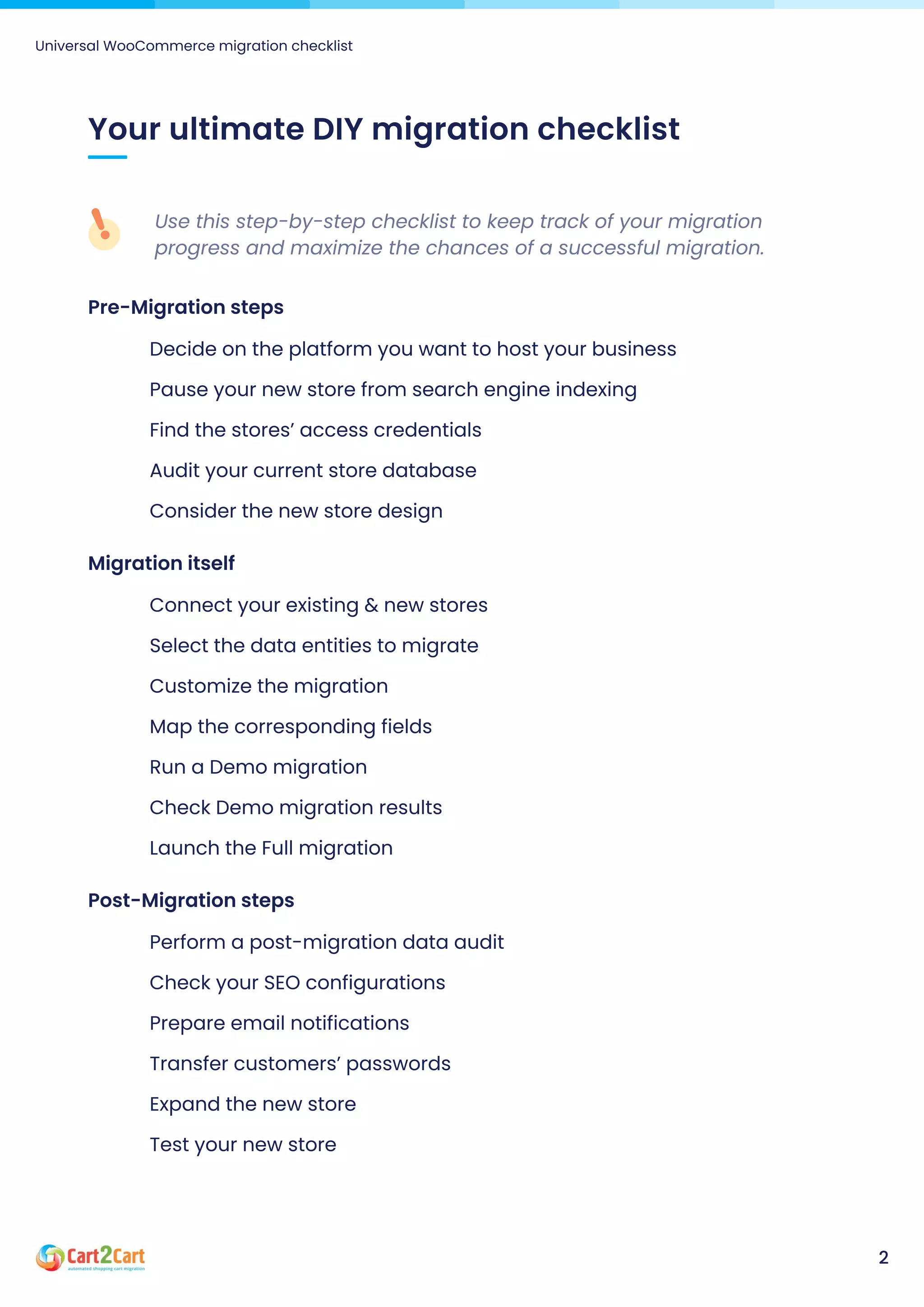
Your ultimate DIY migration checklist
Use this step-by-step checklist to keep track of your migration
progress and maximize the chances of a successful migration.
Pre-Migration steps
Decide on the platform you want to host your business
Pause your new store from search engine indexing
Find the stores’ access credentials
Audit your current store database
Consider the new store design
Migration itself
Connect your existing & new stores
Select the data entities to migrate
Customize the migration
Map the corresponding fields
Run a Demo migration
Check Demo migration results
Launch the Full migration
Post-Migration steps
Perform a post-migration data audit
Check your SEO configurations
Prepare email notifications
Transfer customers’ passwords
Expand the new store
Test your new store
4
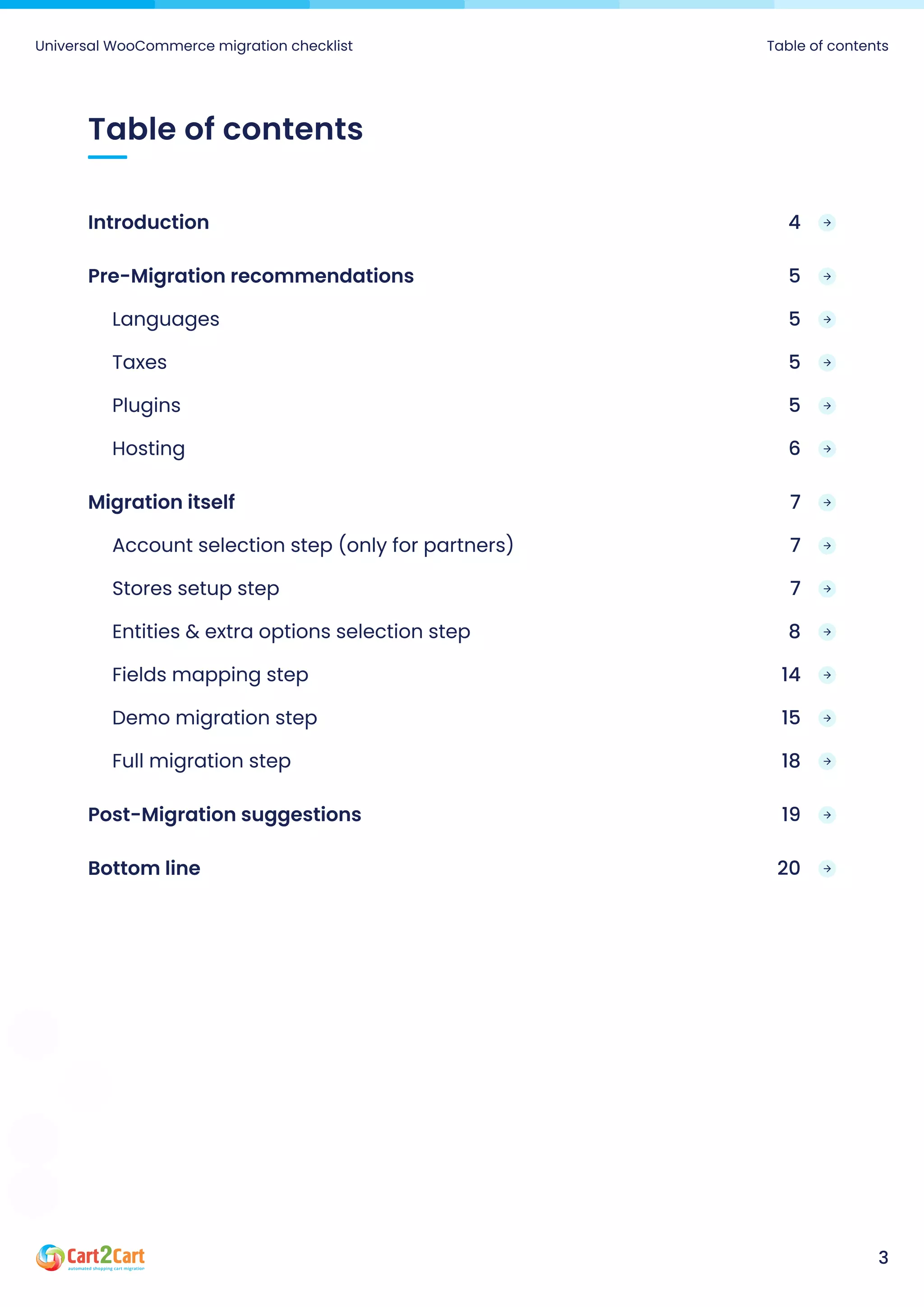
Introduction
5
Pre-Migration recommendations
5
Languages
5
Taxes
5
Plugins
6
Hosting
7
Migration itself
7
Account selection step (only for partners)
7
Stores setup step
8
Entities & extra options selection step
14
Fields mapping step
15
Demo migration step
18
Full migration step
19
Post-Migration suggestions
20
Bottom line
Table of contents
Universal WooCommerce migration checklist Table of contents
3
WooCommerce migration is quite a complex and challenging experience
even for high-skilled developers, not to mention do-it-yourselfers. However,
with proper planning and the right tools at hand - the time and money
spendings can be decreased significantly. So, take your time to go through
this step-by-step transfer checklist to ensure your WooCommerce migration
will be seamless and trouble-free.
Introduction
Universal WooCommerce migration checklist Introduction
4
Pre-Migration recommendations
No matter what migration method/tool you use, consider the
following steps and make the recommended configurations. It will
help you minimise any potential risk during the migration.
Languages
Set up the language of your Source store data on the new
WooCommerce store.
Taxes
If taxes are used on the Source store, configure them on the
WooCommerce store using the same settings.
Plugins
If plugin installation is required before data transfer, you’ll be
prompted about that on the Migration Wizard.

If you have plugins that affect the eCommerce data performance
(especially if it is a change in the structure of the database or API),
you should:
If you’re not sure whether the Source store plugins are affecting the
overall data performance, it is recommended to r
and check the result.
un Demo migration
Universal WooCommerce migration checklist Pre-Migration recommendations
5
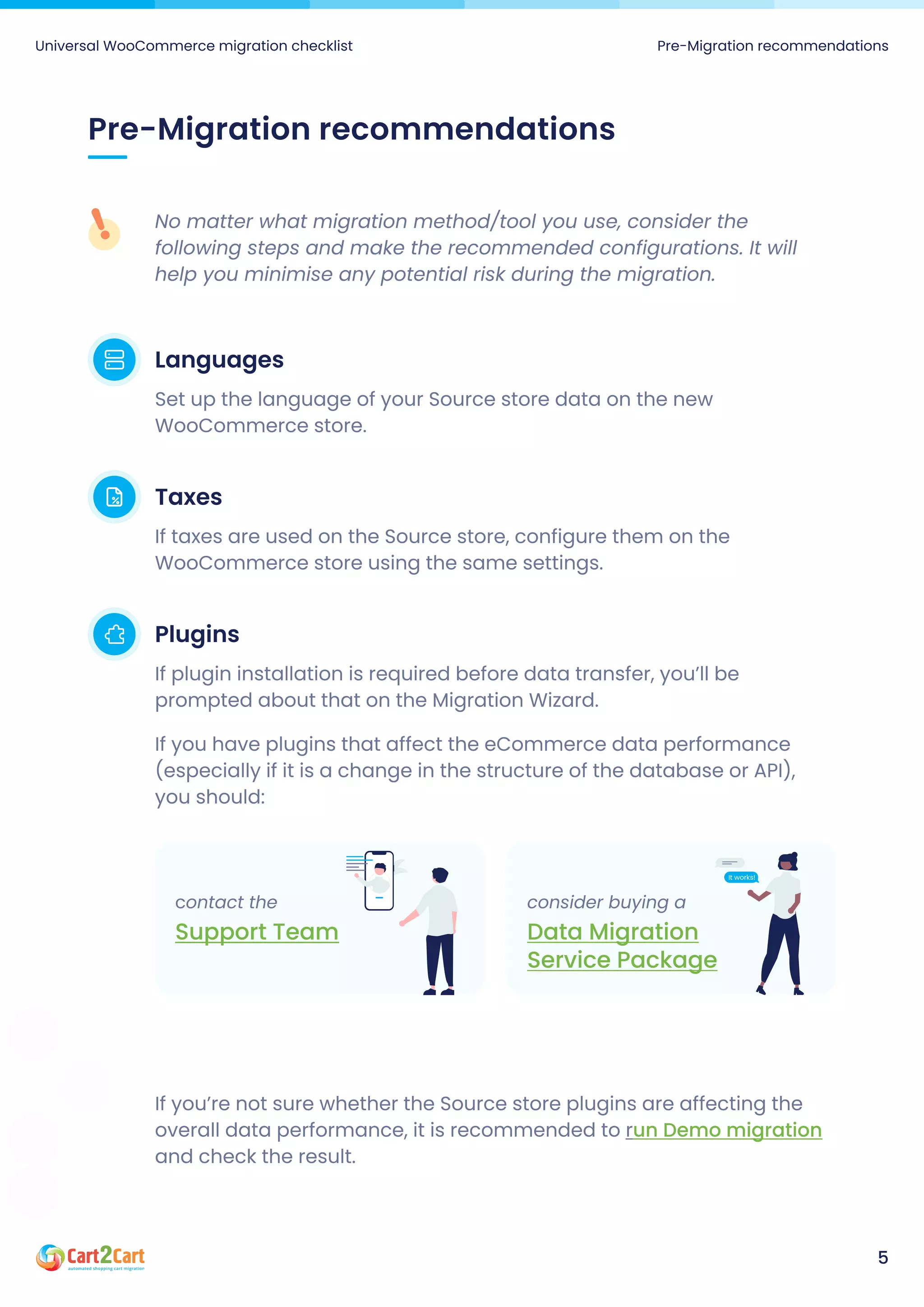
contact the
Support Team
consider buying a
Data Migration
Service Package
Disable the server settings that may block access to the Connection
Bridge or the entire store
It can be, e.g. FireWall.
Make sure the Cart2Cart IPs are added to the white list.

How can I add Cart2Cart IPs to the white list?
Hosting
Migration speed depends on the web hosting, so choose the proper
hosting plan. Keep in mind that
a lot of data requires more external memory on the hosting
platform complexity requires more CPU power and more RAM (e.g.,
Magento).
Universal WooCommerce migration checklist Pre-Migration recommendations
6
There’s a lot of information provided on the Cart2Cart Migration Wizard - just
pay attention to the instructions (hints) displayed on the right side (hover the
mouse over the required field and read the explanation). Also, don’t forget
about the FAQs - there, you’ll also find your specific migration-related
questions answered.
Account selection step (only for partners)
If you're partnering with Cart2Cart and want to create a migration for
a client, choose a sub-account linked to that partner to proceed with
the data transfer to WooCommerce.
Stores setup step
When migrating to WooCommerce, you’ll be asked to provide:
Store Admin URL - enter the domain
URL of the new WooCommerce store
Install Bridge - download the bridge
files and connect the stores. More
info here.
Migration itself
You can to the Cart2Cart WooCommerce
test store to see how it works. But
Only demo migration can be performed to the test store, not Full
You’re only required to tick the checkbox and select
WooCommerce as the platform to migrate to. Once the Demo is
finished, you’ll be provided with the admin access credentials so
that you can see the result of the Demo transfer.
run a free Demo migration
Universal WooCommerce migration checklist Migration itself
7
Entities & extra options selection step
Cart2Cart has all the necessary functionality to migrate every
possible eСommerce data type and its accompanying attributes to
the WooCommerce platform. So, specify the entities you want to
transfer by ticking the matching checkboxes or click on the All Entities
checkbox to get all the data automatically migrated to the new
WooCommerce store.
You’ll see notices about necessary plugins. Their installation is
optional but desirable if you need the appropriate entities to be
transferred.
Universal WooCommerce migration checklist Migration itself
8
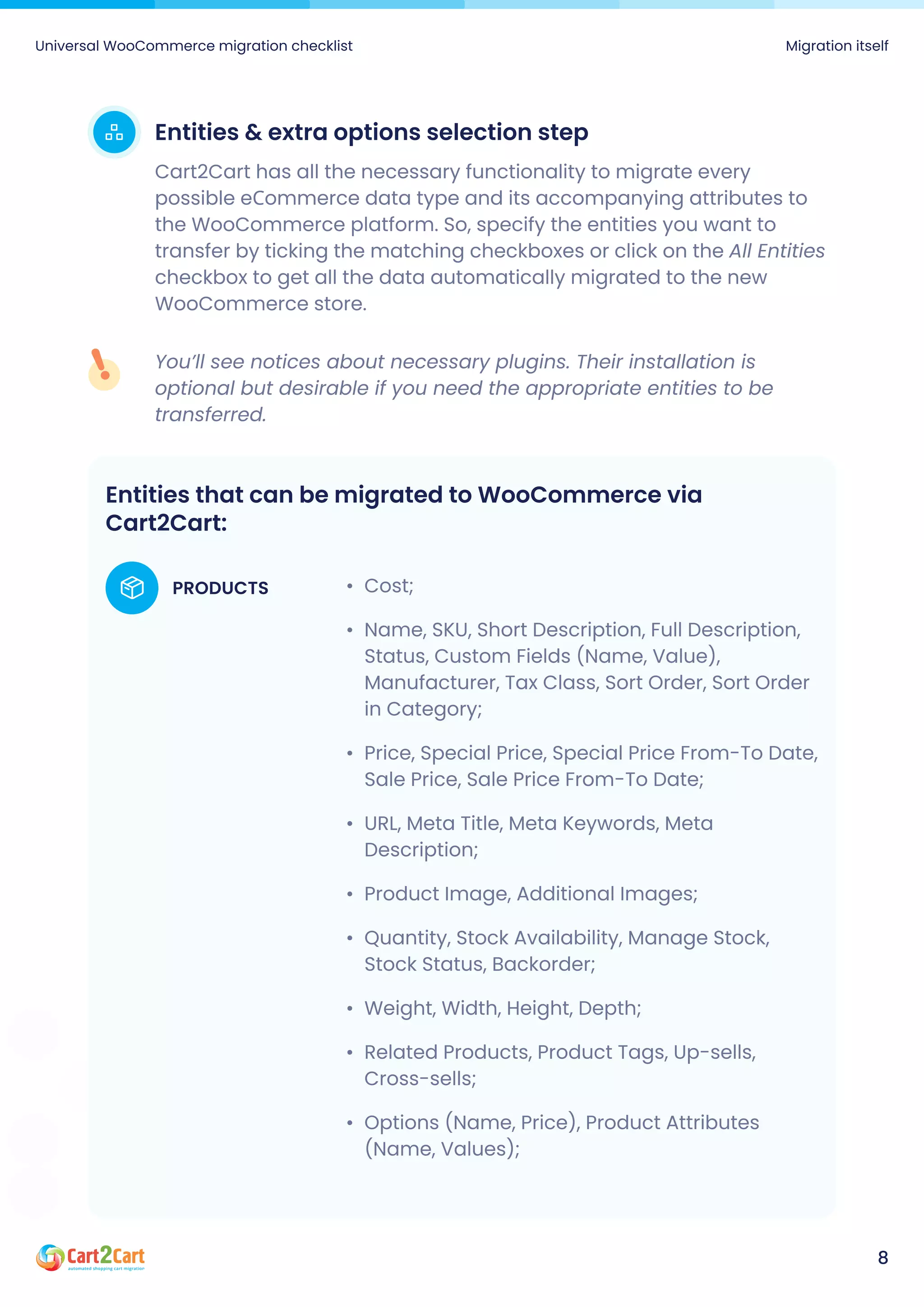
Entities that can be migrated to WooCommerce via
Cart2Cart:
Cost
Name, SKU, Short Description, Full Description,
Status, Custom Fields (Name, Value),
Manufacturer, Tax Class, Sort Order, Sort Order
in Category
Price, Special Price, Special Price From-To Date,
Sale Price, Sale Price From-To Date
URL, Meta Title, Meta Keywords, Meta
Description
Product Image, Additional Images
Quantity, Stock Availability, Manage Stock,
Stock Status, Backorder
Weight, Width, Height, Depth
Related Products, Product Tags, Up-sells,
Cross-sells
Options (Name, Price), Product Attributes
(Name, Values);
PRODUCTS
Universal WooCommerce migration checklist Migration itself
9
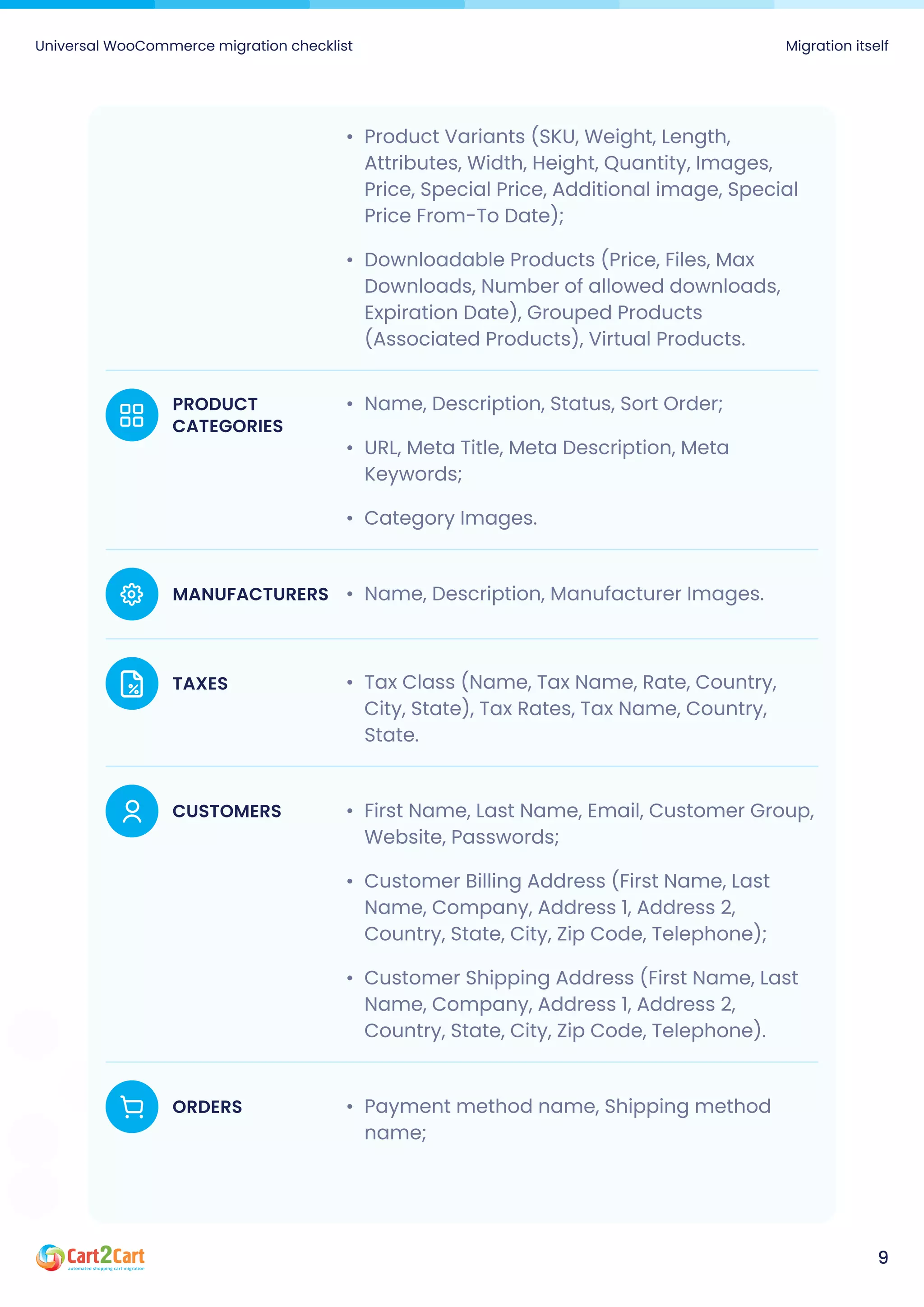
Name, Description, Status, Sort Order
URL, Meta Title, Meta Description, Meta
Keywords
Category Images.
PRODUCT
CATEGORIES
Product Variants (SKU, Weight, Length,
Attributes, Width, Height, Quantity, Images,
Price, Special Price, Additional image, Special
Price From-To Date)
Downloadable Products (Price, Files, Max
Downloads, Number of allowed downloads,
Expiration Date), Grouped Products
(Associated Products), Virtual Products.
Name, Description, Manufacturer Images.
MANUFACTURERS
Tax Class (Name, Tax Name, Rate, Country,
City, State), Tax Rates, Tax Name, Country,
State.
TAXES
First Name, Last Name, Email, Customer Group,
Website, Passwords
Customer Billing Address (First Name, Last
Name, Company, Address 1, Address 2,
Country, State, City, Zip Code, Telephone)
Customer Shipping Address (First Name, Last
Name, Company, Address 1, Address 2,
Country, State, City, Zip Code, Telephone).
CUSTOMERS
Payment method name, Shipping method
name;
ORDERS
Universal WooCommerce migration checklist Migration itself
10
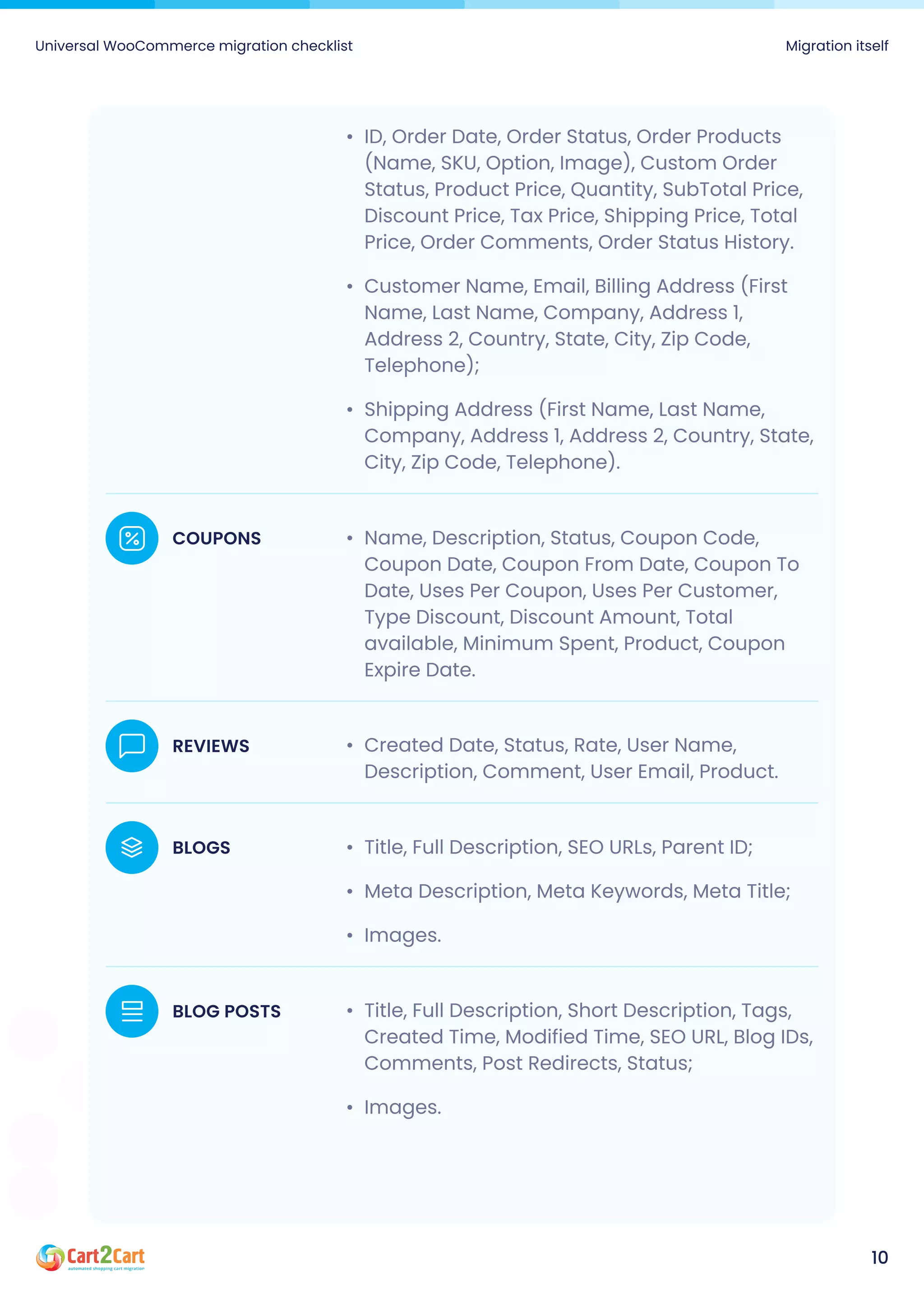
Created Date, Status, Rate, User Name,
Description, Comment, User Email, Product.
REVIEWS
Title, Full Description, SEO URLs, Parent ID
Meta Description, Meta Keywords, Meta Title
Images.
BLOGS
Title, Full Description, Short Description, Tags,
Created Time, Modified Time, SEO URL, Blog IDs,
Comments, Post Redirects, Status
Images.
BLOG POSTS
Name, Description, Status, Coupon Code,
Coupon Date, Coupon From Date, Coupon To
Date, Uses Per Coupon, Uses Per Customer,
Type Discount, Discount Amount, Total
available, Minimum Spent, Product, Coupon
Expire Date.
COUPONS
ID, Order Date, Order Status, Order Products
(Name, SKU, Option, Image), Custom Order
Status, Product Price, Quantity, SubTotal Price,
Discount Price, Tax Price, Shipping Price, Total
Price, Order Comments, Order Status History
Customer Name, Email, Billing Address (First
Name, Last Name, Company, Address 1,
Address 2, Country, State, City, Zip Code,
Telephone)
Shipping Address (First Name, Last Name,
Company, Address 1, Address 2, Country, State,
City, Zip Code, Telephone).
Universal WooCommerce migration checklist Migration itself
11
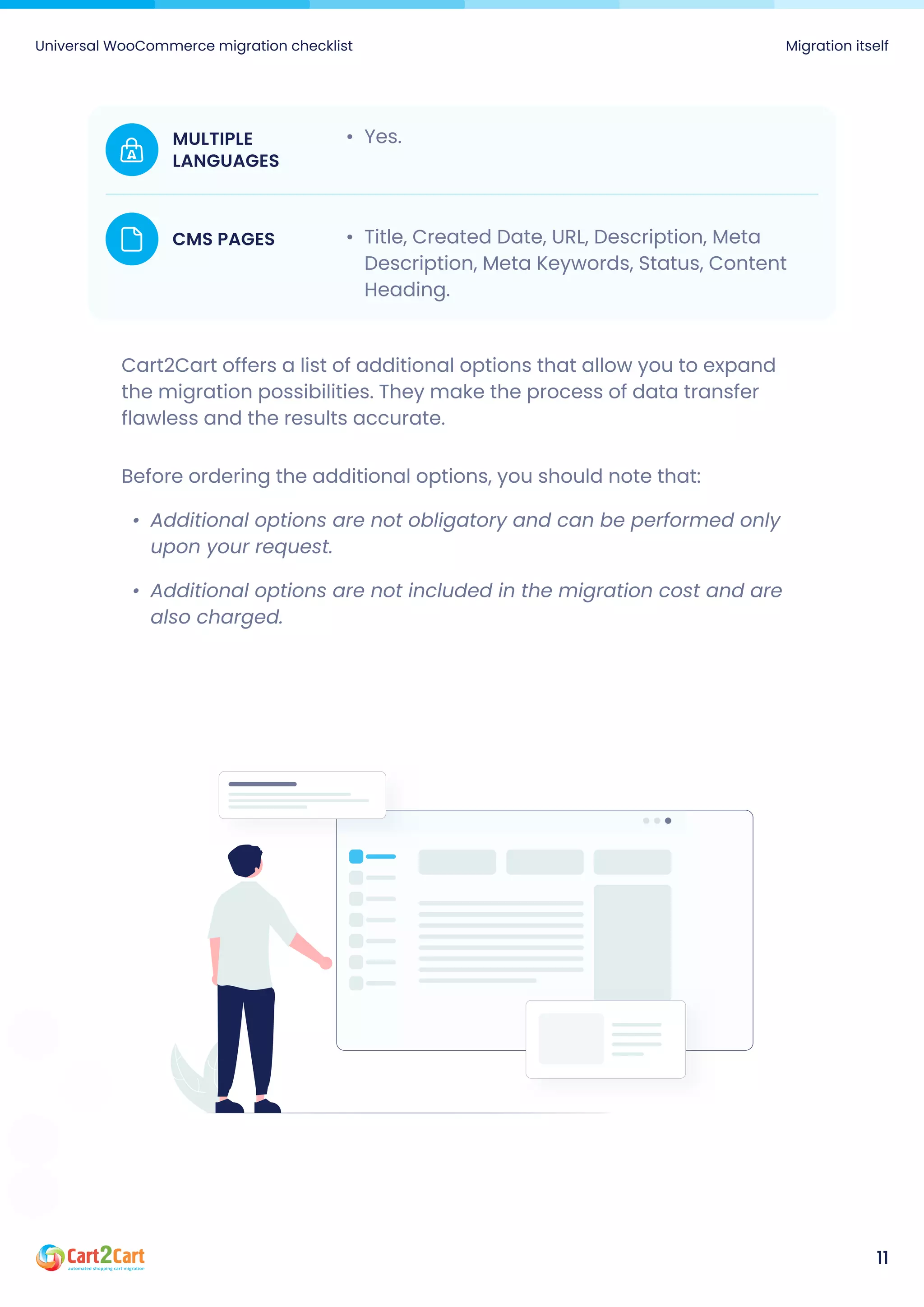
Cart2Cart offers a list of additional options that allow you to expand
the migration possibilities. They make the process of data transfer
flawless and the results accurate.
Before ordering the additional options, you should note that
Additional options are not obligatory and can be performed only
upon your request
Additional options are not included in the migration cost and are
also charged.
Title, Created Date, URL, Description, Meta
Description, Meta Keywords, Status, Content
Heading.
CMS PAGES
Yes.
MULTIPLE
LANGUAGES
The option is irreversible. It is recommended to back up your
eCommerce data manually before enabling this action for your store.
Simply export data to CSV files and save them on your PC.
This requires another option - Clear current data on WooCommerce
before migration. It helps to ensure accuracy and avoid duplication
in case your WooCommerce store is not clean and already has some
items on it.
1
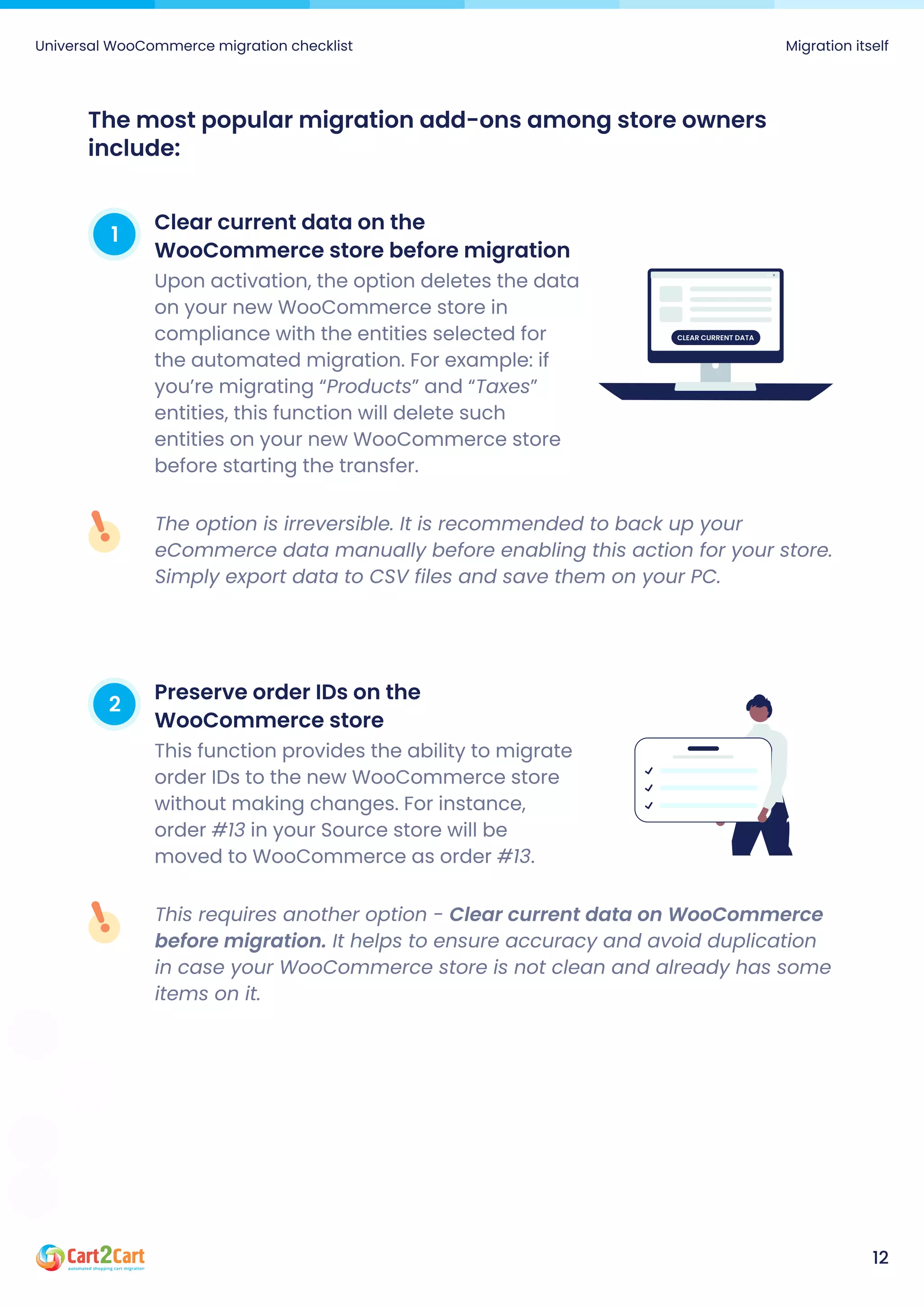
Clear current data on the
WooCommerce store before migration
Upon activation, the option deletes the data
on your new WooCommerce store in
compliance with the entities selected for
the automated migration. For example: if
you’re migrating “Products” and “Taxes”
entities, this function will delete such
entities on your new WooCommerce store
before starting the transfer.
2
Preserve order IDs on the
WooCommerce store
This function provides the ability to migrate
order IDs to the new WooCommerce store
without making changes. For instance,
order #13 in your Source store will be
moved to WooCommerce as order #13.
The most popular migration add-ons among store owners
include:
Universal WooCommerce migration checklist Migration itself
12
Clear current data
Universal WooCommerce migration checklist Migration itself
13
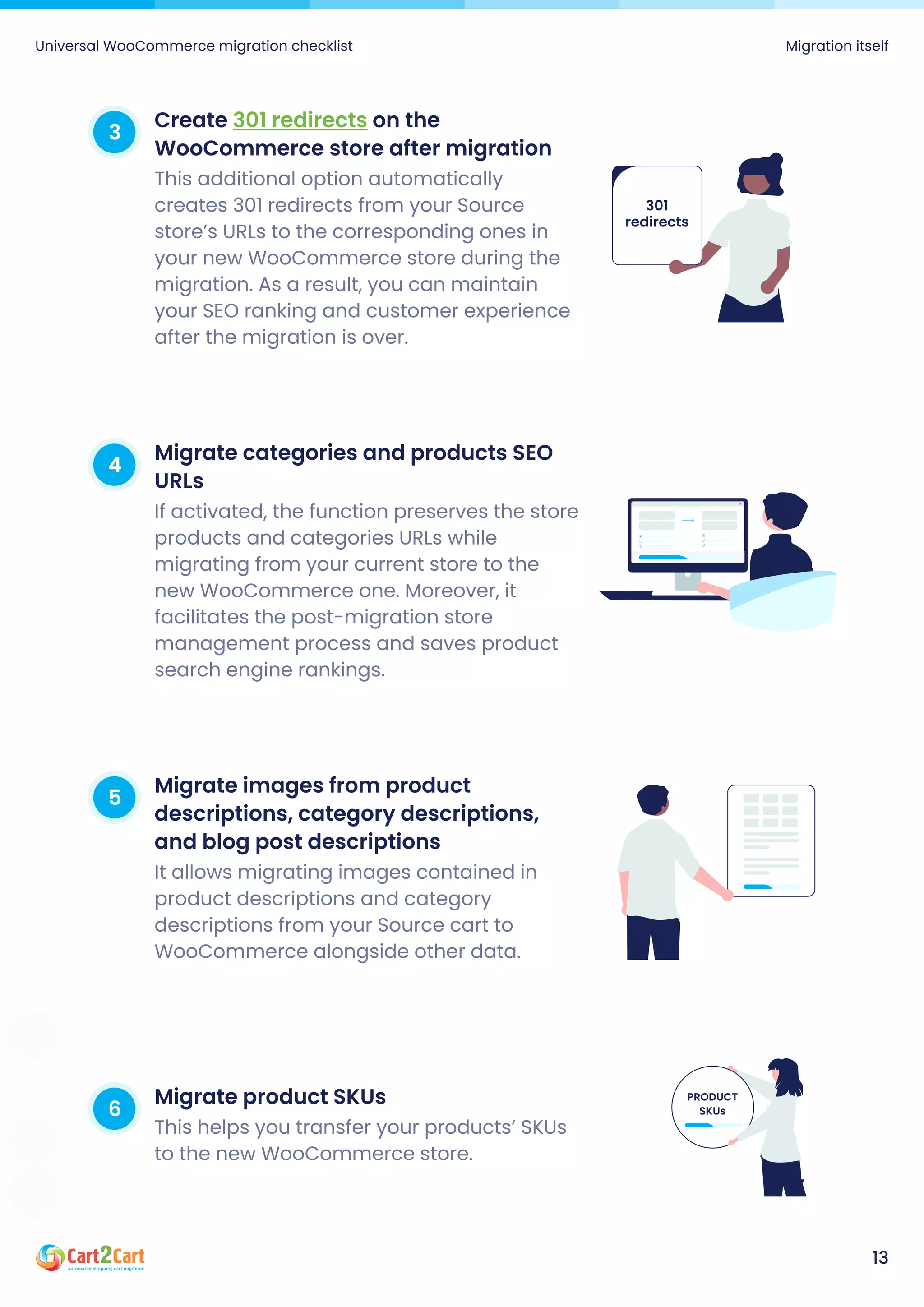
3
Create on the
WooCommerce store after migration
301 redirects
This additional option automatically
creates 301 redirects from your Source
store’s URLs to the corresponding ones in
your new WooCommerce store during the
migration. As a result, you can maintain
your SEO ranking and customer experience
after the migration is over.
301
redirects
4
Migrate categories and products SEO
URLs
If activated, the function preserves the store
products and categories URLs while
migrating from your current store to the
new WooCommerce one. Moreover, it
facilitates the post-migration store
management process and saves product
search engine rankings.
5
Migrate images from product
descriptions, category descriptions,
and blog post descriptions
It allows migrating images contained in
product descriptions and category
descriptions from your Source cart to
WooCommerce alongside other data.
6
Migrate product SKUs
This helps you transfer your products’ SKUs
to the new WooCommerce store.
product
SKUs
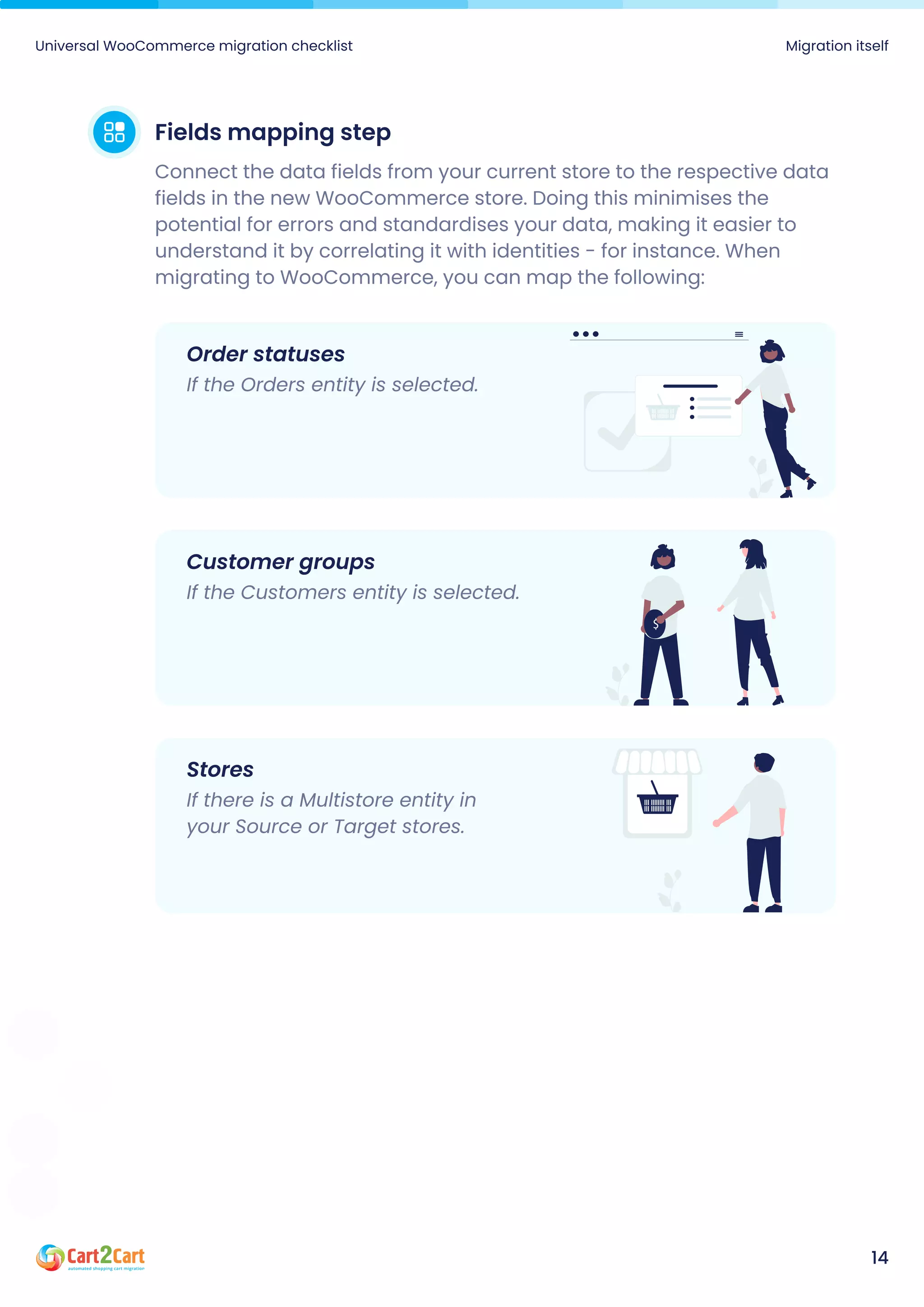
Fields mapping step
Connect the data fields from your current store to the respective data
fields in the new WooCommerce store. Doing this minimises the
potential for errors and standardises your data, making it easier to
understand it by correlating it with identities - for instance. When
migrating to WooCommerce, you can map the following:
Universal WooCommerce migration checklist Migration itself
14
Order statuses
If the Orders entity is selected.
Customer groups
If the Customers entity is selected.
Stores
If there is a Multistore entity in
your Source or Target stores.
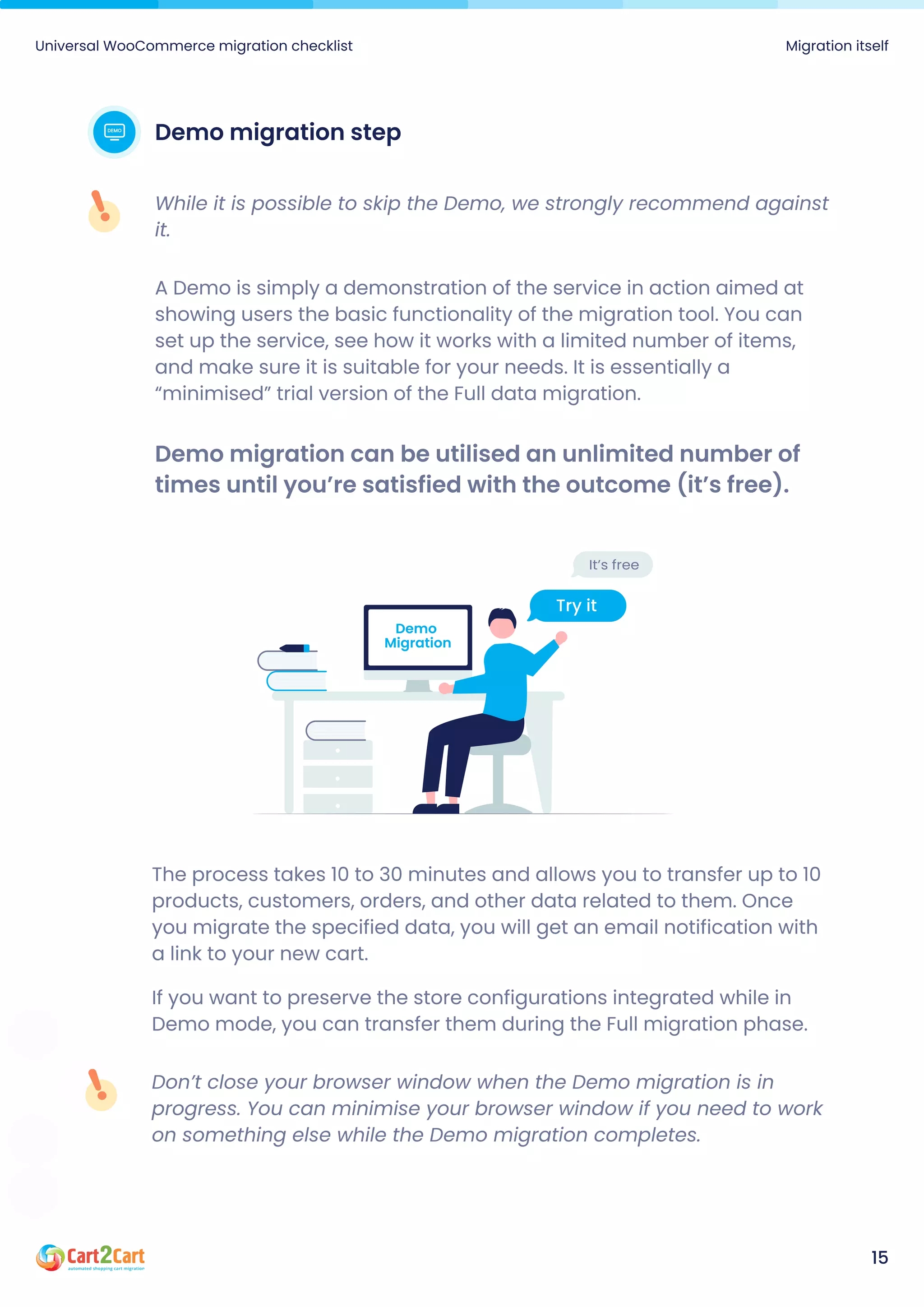
Demo migration step
A Demo is simply a demonstration of the service in action aimed at
showing users the basic functionality of the migration tool. You can
set up the service, see how it works with a limited number of items,
and make sure it is suitable for your needs. It is essentially a
“minimised” trial version of the Full data migration.
Demo migration can be utilised an unlimited number of
times until you’re satisfied with the outcome (it’s free).
While it is possible to skip the Demo, we strongly recommend against
it.
Universal WooCommerce migration checklist Migration itself
15
The process takes 10 to 30 minutes and allows you to transfer up to 10
products, customers, orders, and other data related to them. Once
you migrate the specified data, you will get an email notification with
a link to your new cart.

If you want to preserve the store configurations integrated while in
Demo mode, you can transfer them during the Full migration phase.
Don’t close your browser window when the Demo migration is in
progress. You can minimise your browser window if you need to work
on something else while the Demo migration completes.
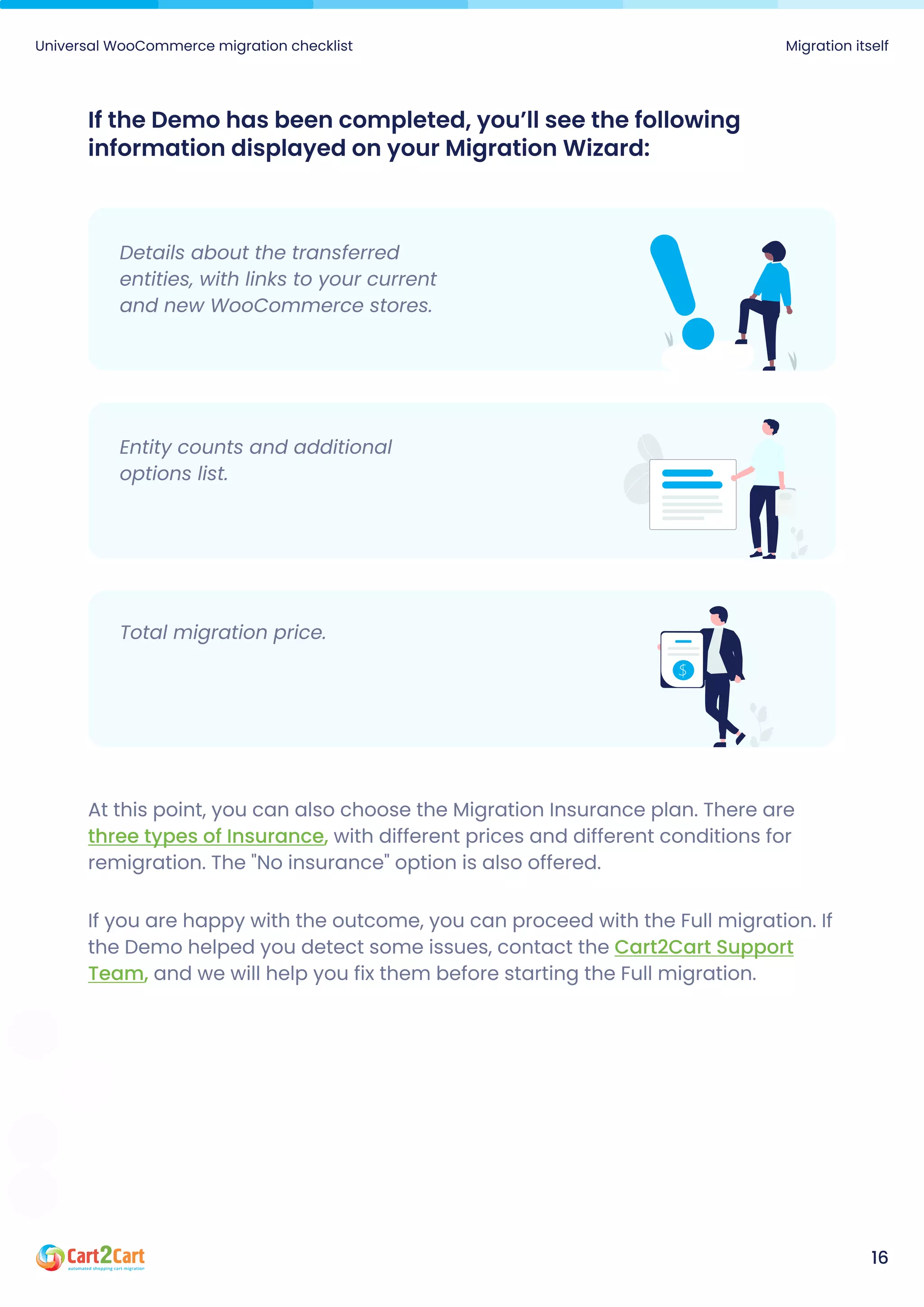
If the Demo has been completed, you’ll see the following
information displayed on your Migration Wizard:
If you are happy with the outcome, you can proceed with the Full migration. If
the Demo helped you detect some issues, contact the
and we will help you fix them before starting the Full migration.
Cart2Cart Support
Team,
At this point, you can also choose the Migration Insurance plan. There are
with different prices and different conditions for
remigration. The "No insurance" option is also offered.
three types of Insurance,
Universal WooCommerce migration checklist Migration itself
16
Details about the transferred
entities, with links to your current
and new WooCommerce stores.
Entity counts and additional
options list.
Total migration price.
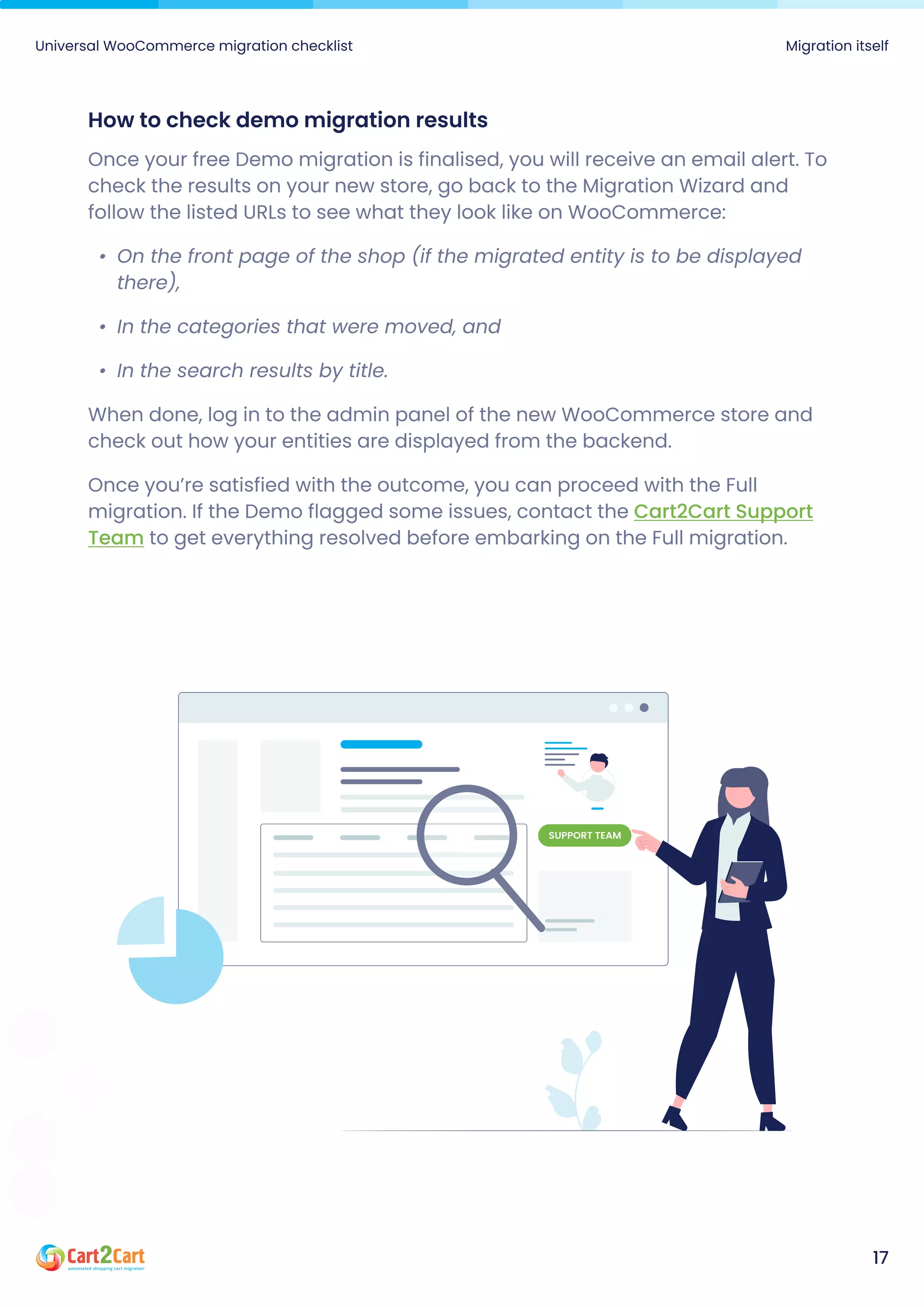
How to check demo migration results
Once your free Demo migration is finalised, you will receive an email alert. To
check the results on your new store, go back to the Migration Wizard and
follow the listed URLs to see what they look like on WooCommerce
On the front page of the shop (if the migrated entity is to be displayed
there)
In the categories that were moved, an
In the search results by title.

When done, log in to the admin panel of the new WooCommerce store and
check out how your entities are displayed from the backend.

Once you’re satisfied with the outcome, you can proceed with the Full
migration. If the Demo flagged some issues, contact the
to get everything resolved before embarking on the Full migration.
Cart2Cart Support
Team
Universal WooCommerce migration checklist Migration itself
17
Support team
Full migration step
Once you initiate the data migration transfer to WooCommerce, you’ll
first need to fund your account balance and then finish the data
migration to your new store. Keep in mind that you only pay for the
data you transfer — you won’t be charged any additional fees.
The Migration details section shows a variety of migration information.
You can also choose the , , or
services at this step by clicking the matching buttons. Note that the
Smart Update option is available for partners only.
Recent Remigration Smart Update
Universal WooCommerce migration checklist Migration itself
18
Even if you’ve gone through the migration procedure seamlessly and
everything appears to be error-free, take the time to check whether all the
data has been accurately imported to the new WooCommerce platform.
Check each transferred entity, taking into account the data of the entity itself
(e.g., in products: name, descriptions, prices, discounts, etc.) and links to
categories, brands, reviews, etc.

We recommend comparing the fields of each particular entity on the admin
side of the current and new WooCommerce stores.
Post-Migration suggestions
Universal WooCommerce migration checklist Post-Migration suggestions
19
This Universal WooCommerce Migration Checklist covers all the critical
points to keep in mind when migrating to WooCommerce software. If any
additional questions arise during the migration process, do not hesitate to
. We’ll be more than happy to help.
contact us
Bottom line
Universal WooCommerce migration checklist Bottom line
20
Join us at

our website
Join us
Have a question? We're here to help
Contact us

Universal WooCommerce migration checklist.pdf

  • 1.
  • 2.
    Universal WooCommerce migrationchecklist 2 Your ultimate DIY migration checklist Use this step-by-step checklist to keep track of your migration progress and maximize the chances of a successful migration. Pre-Migration steps Decide on the platform you want to host your business Pause your new store from search engine indexing Find the stores’ access credentials Audit your current store database Consider the new store design Migration itself Connect your existing & new stores Select the data entities to migrate Customize the migration Map the corresponding fields Run a Demo migration Check Demo migration results Launch the Full migration Post-Migration steps Perform a post-migration data audit Check your SEO configurations Prepare email notifications Transfer customers’ passwords Expand the new store Test your new store
  • 3.
    4 Introduction 5 Pre-Migration recommendations 5 Languages 5 Taxes 5 Plugins 6 Hosting 7 Migration itself 7 Accountselection step (only for partners) 7 Stores setup step 8 Entities & extra options selection step 14 Fields mapping step 15 Demo migration step 18 Full migration step 19 Post-Migration suggestions 20 Bottom line Table of contents Universal WooCommerce migration checklist Table of contents 3
  • 4.
    WooCommerce migration isquite a complex and challenging experience even for high-skilled developers, not to mention do-it-yourselfers. However, with proper planning and the right tools at hand - the time and money spendings can be decreased significantly. So, take your time to go through this step-by-step transfer checklist to ensure your WooCommerce migration will be seamless and trouble-free. Introduction Universal WooCommerce migration checklist Introduction 4
  • 5.
    Pre-Migration recommendations No matterwhat migration method/tool you use, consider the following steps and make the recommended configurations. It will help you minimise any potential risk during the migration. Languages Set up the language of your Source store data on the new WooCommerce store. Taxes If taxes are used on the Source store, configure them on the WooCommerce store using the same settings. Plugins If plugin installation is required before data transfer, you’ll be prompted about that on the Migration Wizard. If you have plugins that affect the eCommerce data performance (especially if it is a change in the structure of the database or API), you should: If you’re not sure whether the Source store plugins are affecting the overall data performance, it is recommended to r and check the result. un Demo migration Universal WooCommerce migration checklist Pre-Migration recommendations 5 contact the Support Team consider buying a Data Migration Service Package
  • 6.
    Disable the serversettings that may block access to the Connection Bridge or the entire store It can be, e.g. FireWall. Make sure the Cart2Cart IPs are added to the white list. How can I add Cart2Cart IPs to the white list? Hosting Migration speed depends on the web hosting, so choose the proper hosting plan. Keep in mind that a lot of data requires more external memory on the hosting platform complexity requires more CPU power and more RAM (e.g., Magento). Universal WooCommerce migration checklist Pre-Migration recommendations 6
  • 7.
    There’s a lotof information provided on the Cart2Cart Migration Wizard - just pay attention to the instructions (hints) displayed on the right side (hover the mouse over the required field and read the explanation). Also, don’t forget about the FAQs - there, you’ll also find your specific migration-related questions answered. Account selection step (only for partners) If you're partnering with Cart2Cart and want to create a migration for a client, choose a sub-account linked to that partner to proceed with the data transfer to WooCommerce. Stores setup step When migrating to WooCommerce, you’ll be asked to provide: Store Admin URL - enter the domain URL of the new WooCommerce store Install Bridge - download the bridge files and connect the stores. More info here. Migration itself You can to the Cart2Cart WooCommerce test store to see how it works. But Only demo migration can be performed to the test store, not Full You’re only required to tick the checkbox and select WooCommerce as the platform to migrate to. Once the Demo is finished, you’ll be provided with the admin access credentials so that you can see the result of the Demo transfer. run a free Demo migration Universal WooCommerce migration checklist Migration itself 7
  • 8.
    Entities & extraoptions selection step Cart2Cart has all the necessary functionality to migrate every possible eСommerce data type and its accompanying attributes to the WooCommerce platform. So, specify the entities you want to transfer by ticking the matching checkboxes or click on the All Entities checkbox to get all the data automatically migrated to the new WooCommerce store. You’ll see notices about necessary plugins. Their installation is optional but desirable if you need the appropriate entities to be transferred. Universal WooCommerce migration checklist Migration itself 8 Entities that can be migrated to WooCommerce via Cart2Cart: Cost Name, SKU, Short Description, Full Description, Status, Custom Fields (Name, Value), Manufacturer, Tax Class, Sort Order, Sort Order in Category Price, Special Price, Special Price From-To Date, Sale Price, Sale Price From-To Date URL, Meta Title, Meta Keywords, Meta Description Product Image, Additional Images Quantity, Stock Availability, Manage Stock, Stock Status, Backorder Weight, Width, Height, Depth Related Products, Product Tags, Up-sells, Cross-sells Options (Name, Price), Product Attributes (Name, Values); PRODUCTS
  • 9.
    Universal WooCommerce migrationchecklist Migration itself 9 Name, Description, Status, Sort Order URL, Meta Title, Meta Description, Meta Keywords Category Images. PRODUCT CATEGORIES Product Variants (SKU, Weight, Length, Attributes, Width, Height, Quantity, Images, Price, Special Price, Additional image, Special Price From-To Date) Downloadable Products (Price, Files, Max Downloads, Number of allowed downloads, Expiration Date), Grouped Products (Associated Products), Virtual Products. Name, Description, Manufacturer Images. MANUFACTURERS Tax Class (Name, Tax Name, Rate, Country, City, State), Tax Rates, Tax Name, Country, State. TAXES First Name, Last Name, Email, Customer Group, Website, Passwords Customer Billing Address (First Name, Last Name, Company, Address 1, Address 2, Country, State, City, Zip Code, Telephone) Customer Shipping Address (First Name, Last Name, Company, Address 1, Address 2, Country, State, City, Zip Code, Telephone). CUSTOMERS Payment method name, Shipping method name; ORDERS
  • 10.
    Universal WooCommerce migrationchecklist Migration itself 10 Created Date, Status, Rate, User Name, Description, Comment, User Email, Product. REVIEWS Title, Full Description, SEO URLs, Parent ID Meta Description, Meta Keywords, Meta Title Images. BLOGS Title, Full Description, Short Description, Tags, Created Time, Modified Time, SEO URL, Blog IDs, Comments, Post Redirects, Status Images. BLOG POSTS Name, Description, Status, Coupon Code, Coupon Date, Coupon From Date, Coupon To Date, Uses Per Coupon, Uses Per Customer, Type Discount, Discount Amount, Total available, Minimum Spent, Product, Coupon Expire Date. COUPONS ID, Order Date, Order Status, Order Products (Name, SKU, Option, Image), Custom Order Status, Product Price, Quantity, SubTotal Price, Discount Price, Tax Price, Shipping Price, Total Price, Order Comments, Order Status History Customer Name, Email, Billing Address (First Name, Last Name, Company, Address 1, Address 2, Country, State, City, Zip Code, Telephone) Shipping Address (First Name, Last Name, Company, Address 1, Address 2, Country, State, City, Zip Code, Telephone).
  • 11.
    Universal WooCommerce migrationchecklist Migration itself 11 Cart2Cart offers a list of additional options that allow you to expand the migration possibilities. They make the process of data transfer flawless and the results accurate. Before ordering the additional options, you should note that Additional options are not obligatory and can be performed only upon your request Additional options are not included in the migration cost and are also charged. Title, Created Date, URL, Description, Meta Description, Meta Keywords, Status, Content Heading. CMS PAGES Yes. MULTIPLE LANGUAGES
  • 12.
    The option isirreversible. It is recommended to back up your eCommerce data manually before enabling this action for your store. Simply export data to CSV files and save them on your PC. This requires another option - Clear current data on WooCommerce before migration. It helps to ensure accuracy and avoid duplication in case your WooCommerce store is not clean and already has some items on it. 1 Clear current data on the WooCommerce store before migration Upon activation, the option deletes the data on your new WooCommerce store in compliance with the entities selected for the automated migration. For example: if you’re migrating “Products” and “Taxes” entities, this function will delete such entities on your new WooCommerce store before starting the transfer. 2 Preserve order IDs on the WooCommerce store This function provides the ability to migrate order IDs to the new WooCommerce store without making changes. For instance, order #13 in your Source store will be moved to WooCommerce as order #13. The most popular migration add-ons among store owners include: Universal WooCommerce migration checklist Migration itself 12 Clear current data
  • 13.
    Universal WooCommerce migrationchecklist Migration itself 13 3 Create on the WooCommerce store after migration 301 redirects This additional option automatically creates 301 redirects from your Source store’s URLs to the corresponding ones in your new WooCommerce store during the migration. As a result, you can maintain your SEO ranking and customer experience after the migration is over. 301 redirects 4 Migrate categories and products SEO URLs If activated, the function preserves the store products and categories URLs while migrating from your current store to the new WooCommerce one. Moreover, it facilitates the post-migration store management process and saves product search engine rankings. 5 Migrate images from product descriptions, category descriptions, and blog post descriptions It allows migrating images contained in product descriptions and category descriptions from your Source cart to WooCommerce alongside other data. 6 Migrate product SKUs This helps you transfer your products’ SKUs to the new WooCommerce store. product SKUs
  • 14.
    Fields mapping step Connectthe data fields from your current store to the respective data fields in the new WooCommerce store. Doing this minimises the potential for errors and standardises your data, making it easier to understand it by correlating it with identities - for instance. When migrating to WooCommerce, you can map the following: Universal WooCommerce migration checklist Migration itself 14 Order statuses If the Orders entity is selected. Customer groups If the Customers entity is selected. Stores If there is a Multistore entity in your Source or Target stores.
  • 15.
    Demo migration step ADemo is simply a demonstration of the service in action aimed at showing users the basic functionality of the migration tool. You can set up the service, see how it works with a limited number of items, and make sure it is suitable for your needs. It is essentially a “minimised” trial version of the Full data migration. Demo migration can be utilised an unlimited number of times until you’re satisfied with the outcome (it’s free). While it is possible to skip the Demo, we strongly recommend against it. Universal WooCommerce migration checklist Migration itself 15 The process takes 10 to 30 minutes and allows you to transfer up to 10 products, customers, orders, and other data related to them. Once you migrate the specified data, you will get an email notification with a link to your new cart. If you want to preserve the store configurations integrated while in Demo mode, you can transfer them during the Full migration phase. Don’t close your browser window when the Demo migration is in progress. You can minimise your browser window if you need to work on something else while the Demo migration completes.
  • 16.
    If the Demohas been completed, you’ll see the following information displayed on your Migration Wizard: If you are happy with the outcome, you can proceed with the Full migration. If the Demo helped you detect some issues, contact the and we will help you fix them before starting the Full migration. Cart2Cart Support Team, At this point, you can also choose the Migration Insurance plan. There are with different prices and different conditions for remigration. The "No insurance" option is also offered. three types of Insurance, Universal WooCommerce migration checklist Migration itself 16 Details about the transferred entities, with links to your current and new WooCommerce stores. Entity counts and additional options list. Total migration price.
  • 17.
    How to checkdemo migration results Once your free Demo migration is finalised, you will receive an email alert. To check the results on your new store, go back to the Migration Wizard and follow the listed URLs to see what they look like on WooCommerce On the front page of the shop (if the migrated entity is to be displayed there) In the categories that were moved, an In the search results by title. When done, log in to the admin panel of the new WooCommerce store and check out how your entities are displayed from the backend. Once you’re satisfied with the outcome, you can proceed with the Full migration. If the Demo flagged some issues, contact the to get everything resolved before embarking on the Full migration. Cart2Cart Support Team Universal WooCommerce migration checklist Migration itself 17 Support team
  • 18.
    Full migration step Onceyou initiate the data migration transfer to WooCommerce, you’ll first need to fund your account balance and then finish the data migration to your new store. Keep in mind that you only pay for the data you transfer — you won’t be charged any additional fees. The Migration details section shows a variety of migration information. You can also choose the , , or services at this step by clicking the matching buttons. Note that the Smart Update option is available for partners only. Recent Remigration Smart Update Universal WooCommerce migration checklist Migration itself 18
  • 19.
    Even if you’vegone through the migration procedure seamlessly and everything appears to be error-free, take the time to check whether all the data has been accurately imported to the new WooCommerce platform. Check each transferred entity, taking into account the data of the entity itself (e.g., in products: name, descriptions, prices, discounts, etc.) and links to categories, brands, reviews, etc. We recommend comparing the fields of each particular entity on the admin side of the current and new WooCommerce stores. Post-Migration suggestions Universal WooCommerce migration checklist Post-Migration suggestions 19
  • 20.
    This Universal WooCommerceMigration Checklist covers all the critical points to keep in mind when migrating to WooCommerce software. If any additional questions arise during the migration process, do not hesitate to . We’ll be more than happy to help. contact us Bottom line Universal WooCommerce migration checklist Bottom line 20
  • 21.
    Join us at ourwebsite Join us Have a question? We're here to help Contact us