Programming and Development Tools                            Web Programming


                                                              UNIT


                                                             2.12
Web Programming
Style Sheets


  OBJECTIVES
 This unit helps you to use Cascading Style Sheets in your Web pages.
 At the end of this unit, you will be able to
               List the advantages of using Style Sheets.
               Add External Style Sheet to your Web pages.
               Add Internal Style Sheet to your Web pages.
               Add Inline Style Sheet to your Web pages.


Benchmark standard
           Design Web pages with uniformity using Style Sheets.


Style Sheets                                                         2.12-1
Programming and Development Tools                                Web Programming


Let us Revise!

 1. List the controls that can be added to a form.
 2. State the difference between text field and text area.
 3. Mention the use of Action and Method attributes of <FORM> tag.
 4. State the difference between radio button and check box.
 5. Which tag is used to add drop-down list box to a form.


 Introduction
 Do you want to change the default values of the attributes of a tag? You can
 change it to your need using CSS. CSS stands for Cascading Style Sheets.
 The tags in HTML have their own function by default. These tags can be
 enhanced by using Style Sheet. A Style Sheet contains a set of instructions
 that modifies the values of the attributes of a tag. For example, the tag <H1>
 displays the text in black colour. The colour of the text can be changed for
 <H1> tag using Style Sheets.
 The advantages of using Style Sheets are:
            An attribute’s value of a tag can be specified once and the tag can
            be used anywhere in the file without specifying the attribute again
            and again. It is like changing the default value of an attribute.
            If you want to modify any attribute, it is enough if you change the
            value in the Style where it is defined instead of changing the values
            wherever the tag is used.


         Note

 CSS, Style Sheet and Cascading Style Sheet all mean the same.


 Styles can be defined in 3 ways using:
            External Style Sheets,
            Internal Style Sheets and
            Inline Style Sheet

 2.12.1 External Style Sheets
 In the External Style Sheets, the tags that are necessary to create styles are
 saved in a file with extension .css. This file is linked to the HTML file by using

 Style Sheets                                                              2.12-2
Programming and Development Tools                              Web Programming


the <LINK> tag in the HTML file. The <LINK> tag has HREF attribute to
which the URL of the style sheet file (.css) is assigned. The <LINK> tag is
placed inside the <HEAD> tag.

     Hands-On!

The following example illustrates the use of External Style Sheets in a
Webpage.
Open the HTML file Ext_CSS.html in Internet Explorer.
The code in Ext_CSS.html file is given below:
<HTML>
   <HEAD>
       <TITLE> CSS </TITLE>
       <link REL="StyleSheet" TYPE="text/css"
               HREF="Style1.css">
   </HEAD>
   <BODY><FONT Size=5>
   <H1> WORLD POPULATION : 2003 </H1>
   The first five most populous countries are: <BR>
   <OL>
         <LI> China
         <LI> India
         <LI> United States
         <LI> Indonesia
         <LI> Brazil
   </OL>
   <TABLE Cellspacing=0 Align="Center">
         <TR Bgcolor="Darkgreen" Height="40"> <TH
                Width="20%"> S.No.<TH Width="40%">Country<TH
                Width="40%"> Population</TR>
         <TR> <TD>1 <TD>China                   <TD>1,286,975,468 </TR>
         <TR> <TD>2 <TD>India                   <TD>1,049,700,118 </TR>
         <TR> <TD>3 <TD>United States<TD>290,342,554                      </TR>
         <TR> <TD>4 <TD>Indonesia               <TD>234,893,453           </TR>
         <TR> <TD>5 <TD>Brazil                  <TD>182,032,604           <TR>
   </TABLE>
   </FONT>
   </BODY>

Style Sheets                                                              2.12-3
Programming and Development Tools                          Web Programming


</HTML>
                             Code Sample 2.12.1
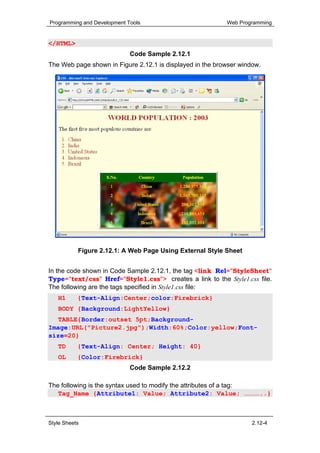
The Web page shown in Figure 2.12.1 is displayed in the browser window.


           Figure 2.12.1: A Web Page Using External Style Sheet


In the code shown in Code Sample 2.12.1, the tag <link Rel="StyleSheet"
Type="text/css" Href="Style1.css"> creates a link to the Style1.css file.
The following are the tags specified in Style1.css file:
   H1      {Text-Align:Center;color:Firebrick}
   BODY {Background:LightYellow}
   TABLE{Border:outset 5pt;Background-
Image:URL("Picture2.jpg");Width:60%;Color:yellow;Font-
size=20}
   TD      {Text-Align: Center; Height: 40}
   OL      {Color:Firebrick}
                             Code Sample 2.12.2

The following is the syntax used to modify the attributes of a tag:
   Tag_Name {Attribute1: Value; Attribute2: Value; …………..}


Style Sheets                                                        2.12-4
Programming and Development Tools                                             Web Programming


It is clear from the Code Sample 2.12.2 that <H1>, <BODY>, <TABLE>,
<TD> and <OL> are the tags that are modified. The following are the
changes made:
The Color attribute is set to Firebrick and the text is centered for <H1> tag.
The Background Color is set to Lightyellow for the <BODY> tag.
The border width is set to 5, Picture2.jpg is set as the background image, table
width is set to 60% of the width of the browser window, the colour of the text is
set to Yellow and the size of the text is set to 20 for the <TABLE> tag.
The Height of a cell is set to 40 and the text is centered for <TD> tag.
The colour is set to Firebrick for <OL> tag.
When these modified tags are used in your HTML file, the tags take the
values of the attributes mentioned in the .css file unless the attributes are
specified. For example, the heading of the Web page shown in Figure 2.12.1
is centered instead of left alignment.


         Note

External Style Sheet is also called as Linked Style Sheet

        Self-Check Exercise 2.12.1

Say true or false:
1.      In External Style Sheets, styles are defined in a separate file with extension .ccs.
2.      The 3 ways of defining styles are using External Style Sheets, Internal Style Sheets
        and Inline Styles.
3.      The <LINK> tag is placed inside the <HEAD> tag.


        Lab Exercise

Lab Exercise 1: Open D12_1.html in Internet Explorer. The following code will be present in
D12_1.html.


<HTML>
<HEAD>
    <TITLE> WELCOME TO ZAI SUPER MARKET </TITLE>
    <LINK REL="STYLESHEET" TYPE="TEXT/CSS"
    HREF="D12_1.CSS">
    <H5 ALIGN="CENTER">
          WELCOME TO ZAI SUPER MARKET
    </H5>
    <H1 ALIGN="CENTER">

Style Sheets                                                                              2.12-5
Programming and Development Tools                     Web Programming


                       No.3 Plaza Dhamas, &nbsp;
                       Sri Hartamaas <BR>
                       Kuala Lumpur <BR><BR>
     </H1>
</HEAD>
<BODY>
<CENTER>
     <TABLE BORDER=1>
           <TR>
                 <TH WIDTH=10%>S.NO </TH>
                 <TH WIDTH=50%> PRODUCT NAME</TH>
                 <TH WIDTH=20%>QTY</TH>
                 <TH WIDTH=15%> PRICE </TH>
           </TR>
           <TR>
                 <TD ALIGN="CENTER">101 </TD>
                 <TD> Coke</TD>
                 <TD> 250 ML</TD>
                 <TD> 1.70 RM</TD>
           </TR>

               <TR>
                       <TD ALIGN="CENTER">102 </TD>
                       <TD> Pepsi</TD>
                       <TD> 250 ML</TD>
                       <TD> 1.50 RM</TD>
               </TR>

               <TR>
                       <TD ALIGN="CENTER">102 </TD>
                       <TD>Sprit</TD>
                       <TD> 250 ML</TD>
                       <TD> 1.50 RM</TD>
               </TR>

               <TR>
                       <TD ALIGN="CENTER">102 </TD>
                       <TD> 100 Plus</TD>
                       <TD> 250 ML</TD>
                       <TD> 1.00 RM</TD>
               </TR>

               <TR>
                       <TD ALIGN="CENTER">102 </TD>
                       <TD> Milo </TD>
                       <TD> 150 ML</TD>
                       <TD> 1.30 RM</TD>
               </TR>

               <TR>

Style Sheets                                                  2.12-6
Programming and Development Tools                                                Web Programming


                         <TD ALIGN="CENTER">102 </TD>
                         <TD> Lychee </TD>
                         <TD> 150 ML</TD>
                         <TD> 1.20 RM</TD>
          </TR>
     </TABLE>
</CENTER>
</BODY>
</HTML>

1.      Locate the tag which is used to call the external style sheet file into html file.
2.      Identify the attribute which is used to define the relationship between the linked file and
        the HTML file.
3.      Name the attribute which is used to specify the type of the file.


Lab Exercise 2: Open D12_1.HTML in Notepad.


1.      View the source code in the Notepad.
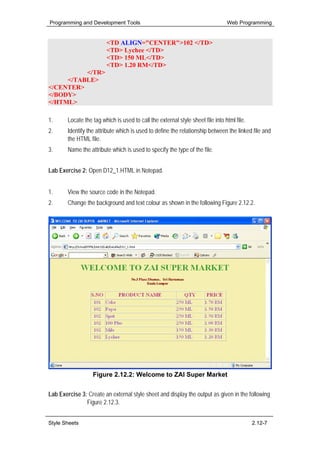
2.      Change the background and text colour as shown in the following Figure 2.12.2.


                   Figure 2.12.2: Welcome to ZAI Super Market


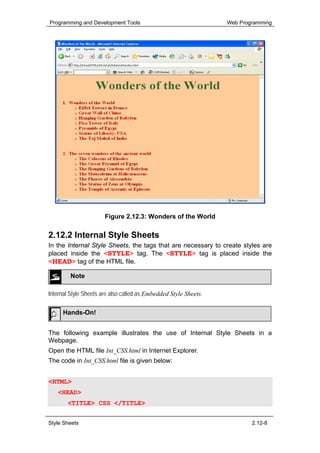
Lab Exercise 3: Create an external style sheet and display the output as given in the following
               Figure 2.12.3.


Style Sheets                                                                                 2.12-7
Programming and Development Tools                                 Web Programming


                       Figure 2.12.3: Wonders of the World

2.12.2 Internal Style Sheets
In the Internal Style Sheets, the tags that are necessary to create styles are
placed inside the <STYLE> tag. The <STYLE> tag is placed inside the
<HEAD> tag of the HTML file.

         Note

Internal Style Sheets are also called as Embedded Style Sheets.

     Hands-On!


The following example illustrates the use of Internal Style Sheets in a
Webpage.
Open the HTML file Int_CSS.html in Internet Explorer.
The code in Int_CSS.html file is given below:


<HTML>
   <HEAD>
       <TITLE> CSS </TITLE>


Style Sheets                                                              2.12-8
Programming and Development Tools                      Web Programming


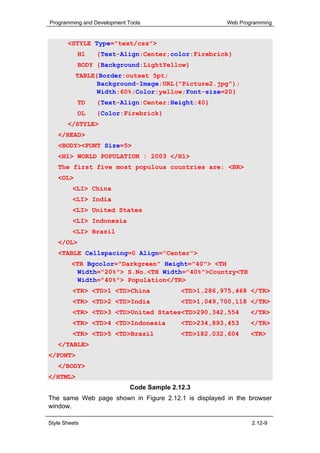
       <STYLE Type="text/css">
           H1    {Text-Align:Center;color:Firebrick}
           BODY {Background:LightYellow}
          TABLE{Border:outset 5pt;
                Background-Image:URL("Picture2.jpg");
                Width:60%;Color:yellow;Font-size=20}
           TD    {Text-Align:Center;Height:40}
           OL    {Color:Firebrick}
       </STYLE>
   </HEAD>
   <BODY><FONT Size=5>
   <H1> WORLD POPULATION : 2003 </H1>
   The first five most populous countries are: <BR>
   <OL>
         <LI> China
         <LI> India
         <LI> United States
         <LI> Indonesia
         <LI> Brazil
   </OL>
   <TABLE Cellspacing=0 Align="Center">
         <TR Bgcolor="Darkgreen" Height="40"> <TH
           Width="20%"> S.No.<TH Width="40%">Country<TH
           Width="40%"> Population</TR>
         <TR> <TD>1 <TD>China               <TD>1,286,975,468 </TR>
         <TR> <TD>2 <TD>India               <TD>1,049,700,118 </TR>
         <TR> <TD>3 <TD>United States<TD>290,342,554          </TR>
         <TR> <TD>4 <TD>Indonesia           <TD>234,893,453   </TR>
         <TR> <TD>5 <TD>Brazil              <TD>182,032,604   <TR>
   </TABLE>
</FONT>
   </BODY>
</HTML>
                             Code Sample 2.12.3
The same Web page shown in Figure 2.12.1 is displayed in the browser
window.

Style Sheets                                                   2.12-9
Programming and Development Tools                                           Web Programming


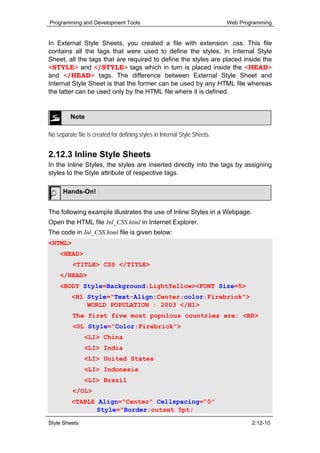
In External Style Sheets, you created a file with extension .css. This file
contains all the tags that were used to define the styles. In Internal Style
Sheet, all the tags that are required to define the styles are placed inside the
<STYLE> and </STYLE> tags which in turn is placed inside the <HEAD>
and </HEAD> tags. The difference between External Style Sheet and
Internal Style Sheet is that the former can be used by any HTML file whereas
the latter can be used only by the HTML file where it is defined.


         Note

No separate file is created for defining styles in Internal Style Sheets.


2.12.3 Inline Style Sheets
In the Inline Styles, the styles are inserted directly into the tags by assigning
styles to the Style attribute of respective tags.

      Hands-On!


The following example illustrates the use of Inline Styles in a Webpage.
Open the HTML file Inl_CSS.html in Internet Explorer.
The code in Inl_CSS.html file is given below:
<HTML>
     <HEAD>
          <TITLE> CSS </TITLE>
     </HEAD>
     <BODY Style=Background:LightYellow><FONT Size=5>
          <H1 Style="Text-Align:Center;color:Firebrick">
              WORLD POPULATION : 2003 </H1>
          The first five most populous countries are: <BR>
          <OL Style="Color:Firebrick">
                <LI> China
                <LI> India
                <LI> United States
                <LI> Indonesia
                <LI> Brazil
          </OL>
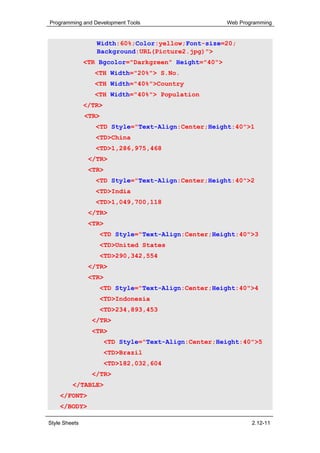
          <TABLE Align="Center" Cellspacing="0"
                 Style="Border:outset 5pt;

Style Sheets                                                                        2.12-10
Programming and Development Tools                     Web Programming


                  Width:60%;Color:yellow;Font-size=20;
                  Background:URL(Picture2.jpg)">
               <TR Bgcolor="Darkgreen" Height="40">
                 <TH Width="20%"> S.No.
                 <TH Width="40%">Country
                 <TH Width="40%"> Population
               </TR>
               <TR>
                  <TD Style="Text-Align:Center;Height:40">1
                  <TD>China
                  <TD>1,286,975,468
                </TR>
                <TR>
                  <TD Style="Text-Align:Center;Height:40">2
                  <TD>India
                  <TD>1,049,700,118
                </TR>
                <TR>
                   <TD Style="Text-Align:Center;Height:40">3
                   <TD>United States
                   <TD>290,342,554
                </TR>
                <TR>
                   <TD Style="Text-Align:Center;Height:40">4
                   <TD>Indonesia
                   <TD>234,893,453
                 </TR>
                 <TR>
                       <TD Style="Text-Align:Center;Height:40">5
                       <TD>Brazil
                       <TD>182,032,604
                 </TR>
         </TABLE>
    </FONT>
    </BODY>

Style Sheets                                                  2.12-11
Programming and Development Tools                                           Web Programming


</HTML>
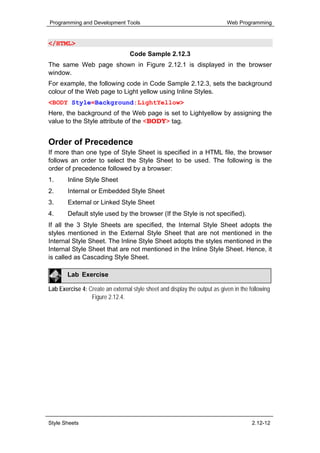
                                  Code Sample 2.12.3
The same Web page shown in Figure 2.12.1 is displayed in the browser
window.
For example, the following code in Code Sample 2.12.3, sets the background
colour of the Web page to Light yellow using Inline Styles.
<BODY Style=Background:LightYellow>
Here, the background of the Web page is set to Lightyellow by assigning the
value to the Style attribute of the <BODY> tag.


Order of Precedence
If more than one type of Style Sheet is specified in a HTML file, the browser
follows an order to select the Style Sheet to be used. The following is the
order of precedence followed by a browser:
1.      Inline Style Sheet
2.      Internal or Embedded Style Sheet
3.      External or Linked Style Sheet
4.      Default style used by the browser (If the Style is not specified).
If all the 3 Style Sheets are specified, the Internal Style Sheet adopts the
styles mentioned in the External Style Sheet that are not mentioned in the
Internal Style Sheet. The Inline Style Sheet adopts the styles mentioned in the
Internal Style Sheet that are not mentioned in the Inline Style Sheet. Hence, it
is called as Cascading Style Sheet.

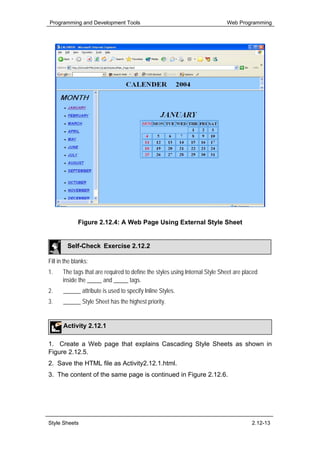
        Lab Exercise

Lab Exercise 4: Create an external style sheet and display the output as given in the following
                 Figure 2.12.4.


Style Sheets                                                                           2.12-12
Programming and Development Tools                                            Web Programming


              Figure 2.12.4: A Web Page Using External Style Sheet


         Self-Check Exercise 2.12.2

Fill in the blanks:
1.    The tags that are required to define the styles using Internal Style Sheet are placed
      inside the _____ and _____ tags.
2.     ______ attribute is used to specify Inline Styles.
3.     ______ Style Sheet has the highest priority.


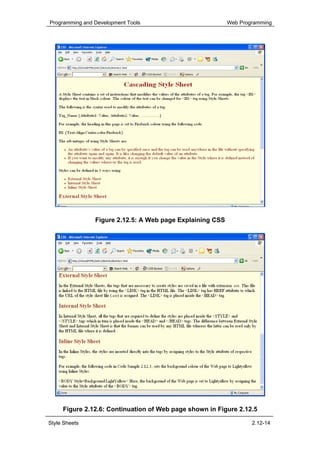
       Activity 2.12.1

1. Create a Web page that explains Cascading Style Sheets as shown in
Figure 2.12.5.
2. Save the HTML file as Activity2.12.1.html.
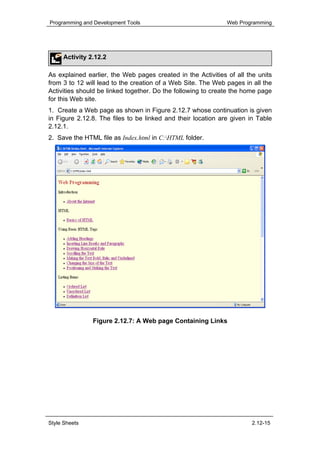
3. The content of the same page is continued in Figure 2.12.6.


Style Sheets                                                                            2.12-13
Programming and Development Tools                          Web Programming


                Figure 2.12.5: A Web page Explaining CSS


     Figure 2.12.6: Continuation of Web page shown in Figure 2.12.5

Style Sheets                                                       2.12-14
Programming and Development Tools                             Web Programming


     Activity 2.12.2

As explained earlier, the Web pages created in the Activities of all the units
from 3 to 12 will lead to the creation of a Web Site. The Web pages in all the
Activities should be linked together. Do the following to create the home page
for this Web site.
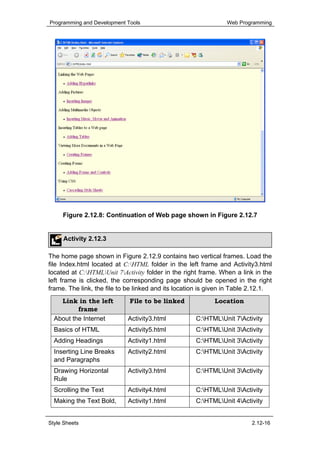
1. Create a Web page as shown in Figure 2.12.7 whose continuation is given
in Figure 2.12.8. The files to be linked and their location are given in Table
2.12.1.
2. Save the HTML file as Index.html in C:HTML folder.


               Figure 2.12.7: A Web page Containing Links


Style Sheets                                                           2.12-15
Programming and Development Tools                               Web Programming


     Figure 2.12.8: Continuation of Web page shown in Figure 2.12.7


     Activity 2.12.3

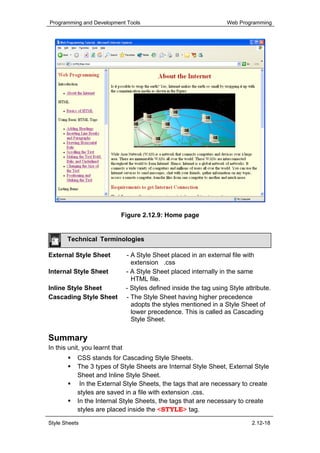
The home page shown in Figure 2.12.9 contains two vertical frames. Load the
file Index.html located at C:HTML folder in the left frame and Activity3.html
located at C:HTMLUnit 7Activity folder in the right frame. When a link in the
left frame is clicked, the corresponding page should be opened in the right
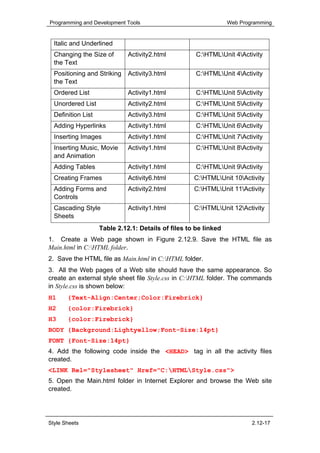
frame. The link, the file to be linked and its location is given in Table 2.12.1.
    Link in the left         File to be linked              Location
          frame
  About the Internet        Activity3.html           C:HTMLUnit 7Activity
  Basics of HTML            Activity5.html           C:HTMLUnit 3Activity
  Adding Headings           Activity1.html           C:HTMLUnit 3Activity
  Inserting Line Breaks     Activity2.html           C:HTMLUnit 3Activity
  and Paragraphs
  Drawing Horizontal        Activity3.html           C:HTMLUnit 3Activity
  Rule
  Scrolling the Text        Activity4.html           C:HTMLUnit 3Activity
  Making the Text Bold,     Activity1.html           C:HTMLUnit 4Activity


Style Sheets                                                             2.12-16
Programming and Development Tools                                 Web Programming


  Italic and Underlined
  Changing the Size of        Activity2.html          C:HTMLUnit 4Activity
  the Text
  Positioning and Striking    Activity3.html          C:HTMLUnit 4Activity
  the Text
  Ordered List                Activity1.html          C:HTMLUnit 5Activity
  Unordered List              Activity2.html          C:HTMLUnit 5Activity
  Definition List             Activity3.html          C:HTMLUnit 5Activity
  Adding Hyperlinks           Activity1.html          C:HTMLUnit 6Activity
  Inserting Images            Activity1.html          C:HTMLUnit 7Activity
  Inserting Music, Movie      Activity1.html          C:HTMLUnit 8Activity
  and Animation
  Adding Tables               Activity1.html          C:HTMLUnit 9Activity
  Creating Frames             Activity6.html         C:HTMLUnit 10Activity
  Adding Forms and            Activity2.html         C:HTMLUnit 11Activity
  Controls
  Cascading Style             Activity1.html         C:HTMLUnit 12Activity
  Sheets
                    Table 2.12.1: Details of files to be linked
1. Create a Web page shown in Figure 2.12.9. Save the HTML file as
Main.html in C:HTML folder.
2. Save the HTML file as Main.html in C:HTML folder.
3. All the Web pages of a Web site should have the same appearance. So
create an external style sheet file Style.css in C:HTML folder. The commands
in Style.css is shown below:
H1     {Text-Align:Center;Color:Firebrick}
H2     {color:Firebrick}
H3     {color:Firebrick}
BODY {Background:Lightyellow;Font-Size:14pt}
FONT {Font-Size:14pt}
4. Add the following code inside the <HEAD> tag in all the activity files
created.
<LINK Rel="Stylesheet" Href="C:HTMLStyle.css">
5. Open the Main.html folder in Internet Explorer and browse the Web site
created.


Style Sheets                                                              2.12-17
Programming and Development Tools                                    Web Programming


                            Figure 2.12.9: Home page


       Technical Terminologies

External Style Sheet            - A Style Sheet placed in an external file with
                                  extension .css
Internal Style Sheet            - A Style Sheet placed internally in the same
                                  HTML file.
Inline Style Sheet              - Styles defined inside the tag using Style attribute.
Cascading Style Sheet           - The Style Sheet having higher precedence
                                  adopts the styles mentioned in a Style Sheet of
                                  lower precedence. This is called as Cascading
                                  Style Sheet.

Summary
In this unit, you learnt that
           CSS stands for Cascading Style Sheets.
           The 3 types of Style Sheets are Internal Style Sheet, External Style
           Sheet and Inline Style Sheet.
            In the External Style Sheets, the tags that are necessary to create
           styles are saved in a file with extension .css.
           In the Internal Style Sheets, the tags that are necessary to create
           styles are placed inside the <STYLE> tag.

Style Sheets                                                                  2.12-18
Programming and Development Tools                                Web Programming


            In the Inline Styles, the values that are necessary to create styles
            are assigned to the Style attribute of respective tags.
            Inline styles hold the highest priority among the Style Sheets.


Assignment

 I. Answer the following questions:
 1. List any 2 advantages of using Style Sheets.
 2. Name the three Style Sheets.
 3. Create a .css file to create an External Style Sheet that modifies the
 attributes of <TABLE> tag.
 4. Write the <STYLE> tag to convert the External Style Sheet mentioned in
 3rd question to Internal Style Sheet.
 5. Write the <TABLE> tag to convert the Internal Style Sheet mentioned in 4th
 question to Inline Style Sheet.


 Style Sheets                                                              2.12-19
Programming and Development Tools                             Web Programming


Criterion Referenced Test
Instruction: Students must evaluate themselves to attain the list of
             competencies to be achieved.

Name:
Subject:       Programming and Development Tools
Unit:          Style Sheets

Please tick [ √ ] the appropriate box when you have achieved the respective
competency.

Date                                    Style Sheets
                 C1   C2    C3


Comment


Competency codes:

C1 = Create a Web page using External Style Sheet.
C2 = Create a Web page using Internal Style Sheet.
C3 = Create a Web page using Inline Style Sheet.


Style Sheets                                                          2.12-20

Unit 2.12

  • 1.
    Programming and DevelopmentTools Web Programming UNIT 2.12 Web Programming Style Sheets OBJECTIVES This unit helps you to use Cascading Style Sheets in your Web pages. At the end of this unit, you will be able to List the advantages of using Style Sheets. Add External Style Sheet to your Web pages. Add Internal Style Sheet to your Web pages. Add Inline Style Sheet to your Web pages. Benchmark standard Design Web pages with uniformity using Style Sheets. Style Sheets 2.12-1
  • 2.
    Programming and DevelopmentTools Web Programming Let us Revise! 1. List the controls that can be added to a form. 2. State the difference between text field and text area. 3. Mention the use of Action and Method attributes of <FORM> tag. 4. State the difference between radio button and check box. 5. Which tag is used to add drop-down list box to a form. Introduction Do you want to change the default values of the attributes of a tag? You can change it to your need using CSS. CSS stands for Cascading Style Sheets. The tags in HTML have their own function by default. These tags can be enhanced by using Style Sheet. A Style Sheet contains a set of instructions that modifies the values of the attributes of a tag. For example, the tag <H1> displays the text in black colour. The colour of the text can be changed for <H1> tag using Style Sheets. The advantages of using Style Sheets are: An attribute’s value of a tag can be specified once and the tag can be used anywhere in the file without specifying the attribute again and again. It is like changing the default value of an attribute. If you want to modify any attribute, it is enough if you change the value in the Style where it is defined instead of changing the values wherever the tag is used. Note CSS, Style Sheet and Cascading Style Sheet all mean the same. Styles can be defined in 3 ways using: External Style Sheets, Internal Style Sheets and Inline Style Sheet 2.12.1 External Style Sheets In the External Style Sheets, the tags that are necessary to create styles are saved in a file with extension .css. This file is linked to the HTML file by using Style Sheets 2.12-2
  • 3.
    Programming and DevelopmentTools Web Programming the <LINK> tag in the HTML file. The <LINK> tag has HREF attribute to which the URL of the style sheet file (.css) is assigned. The <LINK> tag is placed inside the <HEAD> tag. Hands-On! The following example illustrates the use of External Style Sheets in a Webpage. Open the HTML file Ext_CSS.html in Internet Explorer. The code in Ext_CSS.html file is given below: <HTML> <HEAD> <TITLE> CSS </TITLE> <link REL="StyleSheet" TYPE="text/css" HREF="Style1.css"> </HEAD> <BODY><FONT Size=5> <H1> WORLD POPULATION : 2003 </H1> The first five most populous countries are: <BR> <OL> <LI> China <LI> India <LI> United States <LI> Indonesia <LI> Brazil </OL> <TABLE Cellspacing=0 Align="Center"> <TR Bgcolor="Darkgreen" Height="40"> <TH Width="20%"> S.No.<TH Width="40%">Country<TH Width="40%"> Population</TR> <TR> <TD>1 <TD>China <TD>1,286,975,468 </TR> <TR> <TD>2 <TD>India <TD>1,049,700,118 </TR> <TR> <TD>3 <TD>United States<TD>290,342,554 </TR> <TR> <TD>4 <TD>Indonesia <TD>234,893,453 </TR> <TR> <TD>5 <TD>Brazil <TD>182,032,604 <TR> </TABLE> </FONT> </BODY> Style Sheets 2.12-3
  • 4.
    Programming and DevelopmentTools Web Programming </HTML> Code Sample 2.12.1 The Web page shown in Figure 2.12.1 is displayed in the browser window. Figure 2.12.1: A Web Page Using External Style Sheet In the code shown in Code Sample 2.12.1, the tag <link Rel="StyleSheet" Type="text/css" Href="Style1.css"> creates a link to the Style1.css file. The following are the tags specified in Style1.css file: H1 {Text-Align:Center;color:Firebrick} BODY {Background:LightYellow} TABLE{Border:outset 5pt;Background- Image:URL("Picture2.jpg");Width:60%;Color:yellow;Font- size=20} TD {Text-Align: Center; Height: 40} OL {Color:Firebrick} Code Sample 2.12.2 The following is the syntax used to modify the attributes of a tag: Tag_Name {Attribute1: Value; Attribute2: Value; …………..} Style Sheets 2.12-4
  • 5.
    Programming and DevelopmentTools Web Programming It is clear from the Code Sample 2.12.2 that <H1>, <BODY>, <TABLE>, <TD> and <OL> are the tags that are modified. The following are the changes made: The Color attribute is set to Firebrick and the text is centered for <H1> tag. The Background Color is set to Lightyellow for the <BODY> tag. The border width is set to 5, Picture2.jpg is set as the background image, table width is set to 60% of the width of the browser window, the colour of the text is set to Yellow and the size of the text is set to 20 for the <TABLE> tag. The Height of a cell is set to 40 and the text is centered for <TD> tag. The colour is set to Firebrick for <OL> tag. When these modified tags are used in your HTML file, the tags take the values of the attributes mentioned in the .css file unless the attributes are specified. For example, the heading of the Web page shown in Figure 2.12.1 is centered instead of left alignment. Note External Style Sheet is also called as Linked Style Sheet Self-Check Exercise 2.12.1 Say true or false: 1. In External Style Sheets, styles are defined in a separate file with extension .ccs. 2. The 3 ways of defining styles are using External Style Sheets, Internal Style Sheets and Inline Styles. 3. The <LINK> tag is placed inside the <HEAD> tag. Lab Exercise Lab Exercise 1: Open D12_1.html in Internet Explorer. The following code will be present in D12_1.html. <HTML> <HEAD> <TITLE> WELCOME TO ZAI SUPER MARKET </TITLE> <LINK REL="STYLESHEET" TYPE="TEXT/CSS" HREF="D12_1.CSS"> <H5 ALIGN="CENTER"> WELCOME TO ZAI SUPER MARKET </H5> <H1 ALIGN="CENTER"> Style Sheets 2.12-5
  • 6.
    Programming and DevelopmentTools Web Programming No.3 Plaza Dhamas, &nbsp; Sri Hartamaas <BR> Kuala Lumpur <BR><BR> </H1> </HEAD> <BODY> <CENTER> <TABLE BORDER=1> <TR> <TH WIDTH=10%>S.NO </TH> <TH WIDTH=50%> PRODUCT NAME</TH> <TH WIDTH=20%>QTY</TH> <TH WIDTH=15%> PRICE </TH> </TR> <TR> <TD ALIGN="CENTER">101 </TD> <TD> Coke</TD> <TD> 250 ML</TD> <TD> 1.70 RM</TD> </TR> <TR> <TD ALIGN="CENTER">102 </TD> <TD> Pepsi</TD> <TD> 250 ML</TD> <TD> 1.50 RM</TD> </TR> <TR> <TD ALIGN="CENTER">102 </TD> <TD>Sprit</TD> <TD> 250 ML</TD> <TD> 1.50 RM</TD> </TR> <TR> <TD ALIGN="CENTER">102 </TD> <TD> 100 Plus</TD> <TD> 250 ML</TD> <TD> 1.00 RM</TD> </TR> <TR> <TD ALIGN="CENTER">102 </TD> <TD> Milo </TD> <TD> 150 ML</TD> <TD> 1.30 RM</TD> </TR> <TR> Style Sheets 2.12-6
  • 7.
    Programming and DevelopmentTools Web Programming <TD ALIGN="CENTER">102 </TD> <TD> Lychee </TD> <TD> 150 ML</TD> <TD> 1.20 RM</TD> </TR> </TABLE> </CENTER> </BODY> </HTML> 1. Locate the tag which is used to call the external style sheet file into html file. 2. Identify the attribute which is used to define the relationship between the linked file and the HTML file. 3. Name the attribute which is used to specify the type of the file. Lab Exercise 2: Open D12_1.HTML in Notepad. 1. View the source code in the Notepad. 2. Change the background and text colour as shown in the following Figure 2.12.2. Figure 2.12.2: Welcome to ZAI Super Market Lab Exercise 3: Create an external style sheet and display the output as given in the following Figure 2.12.3. Style Sheets 2.12-7
  • 8.
    Programming and DevelopmentTools Web Programming Figure 2.12.3: Wonders of the World 2.12.2 Internal Style Sheets In the Internal Style Sheets, the tags that are necessary to create styles are placed inside the <STYLE> tag. The <STYLE> tag is placed inside the <HEAD> tag of the HTML file. Note Internal Style Sheets are also called as Embedded Style Sheets. Hands-On! The following example illustrates the use of Internal Style Sheets in a Webpage. Open the HTML file Int_CSS.html in Internet Explorer. The code in Int_CSS.html file is given below: <HTML> <HEAD> <TITLE> CSS </TITLE> Style Sheets 2.12-8
  • 9.
    Programming and DevelopmentTools Web Programming <STYLE Type="text/css"> H1 {Text-Align:Center;color:Firebrick} BODY {Background:LightYellow} TABLE{Border:outset 5pt; Background-Image:URL("Picture2.jpg"); Width:60%;Color:yellow;Font-size=20} TD {Text-Align:Center;Height:40} OL {Color:Firebrick} </STYLE> </HEAD> <BODY><FONT Size=5> <H1> WORLD POPULATION : 2003 </H1> The first five most populous countries are: <BR> <OL> <LI> China <LI> India <LI> United States <LI> Indonesia <LI> Brazil </OL> <TABLE Cellspacing=0 Align="Center"> <TR Bgcolor="Darkgreen" Height="40"> <TH Width="20%"> S.No.<TH Width="40%">Country<TH Width="40%"> Population</TR> <TR> <TD>1 <TD>China <TD>1,286,975,468 </TR> <TR> <TD>2 <TD>India <TD>1,049,700,118 </TR> <TR> <TD>3 <TD>United States<TD>290,342,554 </TR> <TR> <TD>4 <TD>Indonesia <TD>234,893,453 </TR> <TR> <TD>5 <TD>Brazil <TD>182,032,604 <TR> </TABLE> </FONT> </BODY> </HTML> Code Sample 2.12.3 The same Web page shown in Figure 2.12.1 is displayed in the browser window. Style Sheets 2.12-9
  • 10.
    Programming and DevelopmentTools Web Programming In External Style Sheets, you created a file with extension .css. This file contains all the tags that were used to define the styles. In Internal Style Sheet, all the tags that are required to define the styles are placed inside the <STYLE> and </STYLE> tags which in turn is placed inside the <HEAD> and </HEAD> tags. The difference between External Style Sheet and Internal Style Sheet is that the former can be used by any HTML file whereas the latter can be used only by the HTML file where it is defined. Note No separate file is created for defining styles in Internal Style Sheets. 2.12.3 Inline Style Sheets In the Inline Styles, the styles are inserted directly into the tags by assigning styles to the Style attribute of respective tags. Hands-On! The following example illustrates the use of Inline Styles in a Webpage. Open the HTML file Inl_CSS.html in Internet Explorer. The code in Inl_CSS.html file is given below: <HTML> <HEAD> <TITLE> CSS </TITLE> </HEAD> <BODY Style=Background:LightYellow><FONT Size=5> <H1 Style="Text-Align:Center;color:Firebrick"> WORLD POPULATION : 2003 </H1> The first five most populous countries are: <BR> <OL Style="Color:Firebrick"> <LI> China <LI> India <LI> United States <LI> Indonesia <LI> Brazil </OL> <TABLE Align="Center" Cellspacing="0" Style="Border:outset 5pt; Style Sheets 2.12-10
  • 11.
    Programming and DevelopmentTools Web Programming Width:60%;Color:yellow;Font-size=20; Background:URL(Picture2.jpg)"> <TR Bgcolor="Darkgreen" Height="40"> <TH Width="20%"> S.No. <TH Width="40%">Country <TH Width="40%"> Population </TR> <TR> <TD Style="Text-Align:Center;Height:40">1 <TD>China <TD>1,286,975,468 </TR> <TR> <TD Style="Text-Align:Center;Height:40">2 <TD>India <TD>1,049,700,118 </TR> <TR> <TD Style="Text-Align:Center;Height:40">3 <TD>United States <TD>290,342,554 </TR> <TR> <TD Style="Text-Align:Center;Height:40">4 <TD>Indonesia <TD>234,893,453 </TR> <TR> <TD Style="Text-Align:Center;Height:40">5 <TD>Brazil <TD>182,032,604 </TR> </TABLE> </FONT> </BODY> Style Sheets 2.12-11
  • 12.
    Programming and DevelopmentTools Web Programming </HTML> Code Sample 2.12.3 The same Web page shown in Figure 2.12.1 is displayed in the browser window. For example, the following code in Code Sample 2.12.3, sets the background colour of the Web page to Light yellow using Inline Styles. <BODY Style=Background:LightYellow> Here, the background of the Web page is set to Lightyellow by assigning the value to the Style attribute of the <BODY> tag. Order of Precedence If more than one type of Style Sheet is specified in a HTML file, the browser follows an order to select the Style Sheet to be used. The following is the order of precedence followed by a browser: 1. Inline Style Sheet 2. Internal or Embedded Style Sheet 3. External or Linked Style Sheet 4. Default style used by the browser (If the Style is not specified). If all the 3 Style Sheets are specified, the Internal Style Sheet adopts the styles mentioned in the External Style Sheet that are not mentioned in the Internal Style Sheet. The Inline Style Sheet adopts the styles mentioned in the Internal Style Sheet that are not mentioned in the Inline Style Sheet. Hence, it is called as Cascading Style Sheet. Lab Exercise Lab Exercise 4: Create an external style sheet and display the output as given in the following Figure 2.12.4. Style Sheets 2.12-12
  • 13.
    Programming and DevelopmentTools Web Programming Figure 2.12.4: A Web Page Using External Style Sheet Self-Check Exercise 2.12.2 Fill in the blanks: 1. The tags that are required to define the styles using Internal Style Sheet are placed inside the _____ and _____ tags. 2. ______ attribute is used to specify Inline Styles. 3. ______ Style Sheet has the highest priority. Activity 2.12.1 1. Create a Web page that explains Cascading Style Sheets as shown in Figure 2.12.5. 2. Save the HTML file as Activity2.12.1.html. 3. The content of the same page is continued in Figure 2.12.6. Style Sheets 2.12-13
  • 14.
    Programming and DevelopmentTools Web Programming Figure 2.12.5: A Web page Explaining CSS Figure 2.12.6: Continuation of Web page shown in Figure 2.12.5 Style Sheets 2.12-14
  • 15.
    Programming and DevelopmentTools Web Programming Activity 2.12.2 As explained earlier, the Web pages created in the Activities of all the units from 3 to 12 will lead to the creation of a Web Site. The Web pages in all the Activities should be linked together. Do the following to create the home page for this Web site. 1. Create a Web page as shown in Figure 2.12.7 whose continuation is given in Figure 2.12.8. The files to be linked and their location are given in Table 2.12.1. 2. Save the HTML file as Index.html in C:HTML folder. Figure 2.12.7: A Web page Containing Links Style Sheets 2.12-15
  • 16.
    Programming and DevelopmentTools Web Programming Figure 2.12.8: Continuation of Web page shown in Figure 2.12.7 Activity 2.12.3 The home page shown in Figure 2.12.9 contains two vertical frames. Load the file Index.html located at C:HTML folder in the left frame and Activity3.html located at C:HTMLUnit 7Activity folder in the right frame. When a link in the left frame is clicked, the corresponding page should be opened in the right frame. The link, the file to be linked and its location is given in Table 2.12.1. Link in the left File to be linked Location frame About the Internet Activity3.html C:HTMLUnit 7Activity Basics of HTML Activity5.html C:HTMLUnit 3Activity Adding Headings Activity1.html C:HTMLUnit 3Activity Inserting Line Breaks Activity2.html C:HTMLUnit 3Activity and Paragraphs Drawing Horizontal Activity3.html C:HTMLUnit 3Activity Rule Scrolling the Text Activity4.html C:HTMLUnit 3Activity Making the Text Bold, Activity1.html C:HTMLUnit 4Activity Style Sheets 2.12-16
  • 17.
    Programming and DevelopmentTools Web Programming Italic and Underlined Changing the Size of Activity2.html C:HTMLUnit 4Activity the Text Positioning and Striking Activity3.html C:HTMLUnit 4Activity the Text Ordered List Activity1.html C:HTMLUnit 5Activity Unordered List Activity2.html C:HTMLUnit 5Activity Definition List Activity3.html C:HTMLUnit 5Activity Adding Hyperlinks Activity1.html C:HTMLUnit 6Activity Inserting Images Activity1.html C:HTMLUnit 7Activity Inserting Music, Movie Activity1.html C:HTMLUnit 8Activity and Animation Adding Tables Activity1.html C:HTMLUnit 9Activity Creating Frames Activity6.html C:HTMLUnit 10Activity Adding Forms and Activity2.html C:HTMLUnit 11Activity Controls Cascading Style Activity1.html C:HTMLUnit 12Activity Sheets Table 2.12.1: Details of files to be linked 1. Create a Web page shown in Figure 2.12.9. Save the HTML file as Main.html in C:HTML folder. 2. Save the HTML file as Main.html in C:HTML folder. 3. All the Web pages of a Web site should have the same appearance. So create an external style sheet file Style.css in C:HTML folder. The commands in Style.css is shown below: H1 {Text-Align:Center;Color:Firebrick} H2 {color:Firebrick} H3 {color:Firebrick} BODY {Background:Lightyellow;Font-Size:14pt} FONT {Font-Size:14pt} 4. Add the following code inside the <HEAD> tag in all the activity files created. <LINK Rel="Stylesheet" Href="C:HTMLStyle.css"> 5. Open the Main.html folder in Internet Explorer and browse the Web site created. Style Sheets 2.12-17
  • 18.
    Programming and DevelopmentTools Web Programming Figure 2.12.9: Home page Technical Terminologies External Style Sheet - A Style Sheet placed in an external file with extension .css Internal Style Sheet - A Style Sheet placed internally in the same HTML file. Inline Style Sheet - Styles defined inside the tag using Style attribute. Cascading Style Sheet - The Style Sheet having higher precedence adopts the styles mentioned in a Style Sheet of lower precedence. This is called as Cascading Style Sheet. Summary In this unit, you learnt that CSS stands for Cascading Style Sheets. The 3 types of Style Sheets are Internal Style Sheet, External Style Sheet and Inline Style Sheet. In the External Style Sheets, the tags that are necessary to create styles are saved in a file with extension .css. In the Internal Style Sheets, the tags that are necessary to create styles are placed inside the <STYLE> tag. Style Sheets 2.12-18
  • 19.
    Programming and DevelopmentTools Web Programming In the Inline Styles, the values that are necessary to create styles are assigned to the Style attribute of respective tags. Inline styles hold the highest priority among the Style Sheets. Assignment I. Answer the following questions: 1. List any 2 advantages of using Style Sheets. 2. Name the three Style Sheets. 3. Create a .css file to create an External Style Sheet that modifies the attributes of <TABLE> tag. 4. Write the <STYLE> tag to convert the External Style Sheet mentioned in 3rd question to Internal Style Sheet. 5. Write the <TABLE> tag to convert the Internal Style Sheet mentioned in 4th question to Inline Style Sheet. Style Sheets 2.12-19
  • 20.
    Programming and DevelopmentTools Web Programming Criterion Referenced Test Instruction: Students must evaluate themselves to attain the list of competencies to be achieved. Name: Subject: Programming and Development Tools Unit: Style Sheets Please tick [ √ ] the appropriate box when you have achieved the respective competency. Date Style Sheets C1 C2 C3 Comment Competency codes: C1 = Create a Web page using External Style Sheet. C2 = Create a Web page using Internal Style Sheet. C3 = Create a Web page using Inline Style Sheet. Style Sheets 2.12-20