LORD JESUS, teacher of all students,
I entrust my learning to you.
Open my mind to your grace , O Lord.
As I begin my study today.
You are the source of all wisdom and truth;
So guide me along the right path,
That I may persevere in my studies and
scholarship.
May I learn well, What I need to know;
May I understand, What I need to learn;
May I remember, What I need to explain.
ALL this, We pray…to your Holy name .
AMEN.
GOOD MORNING /
AFTERNOON 
4
(Cascading Style Sheet)
CSS
Prepared by:
Christian Jay B Tantan
Styling HTML with CSS
 CSS stands
for Cascading Style Sheets.
 CSS describes how HTML elements
are to be displayed on screen,
paper, or in other media.
 CSS saves a lot of work. It can
control the layout of multiple web pages
all at once.
5
CSS can be added to HTML elements in 3
ways:
 Inline - by using the style attribute in
HTML elements
 Internal - by using a <style> element
in the <head> section
 External - by using an external CSS
file
6
Inline CSS
 An inline CSS is used to apply a unique
style to a single HTML element.
 An inline CSS uses the style attribute of
an HTML element.
 This example sets the text color of
the <h1> element to blue:
7
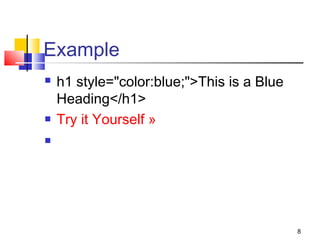
Example
 h1 style="color:blue;">This is a Blue
Heading</h1>
 Try it Yourself »

8
Internal CSS
 An internal CSS is used to define a
style for a single HTML page.
 An internal CSS is defined in
the <head> section of an HTML page,
within a <style> element:
9
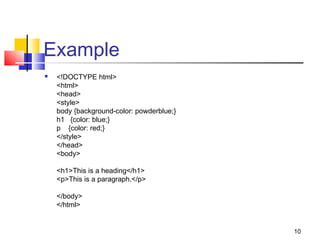
Example
 <!DOCTYPE html>
<html>
<head>
<style>
body {background-color: powderblue;}
h1   {color: blue;}
p    {color: red;}
</style>
</head>
<body>
<h1>This is a heading</h1>
<p>This is a paragraph.</p>
</body>
</html>
10
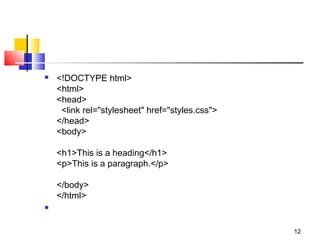
External CSS
 An external style sheet is used to define
the style for many HTML pages.
 With an external style sheet, you
can change the look of an entire
web site, by changing one file!
 To use an external style sheet, add a
link to it in the <head> section of the
HTML page:
11
 <!DOCTYPE html>
<html>
<head>
  <link rel="stylesheet" href="styles.css">
</head>
<body>
<h1>This is a heading</h1>
<p>This is a paragraph.</p>
</body>
</html>

12
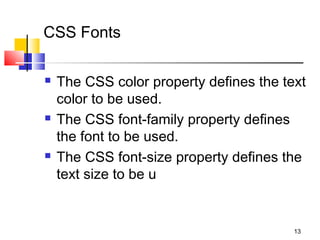
CSS Fonts
 The CSS color property defines the text
color to be used.
 The CSS font-family property defines
the font to be used.
 The CSS font-size property defines the
text size to be u
13
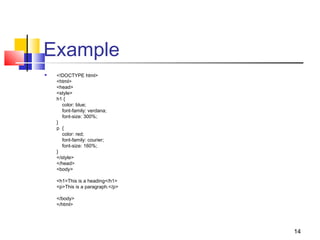
Example
 <!DOCTYPE html>
<html>
<head>
<style>
h1 {
    color: blue;
    font-family: verdana;
    font-size: 300%;
}
p  {
    color: red;
    font-family: courier;
    font-size: 160%;
}
</style>
</head>
<body>
<h1>This is a heading</h1>
<p>This is a paragraph.</p>
</body>
</html>
14
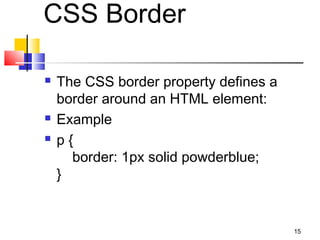
CSS Border
 The CSS border property defines a
border around an HTML element:
 Example
 p {
    border: 1px solid powderblue;
}
15
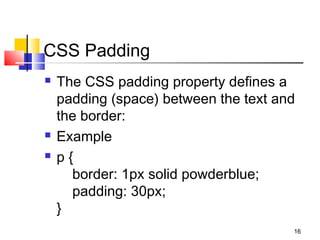
CSS Padding
 The CSS padding property defines a
padding (space) between the text and
the border:
 Example
 p {
    border: 1px solid powderblue;
    padding: 30px;
}
16
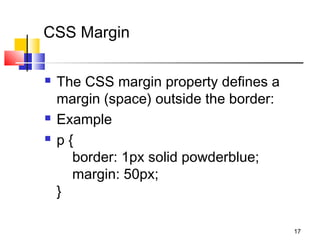
CSS Margin
 The CSS margin property defines a
margin (space) outside the border:
 Example
 p {
    border: 1px solid powderblue;
    margin: 50px;
}
17
The id Attribute
 To define a specific style for one special
element, add an id attribute to the
element:
 <p id="p01">I am different</p>
18
The class Attribute
 To define a style for special types of
elements, add a class attribute to the
element:
 <p class="error">I am different</p>
19
External References
 External style sheets can be referenced with
a full URL or with a path relative to the current
web page.
 This example uses a full URL to link to a style
sheet:
 Example
 <link rel="stylesheet" href="https://www.w3sc
hools.com/html/styles.css">
20
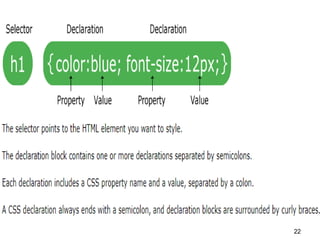
CSS Syntax
 A CSS rule-set consists of a selector
and a declaration block:
21
22
CSS Colors
 Colors are specified using predefined
color names, or RGB, HEX, HSL,
RGBA, HSLA values.

23
CSS Backgrounds
 The CSS background properties are used to
define the background effects for elements.
 CSS background properties:
 background-color
 background-image
 background-repeat
 background-attachment
 background-position
24
Background Color
 The background-color property
specifies the background color of an
element.
 The background color of a page is set
like this:
 Example
 body {
    background-color: lightblue;
} 25
Background Image
 The background-image property specifies an image
to use as the background of an element.
 By default, the image is repeated so it covers the
entire element.
 The background image for a page can be set like
this:
 Example
 body {
    background-image: url("paper.gif");
}
26
Background Image - Repeat Horizontally or
Vertically
 By default, the background-image property repeats
an image both horizontally and vertically.
 Some images should be repeated only horizontally or
vertically, or they will look strange, like this:
 Example
 body {
    background-image: url("gradient_bg.png");
}
27
CSS Border Properties
 The CSS border properties allow you to
specify the style, width, and color of an
element's border.
28
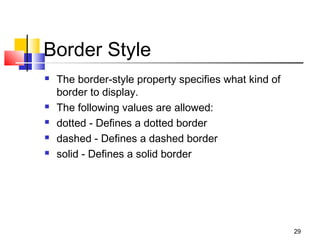
Border Style
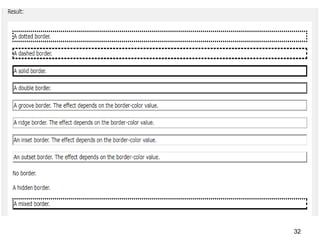
 The border-style property specifies what kind of
border to display.
 The following values are allowed:
 dotted - Defines a dotted border
 dashed - Defines a dashed border
 solid - Defines a solid border
29
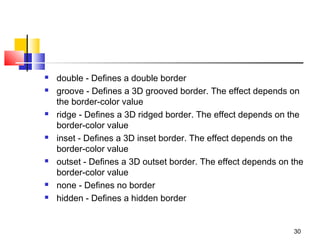
 double - Defines a double border
 groove - Defines a 3D grooved border. The effect depends on
the border-color value
 ridge - Defines a 3D ridged border. The effect depends on the
border-color value
 inset - Defines a 3D inset border. The effect depends on the
border-color value
 outset - Defines a 3D outset border. The effect depends on the
border-color value
 none - Defines no border
 hidden - Defines a hidden border
30
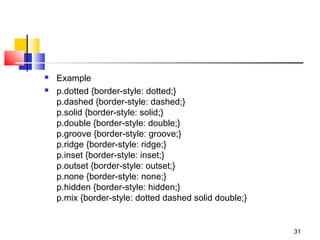
 Example
 p.dotted {border-style: dotted;}
p.dashed {border-style: dashed;}
p.solid {border-style: solid;}
p.double {border-style: double;}
p.groove {border-style: groove;}
p.ridge {border-style: ridge;}
p.inset {border-style: inset;}
p.outset {border-style: outset;}
p.none {border-style: none;}
p.hidden {border-style: hidden;}
p.mix {border-style: dotted dashed solid double;}
31
32
CSS Padding
 The CSS padding properties are used
to generate space around an element's
content, inside of any defined borders.
 With CSS, you have full control over the
padding. There are properties for
setting the padding for each side of an
element (top, right, bottom, and left).
33
Padding - Individual Sides
 CSS has properties for specifying the
padding for each side of an element:
 padding-top
 padding-right
 padding-bottom
 padding-left
34
CSS Links
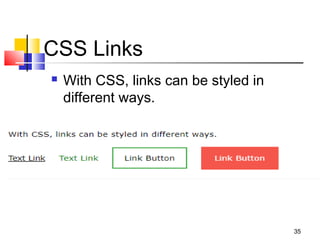
 With CSS, links can be styled in
different ways.
35
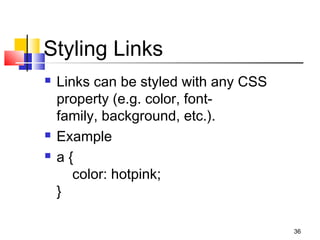
Styling Links
36
 Links can be styled with any CSS
property (e.g. color, font-
family, background, etc.).
 Example
 a {
    color: hotpink;
}
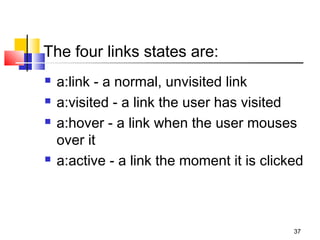
The four links states are:
 a:link - a normal, unvisited link
 a:visited - a link the user has visited
 a:hover - a link when the user mouses
over it
 a:active - a link the moment it is clicked
37
HTML Lists and CSS List Properties
 In HTML, there are two main types of
lists:
 unordered lists (<ul>) - the list items are
marked with bullets
 ordered lists (<ol>) - the list items are
marked with numbers or letters
38
 The CSS list properties allow you to:
 Set different list item markers for ordered lists
 Set different list item markers for unordered
lists
 Set an image as the list item marker
 Add background colors to lists and list items
39
 <!DOCTYPE html>
 <html>
 <head>
 <style>
 ul.a {
 list-style-type: circle;
 }
 ul.b {
 list-style-type: square;
 }
 ol.c {
 list-style-type: upper-roman;
 }
 ol.d {
 list-style-type: lower-alpha;
 }
 </style>
 </head>
 <body>
 <p>Example of unordered lists:</p>
 <ul class="a">
 <li>Coffee</li>
 <li>Tea</li>
 <li>Coca Cola</li>
 </ul>
 <ul class="b">
 <li>Coffee</li>
 <li>Tea</li>
 <li>Coca Cola</li>
 </ul>
 <p>Example of ordered lists:</p>
 <ol class="c">
 <li>Coffee</li>
 <li>Tea</li>
 <li>Coca Cola</li>
 </ol>
 <ol class="d">
 <li>Coffee</li>
 <li>Tea</li>
 <li>Coca Cola</li>
 </ol>
 </body>
 </html>
40
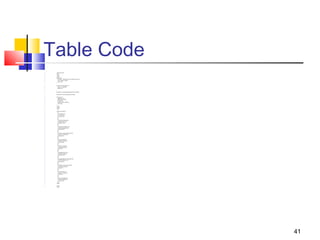
Table Code
 <!DOCTYPE html>
 <html>
 <head>
 <style>
 #customers {
 font-family: "Trebuchet MS", Arial, Helvetica, sans-serif;
 border-collapse: collapse;
 width: 100%;
 }
 #customers td, #customers th {
 border: 1px solid #ddd;
 padding: 8px;
 }
 #customers tr:nth-child(even){background-color: #f2f2f2;}
 #customers tr:hover {background-color: #ddd;}
 #customers th {
 padding-top: 12px;
 padding-bottom: 12px;
 text-align: left;
 background-color: #4CAF50;
 color: white;
 }
 </style>
 </head>
 <body>
 <table id="customers">
 <tr>
 <th>Company</th>
 <th>Contact</th>
 <th>Country</th>
 </tr>
 <tr>
 <td>Alfreds Futterkiste</td>
 <td>Maria Anders</td>
 <td>Germany</td>
 </tr>
 <tr>
 <td>Berglunds snabbköp</td>
 <td>Christina Berglund</td>
 <td>Sweden</td>
 </tr>
 <tr>
 <td>Centro comercial Moctezuma</td>
 <td>Francisco Chang</td>
 <td>Mexico</td>
 </tr>
 <tr>
 <td>Ernst Handel</td>
 <td>Roland Mendel</td>
 <td>Austria</td>
 </tr>
 <tr>
 <td>Island Trading</td>
 <td>Helen Bennett</td>
 <td>UK</td>
 </tr>
 <tr>
 <td>Königlich Essen</td>
 <td>Philip Cramer</td>
 <td>Germany</td>
 </tr>
 <tr>
 <td>Laughing Bacchus Winecellars</td>
 <td>Yoshi Tannamuri</td>
 <td>Canada</td>
 </tr>
 <tr>
 <td>Magazzini Alimentari Riuniti</td>
 <td>Giovanni Rovelli</td>
 <td>Italy</td>
 </tr>
 <tr>
 <td>North/South</td>
 <td>Simon Crowther</td>
 <td>UK</td>
 </tr>
 <tr>
 <td>Paris spécialités</td>
 <td>Marie Bertrand</td>
 <td>France</td>
 </tr>
 </table>
 </body>
 </html>
41
Table Borders
 To specify table borders in CSS, use
the border property.
 The example below specifies a black
border for <table>, <th>, and <td>
elements:
42
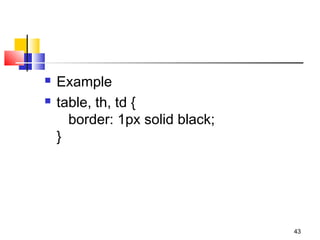
 Example
 table, th, td {
   border: 1px solid black;
}
43
44

Ict 8 css

  • 2.
    LORD JESUS, teacherof all students, I entrust my learning to you. Open my mind to your grace , O Lord. As I begin my study today. You are the source of all wisdom and truth; So guide me along the right path, That I may persevere in my studies and scholarship. May I learn well, What I need to know; May I understand, What I need to learn; May I remember, What I need to explain. ALL this, We pray…to your Holy name . AMEN.
  • 3.
  • 4.
    4 (Cascading Style Sheet) CSS Preparedby: Christian Jay B Tantan
  • 5.
    Styling HTML withCSS  CSS stands for Cascading Style Sheets.  CSS describes how HTML elements are to be displayed on screen, paper, or in other media.  CSS saves a lot of work. It can control the layout of multiple web pages all at once. 5
  • 6.
    CSS can beadded to HTML elements in 3 ways:  Inline - by using the style attribute in HTML elements  Internal - by using a <style> element in the <head> section  External - by using an external CSS file 6
  • 7.
    Inline CSS  Aninline CSS is used to apply a unique style to a single HTML element.  An inline CSS uses the style attribute of an HTML element.  This example sets the text color of the <h1> element to blue: 7
  • 8.
    Example  h1 style="color:blue;">This isa Blue Heading</h1>  Try it Yourself »  8
  • 9.
    Internal CSS  Aninternal CSS is used to define a style for a single HTML page.  An internal CSS is defined in the <head> section of an HTML page, within a <style> element: 9
  • 10.
  • 11.
    External CSS  Anexternal style sheet is used to define the style for many HTML pages.  With an external style sheet, you can change the look of an entire web site, by changing one file!  To use an external style sheet, add a link to it in the <head> section of the HTML page: 11
  • 12.
  • 13.
    CSS Fonts  TheCSS color property defines the text color to be used.  The CSS font-family property defines the font to be used.  The CSS font-size property defines the text size to be u 13
  • 14.
    Example  <!DOCTYPE html> <html> <head> <style> h1 {     color: blue;    font-family: verdana;     font-size: 300%; } p  {     color: red;     font-family: courier;     font-size: 160%; } </style> </head> <body> <h1>This is a heading</h1> <p>This is a paragraph.</p> </body> </html> 14
  • 15.
    CSS Border  TheCSS border property defines a border around an HTML element:  Example  p {     border: 1px solid powderblue; } 15
  • 16.
    CSS Padding  TheCSS padding property defines a padding (space) between the text and the border:  Example  p {     border: 1px solid powderblue;     padding: 30px; } 16
  • 17.
    CSS Margin  TheCSS margin property defines a margin (space) outside the border:  Example  p {     border: 1px solid powderblue;     margin: 50px; } 17
  • 18.
    The id Attribute To define a specific style for one special element, add an id attribute to the element:  <p id="p01">I am different</p> 18
  • 19.
    The class Attribute To define a style for special types of elements, add a class attribute to the element:  <p class="error">I am different</p> 19
  • 20.
    External References  Externalstyle sheets can be referenced with a full URL or with a path relative to the current web page.  This example uses a full URL to link to a style sheet:  Example  <link rel="stylesheet" href="https://www.w3sc hools.com/html/styles.css"> 20
  • 21.
    CSS Syntax  ACSS rule-set consists of a selector and a declaration block: 21
  • 22.
  • 23.
    CSS Colors  Colors arespecified using predefined color names, or RGB, HEX, HSL, RGBA, HSLA values.  23
  • 24.
    CSS Backgrounds  The CSSbackground properties are used to define the background effects for elements.  CSS background properties:  background-color  background-image  background-repeat  background-attachment  background-position 24
  • 25.
    Background Color  The background-color property specifiesthe background color of an element.  The background color of a page is set like this:  Example  body {     background-color: lightblue; } 25
  • 26.
    Background Image  The background-image propertyspecifies an image to use as the background of an element.  By default, the image is repeated so it covers the entire element.  The background image for a page can be set like this:  Example  body {     background-image: url("paper.gif"); } 26
  • 27.
    Background Image -Repeat Horizontally or Vertically  By default, the background-image property repeats an image both horizontally and vertically.  Some images should be repeated only horizontally or vertically, or they will look strange, like this:  Example  body {     background-image: url("gradient_bg.png"); } 27
  • 28.
    CSS Border Properties The CSS border properties allow you to specify the style, width, and color of an element's border. 28
  • 29.
    Border Style  The border-style propertyspecifies what kind of border to display.  The following values are allowed:  dotted - Defines a dotted border  dashed - Defines a dashed border  solid - Defines a solid border 29
  • 30.
     double - Definesa double border  groove - Defines a 3D grooved border. The effect depends on the border-color value  ridge - Defines a 3D ridged border. The effect depends on the border-color value  inset - Defines a 3D inset border. The effect depends on the border-color value  outset - Defines a 3D outset border. The effect depends on the border-color value  none - Defines no border  hidden - Defines a hidden border 30
  • 31.
  • 32.
  • 33.
    CSS Padding  TheCSS padding properties are used to generate space around an element's content, inside of any defined borders.  With CSS, you have full control over the padding. There are properties for setting the padding for each side of an element (top, right, bottom, and left). 33
  • 34.
    Padding - IndividualSides  CSS has properties for specifying the padding for each side of an element:  padding-top  padding-right  padding-bottom  padding-left 34
  • 35.
    CSS Links  With CSS,links can be styled in different ways. 35
  • 36.
    Styling Links 36  Linkscan be styled with any CSS property (e.g. color, font- family, background, etc.).  Example  a {     color: hotpink; }
  • 37.
    The four linksstates are:  a:link - a normal, unvisited link  a:visited - a link the user has visited  a:hover - a link when the user mouses over it  a:active - a link the moment it is clicked 37
  • 38.
    HTML Lists andCSS List Properties  In HTML, there are two main types of lists:  unordered lists (<ul>) - the list items are marked with bullets  ordered lists (<ol>) - the list items are marked with numbers or letters 38
  • 39.
     The CSSlist properties allow you to:  Set different list item markers for ordered lists  Set different list item markers for unordered lists  Set an image as the list item marker  Add background colors to lists and list items 39
  • 40.
     <!DOCTYPE html> <html>  <head>  <style>  ul.a {  list-style-type: circle;  }  ul.b {  list-style-type: square;  }  ol.c {  list-style-type: upper-roman;  }  ol.d {  list-style-type: lower-alpha;  }  </style>  </head>  <body>  <p>Example of unordered lists:</p>  <ul class="a">  <li>Coffee</li>  <li>Tea</li>  <li>Coca Cola</li>  </ul>  <ul class="b">  <li>Coffee</li>  <li>Tea</li>  <li>Coca Cola</li>  </ul>  <p>Example of ordered lists:</p>  <ol class="c">  <li>Coffee</li>  <li>Tea</li>  <li>Coca Cola</li>  </ol>  <ol class="d">  <li>Coffee</li>  <li>Tea</li>  <li>Coca Cola</li>  </ol>  </body>  </html> 40
  • 41.
    Table Code  <!DOCTYPEhtml>  <html>  <head>  <style>  #customers {  font-family: "Trebuchet MS", Arial, Helvetica, sans-serif;  border-collapse: collapse;  width: 100%;  }  #customers td, #customers th {  border: 1px solid #ddd;  padding: 8px;  }  #customers tr:nth-child(even){background-color: #f2f2f2;}  #customers tr:hover {background-color: #ddd;}  #customers th {  padding-top: 12px;  padding-bottom: 12px;  text-align: left;  background-color: #4CAF50;  color: white;  }  </style>  </head>  <body>  <table id="customers">  <tr>  <th>Company</th>  <th>Contact</th>  <th>Country</th>  </tr>  <tr>  <td>Alfreds Futterkiste</td>  <td>Maria Anders</td>  <td>Germany</td>  </tr>  <tr>  <td>Berglunds snabbköp</td>  <td>Christina Berglund</td>  <td>Sweden</td>  </tr>  <tr>  <td>Centro comercial Moctezuma</td>  <td>Francisco Chang</td>  <td>Mexico</td>  </tr>  <tr>  <td>Ernst Handel</td>  <td>Roland Mendel</td>  <td>Austria</td>  </tr>  <tr>  <td>Island Trading</td>  <td>Helen Bennett</td>  <td>UK</td>  </tr>  <tr>  <td>Königlich Essen</td>  <td>Philip Cramer</td>  <td>Germany</td>  </tr>  <tr>  <td>Laughing Bacchus Winecellars</td>  <td>Yoshi Tannamuri</td>  <td>Canada</td>  </tr>  <tr>  <td>Magazzini Alimentari Riuniti</td>  <td>Giovanni Rovelli</td>  <td>Italy</td>  </tr>  <tr>  <td>North/South</td>  <td>Simon Crowther</td>  <td>UK</td>  </tr>  <tr>  <td>Paris spécialités</td>  <td>Marie Bertrand</td>  <td>France</td>  </tr>  </table>  </body>  </html> 41
  • 42.
    Table Borders  Tospecify table borders in CSS, use the border property.  The example below specifies a black border for <table>, <th>, and <td> elements: 42
  • 43.
     Example  table,th, td {    border: 1px solid black; } 43
  • 44.