HTML Introduction
Prepare by:
James Patrick M. Mesana, MSIT
Learning Objectives
By the end of the lesson, students should be
able to:
• Describe tags and attributes
• Understand the structure of a tag
• Identify container and empty tags
• Recognize new tags and elements in HTML
• Know the outline algorithm
What is Tag?
Tags are the basic units or building blocks of an HTML file (or
code as you may call it). Web pages are designed and HTML
codes are made up of these tags, they control how the HTML
does its structuring, laying out and formatting.
Structure of a Tag
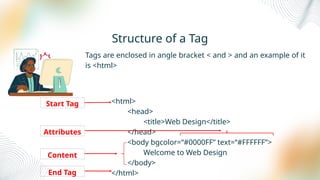
Tags are enclosed in angle bracket < and > and an example of it
is <html>
<html>
<head>
<title>Web Design</title>
</head>
<body bgcolor=“#0000FF” text=“#FFFFFF”>
Welcome to Web Design
</body>
</html>
Start Tag
Attributes
Content
End Tag
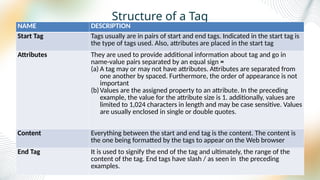
Structure of a Tag
NAME DESCRIPTION
Start Tag Tags usually are in pairs of start and end tags. Indicated in the start tag is
the type of tags used. Also, attributes are placed in the start tag
Attributes They are used to provide additional information about tag and go in
name-value pairs separated by an equal sign =
(a) A tag may or may not have attributes. Attributes are separated from
one another by spaced. Furthermore, the order of appearance is not
important
(b)Values are the assigned property to an attribute. In the preceding
example, the value for the attribute size is 1. additionally, values are
limited to 1,024 characters in length and may be case sensitive. Values
are usually enclosed in single or double quotes.
Content Everything between the start and end tag is the content. The content is
the one being formatted by the tags to appear on the Web browser
End Tag It is used to signify the end of the tag and ultimately, the range of the
content of the tag. End tags have slash / as seen in the preceding
examples.
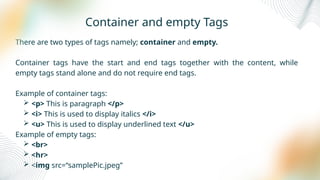
Container and empty Tags
There are two types of tags namely; container and empty.
Container tags have the start and end tags together with the content, while
empty tags stand alone and do not require end tags.
Example of container tags:
 <p> This is paragraph </p>
 <i> This is used to display italics </i>
 <u> This is used to display underlined text </u>
Example of empty tags:
 <br>
 <hr>
 <img src=“samplePic.jpeg”
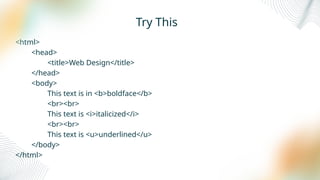
Try This
<html>
<head>
<title>Web Design</title>
</head>
<body>
This text is in <b>boldface</b>
<br><br>
This text is <i>italicized</i>
<br><br>
This text is <u>underlined</u>
</body>
</html>
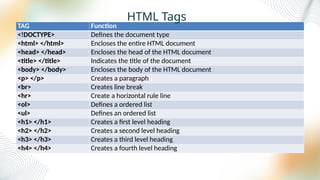
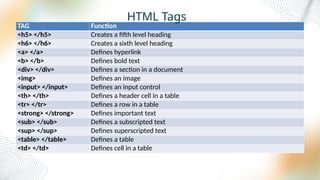
TAG Function
<!DOCTYPE> Defines the document type
<html> </html> Encloses the entire HTML document
<head> </head> Encloses the head of the HTML document
<title> </title> Indicates the title of the document
<body> </body> Encloses the body of the HTML document
<p> </p> Creates a paragraph
<br> Creates line break
<hr> Create a horizontal rule line
<ol> Defines a ordered list
<ul> Defines an ordered list
<h1> </h1> Creates a first level heading
<h2> </h2> Creates a second level heading
<h3> </h3> Creates a third level heading
<h4> </h4> Creates a fourth level heading
HTML Tags
TAG Function
<h5> </h5> Creates a fifth level heading
<h6> </h6> Creates a sixth level heading
<a> </a> Defines hyperlink
<b> </b> Defines bold text
<div> </div> Defines a section in a document
<img> Defines an image
<input> </input> Defines an input control
<th> </th> Defines a header cell in a table
<tr> </tr> Defines a row in a table
<strong> </strong> Defines important text
<sub> </sub> Defines a subscripted text
<sup> </sup> Defines superscripted text
<table> </table> Defines a table
<td> </td> Defines cell in a table
HTML Tags
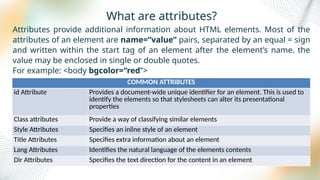
What are attributes?
Attributes provide additional information about HTML elements. Most of the
attributes of an element are name=“value” pairs, separated by an equal = sign
and written within the start tag of an element after the element’s name. the
value may be enclosed in single or double quotes.
For example: <body bgcolor=“red”>
COMMON ATTRIBUTES
id Attribute Provides a document-wide unique identifier for an element. This is used to
identify the elements so that stylesheets can alter its presentational
properties
Class attributes Provide a way of classifying similar elements
Style Attributes Specifies an inline style of an element
Title Attributes Specifies extra information about an element
Lang Attributes Identifies the natural language of the elements contents
Dir Attributes Specifies the text direction for the content in an element
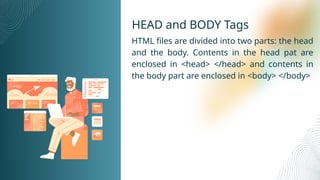
HEAD and BODY Tags
HTML files are divided into two parts: the head
and the body. Contents in the head pat are
enclosed in <head> </head> and contents in
the body part are enclosed in <body> </body>
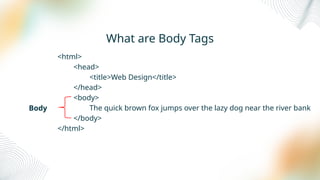
What are Body Tags
<html>
<head>
<title>Web Design</title>
</head>
<body>
The quick brown fox jumps over the lazy dog near the river bank
</body>
</html>
Body
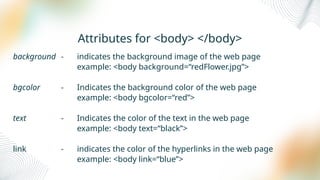
Attributes for <body> </body>
background - indicates the background image of the web page
example: <body background=“redFlower.jpg”>
bgcolor - Indicates the background color of the web page
example: <body bgcolor=“red”>
text - Indicates the color of the text in the web page
example: <body text=“black”>
link - indicates the color of the hyperlinks in the web page
example: <body link=“blue”>
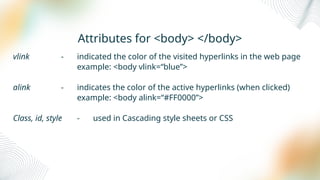
Attributes for <body> </body>
vlink - indicated the color of the visited hyperlinks in the web page
example: <body vlink=“blue”>
alink - indicates the color of the active hyperlinks (when clicked)
example: <body alink=“#FF0000”>
Class, id, style - used in Cascading style sheets or CSS
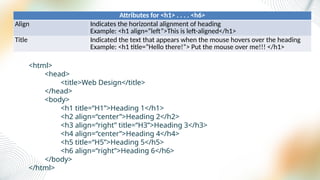
Attributes for <h1> . . . . <h6>
Align Indicates the horizontal alignment of heading
Example: <h1 align=“left”>This is left-aligned</h1>
Title Indicated the text that appears when the mouse hovers over the heading
Example: <h1 title=“Hello there!”> Put the mouse over me!!! </h1>
<html>
<head>
<title>Web Design</title>
</head>
<body>
<h1 title=“H1”>Heading 1</h1>
<h2 align=“center”>Heading 2</h2>
<h3 align=“right” title=“H3”>Heading 3</h3>
<h4 align=“center”>Heading 4</h4>
<h5 title=“H5”>Heading 5</h5>
<h6 align=“right”>Heading 6</h6>
</body>
</html>
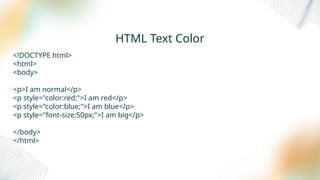
HTML Text Color
<!DOCTYPE html>
<html>
<body>
<p>I am normal</p>
<p style="color:red;">I am red</p>
<p style="color:blue;">I am blue</p>
<p style="font-size:50px;">I am big</p>
</body>
</html>
Practice
Tell me about your self
Background
Hobbies
Talent
Wants and Dislikes

Understanding HTML Structure and Common Tags

  • 1.
    HTML Introduction Prepare by: JamesPatrick M. Mesana, MSIT
  • 2.
    Learning Objectives By theend of the lesson, students should be able to: • Describe tags and attributes • Understand the structure of a tag • Identify container and empty tags • Recognize new tags and elements in HTML • Know the outline algorithm
  • 3.
    What is Tag? Tagsare the basic units or building blocks of an HTML file (or code as you may call it). Web pages are designed and HTML codes are made up of these tags, they control how the HTML does its structuring, laying out and formatting.
  • 4.
    Structure of aTag Tags are enclosed in angle bracket < and > and an example of it is <html> <html> <head> <title>Web Design</title> </head> <body bgcolor=“#0000FF” text=“#FFFFFF”> Welcome to Web Design </body> </html> Start Tag Attributes Content End Tag
  • 5.
    Structure of aTag NAME DESCRIPTION Start Tag Tags usually are in pairs of start and end tags. Indicated in the start tag is the type of tags used. Also, attributes are placed in the start tag Attributes They are used to provide additional information about tag and go in name-value pairs separated by an equal sign = (a) A tag may or may not have attributes. Attributes are separated from one another by spaced. Furthermore, the order of appearance is not important (b)Values are the assigned property to an attribute. In the preceding example, the value for the attribute size is 1. additionally, values are limited to 1,024 characters in length and may be case sensitive. Values are usually enclosed in single or double quotes. Content Everything between the start and end tag is the content. The content is the one being formatted by the tags to appear on the Web browser End Tag It is used to signify the end of the tag and ultimately, the range of the content of the tag. End tags have slash / as seen in the preceding examples.
  • 6.
    Container and emptyTags There are two types of tags namely; container and empty. Container tags have the start and end tags together with the content, while empty tags stand alone and do not require end tags. Example of container tags:  <p> This is paragraph </p>  <i> This is used to display italics </i>  <u> This is used to display underlined text </u> Example of empty tags:  <br>  <hr>  <img src=“samplePic.jpeg”
  • 7.
    Try This <html> <head> <title>Web Design</title> </head> <body> Thistext is in <b>boldface</b> <br><br> This text is <i>italicized</i> <br><br> This text is <u>underlined</u> </body> </html>
  • 8.
    TAG Function <!DOCTYPE> Definesthe document type <html> </html> Encloses the entire HTML document <head> </head> Encloses the head of the HTML document <title> </title> Indicates the title of the document <body> </body> Encloses the body of the HTML document <p> </p> Creates a paragraph <br> Creates line break <hr> Create a horizontal rule line <ol> Defines a ordered list <ul> Defines an ordered list <h1> </h1> Creates a first level heading <h2> </h2> Creates a second level heading <h3> </h3> Creates a third level heading <h4> </h4> Creates a fourth level heading HTML Tags
  • 9.
    TAG Function <h5> </h5>Creates a fifth level heading <h6> </h6> Creates a sixth level heading <a> </a> Defines hyperlink <b> </b> Defines bold text <div> </div> Defines a section in a document <img> Defines an image <input> </input> Defines an input control <th> </th> Defines a header cell in a table <tr> </tr> Defines a row in a table <strong> </strong> Defines important text <sub> </sub> Defines a subscripted text <sup> </sup> Defines superscripted text <table> </table> Defines a table <td> </td> Defines cell in a table HTML Tags
  • 10.
    What are attributes? Attributesprovide additional information about HTML elements. Most of the attributes of an element are name=“value” pairs, separated by an equal = sign and written within the start tag of an element after the element’s name. the value may be enclosed in single or double quotes. For example: <body bgcolor=“red”> COMMON ATTRIBUTES id Attribute Provides a document-wide unique identifier for an element. This is used to identify the elements so that stylesheets can alter its presentational properties Class attributes Provide a way of classifying similar elements Style Attributes Specifies an inline style of an element Title Attributes Specifies extra information about an element Lang Attributes Identifies the natural language of the elements contents Dir Attributes Specifies the text direction for the content in an element
  • 11.
    HEAD and BODYTags HTML files are divided into two parts: the head and the body. Contents in the head pat are enclosed in <head> </head> and contents in the body part are enclosed in <body> </body>
  • 12.
    What are BodyTags <html> <head> <title>Web Design</title> </head> <body> The quick brown fox jumps over the lazy dog near the river bank </body> </html> Body
  • 13.
    Attributes for <body></body> background - indicates the background image of the web page example: <body background=“redFlower.jpg”> bgcolor - Indicates the background color of the web page example: <body bgcolor=“red”> text - Indicates the color of the text in the web page example: <body text=“black”> link - indicates the color of the hyperlinks in the web page example: <body link=“blue”>
  • 14.
    Attributes for <body></body> vlink - indicated the color of the visited hyperlinks in the web page example: <body vlink=“blue”> alink - indicates the color of the active hyperlinks (when clicked) example: <body alink=“#FF0000”> Class, id, style - used in Cascading style sheets or CSS
  • 15.
    Attributes for <h1>. . . . <h6> Align Indicates the horizontal alignment of heading Example: <h1 align=“left”>This is left-aligned</h1> Title Indicated the text that appears when the mouse hovers over the heading Example: <h1 title=“Hello there!”> Put the mouse over me!!! </h1> <html> <head> <title>Web Design</title> </head> <body> <h1 title=“H1”>Heading 1</h1> <h2 align=“center”>Heading 2</h2> <h3 align=“right” title=“H3”>Heading 3</h3> <h4 align=“center”>Heading 4</h4> <h5 title=“H5”>Heading 5</h5> <h6 align=“right”>Heading 6</h6> </body> </html>
  • 16.
    HTML Text Color <!DOCTYPEhtml> <html> <body> <p>I am normal</p> <p style="color:red;">I am red</p> <p style="color:blue;">I am blue</p> <p style="font-size:50px;">I am big</p> </body> </html>
  • 17.
    Practice Tell me aboutyour self Background Hobbies Talent Wants and Dislikes

Editor's Notes

  • #16 Note: style attributes indicates the used of CSS
  • #17 Note: style attributes indicates the used of CSS