Twelve Tips for Effective Moderation of Virtual Classrooms Coach Carole’s Workshop 2
Tip 1: Be prepared Identify the purpose, style, title and content of presentation with your team Prepare your Powerpoint slides to engage and summarise Consider relevant interactivities to suit the group Prepare an outline of the session Book an Elluminate room with your administrator Days before the event check that you can access an Elluminate Room from your PC
Tip 2:  Be organised Enlist the aid of an IT support person if you are behind a firewall  Login to the room at least 20 minutes prior to starting time  to allow for any technical difficulties  Upload PPT slides, multimedia and shared files as required Create Breakout rooms if required  upload slides there too for group work Check your audio equipment on entry Organise your materials, web links, prompts etc.
Tip 3:  Arrange for a co-moderator Notify the co-moderator of date, time and location  send invites with URLs if appropriate Identify the role each moderator will play before the session begins Check with co-moderator about archiving, saving whiteboards, keeping notes, keeping times etc Listen to this beginner Moderator for tips
Tip 4: Practice multi-tasking Select the wide layout of Elluminate windows to view the text chat area more comfortably  During the event scroll the chat area to ensure that you can read and take in those comments, questions etc  Scribe on the whiteboard  select a smaller font size from the palette for typing in text Use the pointers and other whiteboard tools to highlight Ask participants to use the emoticons wherever relevant
Tip 5: Plan to focus Login from a quiet space Turn off phones Switch off email notifications Keep your session plan and notes beside you Establish protocols for questions
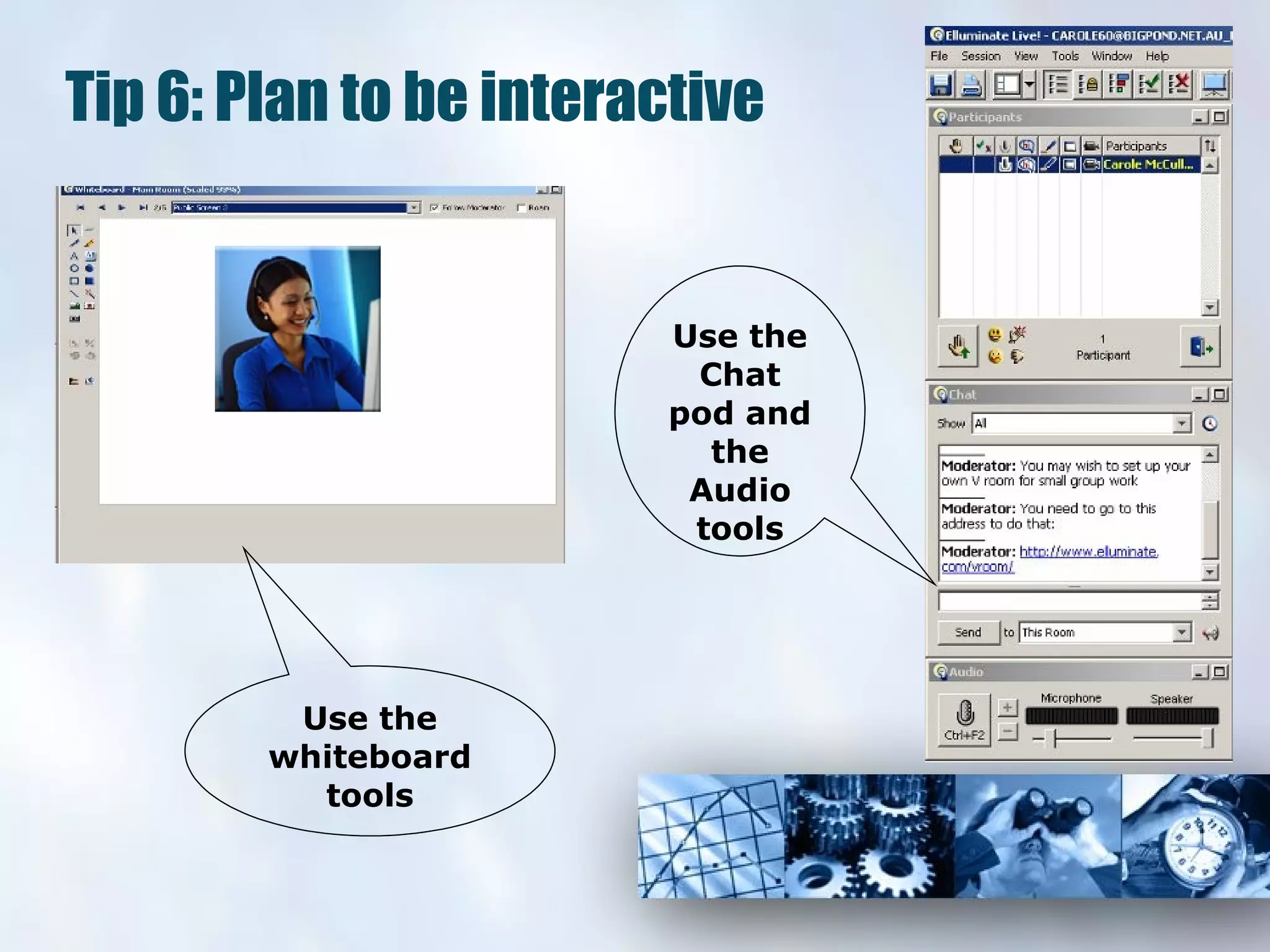
Tip 6: Plan to be interactive Use the whiteboard tools Use the Chat pod and the Audio tools
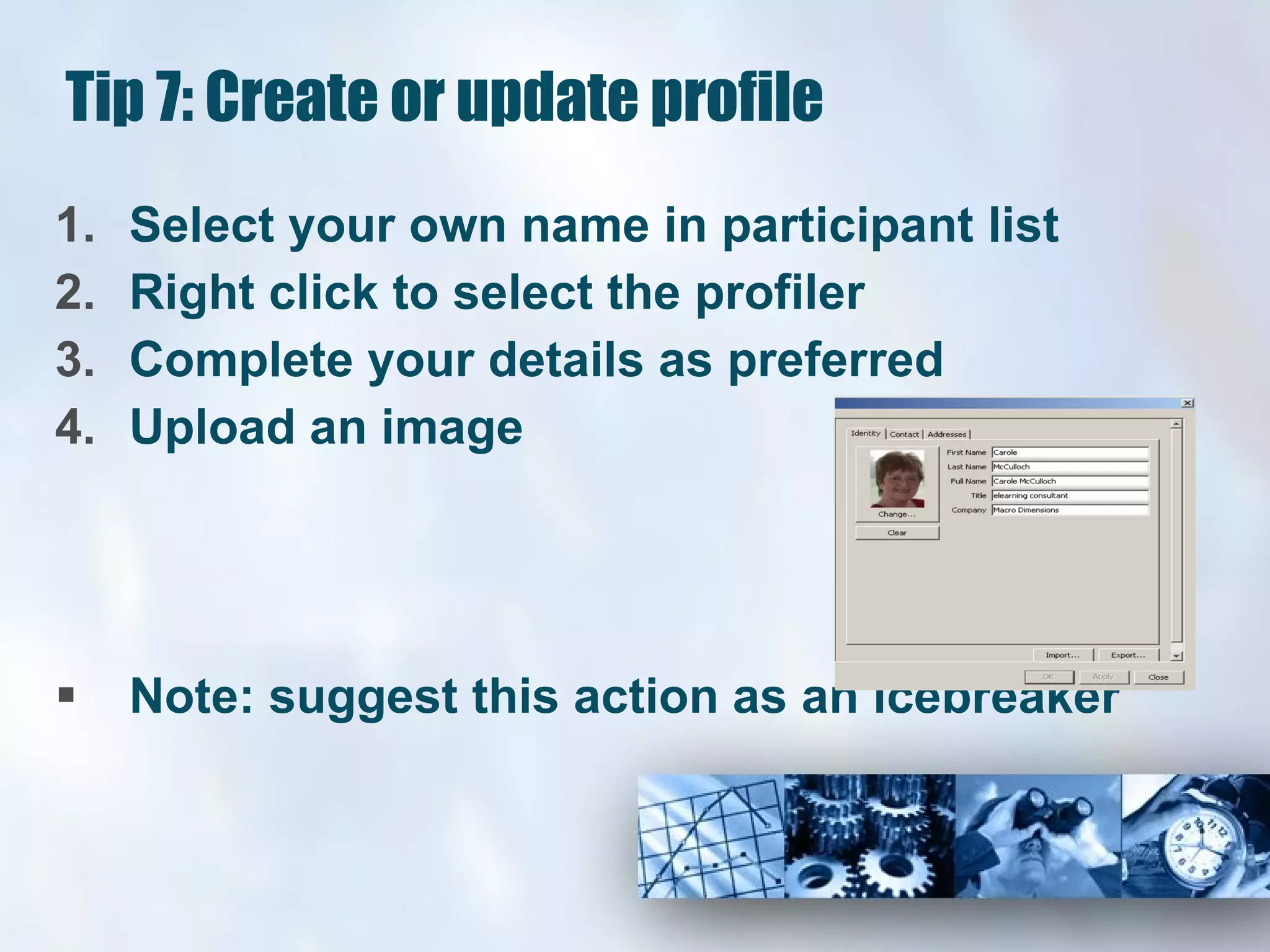
Tip 7: Create or update profile Select your own name in participant list Right click to select the profiler Complete your details as preferred Upload an image Note: suggest this action as an icebreaker
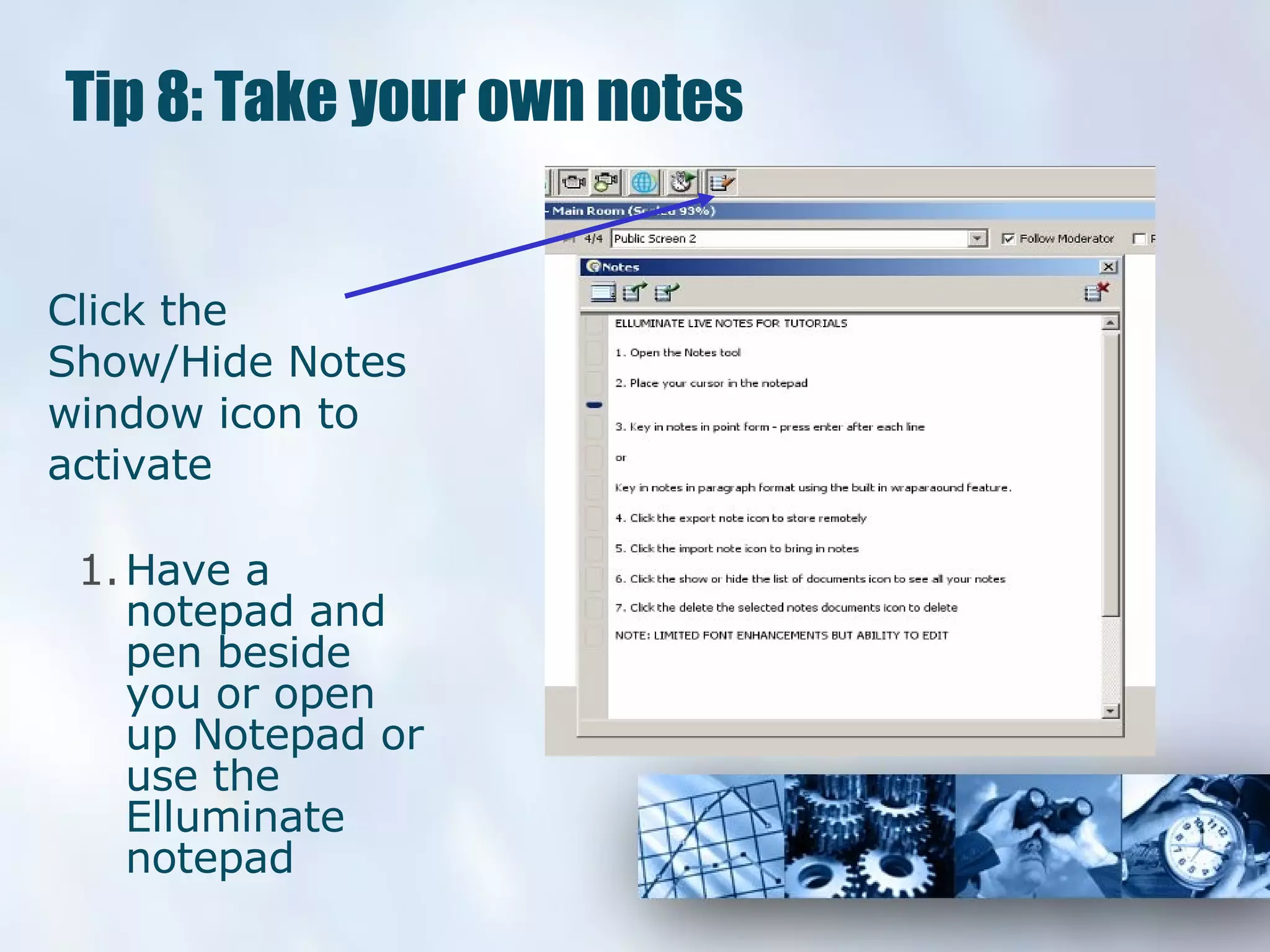
Tip 8: Take your own notes Click the Show/Hide Notes window icon to activate Have a notepad and pen beside you or open up Notepad or use the Elluminate notepad
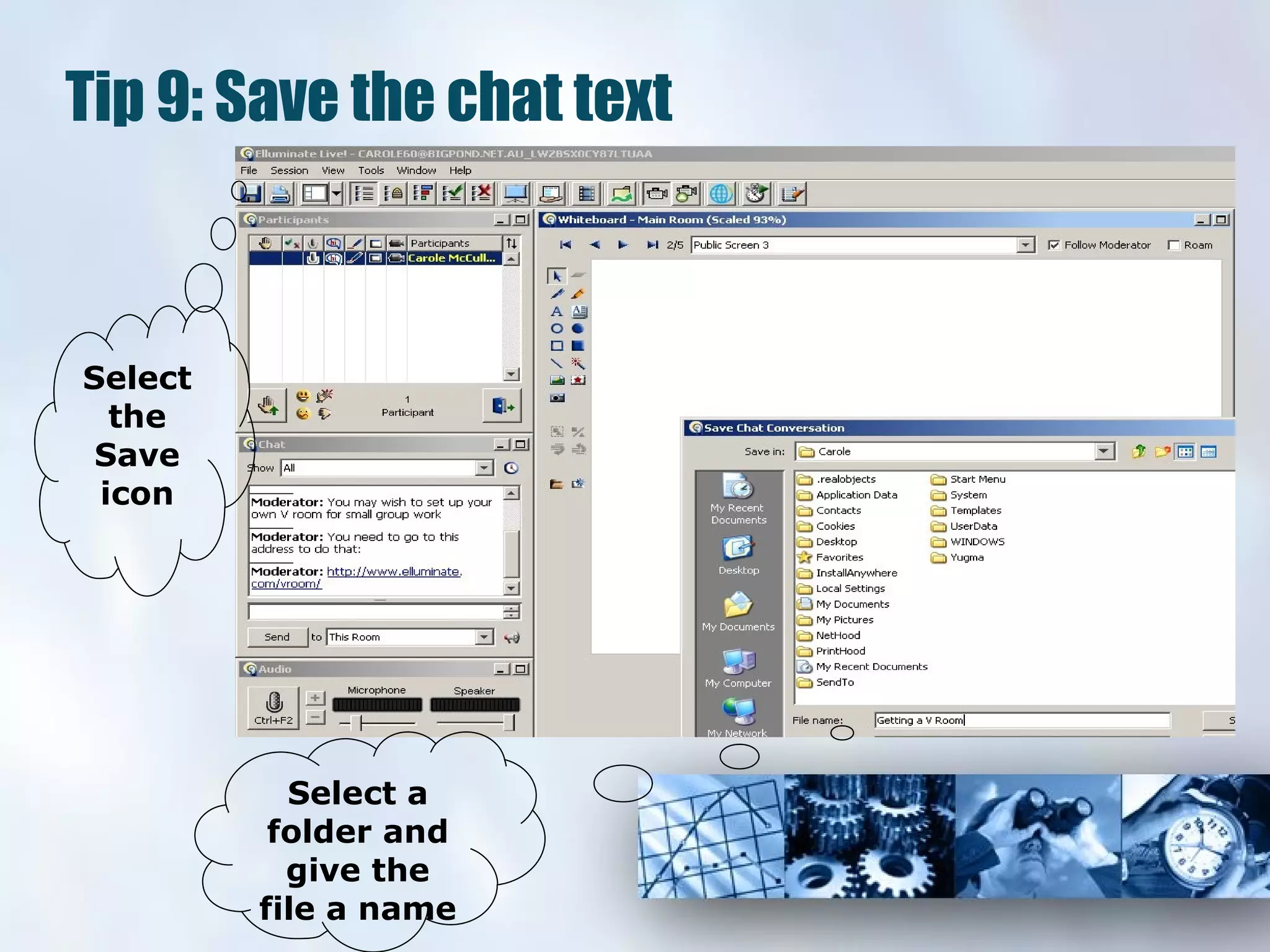
Tip 9: Save the chat text Select the Save icon Select a folder and give the file a name
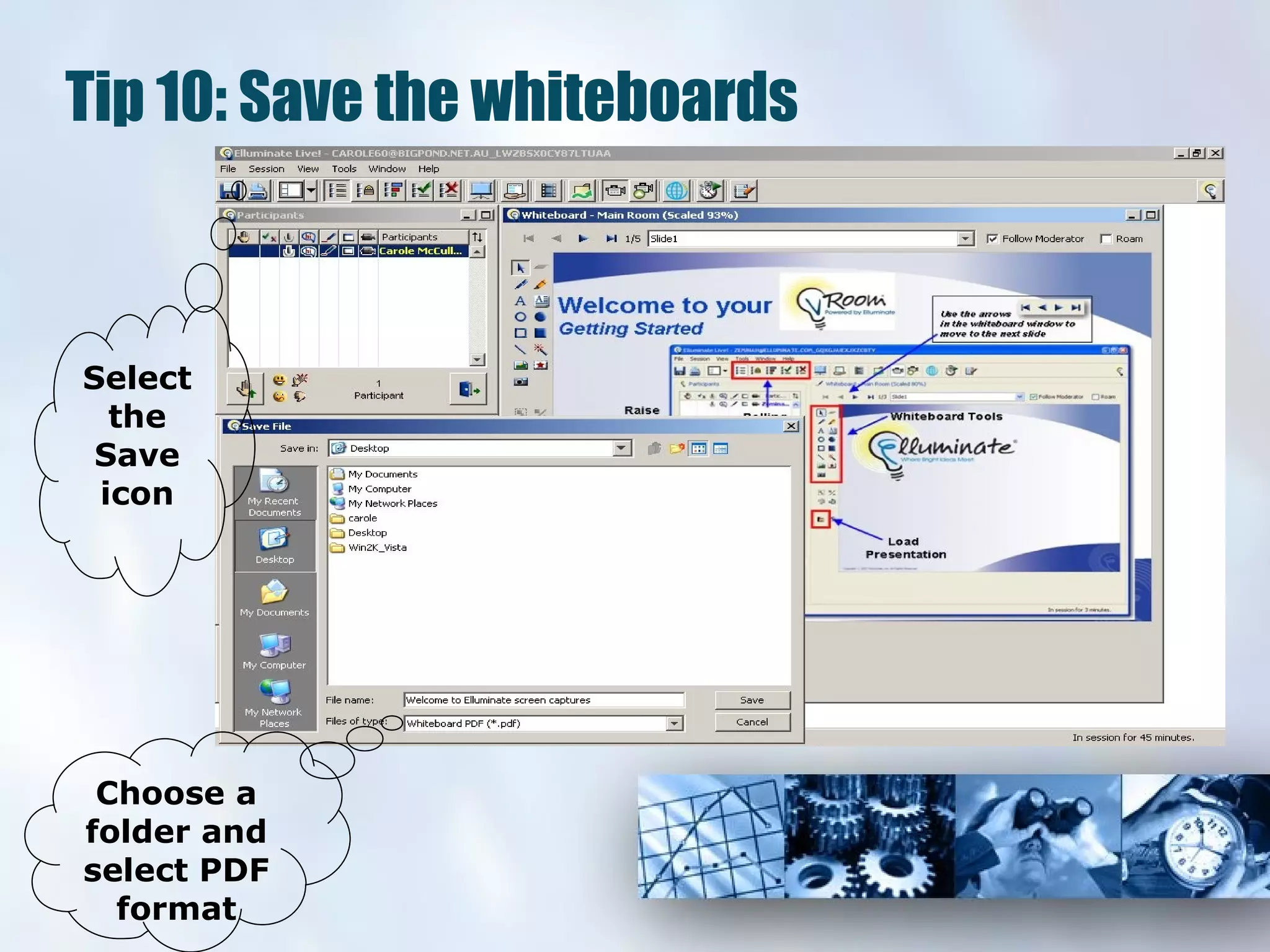
Tip 10: Save the whiteboards Select the Save icon Choose a folder and select PDF format
Tip 11: Use breakout rooms Divide the participants into groups of 5 or less  do this by the hands up or alphabetical order Provide everyone with clear instructions on what they are expected to do in the rooms allow at least 10-15 minutes for the group work to happen  Have a moderator for each room if possible  or at least a leader  Upload all slides to the main room (and copy the individual slides for the breakout rooms using the screen organiser)  this tool is in Tools, Whiteboard, manage screens  Ask each room moderator  to copy their board to the main room
Tip 12: Use multi-media effectively Upload any files required before session begins: Flash, Mpg or Quicktime movies Some may be pre-uploaded in the SAS system Access and upload any shared files before session begins: Documents, flyers, questionnaires etc Create quiz file before session begins Multiple-choice, True/False

Twelve Tips For Effective Moderation Of Virtual Classrooms

  • 1.
    Twelve Tips forEffective Moderation of Virtual Classrooms Coach Carole’s Workshop 2
  • 2.
    Tip 1: Beprepared Identify the purpose, style, title and content of presentation with your team Prepare your Powerpoint slides to engage and summarise Consider relevant interactivities to suit the group Prepare an outline of the session Book an Elluminate room with your administrator Days before the event check that you can access an Elluminate Room from your PC
  • 3.
    Tip 2: Be organised Enlist the aid of an IT support person if you are behind a firewall Login to the room at least 20 minutes prior to starting time to allow for any technical difficulties Upload PPT slides, multimedia and shared files as required Create Breakout rooms if required upload slides there too for group work Check your audio equipment on entry Organise your materials, web links, prompts etc.
  • 4.
    Tip 3: Arrange for a co-moderator Notify the co-moderator of date, time and location send invites with URLs if appropriate Identify the role each moderator will play before the session begins Check with co-moderator about archiving, saving whiteboards, keeping notes, keeping times etc Listen to this beginner Moderator for tips
  • 5.
    Tip 4: Practicemulti-tasking Select the wide layout of Elluminate windows to view the text chat area more comfortably During the event scroll the chat area to ensure that you can read and take in those comments, questions etc Scribe on the whiteboard select a smaller font size from the palette for typing in text Use the pointers and other whiteboard tools to highlight Ask participants to use the emoticons wherever relevant
  • 6.
    Tip 5: Planto focus Login from a quiet space Turn off phones Switch off email notifications Keep your session plan and notes beside you Establish protocols for questions
  • 7.
    Tip 6: Planto be interactive Use the whiteboard tools Use the Chat pod and the Audio tools
  • 8.
    Tip 7: Createor update profile Select your own name in participant list Right click to select the profiler Complete your details as preferred Upload an image Note: suggest this action as an icebreaker
  • 9.
    Tip 8: Takeyour own notes Click the Show/Hide Notes window icon to activate Have a notepad and pen beside you or open up Notepad or use the Elluminate notepad
  • 10.
    Tip 9: Savethe chat text Select the Save icon Select a folder and give the file a name
  • 11.
    Tip 10: Savethe whiteboards Select the Save icon Choose a folder and select PDF format
  • 12.
    Tip 11: Usebreakout rooms Divide the participants into groups of 5 or less do this by the hands up or alphabetical order Provide everyone with clear instructions on what they are expected to do in the rooms allow at least 10-15 minutes for the group work to happen Have a moderator for each room if possible or at least a leader Upload all slides to the main room (and copy the individual slides for the breakout rooms using the screen organiser) this tool is in Tools, Whiteboard, manage screens Ask each room moderator to copy their board to the main room
  • 13.
    Tip 12: Usemulti-media effectively Upload any files required before session begins: Flash, Mpg or Quicktime movies Some may be pre-uploaded in the SAS system Access and upload any shared files before session begins: Documents, flyers, questionnaires etc Create quiz file before session begins Multiple-choice, True/False