Drawing my own house.
●

By Technical Drawings

What program do you want to use?
Line communication
communicating with the computer
Drawing a line
Drawing a rectangle


What program do you want to use?
There are lots of choices
●

AutoCAD

●

DraftSight

●

MicroStation

●

Solid Works

●

And others!

We will be using DraftSight.  Most of the concepts remain the same in all 

the programs.  You just have to figure out the right command and the 
right combination of clicks to do the same thing.  We will start with an 
easy one. The line command.


Line communication
First lets talk about the different kinds of lines.  Just like 
the lines on the road tell you what to do and what not to 
do, where to go and where not to go so do the lines in a 
technical drawing.


Line communication
●

●

The dashed line is a 
hidden line.
The solid lines are lines 
you can see.

If this were an actual house 
you would only be able to see 
the two front corners and the 
one back corner.  Like this 
presentation if you understand 
what I mean.
Lets draw this object.


Communicating with the computer
●

●

The comuper is dumb.
You have to tell it 
EVERYTHING!

I have found this to be a 
stumbleing block for many 
people.  We are so used to 
today's technology where the 
software does it all.  Pay 
attention to your command 
line, it will tell you the next 
step.


Draw a line.
●

First find your line 
command.

Click on your line command 
button.  If you can't find your 
button look under modify or 
just type in line in the 
command prompt.
Left click to begin your line.


Draw a line.
●

Second find your next 
point. 

Let's make our house 10' 
(feet) by 12'.


Draw a line.
●

Never eyeball where 
your line should be 
always type it in the 
command prompt.

Type 0,0
This tells the computer you 
would like to start the line at 0' 
on the x axis and 0' on the y 
axis.

Type @10',0
This tells the computer to 
make the line 10 feet along the 
x axis.  (Remember your 
geometry?)


Draw a line.
●

The @ symbol tells the 
computer to start 
where you last 
clicked.

Type @12'<45
This tells the computer you 
would like a line drawn at a 45 
degree angle from the last 
point and 12 feet long.

Type @0,­10'
This tells the computer to 
make the line 10 feet along the 
x axis moving to the left or the 
negative direction.


Draw a line.
●

Don't freak out.  Follow 
the directions.

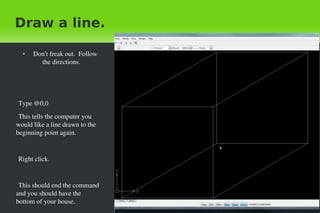
Type @0,0
This tells the computer you 
would like a line drawn to the 
beginning point again.

Right click.

This should end the command 
and you should have the 
bottom of your house.


Draw a line.
●

Copy and snaps.

Put your curser near the 0,0 
point (bottom left).  You 
should see a little yellow box 
pop up at the end of the line.
Left click on the little yellow 
box to begin a line there.
Now draw a line from there 
10' straight up.
Try a few times to figure it 
out and go to the next slide to 
see if you got it right.


Draw a line.
●

Copy and snaps.

Did you type: @0,10'
This tells the computer that 
you want a 10 foot line along 
the y axis. 
The little yellow box was an 
endpoint snap.  You will see 
that box pop up anytime you 
are near the end of a line.
Lets use the copy command 
to copy the vertical line to 
each of the other corners.


Draw a line.
●

Copy and snaps.

Click on the modify menu 
and then left click on the copy 
command.
Left click on the object you 
want to copy in this case the 
vertical line.
Notice the command prompt 
is asking you for a from point 
sometimes called a base point.
Left click at the base of the 
vertical line. You should see a 
yellow box pop up for the end 
snap.


Draw a line.
●

Copy and snaps.

Now the line should be 
following your every move.
Go near one of the other 3 
corners until the yellow end 
snap box appears and click on 
it.  Do this in each corner.
Right click.
Left click ”exit”.
Now copy the bottom box to 
the top of the verticle lines.
Follow the command 
prompts.


Draw a line.
●

Copy and snaps.

If you want to turn off the 
snaps you just go down to the 
bottom of the screen and right 
click ESnap or ETrack or both.


Draw a rectangle.
●

rectangle

Try this cube again using the 
rectangle and/or the polygon 
command.
Just remember you will be 
using both the x and the y axis.
Hint: @10',12'
The next part of the house is 
anouther slide show.
Thanks for watching!
If you haven't already be sure 
to like us.


Draw a rectangle.
Technical Drawings
PO Box 1594
Converse, TX 78109
www.drawingyourdreams.webs.com

Thanks again!


Drafting Tutorial 1 Lines