Conversion Word to HTML
REALITY
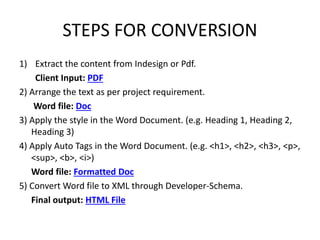
STEPS FOR CONVERSION
1) Extract the content from Indesign or Pdf.
Client Input: PDF
2) Arrange the text as per project requirement.
Word file: Doc
3) Apply the style in the Word Document. (e.g. Heading 1, Heading 2,
Heading 3)
4) Apply Auto Tags in the Word Document. (e.g. <h1>, <h2>, <h3>, <p>,
<sup>, <b>, <i>)
Word file: Formatted Doc
5) Convert Word file to XML through Developer-Schema.
Final output: HTML File
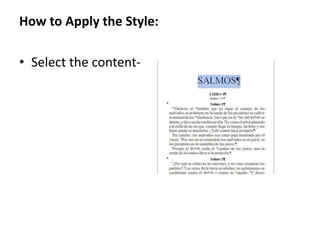
How to Apply the Style:
• Select the content-
• Apply the Style:-
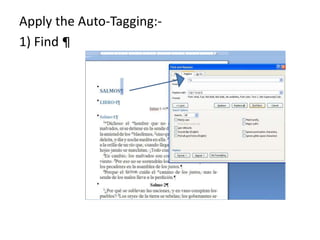
Apply the Auto-Tagging:-
1) Find 
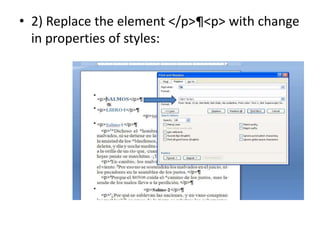
• 2) Replace the element </p>¶<p> with change
in properties of styles:
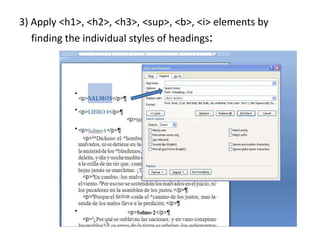
3) Apply <h1>, <h2>, <h3>, <sup>, <b>, <i> elements by
finding the individual styles of headings:
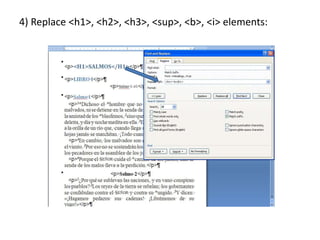
4) Replace <h1>, <h2>, <h3>, <sup>, <b>, <i> elements:
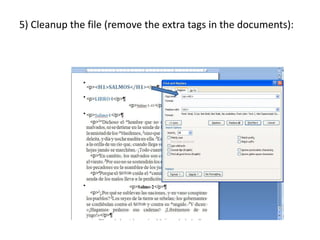
5) Cleanup the file (remove the extra tags in the documents):
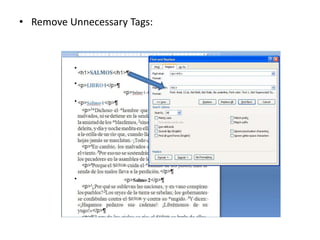
• Remove Unnecessary Tags:
Convert Word to XML
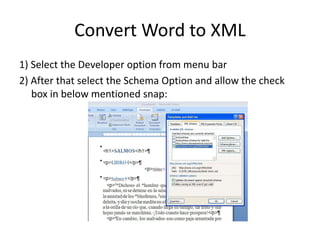
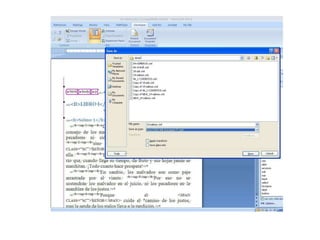
1) Select the Developer option from menu bar
2) After that select the Schema Option and allow the check
box in below mentioned snap:
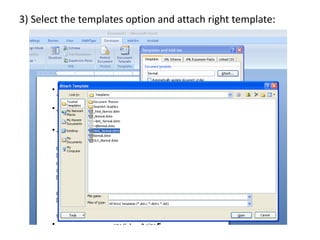
3) Select the templates option and attach right template:
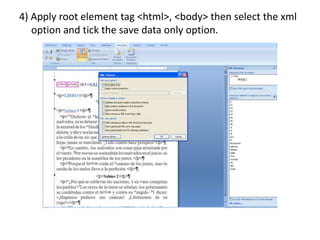
4) Apply root element tag <html>, <body> then select the xml
option and tick the save data only option.
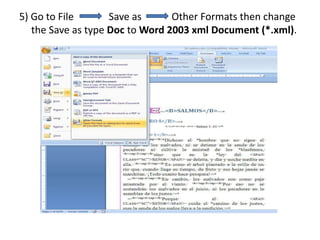
5) Go to File Save as Other Formats then change
the Save as type Doc to Word 2003 xml Document (*.xml).
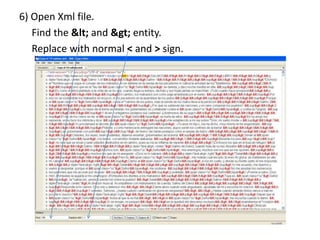
6) Open Xml file.
Find the &lt; and &gt; entity.
Replace with normal < and > sign.
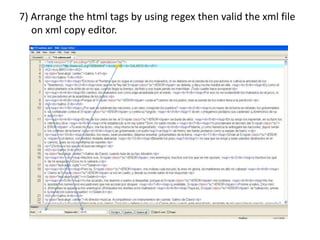
7) Arrange the html tags by using regex then valid the xml file
on xml copy editor.
Using regular expressions for Apply the tags
and Linking process.
Findings by using Regex:
1) ([0-9]) Using this regex expression for find only
numbers.
2) ([A-Za-z]) Using this regex expression for find only alpha
characters.
3) ([^>]*) Using this regex expression for find anything in
between specific tag.
4) ([^*]*) Using this for find all the content till new line of
the any paragraph in the file.
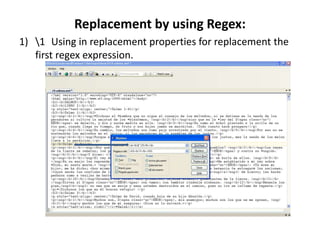
Replacement by using Regex:
1) 1 Using in replacement properties for replacement the
first regex expression.
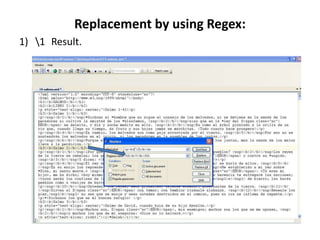
Replacement by using Regex:
1) 1 Result.
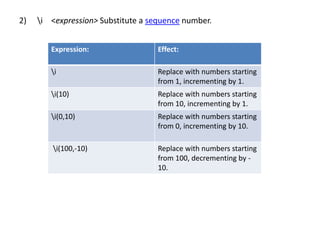
2) i <expression> Substitute a sequence number.
Expression: Effect:
i Replace with numbers starting
from 1, incrementing by 1.
i(10) Replace with numbers starting
from 10, incrementing by 1.
i(0,10) Replace with numbers starting
from 0, incrementing by 10.
i(100,-10) Replace with numbers starting
from 100, decrementing by -
10.
3) We using this i expression in our document for linking to
footnotes & generate the unique number to each
footnotes.
Example:
Content &
Element
<sup1>a</sup1>
Find <sup1>([^>]*)</sup1>
Replace <a id="ntfia"
href="Ch000.html#ntfi"><sup1>[i]</sup1></a>
Result <a id="ntf1a"
href="Ch000.html#ntf1"><sup1>[1]</sup1></a>
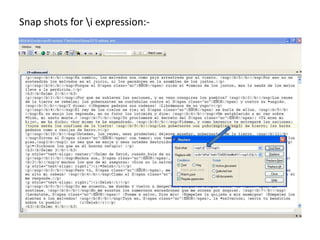
Snap shots for i expression:-
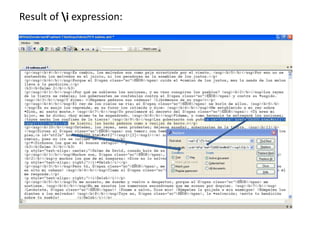
Result of i expression:
Thank You

Test1

  • 1.
    Conversion Word toHTML REALITY
  • 2.
    STEPS FOR CONVERSION 1)Extract the content from Indesign or Pdf. Client Input: PDF 2) Arrange the text as per project requirement. Word file: Doc 3) Apply the style in the Word Document. (e.g. Heading 1, Heading 2, Heading 3) 4) Apply Auto Tags in the Word Document. (e.g. <h1>, <h2>, <h3>, <p>, <sup>, <b>, <i>) Word file: Formatted Doc 5) Convert Word file to XML through Developer-Schema. Final output: HTML File
  • 3.
    How to Applythe Style: • Select the content-
  • 4.
  • 5.
  • 6.
    • 2) Replacethe element </p>¶<p> with change in properties of styles:
  • 7.
    3) Apply <h1>,<h2>, <h3>, <sup>, <b>, <i> elements by finding the individual styles of headings:
  • 8.
    4) Replace <h1>,<h2>, <h3>, <sup>, <b>, <i> elements:
  • 9.
    5) Cleanup thefile (remove the extra tags in the documents):
  • 10.
  • 11.
    Convert Word toXML 1) Select the Developer option from menu bar 2) After that select the Schema Option and allow the check box in below mentioned snap:
  • 12.
    3) Select thetemplates option and attach right template:
  • 13.
    4) Apply rootelement tag <html>, <body> then select the xml option and tick the save data only option.
  • 14.
    5) Go toFile Save as Other Formats then change the Save as type Doc to Word 2003 xml Document (*.xml).
  • 16.
    6) Open Xmlfile. Find the &lt; and &gt; entity. Replace with normal < and > sign.
  • 17.
    7) Arrange thehtml tags by using regex then valid the xml file on xml copy editor.
  • 18.
    Using regular expressionsfor Apply the tags and Linking process. Findings by using Regex: 1) ([0-9]) Using this regex expression for find only numbers. 2) ([A-Za-z]) Using this regex expression for find only alpha characters. 3) ([^>]*) Using this regex expression for find anything in between specific tag. 4) ([^*]*) Using this for find all the content till new line of the any paragraph in the file.
  • 19.
    Replacement by usingRegex: 1) 1 Using in replacement properties for replacement the first regex expression.
  • 20.
    Replacement by usingRegex: 1) 1 Result.
  • 21.
    2) i <expression>Substitute a sequence number. Expression: Effect: i Replace with numbers starting from 1, incrementing by 1. i(10) Replace with numbers starting from 10, incrementing by 1. i(0,10) Replace with numbers starting from 0, incrementing by 10. i(100,-10) Replace with numbers starting from 100, decrementing by - 10.
  • 22.
    3) We usingthis i expression in our document for linking to footnotes & generate the unique number to each footnotes. Example: Content & Element <sup1>a</sup1> Find <sup1>([^>]*)</sup1> Replace <a id="ntfia" href="Ch000.html#ntfi"><sup1>[i]</sup1></a> Result <a id="ntf1a" href="Ch000.html#ntf1"><sup1>[1]</sup1></a>
  • 23.
    Snap shots fori expression:-
  • 24.
    Result of iexpression:
  • 25.