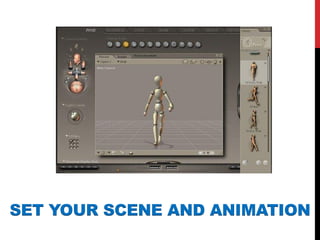
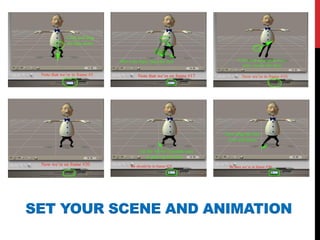
SET YOUR SCENE AND ANIMATION
CREATING
A WALK PATH
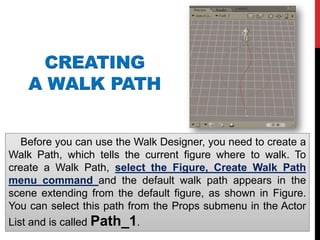
Before you can use the Walk Designer, you need to create a
Walk Path, which tells the current figure where to walk. To
create a Walk Path, select the Figure, Create Walk Path
menu command and the default walk path appears in the
scene extending from the default figure, as shown in Figure.
You can select this path from the Props submenu in the Actor
List and is called Path_1.
USING THE WALK DESIGNER
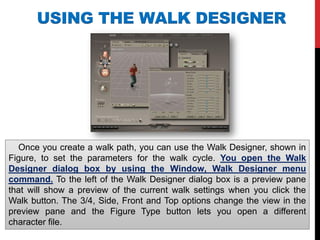
Once you create a walk path, you can use the Walk Designer, shown in
Figure, to set the parameters for the walk cycle. You open the Walk
Designer dialog box by using the Window, Walk Designer menu
command. To the left of the Walk Designer dialog box is a preview pane
that will show a preview of the current walk settings when you click the
Walk button. The 3/4, Side, Front and Top options change the view in the
preview pane and the Figure Type button lets you open a different
character file.
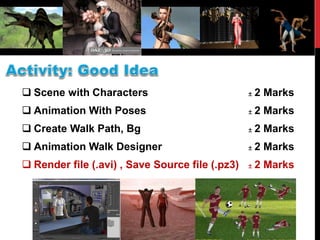
 Scene with Characters ± 2 Marks
 Animation With Poses ± 2 Marks
 Create Walk Path, Bg ± 2 Marks
 Animation Walk Designer ± 2 Marks
 Render file (.avi) , Save Source file (.pz3) ± 2 Marks

Summer time3

  • 2.
    SET YOUR SCENEAND ANIMATION
  • 3.
    SET YOUR SCENEAND ANIMATION
  • 4.
    CREATING A WALK PATH Beforeyou can use the Walk Designer, you need to create a Walk Path, which tells the current figure where to walk. To create a Walk Path, select the Figure, Create Walk Path menu command and the default walk path appears in the scene extending from the default figure, as shown in Figure. You can select this path from the Props submenu in the Actor List and is called Path_1.
  • 5.
    USING THE WALKDESIGNER Once you create a walk path, you can use the Walk Designer, shown in Figure, to set the parameters for the walk cycle. You open the Walk Designer dialog box by using the Window, Walk Designer menu command. To the left of the Walk Designer dialog box is a preview pane that will show a preview of the current walk settings when you click the Walk button. The 3/4, Side, Front and Top options change the view in the preview pane and the Figure Type button lets you open a different character file.
  • 6.
     Scene withCharacters ± 2 Marks  Animation With Poses ± 2 Marks  Create Walk Path, Bg ± 2 Marks  Animation Walk Designer ± 2 Marks  Render file (.avi) , Save Source file (.pz3) ± 2 Marks